Day 7: Create security groups (add the smart locks)

How to create Security Groups that control exactly who can talk to your load balancer and AI agent Containers
Your network needs smart locks
Day 6: You built the roads (route tables)
Today: We add the smart locks (Security Groups)
Here's the problem:
Your routing works, traffic can flow.But there's NO security layer yet.
Right now:
- Anyone can try to connect to your containers
- No firewall rules
- No access control
That's a security issue.
Solution: Security Groups
Think of them like smart locks on each building's door:
Smart lock (on the pool house door): "Where are you coming from and which door are you trying to use?"
Visitor: "I'm coming from the front-yard house (load balancer), trying to reach post 6060"
Smart lock: "Verified. This door only opens for visitors from the front-yard house" ✅
Random person from the city: "I found this address. I want to reach post 6060 too!"
Smart lock: "You didn't come through the front yard house. Door stays locked." ❌
Visual overview of Security Groups:
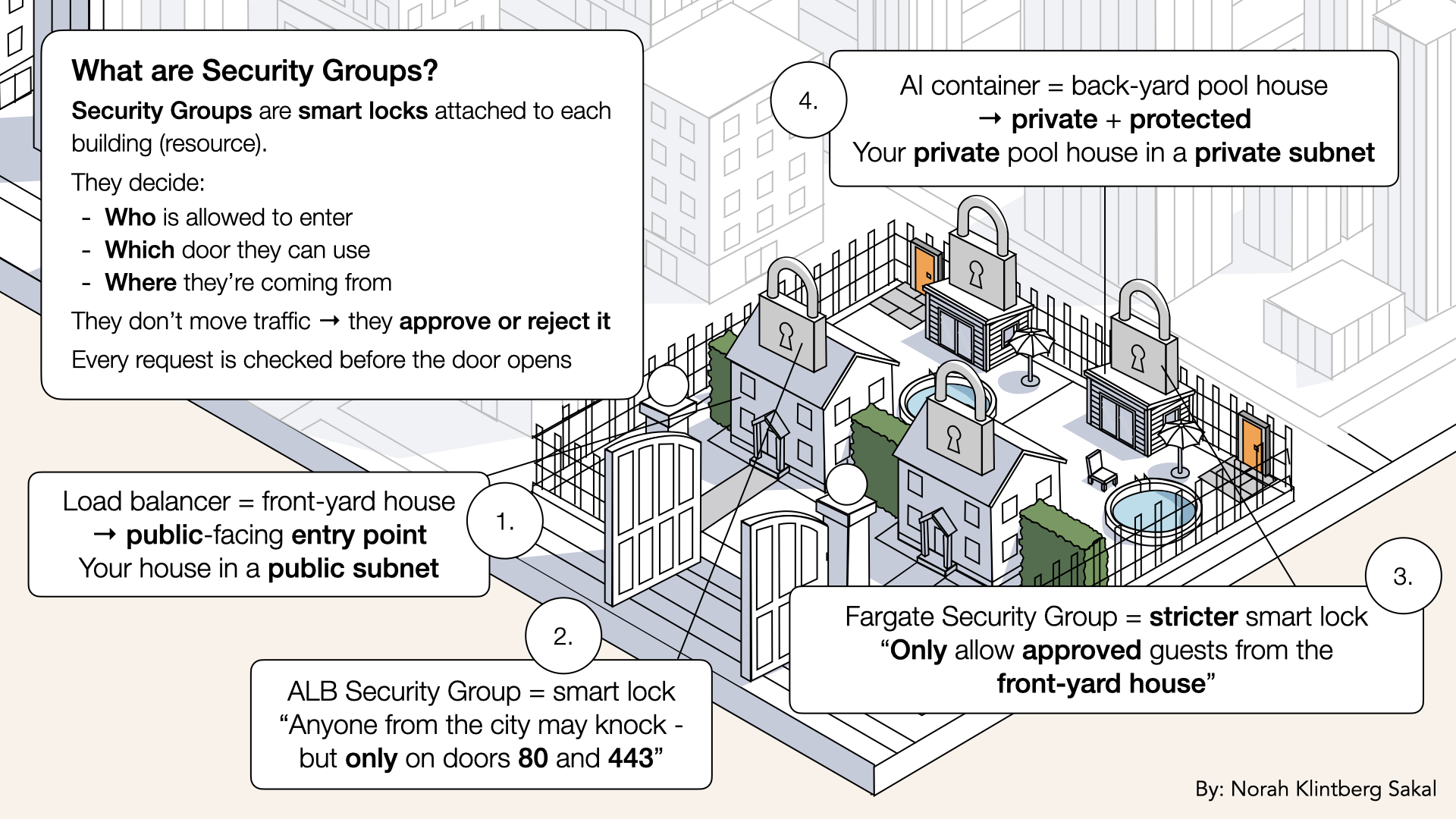
Security Groups are smart locks attached to each building (resource)
By the end of today, you'll have:
✅ ALB Security Group (allows HTTP/HTTPS from internet)
✅ Fargate Security Group (allows traffic ONLY from ALB)
✅ Proper inbound/outbound rule
✅ Production-ready security
Let's add your smart locks 🔐
What you'll build today
Two security groups:
| Security Group | For | Allows Inbound | Allows Outbound |
|---|---|---|---|
| ALB-SG | Load Balancer | HTTP (80) + HTTPS (443) from anywhere | All traffic |
| Fargate-SG | AI Containers | Port 6060 from ALB-SG only | All traffic |
This creates a security chain.
Internet → ALB-SG (post 80/443) → Fargate-SG (port 6060) → AI agent container
Anyone trying to bypass the ALB gets blocked ✅
What you'll learn
- What Security Groups are (and how they work)
- The difference between inbound and outbound rules
- How to reference one Security Group from another
- Why "allow all outbound" is safe for containers
- Best practices for production security
But if you want:
✅ Complete codebase (one clean repo)
✅ Complete walkthroughs
✅ Support when stuck
✅ Production templates
✅ Advanced features
Join the waitlist for the full course (launching February 2026):
Building something with AI calling?
Let's chat about your use case!
Schedule a free call ↗ - no pitch, just two builders talking.
Time required
15 minutes (2 Security Groups + rules)
Prerequisites
✅ Completed Day 3 (VPC) ↗
✅ Completed Day 4 (Subnets) ↗
✅ Completed Day 5 (NAT Gateway) ↗
✅ Completed Day 6 (Route Tables) ↗
✅ Access to AWS Console
Understanding Security Groups (3-minute primer)
What is a Security Group?
Security Group = A virtual firewall that controls inbound and outbound traffic
Every resource in AWS (EC2, RDS, ALB, Fargate, etc. needs) to be attached to at least one Security Group, SG.
Think of it like a smart lock on a building:
Each building has doors
Each door has rules
The lock decides who can enter and through which door
Security Groups attach to resources, not subnets
Inbound vs outbound rules
Security Groups have two types of rules:
1. Inbound Rules (incoming traffic)
- Who can connect to this resource?
- Example: "Allow HTTP from anywhere"
2. Outbound Rules (outgoing traffic)
- What can this resource connect to?
- Example: "Allow all traffic to anyone"
Example for a web server:
| Direction | Port | Source/Destination | Meaning |
|---|---|---|---|
| Inbound | 80 | 0.0.0.0/0 | Anyone can access HTTP |
| Inbound | 443 | 0.0.0.0/0 | Anyone can access HTTPS |
| Outbound | All | 0.0.0.0/0 | Server can reach anywhere |
0.0.0.0/0 mean?Quick recap from Day 6:
0.0.0.0/0 = All IP addresses on the internet
Think of it as: "Everything outside this VPC"
Security Groups are stateful
This is important:
Stateful = If you allow inbound traffic, the response is automatically allowed back out
Example:
- You allow inbound HTTP (port 80)
- Someone masked a request to port 80
- Your server responds
- The response is automatically allowed out (even if you have no outbound rule for it)
Default behavior: DENY ALL
Security Groups default to:
❌ Deny all inbound (nothing can connect)
✅ Allow all inbound (you can connect to anything)
This is secure by default:
- You must explicitly allow inbound traffic
- Outbound is open (containers need to reach APIs)
Referencing security groups
Here's the cool part:
You can reference one Security Group from another.
Instead of:
"Allow port 6060 from 0.0.0.0/0" (anyone)
You can do:
"Allow port 6060 from sg-xxxx" (ALB-SG only)
This means:
✅ Load balancer (with ALB-SG) can connect❌ Random internet traffic cannot Connect
❌ Even if they know your container's IP
This is how we secure Fargate containers.
Step 1: Create ALB Security Group
Let's start with the Security Group for the load balancer.
Open the AWS Console ↗In the search bar, type VPC and click VPC from the dropdown:
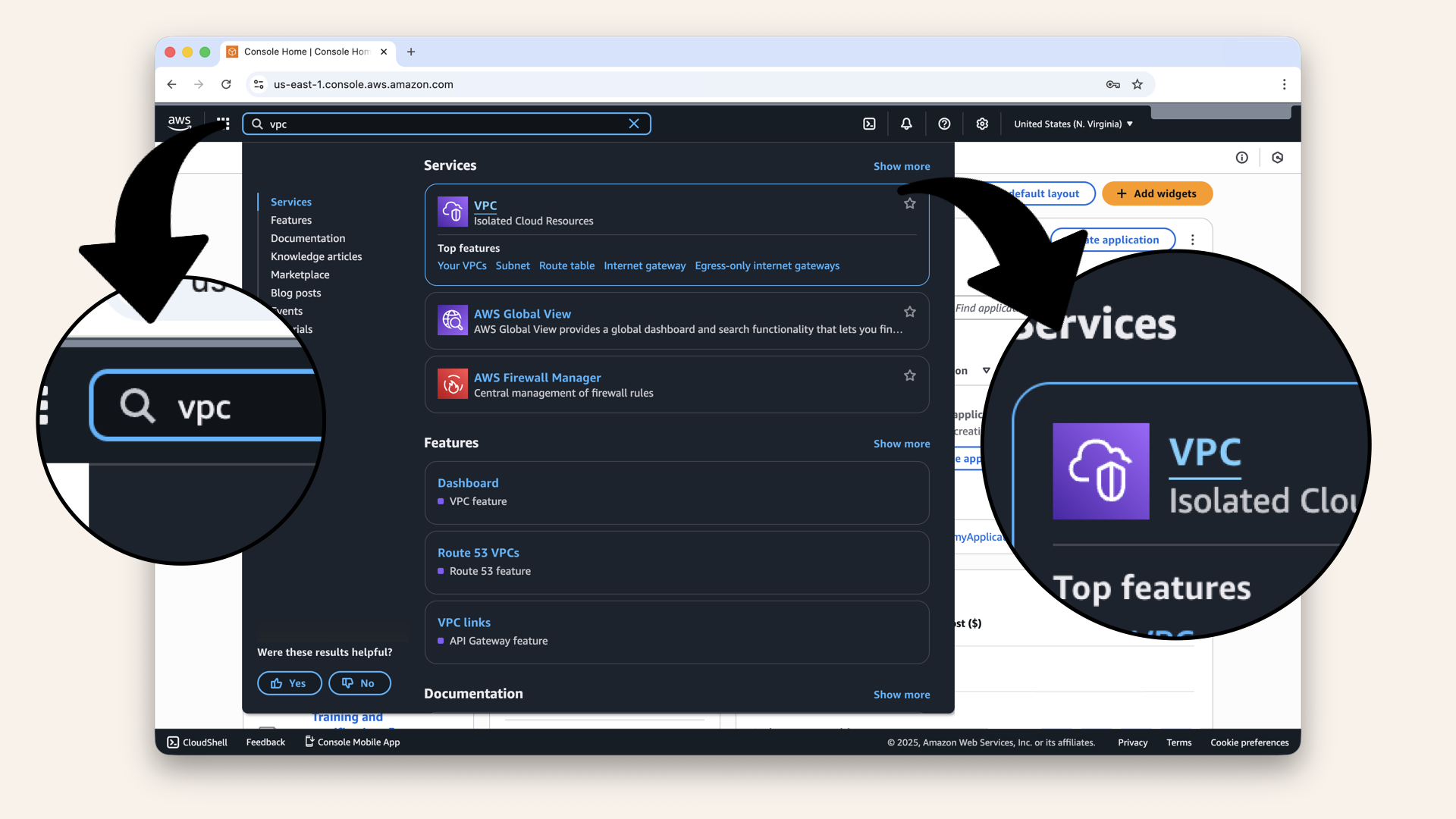
In the search bar at the top, type VPC and click VPC from the dropdown
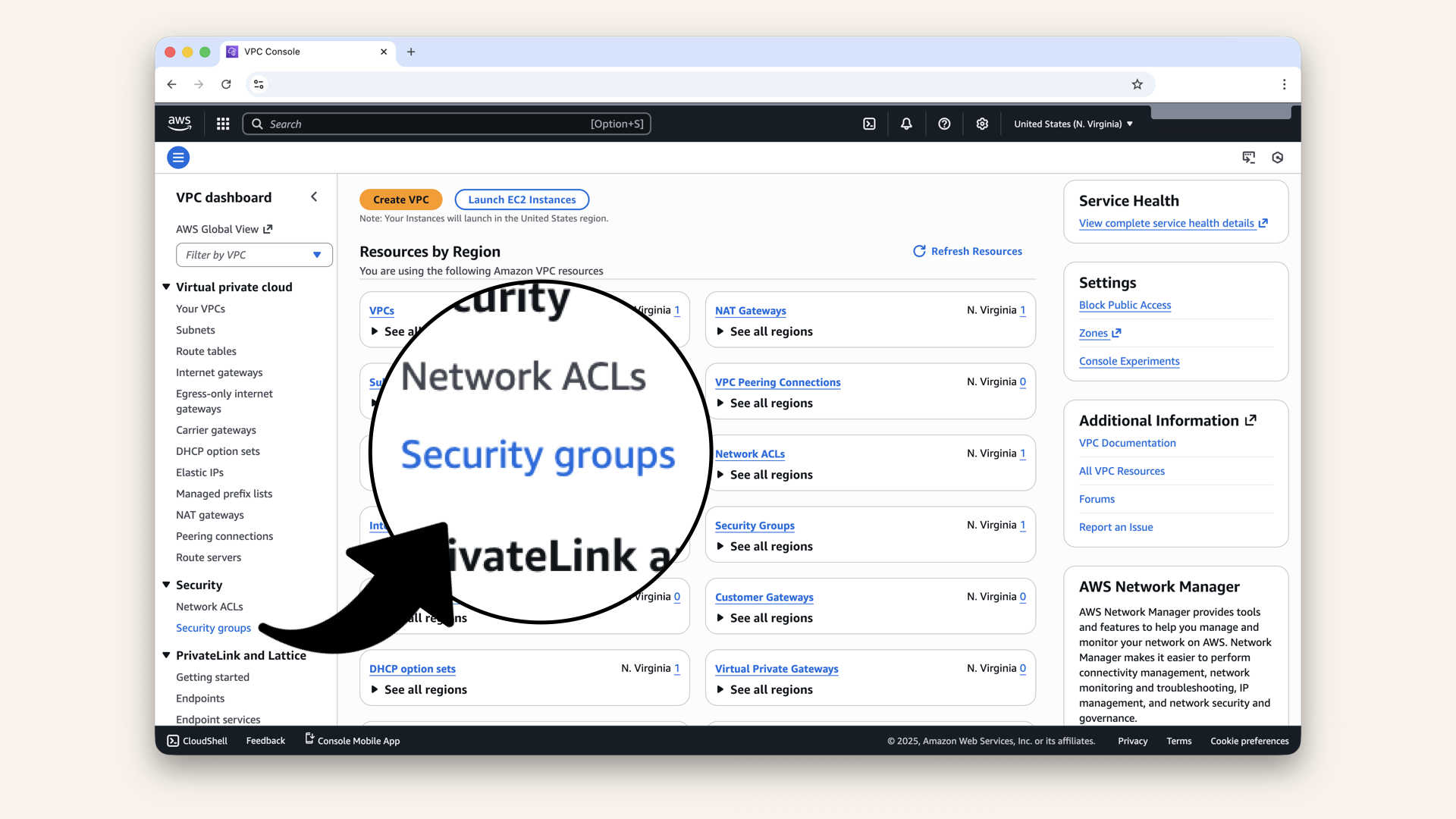
Click Security Groups in the left menu
You'll see existing Security Groups (AWS creates a default one):
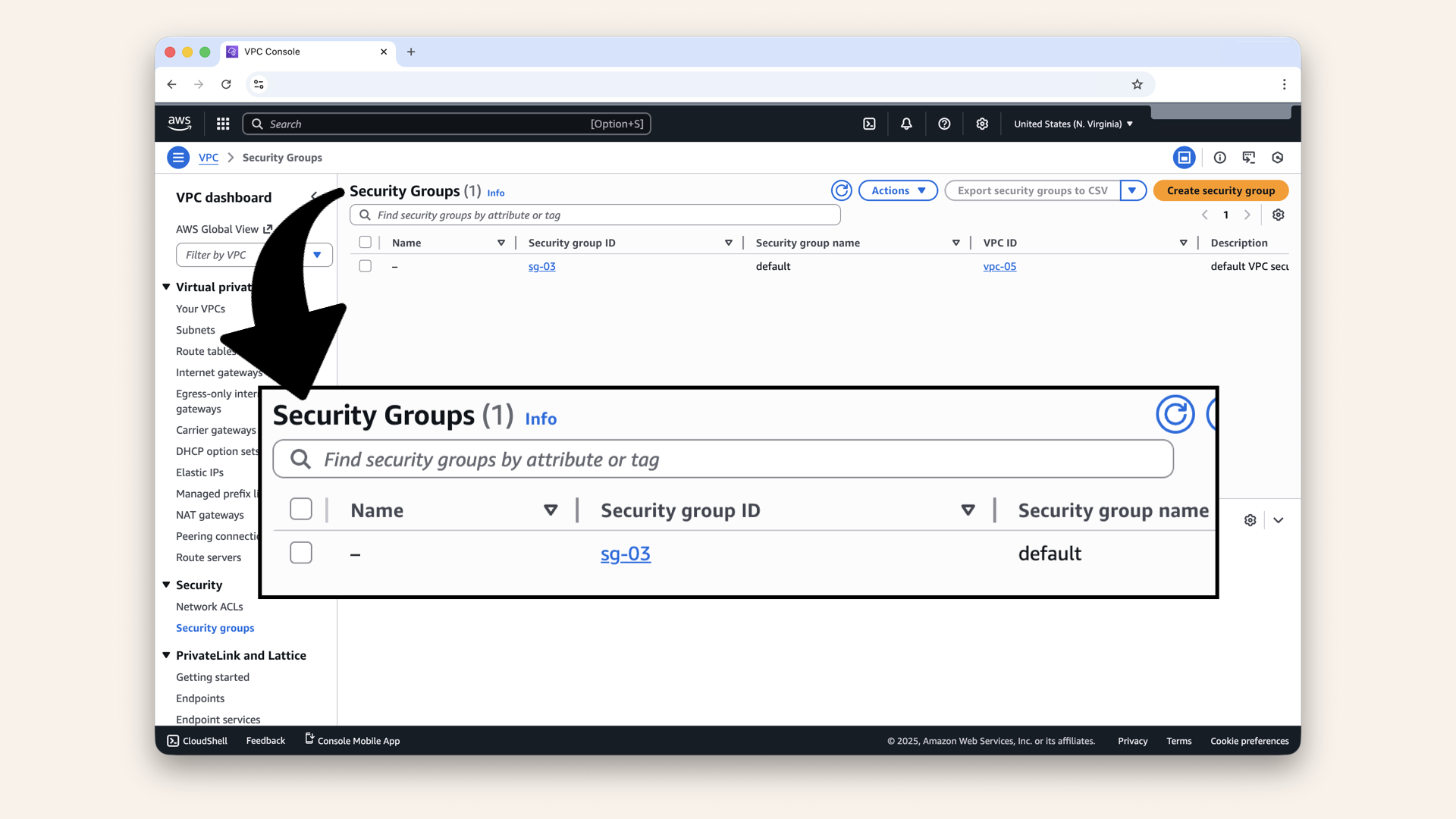
You'll see existing Security Groups (AWS creates a default one)
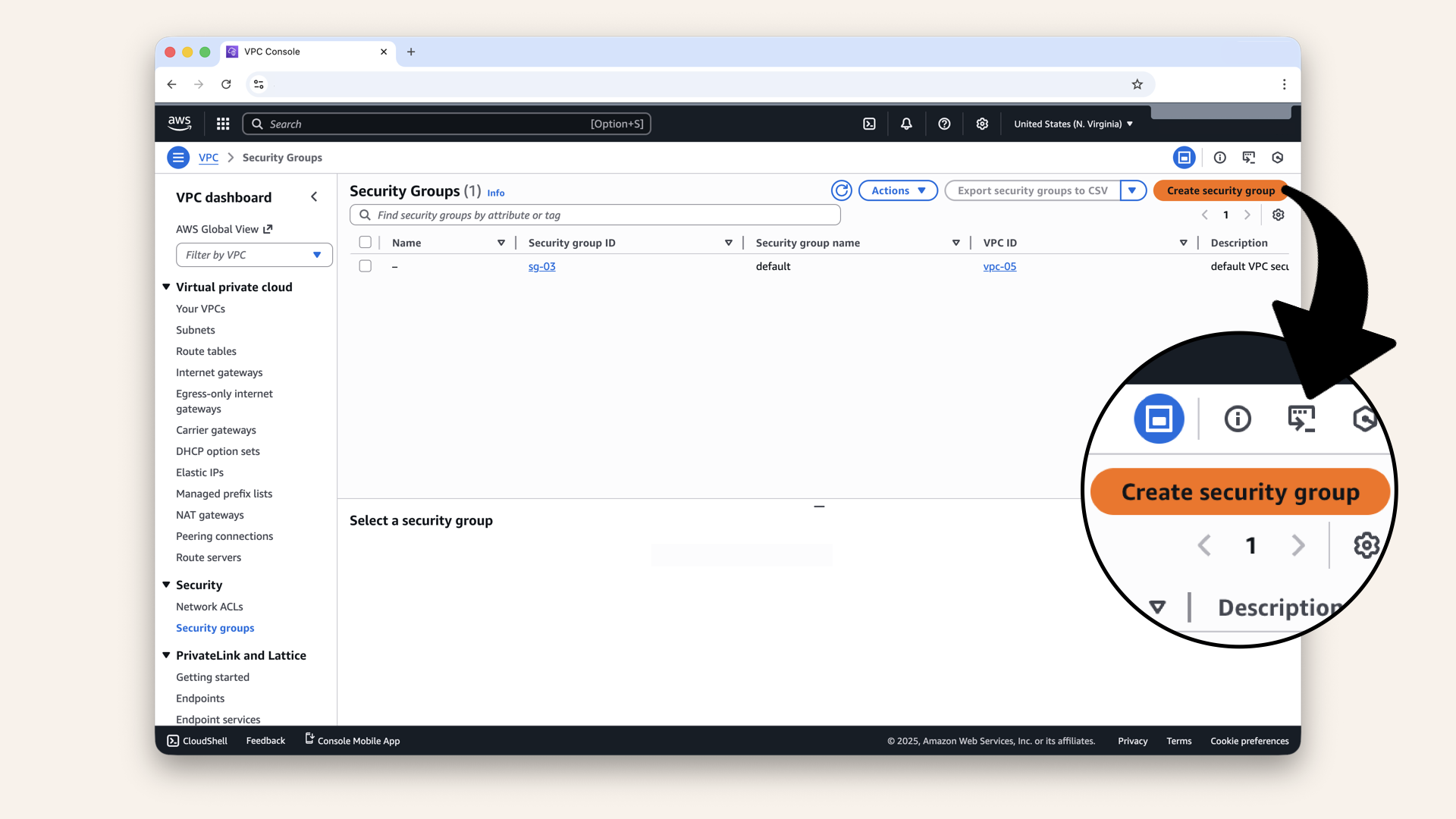
Click Create security group
Fill in the basic details:
Click the icon
and copy each value from the table below ⬇| Field | Value |
|---|---|
| Security group name | |
| Description | |
| VPC | Select your VPC |
Select your VPC from the dropdown:
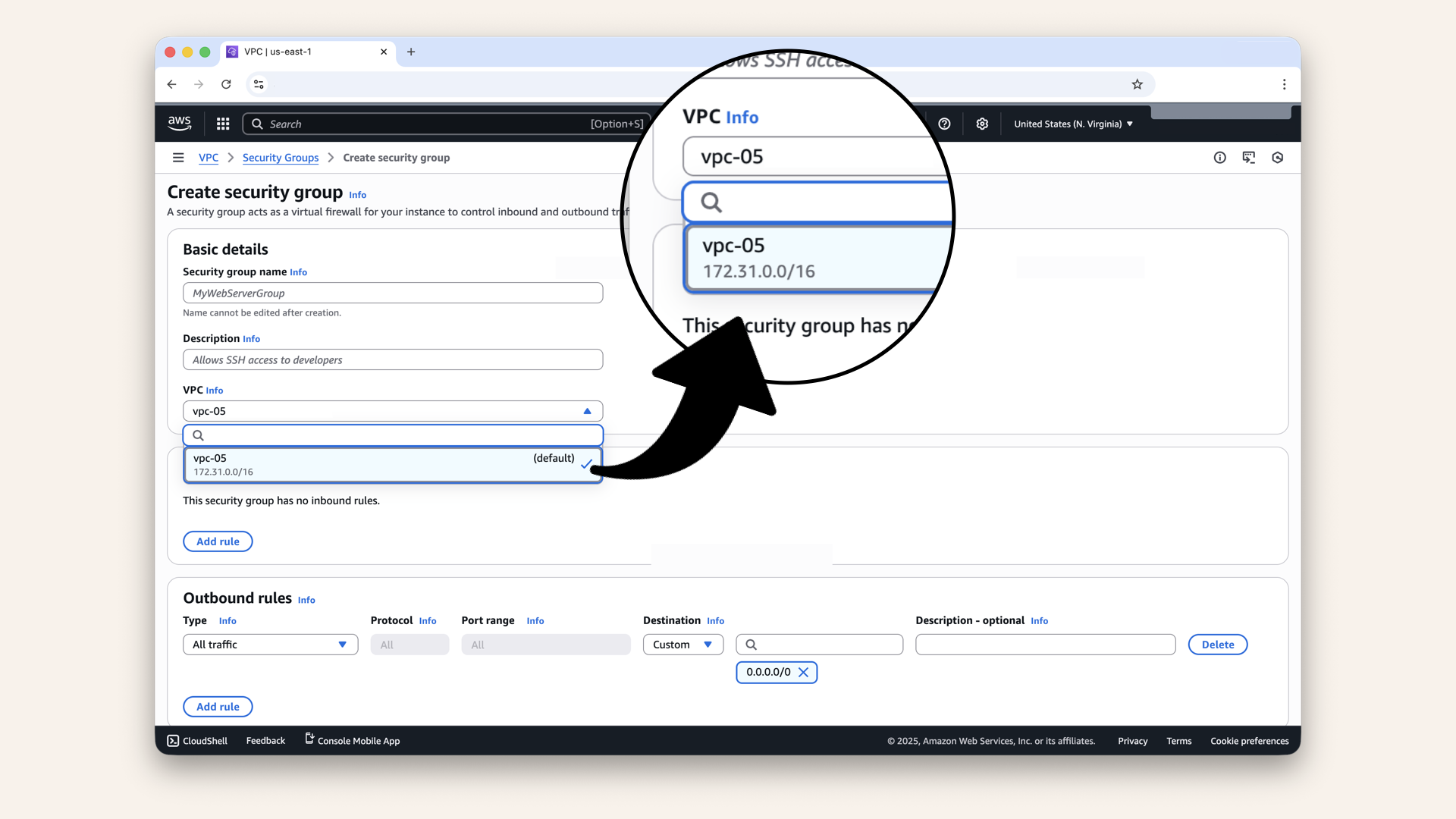
Select your VPC from the dropdown
Step 2: Add inbound rules to ALB-SG
New we'll add rules for HTTP and HTTPS.
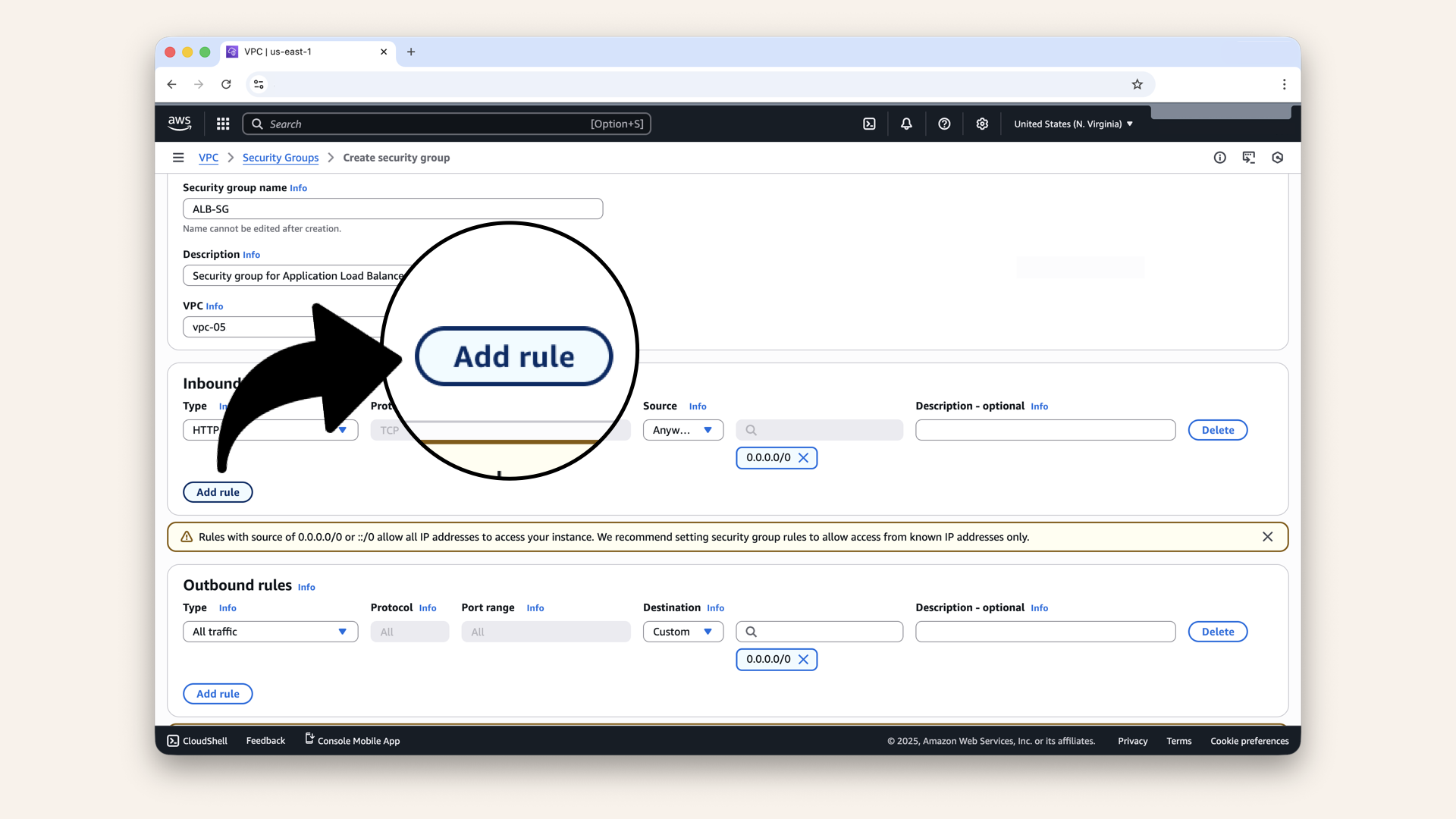
Scroll down to Inbound rules, then click Add rule:
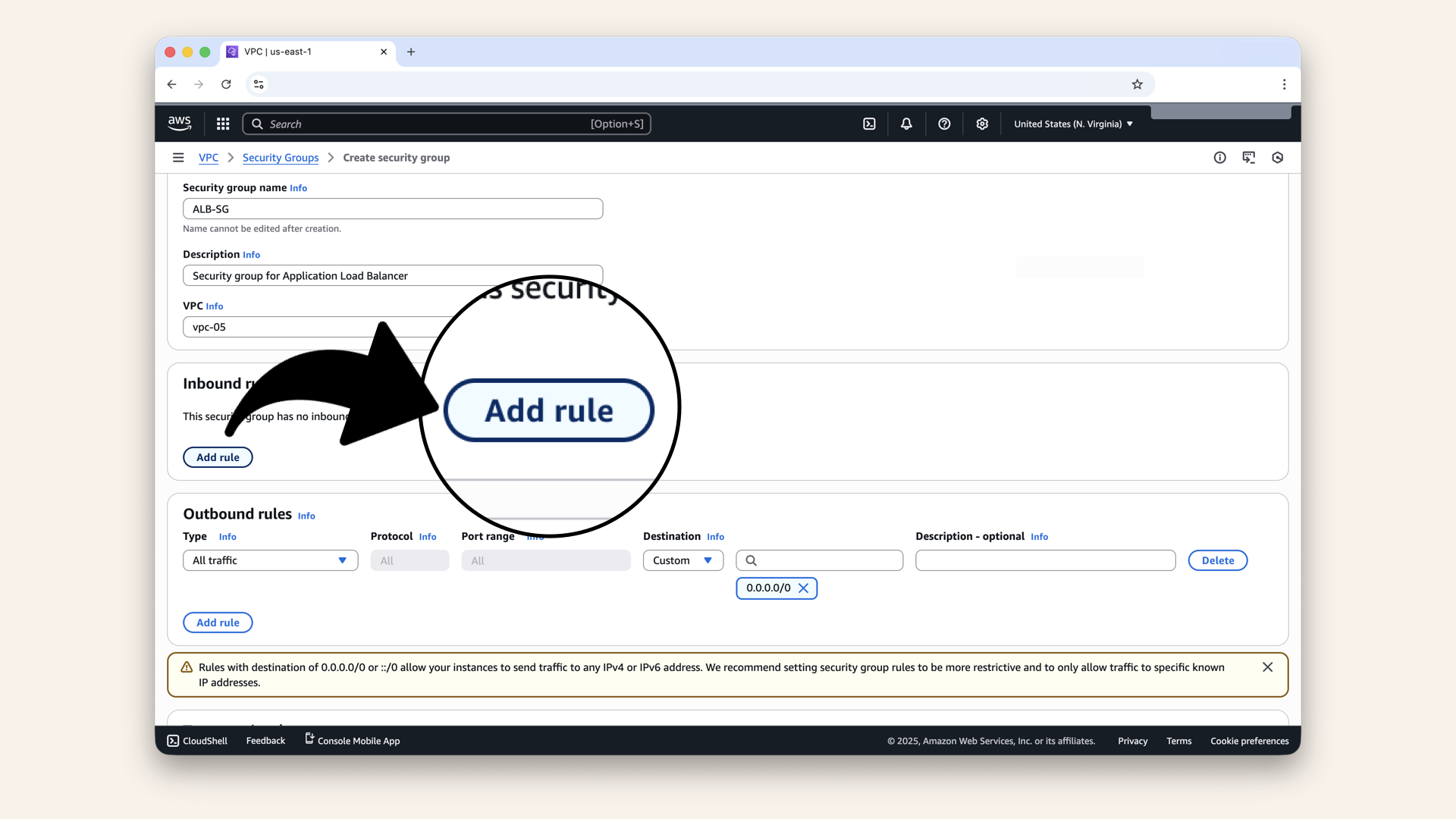
Scroll down to Inbound rules, then click Add rule
Add the first rule (HTTP):
| Field | Value | Meaning |
|---|---|---|
| Type | HTTP | Port 80 |
| Source | Anywhere-IPv4 (0.0.0.0/0) | Anyone can access |

Add the first rule (HTTP)
Click Add rule again
Add the second rule:
| Field | Value | Meaning |
|---|---|---|
| Type | HTTPS | Port 443 |
| Source | Anywhere-IPv4 (0.0.0.0/0) | Anyone can access |
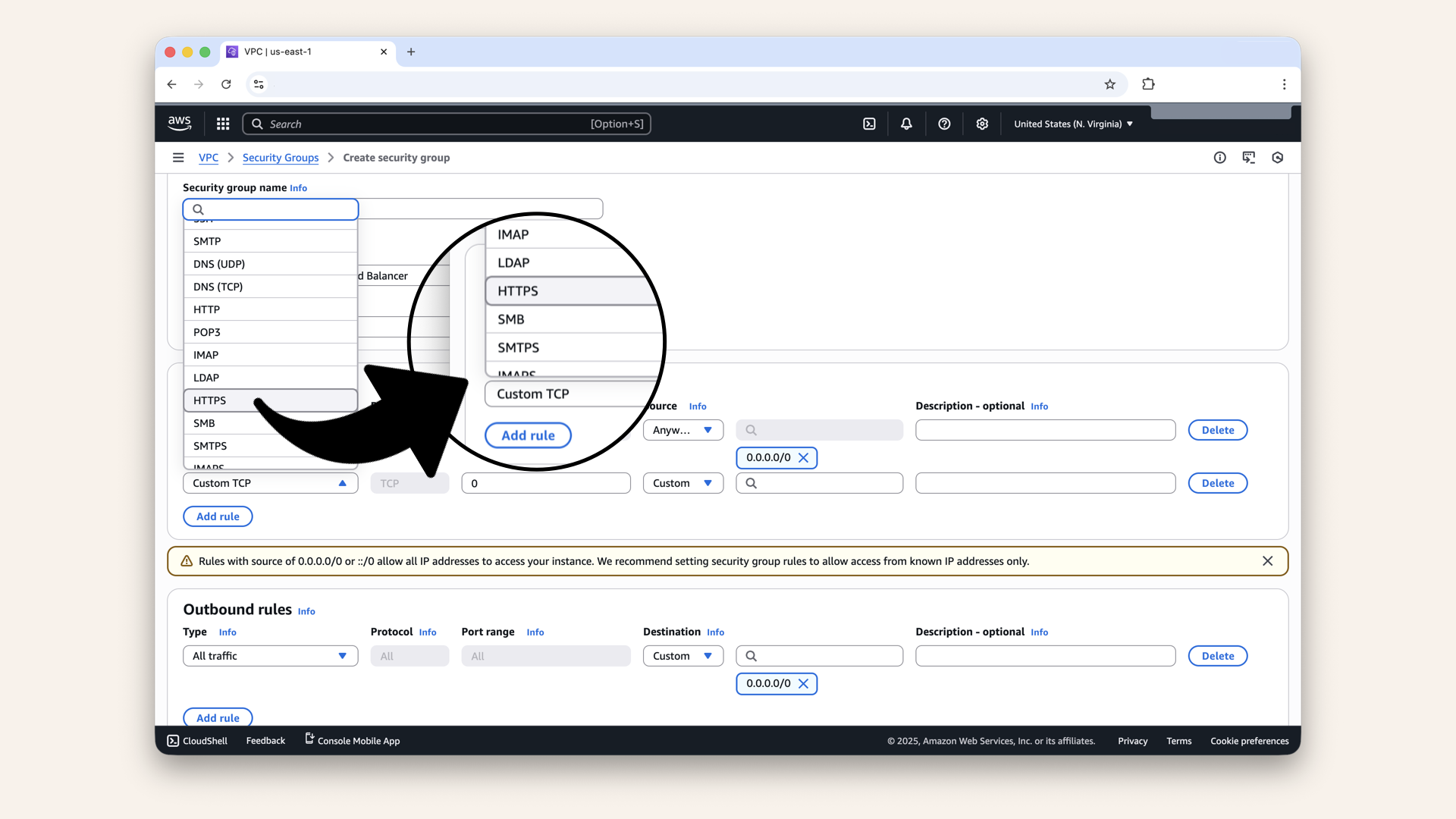
Add HTTPS rule
You should now have 2 inbound rules:
- target: HTTP → port 80 → source:
0.0.0.0/0 - target: HTTPS → port 443 → source:
0.0.0.0/0
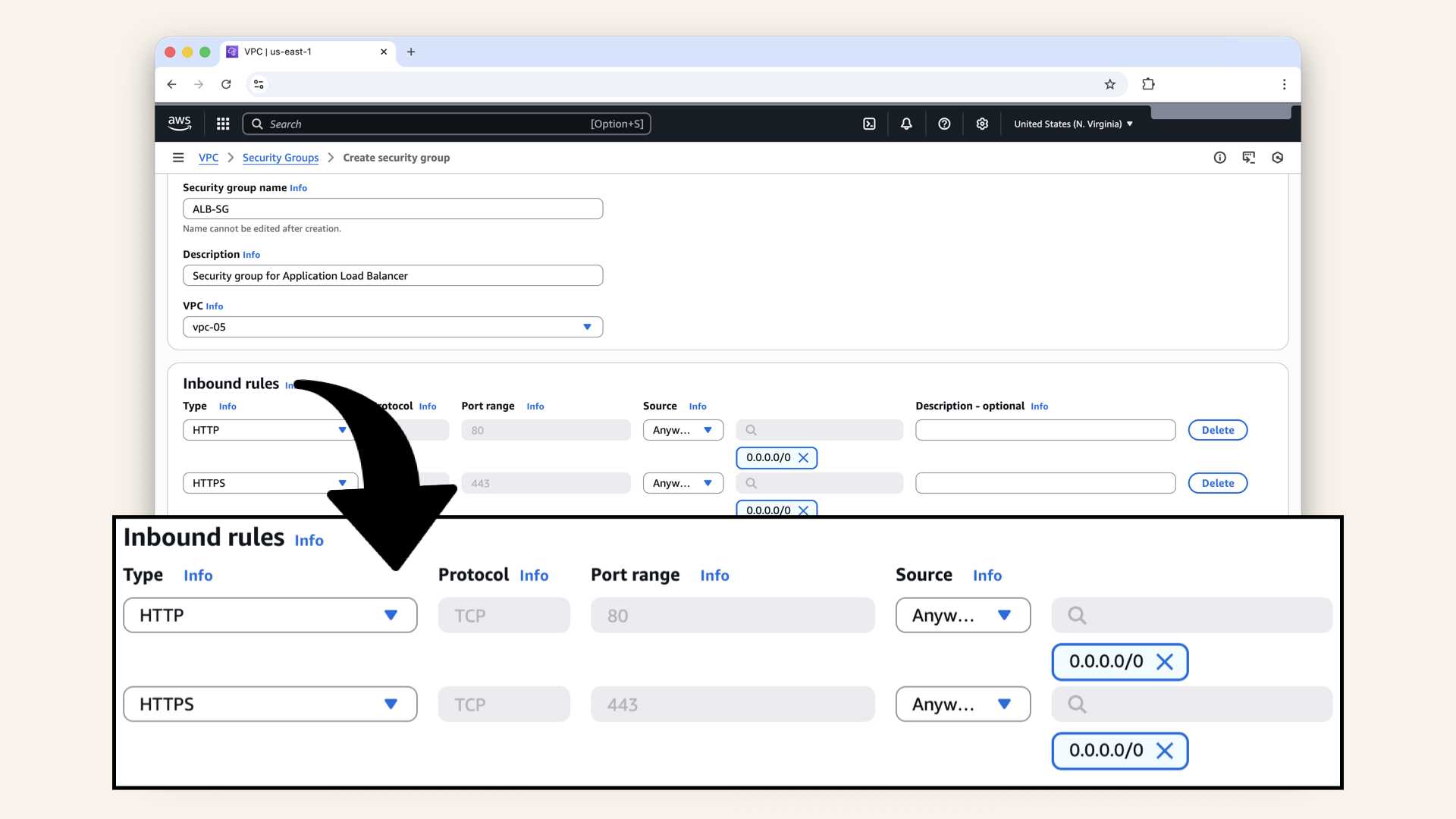
You should now have 2 inbound rules
Step 3: Configure outbound rules for ALB-SG
Scroll down to Outbound rules:
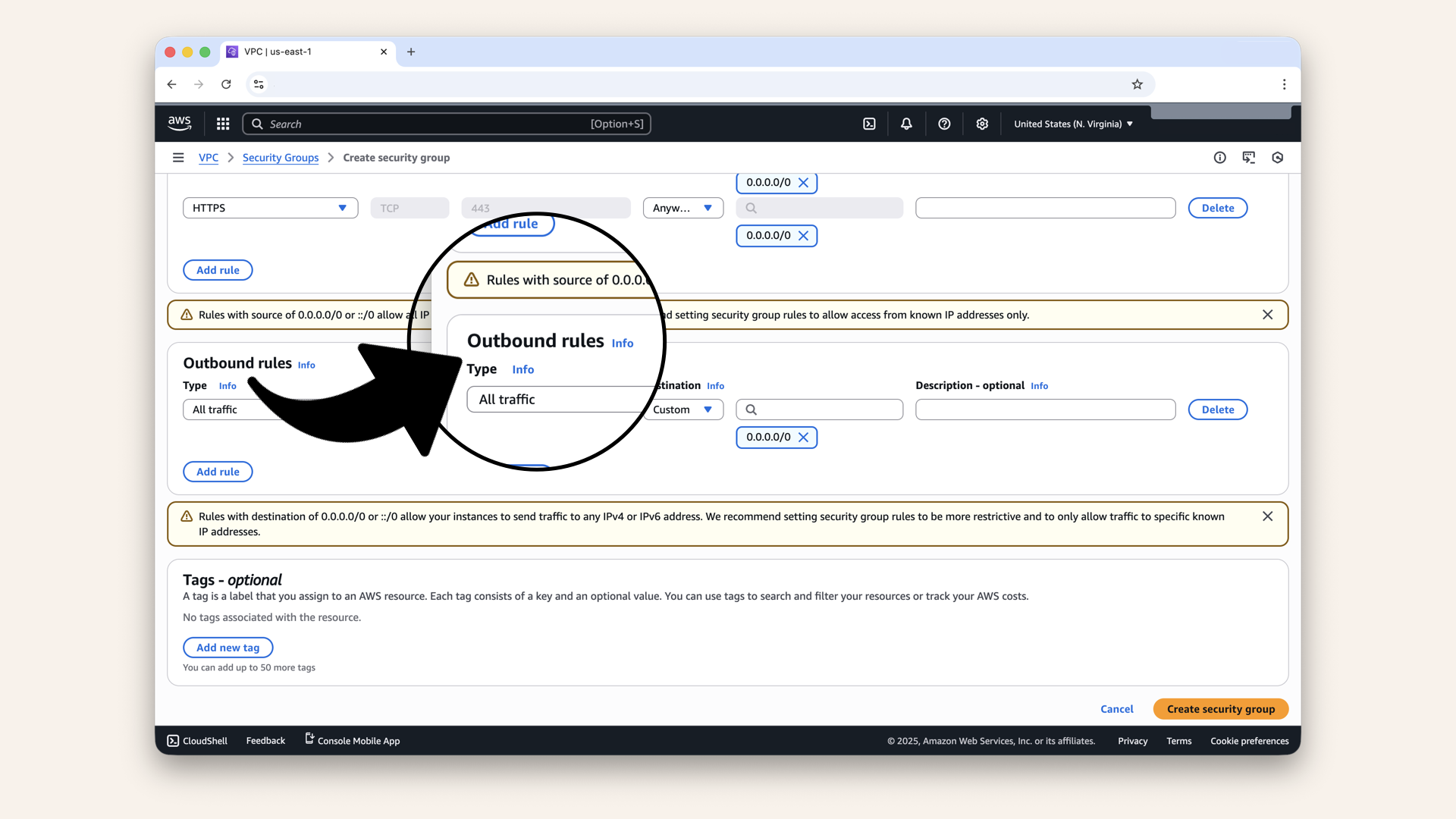
Scroll down to Outbound rules
You'll see a default rule:
- Type: All traffic
- Destination: Custom
0.0.0.0/0
The load balancer needs to send traffic to Fargate containers.
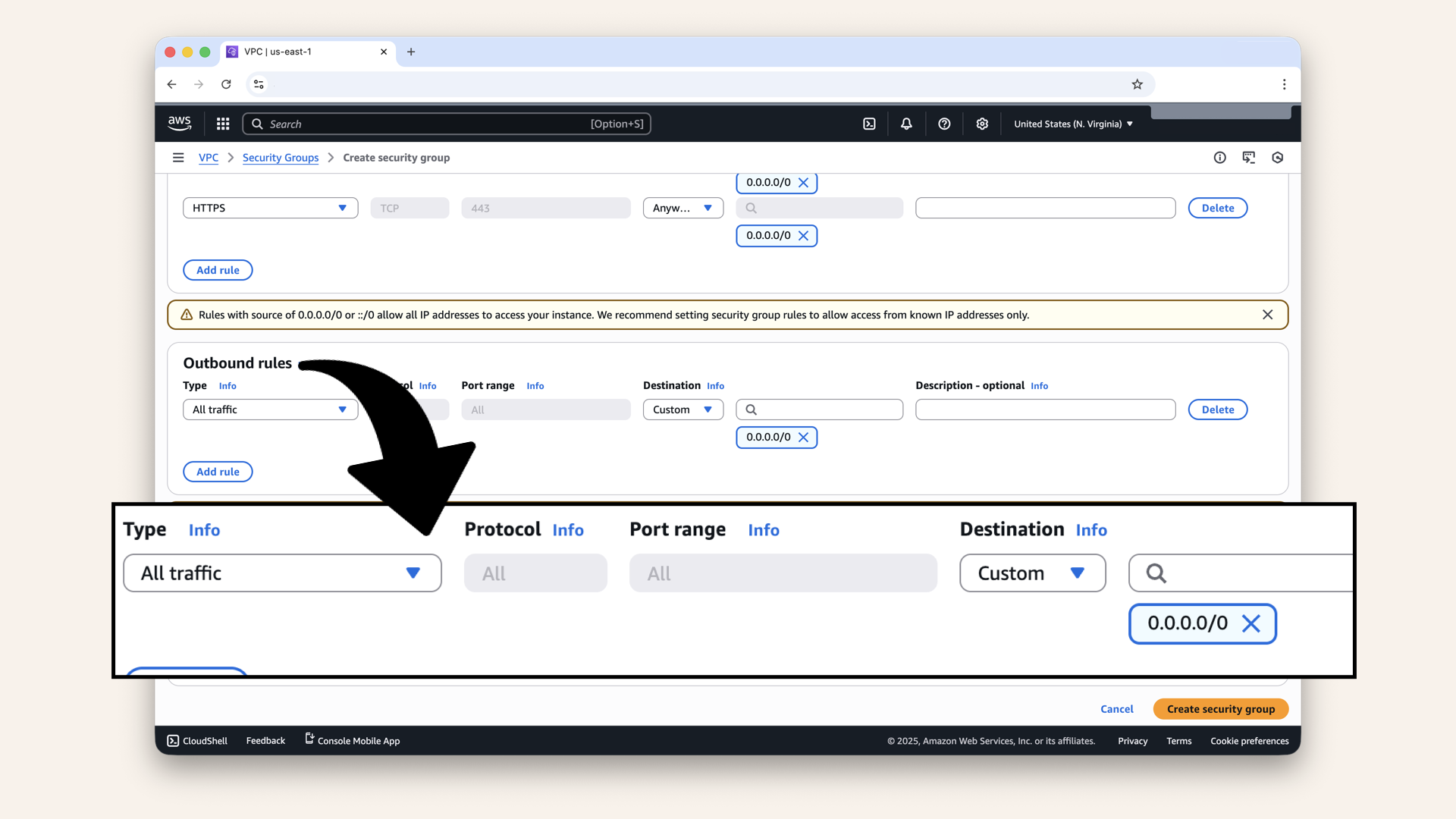
Keep this default rule
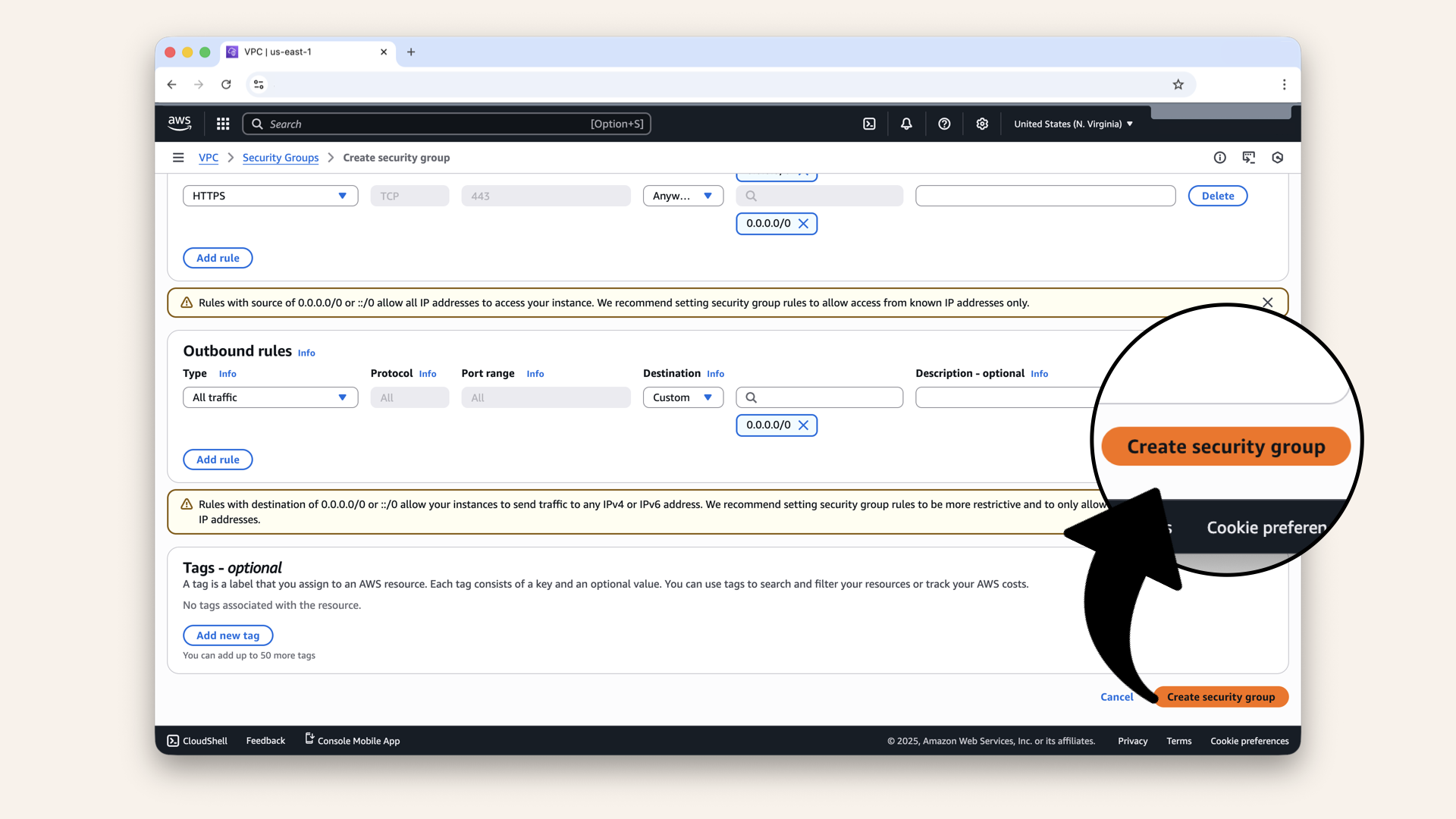
Click Create security group
✅ You should see: "Security group created successfully":
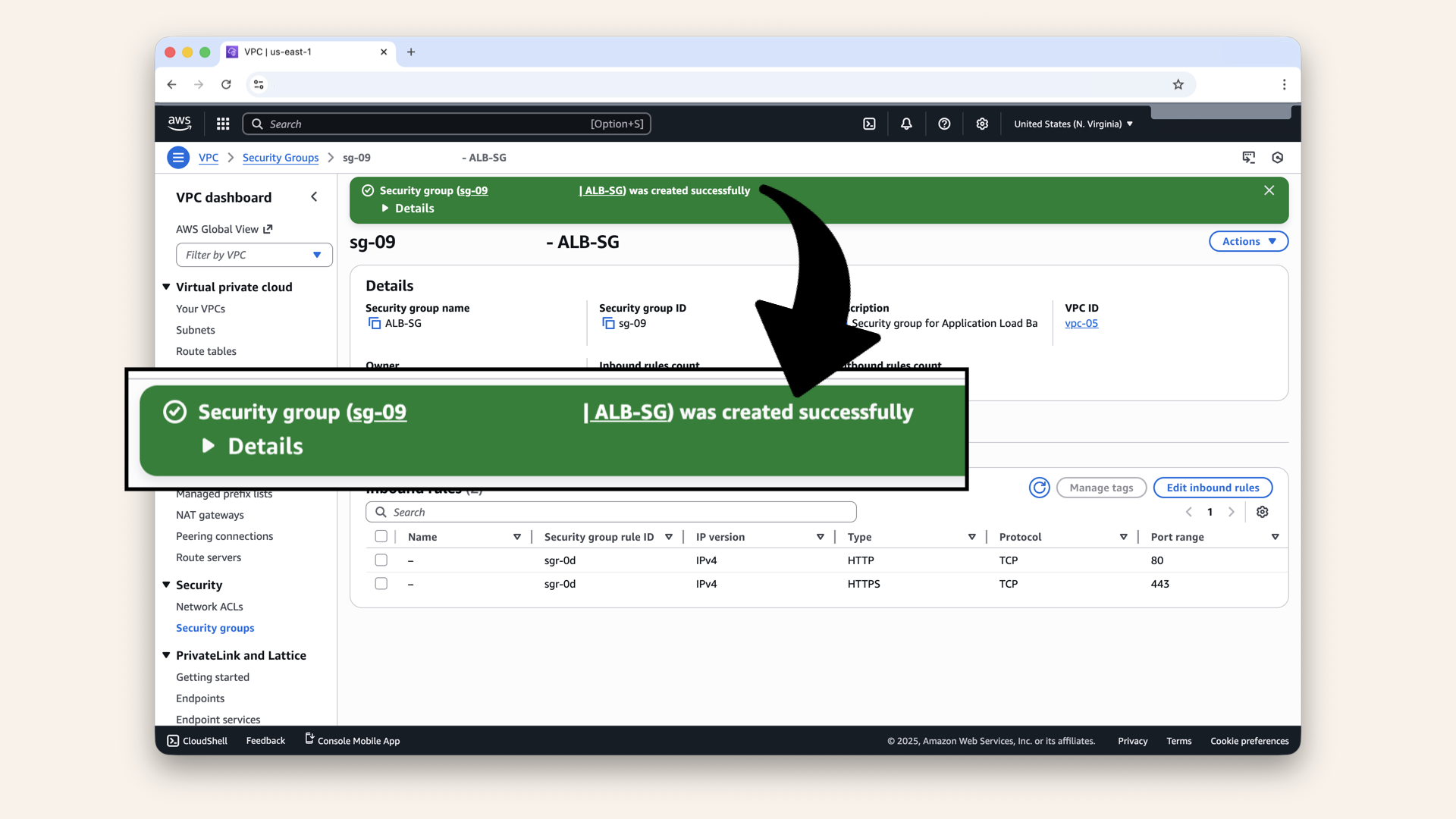
You should see: "Security group created successfully"
Note the Security Group ID (e.g. sg-0abc123def456)
We'll need it for the next step:
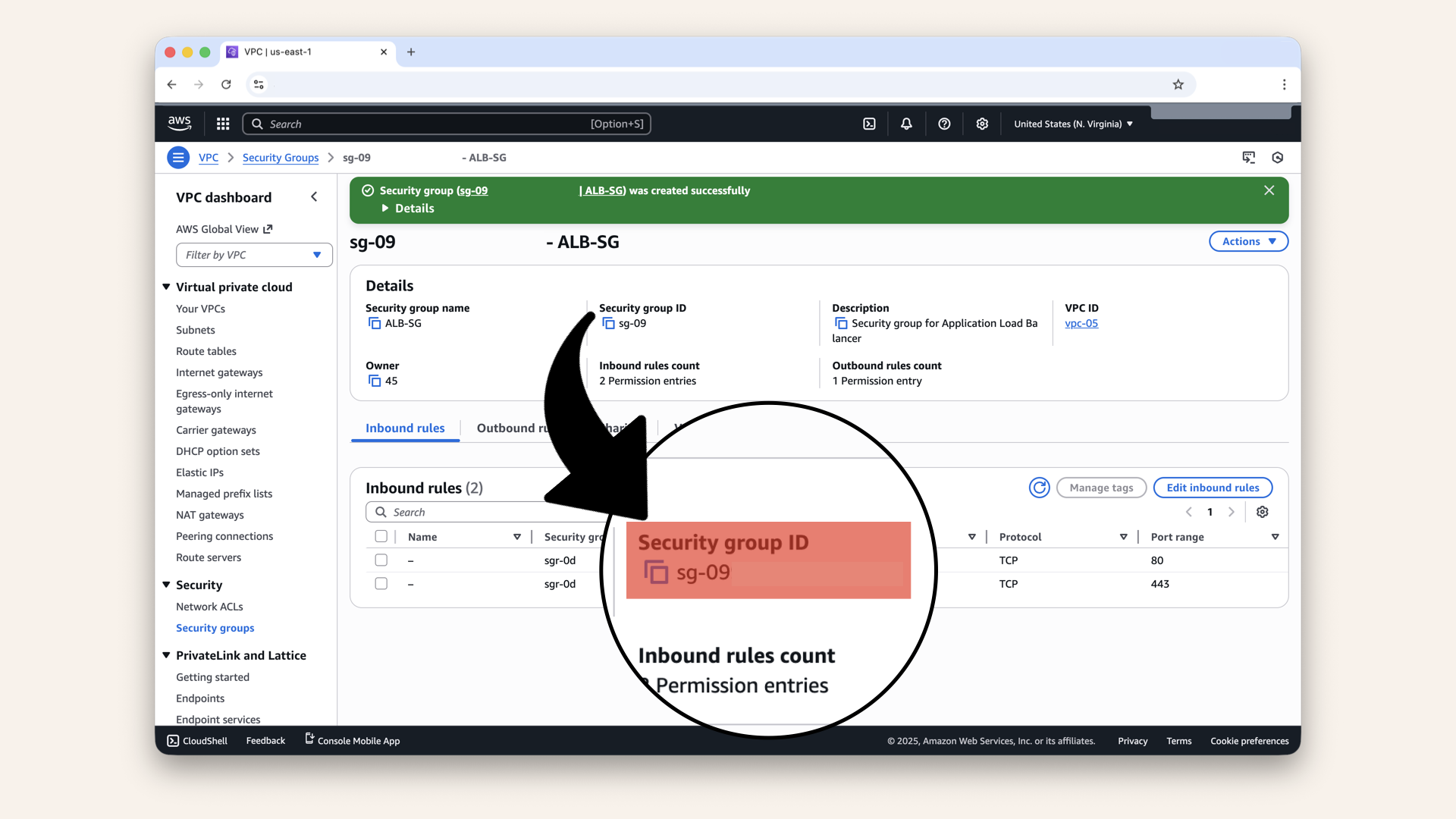
Note the Security Group ID - we'll need it for the next step
Step 4: Create Fargate security group
Now let's create the Security Group for your AI agent containers.
Click Security groups in the left menu to get back to the Security Groups main menu: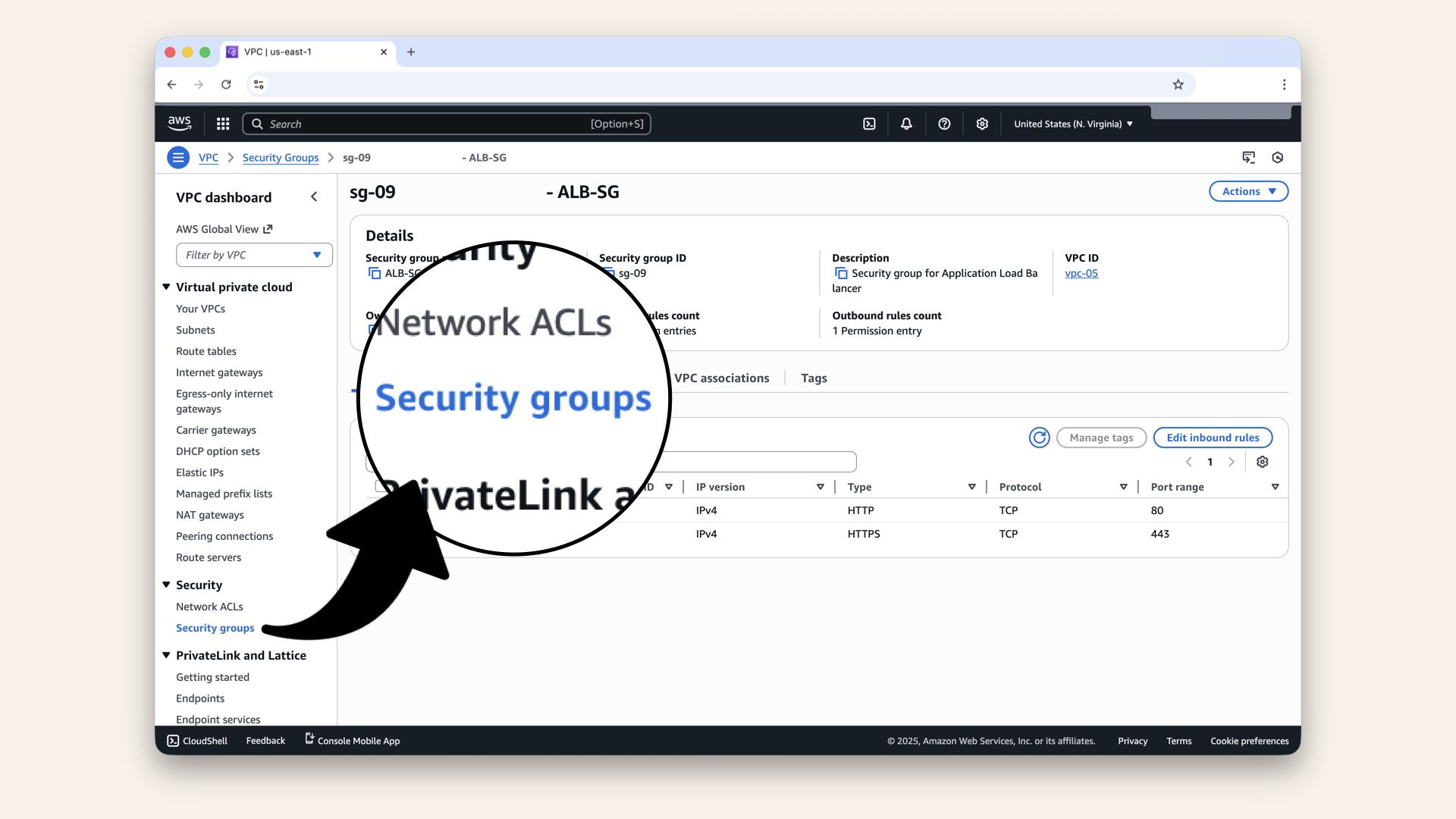
Click Security groups in the left menu to get back to the Security Groups menu
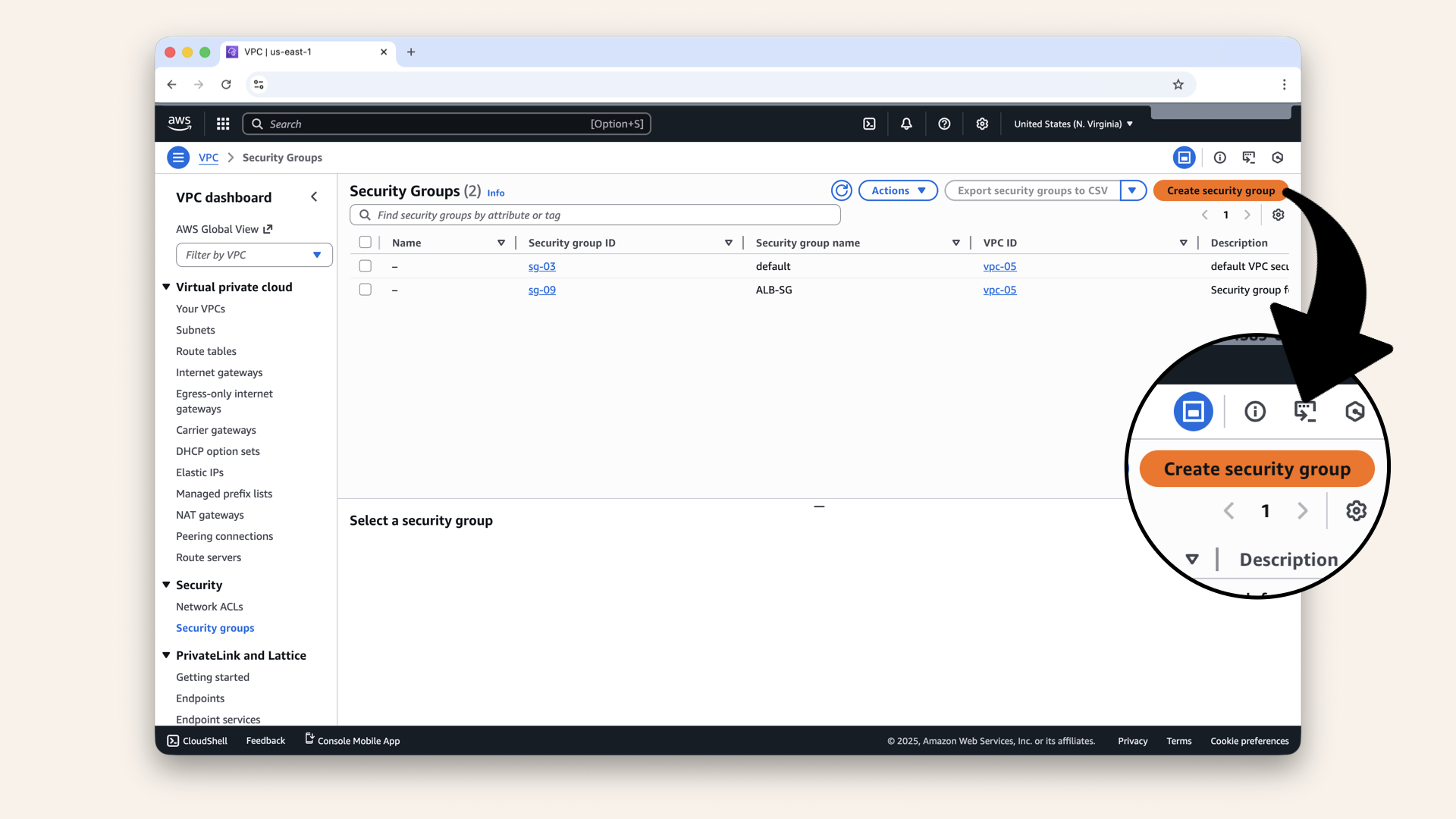
Click Create security group
Fill in the basic details:
| Field | Value |
|---|---|
| Security group name | |
| Description | |
| VPC | Select your VPC |
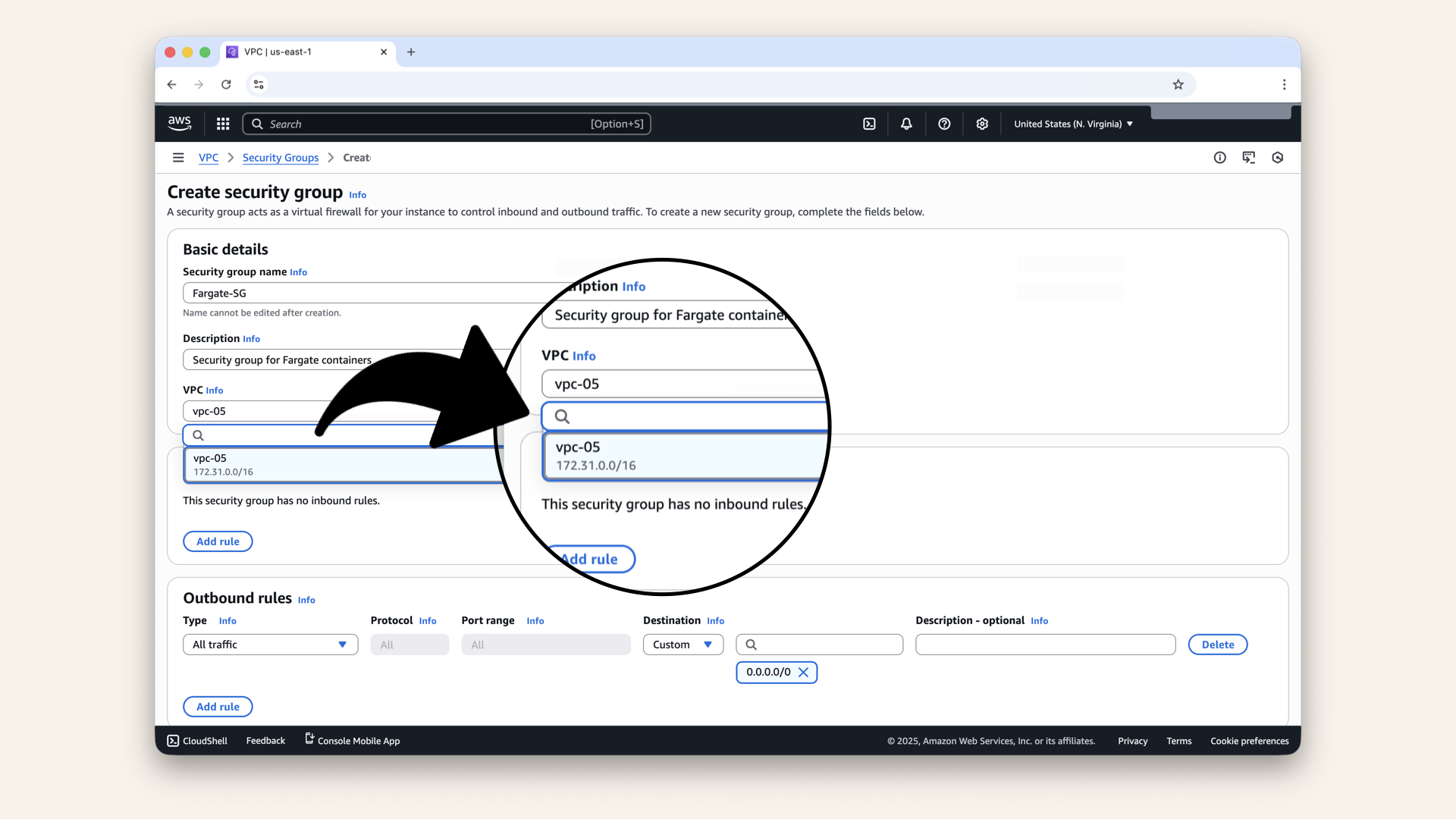
Fill in the basic details and select your VPC
Step 5: Add inbound rules to Fargate-SG
This is the important part:
We'll allow traffic only from ALB-SG - the previous security group we just created (not from the internet).
Scroll down to Inbound rules:
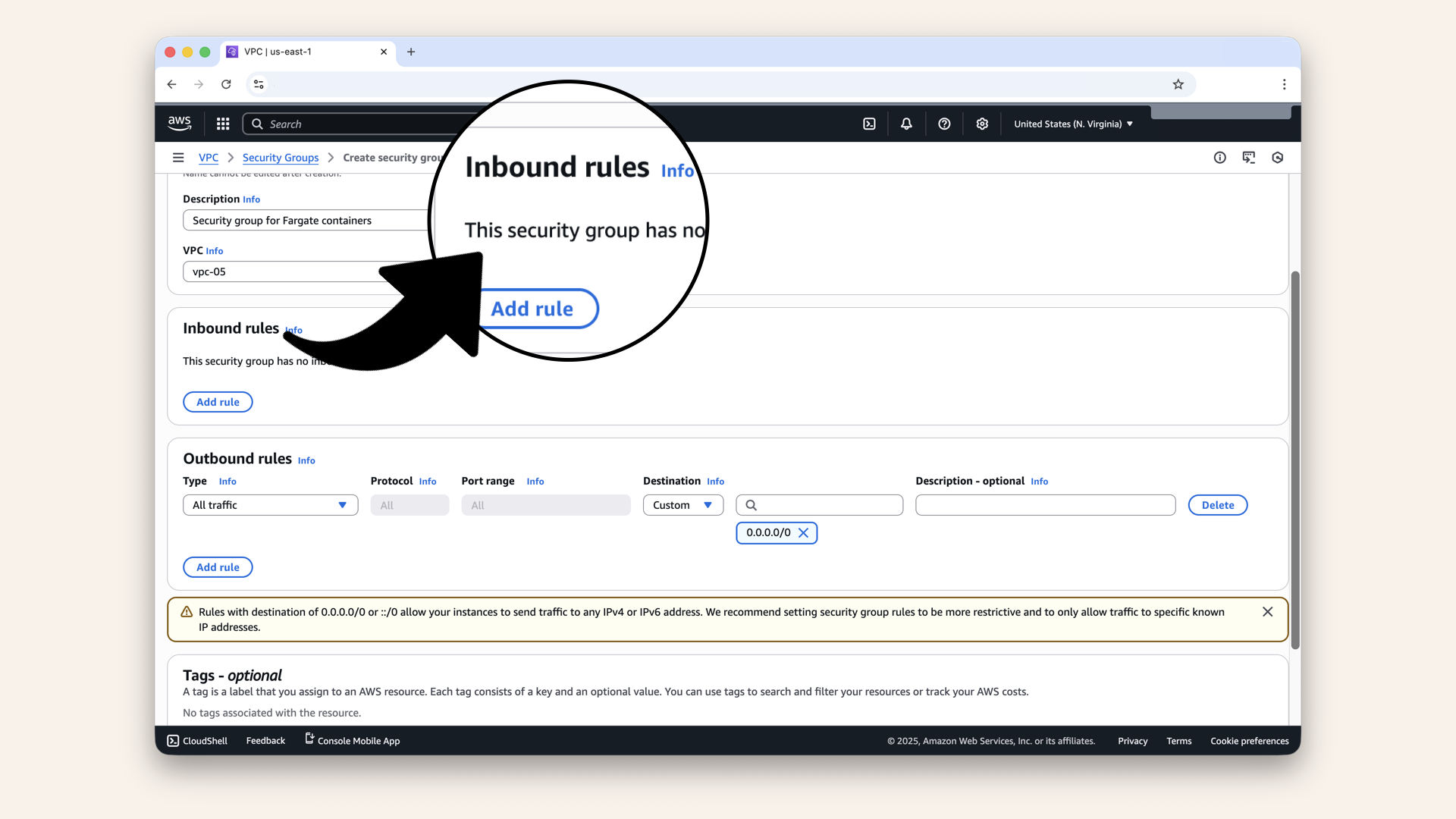
Scroll down to Inbound rules
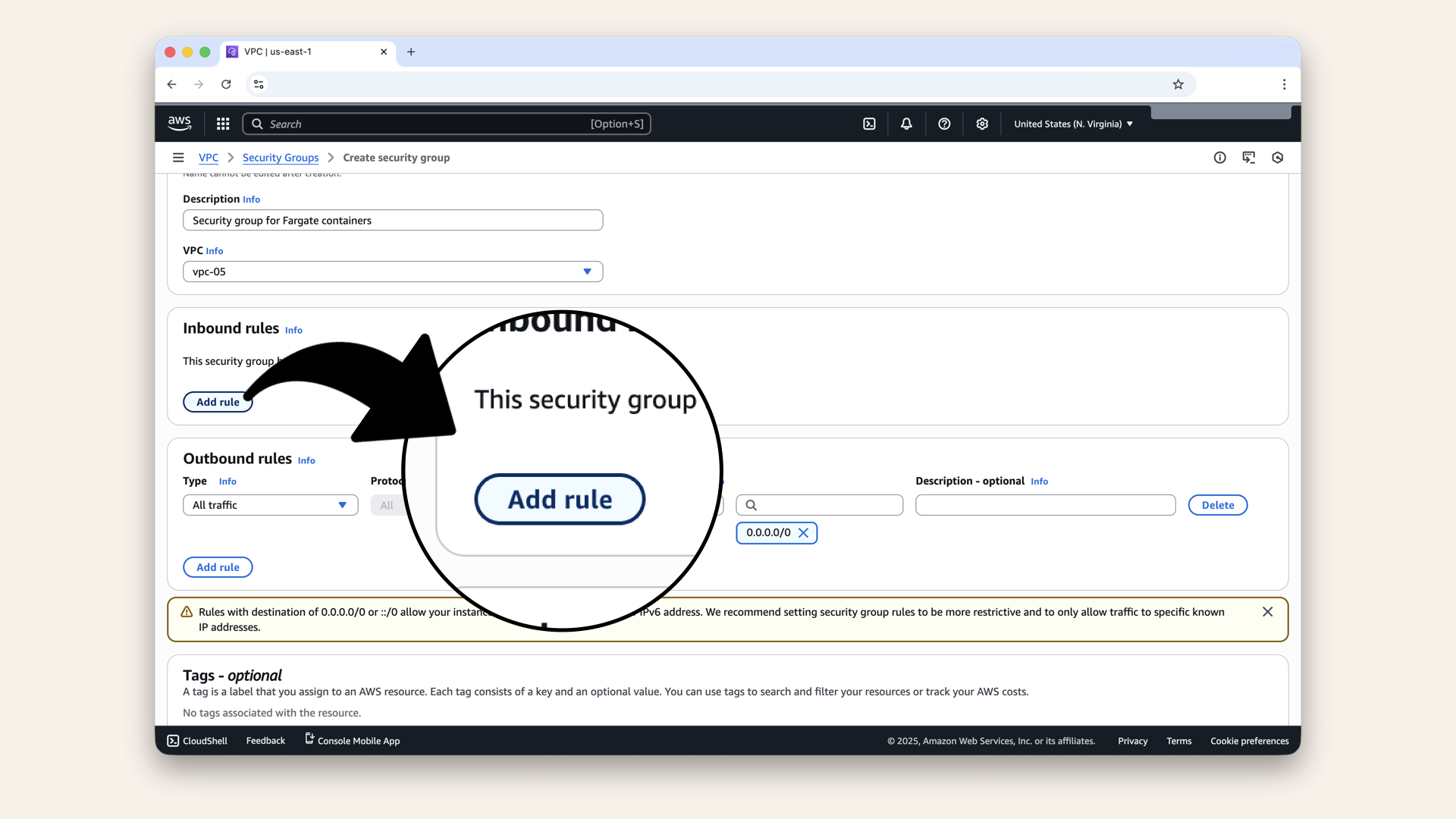
Click Add rule
Add this new rule:
| Field | Value | Meaning |
|---|---|---|
| Type | Custom TCP | Port 6060 |
| Port range | Our app's port | |
| Source | Custom → Select ALB-SG | Only ALB can connect |
Select the security group we just created, ALB-SG, from the source dropdown:
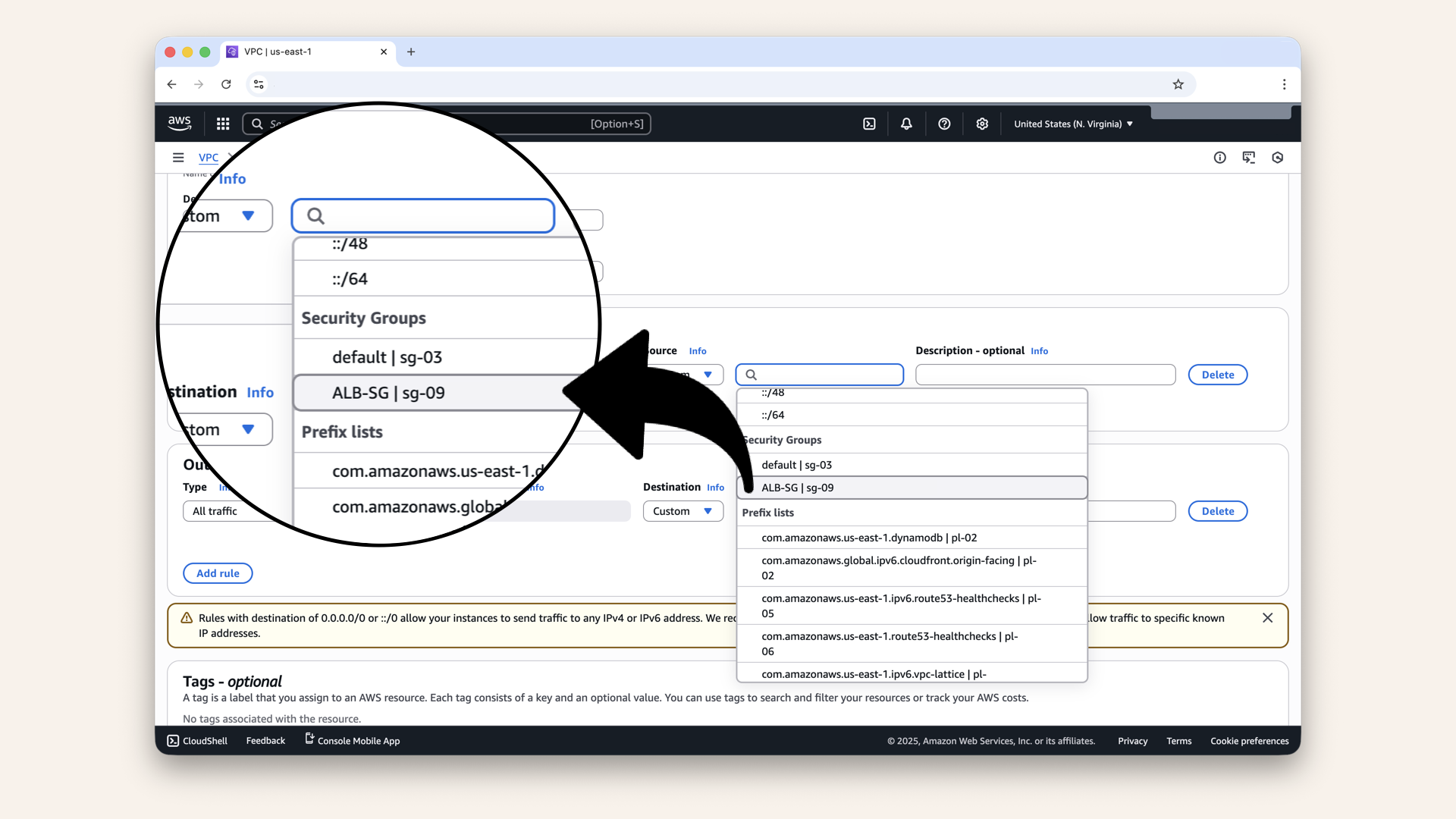
Select the security group we just created: ALB-SG, from the source dropdown
Here's what this means:
✅ Load balancer (with ALB-SG) → Can connect to port 6060❌ Internet traffic → Can't connect to port 6060
❌ Random AWS resources → Can't connect
Only the ALB is on the list.
Step 6: Configure outbound rules for Fargate-SG
Scroll down to Outbound rules:
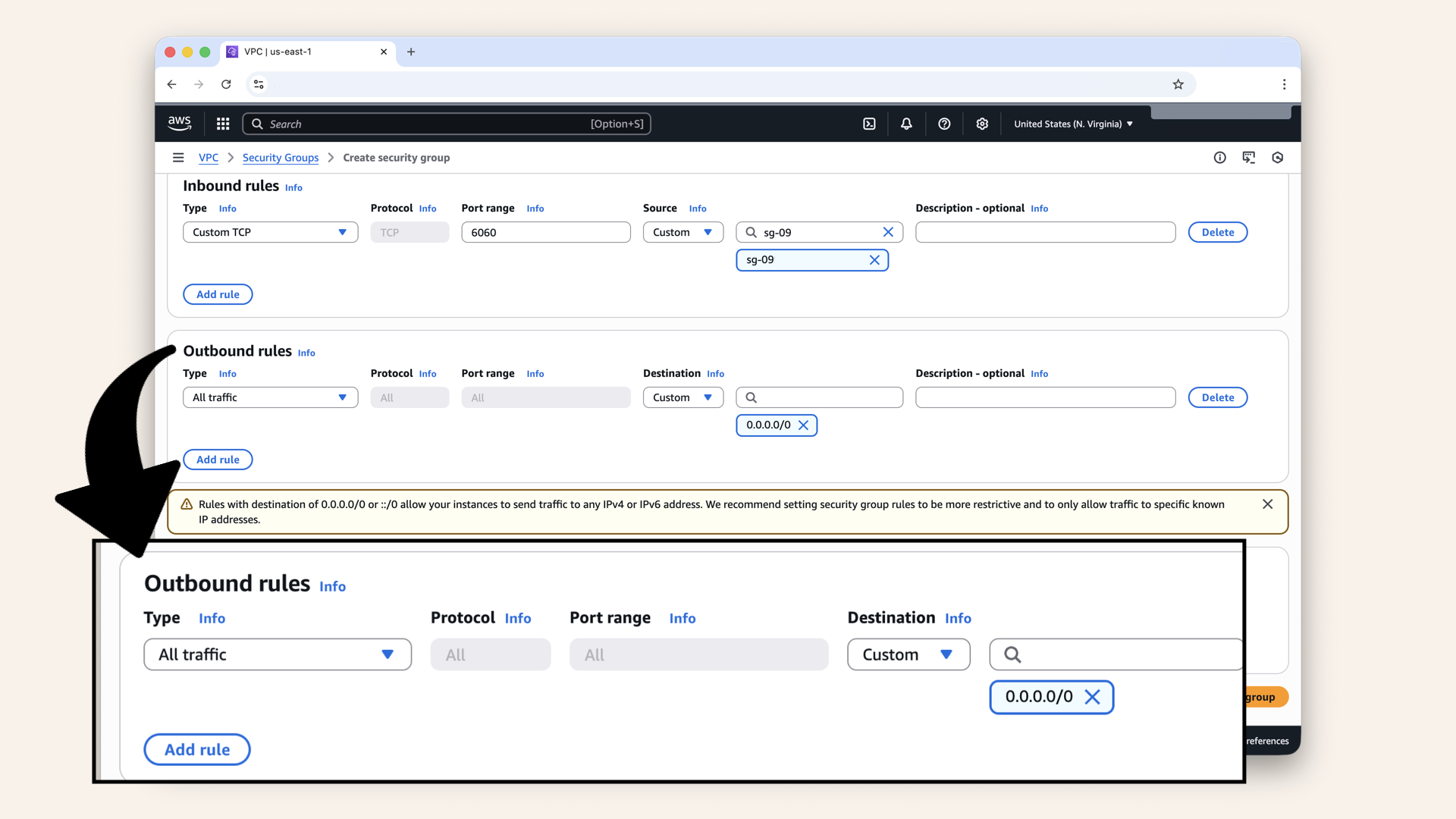
You'll see the default rule, keep this rule
You'll see the default rule:
- Type: All traffic
- Destination:
0.0.0.0/0
Keep this rule
Your containers need to:
- Call OpenAI API
- Send audio to Twilio
- Pull Docker images from ECR
- Make any other API calls
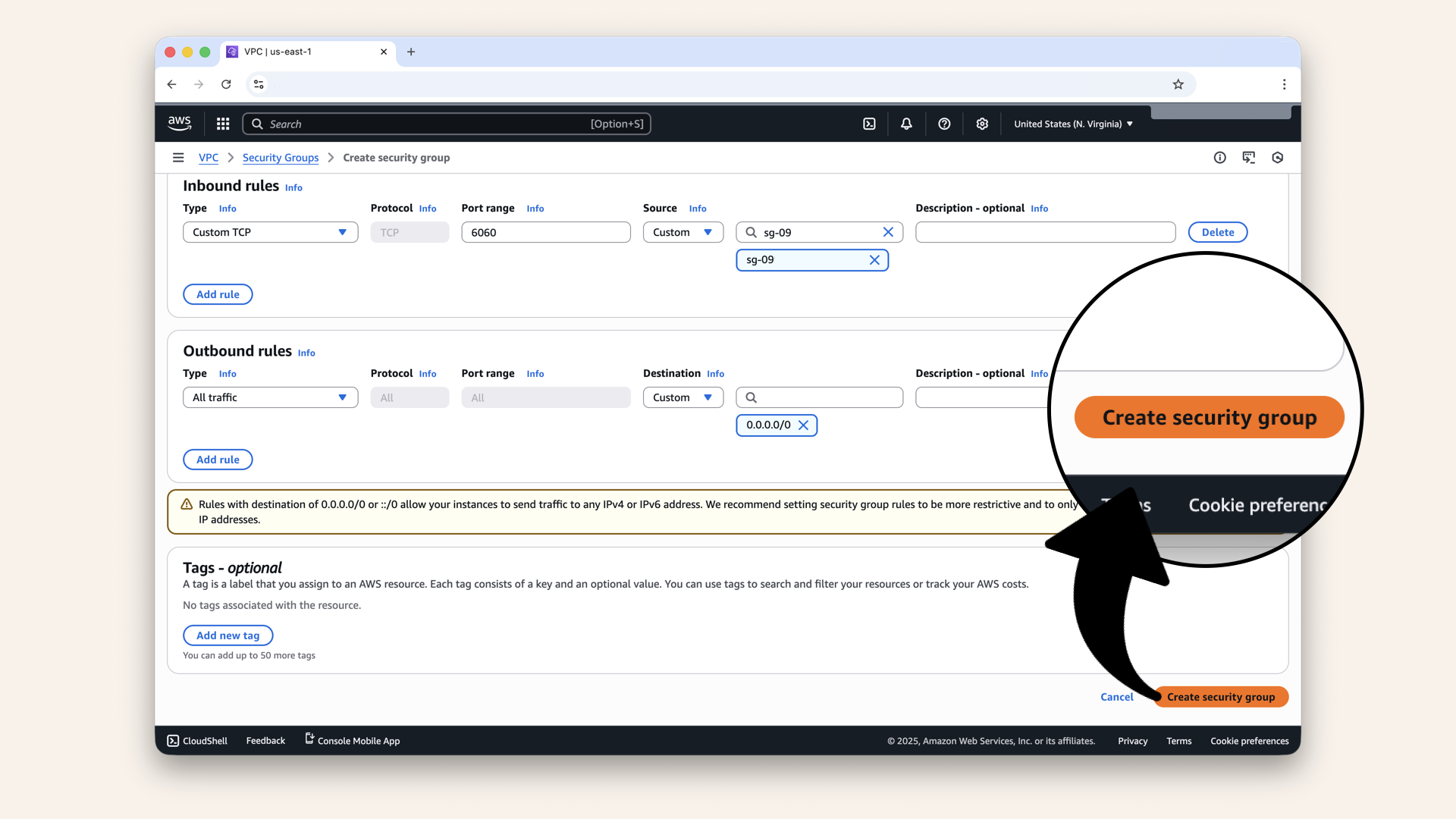
Click Create security group
✅ You should see: "Security group created successfully":
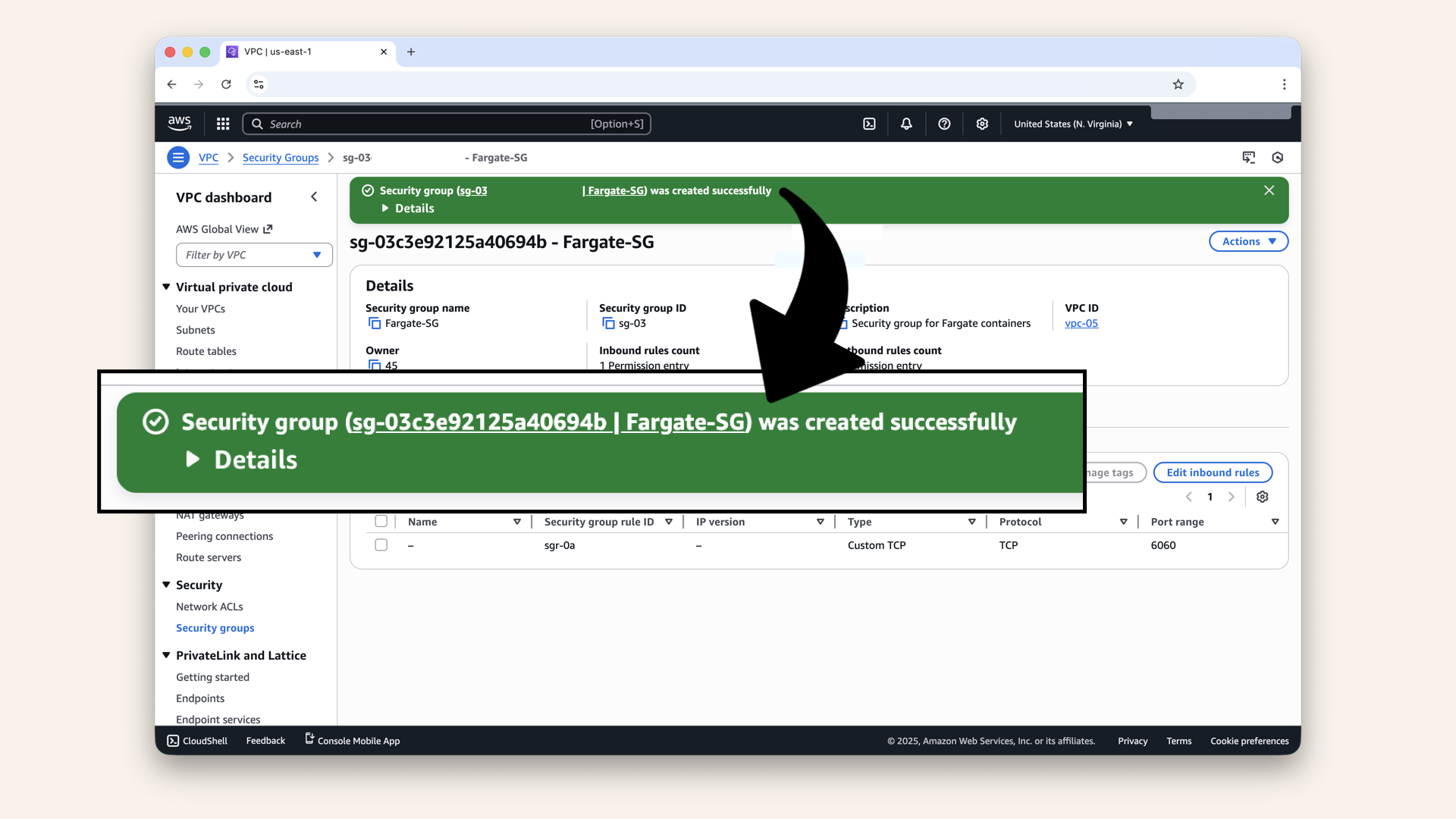
You should see: "Security group created successfully"
Step 7: Verify your security groups
Let's make sure everything is set up correctly.
Click Security groups in the left menu to get back to the Security Groups main menu: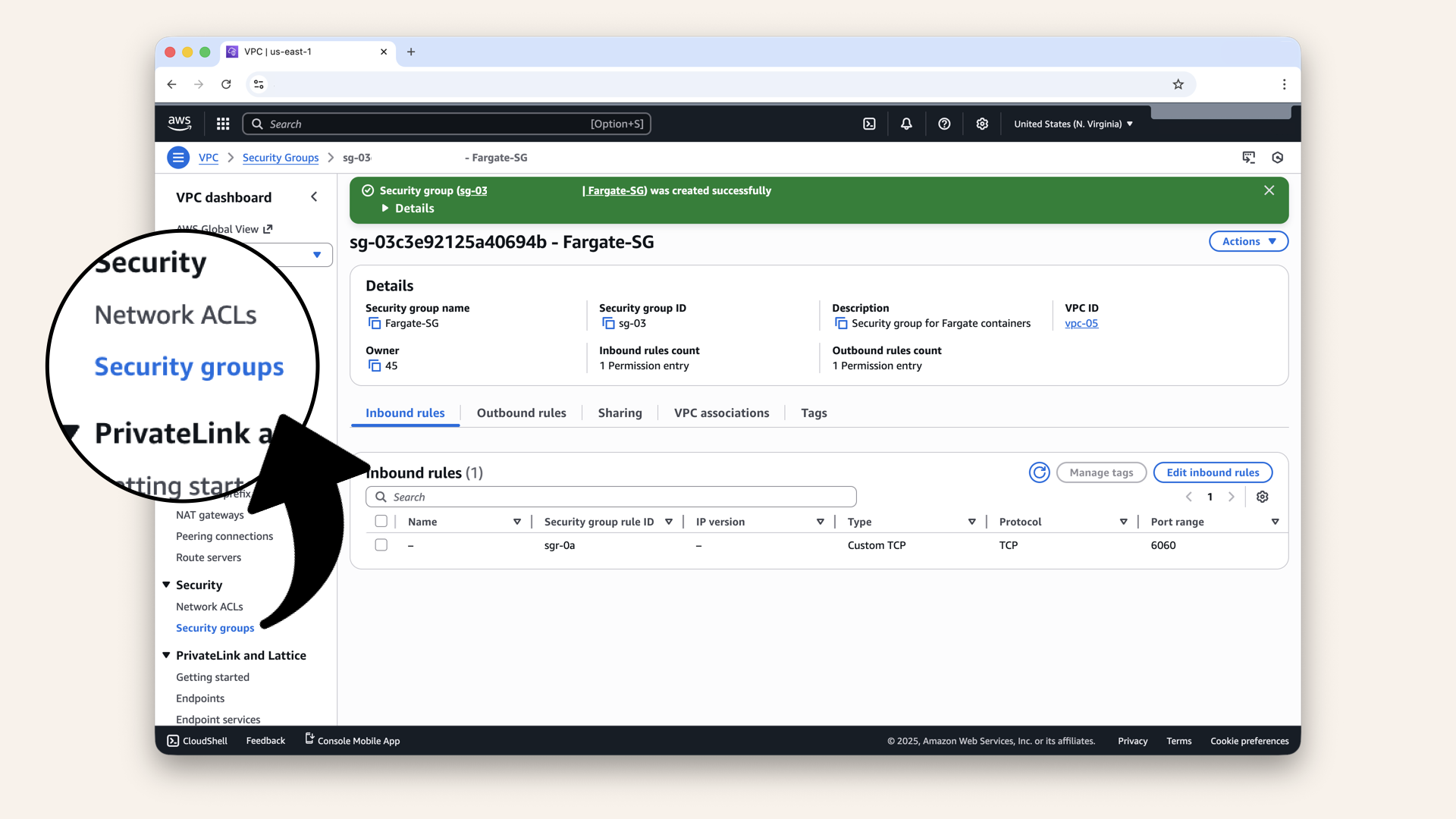
Click Security groups in the left menu to get back to the Security Groups main menu
You should see two new Security Groups:
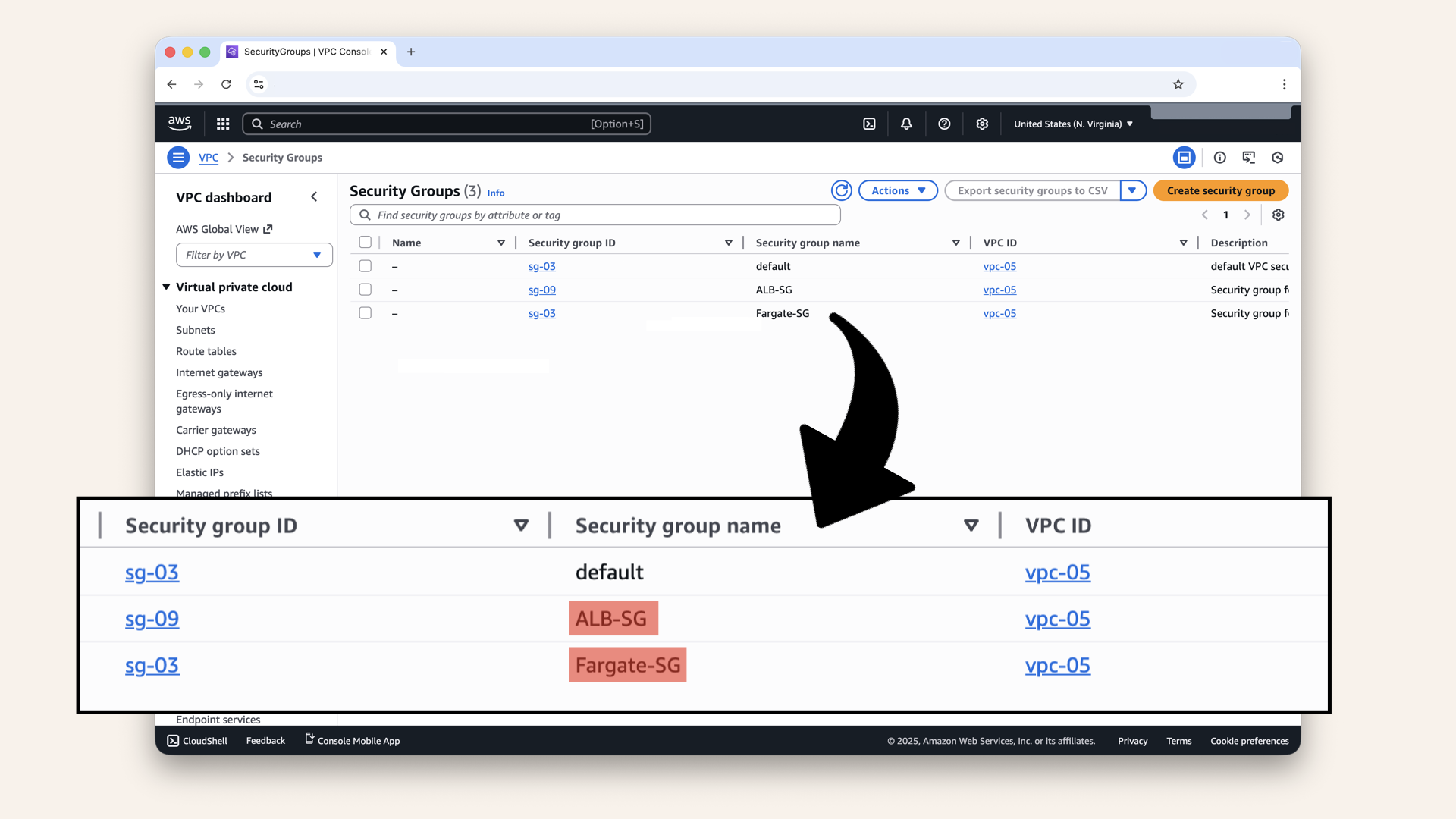
You should see two new Security Groups
ALB-SG
Select theALB-SG from the checkboxes and click Inbound rules:
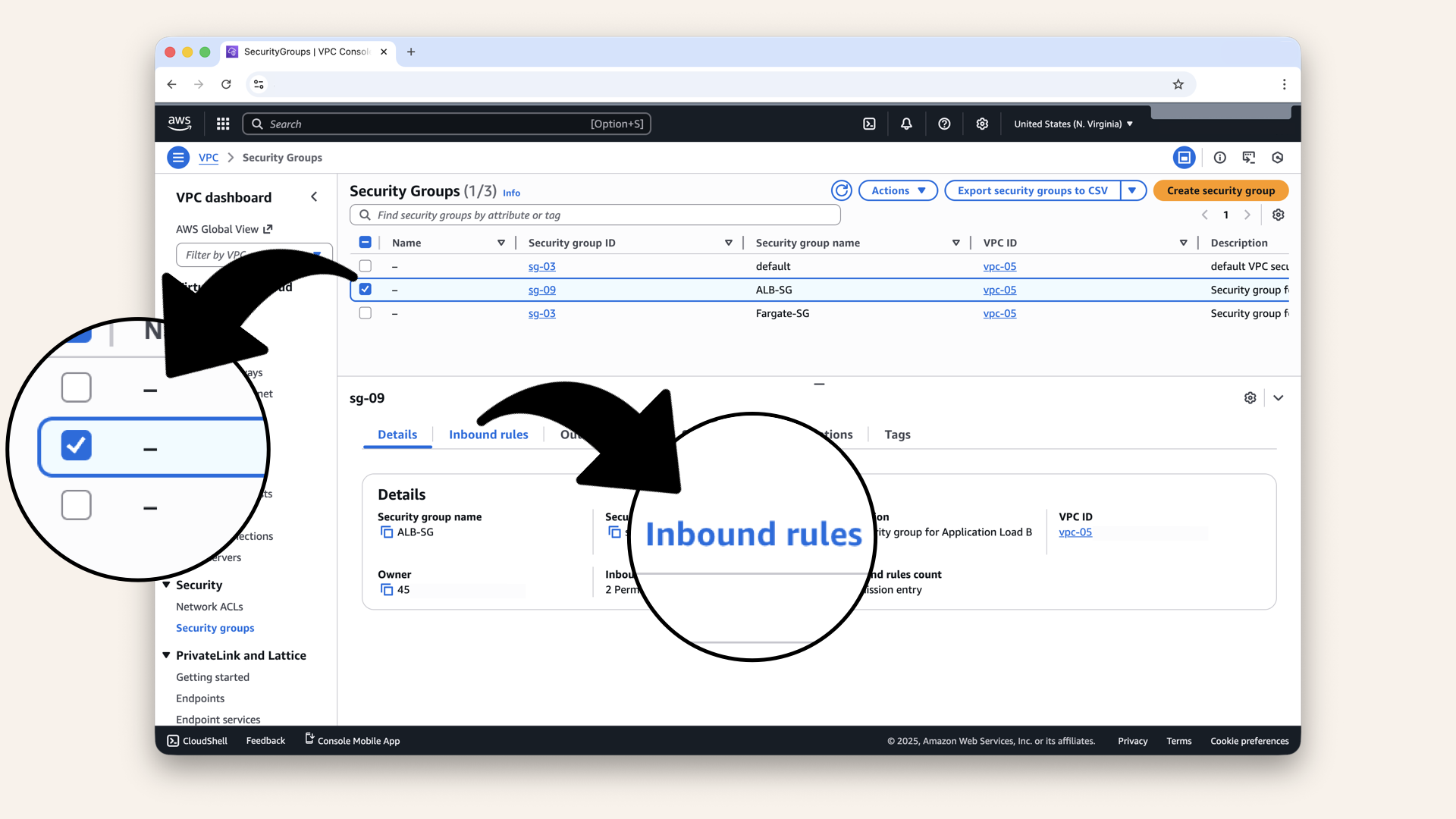
Select the ALB-SG from the checkboxes and click Inbound rules
Confirm these ALB-SG inbound rules:
Inbound rules:
- HTTP (80) from
0.0.0.0/0 - HTTPS (443) from
0.0.0.0/0
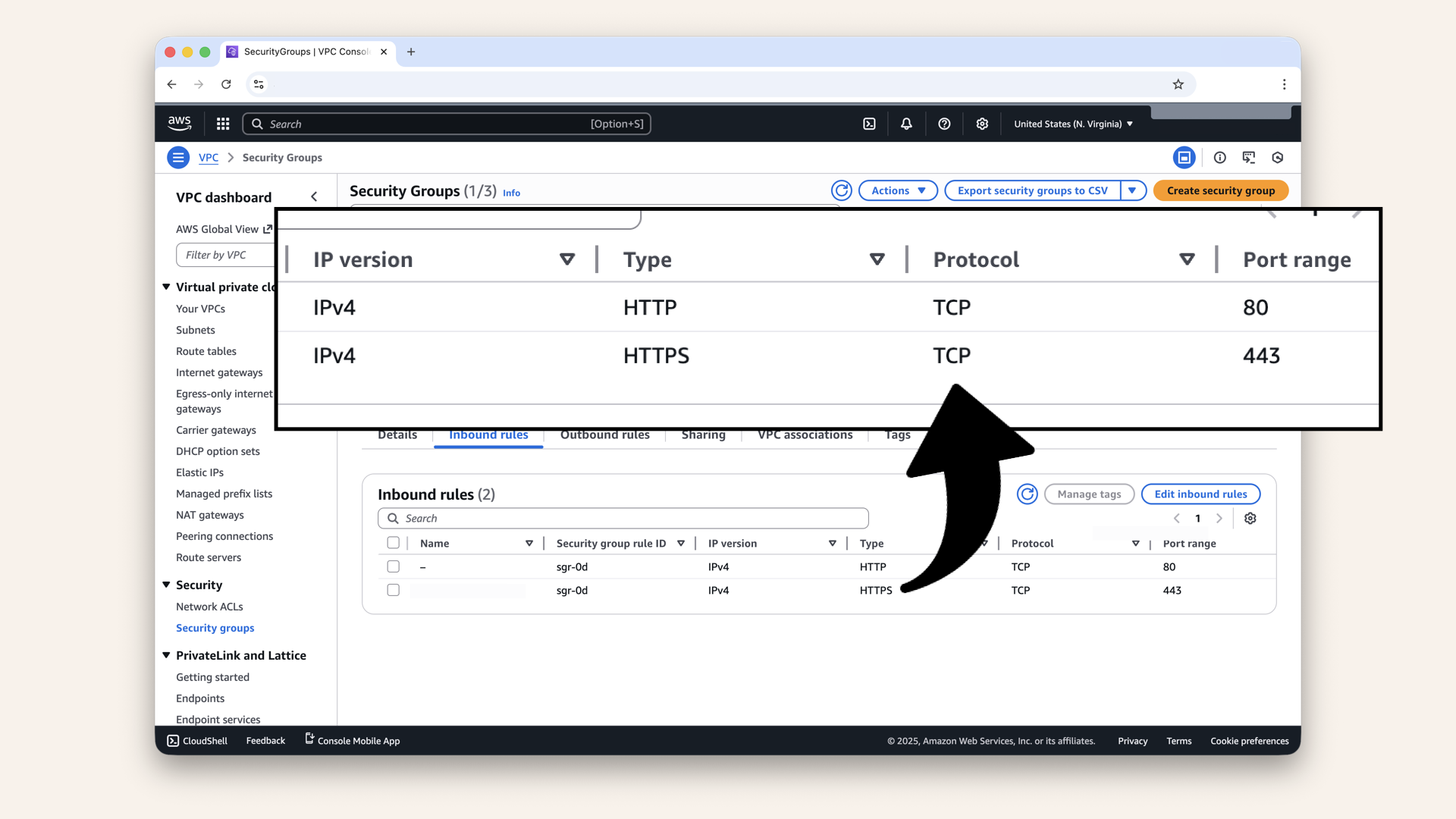
Confirm these ALB-SG inbound rules
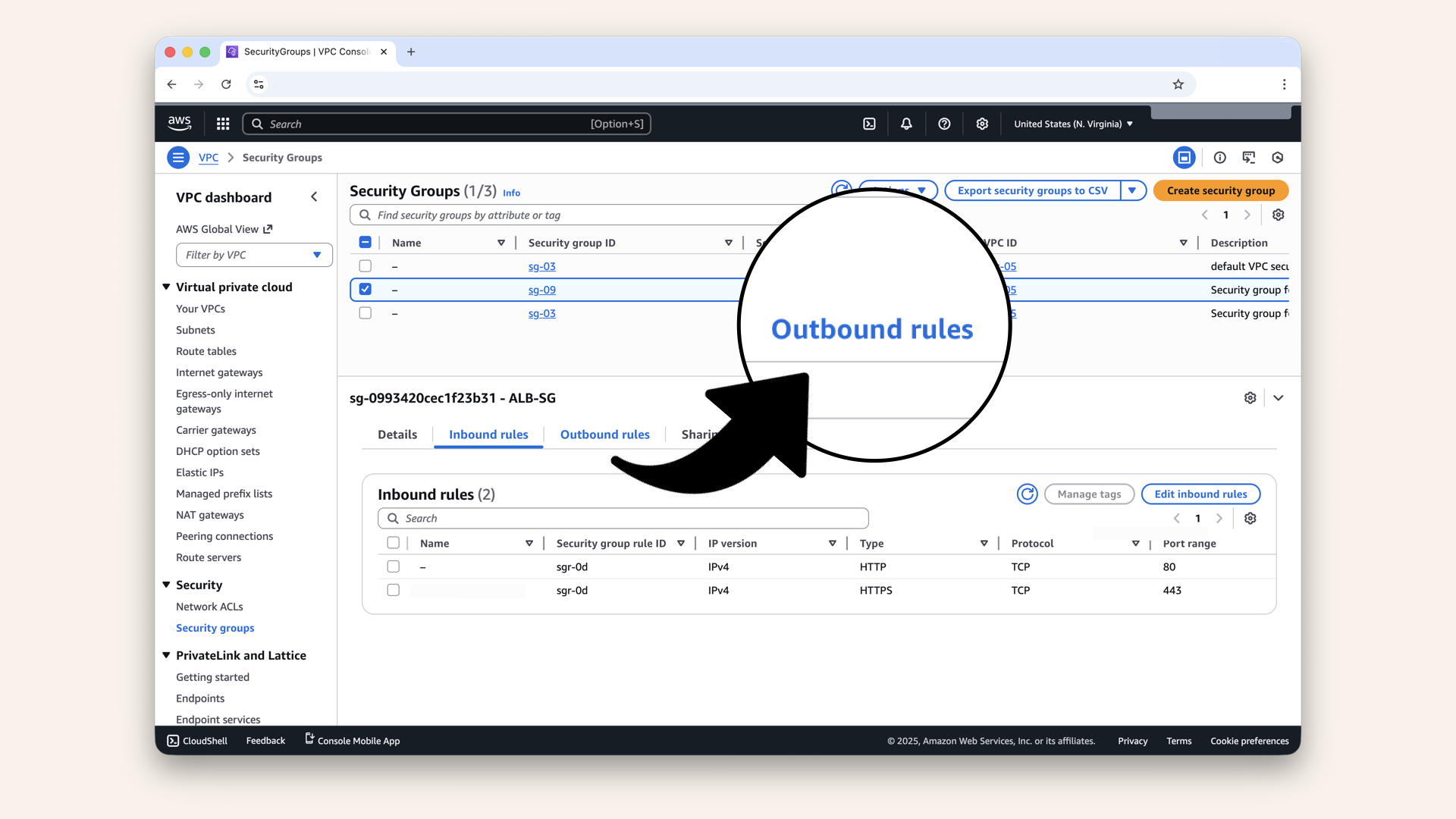
Click Outbound rules
Confirm these ALB-SG outbound rules:
Outbound rules:
- All traffic to
0.0.0.0/0
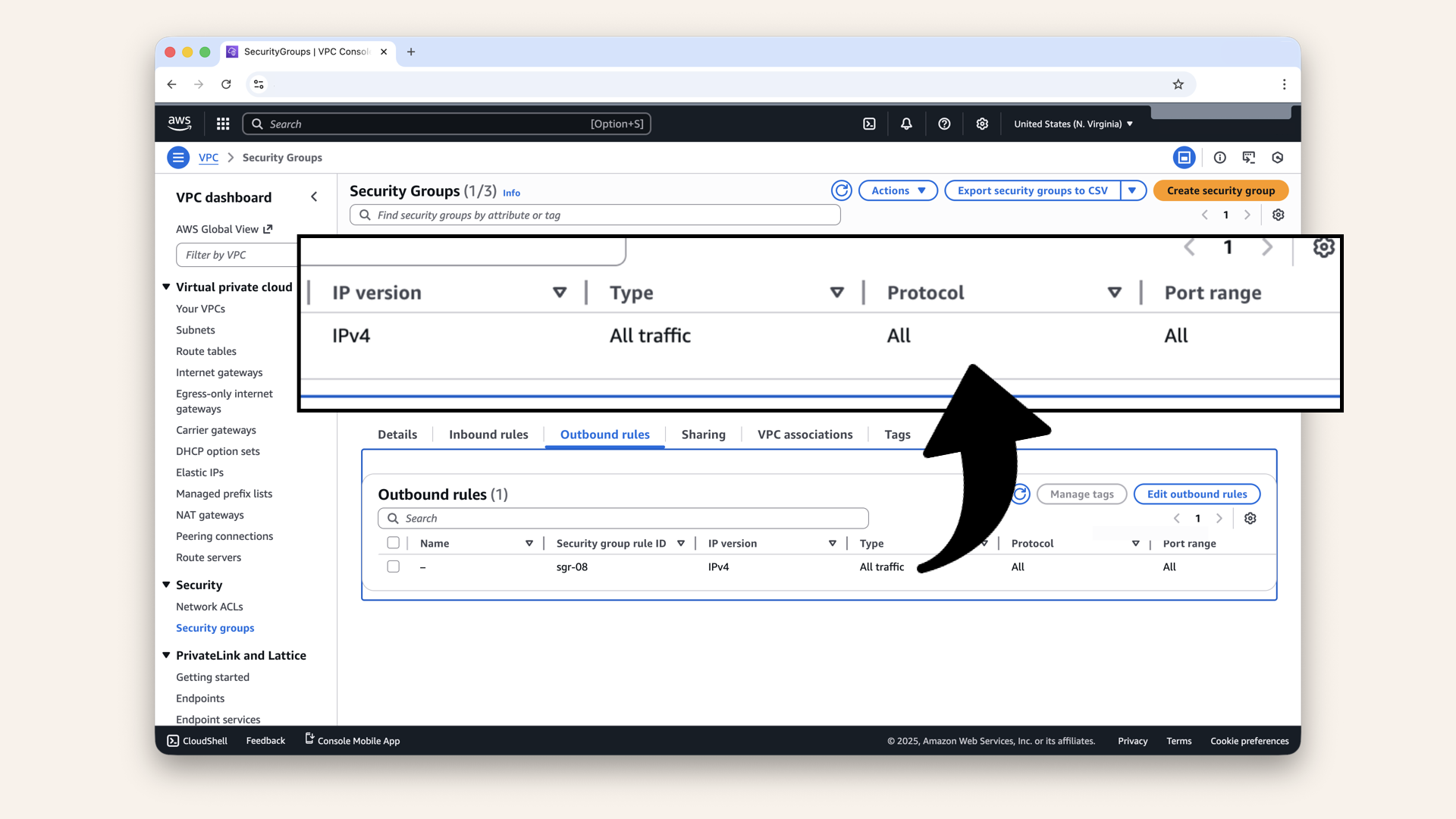
Confirm these ALB-SG outbound rules
Fargate-SG
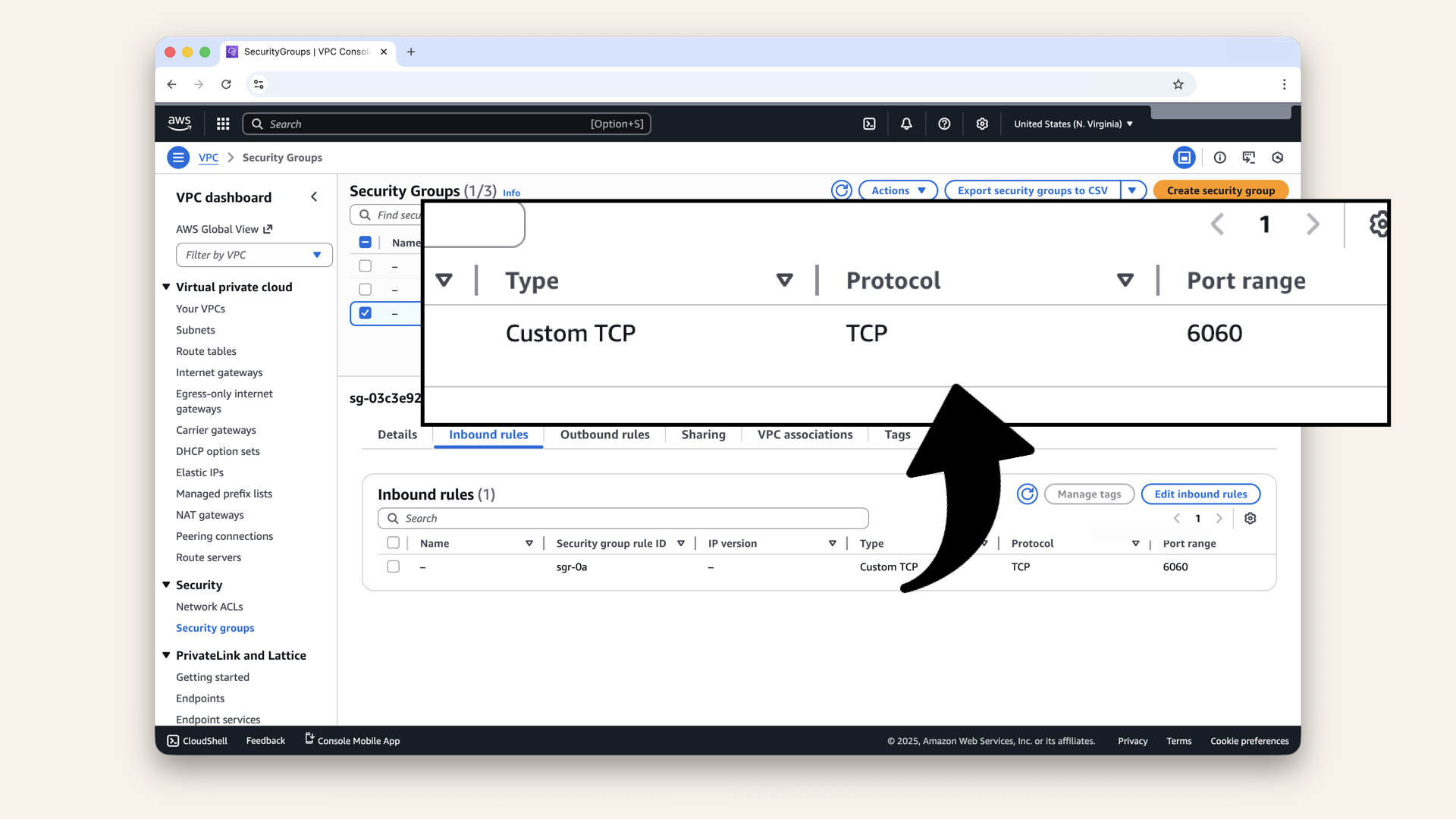
Select theFargate-SG from the checkboxes and click Inbound rules:
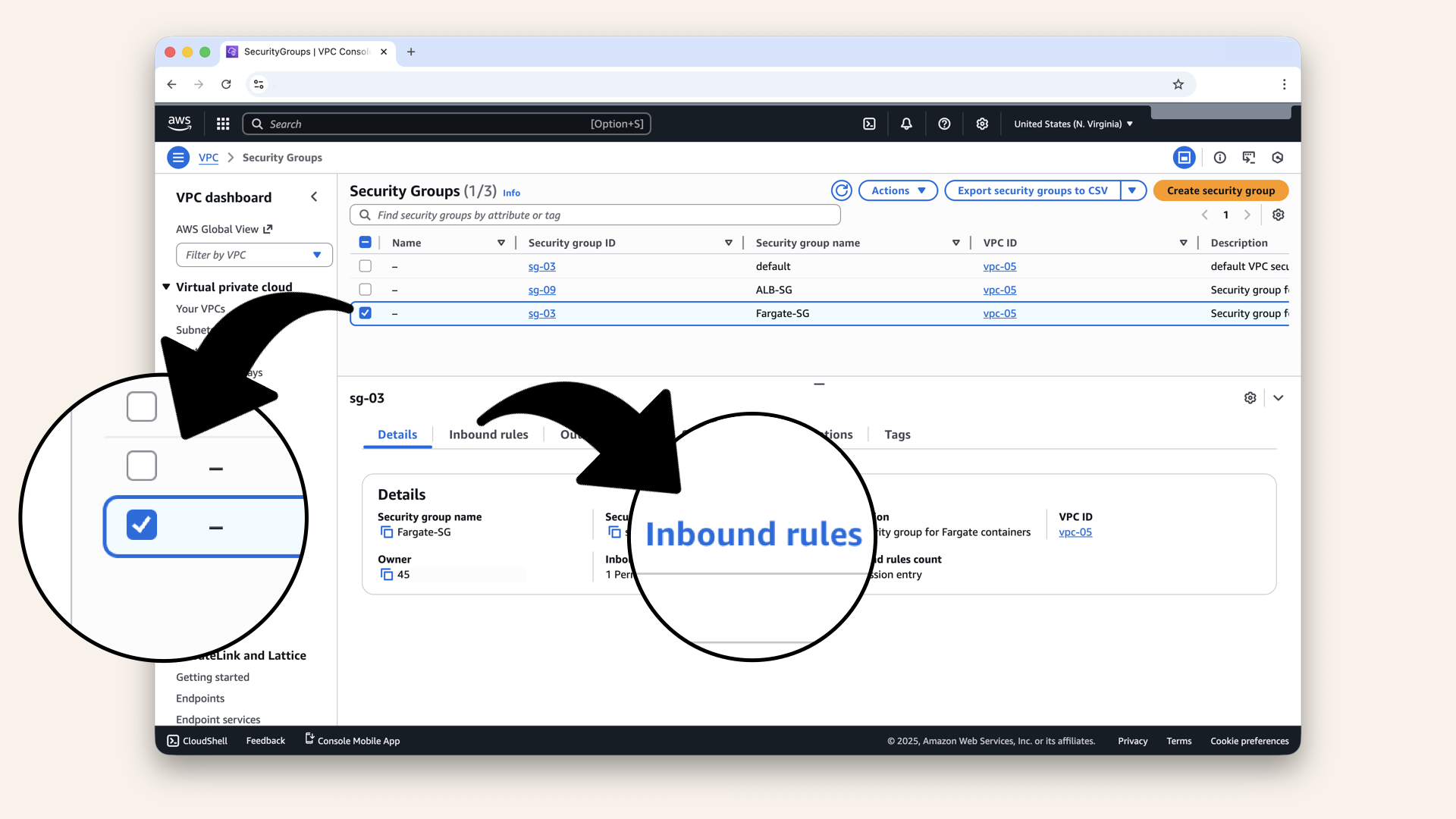
Select the Fargate-SG from the checkboxes and click Inbound rules
Confirm these Fargate-SG inbound rules:
Inbound rules:
- TCP 6060 from source ALB-SG
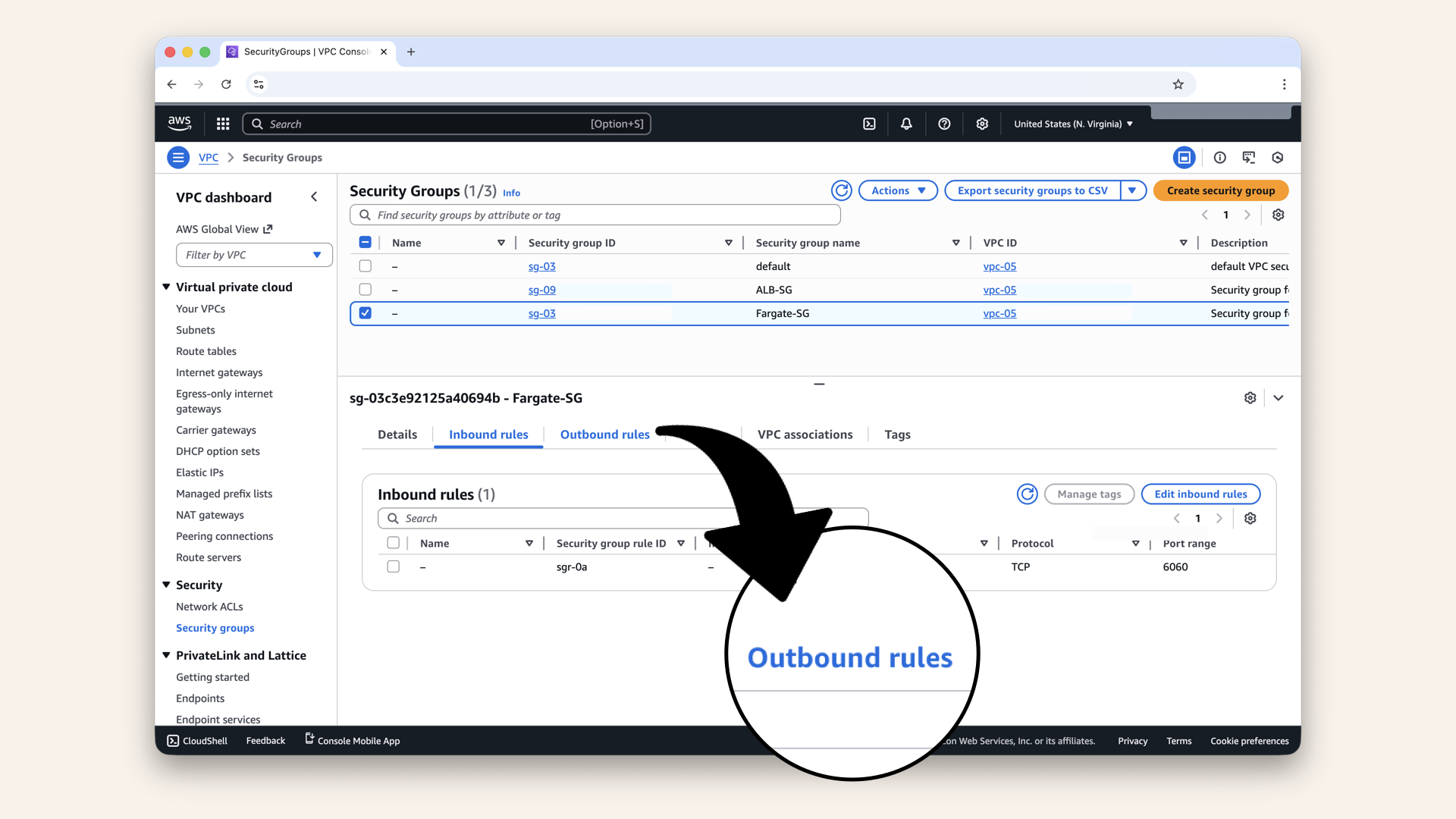
Click Outbound rules
Confirm these Fargate-SG outbound rules:
Outbound rules:
- All traffic to
0.0.0.0/0

Confirm these Fargate-SG outbound rules
If both look good → your security is set up ✅
Today's win ✅
If you completed all steps:
✅ Created ALB-SG with HTTP/HTTPS access from internet
✅ Created Fargate-SG with port 6060 access from ALB only
✅ Set up proper outbound rules for both
✅ Verified all security rules
You just added the smart locks.
Your network now has:
- Routing (Day 6)
- Security (Day 7)
- Production-ready access control
Understanding what you built
The security chain:
What if someone tried to bypass the ALB? → Access denied ❌
Security Groups are smart locks attached to each building (resource)
This is your defense:
- NAT Gateway (one-way traffic)
- Route tables (proper routing)
- Security groups (firewall rules)
Production-ready security.
Why "allow all outbound" is safe
You might wonder: "Isn't allowing all outbound traffic a security risk?"
No, and here's why:
1. Containers need to make API calls
- OpenAI Realtime API
- Twilio
- AWS services (ECR, CloudWatch, etc.)
Blocking outbound would break your app.
2. Private subnets are already protected
- Containers have no public IP
- Inbound internet traffic is blocked by security groups
- NAT Gateway provides one-way access
Even with "all outbound", containers can't be accessed from internet.
3. Stateful firewall handles responses
- Security Groups are stateful (if you allow inbound traffic, the response is automatically allowed back out)
- Responses to allowed inbound traffic are automatically allowed
- You're not creating new security holes
4. If you need stricter controls
- Specify exact IPs/ports for outbound
- Use VPC endpoints for AWS services
- Implement egress filtering
Security Group best practices
1. Use descriptive names
✅ ALB-SG, Fargate-SG, RDS-SG
❌ sg-123abc, security-group-1
2. Reference Security Groups, not IPs
✅ Allow traffic from ALB-SG
❌ Allow traffic from 10.0.1.5
Why: If the ALB's IP changes, your rules still work.
3. Principle of least privilege
- Only allow what's necessary
- Don't use
0.0.0.0/0for internal resources - Fargate should only accept from ALB, not from internet
4. Document your rules
- Use clear descriptions
- "Security group for Application Load Balancer"
- Not just "ALB stuff"
5. Review regularly
- Remove unused Security Groups
- Audit rules every few months
- Delete test/dev Security Groups
Common mistakes (and how to avoid them)
❌ Mistake #1: Allowing Fargate port 6060 from 0.0.0.0/0
Result: Containers are exposed to internet (security risk)
Fix: Only allow from ALB-SG
❌ Mistake #2: Forgetting HTTPS (post 443)
Result: SSL won't work when you add it later
Fix: Add both HTTP (80) and HTTPS (442) to ALB-SG now
❌ Mistake #3: Blocking all outbound from Fargate
Result: Containers can't call OpenAI, Twilio or pull Docker images
Fix: Allow all outbound (or specific destinations if you need strict control)
❌ Mistake #4: Using IP addresses instead of Security Groups
Result: Rules break when IPs change
Fix: Reference ALB-SG directly in Fargate-SG rules.
Troubleshooting
Can't connect to load balancer on port 80/443
Check:
ALB-SGhas inbound rules for HTTP (80) and HTTPS (443)- Source is
0.0.0.0/0(anywhere) - ALB is actually using
ALB-SG(we'll attach it on Day 9) - ALB is in public subnets
PublicRouteTablehas route to Internet Gateway
Load balancer can't reach Fargate containers
Check:
Fargate-SGhas inbound rule for port 6060- Source is set to
ALB-SG(not 0.0.0.0/0) - Fargate containers will use
Fargate-SG(we'll set this on Day 13) - Both Security Groups are in the same VPC
Fargate containers can't reach OpenAI/Twilio
Check:
Fargate-SGhas outbound rule for all trafficPrivateRouteTablehas route to NAT Gateway- NAT Gateway is in a public subnet
PublicRouteTablehas route to Internet Gateway
How do I allow traffic from a specific IP?
To allow access from just your office IP:
- Get your IP: Google "what is my IP"
- In
ALB-SGinbound rules, change source from0.0.0.0/0toYOUR_IP/32 - Example:
203.0.113.5/32
Note: Most home IPs change, so you'll need to update this rule periodically.
Can I use the same Security Group for ALB and Fargate?
Technically yes, but it's bad practice.
Why separate is better:
- Different resources have different security needs
- ALB needs port 80/443 from internet
- Fargate should NOT be exposed to internet
- Easier to manage and audit
Use separate Security Groups for different resource types.
Tomorrow's preview
Today: You added the smart locks (Security Groups)
Tomorrow (Day 8): We test the network
We've built:
✅ VPC + Internet Gateway✅ Subnets (public + private)
✅ NAT Gateway
✅ Route Tables
✅ Security Groups
But does it actually work?
Tomorrow we'll:
- Launch a test Ec2 instance in a public subnet
- SSH into it
- Test internet connectivity
- Verify NAT Gateway works
- Confirm routing is correct
This is your "proof of concept" before deploying real containers.
If the network test passes, you're ready to deploy.
What we learned today
1. What Security Groups are
Virtual firewalls that control inbound/outbound traffic
Security Groups are smart locks attached to each building (resource)
2. Inbound vs outbound
- Inbound = Who can connect to this resource
- Outbound = What this resource can connect to
Inbound rules are checked only when a connection is initiated → outbound rules are never used to decide who can enter.
3. Stateful firewall behavior
If inbound is allowed, responses automatically work (no matching outbound rule needed)
Allowing all outbound does not open inbound access because security groups are stateful: only responses to connections initiated from inside are allowed back, not new inbound connections.
4. Referencing Security Groups
You can allow traffic from another Security Group (not just IPs)
5. Default deny
Security Groups block all inbound by default (you must explicitly allow)
The foundation is complete
Days 1-2: Local development (your laptop) ✅
Day 3: VPC (your territory) ✅
Day 4: Subnets (front yards vs back yards) ✅
Day 5: NAT Gateway (back gate) ✅
Day 6: Route Tables (the roads) ✅
Day 7: Security Groups (the smart locks) ← YOU ARE HERE ✅
Day 8: Test Your Network
Days 9-12: Load Balancer & DNS
Days 13-17: Deployment (Docker, ECS, production!)
Days 18-24: Features (API, frontend, polish)
After Day 8, the foundation is DONE. Then we build the app!
Share your progress
Got your Security Groups set up? Share it!
Twitter/X:
"Day 7: Added Security Groups: smart locks for my VPC. ALB accepts HTTP/HTTPS from anyone, Fargate only accepts traffic from ALB. Defense in depth! Following @norahsakal's advent calendar 🎄"
LinkedIn:
"Day 7 of building AI calling agents: Created Security Groups to control traffic flow. My containers are now protected, only the load balancer can reach them, internet traffic is blocked. This is production-ready security!"
Tag me! I want to celebrate your progress! 🎉
Want the full course?
But if you want:
✅ Complete codebase (one clean repo)
✅ Complete walkthroughs
✅ Support when stuck
✅ Production templates
✅ Advanced features
Join the waitlist for the full course (launching February 2026):
Let's chat about your use case!
Schedule a free call ↗ - no pitch, just two builders talking.
Tomorrow: Day 8 → Test your network (proof it works)
Read Day 8 ↗
See you then!
— Norah