Day 9: Create your Application Load Balancer (the front door)

How to create an Application Load Balancer that accepts internet traffic and routes it to your private containers
Your network needs a front-yard house
Day 8: You tested and validated your network
Today: We build the front door (Application Load Balancer)
Here's the setup:
Your AI containers will live in private subnets (no public IPs, hidden from internet).
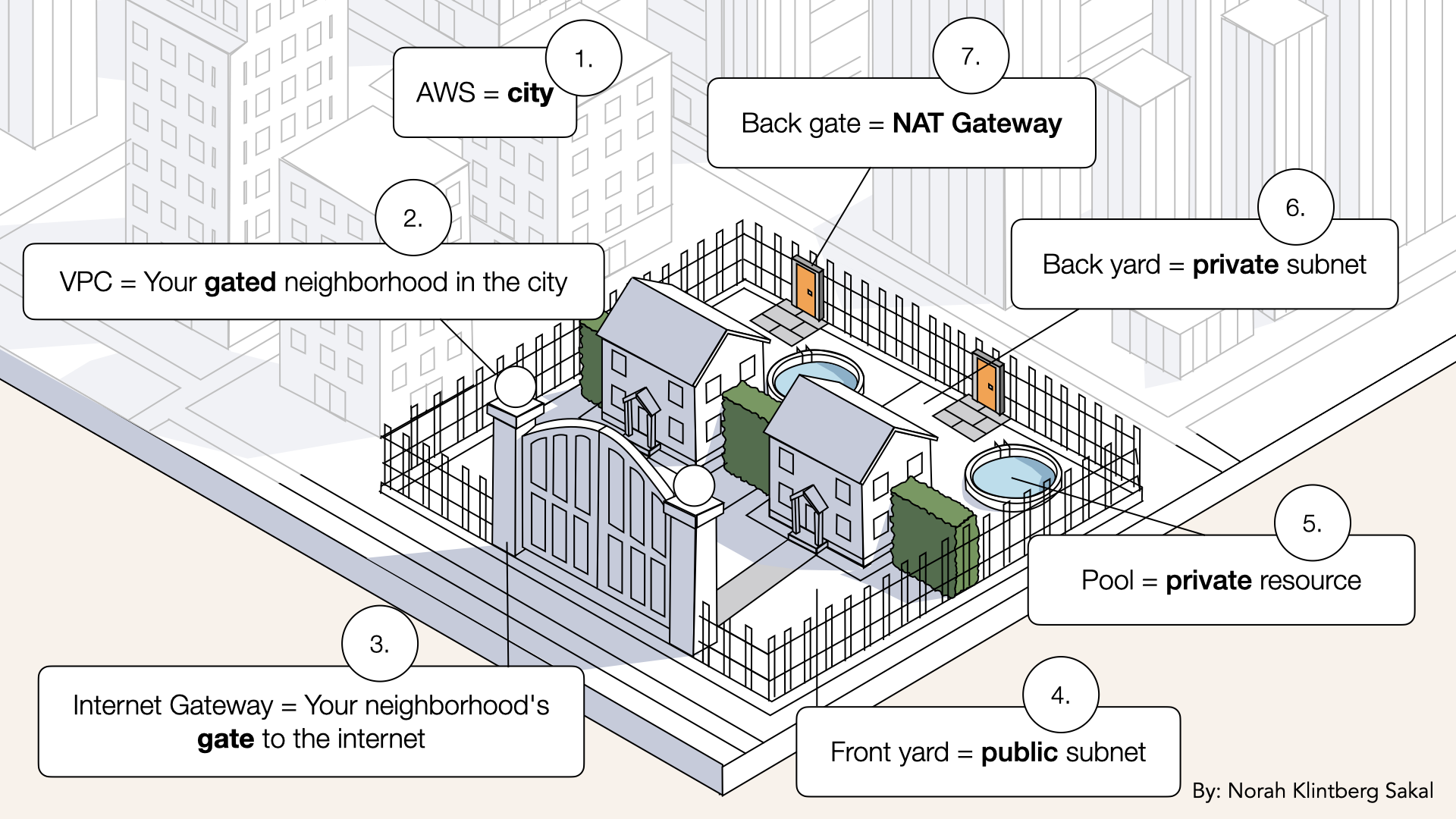
Your AI containers will live in private subnets (no public IPs, hidden from internet)
But users need to access them.
The problem:
- Users are on the internet
- Containers are in private subnets
- How do they connect?
You can't expose container directly (that defeats the purpose of private subnets).
Solution: Application Load Balancer (ALB)
Think of it like the front-yard house:
Without an ALB:
- Strangers try to walk straight into houses (resources) in the back yard
- Then skip the front yard completely
- Pool houses (private resources) are exposed
- Locks are constantly under attack
With ALB:
- Visitors are only allowed to enter through the front-yard house
- The front-yard house decides which back-yard house to route them to
- Back-yard houses only open their doors to visitors coming from the front-yard house
- Security checks at entrance
No one can knock on private doors directly.
ALB is your front-yard house, security checkpoint and traffic router, all in one.
By the end of today, you'll have:
✅ Target Group created (where to send traffic)
✅ Application Load Balancer deployed in public subnets
✅ HTTP listener configured (port 80)
✅ ALB-SG attached for security
✅ Stable endpoint for users
Let's build your front-yard house. 🏠
What you'll build today
An Application Load Balancer with:
| Component | Value | Purpose |
|---|---|---|
| Name | Fargate-ALB | Your identifier |
| Scheme | Internet-facing | Accessible from internet |
| Subnets | PublicSubnet-1 & PublicSubnet-2 | Lives in front yards |
| Security Group | ALB-SG | Allows HTTP/HTTPS |
| Target Group | Fargate-TG | Where to route traffic (Fargate containers) |
| Listener | HTTP:80 | Accepts traffic on port 80 |
Traffic flow:
Internet → ALB (port 80) → Target Group → Fargate containers (port 6060)
What you'll learn
- What an Application Load Balancer is
- How Target Groups work
- The difference between ALB, NLB and Classic LB
- Why ALB lives in public subnets
- How health checks keep your app reliable
- How to configure listeners and routing
But if you want:
✅ Complete codebase (one clean repo)
✅ Complete walkthroughs
✅ Support when stuck
✅ Production templates
✅ Advanced features
Join the waitlist for the full course (launching February 2026):
Building something with AI calling?
Let's chat about your use case!
Schedule a free call ↗ - no pitch, just two builders talking.
Time requirement
20 minutes (create target group + ALB + configure)
Prerequisites
✅ Completed Day 3 (VPC) ↗
✅ Completed Day 4 (Subnets) ↗
✅ Completed Day 5 (NAT Gateway) ↗
✅ Completed Day 6 (Route Tables) ↗
✅ Completed Day 7 (Security Groups) ↗
✅ Completed Day 8 (prove it works) ↗
✅ Access to AWS Console
Understanding Application Load Balancer (3-minute primer)
What is an Application Load Balancer?
ALB = A managed AWS Service that distributes incoming traffic across multiple targets
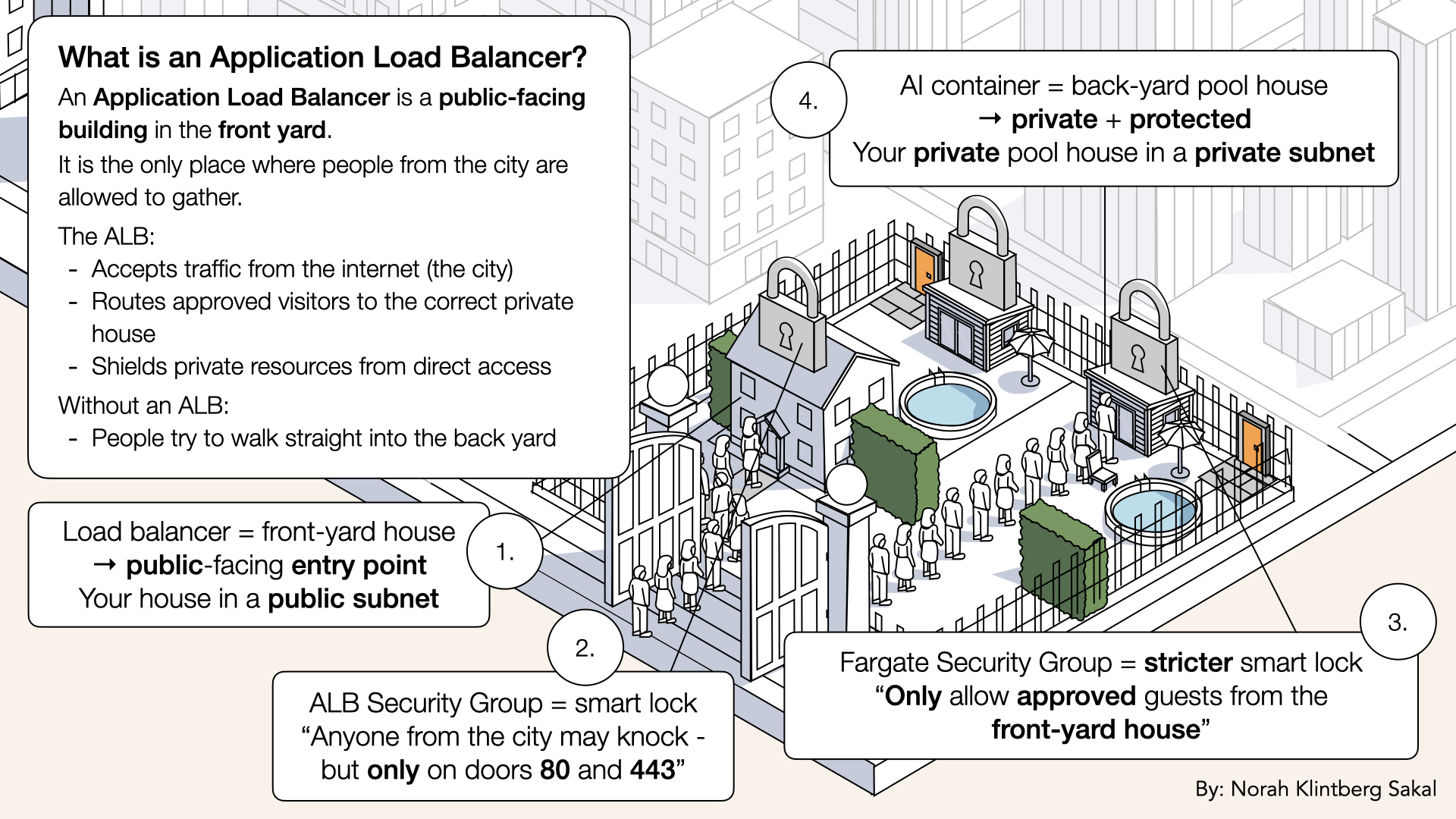
Think of an Application Load Balancer as the front-yard house
Key features:
- Routes HTTP/HTTPS traffic
- Lives in public subnets
- Has a stable DNS name
- Performs health checks
- Handles SSL termination
- Routes based on URL path, headers, etc.
In our setup:
- Accepts traffic from internet (port 80/443)
- Routes it to Fargate containers (port 6060)
- Spread load across multiple containers
ALB vs NLB vs Classic Load Balancer
AWS has 3 types of load balancers:
| Type | Best For | Protocol | Use Case |
|---|---|---|---|
| Application Load Balancer (ALB) | HTTP/HTTPS apps | Layer 7 (application) | Web apps, APIs, microservices |
| Network Load Balancer (NLB) | High performance | Layer 4 (transport) | TCP/UDP, extreme performance |
| Classic Load Balancer | Legacy | Layer 4/7 | Old apps (deprecated) |
We're using ALB because:
✅ Handles HTTP/HTTPS (our AI app)
✅ Advanced routing (path-based, host-based)
✅ WebSocket support (for real-time audio)
✅ Modern, feature-rich
How Target Groups work
Target Groups = A collection of targets (containers, EC2 instances, IPs) that receives traffic from the load balancer
A Target Group defines which private houses are allowed to receive visitors from the front-yard house.
Think of it like:
- ALB = Front-yard house
- Target Group = List of approved back-yard houses
- Targets = individual pool houses (containers)
The front-yard house never sends visitors to random houses.
It only routes traffic to houses on its approval list:
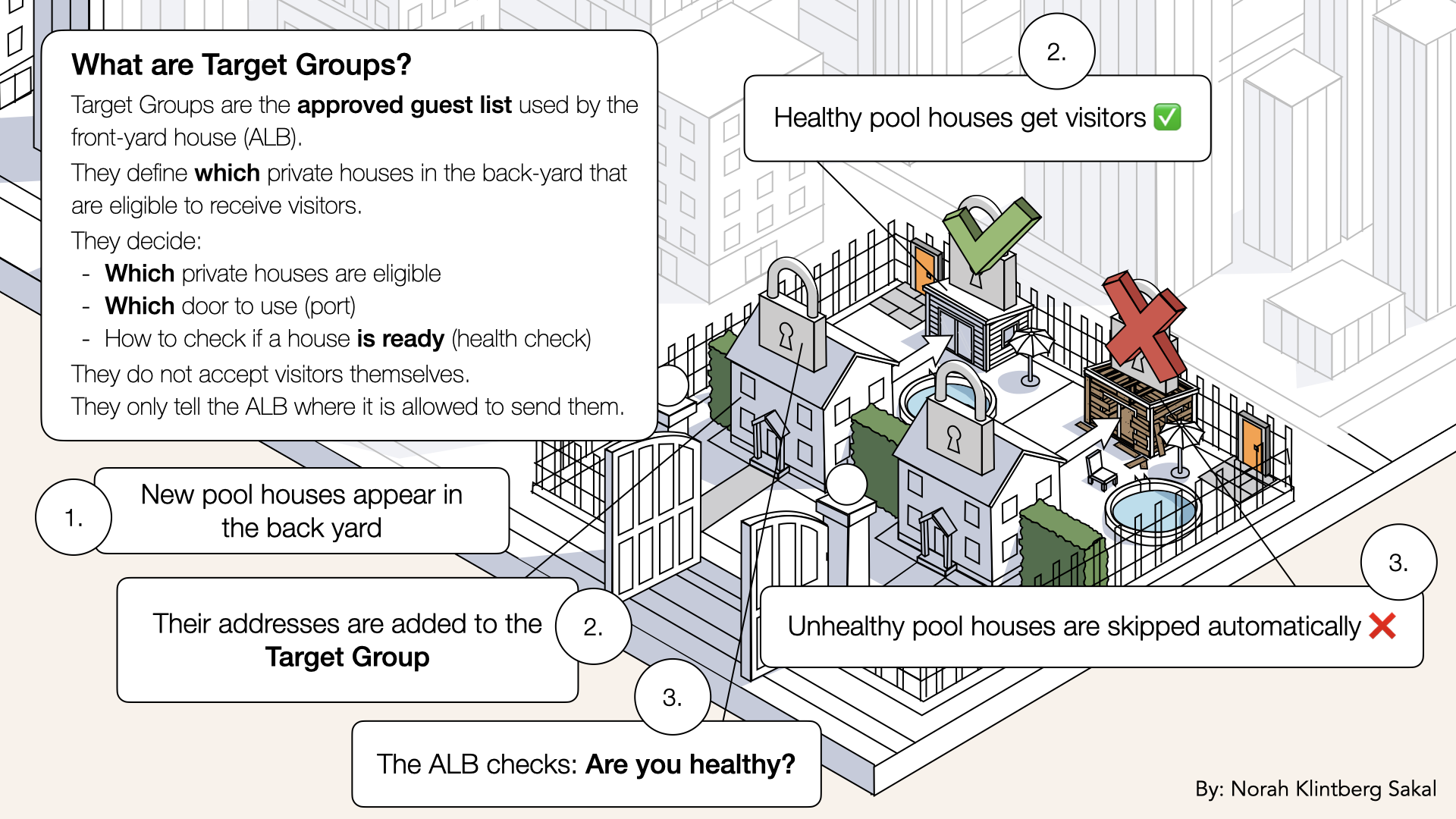
A Target Group defines which private houses are allowed to receive visitors from the front-yard house
For us:
- Target type: IP (Fargate uses IP addresses)
- Protocol: HTTP
- Port: 6060
- Health checks:
/healthendpoint
When you deploy Fargate:
- Fargate automatically registers container IPs with the Target Group
- ALB checks health and routes traffic
- If a container fails health checks, ALB stops sending traffic to it
Key takeaway:
The ALB decides where visitors may go
The Target Group decides which houses are eligible
Why ALB lives in public subnets
ALB needs to:
- Accept traffic from the internet
- Have a public IP (assigned by AWS)
- Route traffic to private subnets
That's why it lives in public subnets:
- Public subnets have route to Internet Gateway
- ALB gets internet access
- But ALB can still reach private subnets (they're in the same VPC)
Traffic flow:
Internet → IGW → Public Subnet (ALB) → Private Subnet (Fargate)
Health checks
Health check = ALB periodically pings your containers to see if they're healthy
Example:
- Every 30 seconds, ALB sends:
GET /health - If container responds with HTTP 200 → Healthy ✅
- If container doesn't respond or returns error → Unhealthy ❌
Why this matters:
- If a container crashes, ALB detects it (via failed health checks)
- ALB stops sending traffic to that container
- Other healthy containers continue serving traffic
- Your app stays online even if some containers fail
This is automatic high availability.
Step 1: Create Target Group
Before creating the ALB, we need to create a Target Group.
Open the AWS Console ↗In the search bar at the top, type ec2 and click EC2 from the dropdown menu:
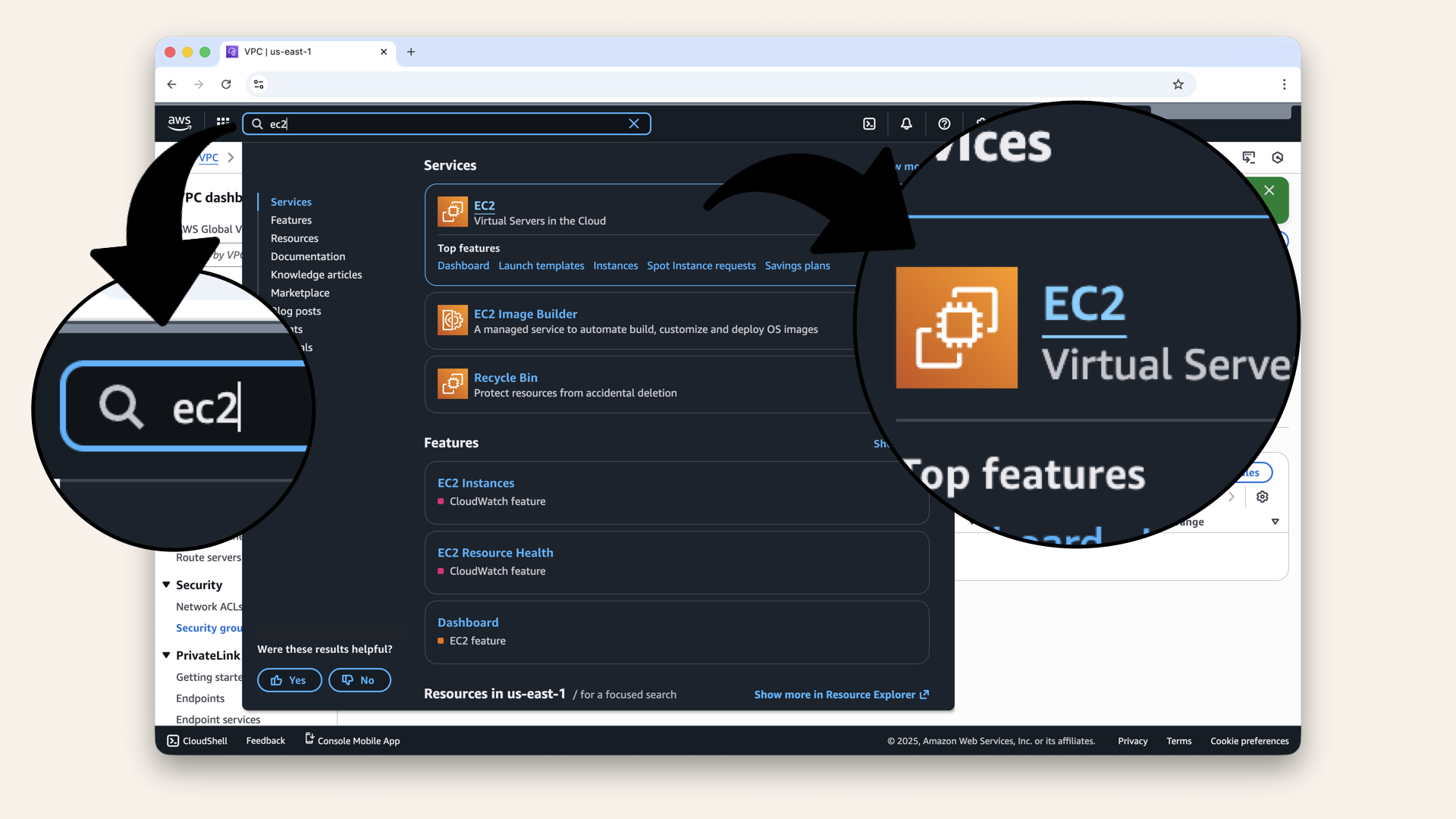
In the search bar at the top, type ec2 and click EC2 from the dropdown menu
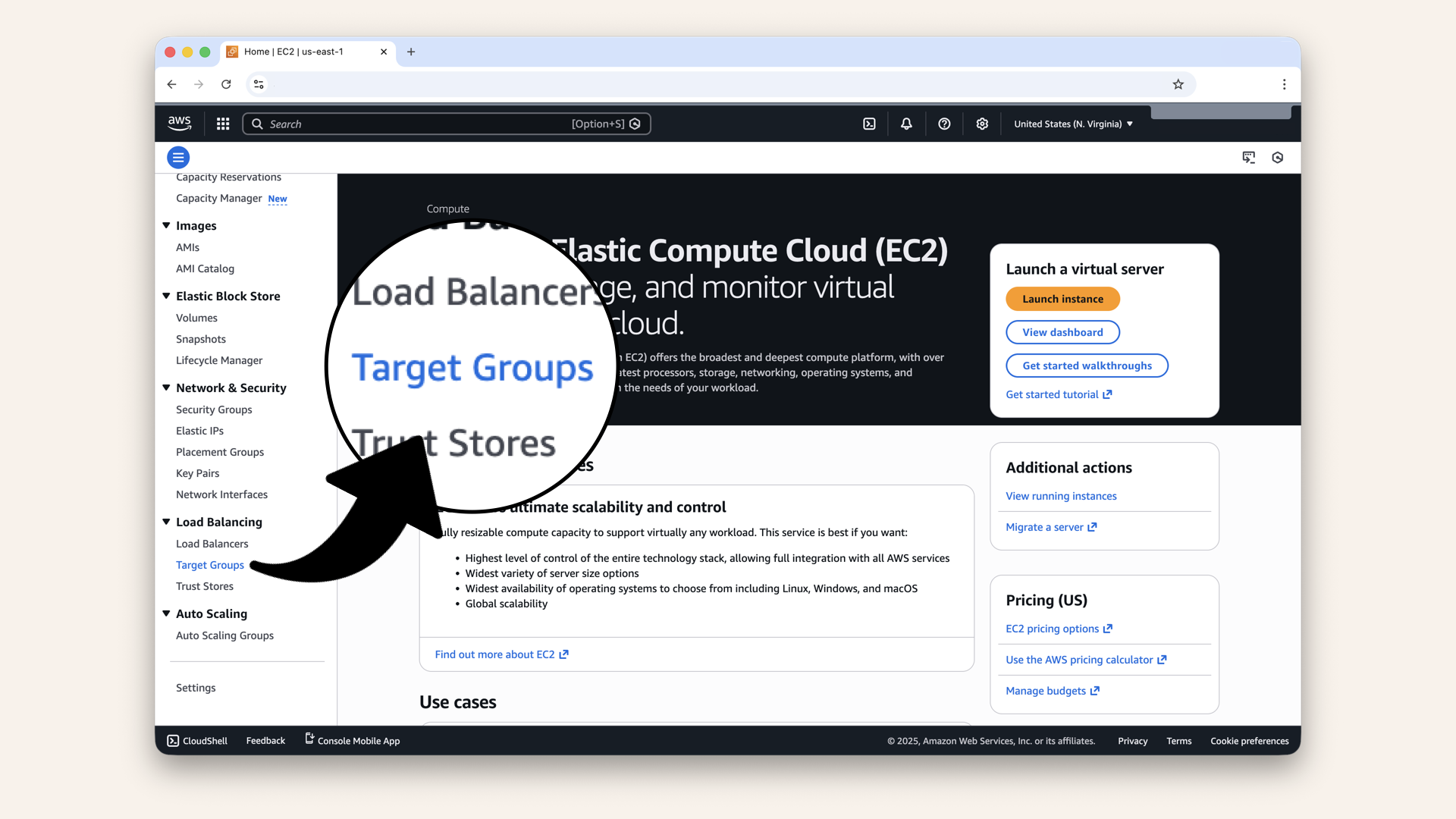
In the left menu, scroll down and click Target Groups (under Load Balancing)
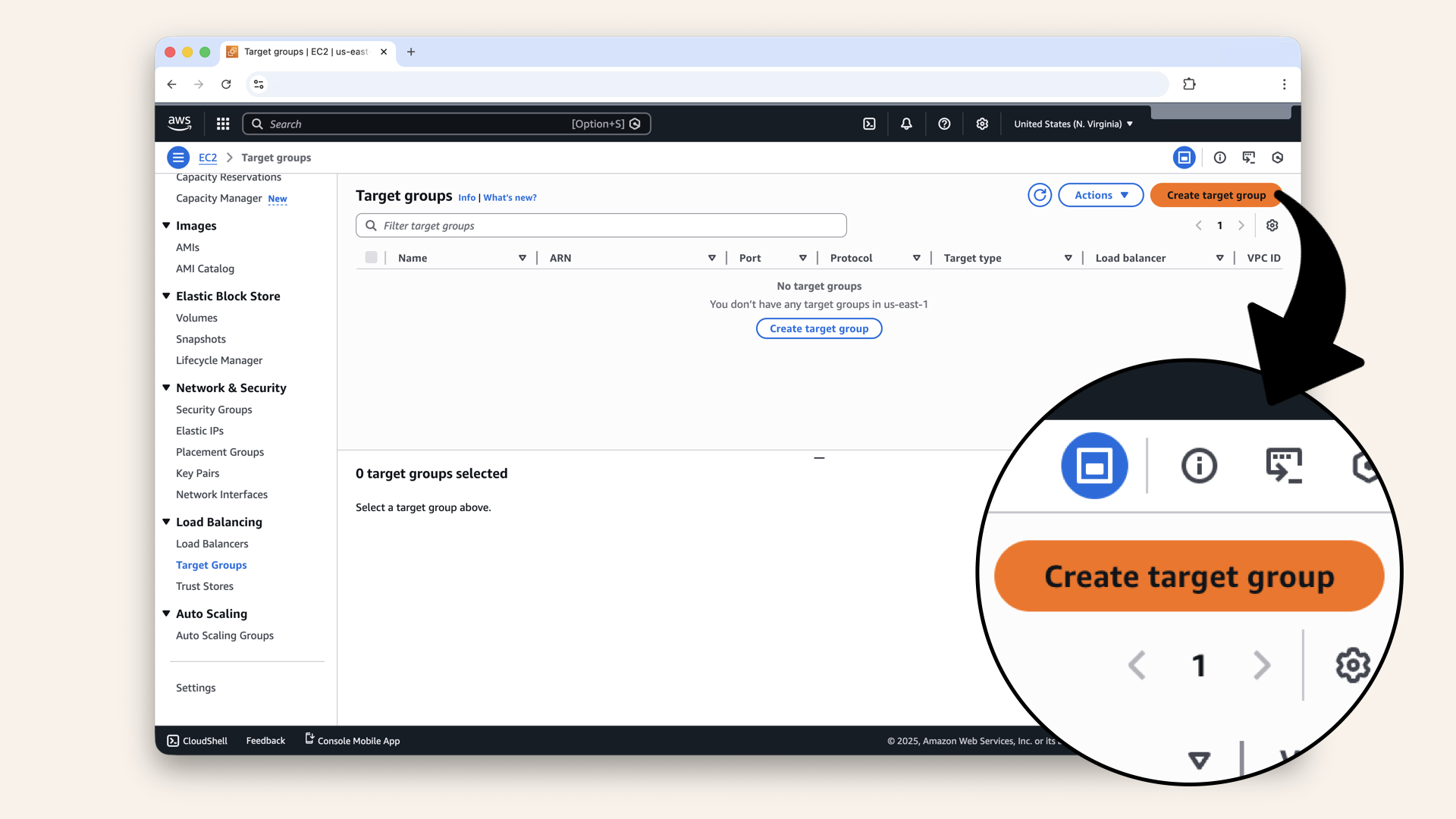
Click Create target group
Step 1.1 Choose target type
Select IP addresses (Fargate uses IPs, not instances):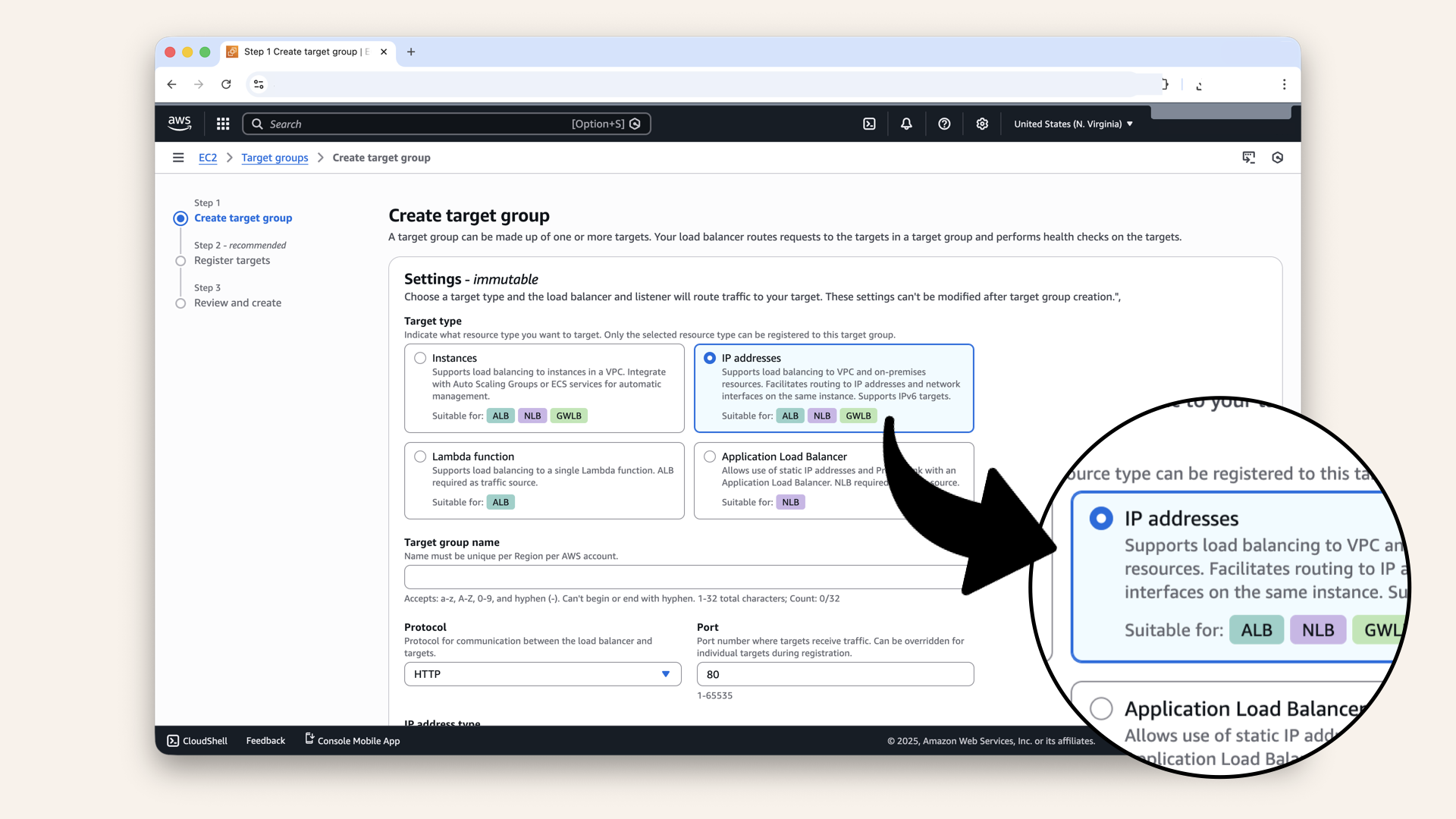
Select IP addresses (Fargate uses IPs, not instances)
Step 1.2 Configure target group
Scroll down and fill in the settings:
Click the icon
and copy each value from the table below ⬇| Field | Value |
|---|---|
| Target group name | |
| Protocol | HTTP |
| Port | |
| IP address type | IPv4 |
| VPC | Select your VPC |
| Protocol version | HTTP1 |
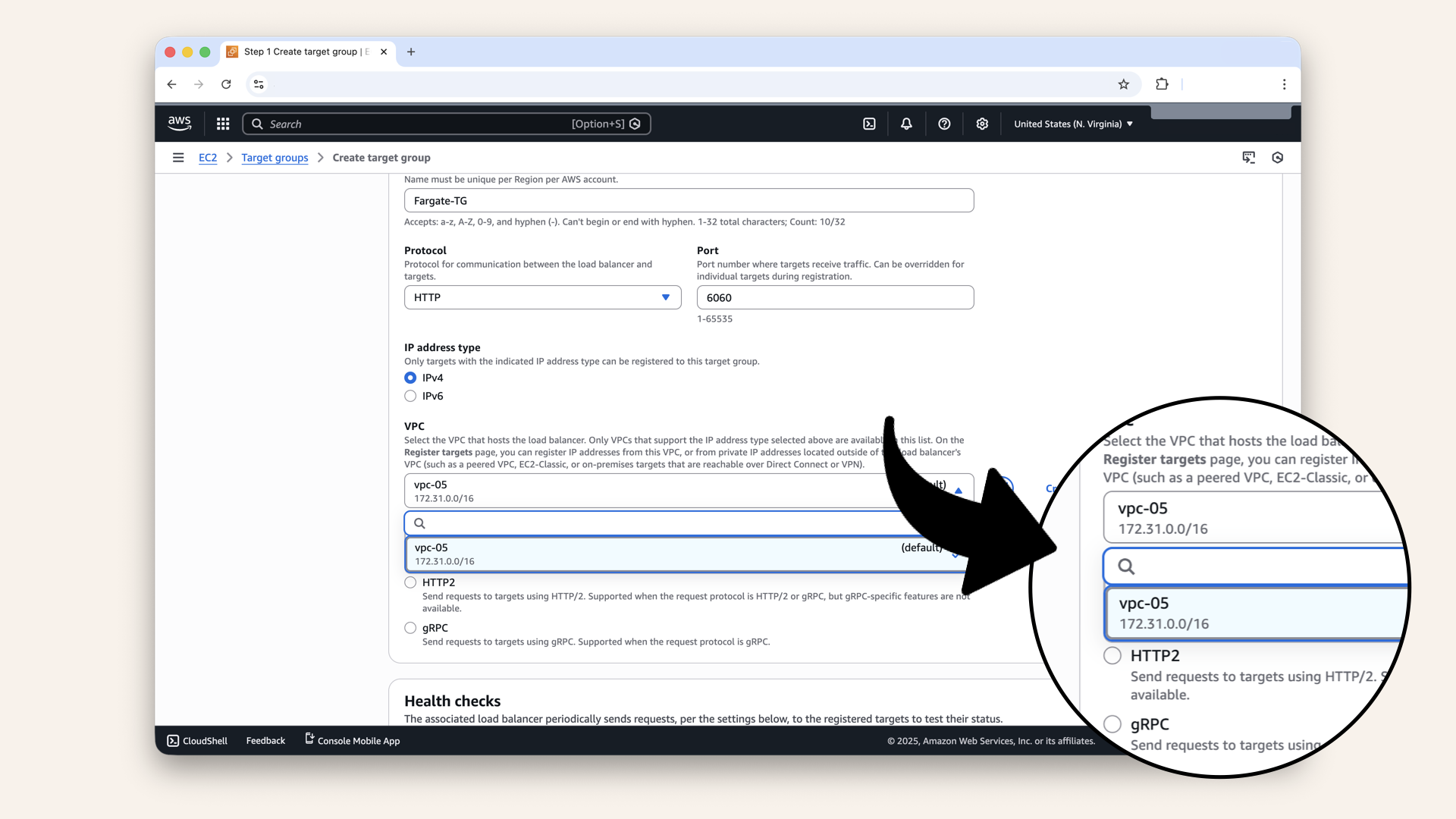
Select your VPC from the dropdown
Step 1.3: Configure health checks
Scroll down to Health checks and fill in these settings:
| Field | Value | Why |
|---|---|---|
| Health check protocol | HTTP | Check via HTTP request |
| Health check path | Our app's health endpoint | |
| Advanced health check settings | Keep defaults | Good defaults for most apps |
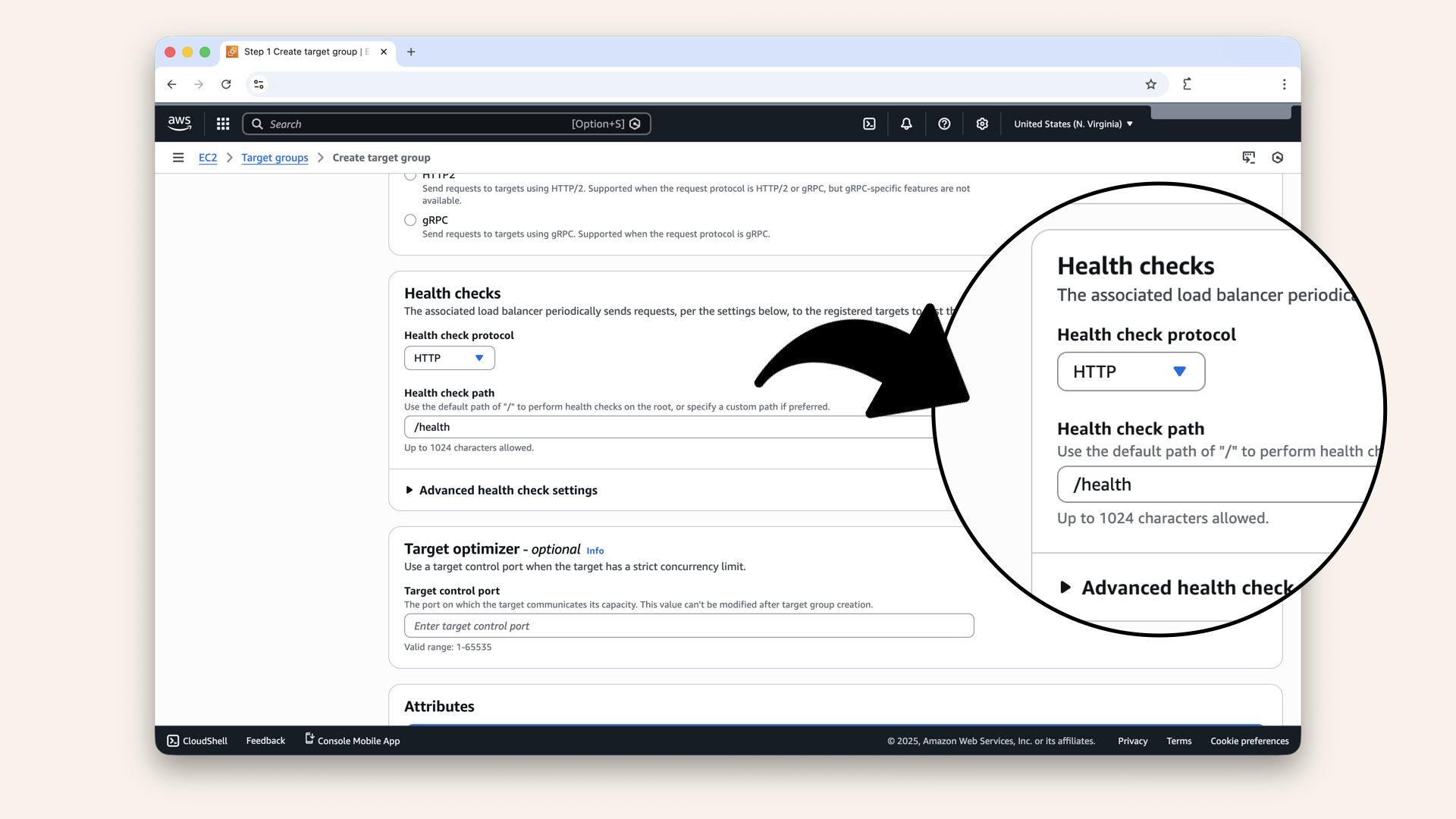
Scroll down to Health checks and fill in these settings
/health endpointYou FastAPI app (from Day 1-2) already has a health endpoint at /health.
When Fargate deploys:
- ALB will ping:
GET http://container-ip:6060/health - Your app responds:
{"status": "healthy"} - ALB marks container as healthy ✅
If your app doesn't respond:
- ALB marks container as unhealthy ❌
- Stops routing traffic to it
- ECS automatically replaces the failed container
This is how AWS keeps your app running 24/7
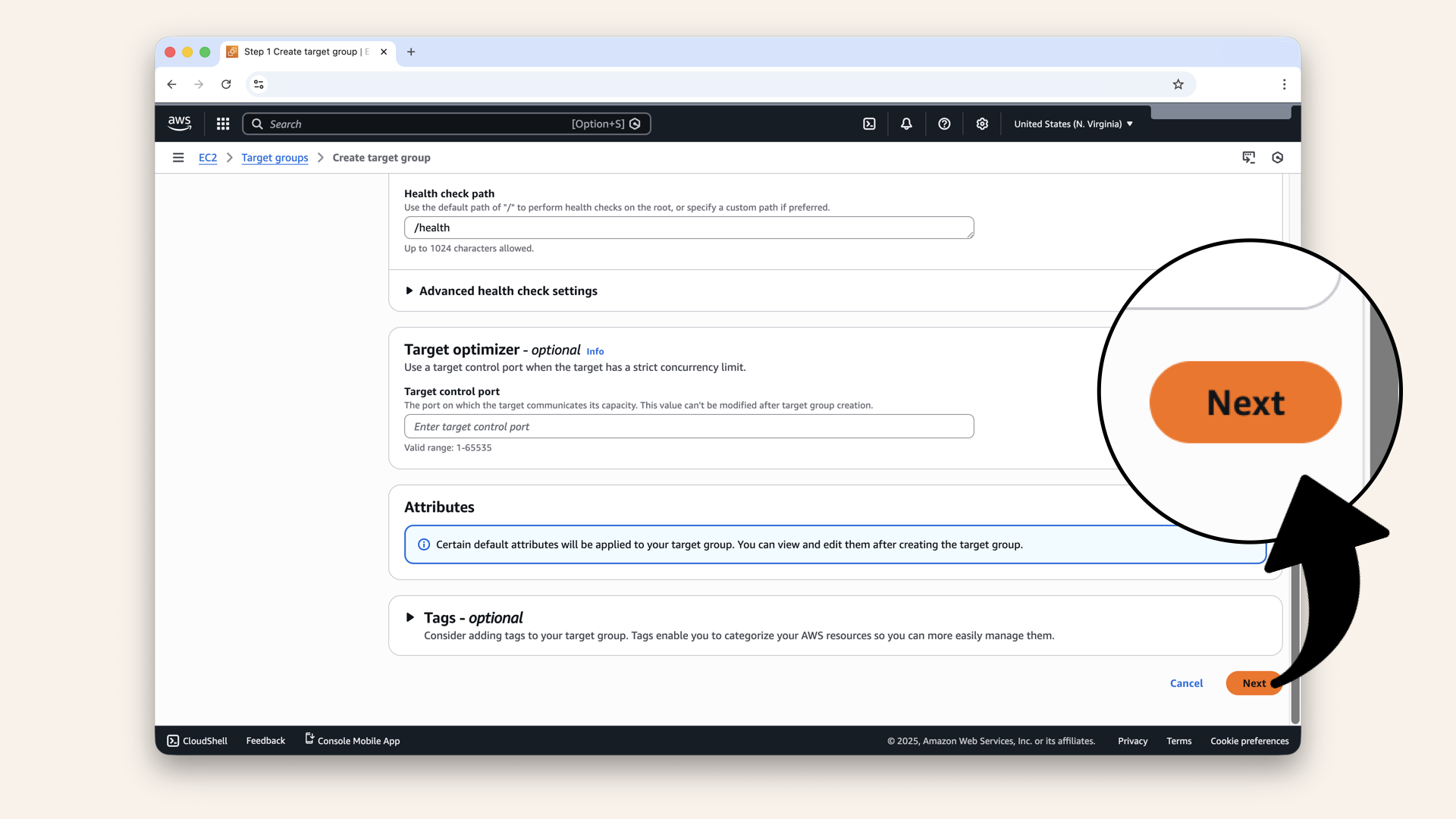
Scroll all the way down and click Next
Step 1.4 Register targets
Don't add any targets yet (we'll do that when we deploy Fargate on Day 13).
Scroll all the way down and click Next: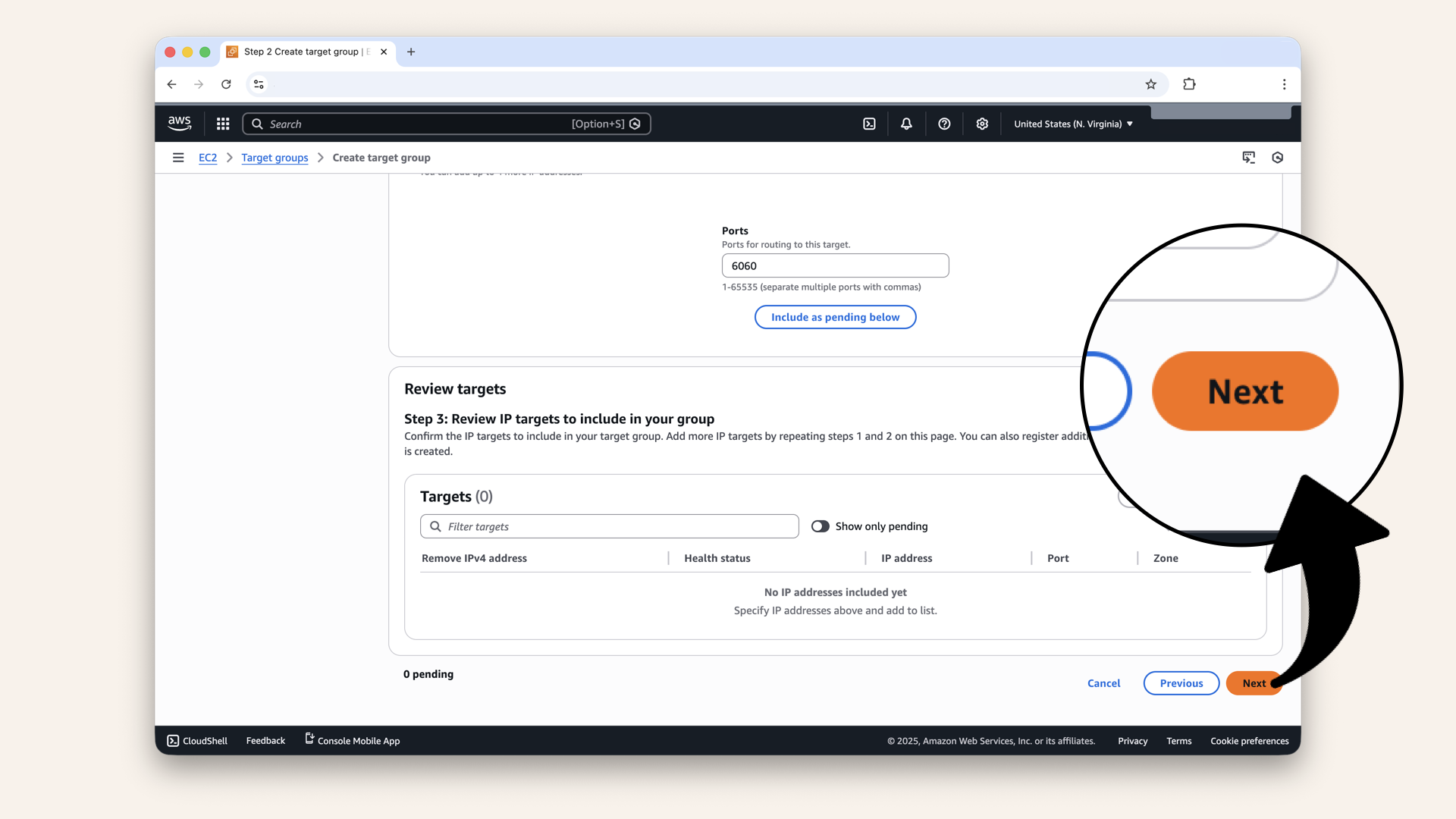
Don't add any targets yet. Scroll all the way down and click Next
Step 1.5 Review
Review your settings, make sure it says 0 Targets, then click Create target group:
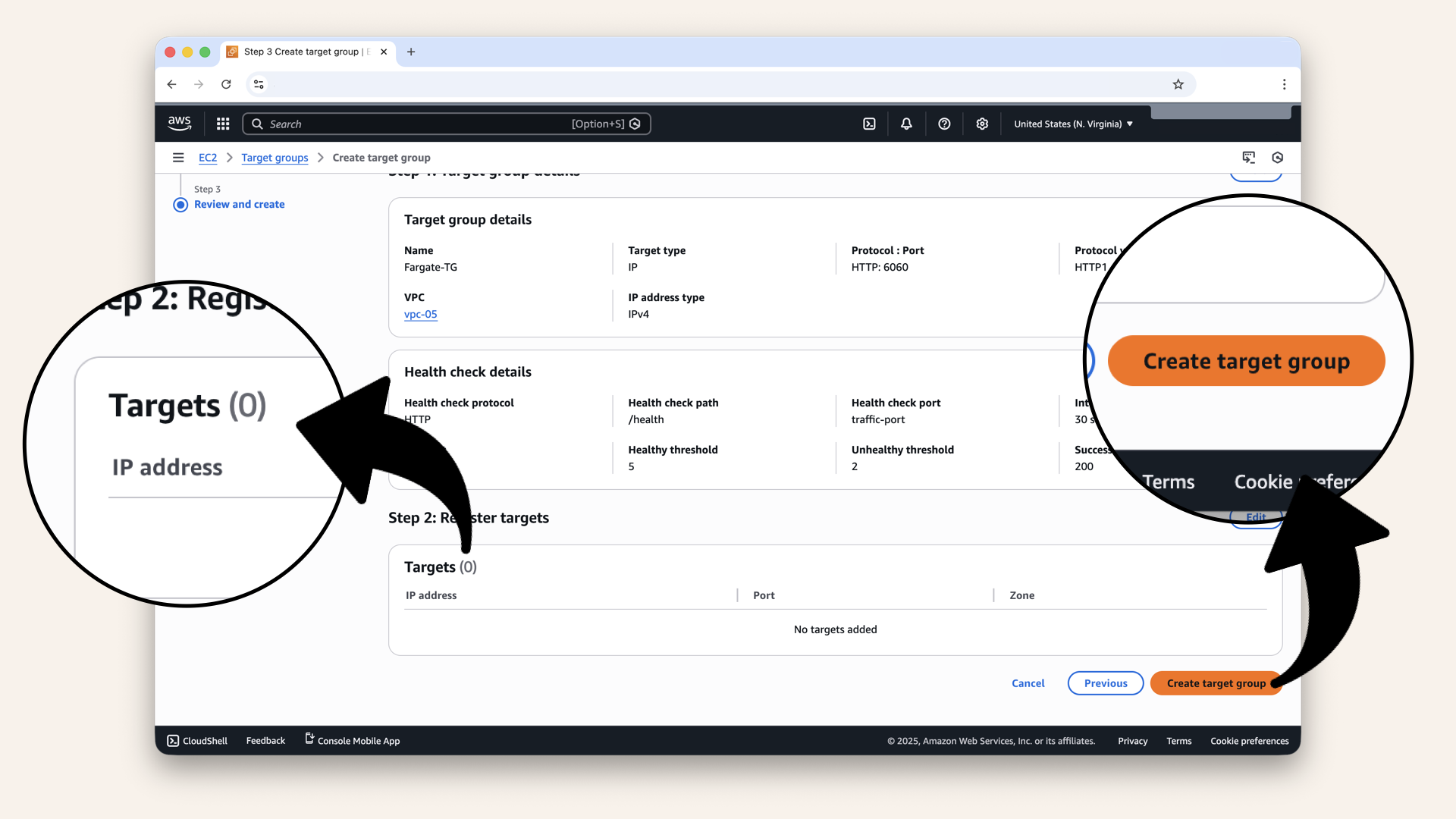
Review your settings, make sure it says 0 Targets, then click Create target group
✅ You should see: "Target group created successfully":
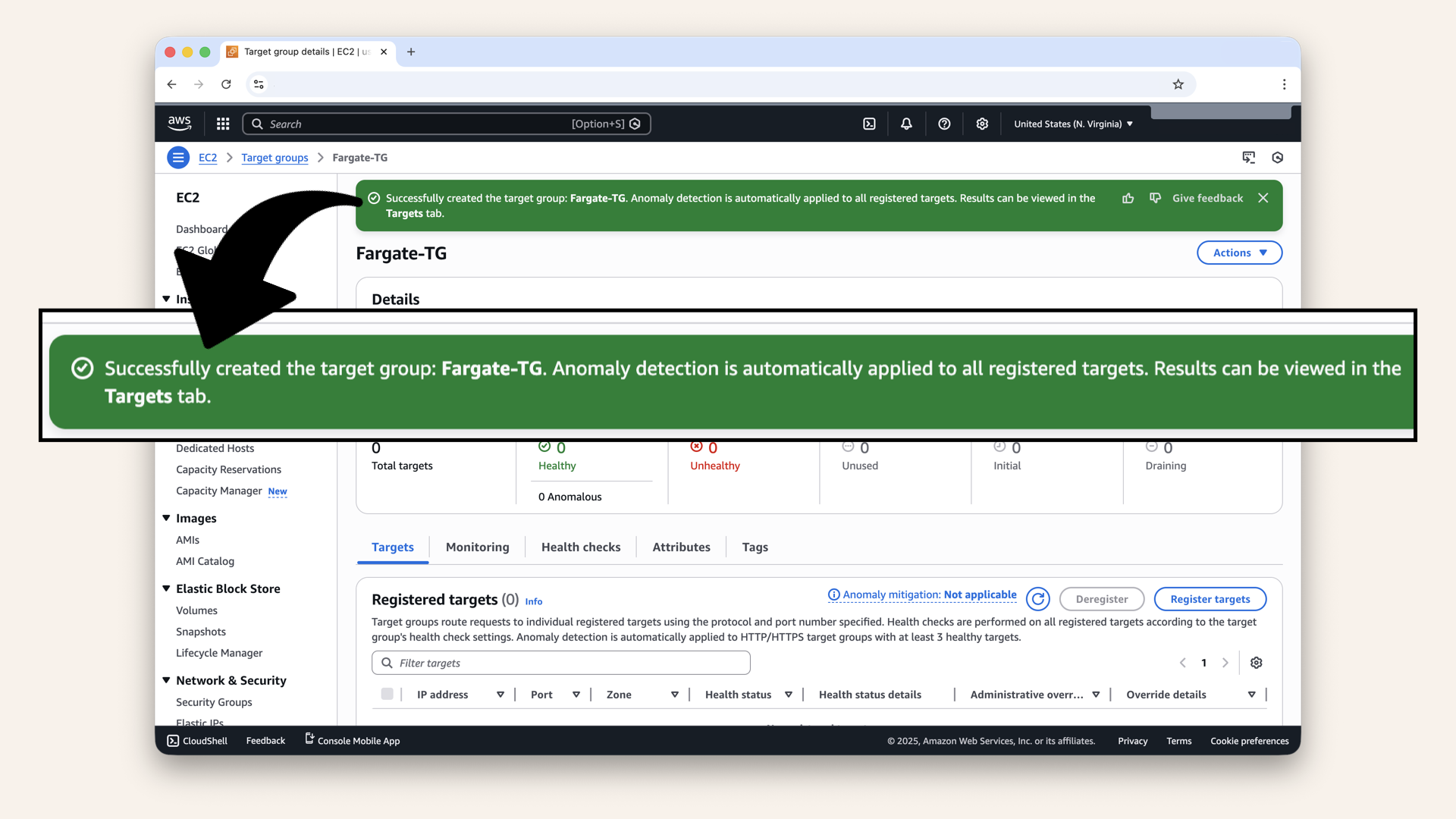
You should see: "Target group created successfully"
Step 2: Create Application Load Balancer
Now let's crate the ALB.
In the left menu, scroll down and click Load Balancers: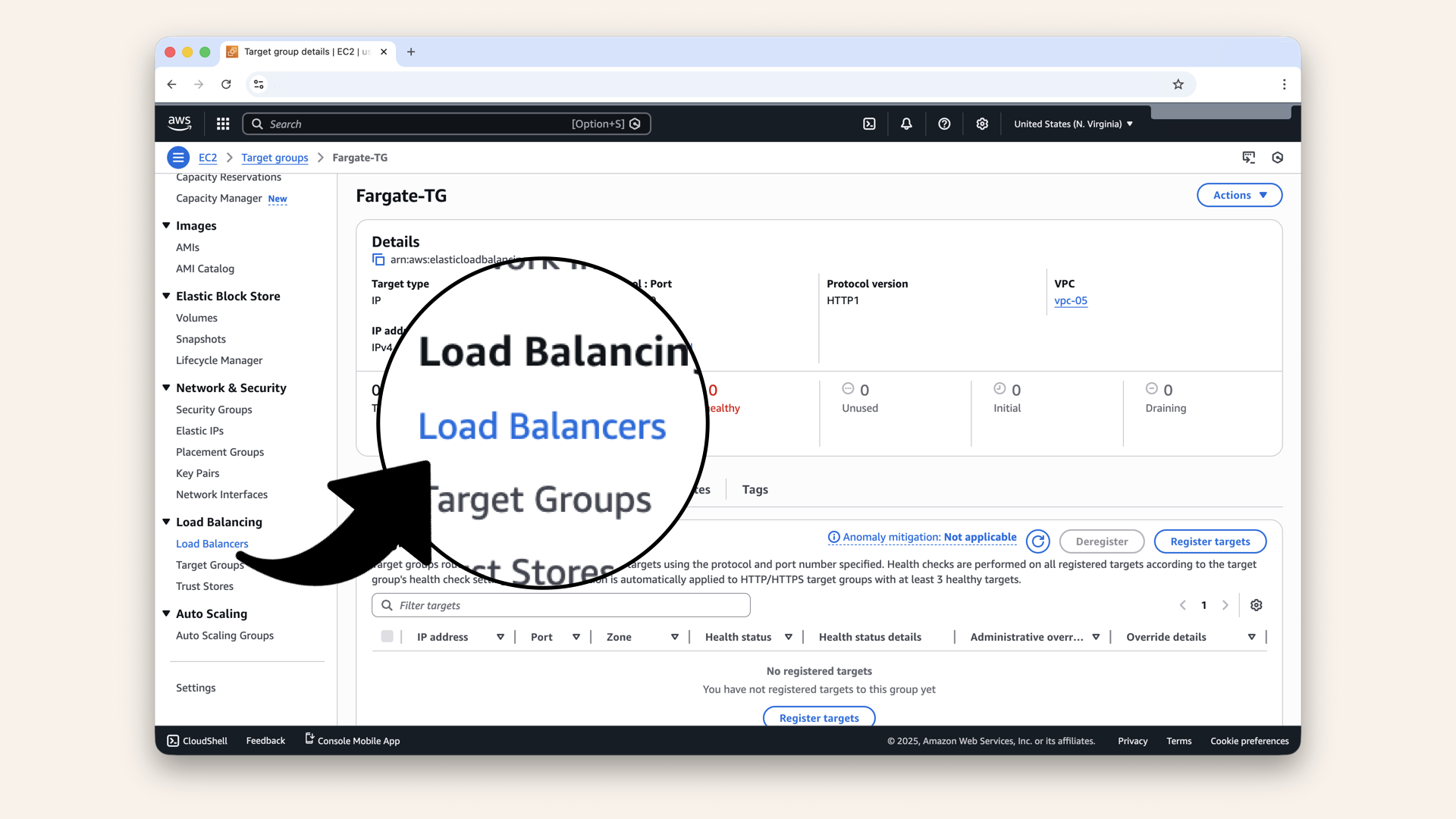
In the left menu, scroll down and click Load Balancers
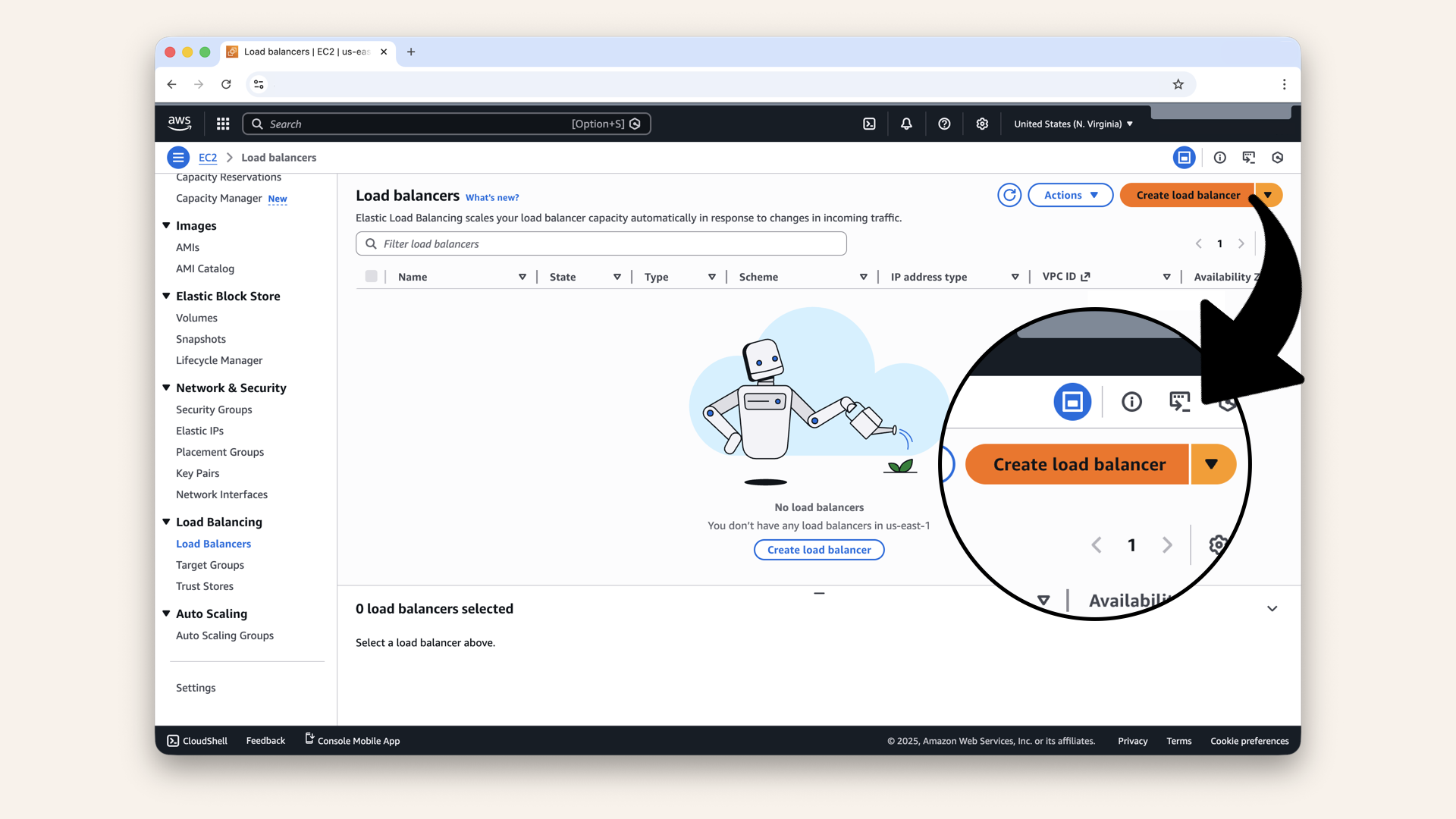
Click Create load balancer
Step 2.1: Choose load balancer type
Click Create under Application Load Balancer: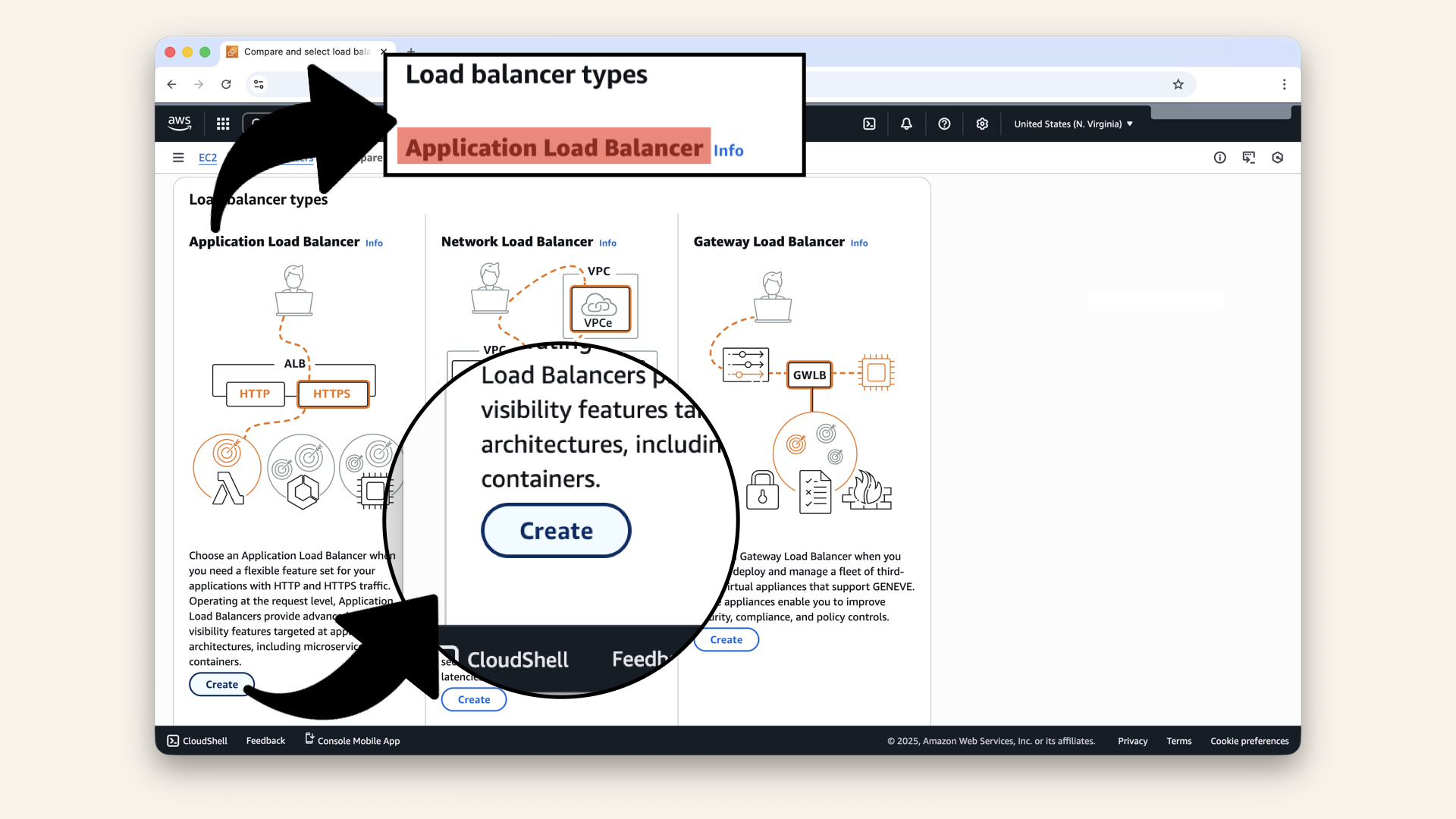
Click Create under Application Load Balancer
Step 2.2: Configure basic settings
Fill in the settings:
| Field | Value |
|---|---|
| Load balancer name | |
| Scheme | Internet-facing |
| IP address type | IPv4 |
Configure ALB basic settings:
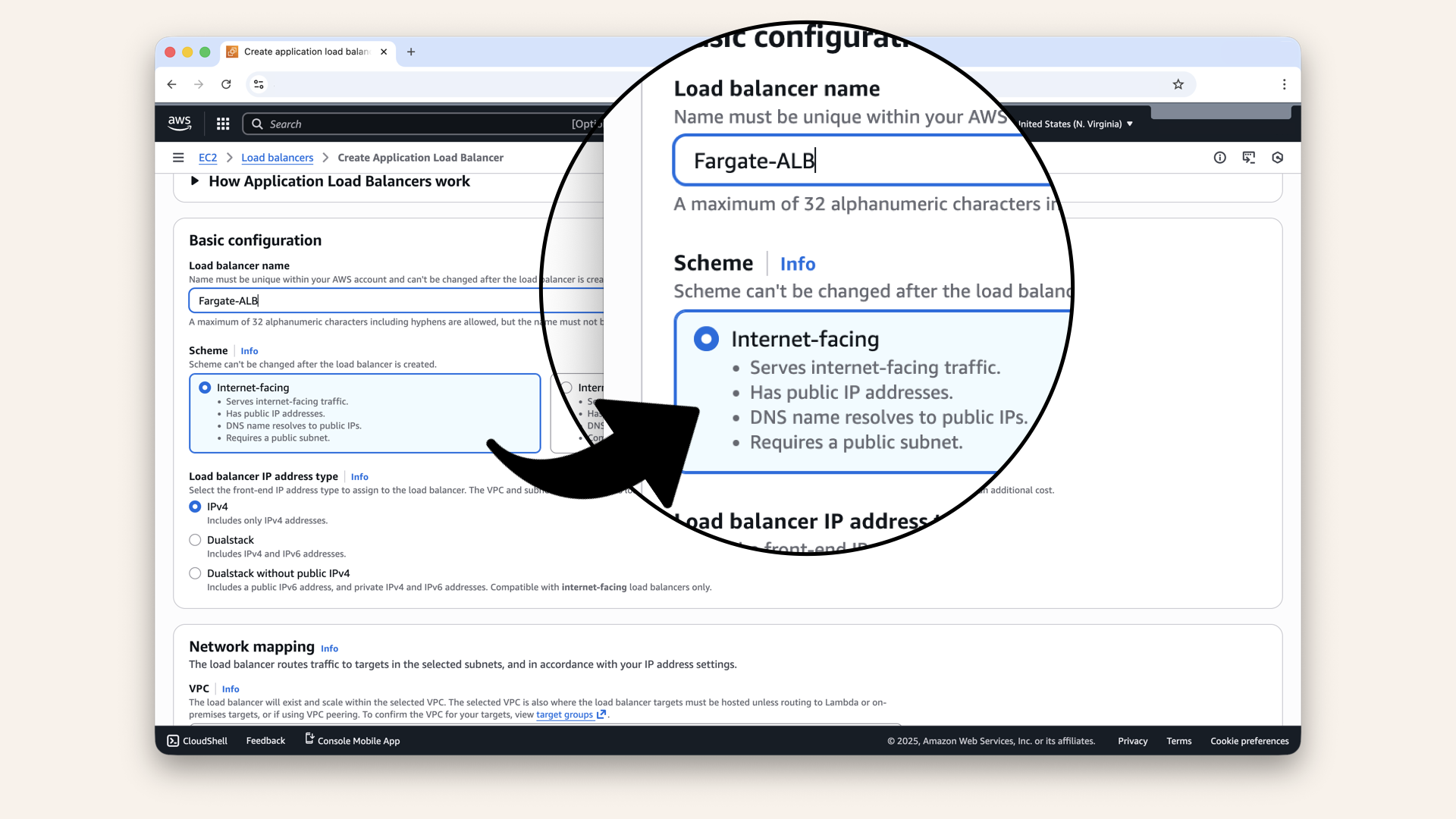
Configure ALB basic settings
Internet facing:
- Has public IP
- Accessible from internet
- Use for: Public web apps, APIs
Internal:
- No public IP
- Only accessible from within VPC
- Use for: Internal microservices
We need internet-facing because users will access your AI from the internet.
Step 2.3: Configure network mapping
Scroll down to Network mapping.
Select your VPC:
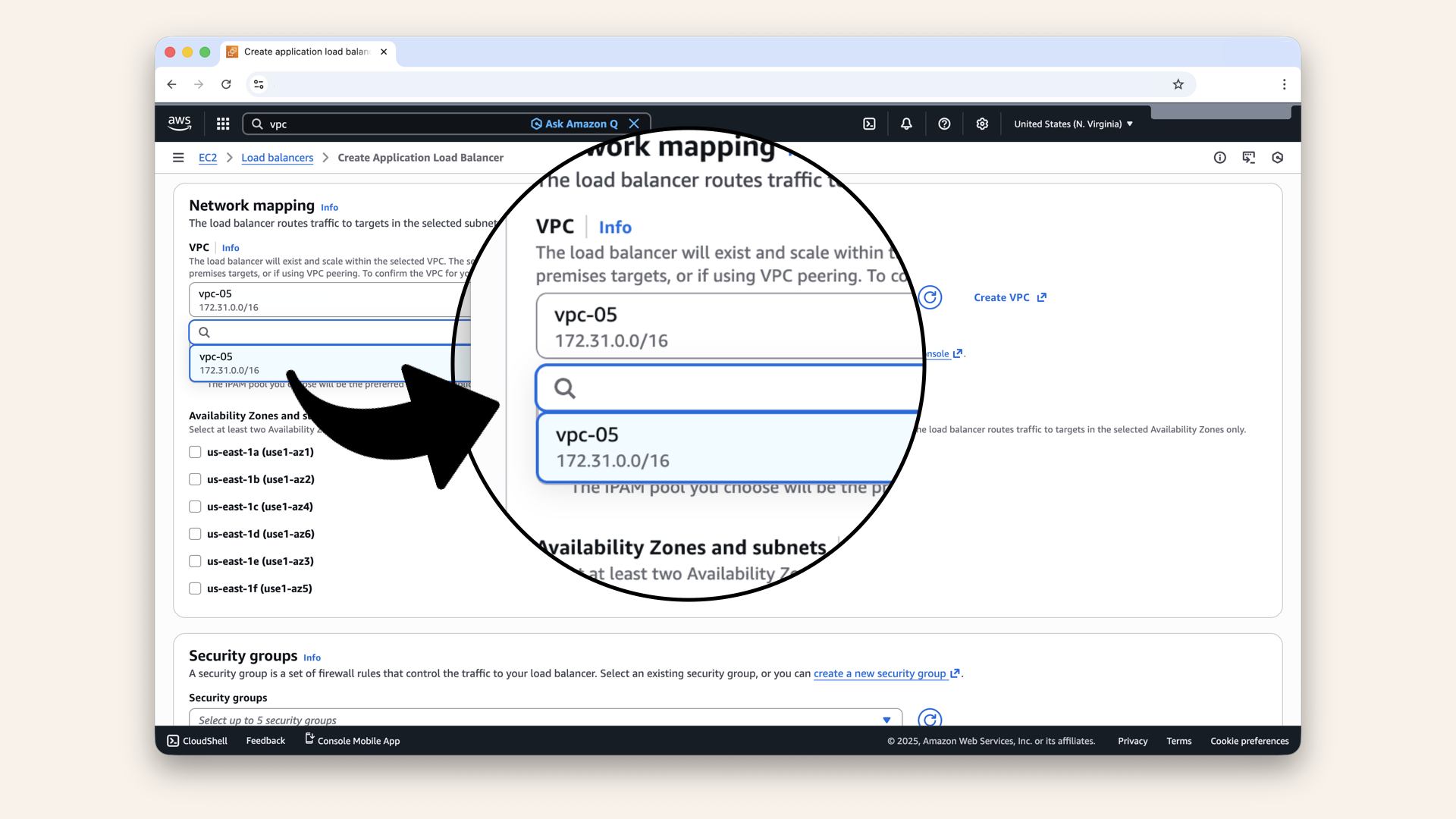
Select your VPC
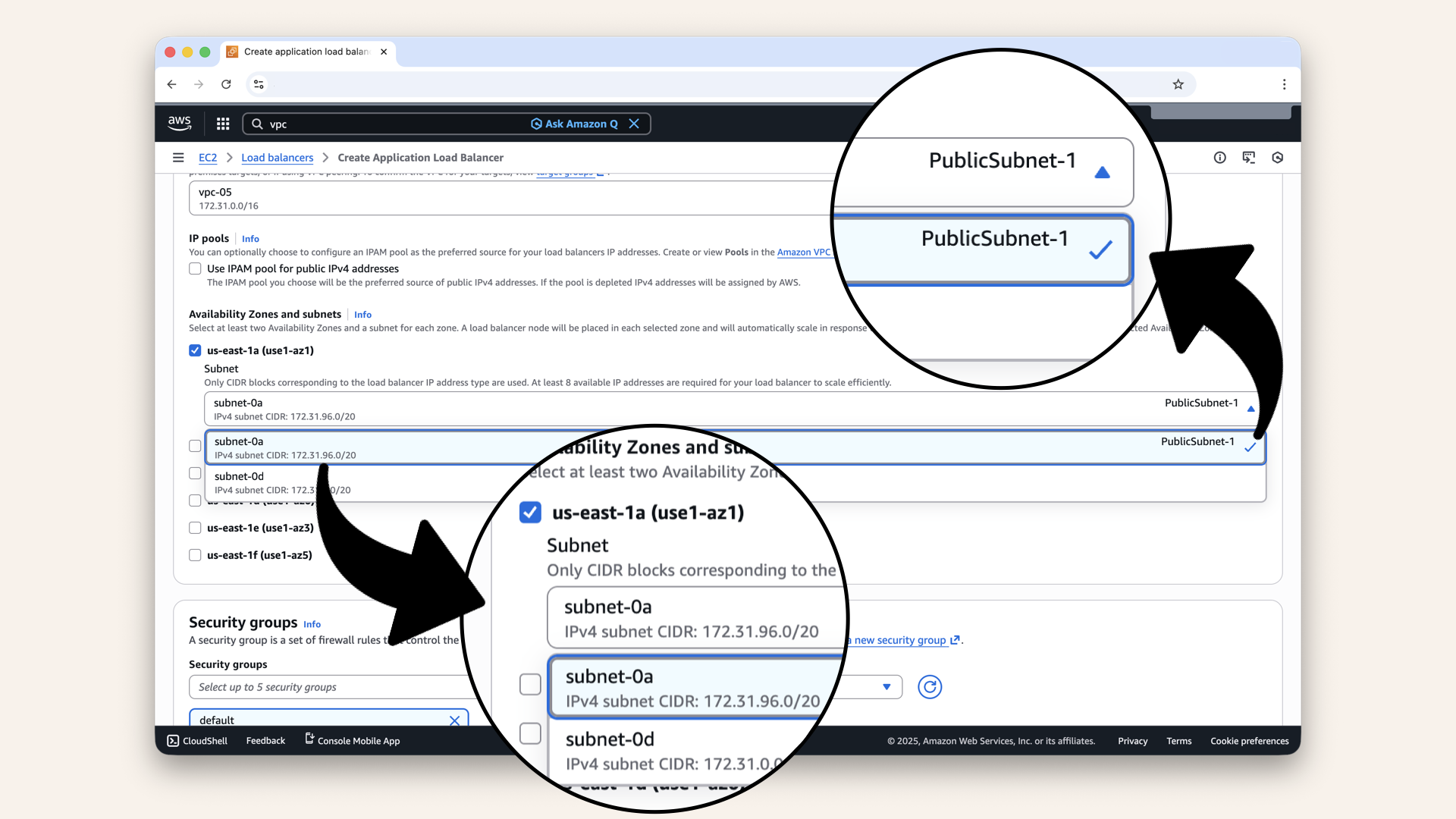
Check us-east-1a (use1-az1) and select PublicSubnet-1 from the dropdown
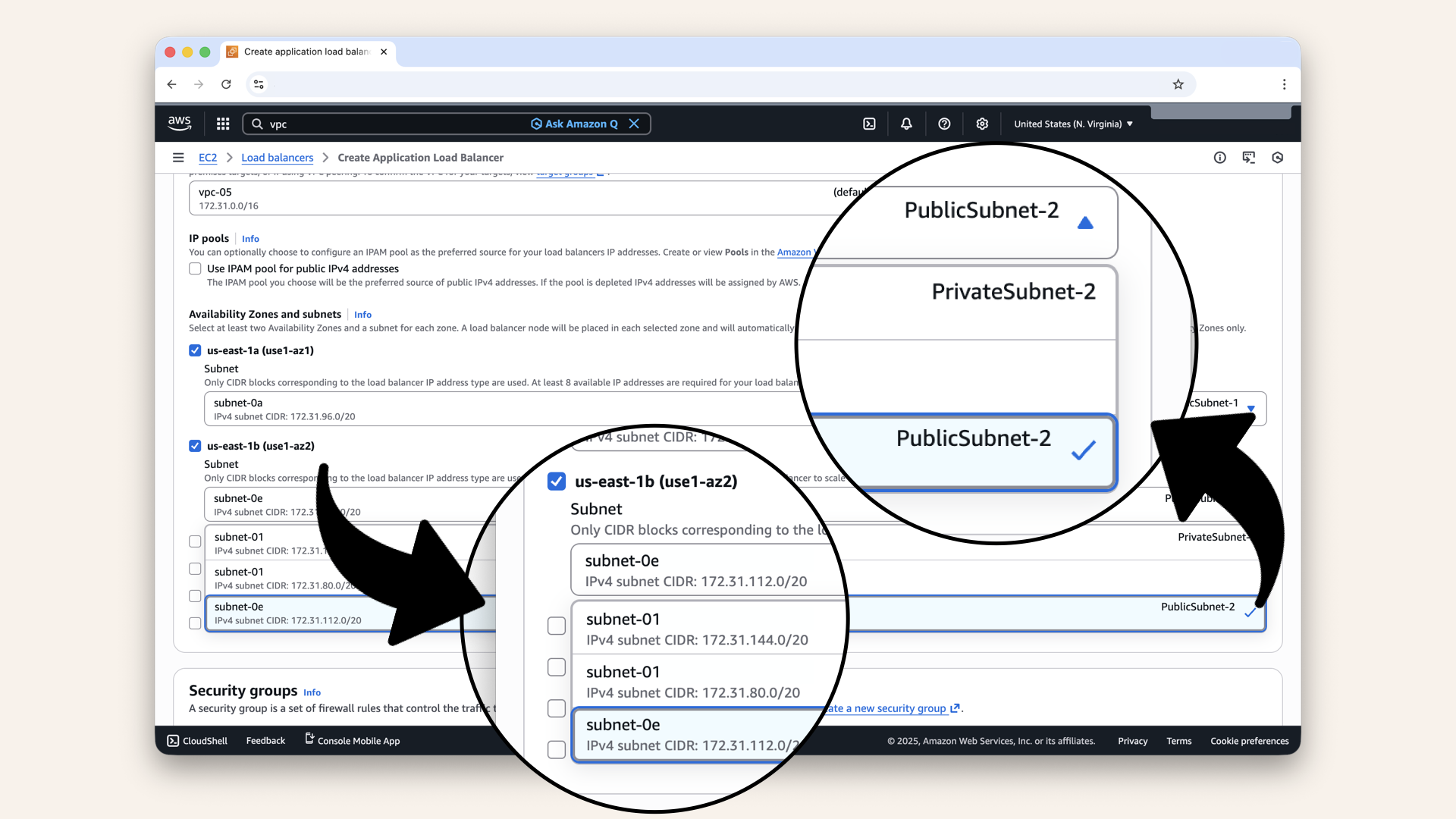
Check us-east-1b (use1-az2) and select PublicSubnet-2 from the dropdown
| Field | Value |
|---|---|
| VPC | Select your VPC |
| Mappings | Select both availability zones (us-east-1a and us-east-1b) |
| us-east-1a | Select PublicSubnet-1 |
| us-east-1b | Select PublicSubnet-2 |
Make sure to select both PublicSubnet-1 and PublicSubnet-2:
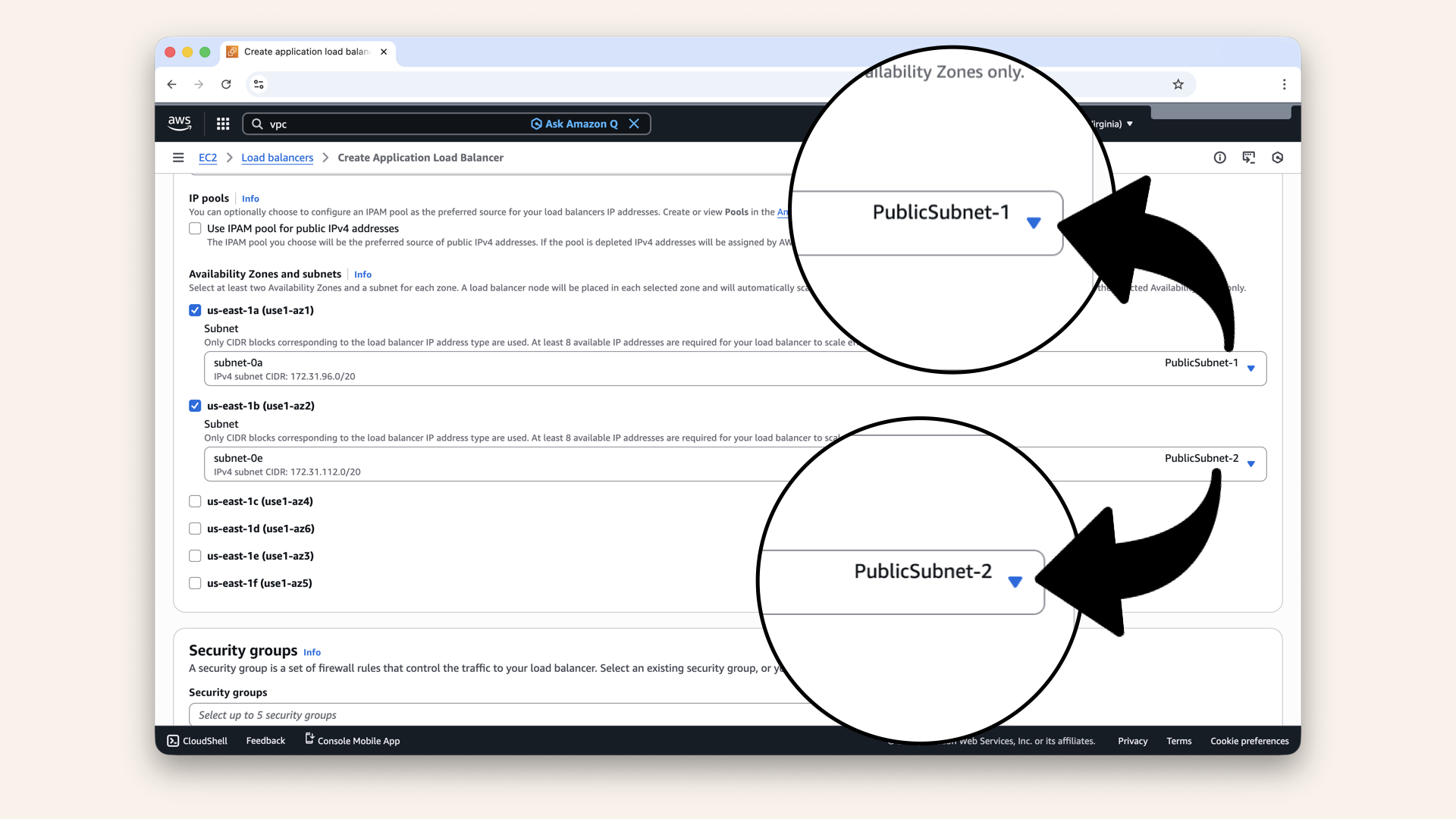
Make sure to select both PublicSubnet-1 and PublicSubnet-2
ALB requires at least 2 availability zones (AZs) for high availability.
If one AZ goes down:
- ALB in the other AZ continues serving traffic
- Your app stays online
This is why we created subnets in 2 AZs on Day 4!
Step 2.4: Configure security groups
Remove the default security group and select ALB-SG:
- Click the X next to the default security group:
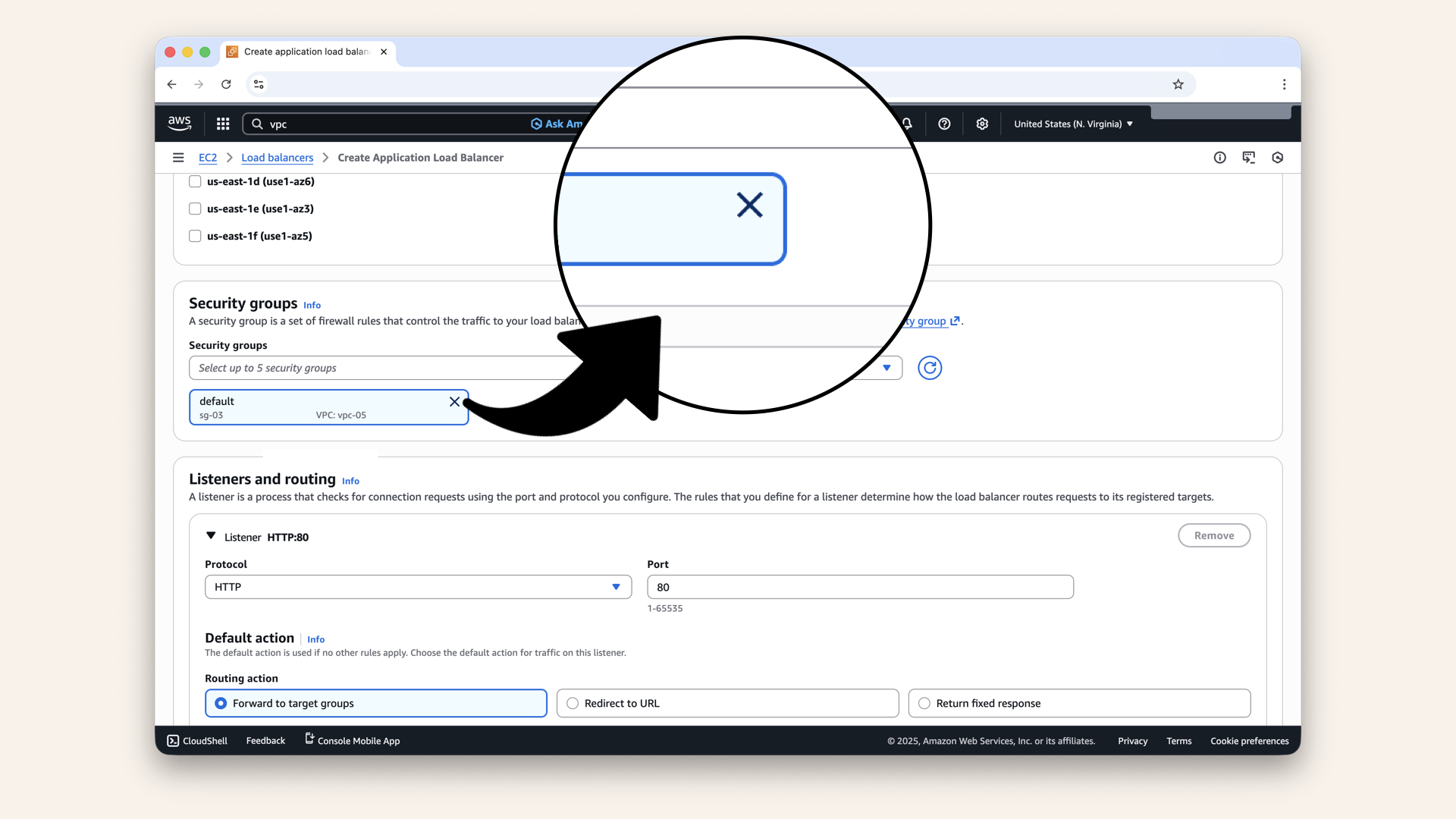
Click the X next to the default security group
- Search for and select ALB-SG (created on Day 7):
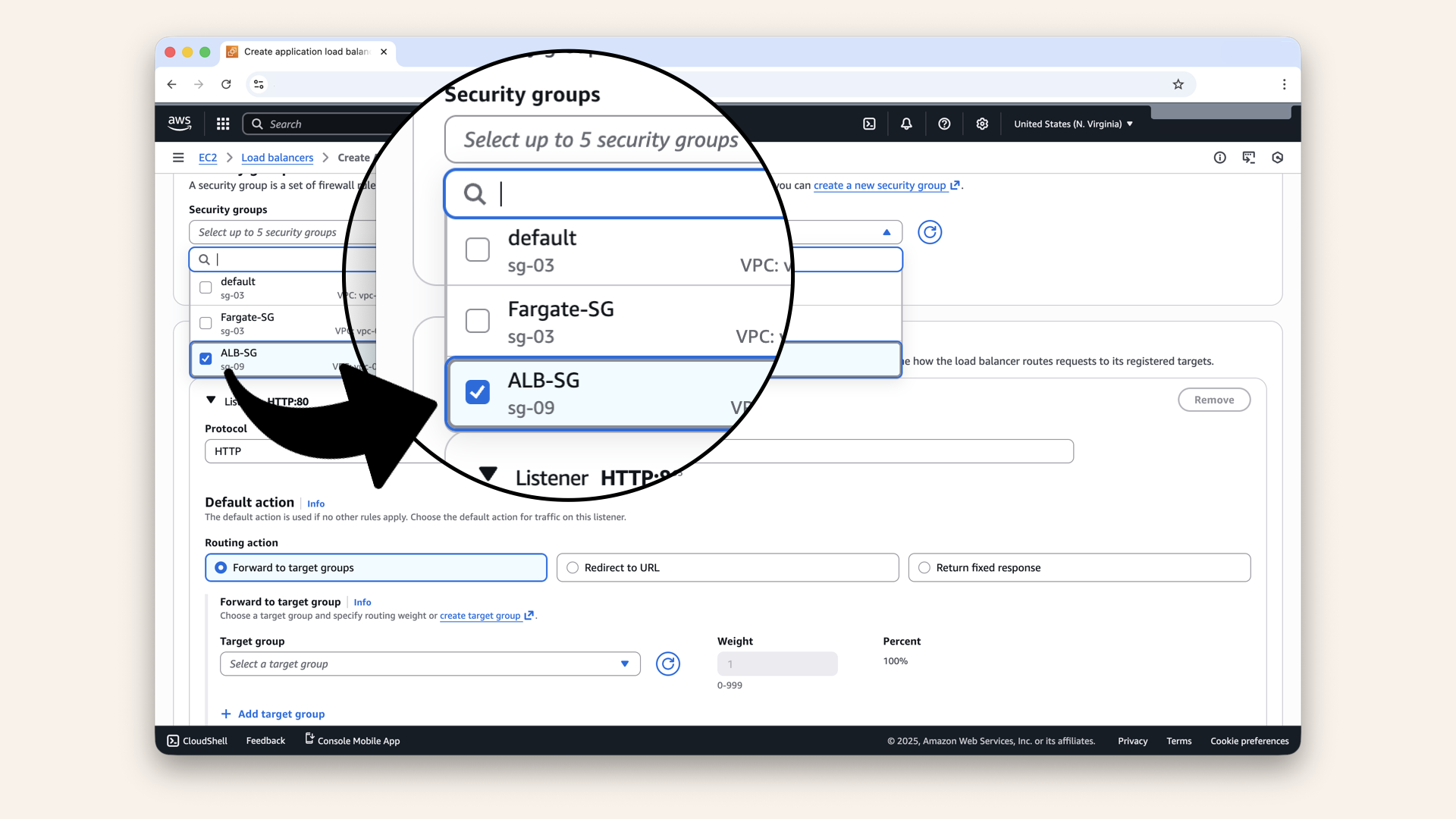
Search for and select ALB-SG (created on Day 7)
Step 2.5: Configure listeners and routing
Listeners = A process that checks for connection requests using the protocol and port you configure
Configure the default listeners:
| Field | Value |
|---|---|
| Protocol | HTTP |
| Port | 80 |
| Default action | Forward to Fargate-TG |
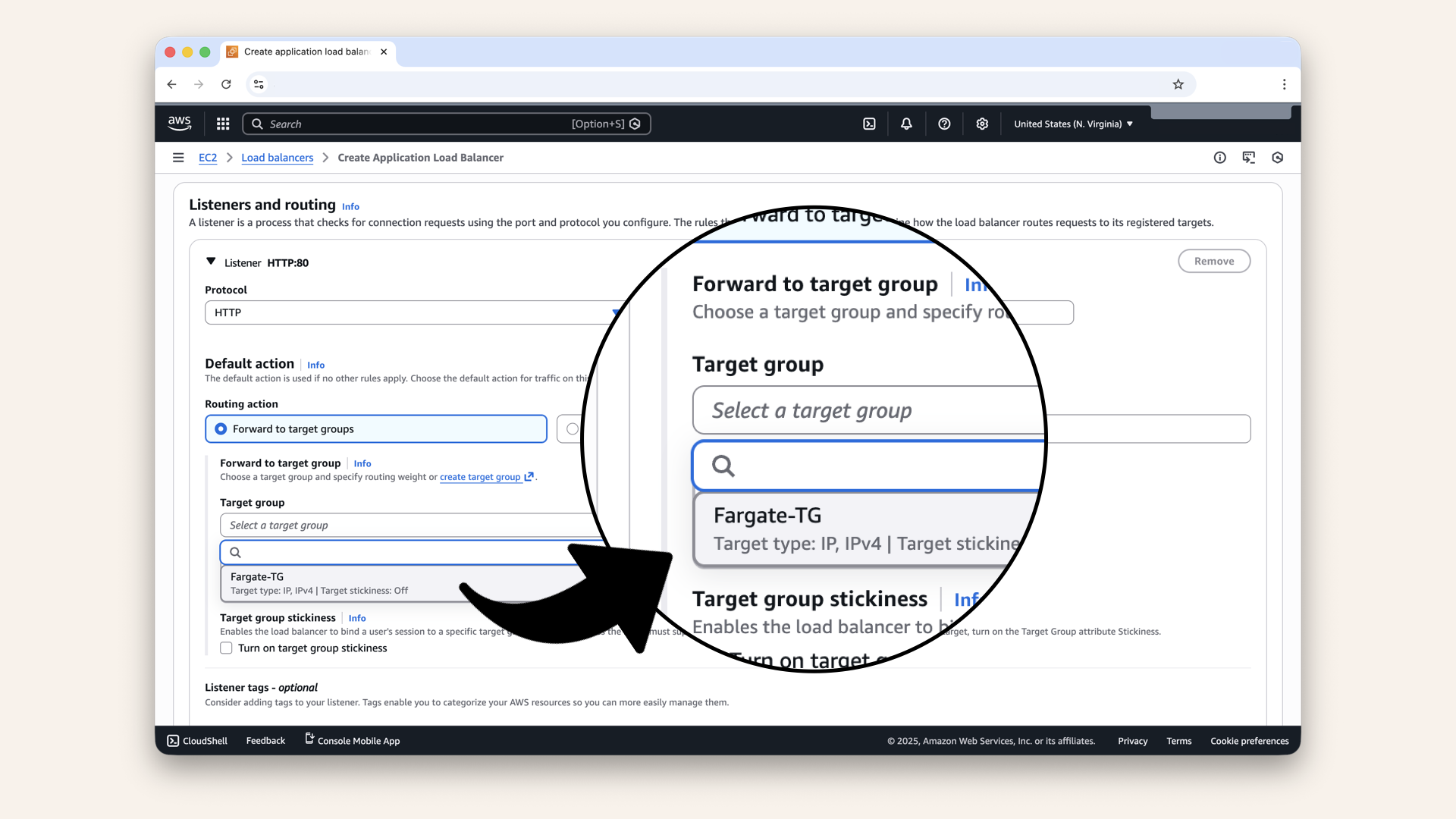
Select Fargate-TG as Target group for Default action
What this means:
- ALB listens on port 80
- When traffic arrives, forwards it to Fargate-TG
- Target Group routes to containers on port 6060
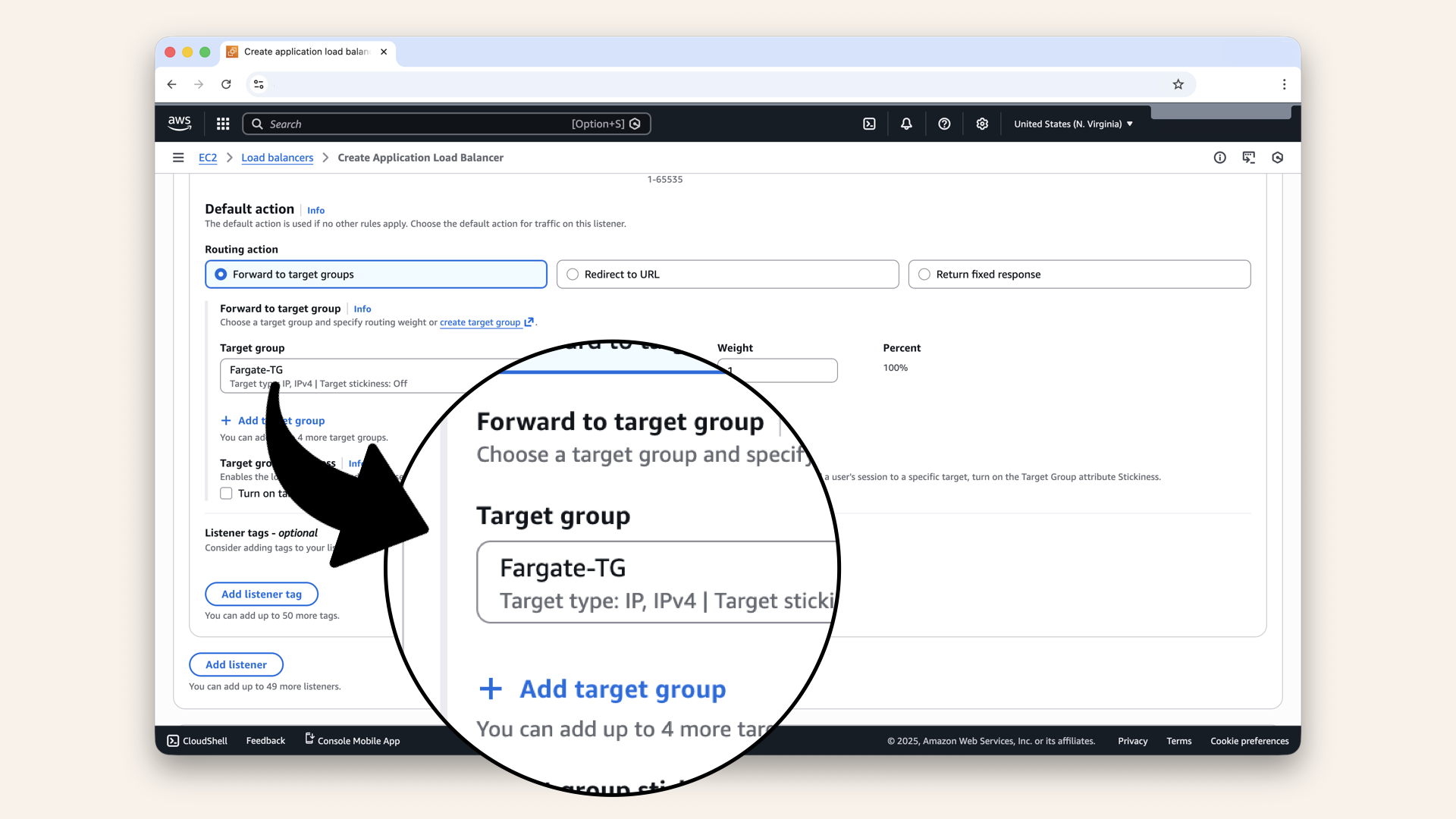
Select Fargate-TG as Target group
Step 2.6: Review and create
Scroll down and review all settings:
Summary should show:
✅ Name: Fargate-ALB
✅ Scheme: Internet-facing
✅ Subnets: PublicSubnet-1, PublicSubnet-2
✅ Security group: ALB-SG
✅ Listener: HTTP:80 → Fargate-TG
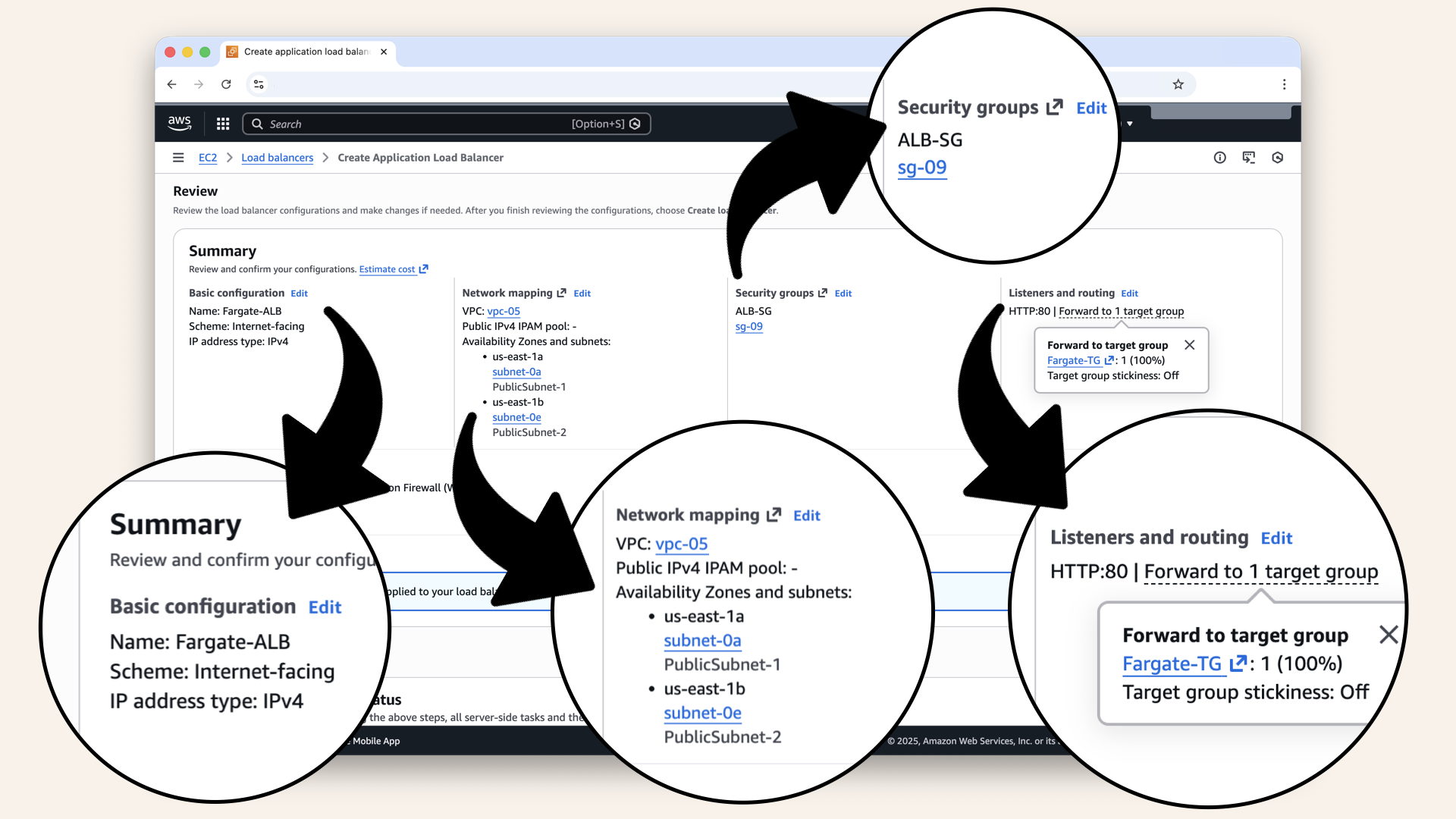
Scroll down and review all settings
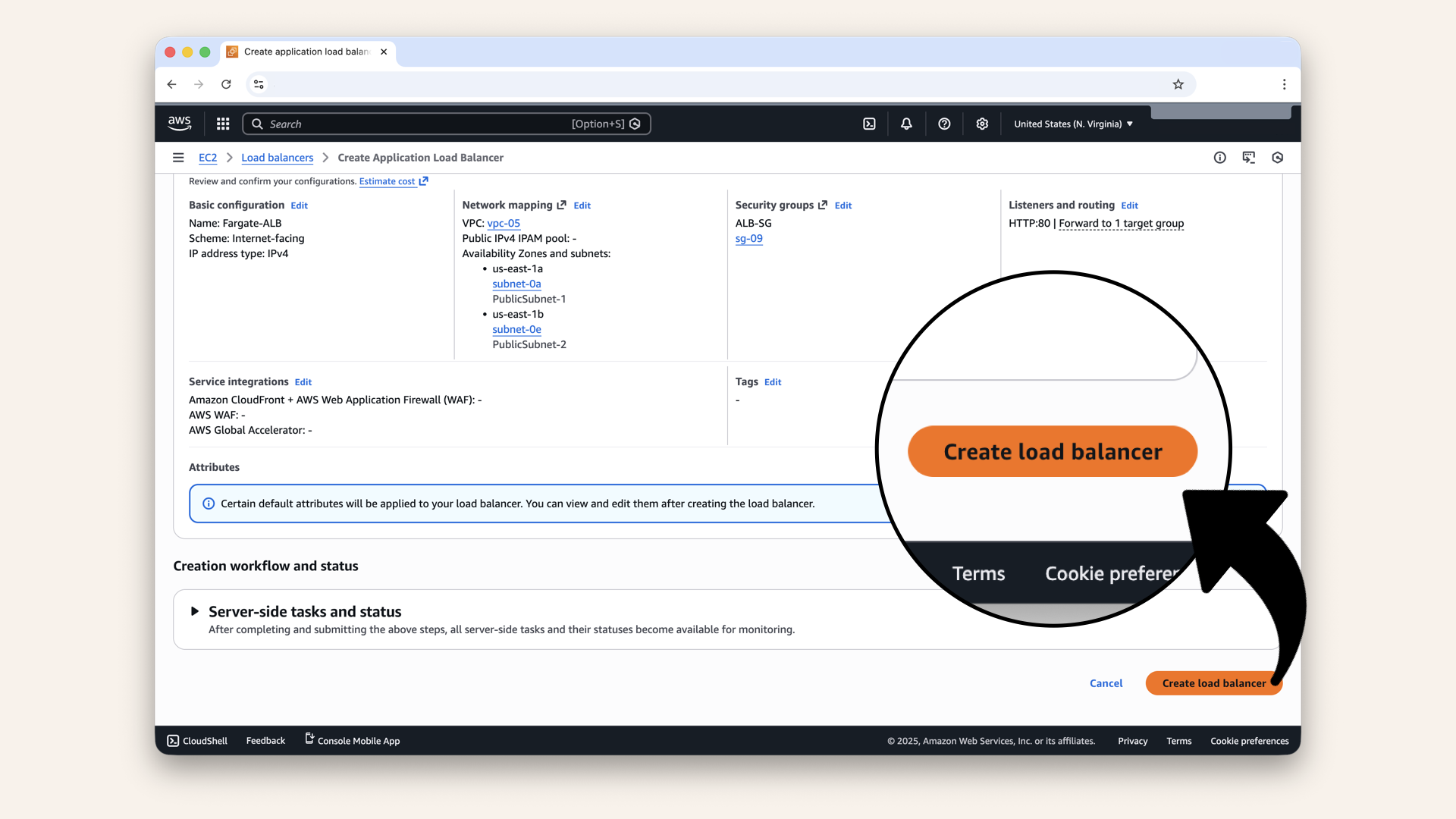
Scroll down and click Create load balancer
✅ You should see: "Load balancer created successfully":
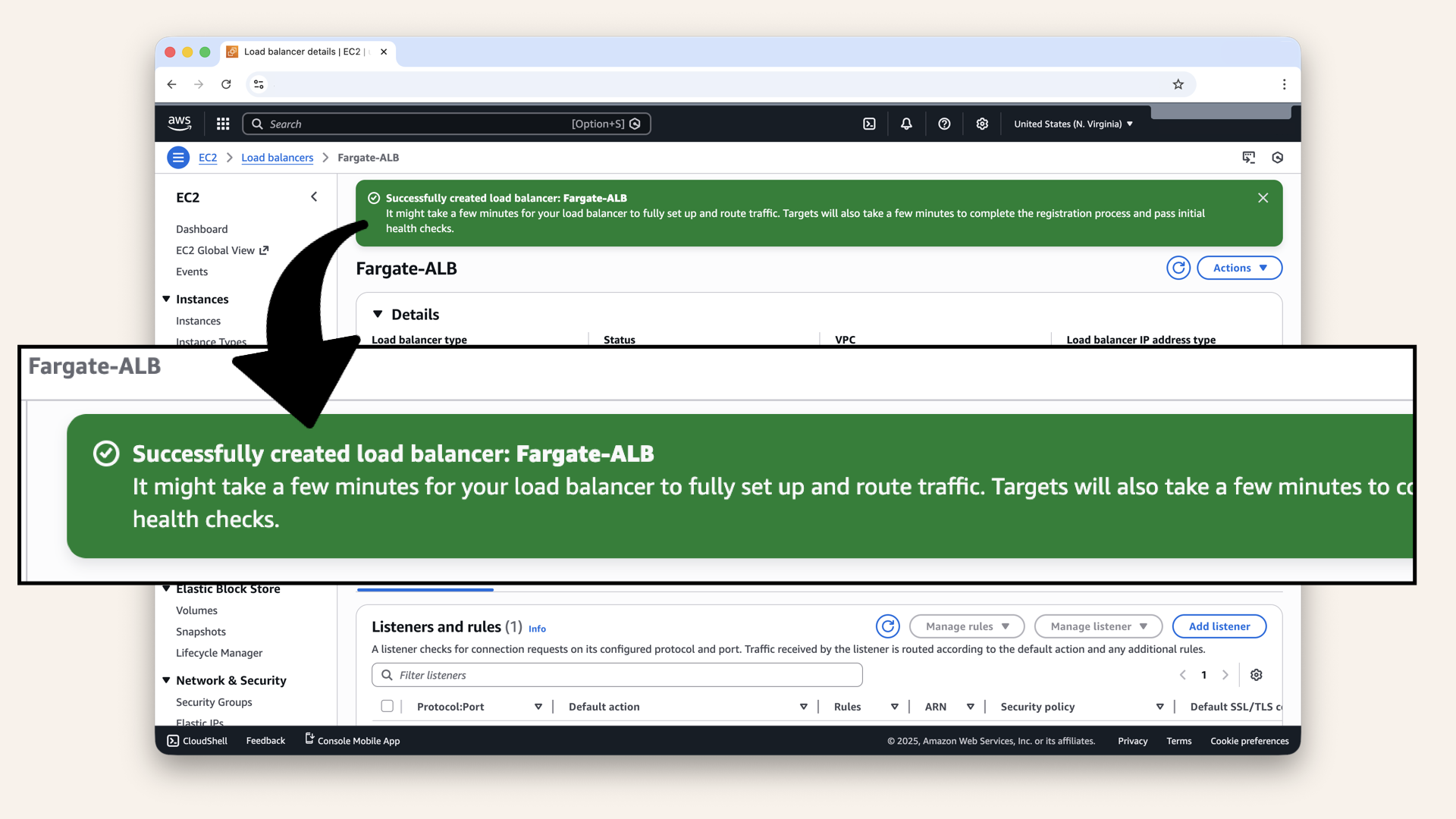
You should see: "Load balancer created successfully"
Step 3: Wait for ALB to become active
ALB takes 3-5 minutes to provision.
You'll see your ALB with State: Provisioning:
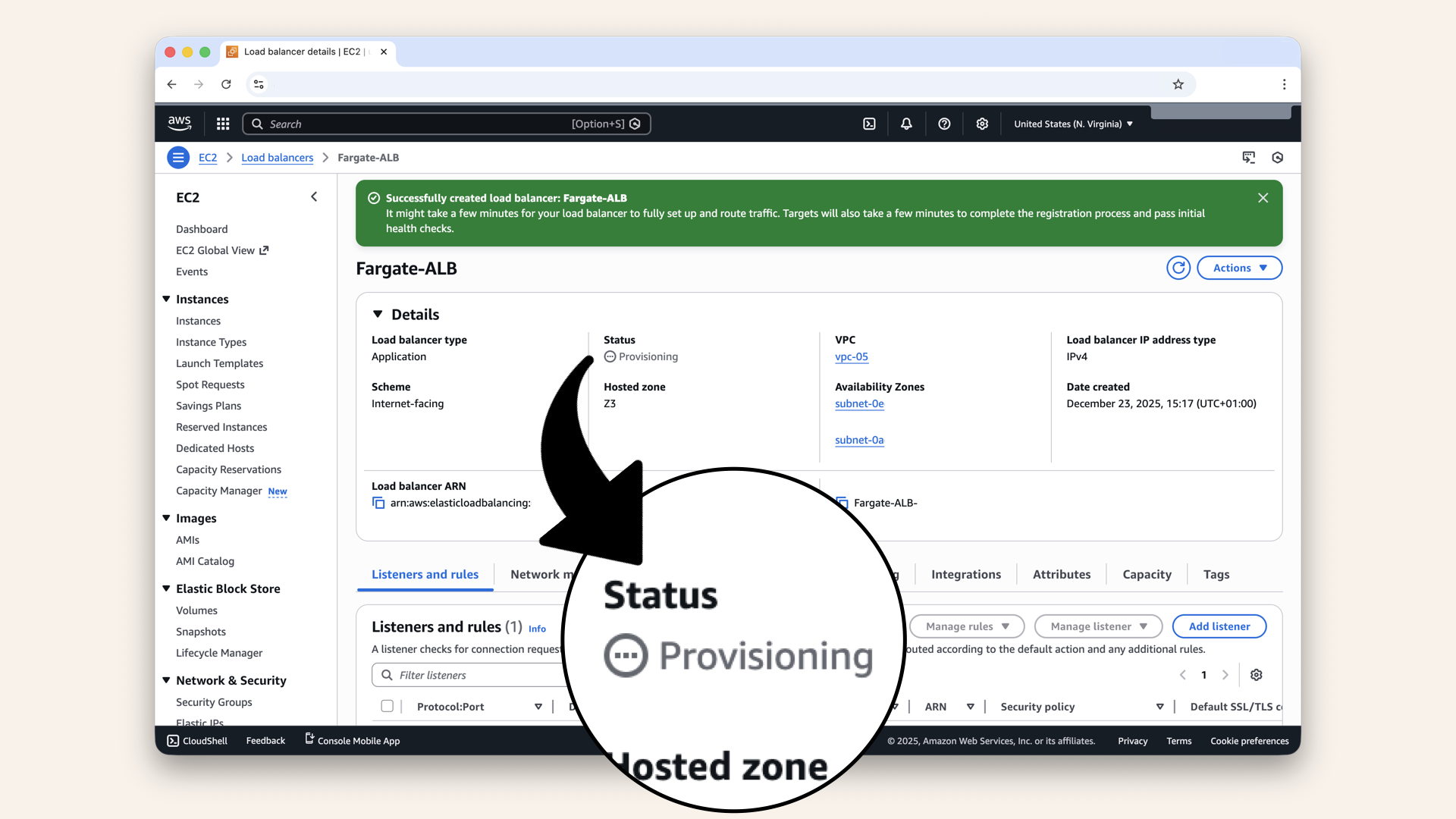
You'll see your ALB with State: Provisioning
Active:
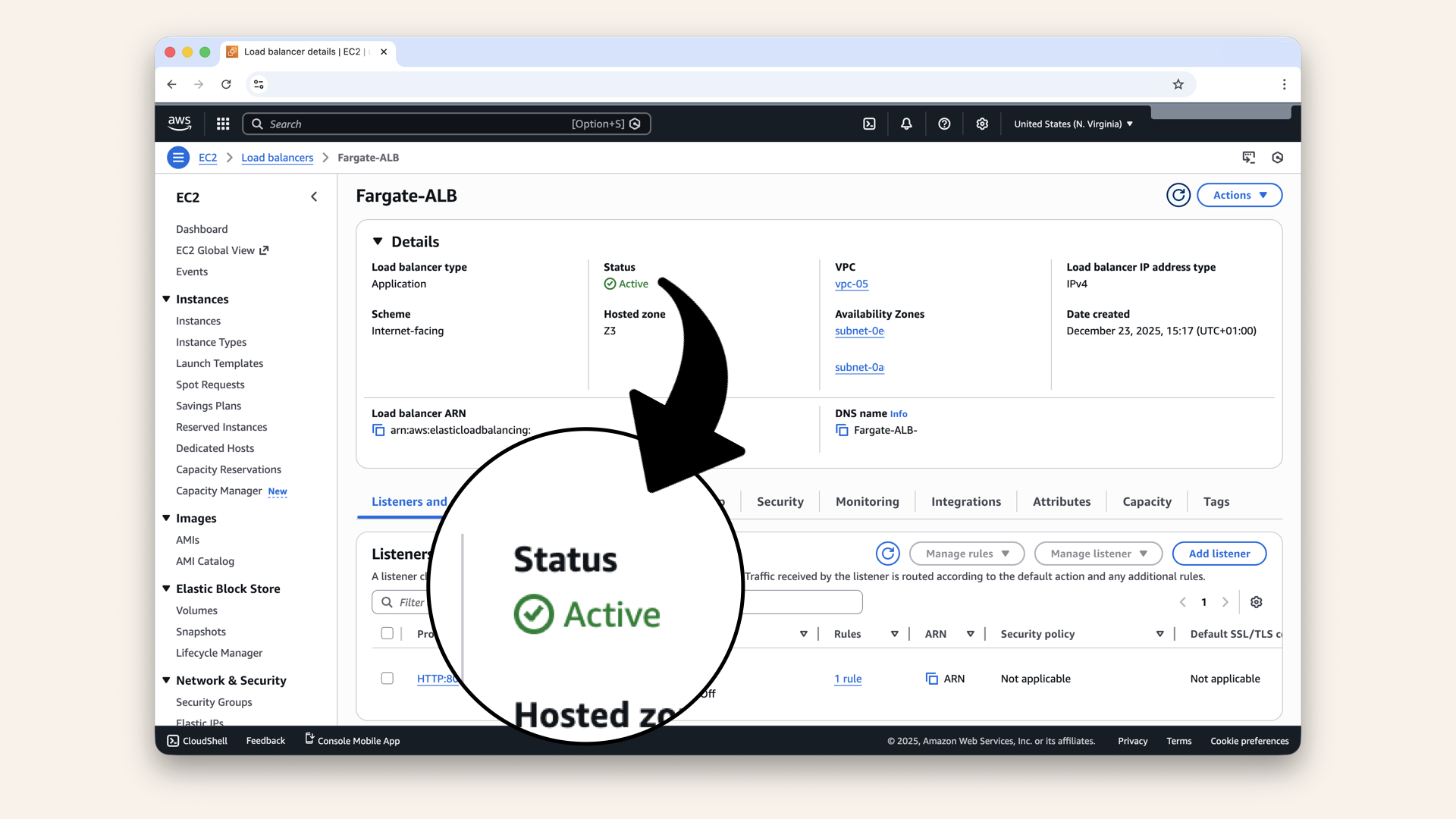
Refresh the page until State changes to Active
✅ When it shows Active → your ALB is ready!
Step 4: Check your ALB's DNS name
Under Details you'll see the DNS name:
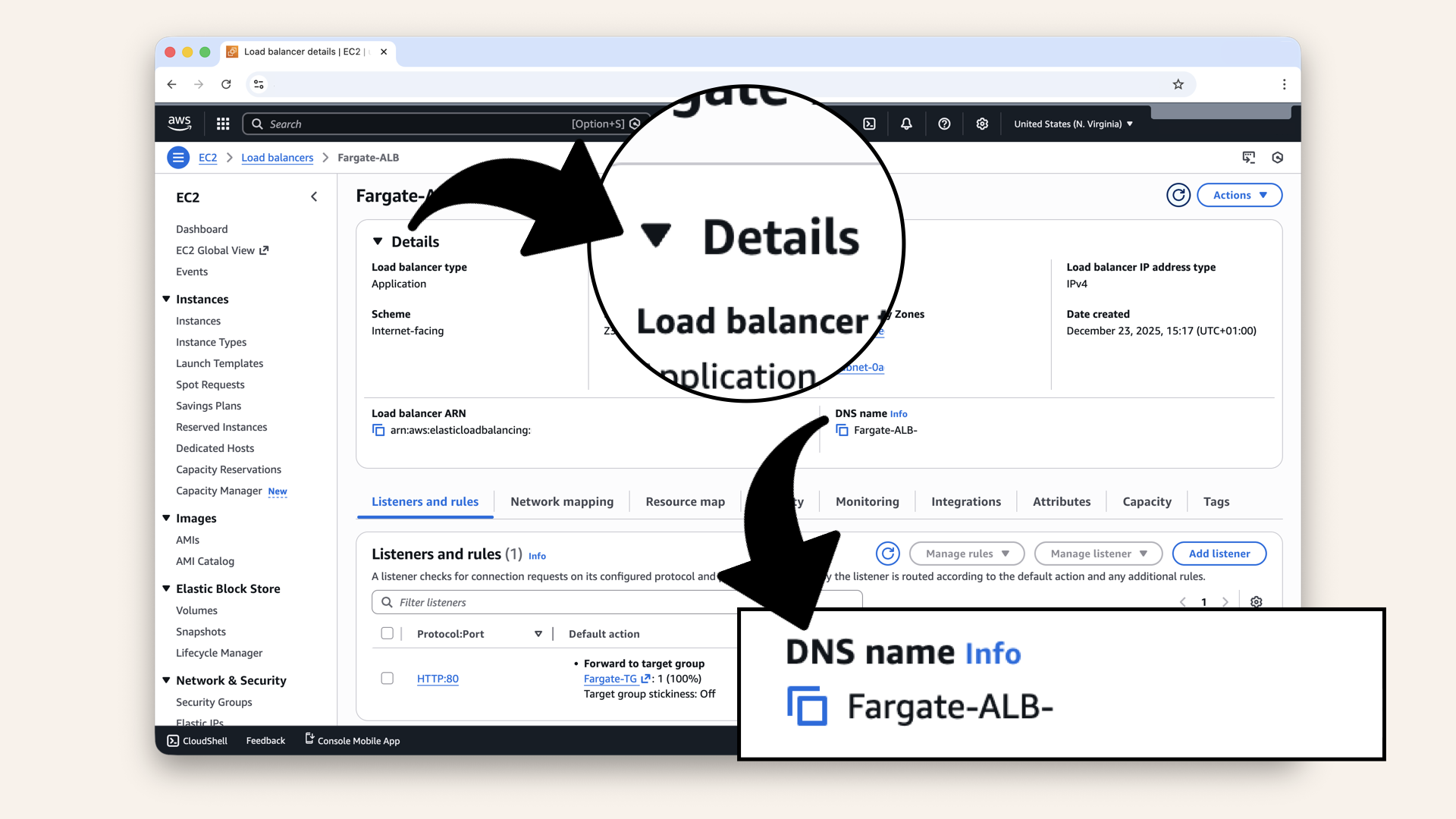
Under Details you'll see the DNS name
This is your app's public endpoint.
Right now it return 503 (no healthy targets) because we haven't deployed containers yet.
After Day 13 (Fargate deployment):
- Containers will register with Target Group
- Health checks will pass
- ALB will route traffic to containers
- The DNS will work
Step 5: Verify ALB configuration
Let's make sure everything is configured correctly.
Check listeners
Go to the Listeners tab:You should see:
| Protocol | Port | Default action |
|---|---|---|
| HTTP | 80 | Forward to Fargate-TG |
Verify HTTP listener is configured:
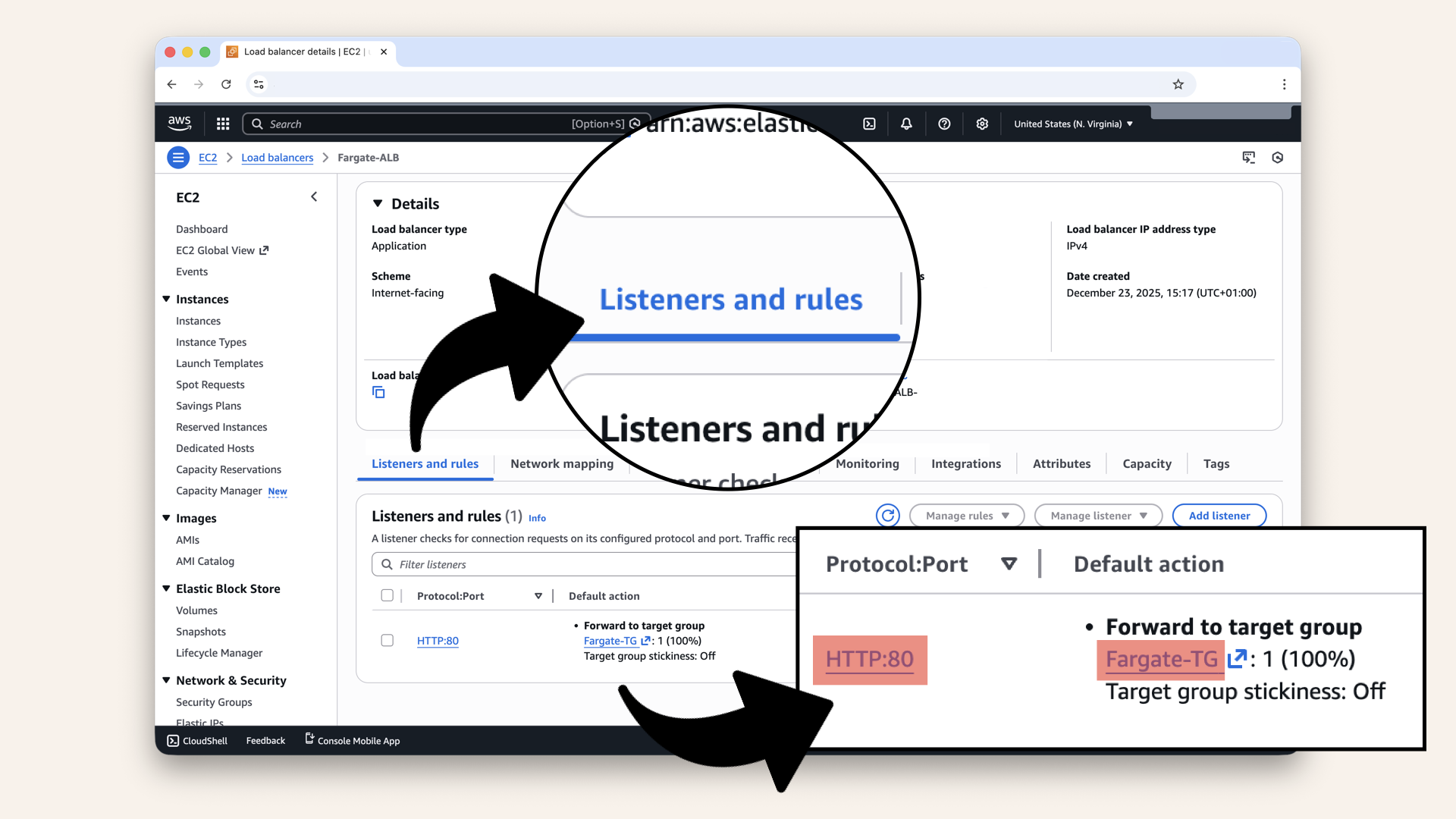
Go to the Listeners tab and verify HTTP listener is configured
Check security groups
Go to the Security tab: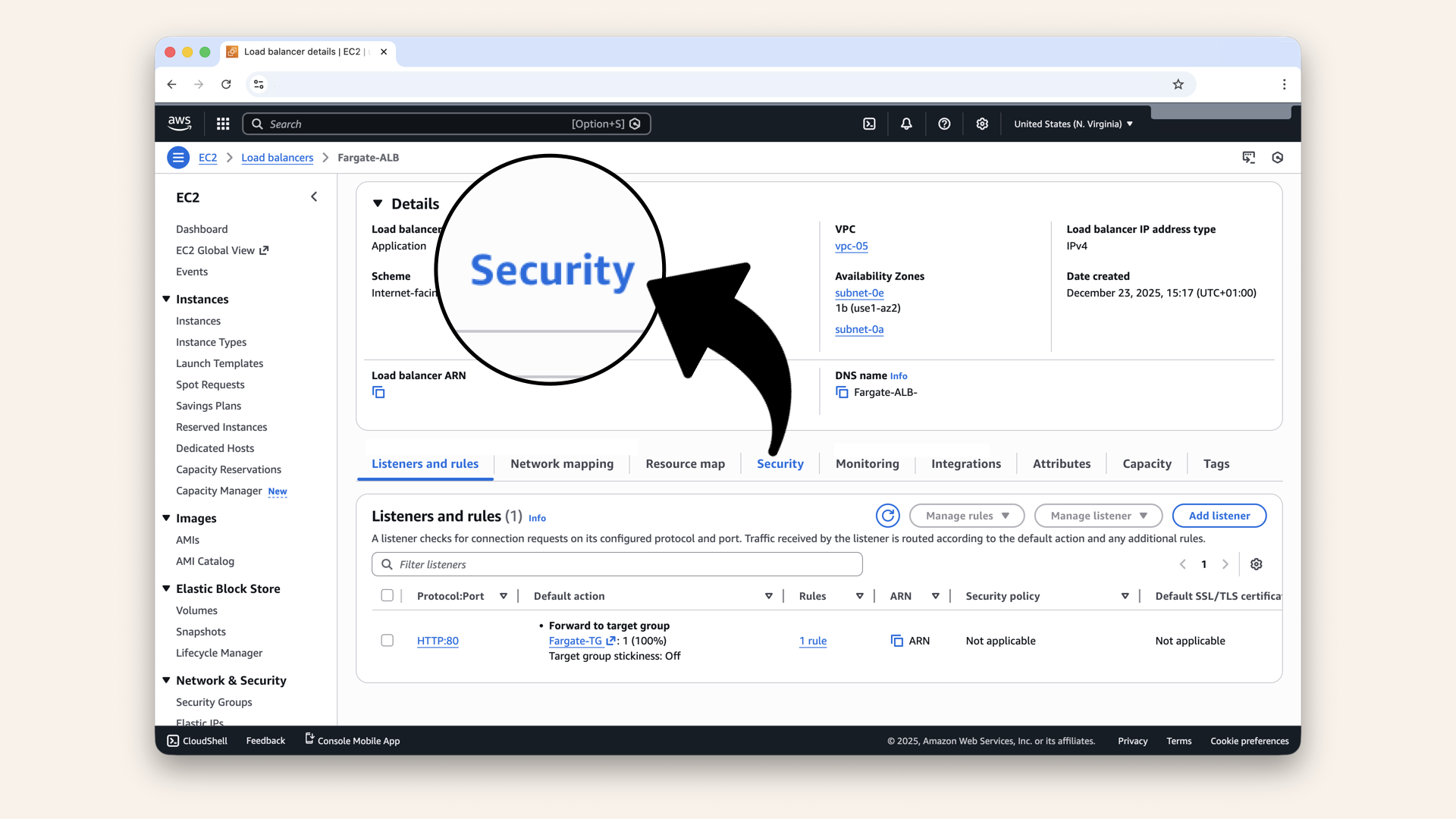
Go to the Security tab
You should see:
- Security group: ALB-SG
Verify ALB-SG is attached:
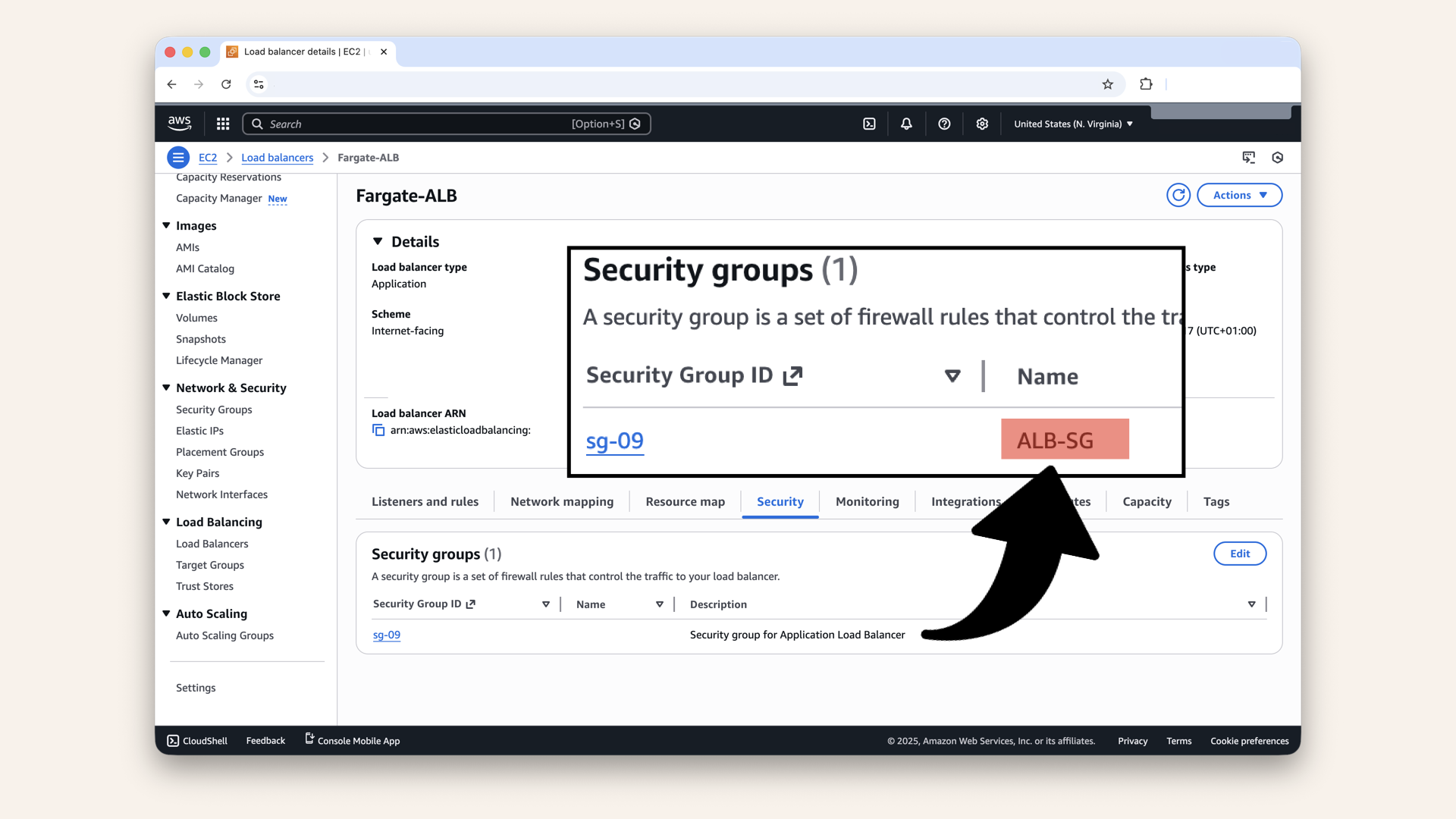
Verify ALB-SG is attached
Check subnets
Go to the Network mapping tab: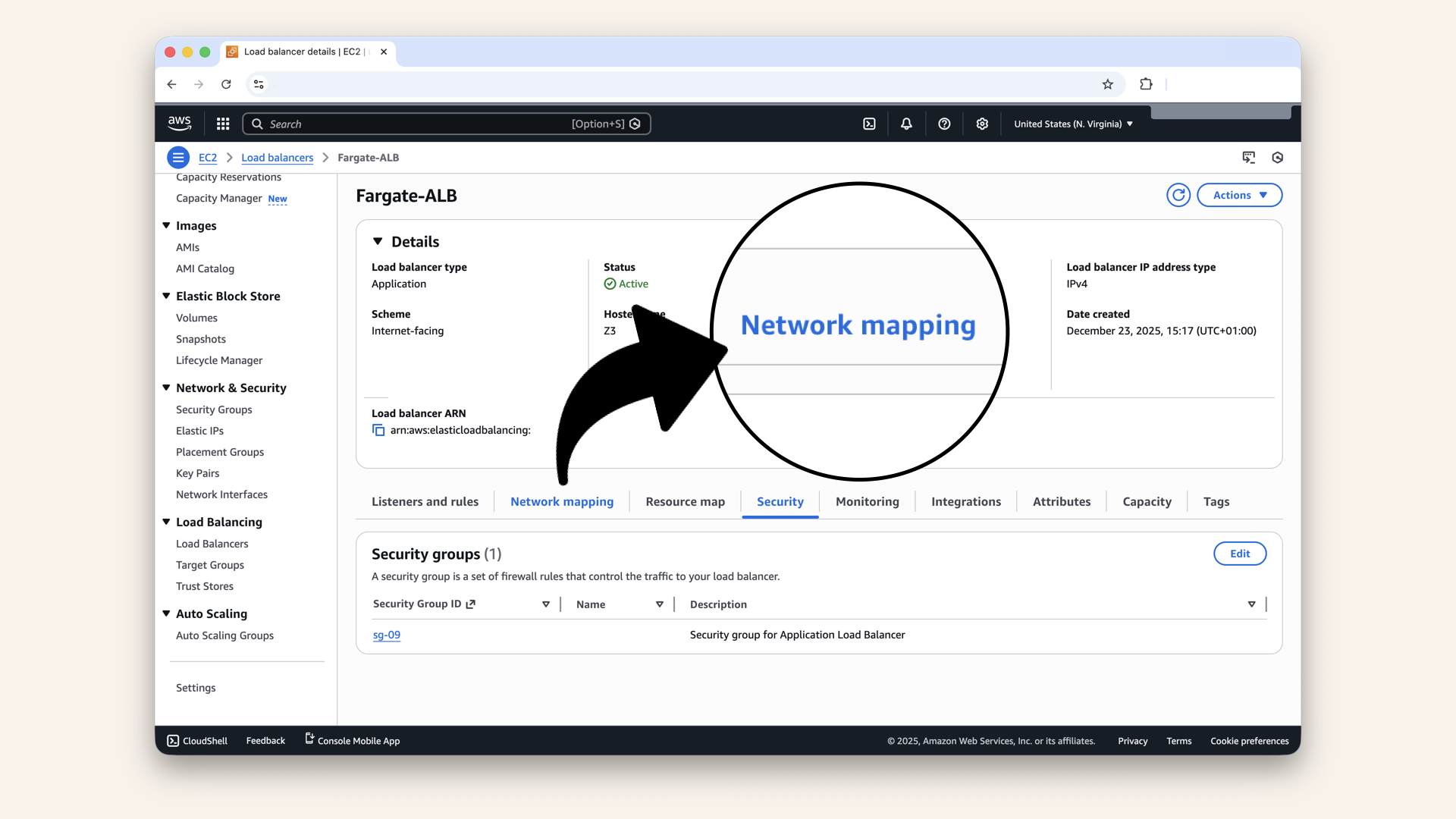
Go to the Network mapping tab
You should see 2 subnets:
✅ PublicSubnet-1
✅ PublicSubnet-2
You should see 2 subnets, verify ALB is in both public subnets:
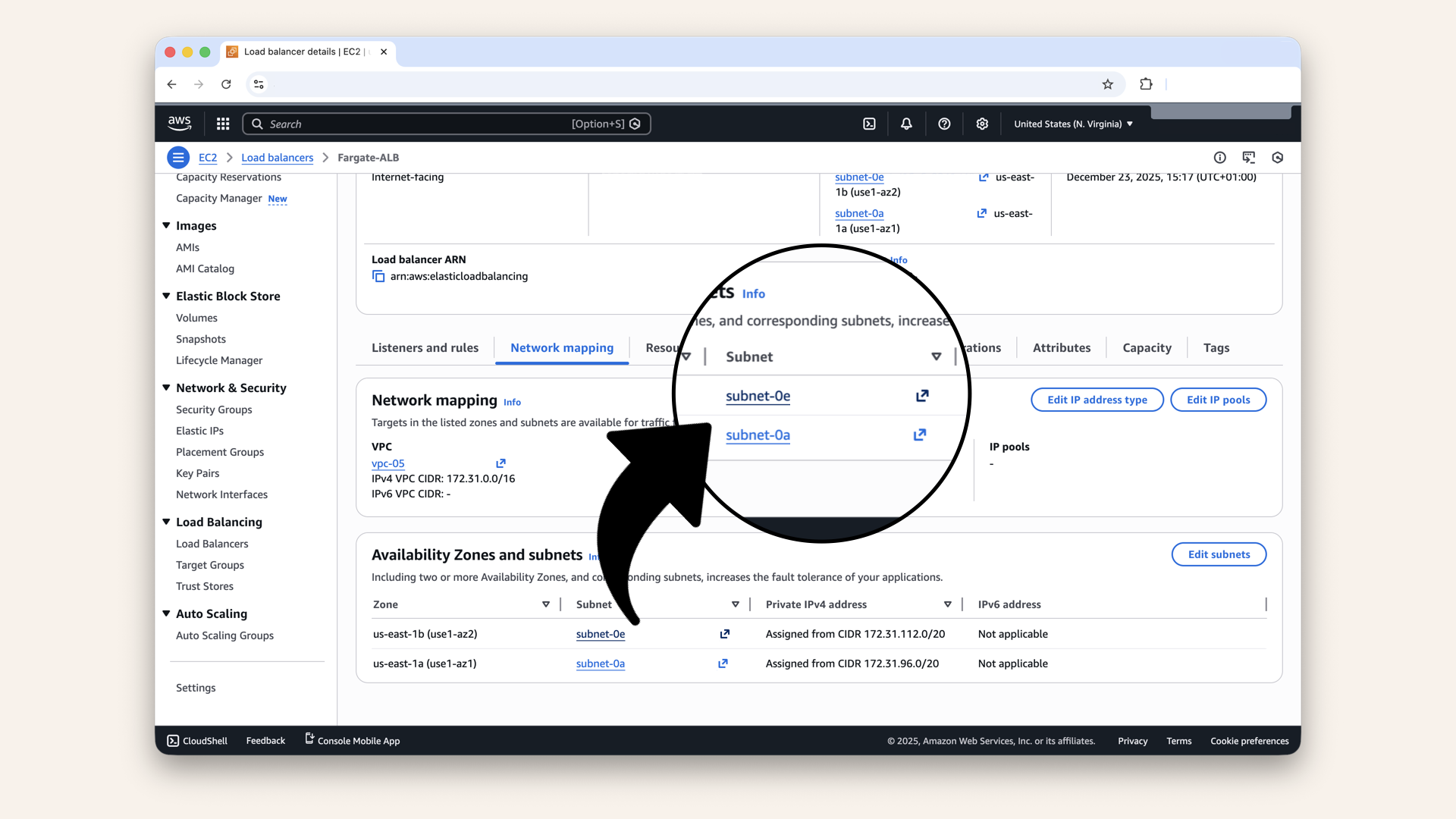
You should see 2 subnets, verify ALB is in both public subnets
If you only see the subnet ID (subnet-123abc) and not the subnet name (PublicSubnet-1), click on each subnet ID.
This opens a new tab where you can verify the subnet name:
Click on each subnet ID, this opens a new tab where you can verify the subnet name
If all of these look good → your ALB is configured correctly! ✅
✅ Today's win
If you completed all steps:
✅ Created Target Group (Fargate-TG) for post 6060✅ Configured health checks at
/health ✅ Created Application Load Balancer (Fargate-ALB)
✅ Deployed ALB in public subnets
✅ Attached ALB-SG for security
✅ Configured HTTP listener on port 80
✅ Got your public DNS endpoint
You just built the front-yard house.
Your infrastructure can now:
- Accept traffic from the internet (via ALB)
- Route it to private containers (via Target Group)
- Check container health (via health checks)
- Provide a stable endpoint (via DNS name)
Tomorrow, we'll add a custom domain.
Understanding what we built
The complete traffic flow:
Security layers:
- ✅ ALB in public subnet (internet-accessible)
- ✅ ALB-SG allows HTTP/HTTPS from anywhere
- ✅ Containers in private subnet (not directly accessible)
- ✅ Fargate-SG only allows traffic from ALB-SG
- ✅ Health checks ensure only healthy containers receive traffic
This is production-grade architecture.
ALB costs
Pricing: [as of Dec 2025]
- $0.0225 per hour (~$16.20/month)
- $0.008 per LCU-hour (Load Balancer Capacity Unit)
For low traffic (testing/dev):
- ALB cost: ~$16/month
- LCU cost: ~$1-2/month
→ Total: ~$18/month
For production with moderate traffic:
- ALB cost: ~$16/month
- LCU cost: ~$5-10/month
→ Total: ~$25/month
To reduce costs during development:
- Delete ALB when not actively testing (you can recreate anytime)
- Monitor LCU usage in CloudWatch
For production:
- ALB is essential and worth the cost
- High availability across AZs
- Automatic scaling
- Health checks and failover
Why we're not adding HTTPS yet
You might notice: We only configured HTTP (port 80), not HTTPS (port 443).
That's intentional.
To add HTTPS, you need:
- A custom domain name (Day 10)
- An SSL certificate (Day 11)
Tomorrow and the next day, we'll:
- Get a domain from Route 53
- Create SSL certificate with Automatic
- Add HTTPS listener to ALB
- Redirect HTTP → HTTPS
For now, HTTP is enough to test the infrastructure.
Common mistakes (and how to avoid them)
❌ Mistake #1: ALB in private subnets
Result: ALB can't be accessed from internet
Fix: ALB must be in public subnets (PublicSubnet-1 & PublicSubnet-2)
❌ Mistake #2: Wrong security group
Result: Traffic blocked, can't reach ALB
Fix: Use ALB-SG (allows HTTP/HTTPS from 0.0.0.0/0)
❌ Mistake #3: Only one availability zone selected
Result: ALB creation fails
Fix: Select at least 2 AZs (PublicSubnet-1 in us-east-1a and PublicSubnet-2 in us-east-1b)
❌ Mistake #4: Target Group protocol mismatch
Result: Health checks fail, traffic doesn't route
Fix:
- Target Group: HTTP on port 6060
- ALB listener: HTTP on port 80 These can be different. ALB translates 80 → 6060
Troubleshooting
ALB stuck in "Provisioning" state
If ALB stays "Provisioning" for more than 10 minutes:
- Check if you selected 2+ availability zones
- Verify subnets are public (have route to IGW)
- Check AWS Service Health Dashboard
- Delete and recreate if stuck after 15 minutes
Common cause: Subnet doesn't have route to Internet Gateway
Can't access ALB's DNS name (connection refused)
Check:
- ALB state is "Active" (not "Provisioning")
- Security group ALB-SG allows inbound HTTP (80) from 0.0.0.0/0
- You're using HTTP (not HTTPS) →
http://your-alb-dns.com - ALB is in public subnets
Note: You'll get 503 "Service Unavailable" until you deploy containers (Day 13). That's normal!
ALB returns 503 Service Unavailable
This is EXPECTED right now!
Why:
- Target Group has no registered targets (containers)
- No healthy targets = ALB returns 503
When it will work:
- After Day 13 (Fargate deployment)
- Containers register with Target Group
- Health checks pass
- ALB routes traffic successfully
For now, 503 proves:
- ✅ ALB is accessible
- ✅ Security group allows traffic
- ✅ Listener is configured
- ❌ Just need to deploy containers!
Target Group shows "unused"
This is normal!
Target Group won't have any targets until:
- You deploy Fargate containers (Day 13)
- ECS service automatically registers container IPs
For now:
- Target Group exists ✅
- Health check configured ✅
- Ready for Fargate ✅
Tomorrow's preview
Today: You built the front door (ALB):
Think of an Application Load Balancer as the front-yard house
Tomorrow (Day 10): We get a custom domain name
What we'll do:
Right now, your ALB has an ugly DNS name:
fargate-alb-1234567890.us-east-1.elb.amazonaws.com
Tomorrow we'll:
- Register a domain with Route 53 (or use an existing one)
- Create a hosted zone
- Add an A record pointing to your ALB
- Get a clean URL like:
ai-caller.yourdomain.com
Why this matters:
- Easier to remember
- Professional
- Required for SSL certificate (Day 11)
- Better for users
After Day 10, you'll have a real domain pointing to your AI agent!
What we learned today
1. What Application Load Balancers are
Managed AWS service that routes HTTP/HTTPS traffic to targets
2. How Target Groups work
Collections of targets (containers) that receive traffic from ALB
3. Why ALB lives in public subnets
Needs internet access while routing to private containers
4. Health checks keep apps reliable
ALB automatically detects and routes around unhealthy containers
5. Listeners configure traffic routing
Protocol + Port + Action (forward to Target Group)
The application layer begins
Days 1-2: Local development (your laptop) ✅
Day 3: VPC (your territory) ✅
Day 4: Subnets (front yards vs back yards) ✅
Day 5: NAT Gateway (back gate) ✅
Day 6: Route Tables (the roads) ✅
Day 7: Security Groups (the bouncers) ✅
Day 8: Test Your Network (validation) ✅
Day 9: Application Load Balancer (front door) ← YOU ARE HERE ✅
Day 10: Custom Domain (DNS)
Day 11: SSL Certificate (HTTPS)
Day 12: Deploy Frontend
Days 13-17: Fargate Deployment
Days 18-24: Features & Polish
You're over 1/3 done! Infrastructure is 90% complete! 🚀
Share your progress
ALB deployed? Share it!
Twitter/X:
"Day 9: Built an Application Load Balancer: the front door to my AI calling system. Accepts HTTP traffic from internet, routes to private containers. Got my public endpoint! Following @norahsakal's advent calendar 🎄"
LinkedIn:
"Day 9 of building AI calling agents: Created an Application Load Balancer in public subnets. It accepts internet traffic and routes to Fargate containers in private subnets. Production-ready front door with health checks and auto-scaling!"
Tag me! I want to celebrate your progress! 🎉
But if you want:
✅ Complete codebase (one clean repo)
✅ Complete walkthroughs
✅ Support when stuck
✅ Production templates
✅ Advanced features
Join the waitlist for the full course (launching February 2026):
Let's chat about your use case!
Schedule a free call ↗ - no pitch, just two builders talking.
Tomorrow: Day 10 - Get your custom domain 🌐
Read Day 10 ↗
See you then!
— Norah