Day 8: Test your network (prove it works)

How to validate your VPC infrastructure by launching a test instance and verifying connectivity
Trust, but verify
Days 3-7: You built the entire network infrastructure
Today: We prove it actually works
Here's the situation:
You've built:
✅ VPC with Internet Gateway
✅ Public and private subnets
✅ NAT Gateway
✅ Route Tables
✅ Security Groups
But you haven't actually tested any of it.
What if:
- NAT Gateway isn't running correctly?
- Route tables have the wrong associations?
- Secure Groups are blocking traffic?
- Something is misconfigured?
You'd fund out after deploying your containers (painful debugging)
Solution: Test first, deploy second.
Think of it like this:
You just built a house
Before moving in your furniture, you:
- Test the lights (do they work?)
- Test the water (does it flow?)
- Test the doors (do they lock?)
Same with infrastructure:
- Test the internet (can instances connect?)
- Test the NAT (does private → internet work?)
- Test the routing (does traffic flow correctly?)
By the end of today, you'll have:
✅ Test EC2 instance running in private subnet
✅ Verified internet connectivity through NAT
✅ Confirmed routing works correctly
✅ Proof your infrastructure is ready
Let's test your network.
What you'll build today
A temporary test setup:
| Component | Purpose | Duration |
|---|---|---|
| EC2 Instance | Test internet connectivity | Temporary (delete after testing) |
| Test-SG | Security Group for SSH access | Temporary (delete after testing) |
| SSH Connection | Access instance to run tests | Just for this tutorial |
It is important to delete all the instances we'll spin up today, to avoid ongoing cost.
We'll test:
- Can the instance reach the internet via NAT?
- Are route tables configured correctly?
- Do Security Groups work as expected?
Then we'll delete everything (no ongoing costs).
What you'll learn
- How to launch an EC2 instance in a private subnet
- How to connect to an instance using Session Manager (no SSH keys needed!)
- How to verify NAT Gateway is working
- How to test routing and connectivity
- How to clean up test resources
But if you want:
✅ Complete codebase (one clean repo)
✅ Complete walkthroughs
✅ Support when stuck
✅ Production templates
✅ Advanced features
Join the waitlist for the full course (launching February 2026):
Building something with AI calling?
Let's chat about your use case!
Schedule a free call ↗ - no pitch, just two builders talking.
Time required
30 minutes (launch instance + run tests + cleanup)
Prerequisites
✅ Completed Day 3 (VPC) ↗
✅ Completed Day 4 (Subnets) ↗
✅ Completed Day 5 (NAT Gateway) ↗
✅ Completed Day 6 (Route Tables) ↗
✅ Completed Day 7 (Security Groups) ↗
✅ Access to AWS Console
Understanding the test approach
Why test in a private subnet?
Your AI container will run in private subnets.
So we need to verify:
- Can private subnets reach the internet via NAT?
- Are route tables pointing to the right targets?
- Does the NAT Gateway actually work?
Testing in a private subnet simulates your production setup.
How we'll connect (Session Manager)
Traditional way: SSH with key pairs
- Need to generate SSH keys
- Need to manage
.pemfiles - Need a bastion host in public subnet
Modern way: AWS Systems Manager Session Manager
- No SSH keys needed
- Connect directly from browser
- Works with private subnets
We'll use Session Manager (easier).
What we'll test
Test 1: Internet connectivity
ping -c 8.8.8.8
Expected: Packets reach Google DNS (via NAT Gateway)
Test 2: DNS resolution
nslookup google.com
Expected: Resolves to an IP address
Test 3: HTTP request
curl -I https://www.google.com
Expected: Returns HTTP 200 response
If all three pass → your network works ✅
Step 1: Create Security Groups for test instance
We need a Security Group that allows Session Manager access.
Open the AWS Console ↗In the search bar, type VPC and click VPC from the dropdown:
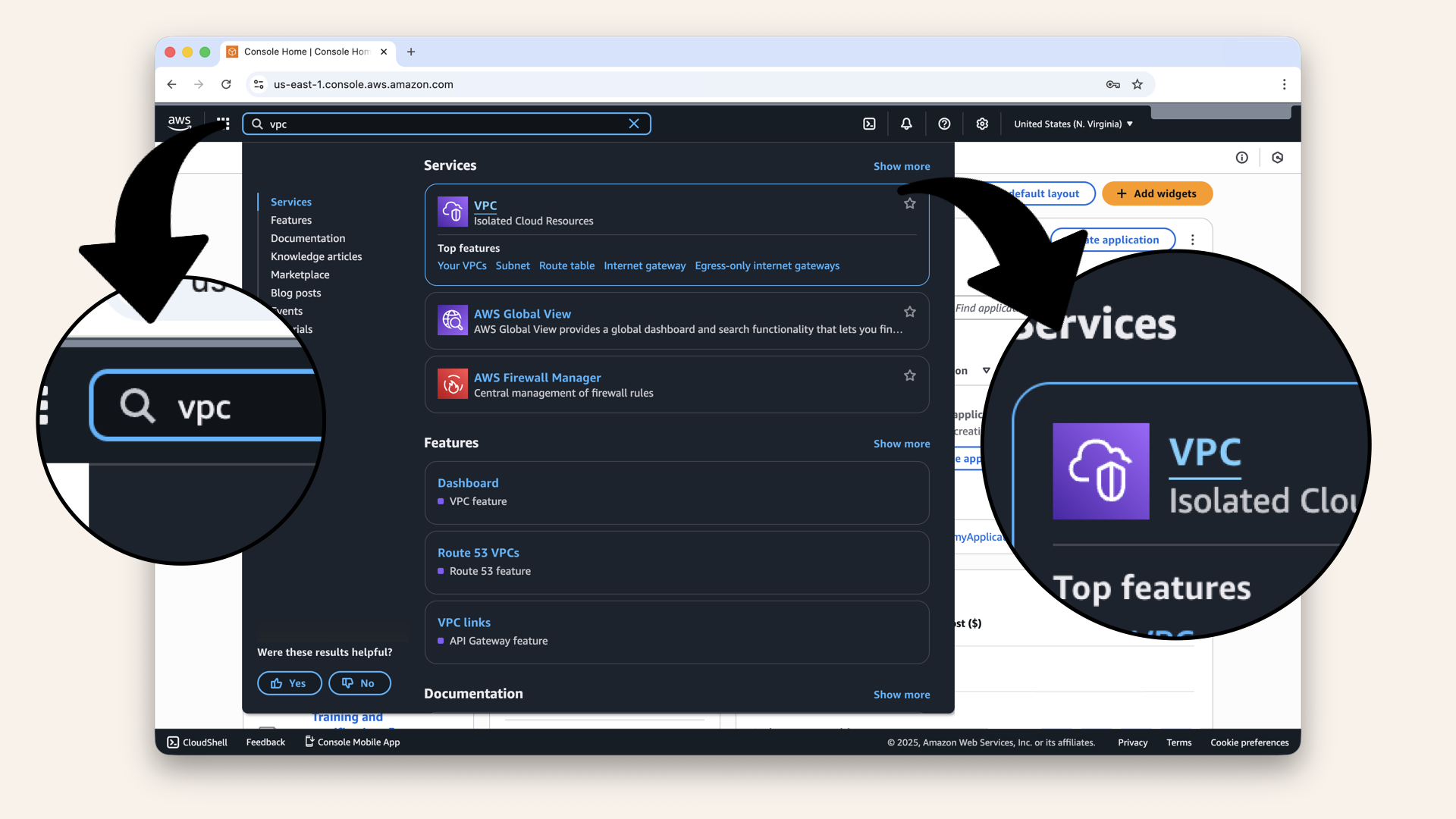
In the search bar at the top, type VPC and click VPC from the dropdown
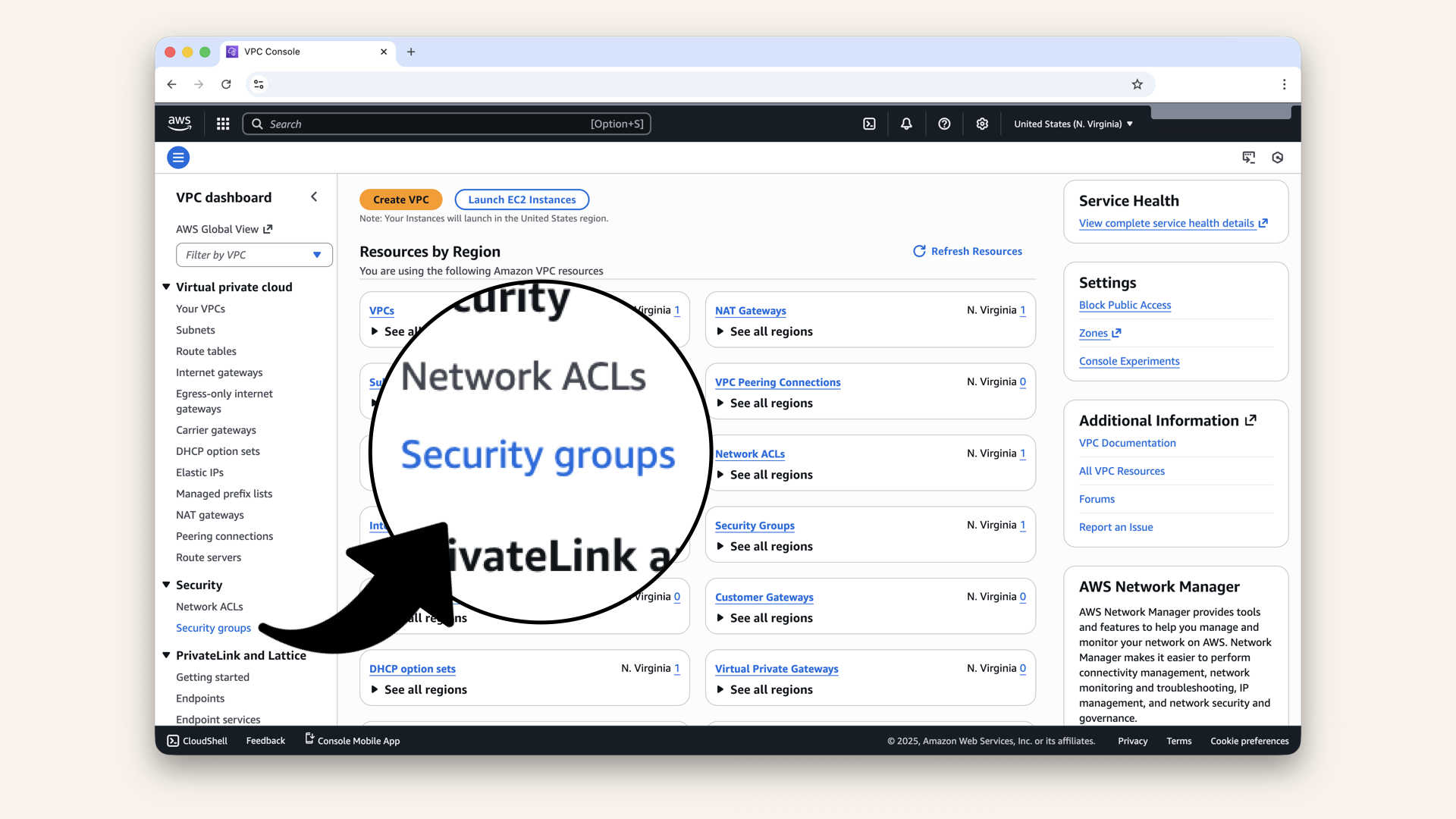
Click Security Groups in the left menu
You should see the two Security Groups we created in yesterday's post (and a default one created by AWS):
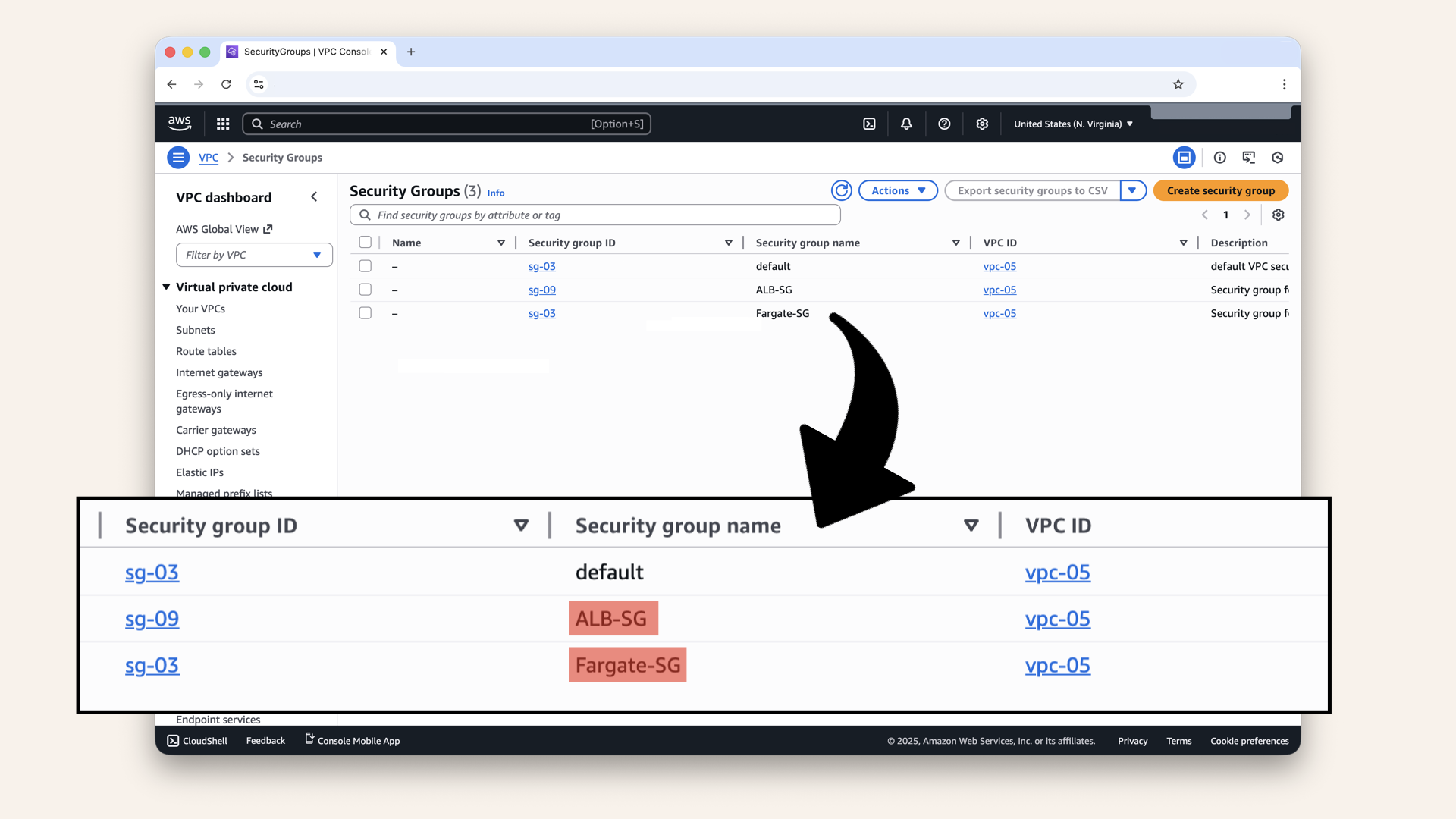
You should see the two Security Groups we created in yesterday's post (and a default one created by AWS)
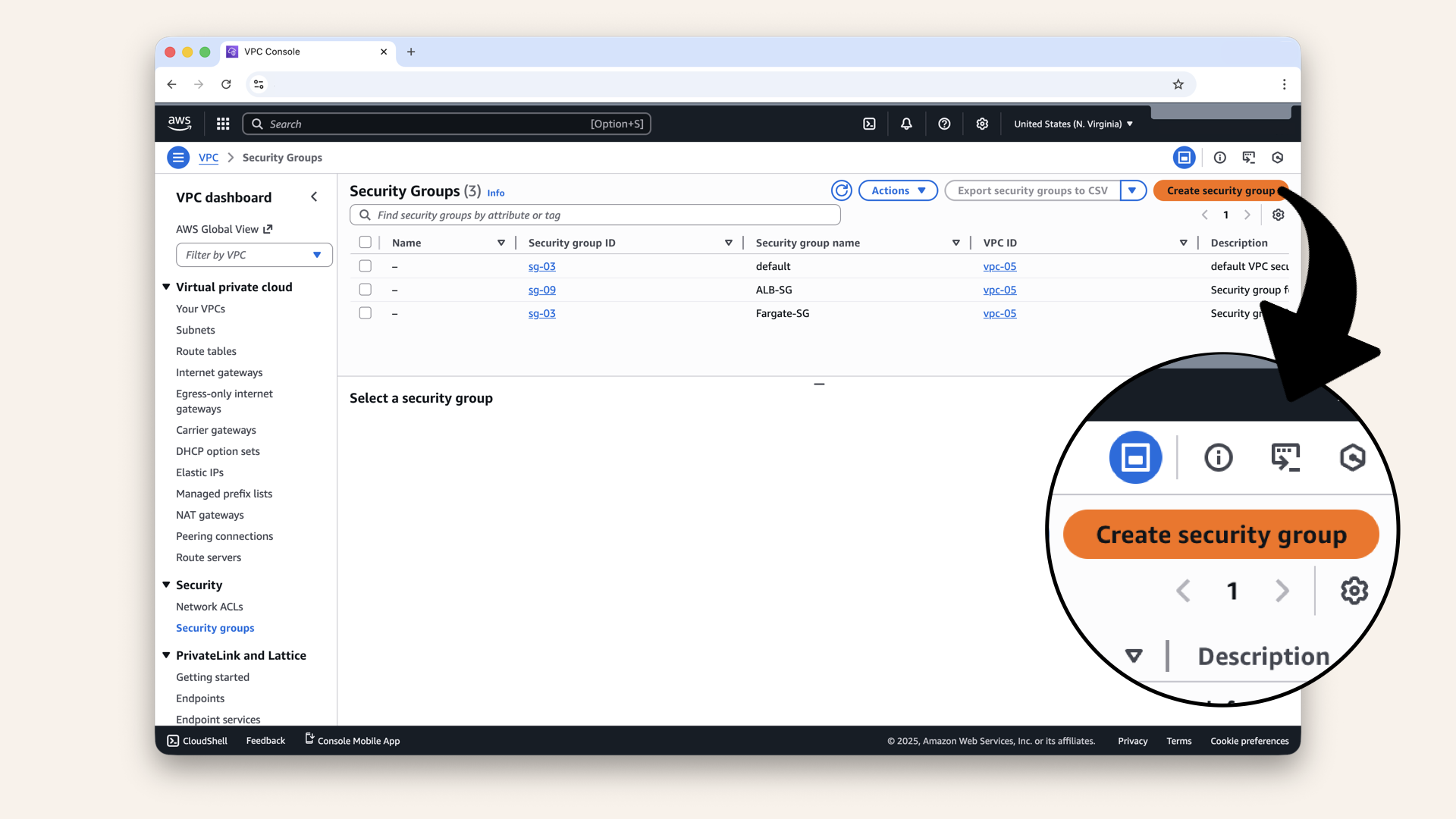
Click Create security group
Fill in the basic details:
Click the icon
and copy each value from the table below ⬇| Field | Value |
|---|---|
| Security group name | |
| Description | |
| VPC | Select your VPC |
Select your VPC from the dropdown:
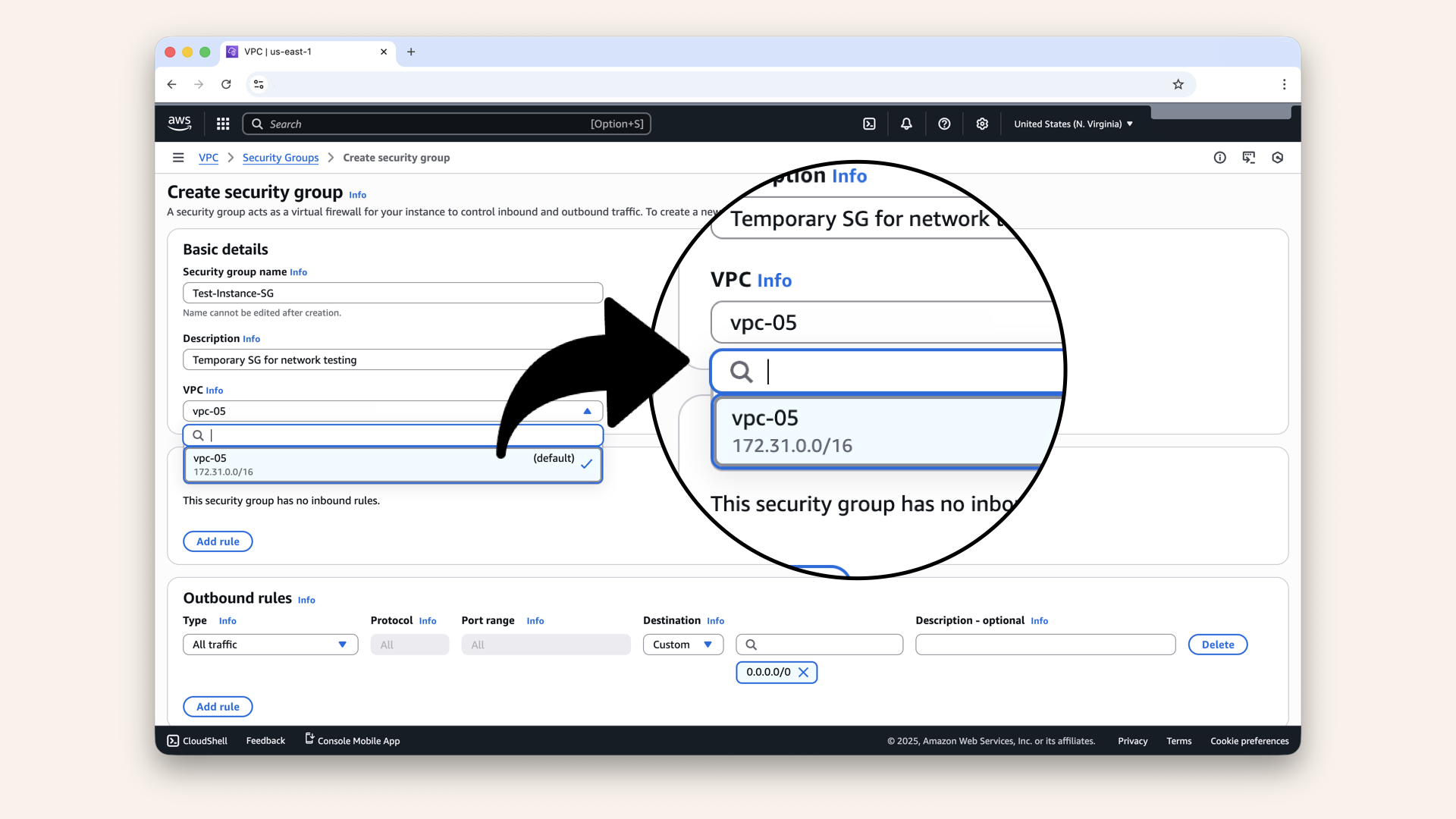
Select your VPC from the dropdown
Scroll down to Inbound rules.
Inbound rules:
- Leave empty (Session Manager doesn't need inbound rules)
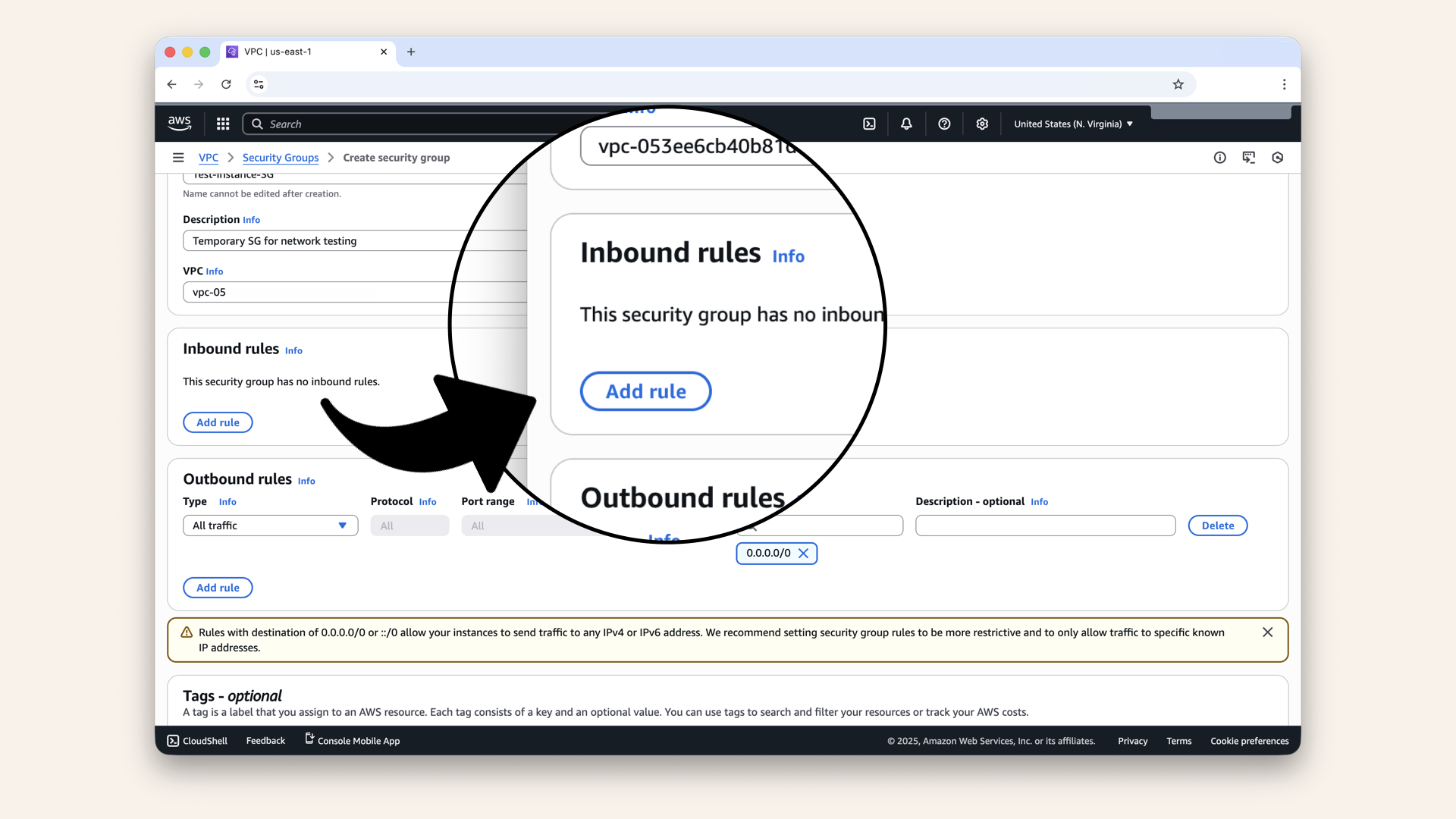
Leave inbound rule empty (Session Manager doesn't need inbound rules)
Scroll down to Outbound rules.
Outbound rules:
- Keep default (All traffic to
0.0.0.0/0)
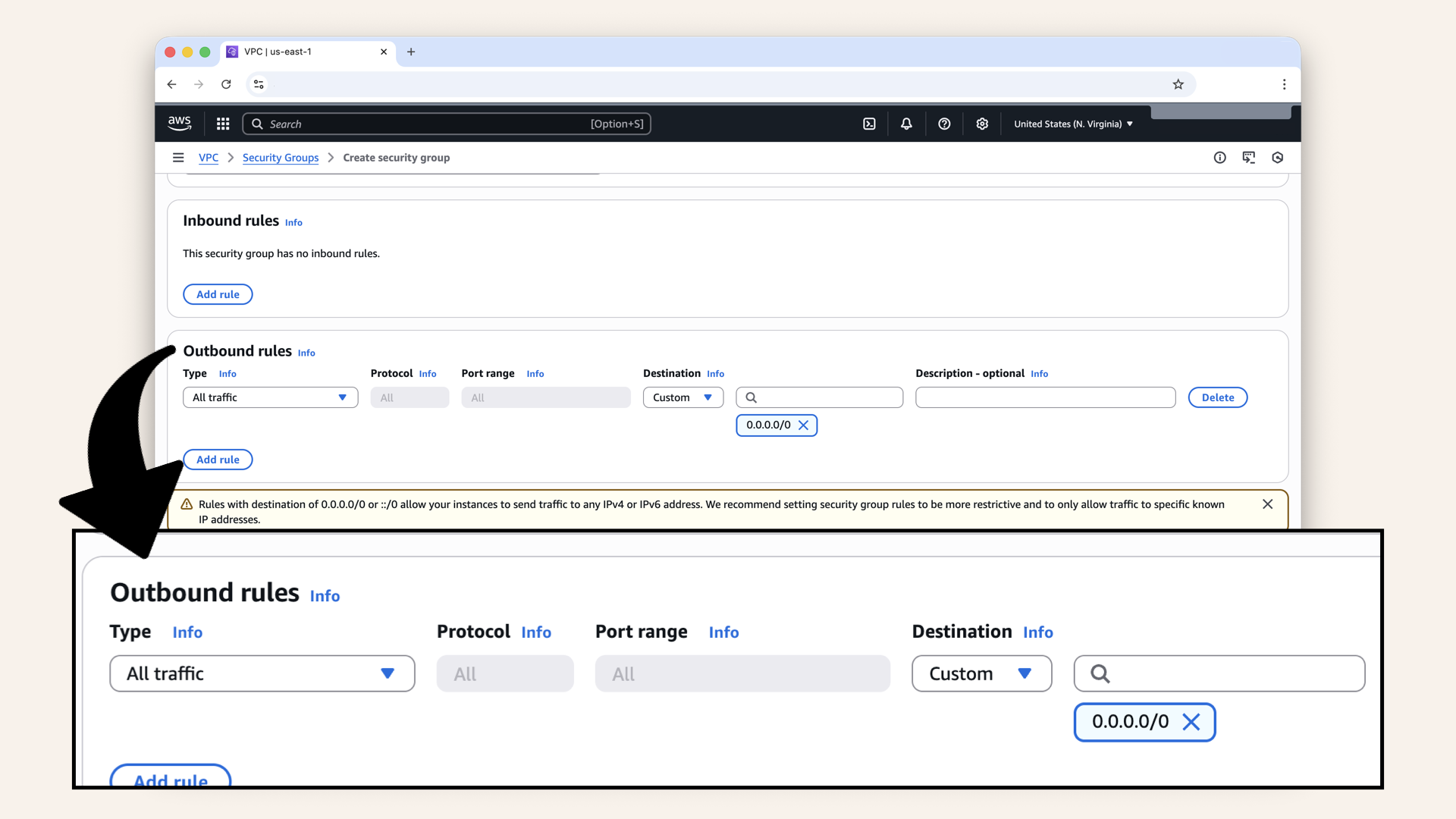
Keep default outbound rule (All traffic to 0.0.0.0/0)
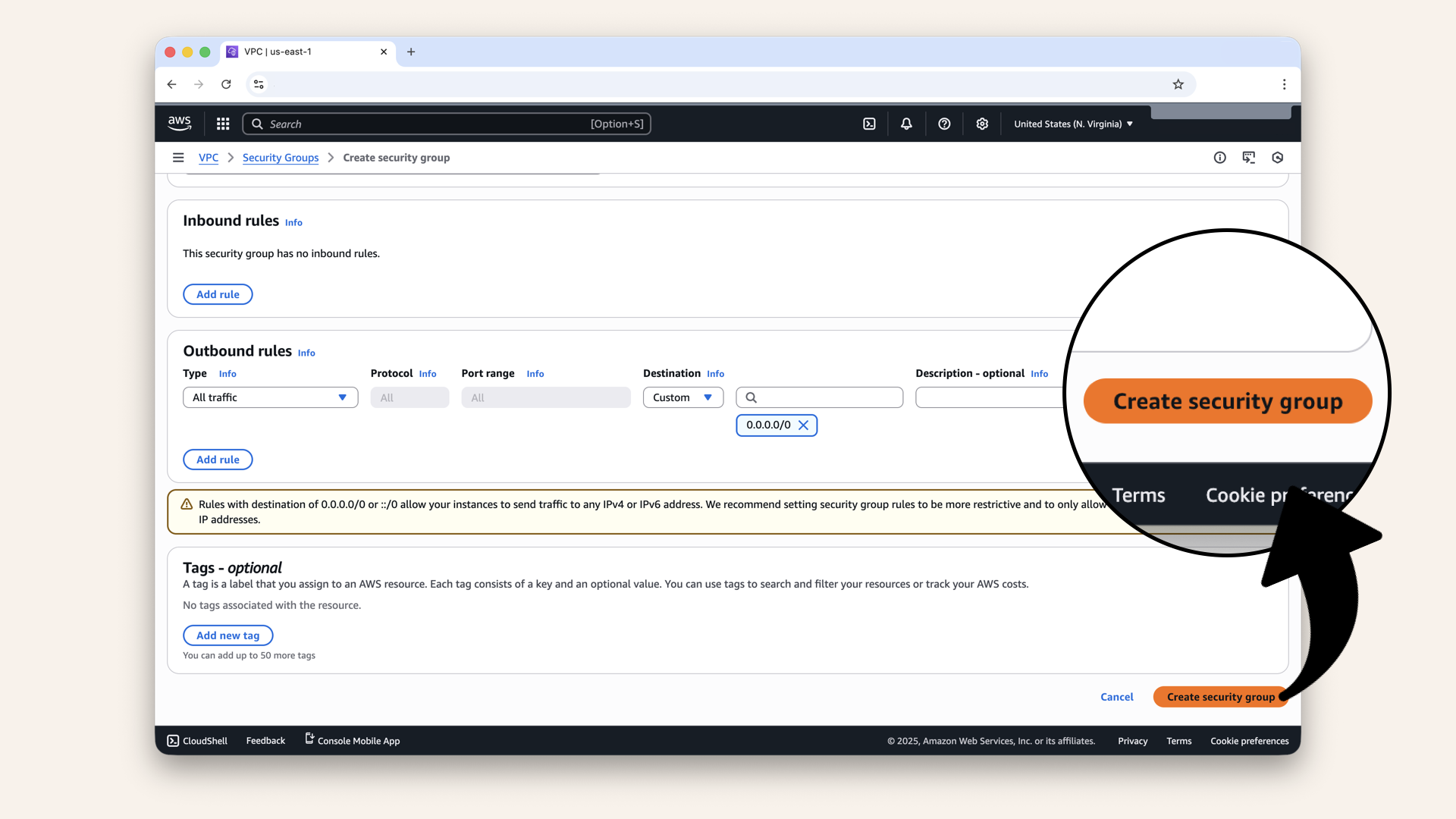
Click Create Security Group
You should see: "Security group created successfully" ✅
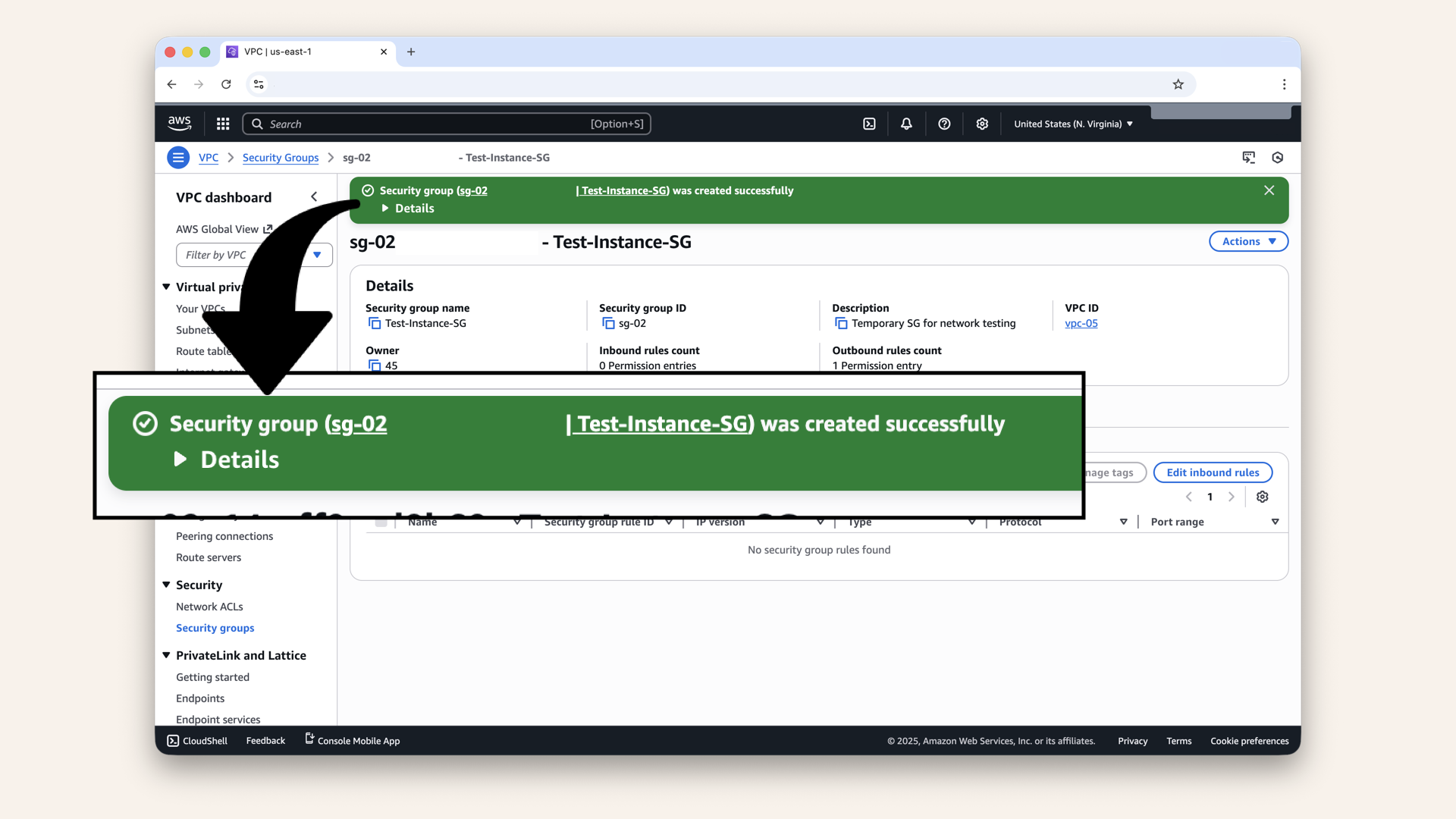
You should see: "Security group created successfully"
Step 2: Launch test EC2 instance
Now let's launch a small instance in PrivateSubnet-1.
In the search bar at the top, type ec2 and click EC2 from the dropdown menu:
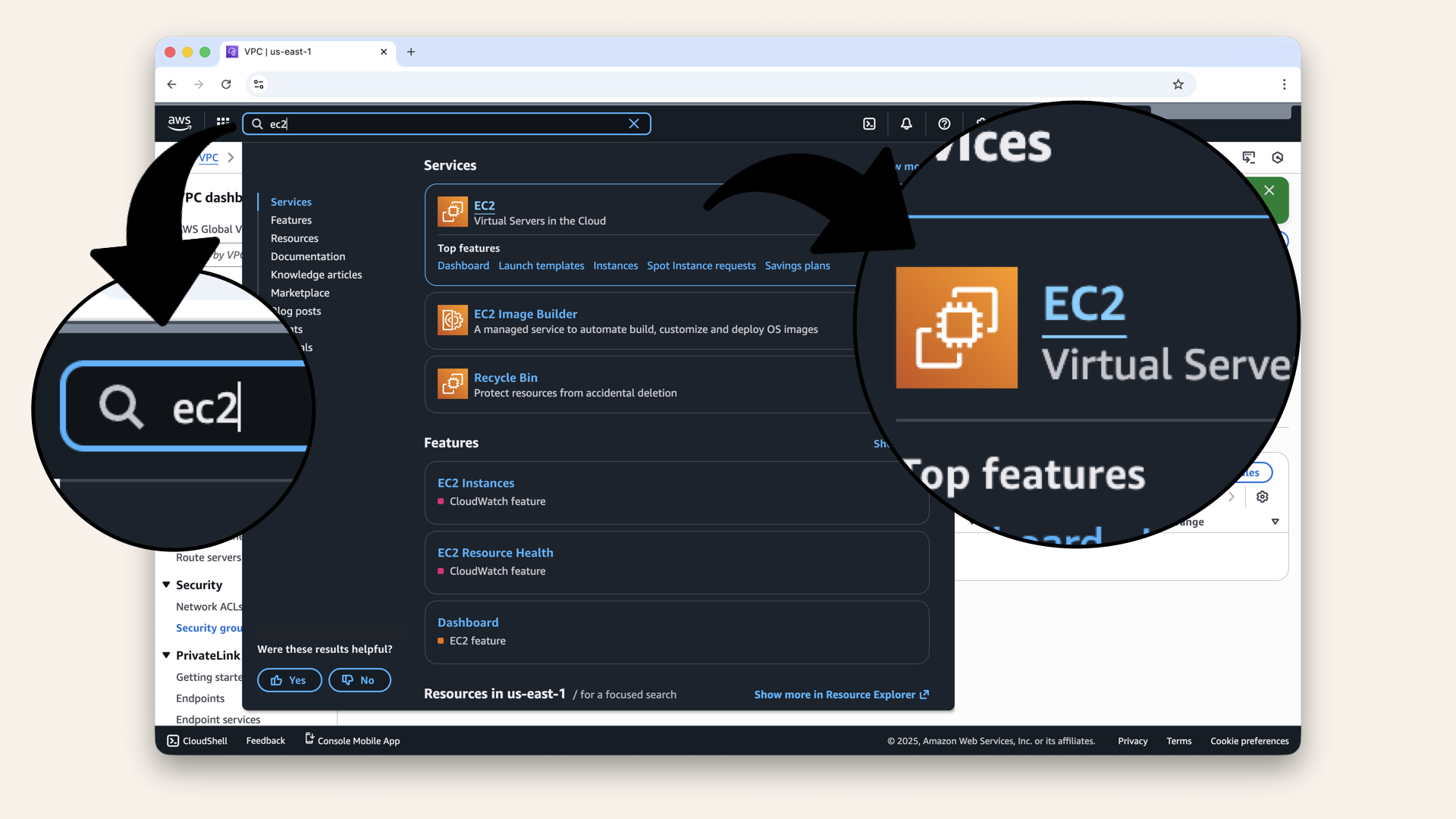
In the search bar at the top, type ec2 and click EC2 from the dropdown menu

Click launch instance
Configure the instance:
-
Name your instance
Name: -
Scroll down to Amazon Machine Image (AMI)
Select: Amazon Linux 2023
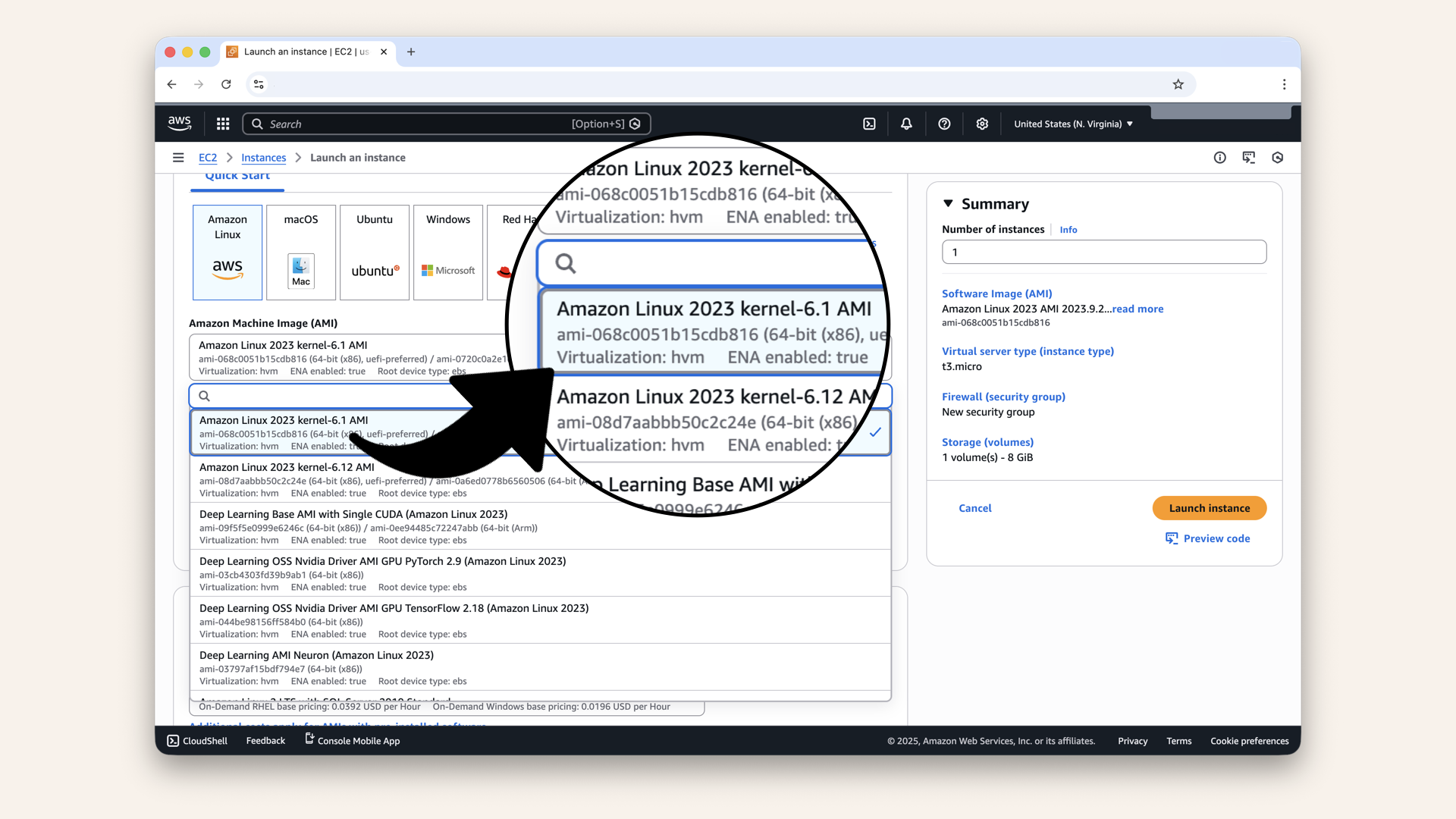
Scroll down to Amazon Machine Image (AMI), select Amazon Linux 2023
- Scroll down to Instance type
Select: t2.micro (free tier eligible)
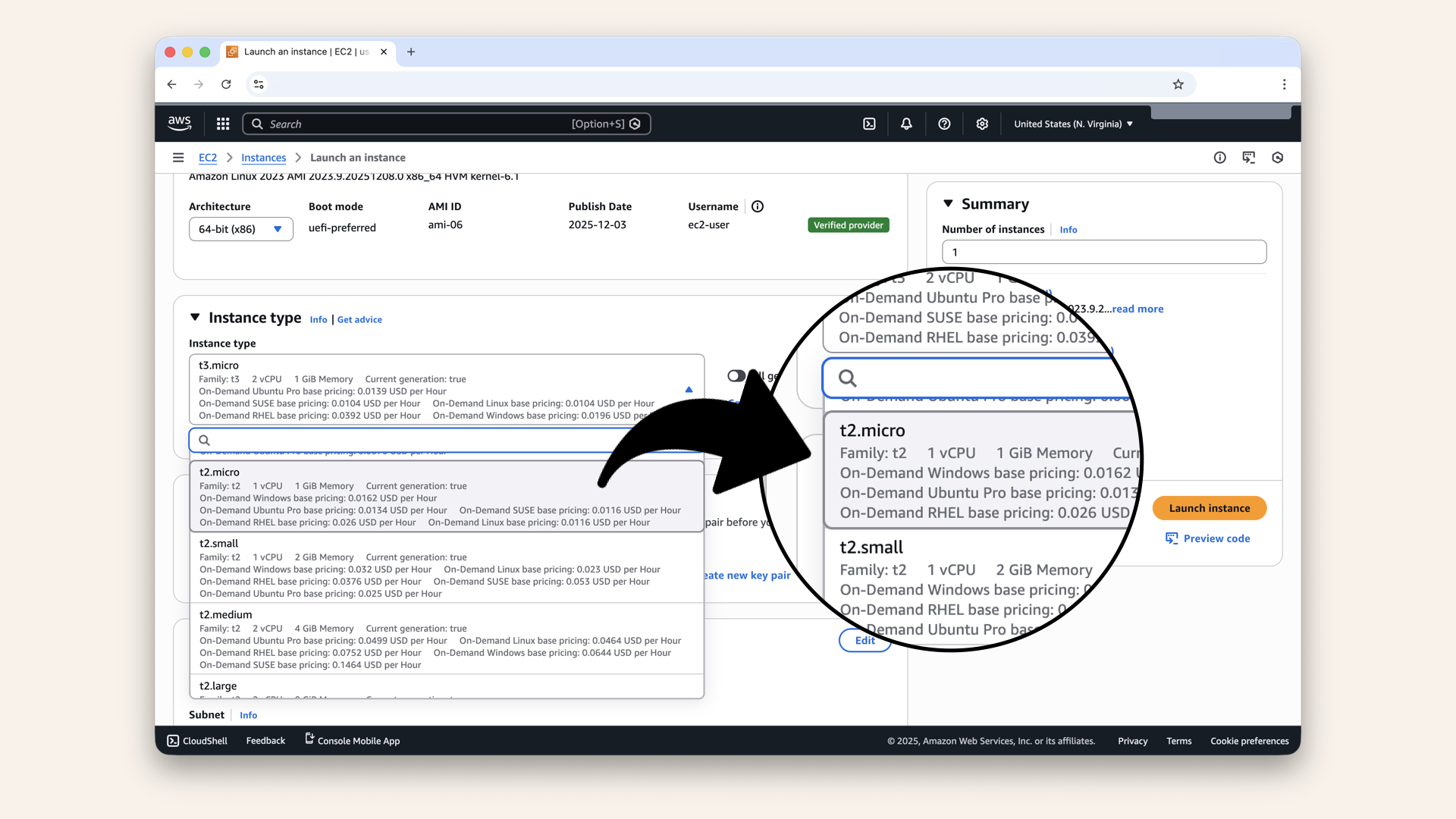
Scroll down to Instance type, select:** t2.micro (free tier eligible)
- Scroll down to Key pair
Select: Proceed without a key pair (we're using Session Manager)
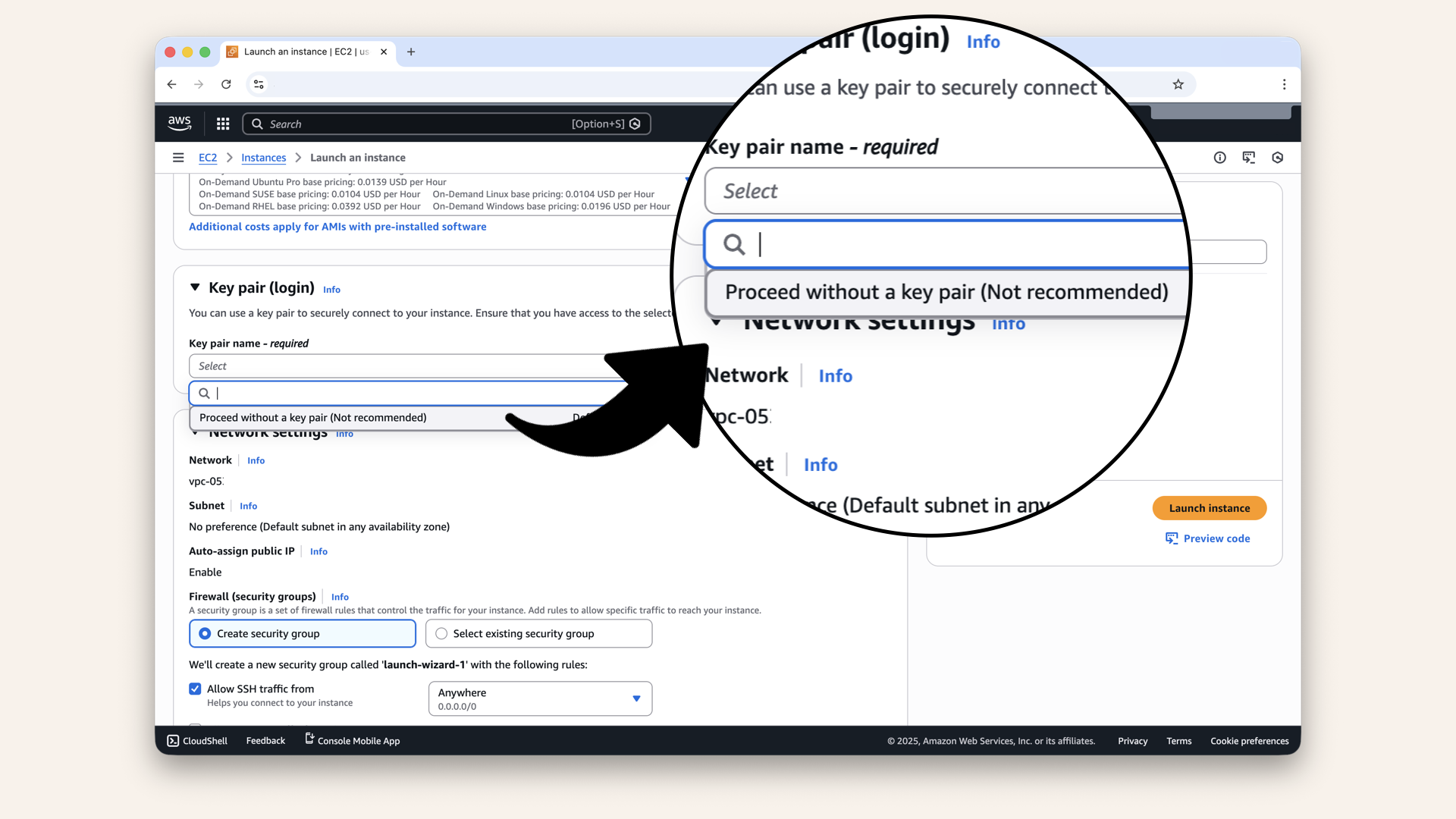
Scroll down to Key pair,select Proceed without a key pair (we're using Session Manager)
- Scroll to Network settings

Click Edit next to Network settings
Configure:
| Field | Value |
|---|---|
| VPC | Select your VPC |
| Subnet | Select PrivateSubnet-1 |
| Auto-assign public IP | Disable (private subnet doesn't need public IP) |
| Firewall (security groups) | Select existing → Test-Instance-SG |
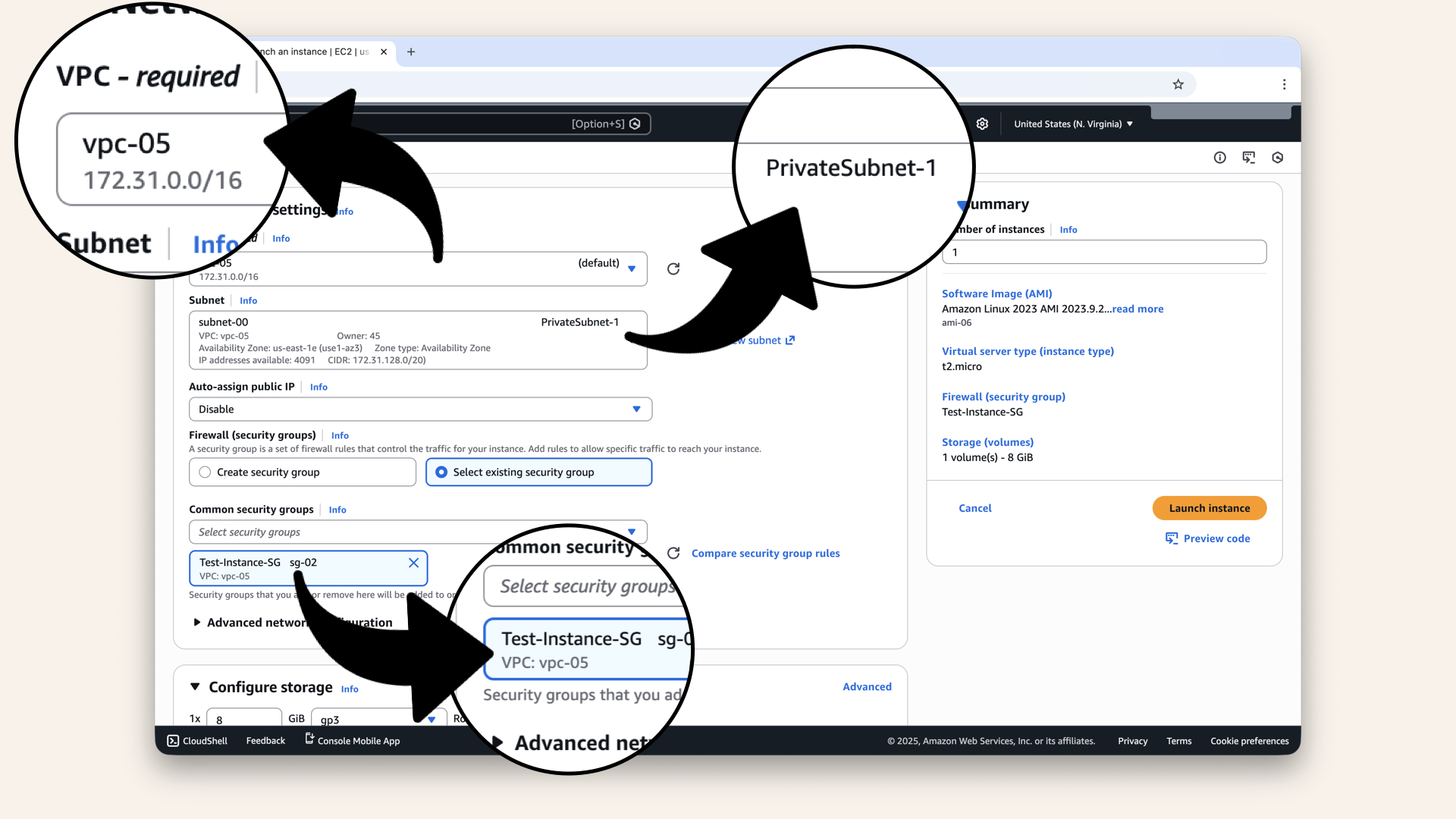
Configure the network settings
- Scroll down to Advanced details and expand it:
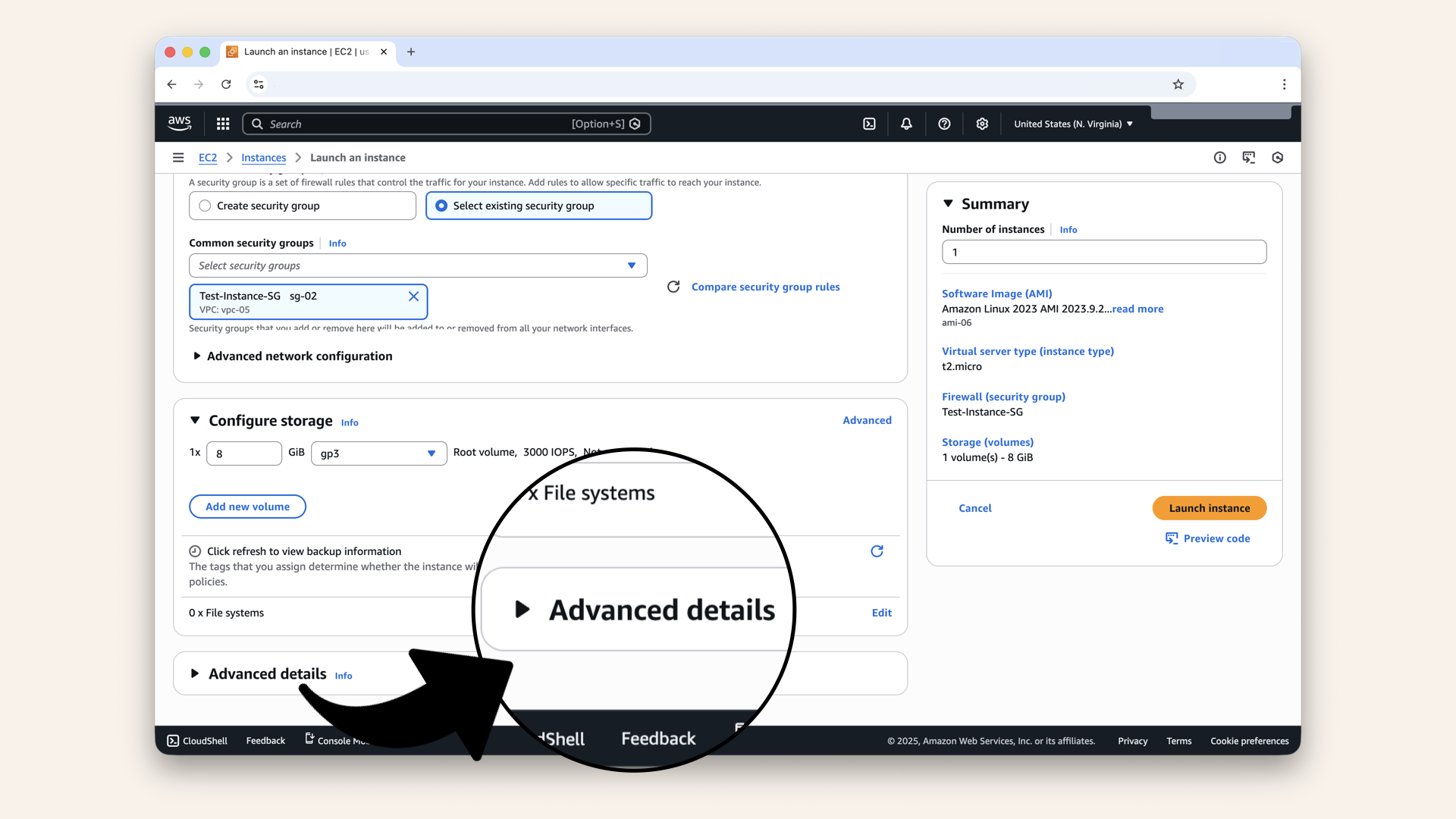
Scroll down to Advanced details and expand it
We need to create an IAM role for Session Manager.
Click Create new IAM profile: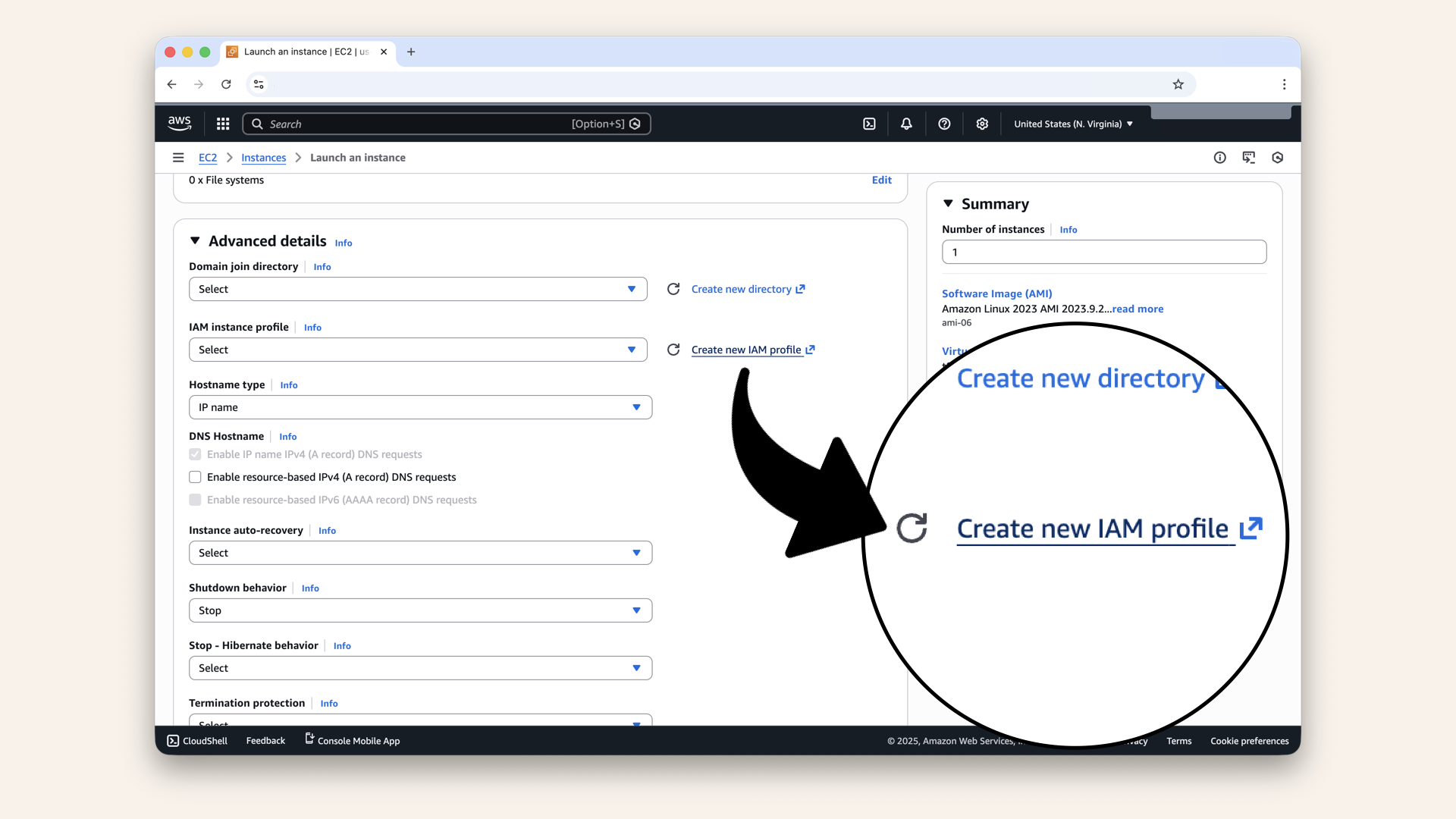
Click Create new IAM profile
This opens a new tab.
In the new tab:
- Click Create role
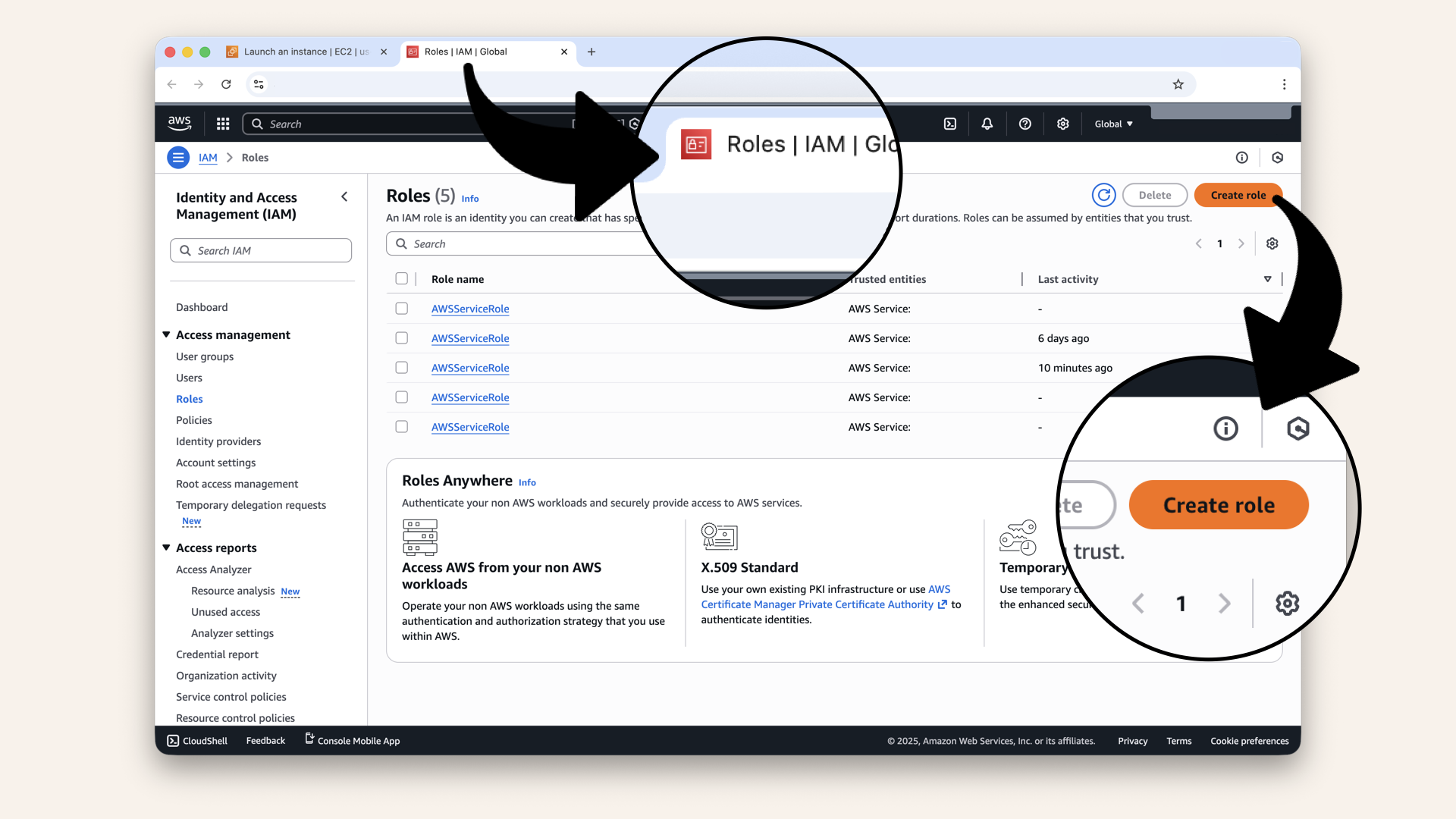
In the new tab, click Create role
- Trusted entity type: select AWS service
- Use case: select EC2
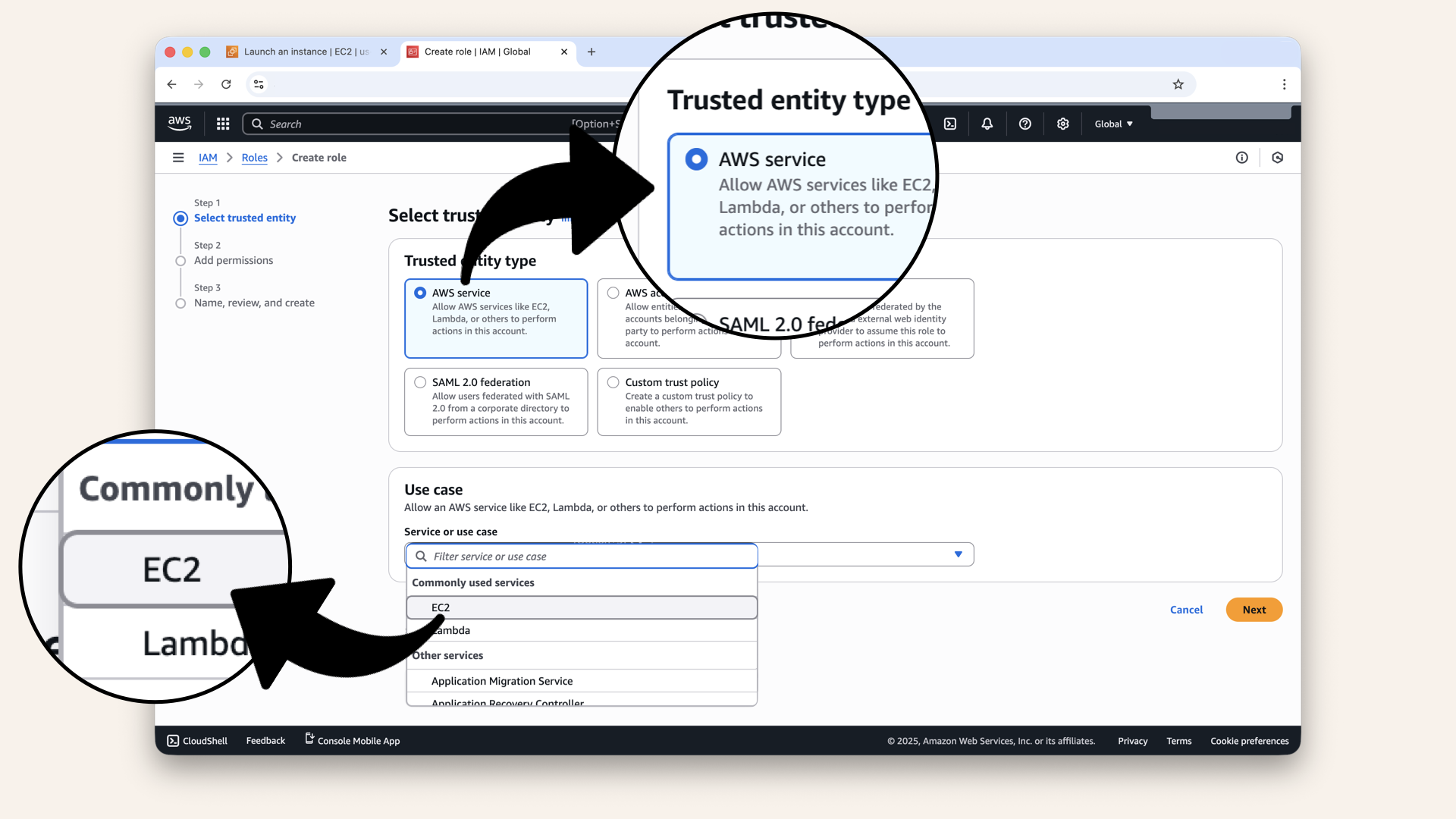
Select AWS service and EC2
- Click Next
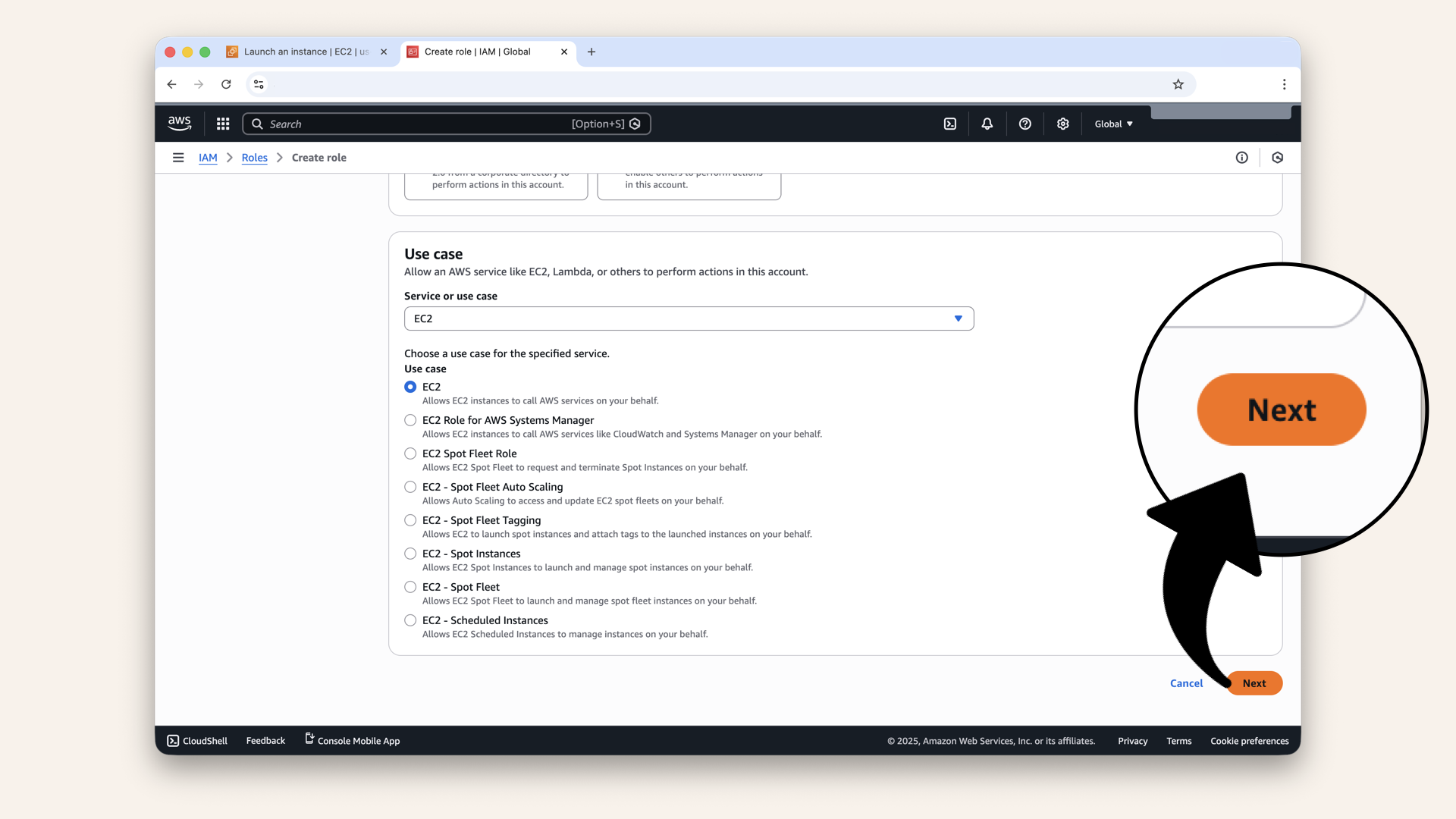
Click Next
- Search for and select :
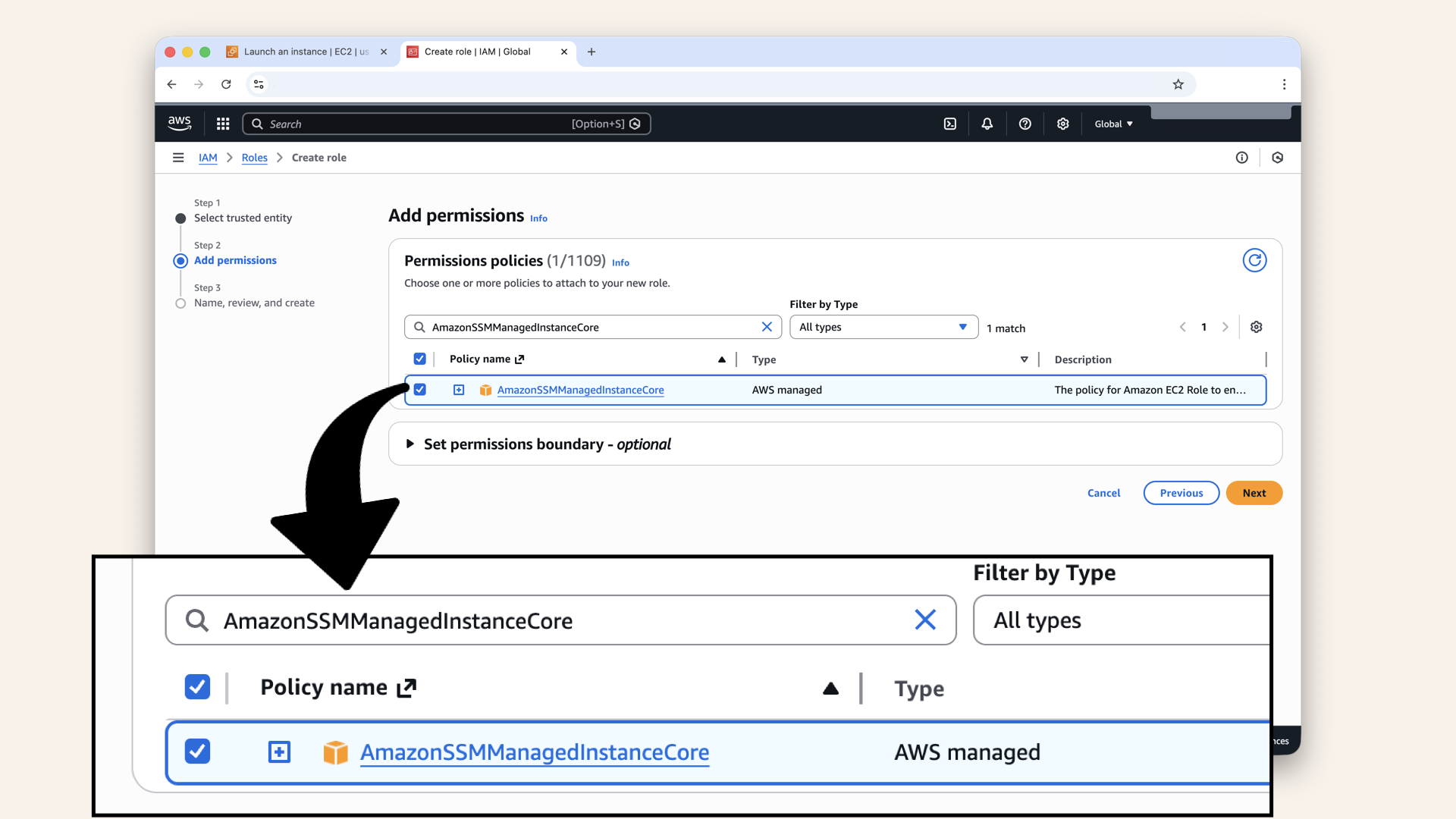
Search for and select AmazonSSMManagedInstanceCore
- Click Next:
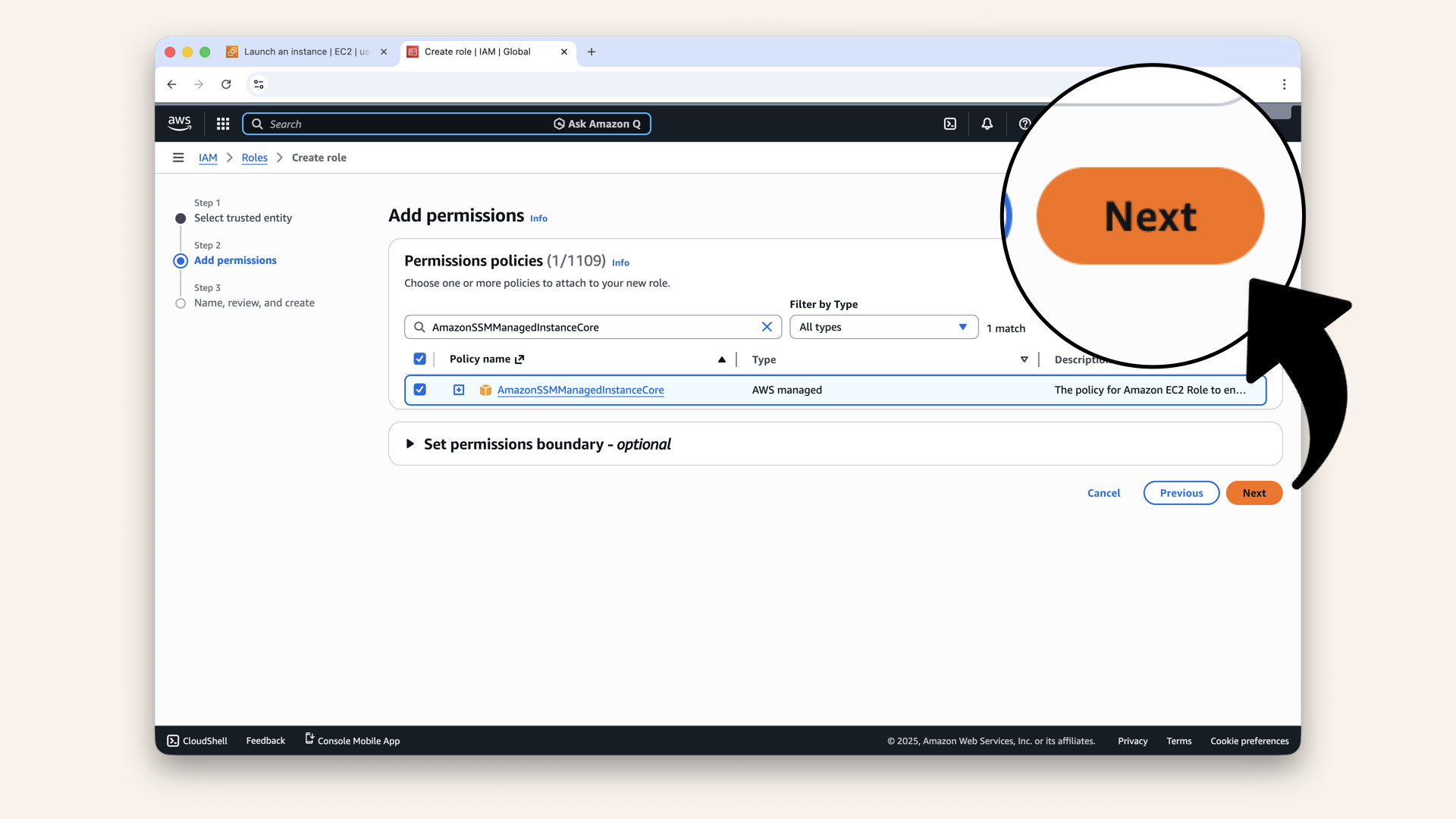
Click Next
- Name the role:
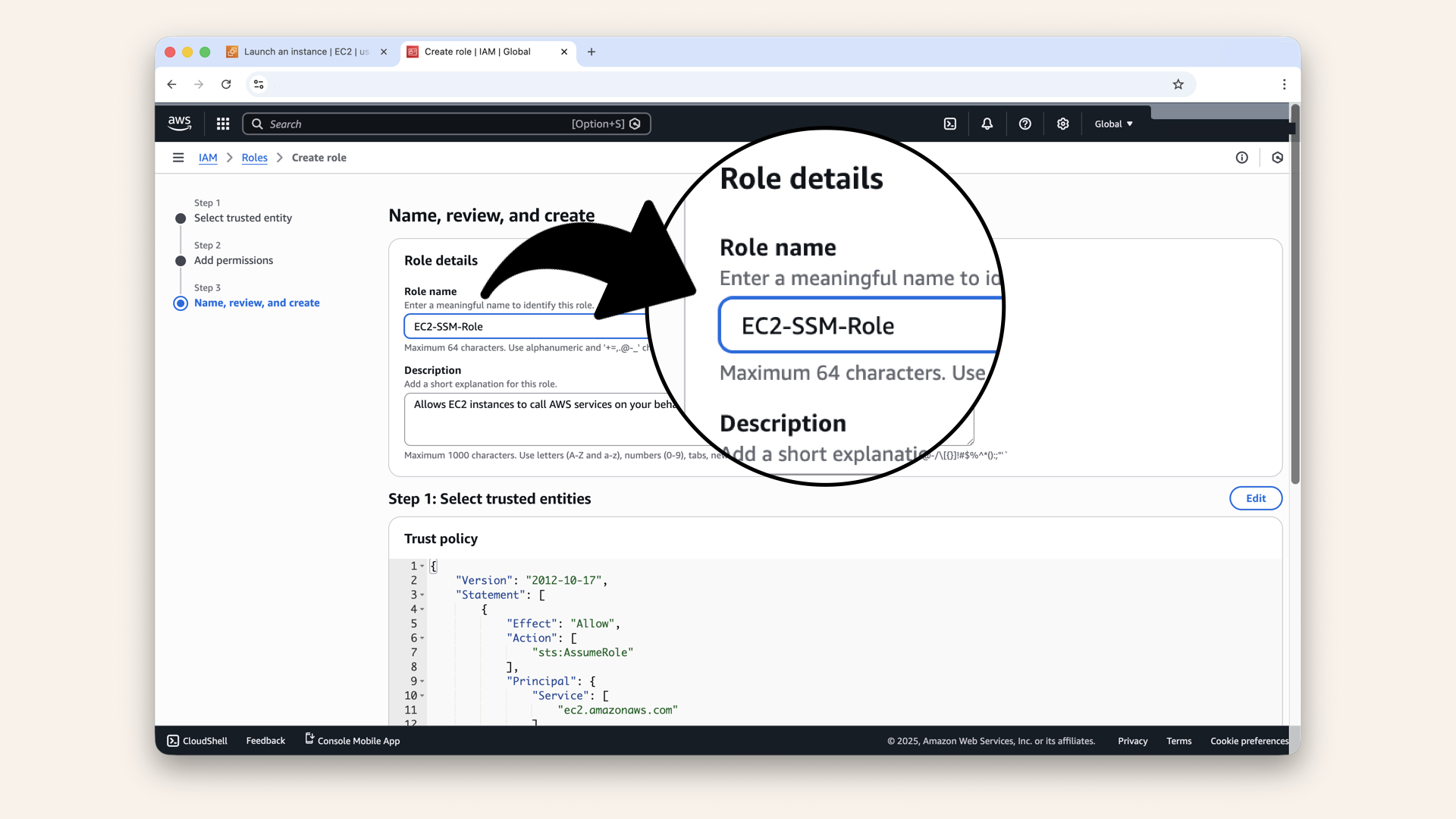
Name the role EC2-SSM-Role
- Scroll all the way down and click Create role:
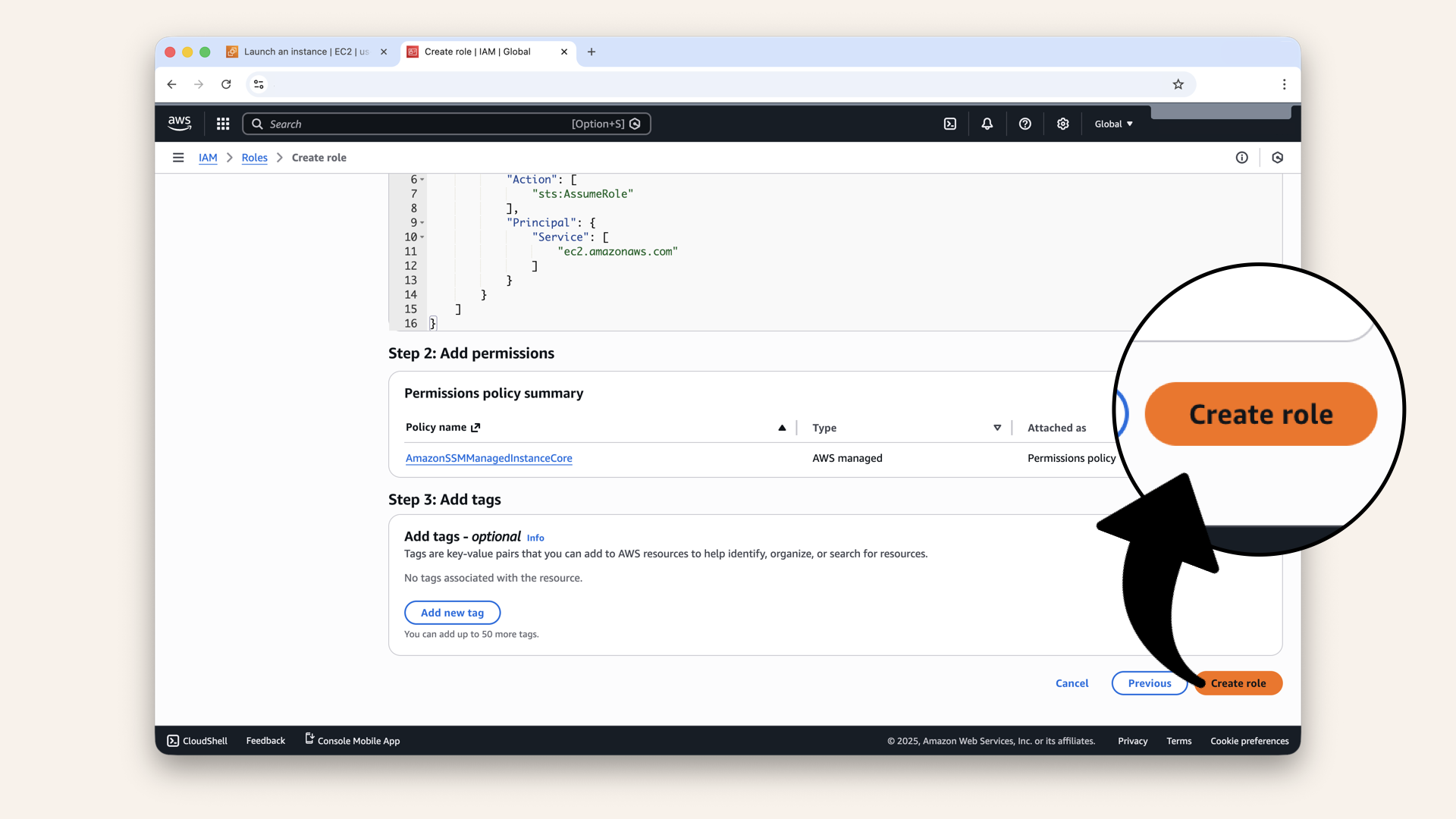
Scroll all the way down and click Create role
You should see "Role created" ✅
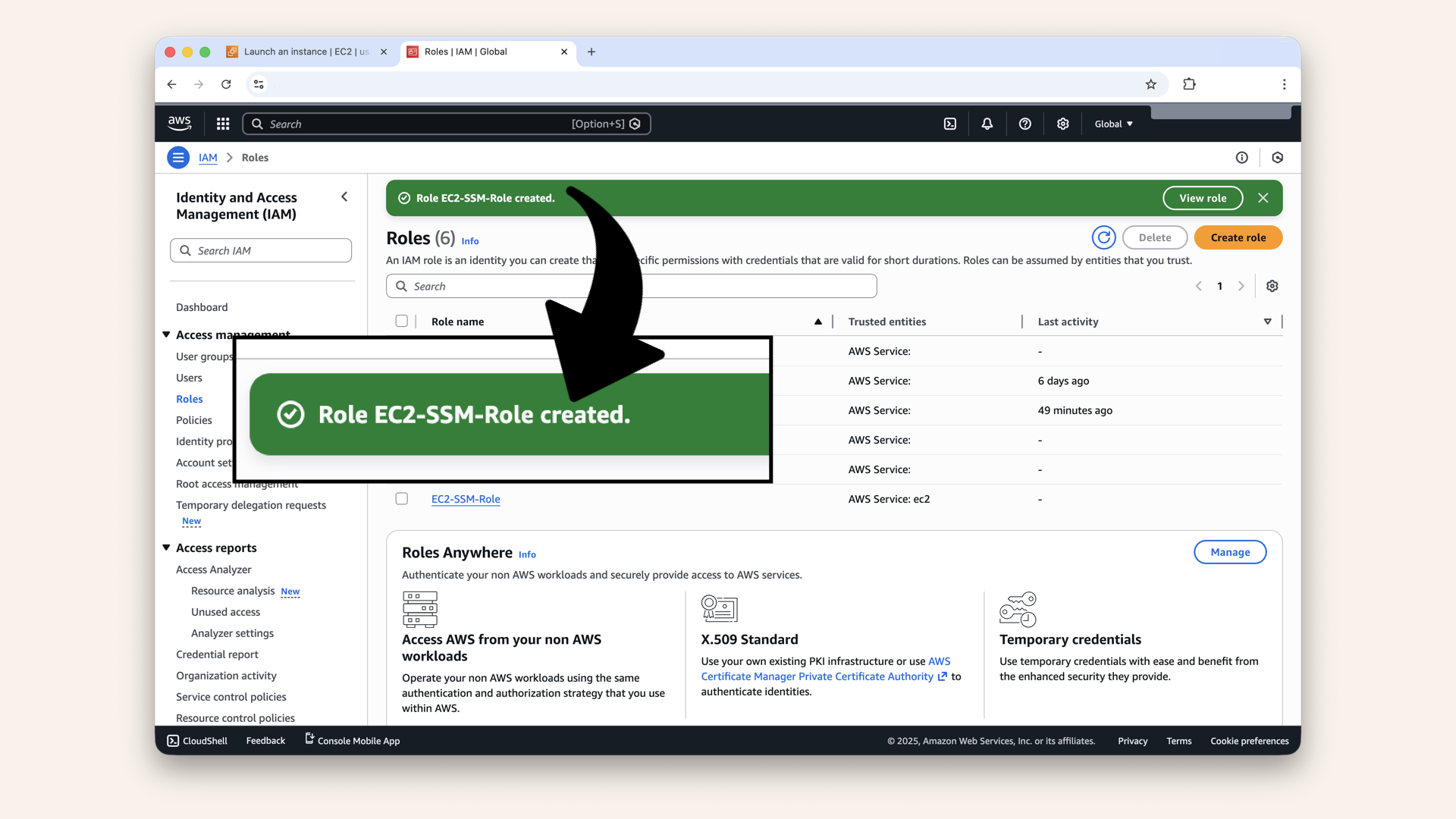
You should see "Role created" ✅
Close the IAM tab and go back to the EC2 launch tab and refresh the IAM instance profile dropdown:
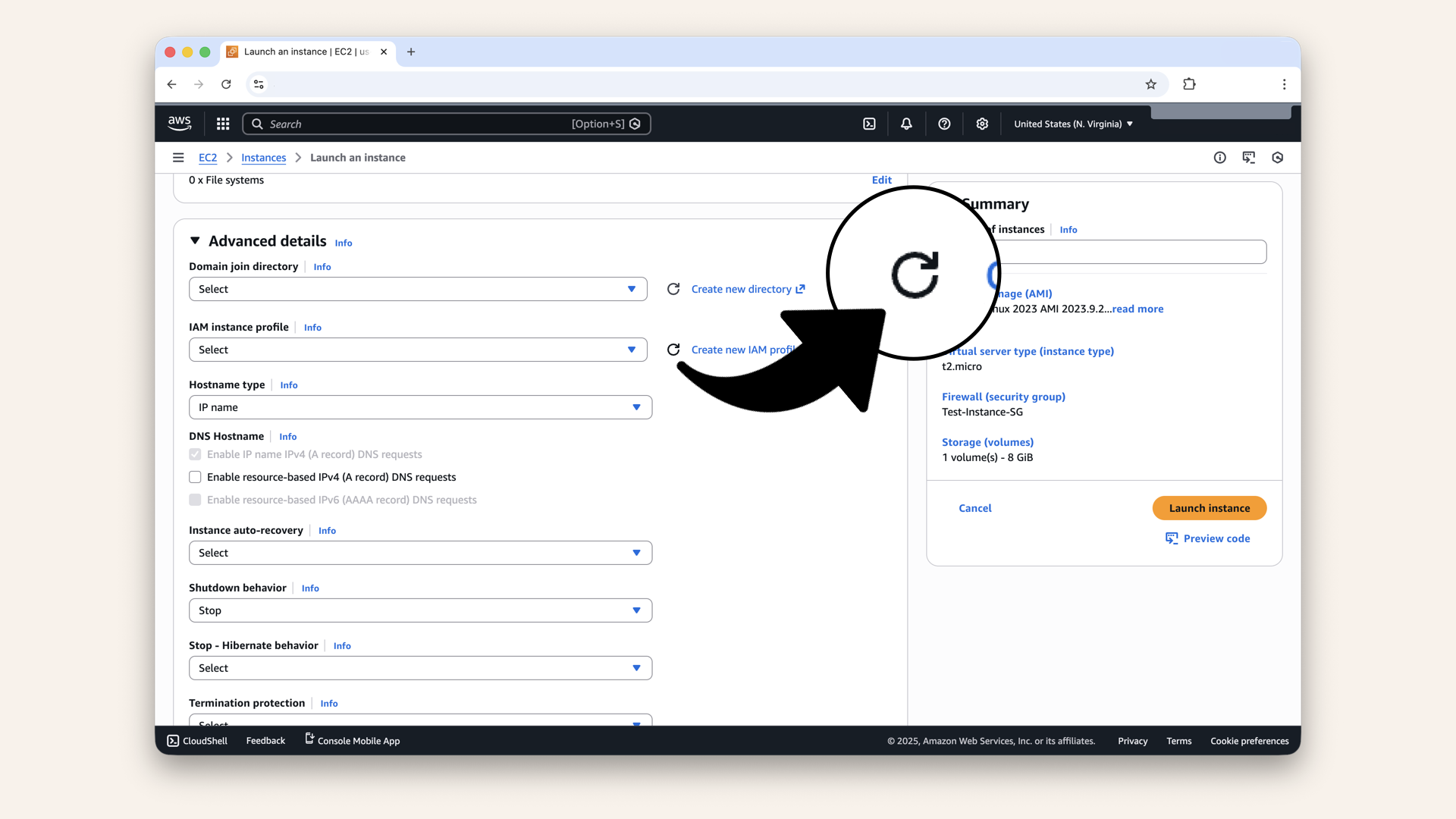
Close the tab and go back to the EC2 launch tab and refresh the IAM instance profile dropdown
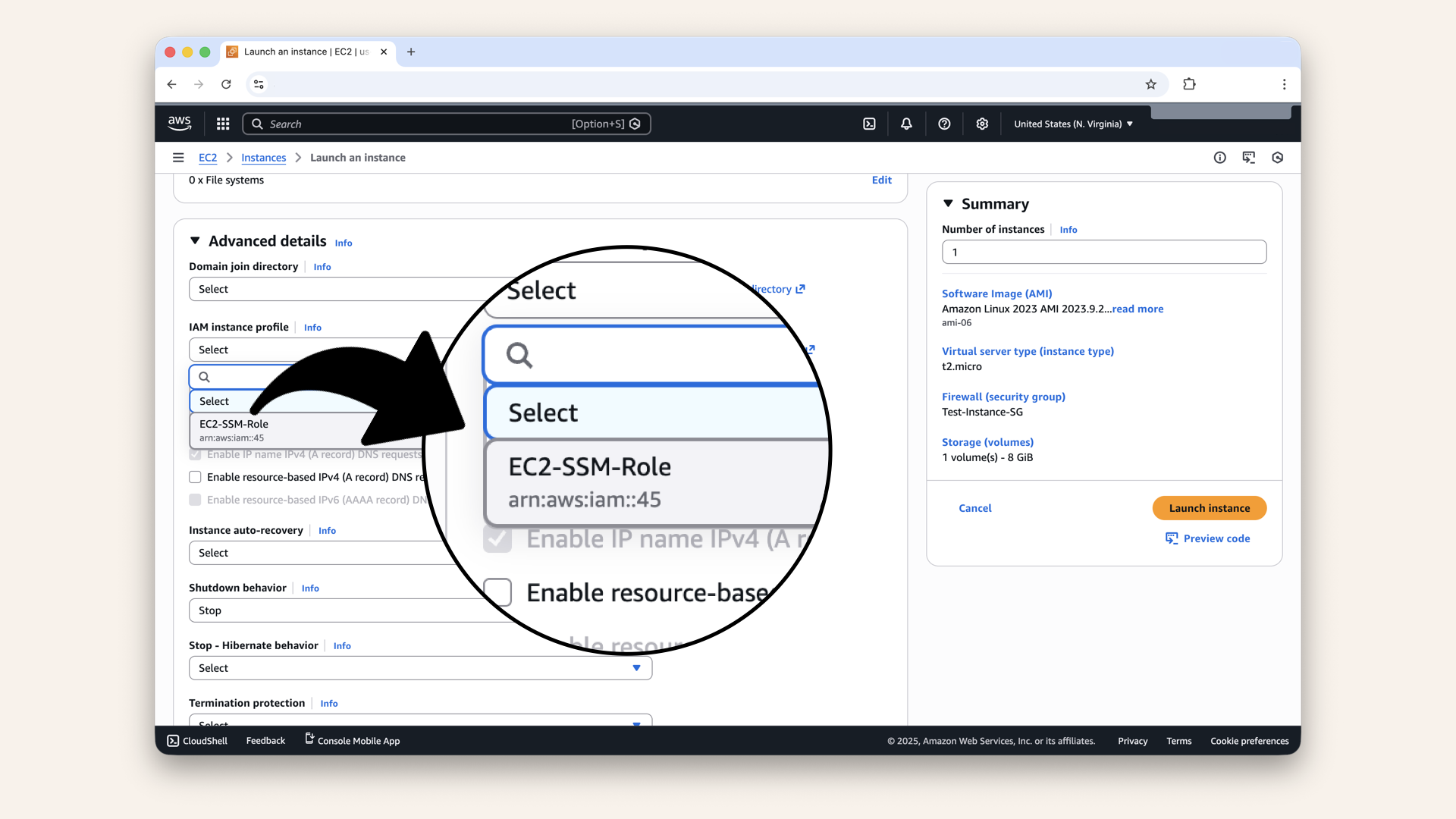
Select the EC2-SSM-Role we just created

Click Launch instance
✅ You should see: "Successfully initiated launch of instance"
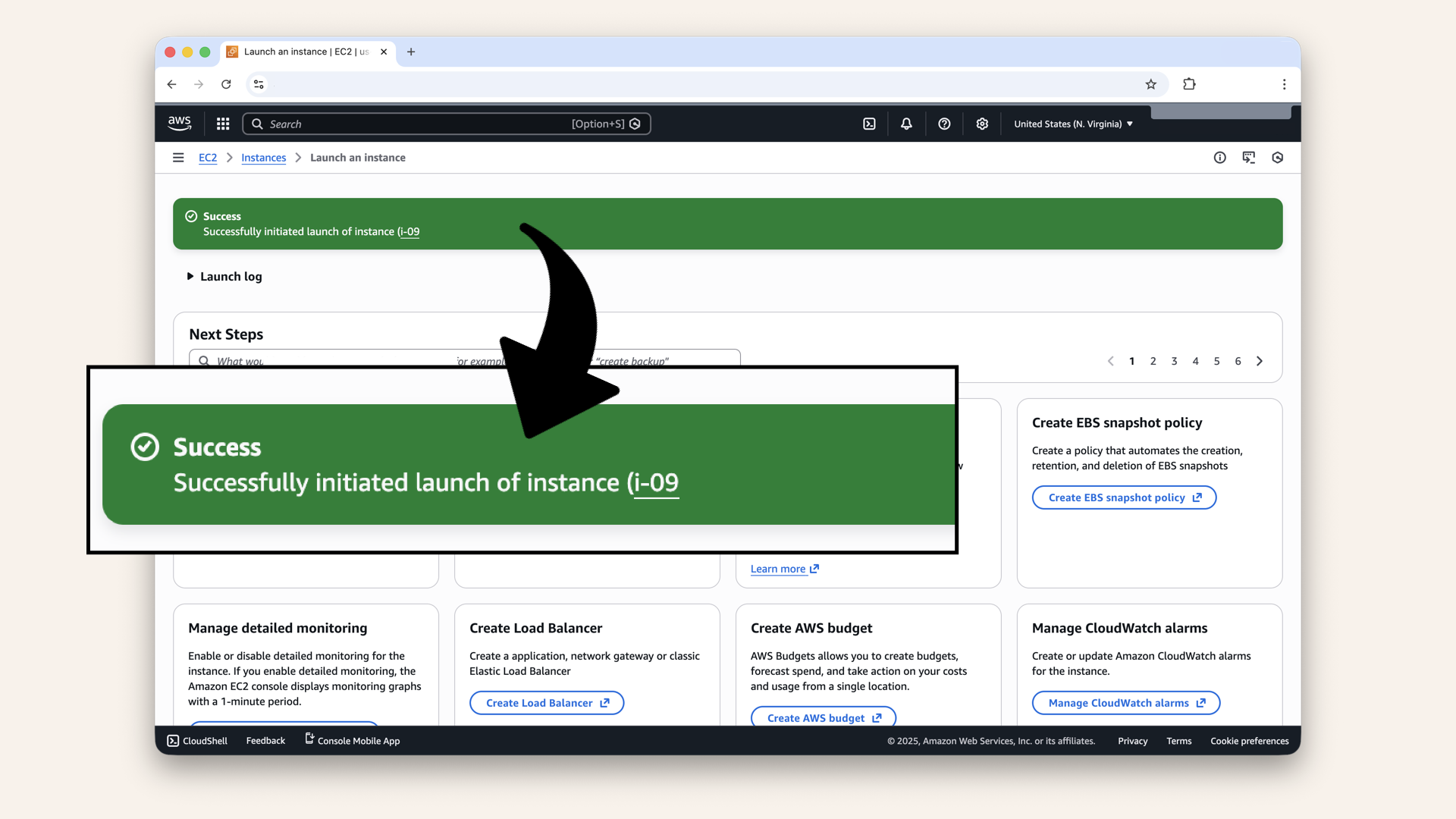
You should see: "Successfully initiated launch of instance"
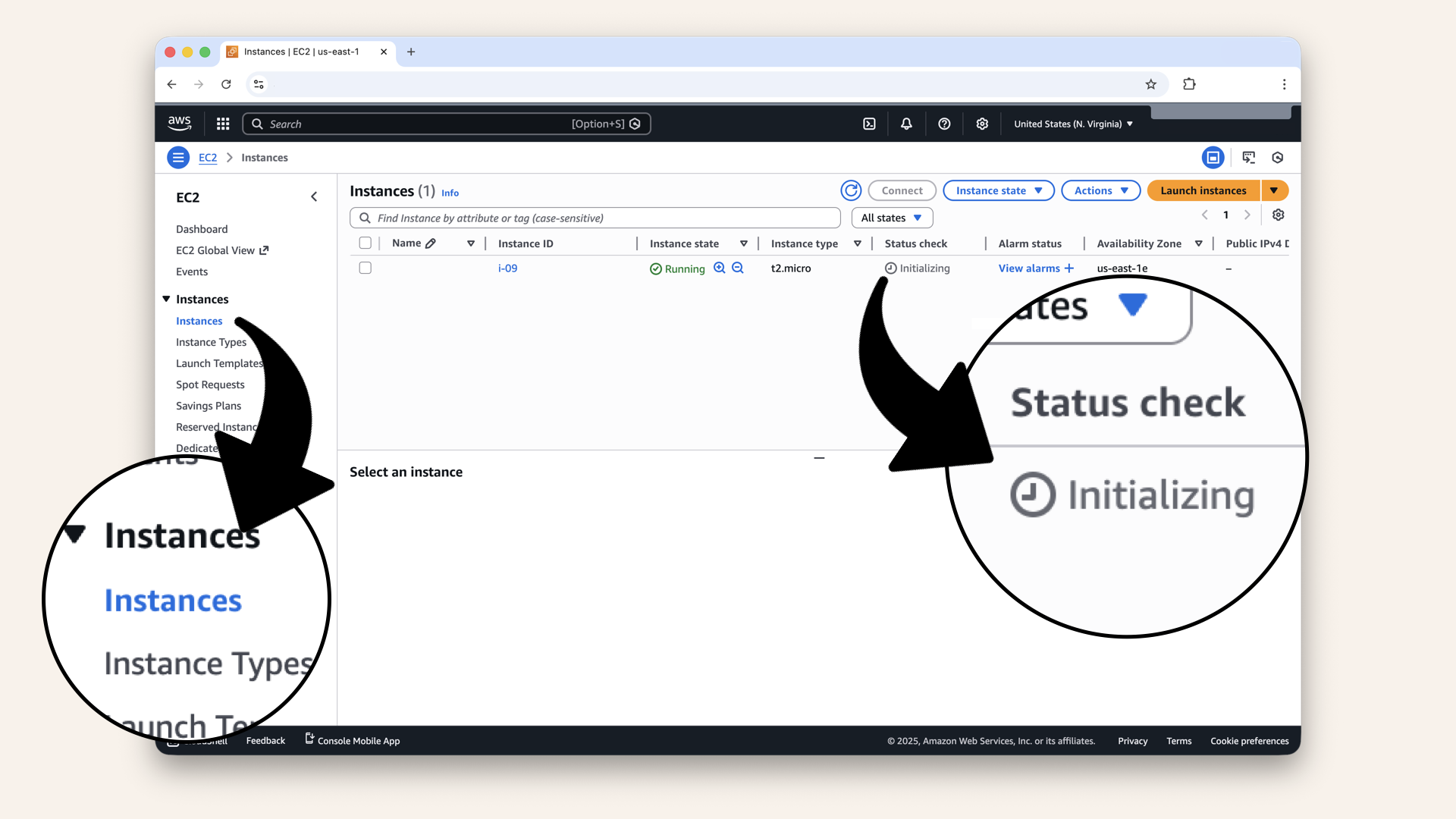
Click Instances to go back to the main menu and wait 2-3 minutes for the instance to initialize
Step 3: Connect using Session Manager
Once the instance shows Running and passes status checks:
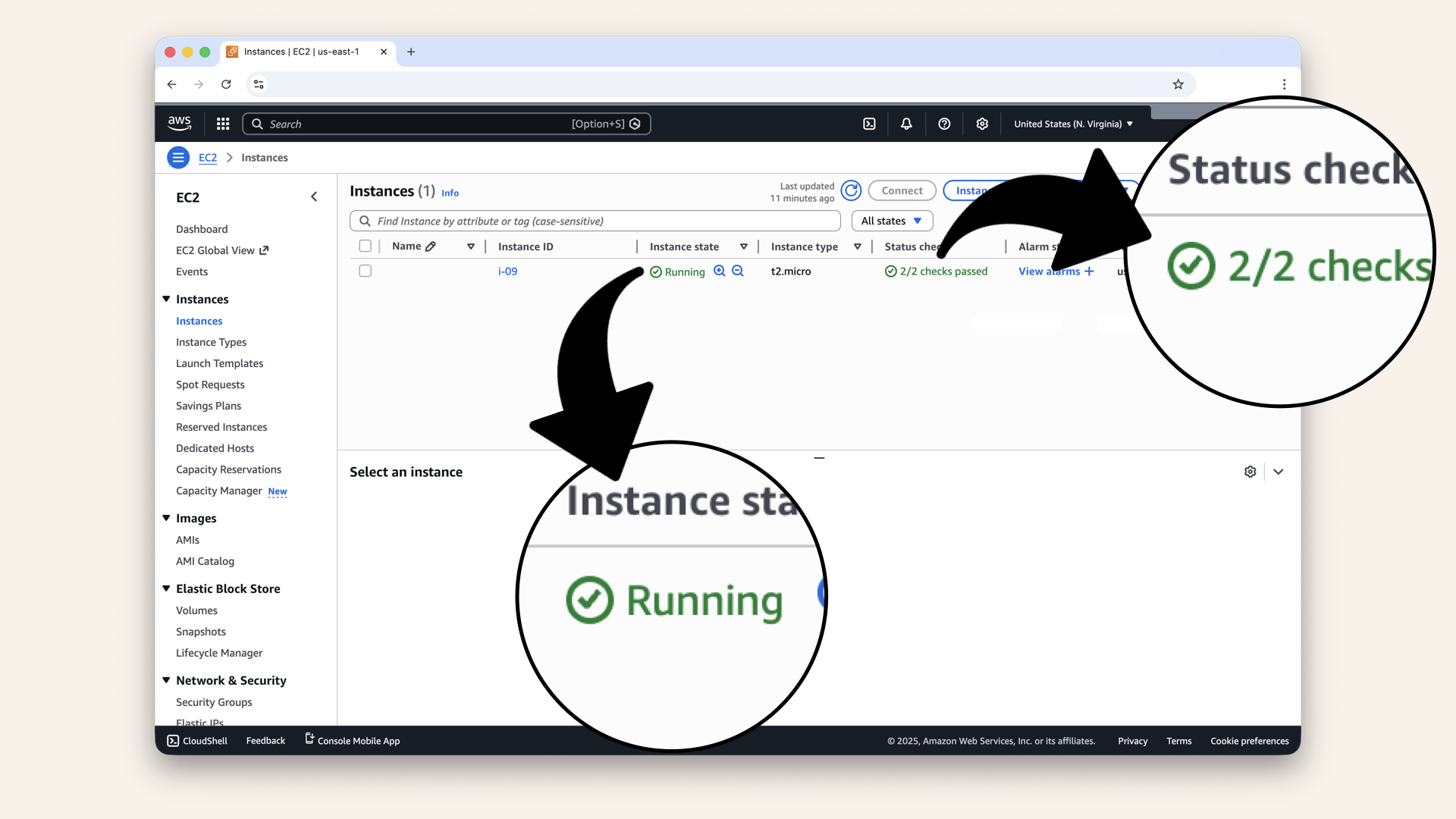
Once the instance shows Running and passes status checks
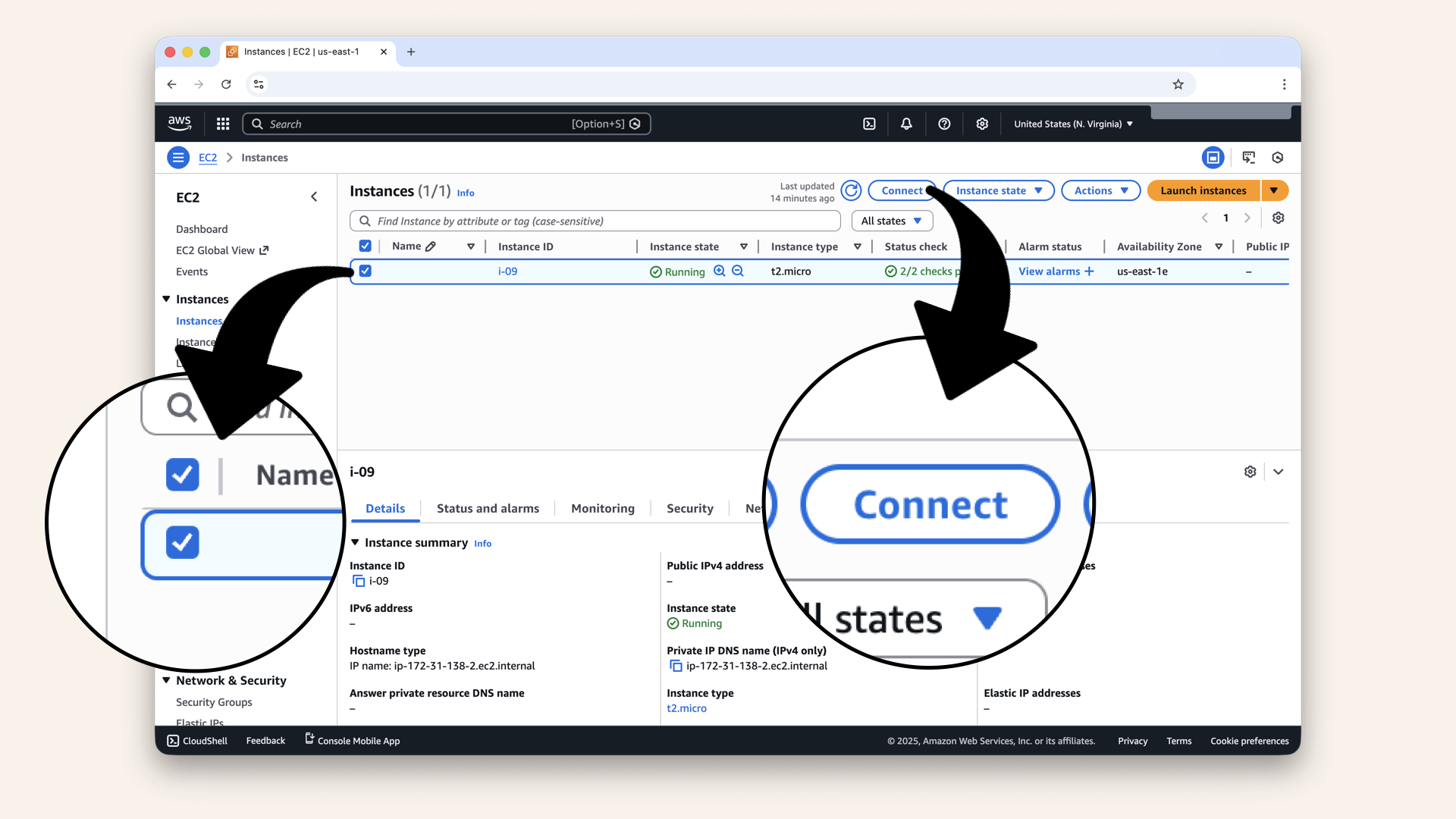
Select your instance and click Connect
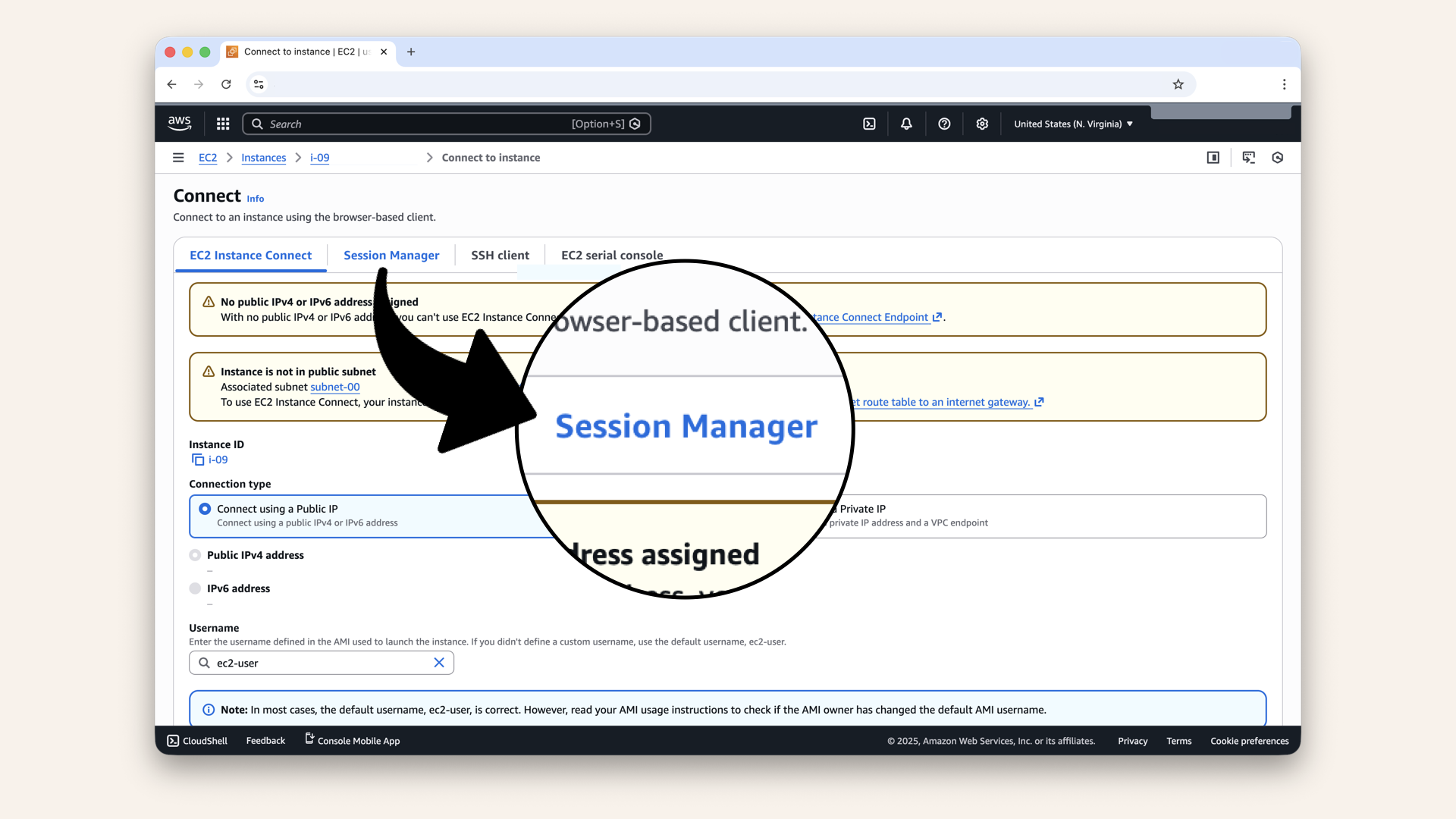
Click the Session Manager tab
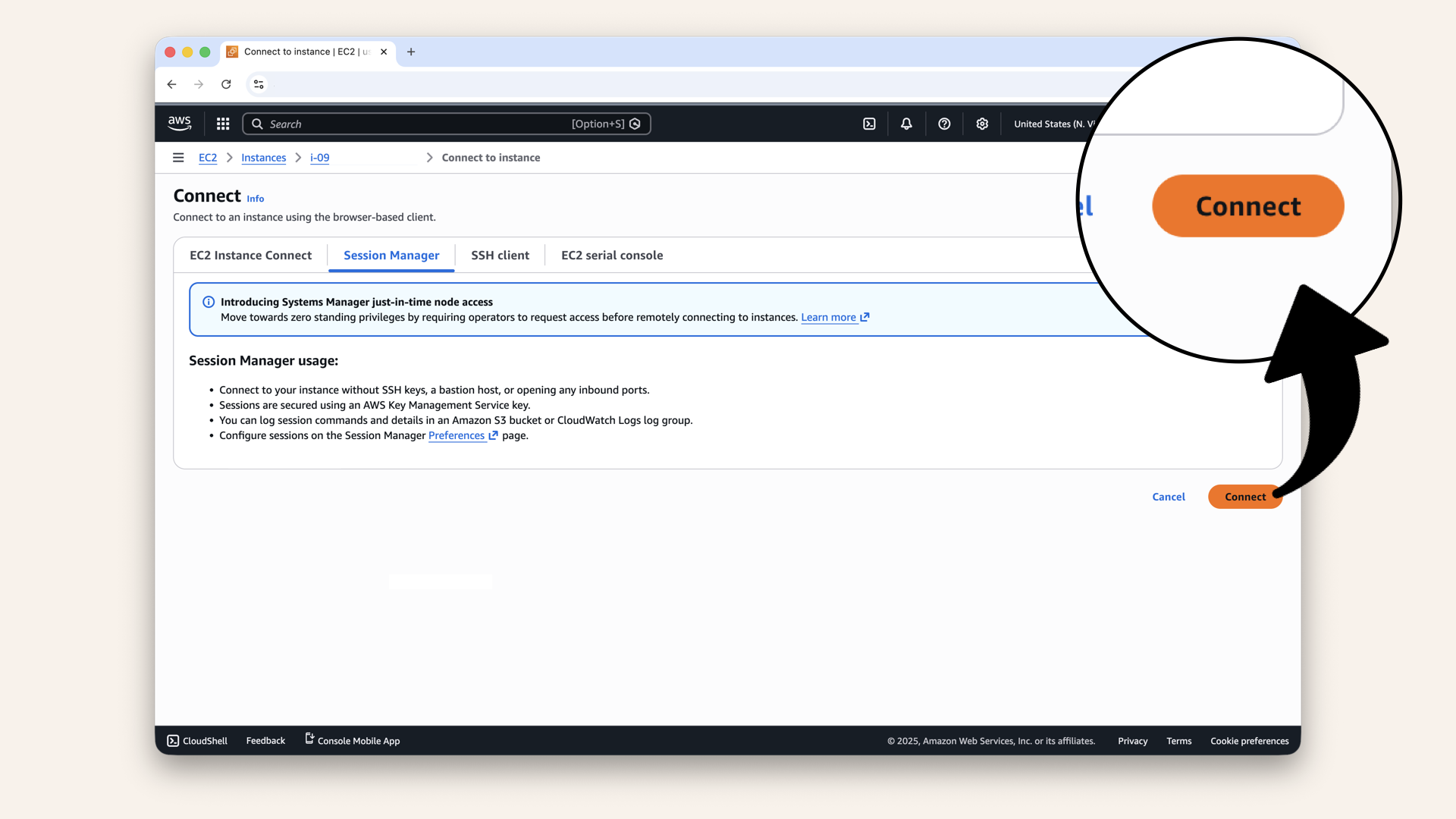
Click Connect
This opens a terminal in your browser:
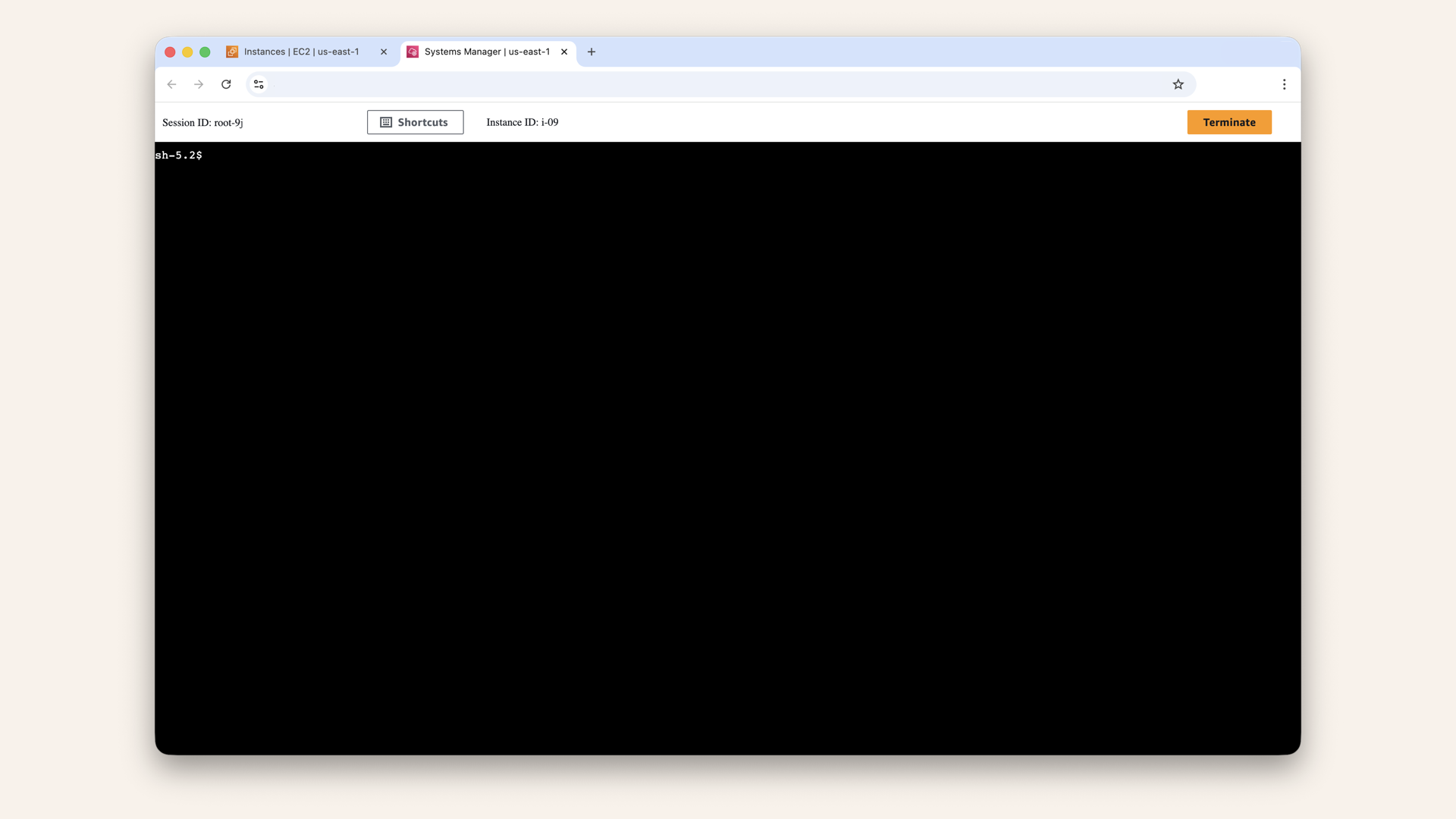
This opens a terminal in your browser
You're now connected to your instance.
Step 4: Test internet connectivity
Now let's verify the instance can reach the internet via NAT Gateway.
Test 1: Ping Google DNS
In the Session Manager terminal, run:
ping -c 4 8.8.8.8
You'll see an output:
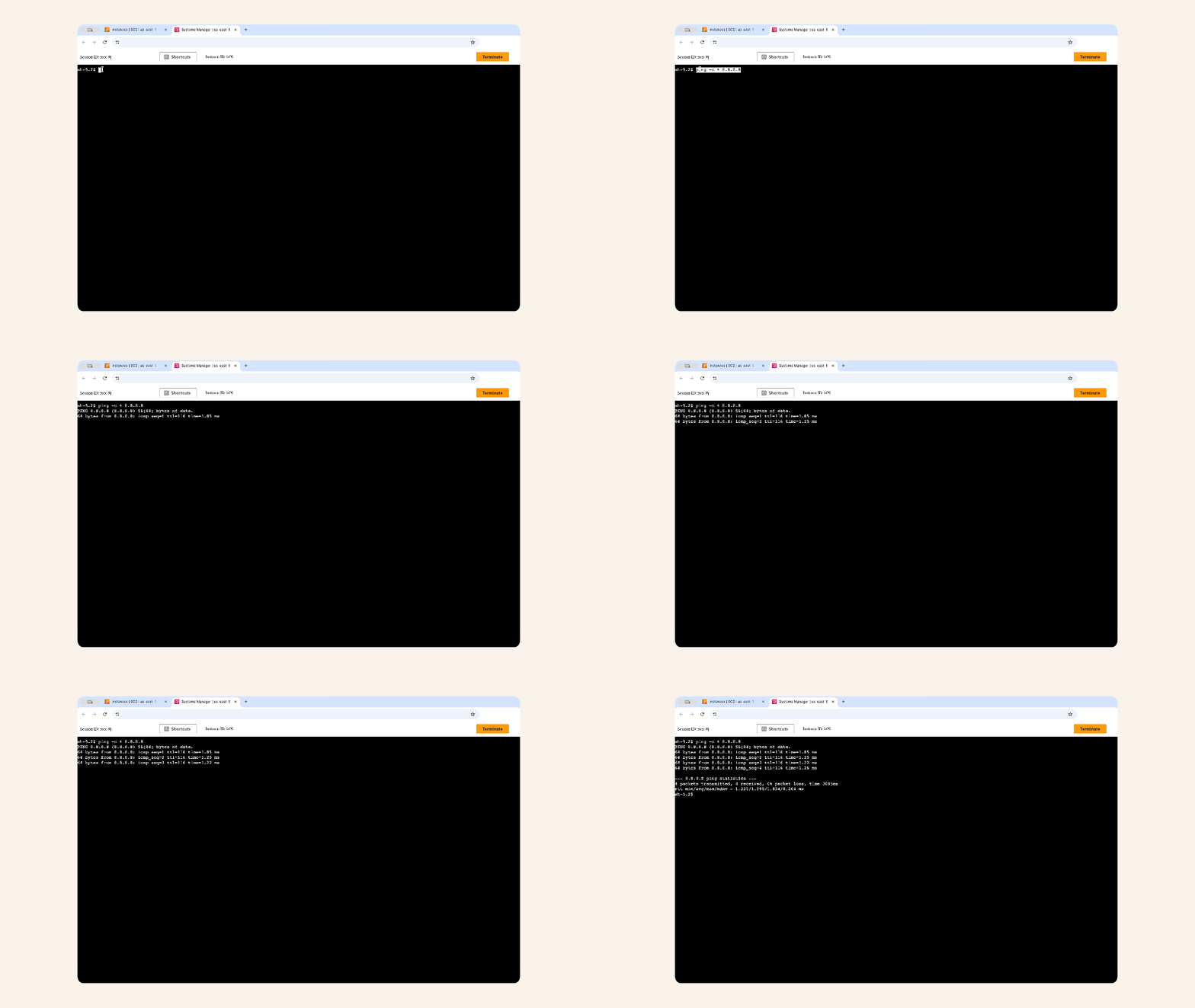
You'll see an output
Expected output:
PING 8.8.8.8 (8.8.8.8) 56(84) bytes of data.
64 bytes from 8.8.8.8: icmp_seq=1 ttl=116 time=1.85 ms
64 bytes from 8.8.8.8: icmp_seq=2 ttl=116 time=1.25 ms
64 bytes from 8.8.8.8: icmp_seq=3 ttl=116 time=1.22 ms
64 bytes from 8.8.8.8: icmp_seq=4 ttl=116 time=1.26 ms

--- 8.8.8.8 ping statistics ---
4 packets transmitted, 4 received, 0% packet loss, time 3005ms
rtt min/avg/max/mdev = 1.221/1.395/1.854/0.264 ms
✅ If you see responses → NAT Gateway is working!
❌ If you see timeouts → something is wrong (skip to troubleshooting)
Test 2: DNS resolution
Press Ctrl + L and that should clear the terminal outputs
nslookup google.com
Expected output:
Server:         172.31.0.2
Address:        172.31.0.2#53

Non-authoritative answer:
Name:   google.com
Address: 192.178.155.113
....
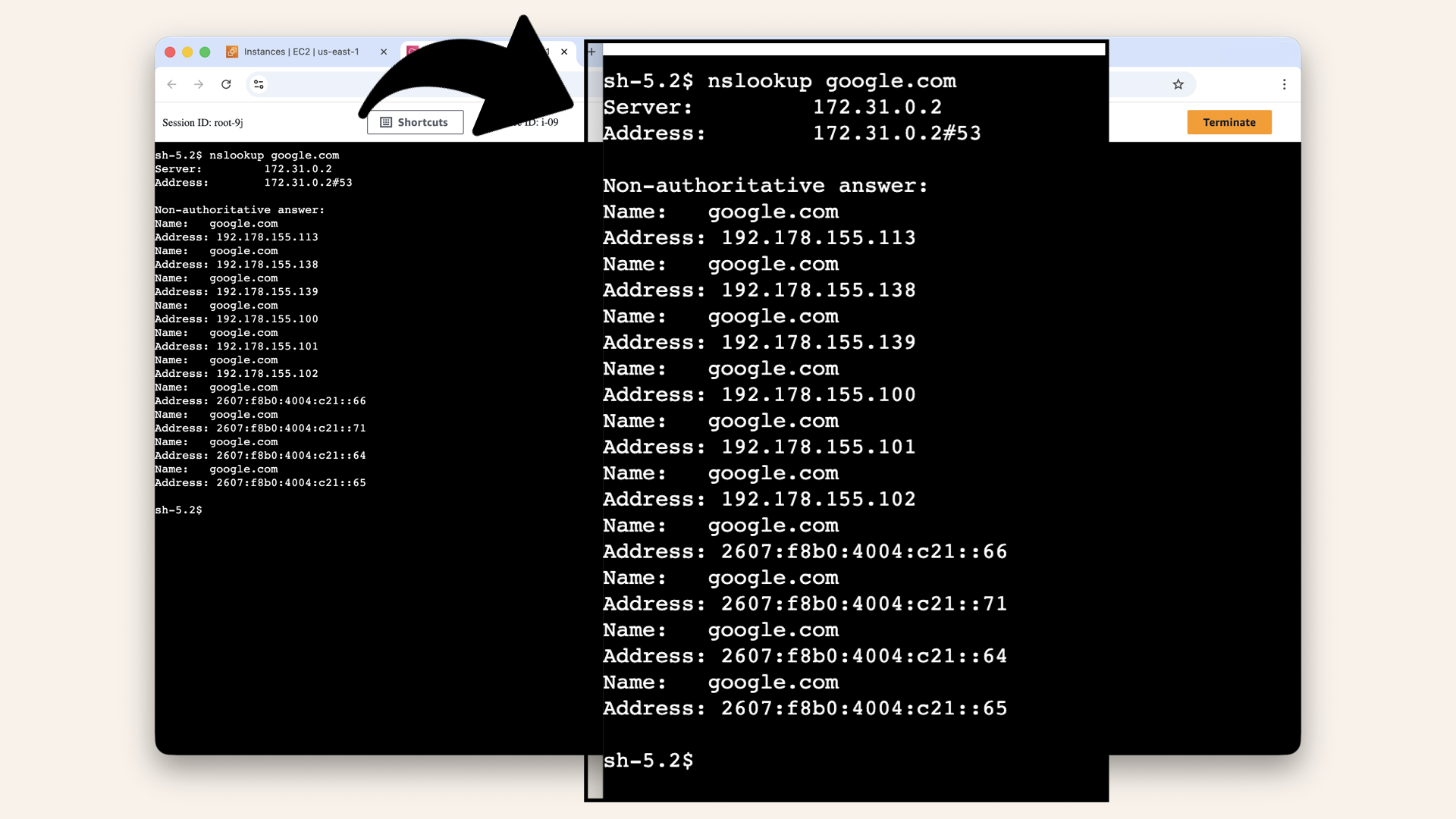
Expected output from DNS resolution test
✅ If you see IP addresses → DNS is working!
Test 3: HTTP request
Run this in the Session Manager terminal:curl -I https://www.google.com
Expected output:
HTTP/2 200
content-type: text/html; charset=ISO-8859-1
...
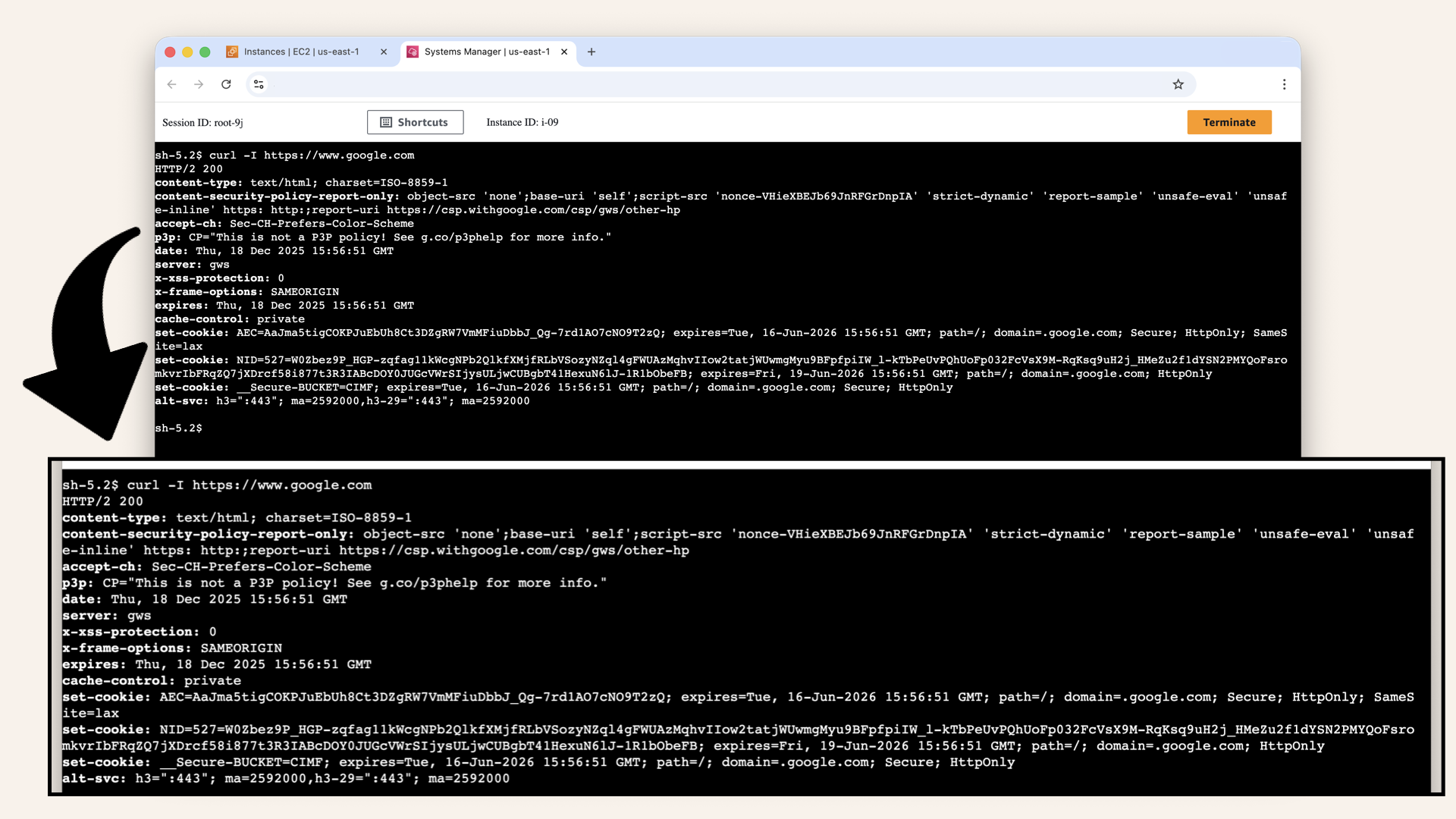
Expected output from HTTP request test
✅ If you see HTTP/2 200 → Full internet access works!
Step 5: Verify routing
Let's check the route table to confirm traffic is going through NAT.
Press Ctrl + L and that should clear the terminal outputs
ip route
Expected output:
default via 172.31.128.1 dev enX0 proto dhcp src 172.31.138.2 metric 512
172.31.0.2 via 172.31.128.1 dev enX0 proto dhcp src 172.31.138.2 metric 512
172.31.128.0/20 dev enX0 proto kernel scope link src 172.31.138.2 metric 512
172.31.128.1 dev enX0 proto dhcp scope link src 172.31.138.2 metric 512
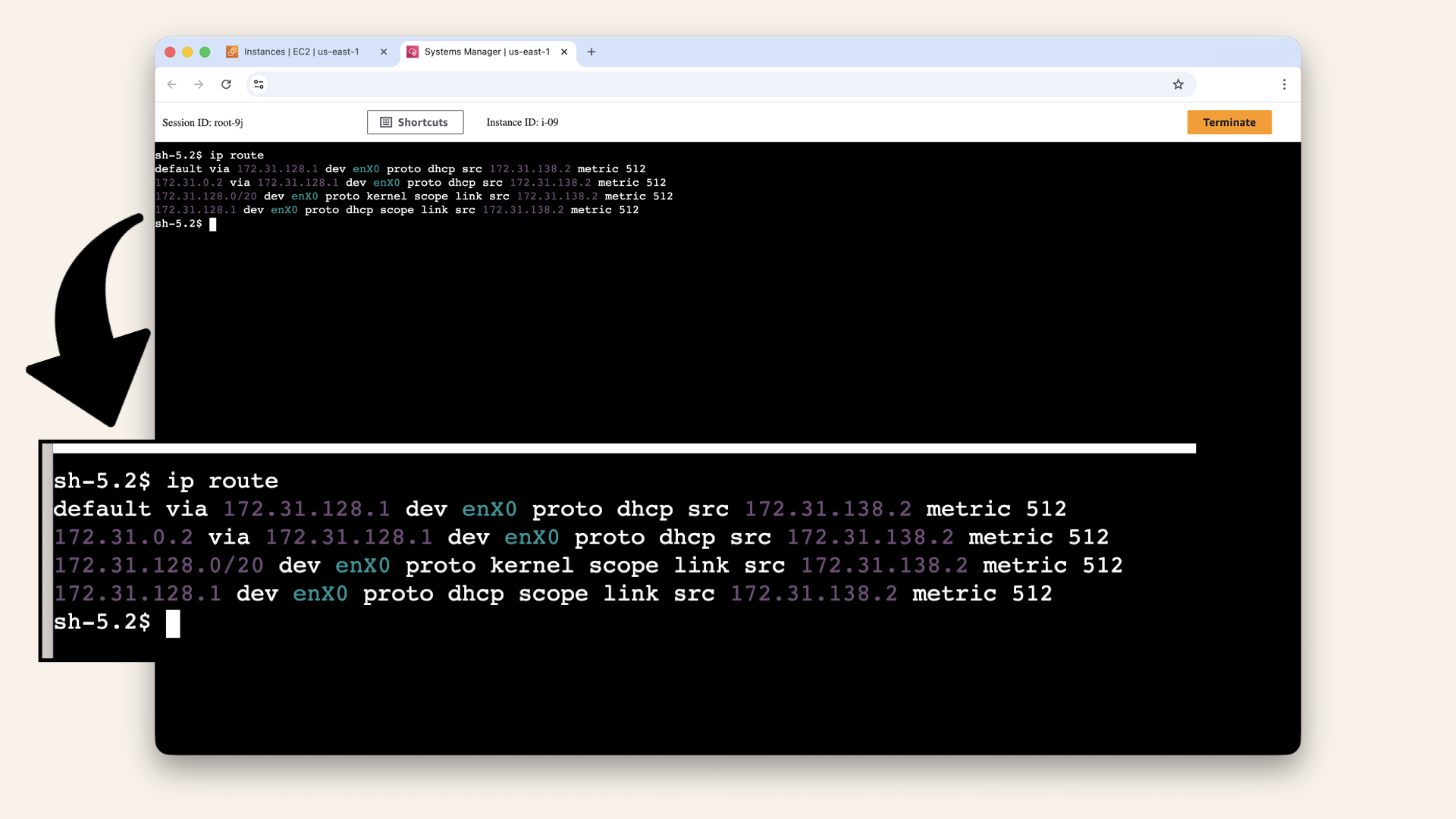
Expected output from verifying NAT Gateway routing
What this means:
default via 172.31.128.1= Default route points to the subnet gateway- The subnet gateway routes to NAT Gateway (via PrivateRouteTable)
This confirms routing is configured correctly ✅
Step 6: Test outbound traffic from private subnet
Let's verify your instance can reach external APIs (simulating OpenAI/Twilio).
Run this in the Session Manager terminal:curl -s https://api.ipify.org
This returns your instance's public IP (the NAT Gateway's elastic IP).
Expected output:
52.55.183.190
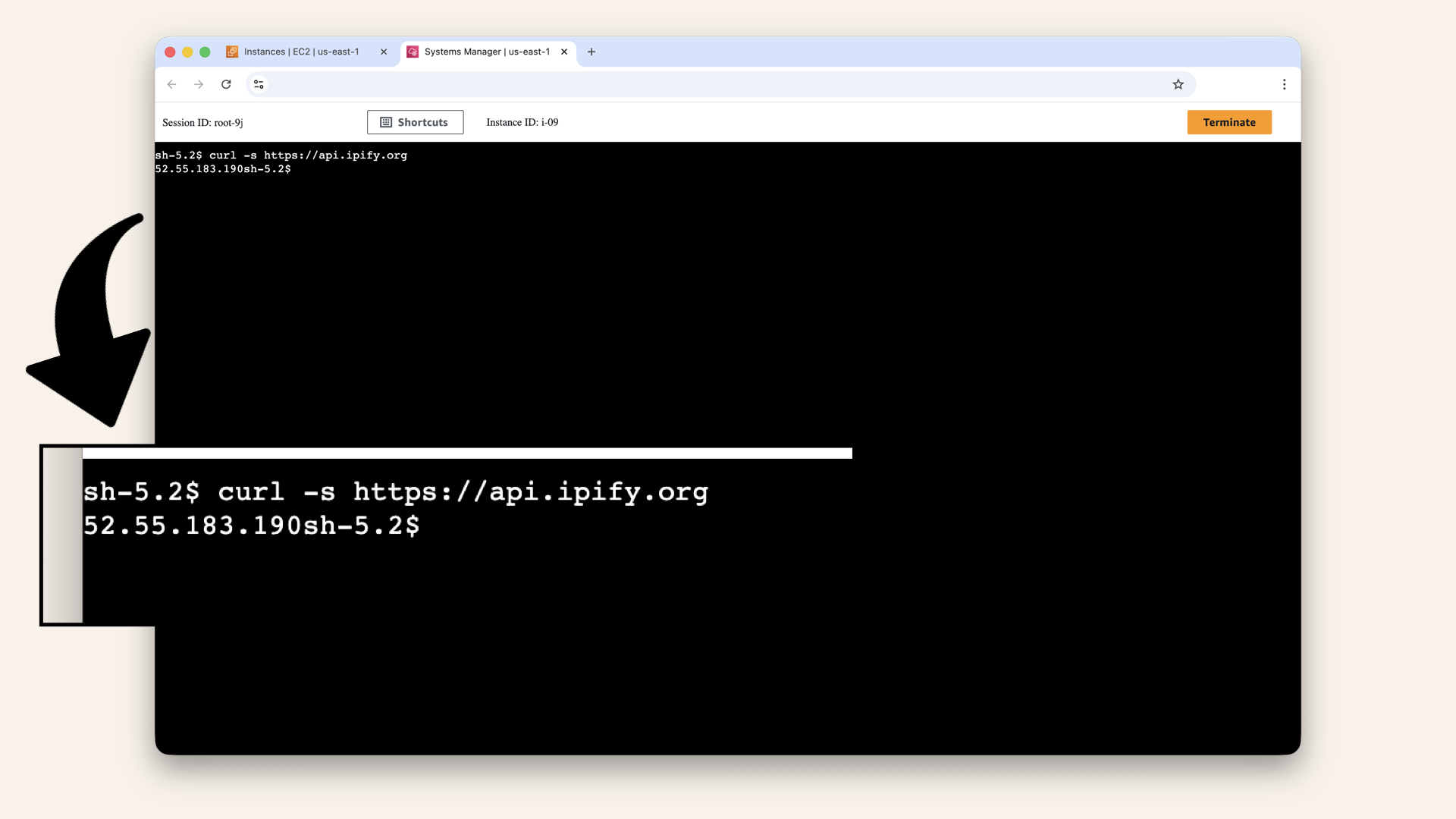
Expected output from verifying outbound connectivity
This is your NAT Gateway's public IP.
What it proves:
✅ Private instance can reach the internet
✅ Requests go through NAT Gateway
✅ NAT translates private IP → public IP
✅ External services see NAT's IP (not instance's private IP)
This is exactly how your Fargate containers will reach OpenAI/Twilio in coming steps.
Remember to clean up test resources, we'll do that in the next step.
We'll delete these test resources to avoid charges.
Step 7: Clean up test resources
Delete these test resources now to avoid charges.
Terminate the Session Manager
Click Terminate: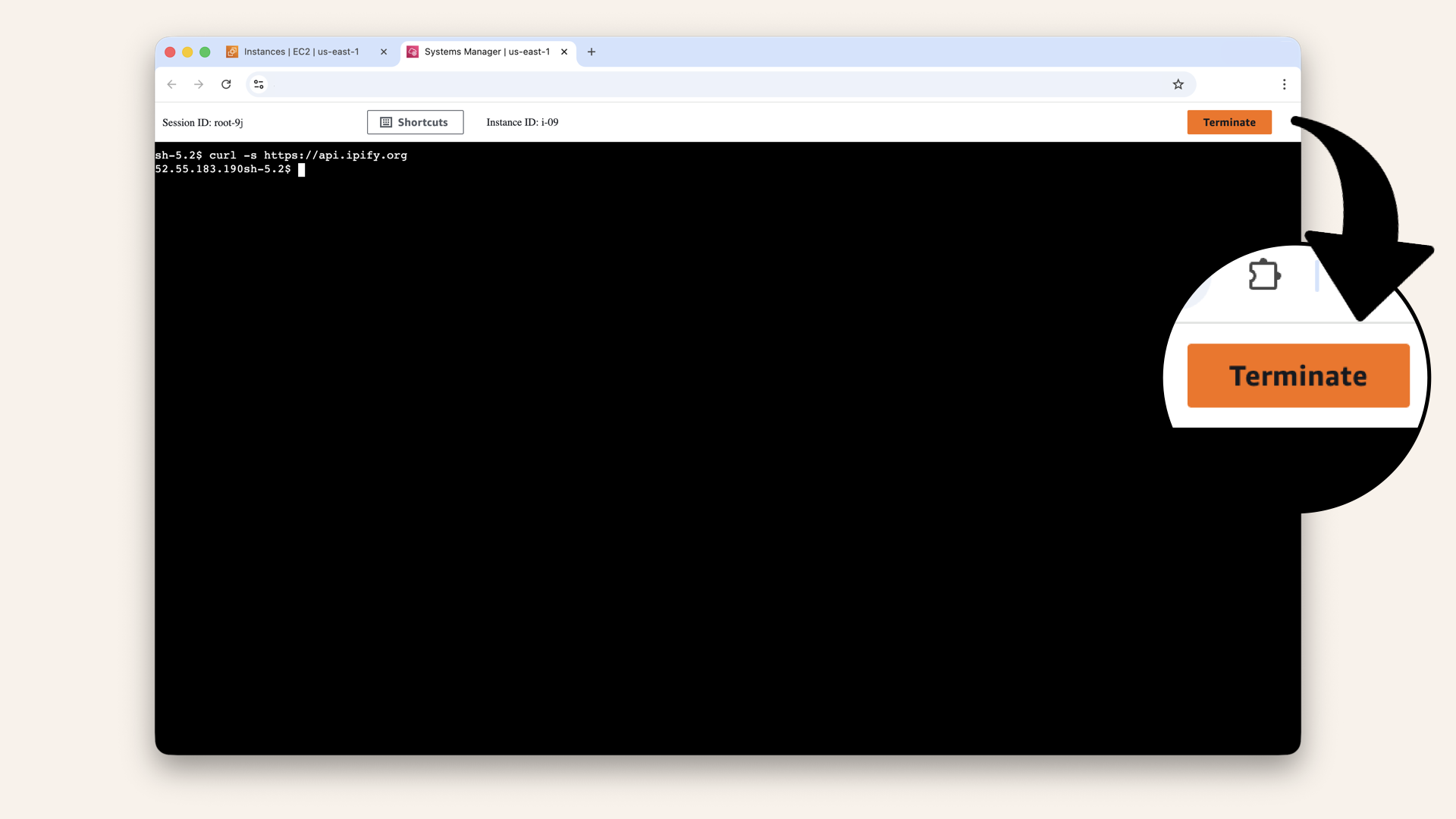
Click Terminate
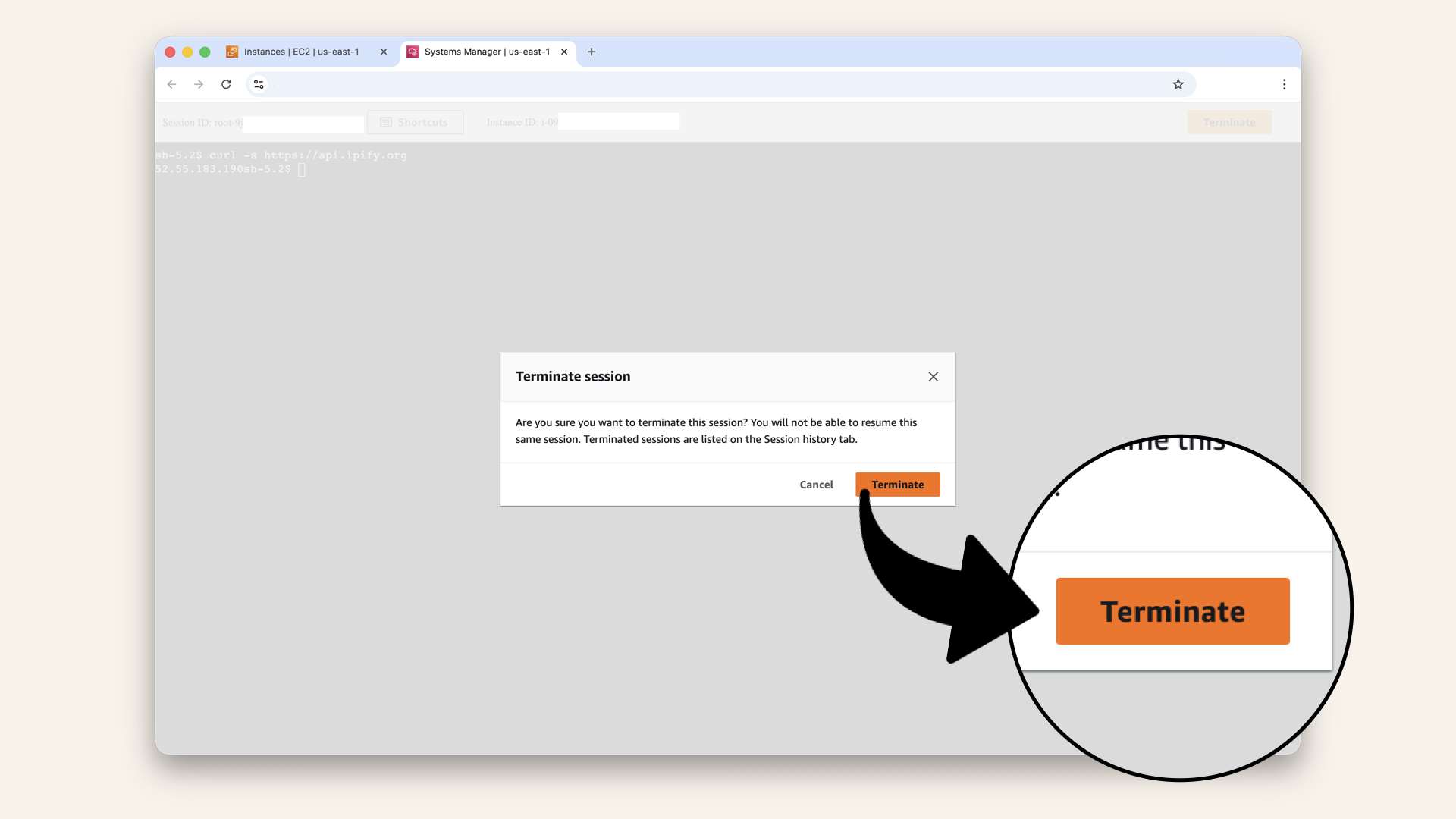
Click Terminate to confirm
Terminate the instance
In the search bar at the top, type ec2 and click EC2 from the dropdown menu:
In the search bar at the top, type ec2 and click EC2 from the dropdown menu

Click Instances in the left menu
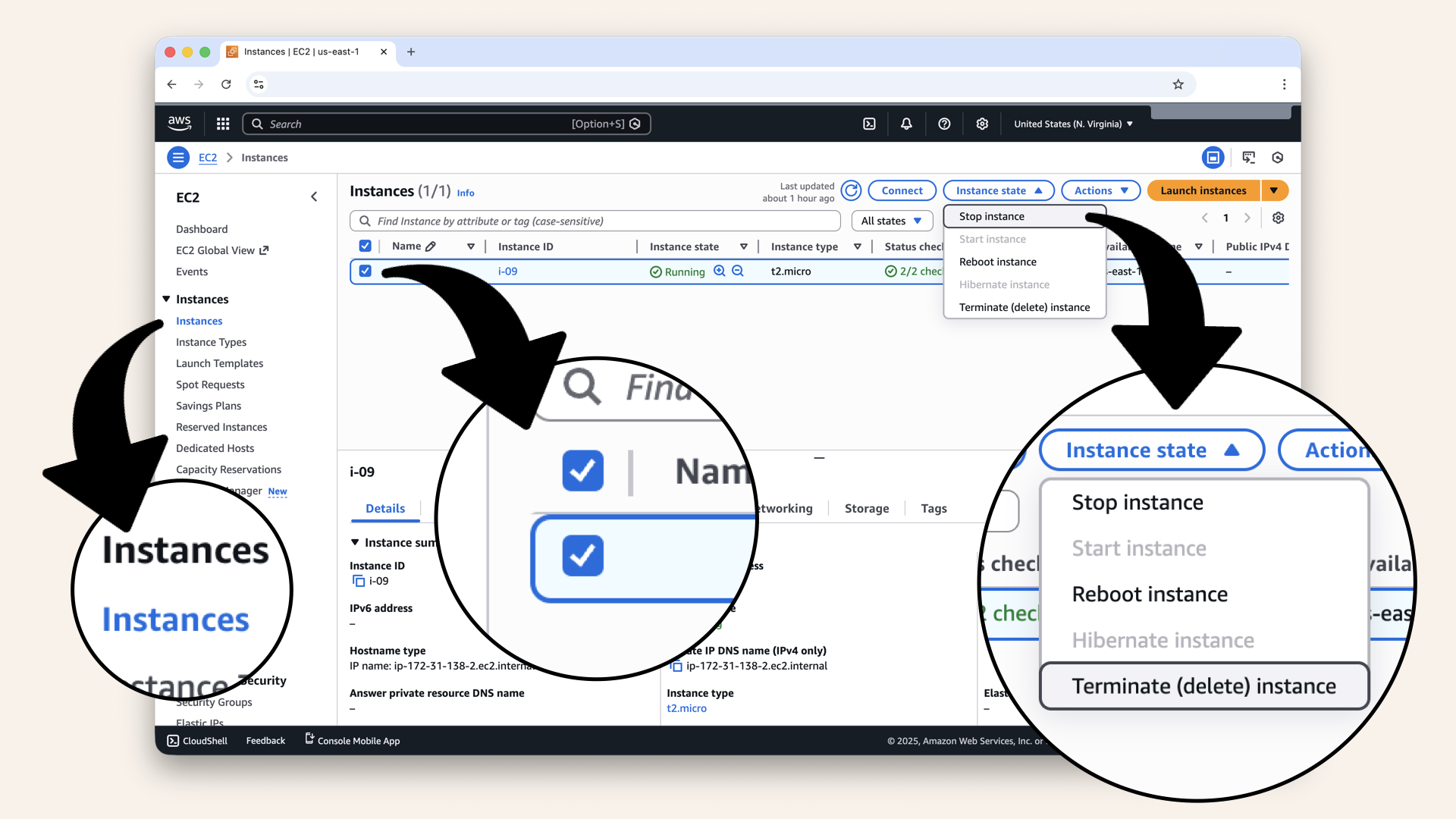
Select Network-Test-Instance, then click Instance state and then click Terminate (delete) instance
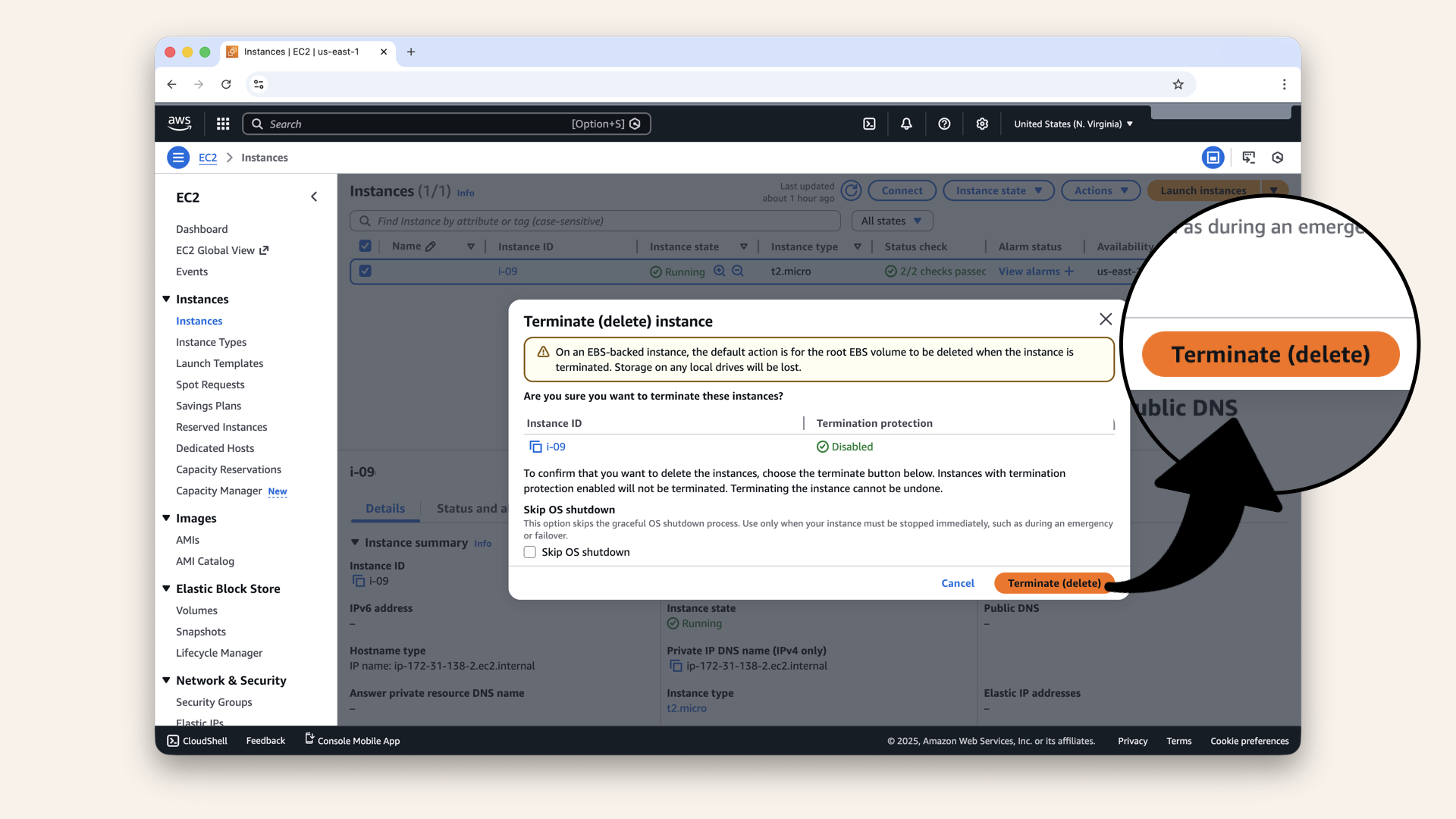
Click Terminate to confirm deleting the test instance
Delete the Security Group
In the search bar, type VPC and click VPC from the dropdown:
In the search bar at the top, type VPC and click VPC from the dropdown
Click Security Groups in the left menu
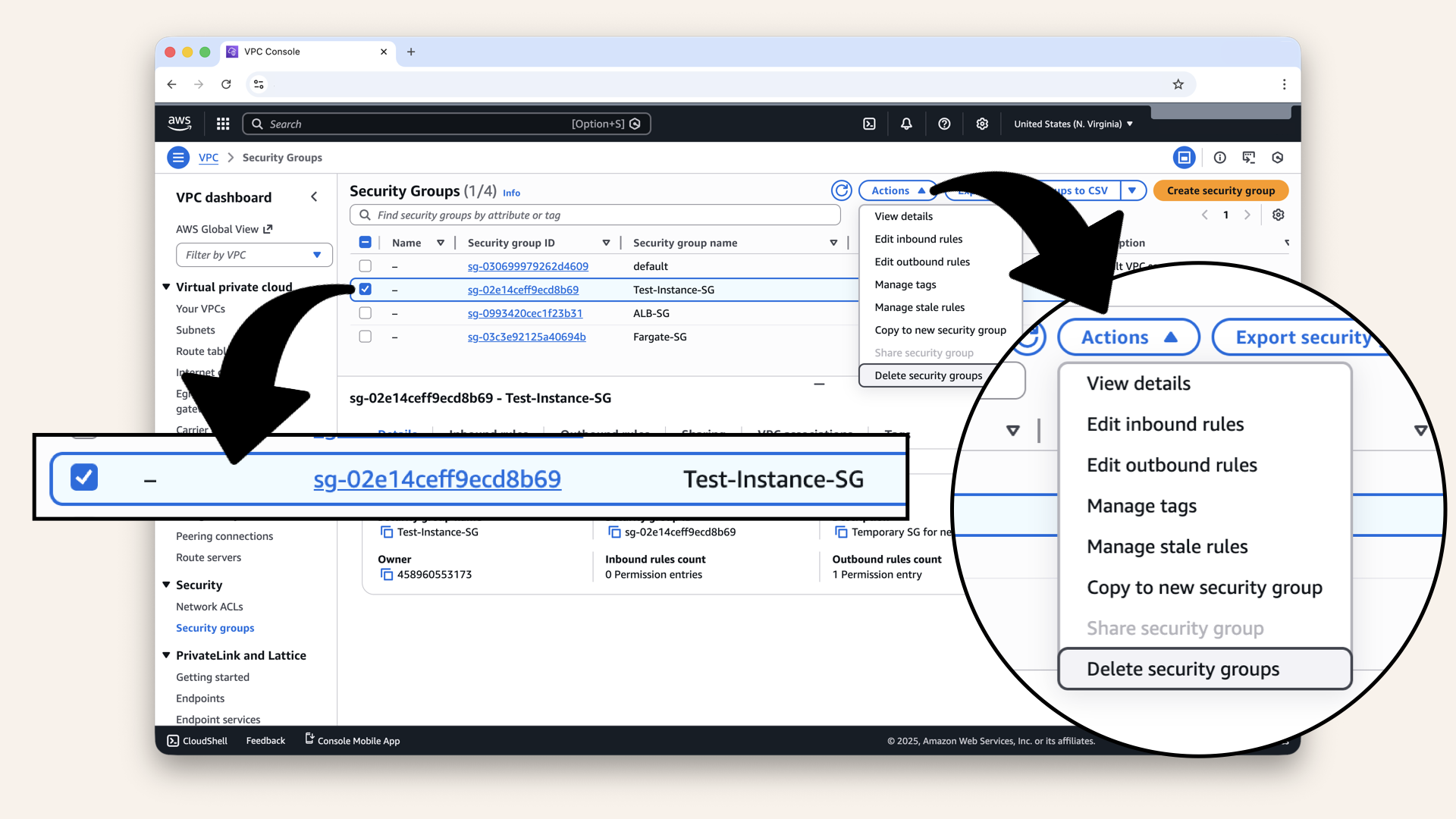
Select Test-Instance-SG then click Actions and click Delete security groups in the dropdown
Delete the IAM role
In the search bar, type iam and click IAM from the dropdown:
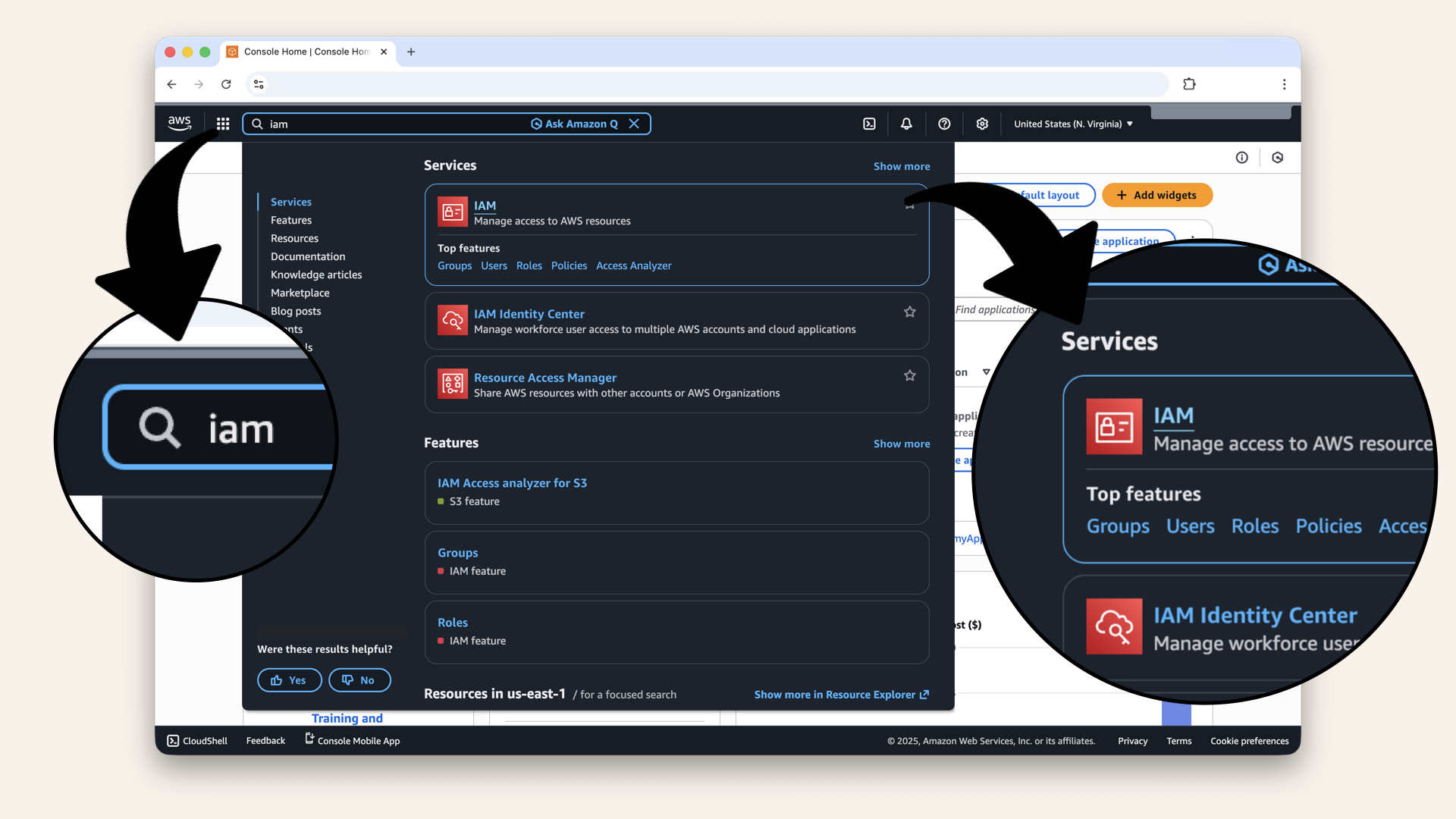
In the search bar at the top, type IAM and click IAM from the dropdown
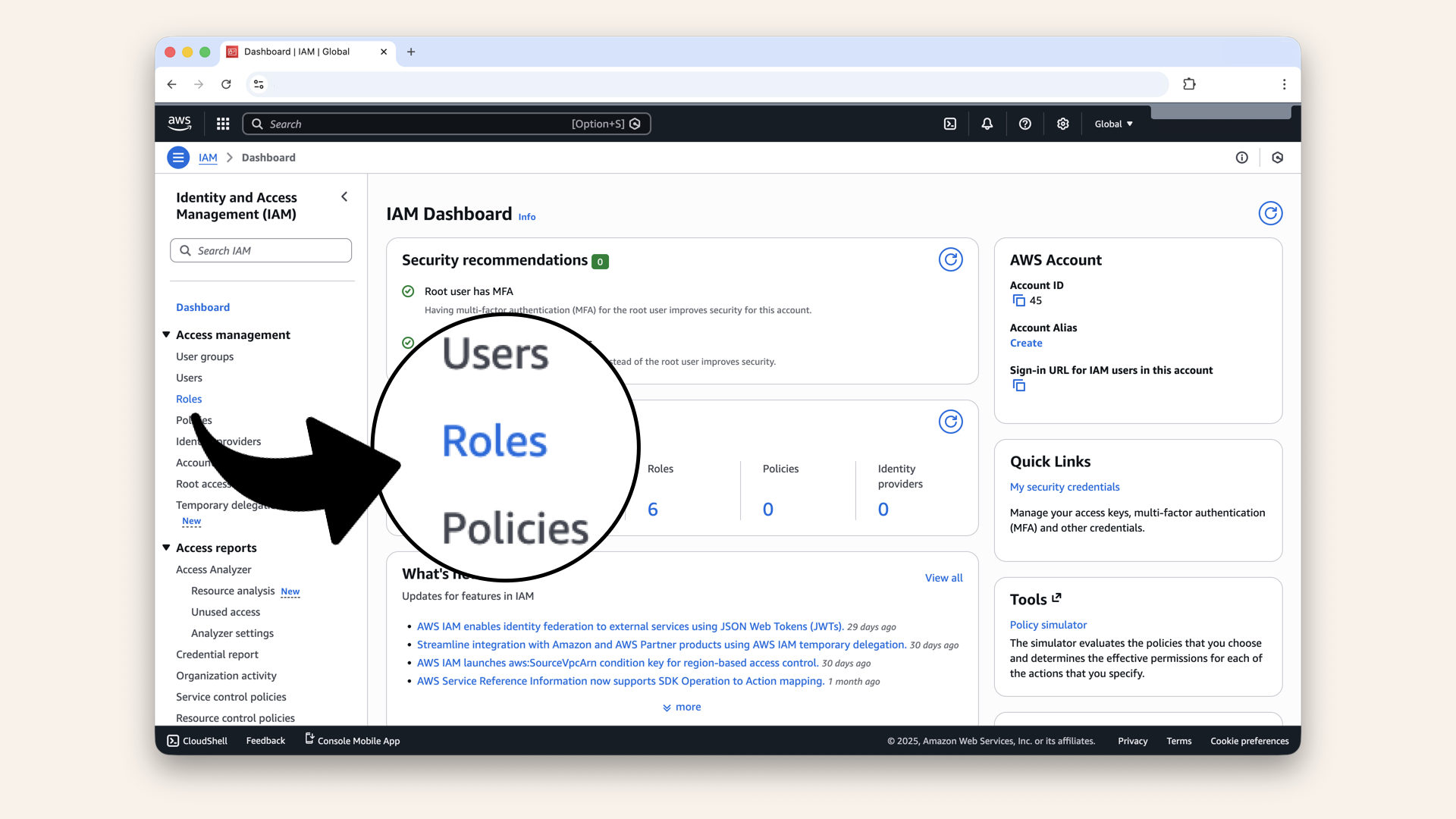
Click Roles in the left menu
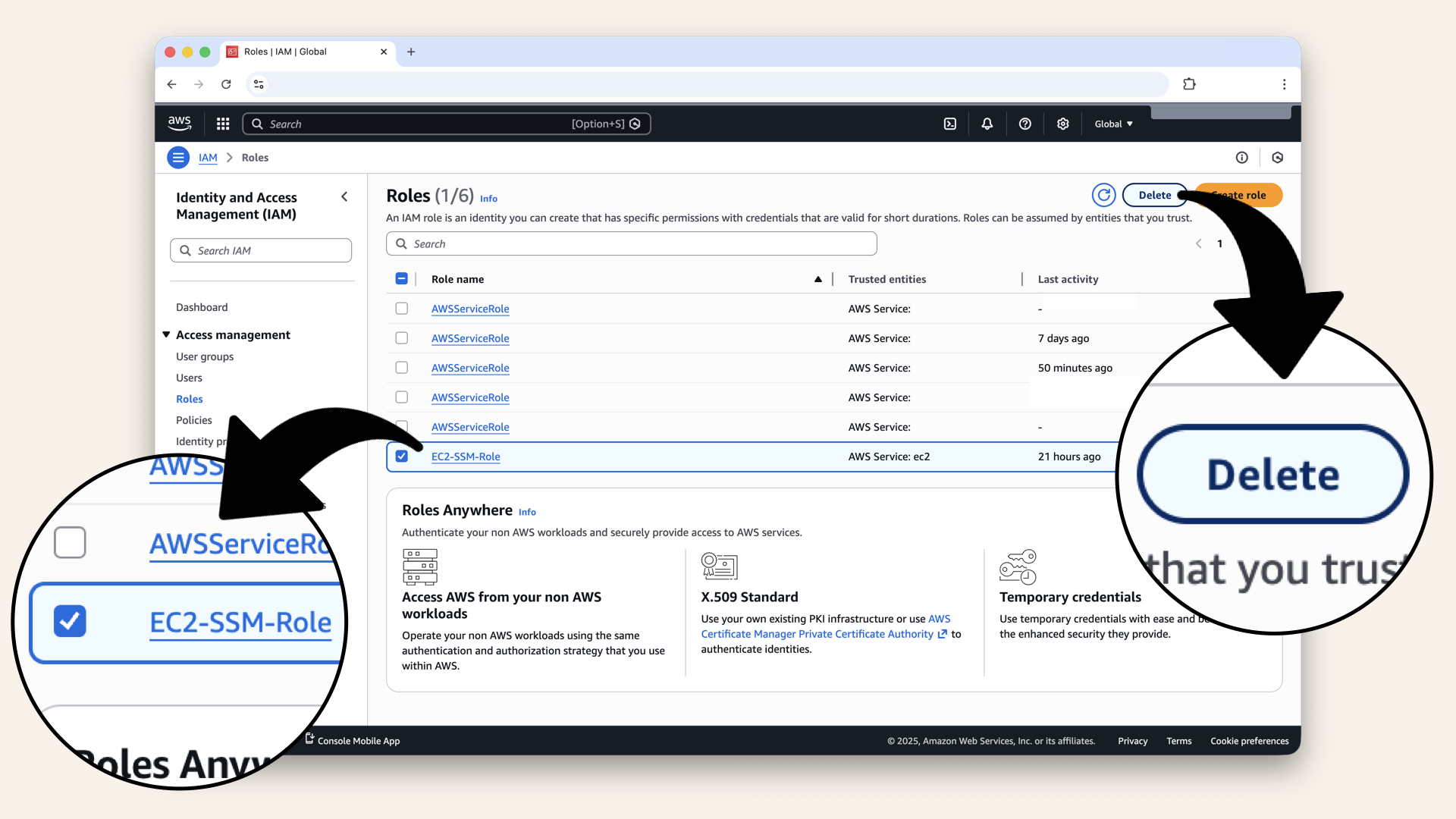
Search for EC2-SSM-Role, select it and click Delete
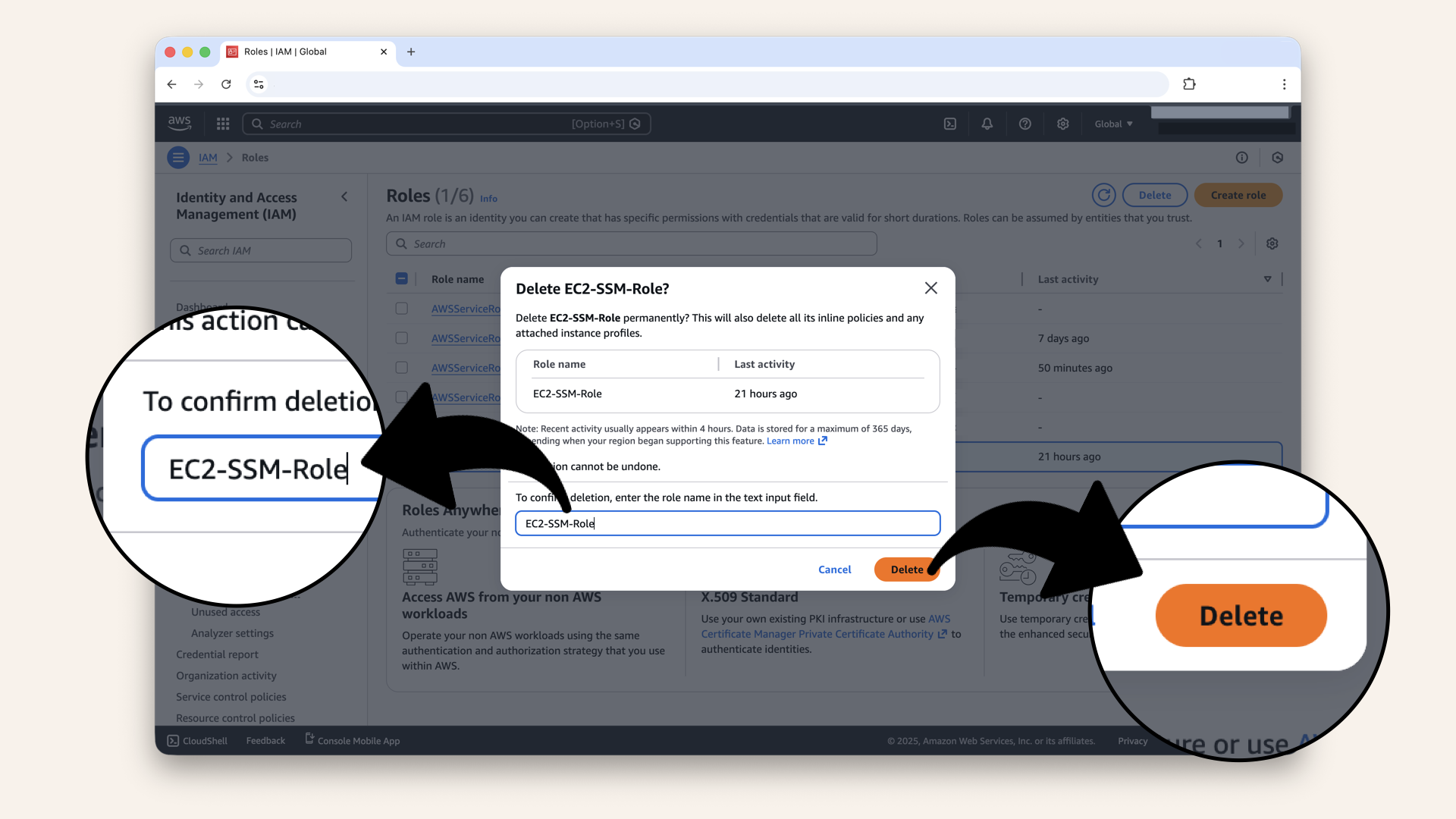
Write the role name EC2-SSM-Role and click Delete to confirm
That's it! All test resources cleaned up.
Only delete:
✅ Network-Test-Instance
✅ Test-Instance-SG
✅ EC2-SSM-Role
Keep everything else:
❌ Don't delete VPC
❌ Don't delete NAT Gateway
❌ Don't delete Route Tables
❌ Don't delete ALB-SG or Fargate-SG
Today's win
If all tests passed:
✅ Launched test instance in private subnet✅ Connected using Session Manager
✅ Verified internet connectivity via NAT Gateway
✅ Confirmed DNS resolution works
✅ Tested HTTP requests succeed
✅ Verified routing configuration
✅ Cleaned up test resources
You just proved your infrastructure works.
Your network is production-ready.
Tomorrow, we start building the load balancer.
Understanding what you proved
Today's tests confirmed:
1. NAT Gateway works
- Private subnet → NAT → Internet ✅
- Ping succeeded
- HTTP requests worked
2. Route Tables are correct
PrivateRouteTablepoints to NAT ✅- Default route configured correctly
3. Security Groups allow necessary traffic
- Outbound traffic from private subnet works ✅
- Instance could reach external APIs
4. DNS resolution works
- Instance can resolve domain names ✅
- Critical for calling apis.openai.com, api.twilio.com
Why this matters for your AI containers
Everything you tested today applies for Fargate:
| What we tested | How Fargate will use it |
|---|---|
| Internet via NAT | Pull Docker images from ECR |
| DNS resolution | Resolve apis.openai.com |
| HTTP requests | Call OpenAI Realtime API |
| Outbound traffic | Send audio to Twilio |
If the test instance could do it, Fargate can too.
You've de-risked the deployment.
Here's what we tested and proved visually:
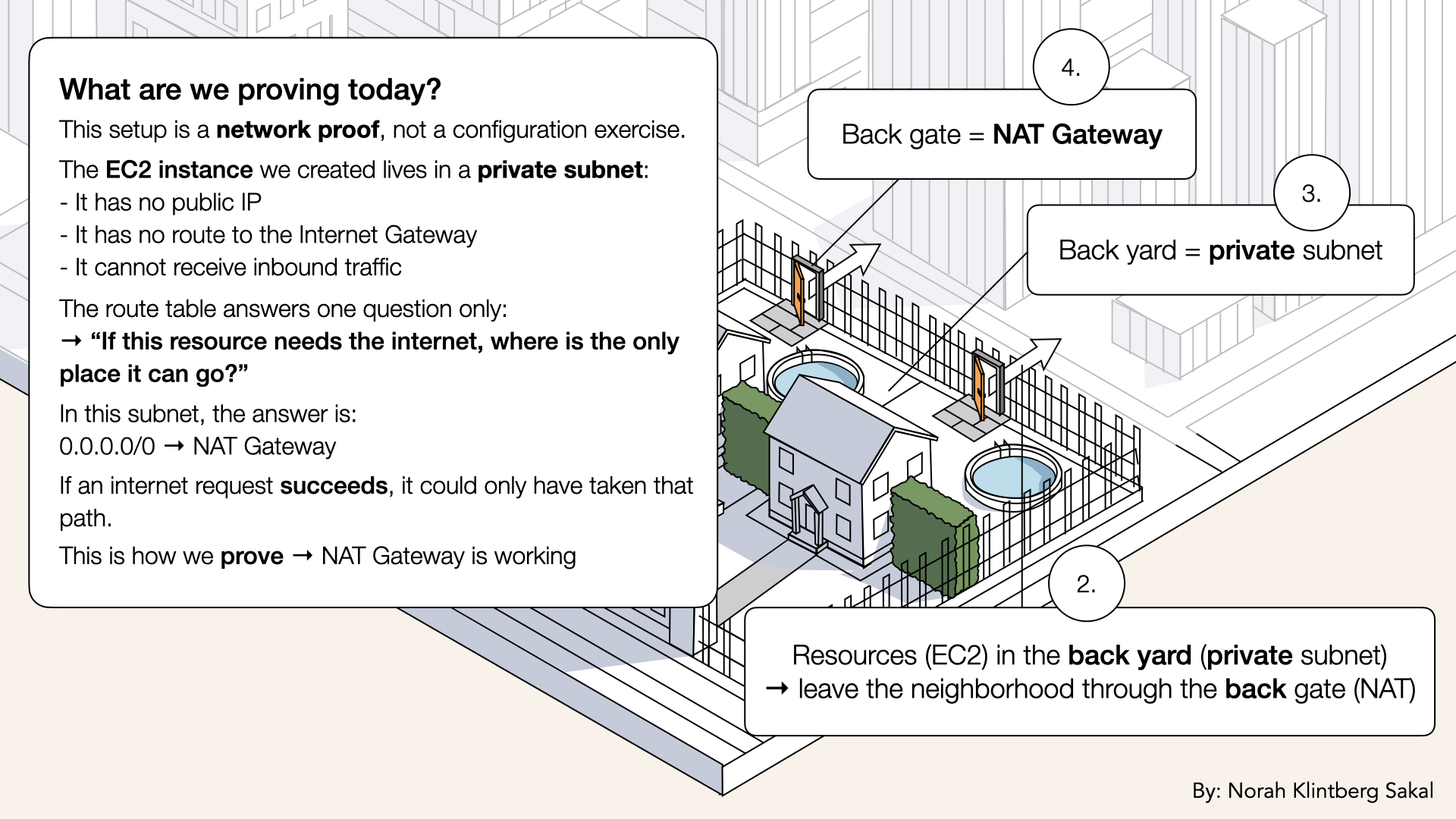
This is how we prove that NAT Gateway is working
Troubleshooting
Ping times out (no response from 8.8.8.8)
Possible causes:
1. NAT Gateway not configured correctly
- Go to VPC → NAT Gateways
- Status should be "Available"
- Check it's in a public subnet
2. PrivateRouteTable missing NAT route
- Go to VPC → Route Tables → PrivateRouteTable
- Should have route:
0.0.0.0/0 → nat-xxxxx
3. Instance in wrong subnet
- Check instance is in PrivateSubnet-1 or PrivateSubnet-2
- Not in PublicSubnet-1 or PublicSubnet-2
4. PublicRouteTable missing IGW route
- NAT needs internet access
- PublicRouteTable should have:
0.0.0.0/0 → igw-xxxxx
5. NAT Gateway in wrong availability zone
- If instance is in PrivateSubnet-1 (us-east-1a)
- NAT should be accessible from that AZ
Can't connect with Session Manager
Possible causes:
1. No IAM role attached
- Instance needs EC2-SSM-Role
- Check EC2 → Actions → Security → Modify IAM role
2. Session Manager not installed (rare)
- Amazon Linux 2023 has it by default
- Try rebooting the instance
3. Outbound traffic blocked
- Session Manager needs outbound HTTPS
- Check Security Group allows all outbound
4. VPC endpoints missing (optional but helpful)
- For private-only access, you'd need SSM VPC endpoints
- Not required if NAT Gateway works
DNS resolution fails (nslookup doesn't work)
Possible causes:
1. NAT Gateway not working
- Fix NAT Gateway issue first (see ping troubleshooting)
2. DNS resolver not configured
- Amazon Linux uses VPC DNS by default
- Check
/etc/resolv.confhasnameserver 172.31.0.2
3. DHCP options set wrong (rare)
- VPC → DHCP option sets
- Should use Amazon Provided DNS
curl returns "Could not resolve host"
This means DNS isn't working.
Check:
- Can you ping 8.8.8.8? (test raw internet)
- Can you run
nslookup google.com? (test DNS) - Is NAT Gateway working?
Usually caused by NAT Gateway or route table issues.
Tomorrow's preview
Today: You tested and proved your network works
Tomorrow (Day 9): We create the Application Load Balancer (ALB)
What we'll do:
The load balancer is you front door:
- Accepts HTTP/HTTPS traffic from the internet
- Routes it to your AI containers in private subnet
- Handles SSL termination (later)
- Provides a stable endpoint
Tomorrow we'll:
- Create a Target Group (defines where to send traffic)
- Create the Application Load Balancer
- Attach it to public subnets
- Configure listeners (HTTP on port 80)
- Attach ALB-SG for security
After Day 9, external traffic can reach your infrastructure.
What we learned today
1. How to test infrastructure before deploying
Launch test instances to verify configuration
2. Session Manager for secure access
No SSH keys, works with private subnets, browser-based
3. NAT Gateway validation
Private instances can reach internet via NAT
4. Routing verification
Confirmed traffic flows through correct paths
5. The importance of cleanup
Delete test resources to avoid charges
The foundation is DONE
Days 1-2: Local development (your laptop) ✅
Day 3: VPC (your territory) ✅
Day 4: Subnets (front yards vs back yards) ✅
Day 5: NAT Gateway (back gate) ✅
Day 6: Route Tables (the roads) ✅
Day 7: Security Groups (the smart locks) ✅
Day 8: Test Your Network (validation) ← YOU ARE HERE ✅
Day 9: Application Load Balancer
Days 10-12: DNS & SSL
Days 13-17: Deployment (Docker, ECS, production!)
Days 18-24: Features (API, frontend, polish)
Starting tomorrow, we build the application layer!
Share your progress
Tests passing? Network validated? Share it!
Twitter/X:
"Day 8: Tested my VPC network. Launched an instance in a private subnet, verified NAT Gateway works, confirmed routing is correct. Everything passes! Following @norahsakal's advent calendar 🎄"
LinkedIn:
"Day 8 of building AI calling agents: Validated my network infrastructure. Launched a test EC2 instance, verified internet connectivity through NAT Gateway, and proved routing works. Network is production-ready!"
Tag me! I want to celebrate your progress! 🎉
Want the full course?
But if you want:
✅ Complete codebase (one clean repo)
✅ Complete walkthroughs
✅ Support when stuck
✅ Production templates
✅ Advanced features
Join the waitlist for the full course (launching February 2026):
Let's chat about your use case!
Schedule a free call ↗ - no pitch, just two builders talking.
Tomorrow: Day 9 - Create your application load balancer 🏢
Read Day 9 ↗
See you then!
— Norah