Day 6: Build your route tables (connect the roads)

How to create route tables that connect private subnets to NAT Gateway and public subnets to Internet Gateway
Your gates need directions
Day 5: You built the back gate (NAT Gateway)
Today: We build the roads that connect everything
Here's the problem:
You have:
✅ Neighborhood front gate (Internet Gateway)
✅ Back gate (NAT Gateway)
✅ Front yards (public subnets)
✅ Back yards (private subnets)
But nothing is connected yet.
Your AI agent containers (in back yards) don't know:
- "Where's the back gate?"
- "How do I reach the internet?"
Your load balancer (in front yards) doesn't know:
- "Where's the front gate?"
- "How do I reach incoming traffic?"
Solution: Route Tables
Think of them like GPS directions:
Route Table = "When you need the internet, go THIS way"
For public subnets: "Exit through the front gate (IGW)"
For private subnets: "Exit through the back gate (NAT)"
Route tables only decide where outbound packets go.
They do not control inbound traffic.
Route tables are exit instructions.
By the end of today, you'll have:
✅ Public route table (directs traffic → IGW)
✅ Private route table (directs traffic → NAT)
✅ All subnets connected to the right routes
✅ Traffic flowing (finally!)
Let's build your roads 🗺️
What you'll build today
Two route tables:
| Route Table | For | Destination | Target |
|---|---|---|---|
| PublicRouteTable | Public subnets | 0.0.0.0/0 (internet) | Internet Gateway |
| PrivateRouteTable | Private subnets | 0.0.0.0/0 (internet) | NAT Gateway |
Plus:
- Associate
PublicSubnet-1&PublicSubnet-2→ PublicRouteTable - Associate
PrivateSubnet-1&PrivateSubnet-2→ PrivateRouteTable
What you'll learn
- What route tables are (and why you need them)
- How routes work (destination + target)
- What
0.0.0.0/0means (all internet traffic) - How to associate subnets with route tables
- The difference between public and private routes
But if you want:
✅ Complete codebase (one clean repo)
✅ Complete walkthroughs
✅ Support when stuck
✅ Production templates
✅ Advanced features
Join the waitlist for the full course (launching February 2026):
Building something with AI calling?
Let's chat about your use case!
Schedule a free call ↗ - no pitch, just two builders talking.
Time required
15 minutes (2 route tables + 4 subnet associations)
Prerequisites
✅ Completed Day 3 (VPC with Internet Gateway) ↗
✅ Completed Day 4 (4 subnets) ↗
✅ Completed Day 5 (NAT Gateway) ↗
✅ Access to AWS Console
Understanding Route Tables (3-minute primer)
What is a route table?
Route Table = A set of rules (routes) that determine where network traffic goes
Every subnet in your VPC must be associated with a route table.
Think of it like GPS navigation:
You're in your car (container in subnet)
You want to go somewhere (make an API call)
GPS tells you which road to take (route table)
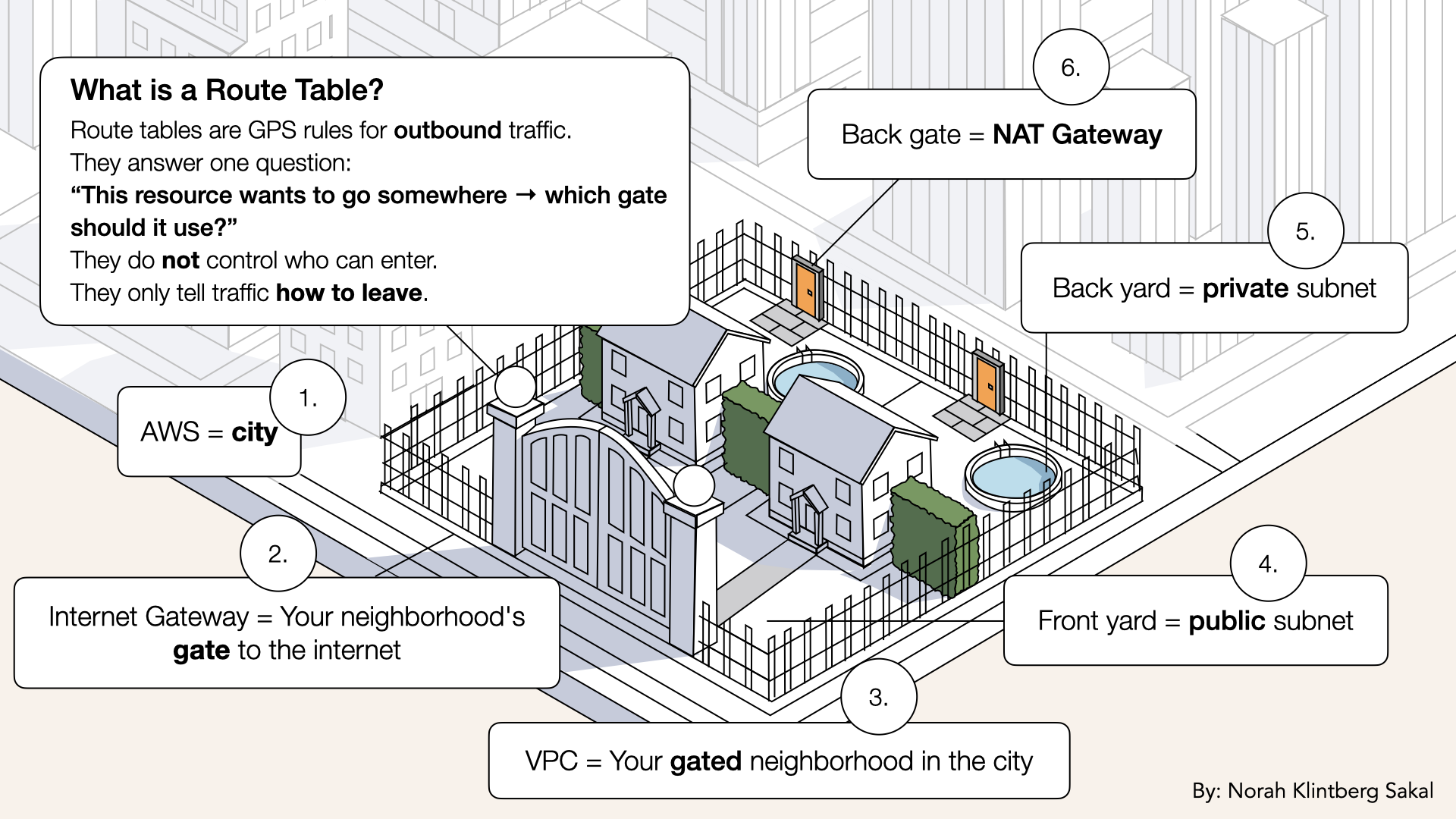
Route Table = A set of rules (routes) that determine where network traffic goes
How routes work
Each route has two parts:
- Destination: Where are you trying to go?
- Target: Which gate/path should you use?
Example route:
| Destination | Target | Meaning |
|---|---|---|
0.0.0.0/0 | igw-xxxxx | "For ALL internet traffic, use the Internet Gateway" |
❌ This does not mean:
"The internet can reach this subnet"
Route tables are exit instructions.
What does 0.0.0.0/0 mean?
0.0.0.0/0 = All IP addresses on the internet
Think of it as: "Everything outside this VPC"
In routes:
0.0.0.0/0→ IGW = "For any internet destination, use the front gate"0.0.0.0/0→ NAT = "For any internet destination, use the back gate"
There is also a local route (automatic):
172.31.0.0/16→local= "For traffic inside the VPC, stay local"
AWS creates this automatically. You don't touch it.
Public vs private route tables
Because public and private subnets need different directions:
Public Route Table (for front yards):
Destination: 0.0.0.0/0 → Target: Internet Gateway
"Exit through the front gate"
✅ Meaning:
If you are a resource in your front yard (public subnet) → exit via the front gate
Visual of resources in your front yard → exiting via the front gate
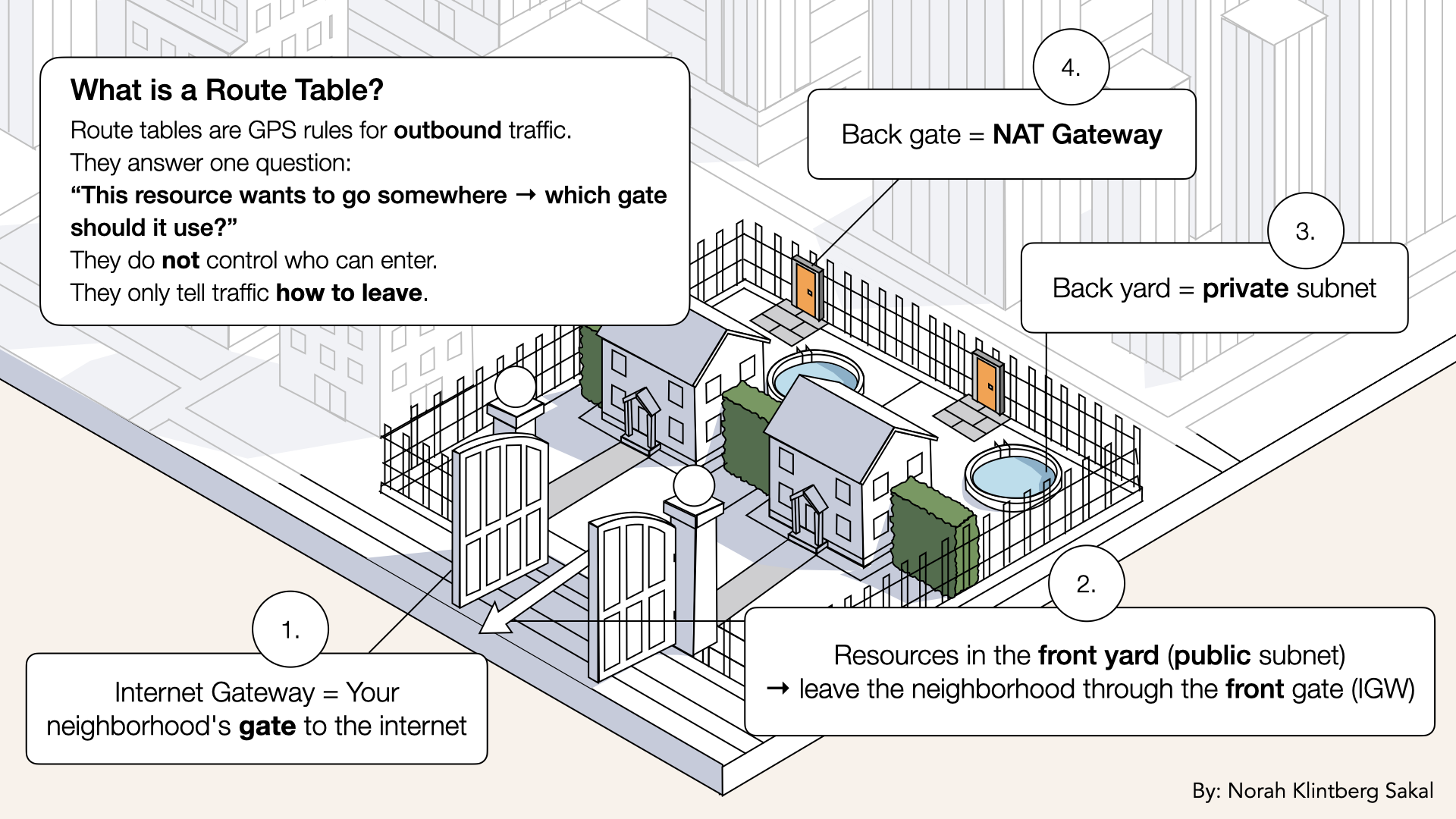
If you are a resource in your front yard (public subnet) → exit via the front gate:
Private Route Table (for back yards):
Destination: 0.0.0.0/0 → Target: NAT Gateway
"Exit through the back gate"
✅ Meaning:
If you are a resource in your back yard (private subnet) → exit via the back gate
If you are a resource in your back yard (public subnet) → exit via the back gate:
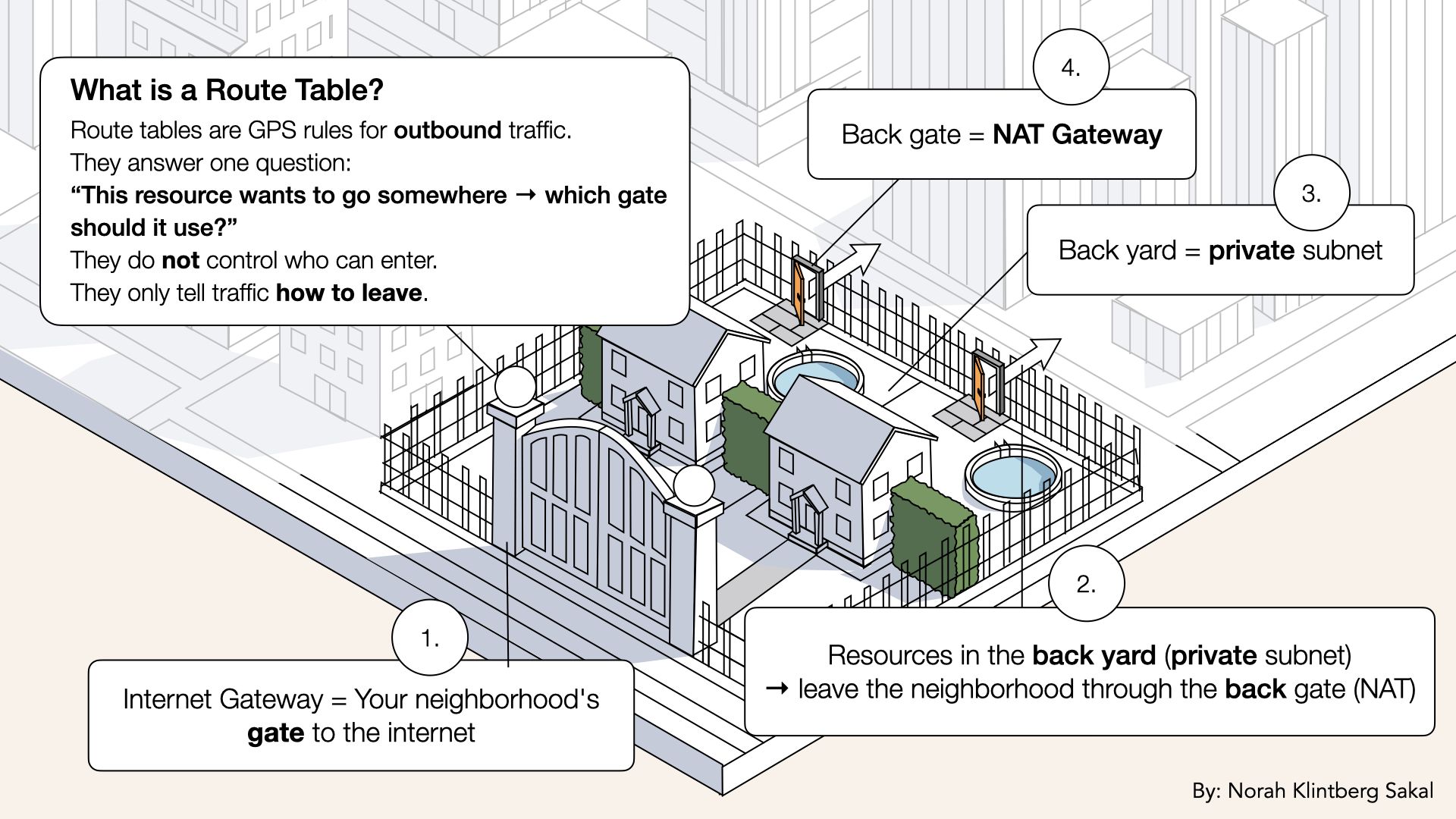
If you are a resource in your back yard (private subnet) → exit via the back gate
If you used the same route table for both:
- Private subnets would try to use the IGW directly (exposes them to internet)
- Defeat the purpose of having private subnets
Two route tables = two different exit strategies.
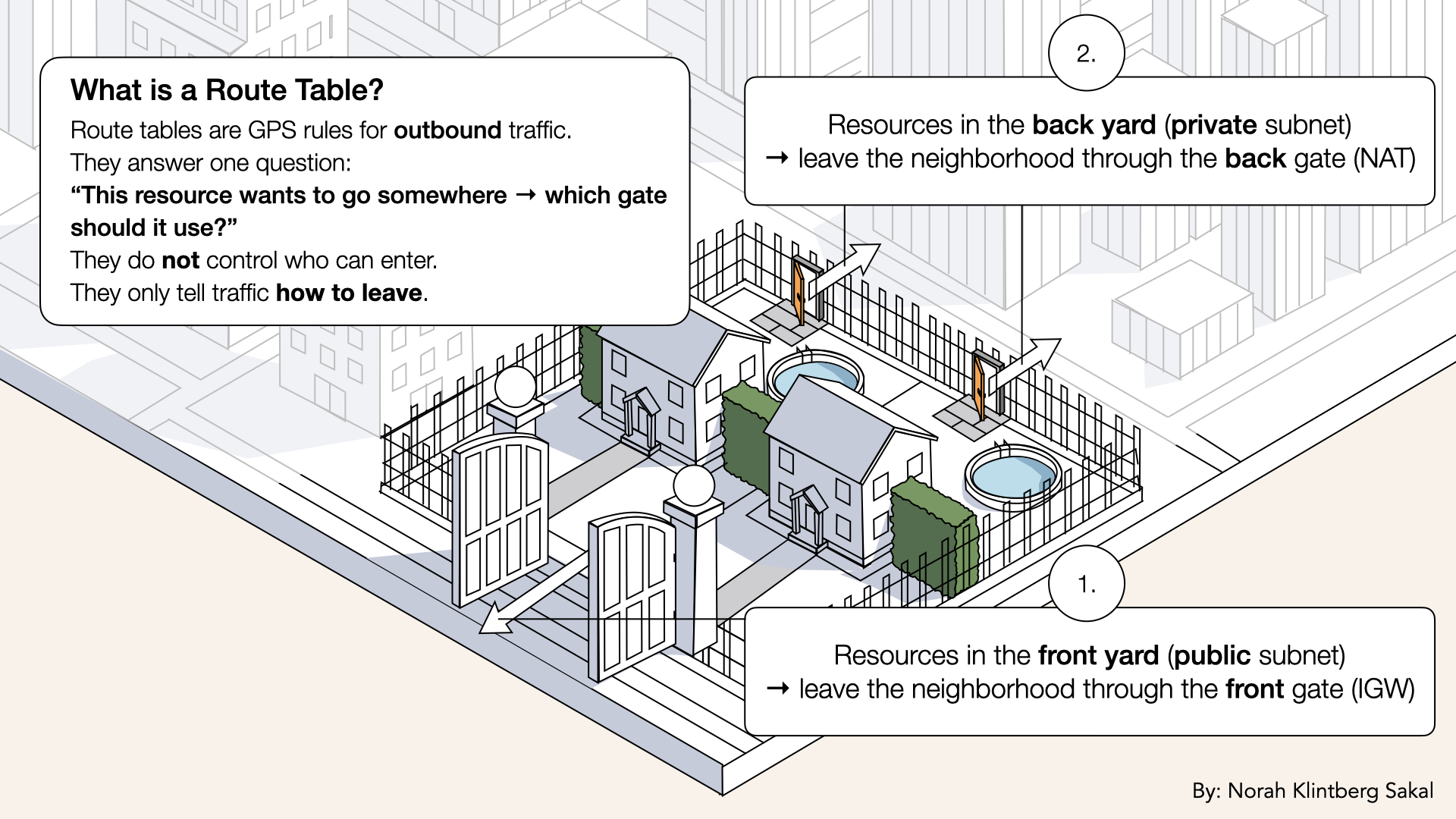
Two route tables = two different exit strategies
Step 1: Create private route table
Let's start with the private route table (for back yards).
Open the AWS Console ↗In the search bar at the top, type VPC and click VPC from the dropdown:
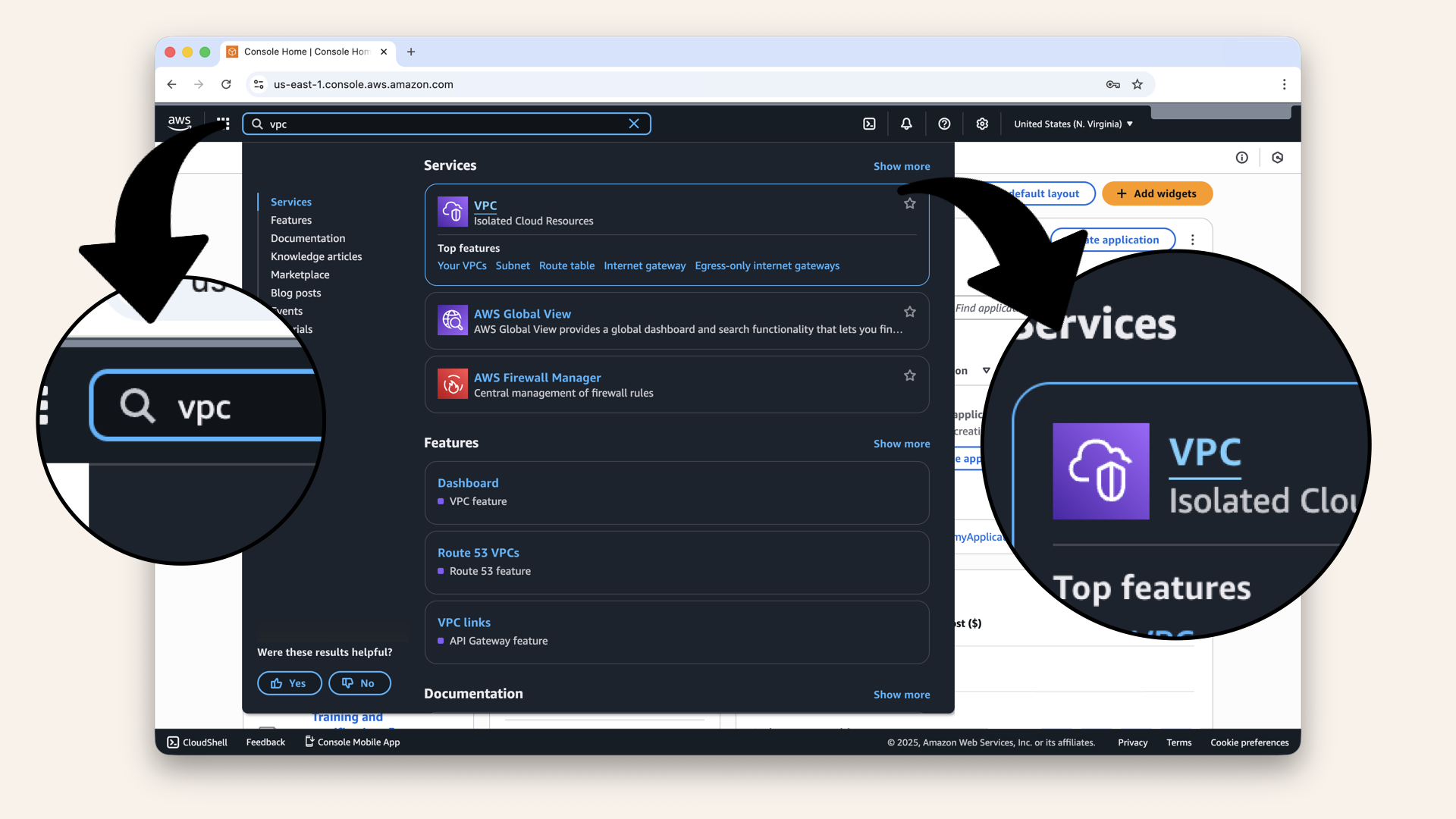
In the search bar at the top, type VPC and click VPC from the dropdown
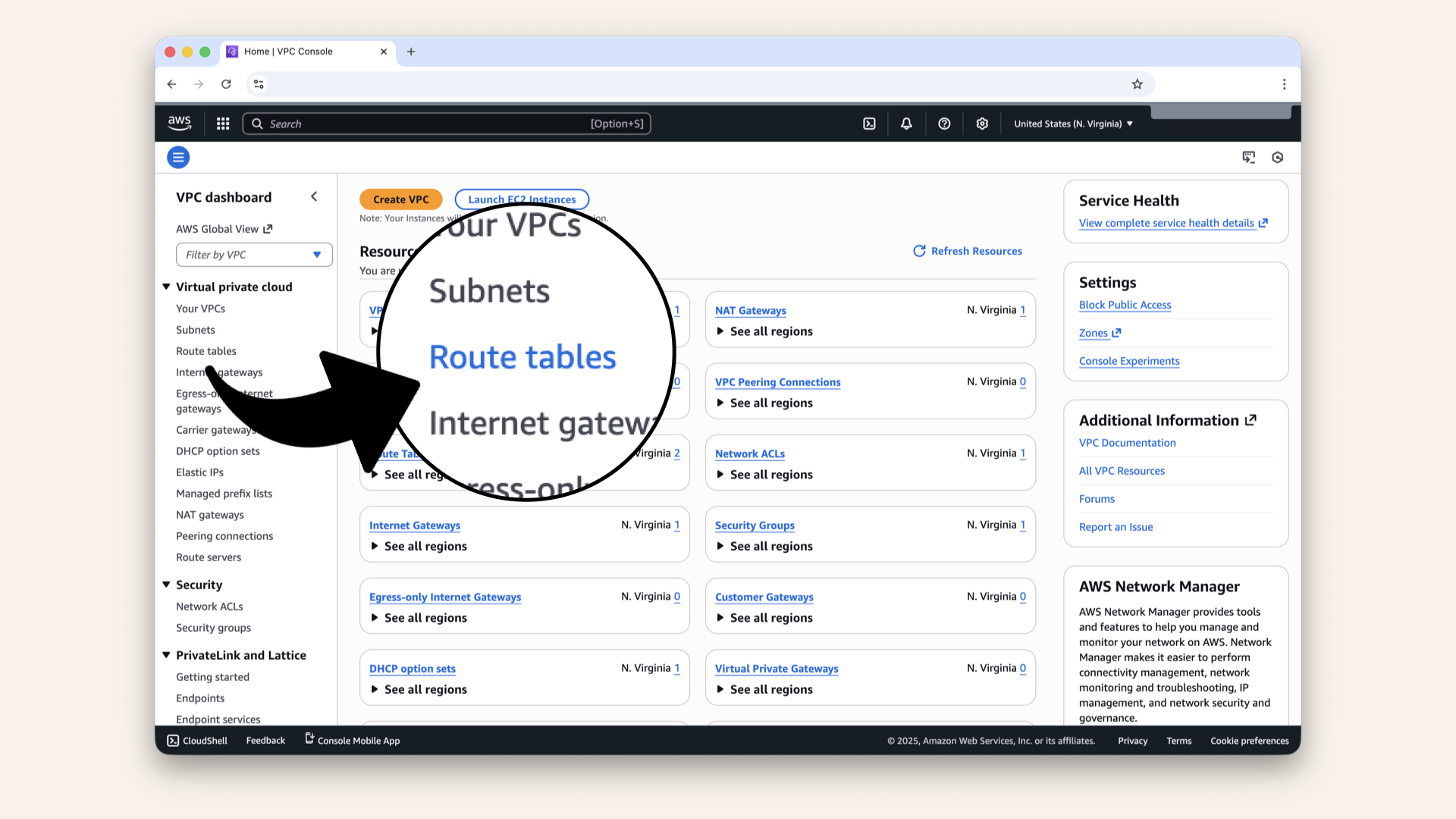
Click Route tables in the left menu
You'll see existing route tables:
- AWS creates a default one for a local route
- A route table generated for our NAT Gateway
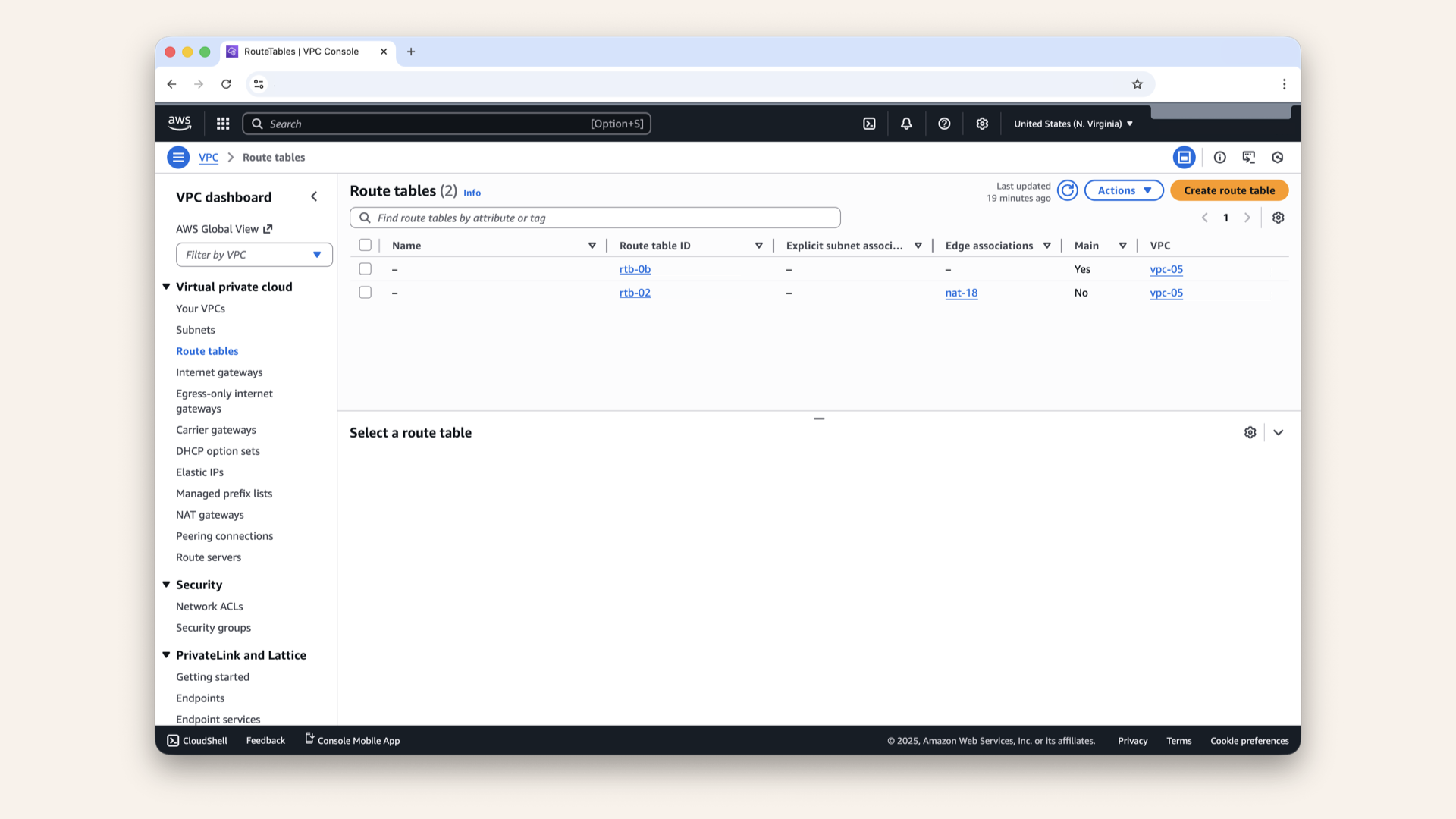
You'll see existing route tables

Click Create route table
Fill in the settings:
| Field | Value |
|---|---|
| Name | |
| VPC | Select your VPC |
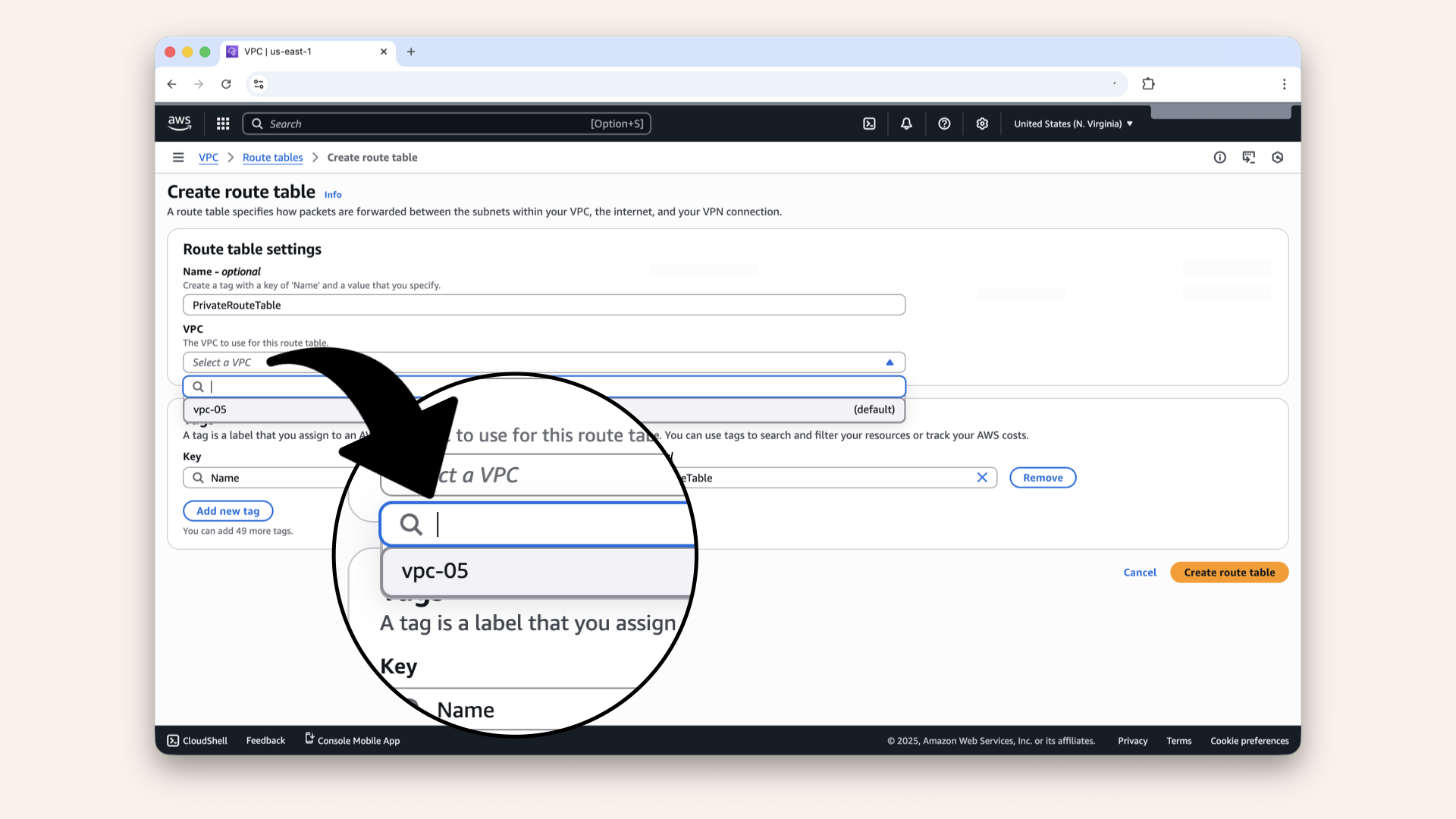
Select your VPC from the dropdown
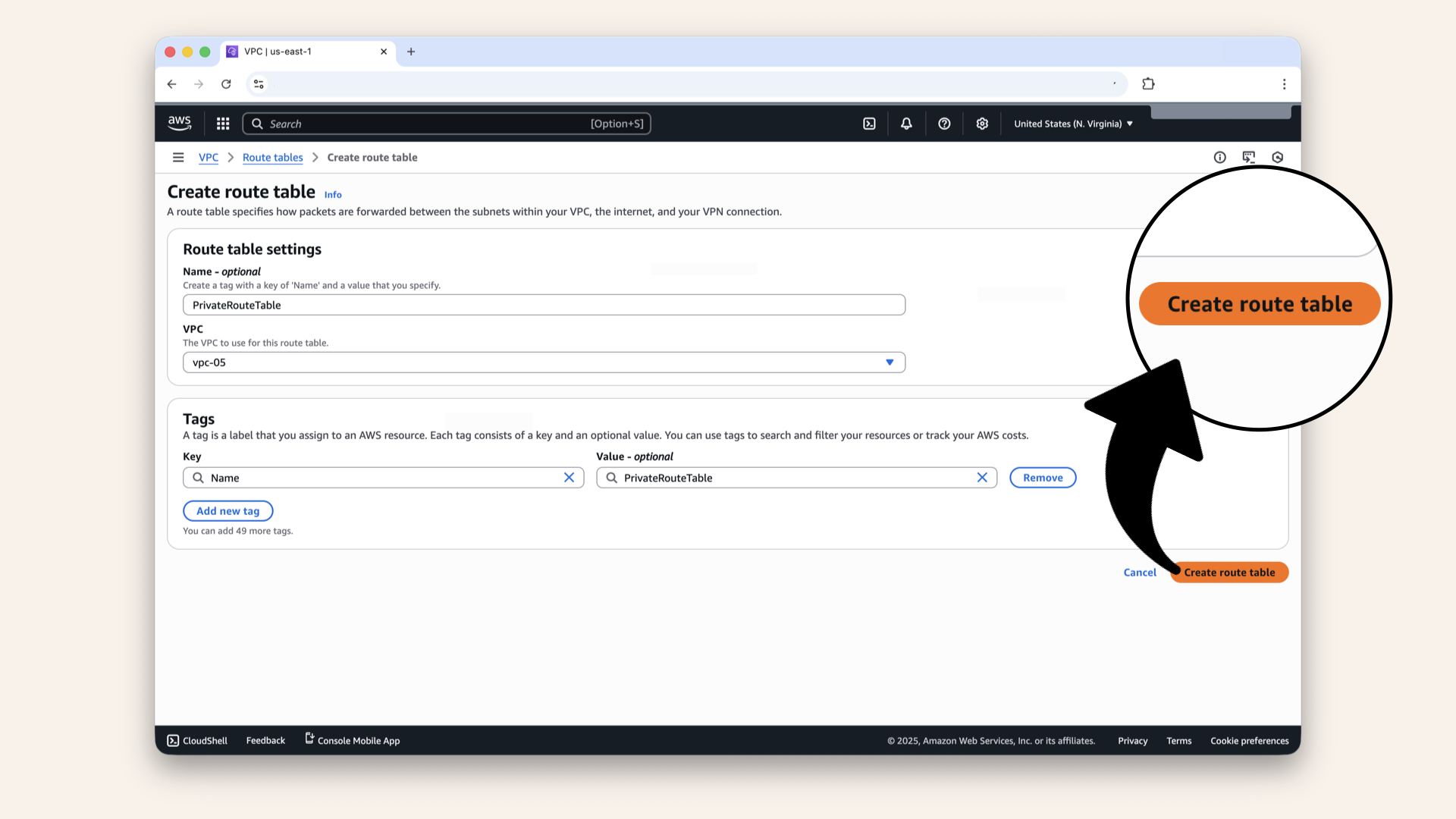
Click Create route table
✅ You should see: "PrivateRouteTable was created successfully":

Route table created successfully
Step 2: Add NAT Gateway route to private route table
Now we need to add a route: "For internet traffic, use NAT Gateway"
Click Edit routes from the route table overview: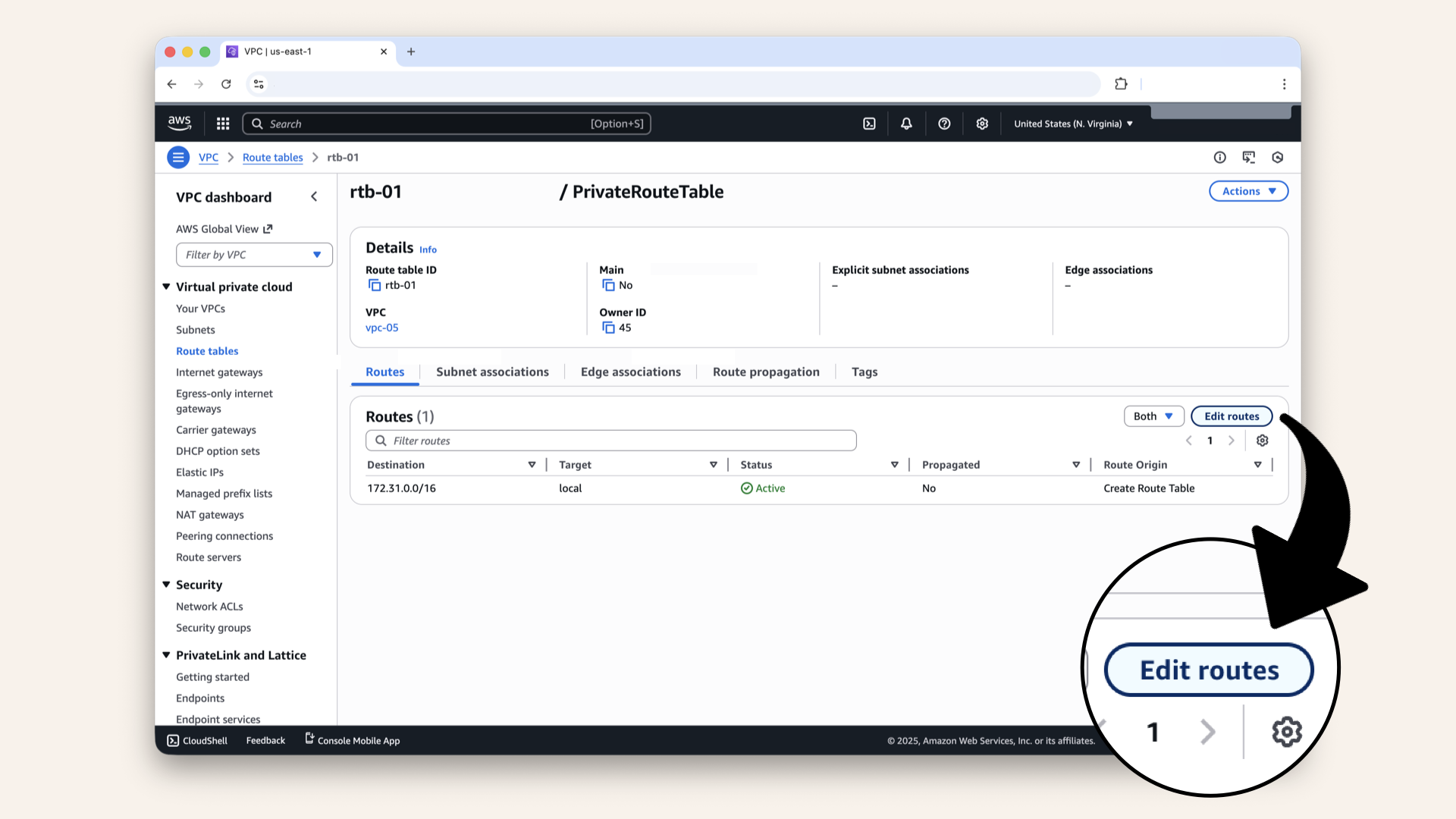
Click Edit routes from the route table overview

Click Add route
Fill in the new route:
| Field | Value | Meaning |
|---|---|---|
| Destination | All internet traffic | |
| Target | NAT Gateway → Select Fargate-NAT-Gateway | Use the back gate |
Select NAT Gateway as Target then click on Fargate-NAT-Gateway:
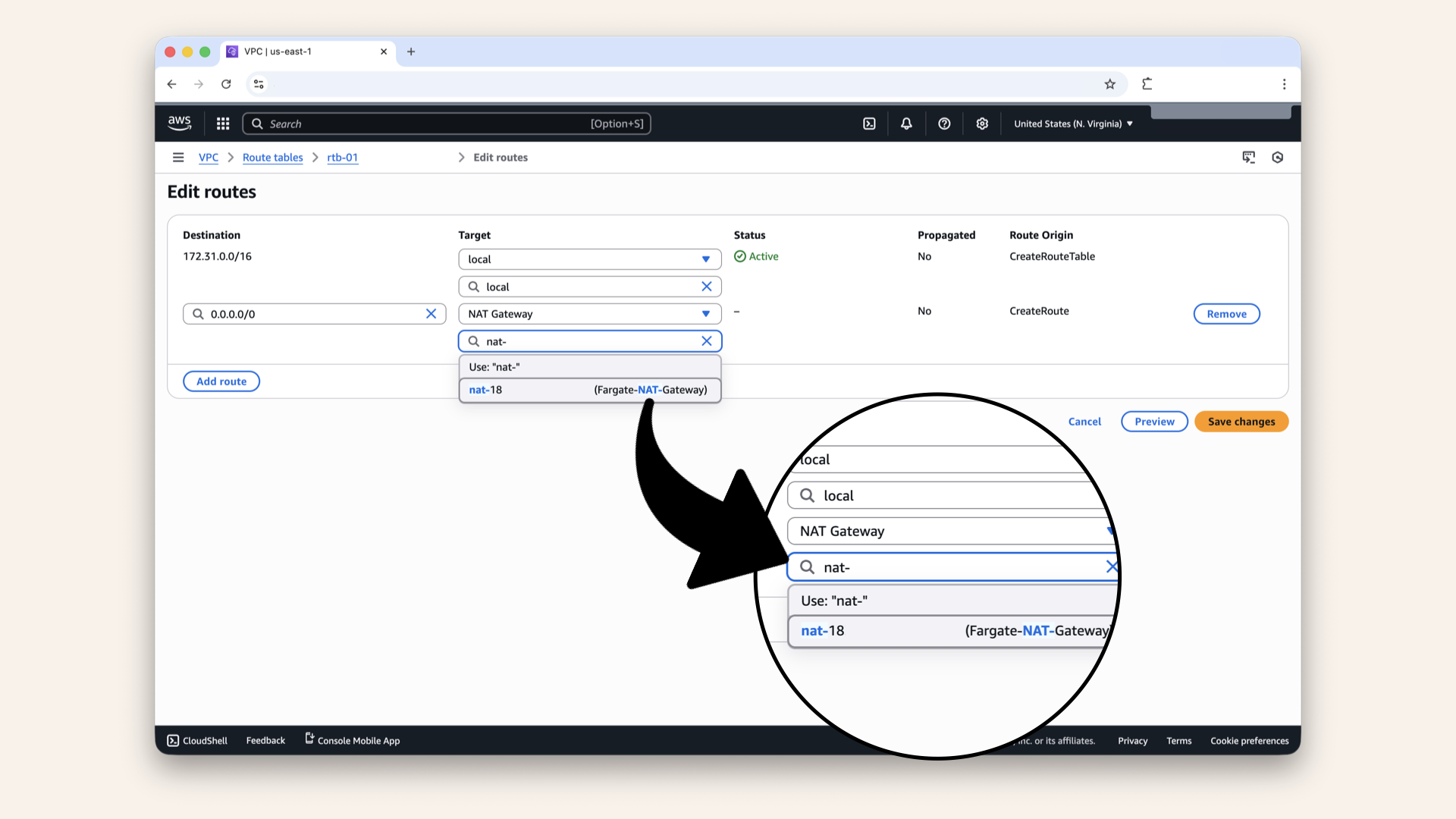
Select NAT Gateway as Target then click on Fargate-NAT-Gateway

Click Save changes
✅ You should see two routes now:
| Destination | Target | Status |
|---|---|---|
0.0.0.0/0 | nat-xxxxx | Active |
172.31.0.0/16 | local | Active |

You should see two routes now
Perfect! Private subnets can now reach the internet via NAT.
Step 3: Associate private subnets with private route table
Now we need to tell PrivateSubnet-1 and PrivateSubnet-2 to use this route table.
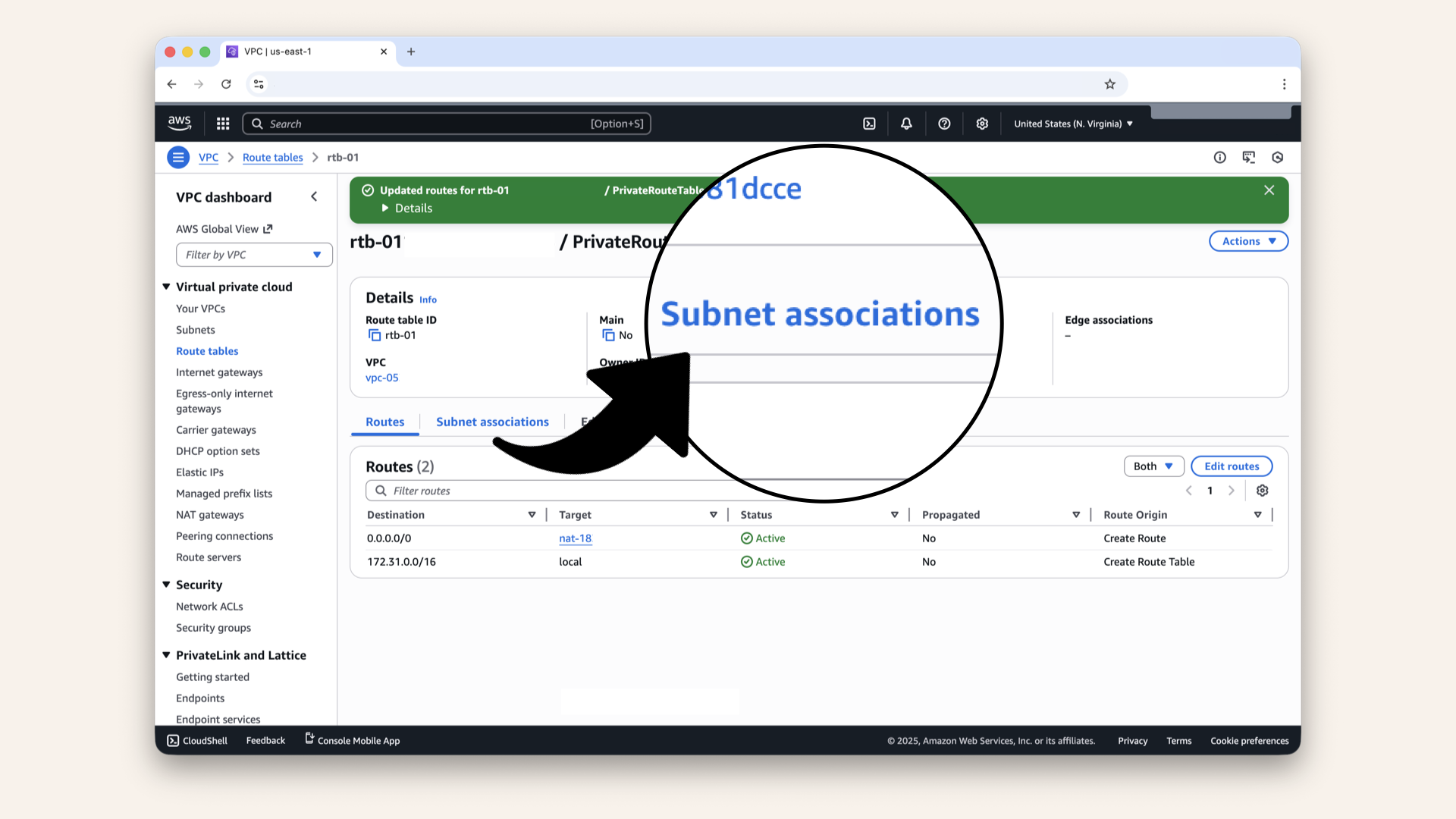
Click the Subnet associations tab

Click Edit subnet associations:
- PrivateSubnet-1
- PrivateSubnet-2

Select *both private subnets
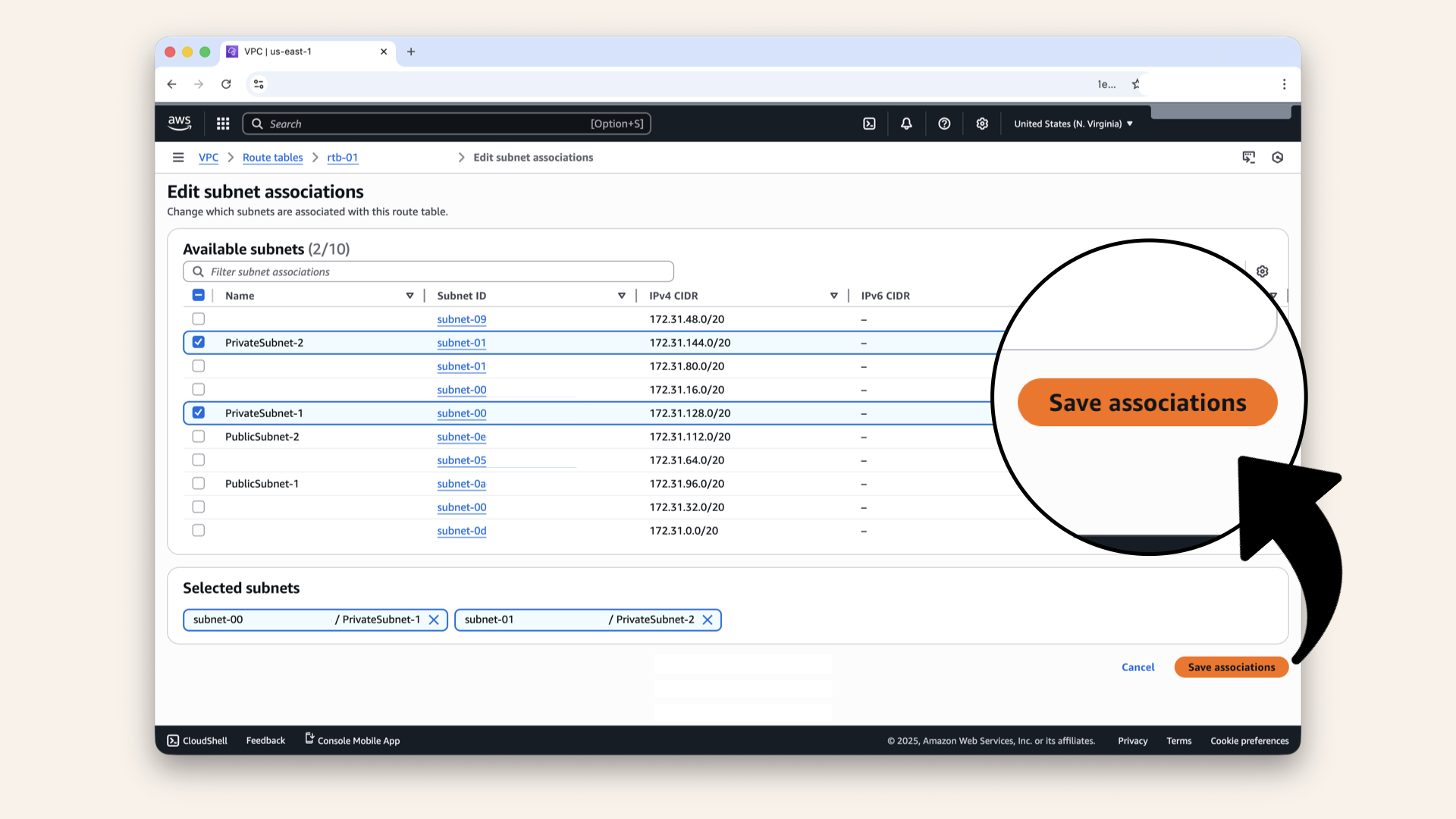
Click Save associations
✅ You should see: "Successfully updated subnet association"
Your private subnets now know to use NAT Gateway for internet traffic:
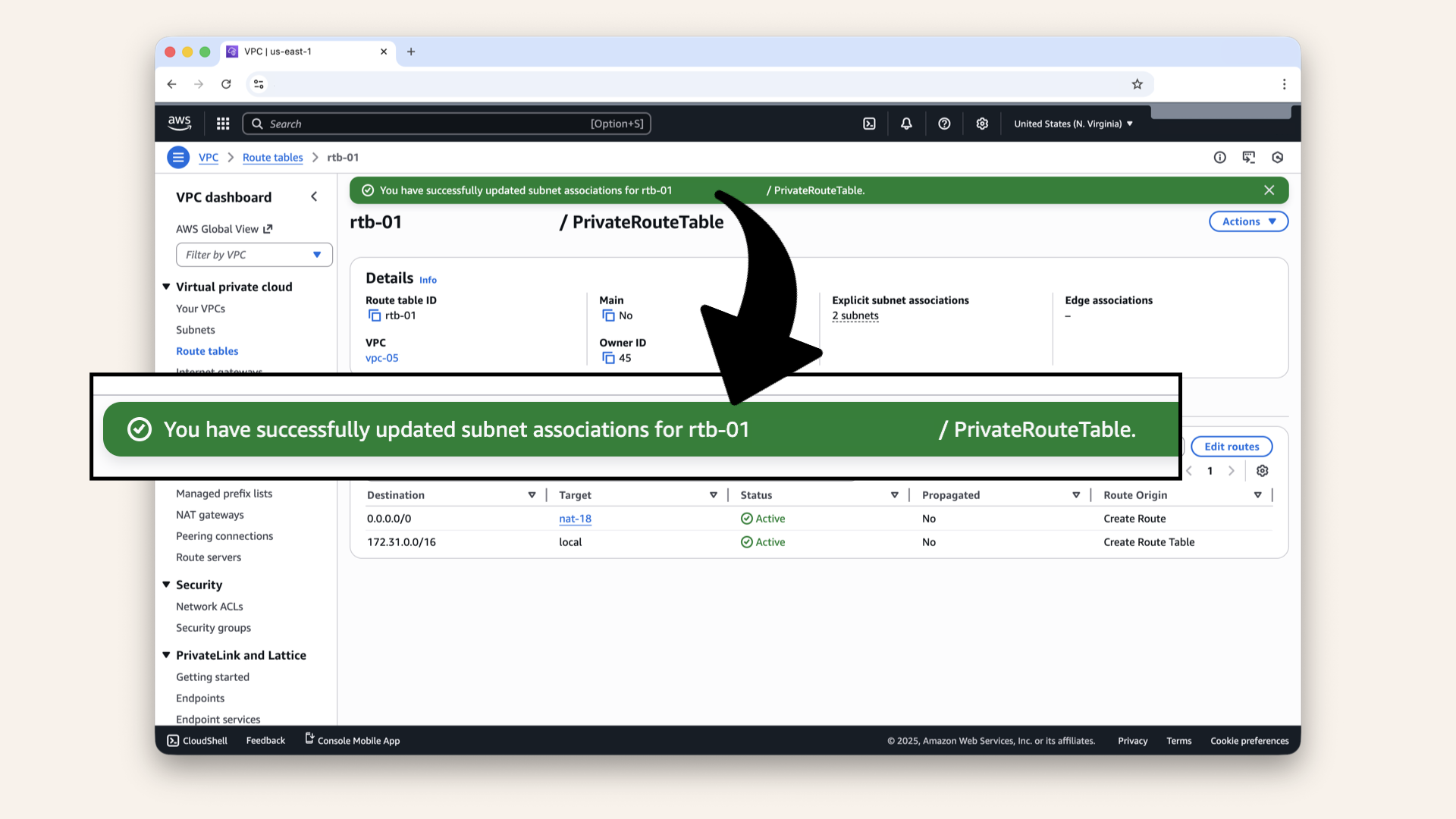
You should see: "Successfully updated subnet association"
Step 4: Create public route table
Now, let's do the same for public subnets.
Go back to Route tables in the left menu, then click Create route table:

Go back to Route tables in the left menu, then click Create route table
Fill in the settings:
| Field | Value |
|---|---|
| Name | |
| VPC | Select your VPC |
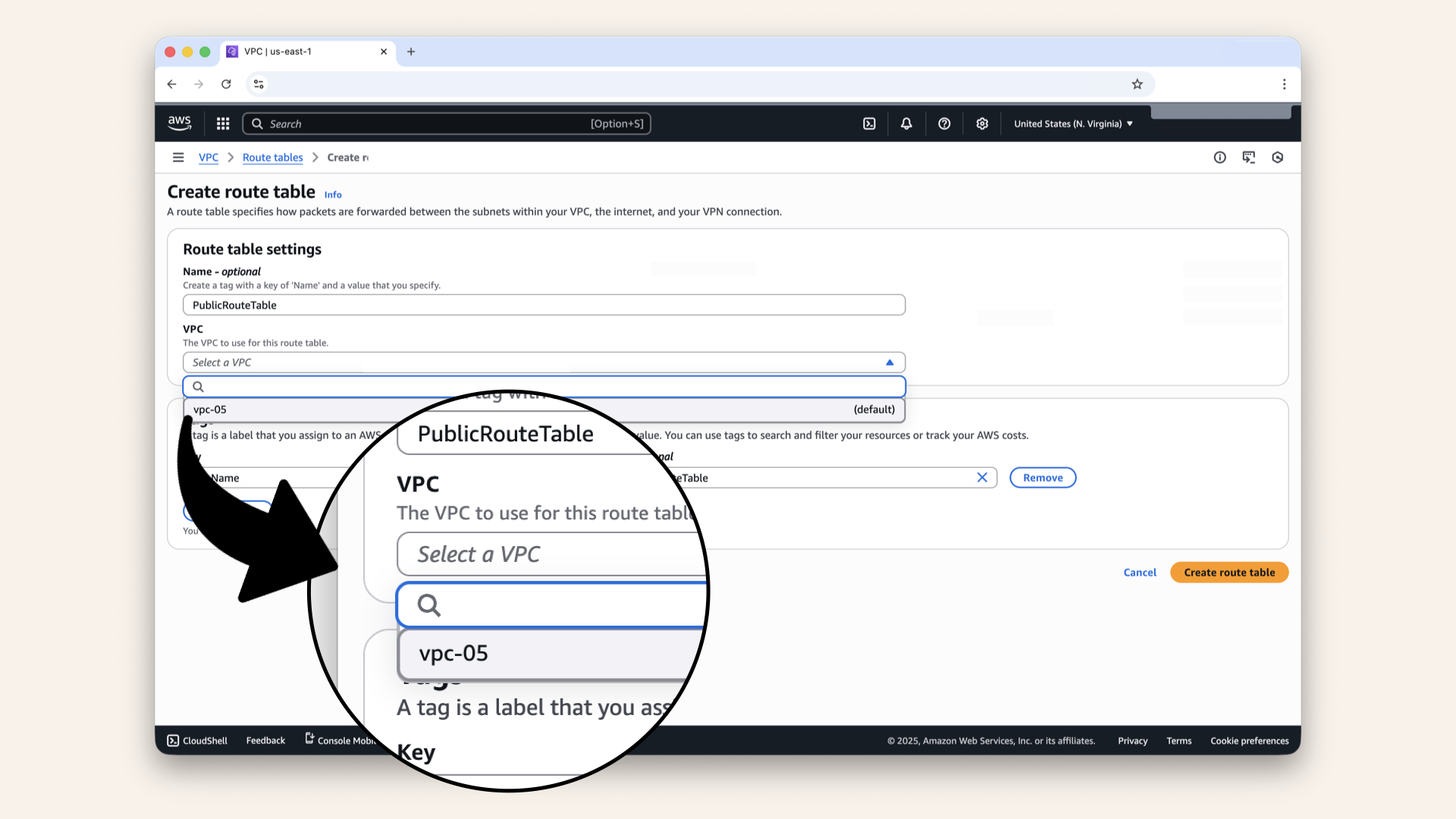
Select your VPC from the dropdown
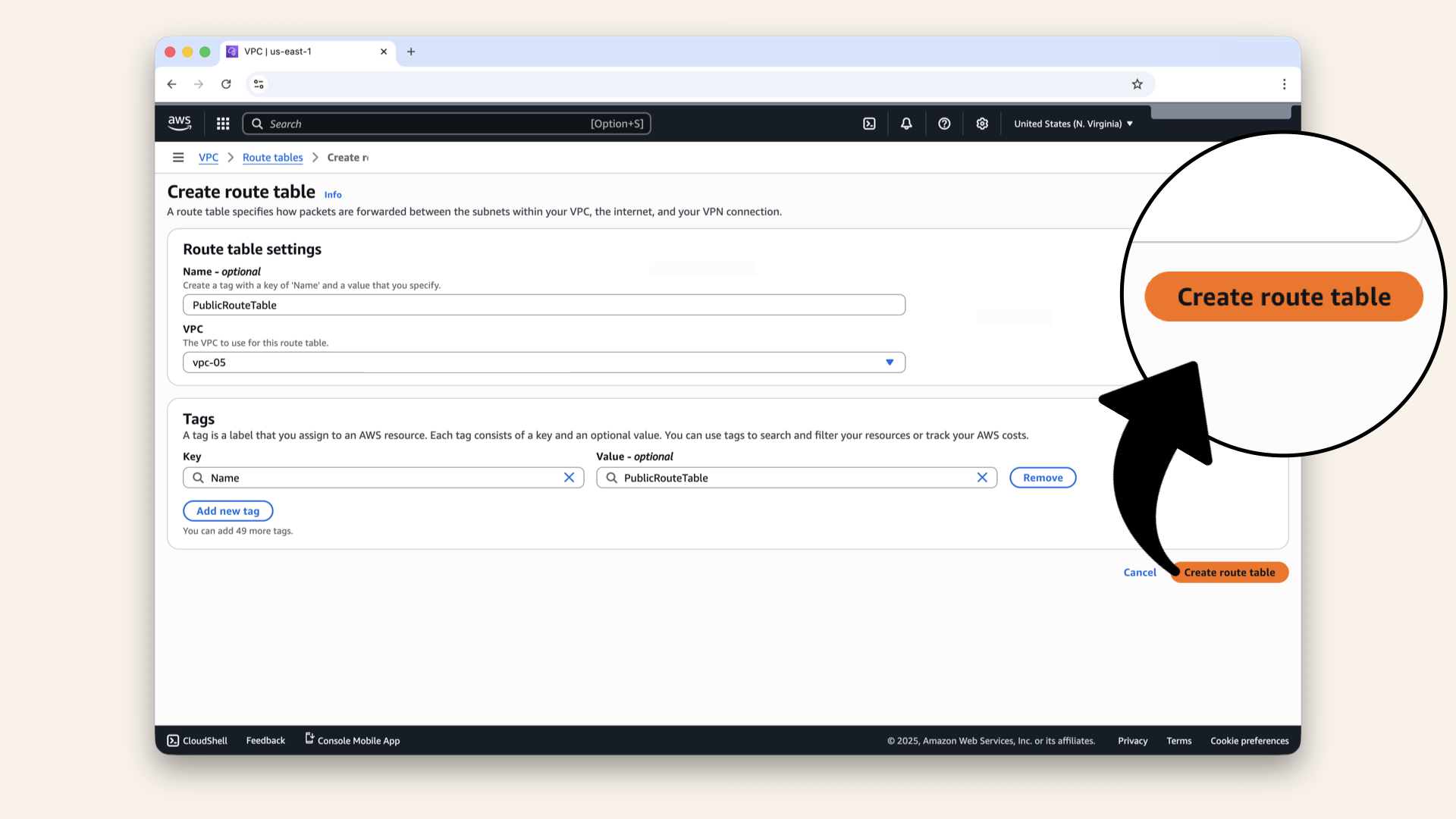
Click Create route table
✅ You should see: "Route table created successfully"
Step 5: Add Internet Gateway route to public route table
Click Edit routes: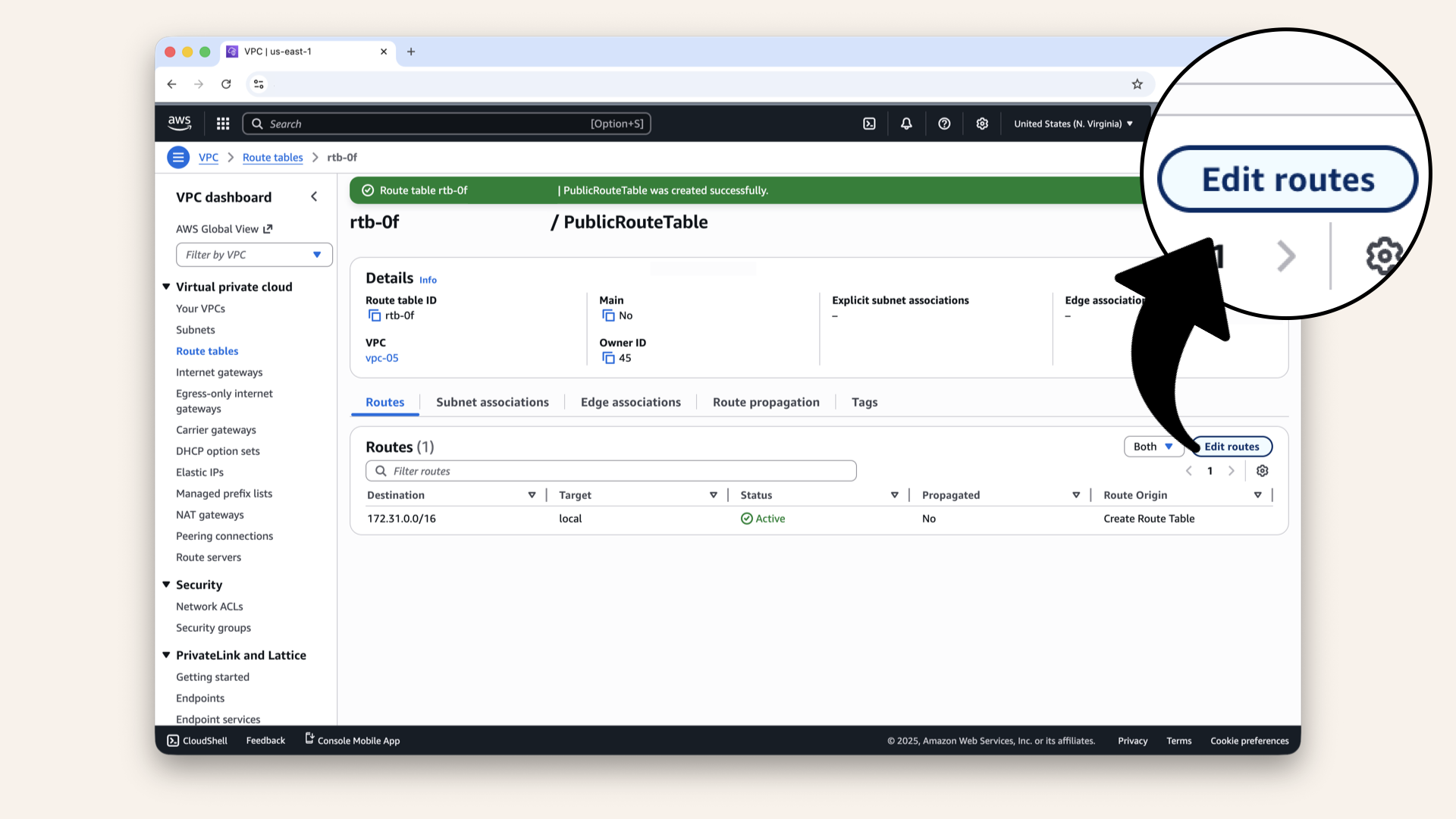
Click Edit routes

Click Add route
Fill in the new route:
| Field | Value | Meaning |
|---|---|---|
| Destination | All internet traffic | |
| Target | Internet Gateway → Select your IGW | Use the front gate |
Select Internet Gateway as target in the dropdown:
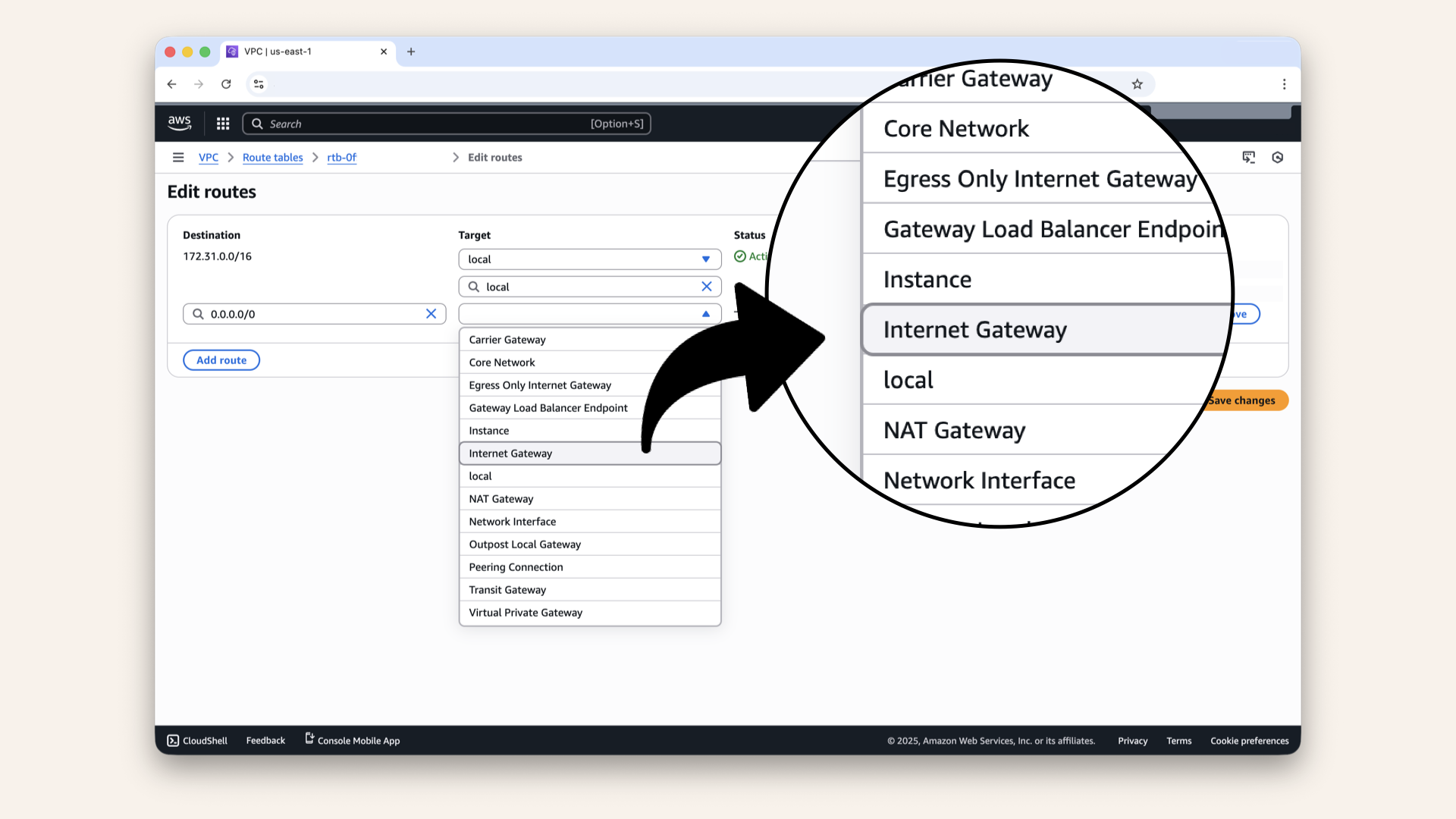
Select Internet Gateway as target in the dropdown
Select your Internet Gateway as the target in the new dropdown:
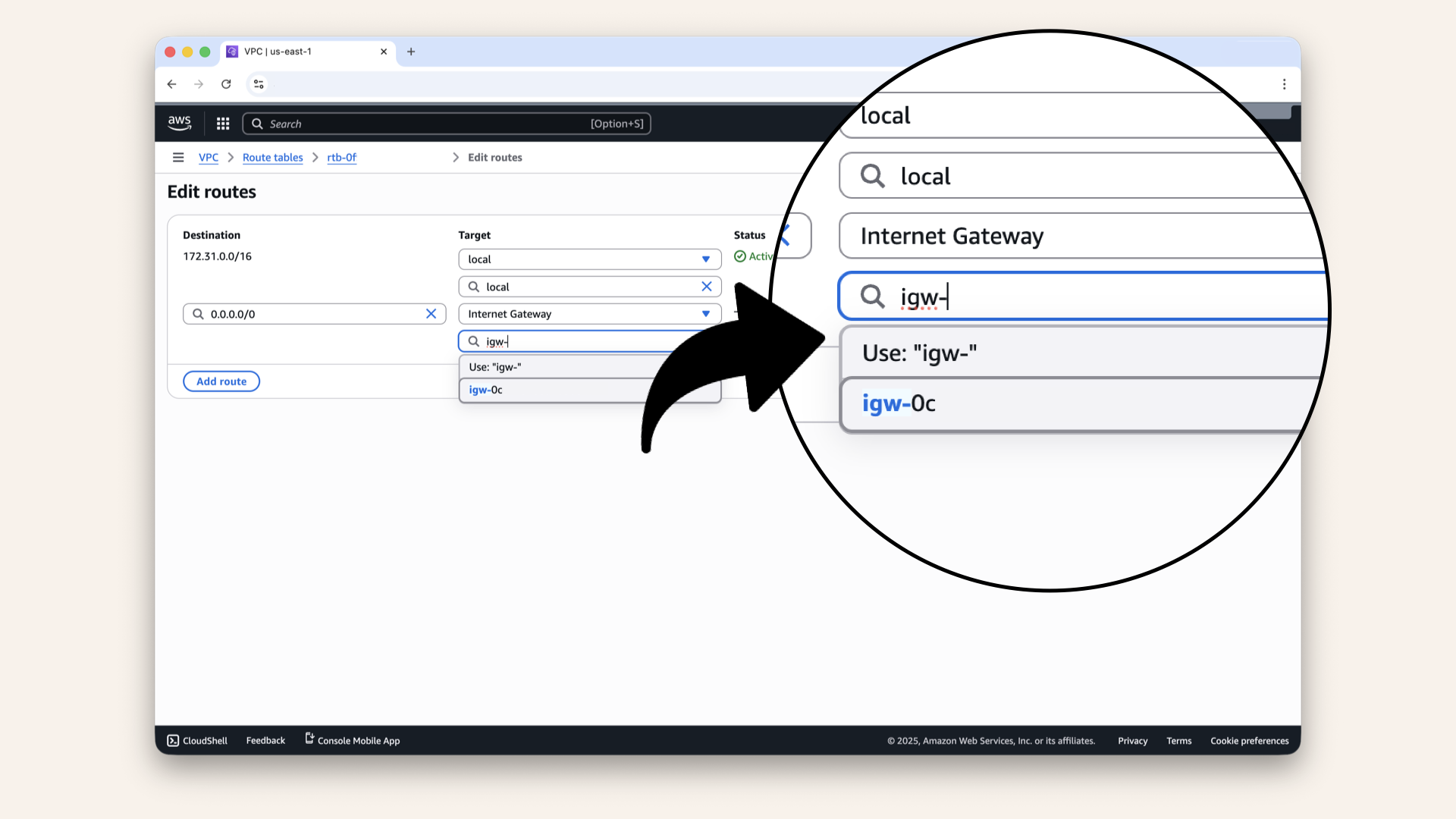
Select your Internet Gateway as the target in the new dropdown
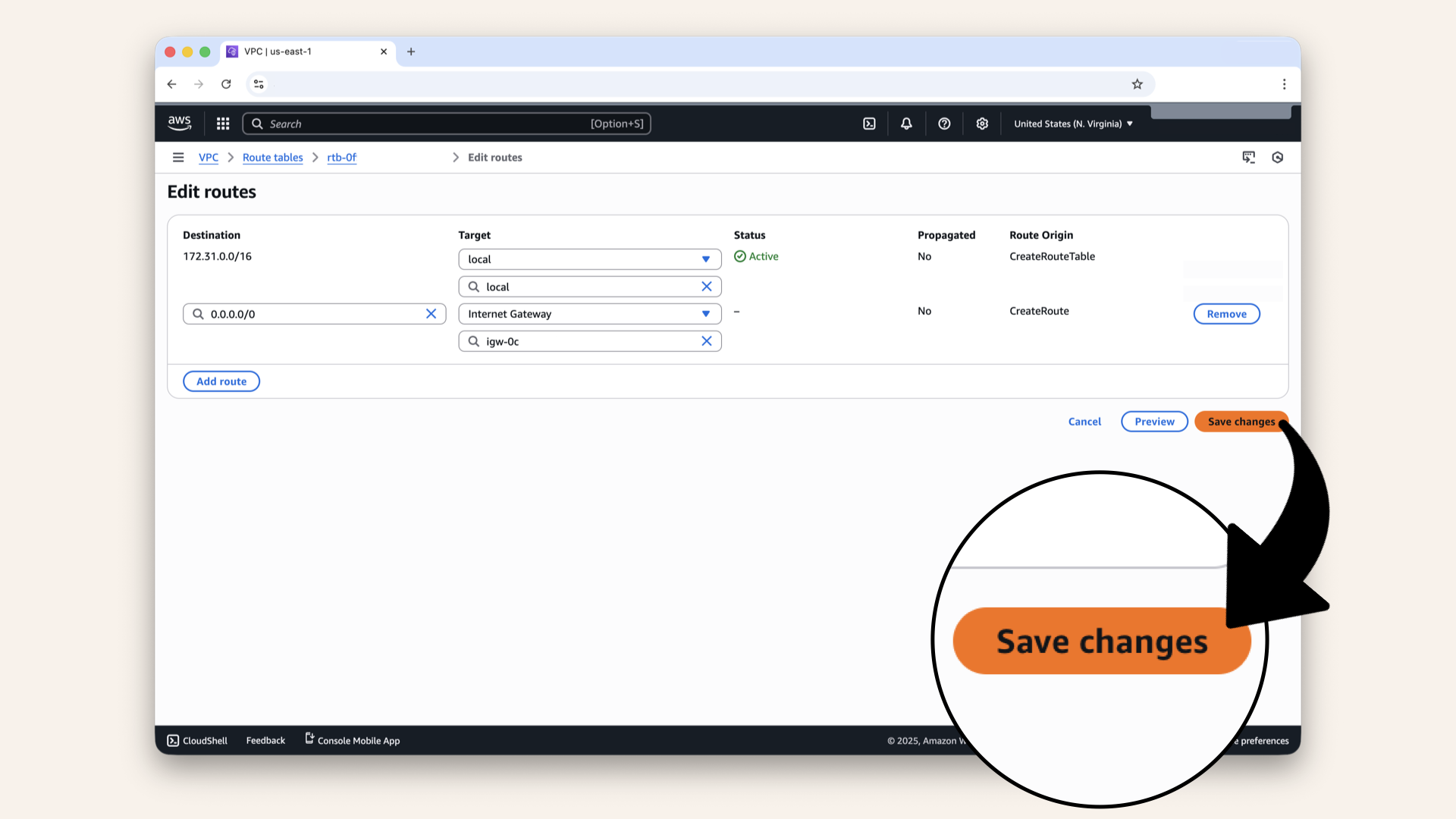
Click Save changes
✅ You should see two routes now:
| Destination | Target | Status |
|---|---|---|
172.31.0.0/16 | local | Active |
0.0.0.0/0 | igw-xxxxx | Active |
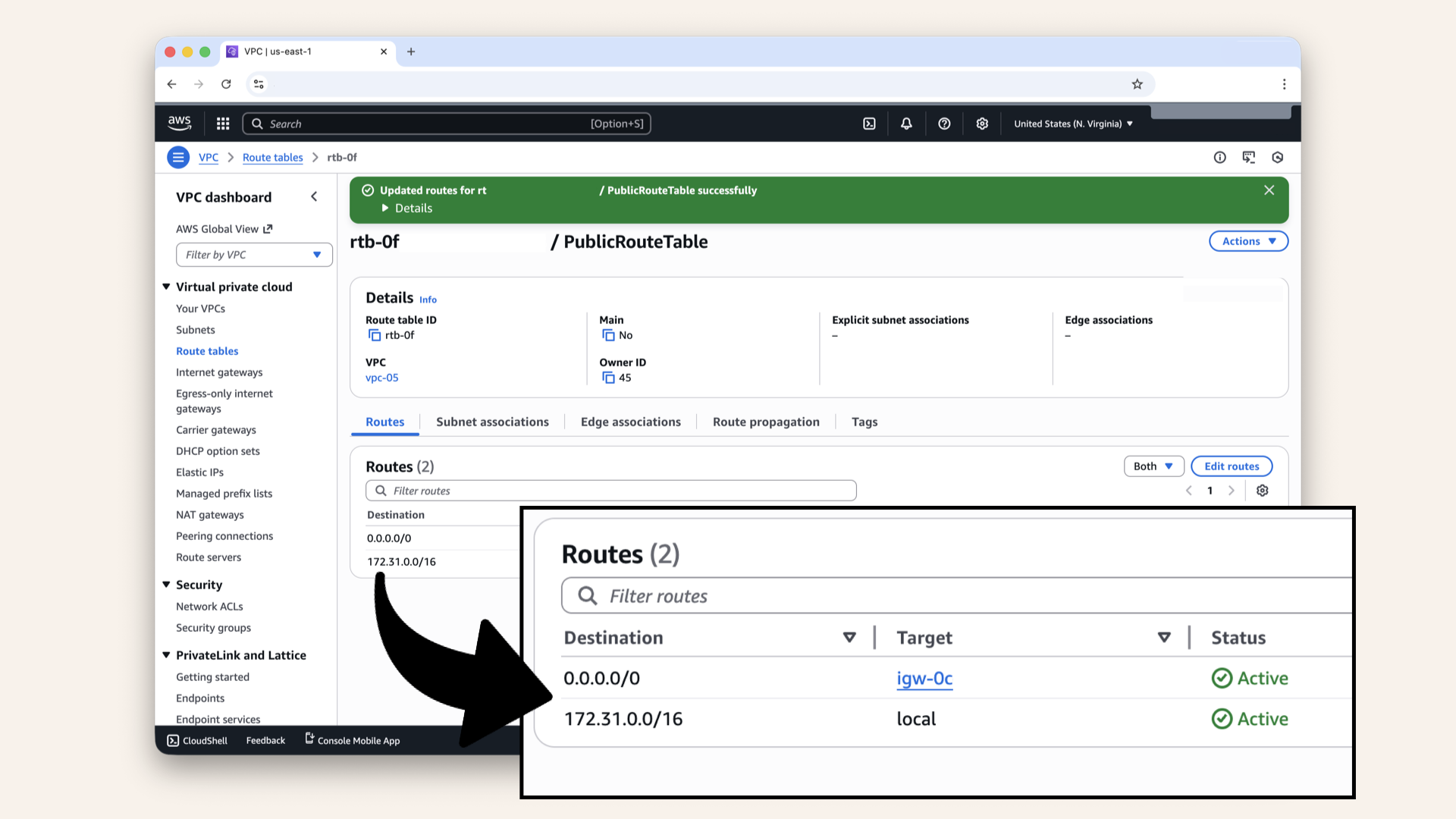
You should see two routes now
Step 6: Associate public subnets with public route table
Click the Subnet associations tab: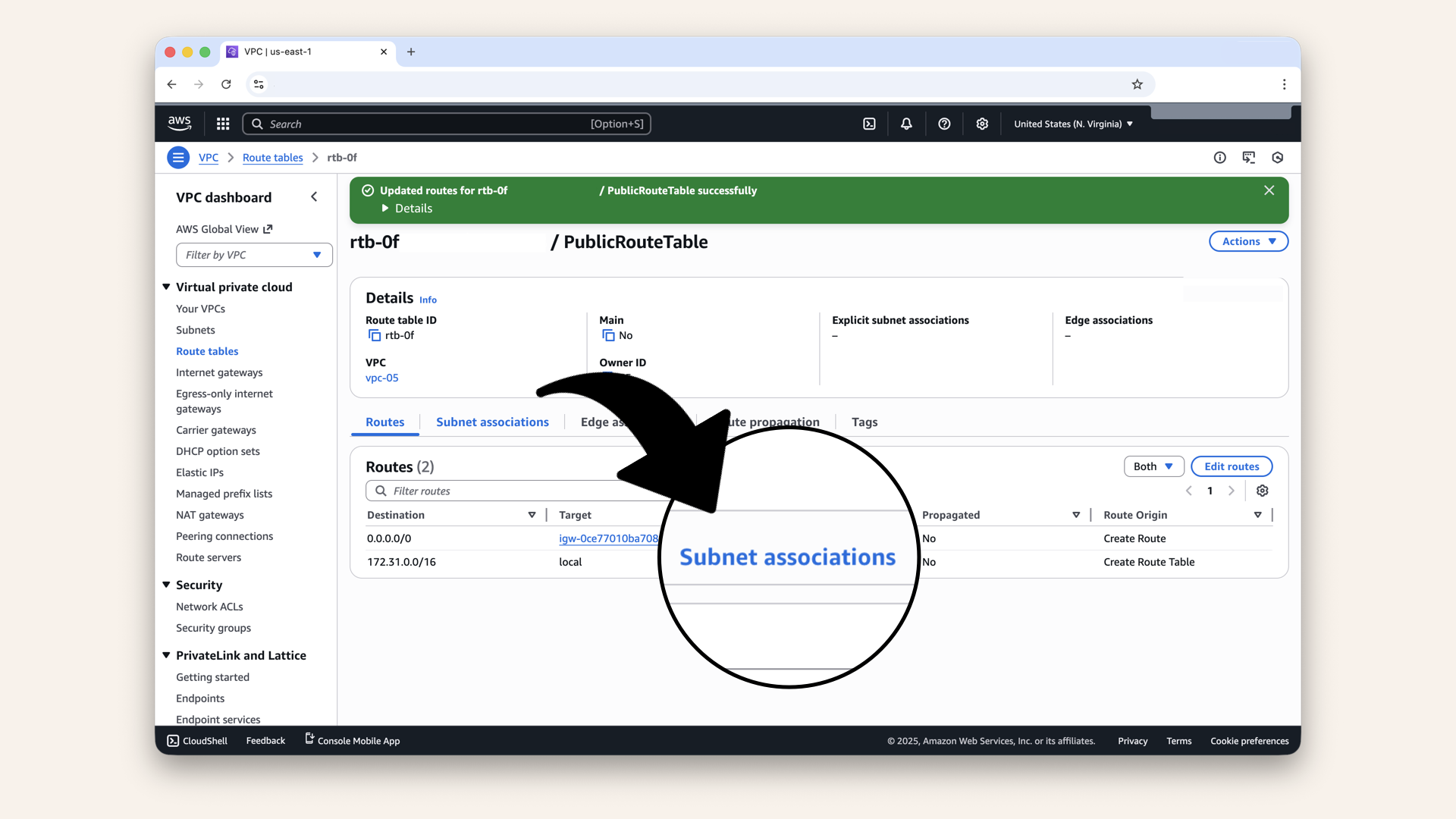
Click the Subnet associations tab
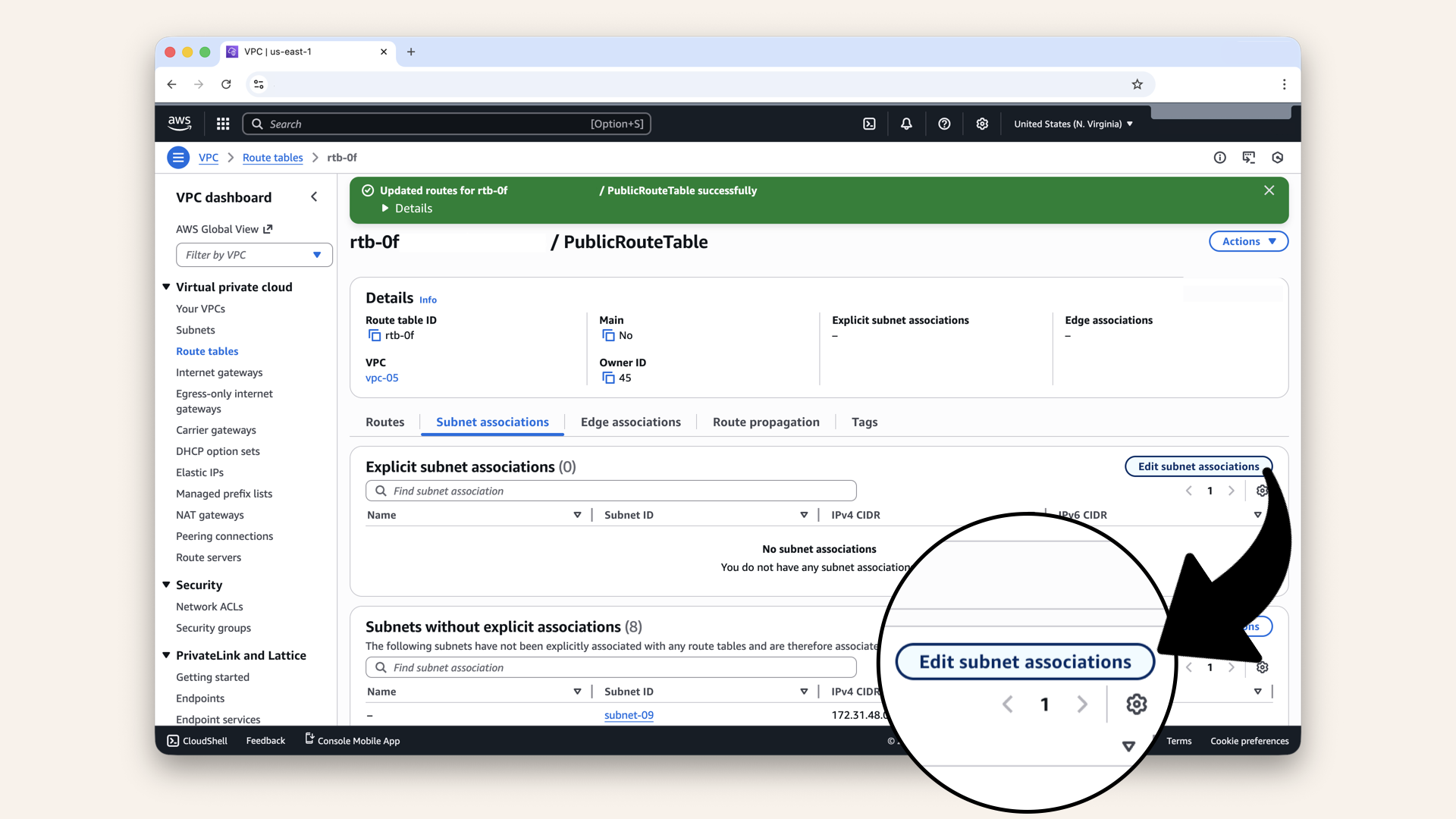
Click Edit subnet associations
Select both public subnets:
PublicSubnet-1PublicSubnet-2
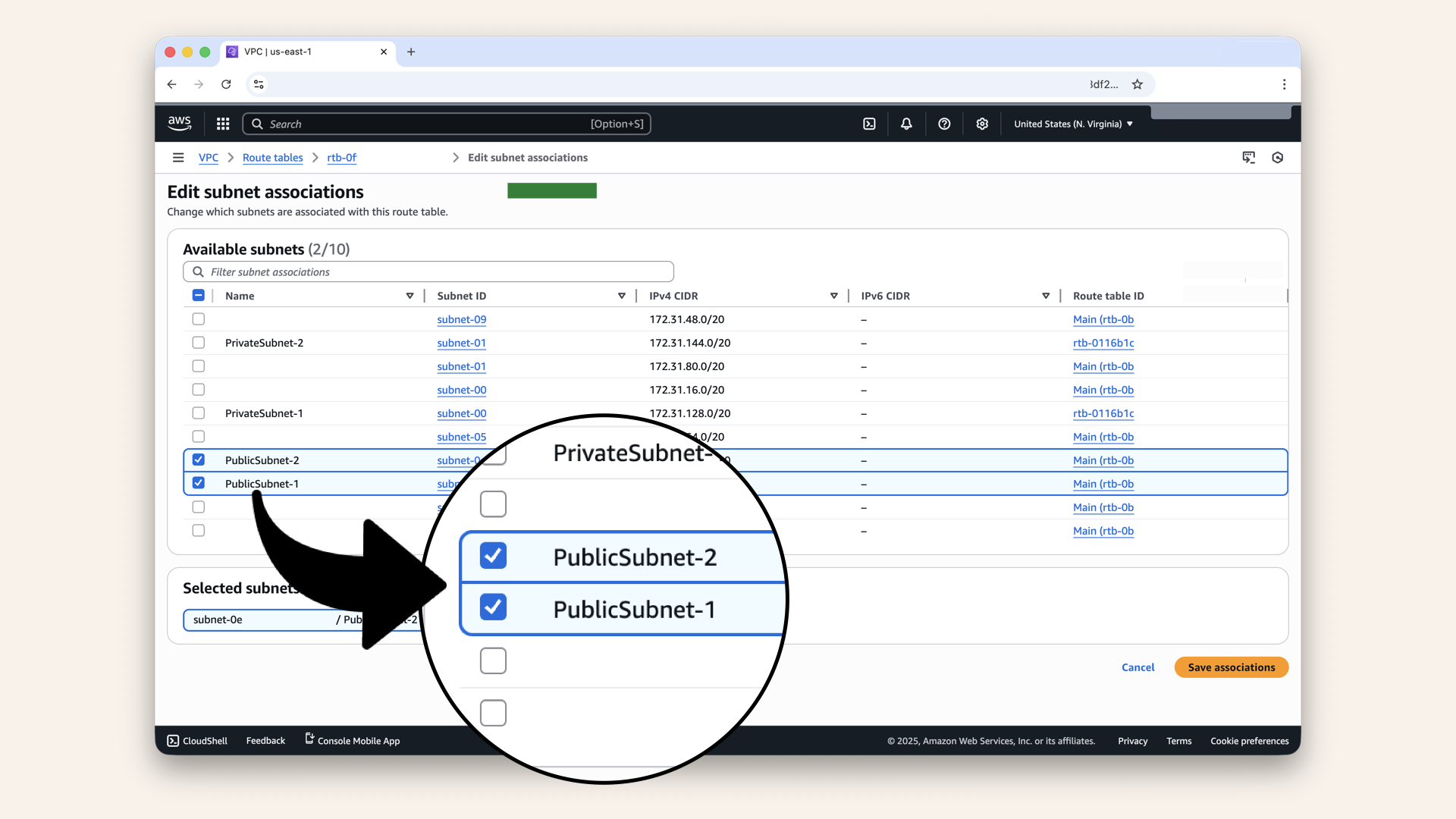
Select both public subnets
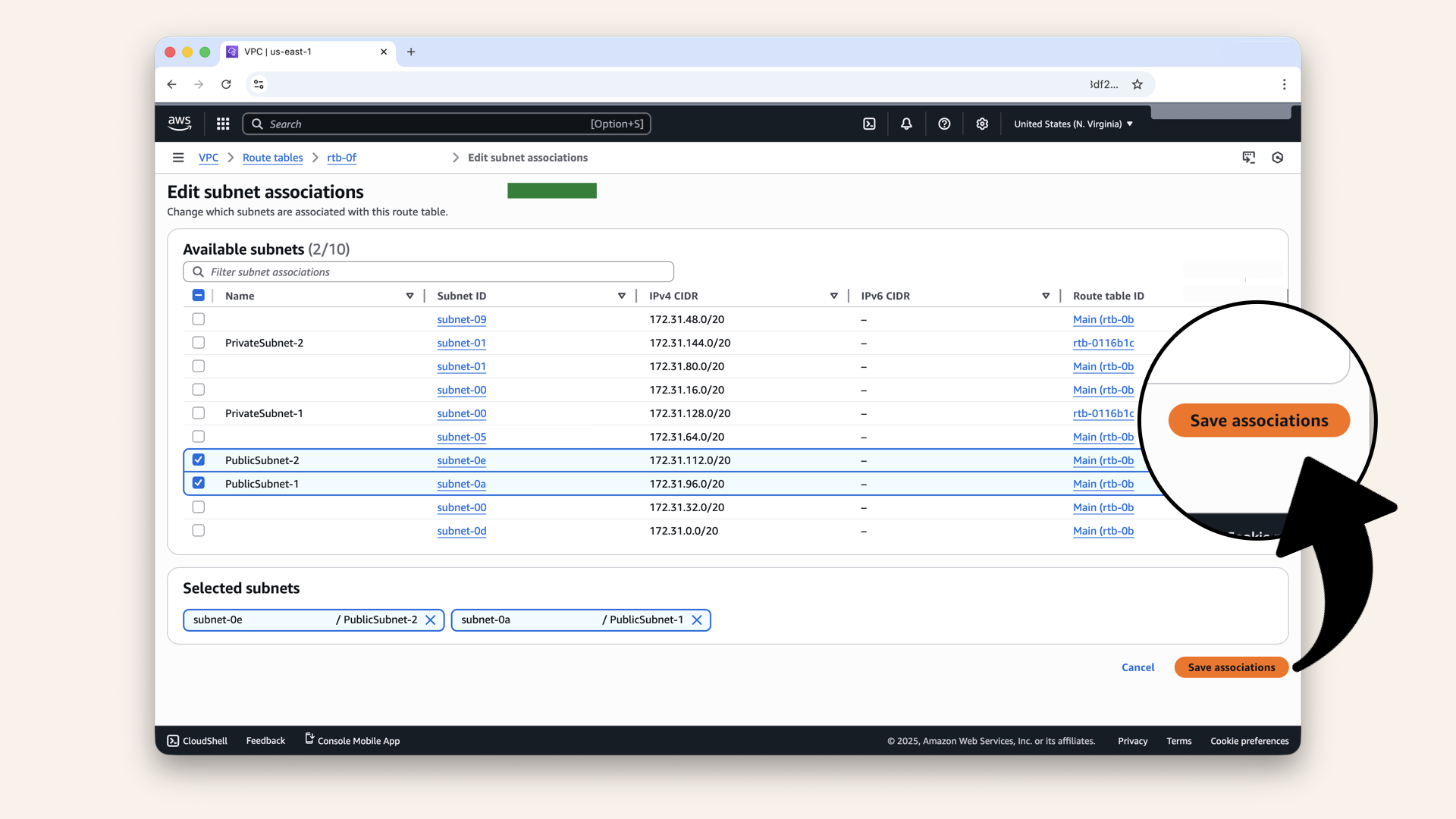
Click Save associations
✅ You should see: "Subnet associations updated successfully"
Your public subnets now know to use Internet Gateway for internet traffic.

Your public subnets now know to use Internet Gateway for internet traffic
Step 7: Verify everything is connected
Let's make sure everything is set up correctly.
Click Subnets in the left menu: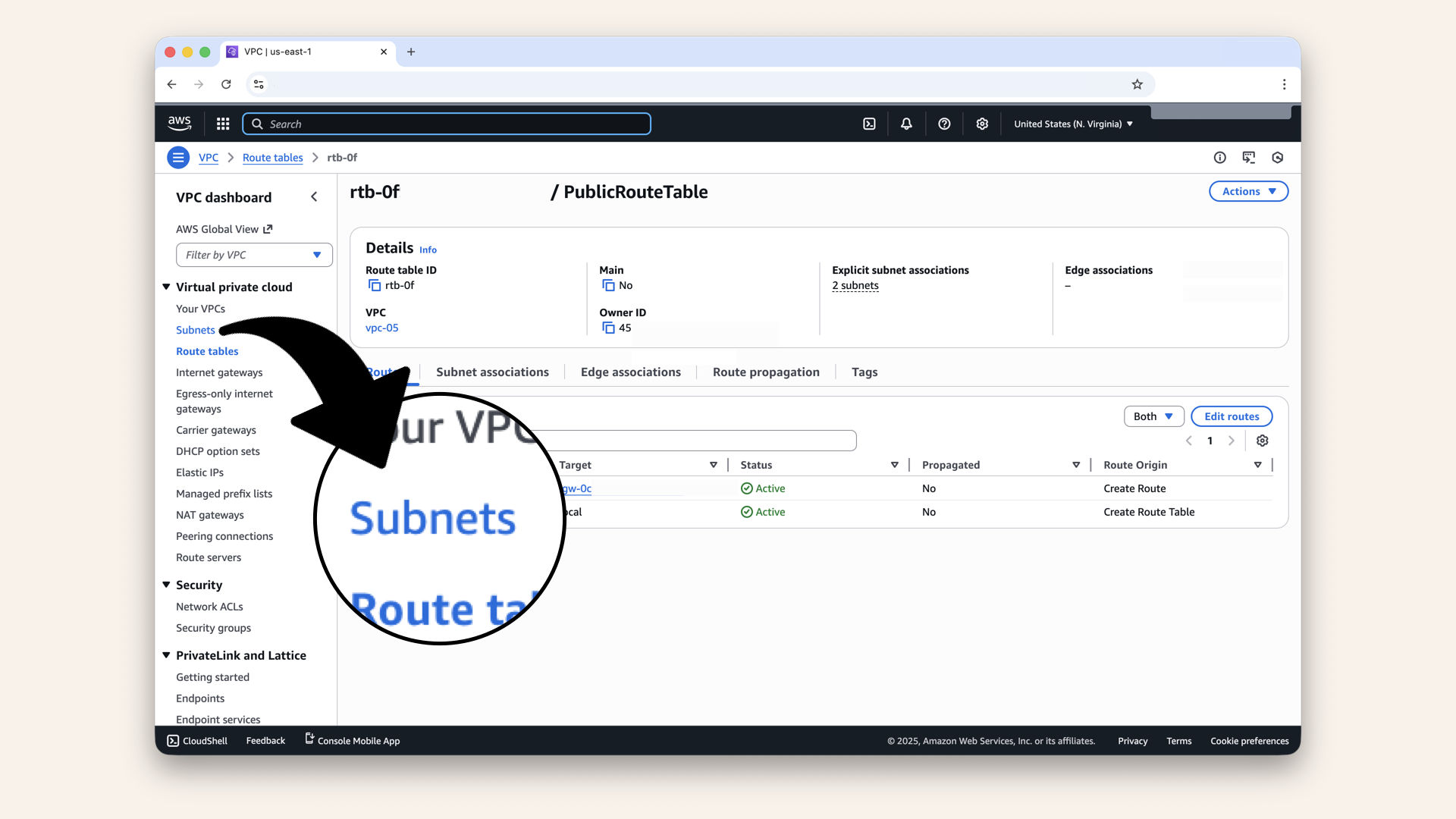
Click Subnets in the left menu
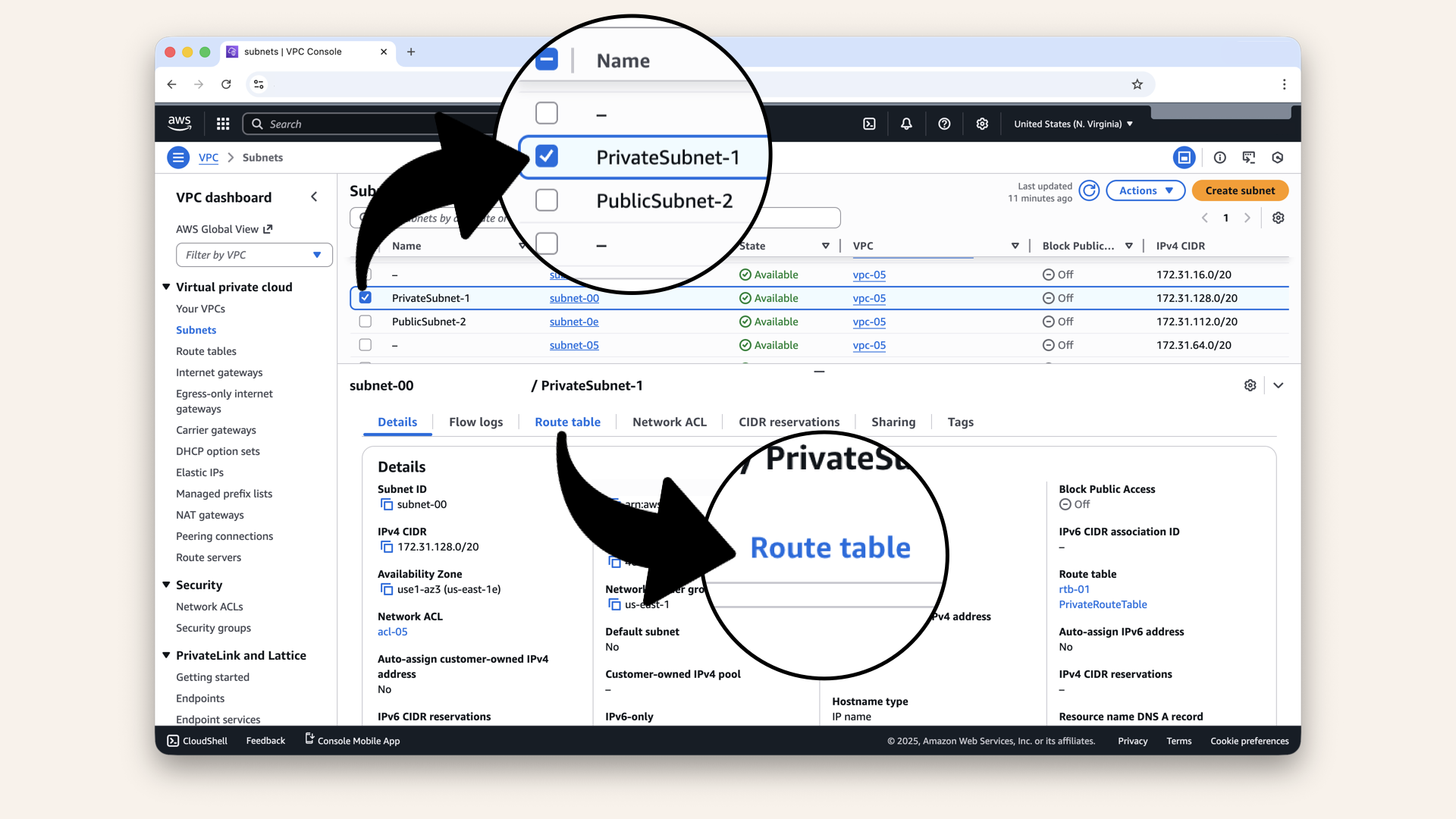
Click on PrivateSubnet-1 and check the Route table tab
Check the Route table tab:

Check the Route table tab
You should see:
| Destination | Target |
|---|---|
172.31.0.0/16 | local |
0.0.0.0/0 | nat-xxxxx (Fargate-NAT-Gateway) |
Perfect ✅
Now click on PublicSubnet-1 and check the Route table tab: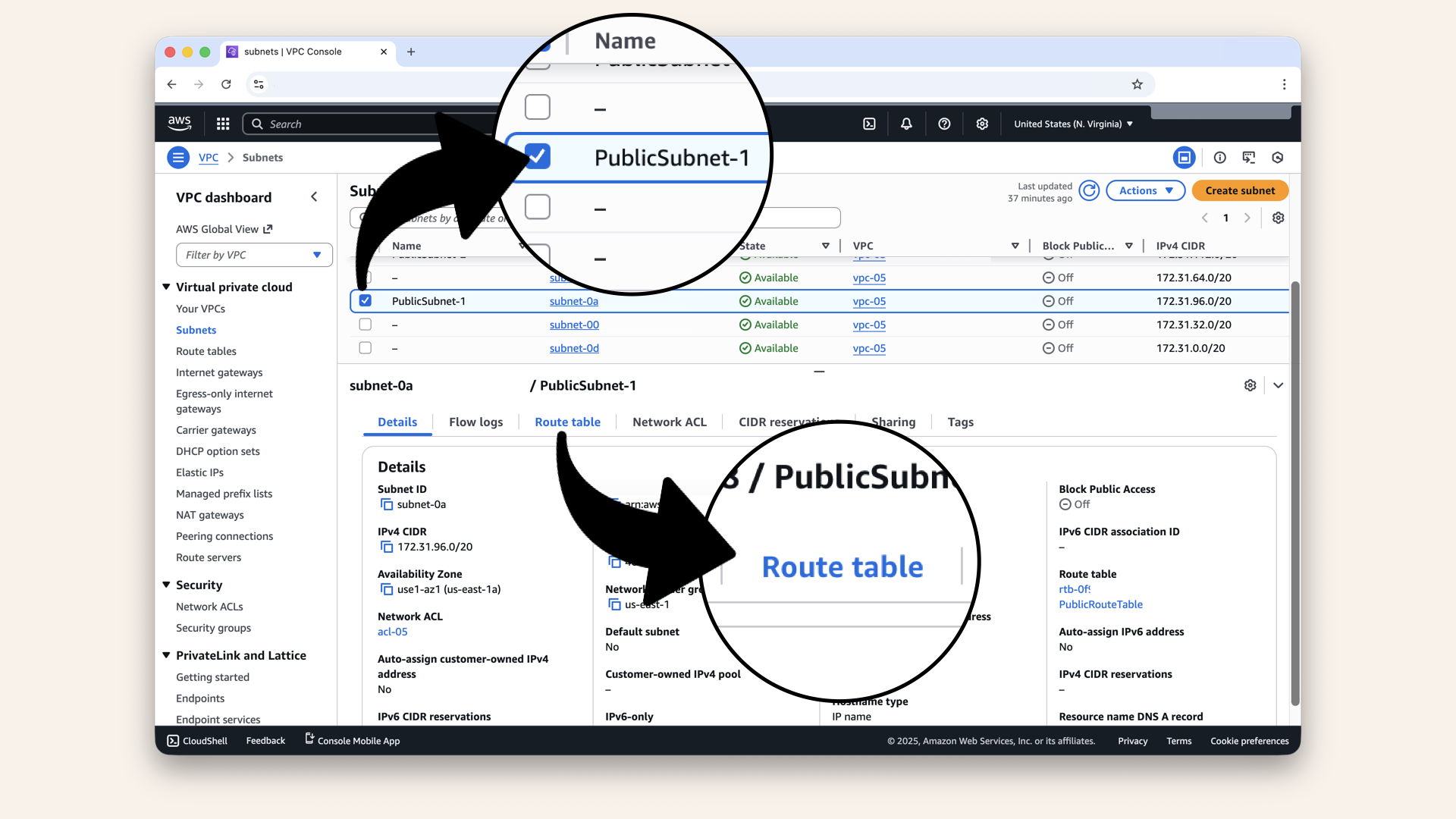
Now click on PublicSubnet-1 and check the Route table tab
Check the Route table tab:
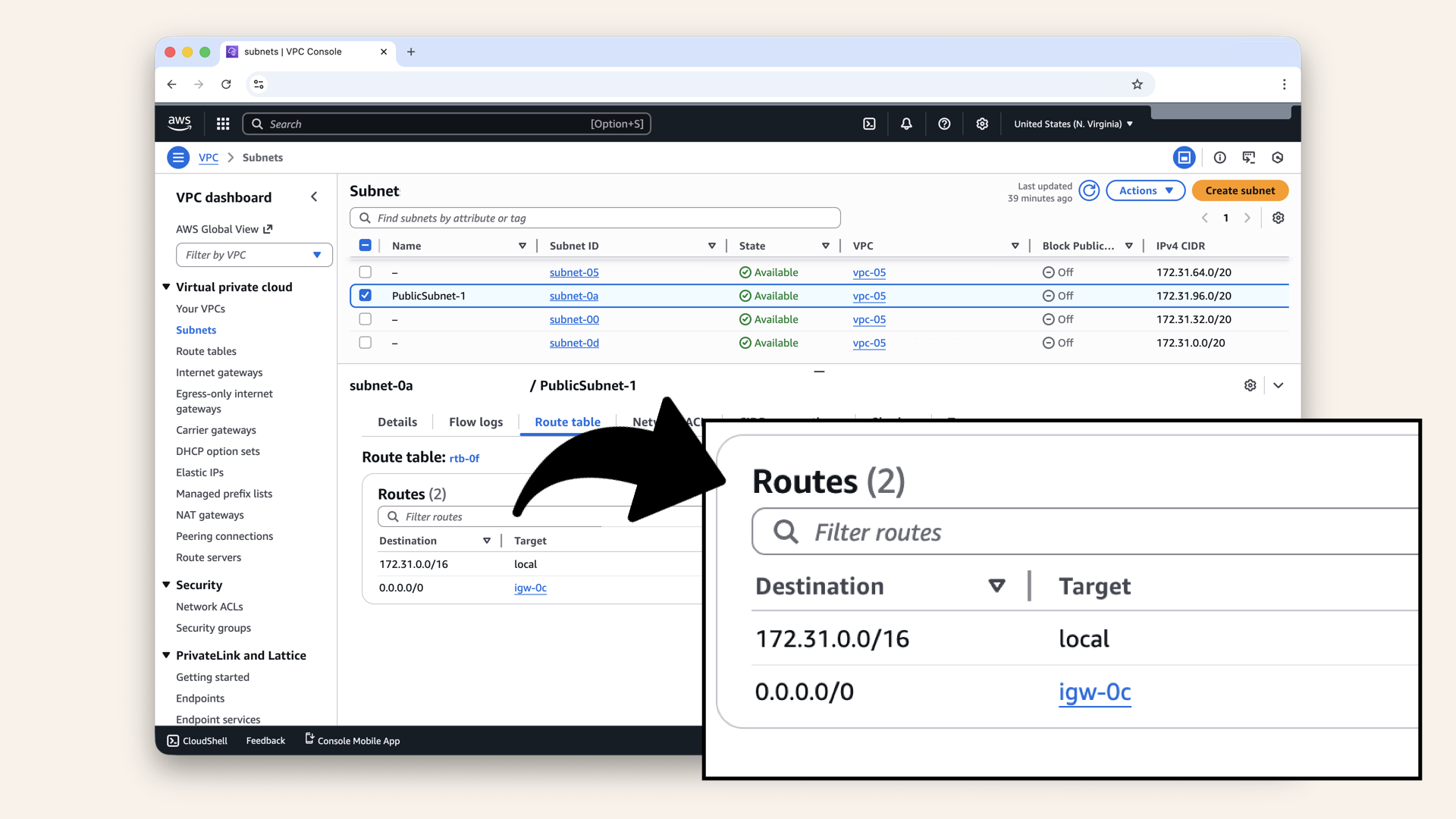
Check the Route table tab
You should see:
| Destination | Target |
|---|---|
172.31.0.0/16 | local |
0.0.0.0/0 | igw-xxxxx (Internet Gateway) |
Perfect ✅
If both look good → your routing is complete.
✅ Today's win
If you completed all steps:
✅ Created PrivateRouteTable with NAT Gateway route
✅ Associated PrivateSubnet-1 & PrivateSubnet-2 with it
✅ Created PublicRouteTable with Internet Gateway route
✅ Associated PublicSubnet-1 & PublicSubnet-2 with it
✅ Verified all connections
You just built the GPS for your networks.
Traffic can now flow:
- Private subnets → NAT → Internet (secure)
- Public subnets → IGW → Internet (exposed)
Tomorrow, we'll add the smart locks (security groups).
Understanding what you built
Route tables are outbound-only. Always.
Your VPC how has complete routing:
PUBLIC TRAFFIC FLOW:
Internet → IGW → PublicSubnet (ALB) → PrivateSubnet (Fargate)

PRIVATE OUTBOUND FLOW:
PrivateSubnet (Fargate) → NAT → IGW → Internet (OpenAI, Twilio)

PRIVATE INBOUND FLOW:
❌ BLOCKED (no route from internet → private subnets)
This is production-ready networking:
✅ Public resources accessible from internet
✅ Private resources can reach internet
✅ Private resources protected from inbound traffic
Route table best practices
1. Name your route tables clearly
✅ PrivateRouteTable / PublicRouteTable
❌ rtb-123abc (default names are confusing)
2. One route per subnet type
- Private subnets →
PrivateRouteTable(NAT) - Public subnets →
PublicRouteTable(IGW)
3. Don't modify the local route
- AWS creates
172.31.0.0/16 → localautomatically - Leave it alone - it's essential for VPC-internal traffic
4. Verify associations
- Each subnet should be associated with exactly one route table
- Check VPC → Subnets to confirm
Common mistakes (and how to avoid them)
❌ Mistake #1: Associating private subnets with public route
Result: Private subnets try to use IGW directly → security issue
Fix: Always verify subnet association
❌ Mistake #2: Forgetting to add 0.0.0.0/0 route
Result: Subnet has no internet access
Fix: Every route table needs an internet route:
0.0.0.0/0 → NATor0.0.0.0/0 → IGW
❌ Mistake #3; Using wrong target
Result: Private subnets can't reach internet, or public subnets aren't accessible
Fix:
- Private subnets → NAT Gateway
- Public subnets → Internet Gateway
Troubleshooting
Private subnets can't reach the internet
Symptoms:
- Container can't pull Docker images
- OpenAI API calls fails
- Timeout errors
Check:
PrivateRouteTablehas route0.0.0.0/0 → nat-xxxxPrivateSubnet-1&PrivateSubnet-2are associated withPrivateRouteTable- NAT Gateway status is "Available"
- NAT Gateway is in a public subnet
PublicRouteTablehas route:0.0.0.0/0 → igw-xxxx
Most common issue: Subnet associated with wrong route table
Public subnet can't be assessed from internet
Symptoms:
- Can't access load balancer
- Can't SSH to EC2 instance
Check:
PublicRouteTablehas route:0.0.0.0/0 → igw-xxxxPublicSubnet-1&PublicSubnet-2are associated withPublicRouteTable- Internet Gateway is attached to VPC
- Resources have public IPs or Elastic IPs
- Security groups allow inbound traffic (we'll cover this on Day 7)
Both private and public subnets have no internet access
Check:
- Internet Gateway exists and is attached to VPC
- Go to VPC → Internet Gateways
- Status should be "attached"
- If detached, select it → click Actions → click Attach to VPC
Route not showing up after adding it
Steps:
- Refresh the page
- Check if you clicked "Save changes"
- Verify you're looking at the correct route table
- If still missing, add the route again
Tomorrows preview
Today: You built the roads (route tables)
Tomorrow (Day 7): We add the smart locks (security groups SG)
What we'll do:
Right now, your routing works, but there's NO security layer.
Tomorrow, well create:
- ALB-SG (for the load balancer)
- Allow inbound: HTTP (80) + HTTPS (443) from anywhere
- Allow outbound: All traffic
- Fargate-SG (for AI containers)
- Allow inbound: Port 6060 from ALB-SG only
- Allow outbound: All traffic
This adds a security layer:
- Only the load balancer can talk to containers
- Containers can't be accessed directly from internet
- Even if someone finds your container's IP, they can't connect
Think of security groups like smart locks on each building's door:
- Each door has rules for who can enter
- They decide who's allowed in and through which door
What we learned today
1. What route tables are
GPS for network traffic, tells packets where to go
Route tables = GPS for network traffic, tells packets where to go
2. How routes work
Destination + Target = "Where are you going? Use this path"
3. What 0.0.0.0/0 means
All internet traffic (everywhere outside the VPC)
4. Public vs Private routing
- Public → Internet Gateway (bidirectional)
- Private → NAT Gateway (one-way out)
5. Subnet association
Each subnet needs to be associated with a route table
The foundation is almost complete
Days 1-2: Local development (your laptop) ✅
Day 3: VPC (your territory) ✅
Day 4: Subnets (front yards vs back yards) ✅
Day 5: NAT Gateway (back gate) ✅
Day 6: Route Tables (the roads) ← YOU ARE HERE ✅
Day 7: Security Groups (smart locks on each building)
Day 8: Test Your Network
Days 9-12: Load Balancer & DNS
Days 13-17: Deployment (Docker, ECS, production!)
Days 18-24: Features (API, frontend, polish)
Share your progress
Got your routes working? Share it!
Twitter/X:
"Day 6: Built route tables - the GPS for my VPC. Private subnets now know to use NAT Gateway, public subnets use Internet Gateway. Traffic is flowing! Following @norahsakal's advent calendar 🎄"
LinkedIn:
"Day 6 of building AI calling agents: Created route tables to connect everything. My private subnets can now reach OpenAI securely while staying hidden from the internet. Networking is finally clicking!"
Tag me! I want to celebrate your progress! 🎉
Want the full course?
But if you want:
✅ Complete codebase (one clean repo)
✅ Complete walkthroughs
✅ Support when stuck
✅ Production templates
✅ Advanced features
Join the waitlist for the full course (launching February 2026):
Let's chat about your use case!
Schedule a free call ↗ - no pitch, just two builders talking.
Tomorrow: Day 7 - Security Groups (Add the smart locks) 🔐
Read Day 7 ↗
See you then!
— Norah