Day 13: Build your secure backend trigger


How to build a secure Lambda backend with API Gateway and Cognito authorization to trigger AI calls
Why you need a secure trigger
Day 12: You build a protected frontend
Today: We build the secure backend that triggers calls
Here's the critical security issue:
Remember your ALB endpoint we built on Day 9 ↗?
https://ai-caller.yourdomain.com
If we add a /make-call endpoint directly to Fargate:
POST https://ai-caller.yourdomain.com/make-call
→ Publicly accessible
→ Anyone can trigger calls
→ Could rack up *huge* OpenAI/Twilio bills
→ Even with frontend auth, the endpoint is exposed
This is not acceptable.
Think of it like your pool house control panel:
Without backend protection:
- The control panel inside your pool house is exposed
- Anyone who gets in can pull the "Make Call" lever
- Each pull racks up Twilio and OpenAI charges
- You get a massive bill
With Lambda + API Gateway:
- A locked cover protects the control panel (API Gateway)
- The lock checks your invite before opening (Cognito Authorizer)
- Only an authorized operator can pull levers (Lambda)
- No valid token = no access to the controls
Solution: Lock the control panel with Lambda + API Gateway + Cognito Authorizer
API Gateway = locked cover on the control panel inside your pool house:
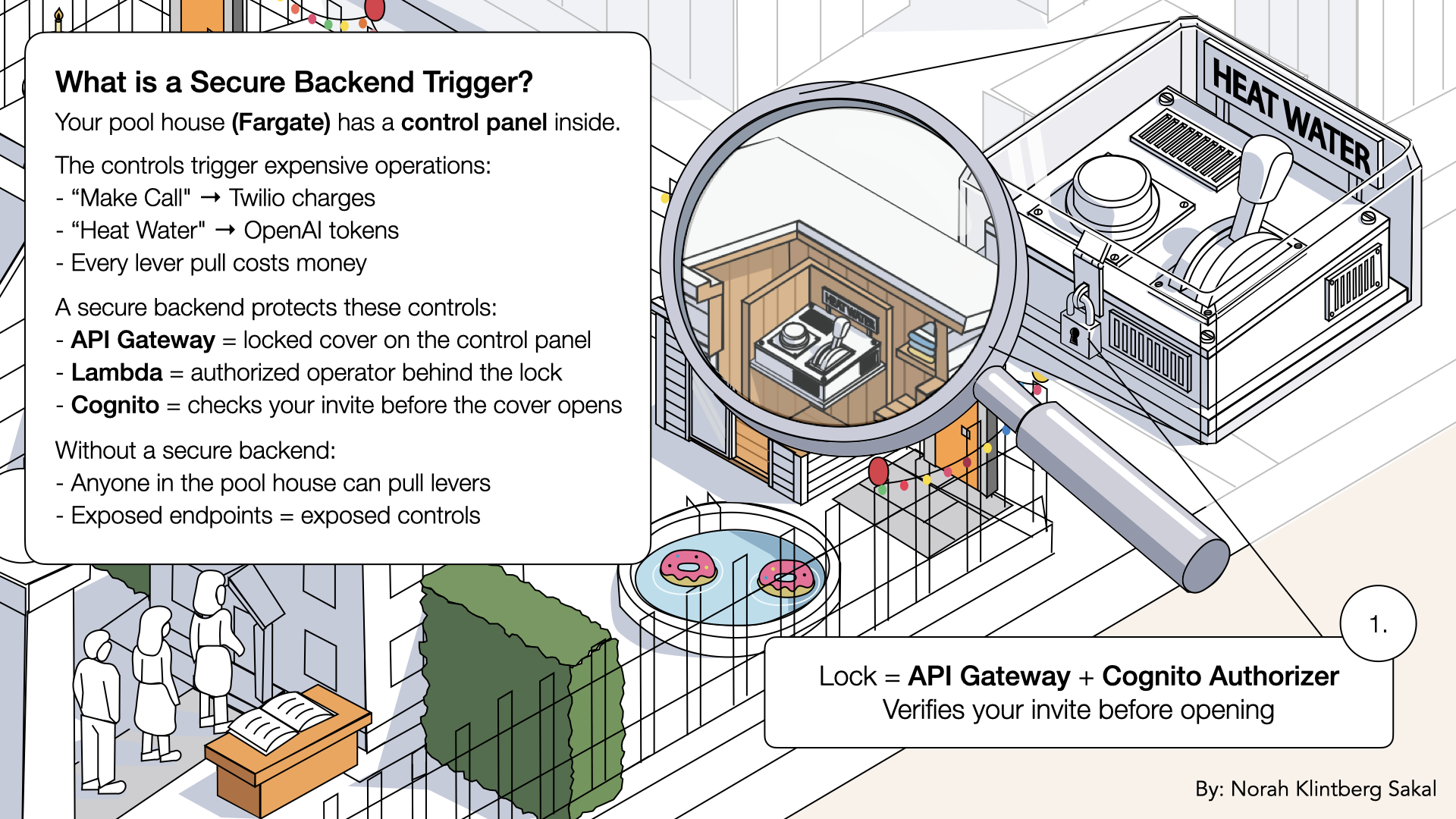
API Gateway = locked cover on the control panel inside your pool house
The Lambda function isn't publicly accessible. API Gateway checks your Cognito token before letting any requests through. Only authenticated users can trigger calls.
By the end of today, you'll have:
✅ Lambda function that triggers calls
✅ API Gateway with Cognito authorizer
✅ Frontend connected to secure endpoint
✅ Test call triggered (mock response for now)
✅ No public exposure of call trigger
Let's build your secure backend 🔐
What you'll build today
A complete secure trigger system:
| Component | Technology | Purpose |
|---|---|---|
| Function | AWS Lambda | Triggers AI calls |
| API Layer | API Gateway | HTTP endpoint + routing |
| Auth | Cognito Authorizer | Validates JWT tokens |
| Deployment | AWS SAM | Infrastructure as code |
| Build | CloudShell | No local AWS setup needed |
Security flow:
Tomorrow: Lambda will actually trigger Fargate. Today we prove the security layer works.
What you'll learn
- Why Lambda is more secure than public endpoints
- How API Gateway protects your backend
- How Cognito Authorizers validate JWTs
- How to deploy with AWS SAM
- How to use CloudShell (no local AWS setup)
- How to connect frontend to authenticated API
But if you want:
✅ Complete codebase (one clean repo)
✅ Complete walkthroughs
✅ Support when stuck
✅ Production templates
✅ Advanced features
Join the waitlist for the full course (launching February 2026):
Building something with AI calling?
Let's chat about your use case!
Schedule a free call ↗ - no pitch, just two builders talking.
Time required
30-40 minutes
- SAM project setup: 10 min
- Lambda + API Gateway: 10 min
- Cognito Authorizer: 10 min
- Frontend connection: 10 min
Prerequisites
✅ Completed Day 3 (VPC) ↗
✅ Completed Day 4 (Subnets) ↗
✅ Completed Day 5 (NAT Gateway) ↗
✅ Completed Day 6 (Route Tables) ↗
✅ Completed Day 7 (Security Groups) ↗
✅ Completed Day 8 (prove it works) ↗
✅ Completed Day 9 (Application Load Balancer) ↗
✅ Completed Day 10 (Custom Domain) ↗
✅ Completed Day 11 (SSL Certificate) ↗
✅ Completed Day 12 (Deploy your frontend) ↗
✅ Cognito User Pool from Day 12 ↗
✅ Node.js installed (v18+)
✅ Access to AWS Console
No local AWS CLI setup needed
We'll build locally, then deploy from AWS CloudShell. This saves you from configuring IAM credentials on your machine.
Understanding the architecture (3-minute primer)
Why not just add an endpoint to Fargate?
The problem with public endpoints:
Frontend → ALB → Fargate /make-call
                    ↓
              Anyone can call this directly!
              curl https://ai-caller.yourdomain.com/make-call
              ↓
              💸💸💸 Massive bill
Even if your frontend requires login, the Fargate endpoint is still public. Bad actors can bypass your frontend entirely.
Why Lambda + API Gateway is secure
Frontend → API Gateway → Lambda → (tomorrow) Fargate
              ↓
         Cognito checks JWT
              ↓
         Invalid? → 401 Unauthorized
         Valid? → Lambda executes
Key differences:
| Approach | Public Endpoint? | Auth Check |
|---|---|---|
| Fargate direct | ✅ Yes, ALB is public | ❌ None (or DIY) |
| Lambda + API GW | ❌ No direct access | ✅ Built-in Cognito |
Lambda is not publicly accessible.
It can only be invoked through API Gateway (which checks auth) or other AWS services.
What is AWS SAM?
SAM = Serverless Application Model
It's a framework for building serverless apps:
- Defines Lambda functions
- Creates API Gateway
- Sets up IAM roles
- All in one
template.yamlfile
Think of it like Docker Compose for serverless:
docker-compose.yaml→ defines containerstemplate.yaml→ defines Lambda + API Gateway
What is CloudShell?
CloudShell = AWS terminal in your browser
Benefits:
✅ Pre-authenticated (uses your console login)
✅ AWS CLI pre-installed
✅ SAM CLI pre-installed
✅ No local IAM setup needed
We'll build locally, upload to CloudShell, deploy from there.
Step 1: Install SAM CLI locally
Before we create our backend, we need to install SAM CLI.
Follow the installation guide for your OS: SAM CLI installation guide ↗ Run this in your terminal to verify installation:sam --version
Expected output:
SAM CLI, version 1.x.x
Come back here once SAM CLI is installed.
Step 2: Create the backend project
Navigate to your ai-caller project folder:
cd ai-caller
Your project structure should look like:
ai-caller/
└── frontend/          # Day 12 frontend
ai-callerMake sure you're in ai-caller root before creating the backend project.
- Mac/Linux
- Windows
pwd
cd
✅ You should see the path /ai-caller
mkdir backend
cd backend
Your project structure should now look like:
ai-caller/
├── frontend/          # Day 12 frontend
└── backend/           # New folder
Step 2.1: Create template.yaml
This is the SAM configuration file that defines you Lambda and API Gateway.
Create in the backend folder:ai-caller/
├── frontend/ # Day 12 frontend
└── backend/
└── template.yaml <---- Create this file
template.yaml in your editor.
Add this configuration to template.yaml:
AWSTemplateFormatVersion: '2010-09-09'
Transform: AWS::Serverless-2016-10-31
Description: AI Caller Backend - Secure trigger for AI calling agent

Parameters:
  CognitoUserPoolArn:
    Type: String
    Description: ARN of the Cognito User Pool from Day 12

Globals:
  Function:
    Timeout: 30
    Runtime: python3.9
    MemorySize: 256

Resources:
  # Lambda Function
  TriggerCallFunction:
    Type: AWS::Serverless::Function
    Properties:
      CodeUri: src/
      Handler: app.lambda_handler
      Description: Triggers AI calling agent
      Events:
        TriggerCall:
          Type: Api
          Properties:
            Path: /trigger-call
            Method: post
            RestApiId: !Ref CallApi

  # API Gateway with Cognito Authorizer
  CallApi:
    Type: AWS::Serverless::Api
    Properties:
      StageName: prod
      Cors:
        AllowMethods: "'GET,POST,OPTIONS'"
        AllowHeaders: "'Content-Type,Authorization,X-Amz-Date,X-Api-Key,X-Amz-Security-Token'"
        AllowOrigin: "'*'"
      Auth:
        DefaultAuthorizer: CognitoAuthorizer
        AddDefaultAuthorizerToCorsPreflight: false
        Authorizers:
          CognitoAuthorizer:
            UserPoolArn: !Ref CognitoUserPoolArn

  # Override auth for health endpoint (public)
  HealthApiMethod:
    Type: AWS::Serverless::Function
    Properties:
      CodeUri: src/
      Handler: app.health_handler
      Description: Health check endpoint
      Events:
        HealthCheck:
          Type: Api
          Properties:
            Path: /health
            Method: get
            RestApiId: !Ref CallApi
            Auth:
              Authorizer: NONE

Outputs:
  ApiUrl:
    Description: API Gateway endpoint URL
    Value: !Sub "https://${CallApi}.execute-api.${AWS::Region}.amazonaws.com/prod"
  TriggerCallEndpoint:
    Description: Trigger call endpoint (requires auth)
    Value: !Sub "https://${CallApi}.execute-api.${AWS::Region}.amazonaws.com/prod/trigger-call"
  HealthEndpoint:
    Description: Health check endpoint (public)
    Value: !Sub "https://${CallApi}.execute-api.${AWS::Region}.amazonaws.com/prod/health"
Deep dive
Parameter:
CognitoUserPoolArn: Your User Pool from Day 12 ↗ (passed during deploy)
Resources:
TriggerCallFunction: Lambda function that handles call triggersCallApi: API Gateway with Cognito authorizer built-inCognitoAuthorizer: Validates JWT tokens from your Cognito User Pool
Key security features:
DefaultAuthorizer: CognitoAuthorizer→ All endpoints require auth by defaultAuth: Authorizer: NONEon health → Health check is public (for monitoring)- CORS configured for frontend requests
Step 2.2: Create the Lambda function
Let's create the source directory src.
backend:
mkdir src
Your project structure should now look like:
ai-caller/
├── frontend/           # Day 12 frontend
└── backend/
    ├── template.yaml
    └── src             # New folder
src folder:
ai-caller/
├── frontend/           # Day 12 frontend
└── backend/
    ├── template.yaml
    └── src
        └── app.py      <-- Create this file
app.py:
# src/app.py
import json
import os

def json_response(body, status_code=200):
    """Return a properly formatted API Gateway response."""
    return {
        "statusCode": status_code,
        "headers": {
            "Content-Type": "application/json",
            "Access-Control-Allow-Origin": "*",
            "Access-Control-Allow-Headers": "Content-Type,Authorization",
            "Access-Control-Allow-Methods": "GET,POST,OPTIONS"
        },
        "body": json.dumps(body)
    }

def health_handler(event, context):
    """Public health check endpoint."""
    return json_response({"status": "healthy", "service": "ai-caller-backend"})

def lambda_handler(event, context):
    """
    Main handler for triggering AI calls.

    This endpoint is protected by Cognito Authorizer.
    Only authenticated users can reach this code.
    """

    # Get the authenticated user info from Cognito
    try:
        claims = event.get('requestContext', {}).get('authorizer', {}).get('claims', {})
        user_email = claims.get('email', 'unknown')
        user_sub = claims.get('sub', 'unknown')
    except Exception:
        user_email = 'unknown'
        user_sub = 'unknown'

    # Parse the request body
    try:
        body = json.loads(event.get('body', '{}'))
    except json.JSONDecodeError:
        return json_response({"error": "Invalid JSON in request body"}, 400)

    # Get phone number from request
    phone_number = body.get('phone_number')

    if not phone_number:
        return json_response({"error": "phone_number is required"}, 400)

    # Validate phone number format (basic E.164 check)
    if not phone_number.startswith('+') or len(phone_number) < 10:
        return json_response({
            "error": "Invalid phone number format. Use E.164 format: +1234567890"
        }, 400)

    # For now, return a mock response
    # Tomorrow (Day 14): This will actually trigger Fargate!

    print(f"Call trigger requested by user: {user_email} (sub: {user_sub})")
    print(f"Target phone number: {phone_number}")

    return json_response({
        "success": True,
        "message": "Call trigger received! (Mock response - Fargate connection coming Day 14)",
        "data": {
            "phone_number": phone_number,
            "triggered_by": user_email,
            "status": "pending_fargate_integration"
        }
    })
Deep dive
health_handler:
- Public endpoint for monitoring
- ALB and other services can check if Lambda is healthy
lambda_handler:
- Protected by Cognito (only authenticated users reach this)
- Extracts user info from JWT claims
- Validated phone number format
- Returns mock response (tomorrow we connect Fargate)
Security note:
- The Cognito Authorizer validates the JWT before this code runs
- If the token is invalid, API Gateway returns 401 immediately
- your Lambda code only runs for authenticated users
Step 2.3: Create requirements.txt
Create in thesrc folder:
ai-caller/
├── frontend/                   # Day 12 frontend
└── backend/
    ├── template.yaml
    └── src
        ├── app.py
        └── requirements.txt     <-- Create this file
# Dependencies for AI Caller Backend
# boto3 is included in Lambda runtime by default
# We'll add more when connecting to Fargate (Day 14)
Step 3: Get your Cognito User Pool ARN
Before deploying, you need your Cognito User Pool ARN from Day 12.
Open the AWS Console ↗ In the search bar at the top, type cognito and click Cognito from the dropdown: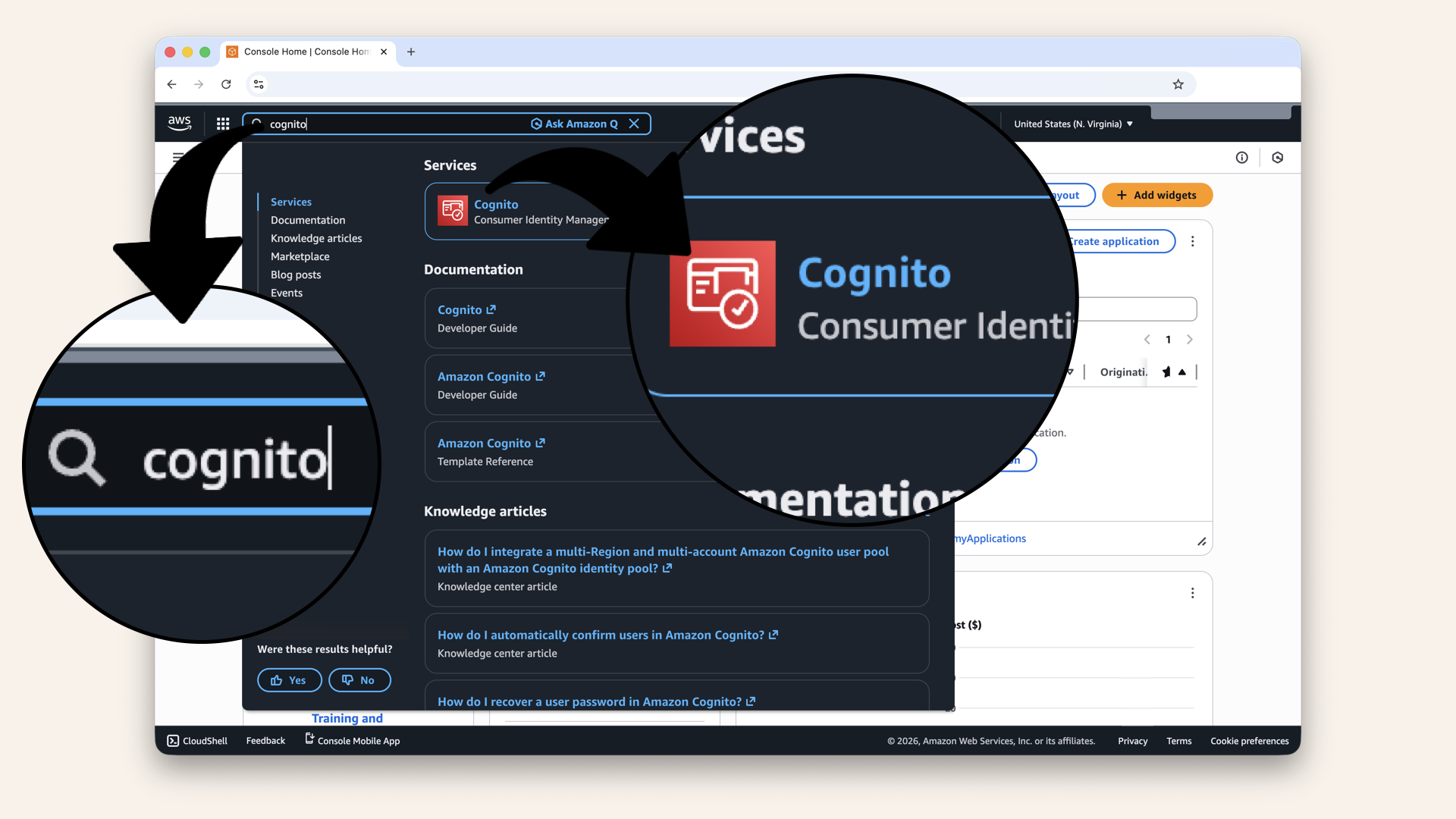
In the search bar at the top, type cognito and click Cognito from the dropdown
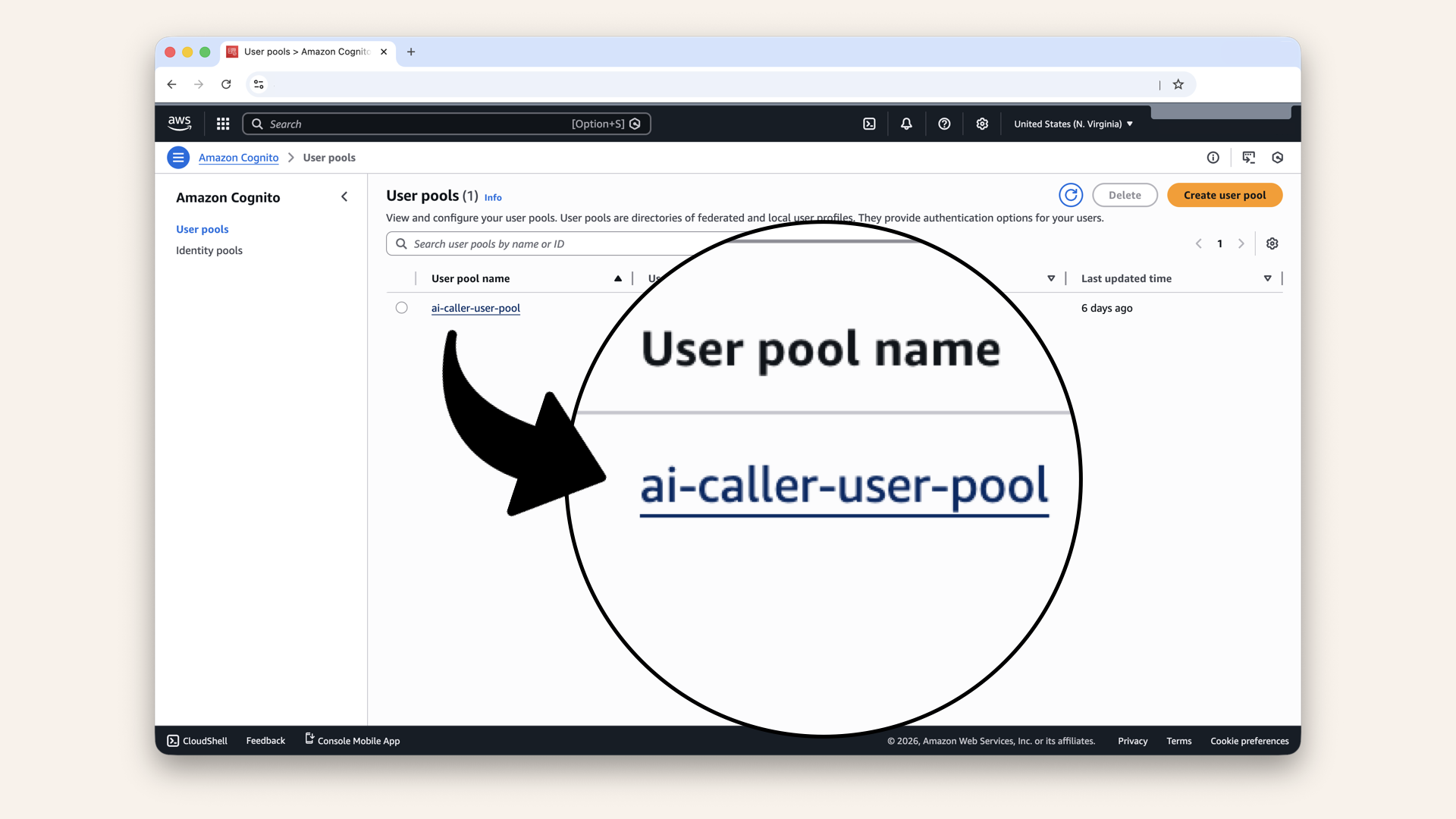
You'll see your user pool, click on it
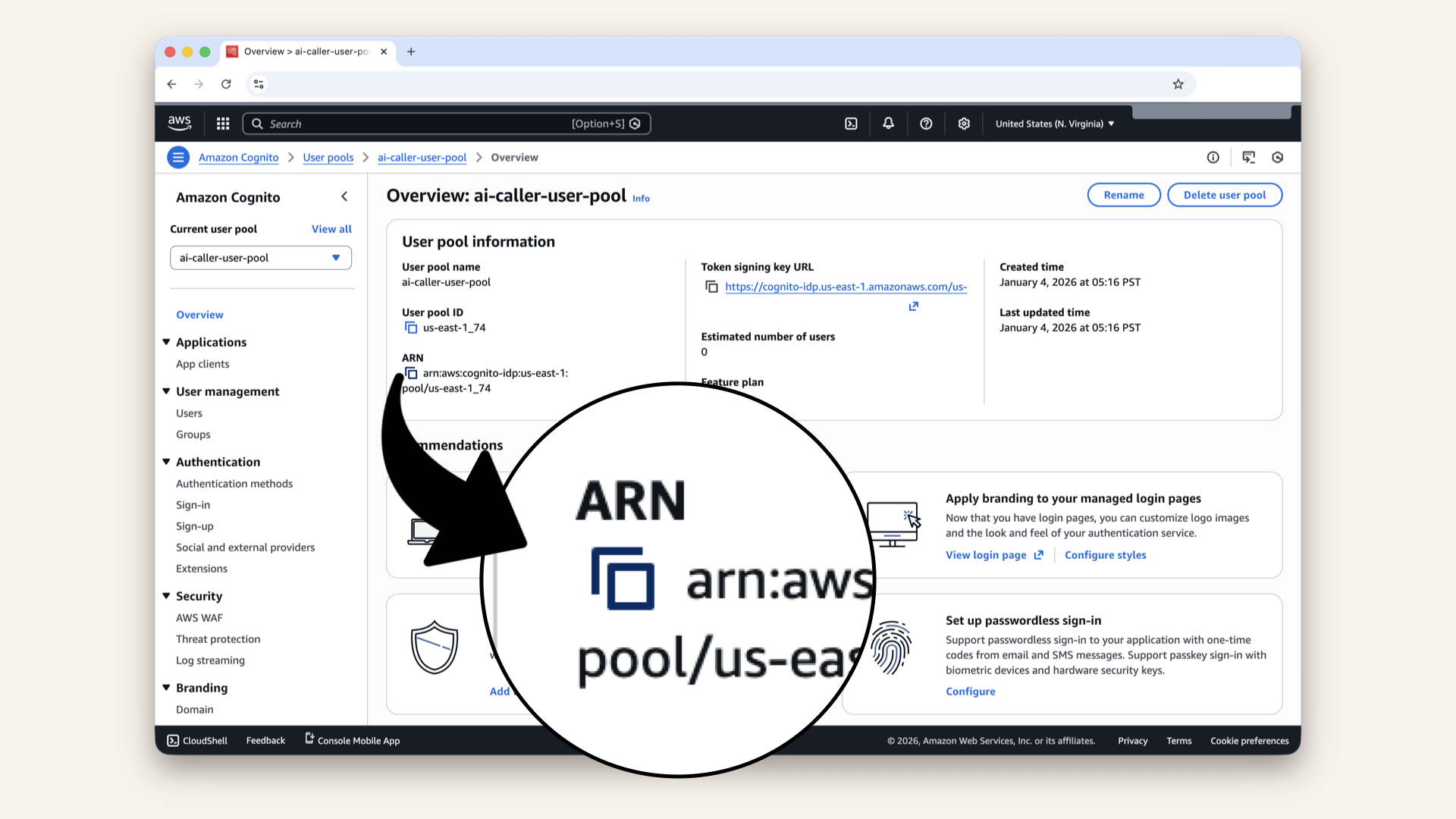
Click the copy icon to copy your user pool ARN
Step 4: Zip your project for CloudShell
We'll deploy from CloudShell to avoid local AWs credential setup.
Make sure you're in thebackend folder:
pwd
# Should show: .../ai-caller/backend
Your project structure should look like:
ai-caller/
├── frontend/                   # Day 12 frontend
└── backend/
    ├── template.yaml
    └── src/
        ├── app.py
        └── requirements.txt
Step 4.1: Zip project
- macOS/Linux
- Windows (PowerShell)
cd ..
zip -r backend.zip backend/
cd ..
Compress-Archive -Path backend -DestinationPath backend.zip
You should now have backend.zip in your ai-caller folder:
ai-caller/
├── frontend/           # Day 12 frontend
├── backend
│   ├── main.py
│   ├── src
│   │   ├── app.py
│   │   └── requirements.txt
│   └── template.yaml
└── backend.zip         <--- New zip
Step 5: Deploy from CloudShell
CloudShell saves you from setting up IAM users and configuring AWS CLI locally.
Deep dive
Without CloudShell, you'd need to:
- Create an IAM user in AWS Console
- Generate access keys
- Install AWS CLI locally
- Run
aws configureand paste your keys
With CloudShell:
✅ Already authenticated (uses your console session)
✅ AWS CLI pre-installed
✅ SAM CLI pre-installed
✅ No keys to manage
Is CloudShell production-ready?
For learning and small deployments: absolutely
For production CI/CD pipelines: you'll want proper IAM roles and automated deployments (GitHub actions etc.).
Step 5.1: Open CloudShell
Open the AWS Console ↗ Click the CloudShell icon in the top navigation bar or left bottom menu: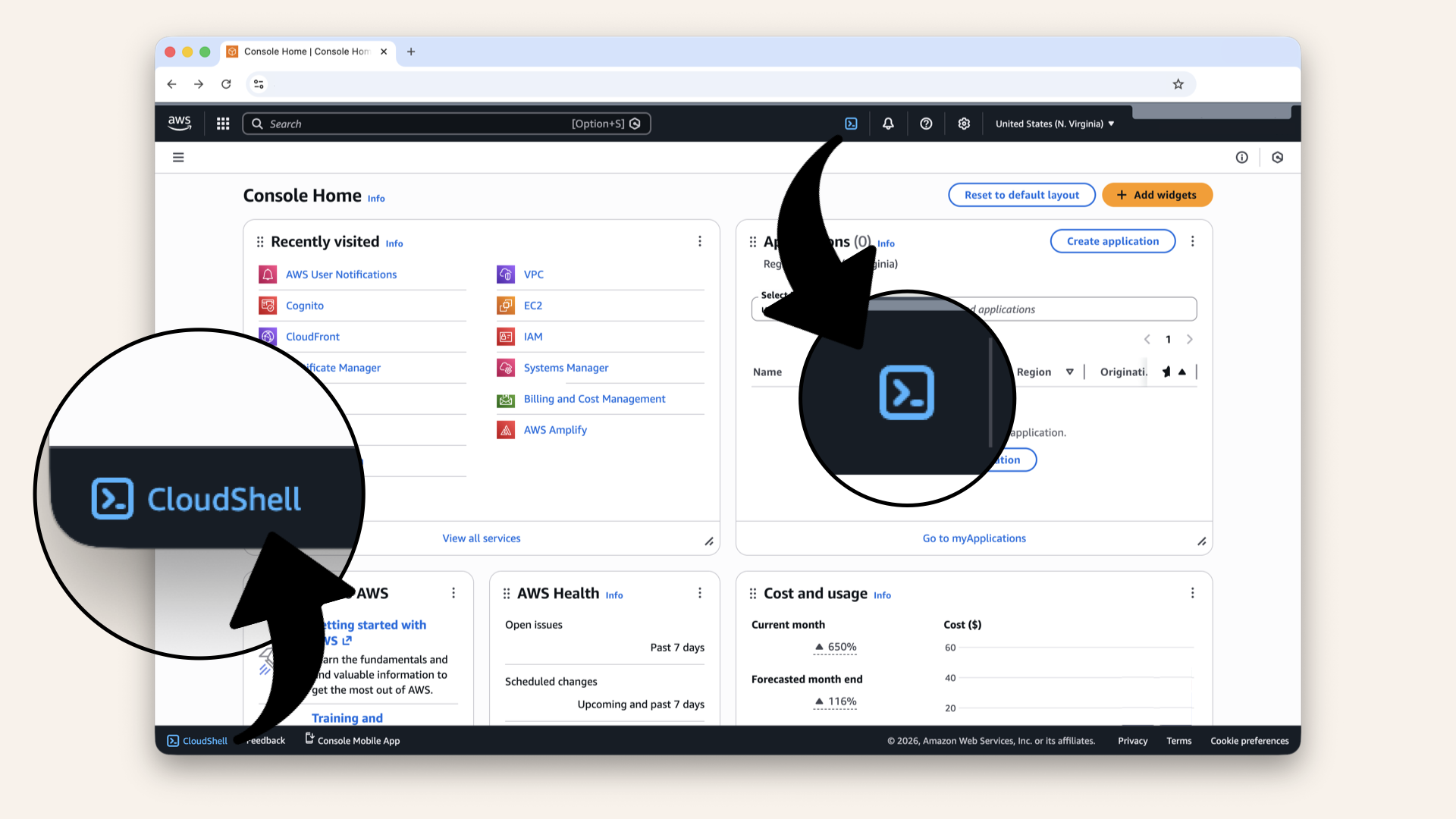
Click the CloudShell icon in the top navigation bar or left bottom menu
This opens a browser terminal with AWS CLI + SAM pre-installed and already authenticated:
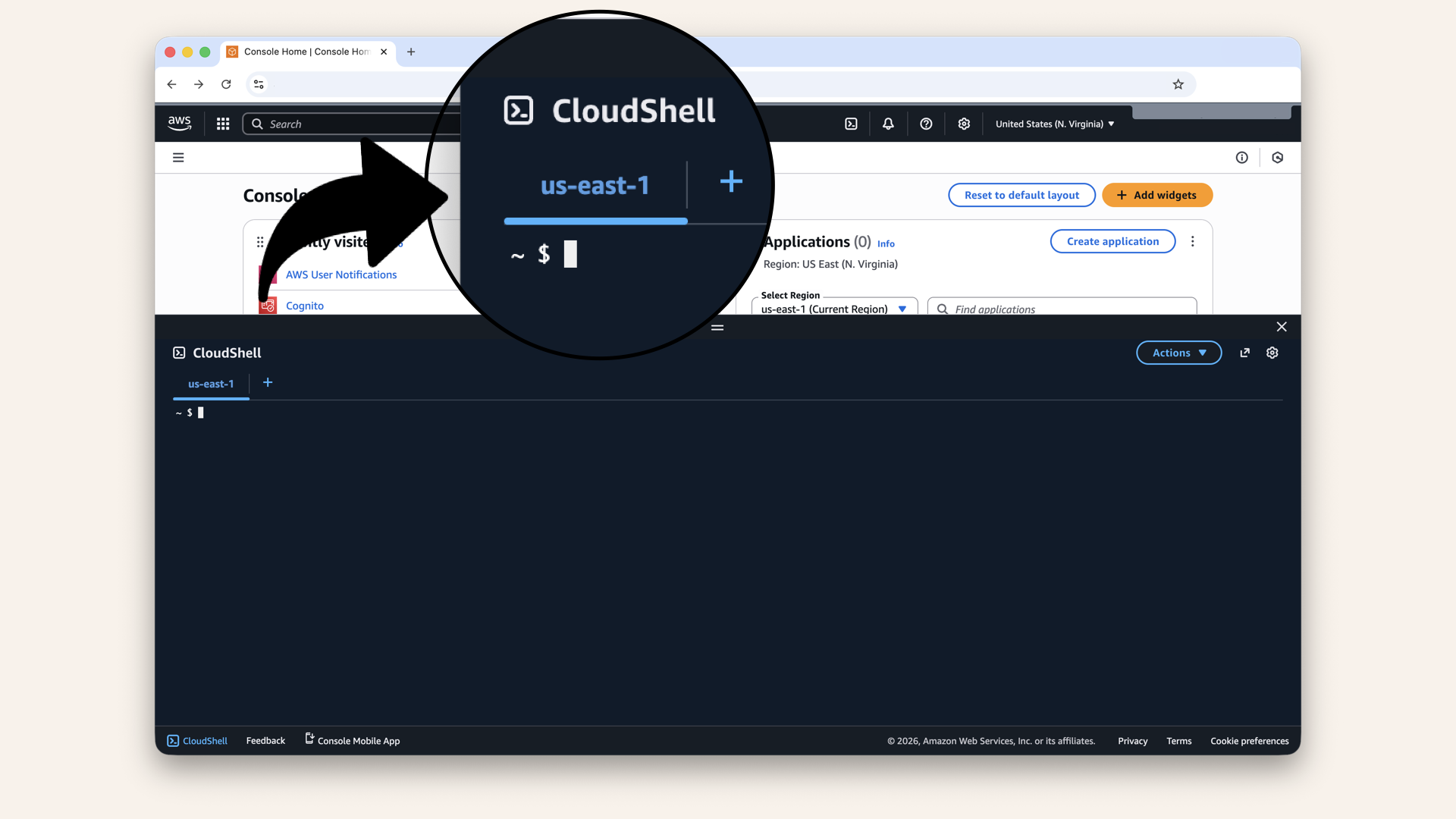
This opens a browser terminal with AWS CLI + SAM pre-installed and already authenticated
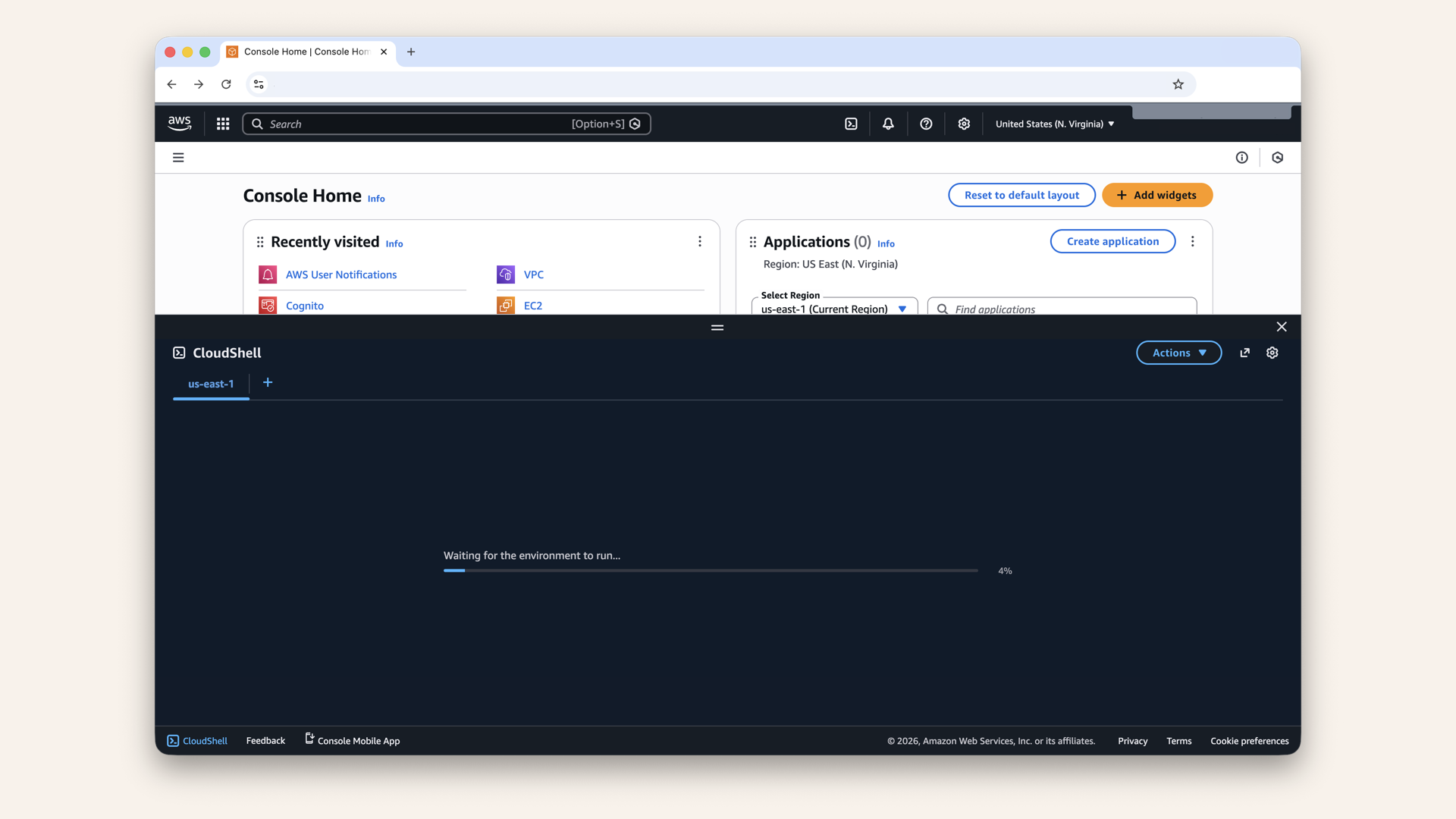
Wait for CloudShell to initiate (first time takes ~30 seconds)
Step 5.2: Upload your zip file
In CloudShell, click Actions then click Upload file: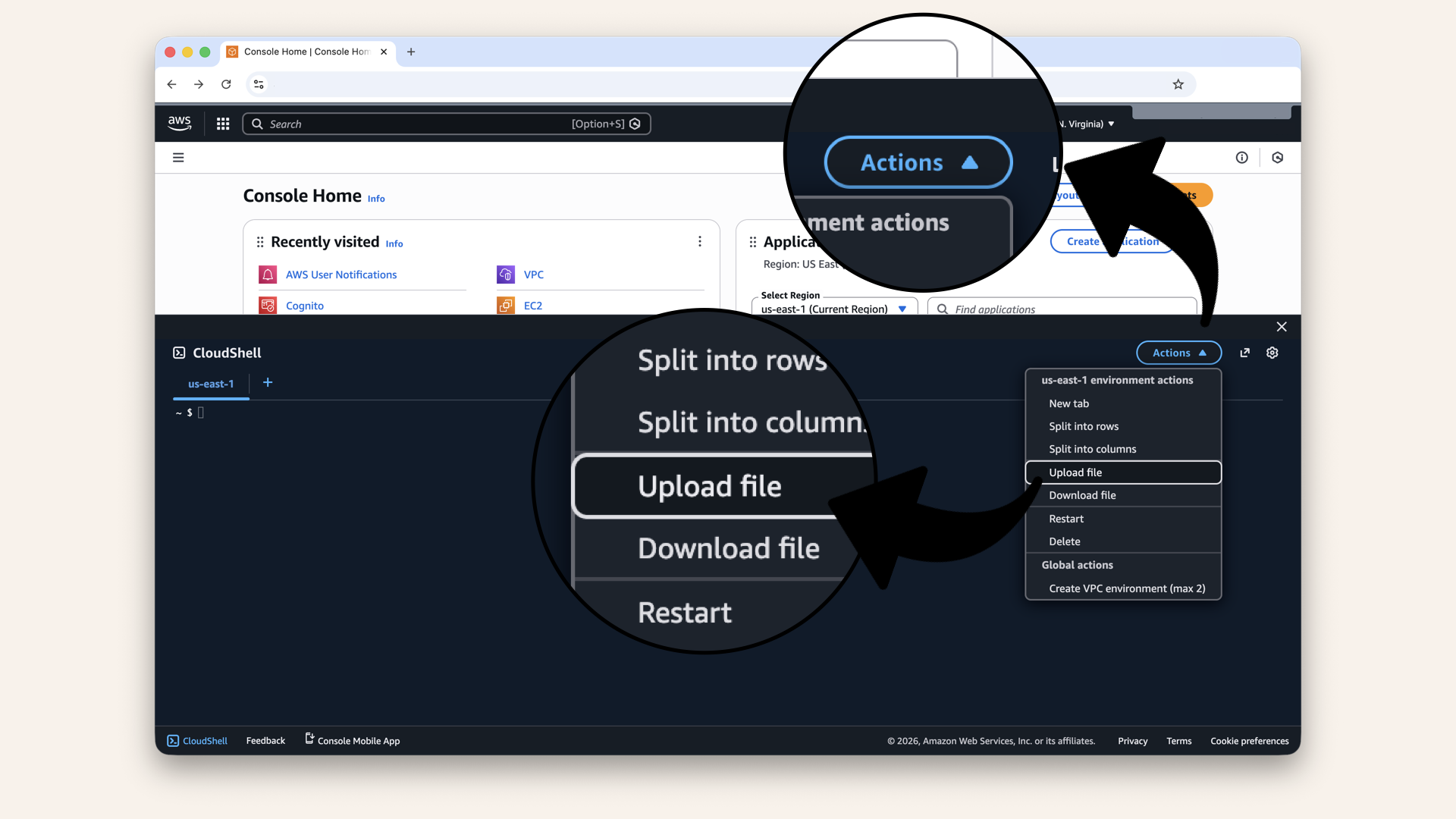
In CloudShell, click Actions then click Upload file
backend.zip file and click Open:
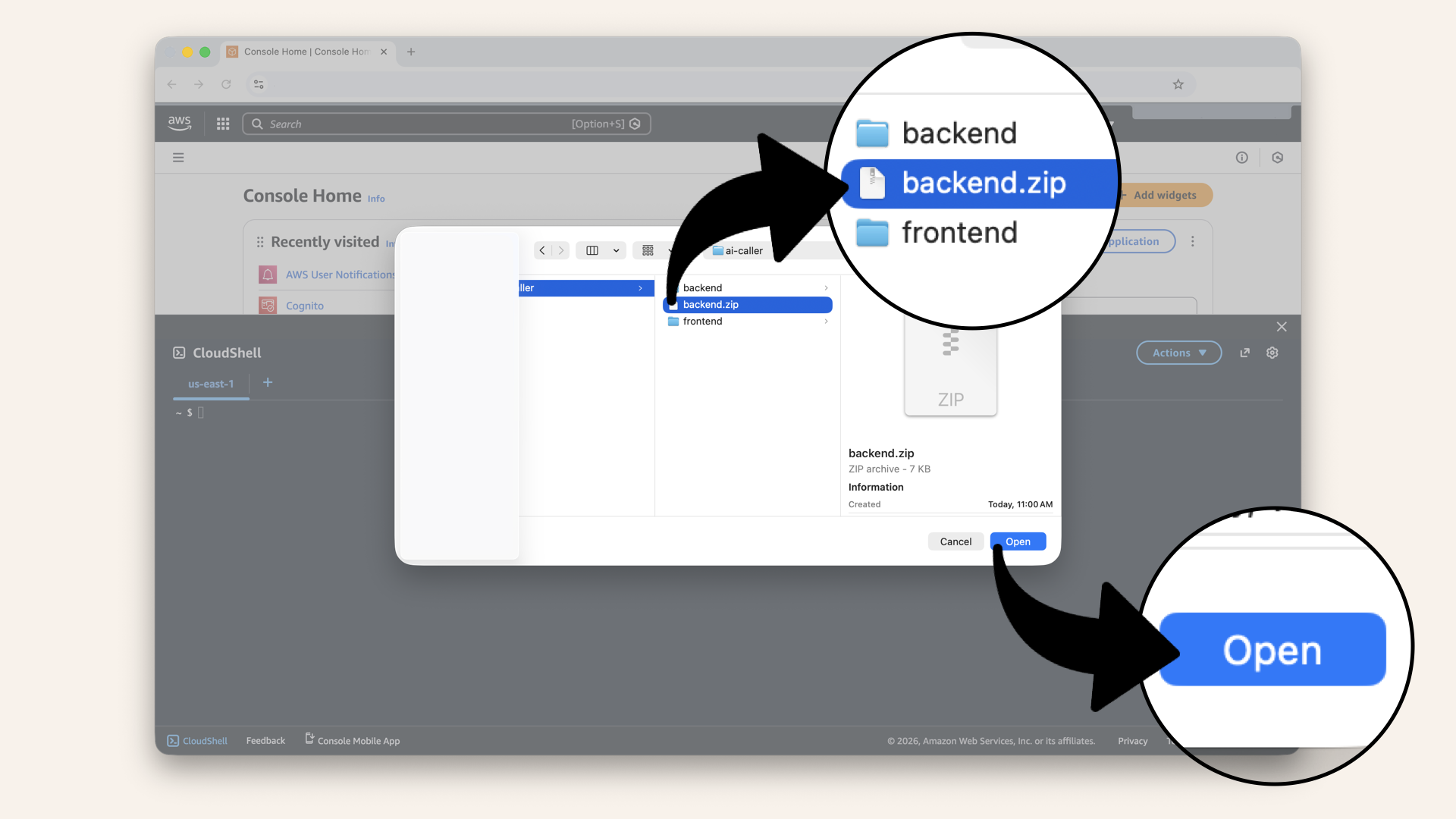
Select your backend.zip file and click Open
You'll see CloudShell upload backend.zip:
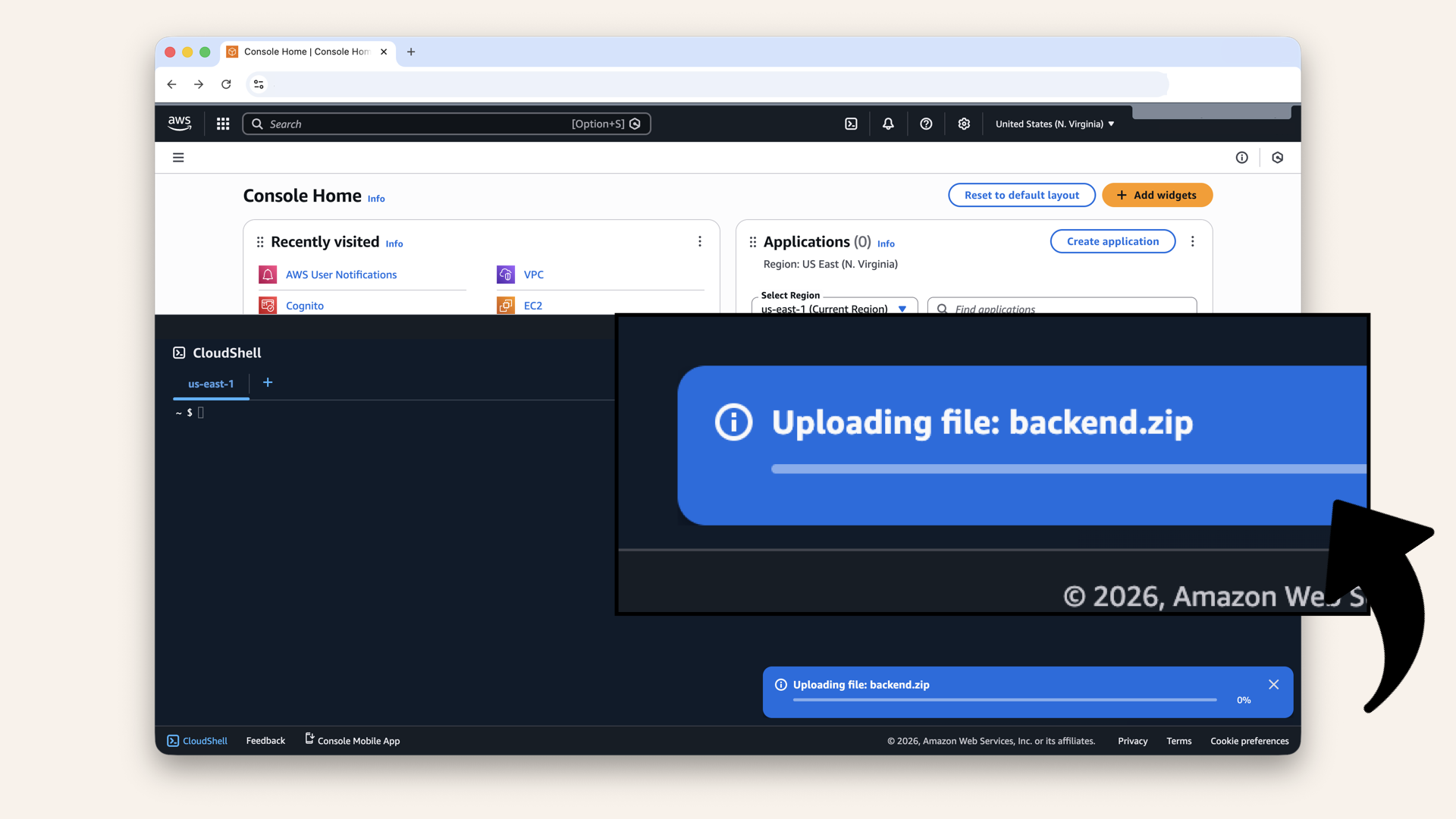
You'll see CloudShell upload backend.zip
✅ You should see "File upload successful":
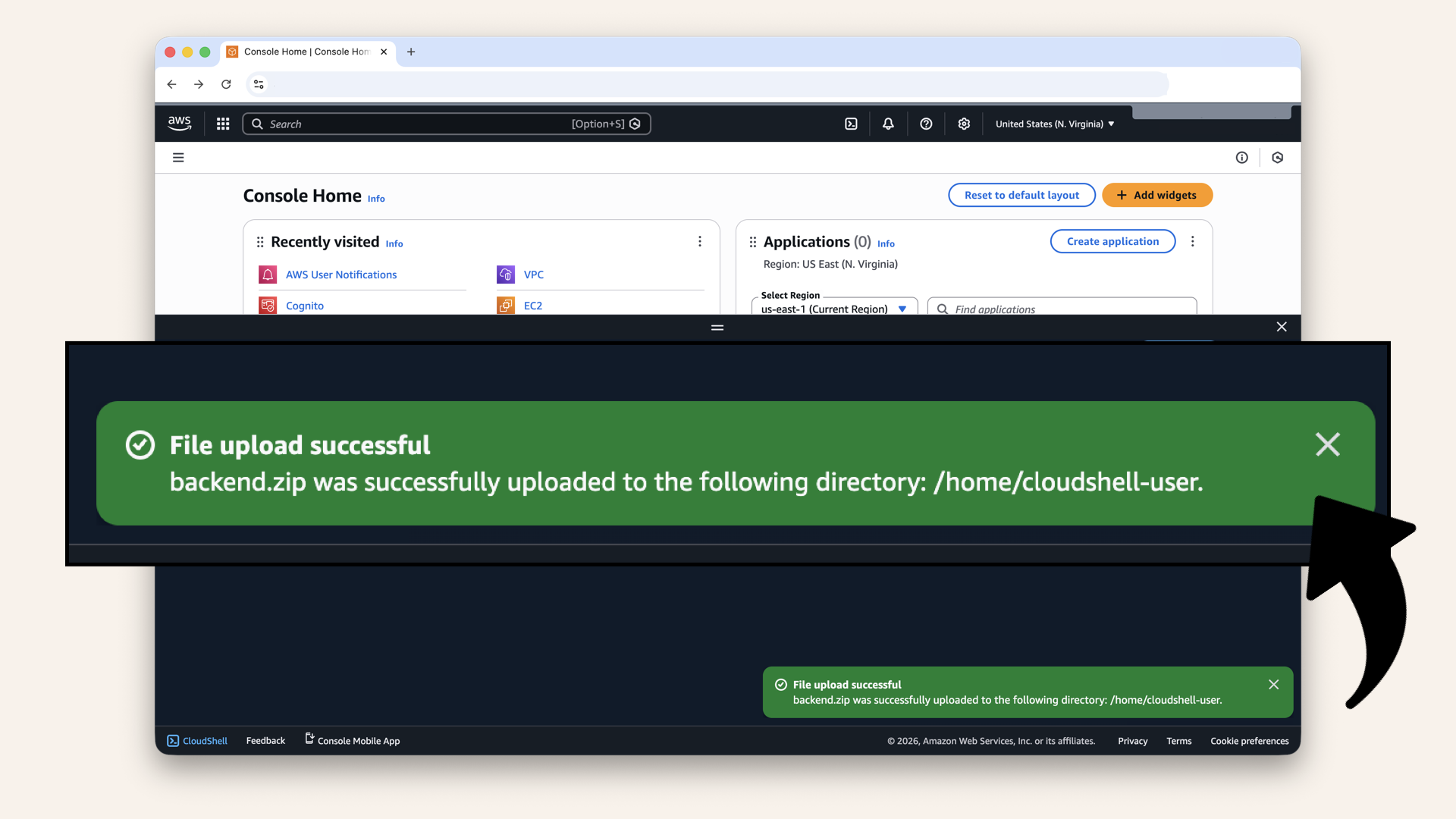
You should see "File upload successful"
Step 5.3: Unzip and navigate
Run this in CloudShell to unzip the project:unzip backend.zip
cd backend
ls -la
Expected output:
template.yaml
src/
If you see extra files like .idea/, .DS_Store or __pycache__/, don't worry, these are just editor/system files that got included in your zip.
Common culprits:
.idea/→ PyCharm/IntelliJ project settings.DS_Store→ macOS folder metadata__pycache__/→ Python bytecode cache.vscode/→ VS Code settings
They won't affect your deployment. SAM only uses template.yaml and the src/ folder.
Step 5.4: Build and deploy
Run this command in CloudShell to build the SAM application:sam build
Expected output:
...
Building codeuri: .../src runtime: python3.9 ...
Build Succeeded
...
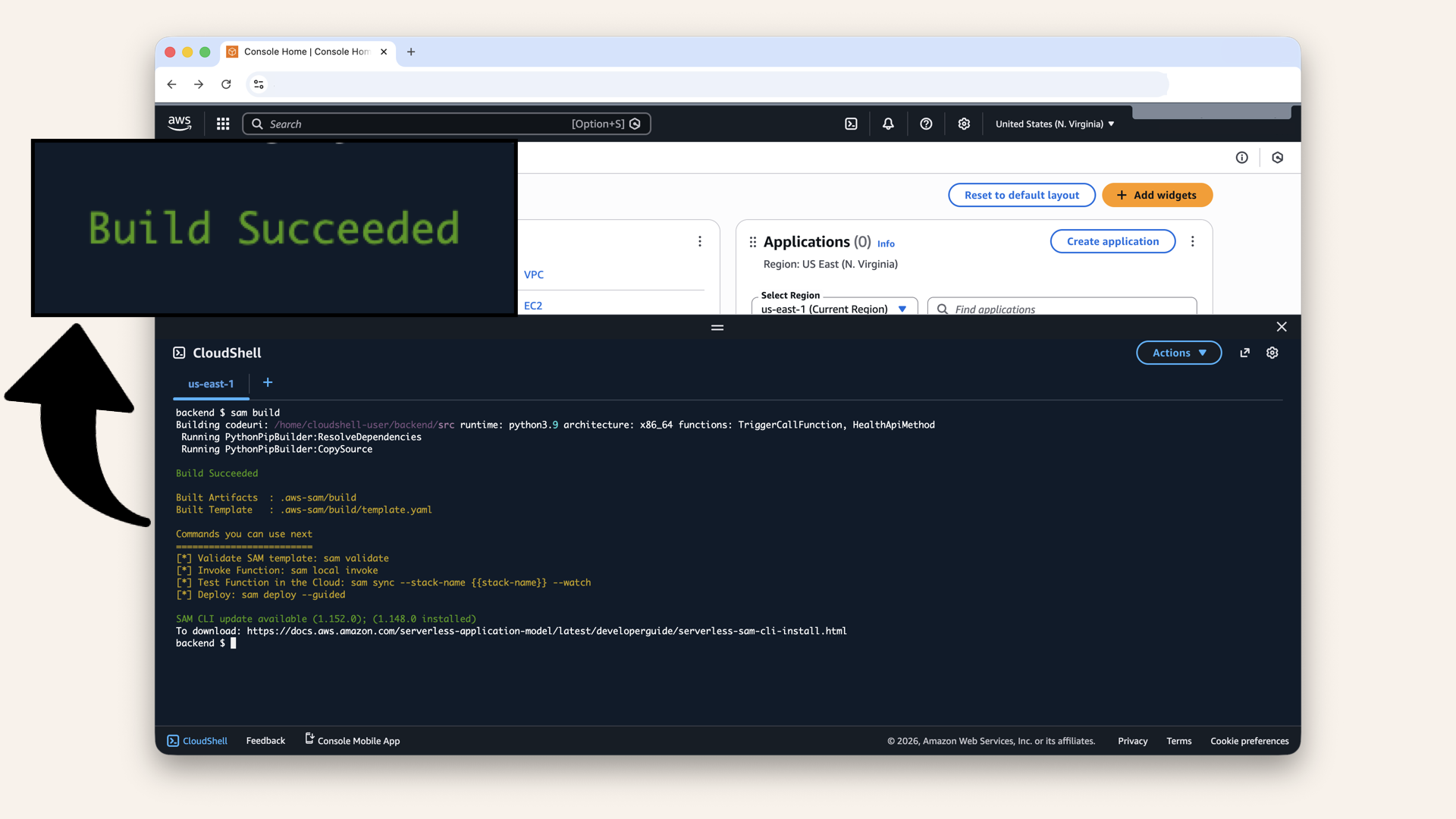
Expected output: Build Succeeded
sam deploy --guided
Answer the prompts:
| Prompt | Answer |
|---|---|
| Stack name | |
| Region | (same as your Cognito) |
| Parameter CognitoUserPoolArn | Paste your ARN from Step 3 |
| Confirm changes before deploy | n |
| Allow SAM CLI IAM role creation | y |
| Disable rollback | n |
| Save arguments to samconfig.toml | y |
| SAM configuration file [samconfig.yaml] | press Enter |
| SAM configuration environment [default] | press Enter |
You'll see the deployment in progress:
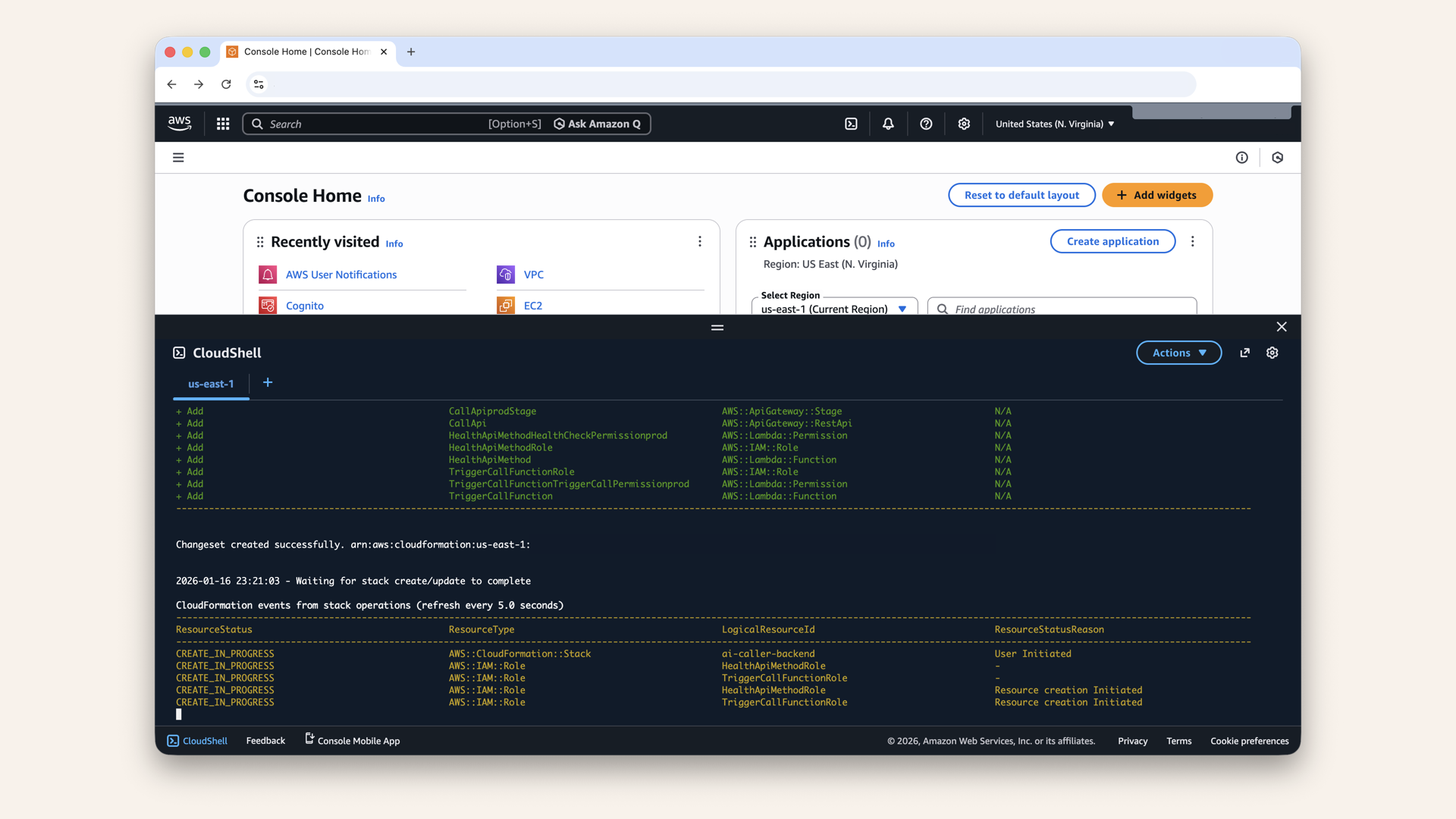
You'll see the deployment in progress
✅ You should see: "Successfully created stack":

You should see: "Successfully created stack"
Step 5.5: Get your API URL
After deployment succeeds, you'll see outputs:
CloudFormation outputs from deployed stack
-----------------------------------------
Key                 ApiUrl
Description         API Gateway endpoint URL
Value               https://abc123xyz.execute-api.us-east-1.amazonaws.com/prod

Key                 TriggerCallEndpoint
Description         Trigger call endpoint (requires auth)
Value               https://abc123xyz.execute-api.us-east-1.amazonaws.com/prod/trigger-call

Key                 HealthEndpoint
Description         Health check endpoint (public)
Value               https://abc123xyz.execute-api.us-east-1.amazonaws.com/prod/health
sam list stack-outputs --stack-name ai-caller-backend
Step 5.6: Confirm SAM S3 bucket
Let's verify that SAM created a new S3 bucket.
In the search bar at the top, type s3 and click S3 from the dropdown: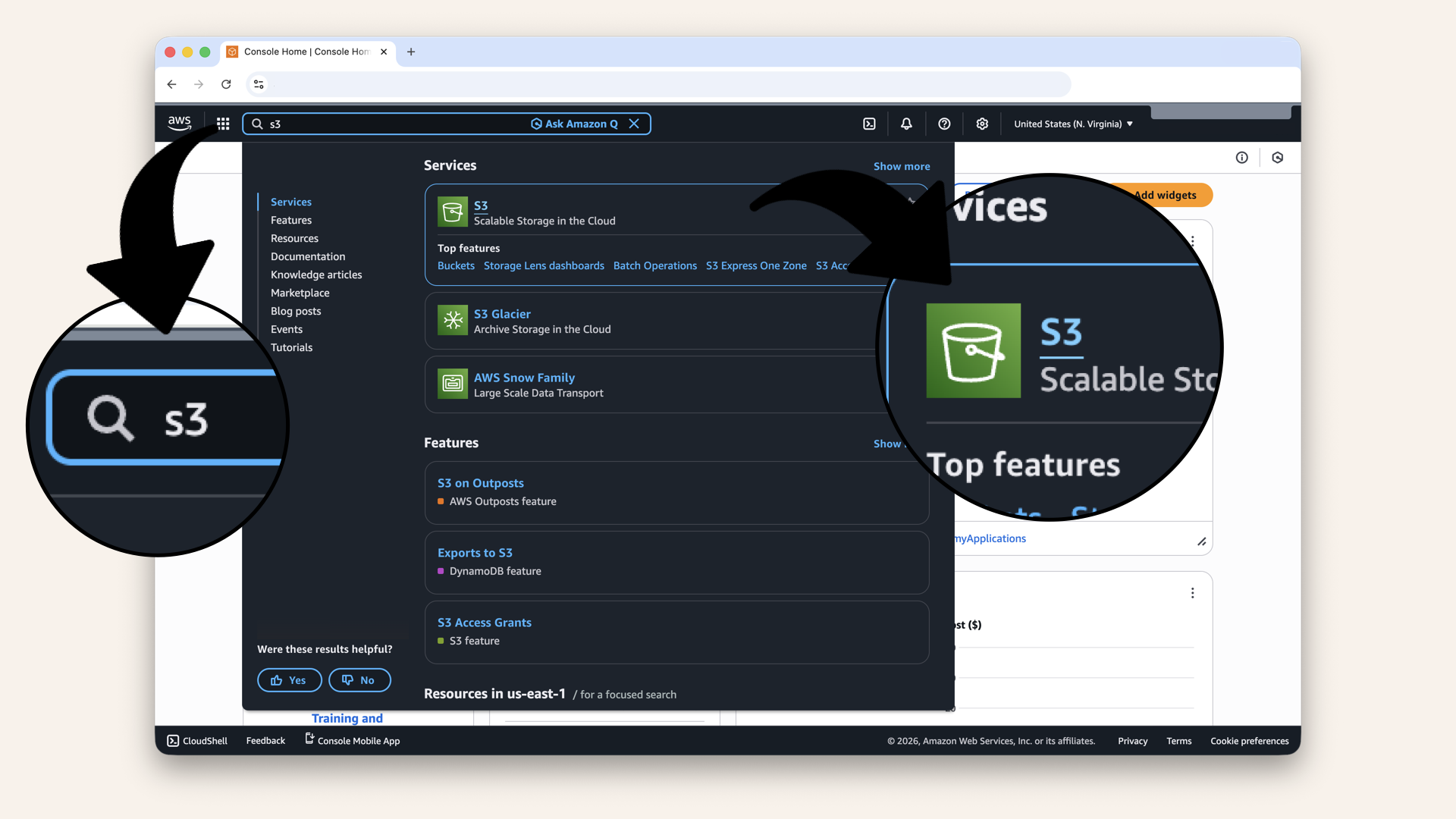
In the search bar at the top, type s3 and click S3 from the dropdown
✅ You should see that SAM created a new S3 bucket:
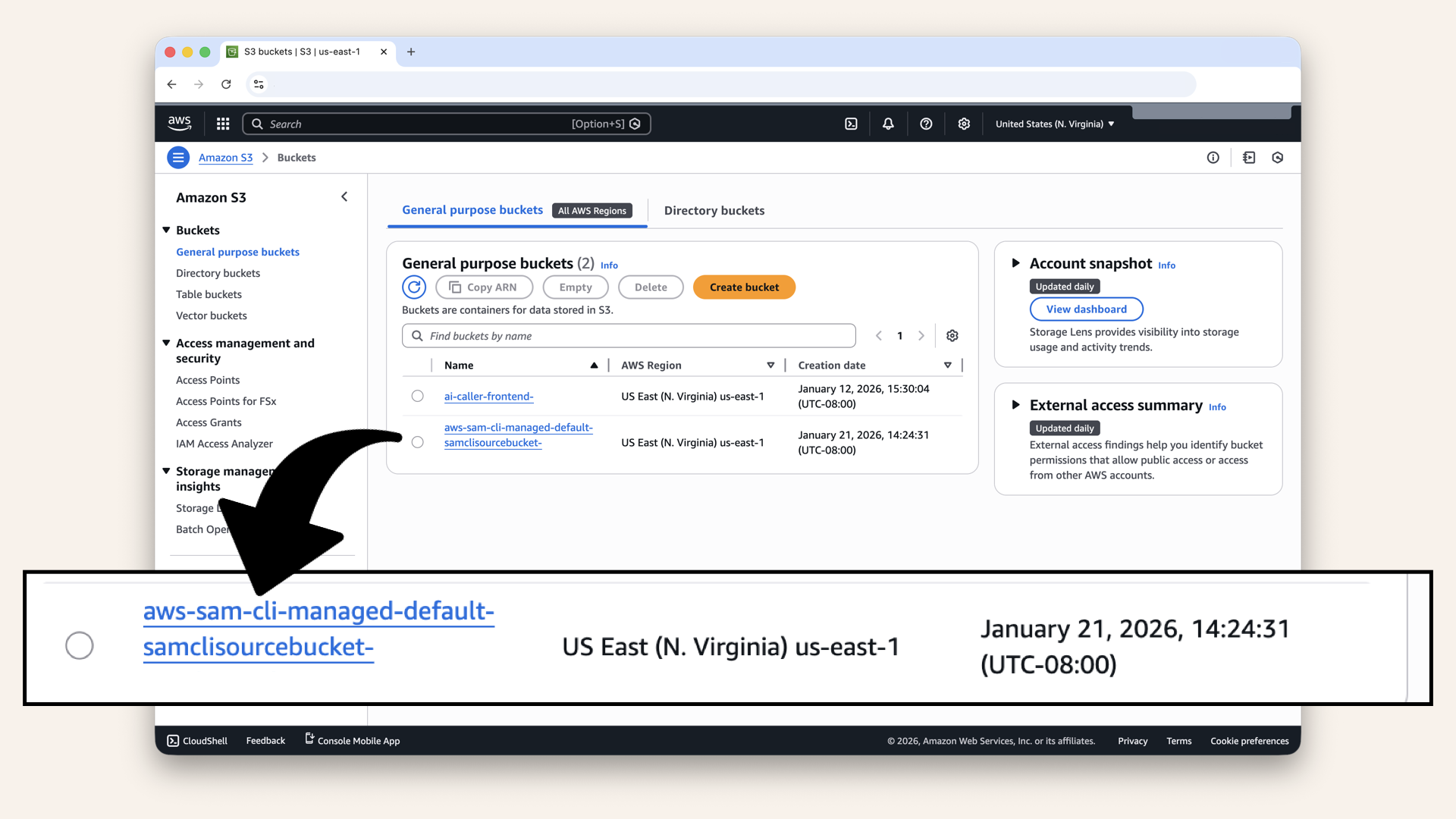
You should see that SAM created a new S3 bucket
This S3 bucket was generated by AWS SAM, keep it.
Step 6: Test your endpoints
Step 6.1: Test the health endpoint (public)
Run this curl command from CloudShell or your local terminal:curl https://YOUR_API_ID.execute-api.us-east-1.amazonaws.com/prod/health
Expected response:
{"status": "healthy", "service": "ai-caller-backend"}
✅ Health endpoint works:
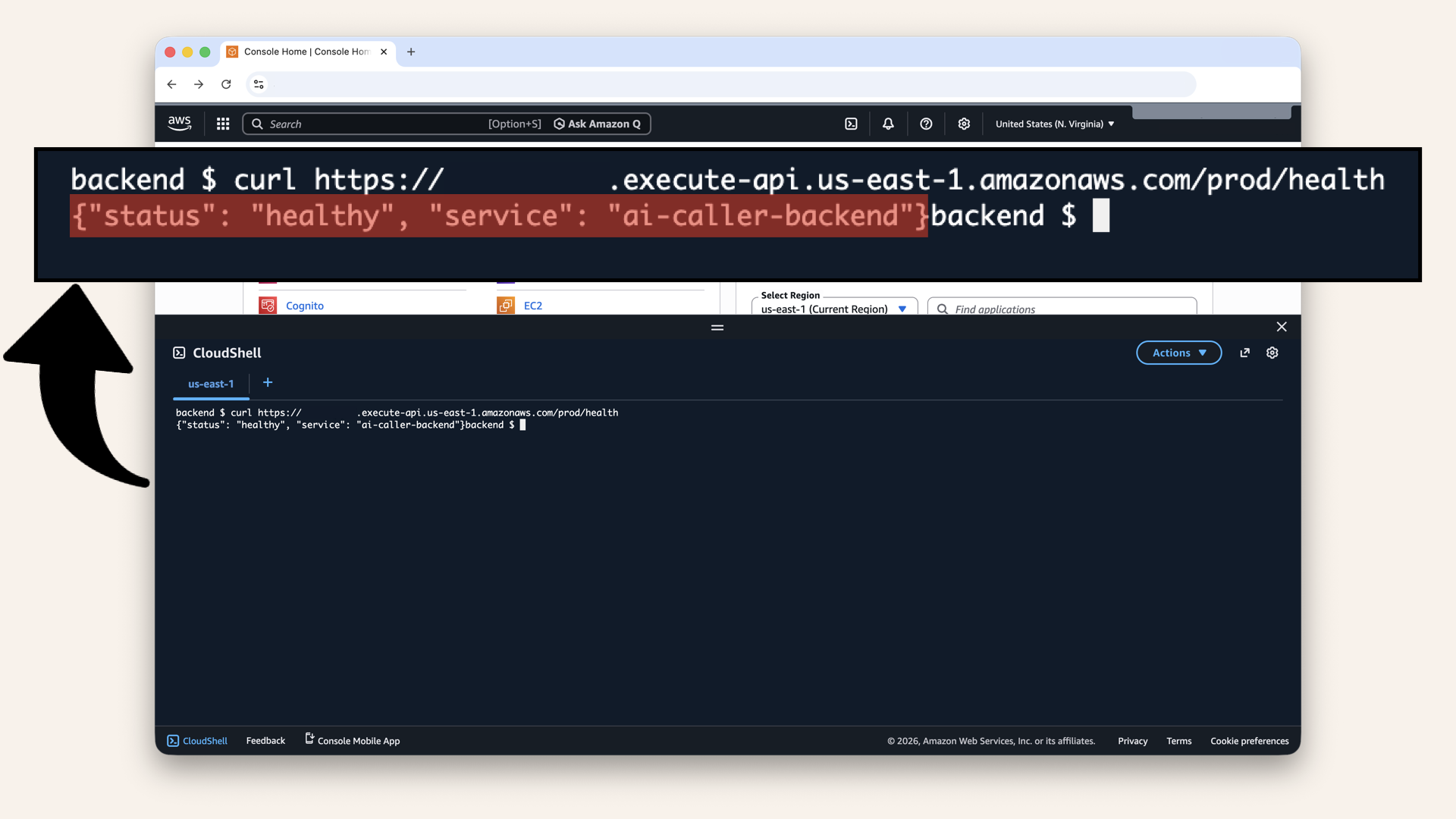
Expected response: {"status": "healthy", "service": "ai-caller-backend"}
Step 6.2: Test the trigger endpoint (without auth)
Try calling the trigger endpoint without authentication:curl -X POST https://YOUR_API_ID.execute-api.us-east-1.amazonaws.com/prod/trigger-call \
-H "Content-Type: application/json" \
-d '{"phone_number": "+1234567890"}'
Expected response:
{"message": "Unauthorized"}
✅ The endpoint is protected. Without a valid Cognito token, you get 401 unauthorized:
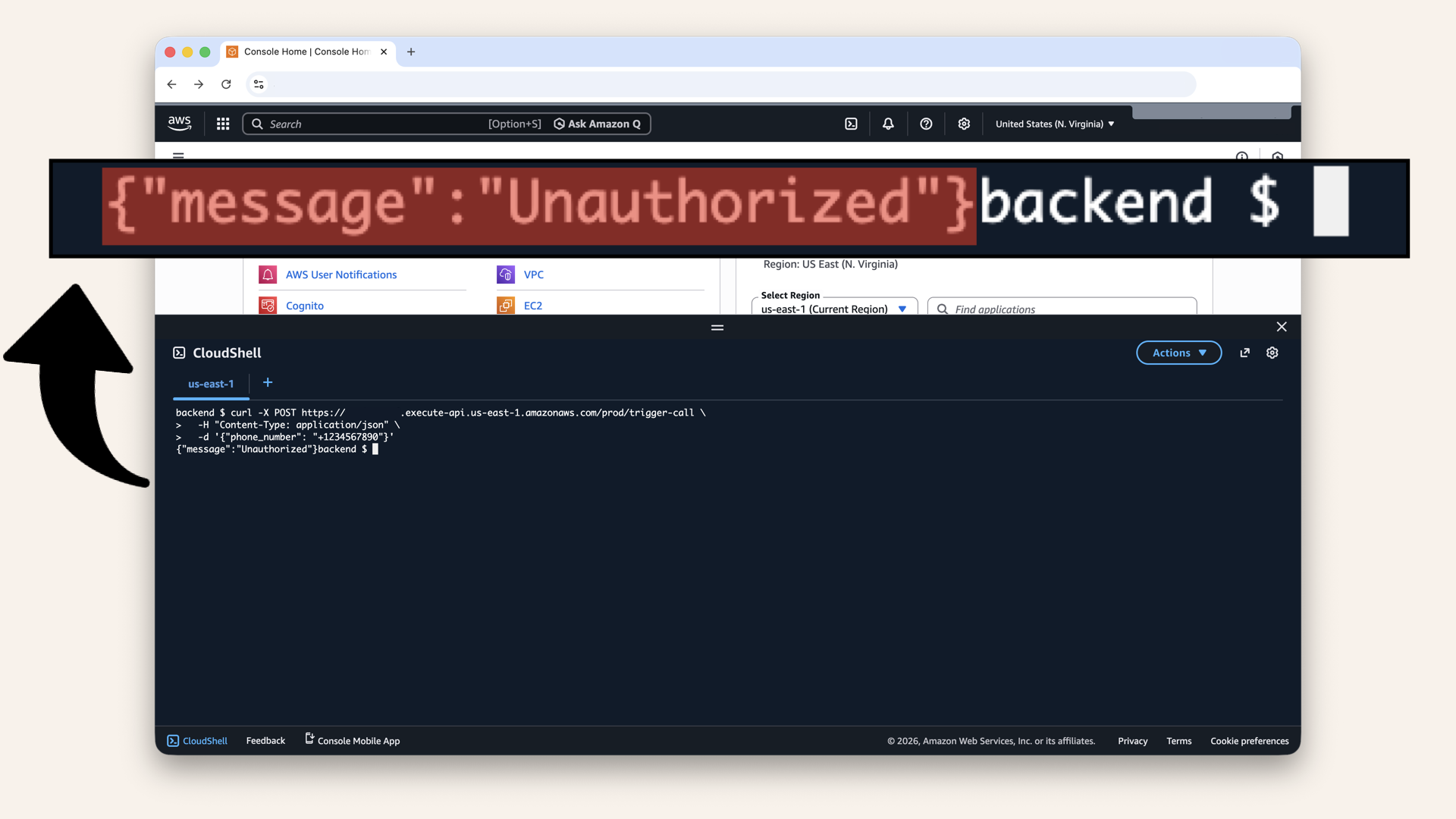
The endpoint is protected. Without a valid Cognito token, you get 401 unauthorized
Step 6.3: Test with authentication
To test with auth, you need a valid JWT token from Cognito.
Let's test from your frontend.
Step 7: Connect your frontend
Now let's update your Day 12 frontend to call the secure backend.
Step 7.1: Update your frontend code
Open your frontend project from Day 12 ↗ Navigate to thefrontend folder and start the dev server:
cd frontend
npm run dev
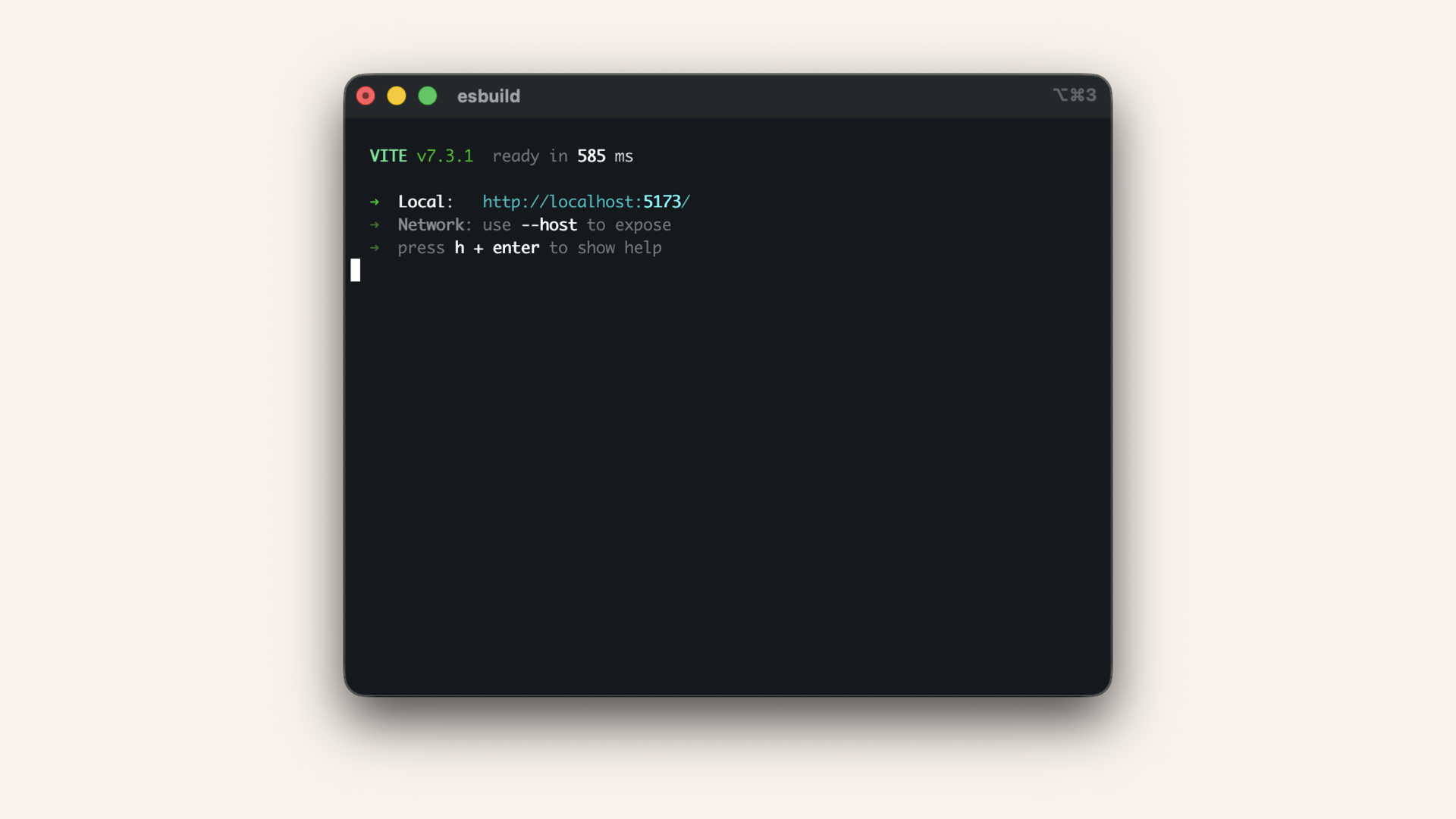
Navigate to the frontend folder and start the dev server
You should see the login screen:
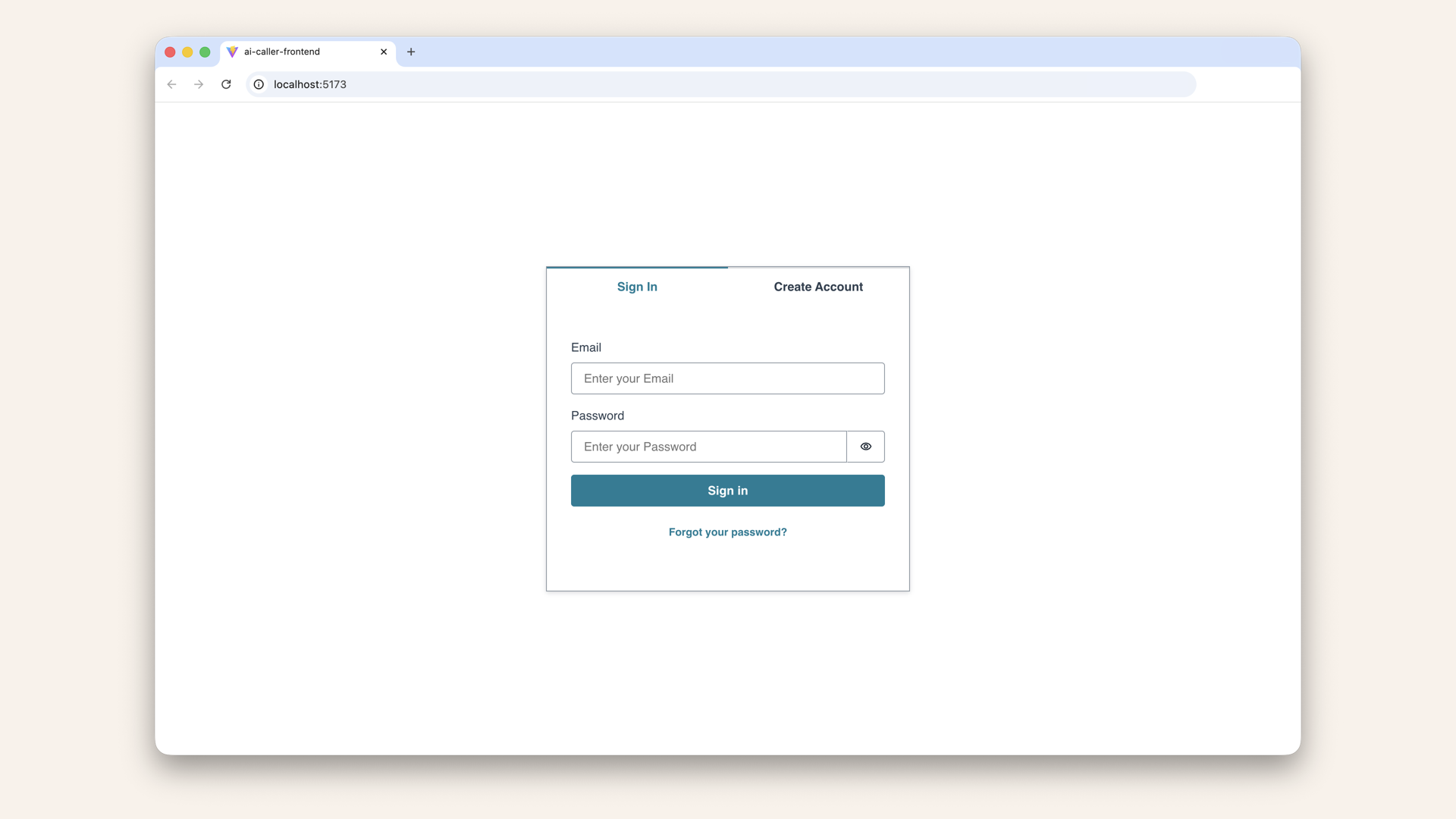
You should see the login screen
Go ahead and log in.
✅ You should see the protected app:

Go ahead and log in and you should see the protected app
src/App.jsx file in your editor.
Add your API URL constant after the imports, before the function App() line:
const API_URL = "https://YOUR_API_ID.execute-api.us-east-1.amazonaws.com/prod";
The top of your App.jsx file should look now like this:
// ... other imports
import awsconfig from "./aws-exports";

Amplify.configure(awsconfig);

const API_URL = "https://YOUR_API_ID.execute-api.us-east-1.amazonaws.com/prod"; // <-- Add this line

function App() {
  // ... rest of component
Use the API Gateway URL from Step 5.5 It looks like:
https://abc123xyz.execute-api.us-east-1.amazonaws.com/prod
Step 7.2: Update handleStartCall
Find thehandleStartCall function (around line 29):
const handleStartCall = async () => {
  // ... rest of function
handleStartCall function with this code:
const handleStartCall = async () => {
  if (!phoneNumber) {
    setStatus("Please enter a phone number");
    return;
  }

  // Simple E.164 validation - must start with + and have at least 10 chars
  if (!phoneNumber.startsWith("+") || phoneNumber.length < 10) {
    setStatus("❌ Phone number must start with + (e.g., +1234567890)");
    return;
  }

  setLoading(true);
  setStatus("Triggering call...");

  try {
    const session = await fetchAuthSession();
    const idToken = session.tokens?.idToken?.toString();

    if (!idToken) {
      setStatus("Error: Not authenticated");
      setLoading(false);
      return;
    }

    const response = await fetch(`${API_URL}/trigger-call`, {
      method: "POST",
      headers: {
        "Content-Type": "application/json",
        Authorization: idToken,
      },
      body: JSON.stringify({ phone_number: phoneNumber }),
    });

    const data = await response.json();

    if (response.ok) {
      setStatus(`✅ ${data.message}`);
    } else {
      setStatus(`❌ Error: ${data.error || "Unknown error"}`);
    }
  } catch (error) {
    setStatus(`❌ Error: ${error.message}`);
  } finally {
    setLoading(false);
  }
};
What changed:
| Before (Day 12) | After (Day 13) |
|---|---|
setTimeout placeholder | Real fetch call to API Gateway |
| Fake delay | Actual backend request |
| Hardcoded message | Response from Lambda |
You're only changing two things:
- Adding
const API_URL = ...after imports - Replacing the
handleStartCallfunction
The rest of App.jsx (imports, UI components, etc.) stays exactly as it was in Day 12.
Step 7.2: Test the complete flow
Open http://localhost:5173 in your browser Enter a phone number, e.g. and click "Start AI Call"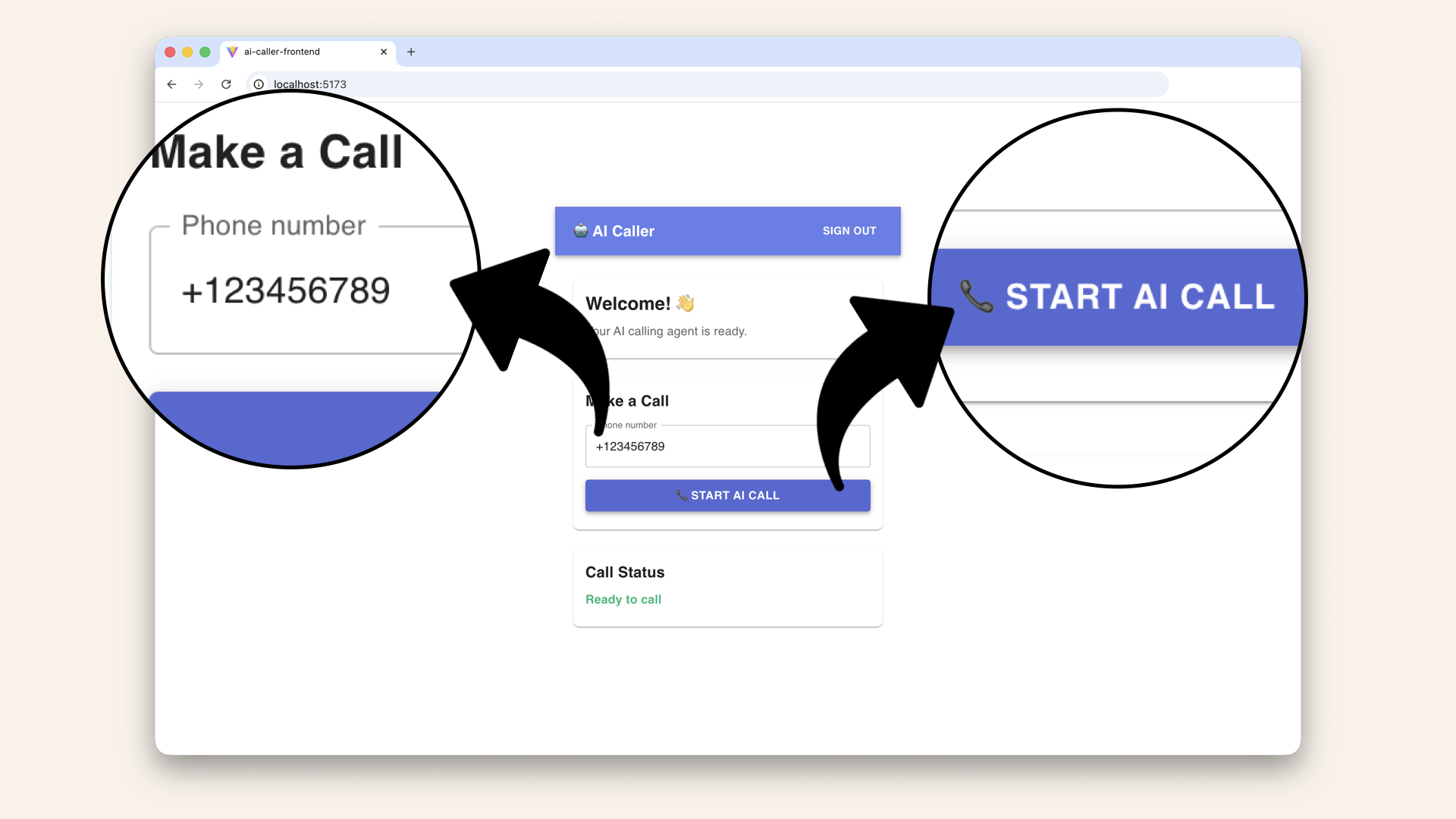
Add a made-up phone number and try to click on "Start AI call"
Expected result:
✅ Call trigger received! (Mock response - Fargate connection coming Day 14)
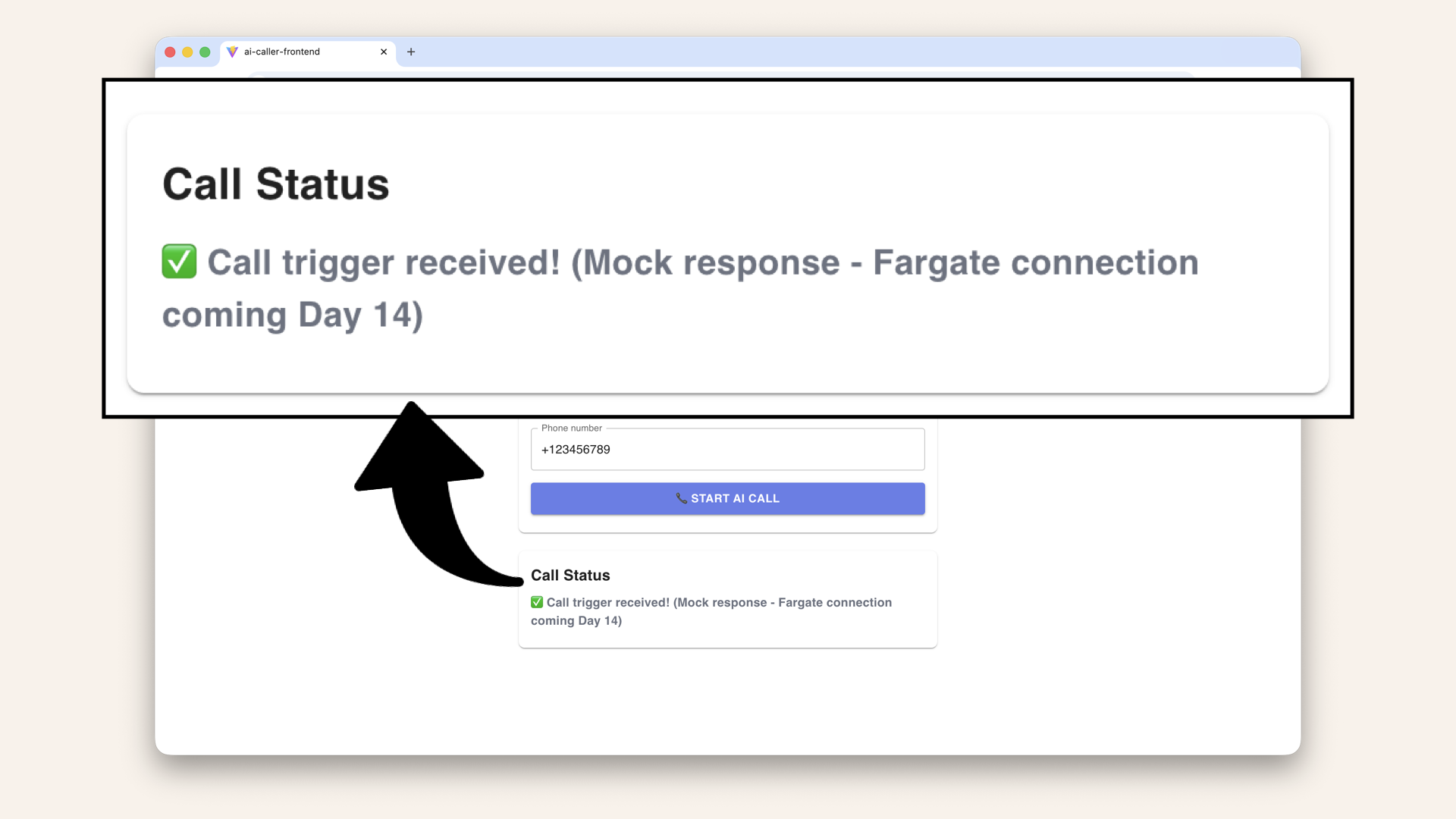
Expected result: ✅ Call trigger received! (Mock response - Fargate connection coming Day 14)
✅ It works!
The response: "✅ Call trigger received! (Mock response - Fargate connection coming Day 14)" is from your app.py in your backend folder on line 67:
return json_response({
    "success": True,
    "message": "Call trigger received! (Mock response - Fargate connection coming Day 14)",
    "data": {
        "phone_number": phone_number,
        "triggered_by": user_email,
        "status": "pending_fargate_integration"
    }
})
Step 8: Redeploy frontend
Step 8.1: Build for production
Run this in your terminal:npm run build
frontendMake sure you're in frontend root when running npm run build
- Mac/Linux
- Windows
pwd
cd
✅ You should see the path /frontend
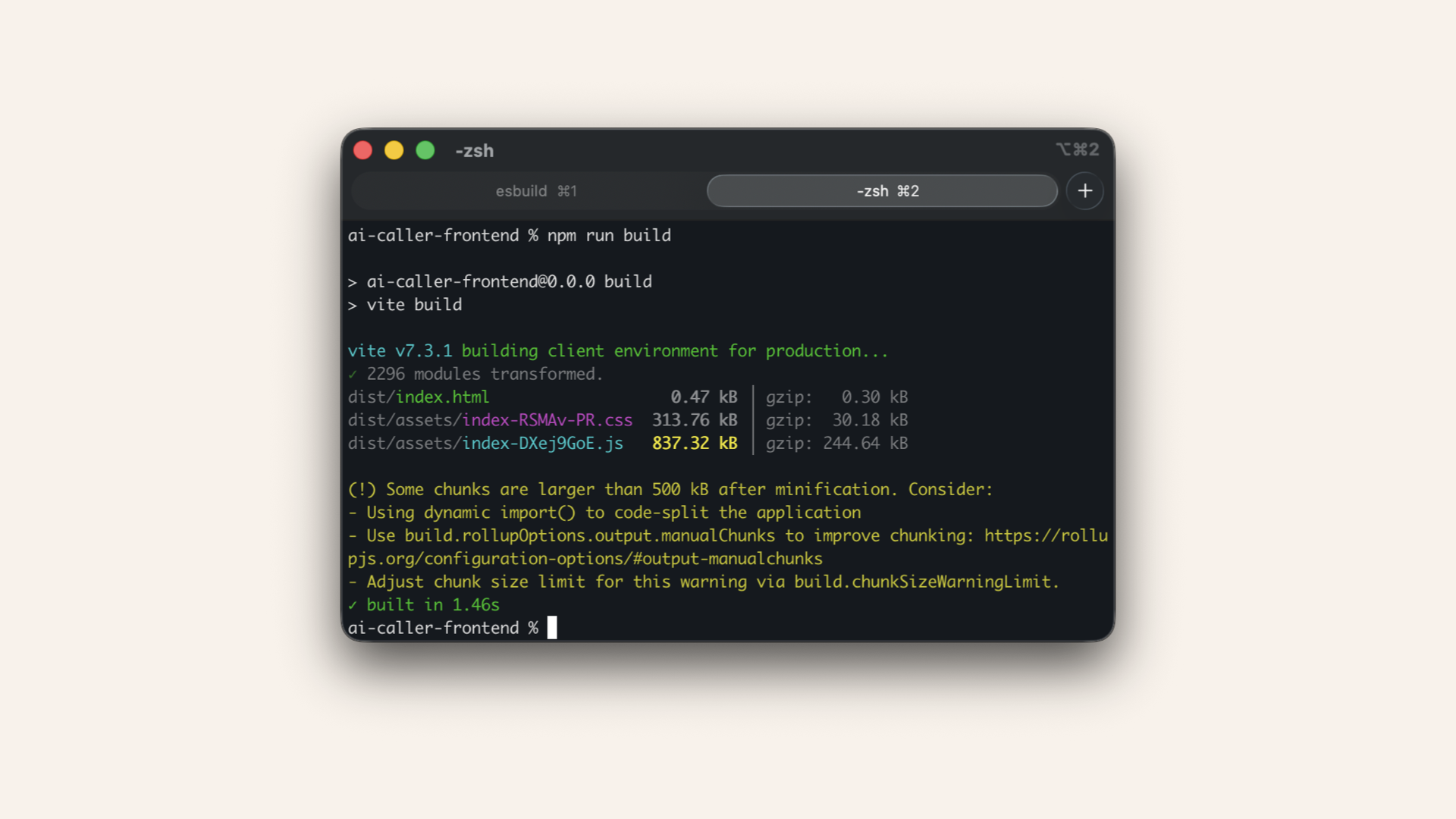
Run npm run build in your terminal
This creates a dist/ folder with optimized production files.
dist should have been updated:
.
├── dist            <--- This folder got updated
│   ├── assets
│   ├── index.html
│   └── vite.svg
├── eslint.config.js
├── index.html
├── package-lock.json
├── package.json
├── public
│   └── vite.svg
├── README.md
├── src
│   ├── App.css
│   ├── App.jsx
│   ├── assets
│   ├── aws-exports.js
│   ├── index.css
│   └── main.jsx
└── vite.config.js
Step 8.2: Deploy to S3
Open the AWS Console ↗ In the search bar at the top, type s3 and click S3 from the dropdown:
In the search bar at the top, type s3 and click S3 from the dropdown
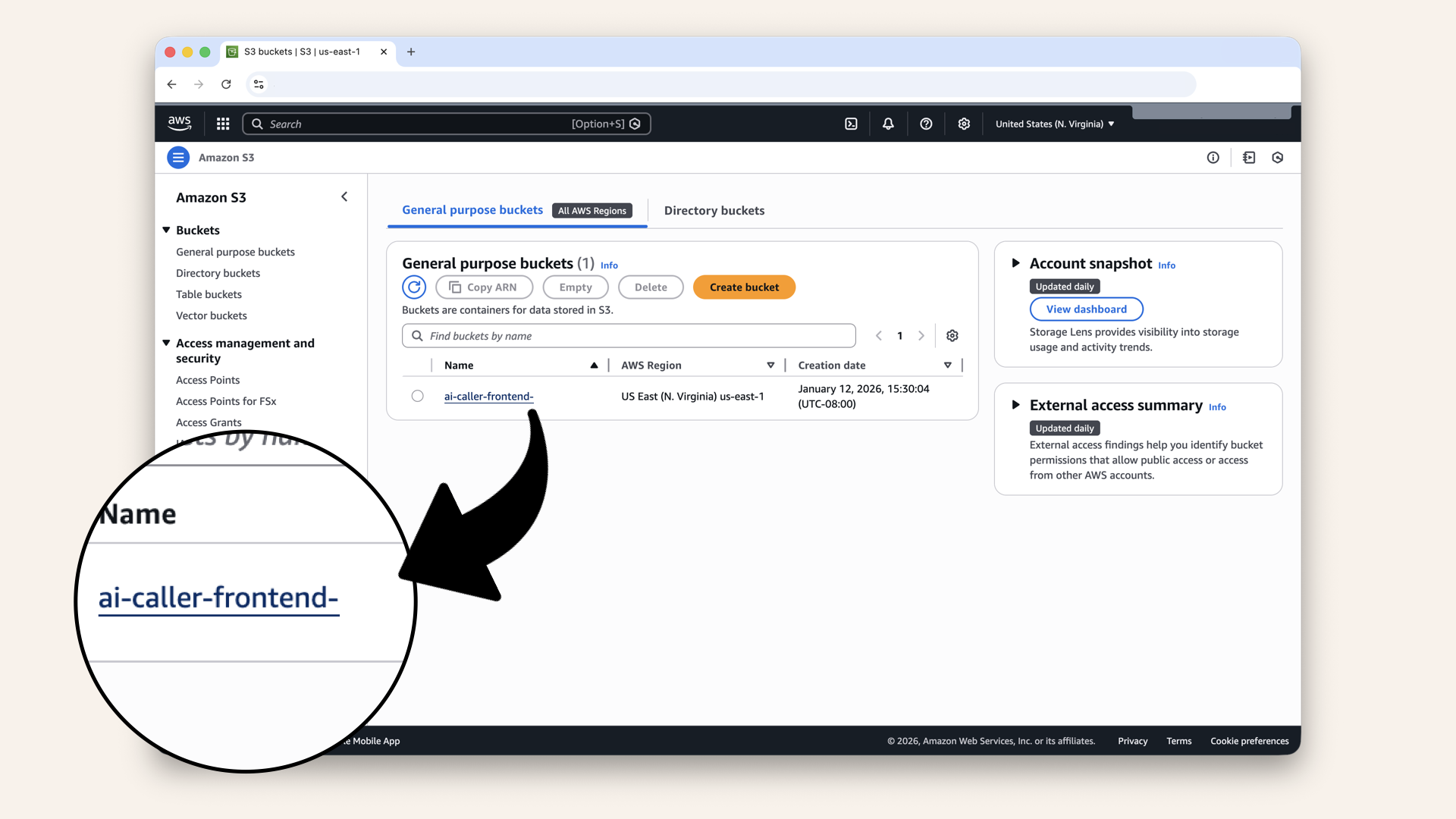
You'll see your bucket listed, click on it
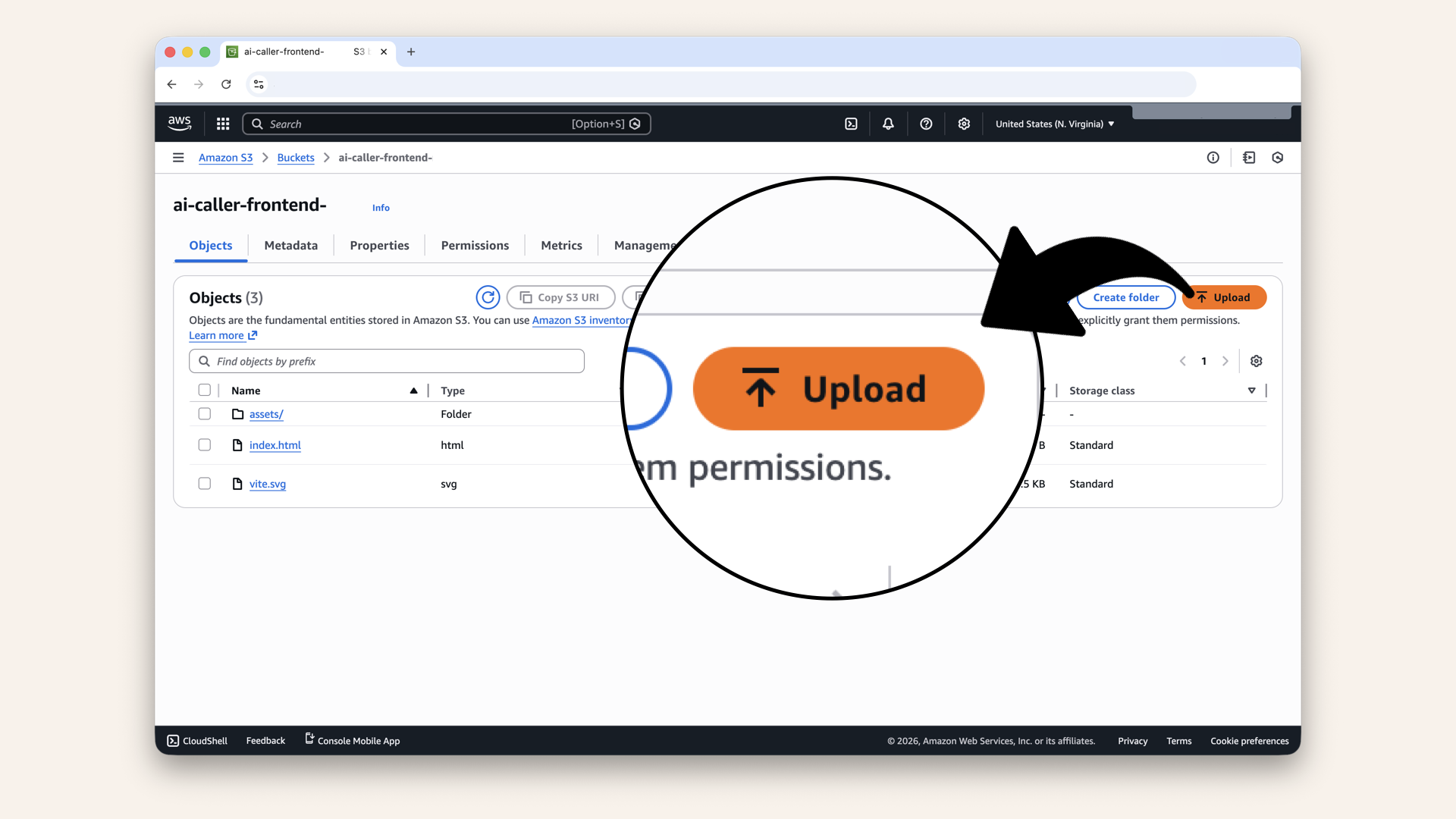
Click Upload
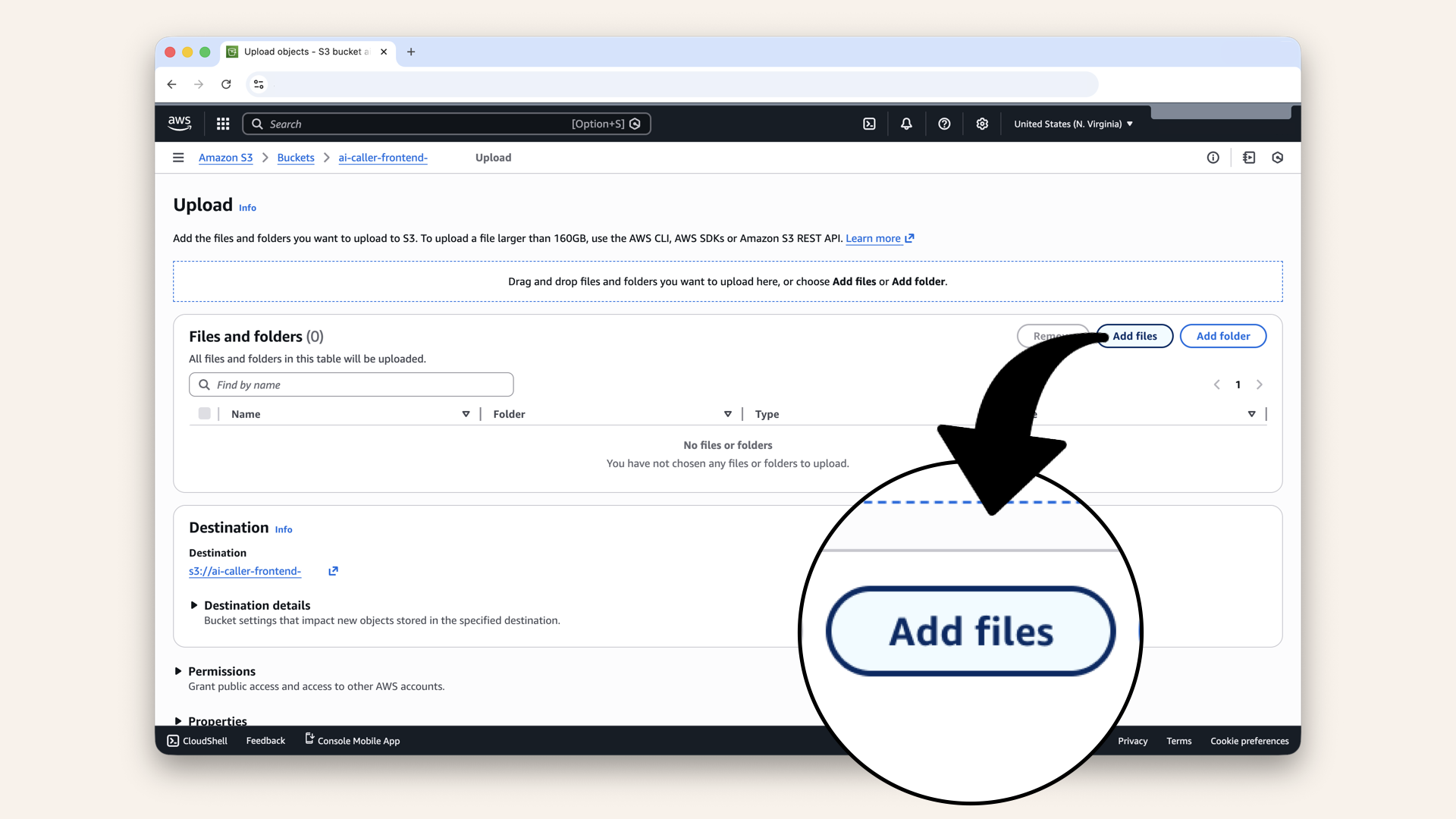
Click Add files
dist/ folder and click Open:
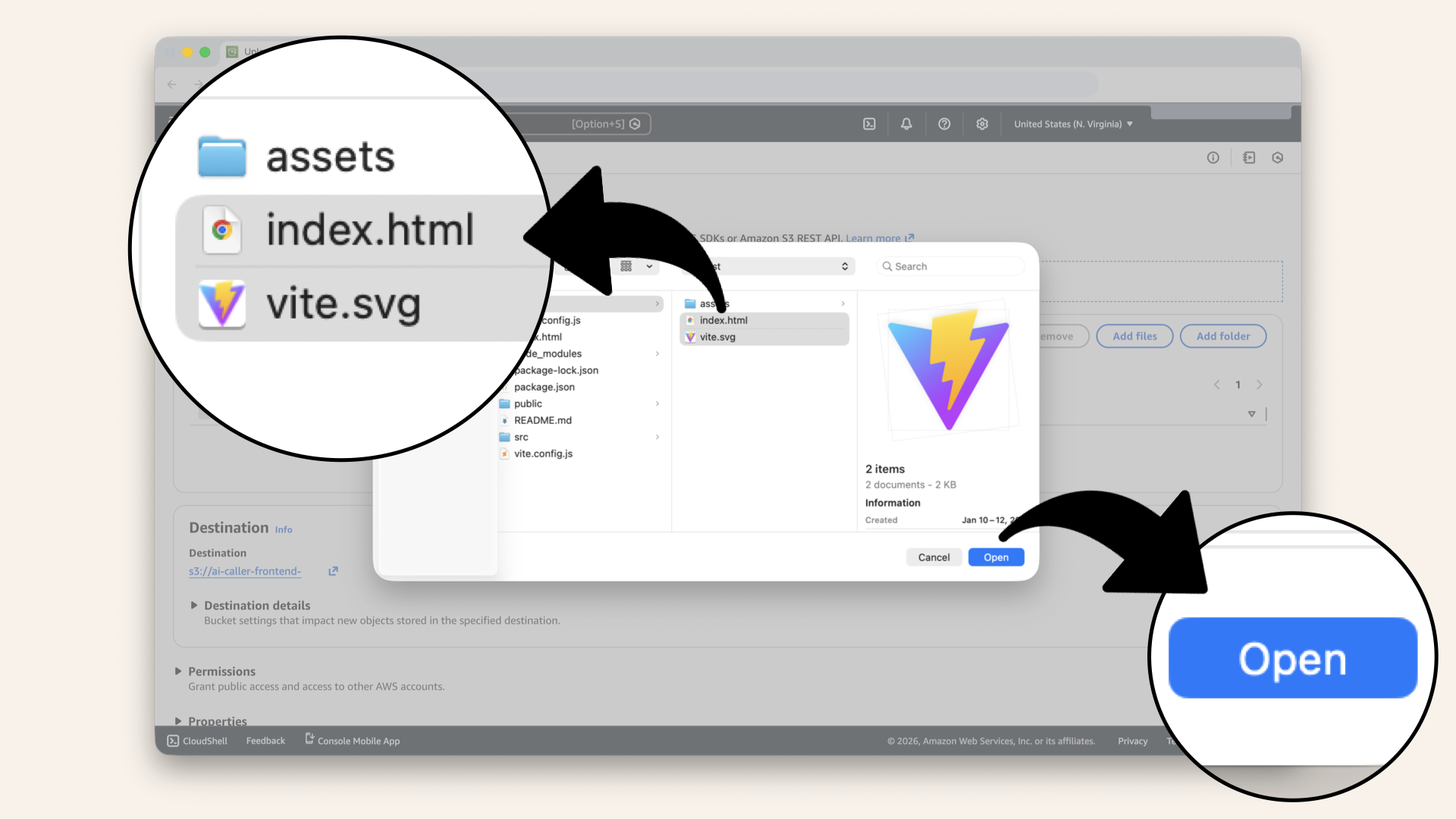
Select all files from dist/ folder and click Open
dist/Important: Upload the contents of dist/, not the dist/ folder itself.
You should upload:
index.htmlassets/foldervite.svg
✅ You should see the selected files:
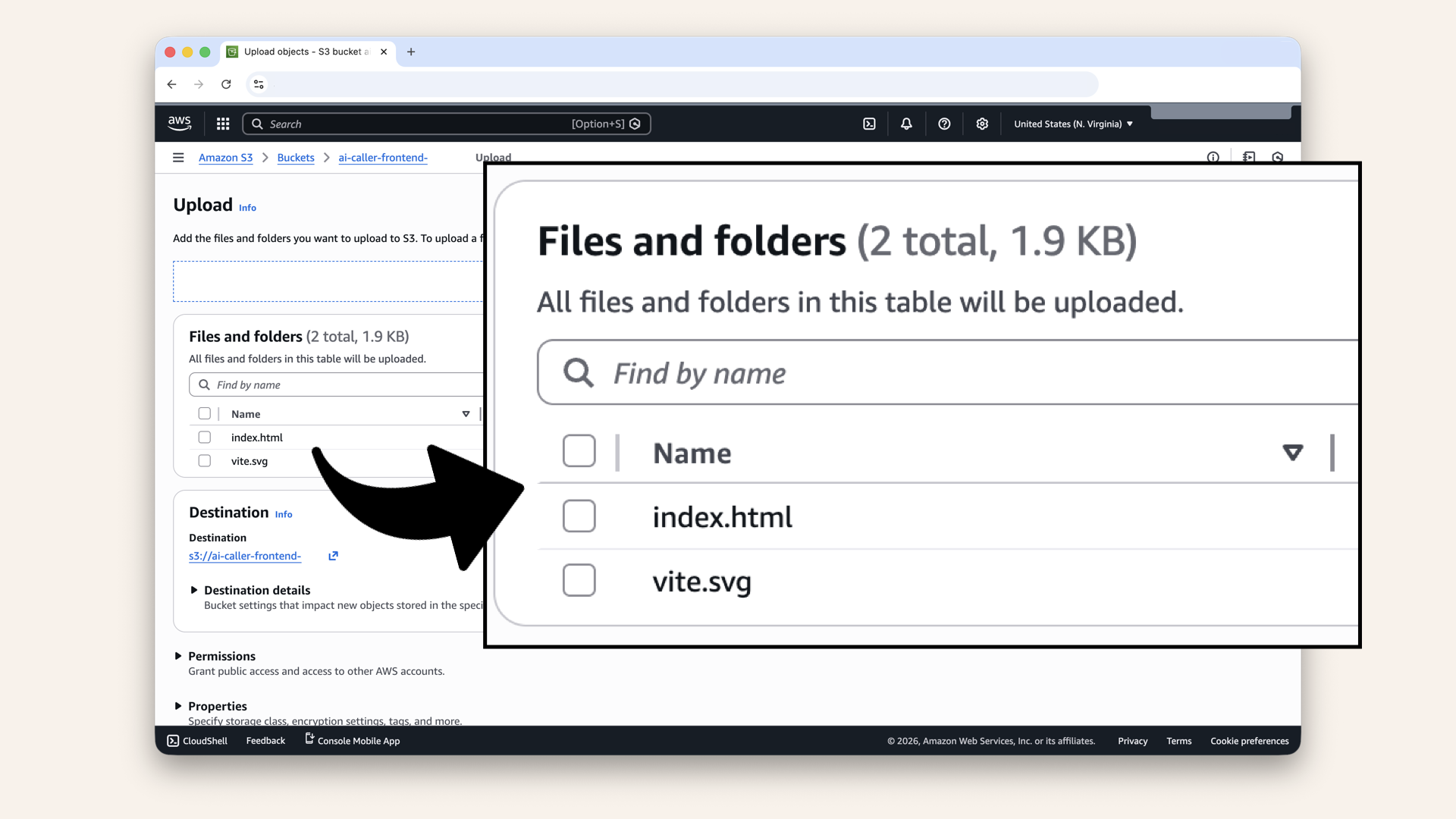
You should see the selected files
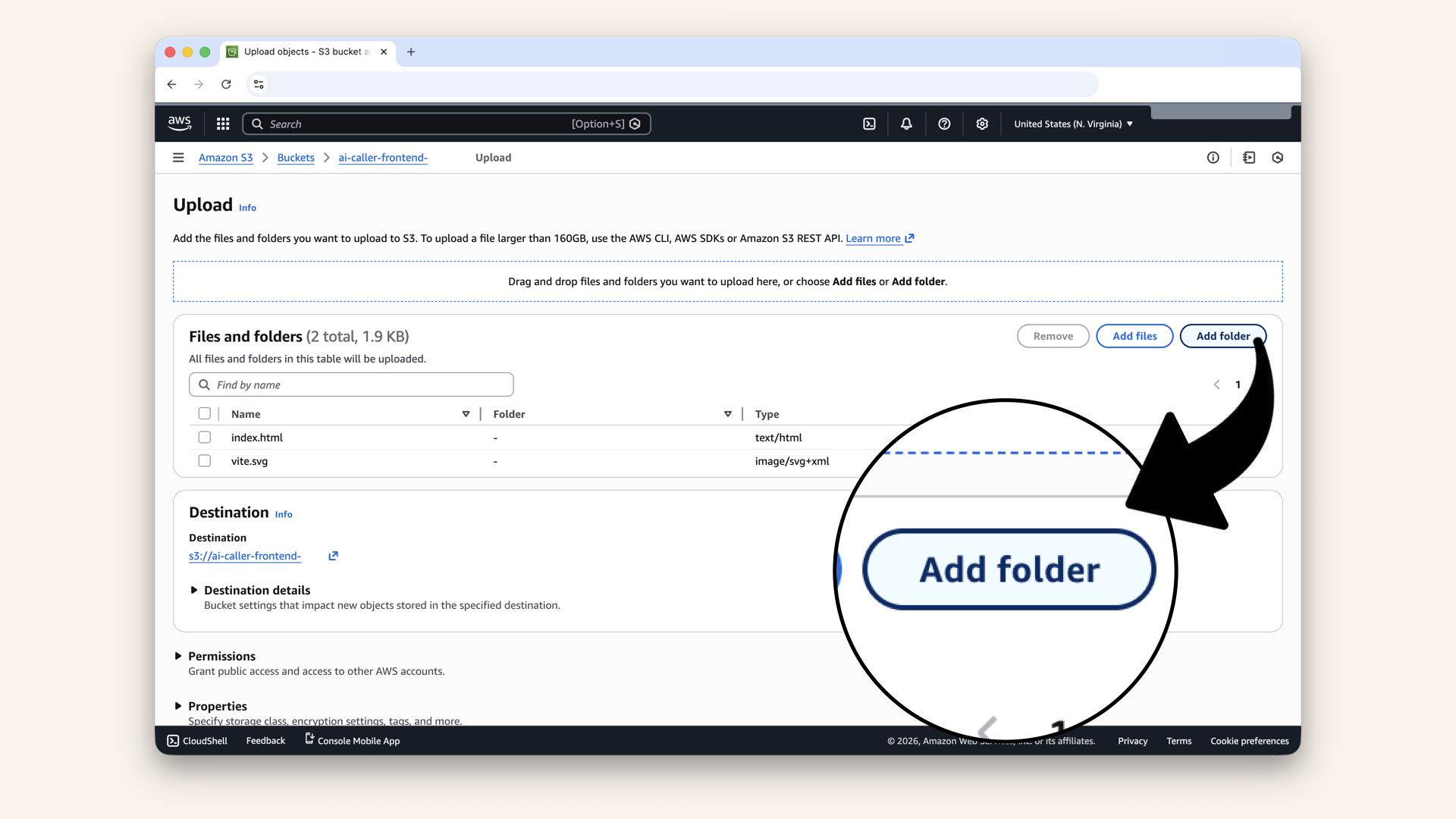
Click Add folder
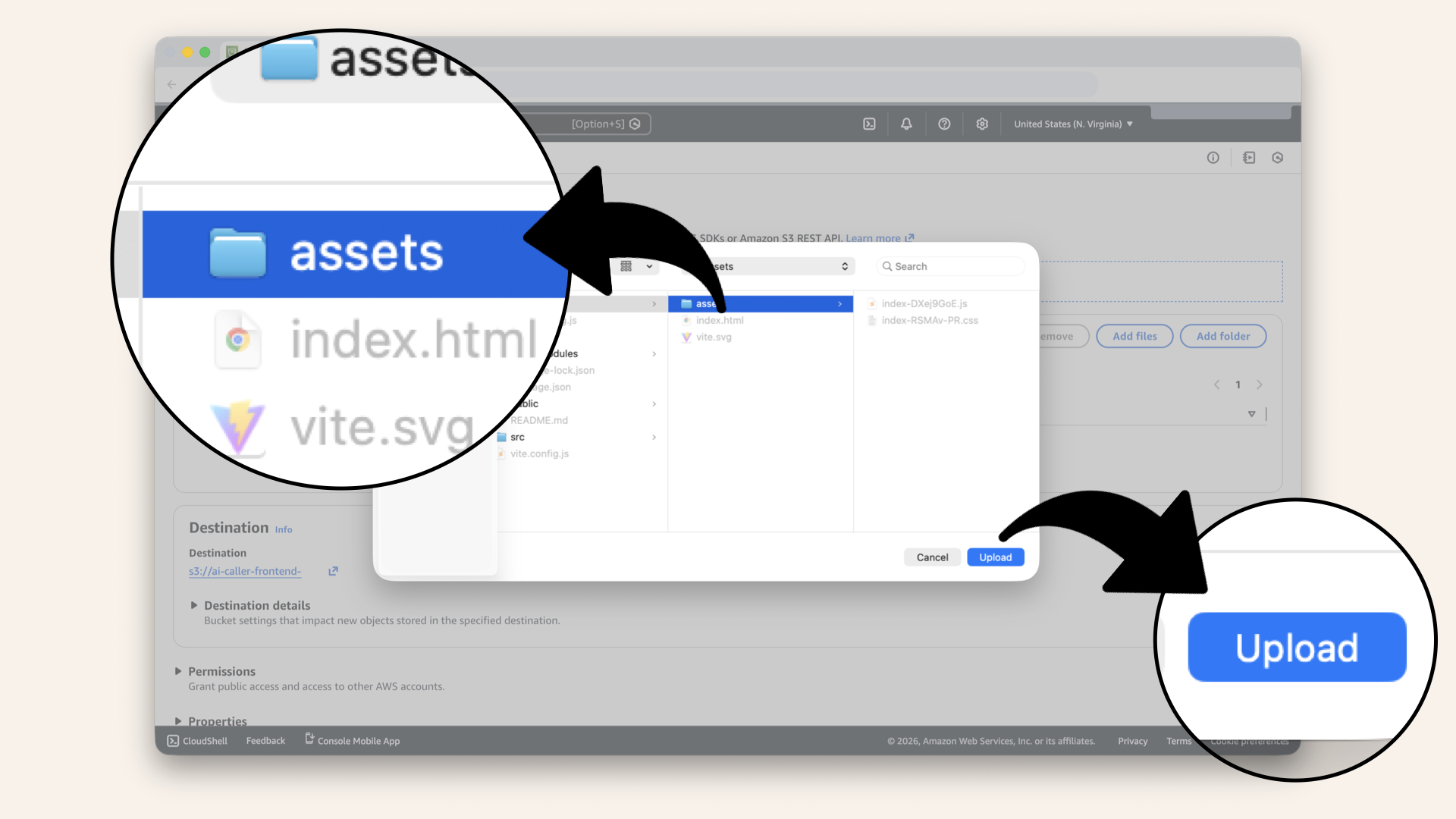
Select the assets folder and click Upload
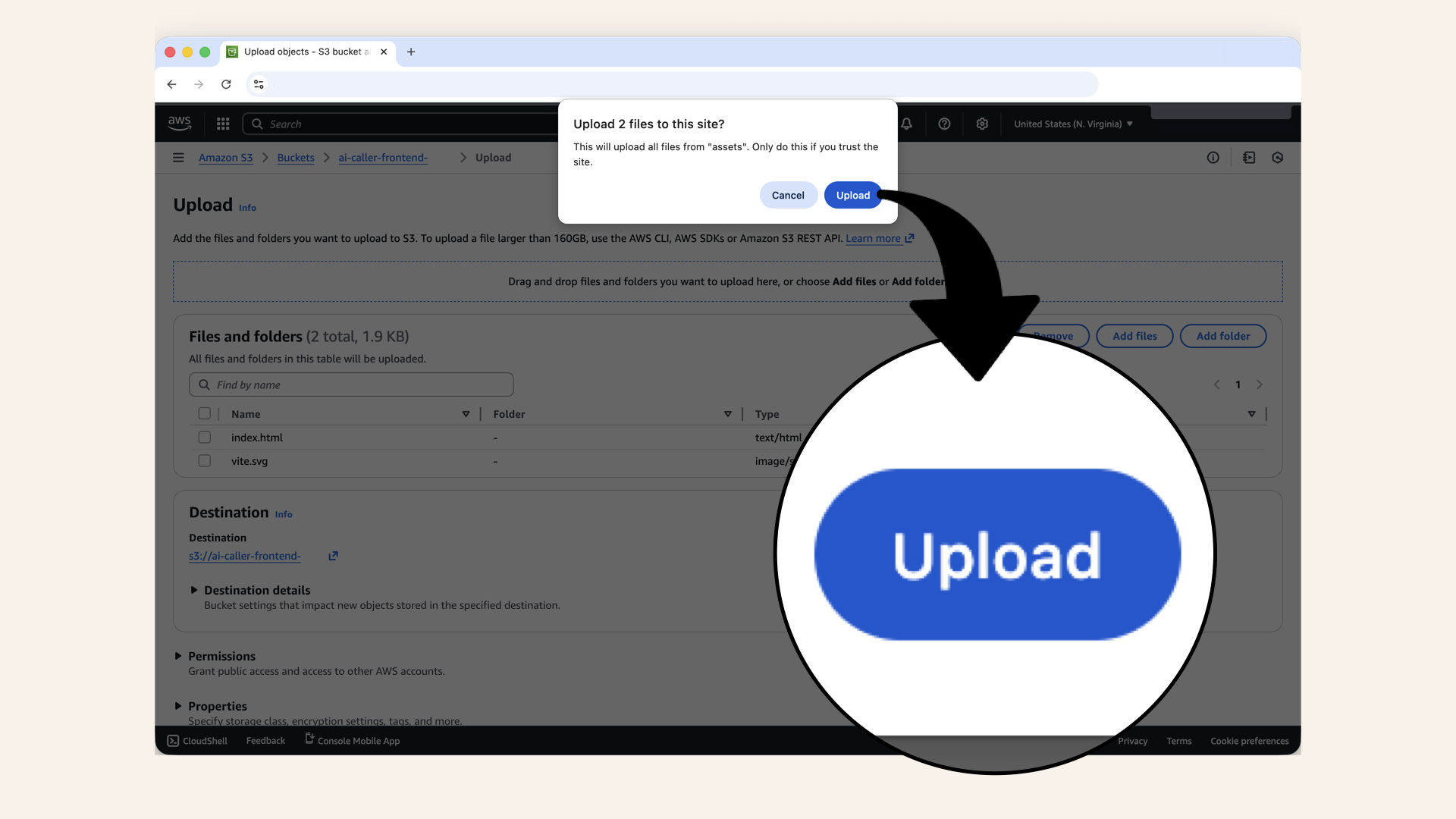
Click Upload when asked if upload files from Assets
You should see the selected files and the files in the assets folder:
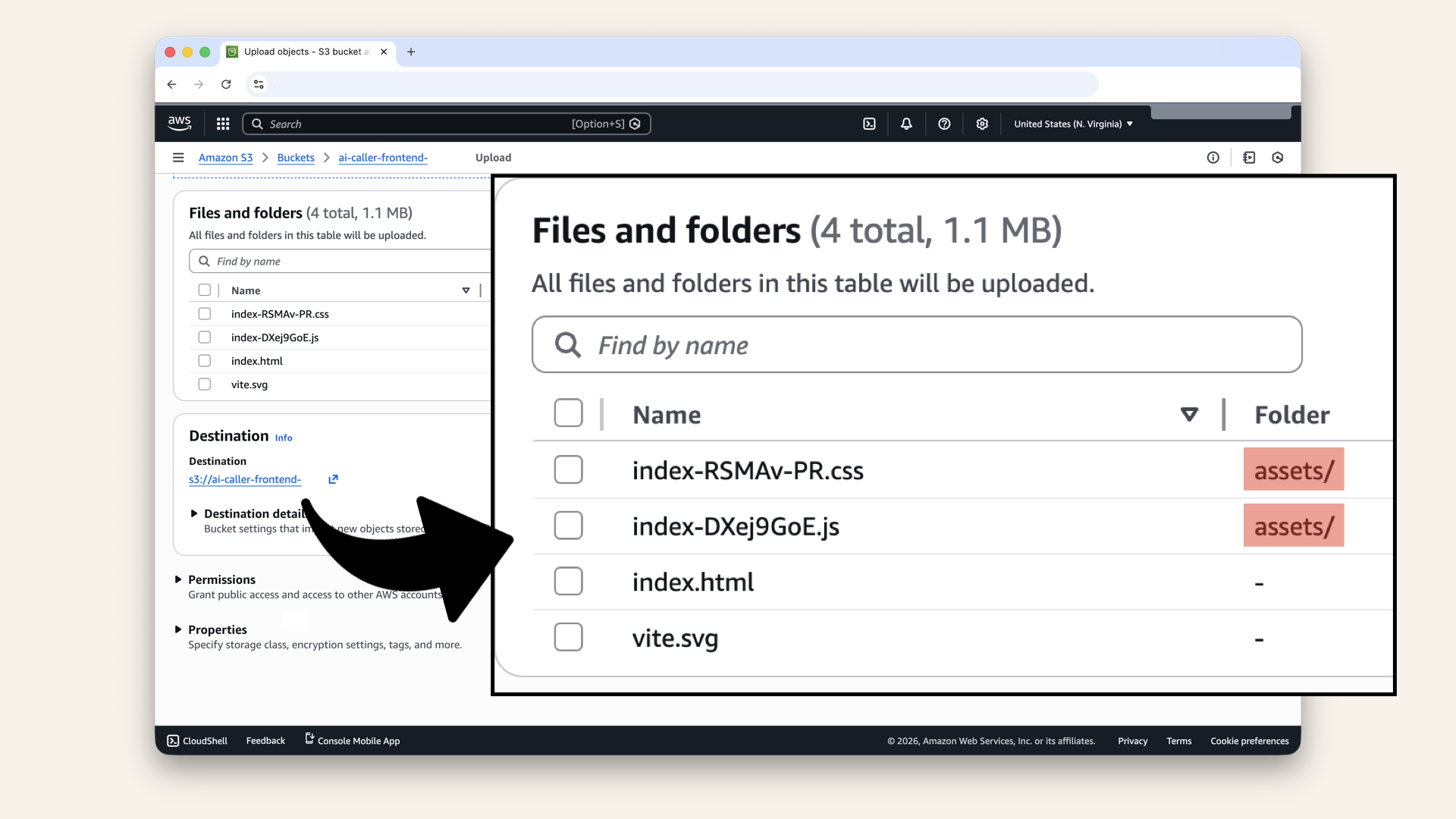
You should see the selected files and the files in the assets folder
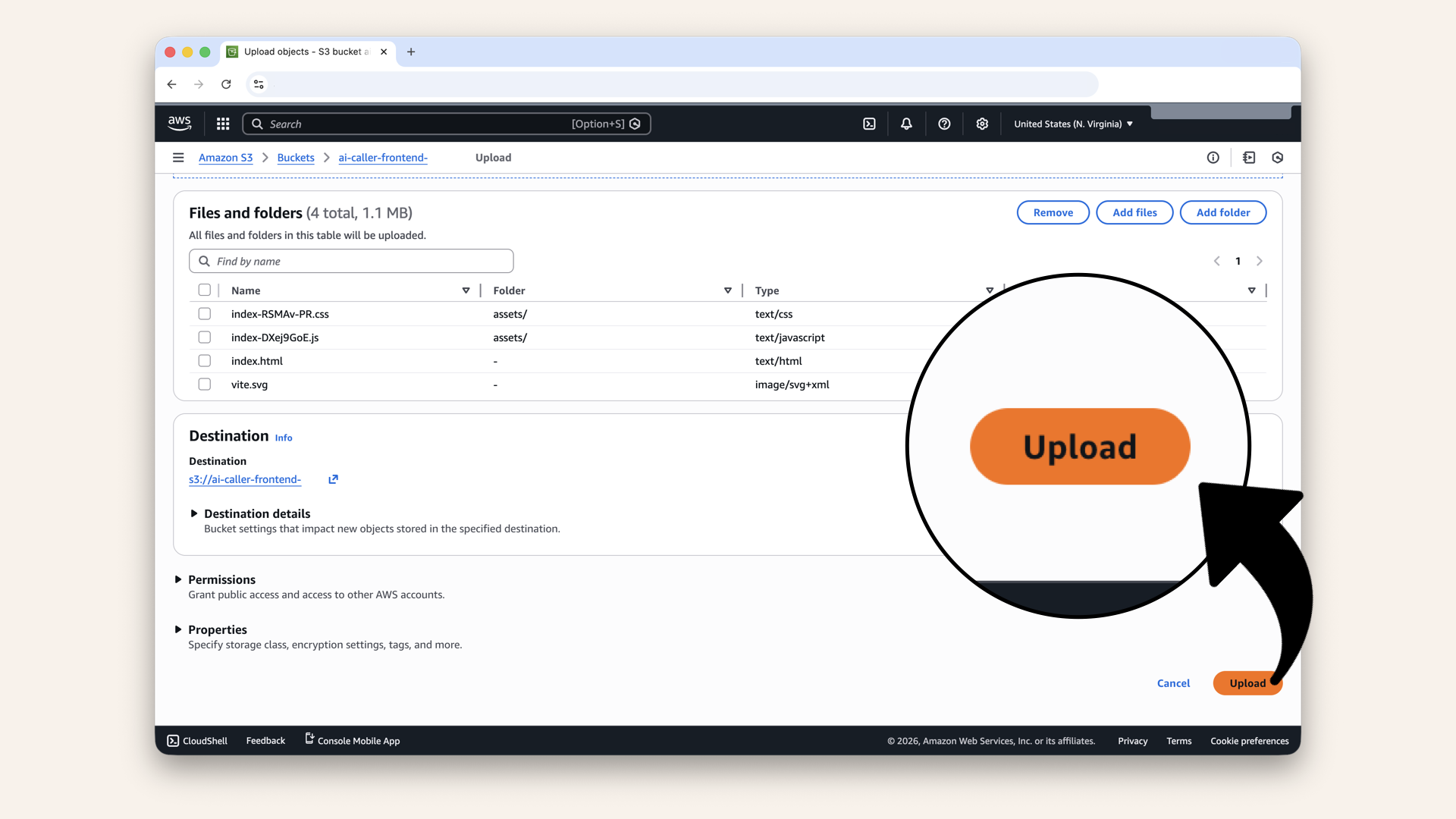
Scroll down and click Upload
✅ You should see "Upload succeeded":
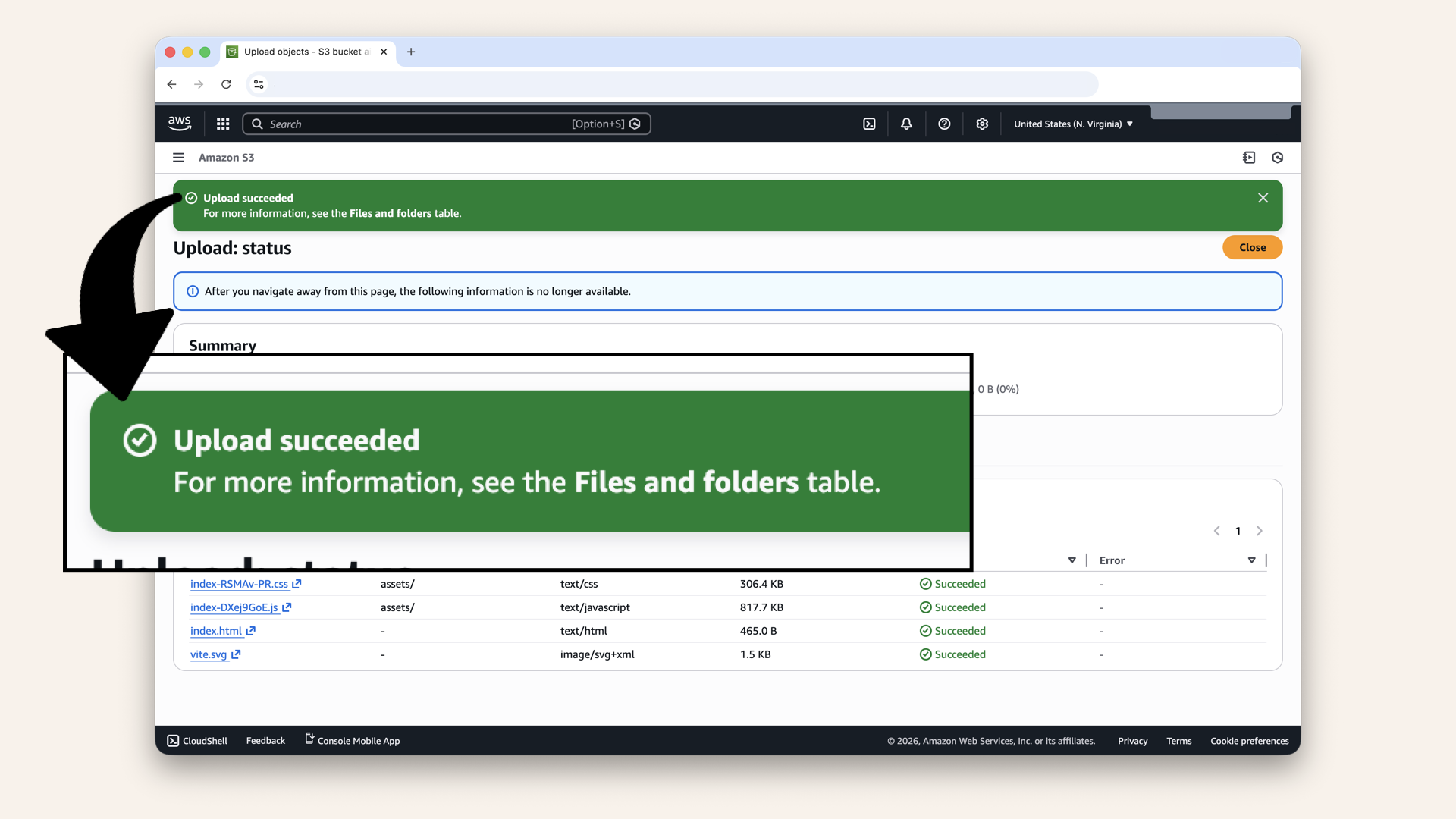
You should see "Upload succeeded"
Step 8.3: Check the changes
Visit your frontend https://app.yourdomain.com Enter a phone number, e.g. and click "Start AI Call":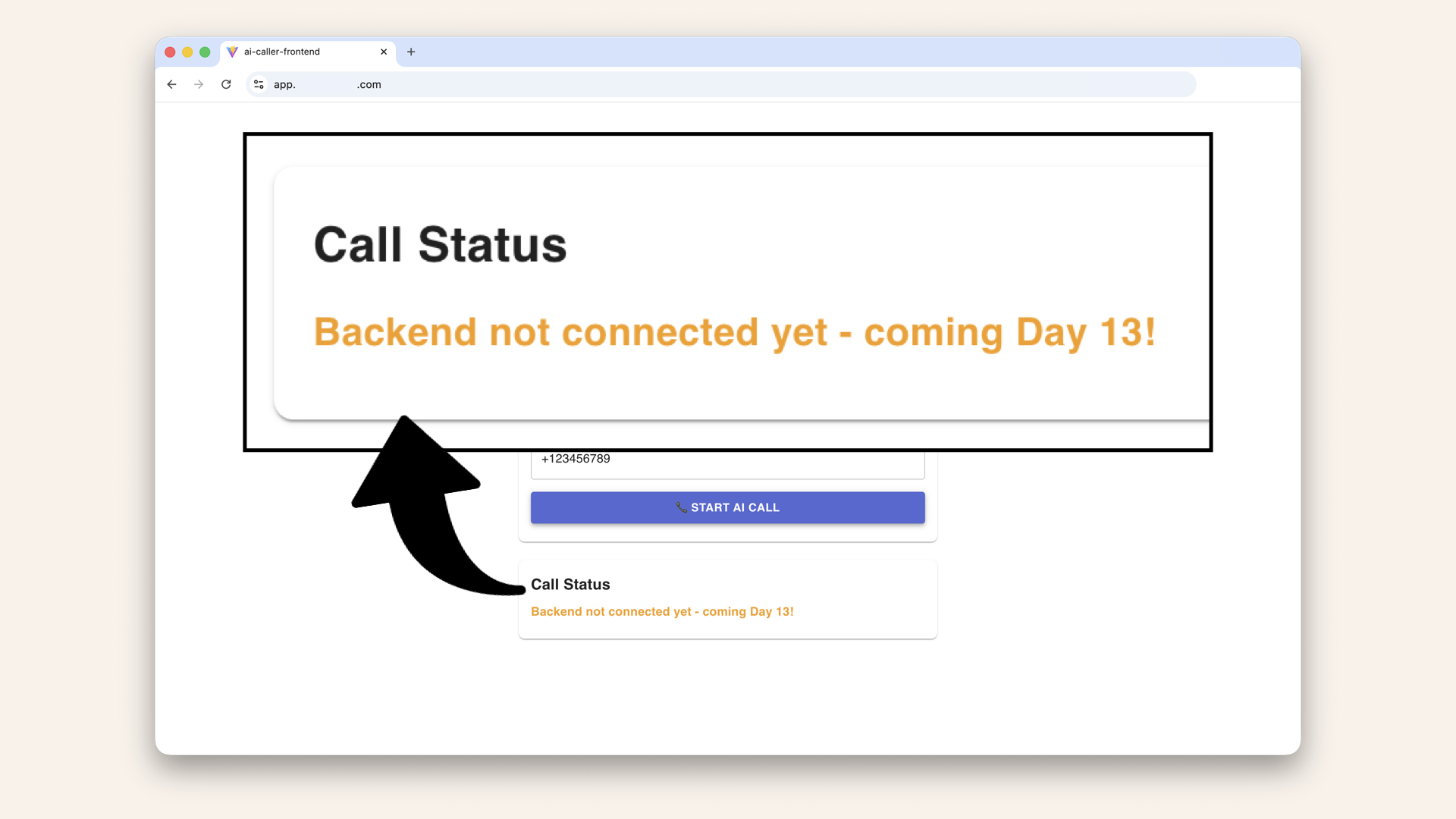
Enter a phone number and click "Start AI Call"
If your changes aren't showing up (like in the image above), you need to invalidate the CloudFront cache. CloudFront is still serving the old version of your files.
Step 9: Invalidate distribution cache
CloudFront caches your frontend files at edge locations worldwide.
When you upload new files to S3, CloudFront doesn't automatically know, it keeps serving the cached version until you tell it to refresh.
Open the AWS Console ↗ In the search bar at the top, type cloudfront and click CloudFront from the dropdown menu: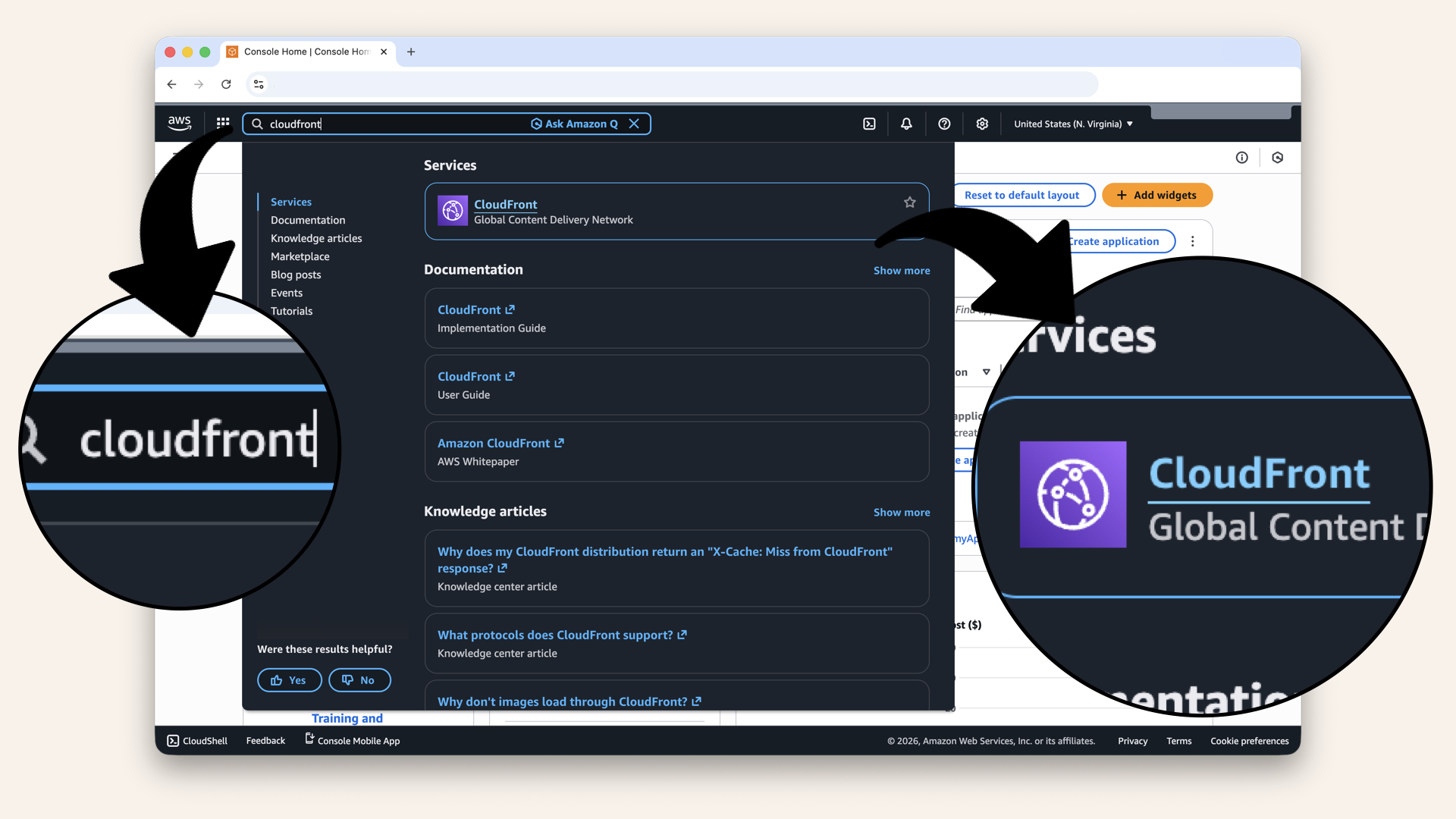
In the search bar at the top, type cloudfront and click CloudFront from the dropdown

You'll see your distribution listed, click on it
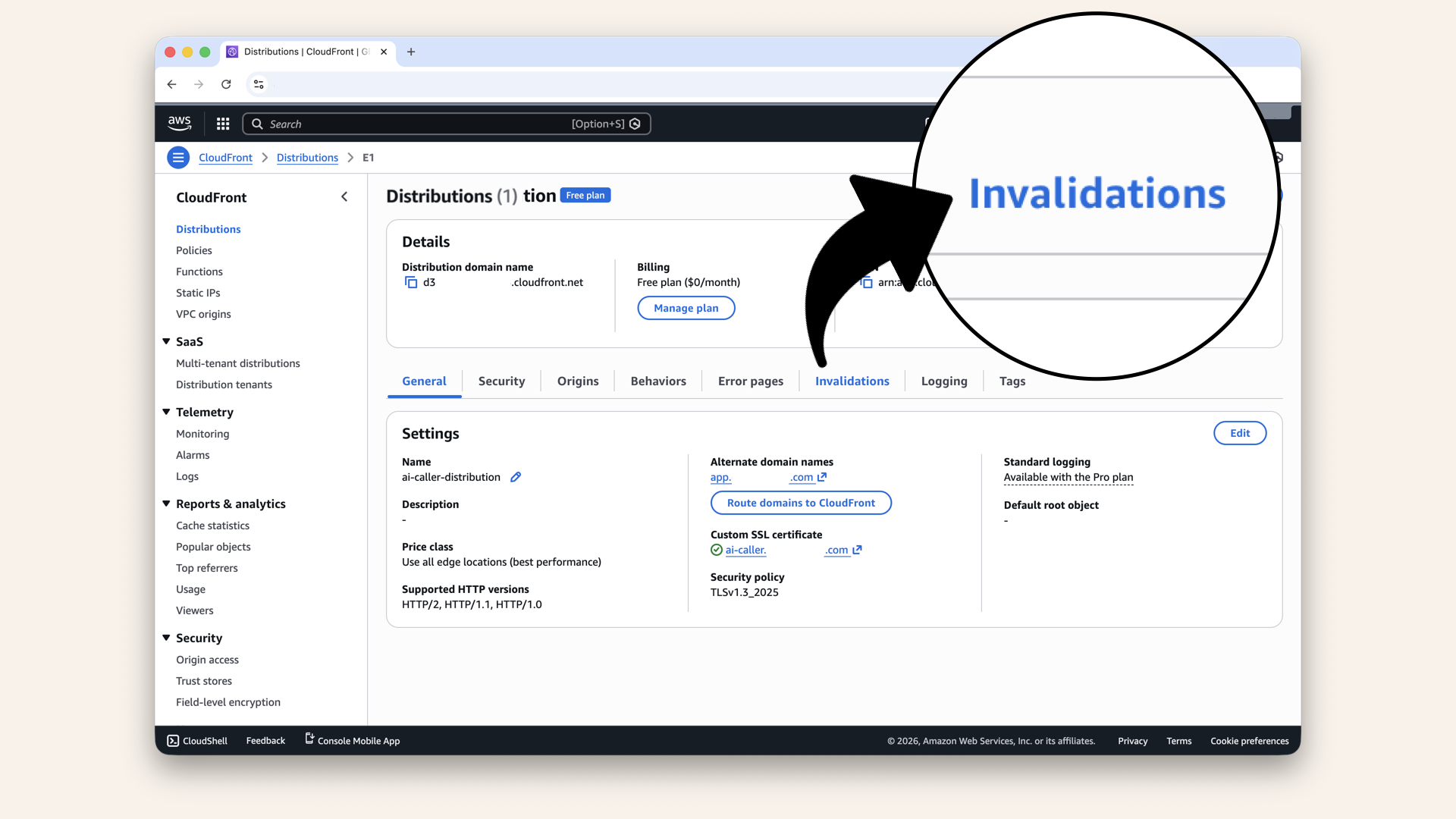
Click the Invalidation tab

Click the Create invalidation
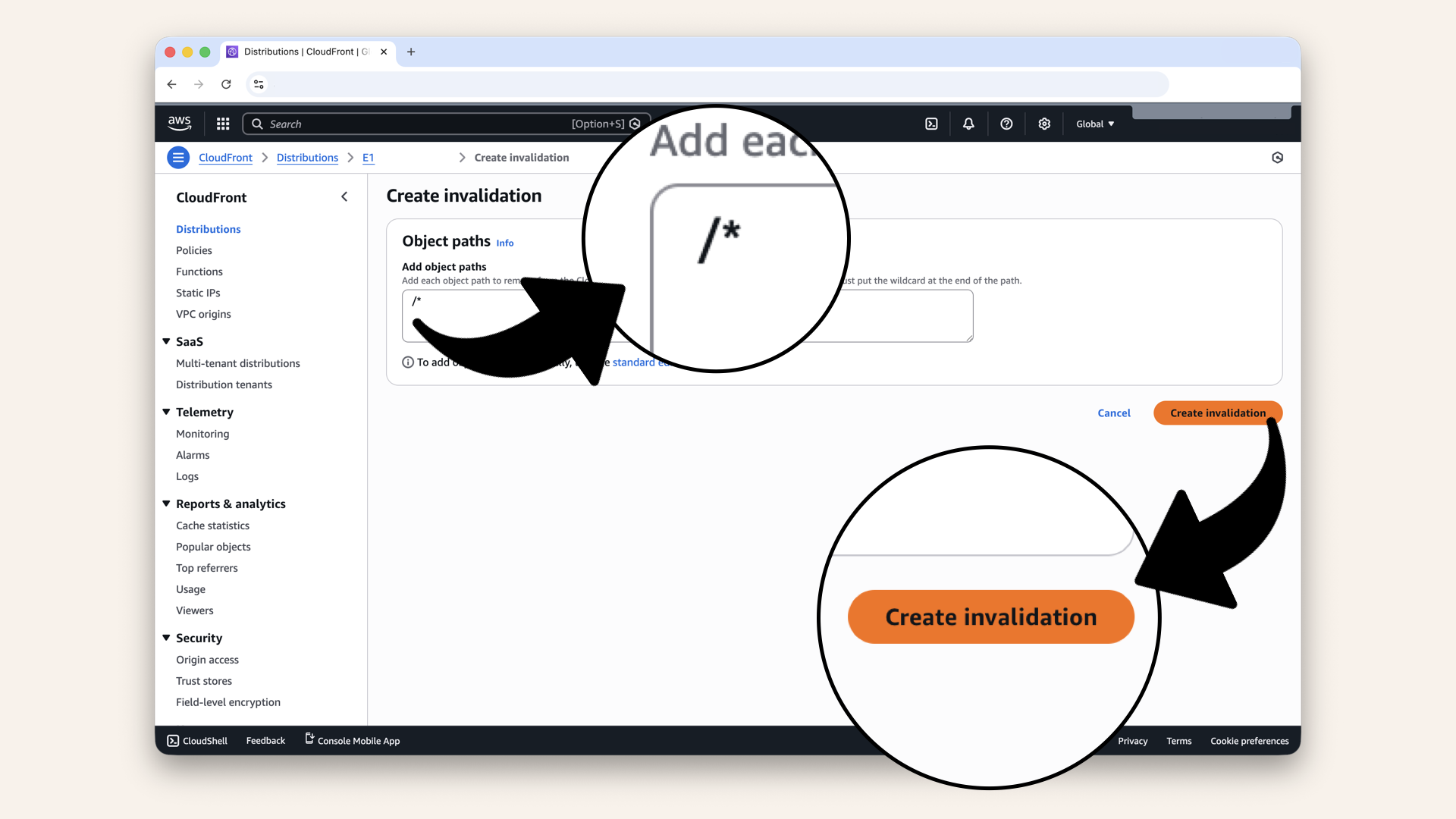
Type the wildcard /* and click Create invalidation
Deep dive
The /* wildcard tells CloudFront to invalidate all cached files.
You could be more specific:
/index.html→ Only the homepage/assets/*→ Only files in the assets folder/assets/index-*.js→ Only JavaScript bundles
For small deployments like ours, /* is easiest. CloudFront gives you 1,000 free invalidation paths per month, and /* counts as one path.
✅ You should see "Successfully created invalidation" with status In progress:
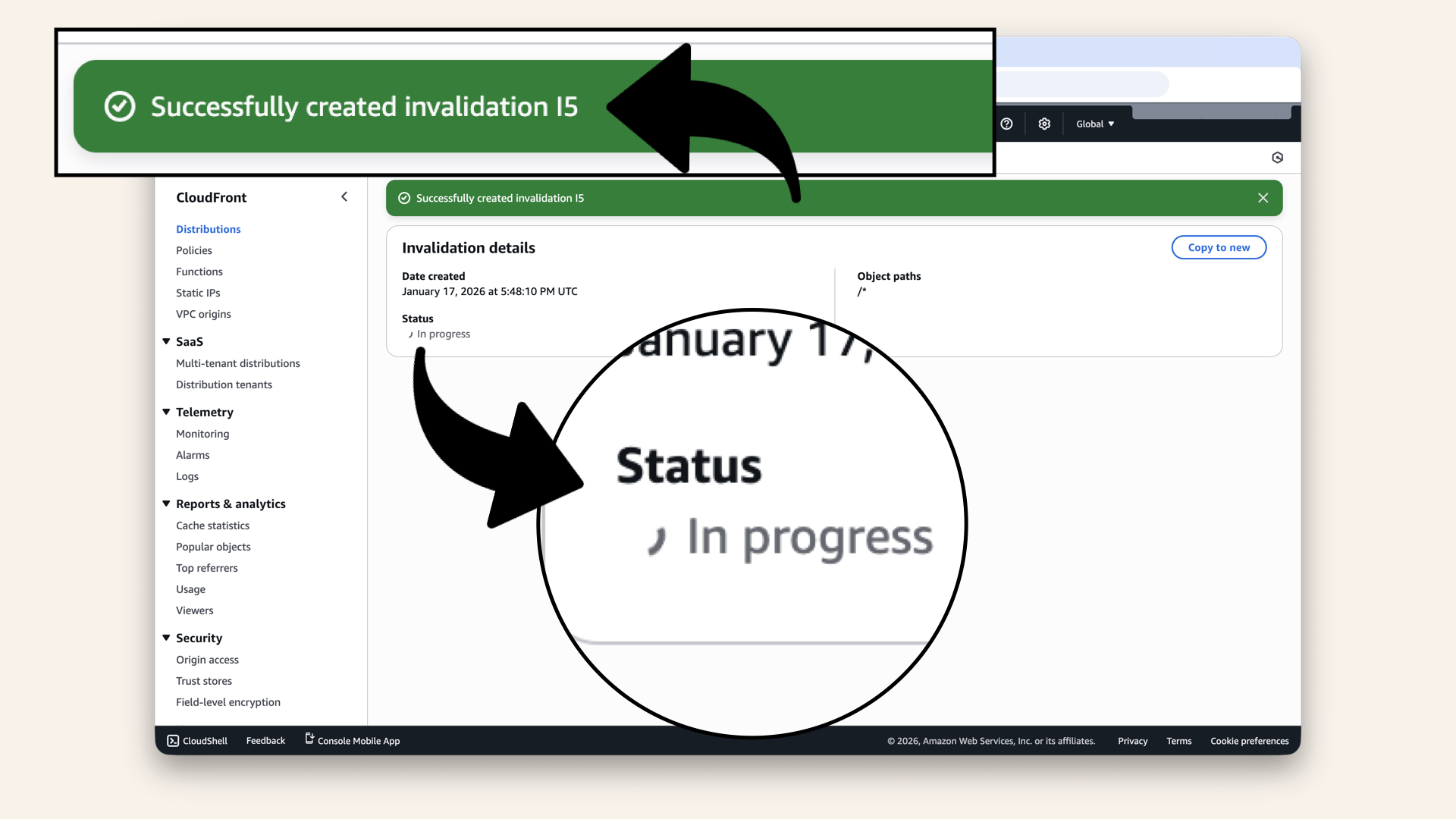
You should see "Successfully created invalidation" with status In progress
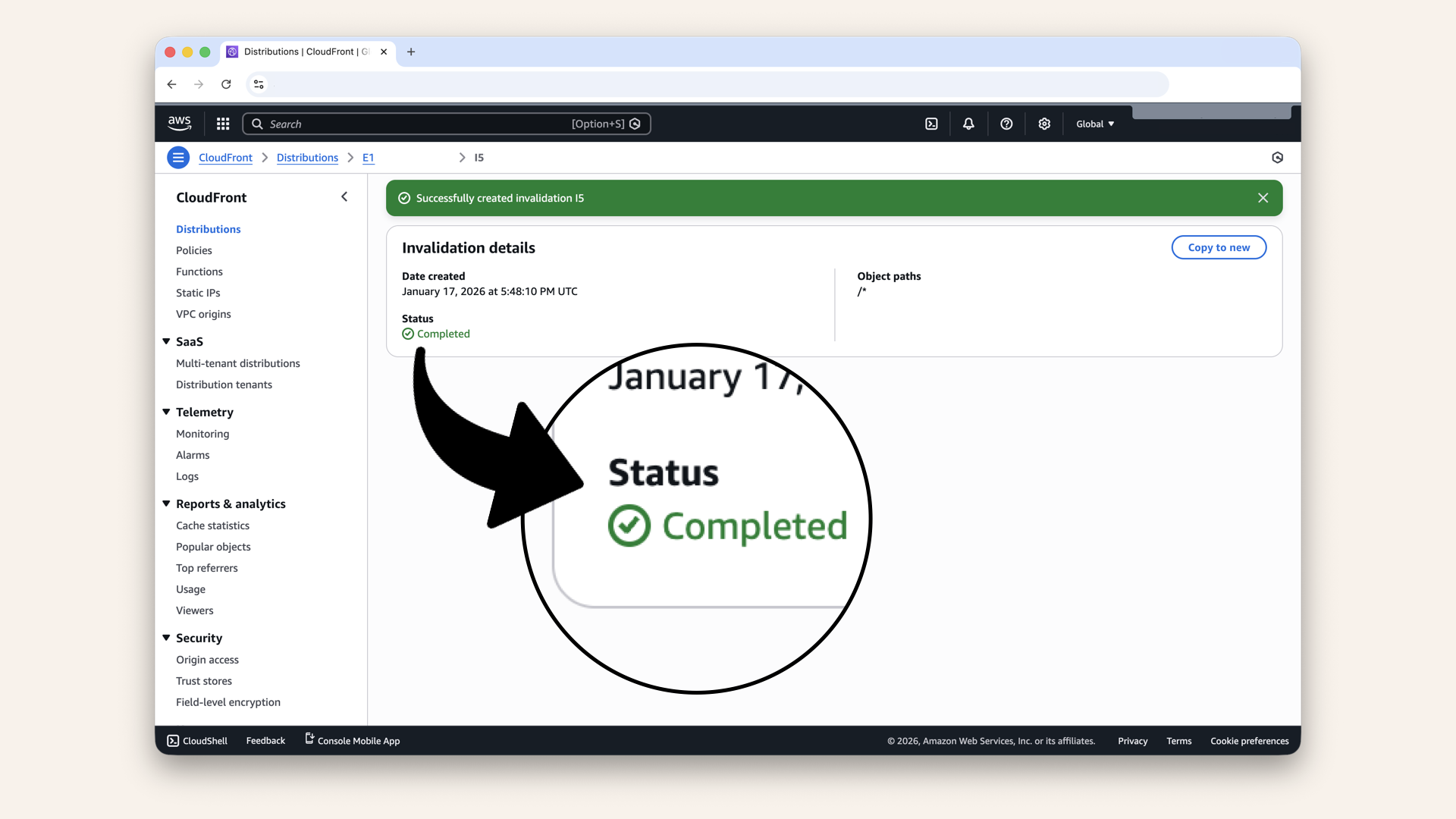
Wait 1-2 minutes until status changes to Completed
Step 9.1: Hard refresh your browser
Head back to https://app.yourdomain.comDo a hard refresh to clear your browser's local cache:
- Mac
- Windows
| Browser | Shortcut |
|---|---|
| Chrome | Cmd + Shift + R |
| Safari | Cmd + Option + R |
| Firefox | Cmd + Shift + R |
| Browser | Shortcut |
|---|---|
| Chrome | Ctrl + Shift + R |
| Edge | Ctrl + Shift + R |
| Firefox | Ctrl + Shift + R |
Your browser also caches files locally, separate from CloudFront's cache.
A normal refresh might still show the old JavaScript. A hard refresh forces the browser to re-download everything from CloudFront's freshly invalidated cache.
Step 9.2: Test the backend connection
Enter a phone number again, e.g. and click "Start AI Call":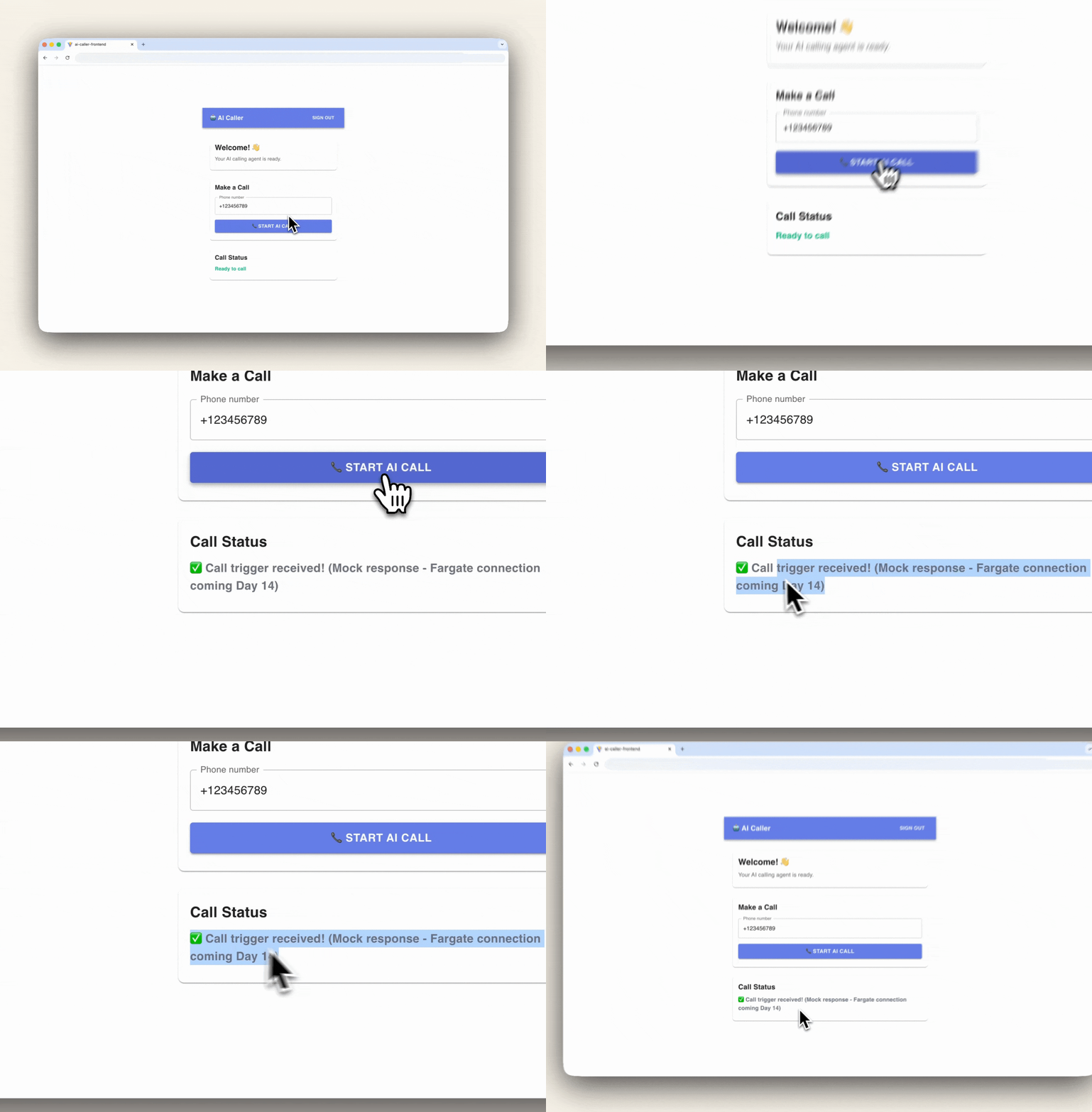
Enter a phone number again, e.g. +123456789 and click "Start AI Call"
✅ You should see the response from your Lambda backend:
✅ Call trigger received! (Mock response - Fargate connection coming Day 14)
🎉 It works! Your frontend is now connected to your secure backend.
The complete flow:
- You clicked the button
- Frontend fetched your Cognito JWT token
- Request sent to API Gateway with the token
- Cognito Authorizer validated the token
- Lambda executed and returned the response
- Frontend displayed the success message
Tomorrow: We'll replace that mock response with a real Fargate trigger!
✅ Today's win
If you completed all steps:
✅ Created Lambda function with SAM
✅ Set up API Gateway with CORS
✅ Added Cognito Authorizer
✅ Deployed from CloudShell (with no local AWS setup!)
✅ Verified health endpoint works (public)
✅ Verified trigger endpoint is protected (401 without auth)
✅ Connected frontend to secure backend
✅ Successfully triggered call (mock response)
Your backend is secure.
Before today:
- No way to trigger calls from frontend
- Any public endpoint would be vulnerable
After today:
- Lambda + API Gateway + Cognito = secure
- Only authenticated users can trigger calls
- No public exposure
Understanding what you built
The complete security architecture:
┌─────────────────────────────────────────────────────────────┐
│                     PUBLIC INTERNET                         │
└─────────────────────────────────────────────────────────────┘
           │
           ▼
    ┌─────────────────┐
    │    Frontend     │
    │   (Cognito)     │
    │  app.yourdomain │
    └─────────────────┘
           │
           │ POST /trigger-call
           │ + Authorization: <JWT>
           ▼
    ┌─────────────────┐
    │  API Gateway    │
    │                 │
    │ Cognito Auth ──▶ Validates JWT
    └─────────────────┘
           │
           │ Only if JWT valid
           ▼
    ┌─────────────────┐
    │    Lambda       │
    │                 │
    │ (Not publicly   │
    │  accessible)    │
    └─────────────────┘
           │
           │ Tomorrow: triggers
           ▼
    ┌─────────────────┐
    │    Fargate      │
    │ (Private subnet)│
    └─────────────────┘
Key security layers:
- Frontend auth (Cognito login required)
- AI Gateway auth (validates JWT)
- Lambda isolation (not publicly accessible)
- Fargate isolation (private subnet, tomorrow)
Tomorrow's preview
Today: You built secure backend trigger (mock response)
Tomorrow (Day 14): We deploy AI containers to Fargate
What we'll do:
- Build Docker image
- Push to Amazon ECR
- Create ECS Cluster
- Deploy Fargate Task Definition
- Connect Lambda → Fargate
- Make your first REAL AI call! 📞🤖
After Day 14:
- Lambda triggers actual Fargate containers
- Fargate connects to OpenAI + Twilio
- Real phone calls happen
What we learned today
1. Why Lambda is more secure
Not publicly accessible - only through API Gateway or AWS services
2. API Gateway with Cognito Authorizer
Validates JWT tokens before requests reach Lambda
API Gateway = locked cover on the control panel inside your pool house:
API Gateway = locked cover on the control panel inside your pool house
3. AWS SAM
Infrastructure as code for serverless applications
4. CloudShell deployment
No local AWS credential setup needed
5. Secure frontend integration
Fetch auth session, include JWT in Authorizer header
The application layer grows
Days 1-2: Local development (your laptop) ✅
Day 3: VPC (your territory) ✅
Day 4: Subnets (front yards vs back yards) ✅
Day 5: NAT Gateway (back gate) ✅
Day 6: Route Tables (the roads) ✅
Day 7: Security Groups (the bouncers) ✅
Day 8: Test Your Network (validation) ✅
Day 9: Application Load Balancer (front door) ✅
Day 10: Custom Domain (real URLs) ✅
Day 11: SSL Certificate (HTTPS) ✅
Day 12: Deploy Frontend (with auth) ✅
Day 13: Secure Backend Trigger ← YOU ARE HERE ✅
Day 14: Deploy AI Containers (Fargate) ← TOMORROW!
Days 15-17: Connect & Test
Days 18-24: Features & Polish
Troubleshooting
SAM deploy fails with "Parameter CognitoUserPoolArn"
Make sure you're using the full ARN, not just the User Pool ID.
Correct format:
arn:aws:cognito-idp:us-east-1:123456789012:userpool/us-east-1_ABC123xyz
Wrong format:
us-east-1_ABC123xyz ❌
Get the ARN from: Cognito → User Pools → Your pool → User pool overview
Upload says backend.zip exists (or unzip asks to replace files)
Recommended (clean reset): remove the old zip, project folder, and cached build; then re-upload your fresh zip.
Reset & re-upload:cd ~
rm -f backend.zip
rm -rf backend ~/.aws-sam # remove old project + SAM build cache
backend.zip:
In CloudShell, click Actions then click Upload file
unzip backend.zip -d backend && cd backend
SAM deploy fails
sam logs -n AgentFn --tail
What this does: pulls logs from CloudWatch as your Lambda executes.
Deploy fails: stack is in ROLLBACK_COMPLETE
CloudFormation won't update a stack in ROLLBACK_COMPLETE. Delete it, then redeploy.
sam delete # confirms and removes the stack
Answer y to both prompts:
- Are you sure you want to delete the stack ai-caller-backend in the region us-east-1 ? [y/N]:
y - Are you sure you want to delete the folder ai-caller-backend in S3 which contains the artifacts? [y/N]:
y
If needed:
sam delete --stack-name ai-caller-backend --region us-east-1
sam validate
sam build && sam deploy --guided
Health endpoint returns 403
The health endpoint should be public. If you get 403:
- Check your
template.yamlhasAuth: Authorizer: NONEon the health event - Redeploy with
sam deploy - Wait 1-2 minutes for changes to propagate
Frontend gets CORS error
Check these things:
- API Gateway CORS - Verify
AllowOrigins: ['*']in template.yaml - Response headers - Lambda must return CORS headers (check
json_responsefunction) - Redeploy - Run
sam deployagain
If still failing:
- Open browser DevTools → Network tab
- Look at the OPTIONS preflight request
- Check if it returns 200 with CORS headers
Getting "Unauthorized" even when logged in
The JWT token might not be passed correctly.
- Check browser DevTools → Network → Request headers
- Verify
Authorizationheader contains the token - Make sure you're using
idToken, notaccessToken
Test your token:
const session = await fetchAuthSession();
console.log('ID Token:', session.tokens?.idToken?.toString());
CloudShell upload fails
File size limit: CloudShell has a 1GB storage limit.
If upload fails:
- Delete old files:
rm -rf ~/backend.zip ~/backend - Try uploading again
- If still failing, make sure zip is under 50MB
Common mistakes (and how to avoid them)
❌ Mistake: #1: Using access token instead of ID token
Result: 401 Unauthorized
Fix: Use session.tokens?.idToken, not accessToken
❌ Mistake: #2: Wrong Cognito User Pool ARN
Result: SAM deploy fails or auth always fails
Fix: Copy full AWS from Cognito console
❌ Mistake: #3: Forgetting to redeploy after template changes
Result: Old configuration still active
Fix: Always run sam deploy after changing template.yaml
❌ Mistake: #4: Not waiting for deployment to complete
Result: Endpoints don't work yet
Fix: Wait for "Successfully created/updated stack" message
Share your progress
Secure backend deployed? Share it!
Twitter/X:
"Day 13: Built a secure backend! Lambda + API Gateway + Cognito = Only authenticated users can trigger calls. No public exposure. Following @norahsakal's advent calendar 🎄"
LinkedIn:
"Day 13 of building AI calling agents: Created a secure Lambda backend with API Gateway and Cognito authorization. The call trigger endpoint is protected - only authenticated users can access it. Tomorrow: Deploy the actual AI containers!"
Tag me! I want to celebrate your progress! 🎉
But if you want:
✅ Complete codebase (one clean repo)
✅ Complete walkthroughs
✅ Support when stuck
✅ Production templates
✅ Advanced features
Join the waitlist for the full course (launching February 2026):
Let's chat about your use case!
Schedule a free call ↗ - no pitch, just two builders talking.
Tomorrow: Day 14 - Deploy AI Containers to Fargate 🚀📞
Read Day 14 ↗
See you then!
— Norah