Day 11: Add HTTPS (SSL certificate)

How to request a free SSL certificate from AWS and enable HTTPS on your Application Load Balancer
Make it secure
Day 10: You got a custom domain
Today: We make it secure with HTTPS
Here's the situation:
Your app is accessible at:
http://ai-caller.yourdomain.com
Browser says: ⚠️ "Not secure":
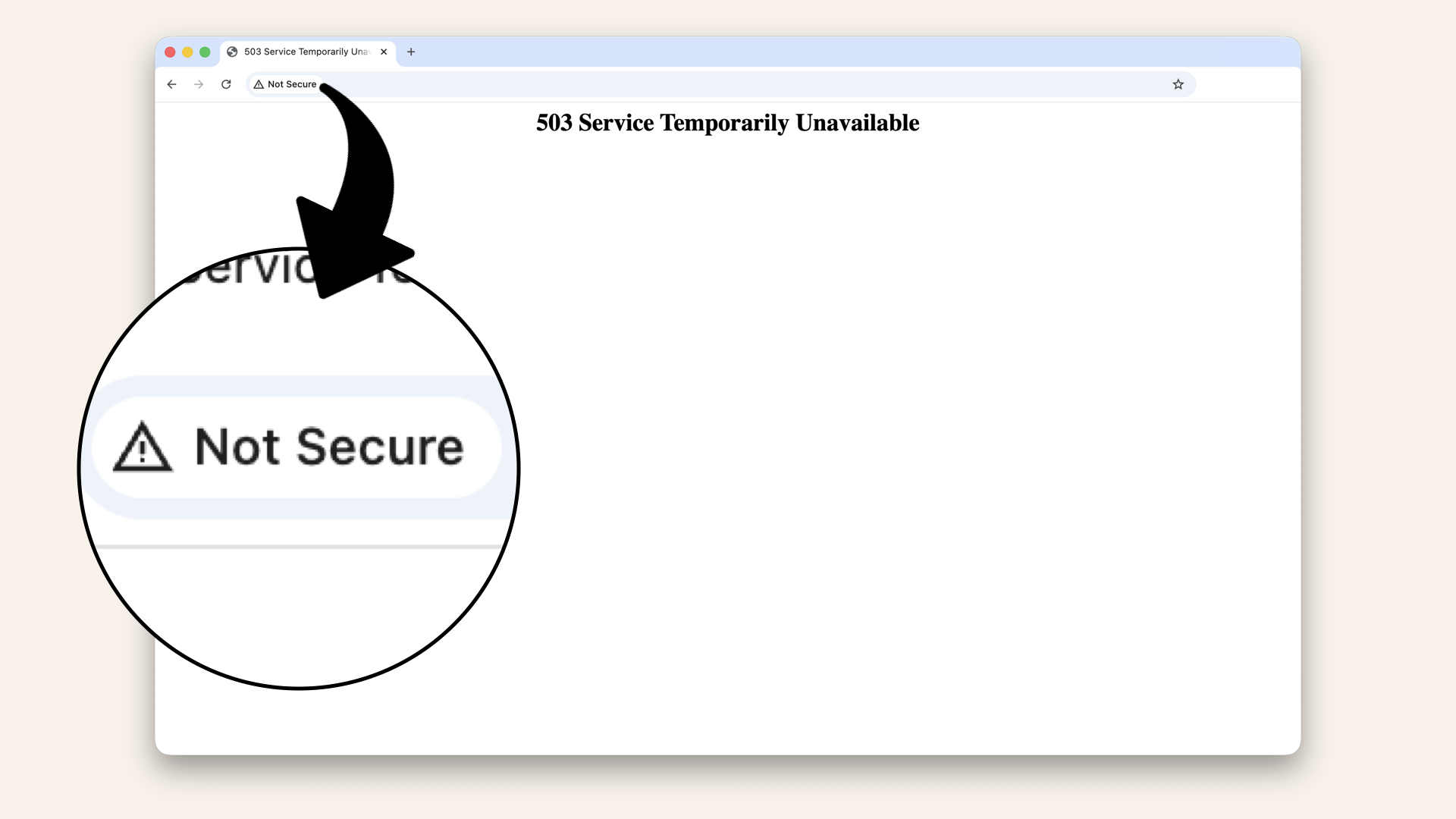
Browser says: ⚠️ "Not secure"
The problem:
❌ Data transmitted in plain text
❌ Anyone can intercept traffic
❌ Users don't trust it
❌ Browser shows scary warnings
❌ Can't use modern web features (WebRTC, microphone access)
What you need:
https://ai-caller.yourdomain.com
Browser says: ✅ "Secure" 🔒
Solution: SSL Certificate
Think of it like mail:
HTTP (no SSL):
- Sending a post card
- Anyone can read it
- No privacy
HTTPS (with SSL):
- Sending a sealed envelope
- Only recipient can read it
- Encrypted and private
By the end of today, you'll have:
✅ Free SSL certificate from AWS Certificate Manager
✅ Domain ownership validated
✅ HTTPS listener on ALB (port 443)
✅ HTTP → HTTPS redirect
✅ Green padlock in browser 🔒
Let's secure your app 🔐
What you'll build today
Complete HTTPS setup:
| Component | Value | Purpose |
|---|---|---|
| SSL Certificate | ACM Certificate | Encrypts traffic |
| Domain | ai-caller.yourdomain.com | What the cert covers |
| Validation | DNS validation | Proves you own the domain |
| HTTPS Listener | Port 443 | Accepts HTTPS traffic |
| HTTP Redirect | Port 80 → Port 443 | Forces HTTPS |
Result:
http://ai-caller.yourdomain.com  → Redirects to HTTPS
https://ai-caller.yourdomain.com → ✅ Secure! 🔒
What you'll learn
- What SSL/TLS certificates are (and why you need them)
- How AWS Certificate Manager (ACM) works
- DNS validation vs email validation
- How to attach certificates to ALB
- How to configure HTTPS listeners
- How to redirect HTTP → HTTPS
But if you want:
✅ Complete codebase (one clean repo)
✅ Complete walkthroughs
✅ Support when stuck
✅ Production templates
✅ Advanced features
Join the waitlist for the full course (launching February 2026):
Building something with AI calling?
Let's chat about your use case!
Schedule a free call ↗ - no pitch, just two builders talking.
Time required
15-20 minutes (certificate validation takes 5-10 minutes, ALB config takes 5 min)
Prerequisites
✅ Completed Day 3 (VPC) ↗
✅ Completed Day 4 (Subnets) ↗
✅ Completed Day 5 (NAT Gateway) ↗
✅ Completed Day 6 (Route Tables) ↗
✅ Completed Day 7 (Security Groups) ↗
✅ Completed Day 8 (prove it works) ↗
✅ Completed Day 9 (Application Load Balancer) ↗
✅ Completed Day 10 (Custom Domain) ↗
✅ Access to AWS Console
✅ Domain managed by Route 53 (or ability to add DNS records)
Understanding SSK/TLS Certificates (3-minute primer)
What is SSL/TLS?
SSL = Secure Sockets Layer (older)
TLS = Transport Layer Security (newer, current standard)
People still say "SSL" but mean TLS.
What it does:
- Encrypts data between browser and server
- Verifies server identity (you are talking to the real site)
- Prevents man-in-the-middle attacks
How HTTPS works
Without HTTPS (HTTP):
Browser: "Hey server, send me to the home page"
Server: "Here's the HTML: <html>..."
Attacker: 👀 "I can see everything"
With HTTPS:
Browser: "Her server, let's set up encryption"
Server: "Here's my certificate (proves I'm legit)"
Browser: "Certificate looks good, let's encrypt everything"
[All traffic now encrypted with unique keys]
Attacker: 🥹 "I see gibberish: XK3$#@..."
What is AWS Certification Manager (ACM)?
ACM = AWS's free SSL certificate service
Benefits:
✅ Free certificates (for AWS resources)
✅ Auto-renewal (no manual renewals)
✅ Automatic deployment to ALB, CloudFront, etc.
✅ Managed by AWS (no certificate files to manage)
DNS validation vs Email validation
To get a certificate, you need to prove you own the domain.
Two methods:
| Method | How it works | Time | Best for |
|---|---|---|---|
| DNS validation | Add CNAME record to Route 53 | 5-10 min | Route 53 domains (easiest) |
| Email validation | Click link in email | 30 min - 24 hr | External domains |
We'll use DNS validation (faster and automatic with Route 53).
Step 1: Request SSL Certificate
Open the AWS Console ↗In the search bar at the top, type certificate manager and click Certificate Manager from the dropdown menu:
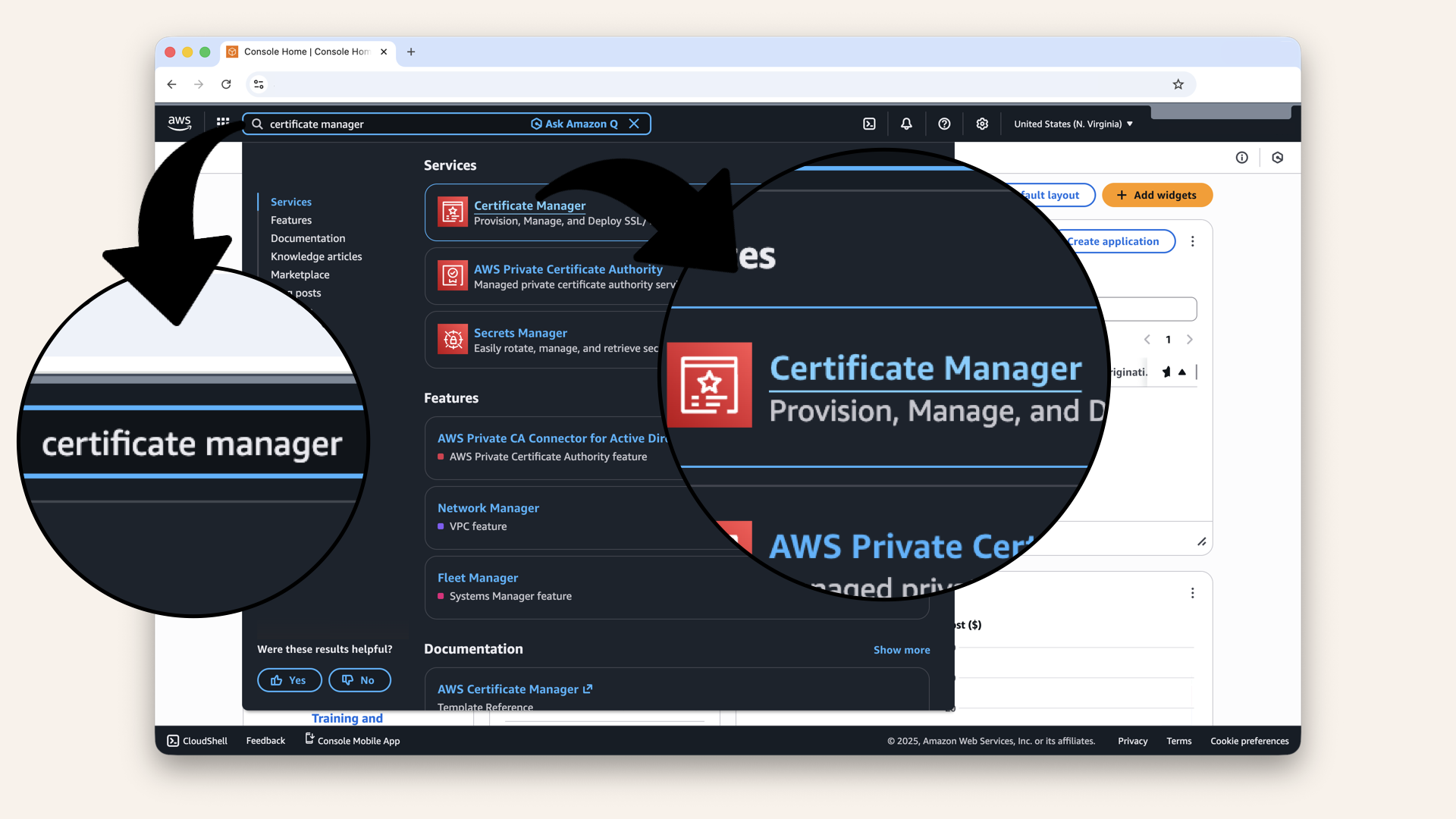
In the search bar at the top, type certificate manager and click Certificate Manager from the dropdown menu
Same sure you're in the same region as your ALB.
Check top-right corner: Should say us-east-1 (or wherever your ALB is):

Check top-right corner: Should say us-east-1 (or wherever your ALB is)
If wrong region:
- Certificates won't show up in ALB dropdown
- You'll have to request again in correct region
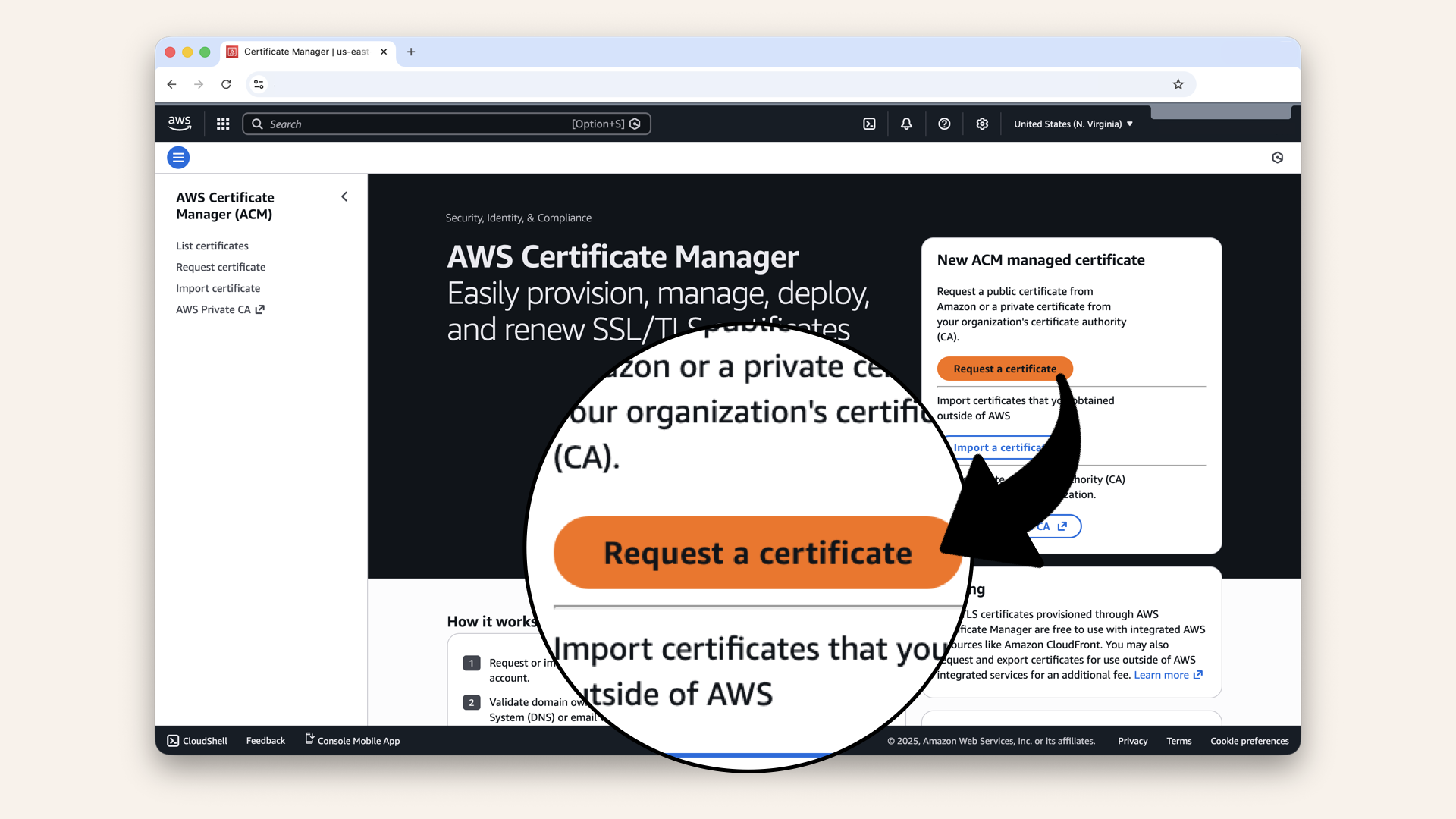
Click Request a certificate
Step 1.1: Choose certificate type
Select Request a public certificate: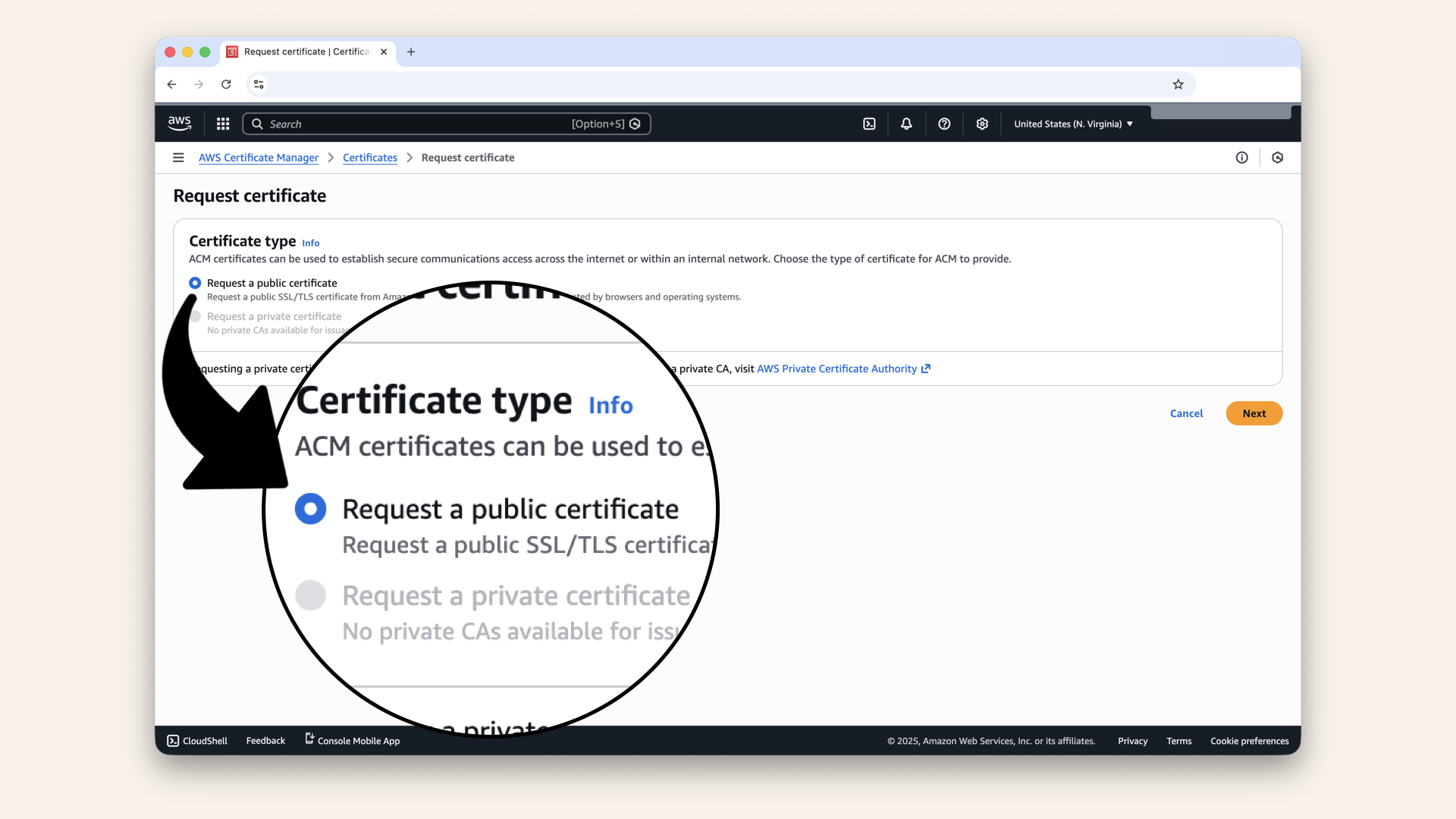
Select Request a public certificate
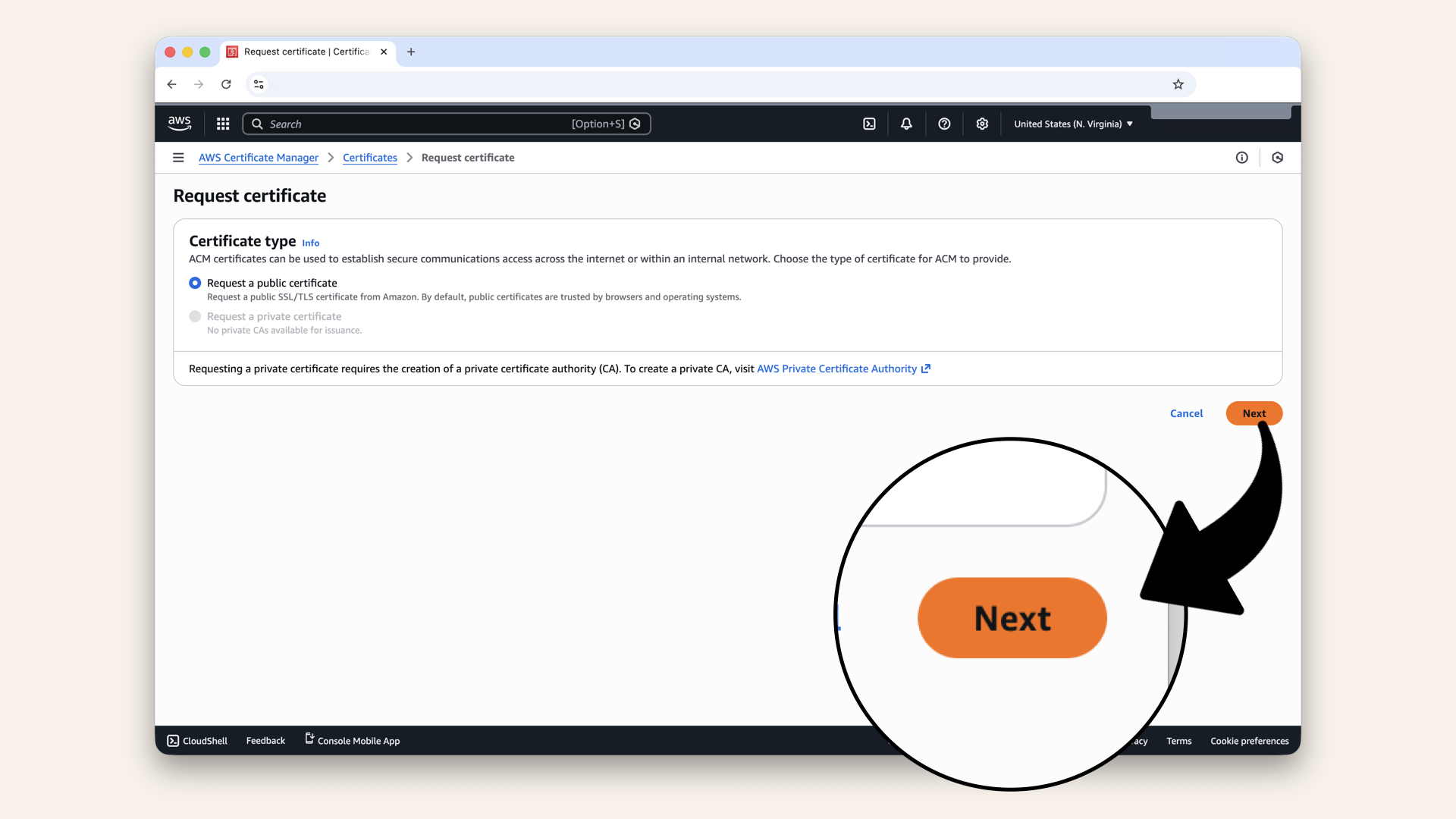
Click Next
Step 1.2: Add domain names
Add two domain names:
In Fully qualified domain name, first type:
ai-caller.yourdomain.com
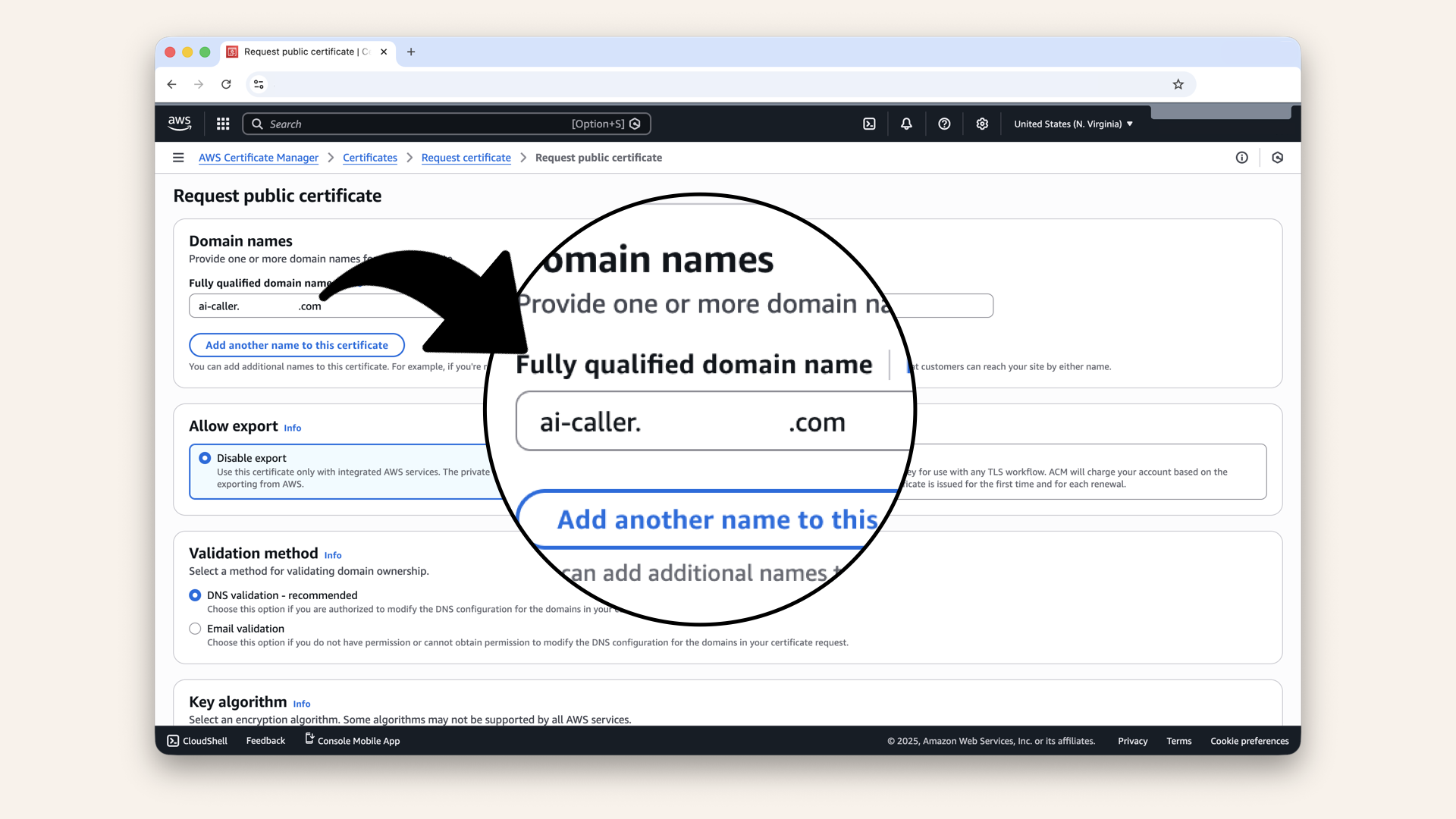
In Fully qualified domain name, first type ai-caller.yourdomain.com
*.yourdomain.com

Then click Add another name to this certificate and add *.yourdomain.com
This wildcard covers any future subdomain you might need.
If you only want to cover ai-caller.yourdomain.com, that's fine - skip the wildcard.
But for most projects, the wildcard gives you flexibility at no extra cost.
For this tutorial, just ai-caller.yourdomain.com is enough.
Step 1.3: Select validation method
Scroll down and select DNS validation: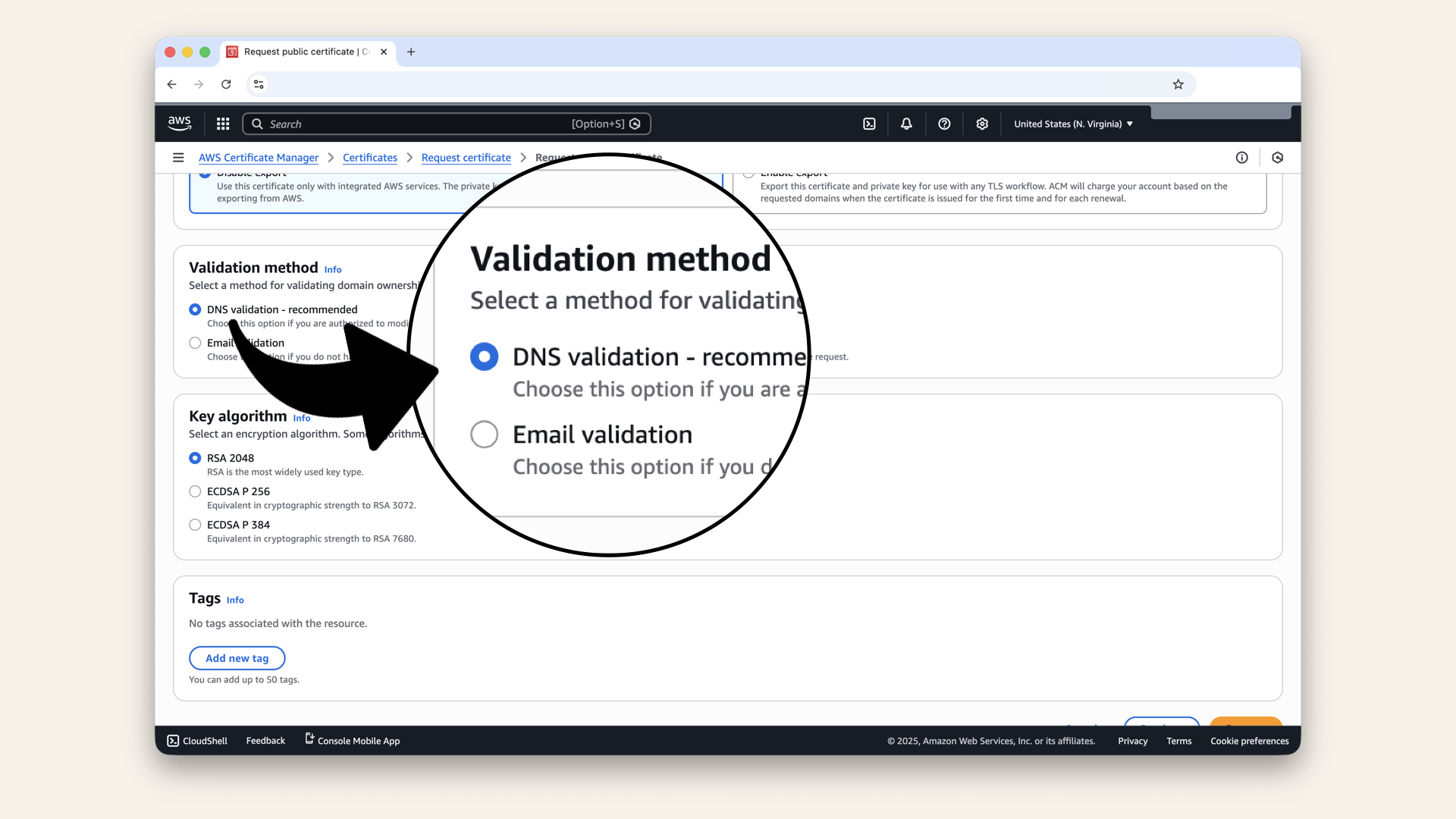
Scroll down and select DNS validation
Why DNS validation:
✅ Faster (5-10 minutes)
✅ Automatic with Route 53
✅ Can be automated
✅ No email required
Step 1.4: Add tags (optional)
Optional: Add tags for organization
Click the icon
and copy each value from the table below ⬇| Key | Value |
|---|---|
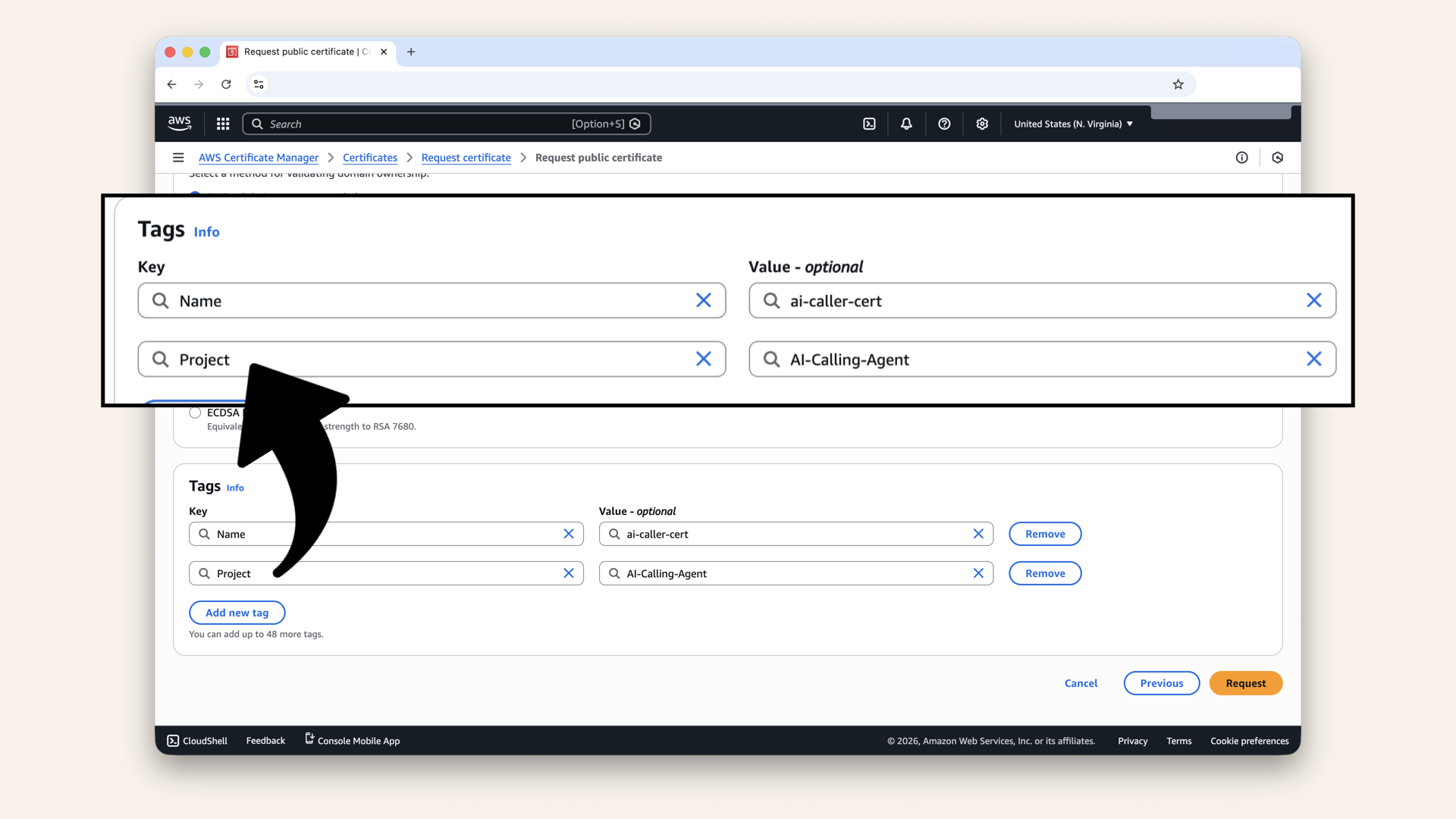
Optional: Add tags for organization
Step 1.5: Request validation
Scroll down and click Request: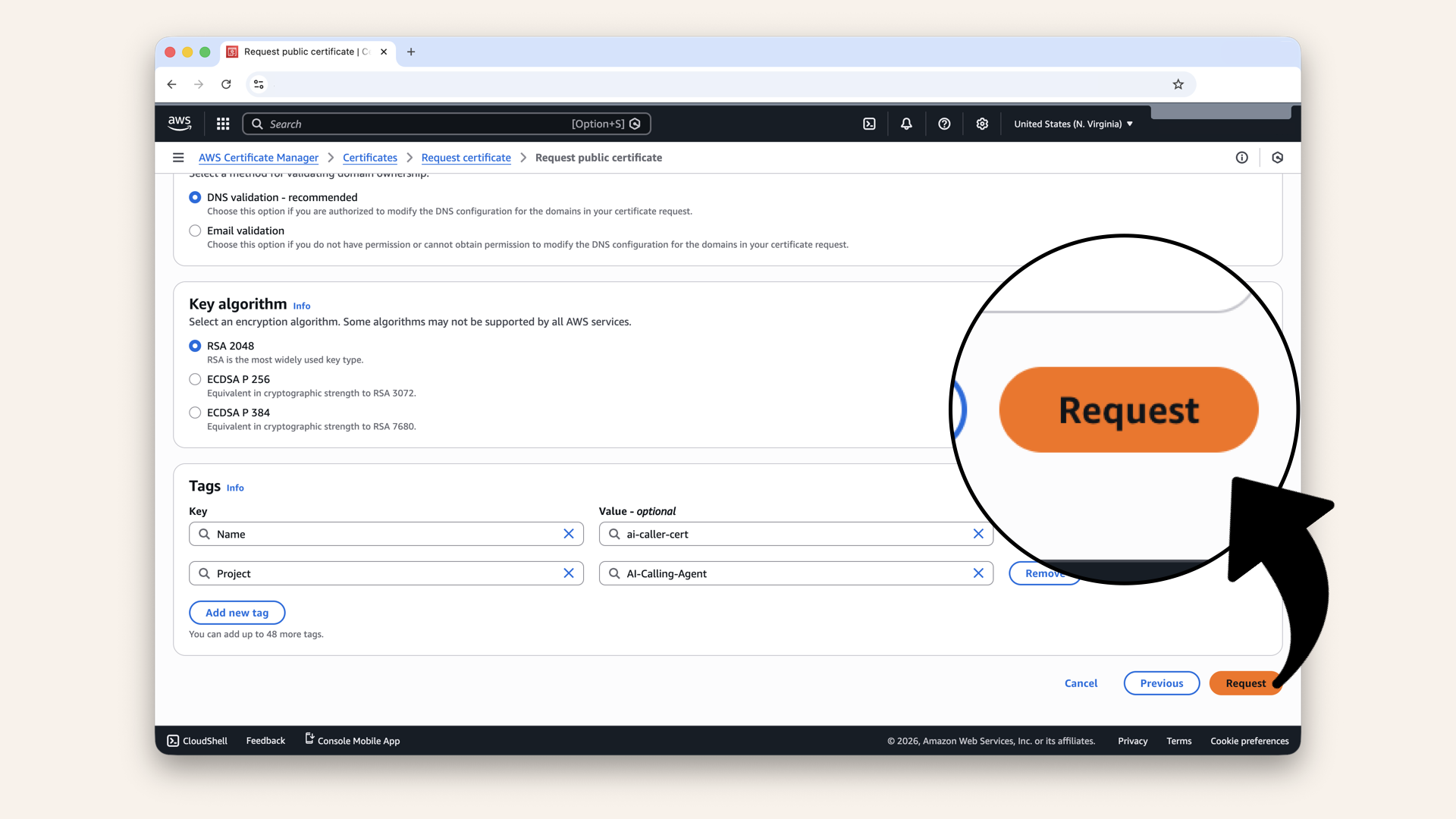
Scroll down and click Request
✅ You should see: "Successfully requested certificate your request is being processed"
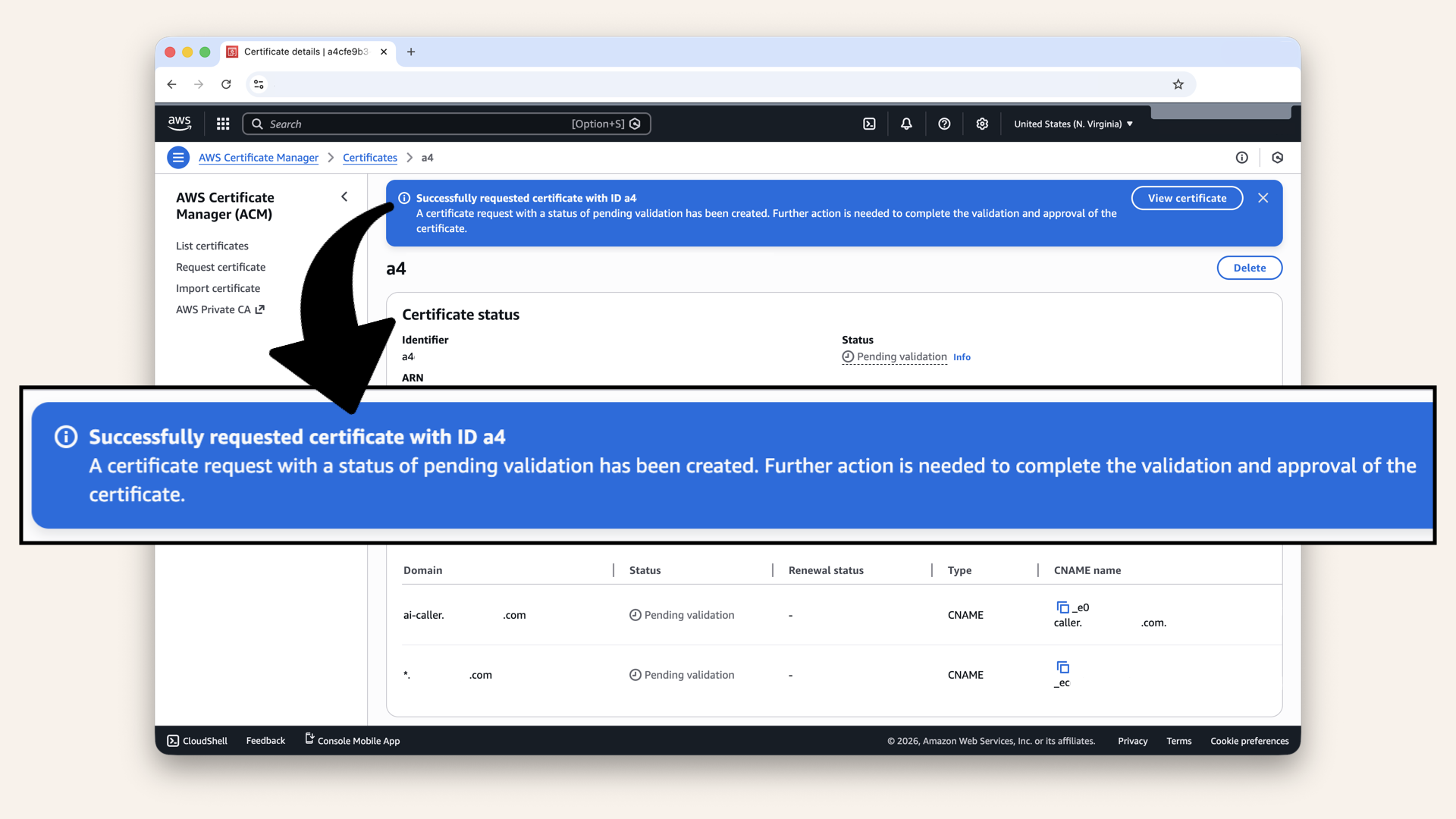
You should see: "Successfully requested certificate your request is being processed"
Step 2: Validate domain ownership
Now we need to prove we own the domain by adding a DNS record.
Click Create records in Route 53: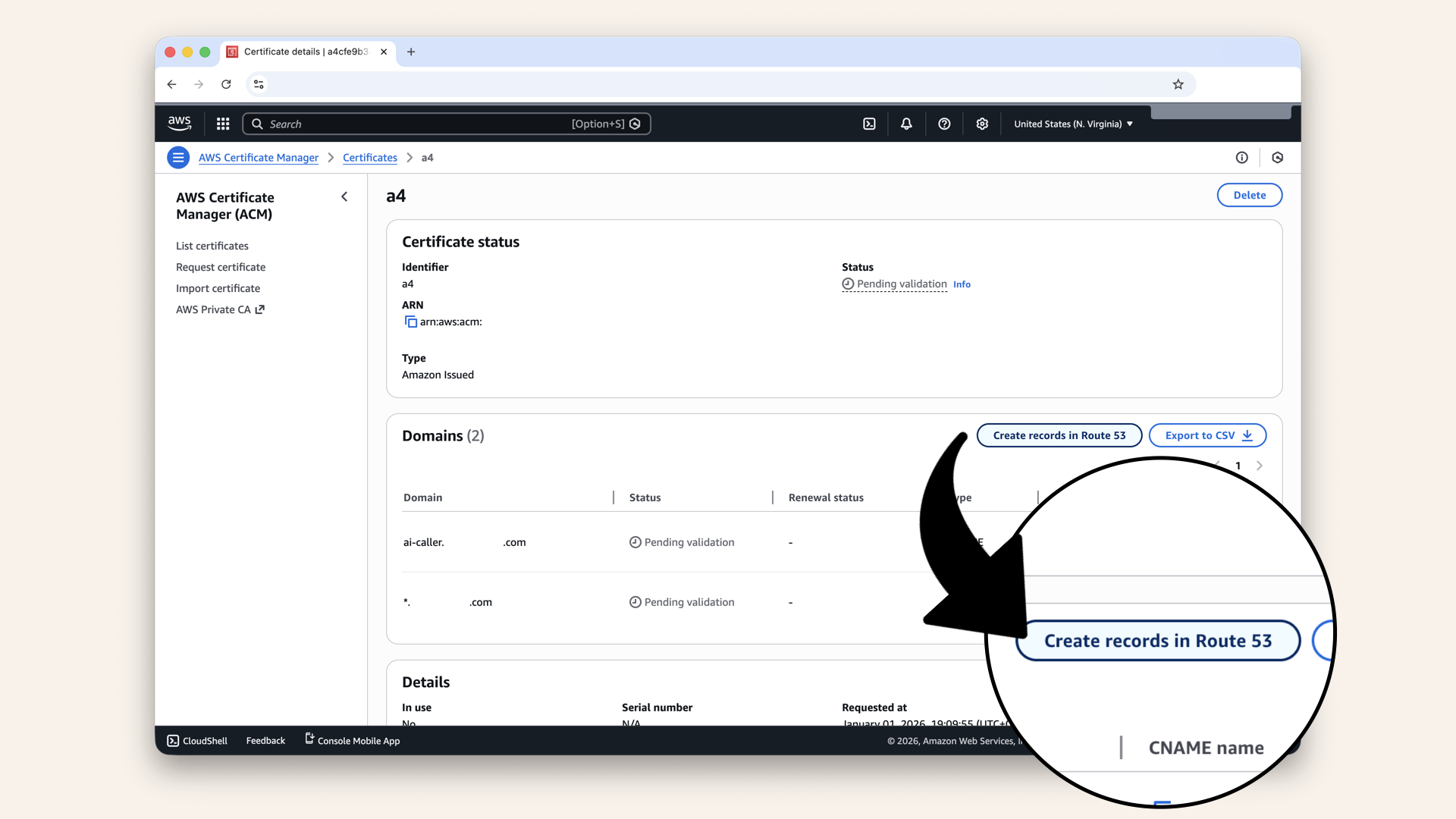
Click Create records in Route 53
You can also click List certificates in the left menu and then click your certificate:
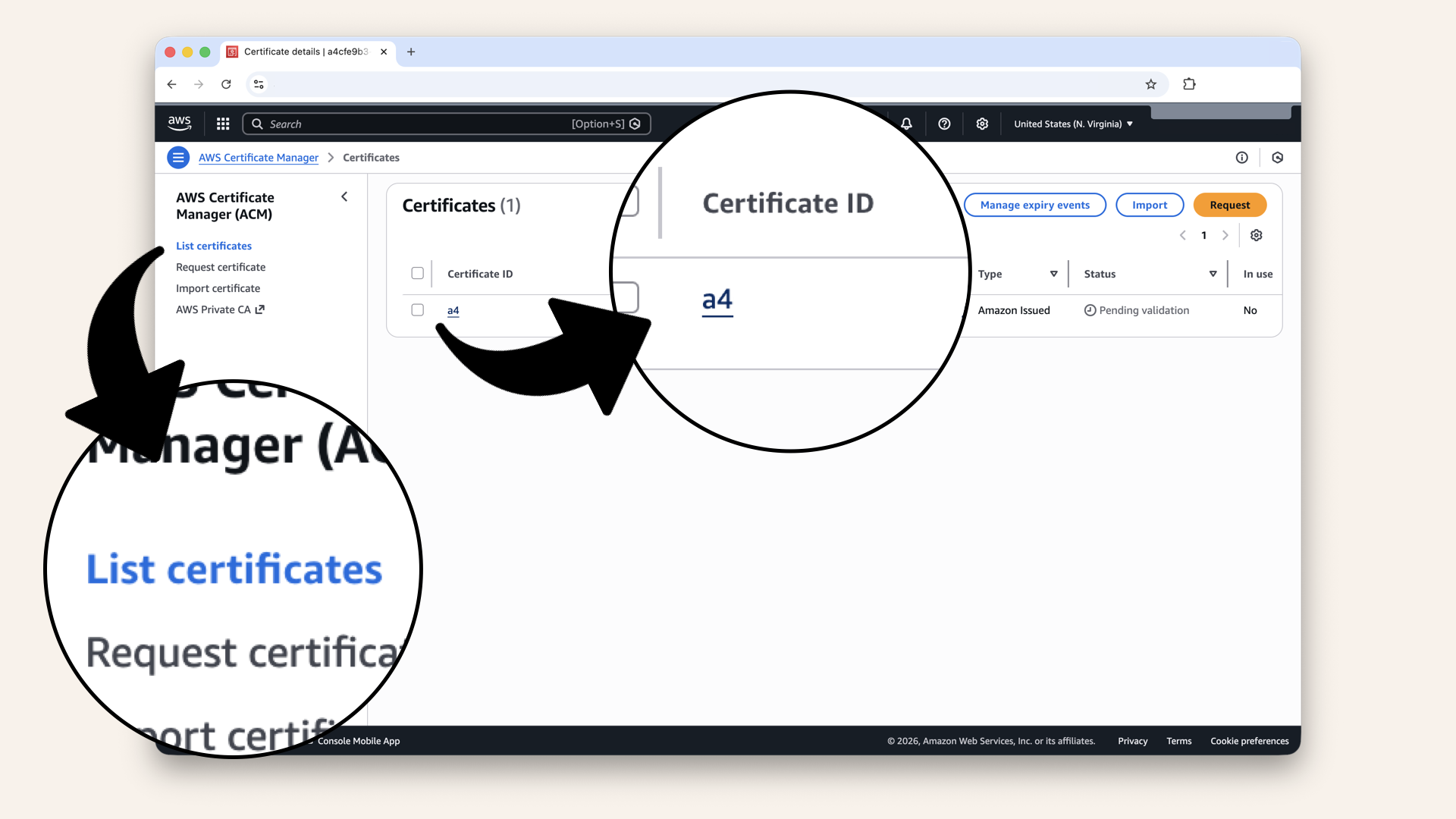
Go to Certificate Manager, click List certificates → Click your certificate
A new screen will appear showing the CNAME records ACM needs.
Click Create records: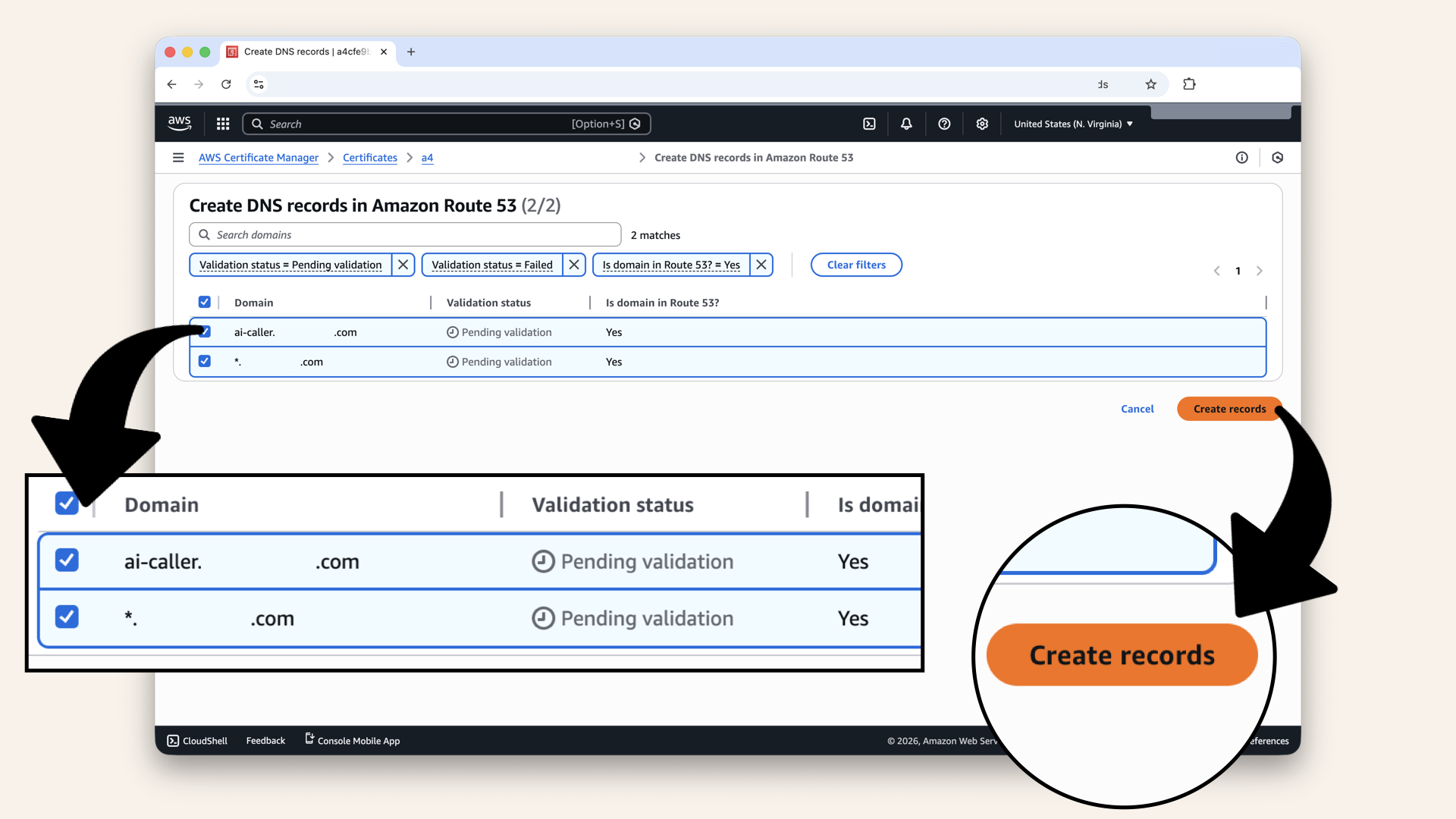
Click Create records
✅ You should see: "Successfully created DNS records":

You should see: "Successfully created DNS records"
Step 2.1: Wait for validation
Certificate validation takes 5-10 minutes.
Refresh the page until Status changes from Pending validation to Issued:
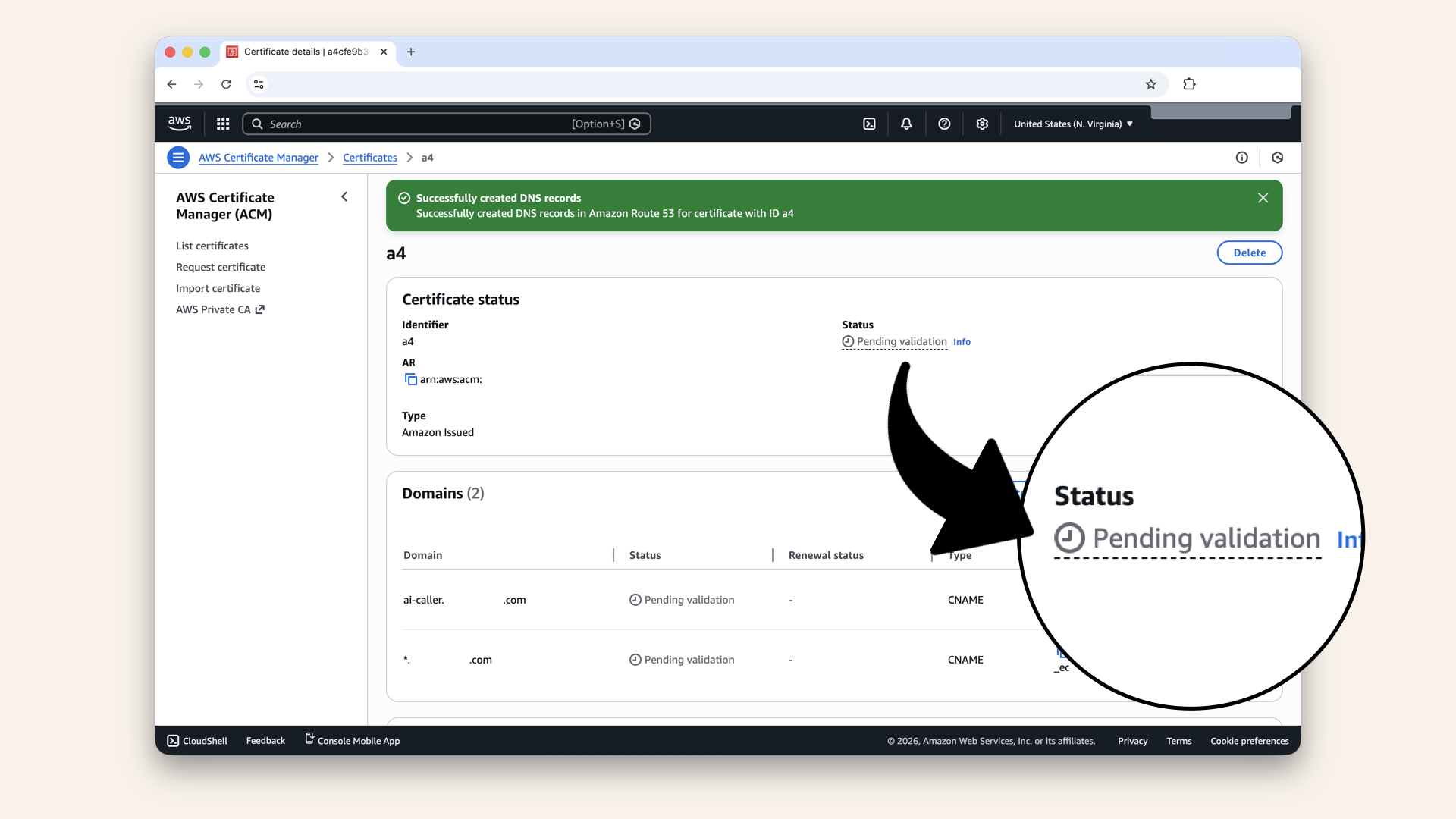
Refresh the page until Status changes from Pending validation to Issued
When status shows Issued → your certificate is ready:
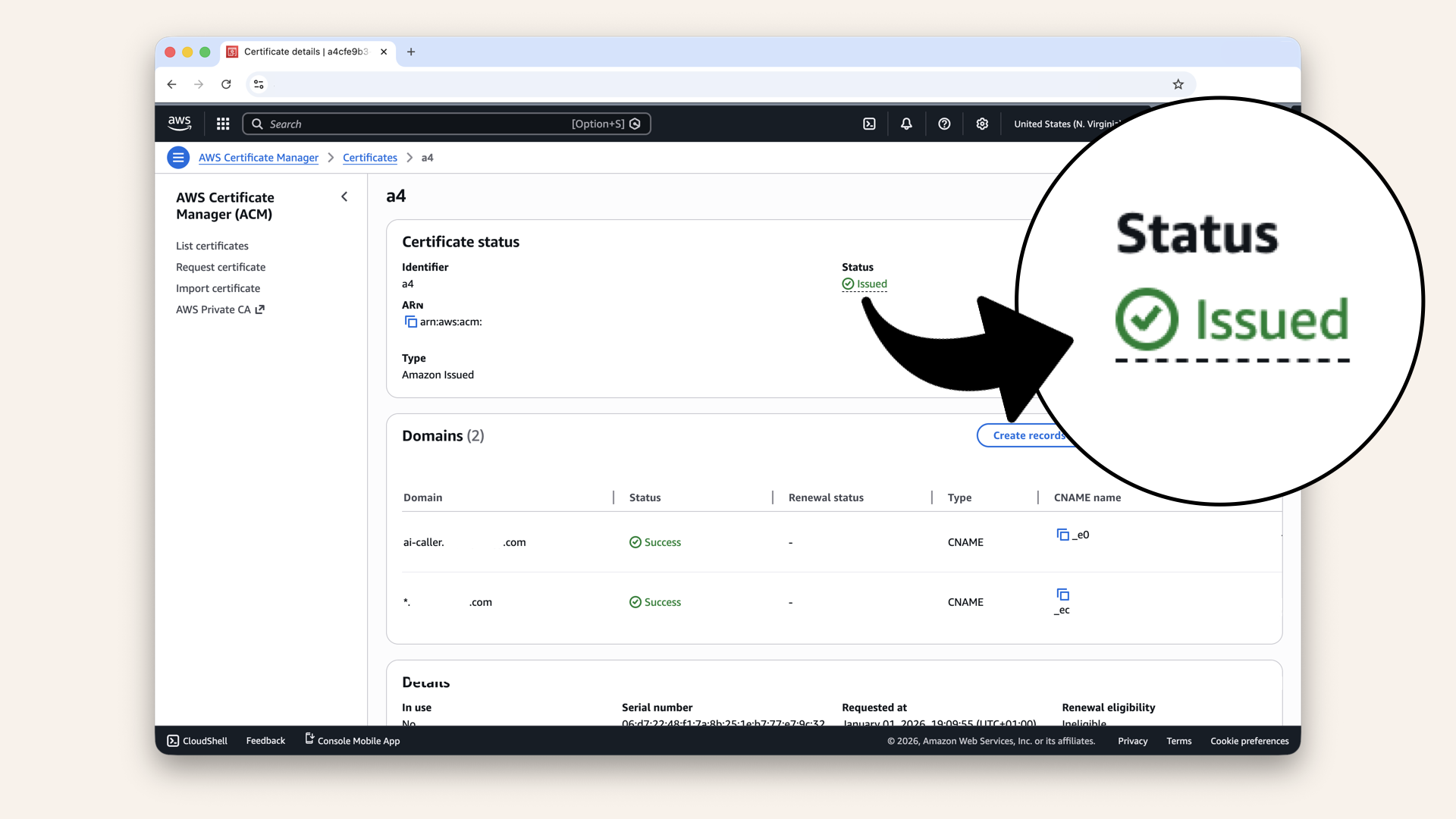
Refresh the page until Status changes from Pending validation to Issued
Step 3: Add HTTPS listener to ALB
Now let's attach the certificate to your ALB.
In the search bar at the top, type ec2 and click EC2 from the dropdown menu: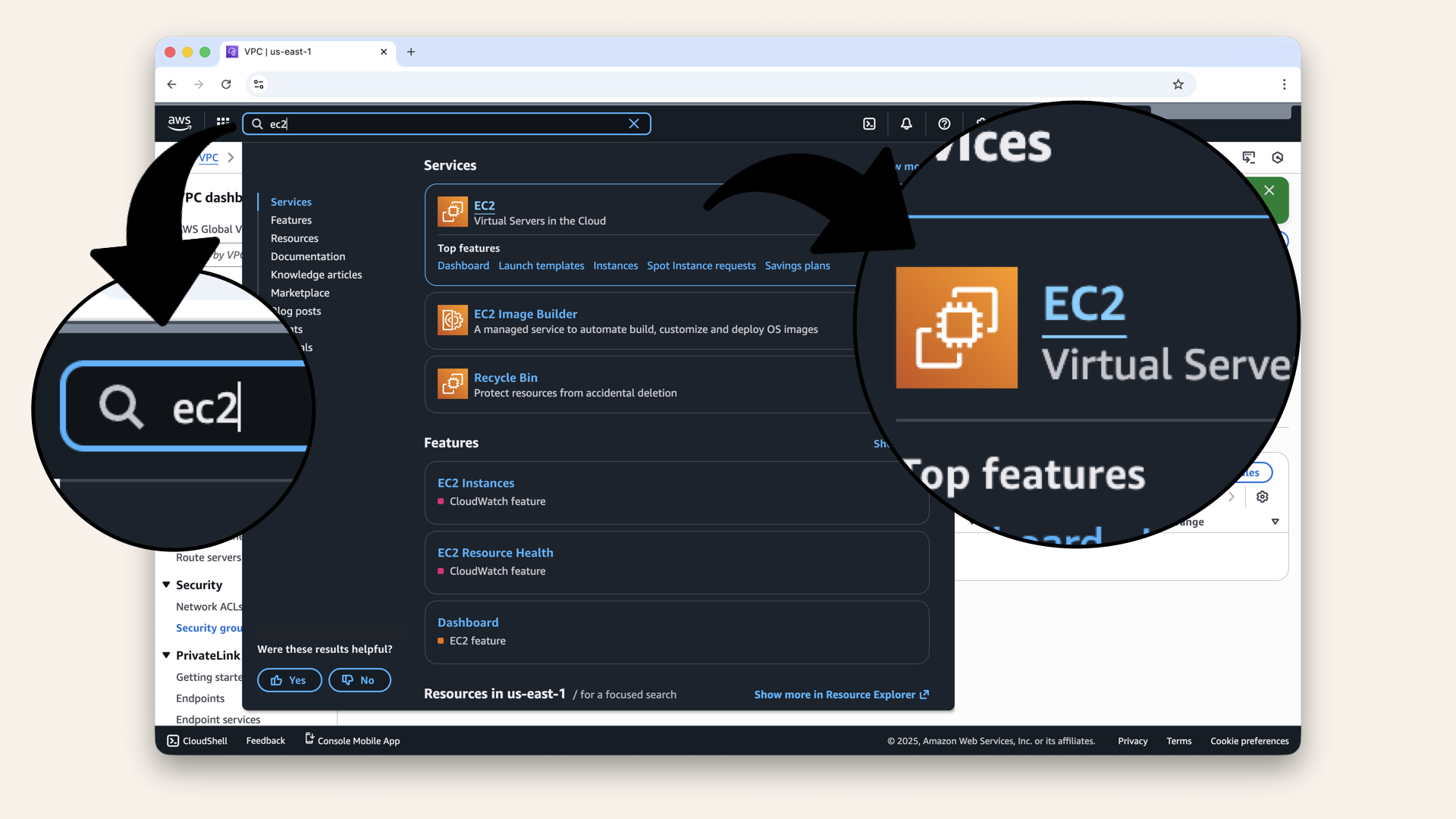
In the search bar at the top, type ec2 and click EC2 from the dropdown menu
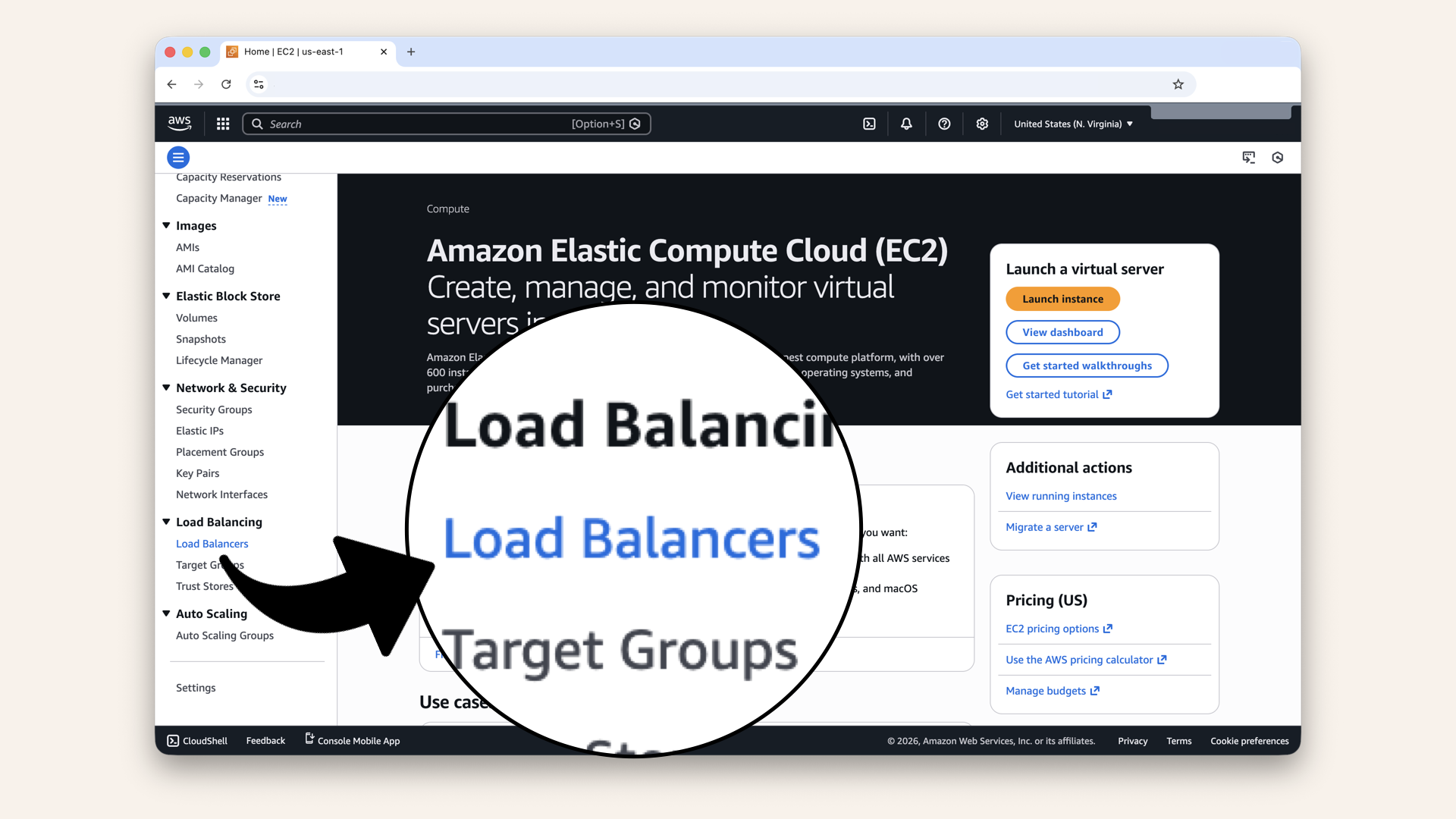
Scroll down the left menu and click Load balancers
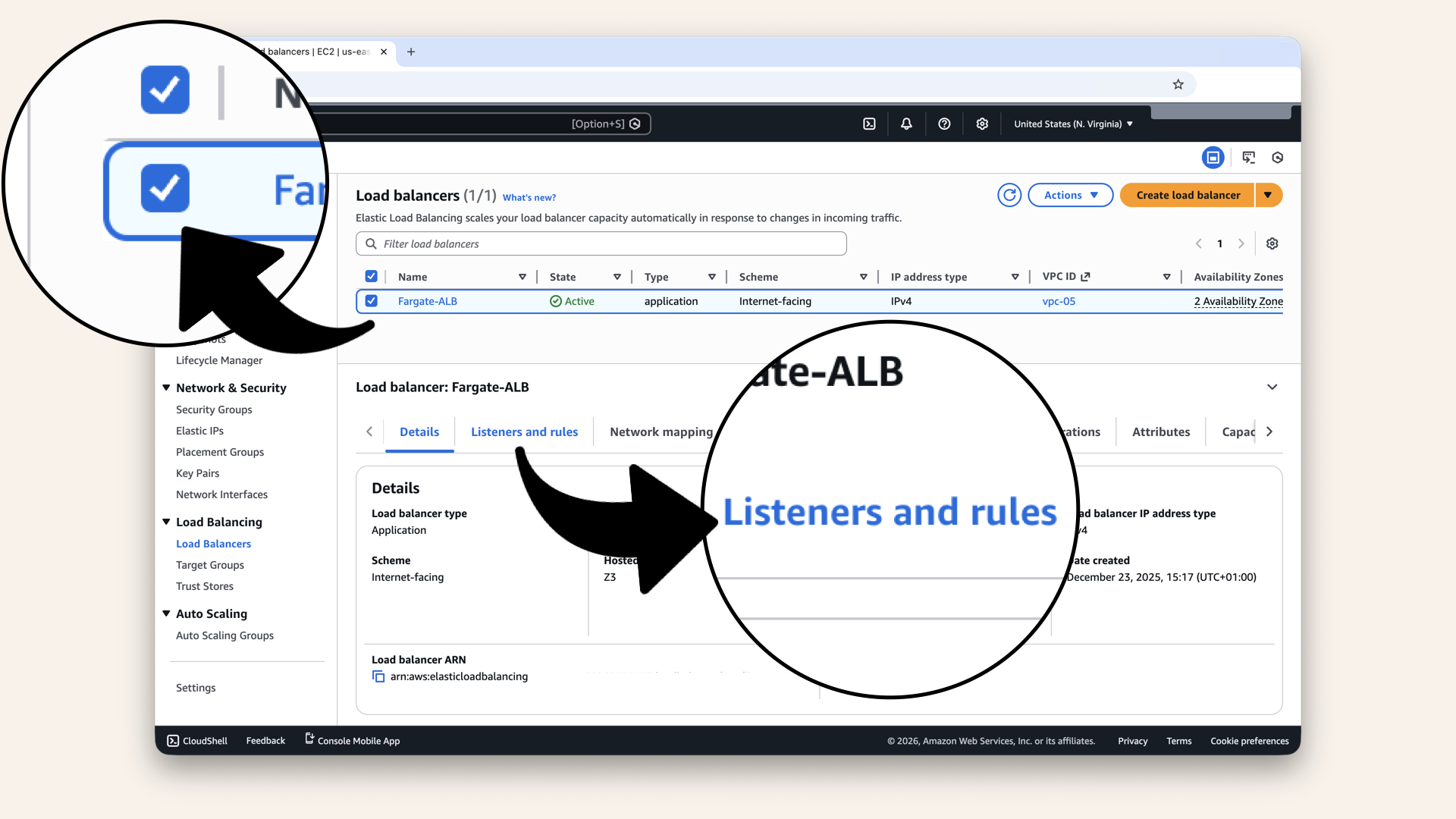
Select Fargate-ALB and click the Listeners and rules tab
You should see one listener:
- HTTP:80 → Fargate-TG

You should see one listener: HTTP:80 → Fargate-TG

Click Add listener
Step 3.1: Configure HTTPS listener
Fill in the settings:
| Field | Value |
|---|---|
| Protocol | HTTPS |
| Port | |
| Default action | Forward to → Fargate-TG |
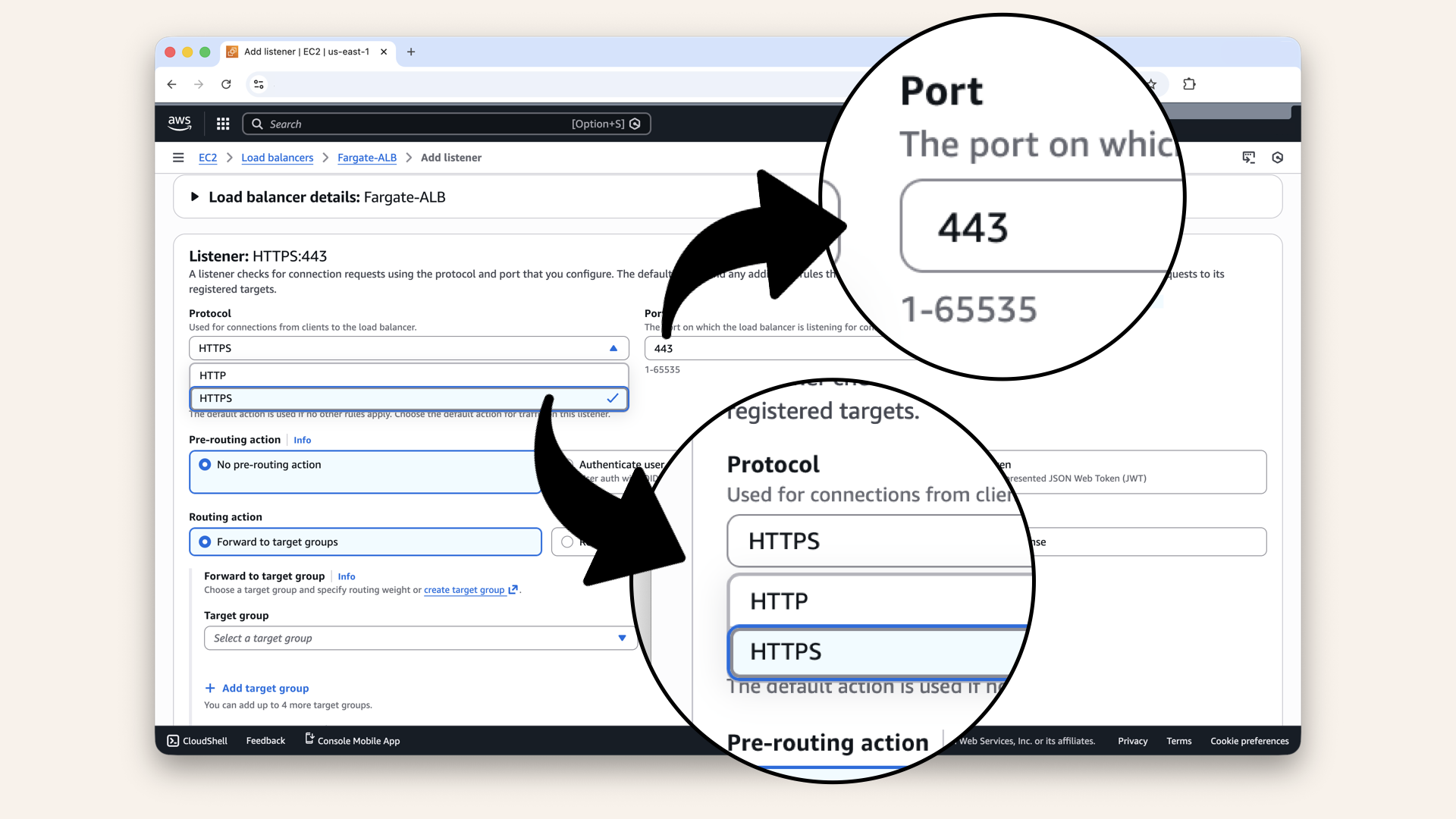
Select HTTPS and port 443
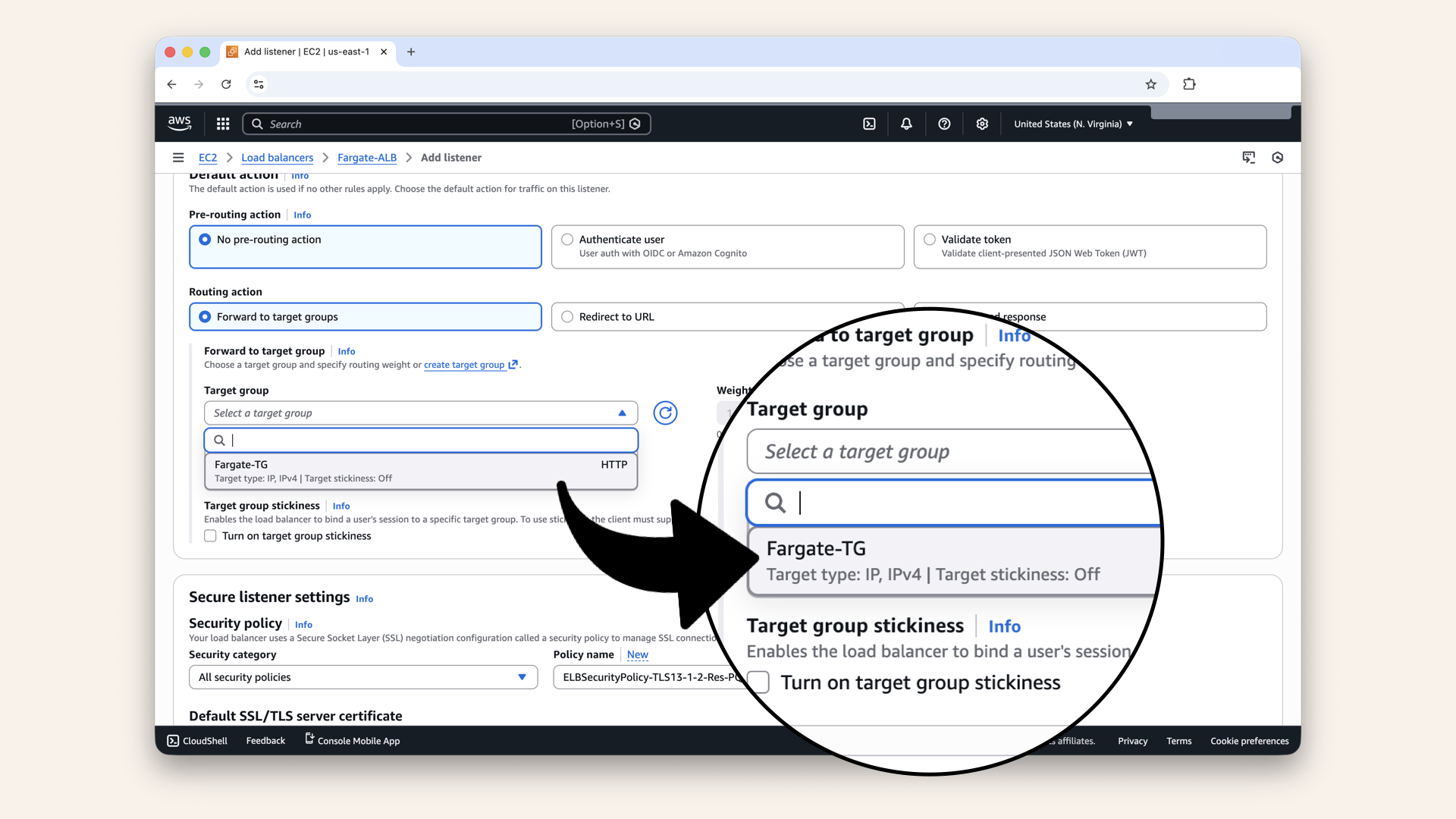
Scroll down and select Fargate-TG as Default action
Step 3.2: Attach SSL certificate
Scroll down to Secure listener settings:
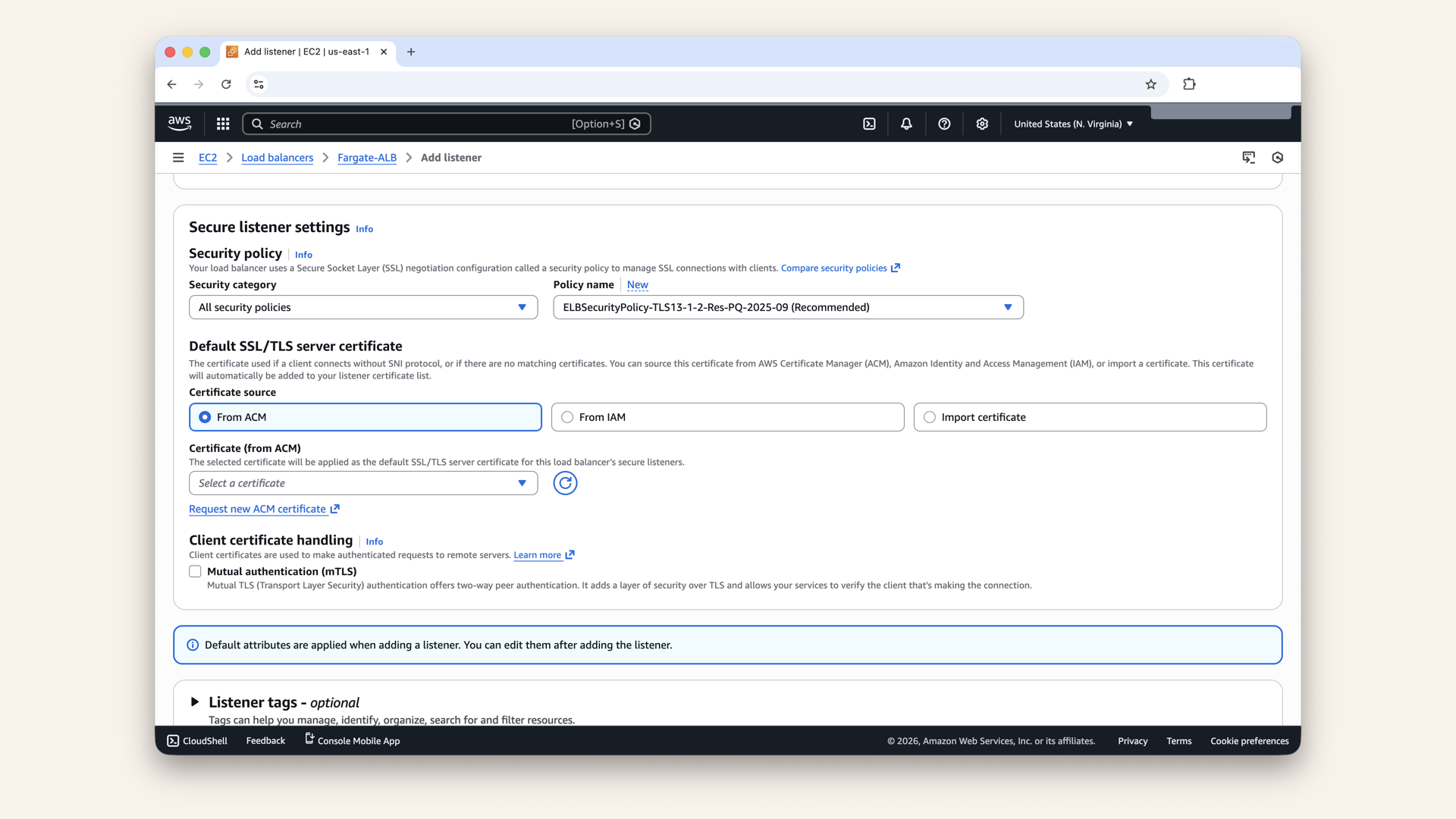
Scroll down to Secure listener settings
Fill in the settings:
| Field | Value |
|---|---|
| Security policy | ELBSecurityPolicy-TLS13-1-2-2021-06 (recommended) |
| Default SSL/TLS certificate | From ACM → Select your certificate |
Keep the default Security policy: ELBSecurityPolicy-TLS13-1-2-2021-06 (recommended)
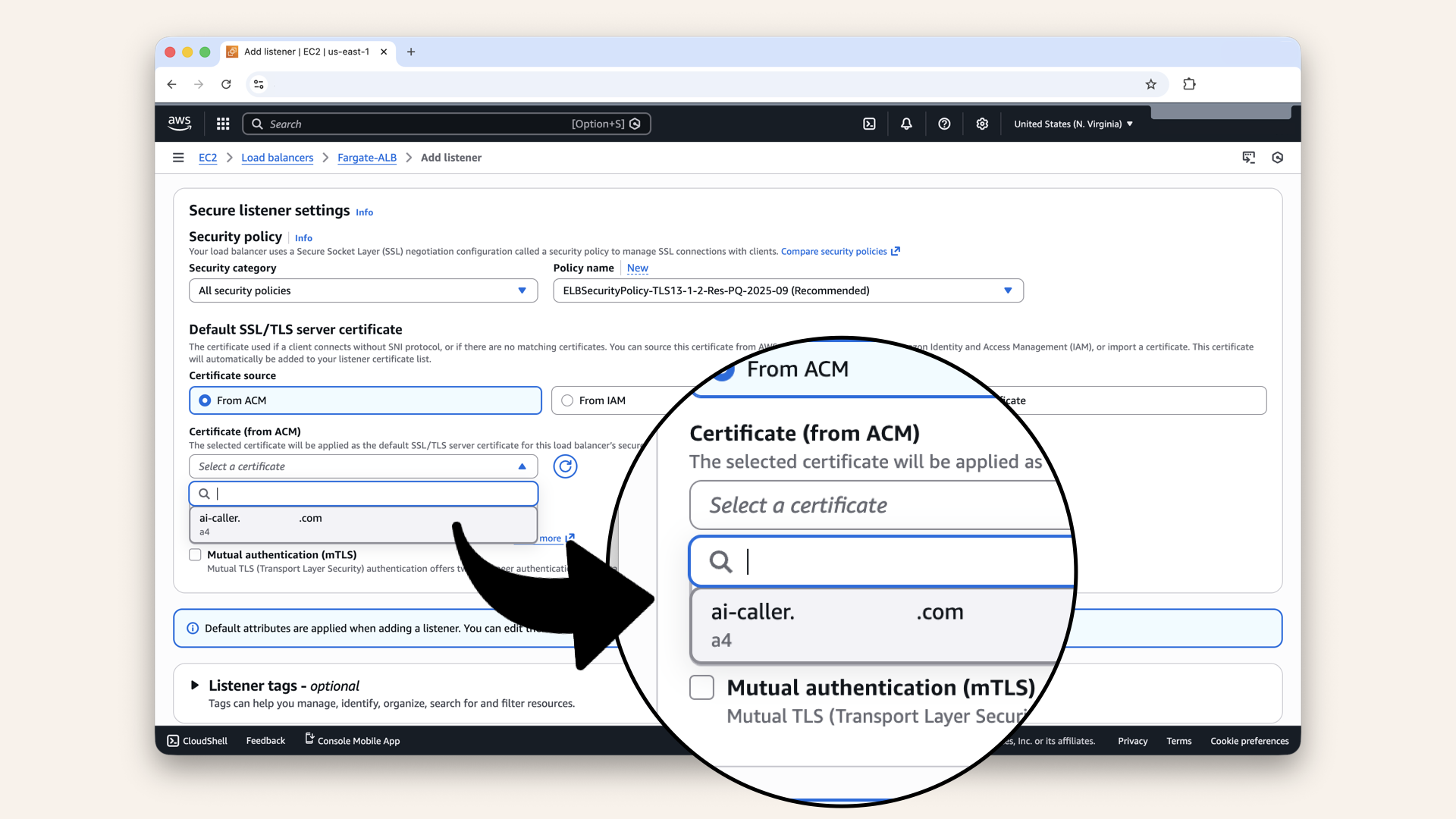
Select and attach your SSL certificate we just created
Security policy = Which TLS versions and ciphers to support
Recommended: ELBSecurityPolicy-TLS13-1-2-2021-06
✅ TLS 1.3 (latest, fastest, most secure)
✅ TLS 1.2 (for older clients)
✅ Strong ciphers only
This balances security and compatibility.

Scroll all the way down and click Add listener
✅ You should see: "Successfully created listener":
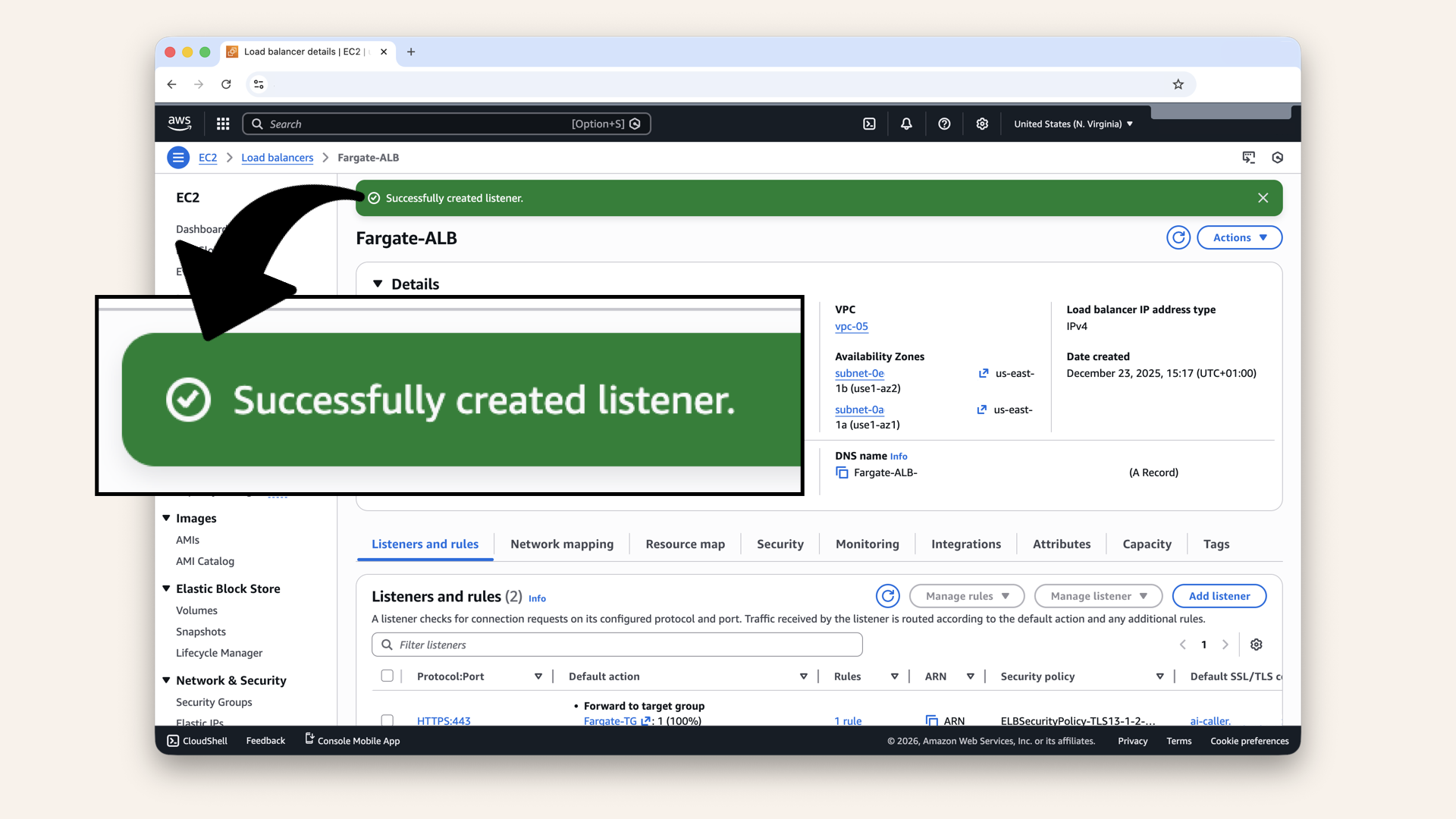
You should see: "Successfully created listener"
You should now see two listeners:
- HTTP:80 → Forward to Fargate-TG
- HTTPS:443 → Forward to Fargate-TG
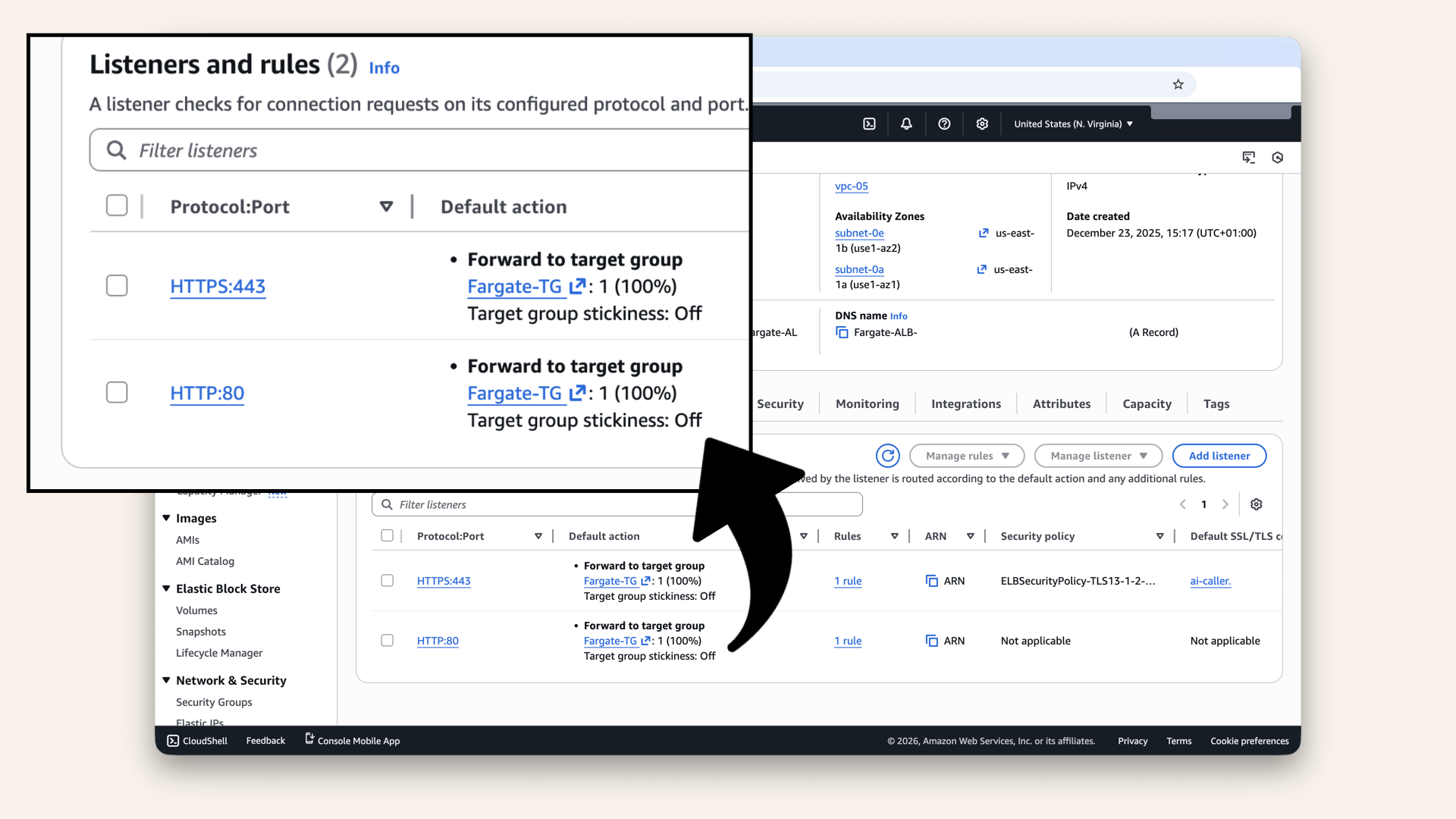
You should now see two listeners:
Step 4: Test HTTPS
Let's verify HTTPS works!
Open your browser and visit:https://ai-caller.yourdomain.com
Expected result:
✅ Green padlock 🔒 in address bar (depending on web browser)
✅ "Secure" or "Connection is secure"
❌ 503 Service Temporarily Unavailable (no containers yet, but HTTPS works!)
Click the icon in the address bar, you should see "Secure" or "Connection is secure"
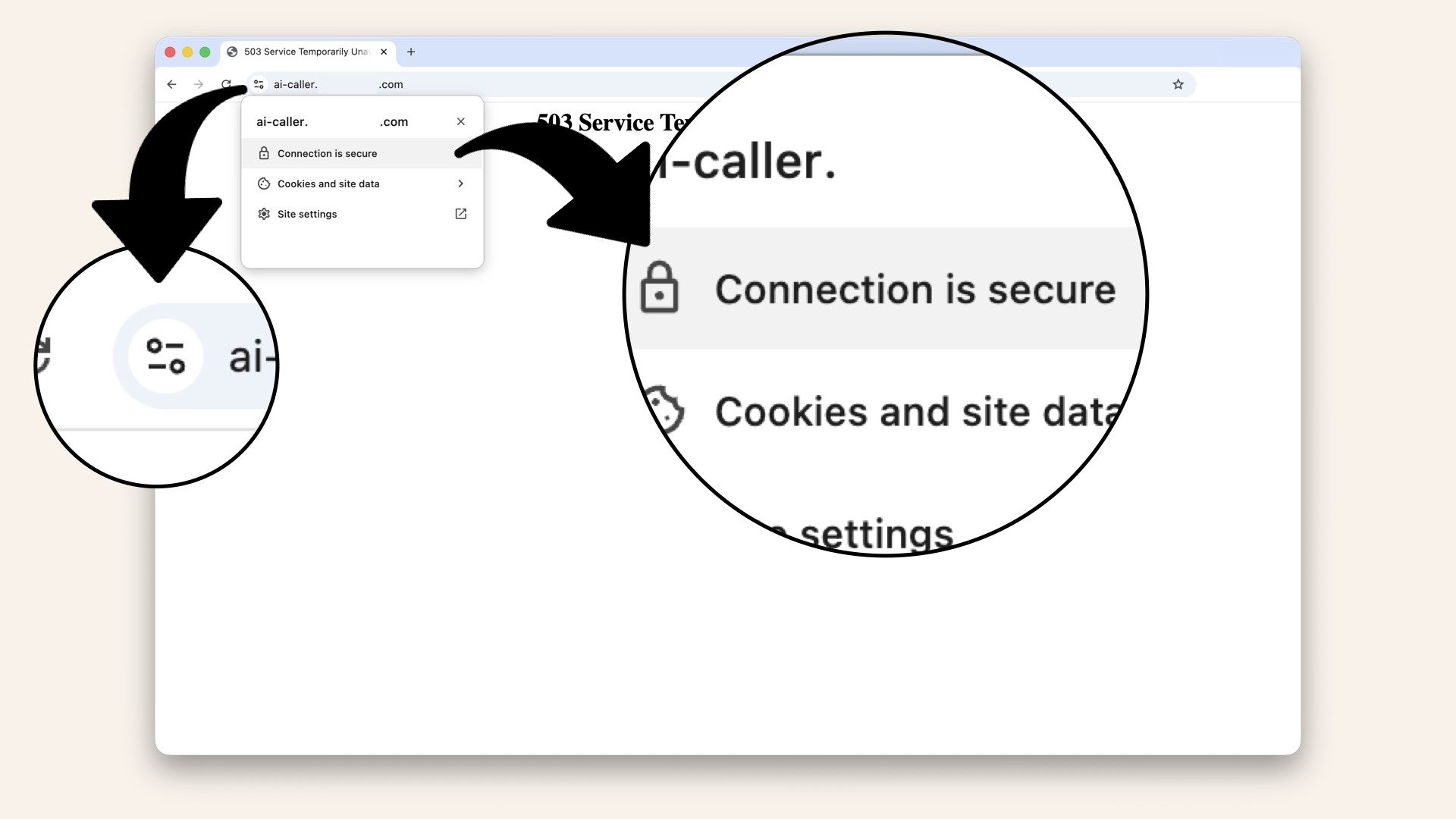
Expected result: "Secure" or "Connection is secure" but still "503 Service Temporarily Unavailable" (we don't have containers yet)
Check certificate details
Click the icon next to the address bar and then click Connection is secure:
Click the icon next to the address bar and then click Connection is secure
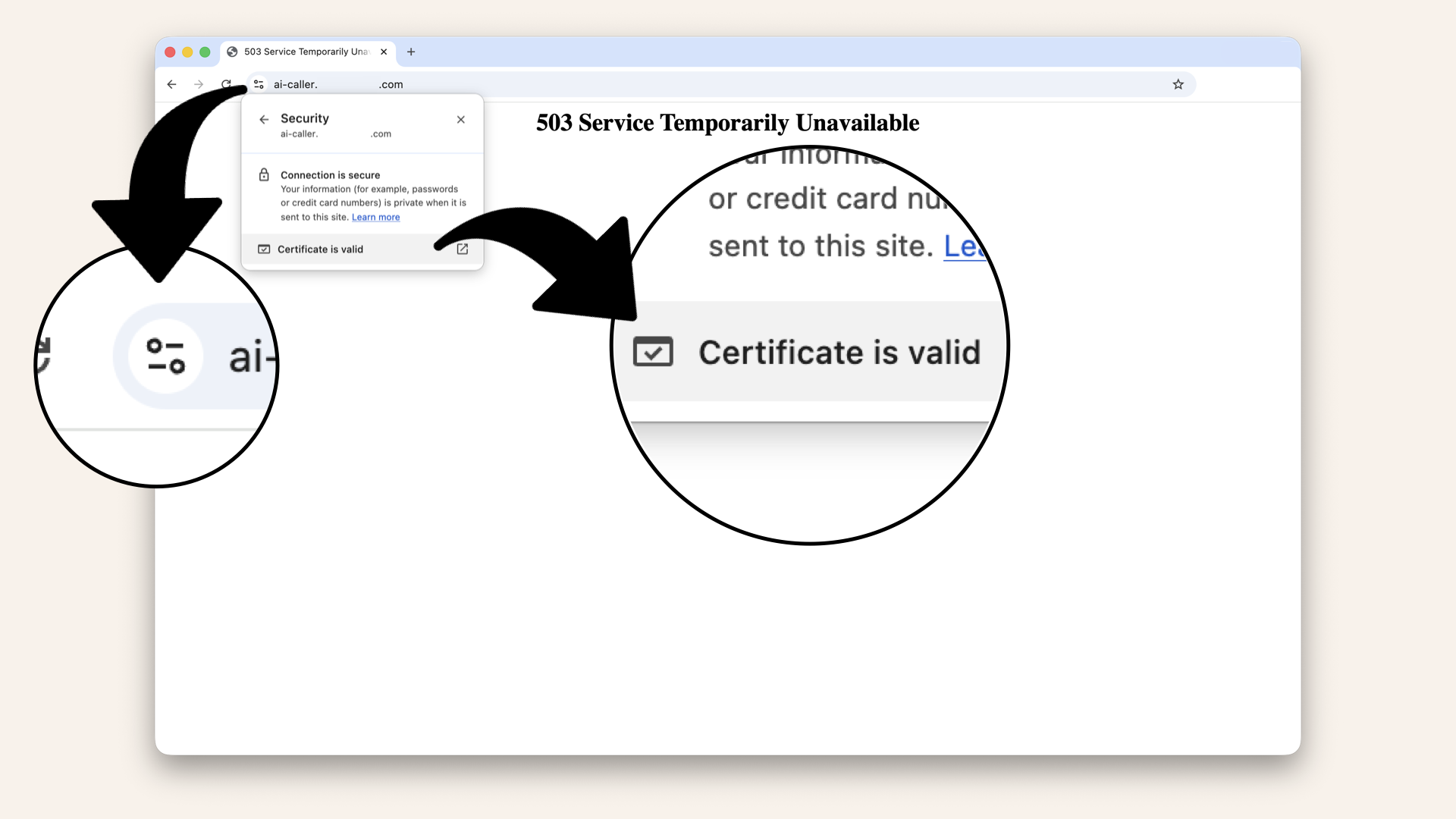
This opens up a new window, now click Certificate is valid
You should now see certificate details:
- Issued to: ai-caller.yourdomain.com
- Issued by: Amazon
- Valid until: (1 year from now, auto-renews)
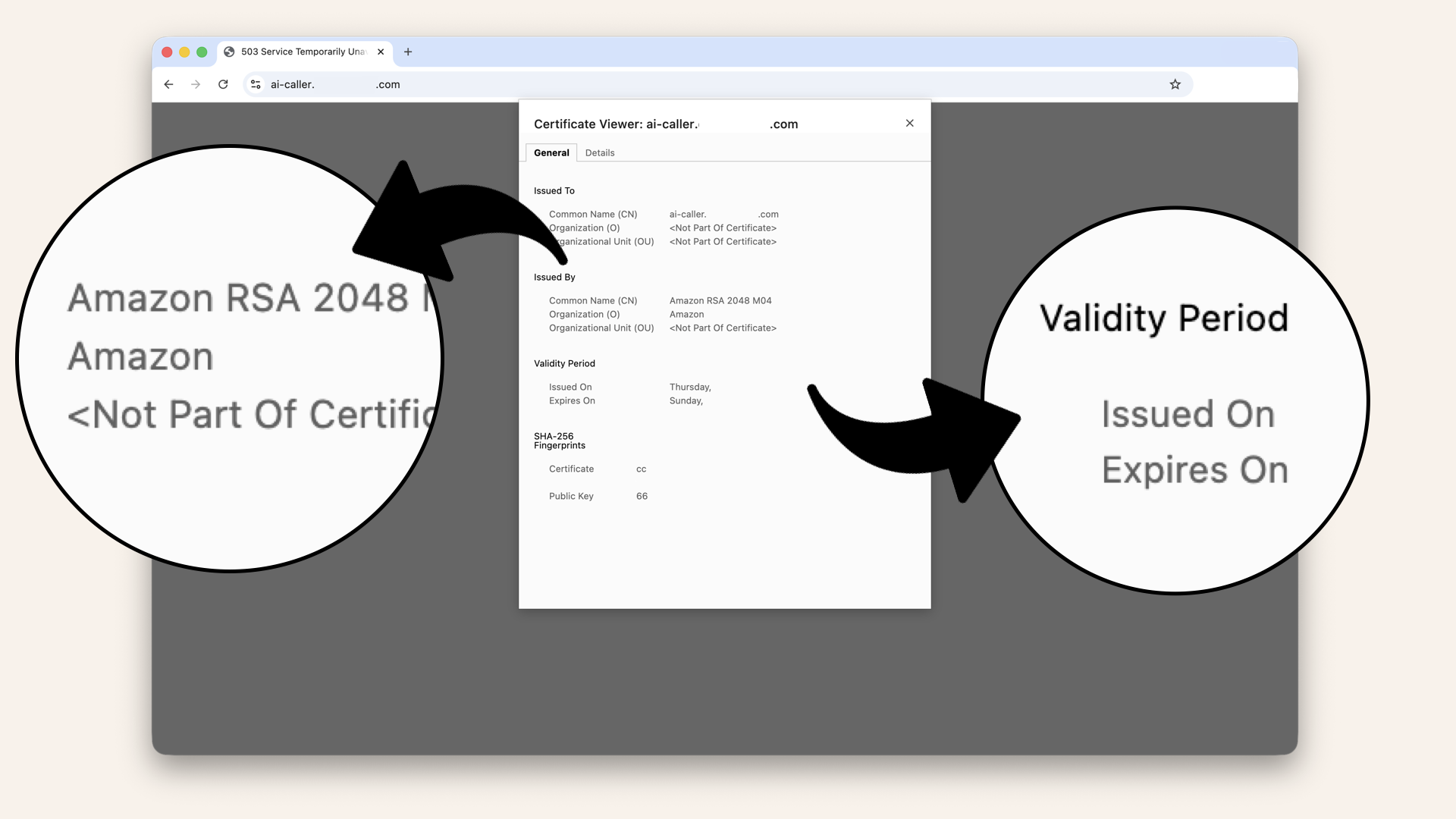
You should now see certificate details
Step 5: Redirect HTTP to HTTPS
Right now, both HTTP and HTTPS works:
http://ai-caller.yourdomain.com→ Workshttps://ai-caller.yourdomain.com→ Works
Best practice: Redirect HTTP → HTTPS
Let's force everyone to HTTPS.
Go to Listeners and rules tab and select the HTTP:80 listener: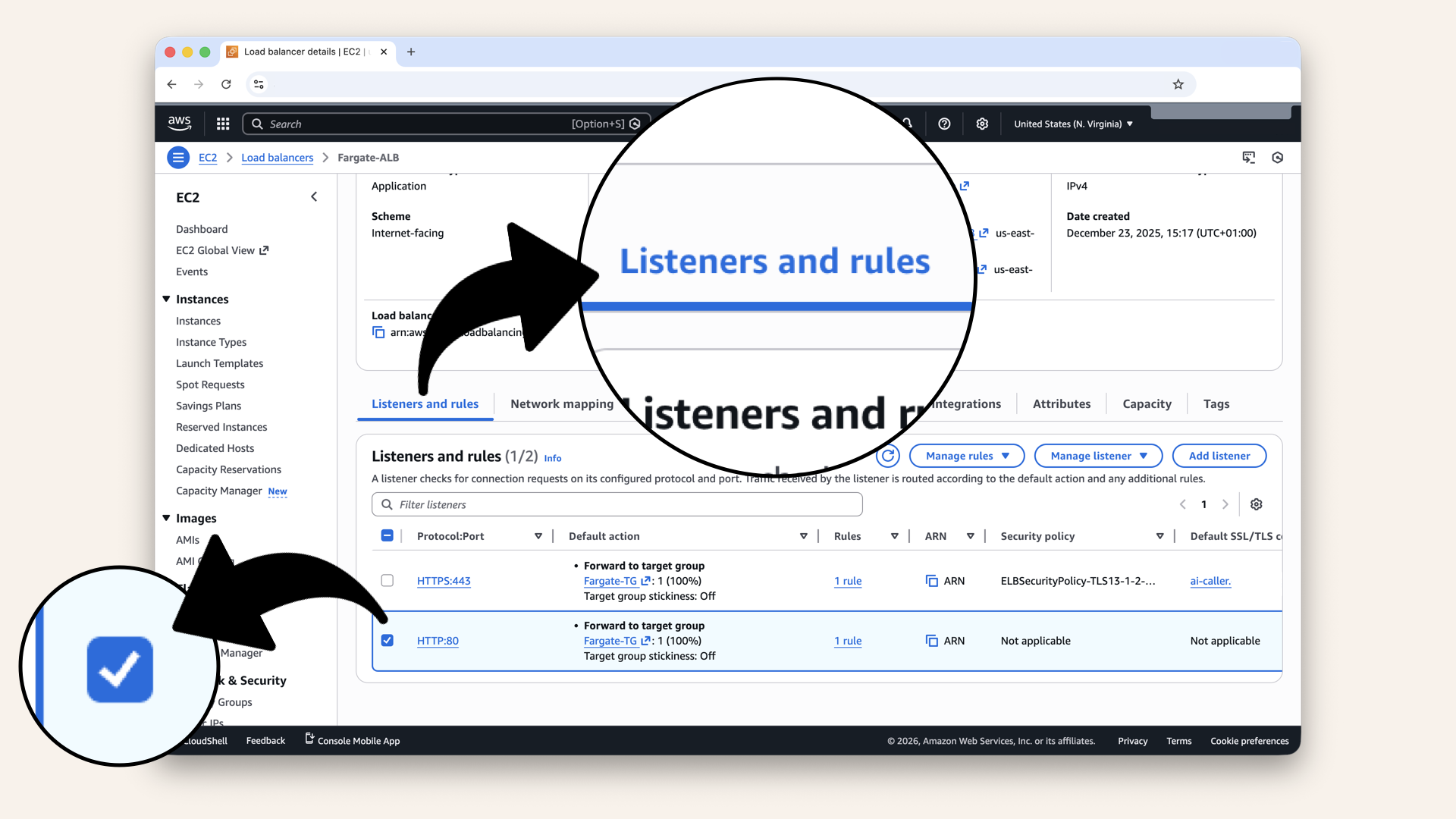
Go to Listeners and rules tab and select the HTTP:80 listener
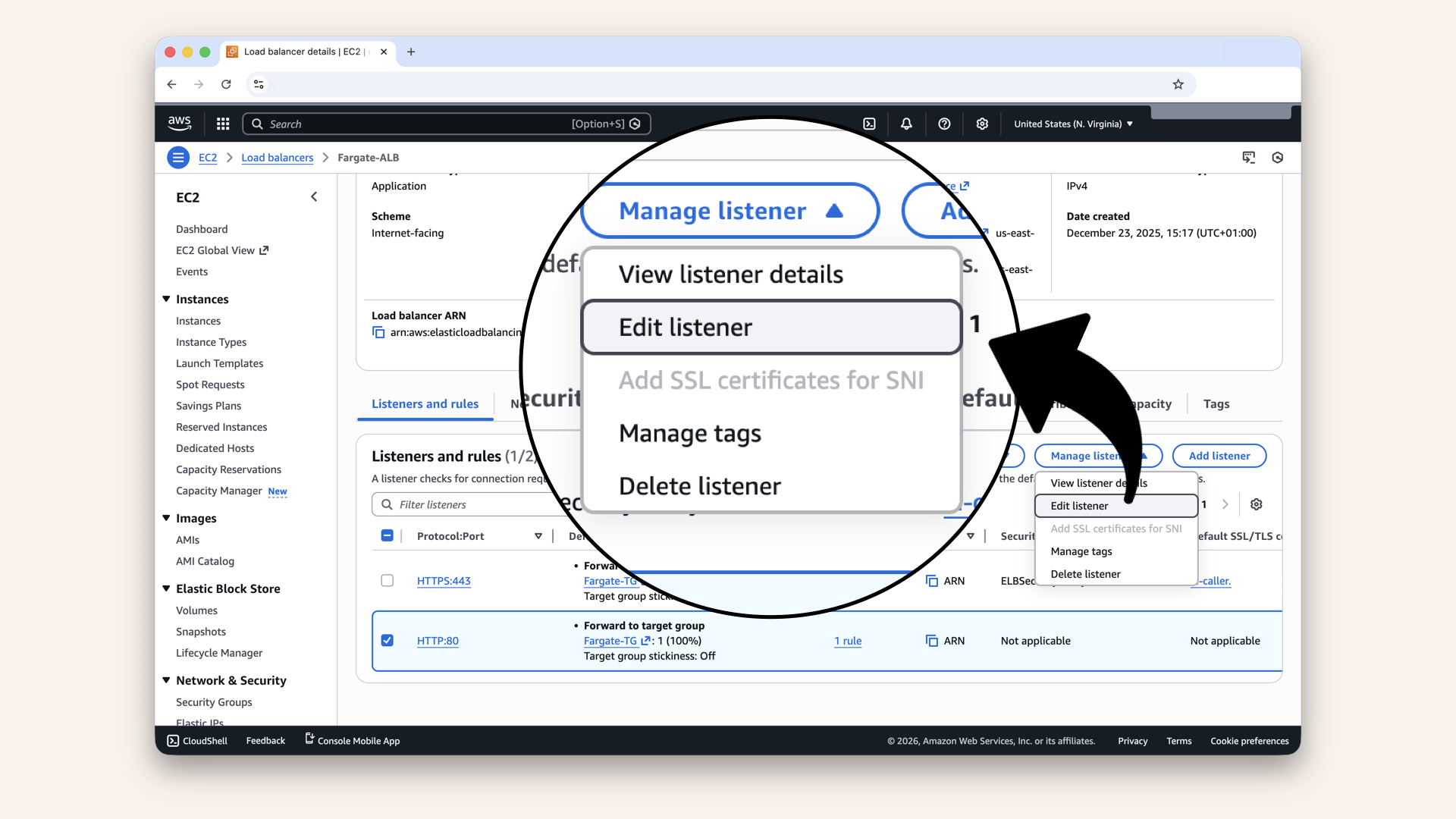
Click Manage listener and then click Edit listener in the dropdown
Step 5.1: Change default action to redirect
Change the Routing action to Redirect to URL: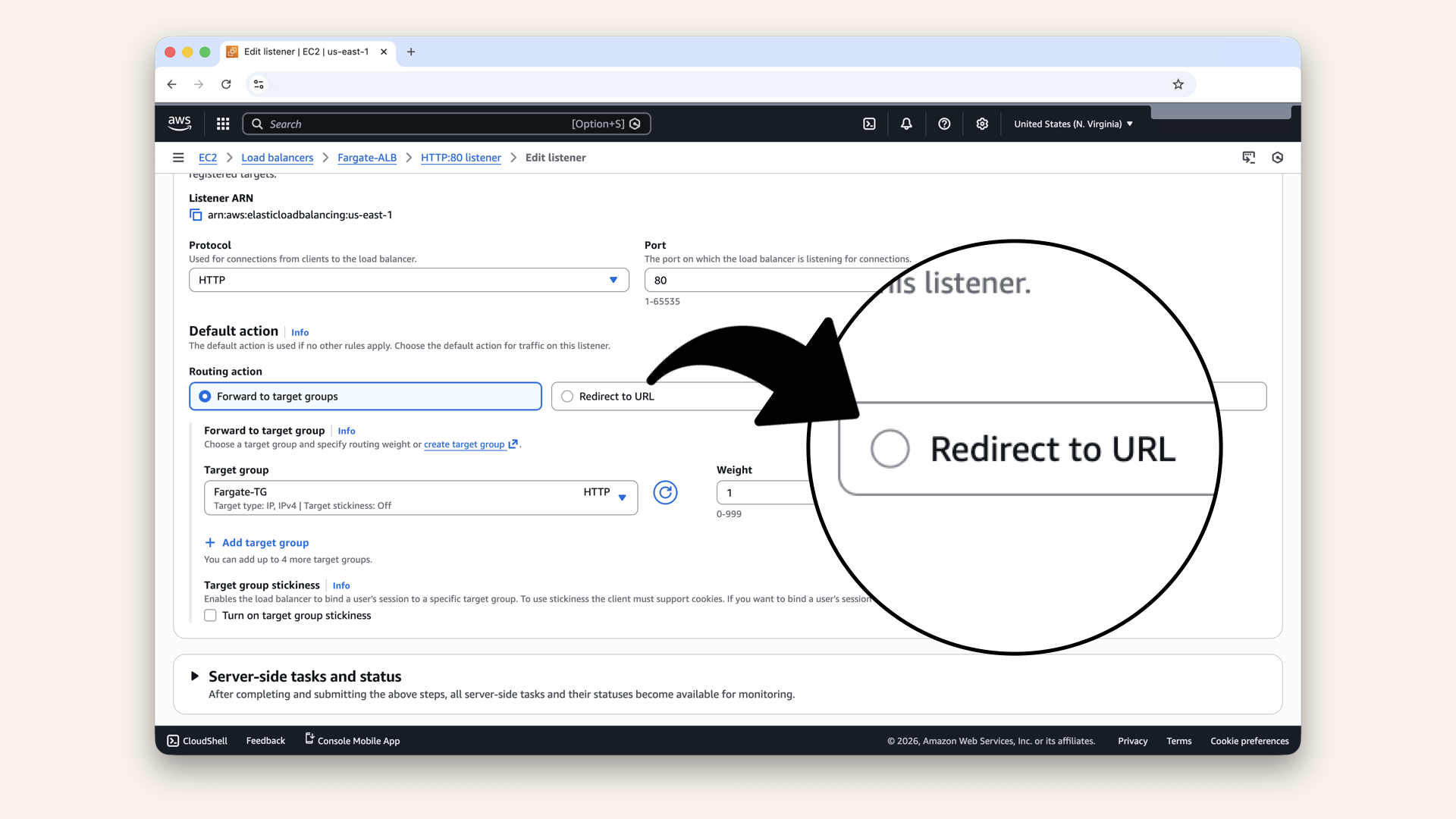
Change the Routing action to Redirect to URL
Configure the redirect:
| Field | Value |
|---|---|
| Protocol | HTTPS |
| Port | |
| Status code | 301 - Permanently moved |
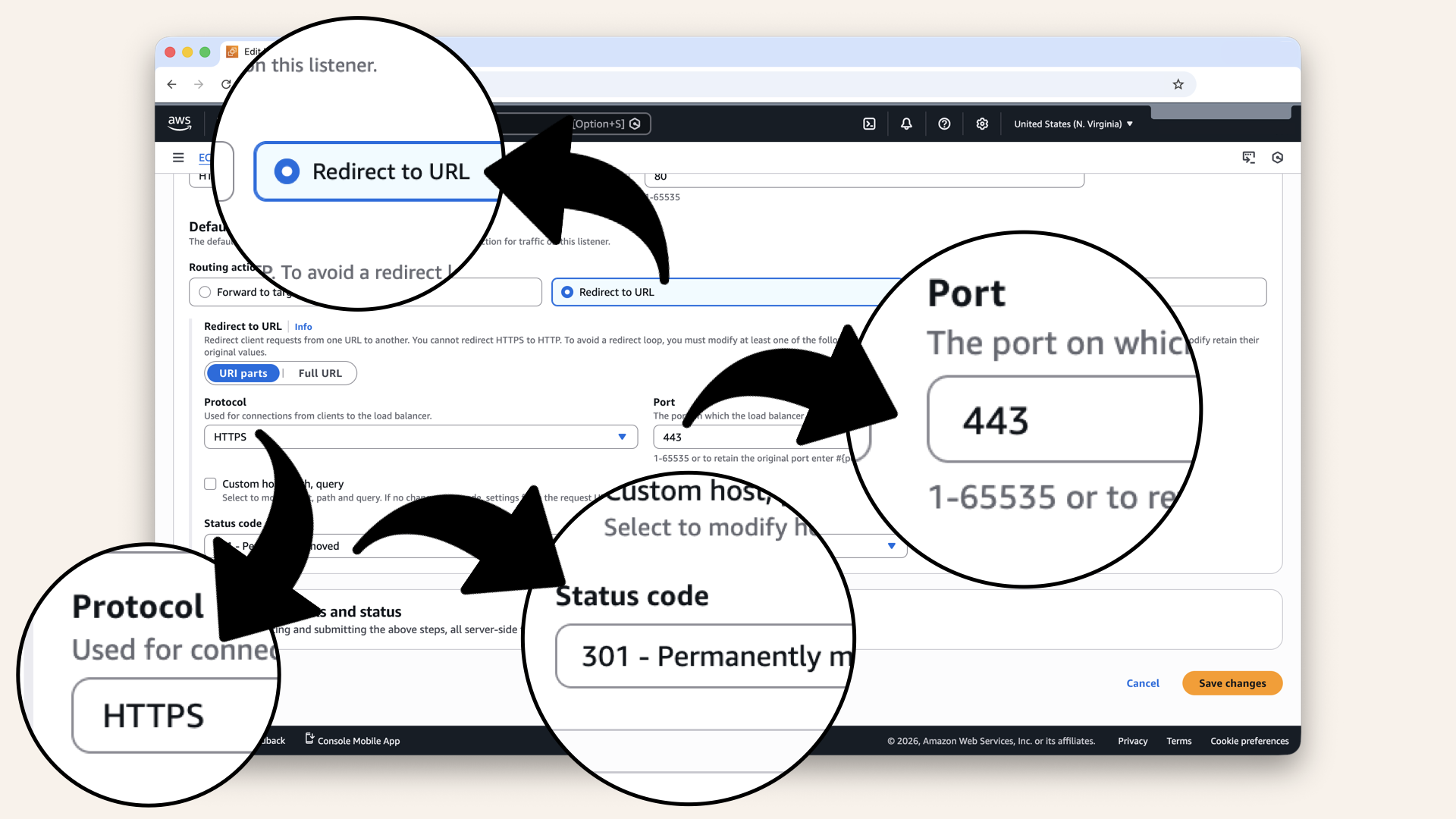
Configure the redirect
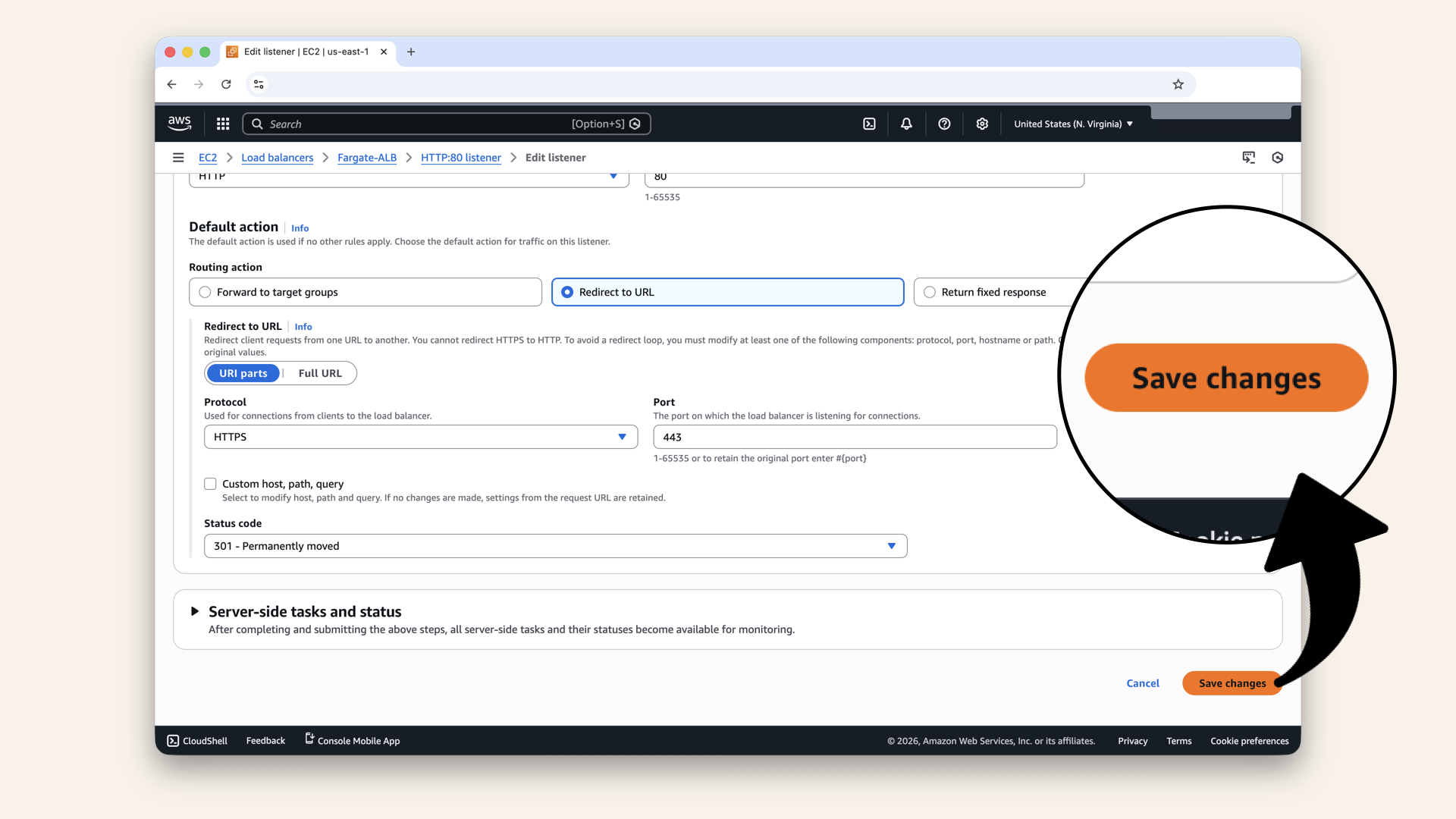
Click Save changes
✅ You should see: "Successfully modified listener":
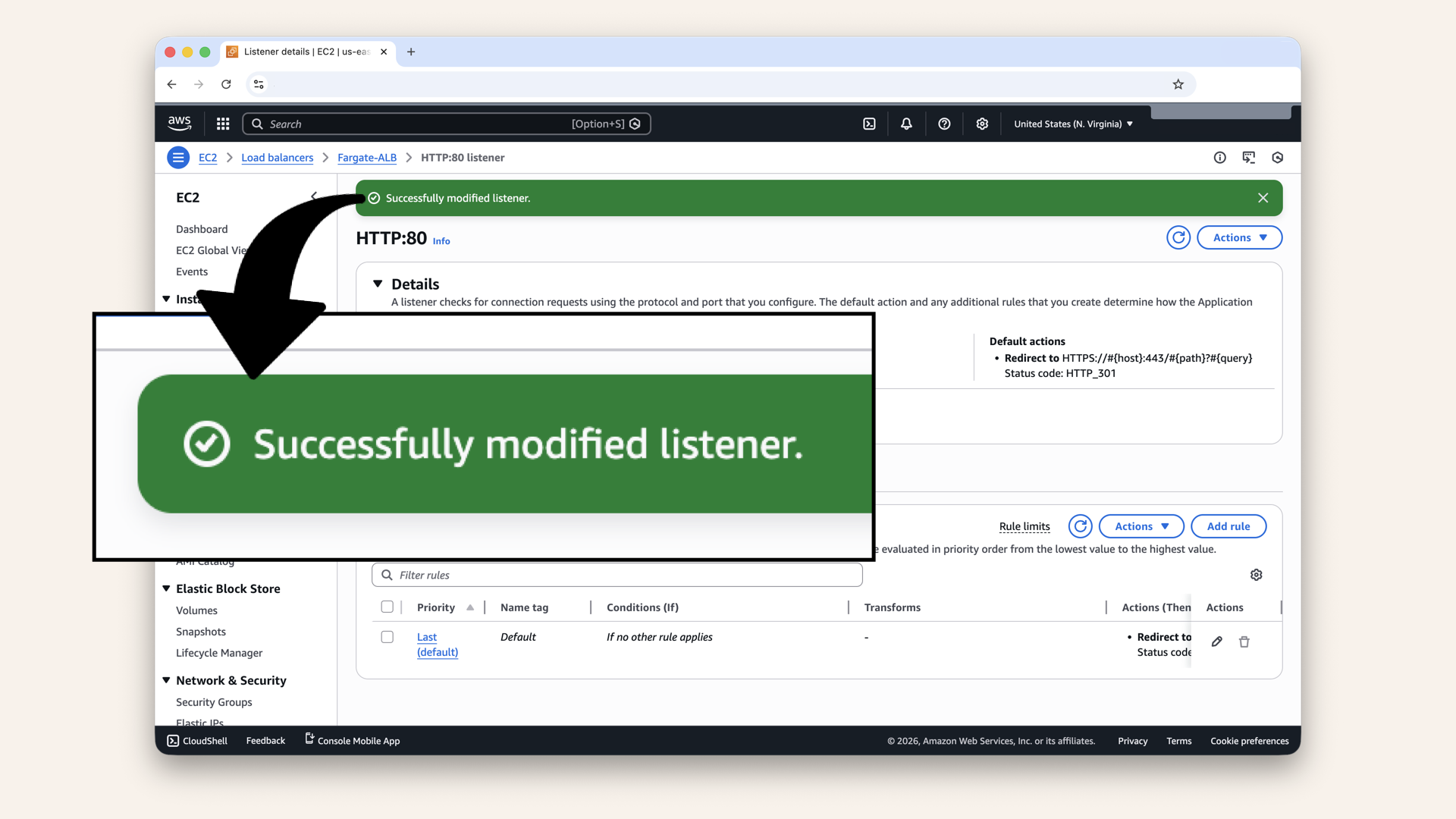
You should see: "Successfully modified listener"
Step 5.2: Verify redirect
Now HTTP automatically redirects to HTTPS.
Test in your browser:http://ai-caller.yourdomain.com
Expected behavior:
- Browser loads HTTP version
- Immediately redirects to HTTPS
- URL changes to
https://ai-caller.yourdomain.com - Green padlock shows 🔒 (depending on browser)
- Click the icon next to the address bar, it should say "Connection is secure":
Connection is secure
Perfect! ✅
Step 6: Update security group (if needed)
Your ALB-SG should already allow HTTPS.
Let's verify:
In the search bar at the top, type VPC and click VPC from the dropdown:
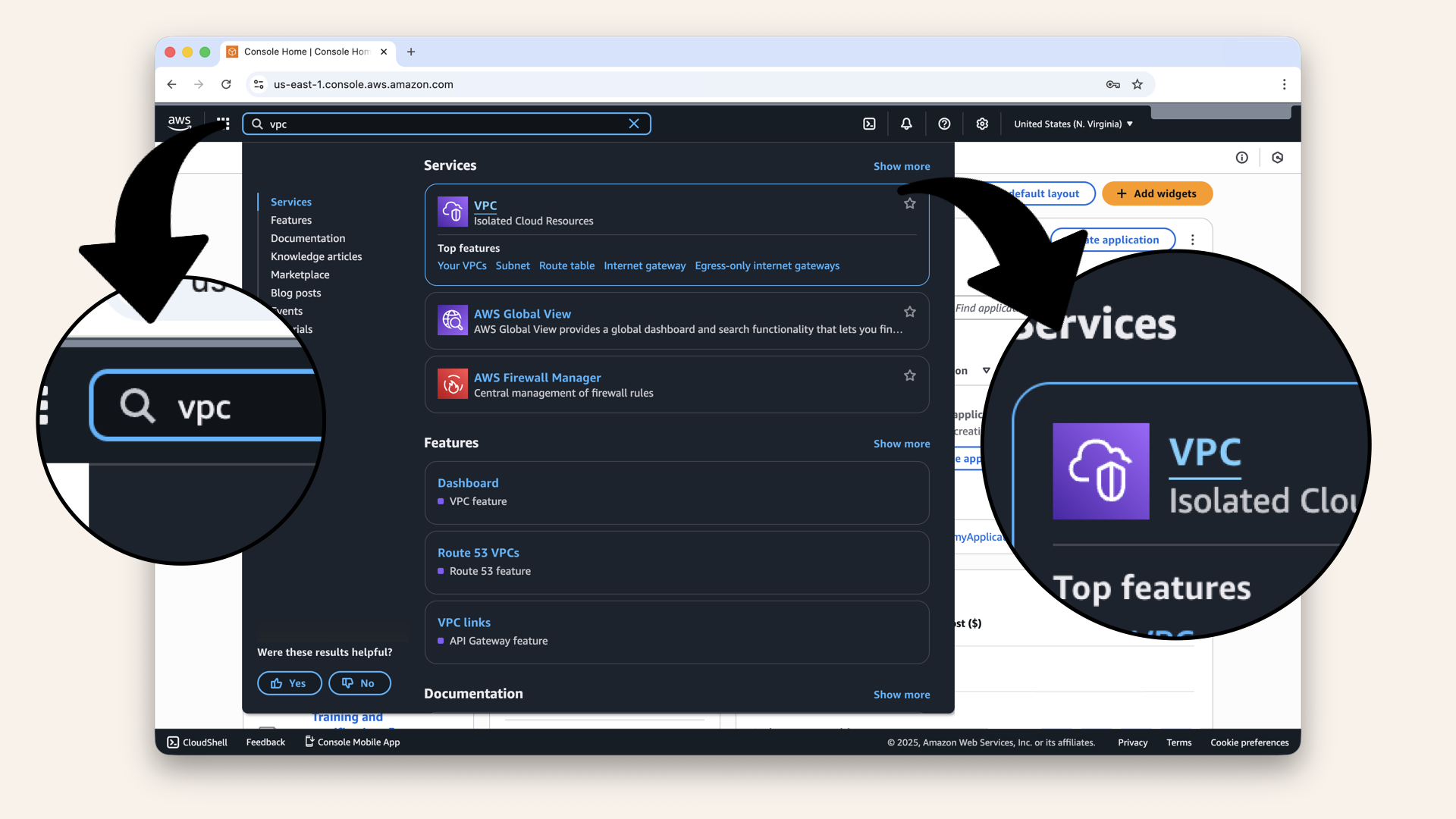
In the search bar at the top, type VPC and click VPC from the dropdown
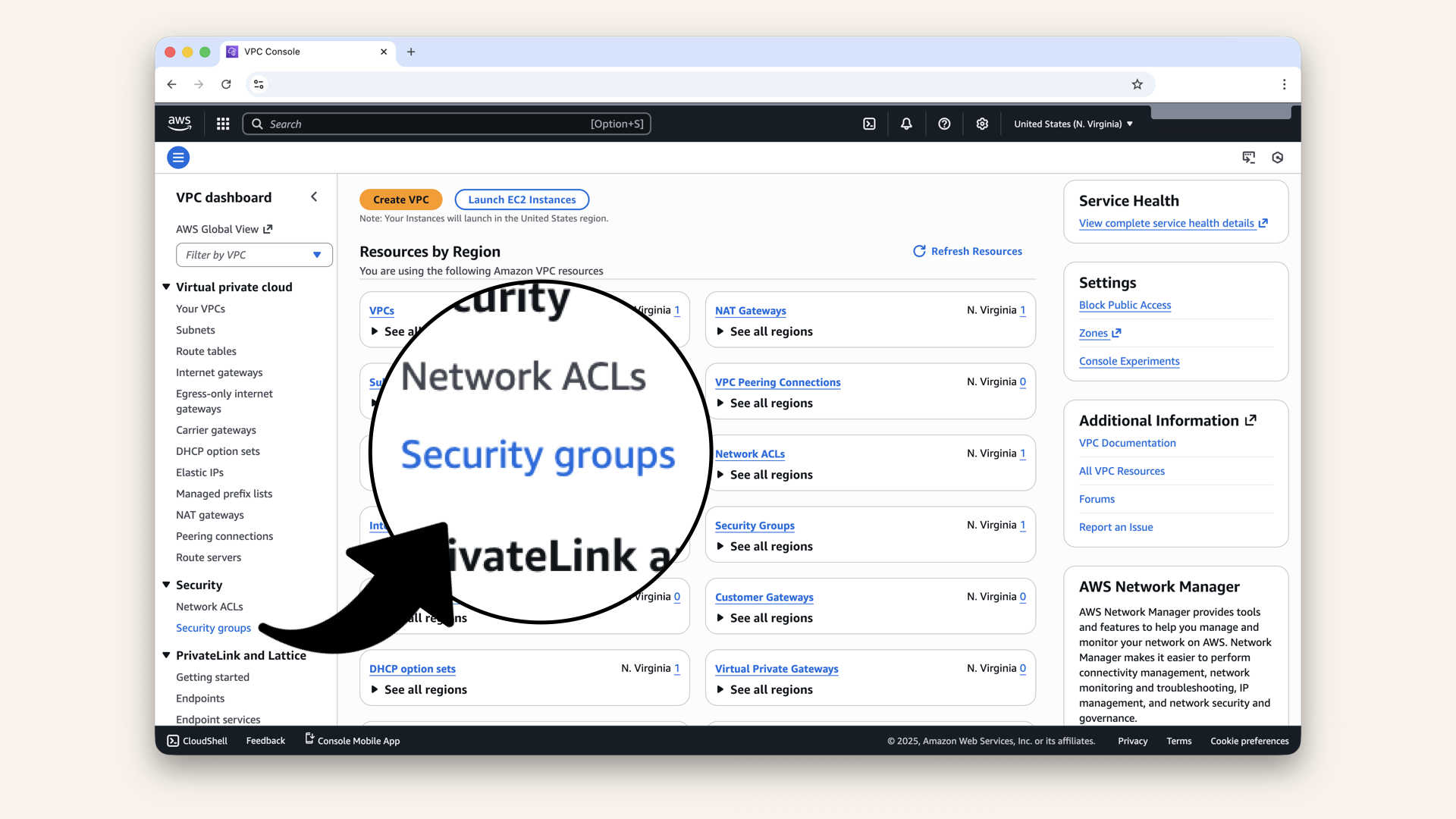
Click Security Groups in the left menu
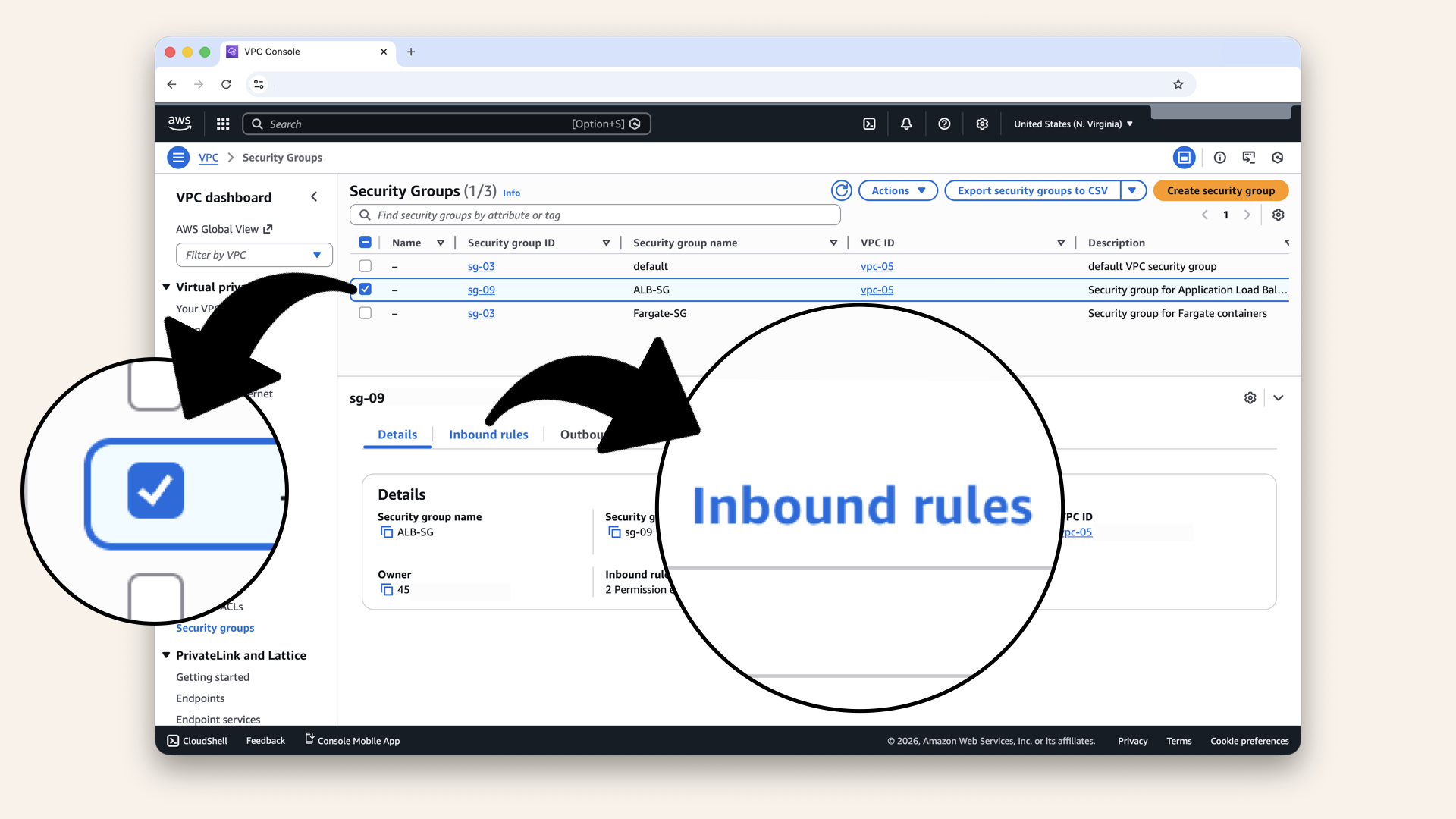
Select ALB-SG and click Inbound rules
You should see:
| Type | Port range | Source |
|---|---|---|
| HTTP | 80 | 0.0.0.0/0 |
| HTTPS | 443 | 0.0.0.0/0 |
Verify ALB-SG allows HTTPS:
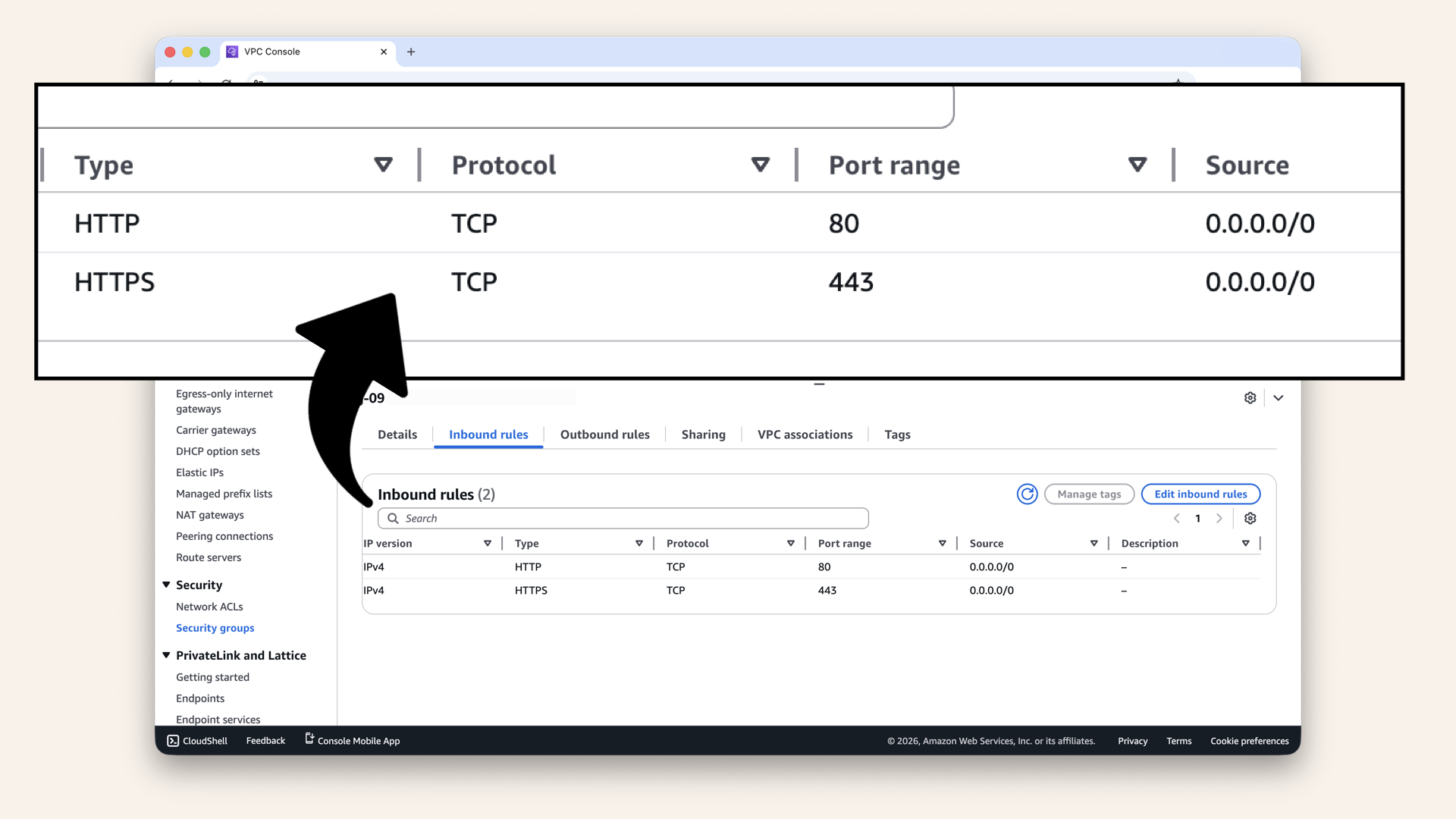
Verify ALB-SG allows HTTPS
How to add missing rule
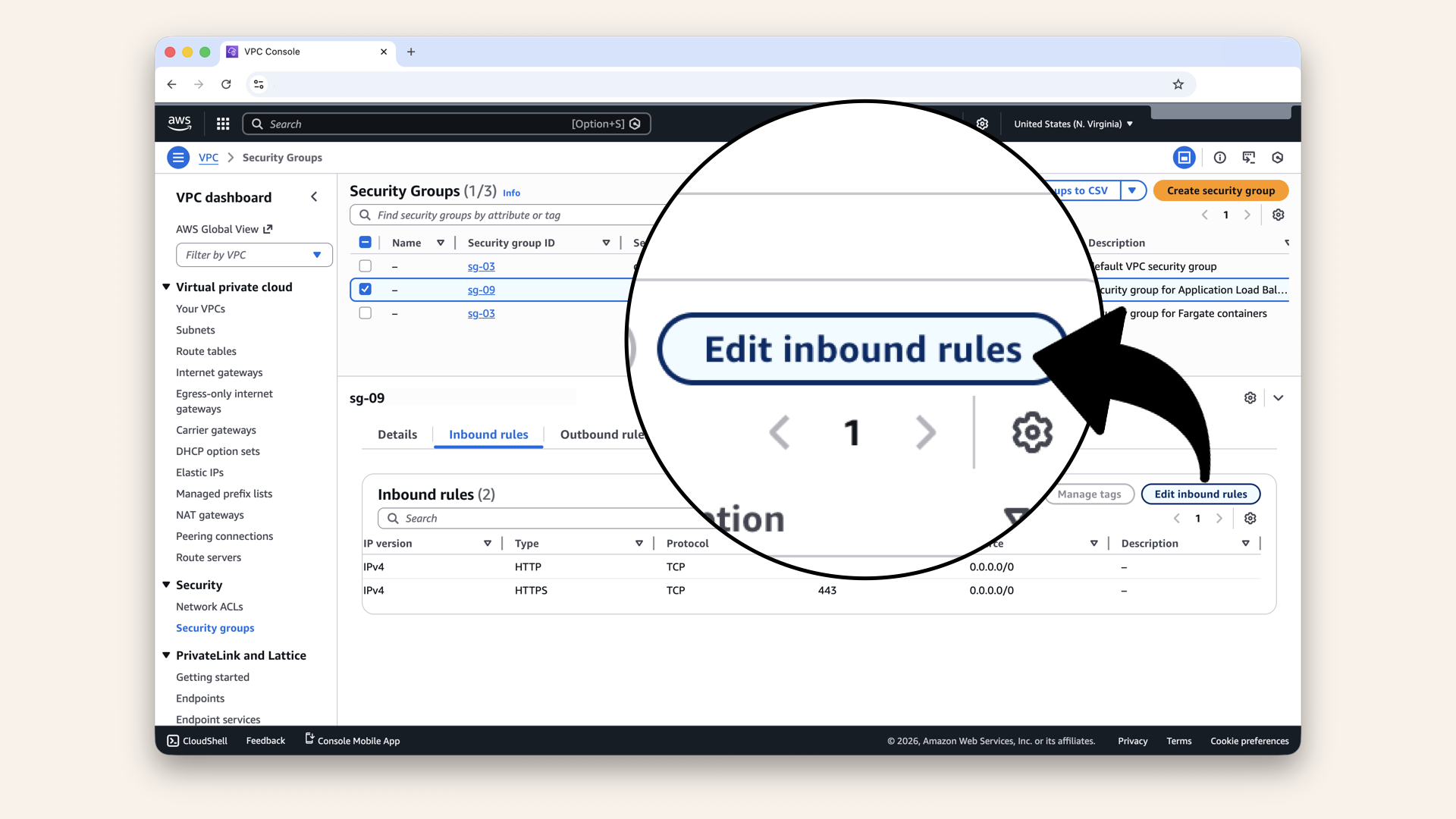
Click Edit inbound rules
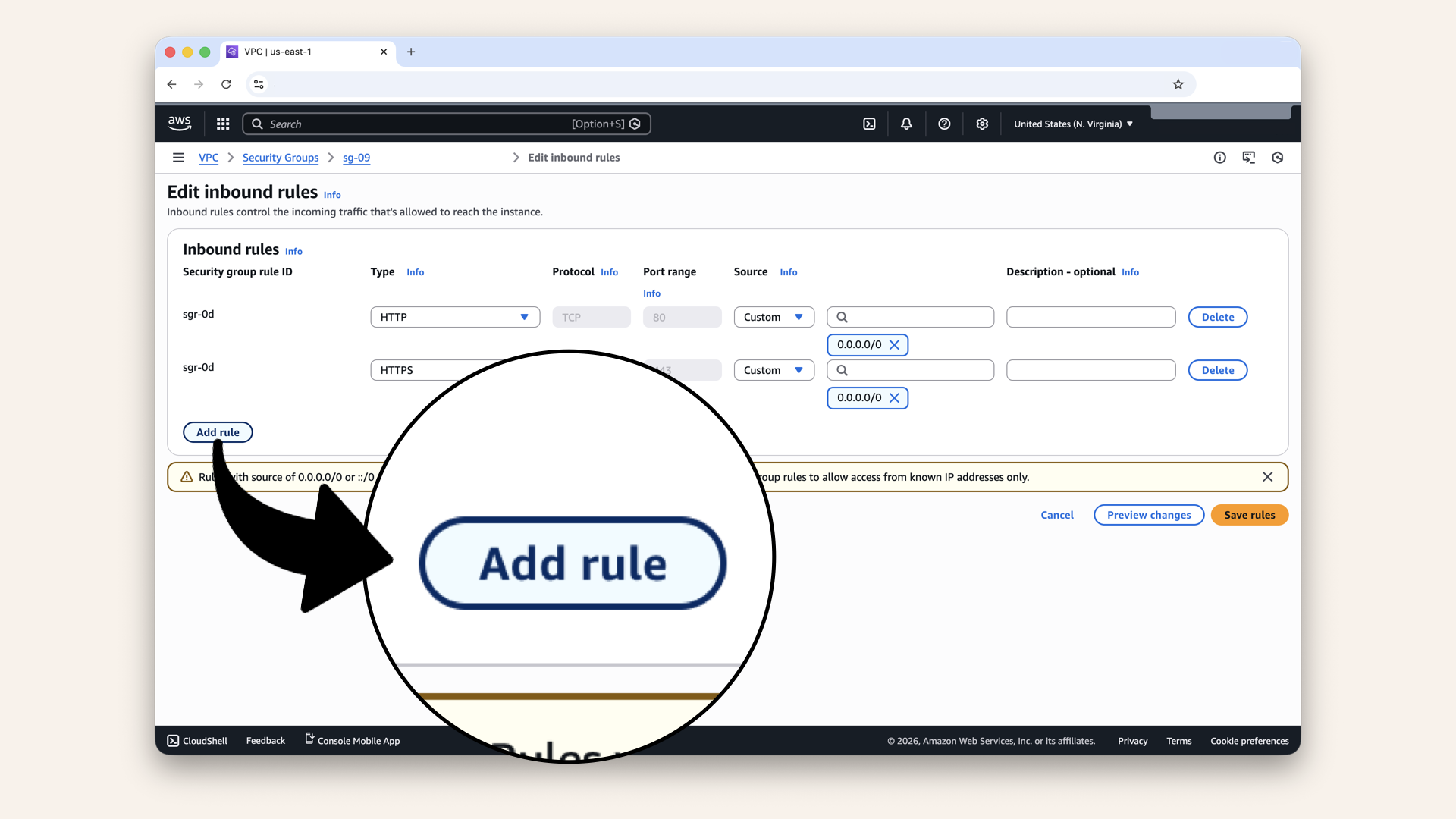
Click Add rule
Add this rule:
| Type | Source |
|---|---|
| HTTPS | Anywhere-IPv4 (0.0.0.0/0) |
Today's win
If you completed all steps:
✅ Requested free SSL certificate from ACM
✅ Validated domain ownership via DNS
✅ Added HTTPS listener to ALB (port 443)
✅ Attached SSL certificate
✅ Configured HTTP → HTTPS redirect
✅ Validated green padlock in browser 🔒
Your app is now secure.
Before:
⚠️ http://ai-caller.yourdomain.com (Not Secure)
Browser says: ⚠️ "Not secure"
After:
🔒 https://ai-caller.yourdomain.com (Secure)
Connection is secure
Production-ready HTTPS! Tomorrow we deploy a frontend.
Understand what you built
The HTTPS flow:
Security layers:
- HTTPS encryption (SSL/TLS)
- Certificate validation (ACM)
- HTTP → HTTPS redirect (no plain text)
- Security groups (firewall)
- Private subnets (containers hidden)
SSL/TLS certificate costs
ACM certificates are free!
Pricing:
- Certificate: $0 (free)
- Renewal: $0 (automatic, free)
- DNS validation: $0 (included in Route 53 hosted zone)
For AWS resources, ACM is unbeatable.
The only cost:
- Route 53 hosted zone: ~$0.50/month (as of December 2025)
Why HTTPS matters
1. Security
- Encrypts data in transit
- Prevents man-in-the-middle attacks
- Protects users privacy
2. Trust
- Green padlock = users trust your site
- No scary "Not Secure" warnings
- Professional appearance
3. Required for modern features
- WebRTC (real-time audio/video)
- Geolocation API
- Camera/microphone access
- Service Workers (PWAs)
4. SEO benefits
- Google ranks HTTPS sites higher
- HTTP sites marked as "Not Secure"
- Better search visibility
5. Compliance
- Industry standard for production apps
HTTPS isn't optional. It's essential.
Common mistakes (and how to avoid them)
❌ Mistake #1: Wrong region for certificate
Result: Certificate doesn't show in ALB dropdown
Fix: Request certificate in same region as ALB
❌ Mistake #2: Forgetting to create DNS validation record
Result: Certificate stuck in "Pending validation"
Fix: Click "Create records in Route 53" in ACM
❌ Mistake #3: Using wrong certificate
Result: Browser shows certificate error
Fix: Make sure certificate covers your exact domain (ai-caller.yourdomain.com)
❌ Mistake #4: Not redirecting HTTP → HTTPS
Result: Users can still access insecure HTTP version
Fix: Edit HTTP:80 listener → Add redirect to HTTPS:443
❌ Mistake #5: Forgetting HTTPS in Security Group
Result: Can't access port 443
Fix: Add HTTPS (443) inbound rule to ALB-SG
Troubleshooting
Certificate stuck in "Pending validation"
Possible causes:
-
DNS record not created
- Go to ACM → Click certificate
- Click "Create records in Route 53"
- Wait 5-10 minutes
-
Wrong hosted zone
- Verify Route 53 hosted zone matches domain
- Check nameservers are correct
-
DNS propagation
- Wait up to 30 minutes for DNS propagation
- Try:
nslookup _<validation-string>.yourdomain.com
Browser shows "Your connection is not private"
Possible causes:
-
Certificate not attached to ALB
- Go to ALB → Listeners → HTTPS:443
- Verify certificate is selected
-
Wrong domain in certificate
- Certificate must match exact domain
ai-caller.yourdomain.com≠yourdomain.com
-
Certificate expired (rare with ACM)
- Check certificate status in ACM
- ACM auto-renews, but verify
HTTPS works, but HTTP doesn't redirect
Check:
- HTTP:80 listener exists
- Default action is "Redirect to HTTPS:443"
- Status code is 301
- Clear browser cache (Ctrl+Shift+R)
Can't select certificate in ALB dropdown
Possible causes:
-
Wrong region
- Certificate must be in SAME region as ALB
- Check top-right corner of console
-
Certificate not issued yet
- Status must be "Issued" (not "Pending validation")
-
Wrong certificate type
- Must be public certificate
- Must cover your ALB's domain
Tomorrow's preview
Today: You secured your app with HTTPS
Tomorrow (Day 12): We deploy a simple frontend
What we'll do:
Right now, visiting your domain returns 503 (no targets).
Tomorrow we'll:
- Create a simple HTML/JS frontend
- Uploading it to S3
- Configure S3 for static website hosting
- Point a subdomain to S3 (e.g.
app.yourdomain.com) - Add CloudFront for CDN (optional)
This gives users something to interact with:
- Landing page explaining your AI caller
- Button to initiate a call
- Status display
After Day 12, you'll have a working frontend.
Then Days 13-17: We deploy the actual AI containers!
What we learned today
1. What SSL/TLS certificates are
Cryptographic files that encrypt traffic and verify identity
2. How AWS Certificate Manager works
Free, managed SSL certificates for AWS resources
3. DNS validation
Proving domain ownership by adding CNAME record
4. HTTPS listener configuration
Adding port 443 listener with SSL certificate to ALB
5. HTTP → HTTPS redirect
Best practice to force secure connections
The application layer is complete
Days 1-2: Local development (your laptop) ✅
Day 3: VPC (your territory) ✅
Day 4: Subnets (front yards vs back yards) ✅
Day 5: NAT Gateway (back gate) ✅
Day 6: Route Tables (the roads) ✅
Day 7: Security Groups (the bouncers) ✅
Day 8: Test Your Network (validation) ✅
Day 9: Application Load Balancer (front door) ✅
Day 10: Custom Domain (real URLs) ✅
Day 11: SSL Certificate (HTTPS) ← YOU ARE HERE ✅
Day 12: Deploy Frontend
Days 13-17: Fargate Deployment (THE BIG ONE!)
Days 18-24: Features & Polish
11 days done! 13 to go! 🚀
Infrastructure is 95% complete! Time to deploy apps!
Share your progress
HTTPS working? Green padlock? Share it!
Twitter/X:
"Day 11: Added HTTPS! Got a free SSL certificate from ACM, configured HTTPS listener on my ALB, and set up HTTP → HTTPS redirect. My AI app is now secure with that green padlock 🔒 Following @norahsakal's advent calendar 🎄"
LinkedIn:
"Day 11 of building AI calling agents: Secured my application with HTTPS using AWS Certificate Manager. Free SSL certificate, automatic renewals, and that green padlock in the browser. Production-ready security!"
Tag me! I want to celebrate your progress! 🎉
But if you want:
✅ Complete codebase (one clean repo)
✅ Complete walkthroughs
✅ Support when stuck
✅ Production templates
✅ Advanced features
Join the waitlist for the full course (launching February 2026):
Let's chat about your use case!
Schedule a free call ↗ - no pitch, just two builders talking.
Tomorrow: Day 12 - Deploy Your Frontend 🎨
Read Day 12 ↗
See you then!
— Norah