Day 10: Get your custom domain (real URLs)

How to set up a custom domain with Route 53 and point it to your Application Load Balancer.
No more default URLs
Day 9: You built the front-yard house (ALB)
Today: We give it a real address
Here's the situation: Your ALB has a public endpoint:
fargate-alb-1234567890.us-east-1.elb.amazonaws.com
This works, but:
❌ Impossible to remember
❌ Looks unprofessional
❌ Hard to share
❌ Can't use for SSL certificate (Day 11)
What you want:
ai-caller.yourdomain.com
Clean. Professional. Memorable.
Solution: Route 53 + Custom Domain
Think of it like a street address:
Without custom domain:
"Visit me at building number 1234567890 on Amazon Load Balancer Street in us-east-1"With custom domain:
"Visit me at ai-caller.yourdomain.com"Same destination. Much easier to remember.
By the end of today, you'll have:
✅ Custom domain registered (or using existing one)
✅ Hosted zone in Route 53
✅ A record pointing to your ALB
✅ Clean URL like ai-caller.yourdomain.com
Let's get you a real address 🌐
What you'll build today
A complete DNS setup:
| Component | Value | Purpose |
|---|---|---|
| Domain | yourdomain.com | Your registered domain |
| Hosted Zone | yourdomain.com | Manages DNS records |
| A Record | ai-caller.yourdomain.com | Points to ALB |
| Alias Target | Fargate-ALB | Your load balancer |
Result:
ai-caller.yourdomain.com → Fargate-ALB → Your containers
What you'll learn
- What DNS is (and how it works)
- How Route 53 manages domains
- The difference between A records and CNAME records
- Why Alias records are better than CNAME for ALB
- How to register a domain (or use an existing one)
- How to create DNS records
But if you want:
✅ Complete codebase (one clean repo)
✅ Complete walkthroughs
✅ Support when stuck
✅ Production templates
✅ Advanced features
Join the waitlist for the full course (launching February 2026):
Building something with AI calling?
Let's chat about your use case!
Schedule a free call ↗ - no pitch, just two builders talking.
Time required
25 minutes (domain registration takes 10-15 mins, DNS setup takes 5-10 min)
Prerequisites
✅ Completed Day 3 (VPC) ↗
✅ Completed Day 4 (Subnets) ↗
✅ Completed Day 5 (NAT Gateway) ↗
✅ Completed Day 6 (Route Tables) ↗
✅ Completed Day 7 (Security Groups) ↗
✅ Completed Day 8 (prove it works) ↗
✅ Completed Day 9 (Application Load Balancer) ↗
✅ Access to AWS Console
✅ Credit card (for main registration, ~$15/year)
If you already own a domain (from GoDaddy, Namecheap etc.), you can:
- Option 1: Transfer it to Route 53 (recommended, easier to manage)
- Option 2: Keep it where it is, just point nameservers to Route 53
We'll cover both options below.
Understanding DNS (3-minute primer)
What is DNS?
DNS = Domain Name System
It translates human-readable names to computer-readable IP addresses.
Example:
google.com → 142.250.80.46
Why this matters:
- Humans remember: "google.com"
- Computers need: "142.250.80.46"
- DNS is the translator
How DNS works
When you type ai-caller.yourdomain.com in your browser:
All of this happens in milliseconds.
What is Route 53?
Route 53 = AWS's DNS service
It does two things:
- Domain registration: But domains (like GoDaddy, Namecheap etc.)
- DNS management: Create records, manage routing
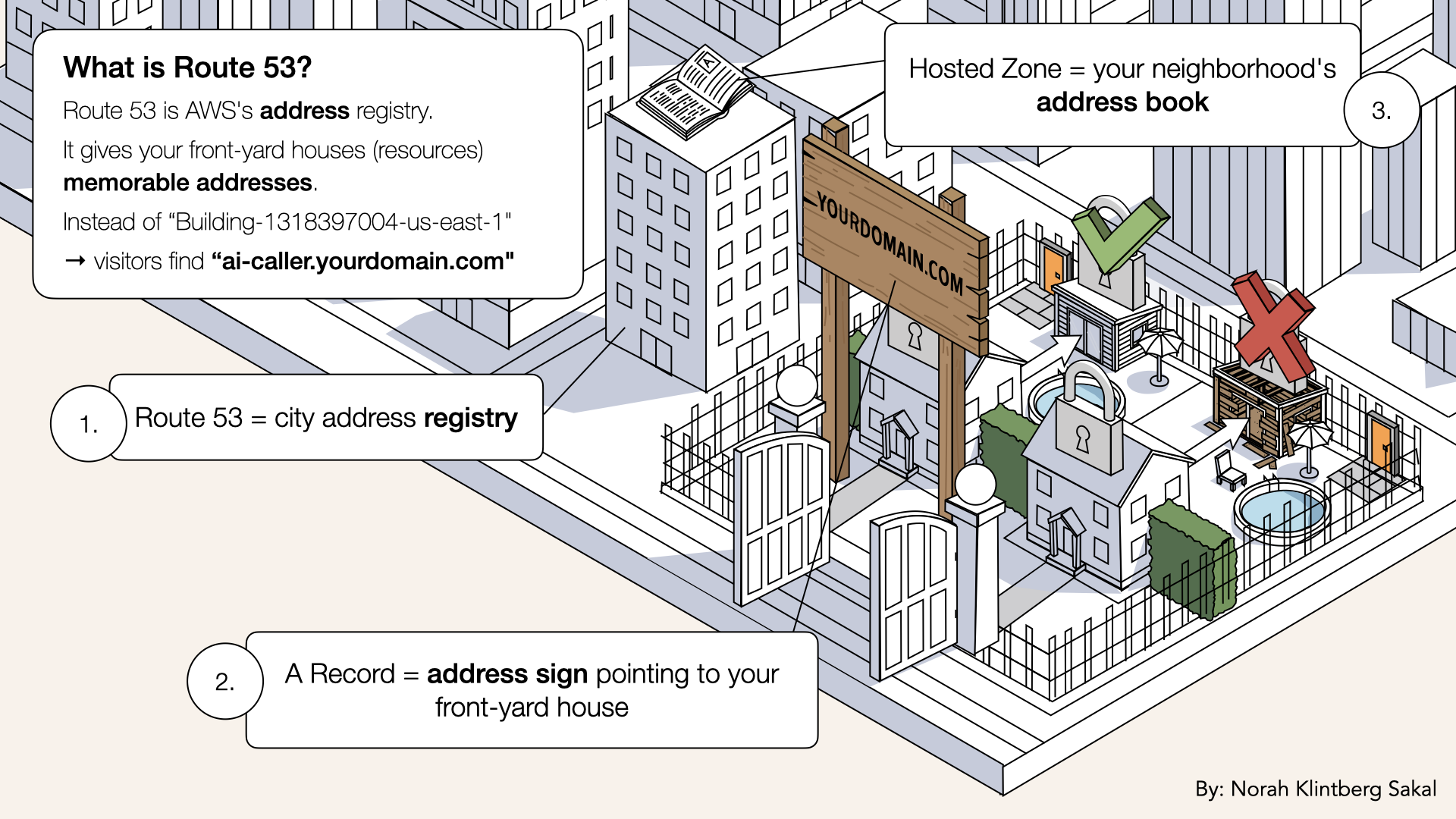
AWS's DNS service for domain registration and DNS management
Why use Route 53:
✅ Alias records (no charge for queries to AWS resources)
✅ Health checks and failover
✅ All in one place with your infrastructure
A records vs CNAME vs Alias
Three ways to point a domain to something:
| Type | Maps | Example | Limitations |
|---|---|---|---|
| A Record | Domain → IP address | example.com → 54.123.45.67 | Only works for IPs, ALB IPs can change |
| CNAME | Domain → Another domain | www.example.com → example.com | Can't use on root domain (example.com) |
| Alias (Route 53 only) | Domain → AWS resource | example.com → ALB | Only works in Route 53, free queries |
For ALB, we use Alias records:
✅ Works of root domain
✅ Free (no query charges)
✅ Automatically updates if ALB IP changes
✅ AWS-native integration
This is the Route 53 superpower.
Step 1: Decide on your domain approach
You have 3 options:
All prices mentioned below (domains, transfers, hosted zones) reflect AWS Route 53 pricing as of December 2025.
AWS may change pricing, always double-check in the AWS console if this matters for your setup.
Option A: Register a new domain with Route 53 (Recommended for this tutorial)
- Cost: ~$15/year (depends on the domain)
- Time: 10-15 minutes
- Easiest setup
Option B: Transfer existing domain on Route 53
- Cost ~$15 transfer fee (depends on the domain)
- Time: 1-7 days for transfer
- Best for long-term
Option C: Keep domain elsewhere, use Route 53 for DNS only
- Cost: $0.50/month for hosted zone (as of Dec 2025)
- Time: 5 minutes
- Good if you want to keep your registrar
For this tutorial, we'll do Option A (register a new domain).
If you're doing Option B or C, skip to Step 3.
Step 2: Register a domain with Route 53
Open the AWS Console ↗In the search bar at the top, type route 53 and click Route 53 from the dropdown menu:
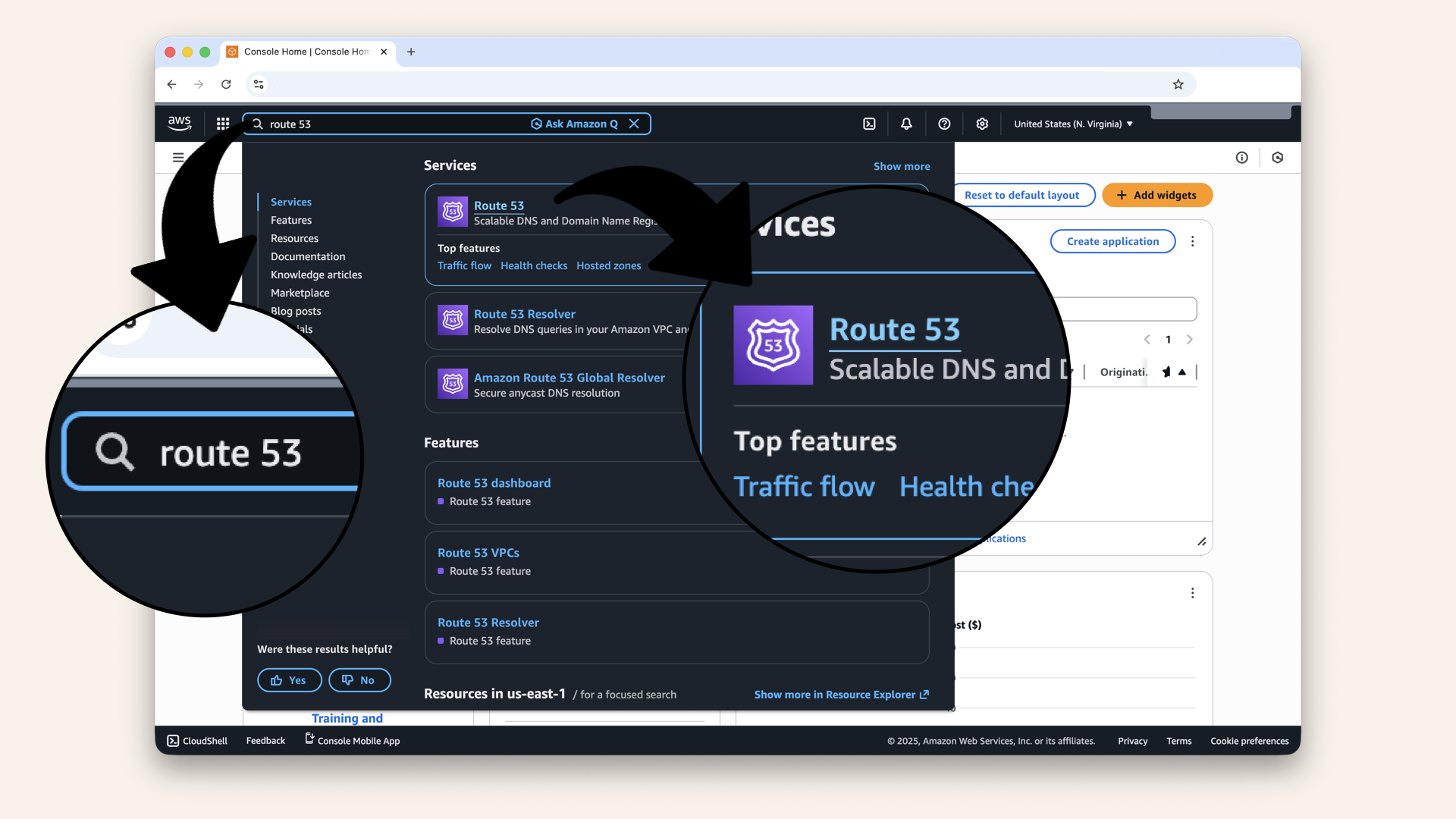
In the search bar at the top, type route 53 and click Route 53 from the dropdown menu
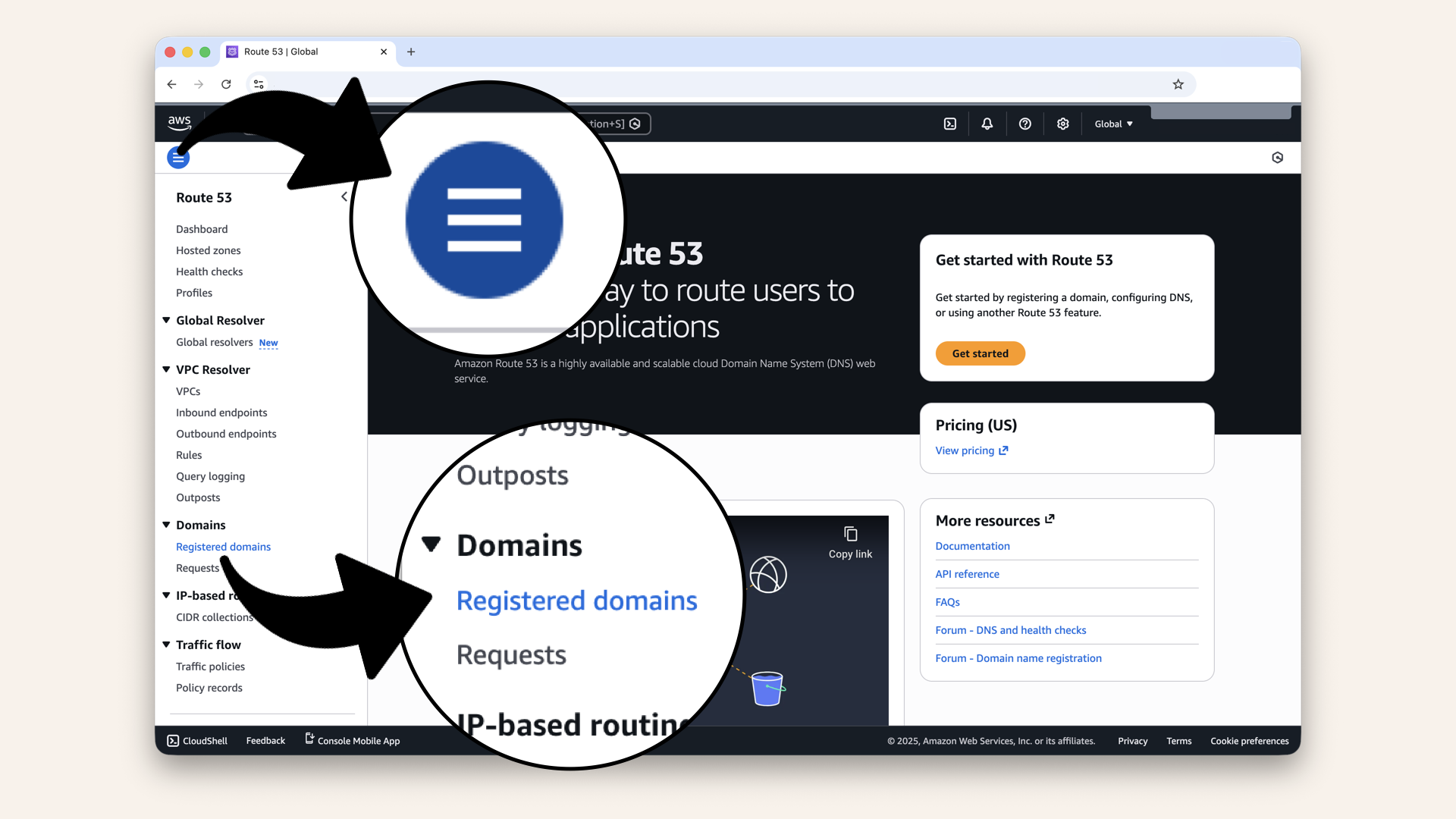
Click to expand the left menu, then click Registered domains in the left menu
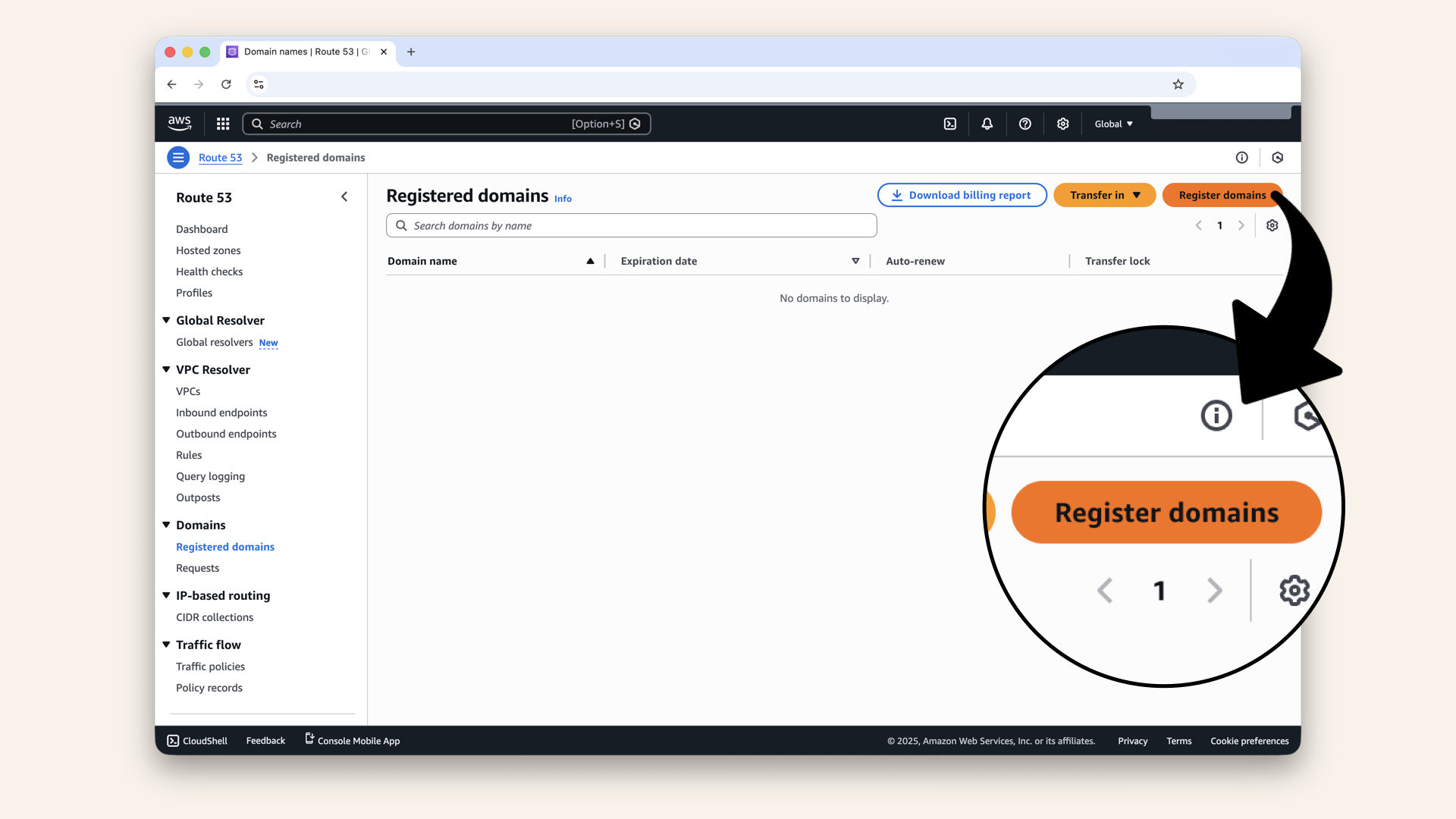
Click Register domains
Step 2.1: Choose a domain name
Type your desired domain name and click Search: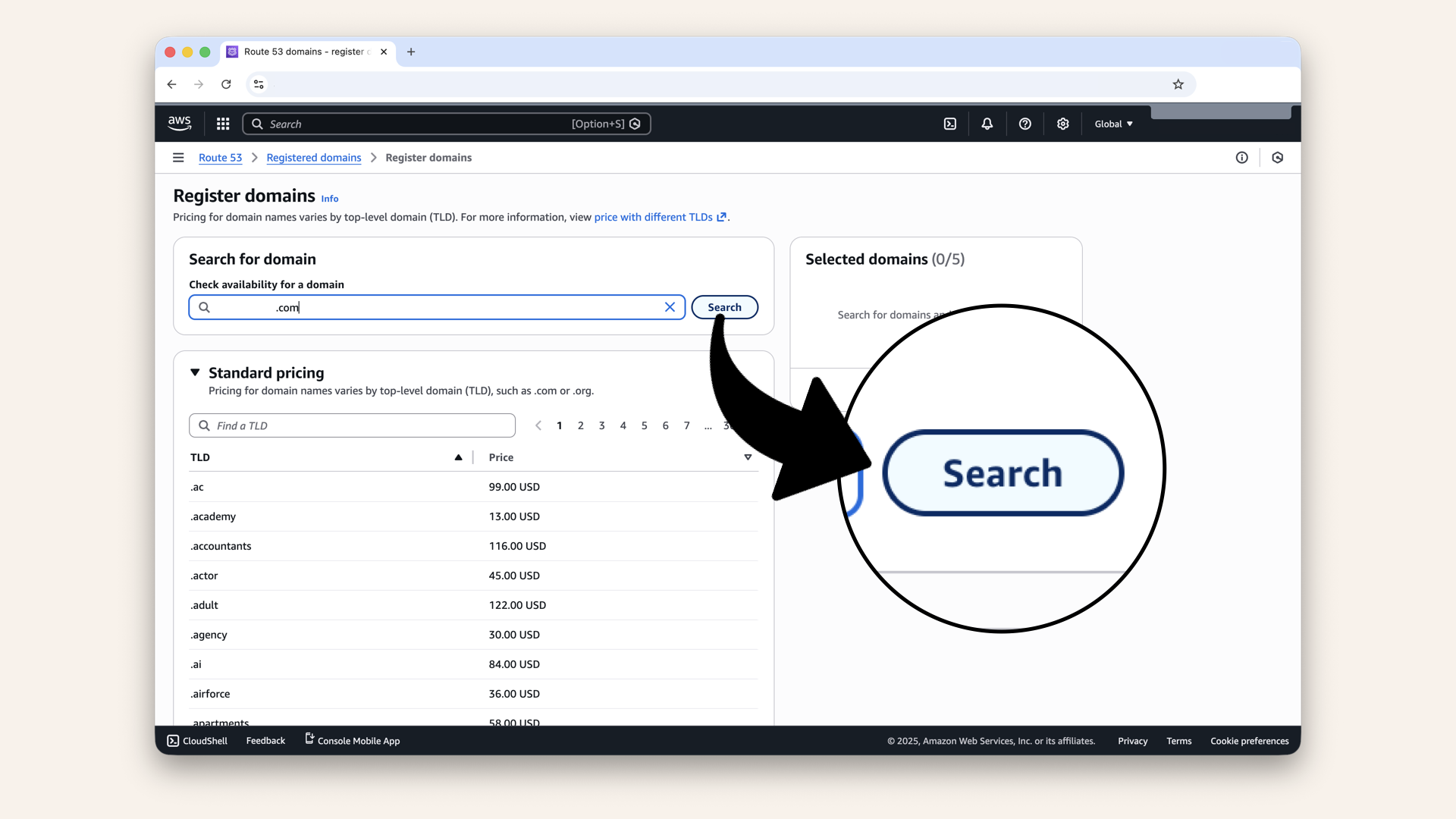
Type your desired domain name and click Search
Tips for choosing a domain:
- Keep it short and Memorable
- USe
.comif available (still most recognizable) .ai,.io,.techare good for tech projects- Avoid hyphens and numbers if possible
If your desired domain is taken:
- Try different TLDs (
.ai,.io,.tech,.dev) - Add a prefix/suffix (
get,try,app,ai) - Use domain name generator tools like Namelix ↗
Step 2.2: Add to cart and proceed
Select your domain: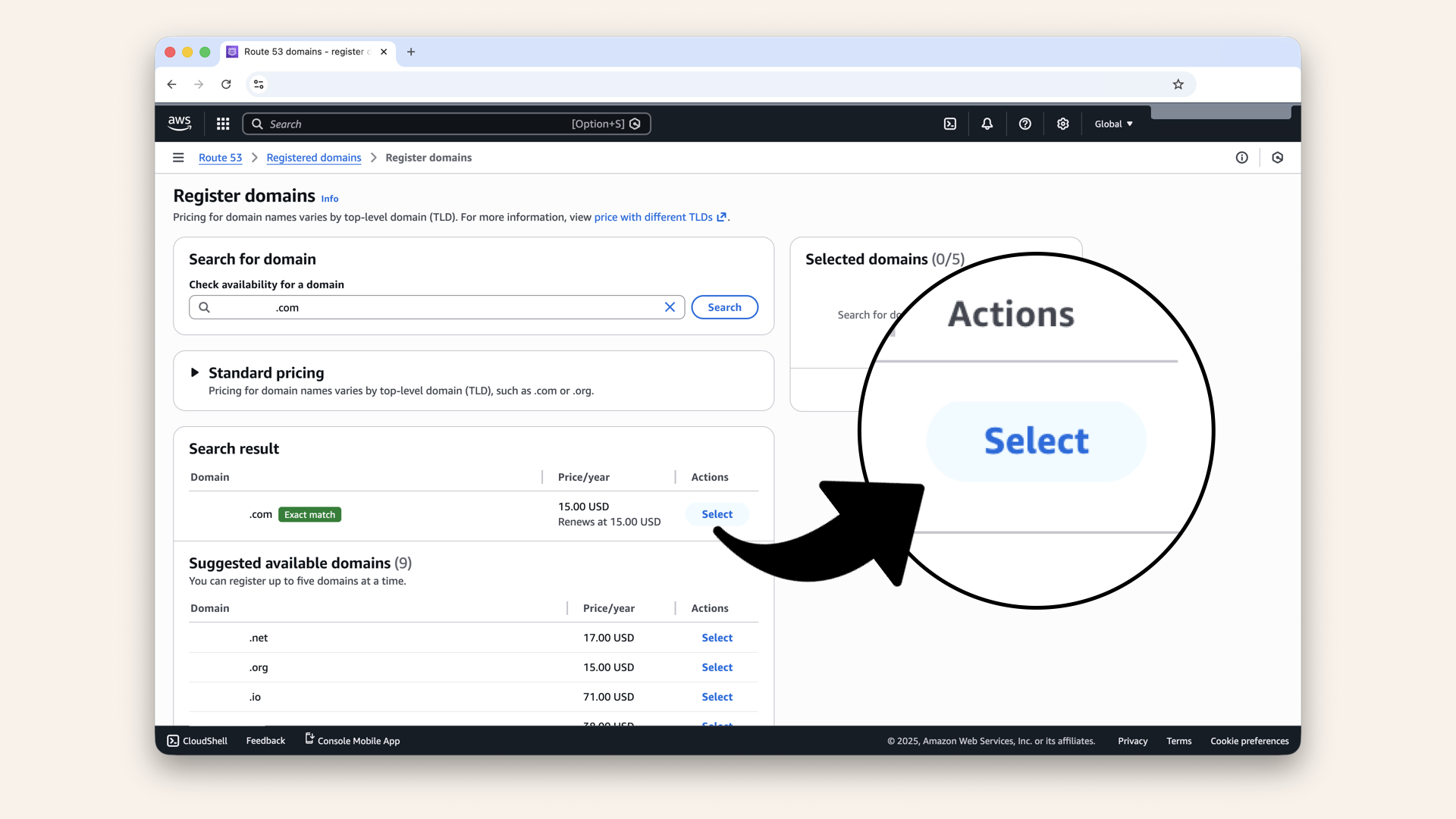
Select your domain
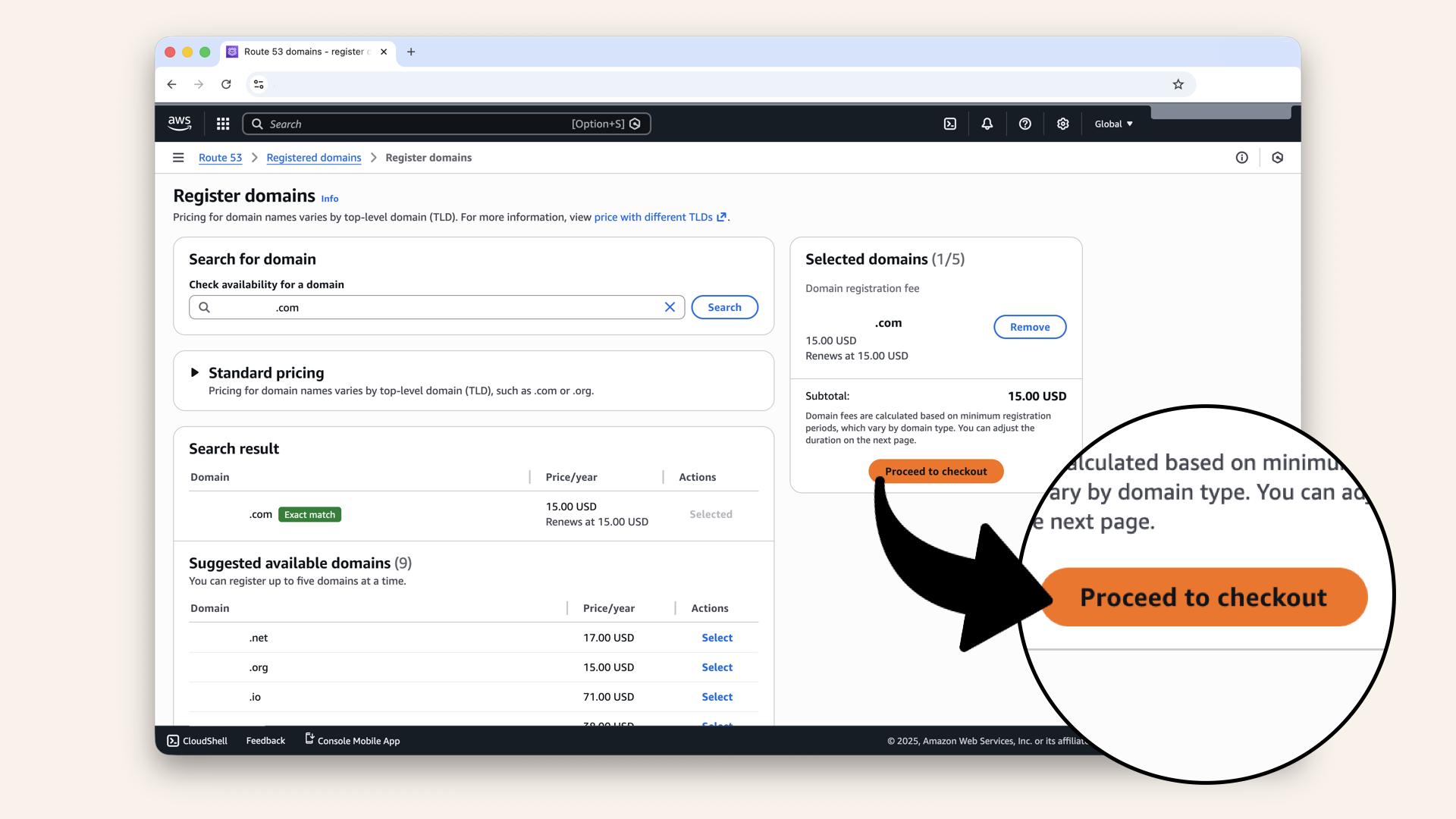
Click Proceed to checkout
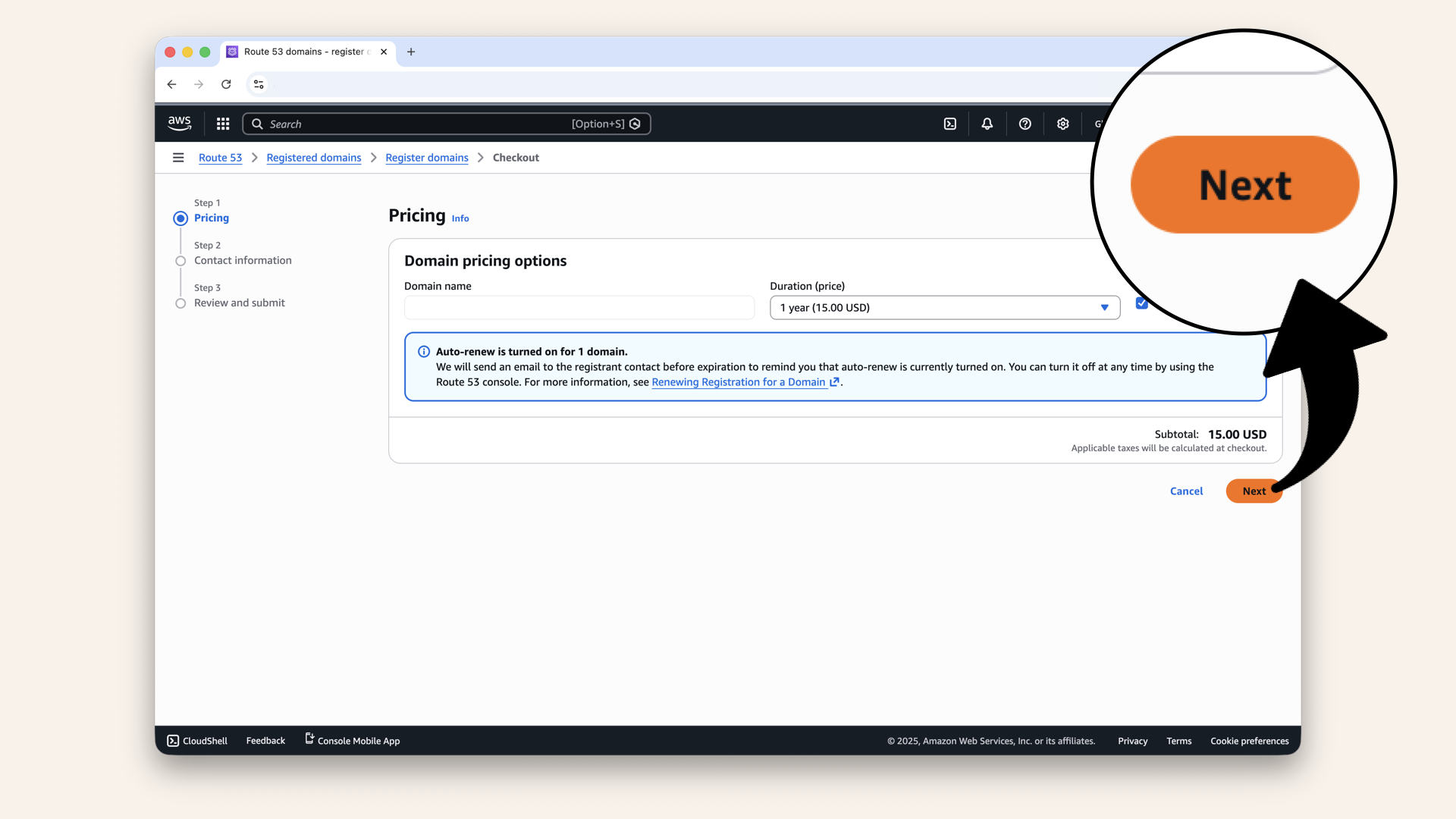
Click Next
Step 2.3: Enter contact information
Fill in your contact details:
- Contact type
- First name, Last name
- Email address
- Phone number
- Address

Fill in your contact details
Route 53 includes privacy protection for free on most TLDs.
That means:
- Your personal info is hidden from WHOIS lookups
- Spammers can't harvest your email/phone
- AWS's contact info shows instead
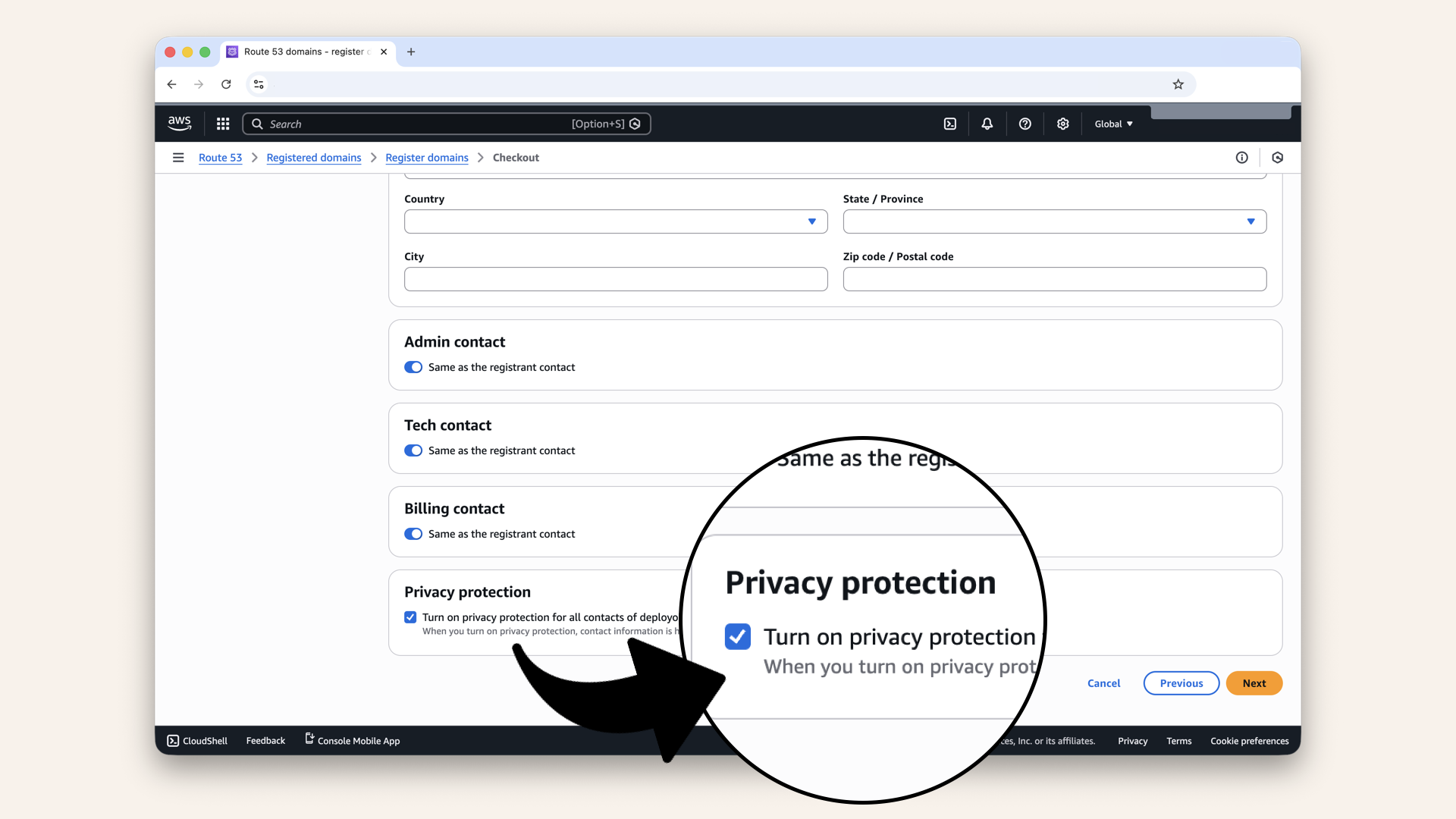
Make sure "Privacy protection" is enabled (usually default)
Step 2.4: Review and complete purchase
Review your order:
- Domain name: ✅
- Duration: 1 year (you can auto-renew)
- Privacy protection: Enabled ✅
- Total: ~$15 (varies by TLD)
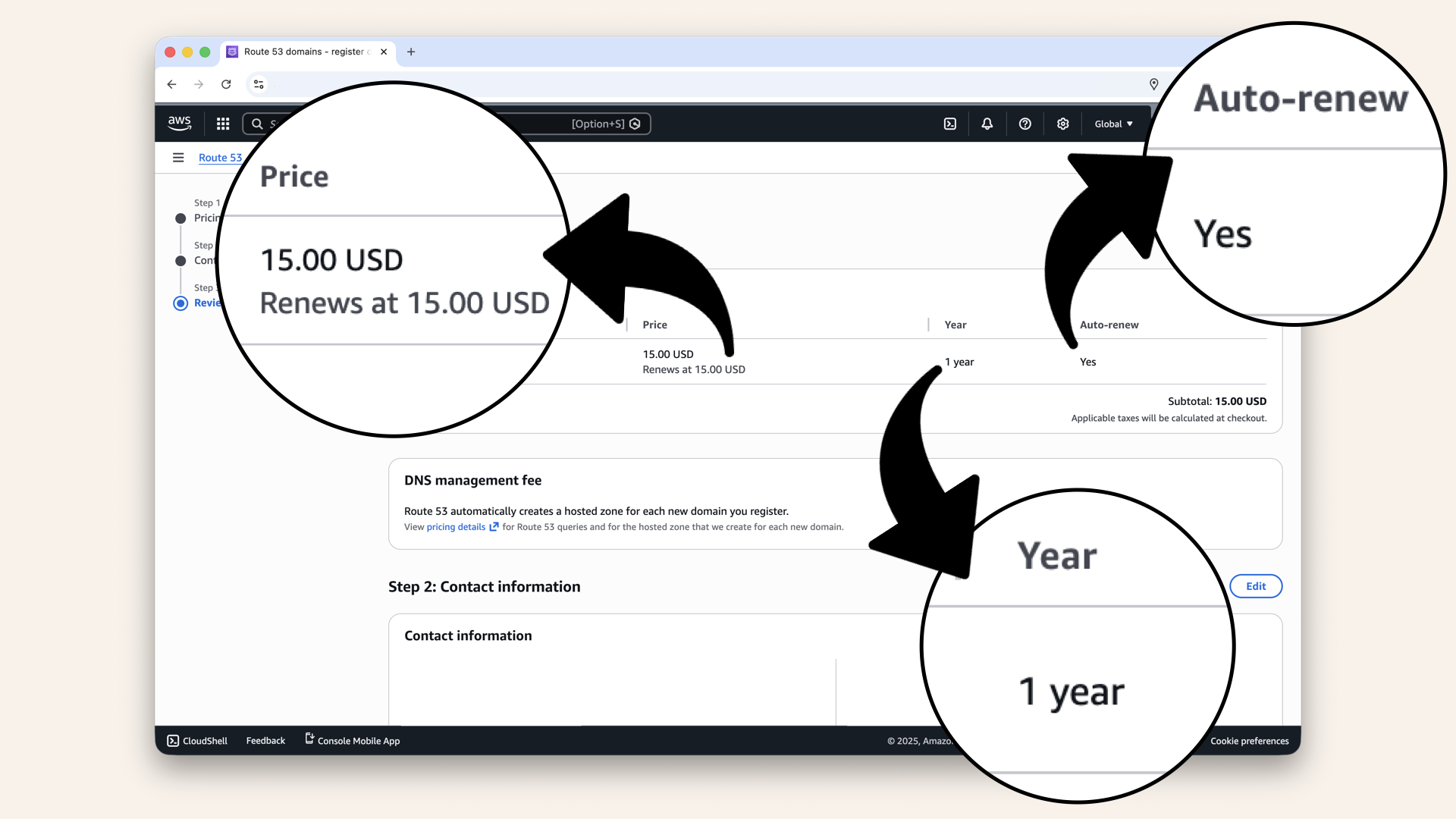
Review your order
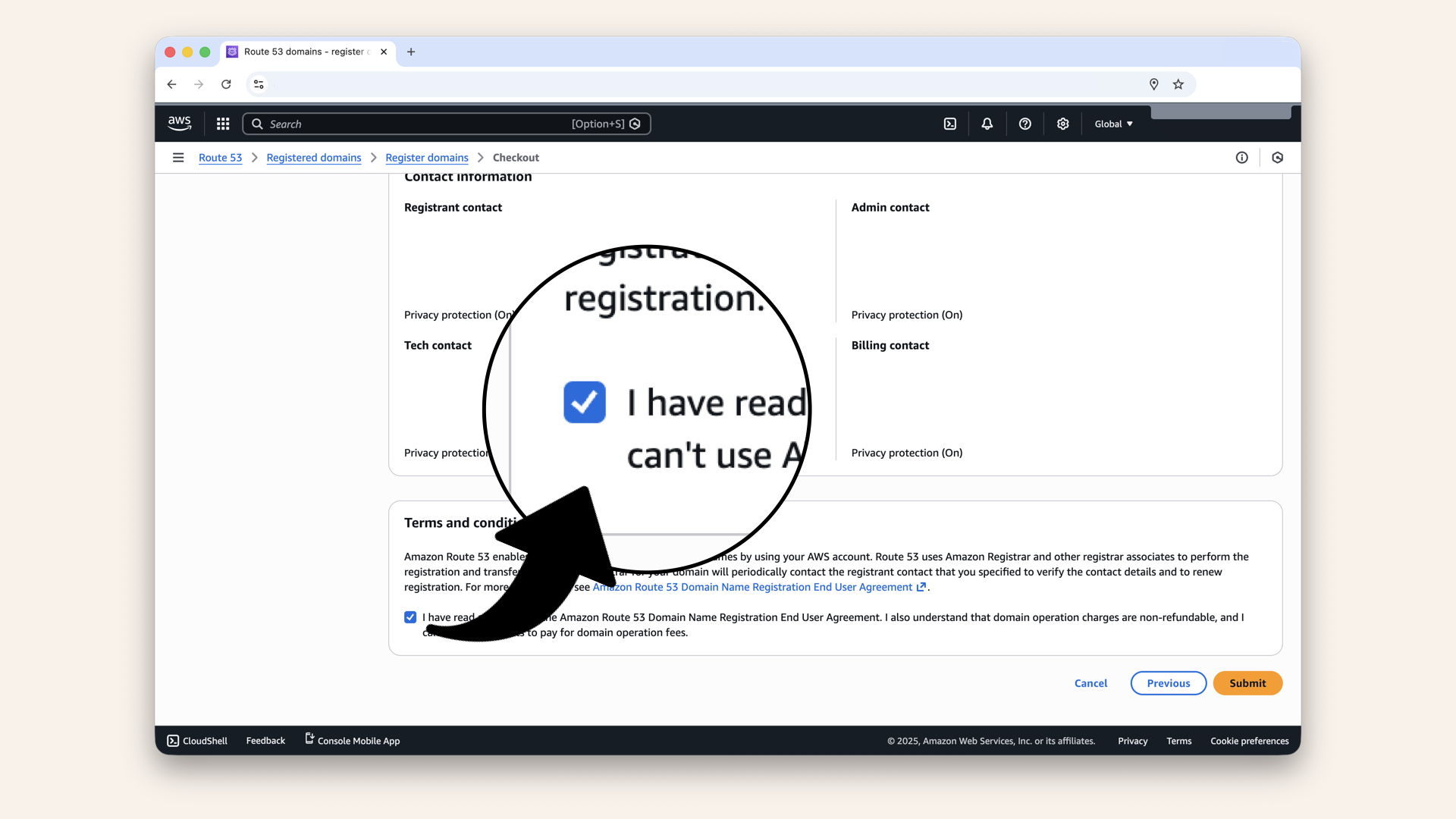
Check the box: "I have read and agree to the Amazon Route 53 Domain Name Registration End User Agreement"
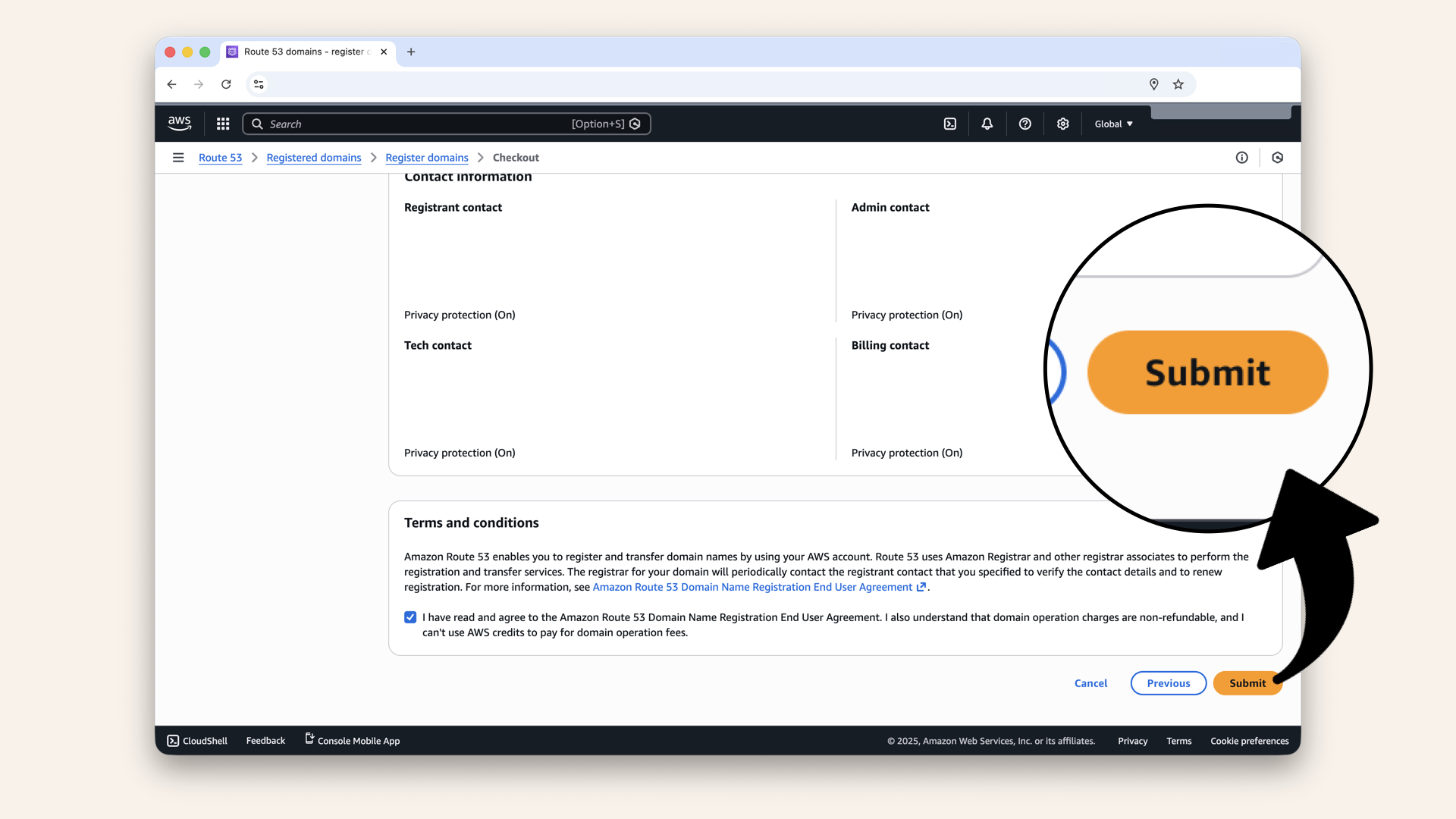
Click Submit to complete the order
✅ You should see: "Your domain registration is being processed":
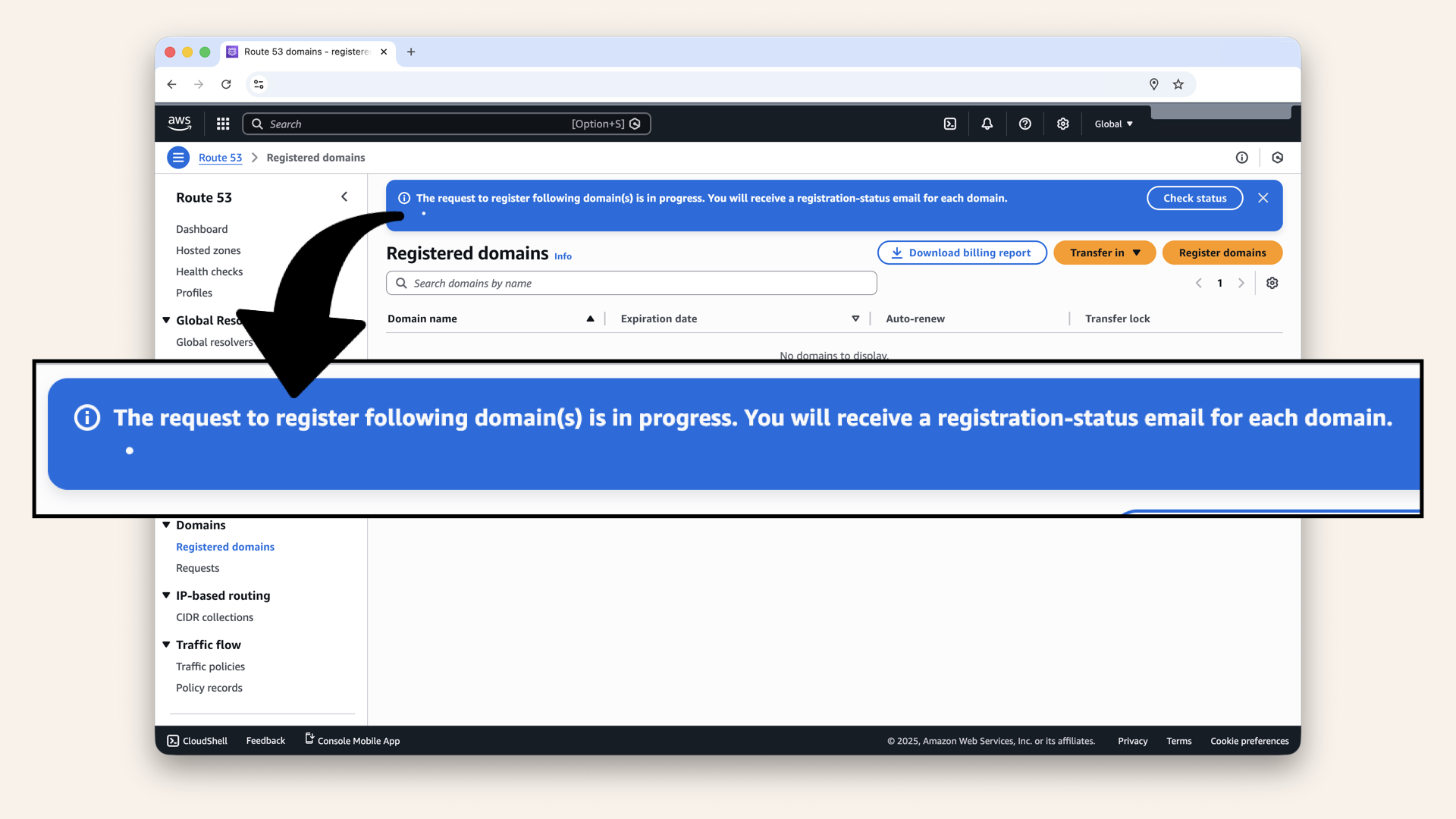
You should see: "Your domain registration is being processed"
Step 2.5: Wait for domain registration
Domain registration takes 10-15 minutes
You'll receive an email once the domain is registered:

You'll receive an email once the domain is registered
- Check your email
- Click the verification link
- Verify within 15 days (or domain gets suspended)
Step 3: Create Hosted Zone
Route 53 automatically creates a hosted zone when you register a domain.
Click Hosted zones in the left menu: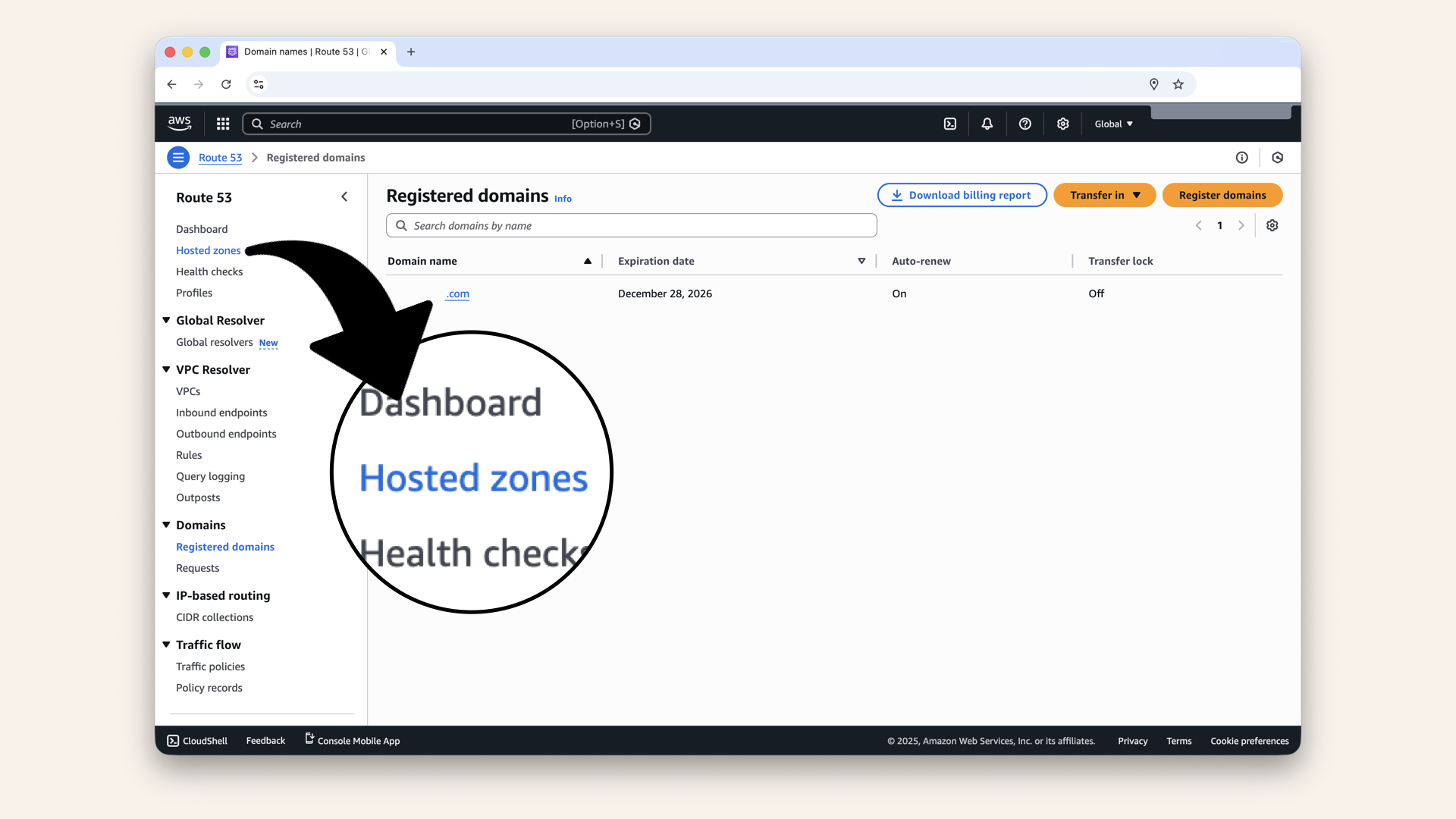
Click Hosted zones in the left menu
You should see your domain listed (e.g. yourdomain.com):
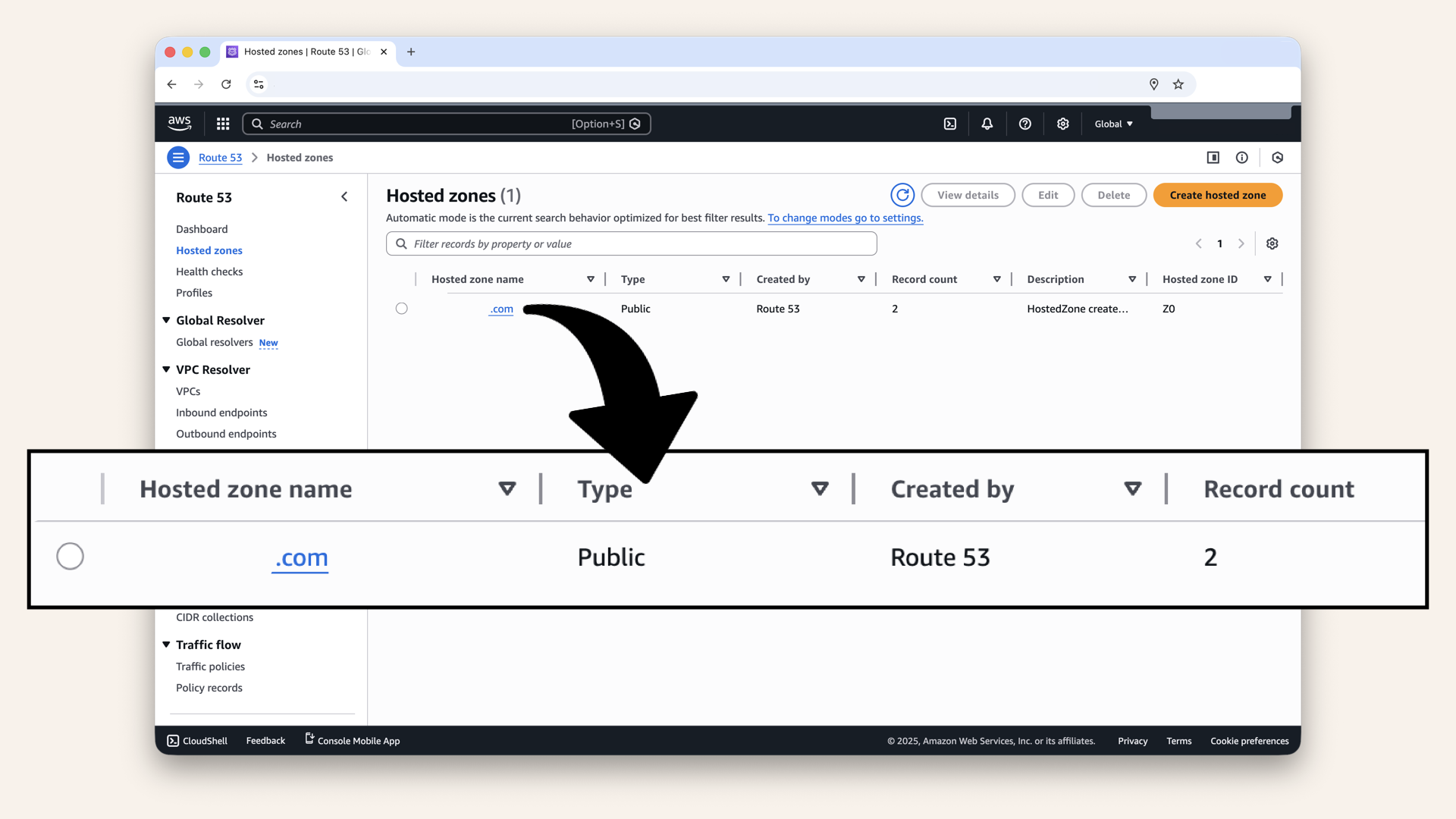
You should see your domain listed (e.g. yourdomain.com)
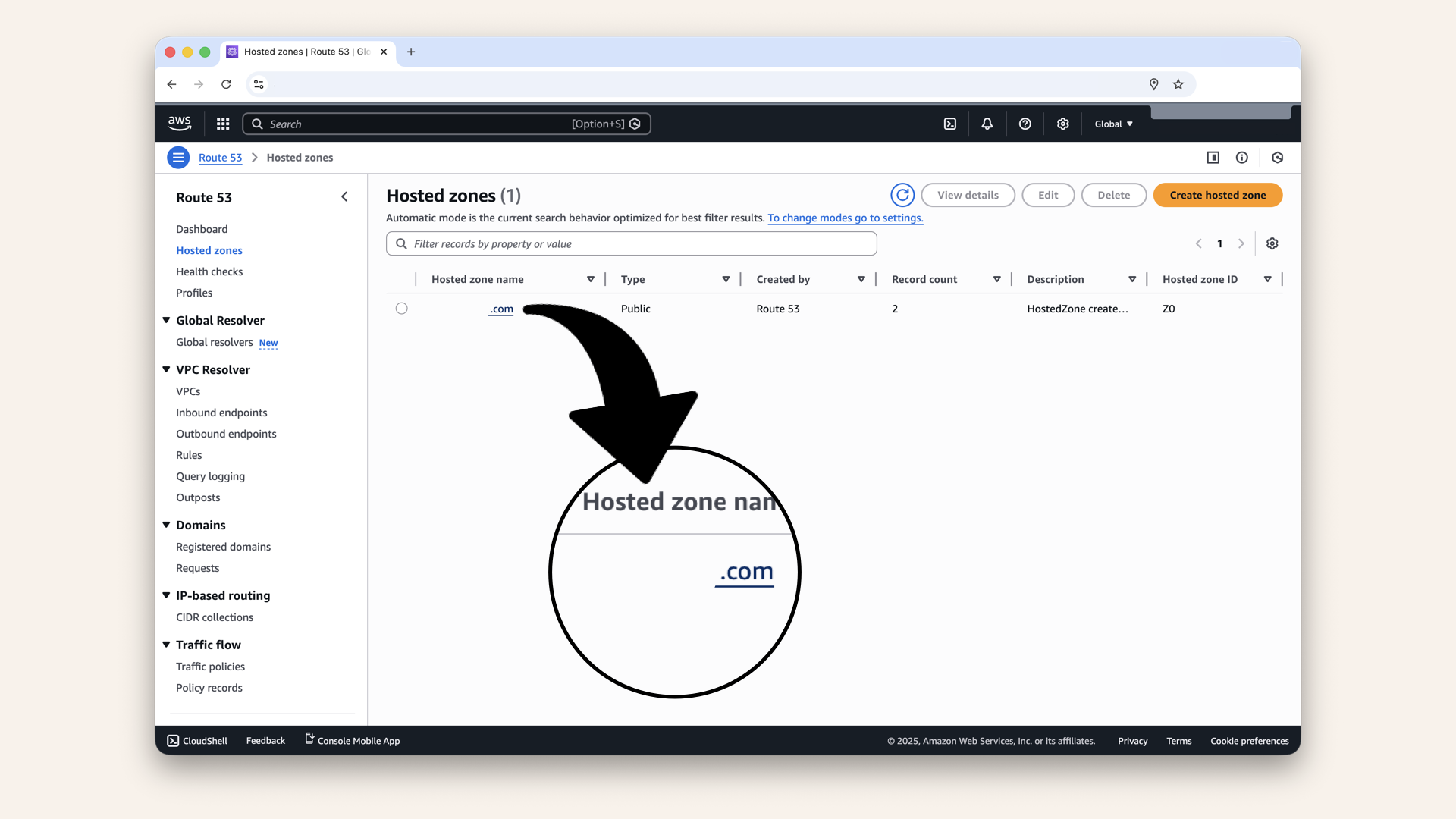
Click on your domain name to open it
You'll see 2 default records:
- NS (Name Server) record: Points to Route 53's name servers
- SOA (Start of Authority) record: DNS metadata
They're required for DNS to work.
You'll see 2 default records, don't touch these 2 default records:

You'll see 2 default records, don't touch these 2 default records
You need to point your domain's nameservers to Route 53:
- In Route 53: Click the checkbox for NS records and copy the 4 nameservers from your NS record (looks like
ns-123.awsdns-12.com):

In Route 53: Click the checkbox for NS records and copy the 4 nameservers from your NS record (looks like ns-123.awsdns-12.com)
-
In your registrar (GoDaddy, Namecheap, etc.): Update nameservers to the 4 Route 53 nameservers
-
Wait 24-48 hours for DNS propagation
After nameserver update, continue with Step 4 below.
Step 4: Create A record for your subdomain
Now we'll create an A record that points ai-caller.yourdomain.com to your ALB.
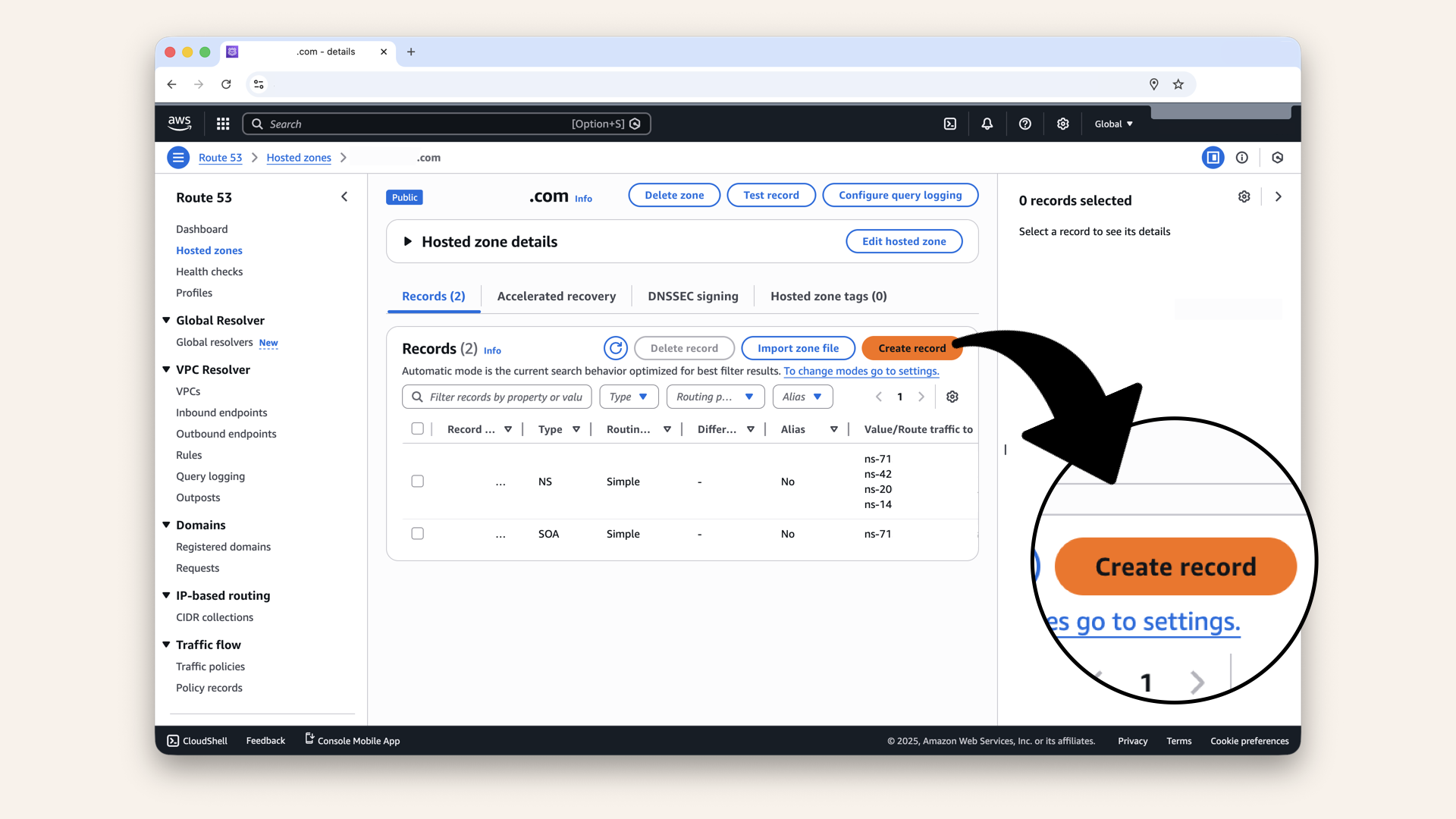
Click Create record
Step 4.1: Configure the record
Fill in the settings:
| Field | Value |
|---|---|
| Record name | (or whatever subdomain you want) |
| Record type | A - Routes traffic to an IPv4 address |
| Alias | ✅ Turn ON |
| Route traffic to | Alias to Application and Classic Load Balancer |
| Region | us-east-1 (or your ALB's region) |
| Load balancer | Select Fargate-ALB |

Fill in the settings, make sure to turn on Alias
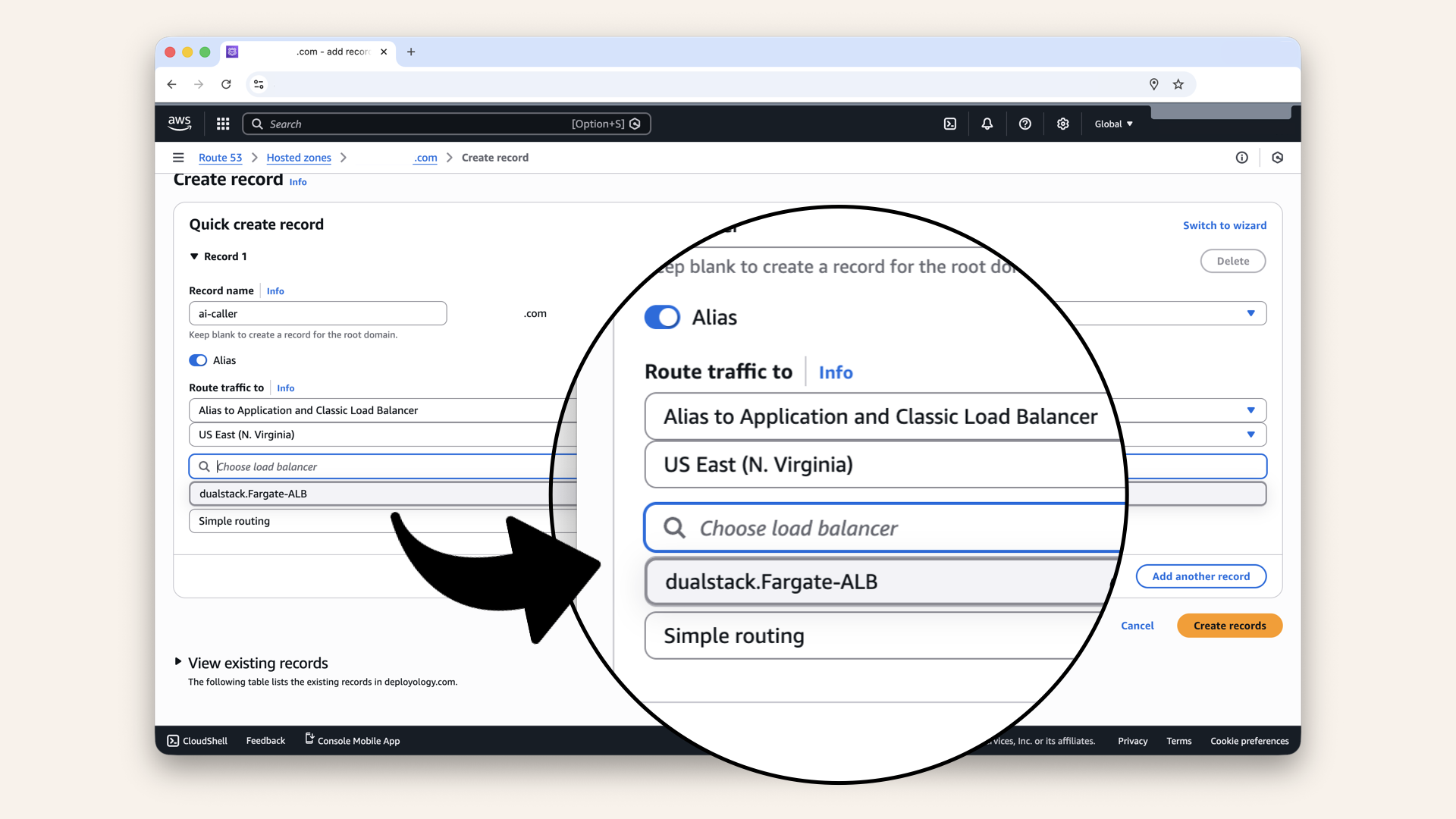
Route traffic to Application and Classic Load Balancer and select Fargate-ALB
After you select your ALB, Route 53 will show something like:
dualstack.Fargate-ALB-1318397004.us-east-1.elb.amazonaws.com
This is normal. Route 53 automatically adds the dualstack. prefix to ALB Alias records.
It means your domain can handle both IPv4 and IPv6 traffic. The dualstack version points to the exact same load balancer you see in the EC2 console.
Step 4.2: Create the record
Scroll down and click Create records: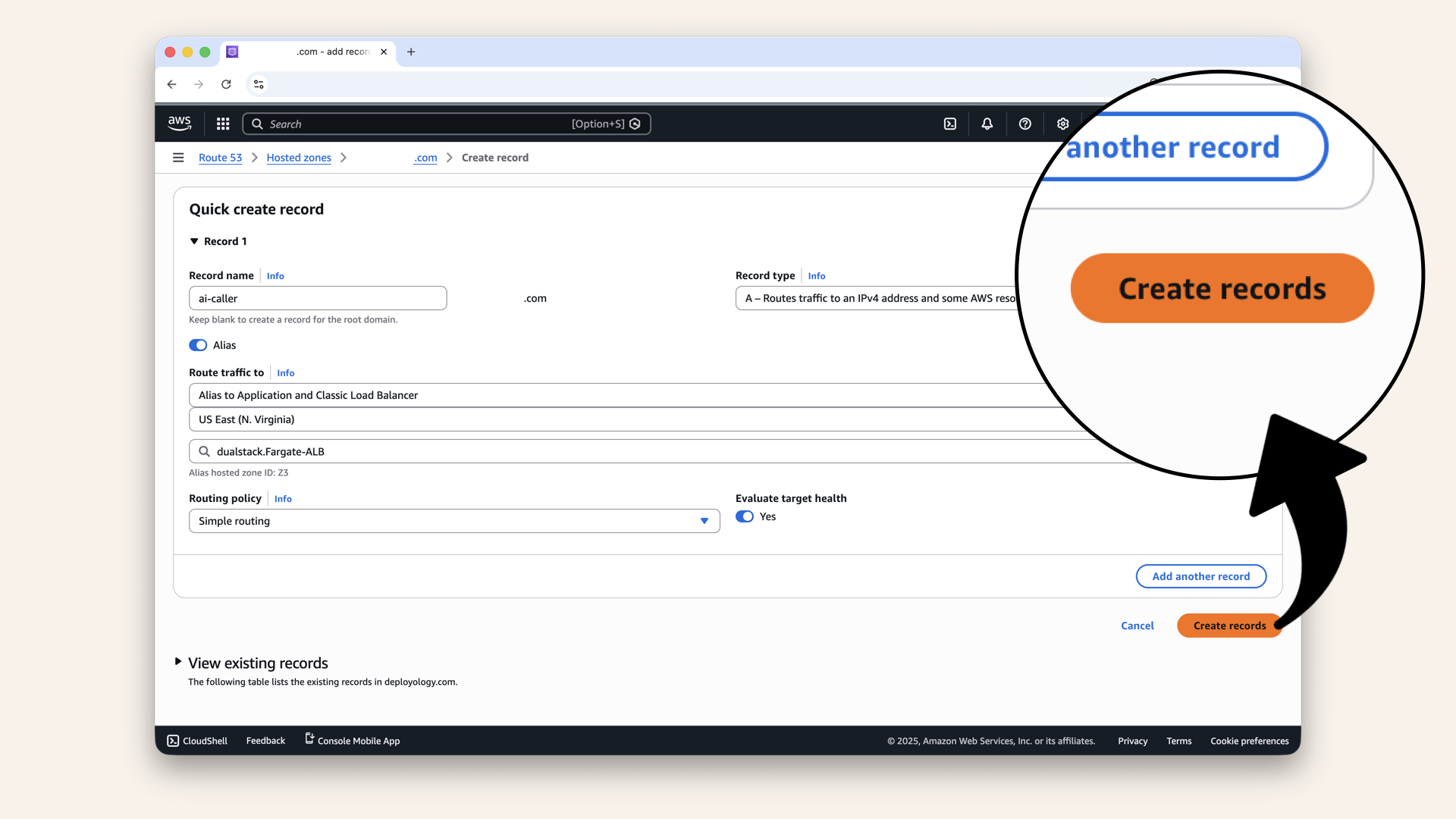
Scroll down and click Create records
✅ You should see: "Successfully created record" and your new A record:
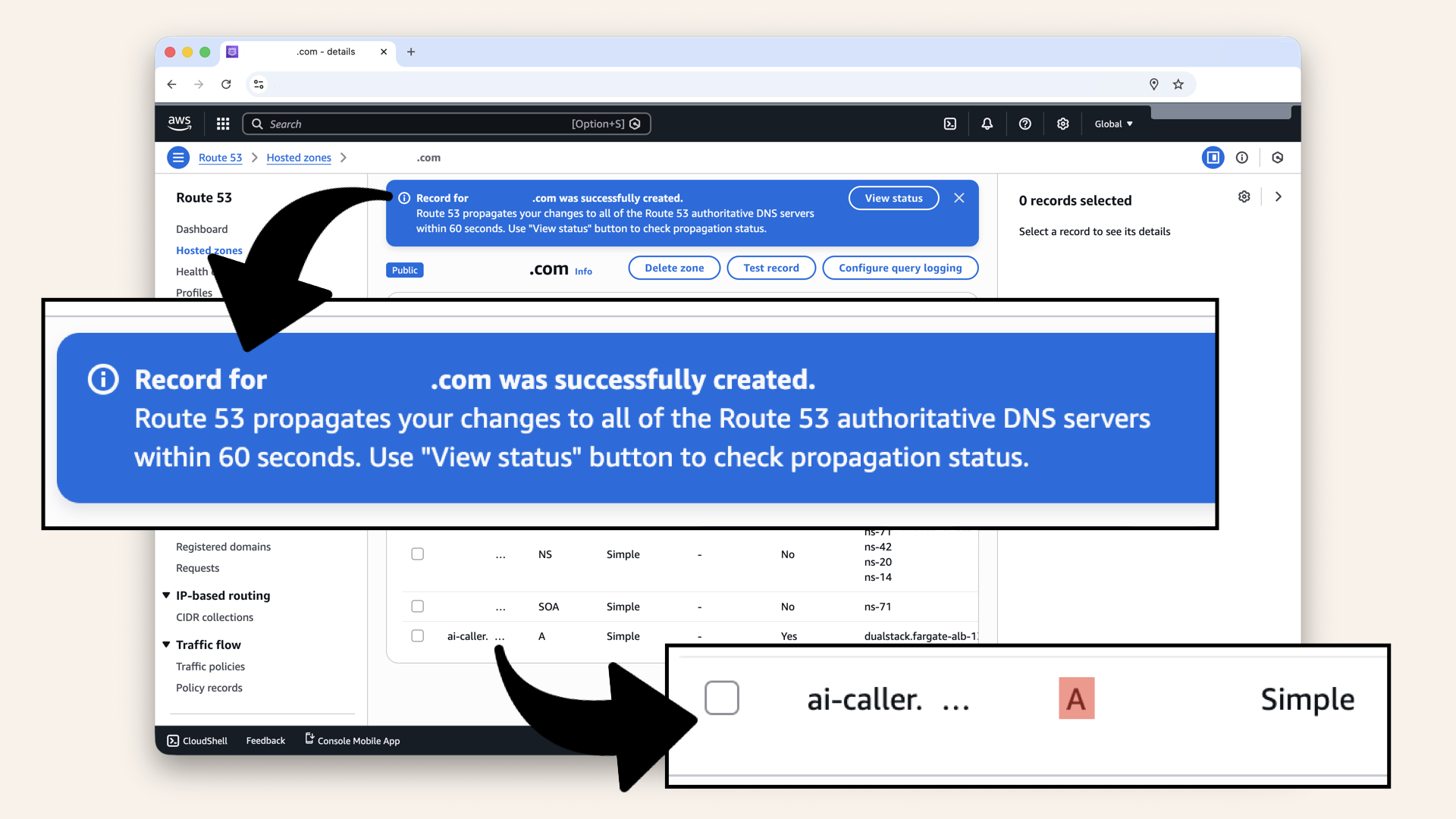
You should see: "Successfully created record" and your new A record
You should now see 3 records in your hosted zone:
- NA (nameservers)
- SOA (start of authority)
- A record (
ai-caller.yourdomain.com→ Fargate-ALB) ← Your new record!
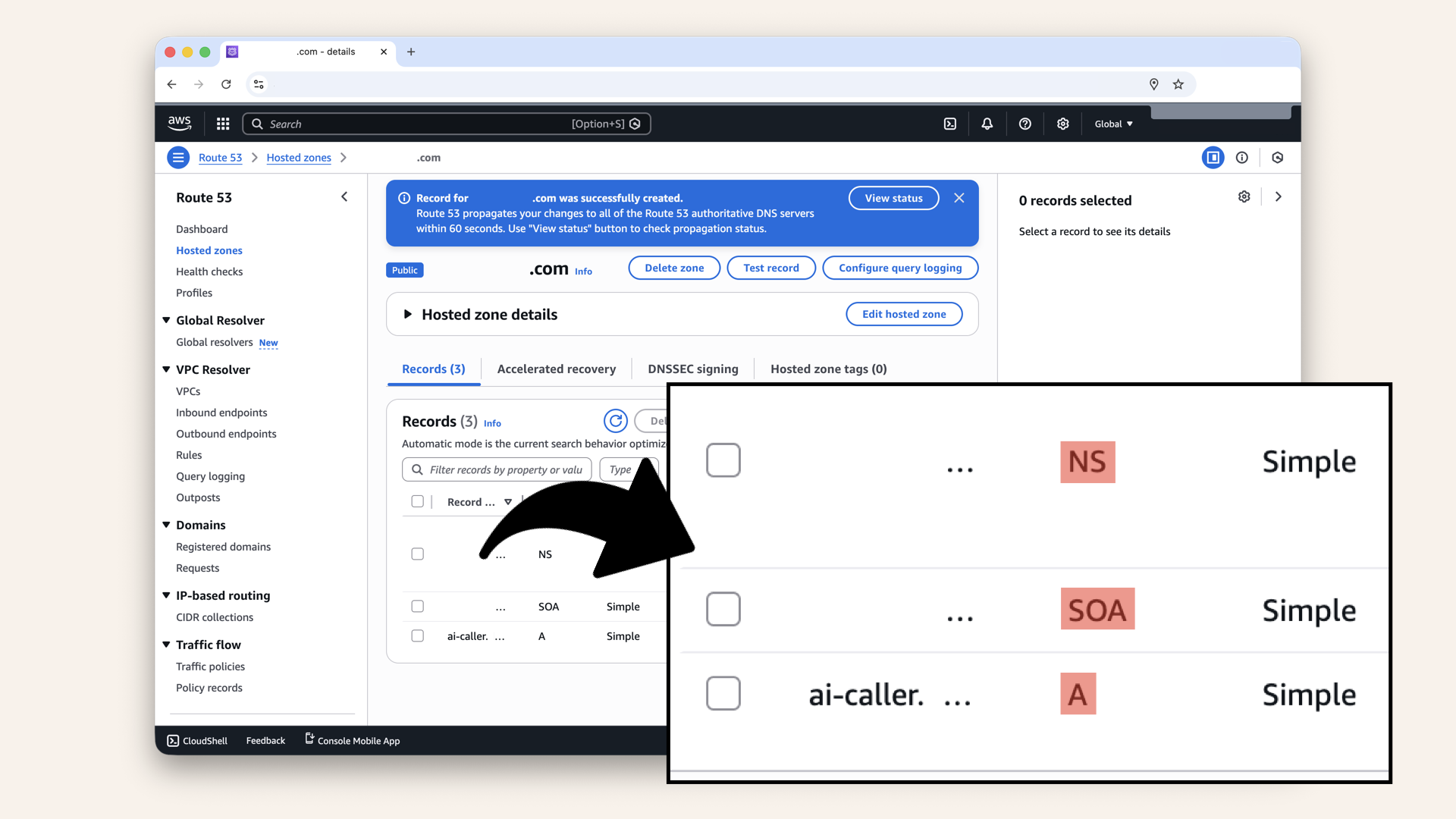
You should now see 3 records in your hosted zone
Step 5: Test your custom domain
DNS changes take 1-5 minutes to propagate.
Wait a few minutes, then test:
Option 1: Browser test
Open your browser and visit:http://ai-caller.yourdomain.com
Expected result:
503 Service Temporarily Unavailable
Expected result: 503 Service Temporarily Unavailable:
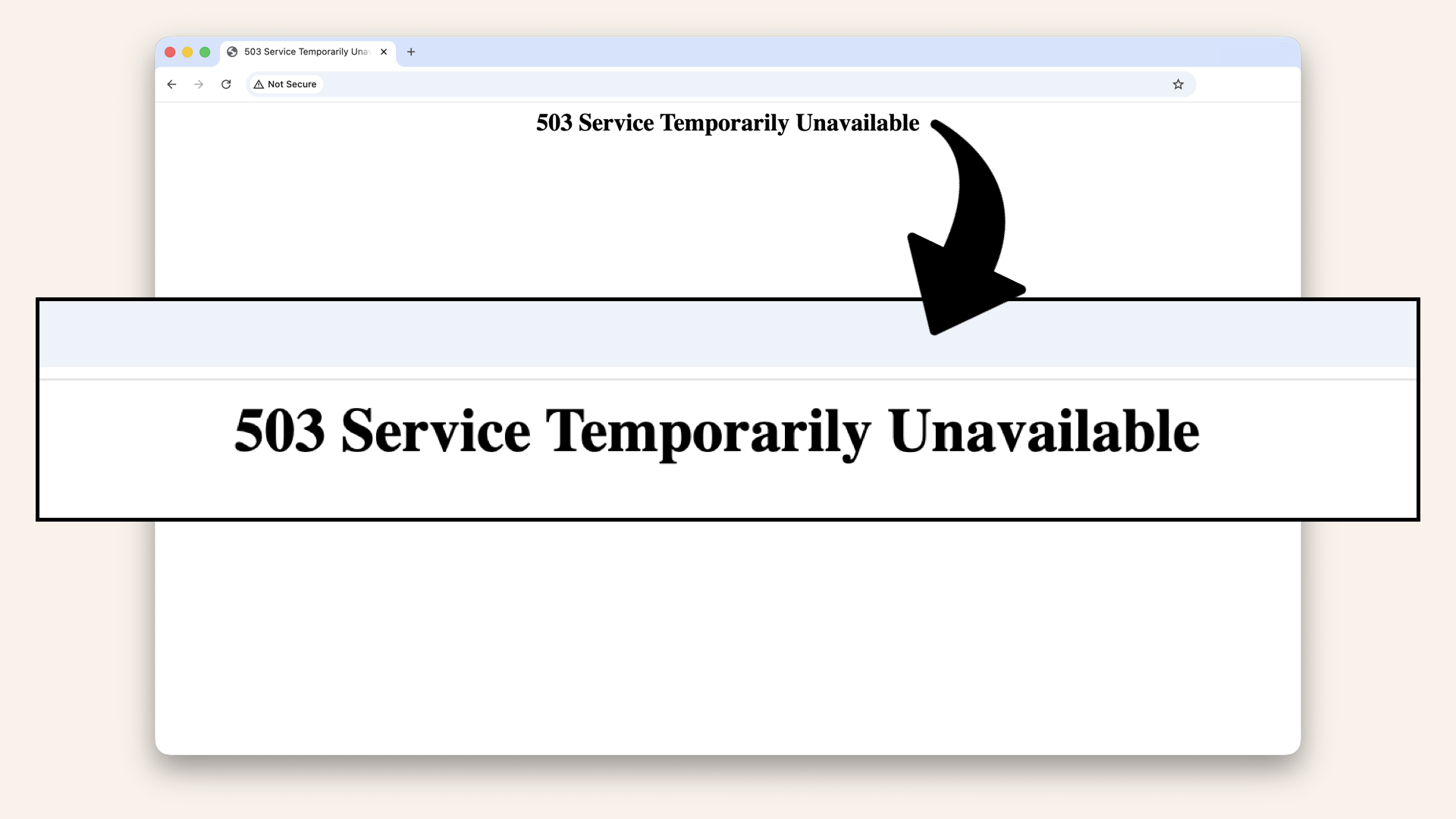
Expected result: 503 Service Temporarily Unavailable
This is perfect!
Why 503 is good:
✅ Domain resolved correctly
✅ Reached your ALB
✅ ALB is working
❌ Just no containers yet (we deploy them on Day 13)
Option 2: DNS lookup test
Run this in your terminal:nslookup ai-caller.yourdomain.com
Expected output:
Server:     8.8.8.8
Address:    8.8.8.8#53

Non-authoritative answer:
Name:   ai-caller.yourdomain.com
Address: 54.123.45.67
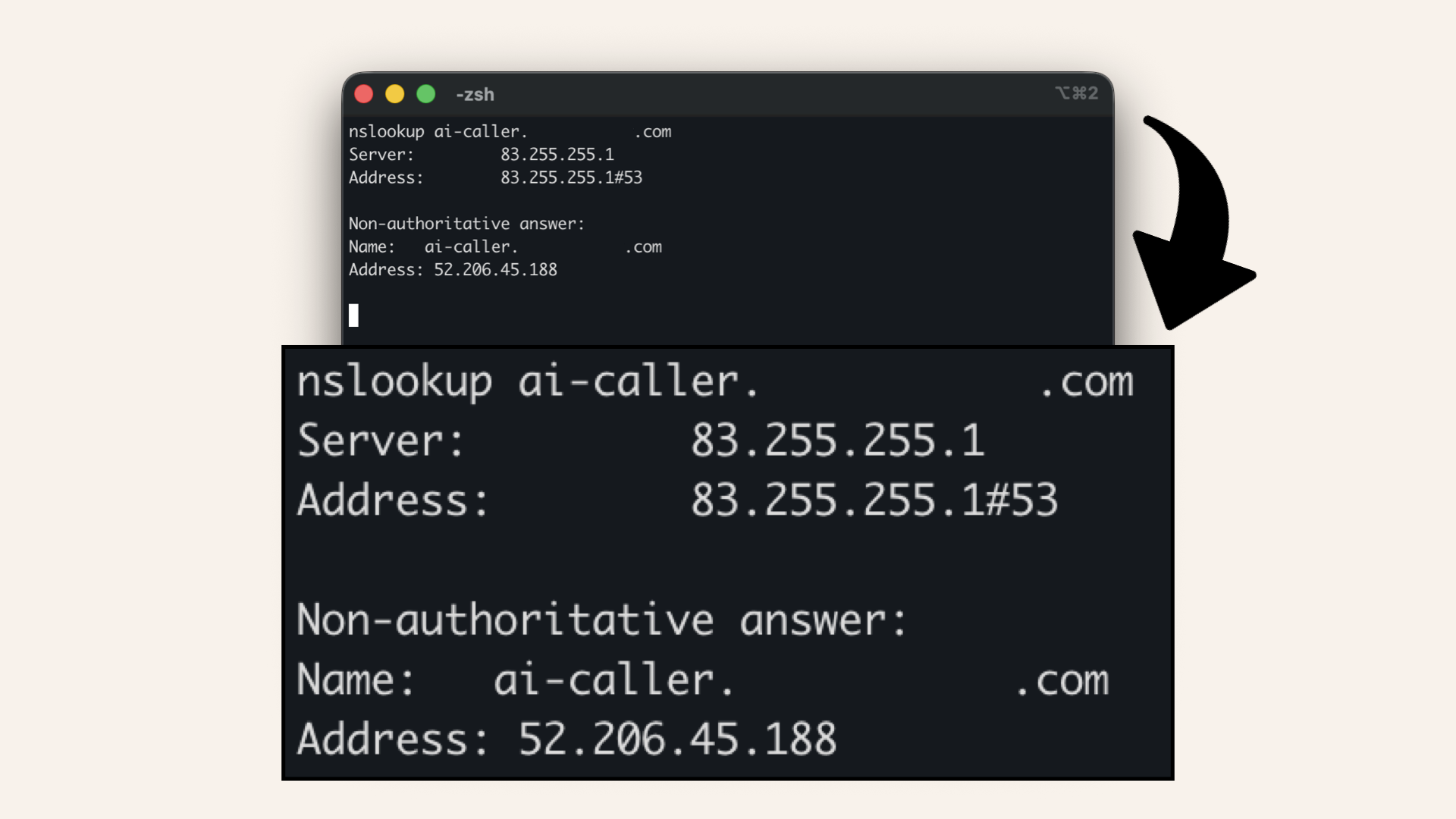
Expected nslookup output
Deep dive
Because you used an Alias record, Route 53 resolves the ALB's IP identity.
You won't see the ALB domain in the output - just the IP - and that's exactly right.
Option 3: curl test
Run this is your terminal:
curl -I http://ai-caller.yourdomain.com
Expected output:
HTTP/1.1 503 Service Temporarily Unavailable
Expected curl output:
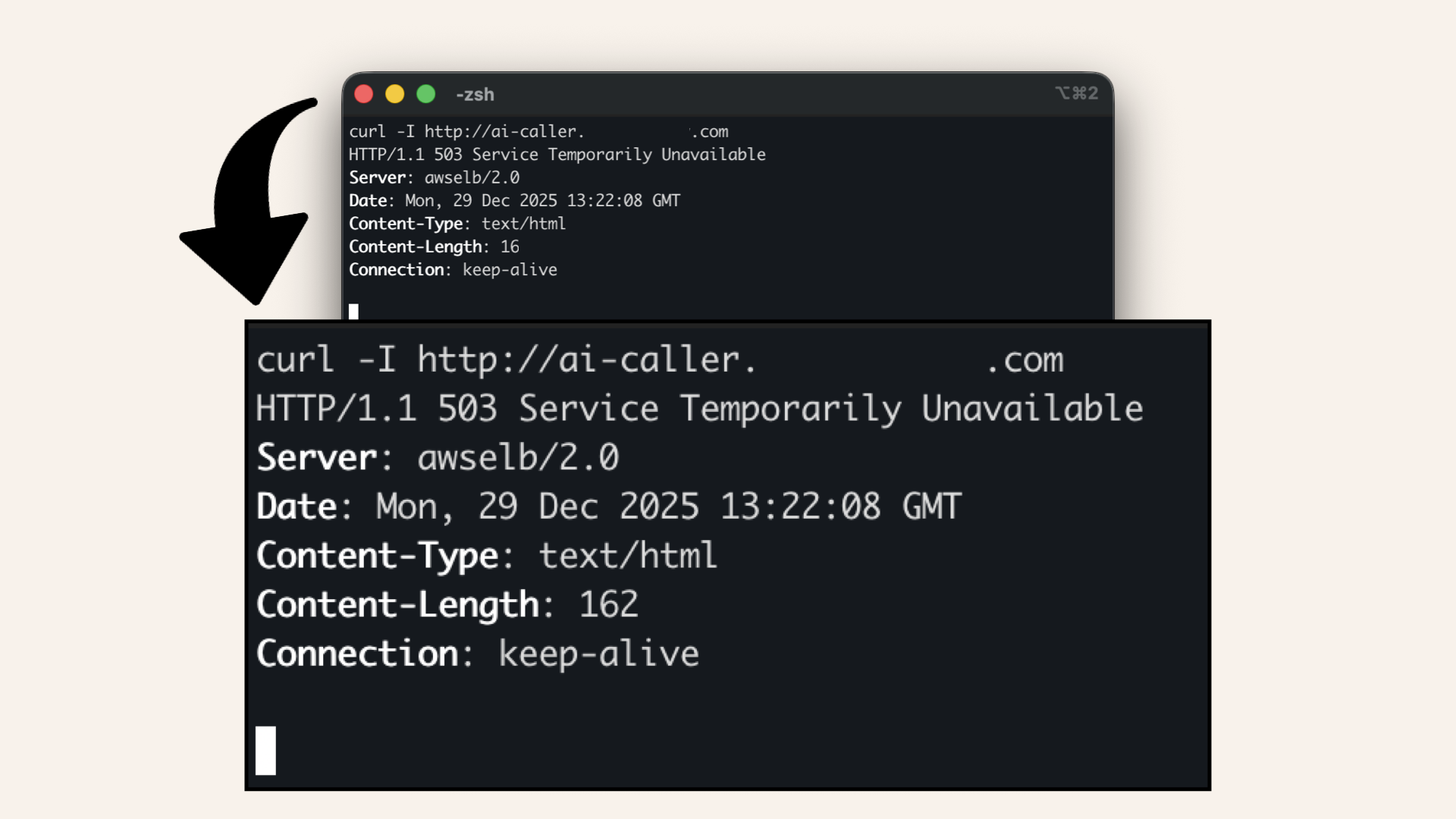
Expected curl output
✅ 503 from your ALB = DNS is working!
Step 6: Verify in AWS Console
Let's confirm everything in the console.
In the search bar at the top, type ec2 and click EC2 from the dropdown menu: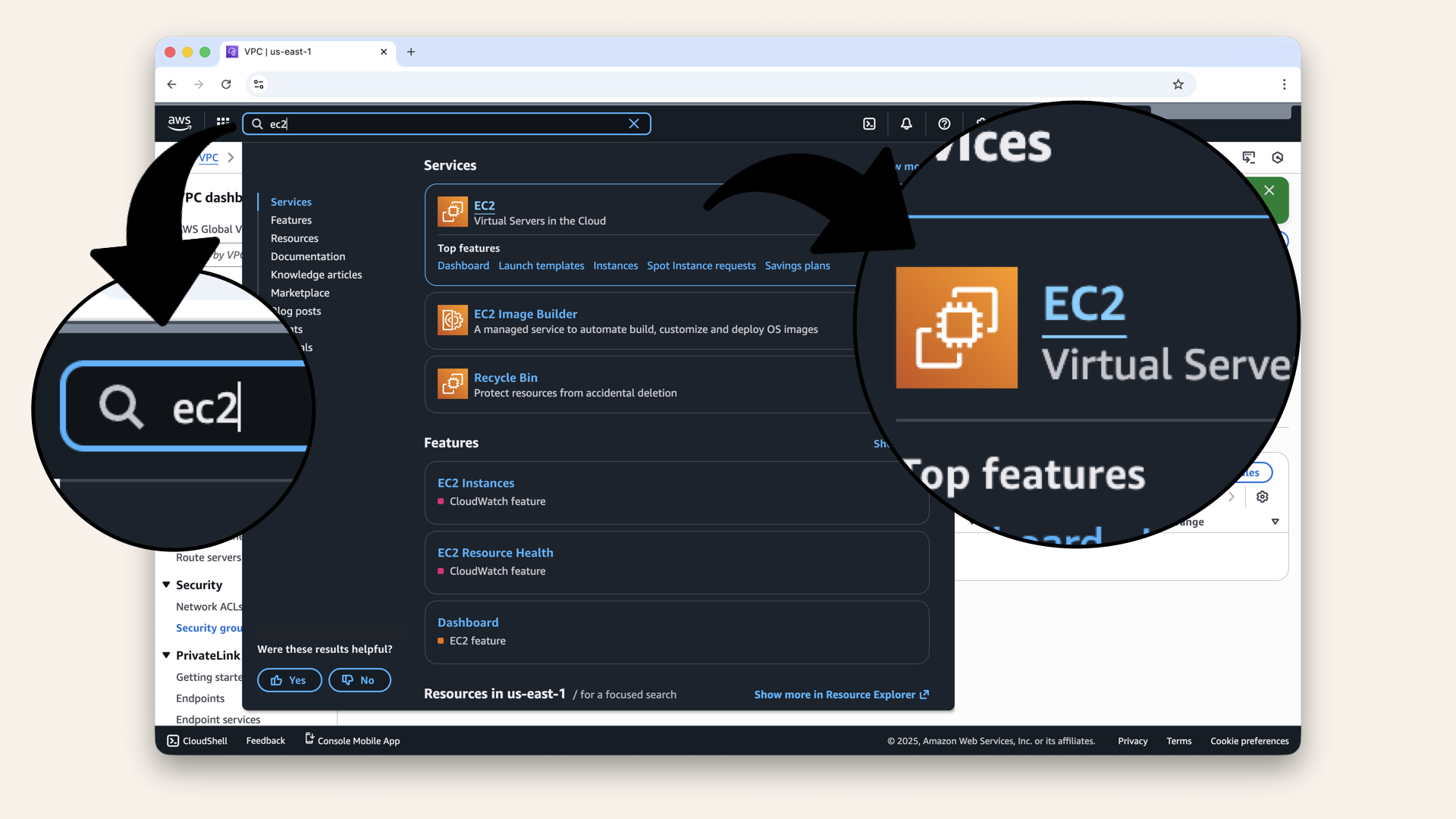
In the search bar at the top, type ec2 and click EC2 from the dropdown menu
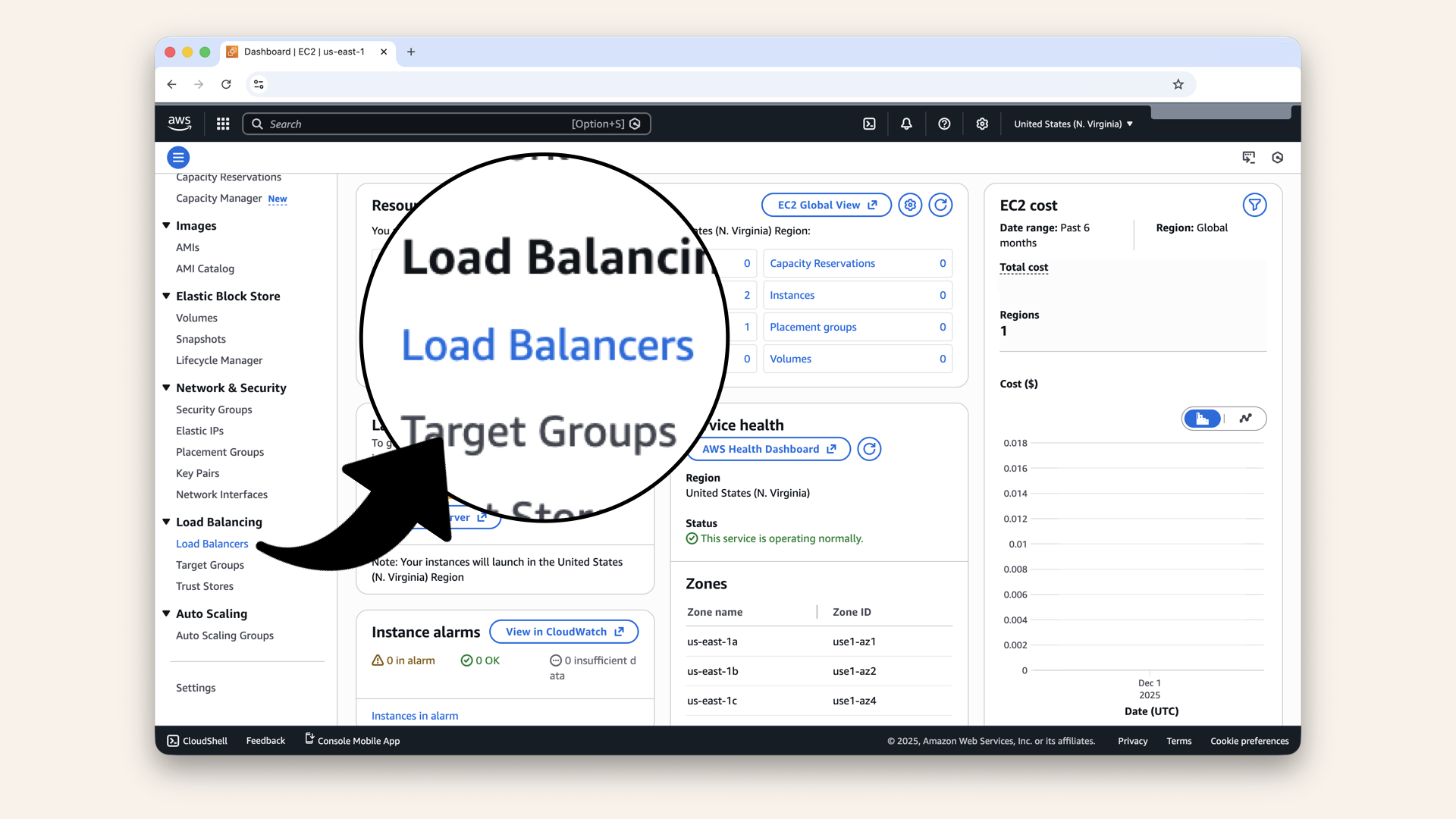
In the left menu, scroll down and click Load Balancers
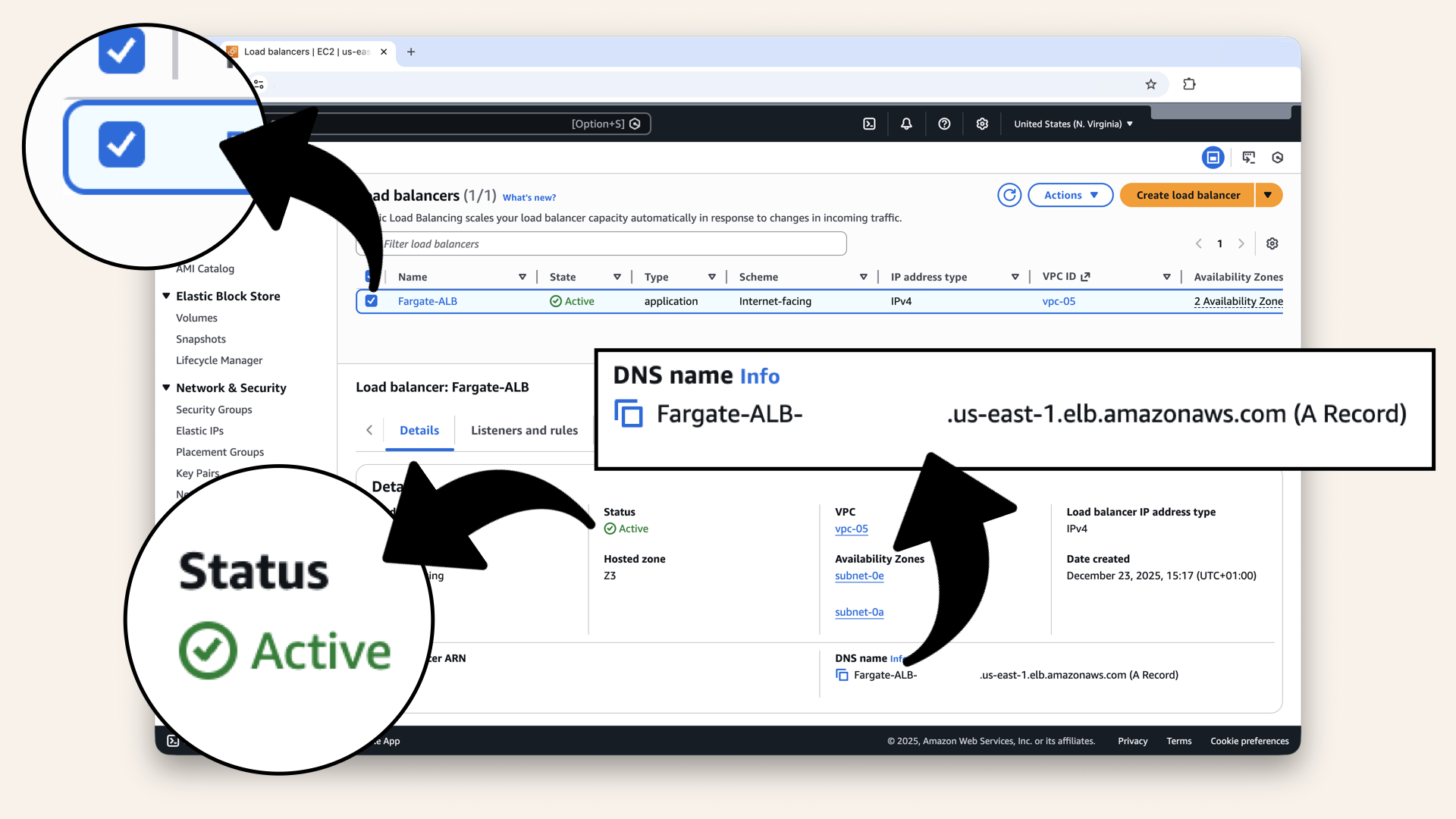
Select Fargate-ALB
Confirm:
- Status is Active
- DNS name shows:
Fargate-ALB-xxxx.us-east-1.elb.amazonaws.com
This is the ALB that your custom domain (ai-caller.yourdomain.com) now points to.
That's expected!
The EC2 console only shows the ALB's own DNS name, not custom domains pointing to it. Your nslookup test in Step 5 already confirmed the connection works.
Today's win
If you completed all steps:
✅ Registered custom domain (or configured existing one)
✅ Created hosted zone in Route 53
✅ Created A record pointing to ALB
✅ Tested DNS resolution
✅ Verified custom domain works
You now have a real, professional URL.
Before:
fargate-alb-1234567890.us-east-1.elb.amazonaws.com
After:
ai-caller.yourdomain.com
Tomorrow, we'll add HTTPS (SSL certificate) to make it secure.
Understanding what you built
The DNS resolution flow:
Why Alias records are amazing:
✅ No charge for DNS queries to ALB
✅ Automatically updates if ALB's IP changes
✅ Works on root domains (ai-caller.yourdomain.com)
✅ Health checks built-in
This is AWS-native DNS magic.
AWS's DNS service for domain registration and DNS management
Route 53 costs
Hosted zone:
- $0.50 per hosted zone per month
- First 25 hosted zones (if you use AWS)
Domain registration (as of Dec 2025):
- Varies by TLD
.com: ~$15/year
DNS queries:
- $0.40 per million queries for standard queries
- Alias queries to AWS resources: FREE ✅
For this tutorial:
- Domain ~$15/year
- Hosted zone: ~$0.50/month (~$6/year)
- Alias queries: $0 (free)
- Total: ~$21/year
Common mistakes (and how to avoid them)
❌ Mistake #1: Forgetting to verify email
Result: Domain gets suspended
Fix: Check your email, click verification link if you receive a verification email from AWS
❌ Mistake #2: Using CNAME instead of Alias
Result: Charges for DNS queries, con't use root domain
Fix: Always use Alias for AWS resources (ALB, CloudFront, S3)
❌ Mistake #3: Wrong ALB region
Result: DNS doesn't resolve, "No targets found" error
Fix: Make sure you select the region where your ALB lived (us-east-1)
❌ Mistake #4: Expecting HTTPS to work
Result: Browser shows "Not secure"
Fix: HTTPS requires SSL certification (we add that tomorrow on Day 11)
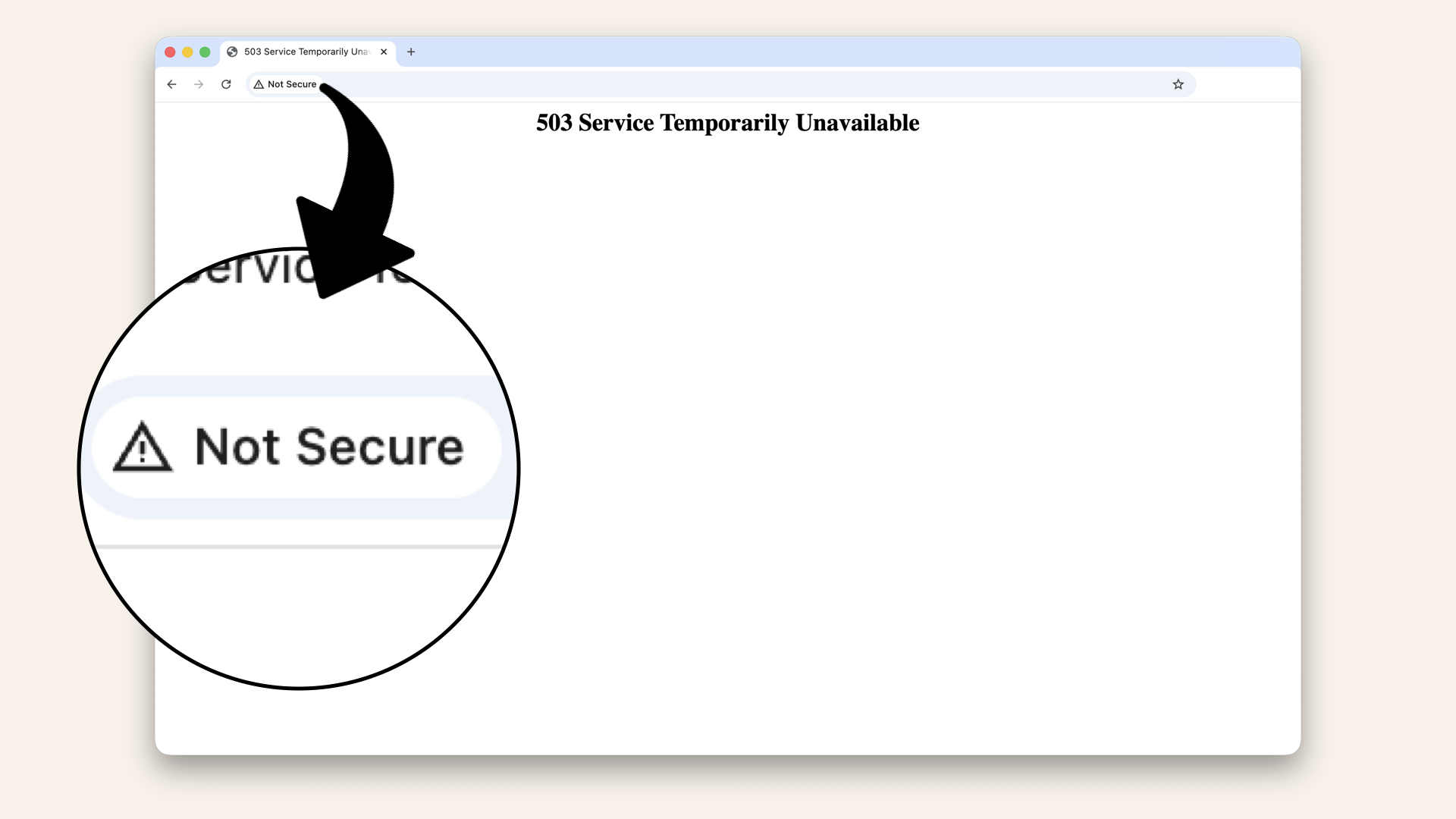
HTTPS requires SSL certification (we add that tomorrow on Day 11)
Troubleshooting
Domain doesn't resolve (nslookup fails)
Possible causes:
-
DNS not propagated yet
- Wait 5-10 minutes
- Try
nslookup ai-caller.yourdomain.com 8.8.8.8(use Google DNS)
-
A record not created correctly
- Go to Route 53 → Hosted zones → Your domain
- Verify A record exists and points to ALB
-
Nameservers not updated (if using external registrar)
- Check nameservers match Route 53's NS record
- DNS propagation can take 24-48 hours
-
Typo in subdomain name
- Double-check spelling:
ai-callervsaicaller
- Double-check spelling:
Getting "Server not found" error
Check:
- Domain registration completed (check email for confirmation)
- Hosted zone exists in Route 53
- A record points to correct ALB
- ALB is in "Active" state (not "Provisioning")
Most common: DNS not propagated yet. Wait 5-10 minutes.
Can access ALB directly but not via custom domain
This means DNS isn't resolving correctly.
Test:
# This works:
curl http://fargate-alb-xxx.elb.amazonaws.com

# This doesn't:
curl http://ai-caller.yourdomain.com
Fix:
- Verify A record exists in Route 53
- Check if Alias toggle is ON
- Verify ALB is selected correctly
- Wait for DNS propagation (5-10 min)
Domain registration stuck in "pending"
Domain registration can take up to 15 minutes.
If it's been longer:
- Check email for verification link (click it!)
- Check AWS support tickets (sometimes manual review needed)
- Try a different domain/TLD
- Contact AWS support
Tomorrow's preview
Today: You got a custom domain
Tomorrow (Day 11): We add HTTPS (SSL certificate)
What we'll do:
Right now, you site uses HTTP:
http://ai-caller.yourdomain.com ← NOT SECURE
Tomorrow we'll:
- Request an SSL certificate from AWS Certificate Manager (ACM)
- Validate domain ownership
- Attach certificate to ALB
- Add HTTPS listener (port 443)
- Redirect HTTP → HTTPS
After Day 11:
https://ai-caller.yourdomain.com ← SECURE! 🔒
Why this matters:
✅ Browser shows "Secure" badge
✅ Data encrypted in transit
✅ Required for production apps
✅ Better SEO rankings
✅ Users trust it more
HTTPS is non-negotiable for production.
Tomorrow we make it happen!
What we learned today
1. What DNS is
The system that translates domain names to IP addresses
2. How Route 53 works
AWS's DNS service for domain registration and DNS management
AWS's DNS service for domain registration and DNS management
3. A records vs Alias records
Alias records are AWS-native, free for queries to AWS resources
4. Domain registration process
Register and wait for propagation (verify email if prompted)
5. DNS propagation
Changes take 1-5 minutes (sometimes up to 48 hours for nameserver changes)
The application layer grows
Days 1-2: Local development (your laptop) ✅
Day 3: VPC (your territory) ✅
Day 4: Subnets (front yards vs back yards) ✅
Day 5: NAT Gateway (back gate) ✅
Day 6: Route Tables (the roads) ✅
Day 7: Security Groups (the bouncers) ✅
Day 8: Test Your Network (validation) ✅
Day 9: Application Load Balancer (front door) ✅
Day 10: Custom Domain (real URLs) ← YOU ARE HERE ✅
Day 11: SSL Certificate (HTTPS)
Day 12: Deploy Frontend
Days 13-17: Fargate Deployment
Days 18-24: Features & Polish
10 days done! 14 to go! 🚀
Share your progress
Custom domain working? Share it!
Twitter/X:
"Day 10: Got my custom domain! Replaced the default AWS URL with ai-caller.mydomain.com. Route 53 setup was easier than expected. Following @norahsakal's advent calendar 🎄"
LinkedIn:
"Day 10 of building AI calling agents: Set up a custom domain with Route 53. My ALB now has a clean, professional URL instead of the long AWS endpoint. DNS is working, next step is HTTPS!"
Tag me! I want to celebrate your progress! 🎉
But if you want:
✅ Complete codebase (one clean repo)
✅ Complete walkthroughs
✅ Support when stuck
✅ Production templates
✅ Advanced features
Join the waitlist for the full course (launching February 2026):
Let's chat about your use case!
Schedule a free call ↗ - no pitch, just two builders talking.
Tomorrow: Day 11 → Add HTTPS (SSL Certification) 🔒
Read Day 11 ↗
See you then!
— Norah