Day 14: Deploy AI Containers to Fargate

How to containerize your AI calling agent, push to ECR, deploy to Fargate, store secrets securely with Paramater Store and make your first REAL AI phone call
This is THE day
Day 13: You build a secure backend trigger (mock response)
Today: We deploy the actual AI containers and make real phone calls.
Remember yesterday's response?
{
  "message": "Call trigger received! (Mock response - Fargate connection coming Day 14)"
}
Today, your phone will actually ring 📞🤖
Watch the AI agent call me to make a dinner reservation 🤖📞
This is where 14 days of infrastructure comes together:
- Your VPC provides the network
- Your subnets isolate public and private resources
- Your NAT Gateway lets private containers reach the internet
- You ALB receives incoming WebSocket connections
- Your security groups control traffic flow
- Your Cognito protects the frontend
- Your Lambda triggers calls securely
Today we add the final piece: the AI agent itself.
By the end of today, you'll have:
✅ AWS CLI configured locally
✅ Docker image built and pushed to ECR
✅ Secrets stored securely in Parameter Store
✅ ECS Cluster running in your VPC
✅ Fargate service connected to your ALB
✅ Lambda updated to trigger real calls
✅ Your first REAL AI phone call 📞🤖
Let's make it happen 🚀
Understanding the complete flow
Before we build, let's understand how everything connects:
┌─────────────────────────────────────────────────────────────┐
│                     THE CALL FLOW                           │
└─────────────────────────────────────────────────────────────┘

1. User clicks "Start AI Call" in frontend
                    ↓
2. Frontend → API Gateway → Lambda (with Cognito JWT)
                    ↓
3. Lambda calls Twilio API:
   "Call +1234567890 and connect to wss://ai-caller.mydomain.com/media-stream"
                    ↓
4. Twilio calls the phone number
                    ↓
5. When answered, Twilio connects WebSocket to YOUR ALB
                    ↓
6. ALB forwards to Fargate container
                    ↓
7. Fargate streams audio to/from OpenAI Realtime API
                    ↓
8. AI conversation happens! 🎉
Key insight: Lambda doesn't run the AI. Lambda triggers Twilio.
Twilio connects to your already-running Fargate service. Fargate handles the actual AI conversation.
Think of it like having a personal assistant call a restaurant for you:
- Lambda = You tapping "Start AI call" in an app
- Twilio = The phone system that dials the restaurant
- Fargate = Your AI assistant who's always ready by the phone
- OpenAI = Your assistant's brain, knowing how to have the conversation
You (Lambda) just say "make the call."
Your assistant (Fargate) handles the actual conversation with the restaurant → asking about availability, giving your name, confirming the time.
Your job is done in milliseconds. The assistant stays on the line for the full conversation.
What you'll build today
| Component | Technology | Purpose |
|---|---|---|
| CLI | AWS CLI | Deploy from your terminal |
| Image | Docker | Package your AI agent |
| Registry | Amazon ECR | Store Docker images |
| Secrets | SSM Parameter Store | Secure API keys (free tier) |
| Orchestration | Amazon ECS | Manage containers |
| Compute | AWS Fargate | Run containers serverlessly |
| Trigger | Lambda + Twilio | Initiate phone calls |
What you'll learn
- How to set up AWS CLI with proper IAM permissions
- How to build Docker images for AWS (including Apple Silicon)
- How Amazon ECR stores container images
- How so store secrets securely in Parameter Store
- How to connect Fargate to your existing ALB
- How Lambda triggers phone calls via Twilio
- How Twilio connects to your WebSocket server
- How OpenAI Realtime API enables AI conversations
But if you want:
✅ Complete codebase (one clean repo)
✅ Complete walkthroughs
✅ Support when stuck
✅ Production templates
✅ Advanced features
Join the waitlist for the full course (launching February 2026):
Building something with AI calling?
Let's chat about your use case!
Schedule a free call ↗ - no pitch, just two builders talking.
Time required
60-90 minutes
- AWS CLI setup: 15 min
- Docker + ECR: 15 min
- Parameter Store: 10 min
- ECS/Fargate: 20 min
- Lambda update: 15 min
- Testing: 15 min
Prerequisites
✅ Completed Day 3 (VPC) ↗
✅ Completed Day 4 (Subnets) ↗
✅ Completed Day 5 (NAT Gateway) ↗
✅ Completed Day 6 (Route Tables) ↗
✅ Completed Day 7 (Security Groups) ↗
✅ Completed Day 8 (prove it works) ↗
✅ Completed Day 9 (Application Load Balancer) ↗
✅ Completed Day 10 (Custom Domain) ↗
✅ Completed Day 11 (SSL Certificate) ↗
✅ Completed Day 12 (Deploy your frontend) ↗
✅ Completed Day 13 (Build your secure backend trigger) ↗
✅ Docker installed locally (Get Docker ↗)
✅ OpenAI API key with Realtime API access
✅ Twilio account with a phone number
✅ Access to AWS Console
The OpenAI Realtime API requires specific access. Make sure your OpenAI account has access to the gpt-4o-realtime-preview model.
Check your OpenAI API access ↗
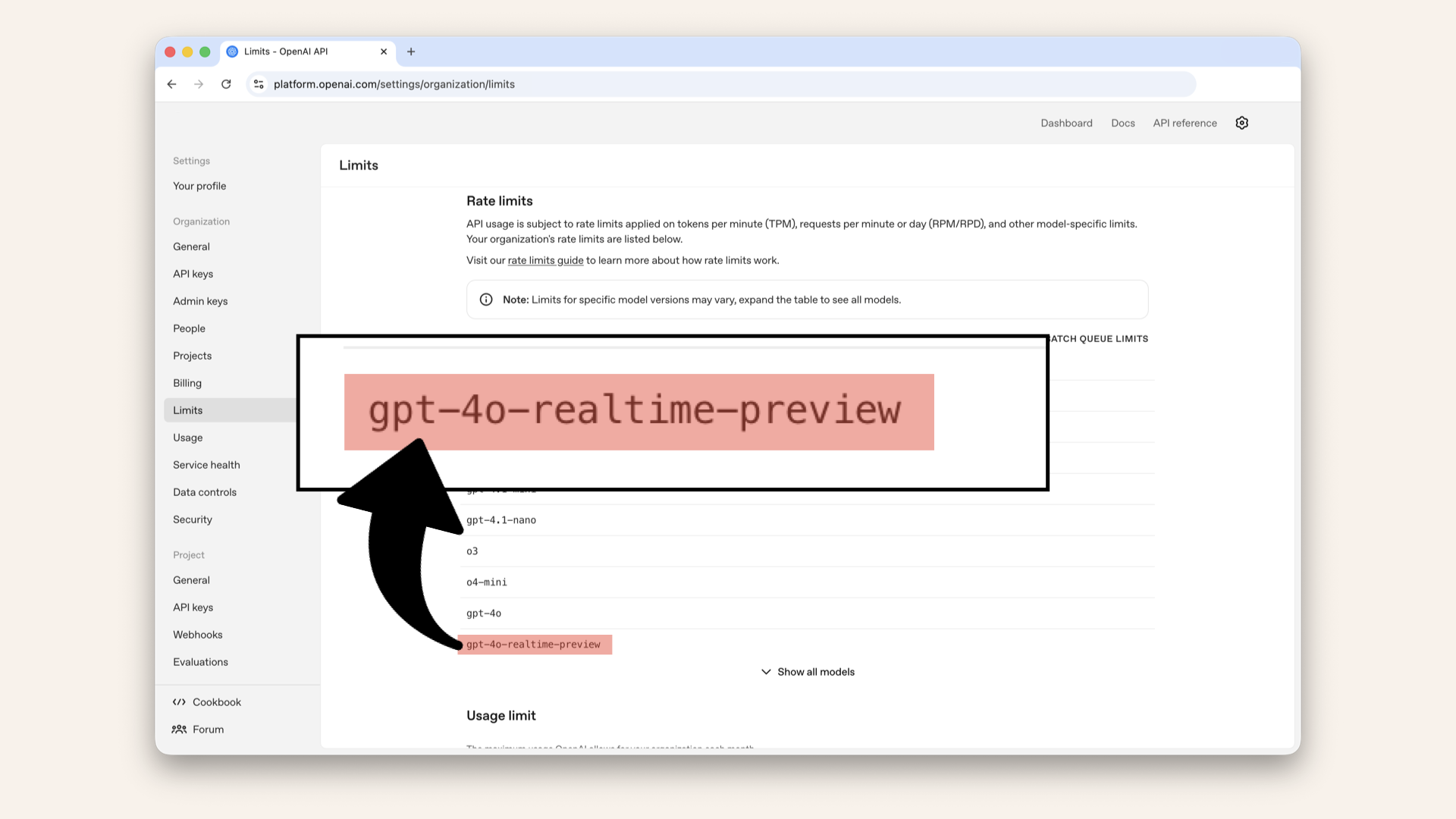
The OpenAI Realtime API requires specific access. Make sure your OpenAI account has access to the gpt-4o-realtime-preview model
Understanding the architecture (3-minute primer)
Why does Twilio need a public endpoint?
When you make an AI call, here's what actually happens:
Key insight: Twilio calls into your infrastructure.
Your server doesn't call out → Twilio connects to you.
This is why you need:
✅ ALB (public-facing) → Twilio needs to reach you
✅ HTTPS (valid SSL) → Twilio requires secure WebSockets wss://
✅ Fargate (always running) → Must be ready when Twilio connects
Why Fargate and not Lambda?
| Lambda | Fargate | |
|---|---|---|
| Max runtime | 15 minutes per invocation | Unlimited |
| Persistent WebSocket | ❌ No (stateless invocations) | ✅ Yes (holds connection) |
| Bidirectional streaming | ❌ Awkward (message-by-message) | ✅ Natural (continuous) |
| Always running | ❌ No (on-demand) | ✅ Yes (as a service) |
| Good for | Triggering calls (quick API request) | Handling calls (long conversation) |
Lambda triggers the call (quick API request to Twilio)
Fargate handles the call (long-running WebSocket connection)
How the pieces connect
┌─────────────────────────────────────────────────────────────┐
│                        YOUR SETUP                           │
└─────────────────────────────────────────────────────────────┘

     ┌──────────────┐
     │   Frontend   │
     │  (Cognito)   │
     └──────┬───────┘
            │ "Start Call" + JWT
            ▼
     ┌──────────────┐
     │ API Gateway  │──── Cognito validates
     └──────┬───────┘
            │
            ▼
     ┌──────────────┐
     │   Lambda     │──── Calls Twilio API
     └──────┬───────┘
            │ "Call +1234567890, connect to wss://ai-caller.mydomain.com"
            ▼
     ┌──────────────┐
     │   Twilio     │──── Dials the phone
     └──────┬───────┘
            │ Phone answers → Twilio connects WebSocket
            ▼
     ┌──────────────┐
     │     ALB      │──── Public endpoint (HTTPS)
     └──────┬───────┘
            │
            ▼
     ┌──────────────┐
     │   Fargate    │──── Handles audio streaming
     │  (Private)   │
     └──────┬───────┘
            │
            ▼
     ┌──────────────┐
     │   OpenAI     │──── AI conversation
     │ Realtime API │
     └──────────────┘
Security layers:
- Cognito - Only authenticated users can trigger calls
- API Gateway - Validates JWT before reaching Lambda
- Twilio signature validation - Fargate verifies requests are from Twilio
- Private subnets - Fargate isn't directly accessible from internet
- Parameter Store - API keys never in code
What is Amazon ECR?
ECR = Elastic Container Registry
Think of it like GitHub, but for Docker images:
- You
docker pushyour image to ECR - ECS
docker pulls is when starting containers - Private by default (only your AWS account can access)
What is ECS + Fargate?
ECS = Elastic Container Service → The orchestrator (decides what to run)
Fargate = The compute → Runs containers without you managing servers
Together:
- Task definition - The blueprint ("run this image with these settings")
- Service - Keeps containers running ("always have 1 container healthy")
- Cluster - Logical grouping of services
Think of it like hiring lifeguards for your pool house:
- Task definition = Job description → "Lifeguard trained to handle AI calls: answers the prone, pulls expensive levers like Twilio and OpenAI")
- Service = Staffing policy → "Always keep 1 lifeguard on duty at the pool house"
- Cluster = Your gated property where all staffing happens
- Fargate = Staffing agency that provides lifeguards → You don't manage their housing or transportation
The hired lifeguard is trained to handle AI calls:
- Answers the phone (webhook endpoint)
- Pulls expensive levers (Twilio, OpenAI)
- Wears the uniform you specified (Docker image)
Think of it like hiring lifeguards for your pool house:
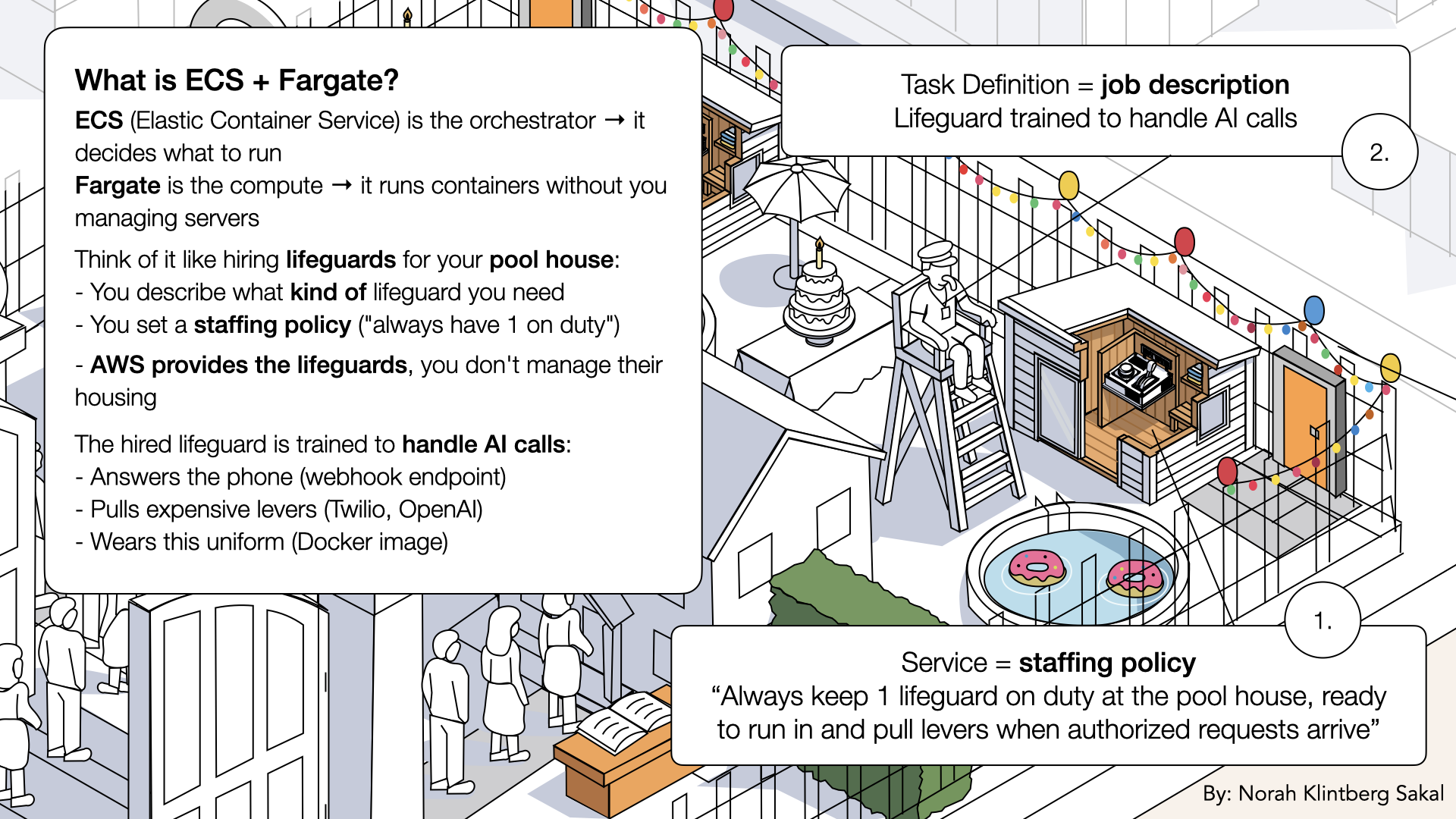
Think of it like hiring lifeguards for your pool house
Step 1: Set up AWS CLI
Until now, we've used CloudShell to avoid AWS CLI setup. But for Docker operations, we need the CLI locally.
AWS CLI lets you:
- Push Docker images to ECR
- Deploy Lambda functions
- Manage AWS resources from your terminal
Step 1.1: Install AWS CLI
Follow the AWS CLI install guide for your OS ↗ Verify installation:aws --version
Expected output:
aws-cli/2.x.x Python/3.x.x ...
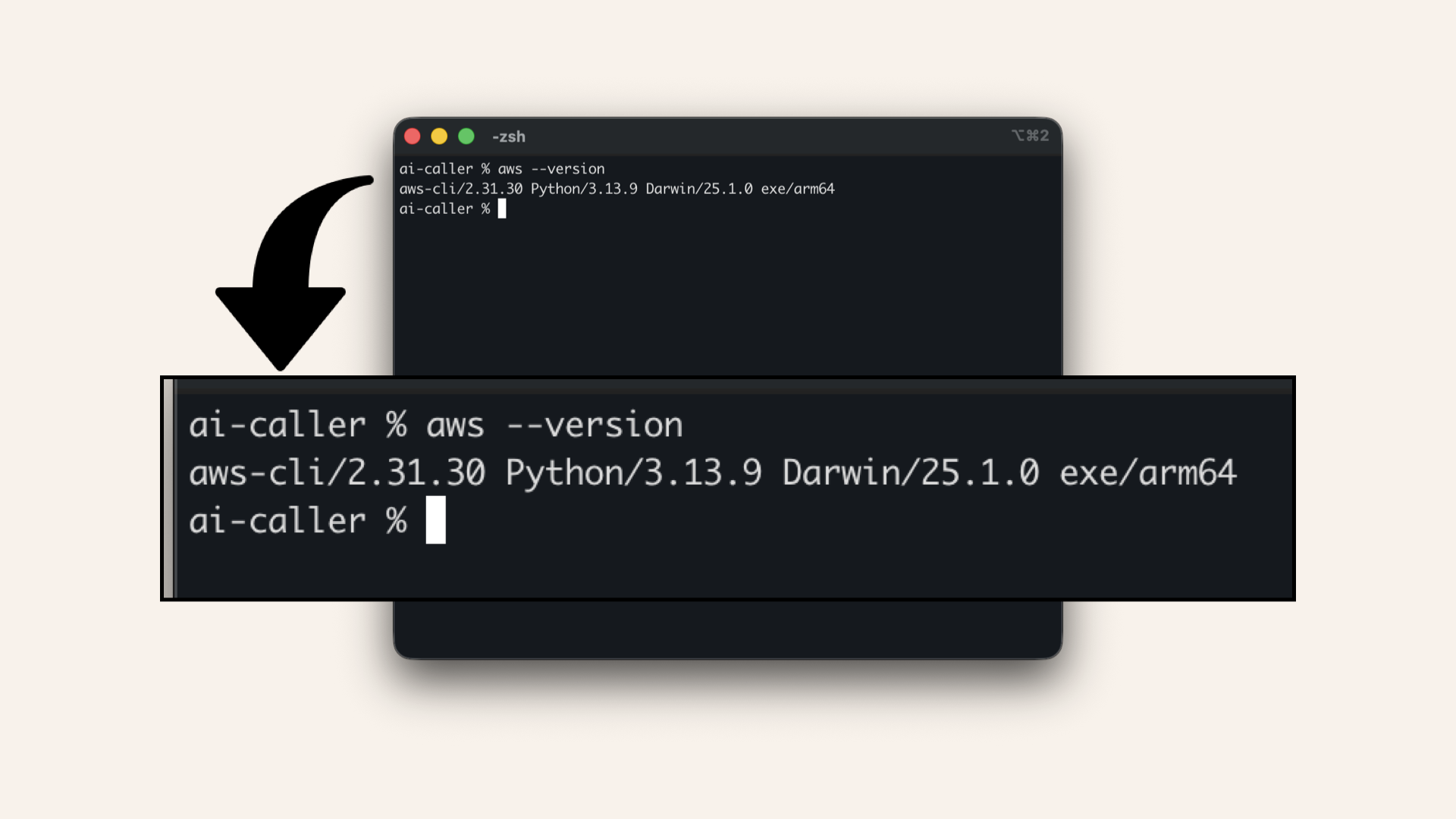
Verify the AWS CLI installation
Step 1.2: Create an IAM user for CLI access
Open the AWS Console ↗ In the search bar at the top, type iam and click IAM: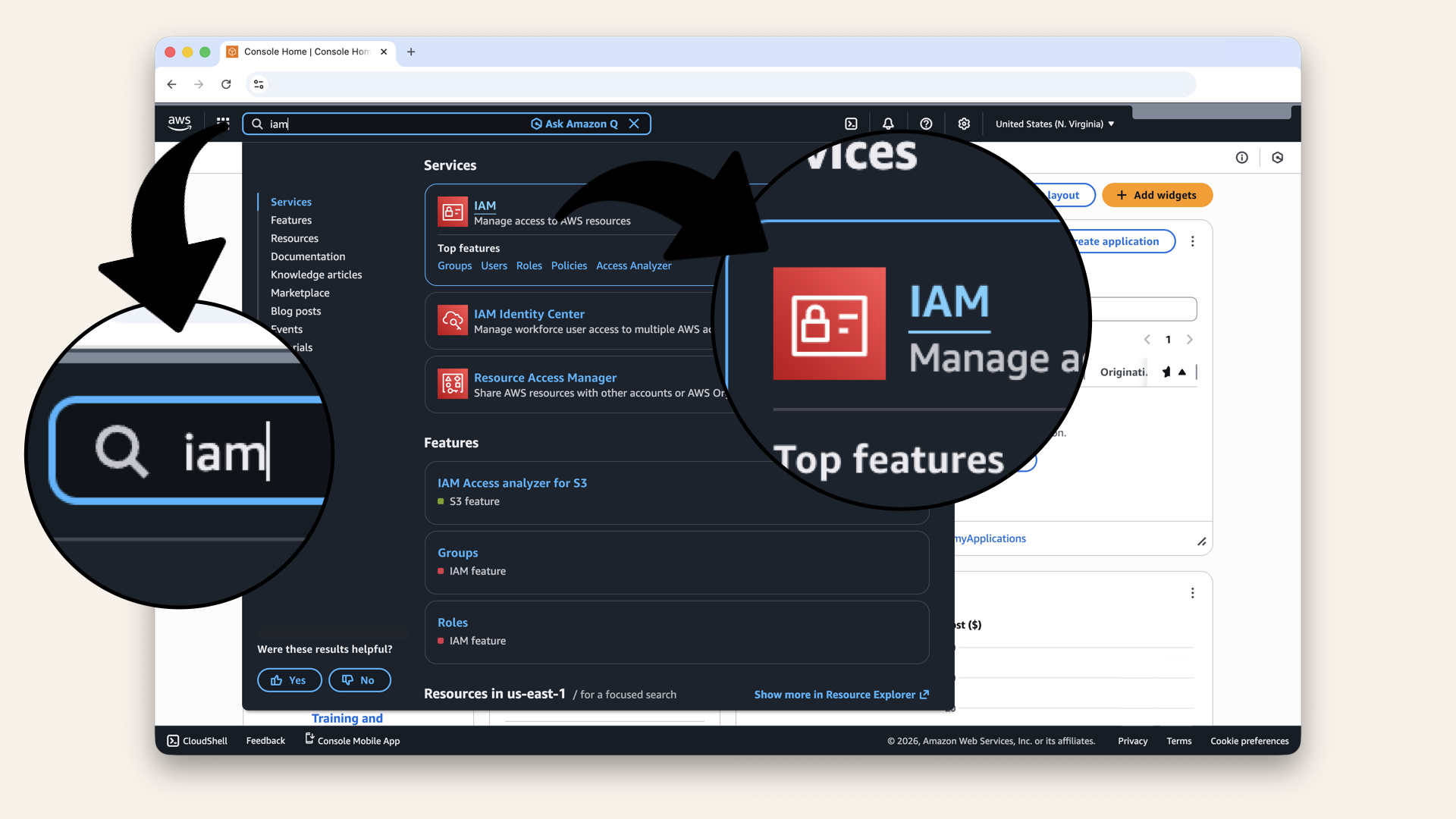
In the search bar at the top, type iam and click IAM
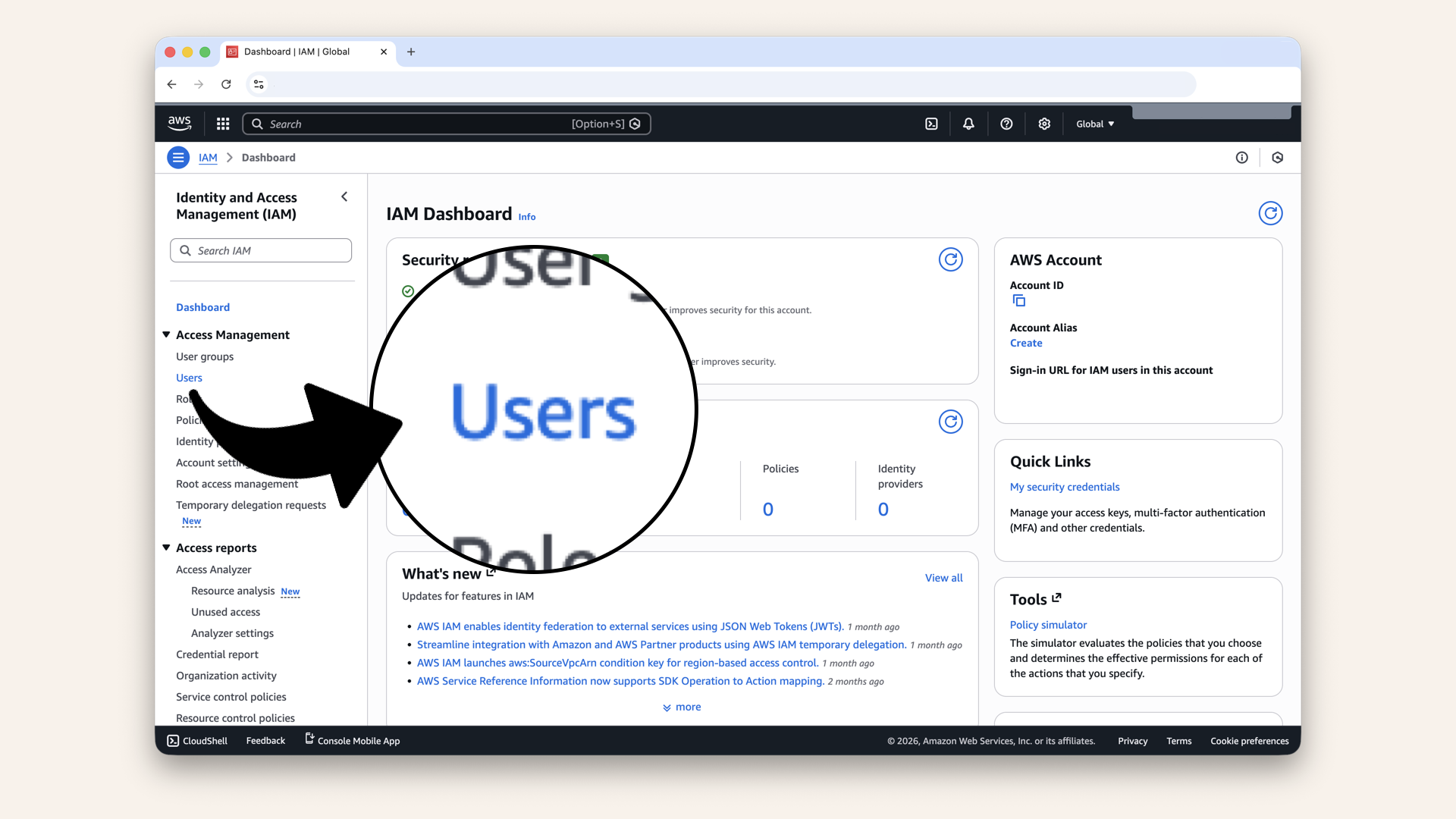
Click Users in the left sidebar
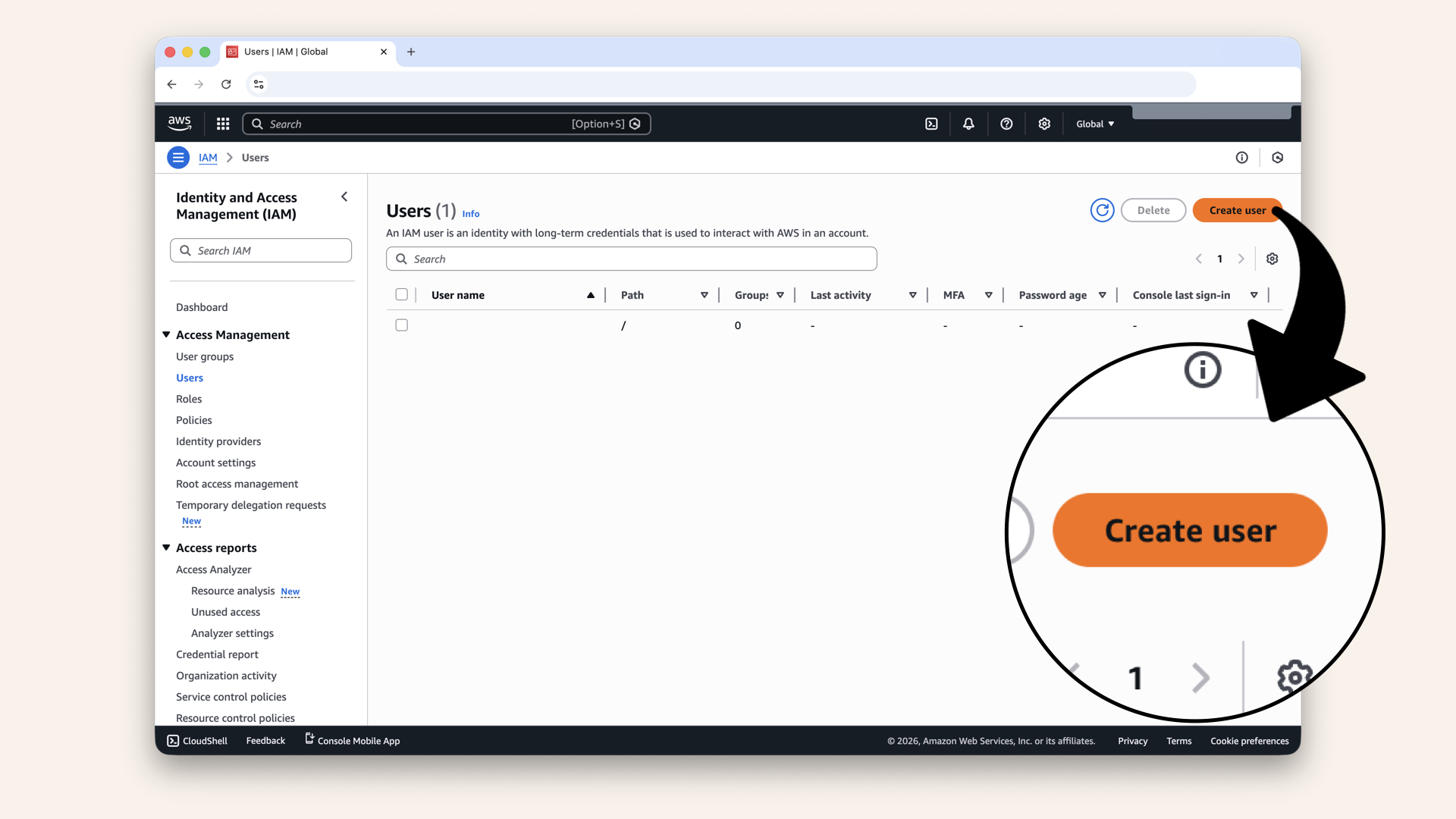
Click Create user
| Setting | Value |
|---|---|
| User name | |
| Provide user access to AWS Management Console | ❌ Leave unchecked |
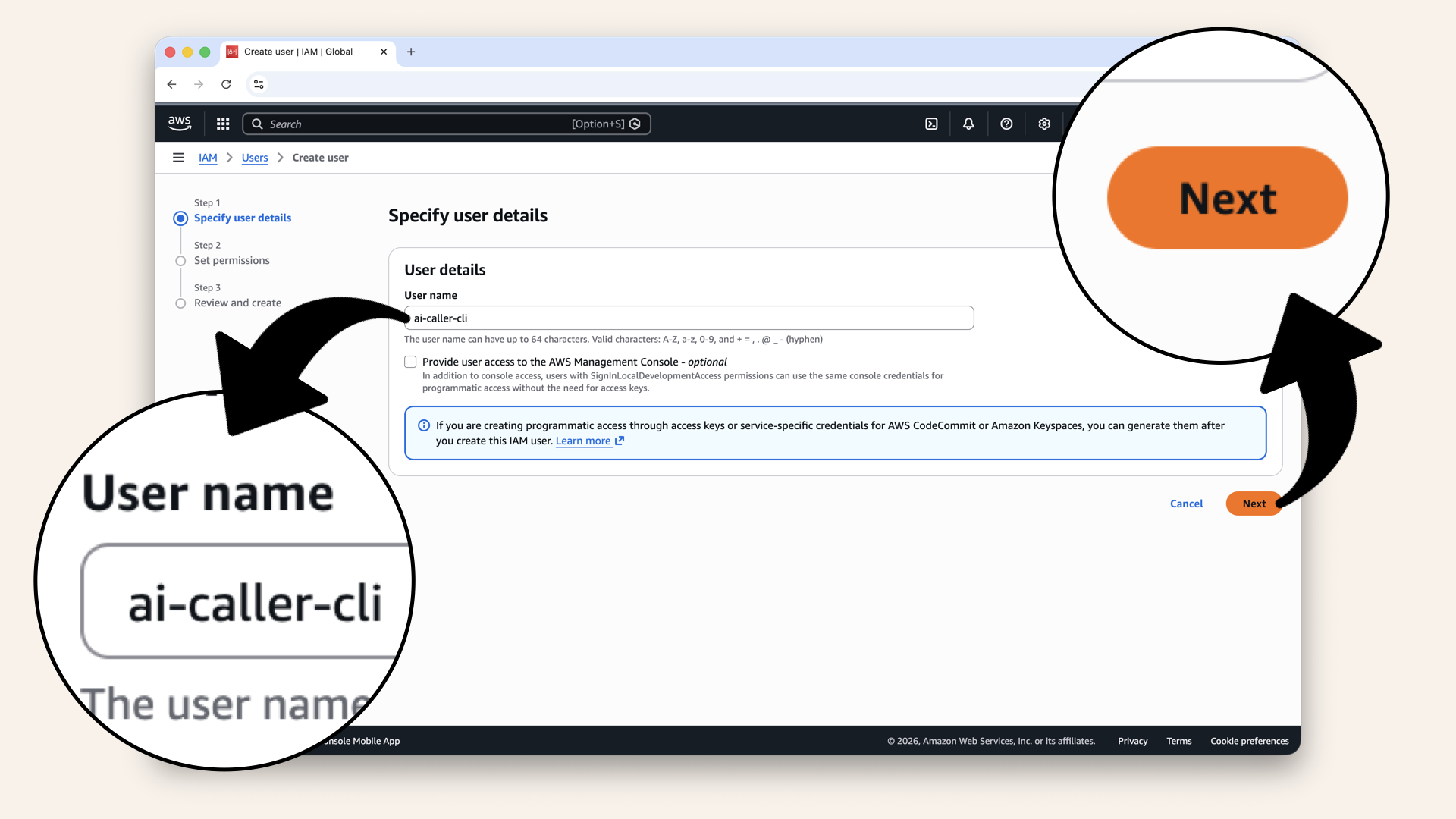
Enter a username and click Next
Step 1.3: Attach permissions
Select Attach policies directly: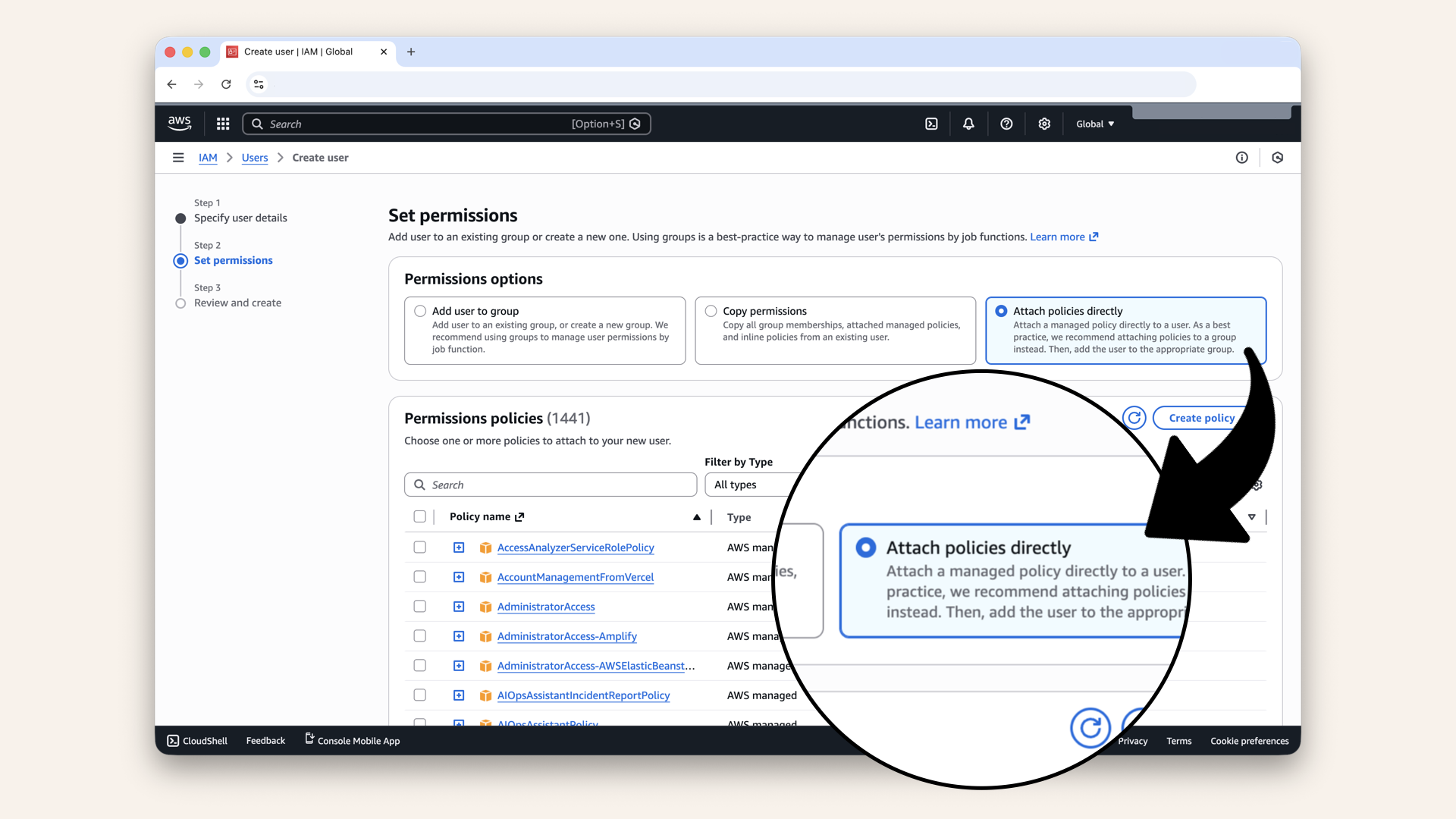
Select Attach policies directly
| Policy | Purpose |
|---|---|
| Full access for deployment |
AdministratorAccess grants full control of your AWS account. We're using it here because:
- SAM deploy creates many resource types (Cloudformation, S3, Lambda, API Gateway, IAM roles)
- Listing minimal permissions for every possible SAM resource is complex and error-prone
- This is a learning environment in your own account
For production: Create a dedicated deployment role with only the permissions your specific stack needs. Never use admin credentials in CI/CD pipelines or shared environments.
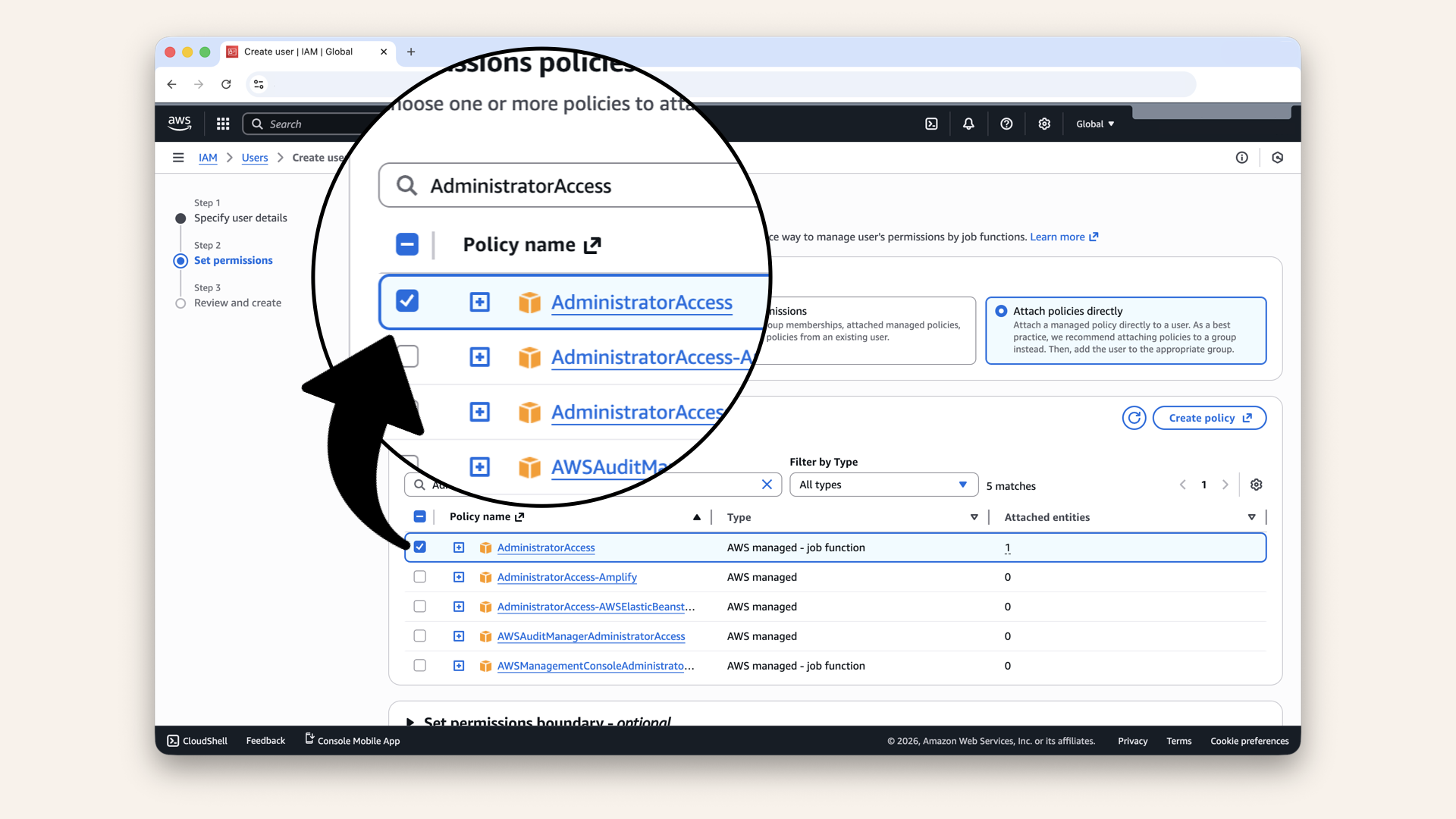
Search for and select the AdministratorAccess policy
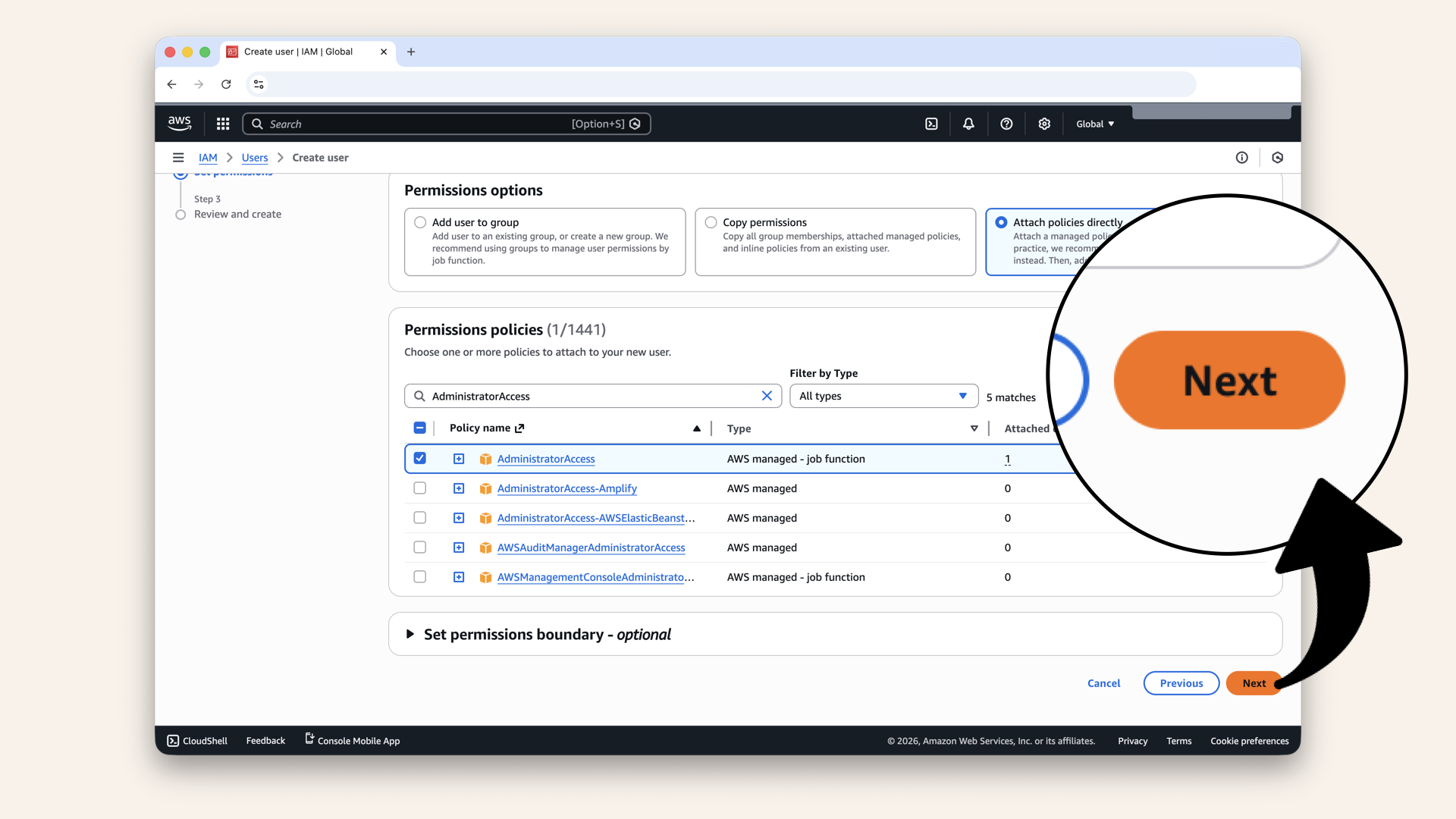
Scroll down and click Next
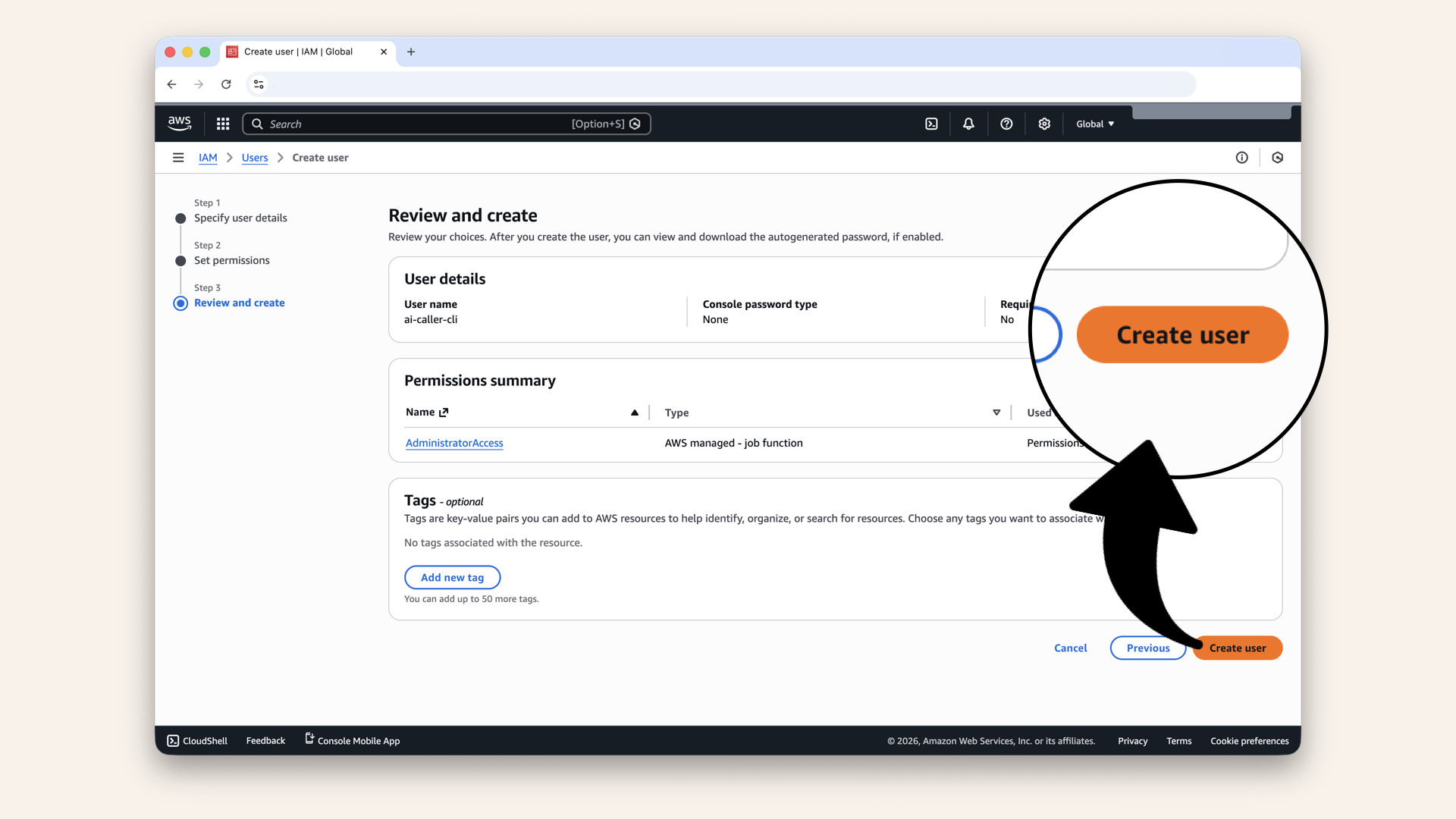
Review the new user and click Create user
✅ You should see "User created successfully":
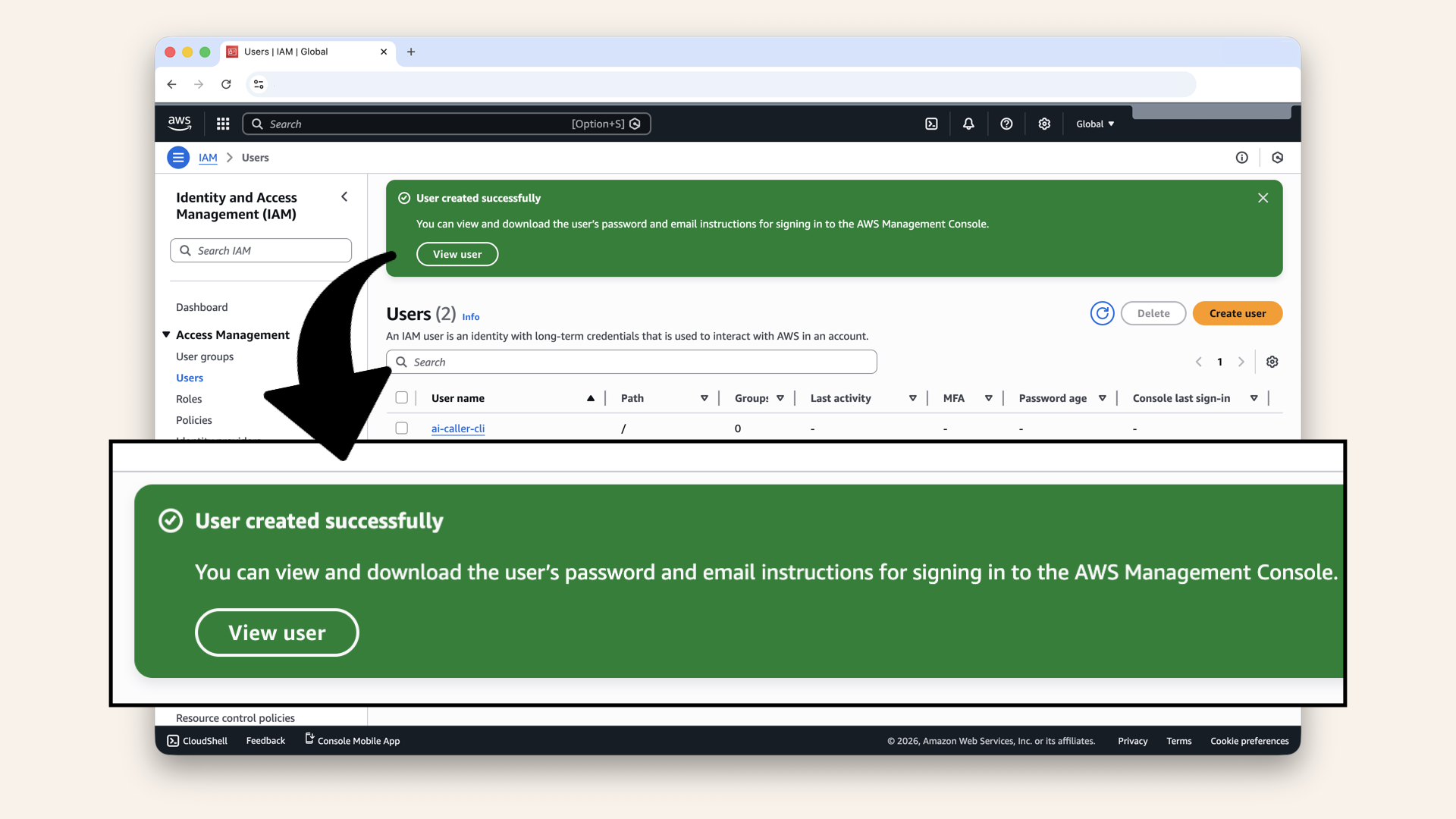
You should see "User created successfully"
Step 1.4: Create access keys
Click on your newly created user ai-caller-cli: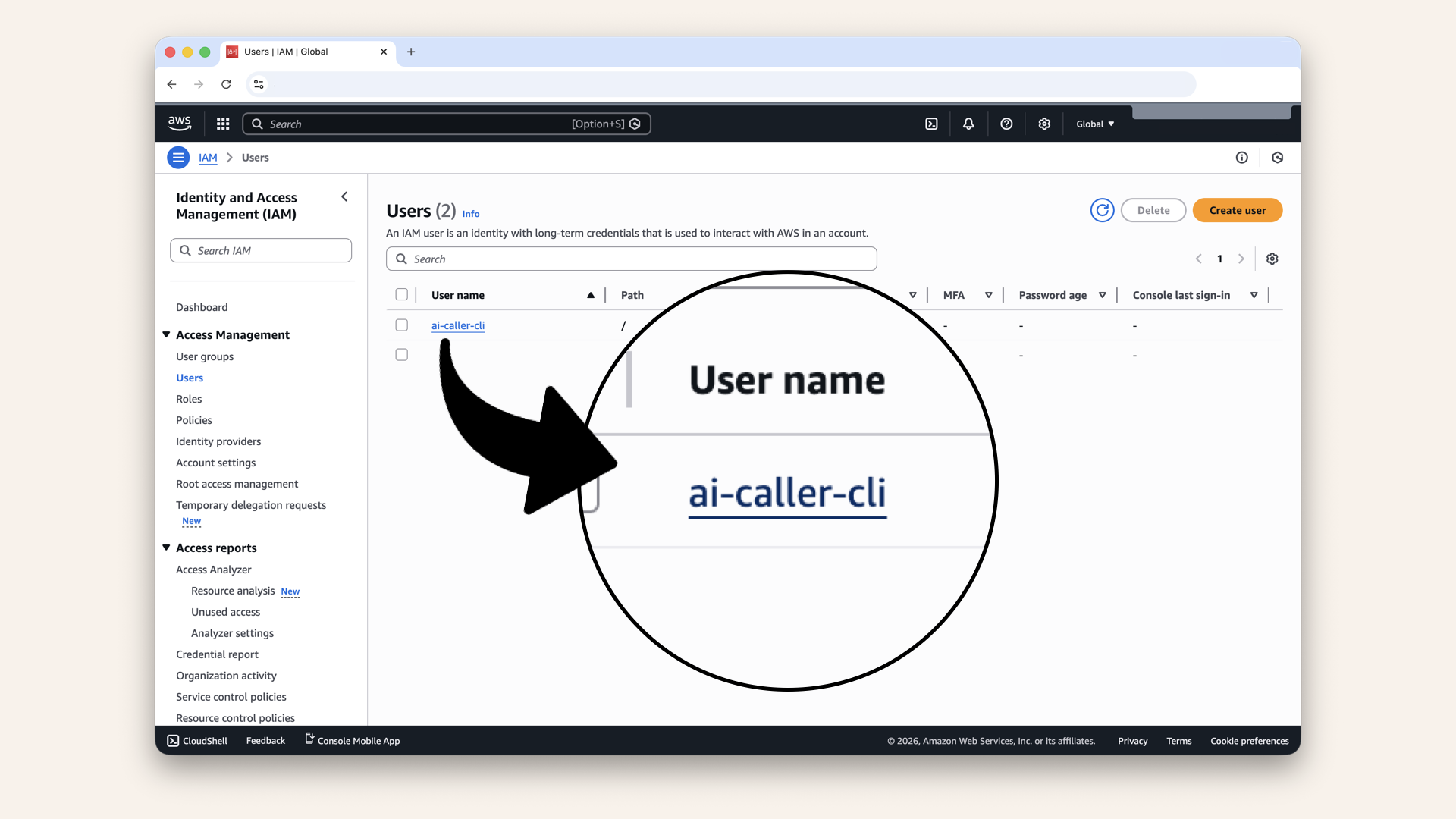
Click on your newly created user ai-caller-cli
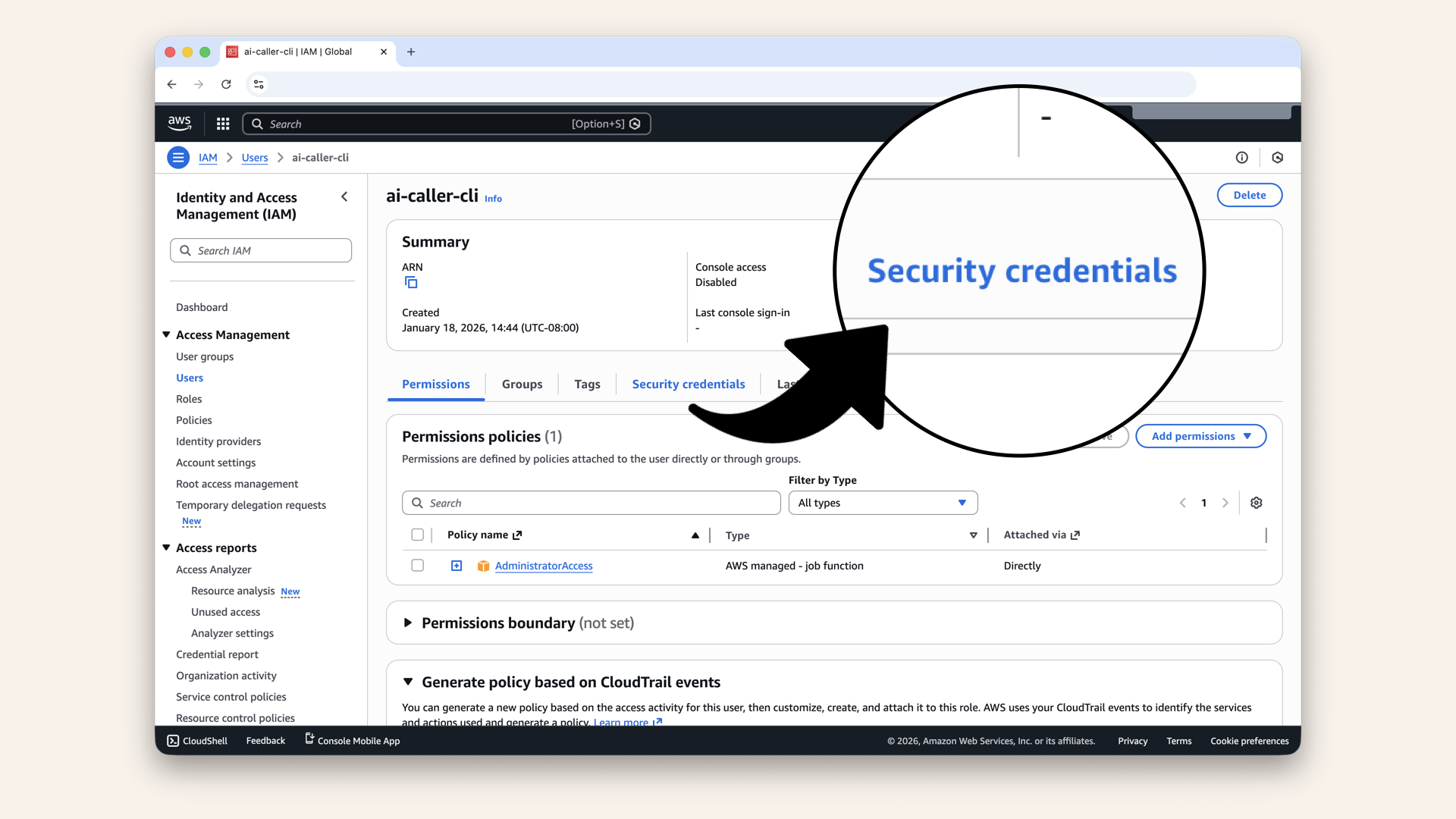
Click the Security credentials tab
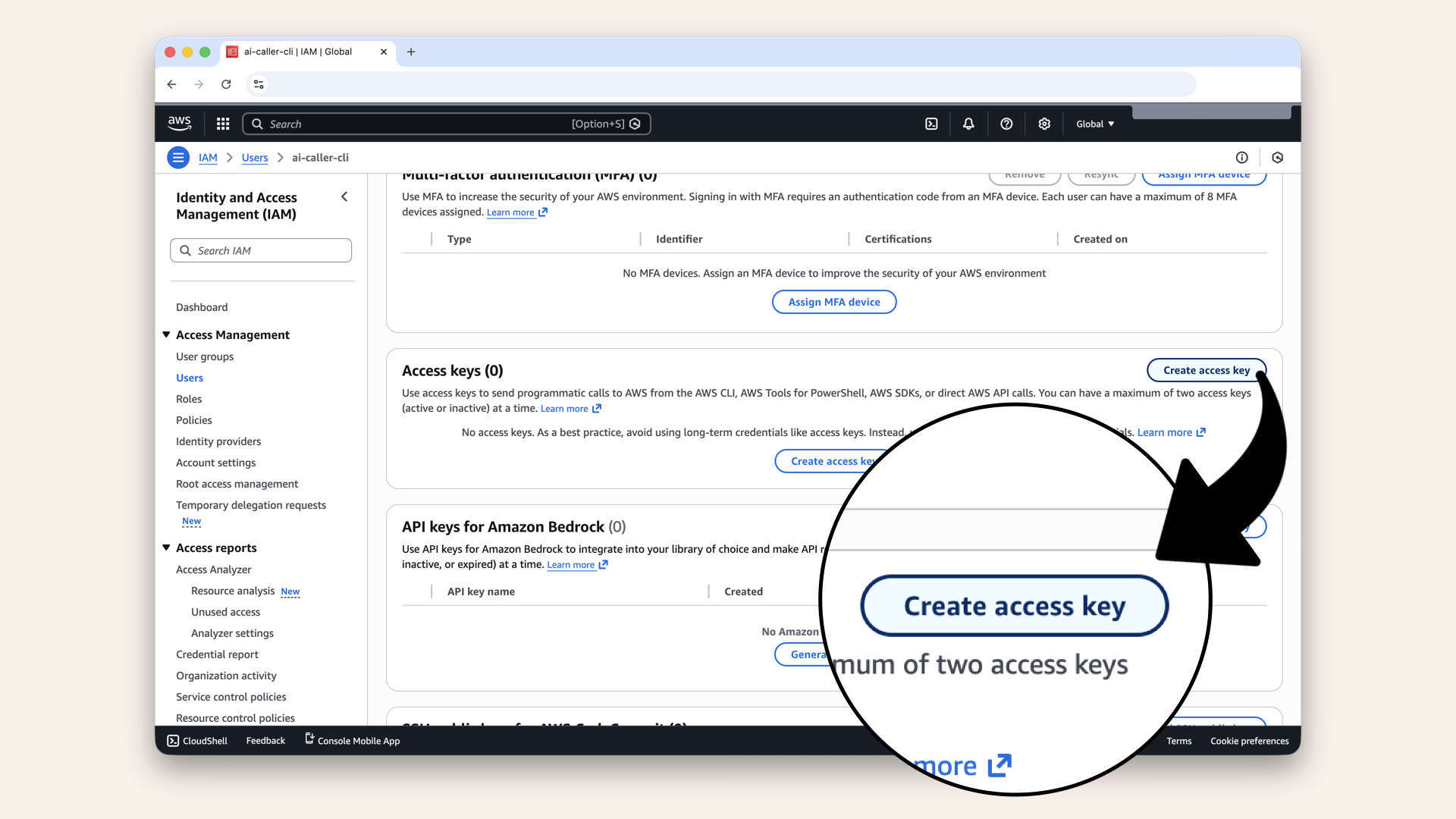
Scroll down to Access keys and click Create access key
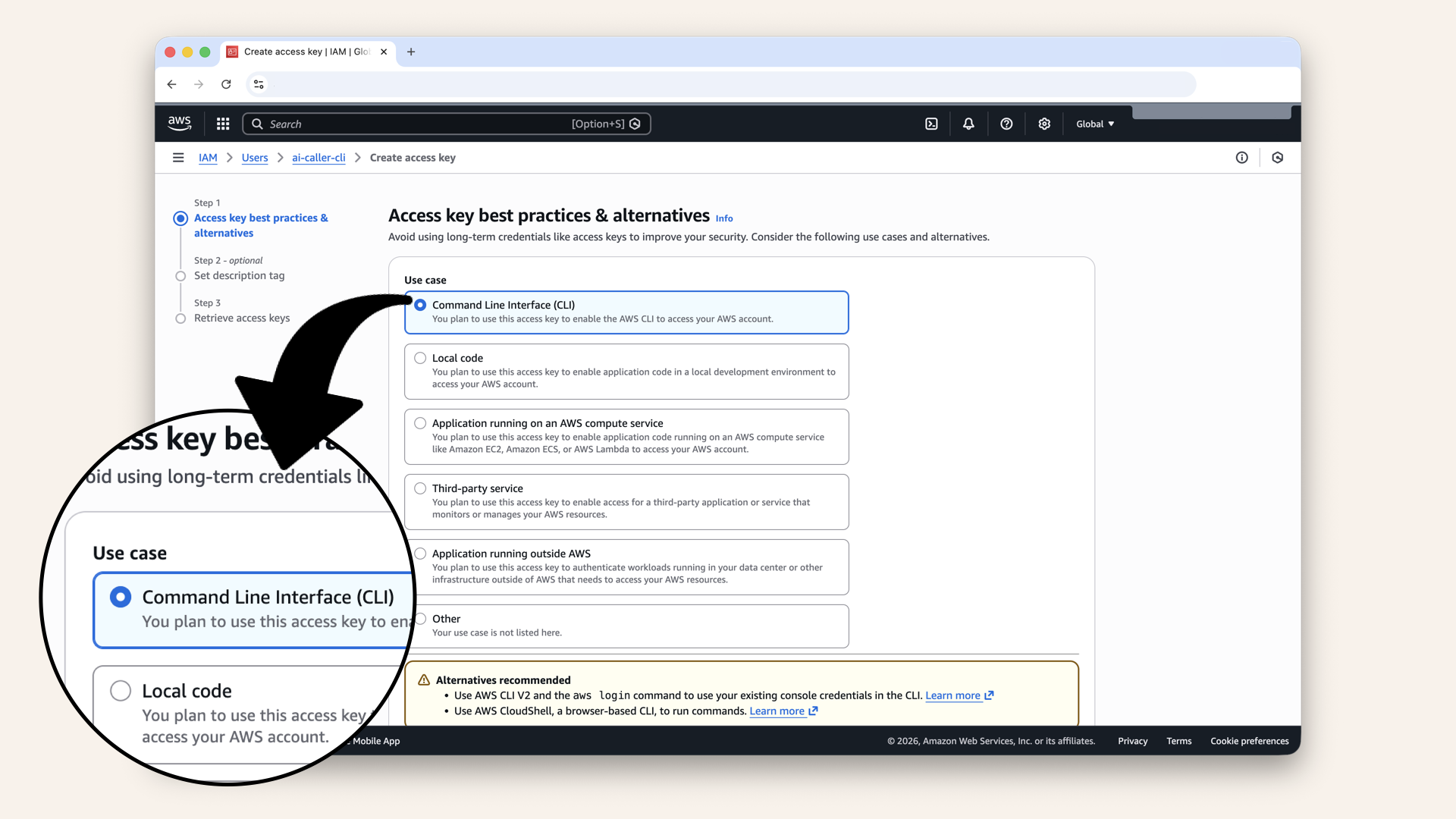
Select Command Line Interface (CLI)
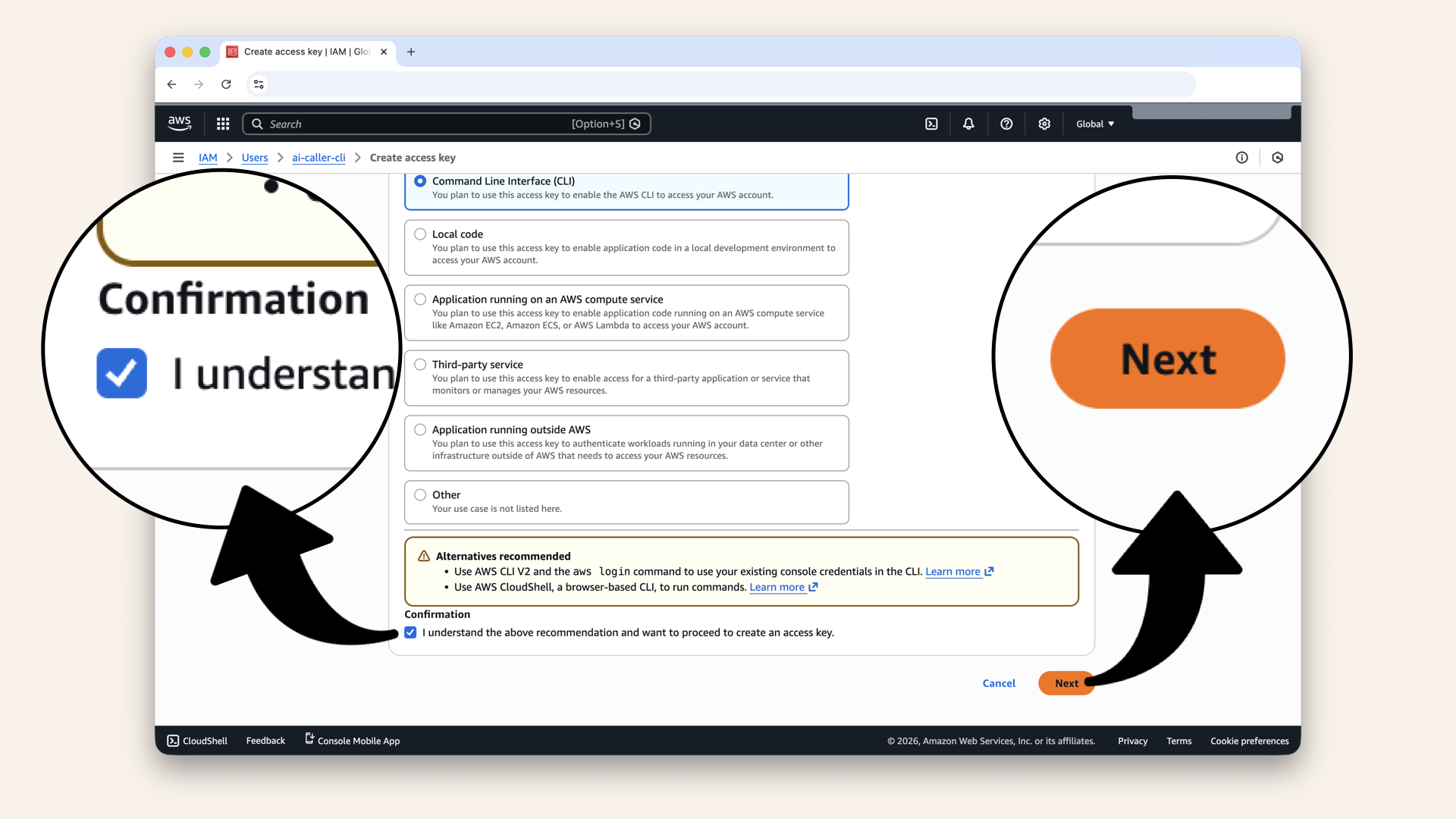
Scroll down and check the confirmation box and click Next
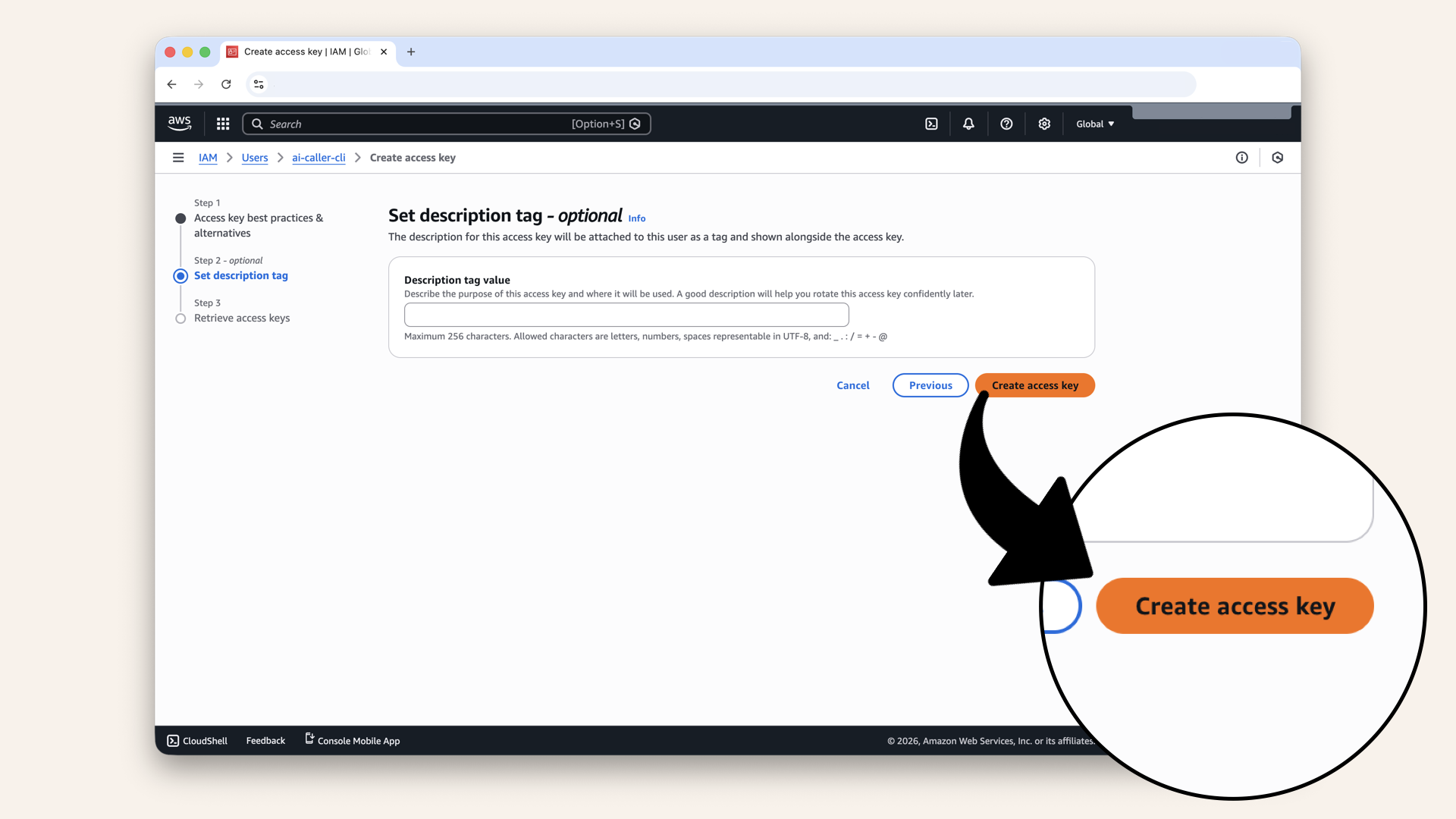
Click Create access key
You will only see the Secret access key once. Copy and save both values immediately:
- Access key ID:
AKIA... - Secret access key:
wJalr...
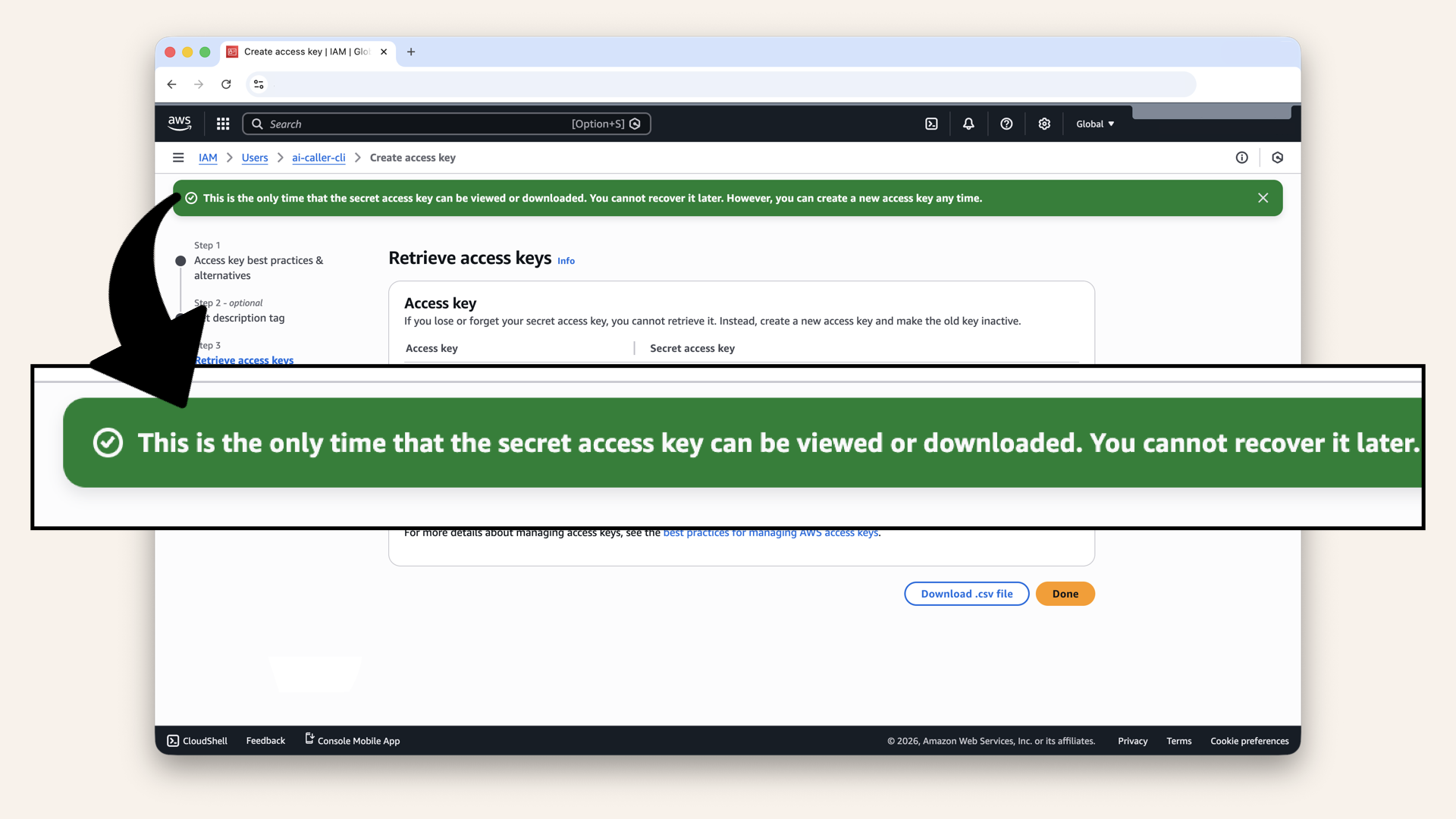
You will only see the Secret access key once. Copy and save both values immediately
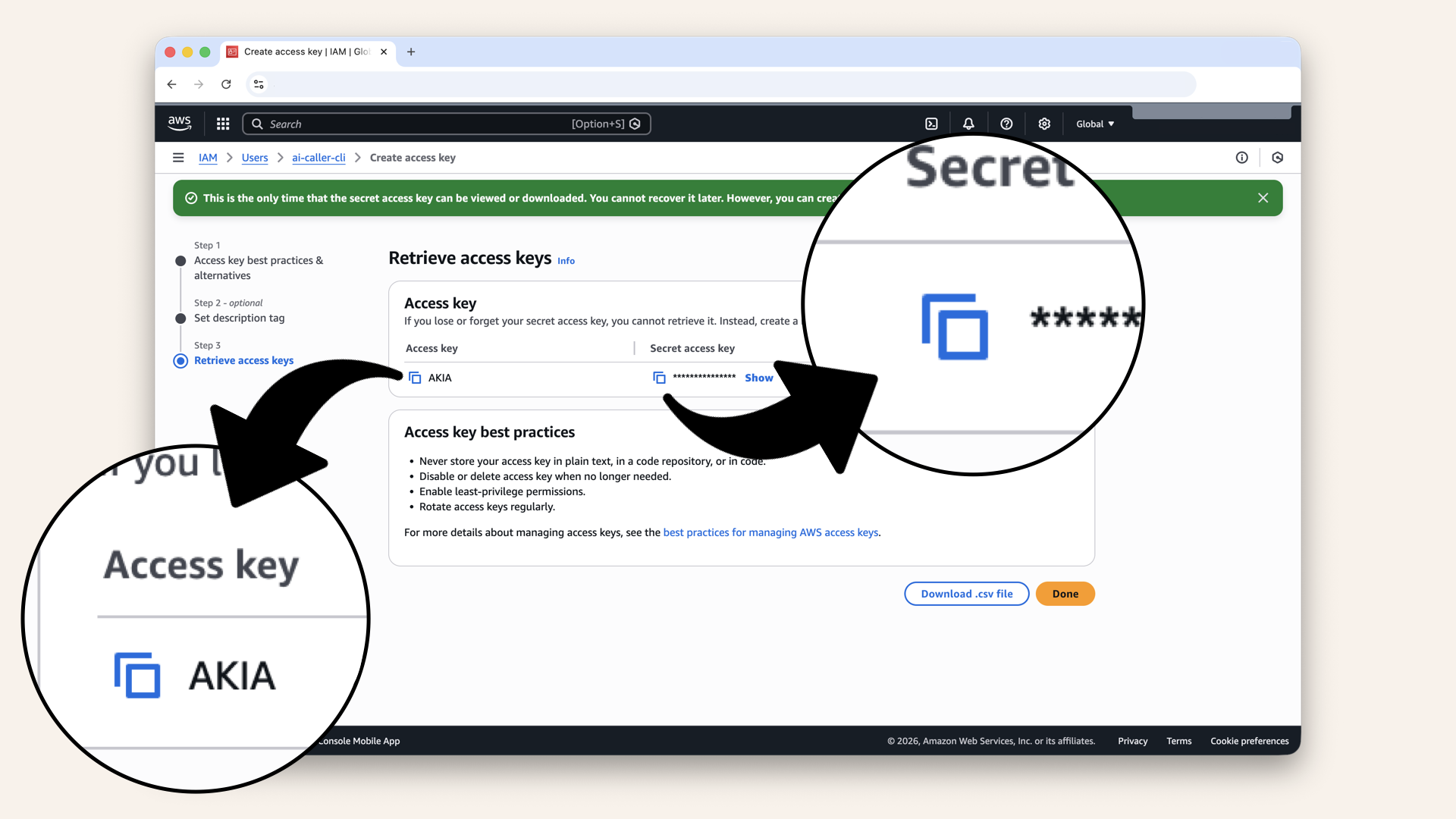
You will only see the Secret access key once. Copy and save both values immediately
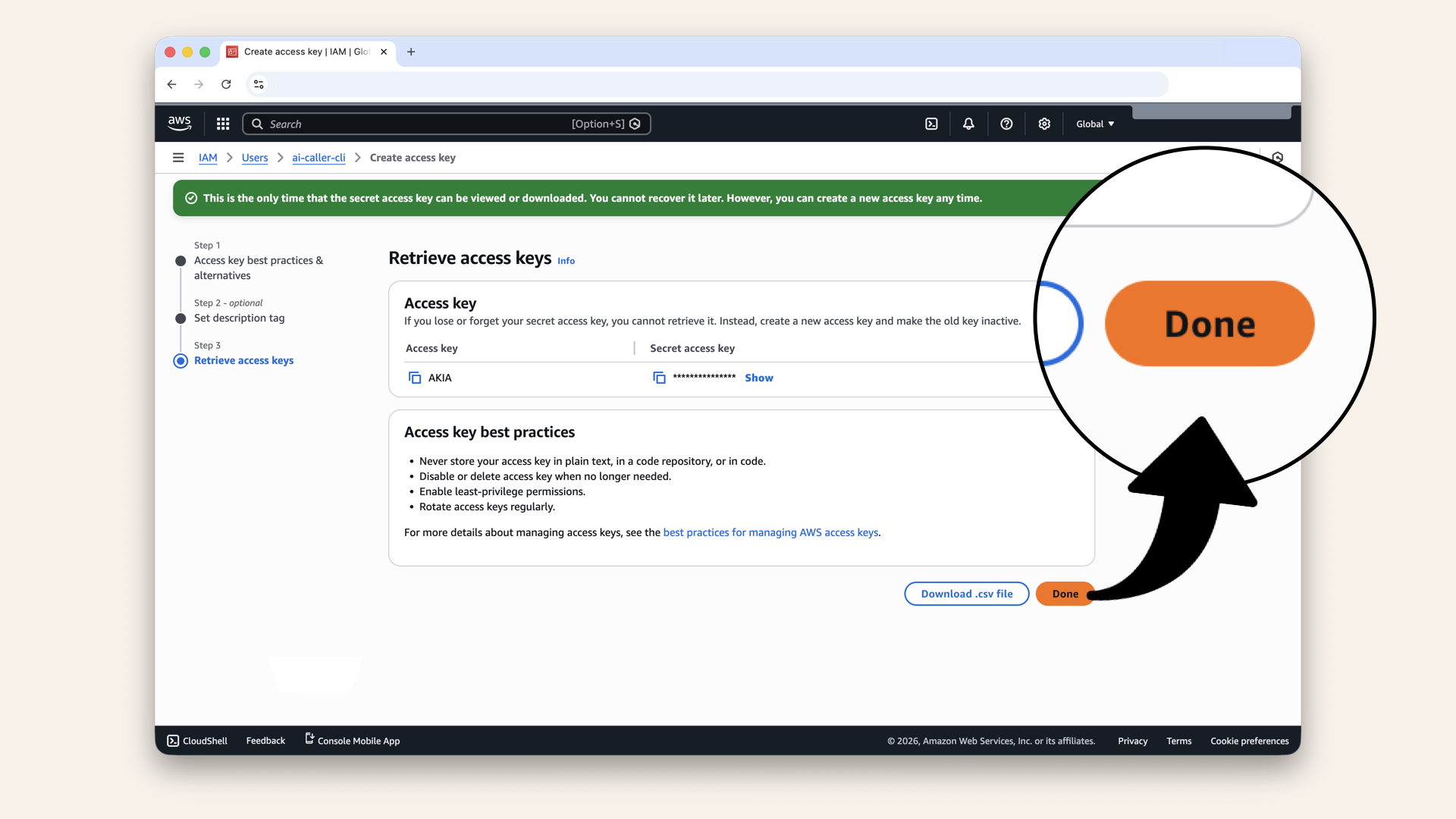
Click Done
Step 1.5: Configure AWS CLI
Run the configuration wizard in your terminal:aws configure --profile ai-caller-cli
AWS Access Key ID [None]: AKIA...your-access-key...
AWS Secret Access Key [None]: wJalr...your-secret-key...
Default region name [None]: us-east-1
Default output format [None]: json
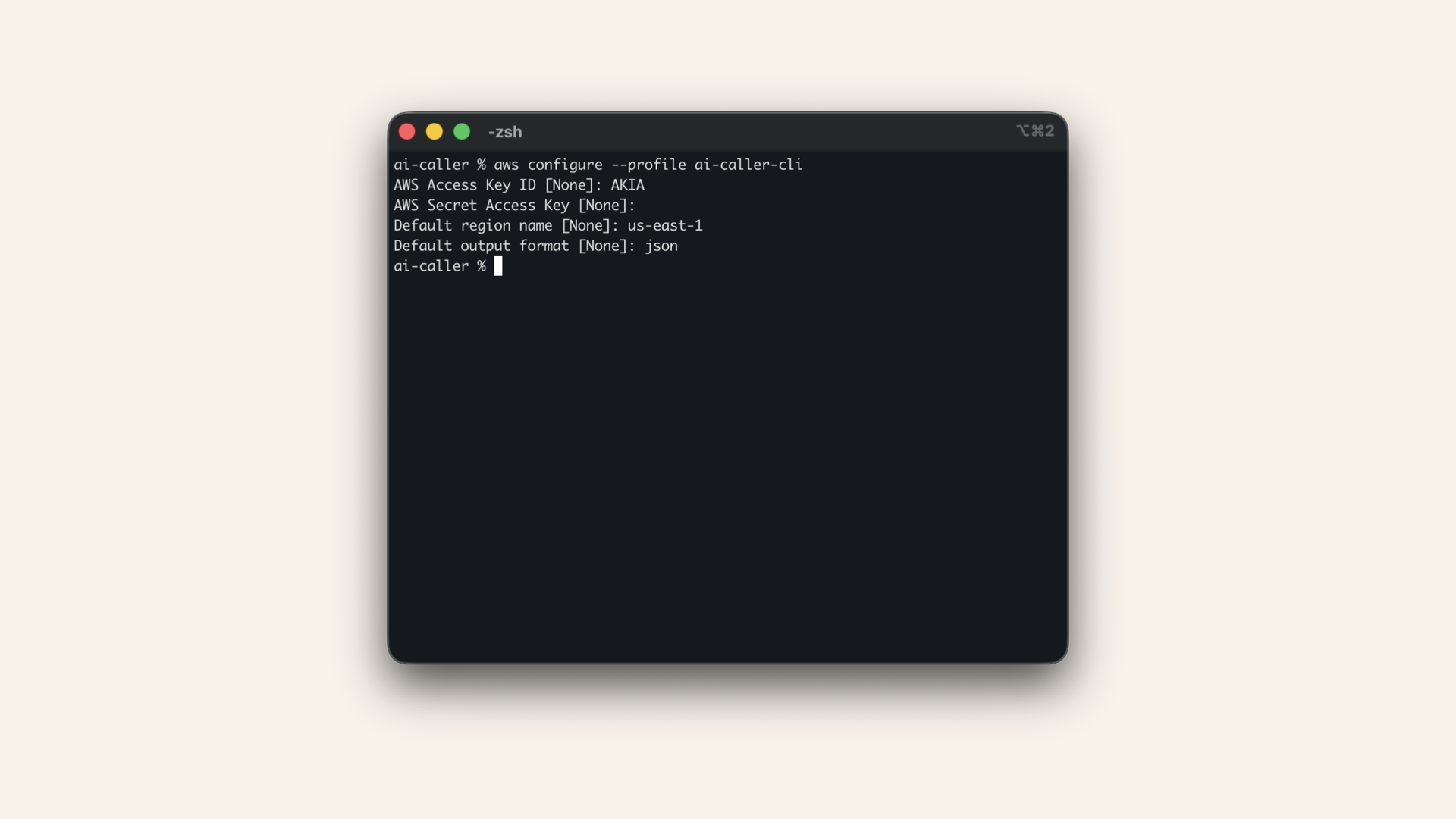
Enter your credentials when prompted
aws sts get-caller-identity
Expected output:
{
    "UserId": "AIDA...",
    "Account": "123456789012",
    "Arn": "arn:aws:iam::123456789012:user/ai-caller-cli"
}
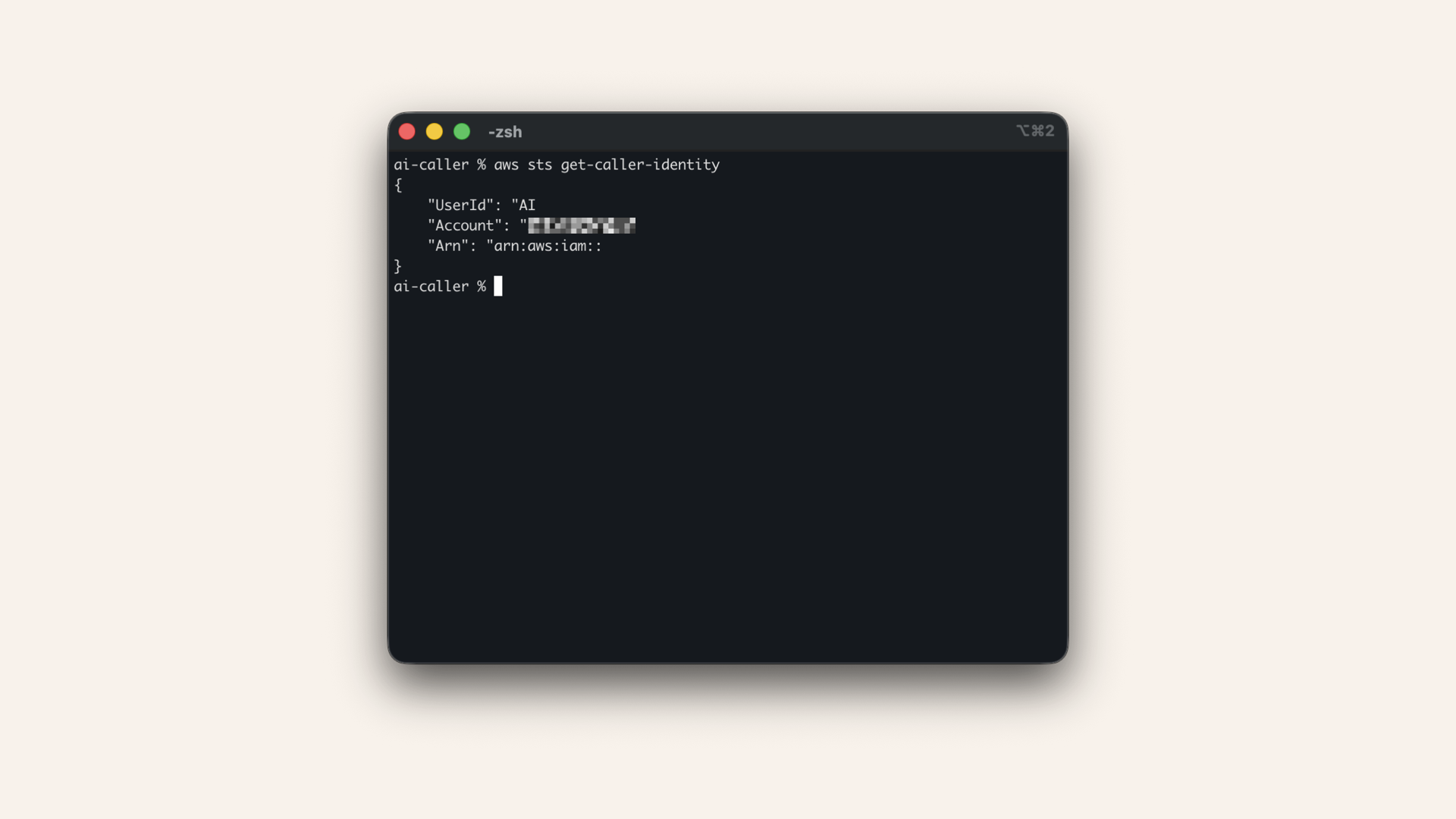
Verify it works
✅ AWS CLI is configured!
Step 2: Create ECR Repository
Amazon ECR (Elastic Container Registry) stores your Docker images.
Open the AWS Console ↗ In the AWS Console search bar at the top, type ecr and click Elastic Container Registry from the dropdown menu: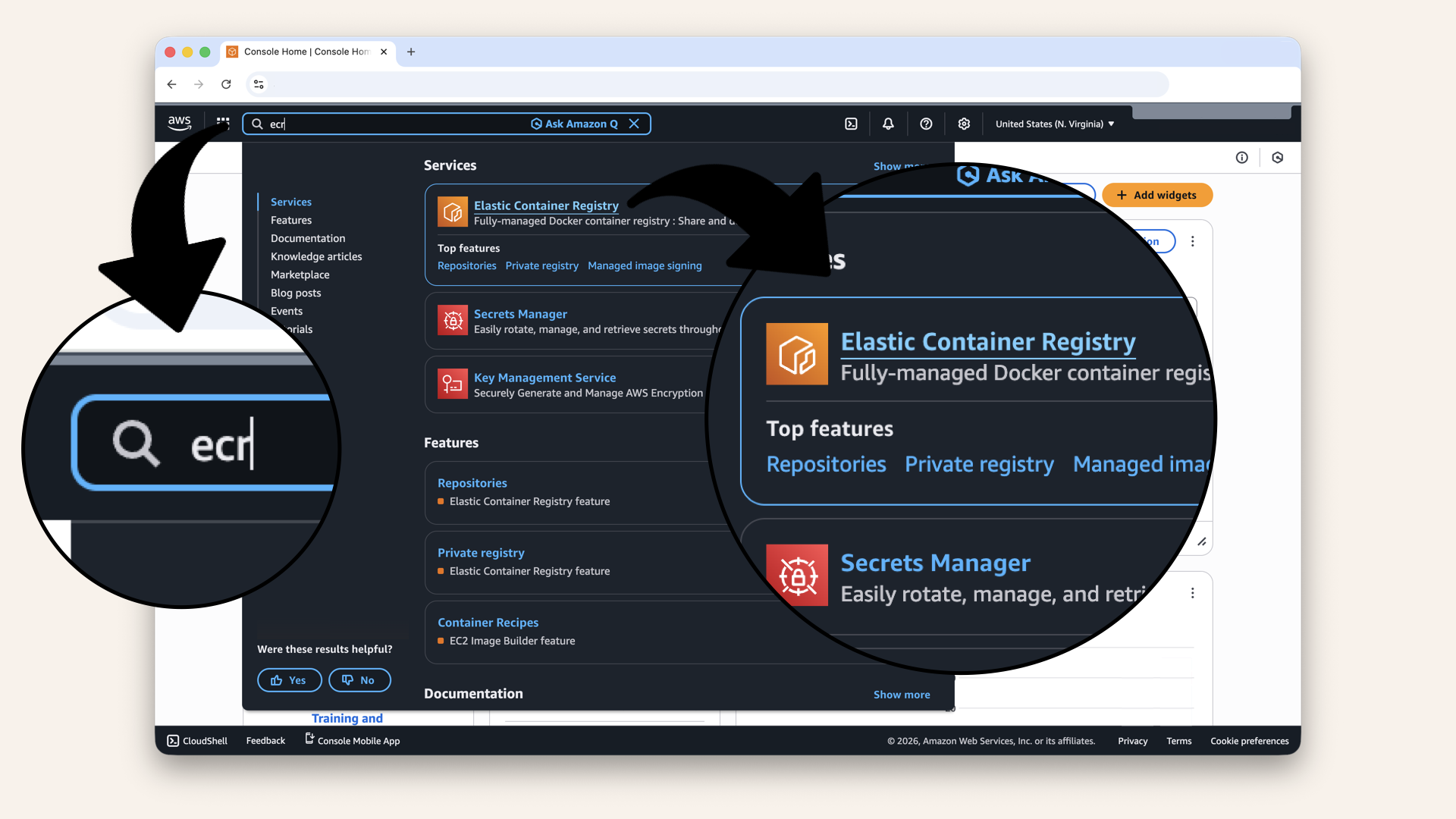
In the AWS Console search bar at the top, type ecr and click Elastic Container Registry from the dropdown menu
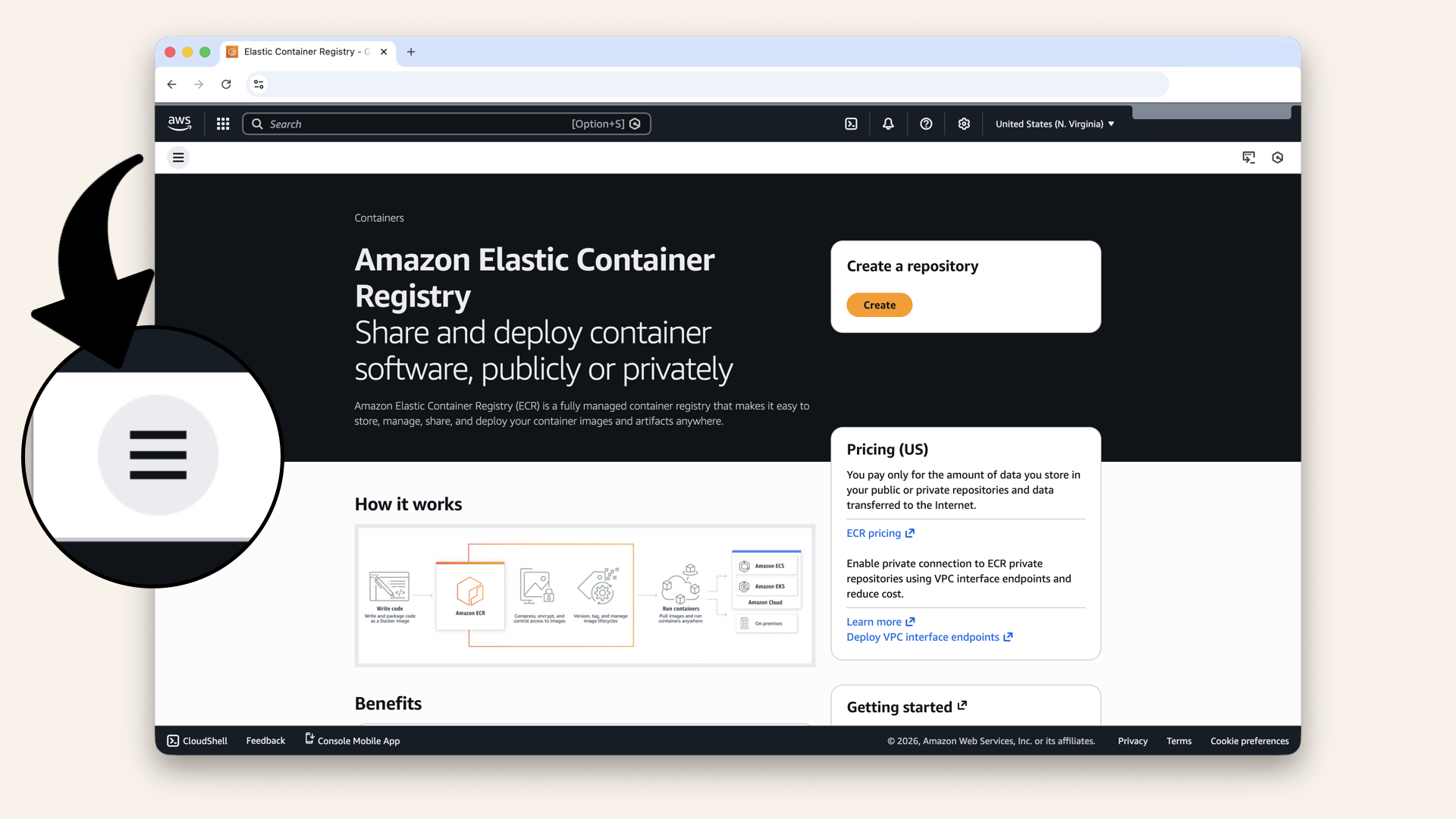
Click the left navigation menu
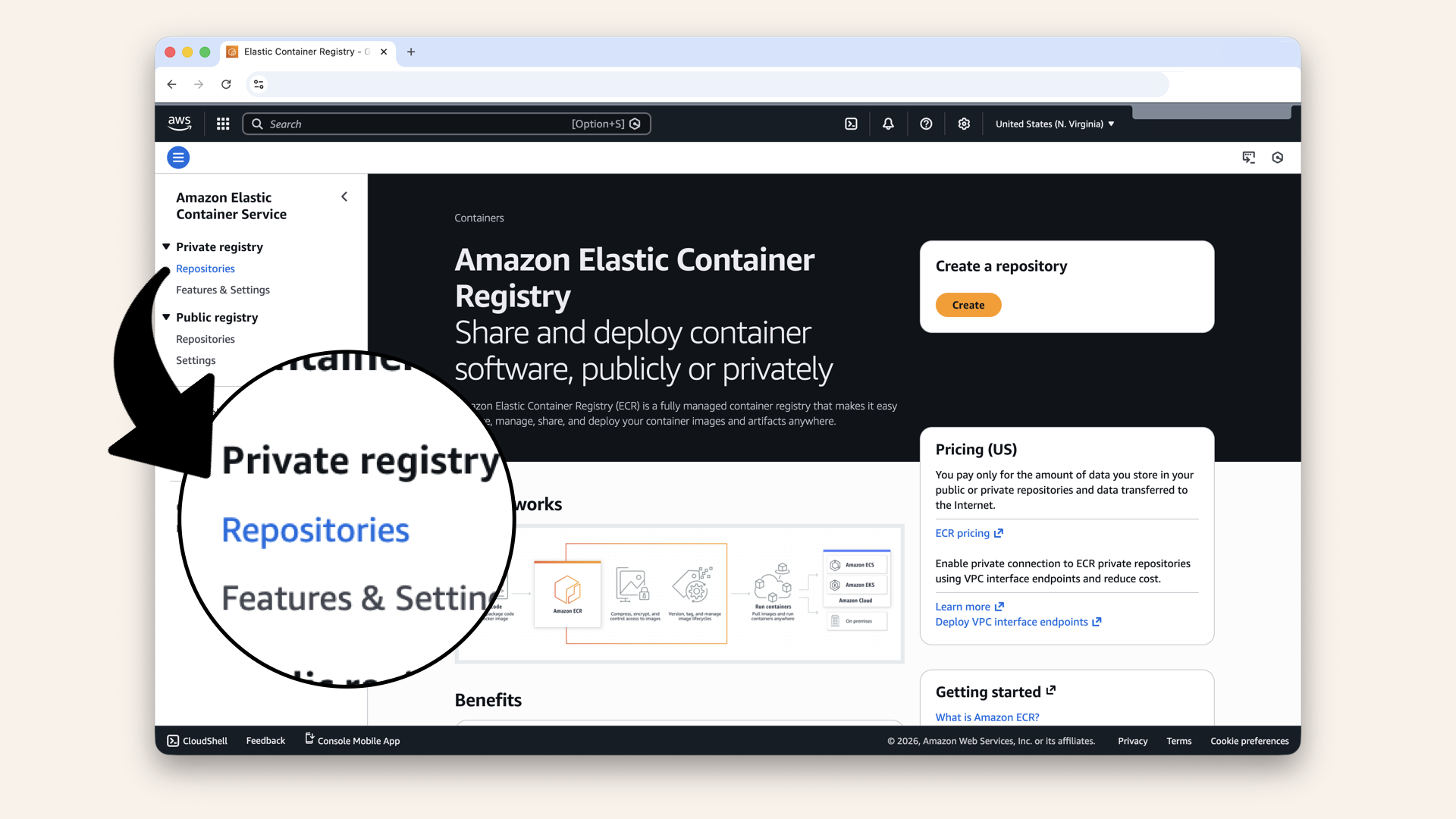
Click Repositories under Private registry
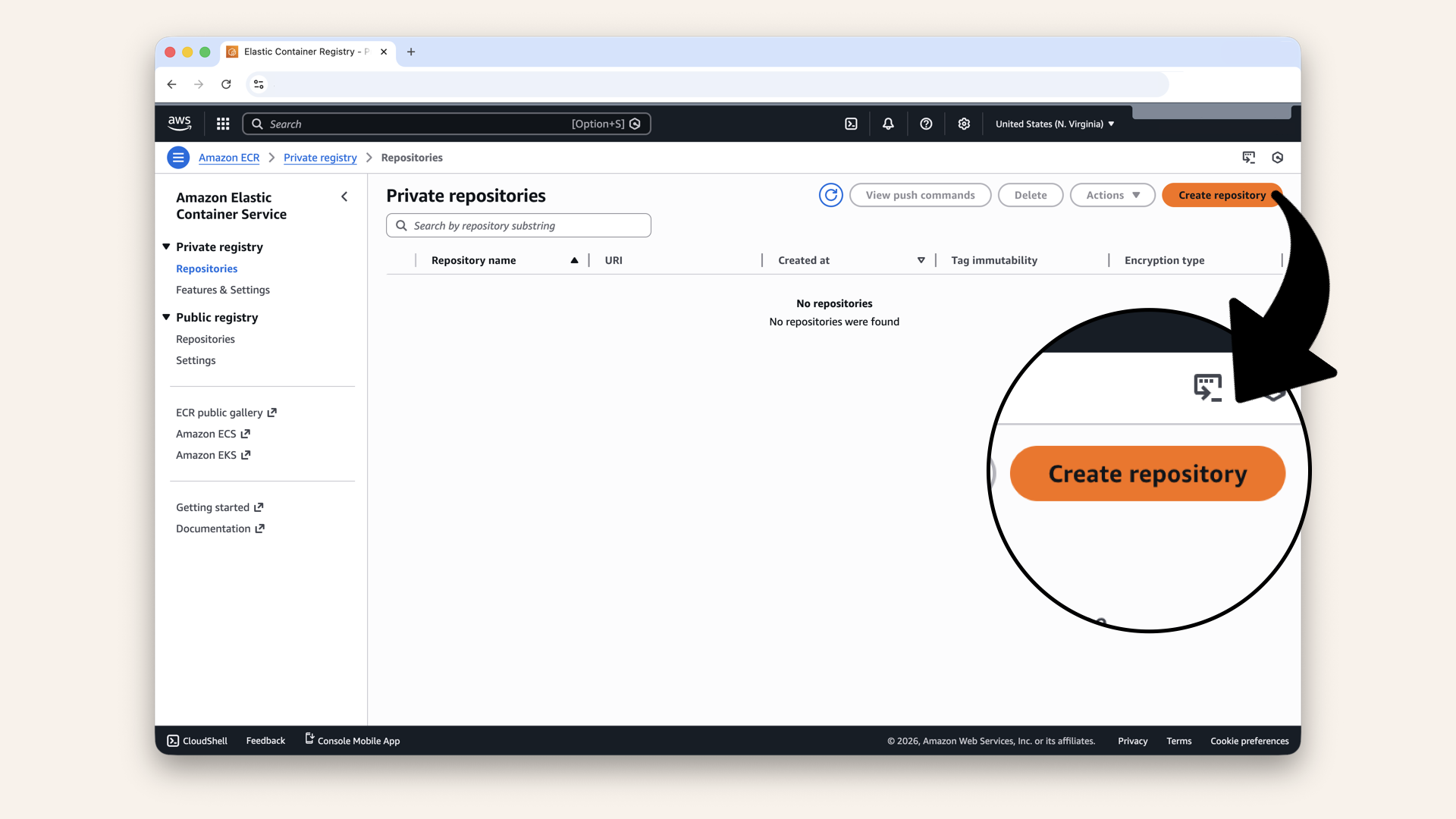
Click Create repository
| Setting | Value |
|---|---|
| Repository name | |
| Image tag mutability | Mutable |
| Encryption | Default (AES-256) |
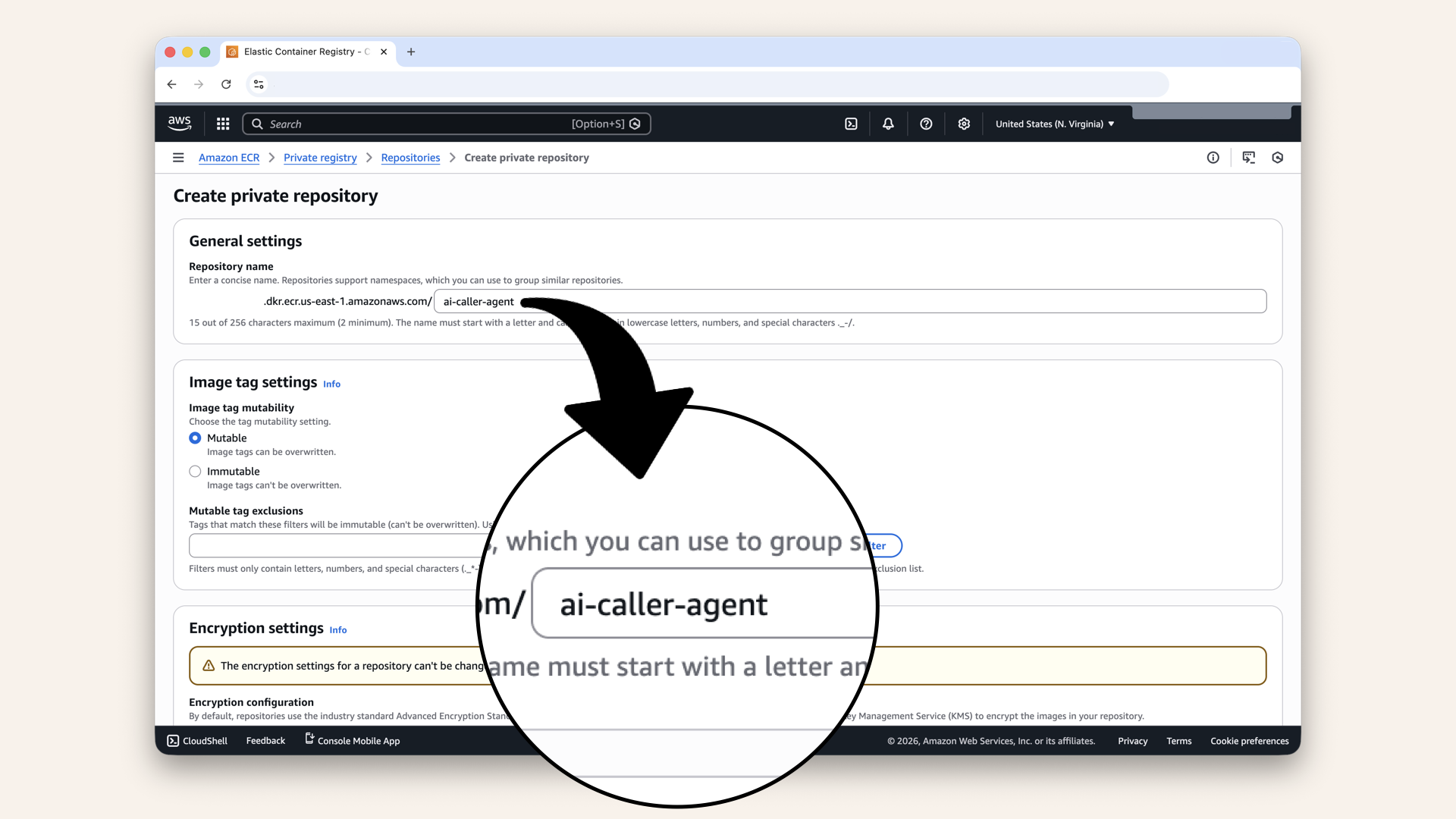
Configure the repository
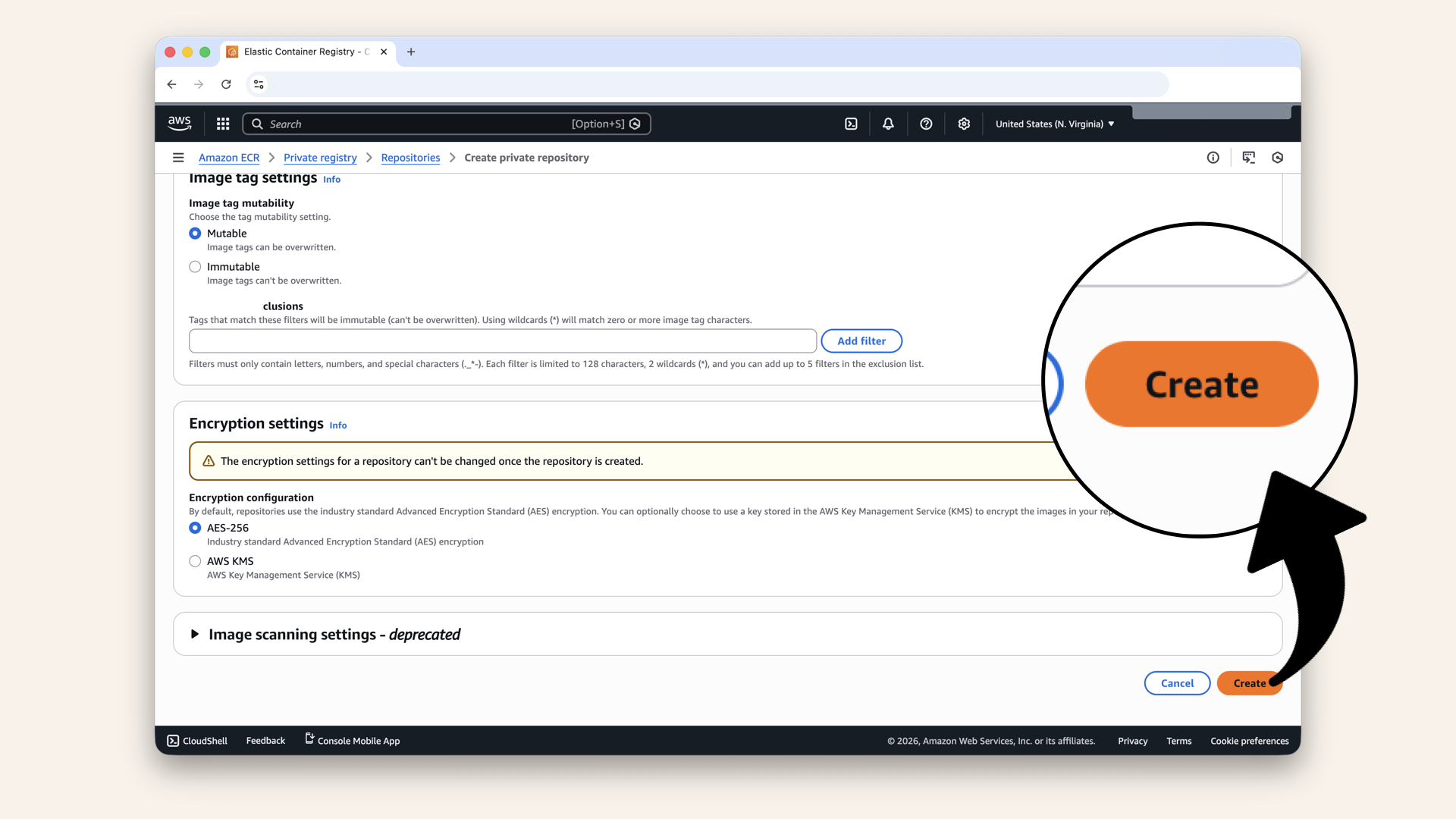
Scroll down and click Create
✅ You should see "Successfully created repository":
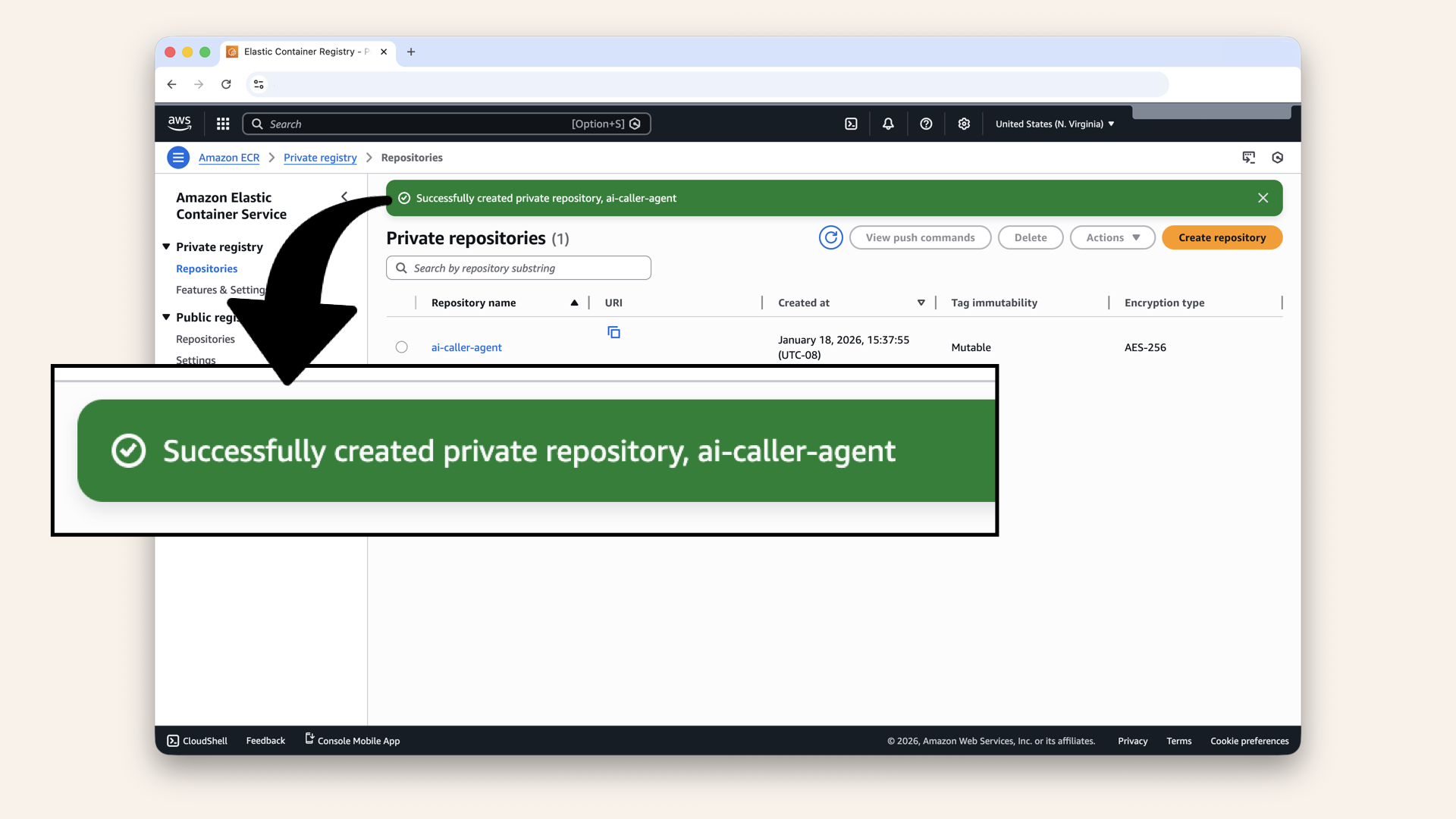
You should see "Successfully created repository"
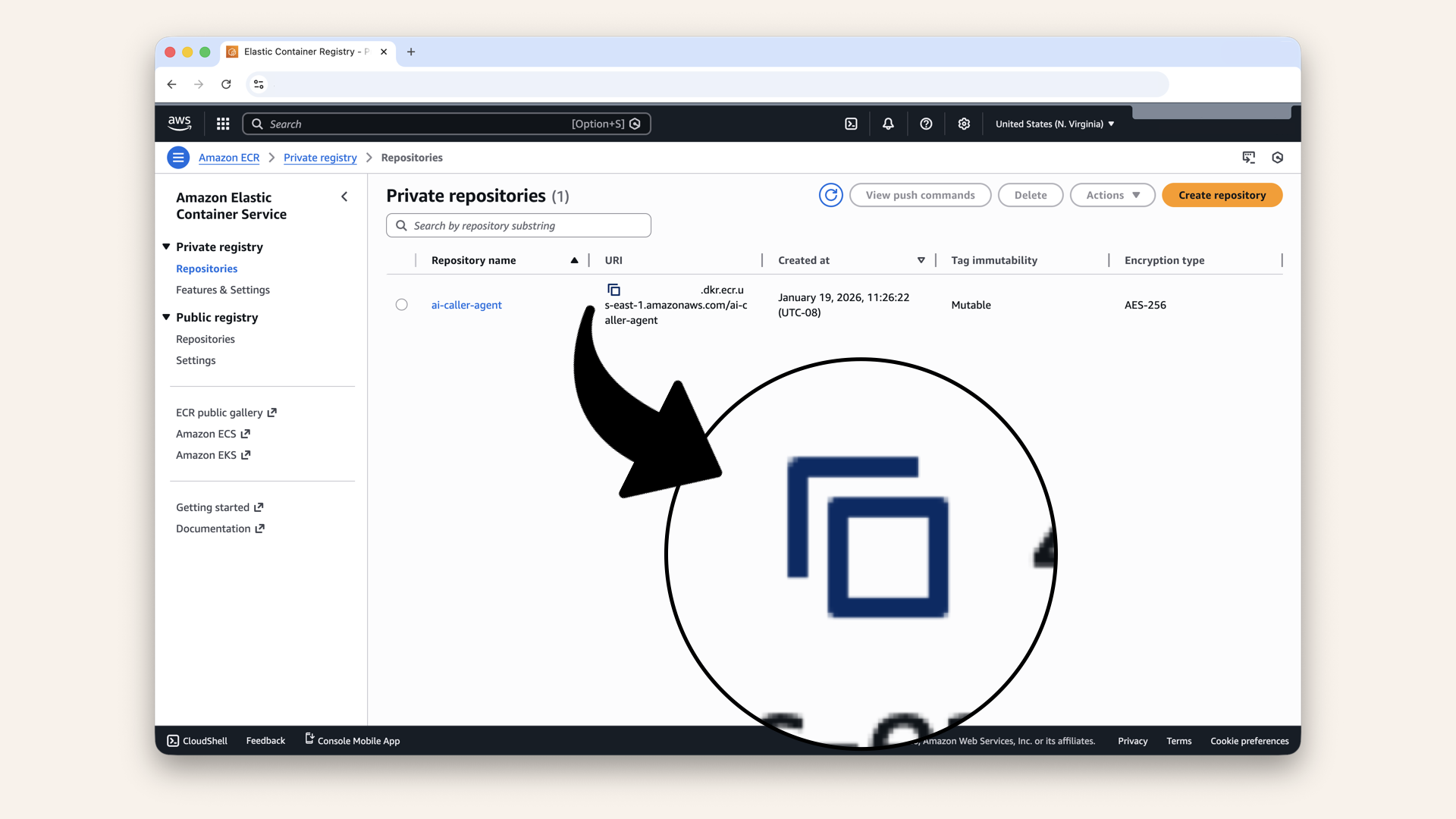
Copy and save the Repository URI, you'll need it Docker commands
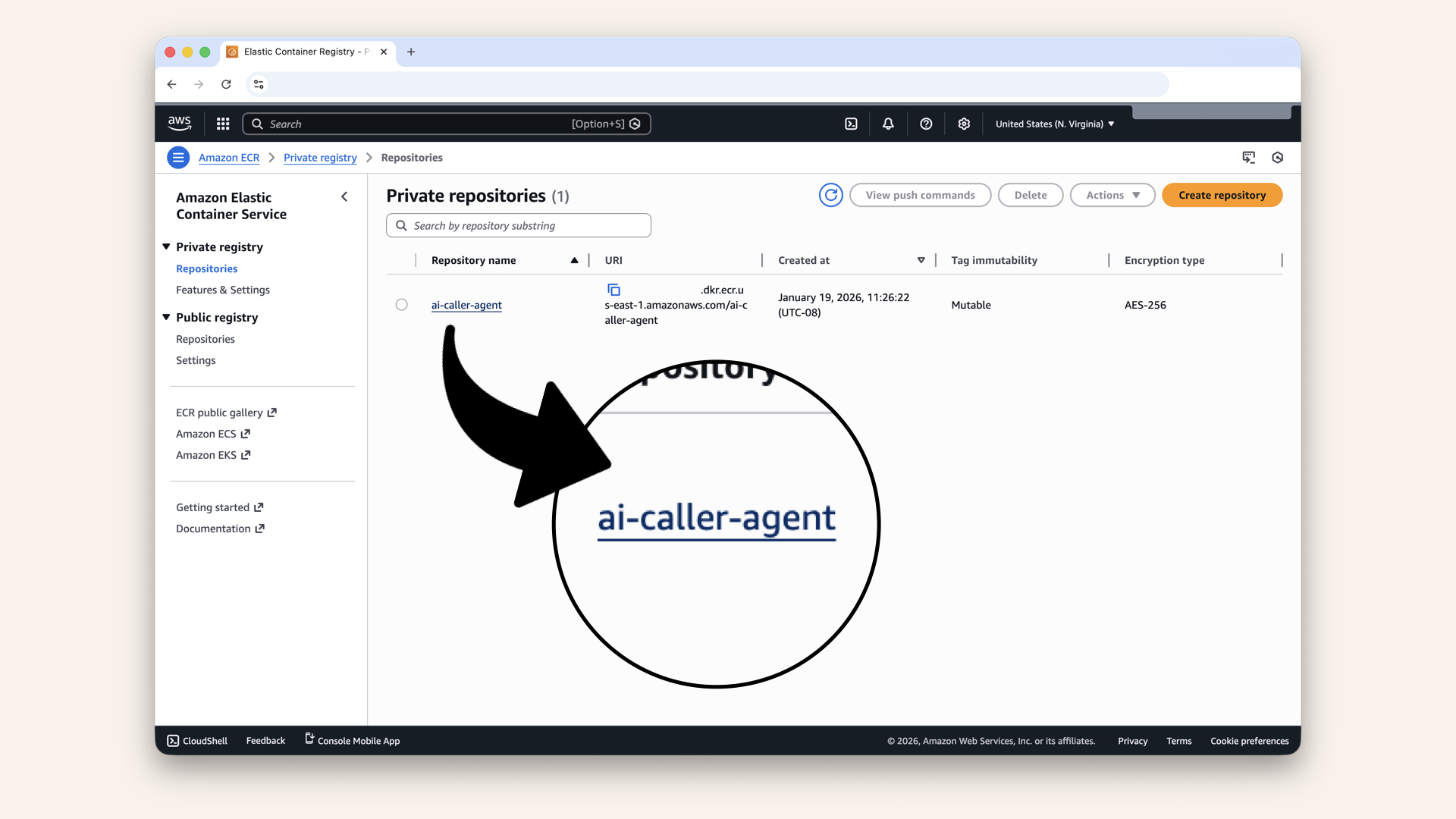
Click on your new repository
✅ You have no images yet, we'll add one in Step 5
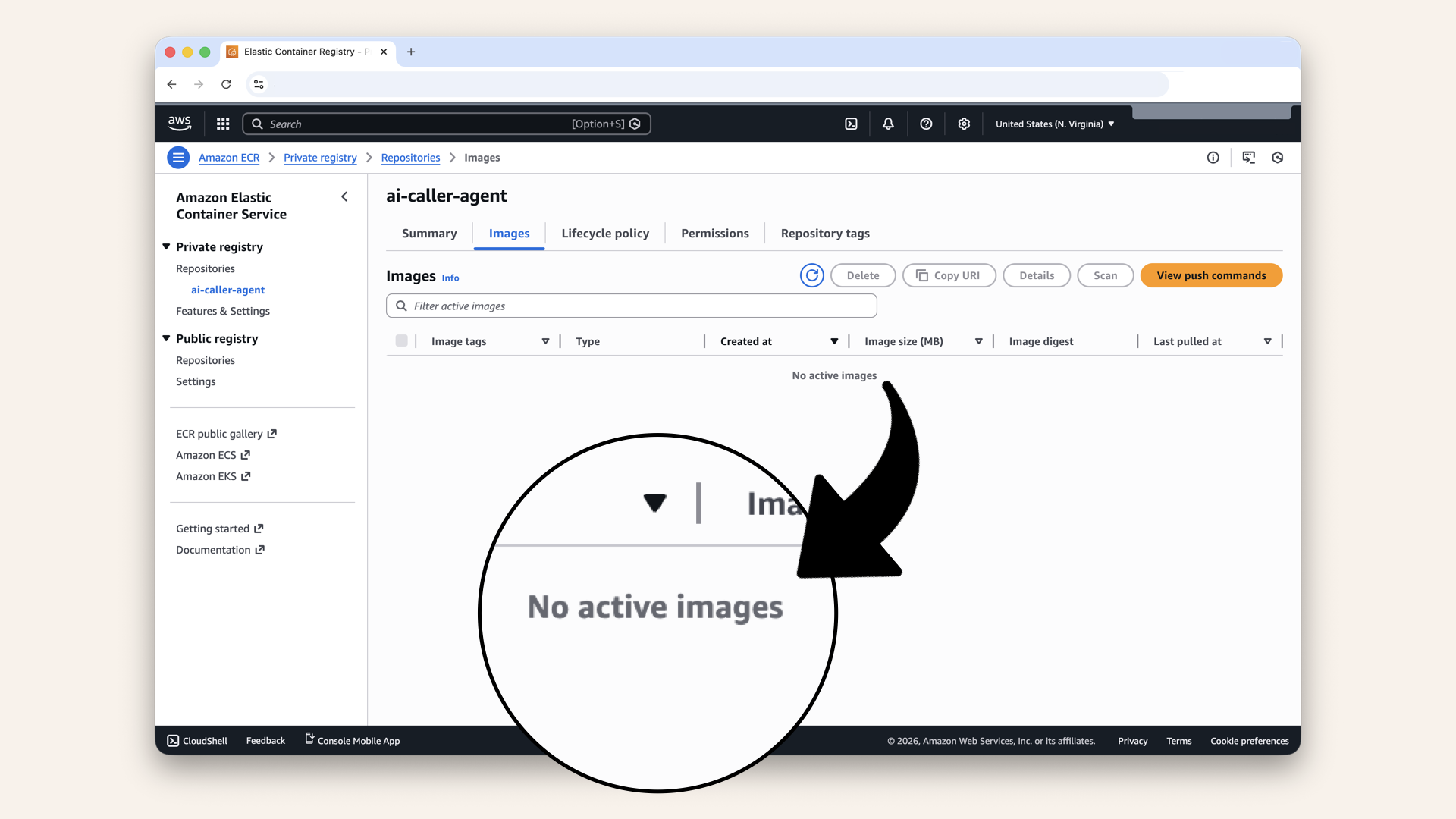
You have no images yet, we'll add one in Step 5
Step 2.1: Add scanning on push
Click Features & Settings in the left sidebar: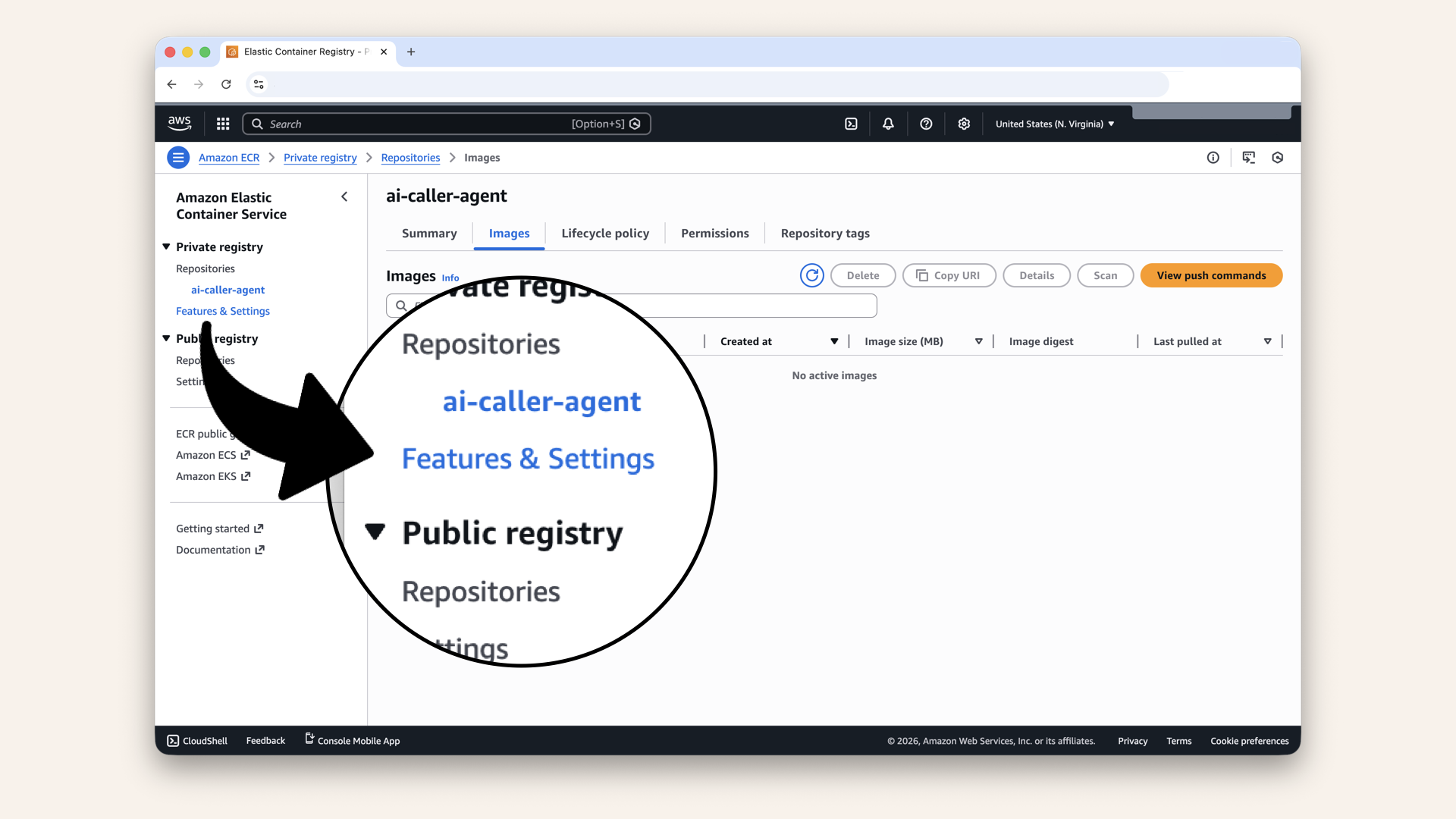
Click Features & Settings in the left sidebar
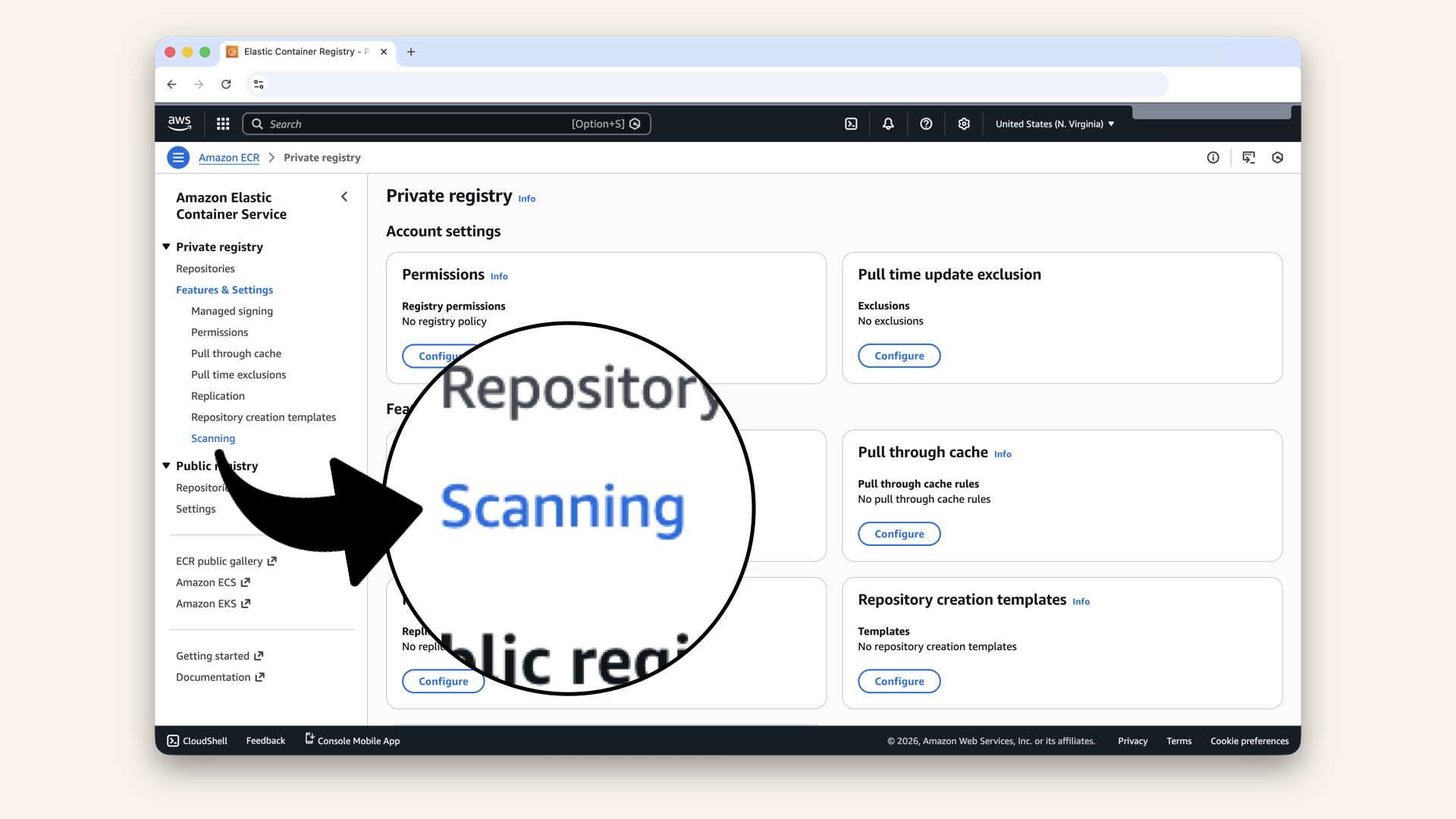
Click Scanning in the left sidebar
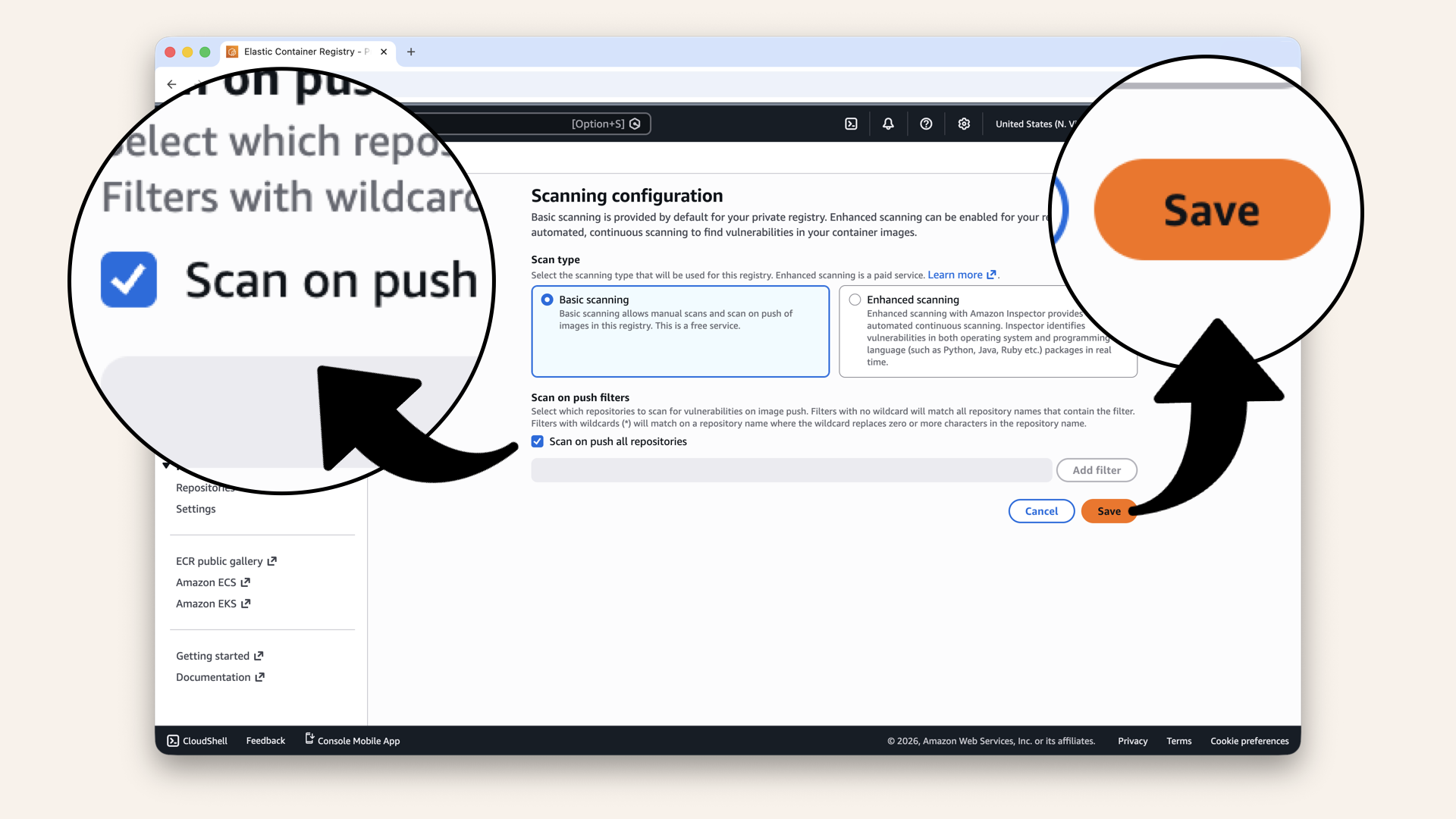
Check Scan on push all repositories and click Save
✅ You should see "Registry scanning updated successfully":
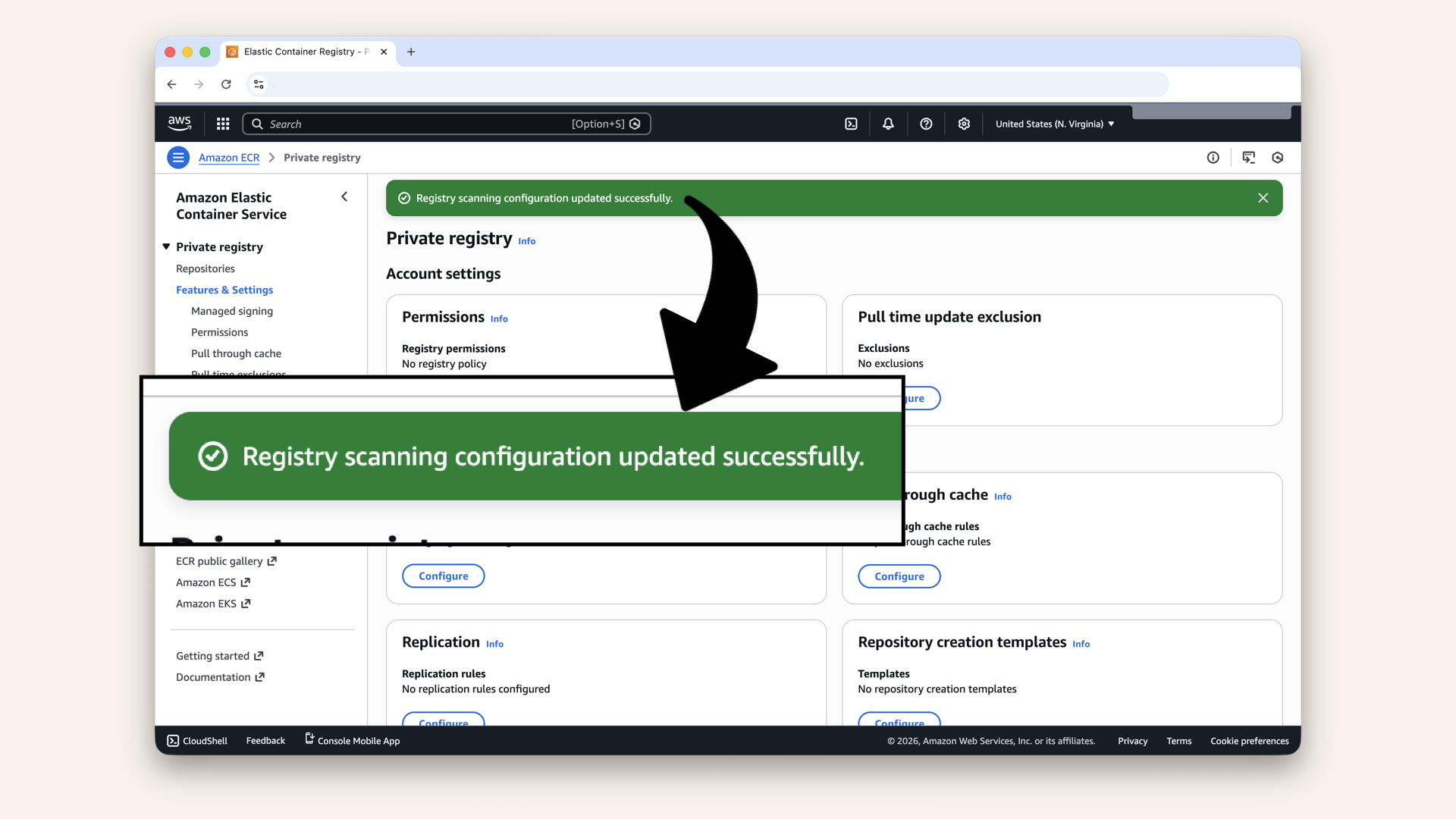
You should see "Registry scanning updated successfully"
Step 3: Prepare your AI agent code
Step 3.1: From simple script to production code
Remember simple_caller.py from Day 1?
That ~100-line script that made your first AI call?
# Day 1 setup - everything in one file
load_dotenv()  # Load from .env file
twilio_client = Client(TWILIO_ACCOUNT_SID, TWILIO_AUTH_TOKEN)  # Direct credentials

@app.websocket('/media-stream')
async def handle_media_stream(websocket: WebSocket):
    await websocket.accept()  # Accept anyone who connects
    # ... stream audio ...
That code worked great for localhost. But it has problems for production:
| Day 1-2 Approach | Problem in Production |
|---|---|
Credentials in .env file | Anyone with server access sees your API keys |
| No request validation | Anyone can connect to your WebSocket |
| Runs on your laptop | Dies when laptop sleeps, WiFi drops |
| Single process | Can't handle multiple simultaneous calls |
| ngrok URL | Changes every restart, not reliable |
Today's code fixes all of this:
| Production Approach | How It Works |
|---|---|
| Secrets Manager | API keys encrypted, rotated, audited by AWS |
| Twilio signature validation | Only Twilio can connect to your WebSocket |
| Fargate containers | Runs 24/7 in AWS, auto-restarts on failure |
| ECS orchestration | Scales to handle concurrent calls |
| ALB + custom domain | Permanent wss://ai-caller.yourdomain.com URL |
The core logic is the same → receive audio from Twilio, forward to OpenAI, send responses back.
But now it's wrapped in production infrastructure.
Here's what changes:
# ❌ Day 1: Credentials from local .env file
OPENAI_API_KEY = os.getenv('OPENAI_API_KEY')

# ✅ Day 14: Secrets injected by ECS from Parameter Store
OPENAI_API_KEY = os.getenv('OPENAI_API_KEY')  # Same code, but value comes from AWS

# ❌ Day 1: Accept any WebSocket connection
await websocket.accept()

# ✅ Day 14: Validate Twilio signature first
validate_twilio_request(websocket)  # Reject if not from Twilio
await websocket.accept()

# ❌ Day 1: Basic print statements
print(f"📞 Call connected: {stream_sid}")

# ✅ Day 14: Structured logging for CloudWatch
logger.info(f"Stream started: {stream_sid}")
Bottom line: If you understood Day 1's code, you'll understand today's code.
We're adding security and reliability, not complexity.
Let's build it.
Step 3.2: Create AI calling agent
Let's create the AI calling agent that will run in Fargate.
Navigate to your project and create the agent folder:cd ai-caller
mkdir agent
cd agent
Your project structure should now look like:
ai-caller/
├── frontend/           # Day 12
├── backend/            # Day 13 (Lambda)
└── agent/              # New folder for AI agent
Step 3.3: Create main.py
This is the FastAPI server that handles WebSocket connections from Twilio and streams audio to OpenAI.
Create in theagent folder:
ai-caller/
└── agent/
    └── main.py         <-- Create this file
agent/main.py in your editor.
Add this code to agent/main.py:
import os
import json
import base64
import asyncio
import logging

from fastapi import FastAPI, WebSocket, HTTPException
from fastapi.responses import JSONResponse
from fastapi.websockets import WebSocketDisconnect

from twilio.request_validator import RequestValidator

# websockets 16.x
from websockets.asyncio.client import connect
from websockets.exceptions import ConnectionClosed

import uvicorn

# Configure logging
logging.basicConfig(
    level=logging.INFO,
    format="%(asctime)s - %(levelname)s - %(message)s",
    handlers=[logging.StreamHandler()],
)
logger = logging.getLogger(__name__)

# Load environment variables
TWILIO_ACCOUNT_SID = os.getenv("TWILIO_ACCOUNT_SID")
TWILIO_AUTH_TOKEN = os.getenv("TWILIO_AUTH_TOKEN")
OPENAI_API_KEY = os.getenv("OPENAI_API_KEY")
ALB_DOMAIN = os.getenv("ALB_DOMAIN")  # e.g., ai-caller.yourdomain.com

PORT = int(os.getenv("PORT", 6060))

# OpenAI Realtime API configuration
VOICE = "alloy"
SYSTEM_MESSAGE = """
    "You are an AI assistant making a dinner reservation on behalf of your user. "
    "You are calling a restaurant to book a table. Be polite, professional, and concise.\n\n"
    "The person who answers will greet you first (e.g. 'Hello, [Restaurant], how can I help you?'). "
    "Do NOT speak until you hear their greeting and they finish speaking.\n\n"
    "After they greet you, in your first turn, make a reservation with this info:\n"
    "- a dinner reservation for two people tonight"
    "- around 7 or 8pm"
    "Then wait for their response and answer any questions (party size, time, name = Alex, etc.). "
    "Confirm the reservation details before ending the call."
""".strip()

LOG_EVENT_TYPES = [
    "error",
    "response.content.done",
    "rate_limits.updated",
    "response.done",
    "input_audio_buffer.committed",
    "input_audio_buffer.speech_stopped",
    "input_audio_buffer.speech_started",
    "session.created",
]

app = FastAPI()

# Validate environment variables
if not all([TWILIO_ACCOUNT_SID, TWILIO_AUTH_TOKEN, OPENAI_API_KEY]):
    raise ValueError(
        "Missing required environment variables. "
        "Please set TWILIO_ACCOUNT_SID, TWILIO_AUTH_TOKEN, and OPENAI_API_KEY."
    )

logger.info("AI Caller Agent starting...")
logger.info(f"ALB Domain: {ALB_DOMAIN}")


def validate_twilio_request(websocket: WebSocket):
    """Validate that the WebSocket request is from Twilio."""
    twilio_signature = websocket.headers.get("x-twilio-signature")

    if not twilio_signature:
        logger.warning("Twilio signature missing from request")
        raise HTTPException(status_code=403, detail="Twilio signature missing")

    validator = RequestValidator(TWILIO_AUTH_TOKEN)

    # Get the WebSocket URL and convert to secure format
    url = str(websocket.url).replace("ws://", "wss://")

    # Validate the signature
    is_valid = validator.validate(url, {}, twilio_signature)

    if not is_valid:
        logger.warning("Invalid Twilio signature")
        raise HTTPException(status_code=403, detail="Invalid Twilio signature")

    logger.info("Twilio request validated successfully")


@app.get("/health")
def health_check():
    """Health check endpoint for ALB."""
    return {"status": "healthy", "service": "ai-caller-agent"}


@app.get("/")
async def index():
    """Root endpoint."""
    return JSONResponse(
        {"message": "AI Caller Agent is running", "endpoints": {"health": "/health", "websocket": "/media-stream"}}
    )


@app.websocket("/media-stream")
async def handle_media_stream(websocket: WebSocket):
    """Handle WebSocket connections between Twilio and OpenAI."""
    logger.info("Incoming WebSocket connection")

    # Validate the request is from Twilio
    validate_twilio_request(websocket)

    await websocket.accept()
    logger.info("WebSocket connection accepted")

    # Connect to OpenAI Realtime API
    openai_headers = [
        ("Authorization", f"Bearer {OPENAI_API_KEY}"),
        ("OpenAI-Beta", "realtime=v1"),
    ]

    openai_url = "wss://api.openai.com/v1/realtime?model=gpt-realtime"

    try:
        # websockets 16.x: use connect() from websockets.asyncio.client
        async with connect(openai_url, additional_headers=openai_headers) as openai_ws:
            logger.info("Connected to OpenAI Realtime API")

            # Initialize the session (same as before)
            await initialize_openai_session(openai_ws)

            stream_sid = None

            async def receive_from_twilio():
                """Receive audio from Twilio and forward to OpenAI."""
                nonlocal stream_sid
                try:
                    async for message in websocket.iter_text():
                        data = json.loads(message)

                        if data["event"] == "media":
                            # Forward audio to OpenAI
                            try:
                                audio_append = {
                                    "type": "input_audio_buffer.append",
                                    "audio": data["media"]["payload"],
                                }
                                await openai_ws.send(json.dumps(audio_append))
                            except ConnectionClosed:
                                logger.info("OpenAI WebSocket closed (receive_from_twilio)")
                                break

                        elif data["event"] == "start":
                            stream_sid = data["start"]["streamSid"]
                            logger.info(f"Stream started: {stream_sid}")

                        elif data["event"] == "stop":
                            logger.info("Stream stopped")
                            break

                except WebSocketDisconnect:
                    logger.info("Twilio WebSocket disconnected")
                    try:
                        await openai_ws.close()
                    except Exception:
                        pass
                except Exception as e:
                    logger.error(f"Error in receive_from_twilio: {e}")
                    try:
                        await openai_ws.close()
                    except Exception:
                        pass

            async def send_to_twilio():
                """Receive audio from OpenAI and forward to Twilio."""
                nonlocal stream_sid
                try:
                    async for openai_message in openai_ws:
                        response = json.loads(openai_message)

                        rtype = response.get("type")
                        logger.info(f"OpenAI raw event type: {rtype} keys={list(response.keys())}")

                        if rtype in LOG_EVENT_TYPES:
                            logger.info(f"OpenAI event: {rtype}")

                        if rtype == "session.updated":
                            logger.info("OpenAI session updated successfully")


                        if rtype == "response.audio.delta" and response.get("delta"):
                            logger.info("Got audio delta from OpenAI")
                            # VERY small guard: don't send media until we have streamSid
                            if stream_sid is None:
                                continue

                            try:
                                audio_payload = base64.b64encode(base64.b64decode(response["delta"])).decode("utf-8")

                                audio_delta = {
                                    "event": "media",
                                    "streamSid": stream_sid,
                                    "media": {"payload": audio_payload},
                                }
                                await websocket.send_json(audio_delta)
                            except WebSocketDisconnect:
                                logger.info("Twilio WebSocket disconnected (send_to_twilio)")
                                break
                            except Exception as e:
                                logger.error(f"Error processing audio: {e}")

                except ConnectionClosed:
                    logger.info("OpenAI WebSocket closed (send_to_twilio)")
                except Exception as e:
                    logger.error(f"Error in send_to_twilio: {e}")

            # Run both tasks concurrently (same as before)
            await asyncio.gather(receive_from_twilio(), send_to_twilio())

    except Exception as e:
        logger.error(f"Error in WebSocket handler: {e}")
        raise


async def initialize_openai_session(openai_ws):
    """Initialize the OpenAI Realtime session."""
    session_update = {
        "type": "session.update",
        "session": {
            "turn_detection": {"type": "server_vad"},
            "input_audio_format": "g711_ulaw",
            "output_audio_format": "g711_ulaw",
            "voice": VOICE,
            "instructions": SYSTEM_MESSAGE,
            "modalities": ["text", "audio"],
            "temperature": 0.8,
        },
    }

    logger.info("Sending session configuration to OpenAI")
    await openai_ws.send(json.dumps(session_update))


if __name__ == "__main__":
    logger.info(f"Starting server on port {PORT}")
    uvicorn.run(app, host="0.0.0.0", port=PORT)
Deep dive
-
Health check (
/health) → ALB pings this to know the container is alive -
WebSocket handler (
/media-stream) → Tis is where the magic happens:
- Twilio connects here when a call is answered
- We validate it's really Twilio (security)
- We connect to OpenAI's Realtime API
- Audio flows: Twilio → OpenAI → Twilio
- OpenAI session setup → Configures the AI:
- Voice settings (using "alloy" voice)
- Audio format (
g711_ulawfor telephony) - System instructions (how the AI should behave)
The two concurrent tasks:
receive_from_twilio()→ Gets audio from caller, sends to OpenAIsend_to_twilio()→ Gets AI response, sends to caller
They run simultaneously using asyncio.gather().
Step 3.4: Create requirements.txt
Create in theagent folder:
ai-caller/
└── agent/
    ├── main.py
    └── requirements.txt    <-- Create this file
fastapi==0.128.0
uvicorn[standard]==0.40.0
websockets==16.0
twilio==9.9.1
python-dotenv==1.0.0
Step 3.5: Create Dockerfile
Create in theagent folder:
ai-caller/
└── agent/
    ├── main.py
    ├── requirements.txt
    └── Dockerfile          <-- Create this file
FROM python:3.11-slim

WORKDIR /app

# Install system dependencies
RUN apt-get update && apt-get install -y \
    gcc \
    && rm -rf /var/lib/apt/lists/*

# Copy requirements first (for Docker layer caching)
COPY requirements.txt .
RUN pip install --no-cache-dir -r requirements.txt

# Copy application code
COPY main.py .

# Set environment variables
ENV PYTHONUNBUFFERED=1
ENV PORT=6060

# Expose the port
EXPOSE 6060

# Run the server
CMD ["python", "main.py"]
Your agent folder should now look like:
ai-caller/
└── agent/
    ├── Dockerfile
    ├── main.py
    └── requirements.txt
Step 4: Build Docker image
agentMake sure you're in agent folder before building the Docker image.
- Mac/Linux
- Windows
pwd
cd
✅ You should see the path /ai-caller/agent
Step 4.1: Build Docker image
Build the Docker image:- Mac (Apple Silicon M1/M2/M3)
- Mac (Intel)
- Windows
docker buildx build --platform linux/amd64 -t ai-caller-agent:latest .
Fargate runs on x86_64 (AMD64) architecture. If you're on an M1/M2/M3 Mac (ARM), you need to build for the correct platform.
docker build -t ai-caller-agent:latest .
docker build -t ai-caller-agent:latest .
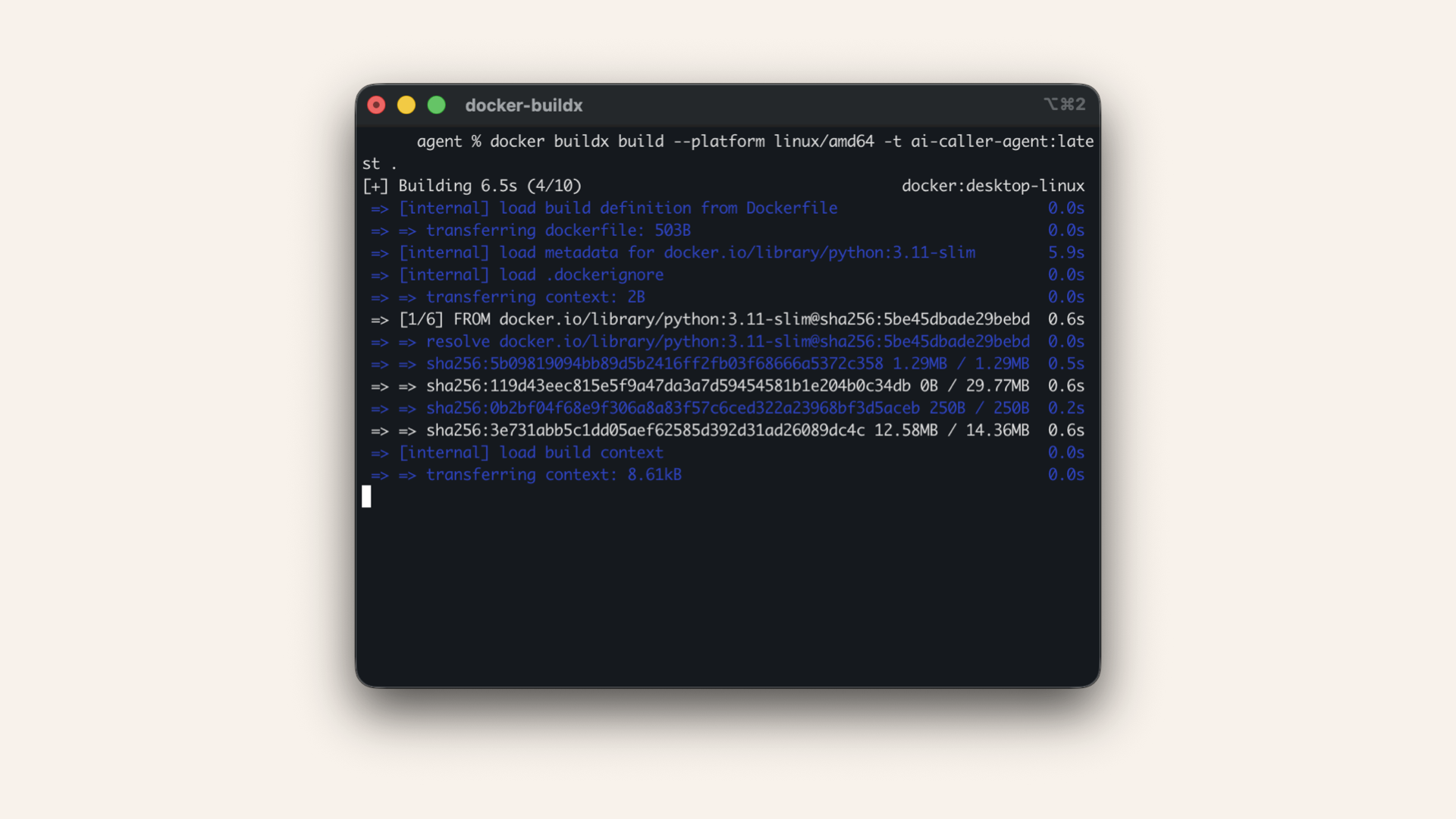
Wait for the build to complete (1-2 minutes)
✅ You should see: "Building finished":
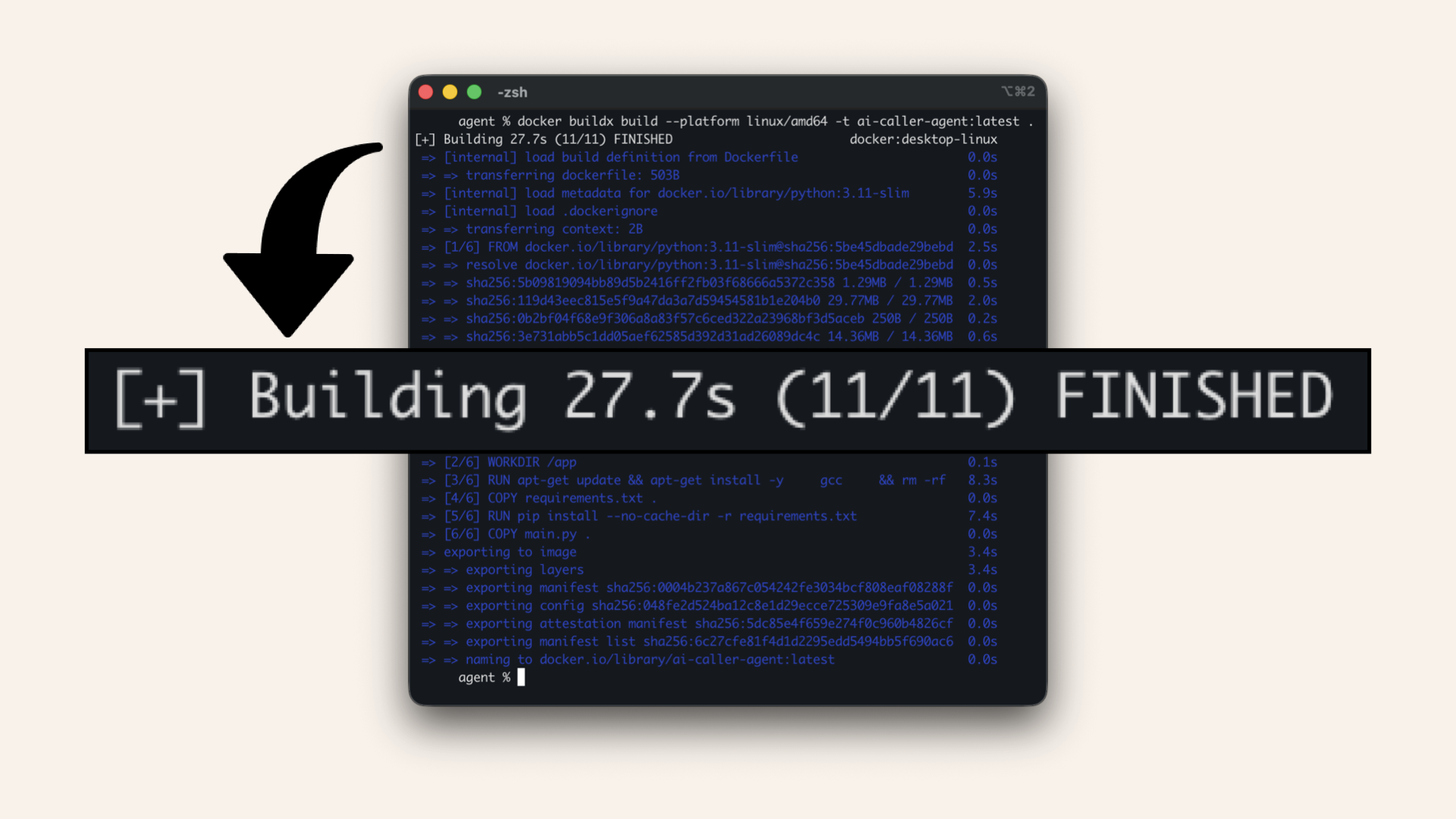
You should see: "Building finished"
Step 5: Push to ECR
Step 5.1: Authenticate Docker with ECR
Remember to use the same profile name as you did when you ran AWS CLI setup:
# aws configure --profile ai-caller-cli <---- Use this profile
aws sts get-caller-identity \
--query Account  \
--output text \
--profile ai-caller-cli
123456789012) → you'll use it in the next commands:
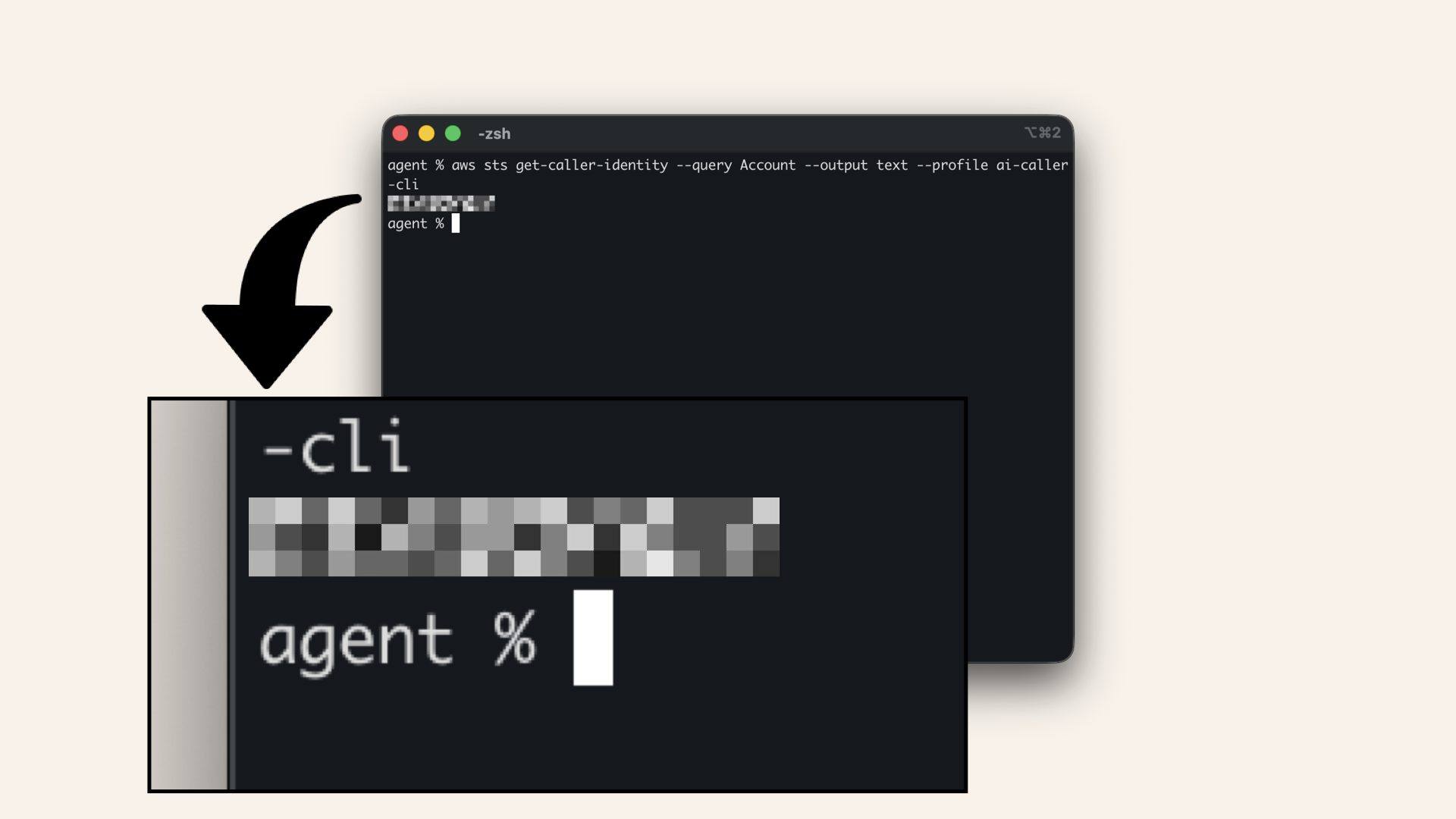
Save this number (e.g. 123456789012) → you'll use it in the next commands
YOUR_ACCOUNT_ID with your account ID):
aws ecr get-login-password --region us-east-1 --profile ai-caller-cli \
| docker login --username AWS --password-stdin YOUR_ACCOUNT_ID.dkr.ecr.us-east-1.amazonaws.com # Replace YOUR_ACCOUNT_ID with your account ID
✅ You should see: "Login Succeeded":
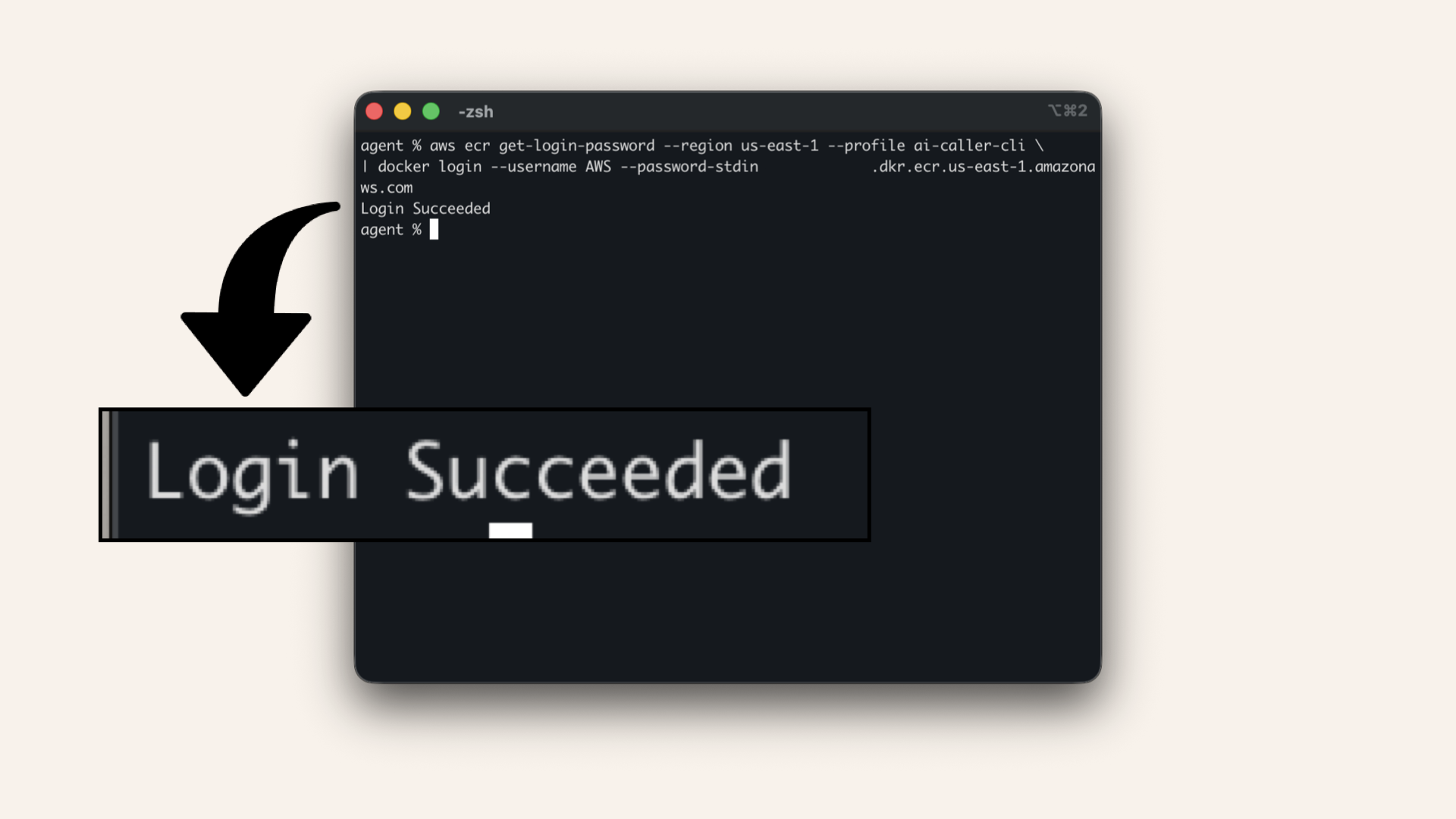
You should see: "Login Succeeded"
Step 5.2: Tag and push the image
Run this to tag the image for ECR (replaceYOUR_ACCOUNT_ID with your account ID):
docker tag ai-caller-agent:latest YOUR_ACCOUNT_ID.dkr.ecr.us-east-1.amazonaws.com/ai-caller-agent:latest
docker push YOUR_ACCOUNT_ID.dkr.ecr.us-east-1.amazonaws.com/ai-caller-agent:latest
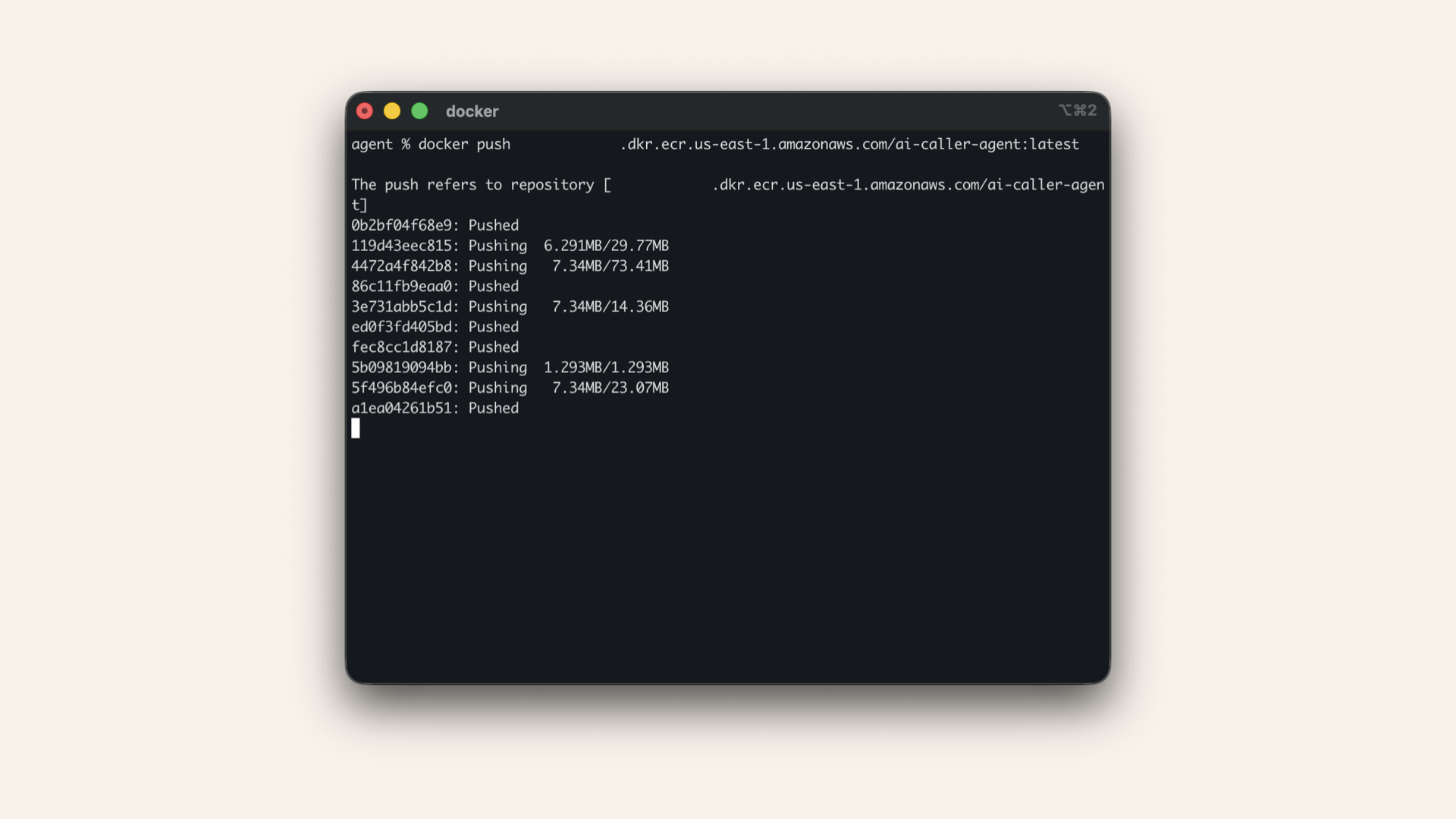
Wait for the push to complete (2-5 minutes depending on your internet speed)
✅ Your image is now in ECR:
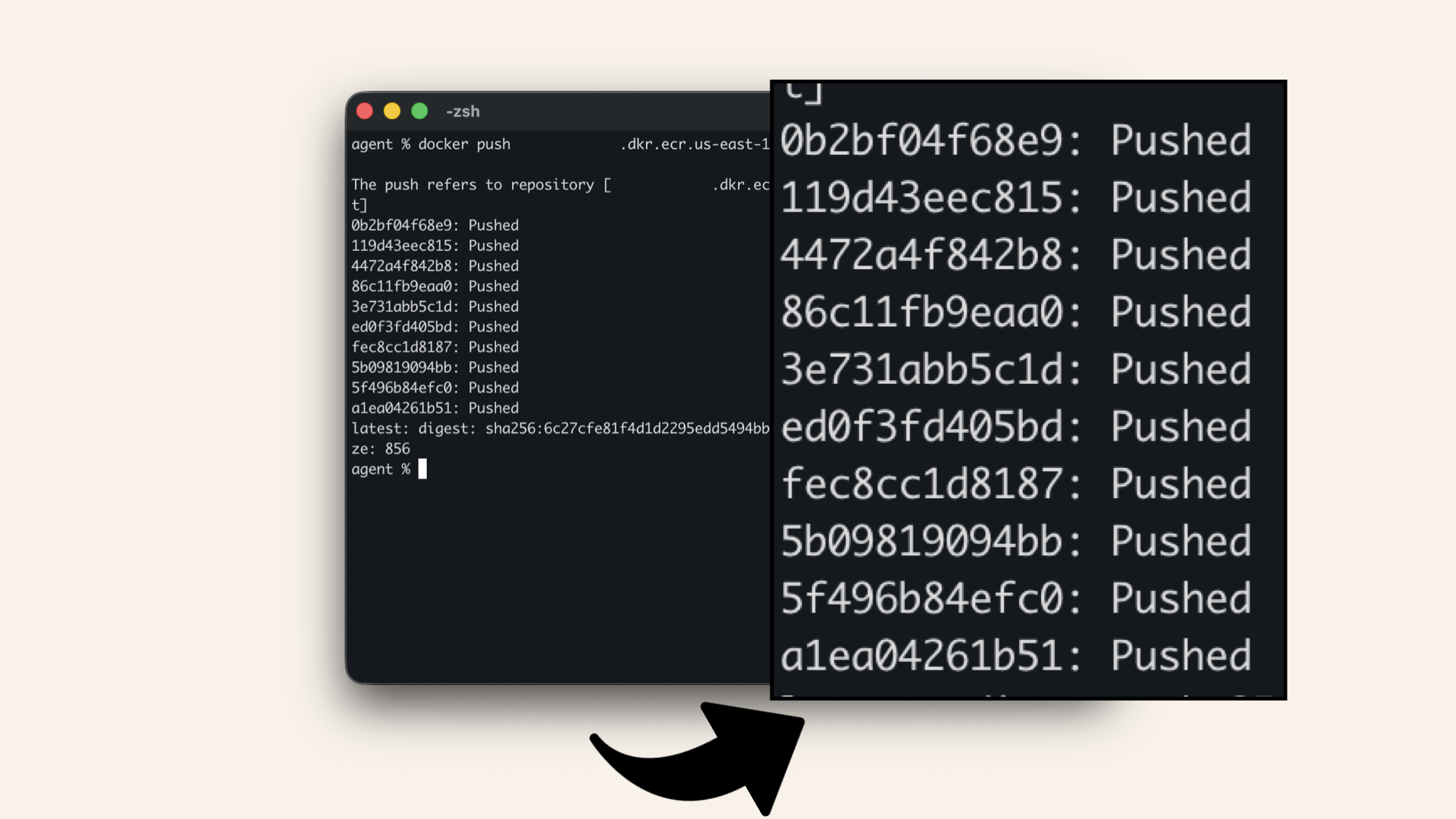
Your image is now in ECR
Step 5.3: Verify in ECR Console
Open the AWS Console ↗ In the AWS Console search bar at the top, type ecr and click Elastic Container Registry from the dropdown menu:
In the AWS Console search bar at the top, type ecr and click Elastic Container Registry from the dropdown menu
Click on your ai-caller-agent repository
✅ You should see your image with the latest tag:
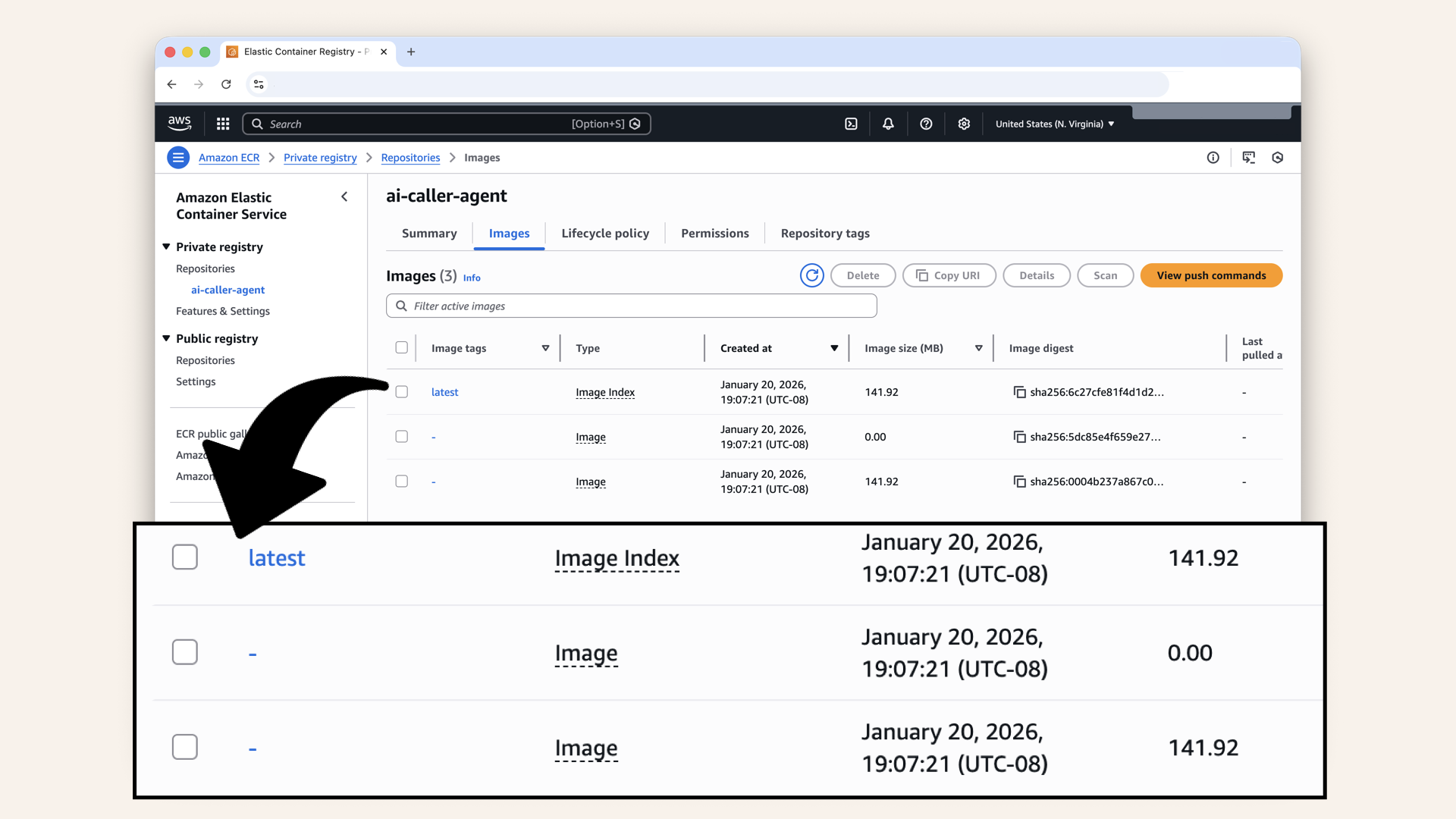
You should see your image with the latest tag
You might see 2-3 entries in ECR, this is normal!
Docker creates a manifest index plus the actual image layers.
As long as you see latest tagged, you're good.
Step 6: Store secrets in Parameter Store
Instead of hardcoding API keys, we'll store them securely in AWS Systems Manager Parameter Store.
Unlike Secrets Manager ($0.40/secret/month), Parameter Store is free for standard parameters.
Open the AWS Console ↗ In the AWS Console search bar at the top, type parameter store and click Parameter Store (under Systems Manager) from the dropdown menu: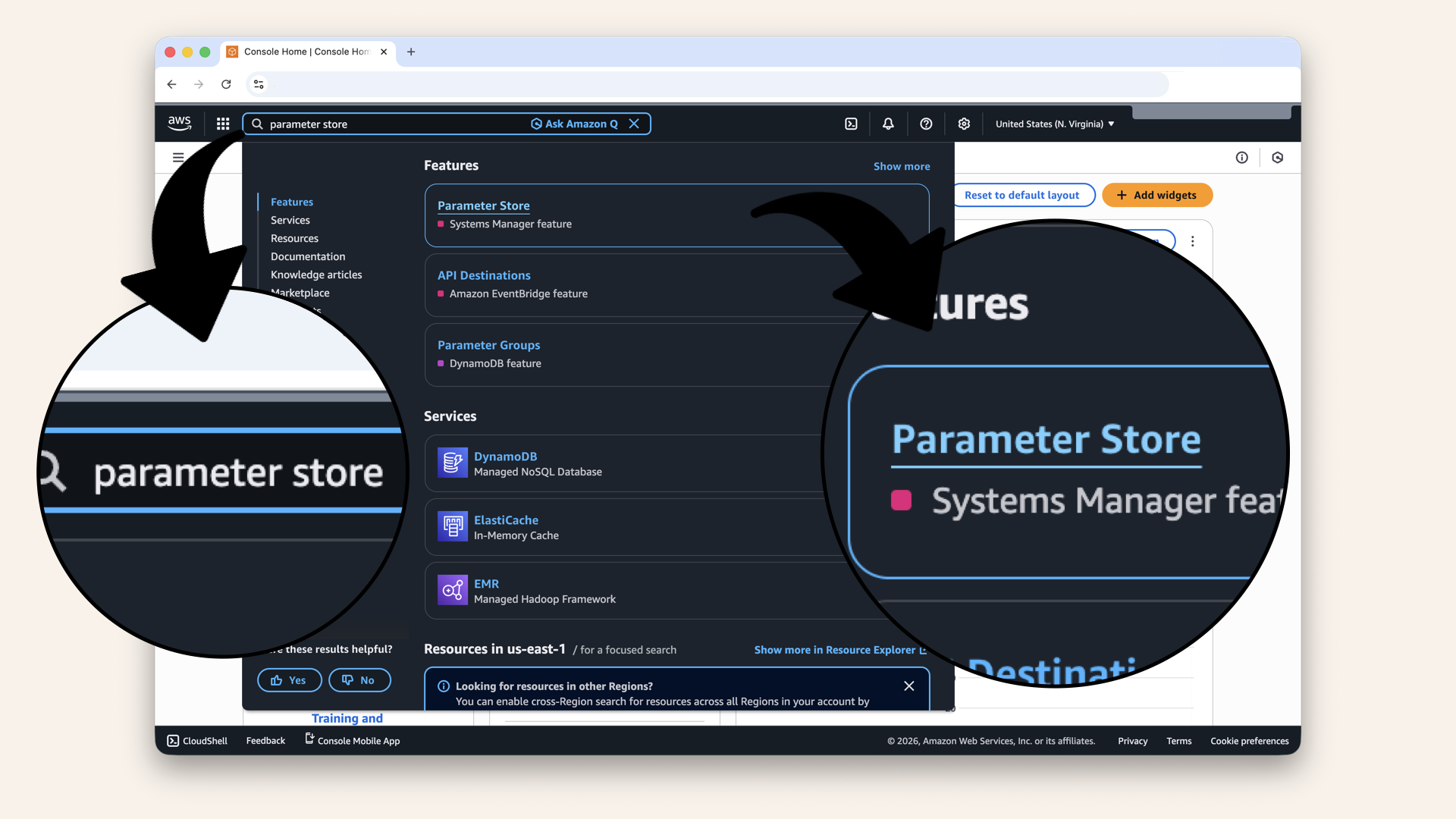
In the AWS Console search bar at the top, type parameter store and click Parameter Store from the dropdown menu
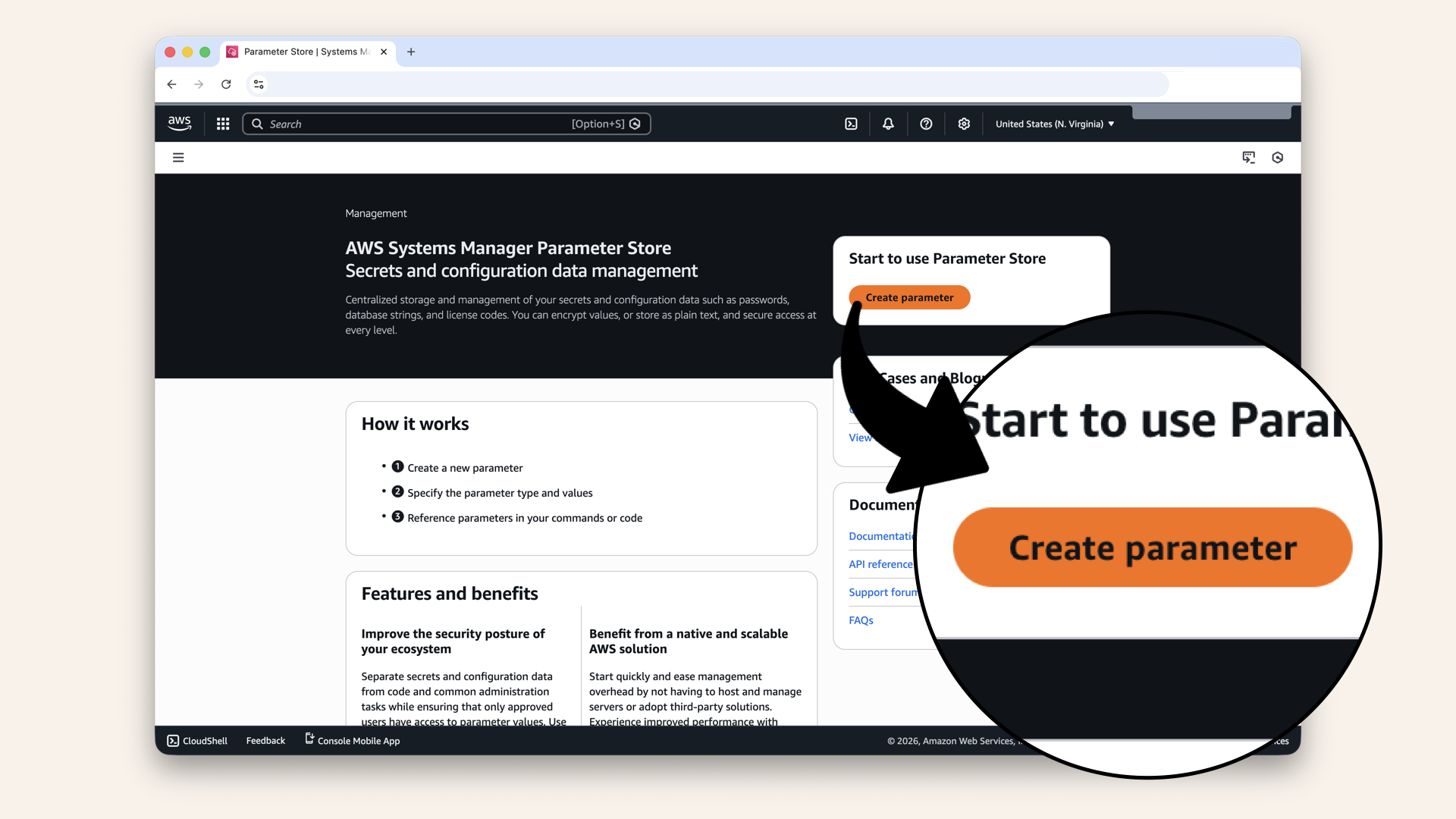
Click Create parameter
Step 6.1: Create the OpenAI API key parameter
Configure the parameter:
| Setting | Value |
|---|---|
| Name | |
| Description | |
| Tier | Standard (free) |
| Type | SecureString |
| KMS key source | My current account |
| KMS Key ID | alias/aws/ssm (default) |
| Value | YOUR_OPENAI_API_KEY |
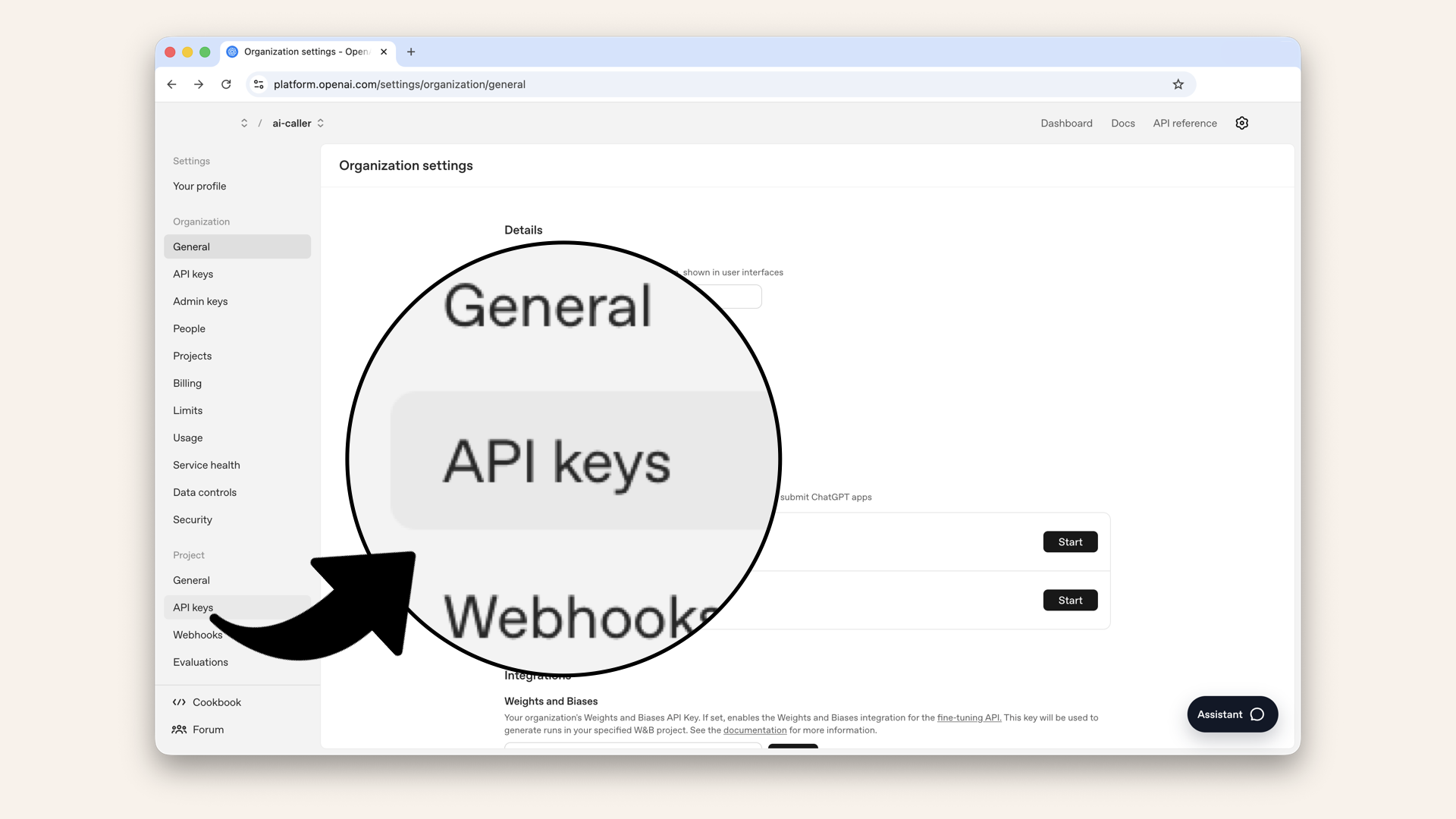
Click API keys in the left sidebar
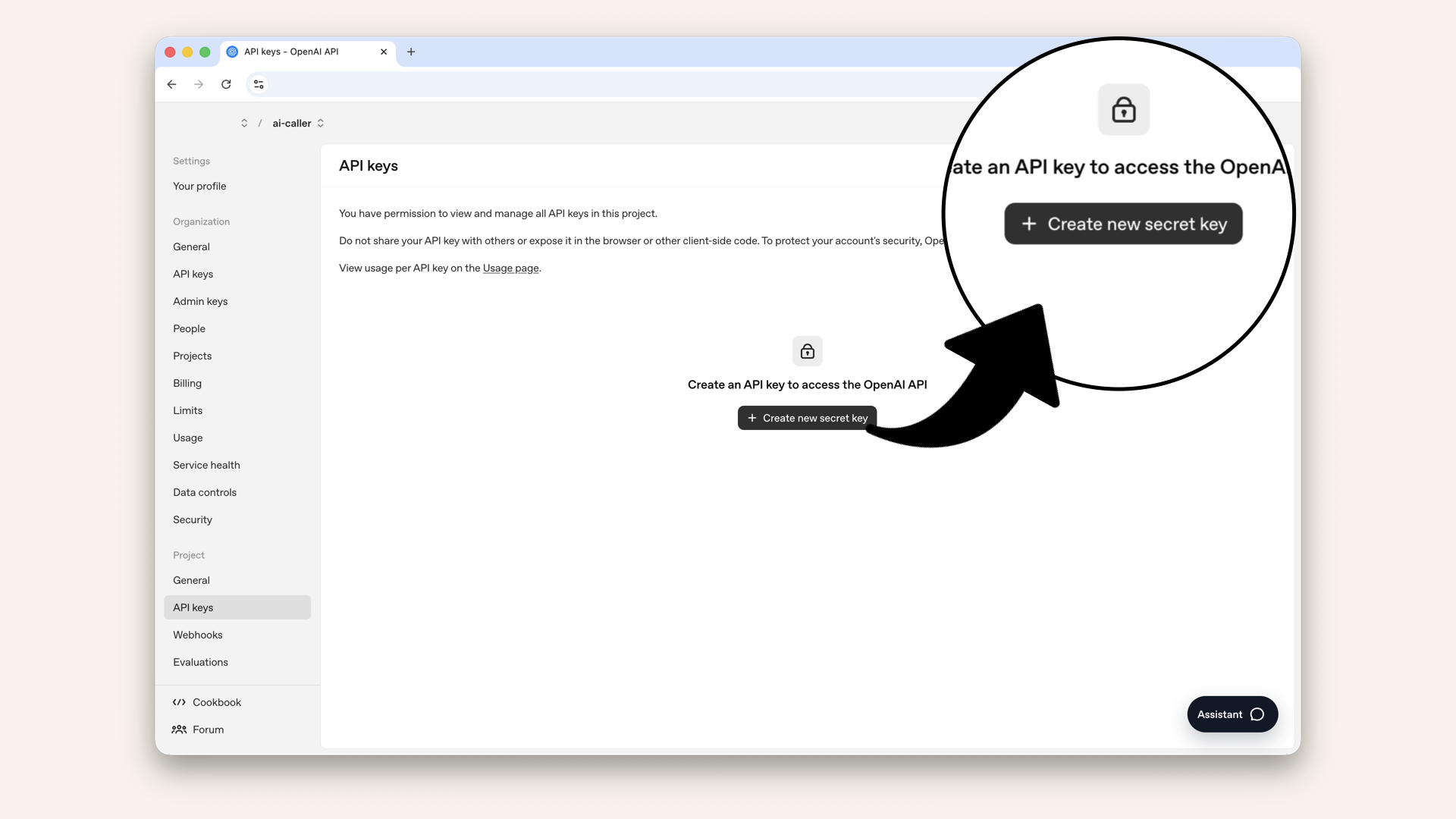
Click Create new secret key
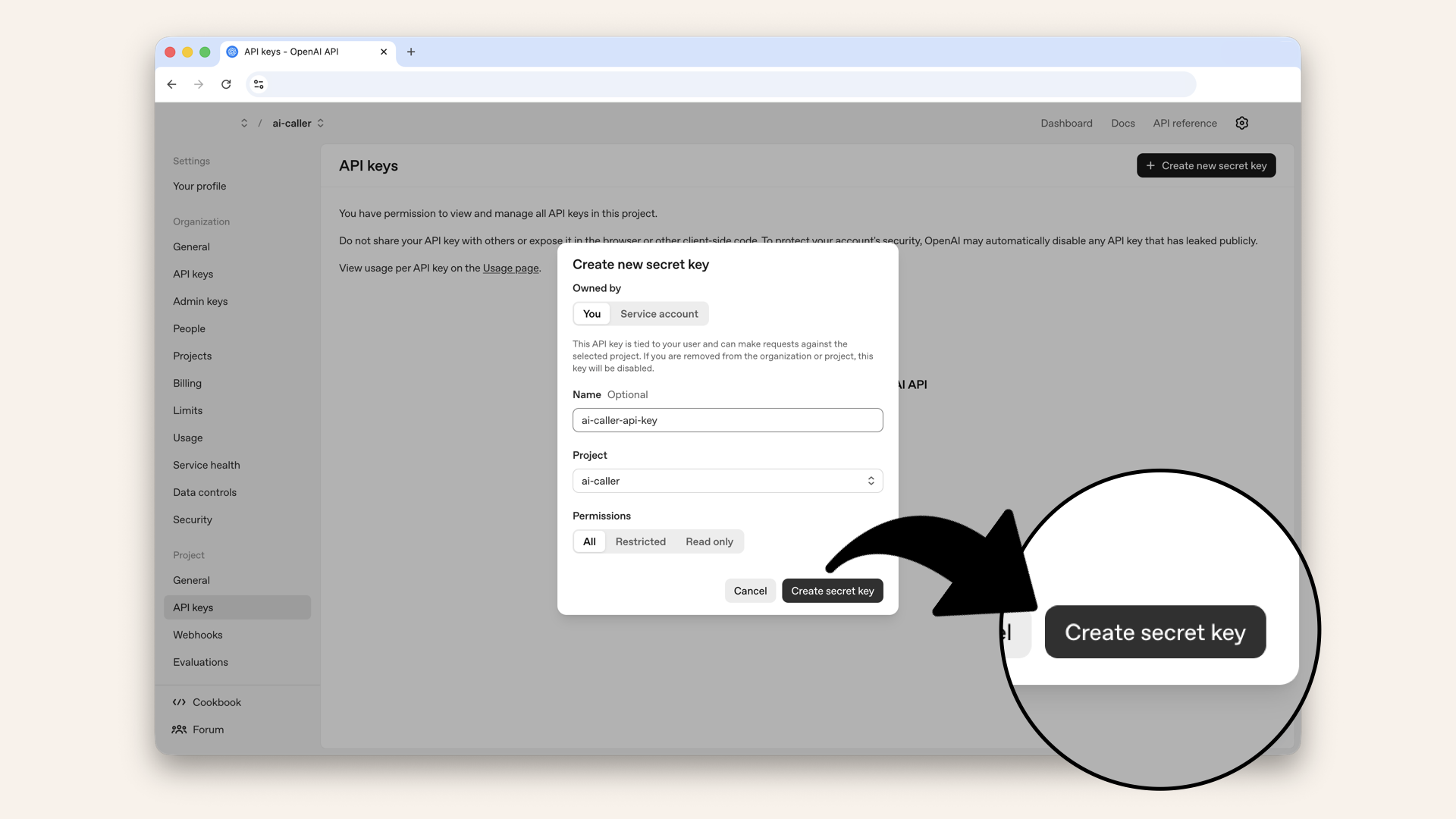
Name your key 'ai-caller-api-key' and click Create secret key
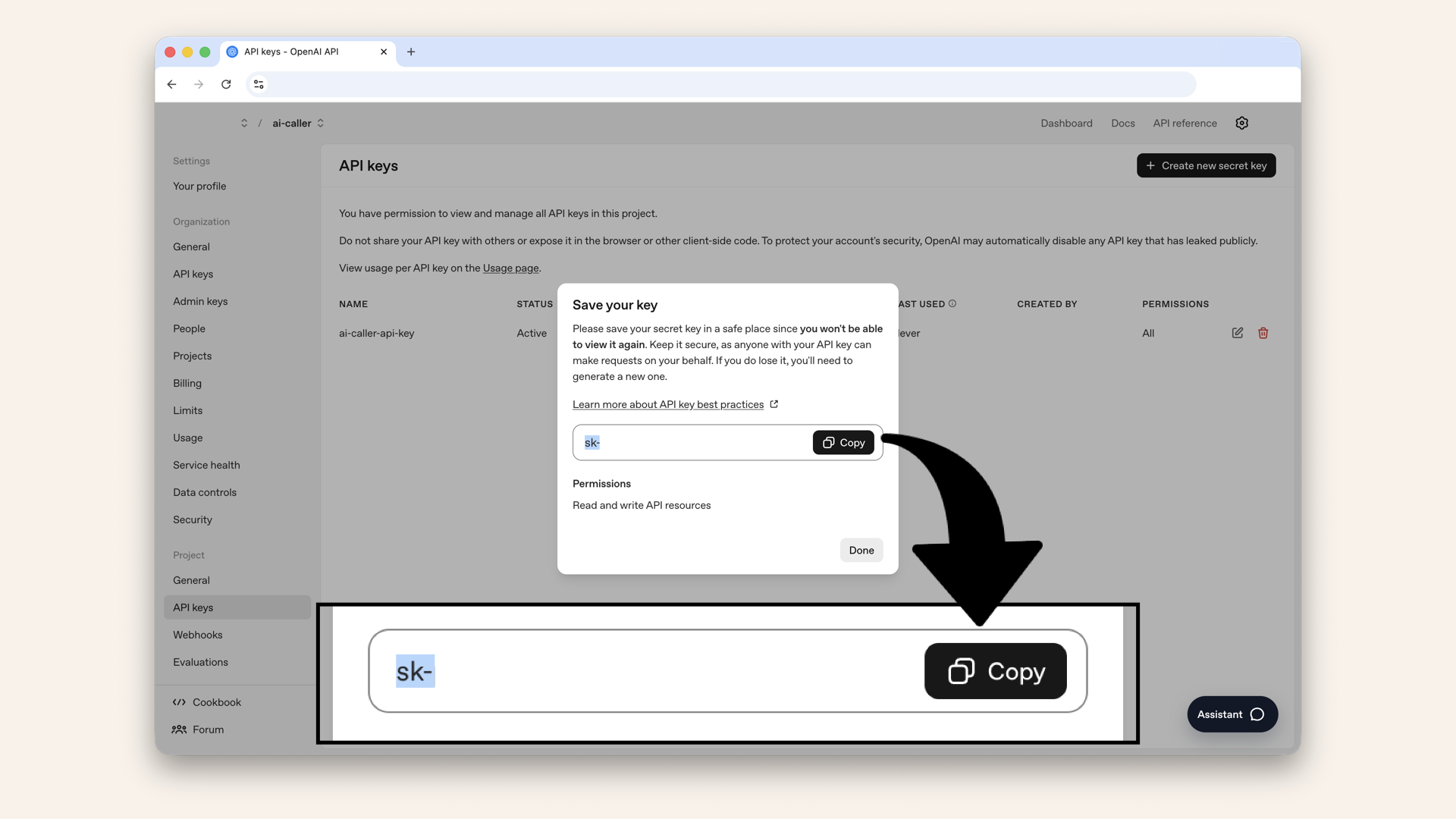
Copy and save the secret key somewhere safe, you'll only see it once
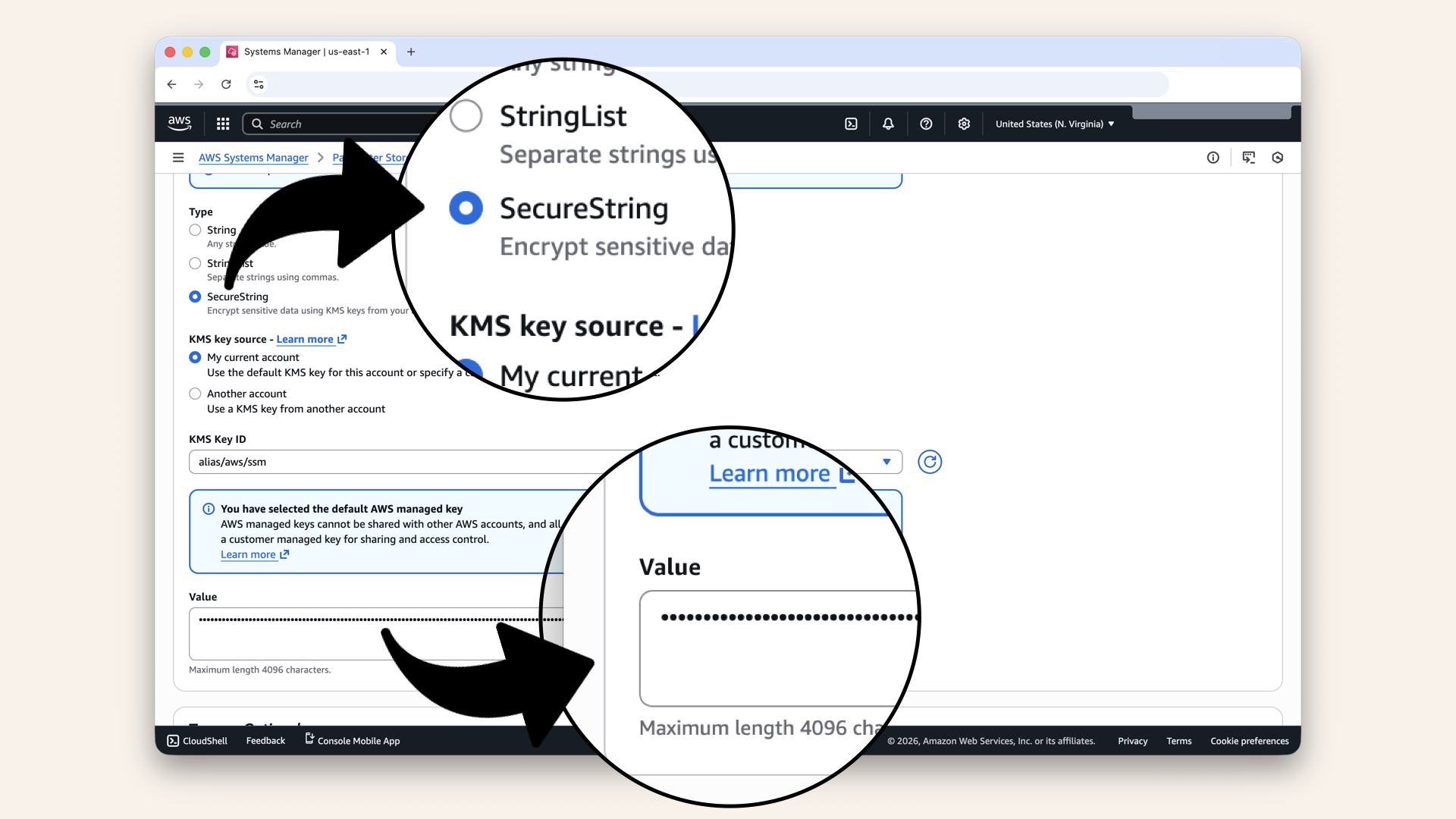
Select SecureString and add your OpenAI API as Value
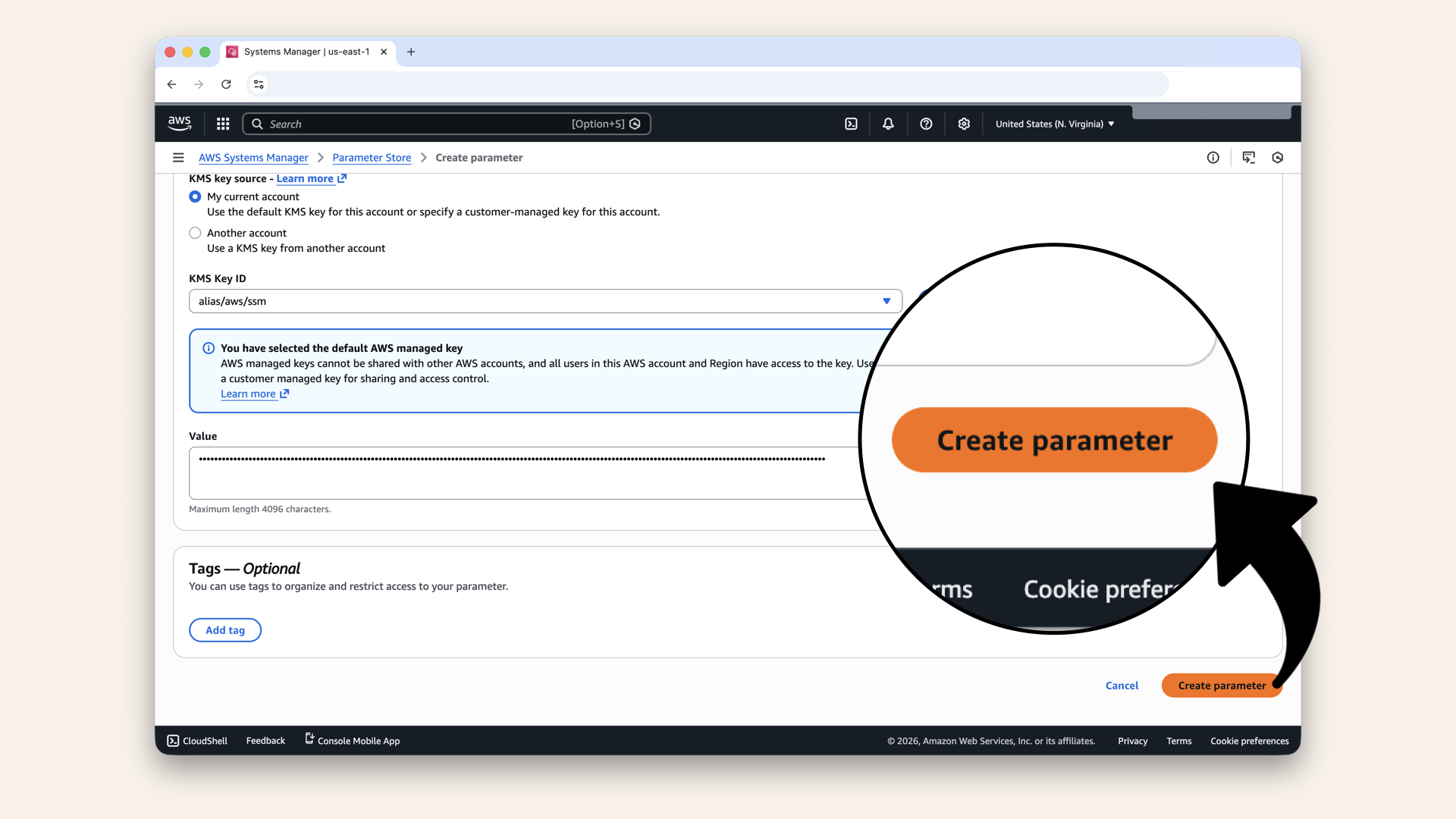
Scroll all the way down and click Create parameter
✅ You should see: "Create parameter request succeeded":
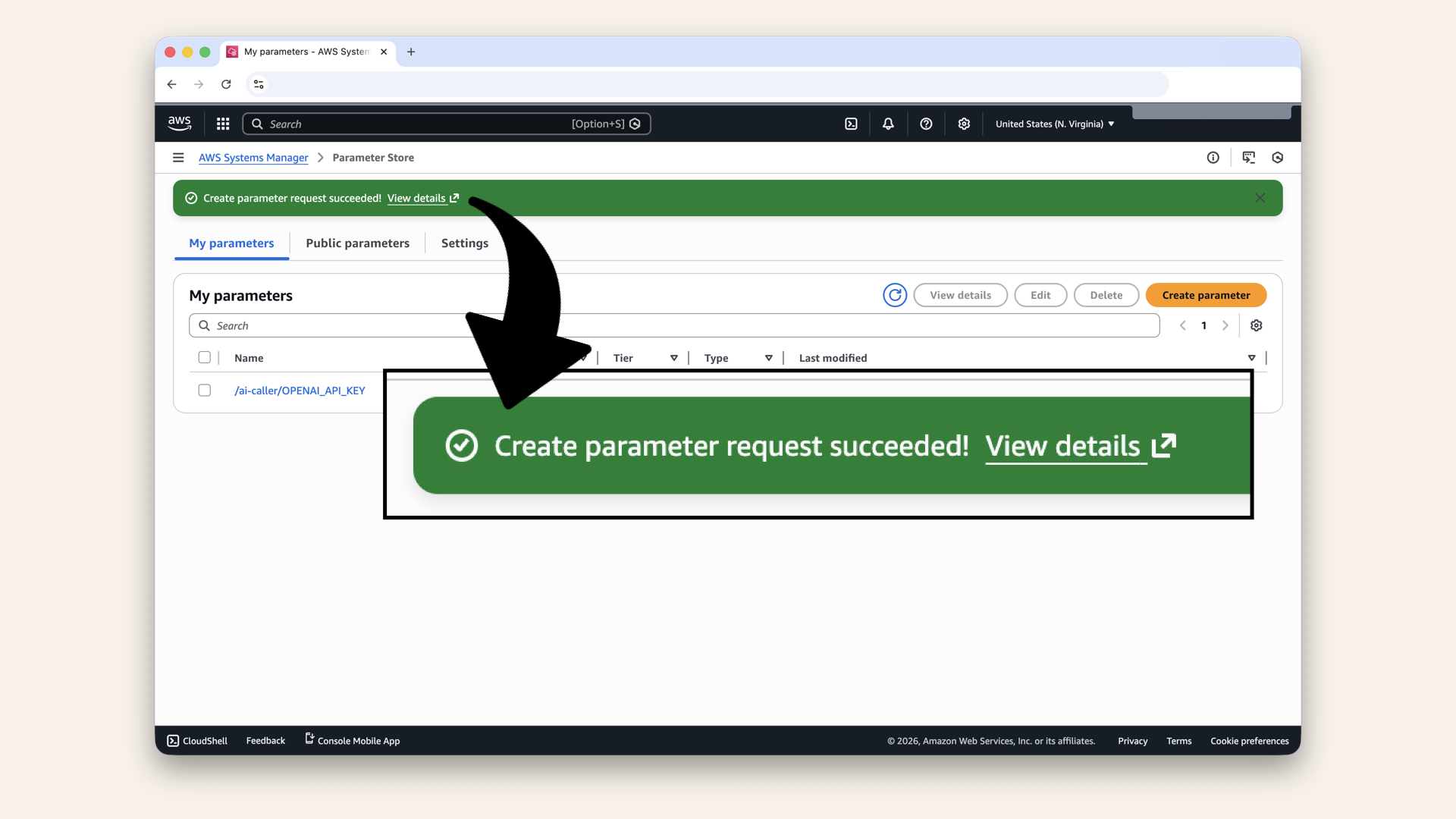
You should see: "Create parameter request succeeded"
Step 6.2: Create the remaining parameters
Repeat the same process for each Twilio secret:
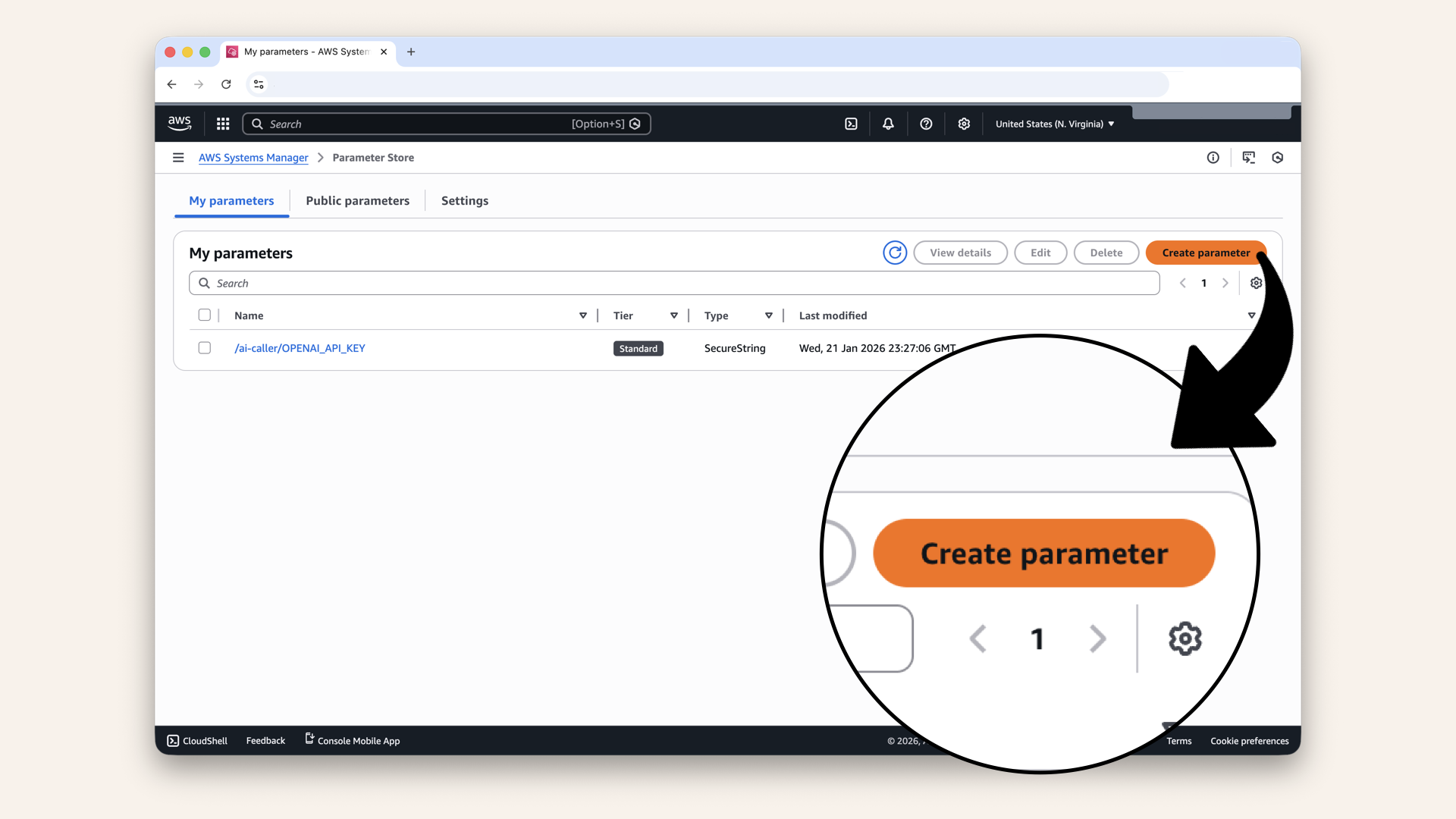
Repeat the same process for each Twilio secret
Add Twilio account SID:
| Setting | Value |
|---|---|
| Name | |
| Description | |
| Type | SecureString |
| Value | YOUR_TWILIO_ACCOUNT_SID |
Add Twilio auth token:
| Setting | Value |
|---|---|
| Name | |
| Description | |
| Type | SecureString |
| Value | YOUR_TWILIO_AUTH_TOKEN |
Add Twilio phone number:
| Setting | Value |
|---|---|
| Name | |
| Description | |
| Type | SecureString |
| Value | YOUR_TWILIO_PHONE_NUMBER |
Even though Account SID isn't technically secret, using SecureString for all parameters keeps things consistent and adds an extra layer of protection.
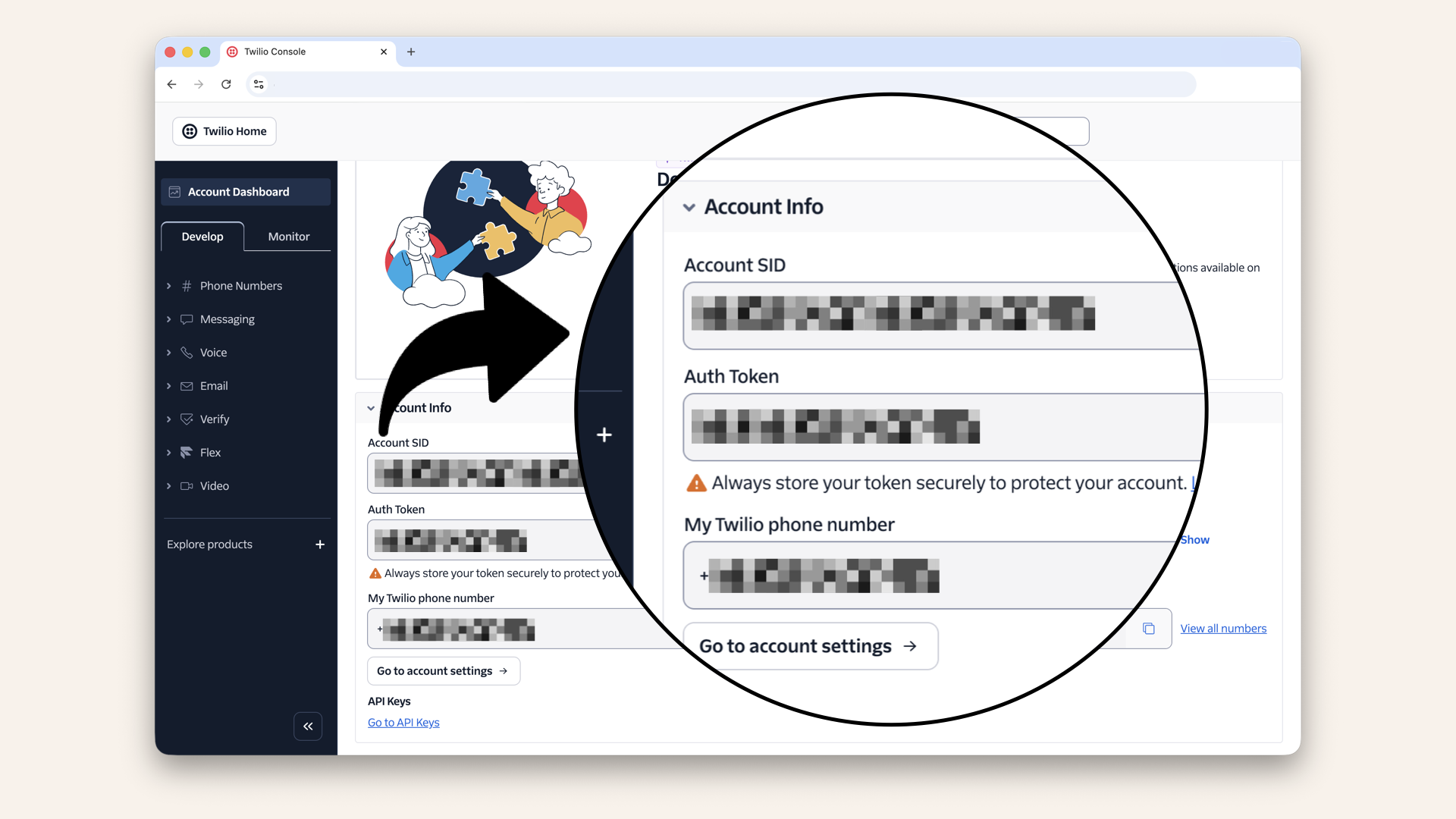
Scroll down to Account Info and copy the SID, token and phone number
Step 6.3: Verify your parameters
✅ You should see all four parameters:
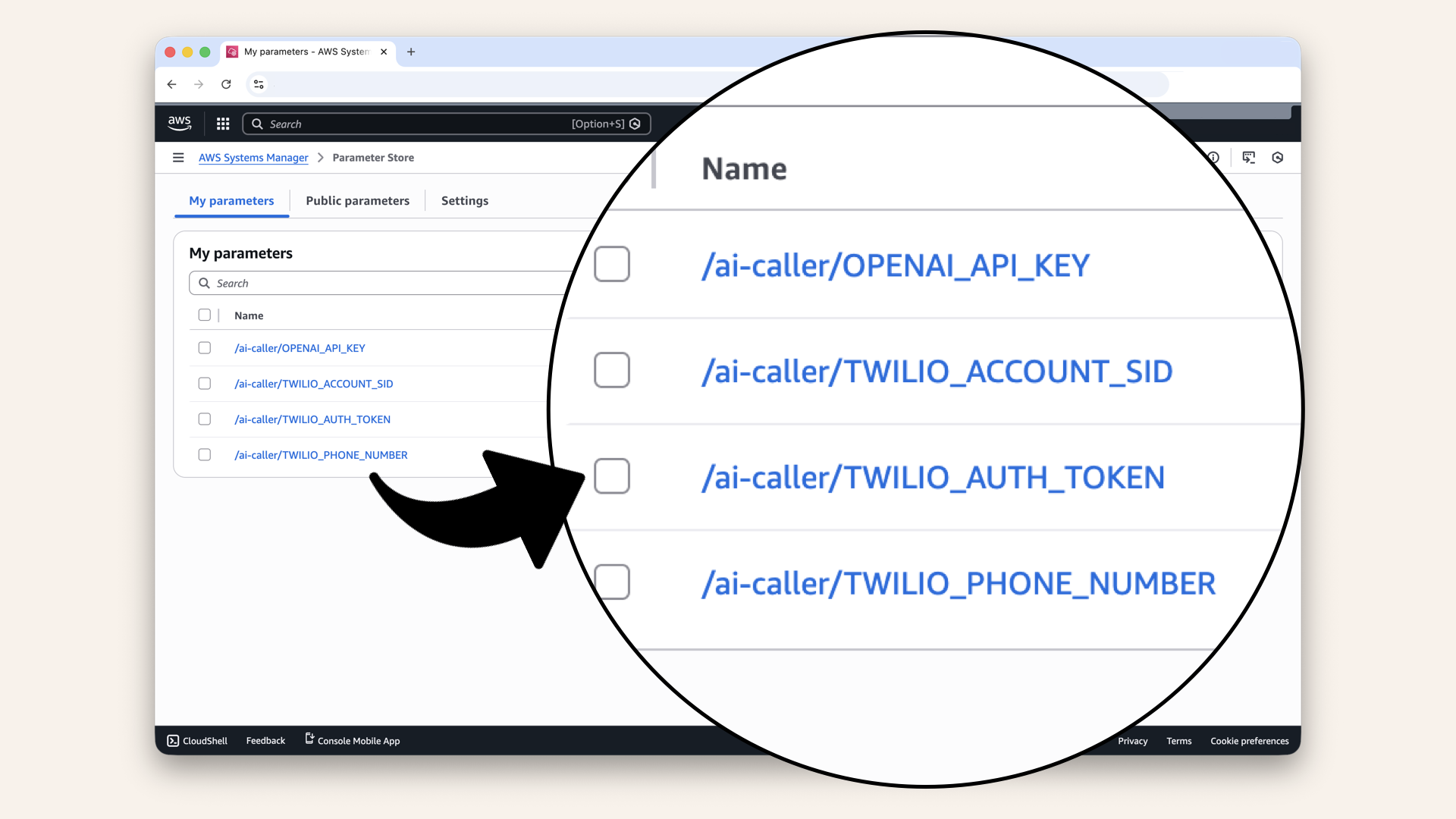
You should see all four parameters
/ai-caller/ prefix?Organizing parameters with a prefix (like a folder) makes it easy to:
- Grant permissions to all related parameters at once
- Find and manage them later
- Avoid naming conflicts with other projects
Step 7: Create ECS Cluster
Step 7.1: Prepare ECS service role
Before we create our first ECS cluster, we need to ensure AWS has the right permissions to manage ECS resources on our behalf.
Run this is your terminal:aws iam create-service-linked-role --aws-service-name \
ecs.amazonaws.com --profile ai-caller-cli
✅ You should see the created role in the response:
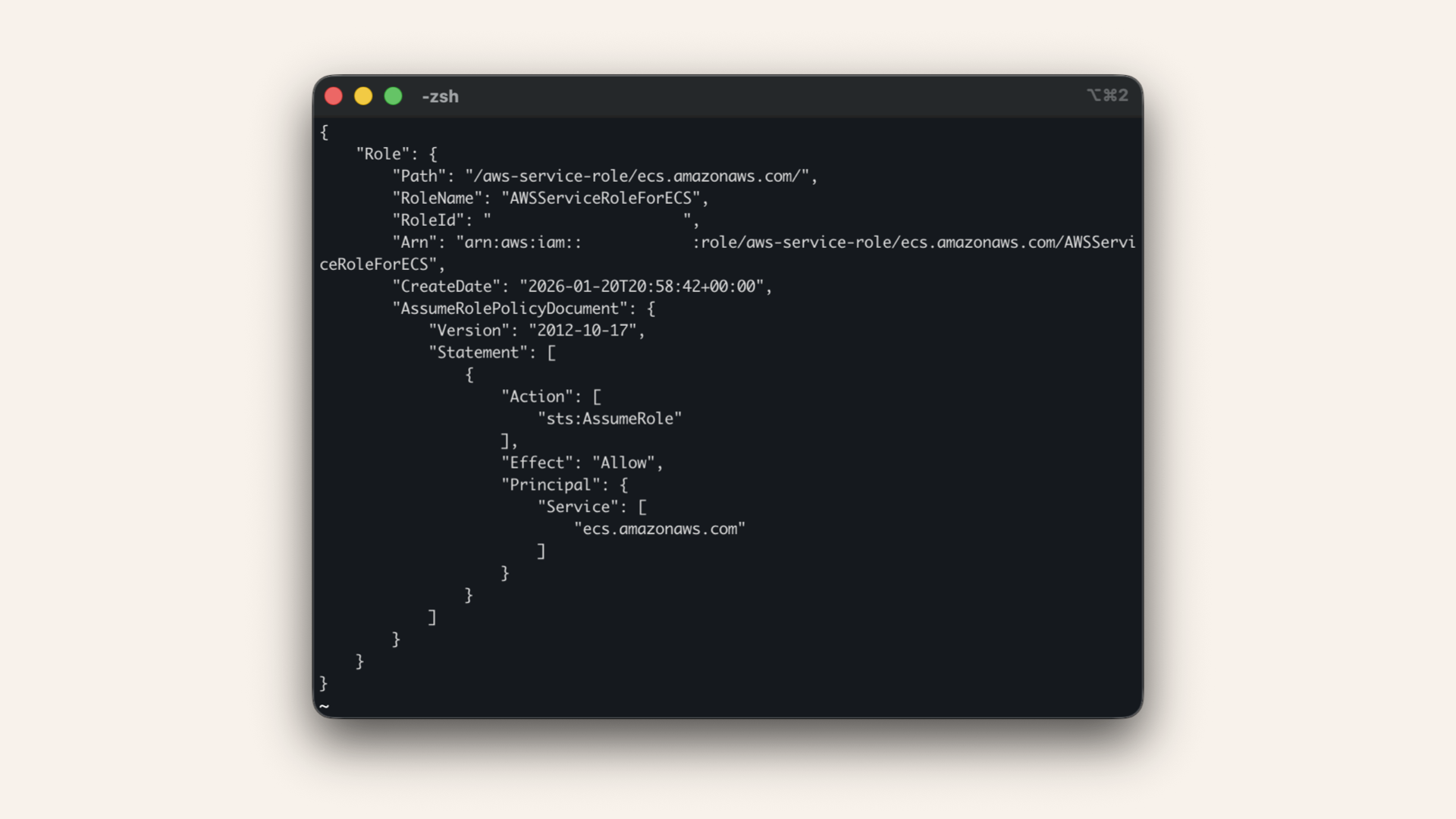
You should see the created role in the response
If you see "Role already exists", that's perfect, you're ready to continue.
Deep dive
ECS needs a service-lined role to perform actions on your behalf. Things like pulling images from ECR, attaching network interfaces and managing
Think of it like giving ECS a staff badge for your AWS account. Without this badge, ECS can't access the resources it need to run your containers.
For most AWS services, this role gets created automatically the first time you use the service. But ECS sometimes hits a timing issue where the console tried to create the cluster before the role is ready.
Running the command manually ensures the role exists before we need it.
Step 7.2: Create ECS cluster
Open the AWS Console ↗ In the AWS Console search bar at the top, type ecs and click Elastic Container Service from the dropdown menu: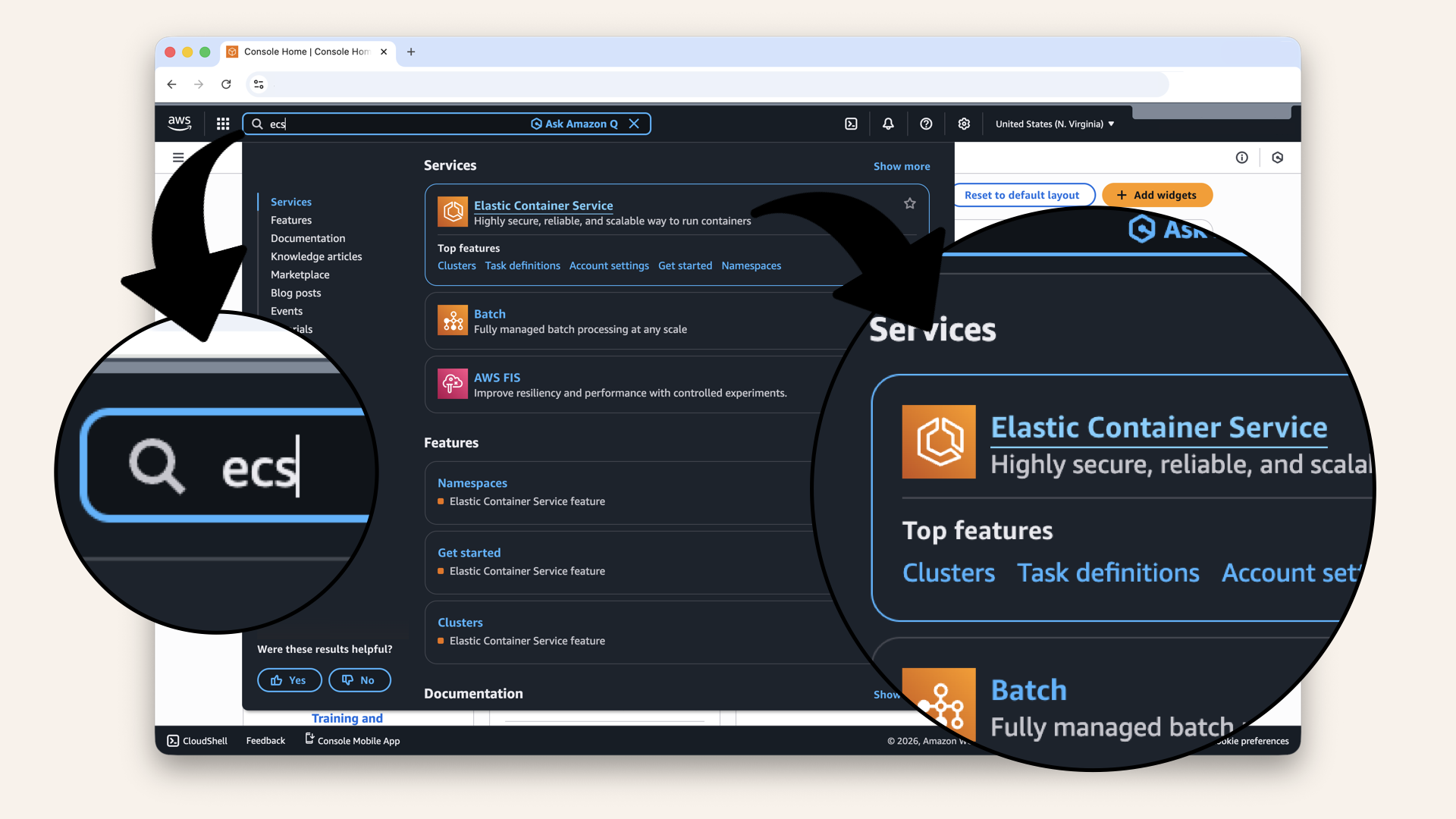
In the AWS Console search bar at the top, type ecs and click Elastic Container Service from the dropdown menu
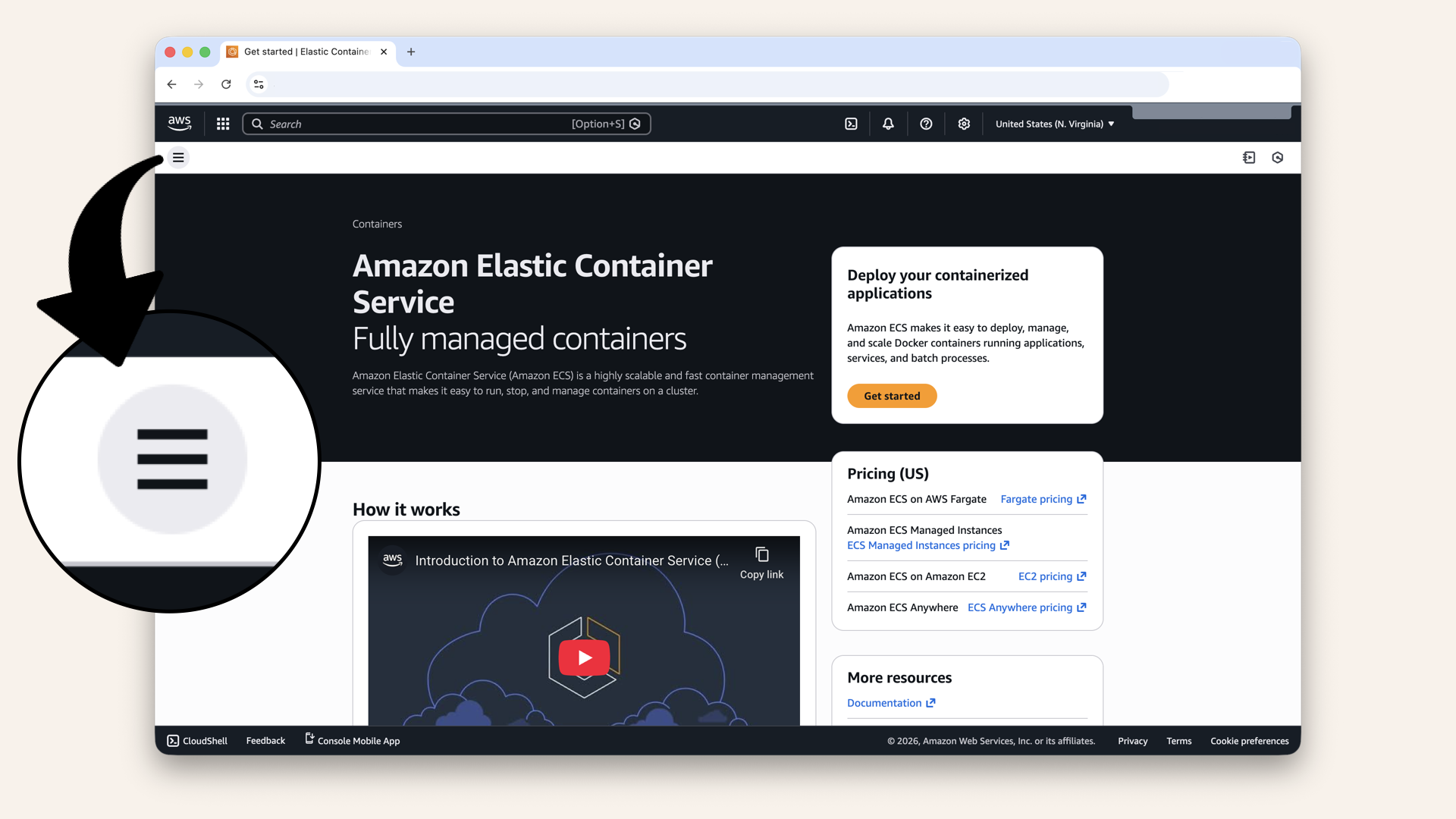
Click the left navigation menu
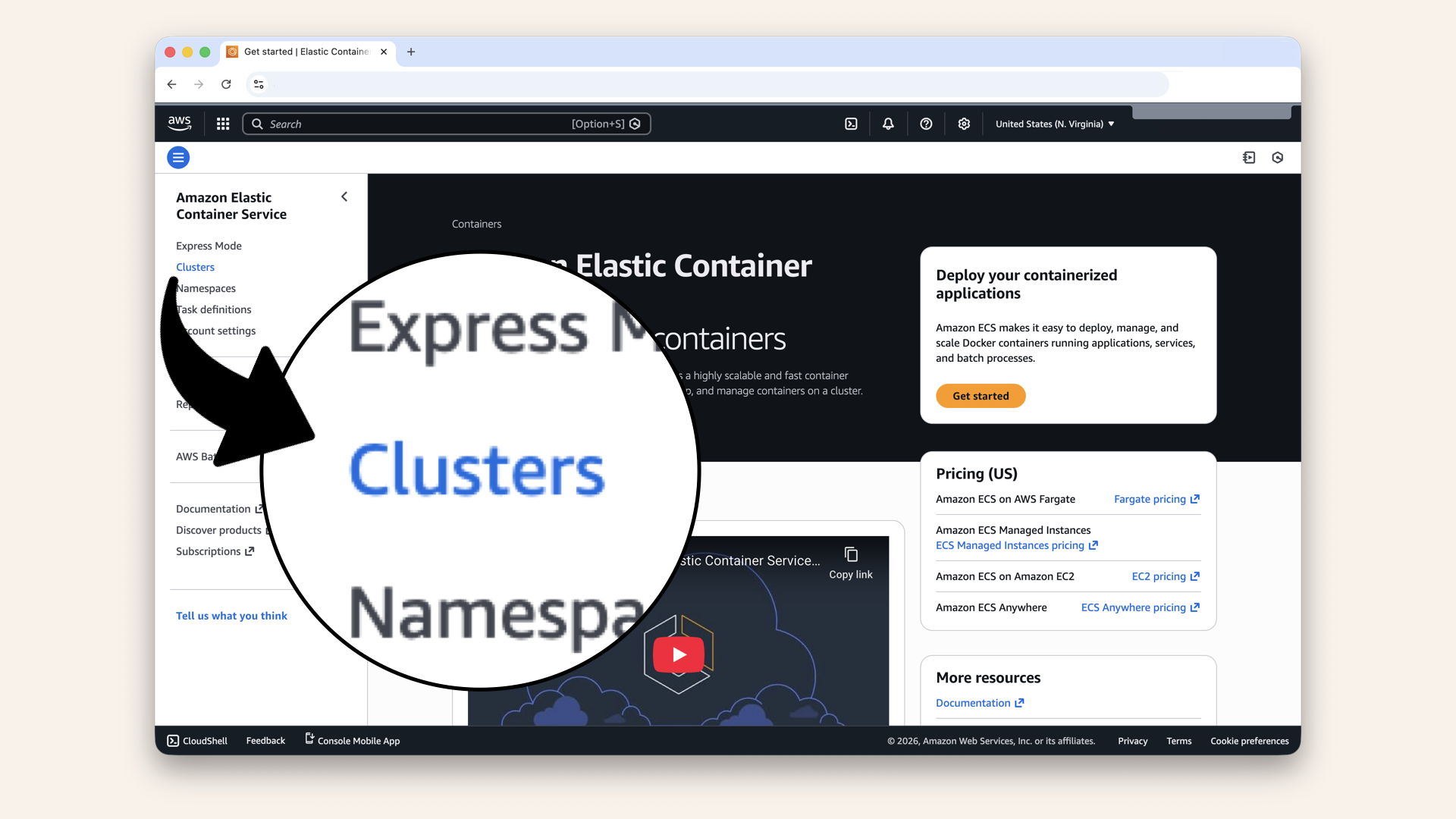
Click Clusters in the left sidebar
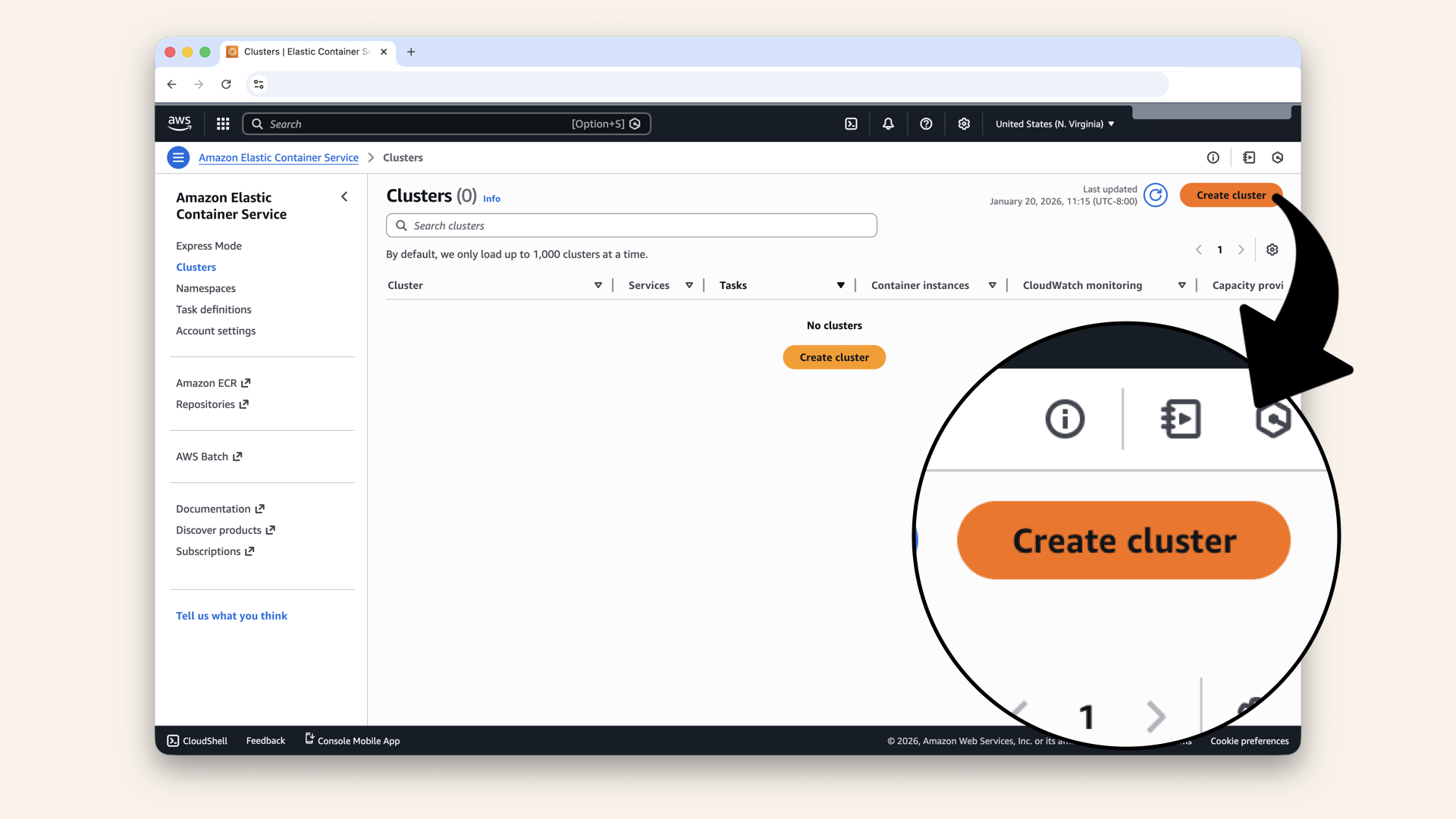
Click Create cluster
Configure the cluster:
| Setting | Value |
|---|---|
| Cluster name | |
| Infrastructure | ✅ Fargate only |
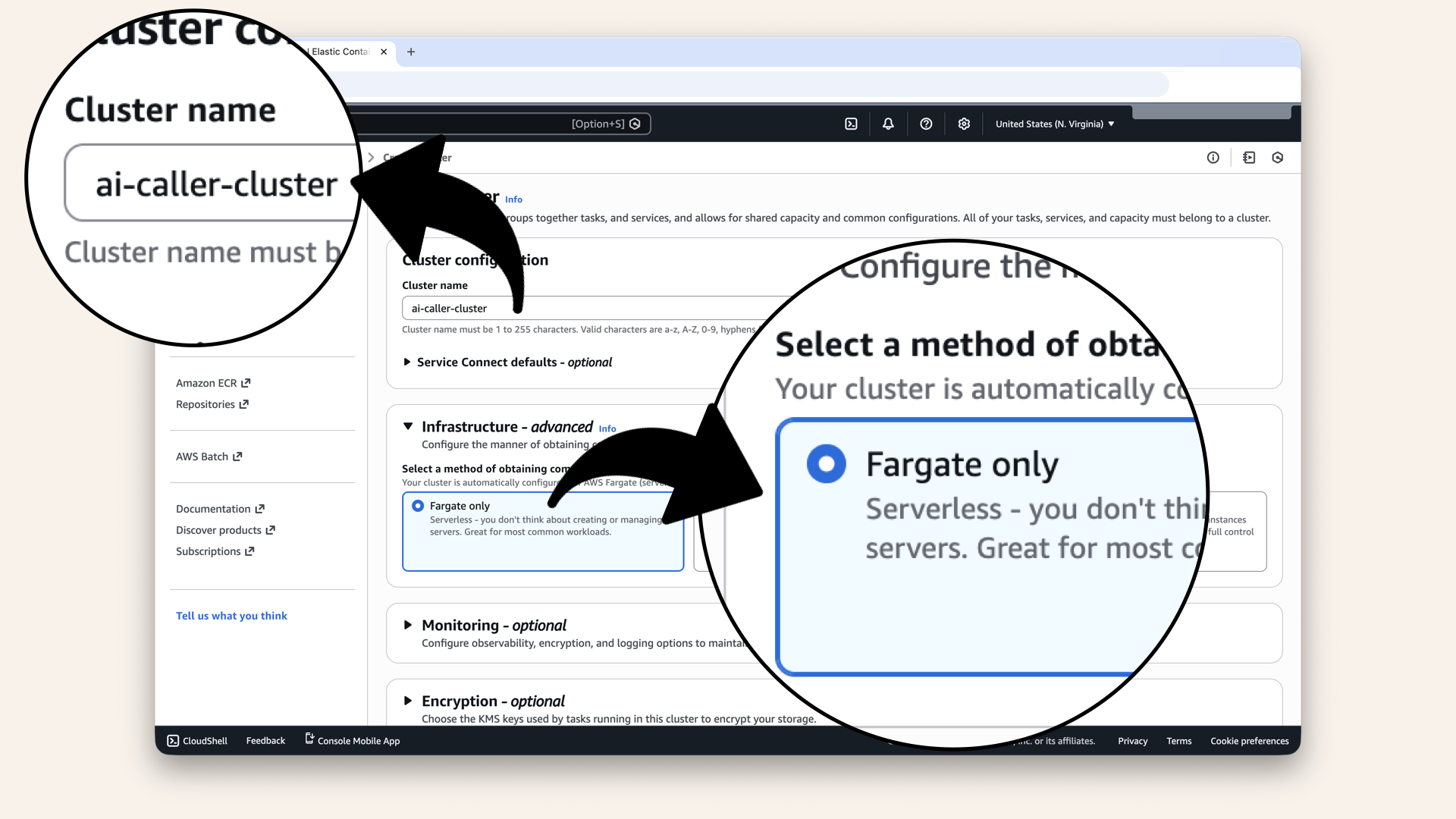
Name it ai-caller-cluster and select Fargate only
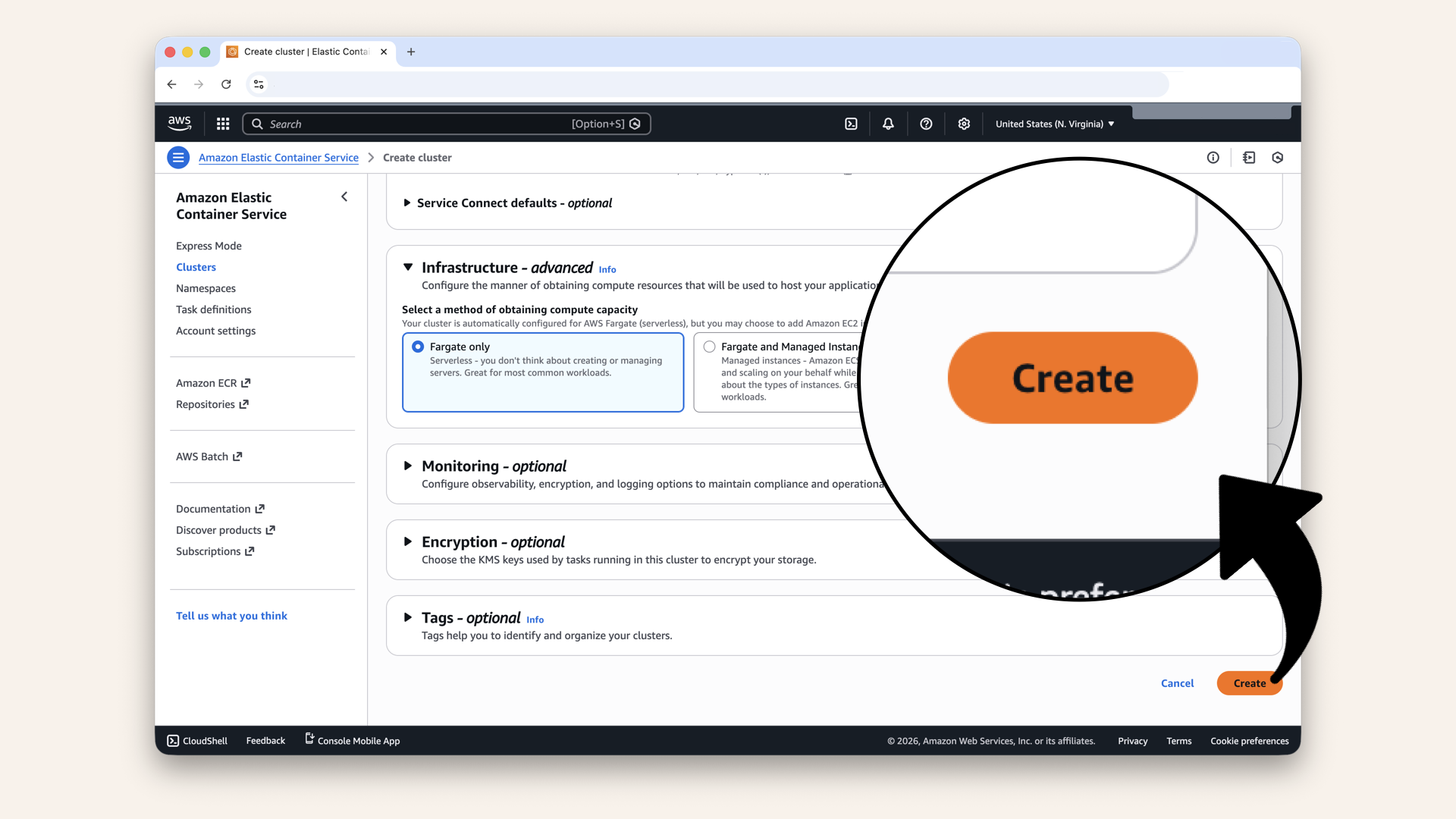
Scroll all the way down and click Create
✅ You should see "Cluster has been successfully created":
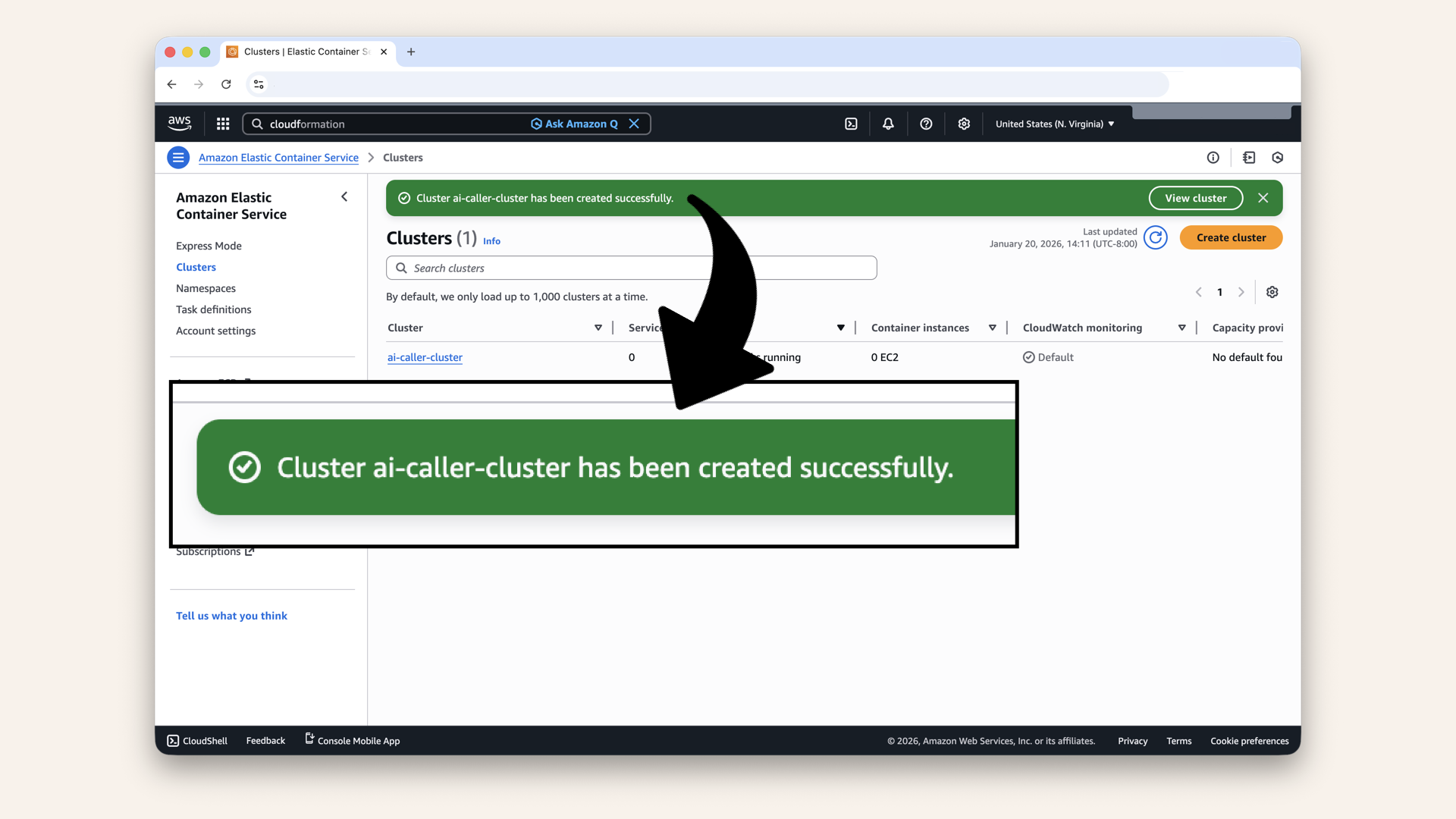
You should see "Cluster has been successfully created"
Step 8: Create task execution role
Before creating the Task Definition, we need an IAM role that allows ECS to pull images from ECR and read parameters from Parameter Store.
Open the AWS Console ↗ In the search bar at the top, type iam and click IAM:
In the search bar at the top, type iam and click IAM
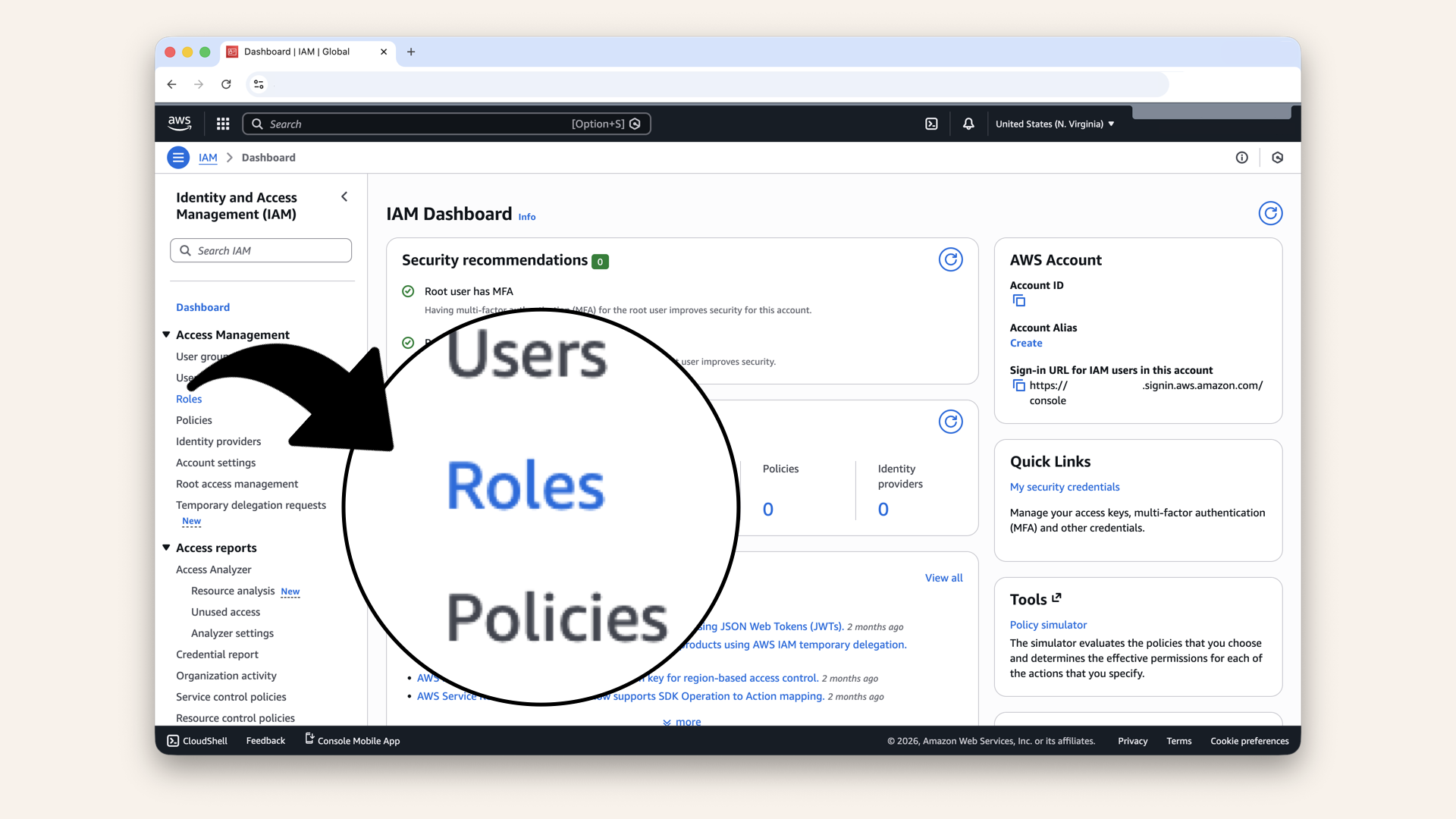
Click Roles in the left sidebar
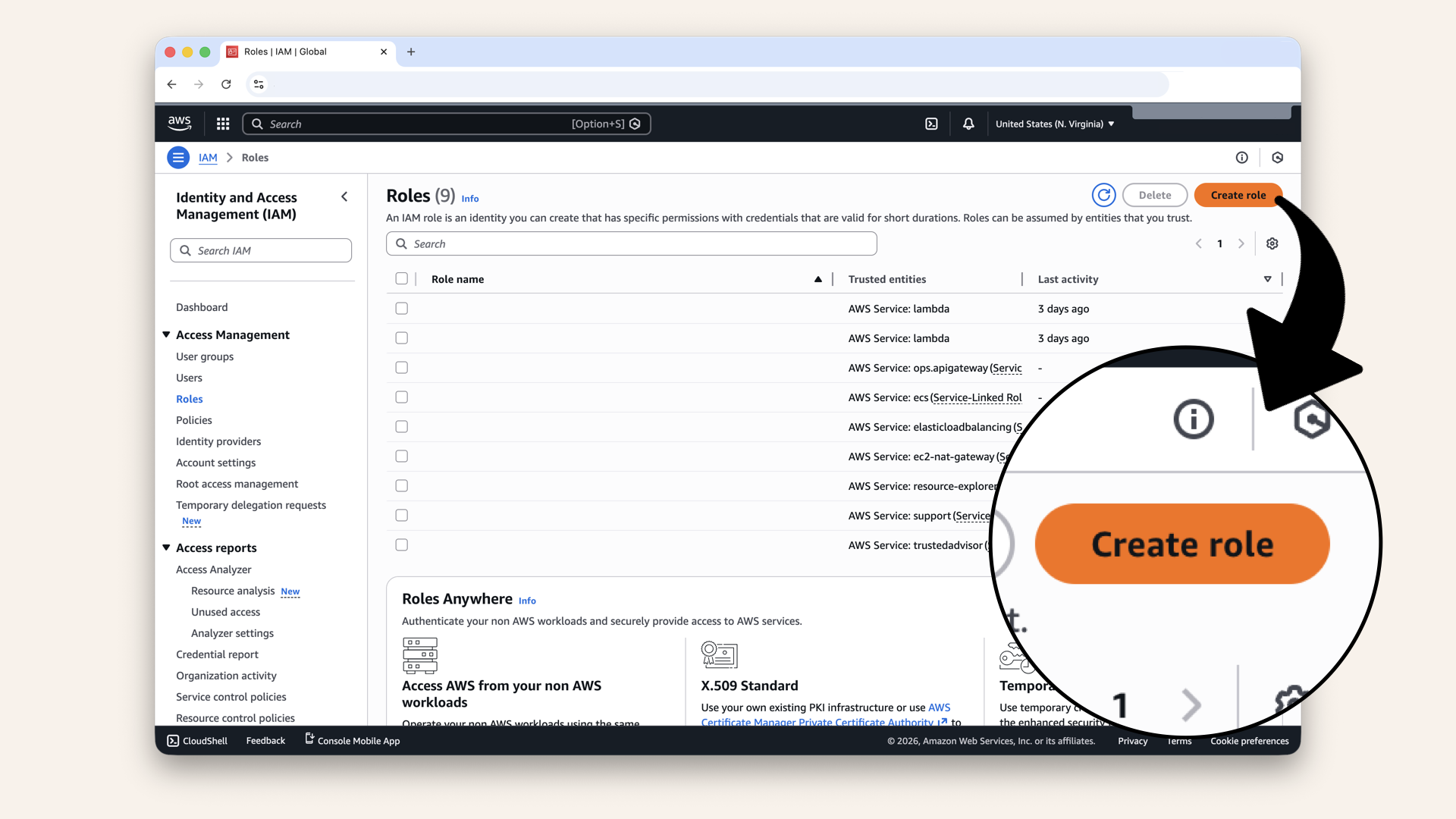
Click Create role
Step 8.1: Configure the role
Select AWS service as trusted entity type: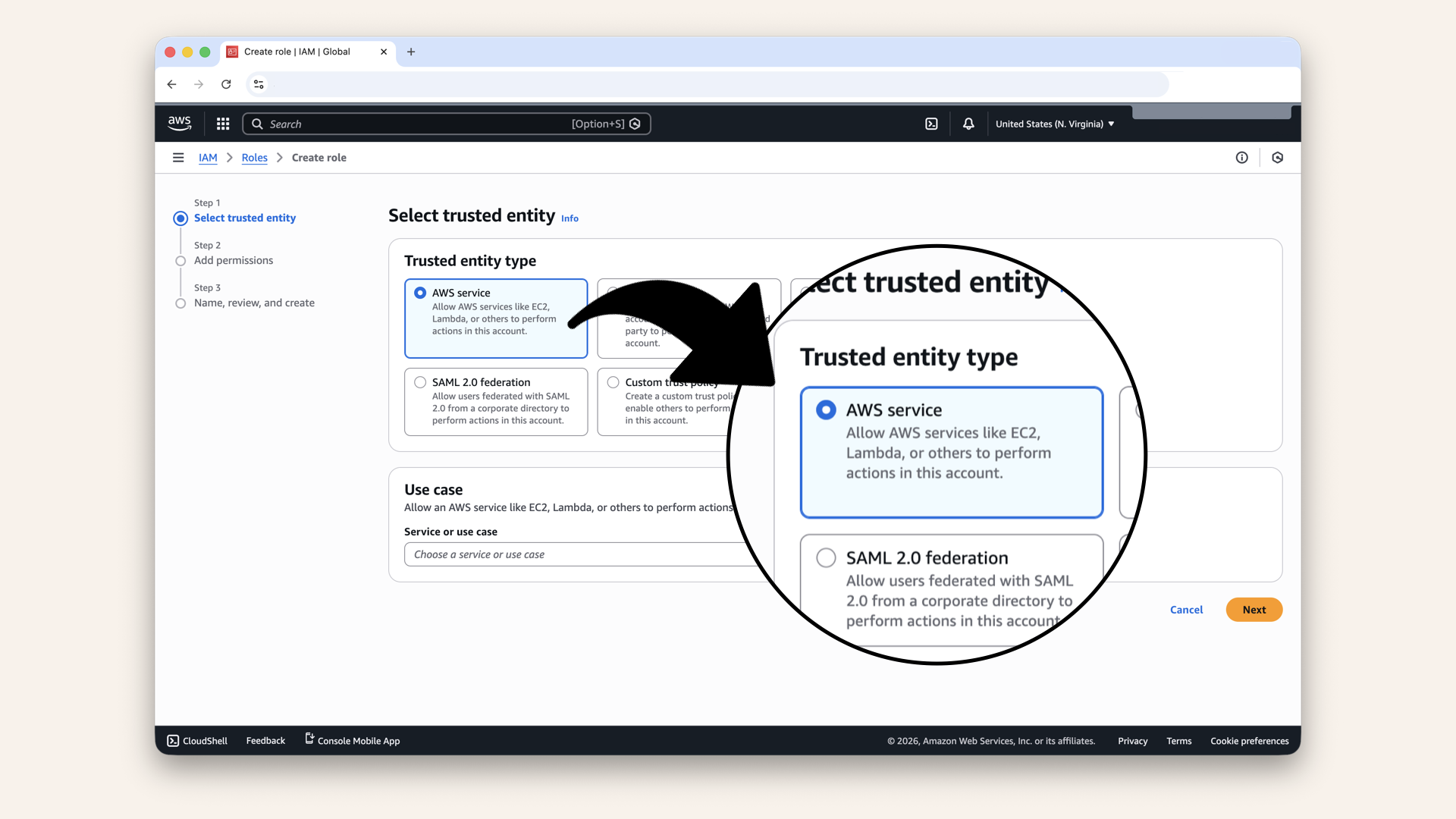
Select AWS service as trusted entity type
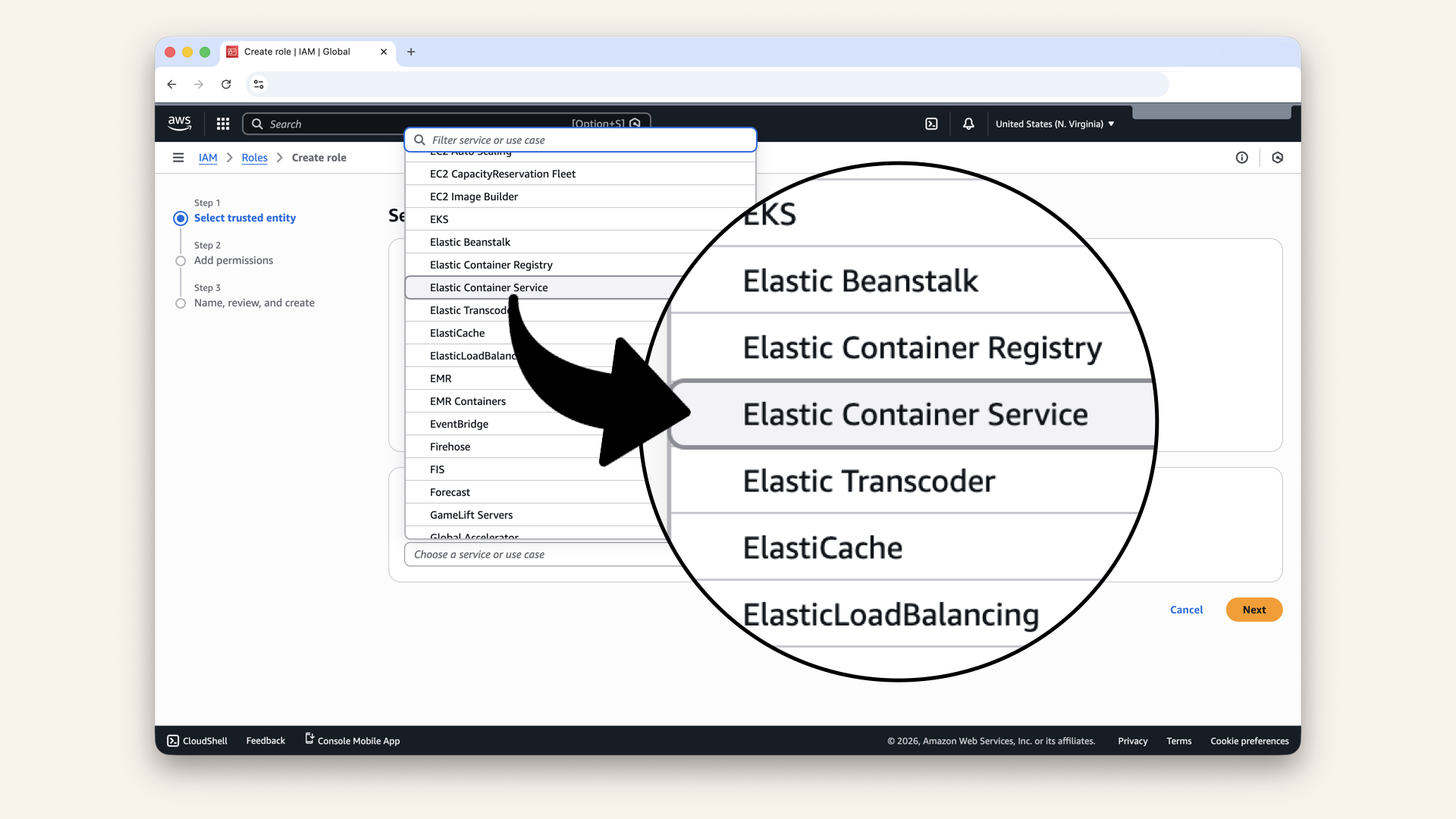
Select Elastic Container Service from the dropdown
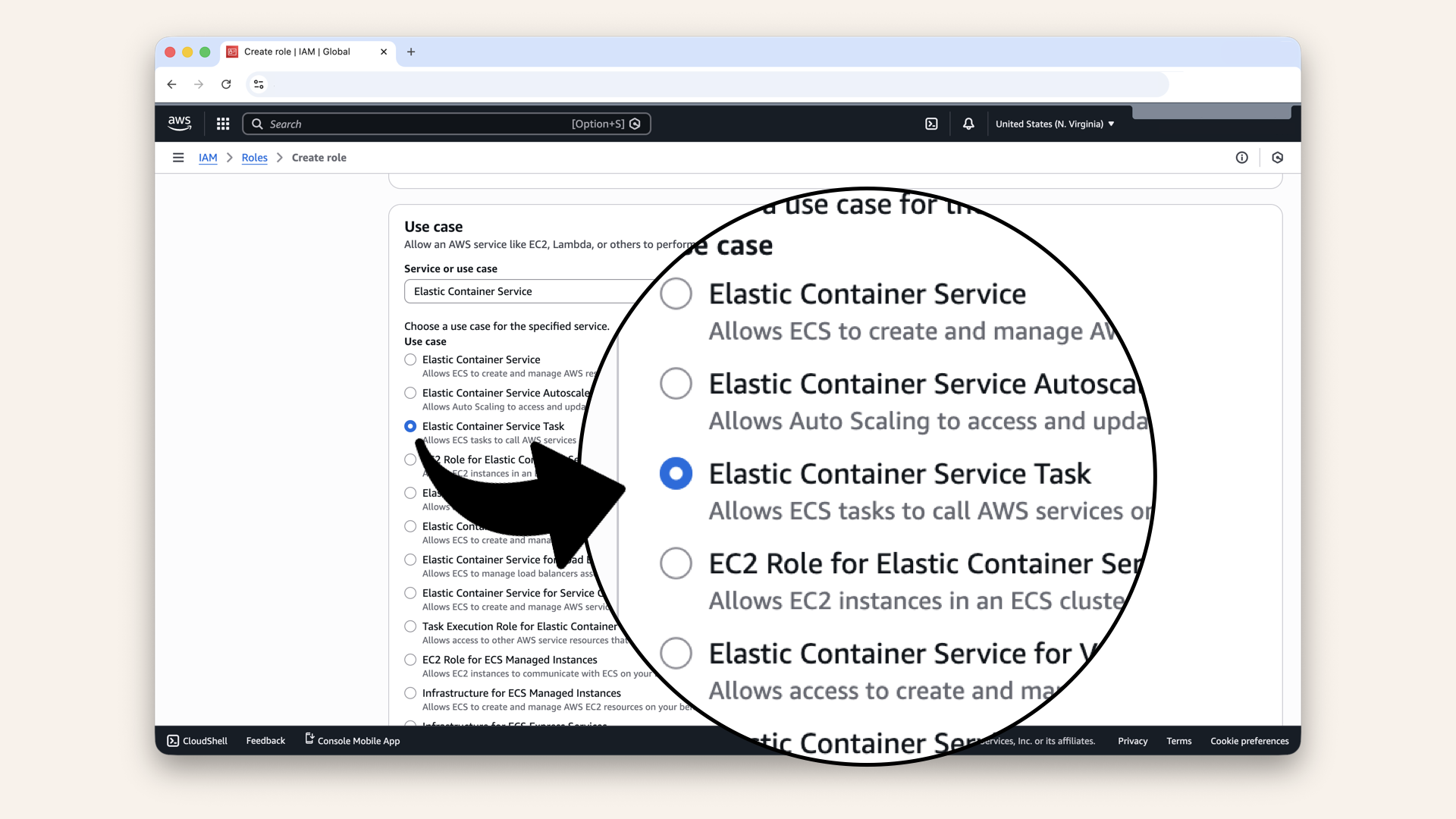
Select Elastic Container Service Task as the use case
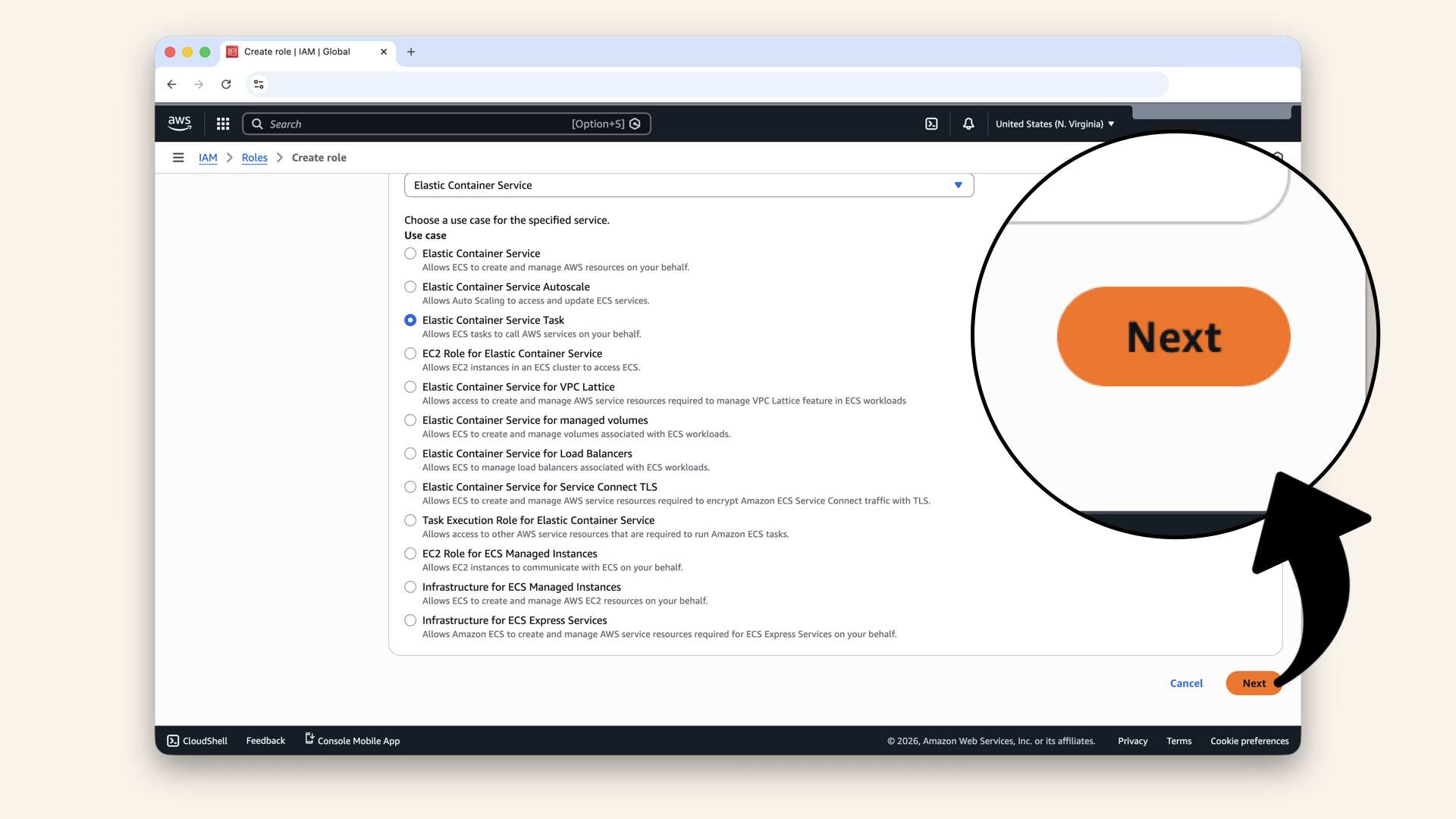
Scroll down and click Next
Step 8.2: Attach policies
Search for and select these policies:| Policy | Purpose |
|---|---|
| Basic ECS task execution (pull images, write logs) | |
| Read parameters from Parameter Store |
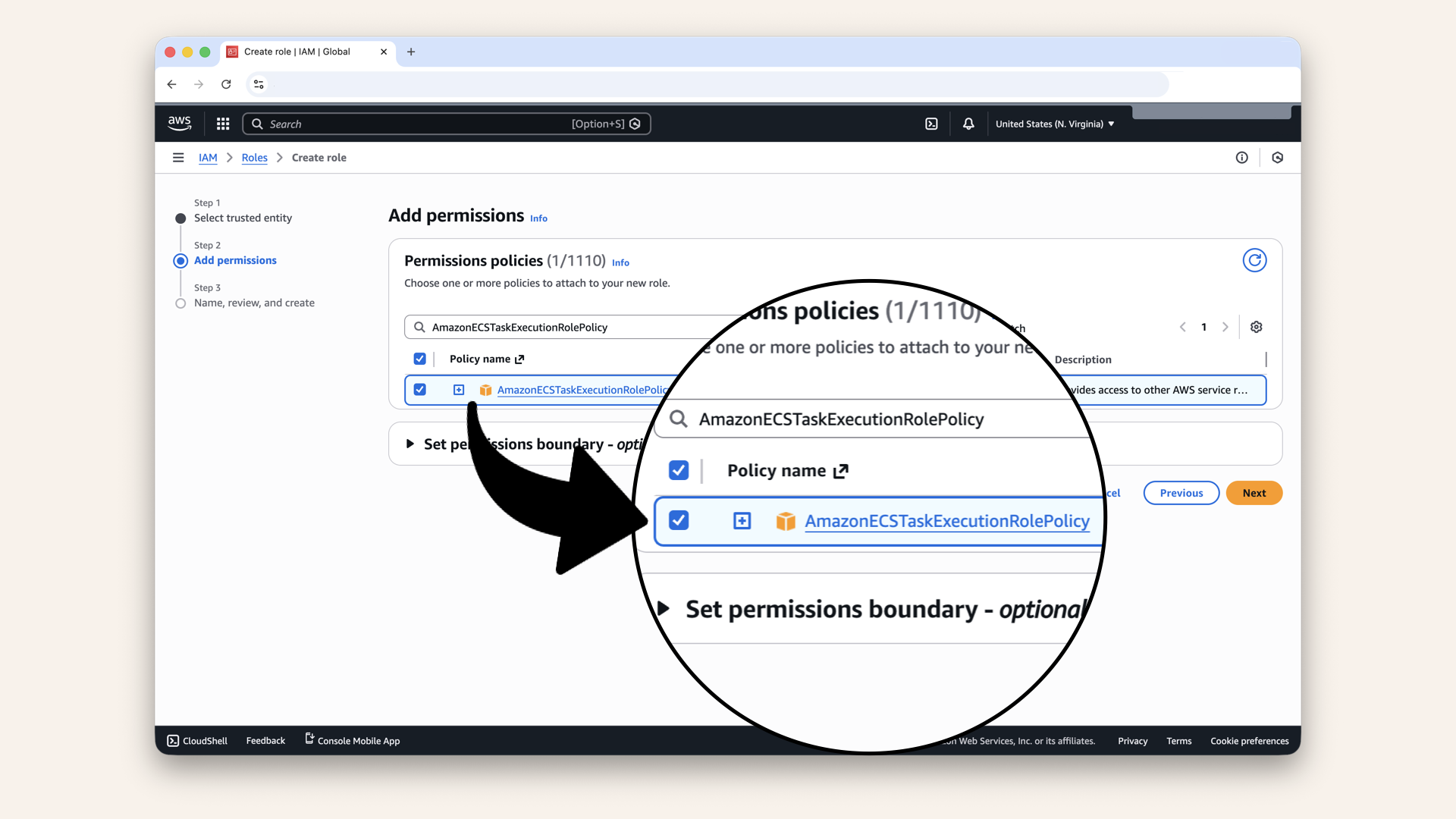
Search for and select these policies
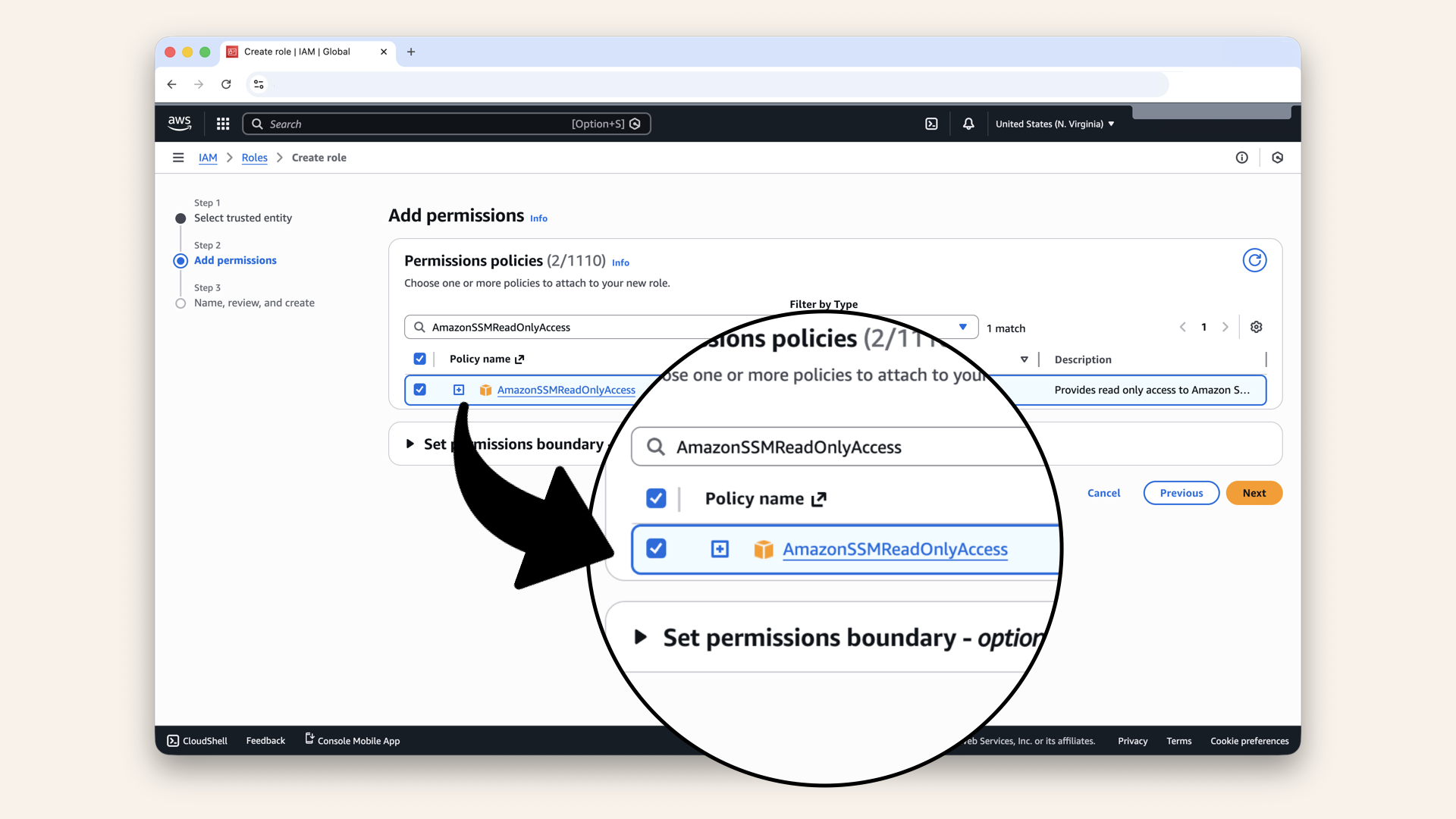
Search for and select these policies
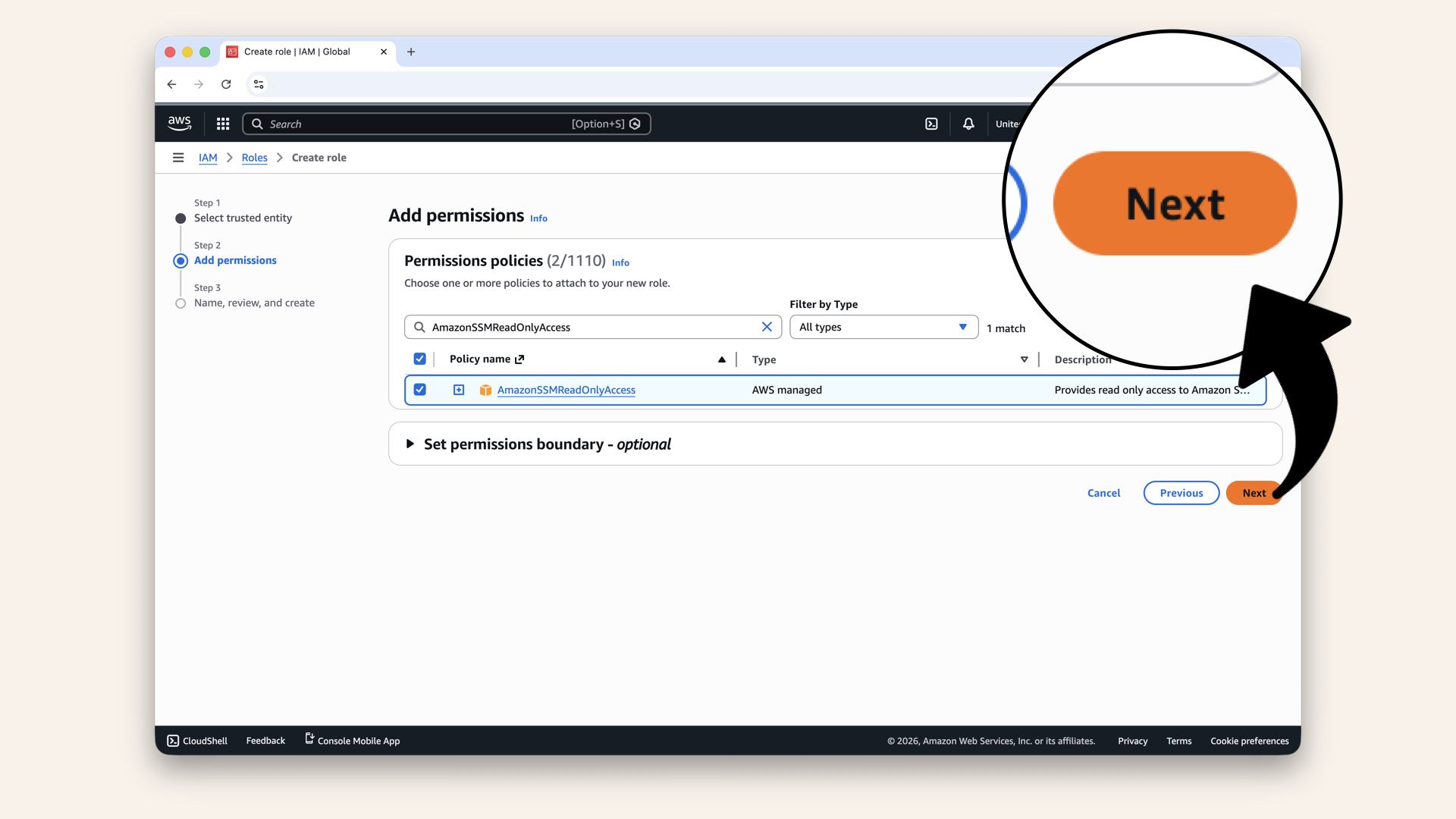
Click Next
Name the role:
| Setting | Value |
|---|---|
| Role name |
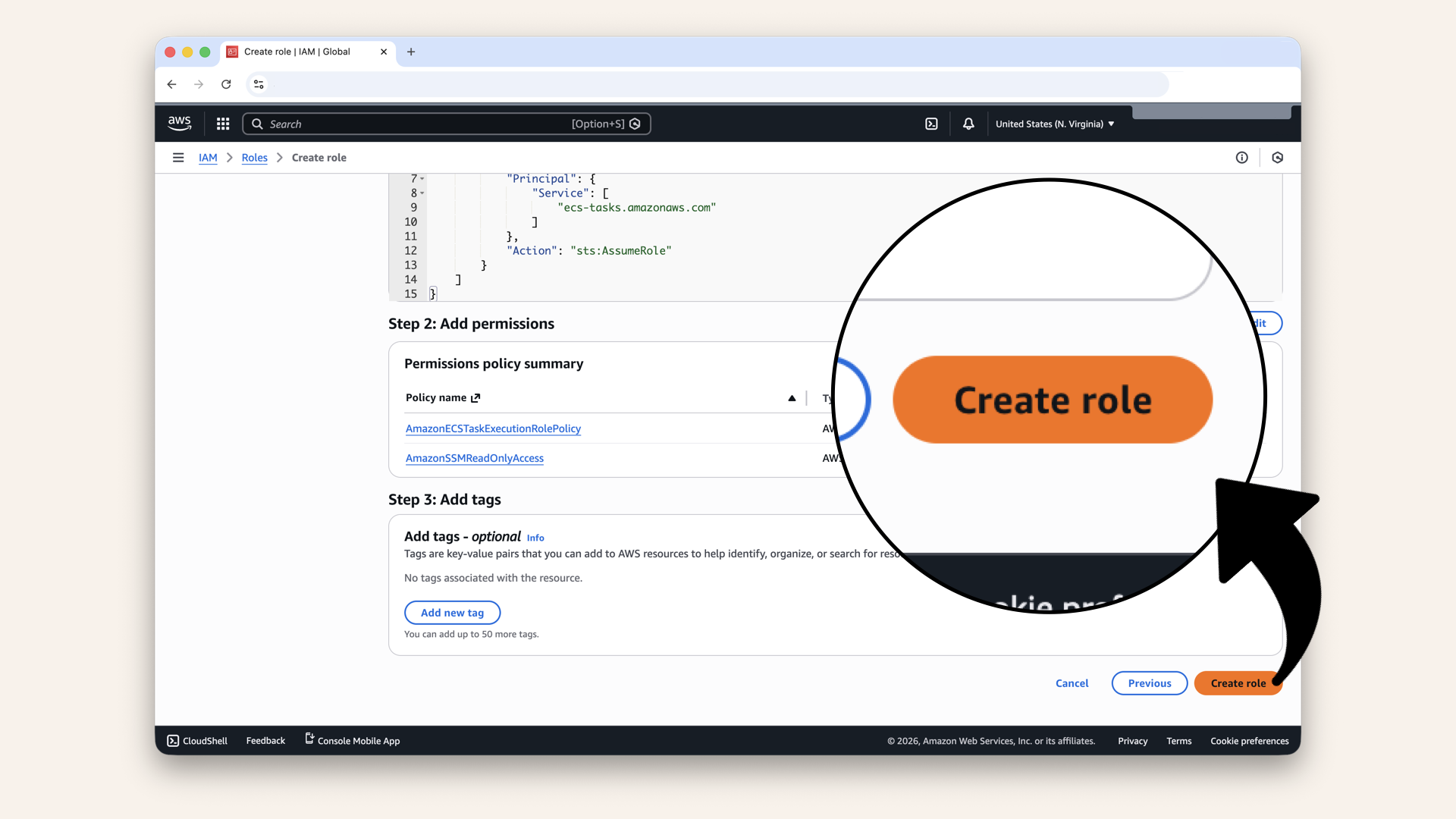
Click Create role
✅ You should see "Role created":
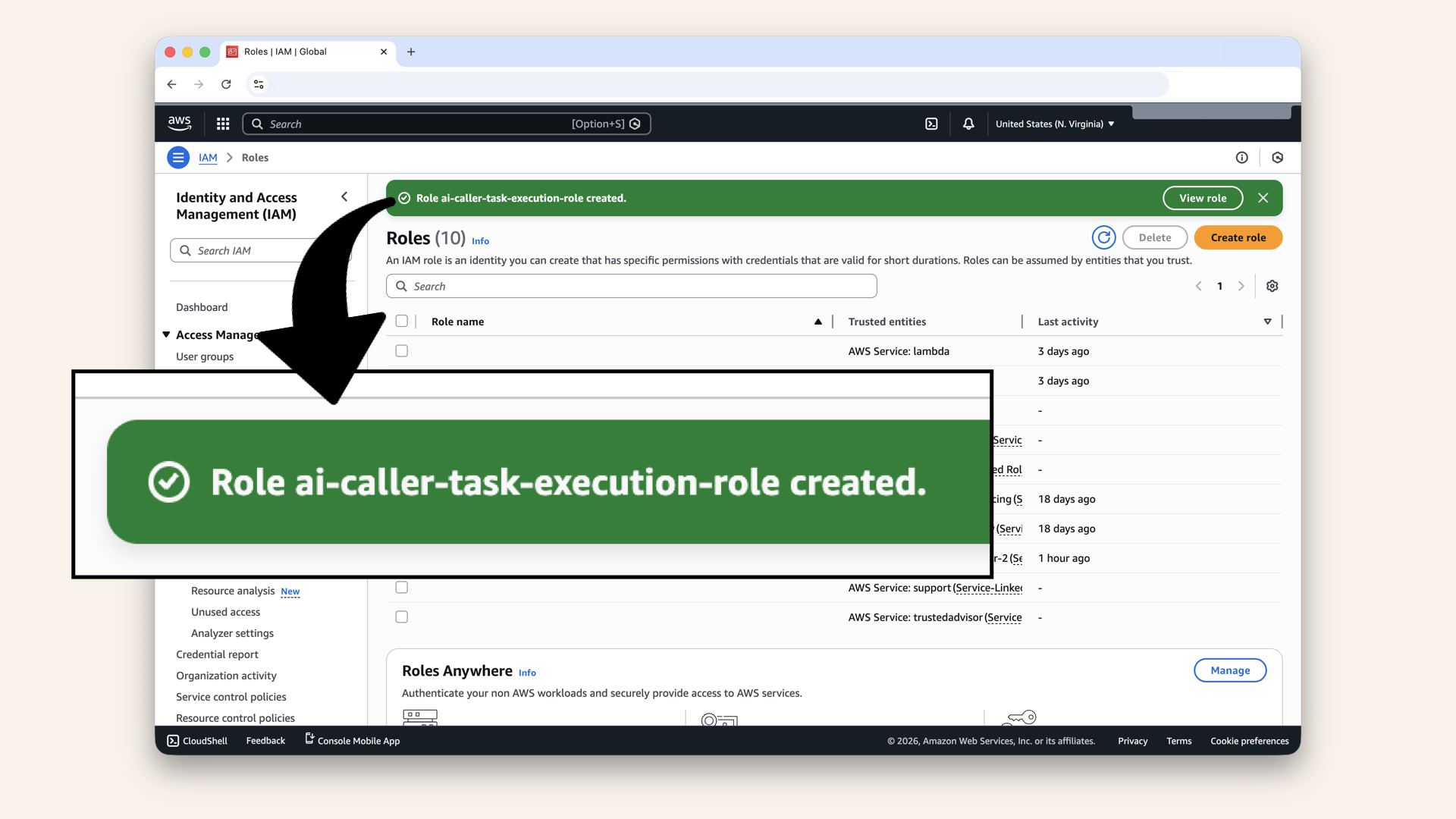
You should see "Role created"
Step 9: Create task definition
A Task Definition is like a blueprint for how to run your container.
Open the AWS Console ↗ In the AWS Console search bar at the top, type ecs and click Elastic Container Service from the dropdown menu:
In the AWS Console search bar at the top, type ecs and click Elastic Container Service from the dropdown menu
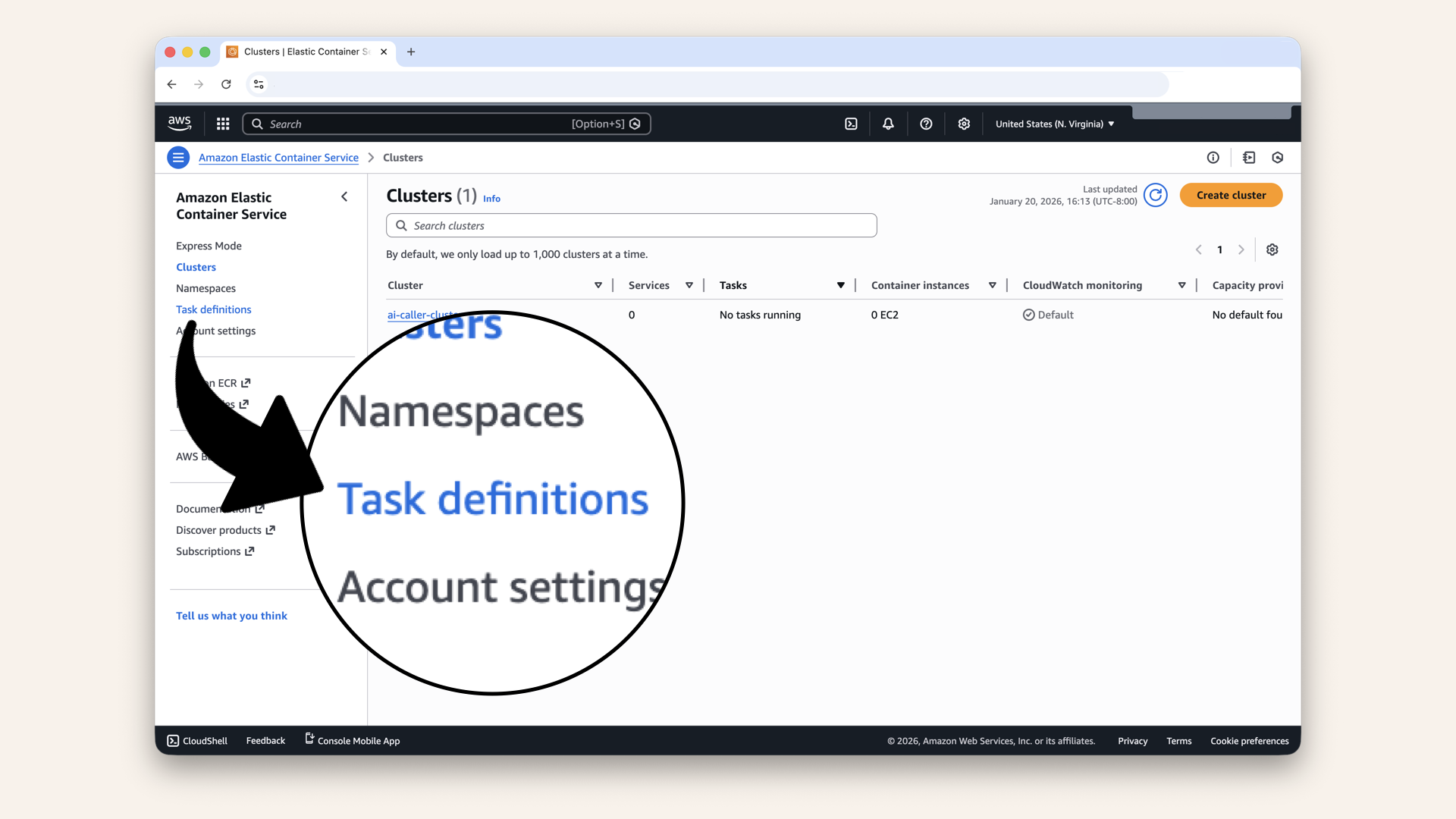
Click Task definitions in the left sidebar
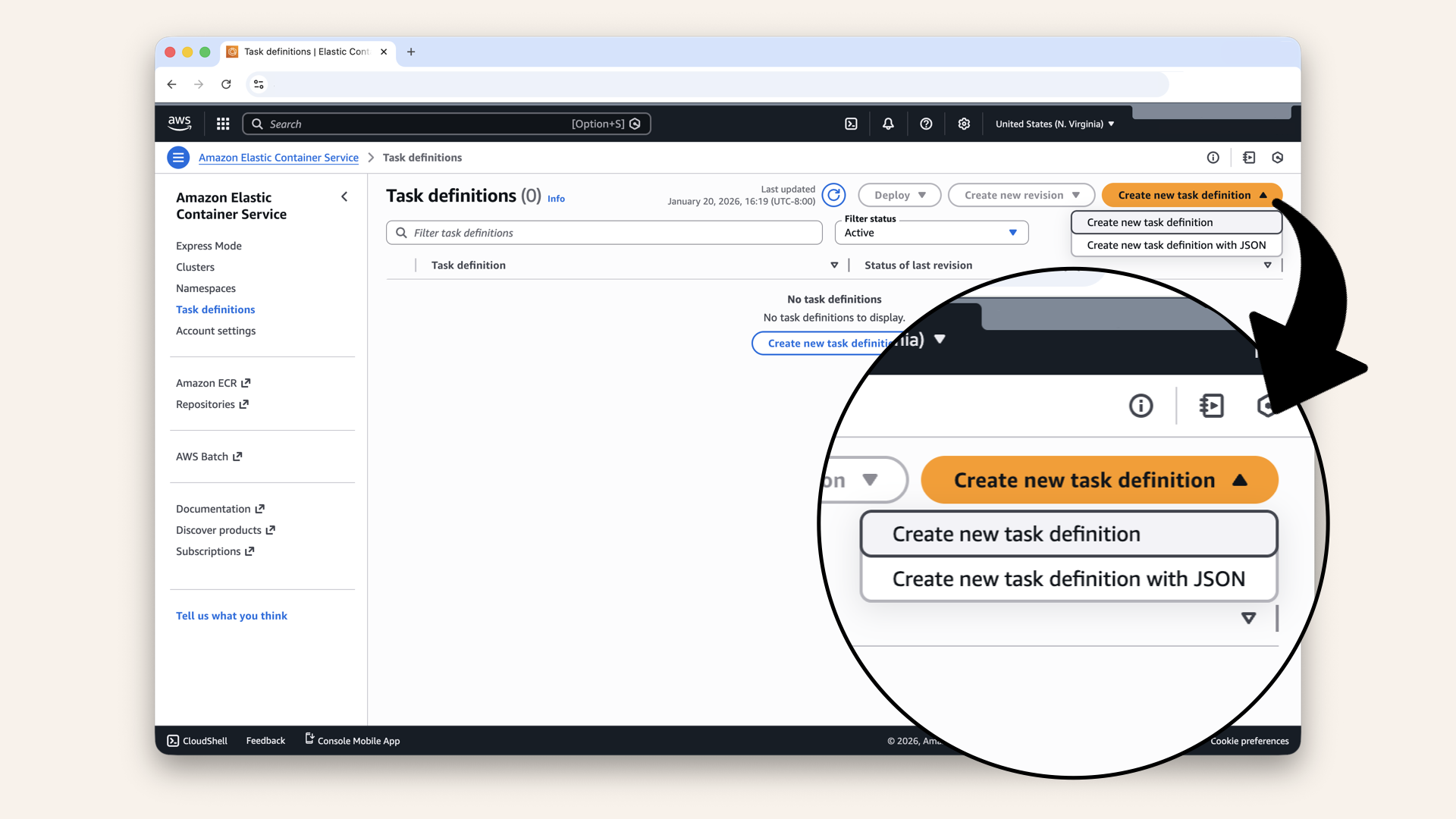
Click Create new task definition and then click Create new task definition again in the dropdown
Step 9.1: Configure task basics
Fill in the basic settings:
| Setting | Value |
|---|---|
| Task definition family | |
| Launch type | AWS Fargate |
| Operating system/Architecture | Linux/X86_64 |
| CPU | 0.5 vCPU |
| Memory | 1 GB |
| Task role | Leave blank (we don't need AWS API access from container) |
| Task execution role | Select ai-caller-task-execution-role |
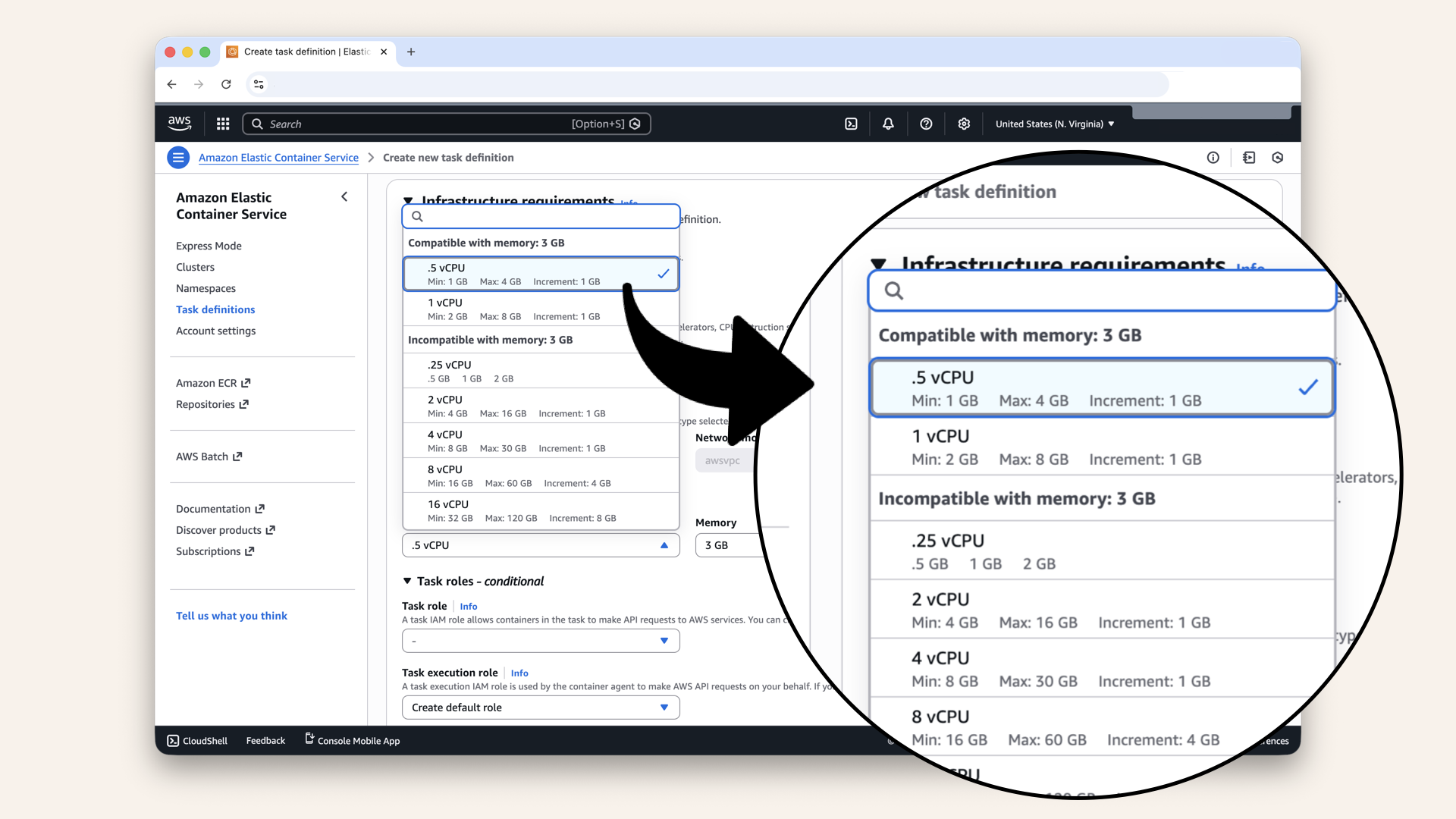
Select 0.5 vCPU in the Task size dropdown
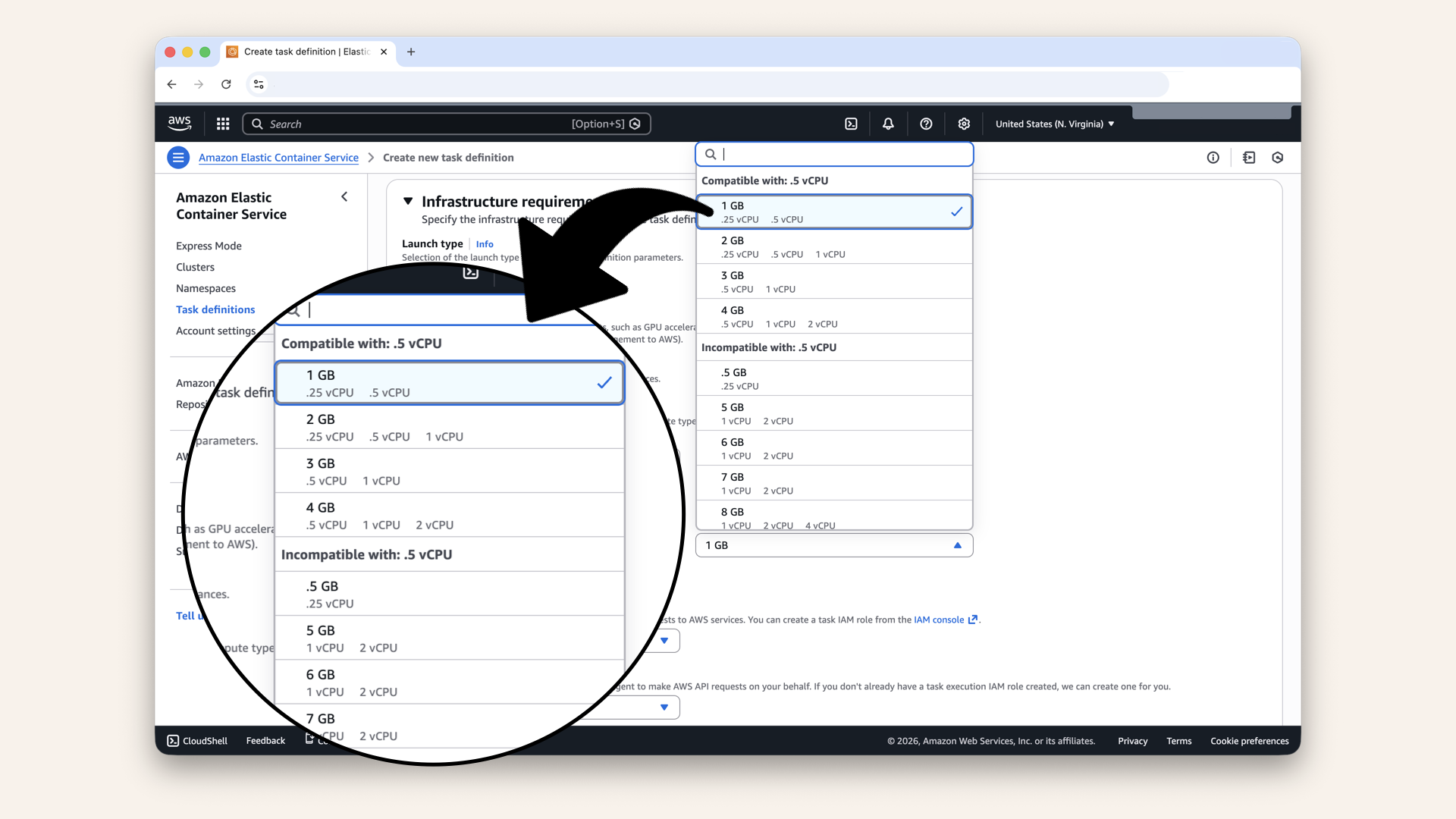
Select 1 GB in the Memory dropdown
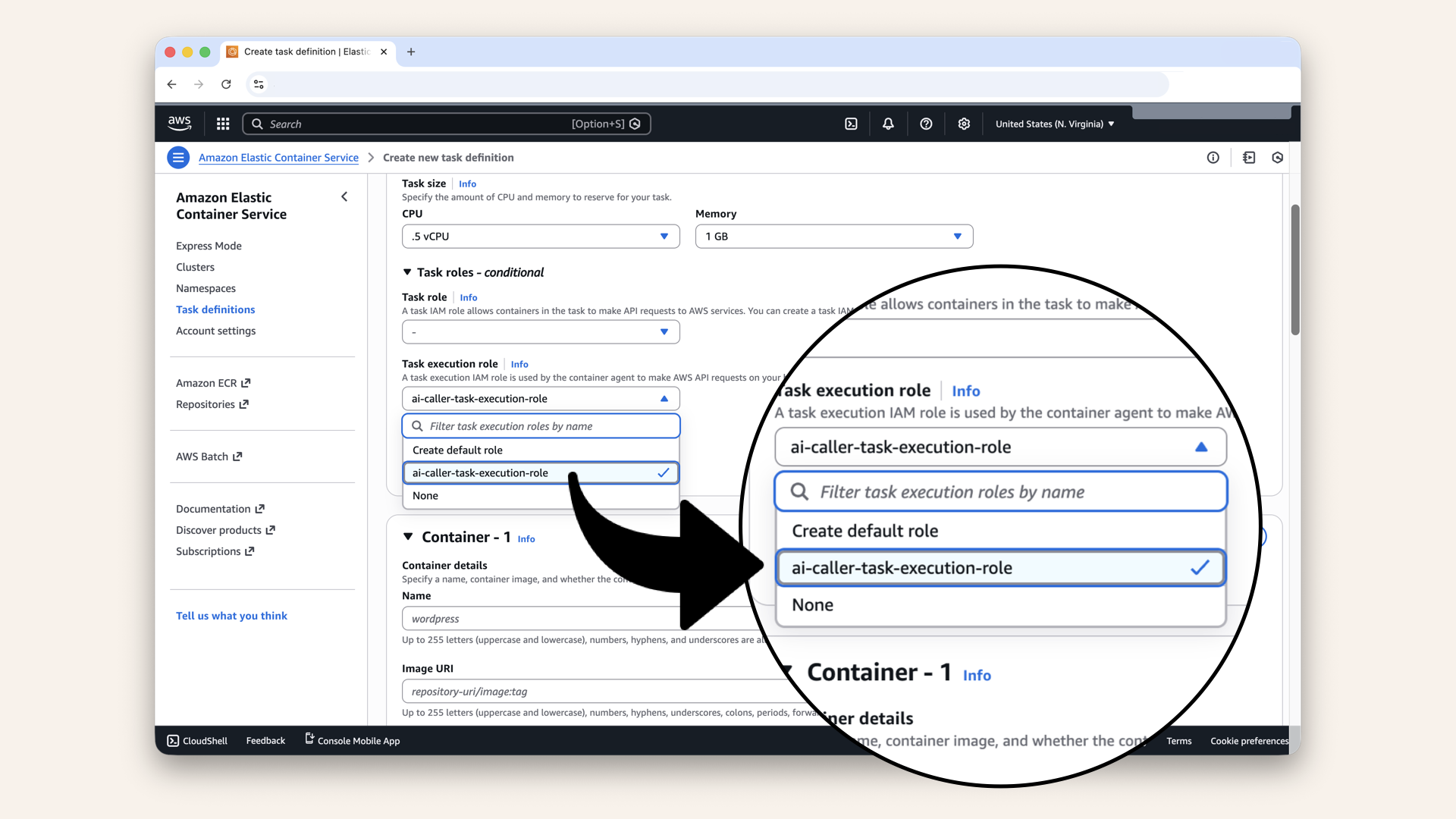
Select the ai-caller-task-execution-role as Task execution role
Step 9.2: Configure container
In the Container section, configure:
| Setting | Value |
|---|---|
| Name | |
| Image URI | YOUR_ACCOUNT_ID.dkr.ecr.us-east-1.amazonaws.com/ai-caller-agent:latest (Your ECR URI from Step 2) |
| Essential container | Yes |
| Port mappings | Container port: 6060, Protocol: TCP, App protocol: HTTP |
Here's how you find your ECR URI from Step 2
Step-by-step
In the AWS Console search bar at the top, type ecr and click Elastic Container Registry from the dropdown menu
Copy the Repository URI
Remember to add :latest to your Image URI:
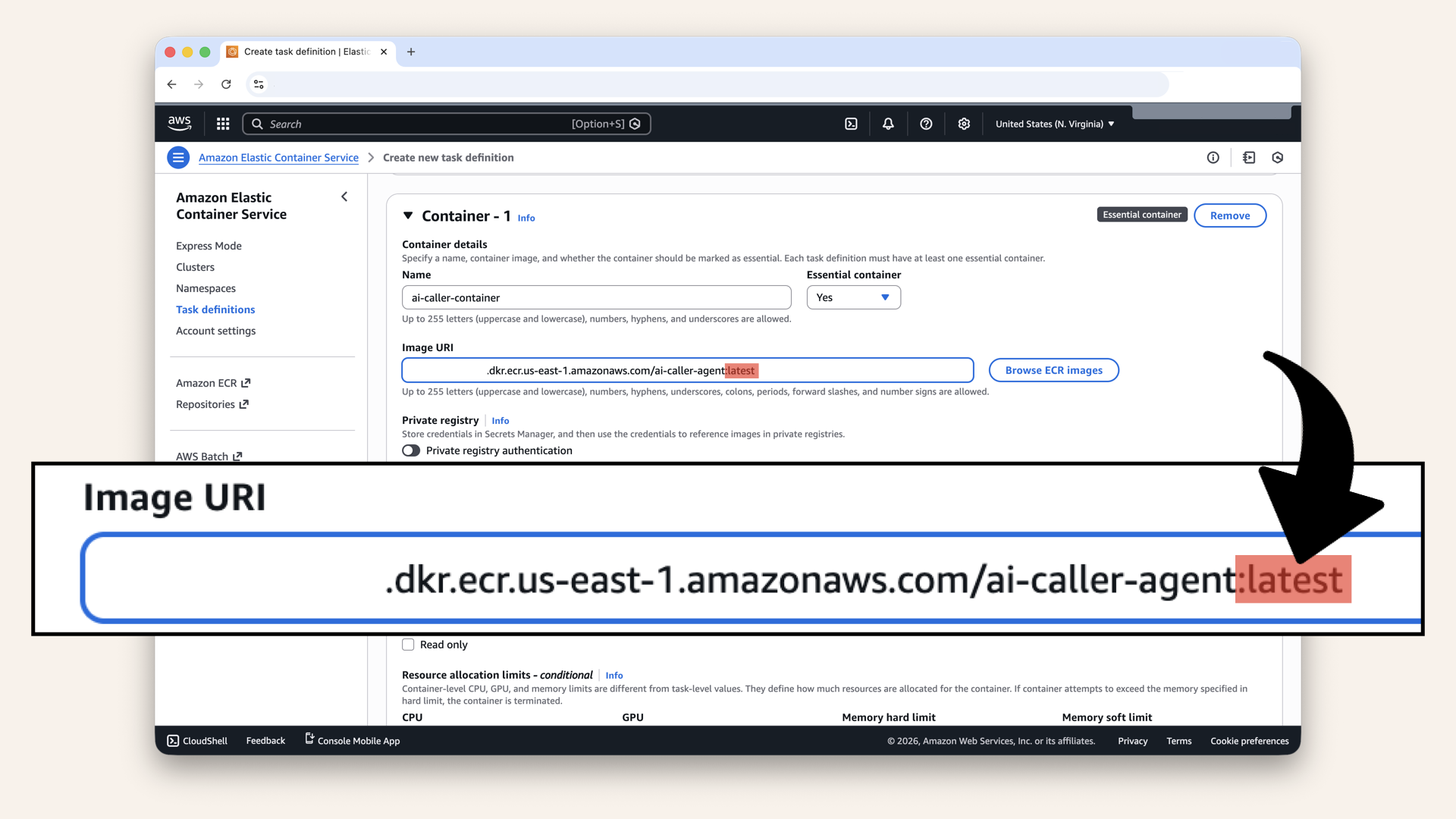
Remember to add :latest to your *Image URI
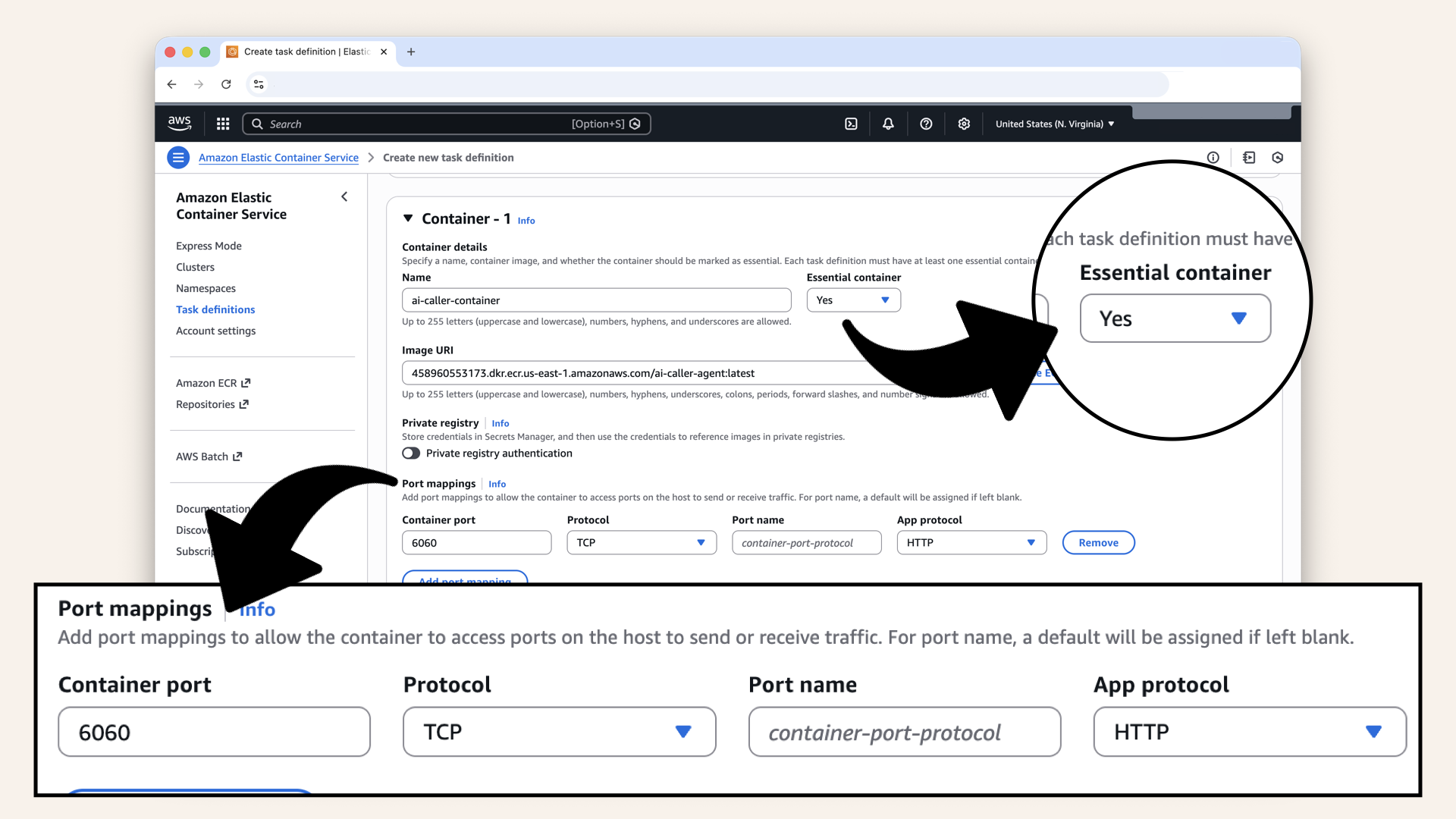
Select Yes for Essential container and change the container port to 6060
Step 9.3: Add environmental variables from Parameter Store
Expand the Environmental variables section and click Add environmental variable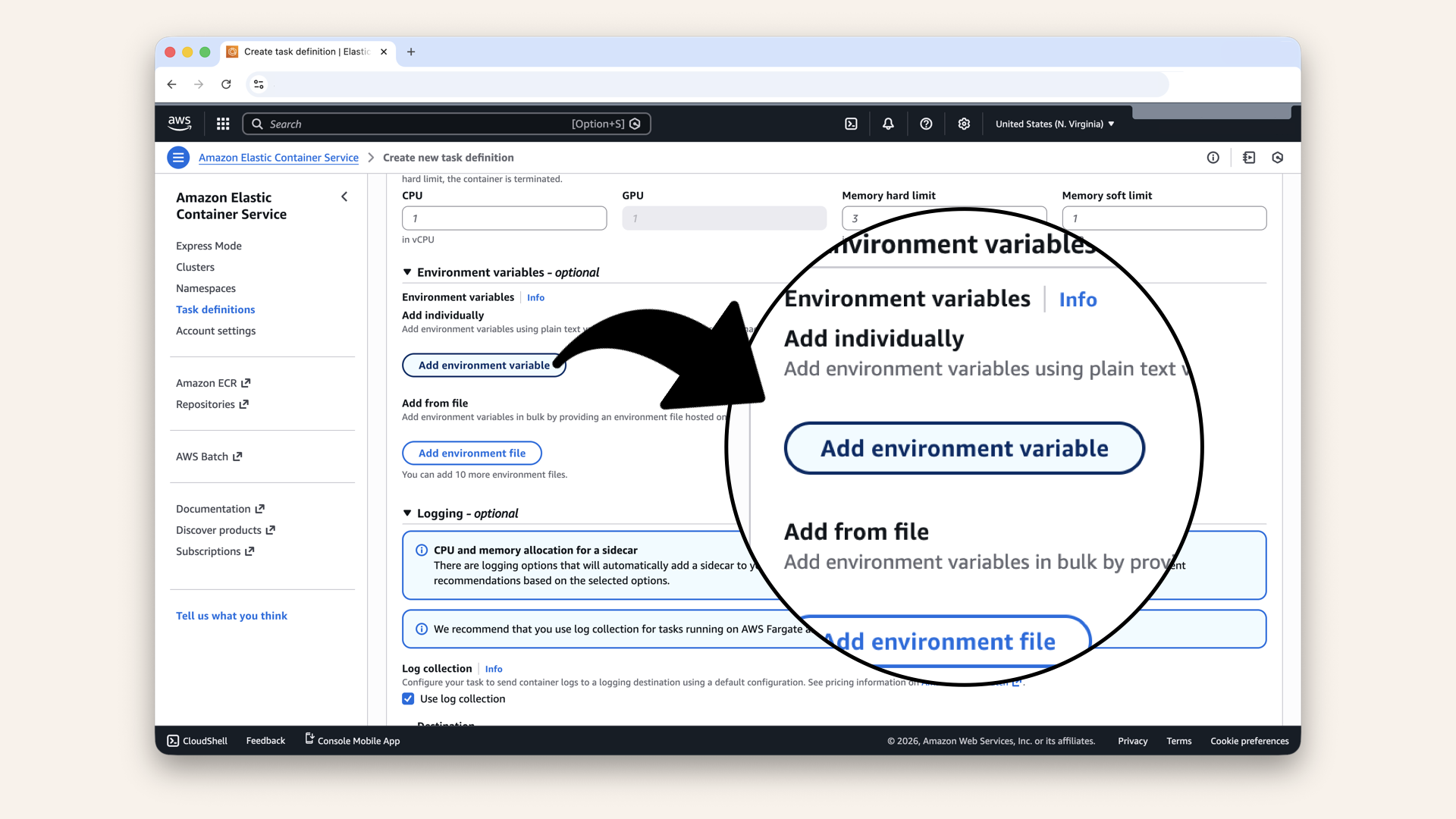
Expand the Environmental variables section and click Add environmental variable
Regular environmental variables (not secret):
| Key | Value type | Value |
|---|---|---|
| Value | ai-caller.yourdomain.com (your domain from Day 10) | |
| Value |
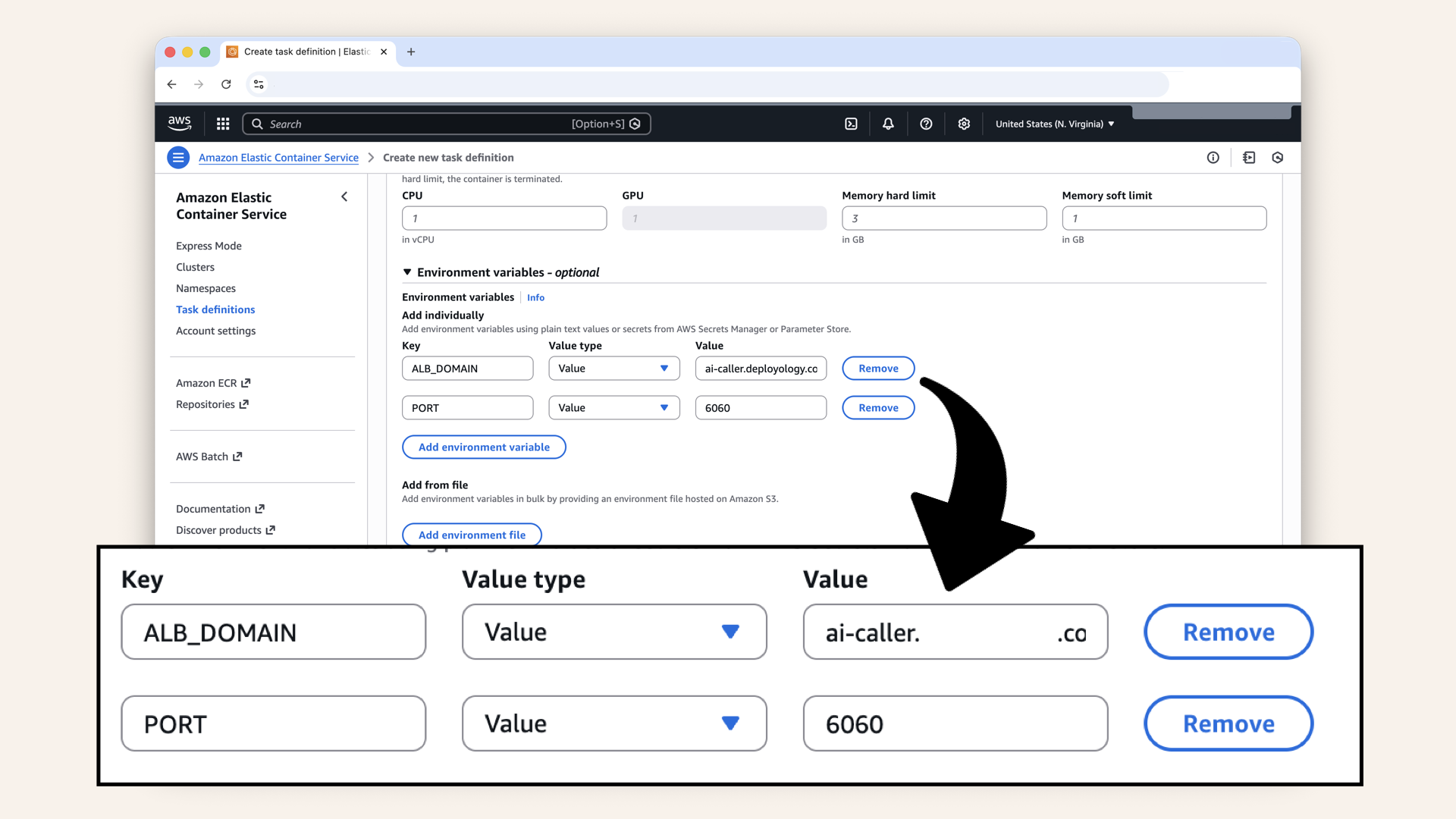
Add regular environmental variables (not secret)
Secrets from Parameter store:
| Key | Value type | Value |
|---|---|---|
| ValueFrom | arn:aws:ssm:us-east-1:YOUR_ACCOUNT_ID:parameter/ai-caller/OPENAI_API_KEY | |
| ValueFrom | arn:aws:ssm:us-east-1:YOUR_ACCOUNT_ID:parameter/ai-caller/TWILIO_ACCOUNT_SID | |
| ValueFrom | arn:aws:ssm:us-east-1:YOUR_ACCOUNT_ID:parameter/ai-caller/TWILIO_AUTH_TOKEN |
You should have 5 environmental variables, remember to select ValueFrom for the secrets:
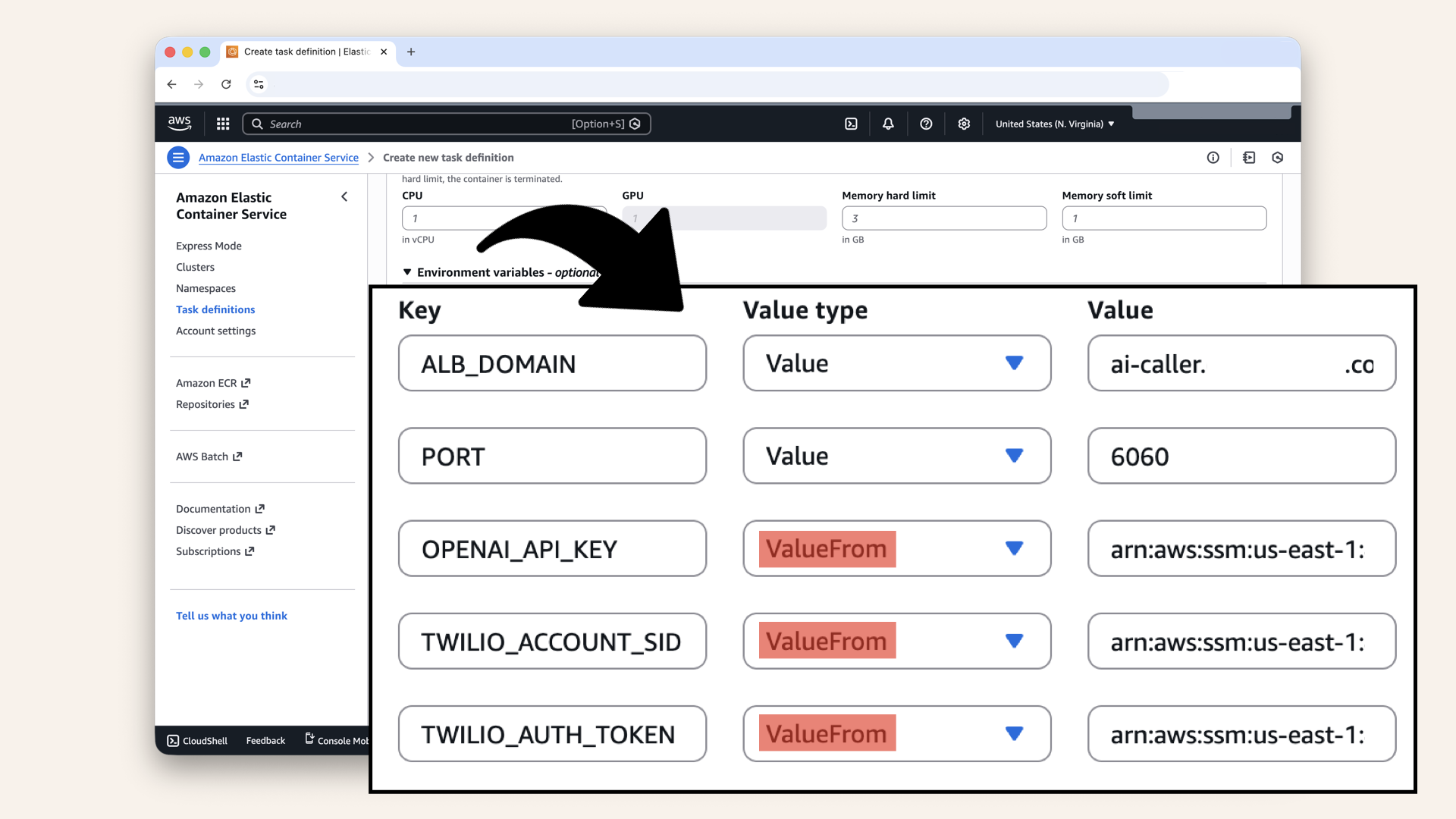
You should have 5 environmental variables, remember to select ValueFrom for the secrets
The format is the fill parameter ARN:
arn:aws:ssm:REGION:YOUR_ACCOUNT_ID:parameter/PARAMETER_NAME
Replace YOUR_ACCOUNT_ID with your AWS account ID.
aws sts get-caller-identity \
--query Account  \
--output text \
--profile ai-caller-cli
Step 9.4: Configure logging
Expand the Logging section and ensure CloudWatch Logs is selected: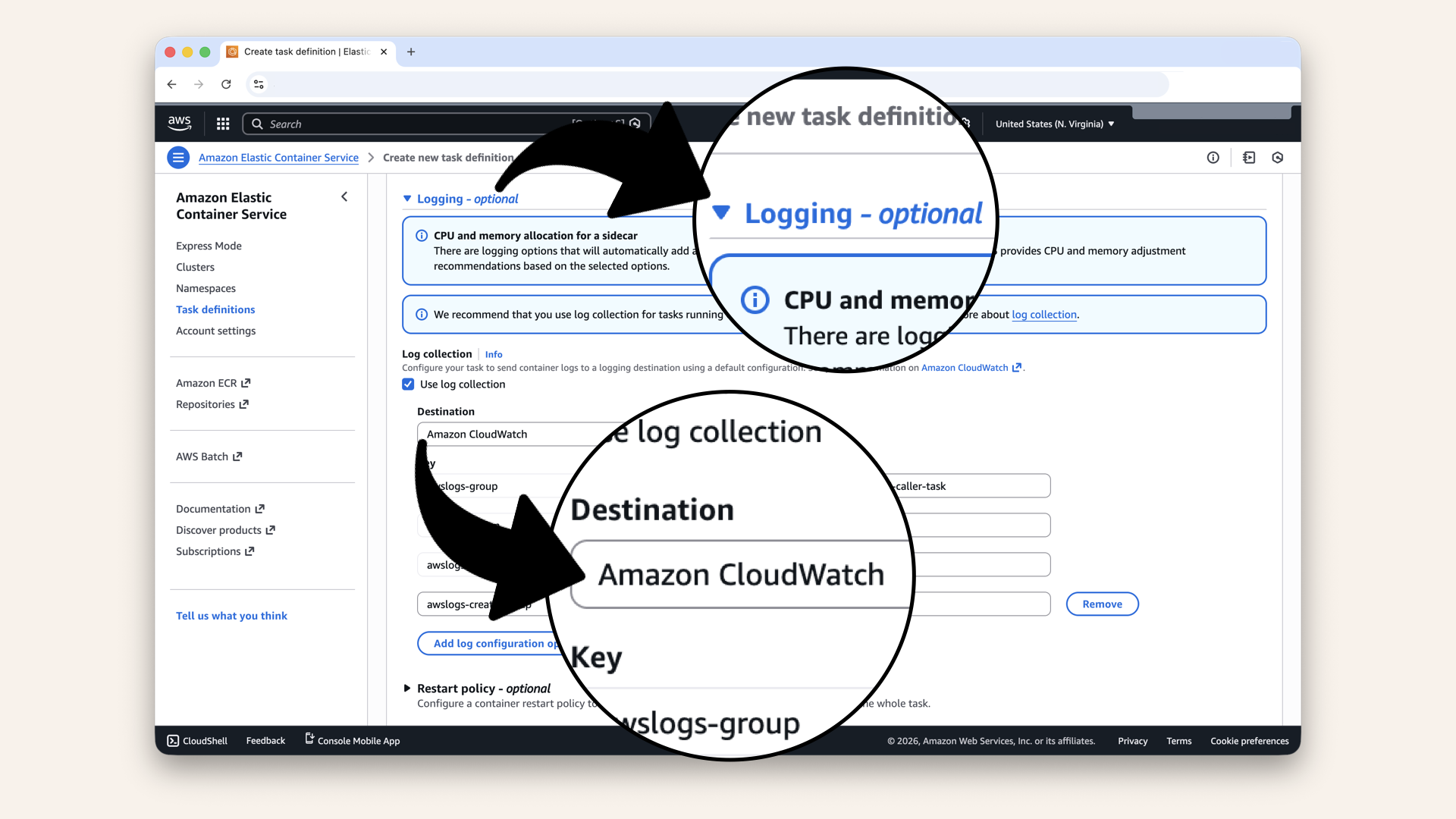
Expand the Logging section and ensure CloudWatch Logs is selected
Ensure these settings:
| Setting | Value |
|---|---|
| Log collection | ✅ Use log collection |
| awslogs-group | /ecs/ai-caller-task |
| awslogs-region | us-east-1 |
| awslogs-stream-prefix | ecs |
| awslogs-create-group | true |
Scroll all the way down and click Create:
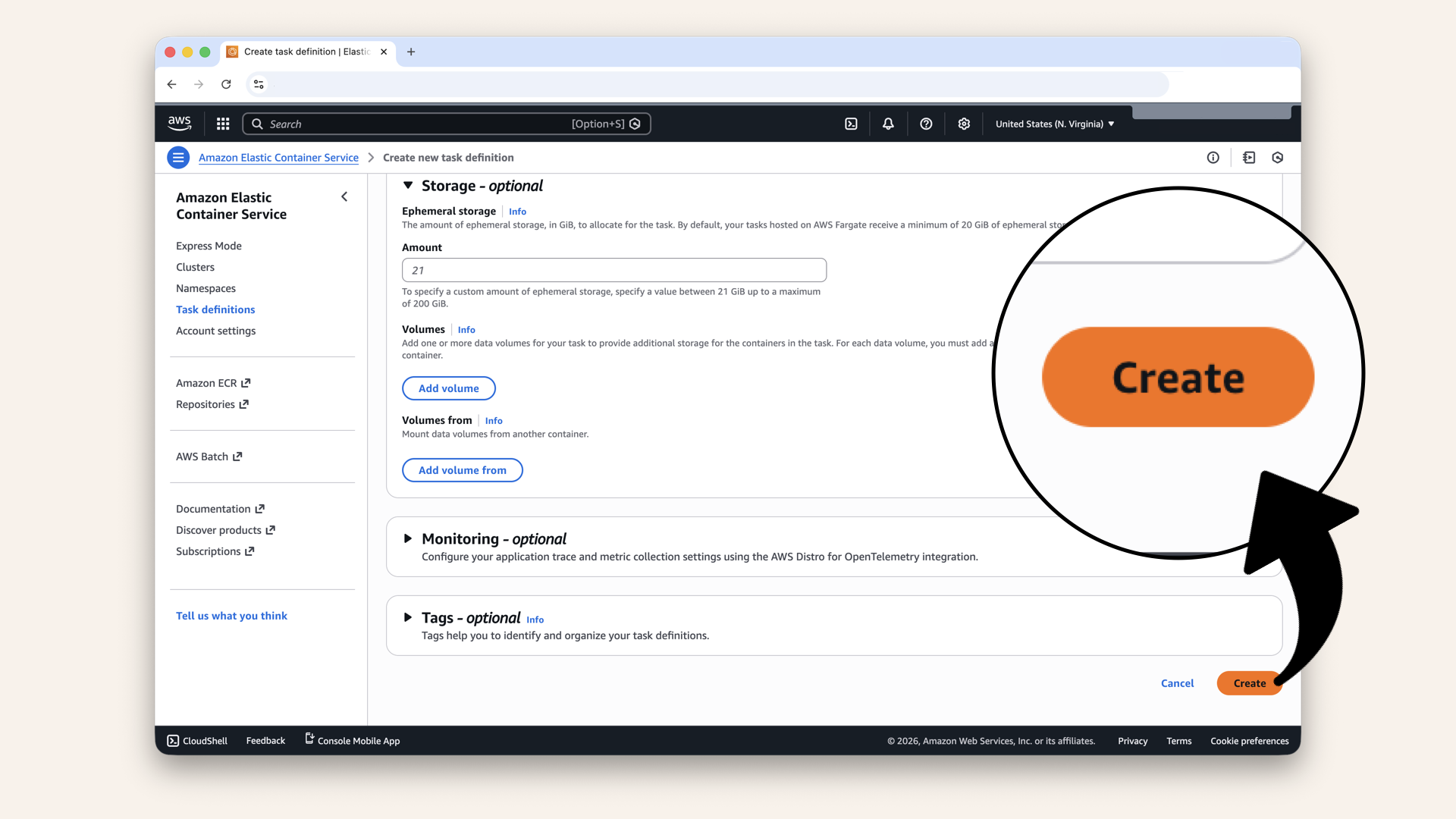
Scroll all the way down and click Create
✅ You should see "Task definition successfully created":
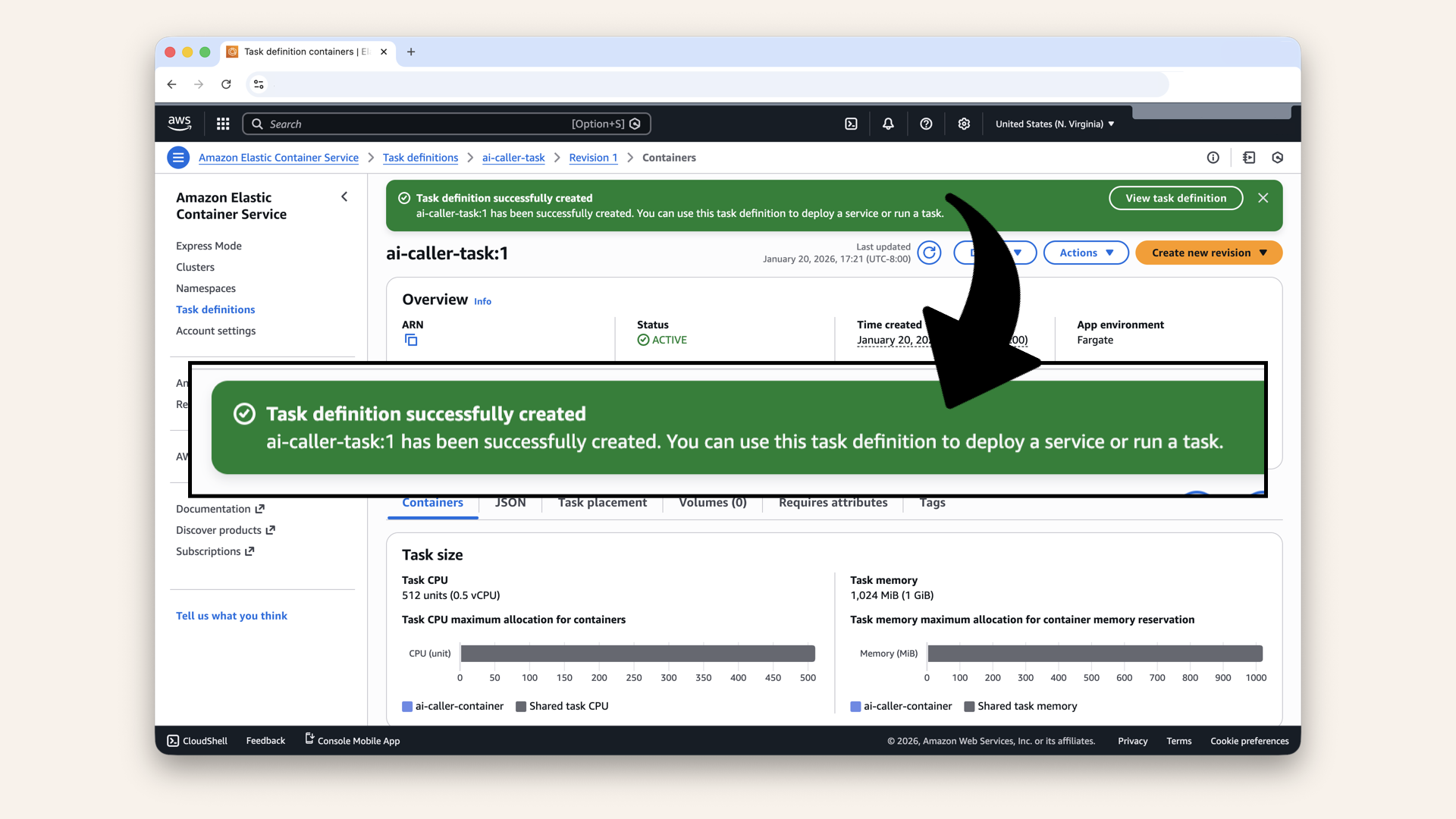
You should see "Task definition successfully created"
Step 10: Update Target Group health check
Before creating the service, let's make sure the Target Group from Day 9 ↗ has the correct health check.
Open the AWS Console ↗ In the search bar at the top, type ec2 and click EC2 from the dropdown menu: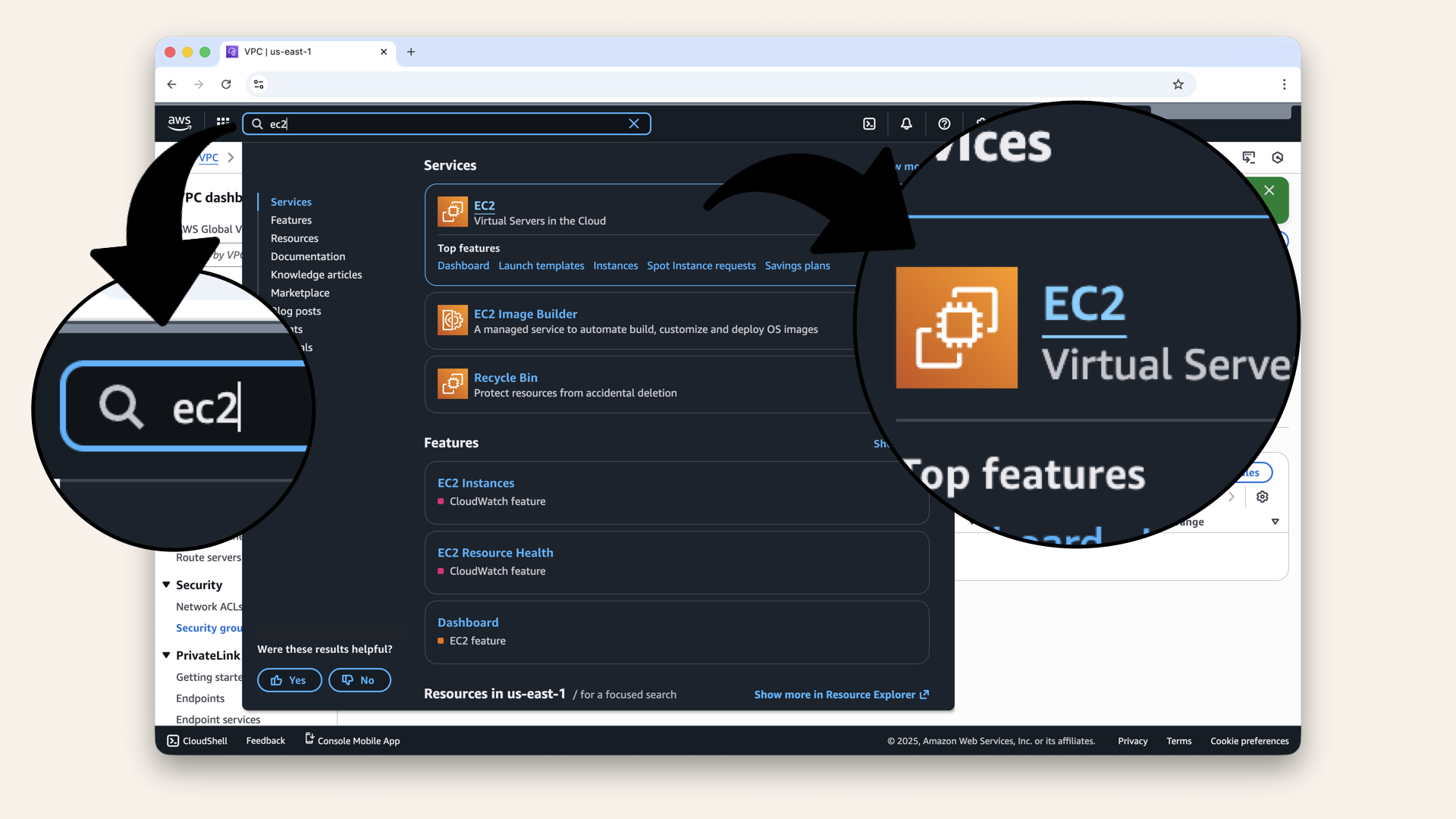
In the search bar at the top, type ec2 and click EC2 from the dropdown menu
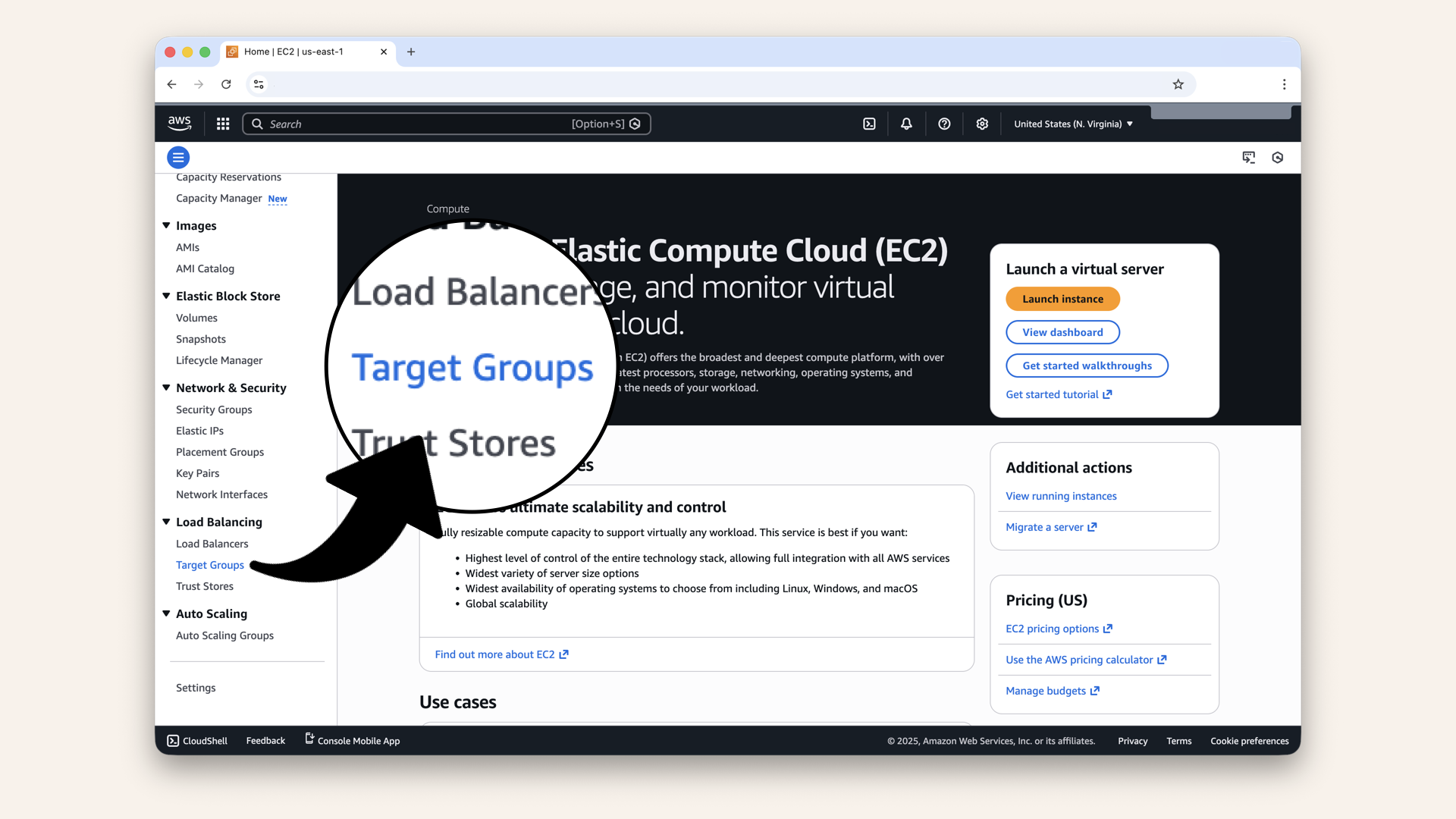
In the left sidebar, scroll down and click Target Groups (under Load Balancing)
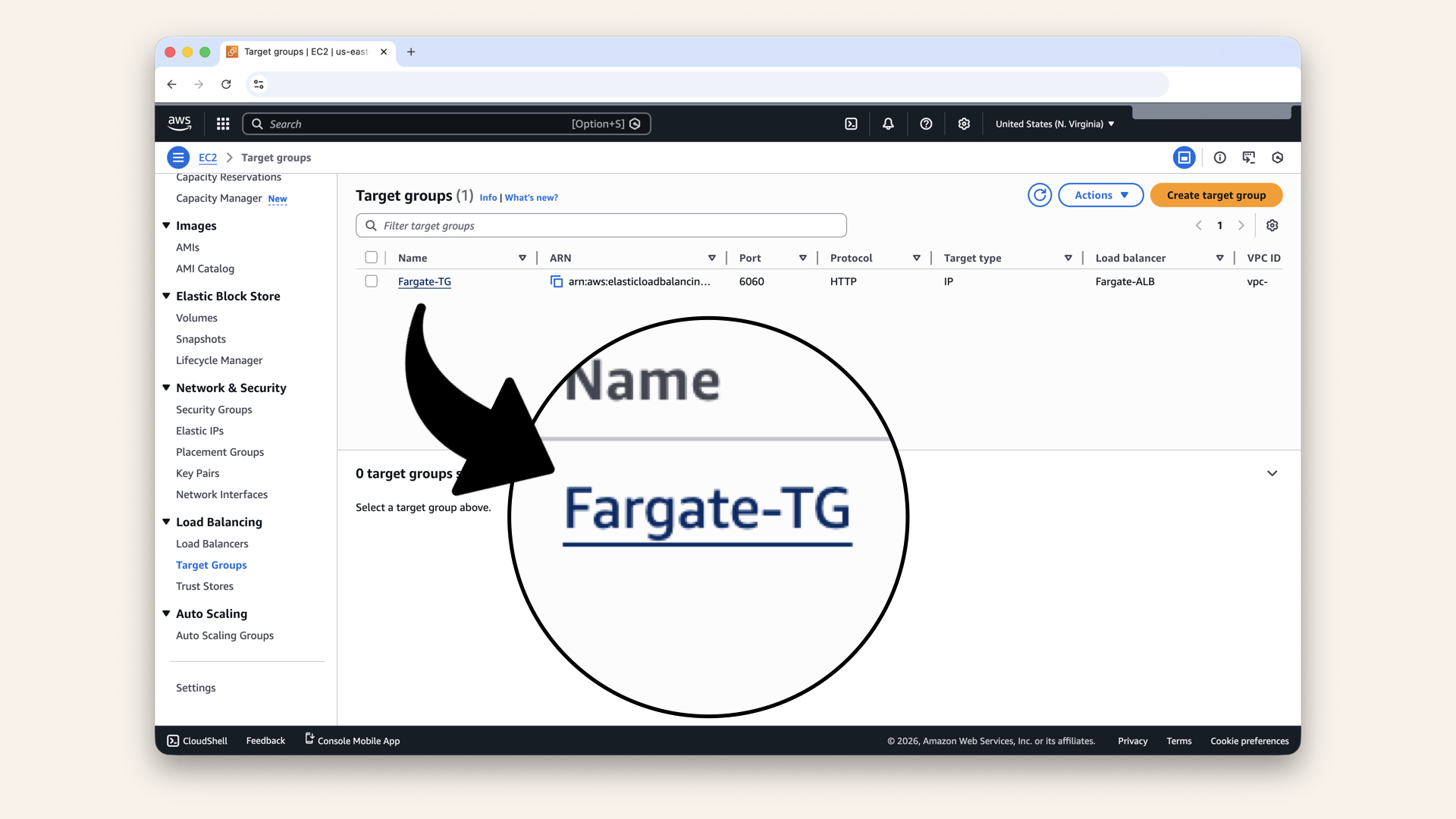
Click on your target group Fargate-TG
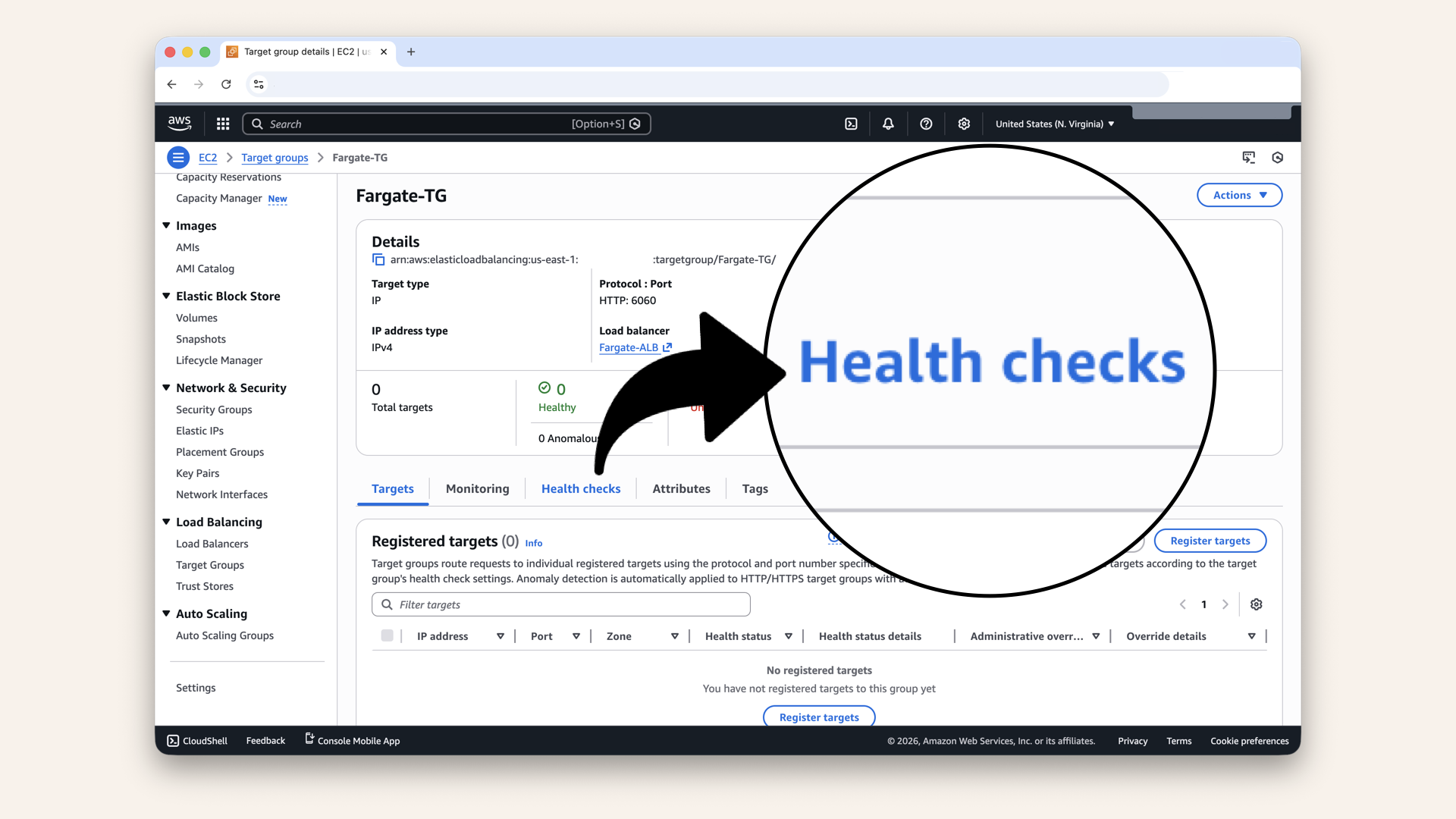
Click the Health checks tab
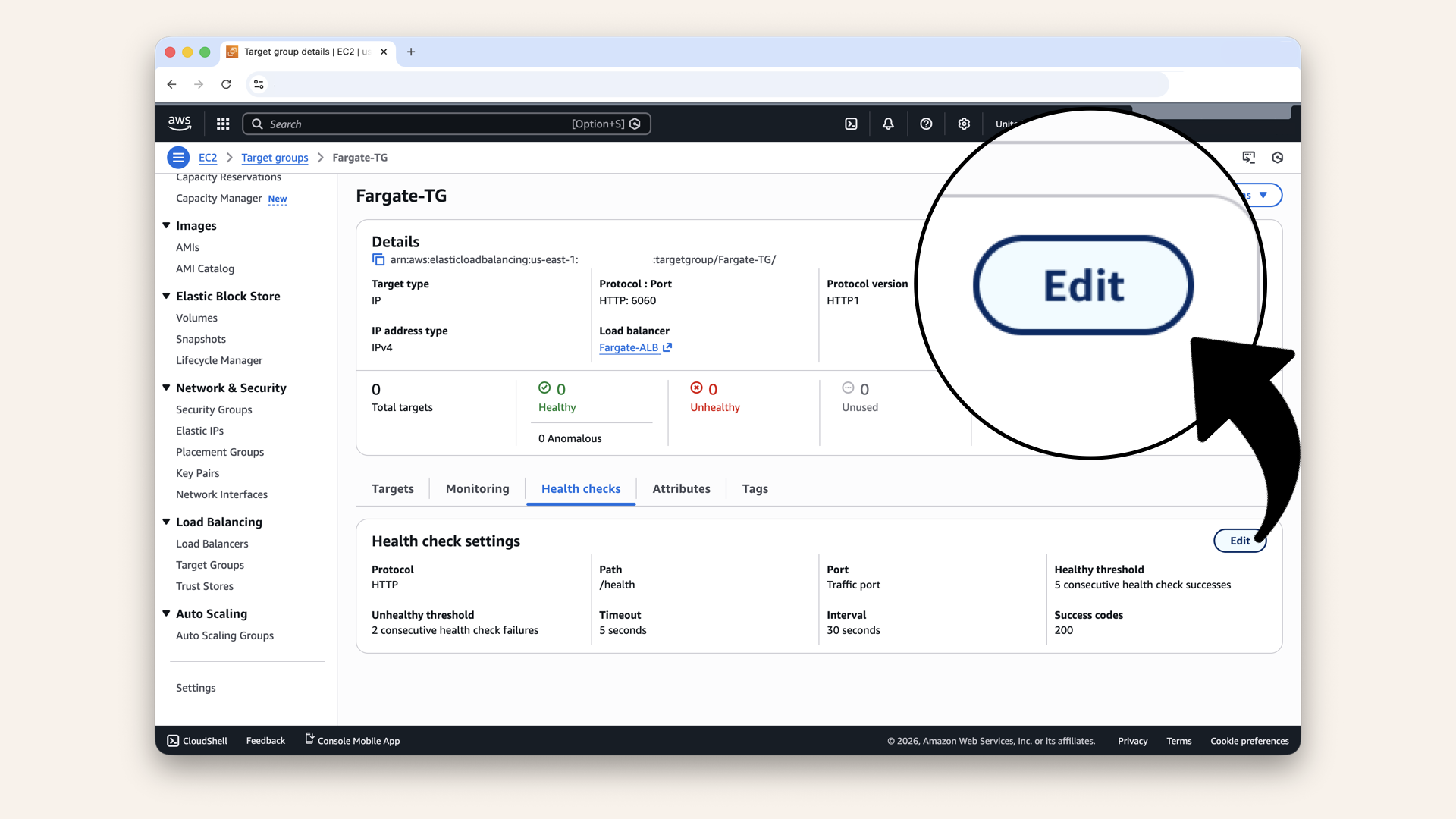
Click Edit
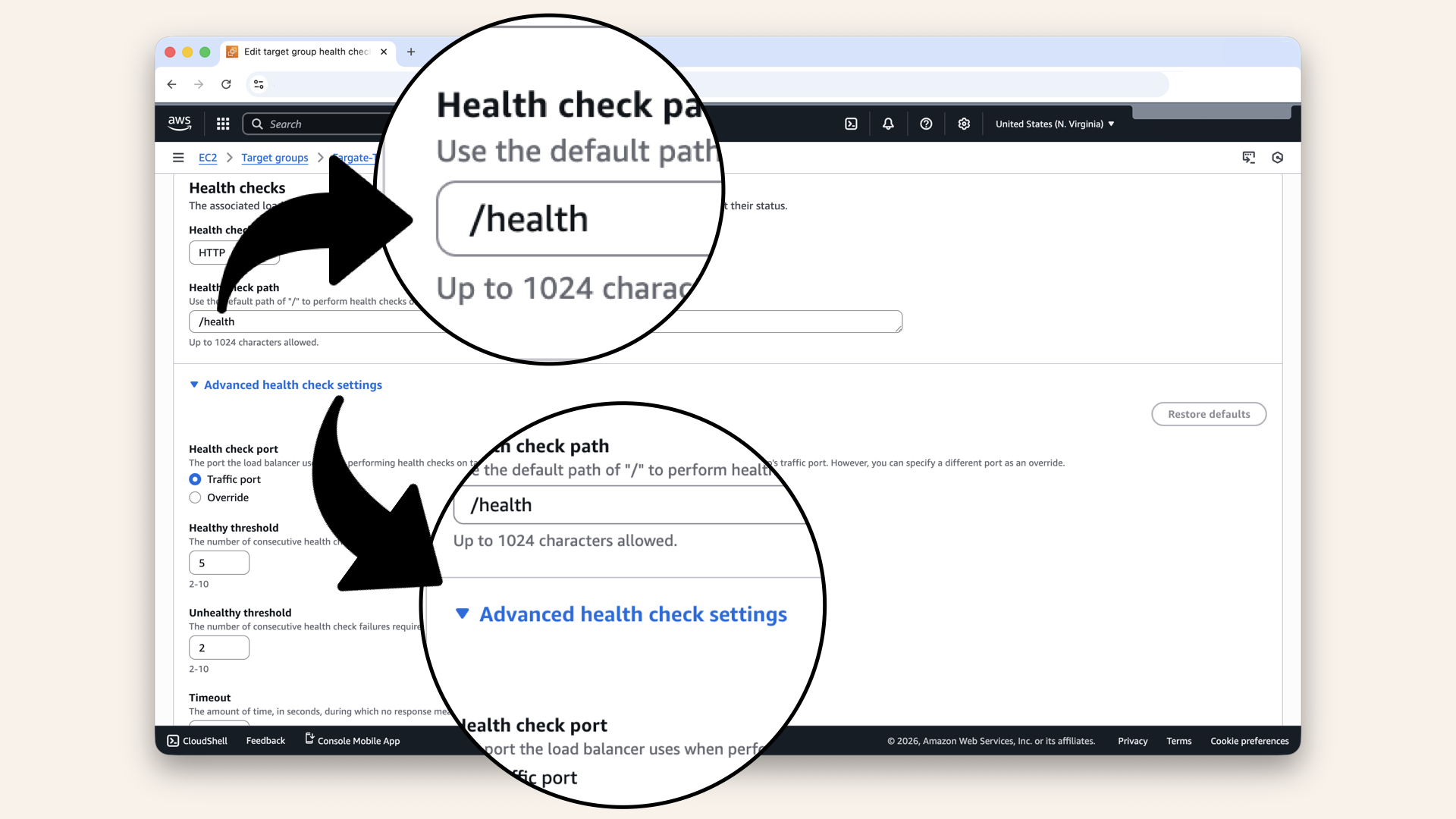
Expand the Advanced health check settings
| Setting | Value |
|---|---|
| Health check path | |
| Healthy threshold | 2 |
| Unhealthy threshold | 3 |
| Timeout | 5 seconds |
| Interval | 30 seconds |
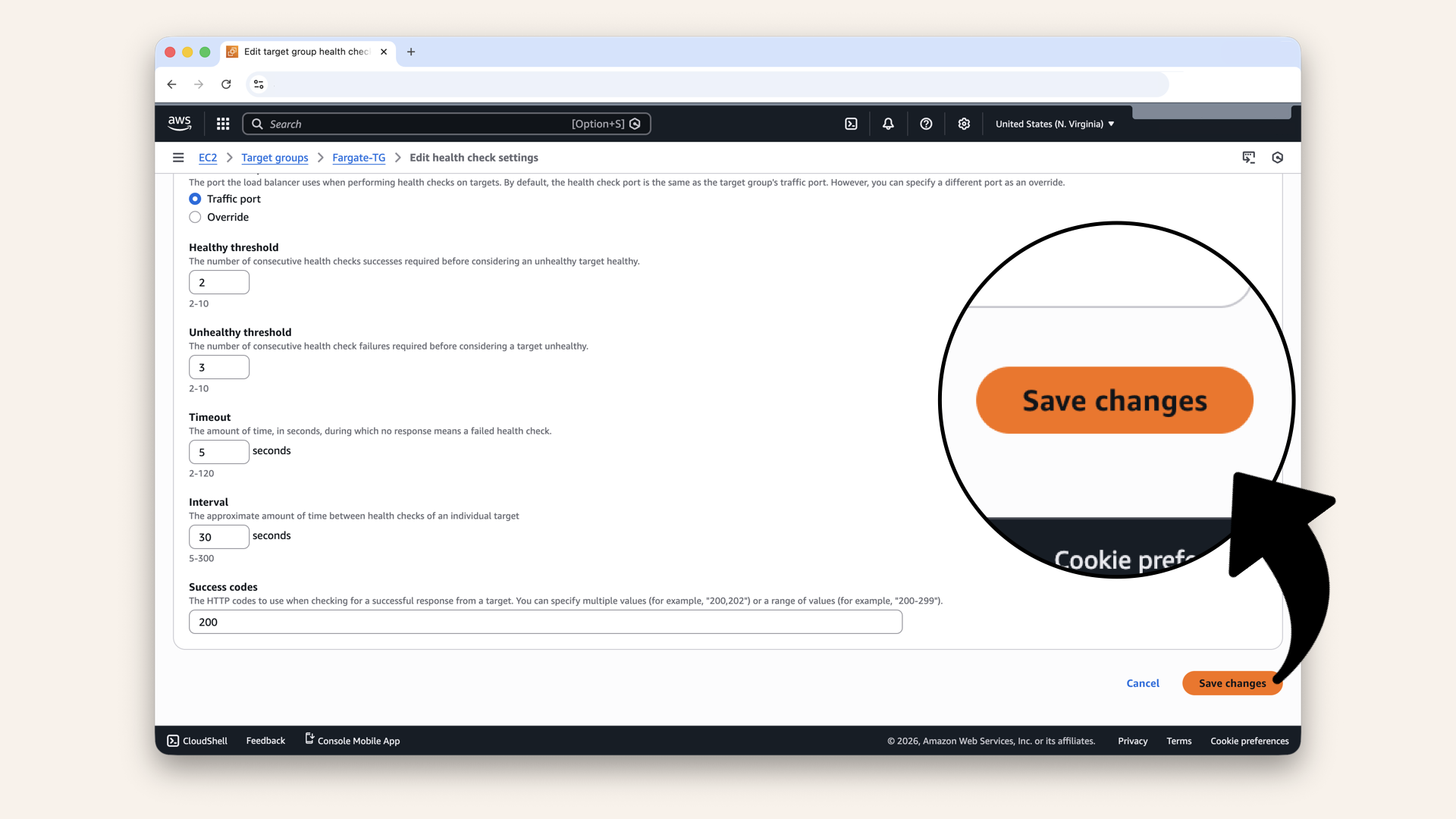
Click Save changes
✅ You should see "Configured health check":
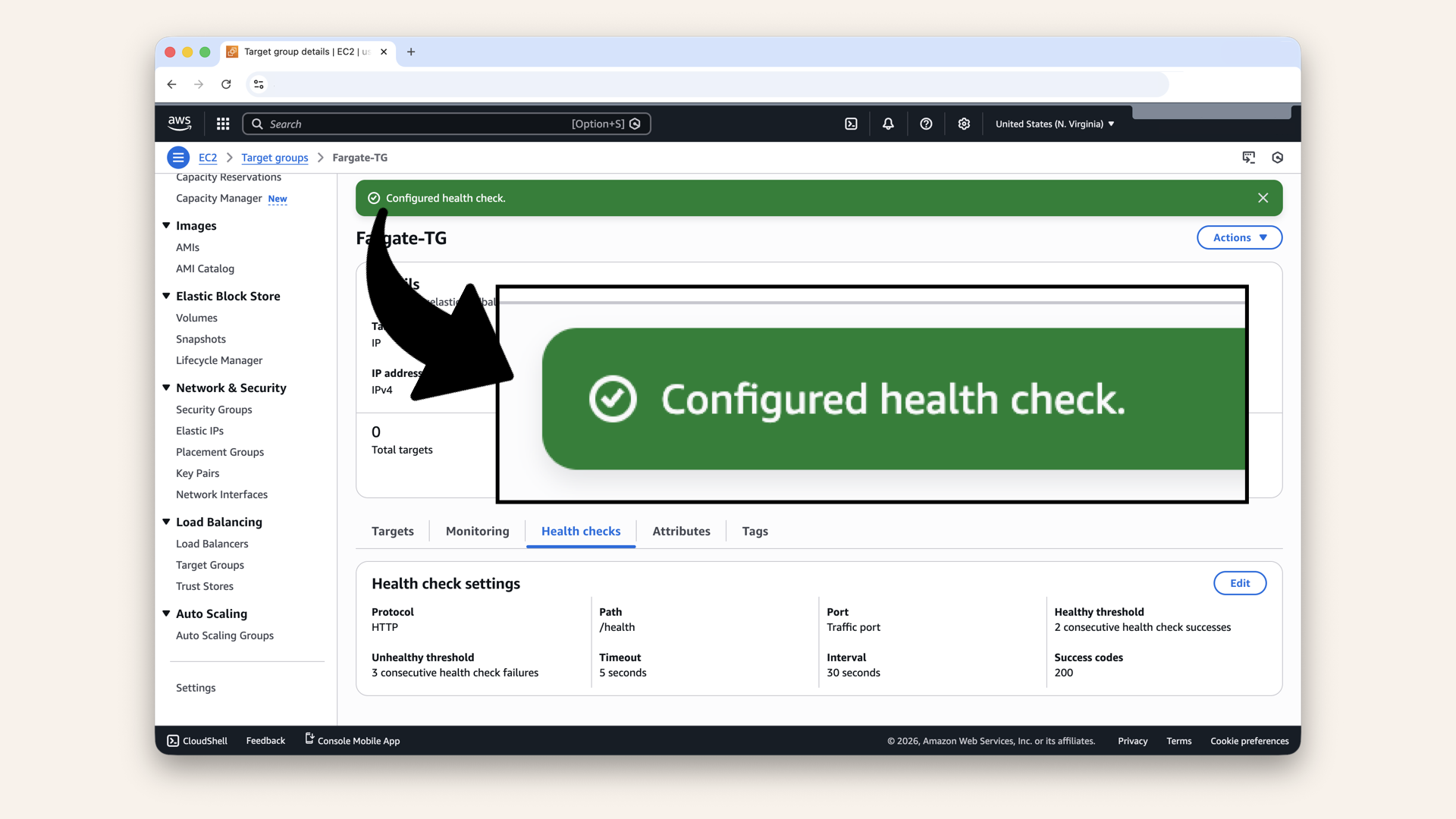
You should see "Configured health check"
Step 11: Create ECS Service
The Service keeps your container running and connects it to the ALB.
Open the AWS Console ↗ In the AWS Console search bar at the top, type ecs and click Elastic Container Service from the dropdown menu:
In the AWS Console search bar at the top, type ecs and click Elastic Container Service from the dropdown menu
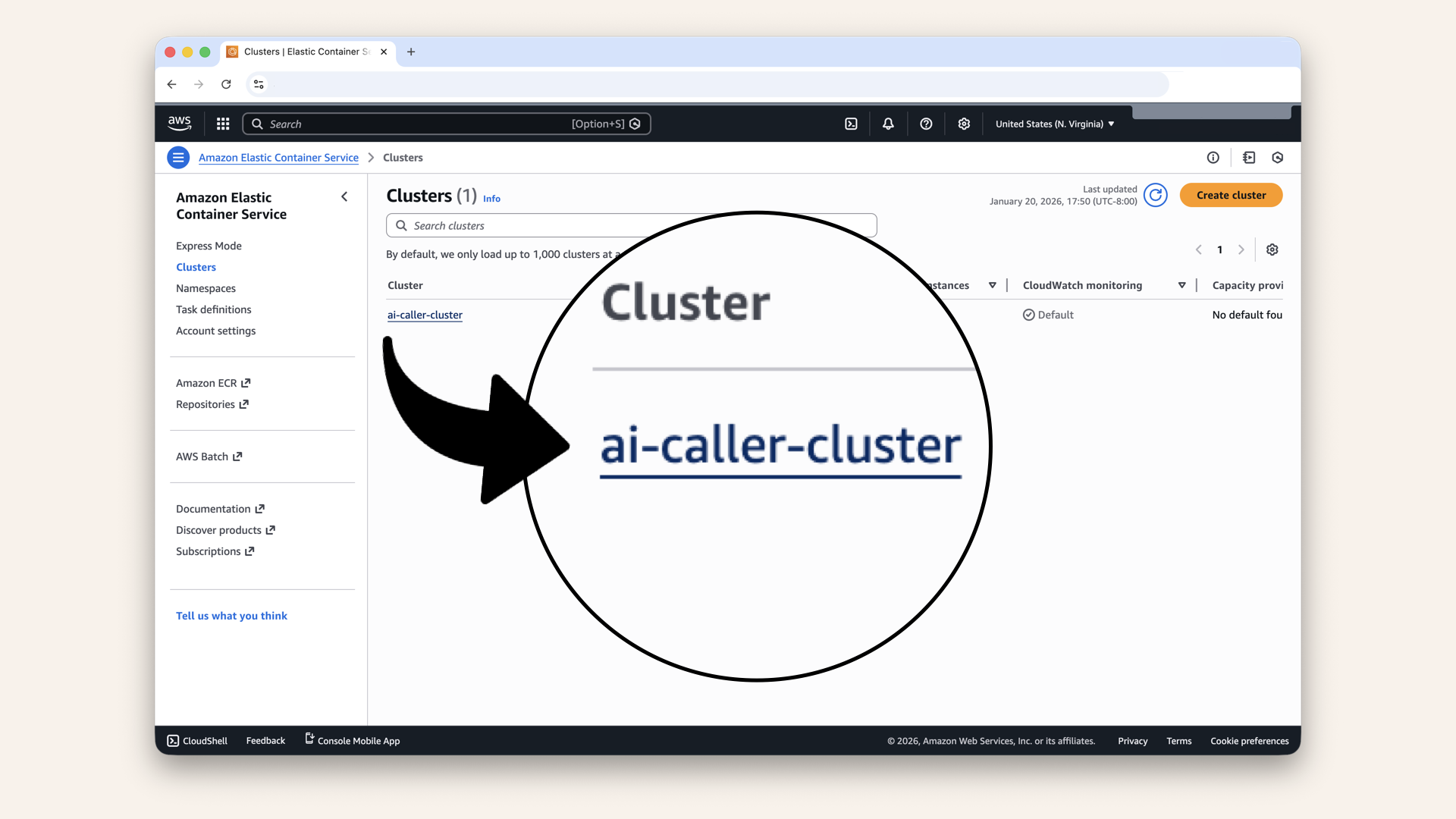
Click your ai-caller-cluster cluster
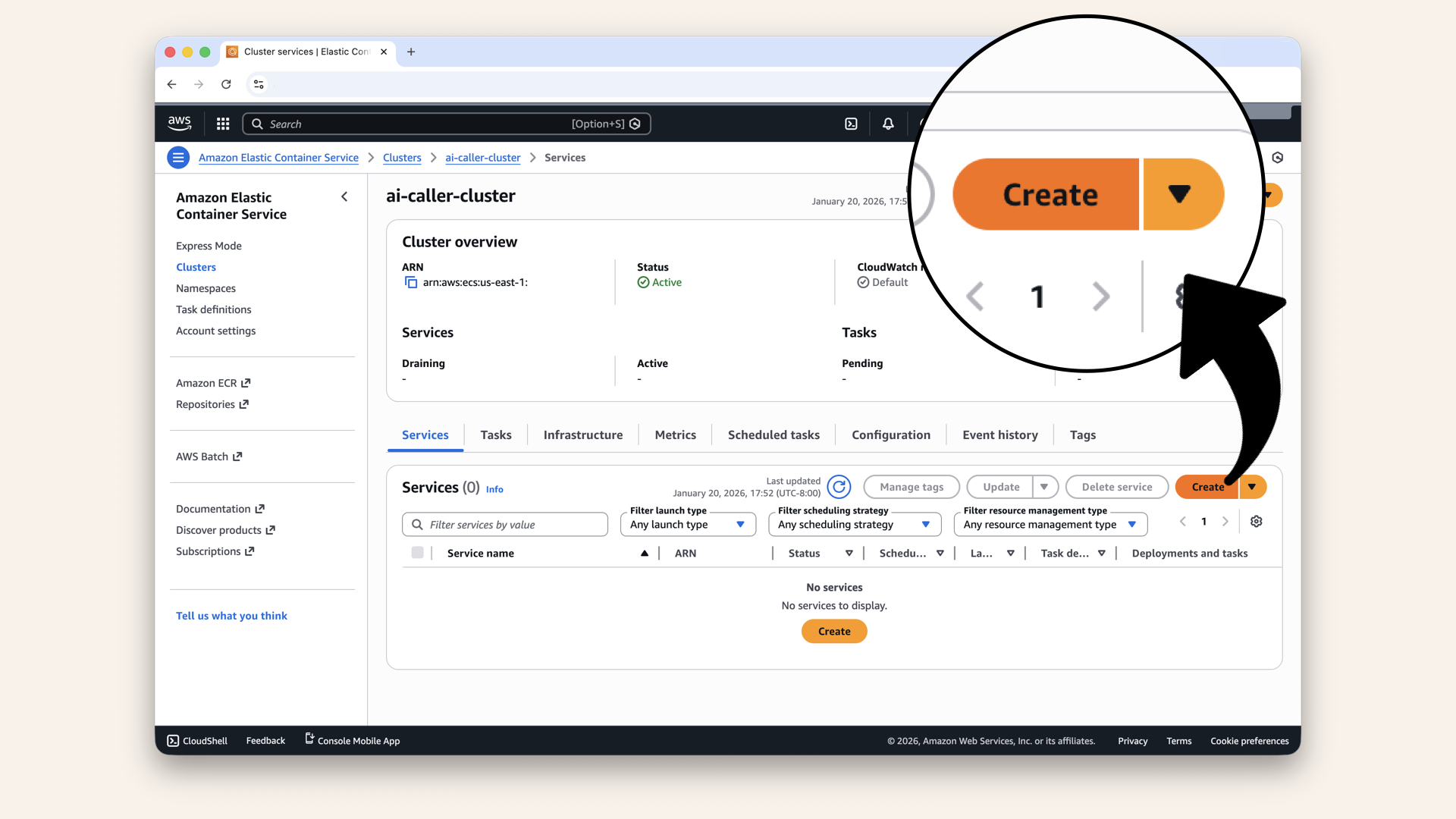
In the Services tab, click Create
Step 11.1: Configure service details
Fill in the settings for Service details:
| Setting | Value |
|---|---|
| Task definition family | Select ai-caller-task |
| Revision | LATEST |
| Service name |
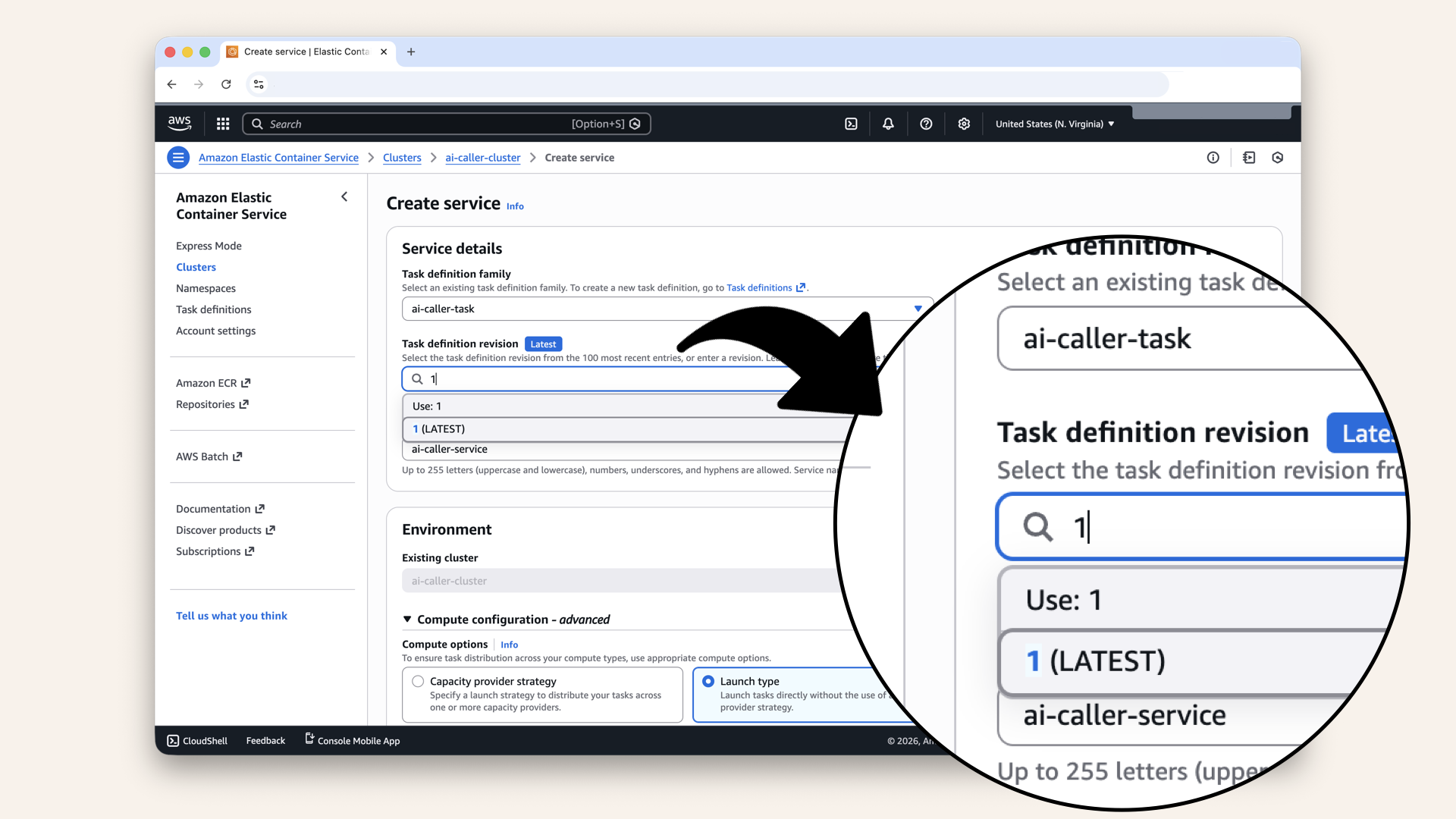
Fill in the settings for Service details:
Step 11.2: Configure environment
Fill in the settings for Environment:
| Setting | Value |
|---|---|
| Compute options | Launch type |
| Launch type | FARGATE |
| Platform version | LATEST |
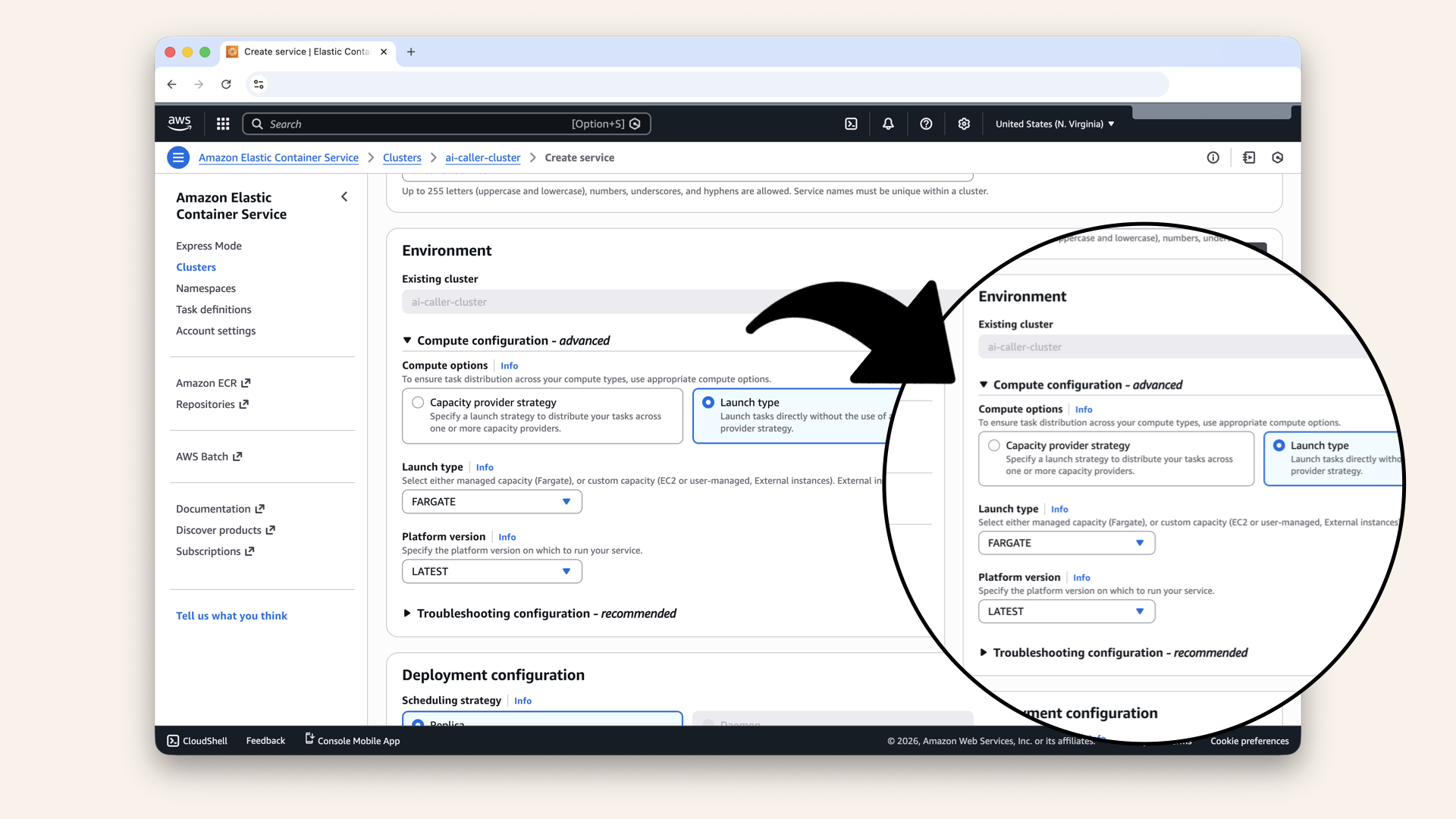
Fill in the settings for Environment:
Step 11.3: Configure deployment configuration
Fill in the settings for Deployment configuration:
| Setting | Value |
|---|---|
| Scheduling strategy | Replica |
| Desired tasks | 1 |
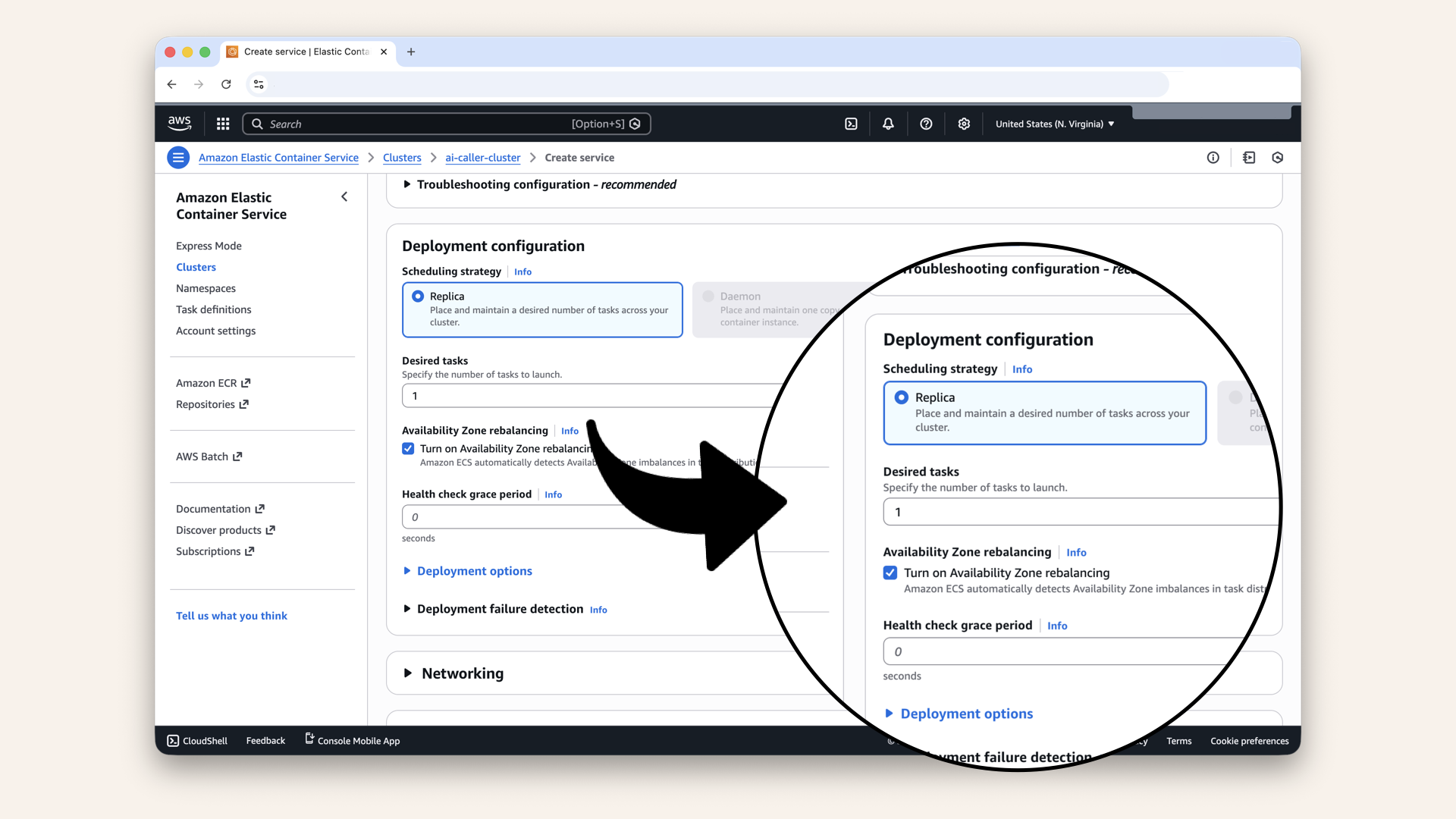
Fill in the settings for Deployment configuration:
Step 11.4: Configure networking
Fill in the settings for Networking:
| Setting | Value |
|---|---|
| VPC | Select your VPC from Day 3 |
| Subnets | Select your private subnets (both of them) |
| Security group | Select Fargate-SG (from Day 7) |
| Public IP | Turned off |
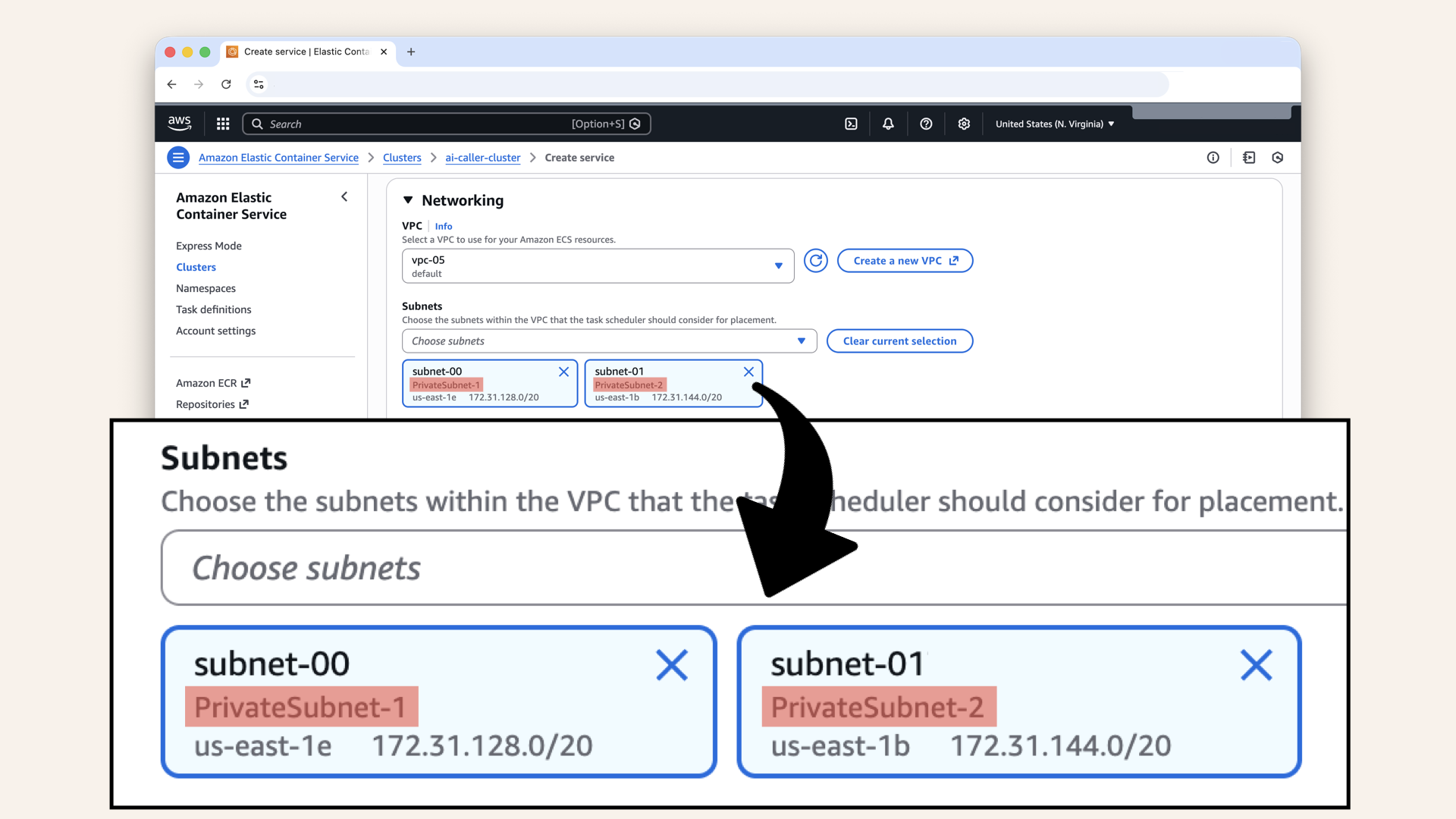
Make sure you select your private subnets (both of them)
The Fargate containers should run in private subnets. They don't need public IPs because:
- Inbound: Traffic comes through the ALB
- Outbound: Traffic goes through the NAT Gateway
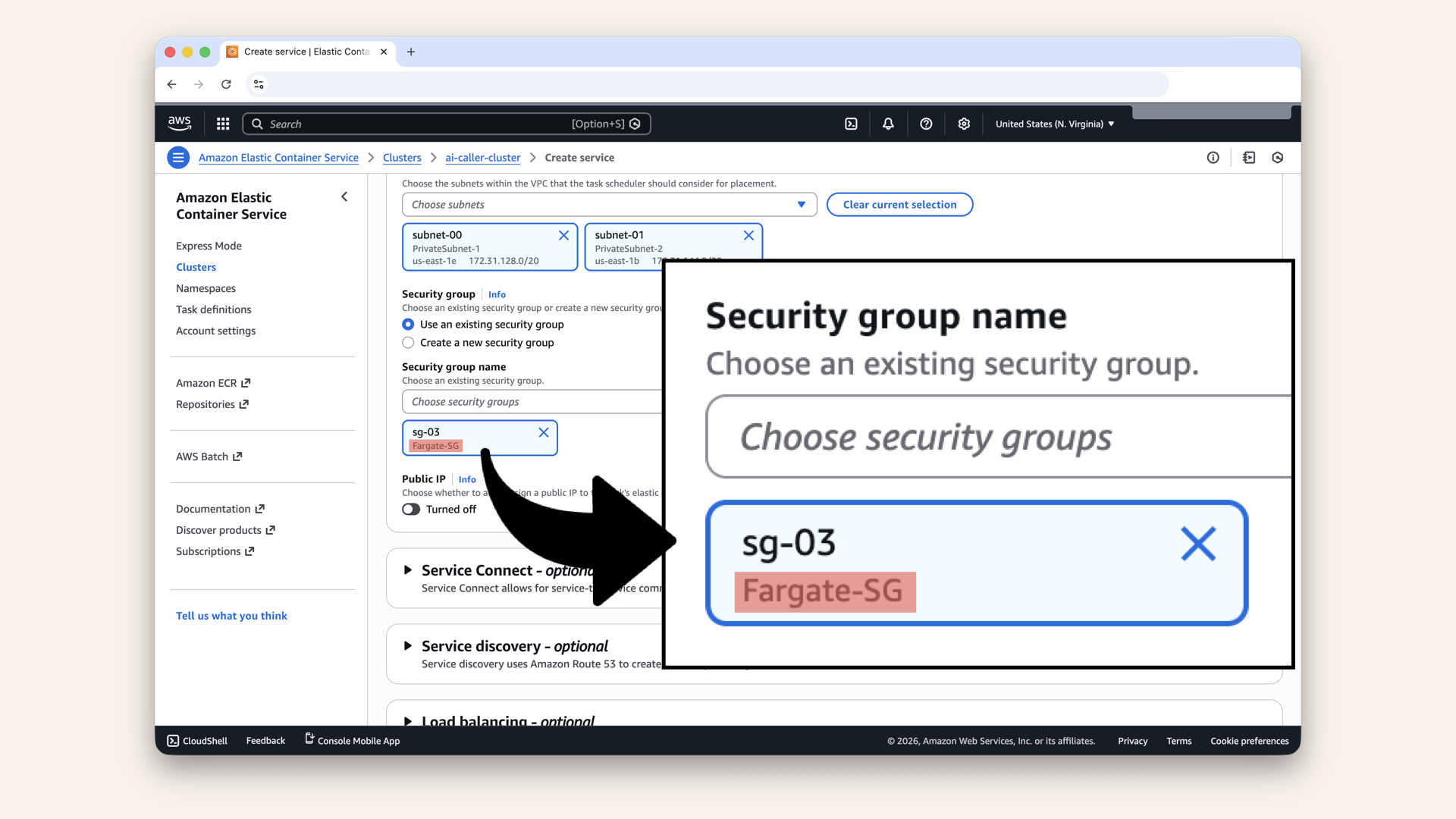
Make sure you select Fargate-SG (from Day 7)
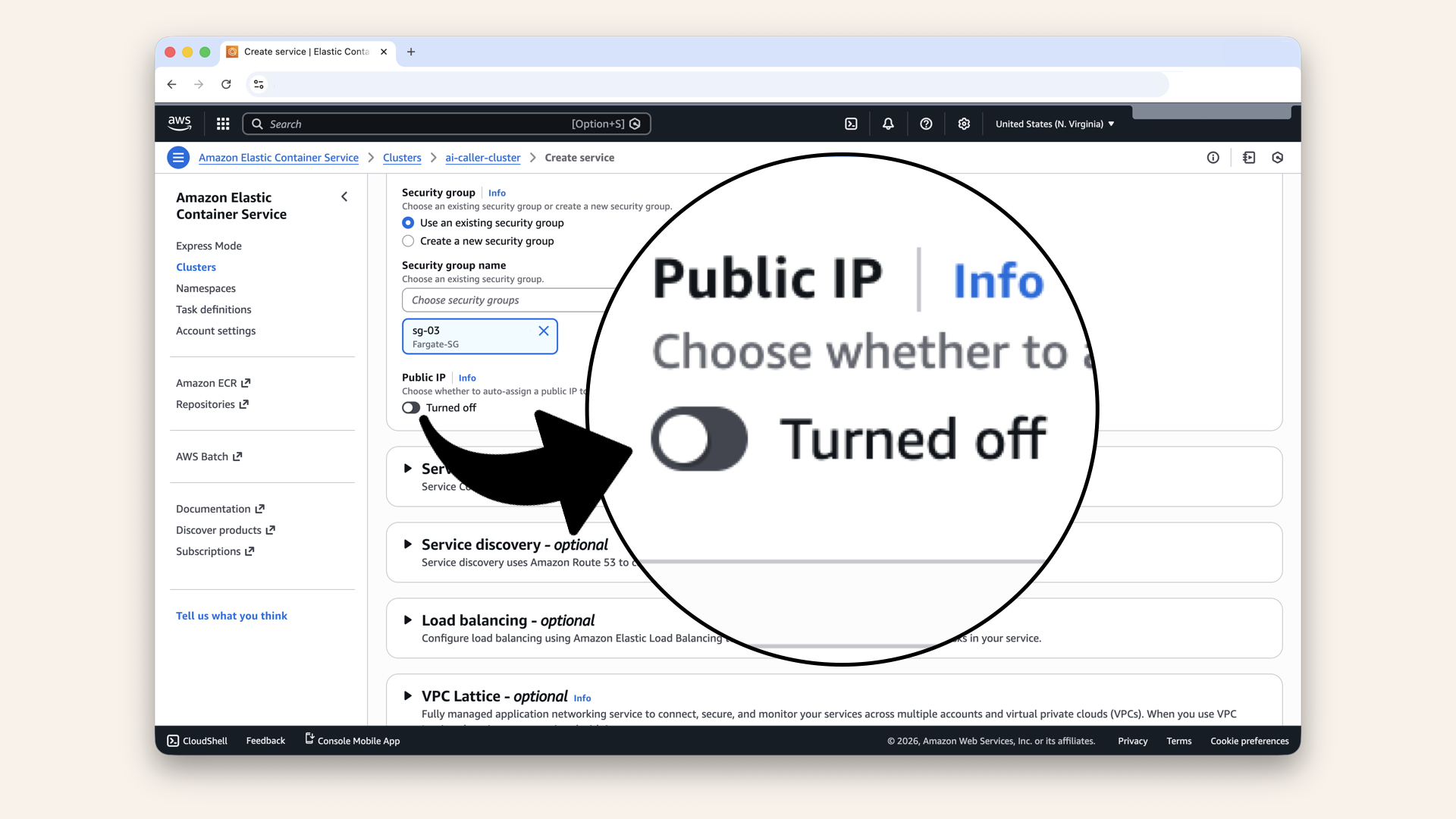
Make sure Public IP is Turned off
Step 11.5: Configure load balancing
Expand Load balancing and check User load balancing: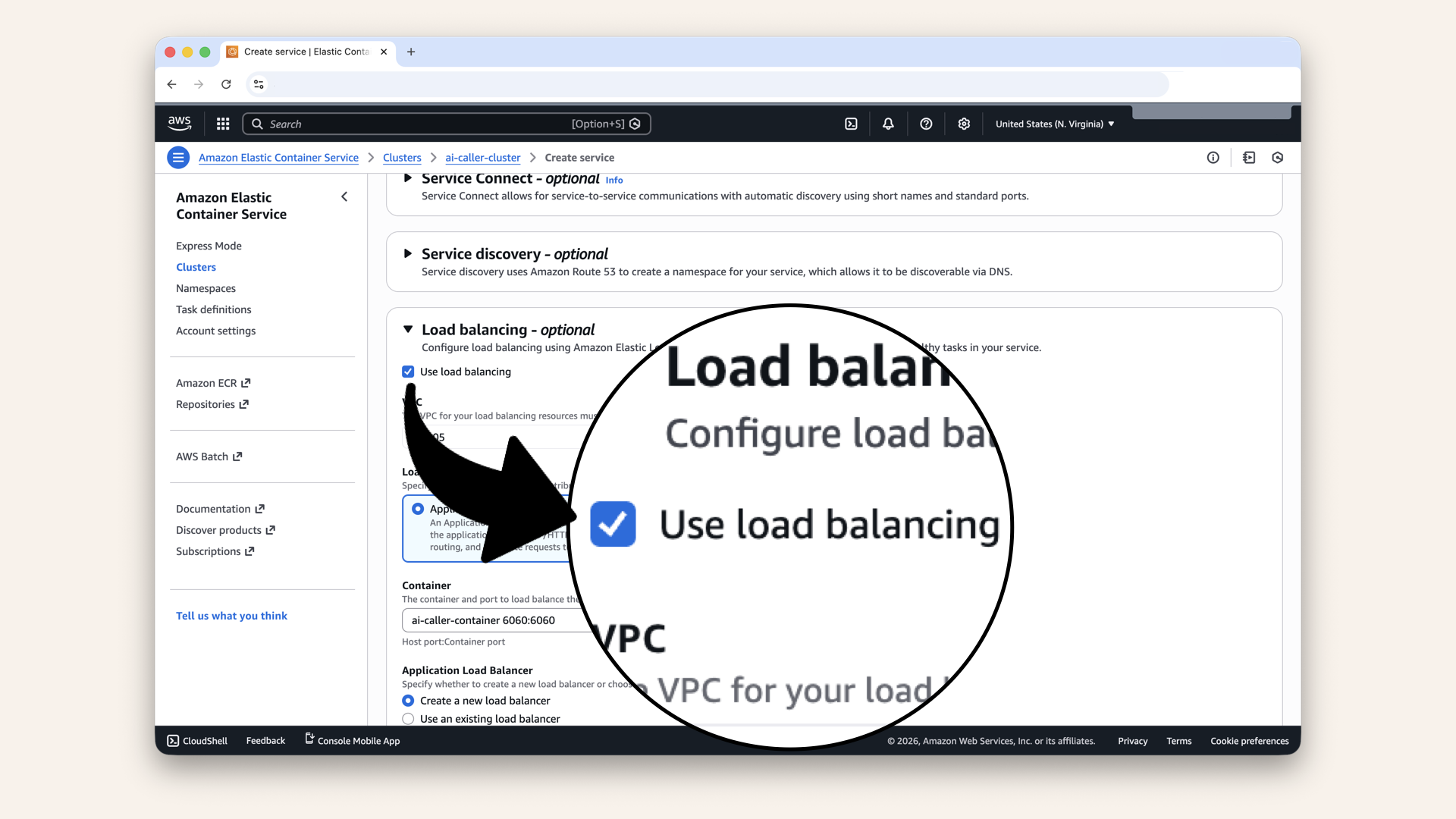
Expand Load balancing and check User load balancing
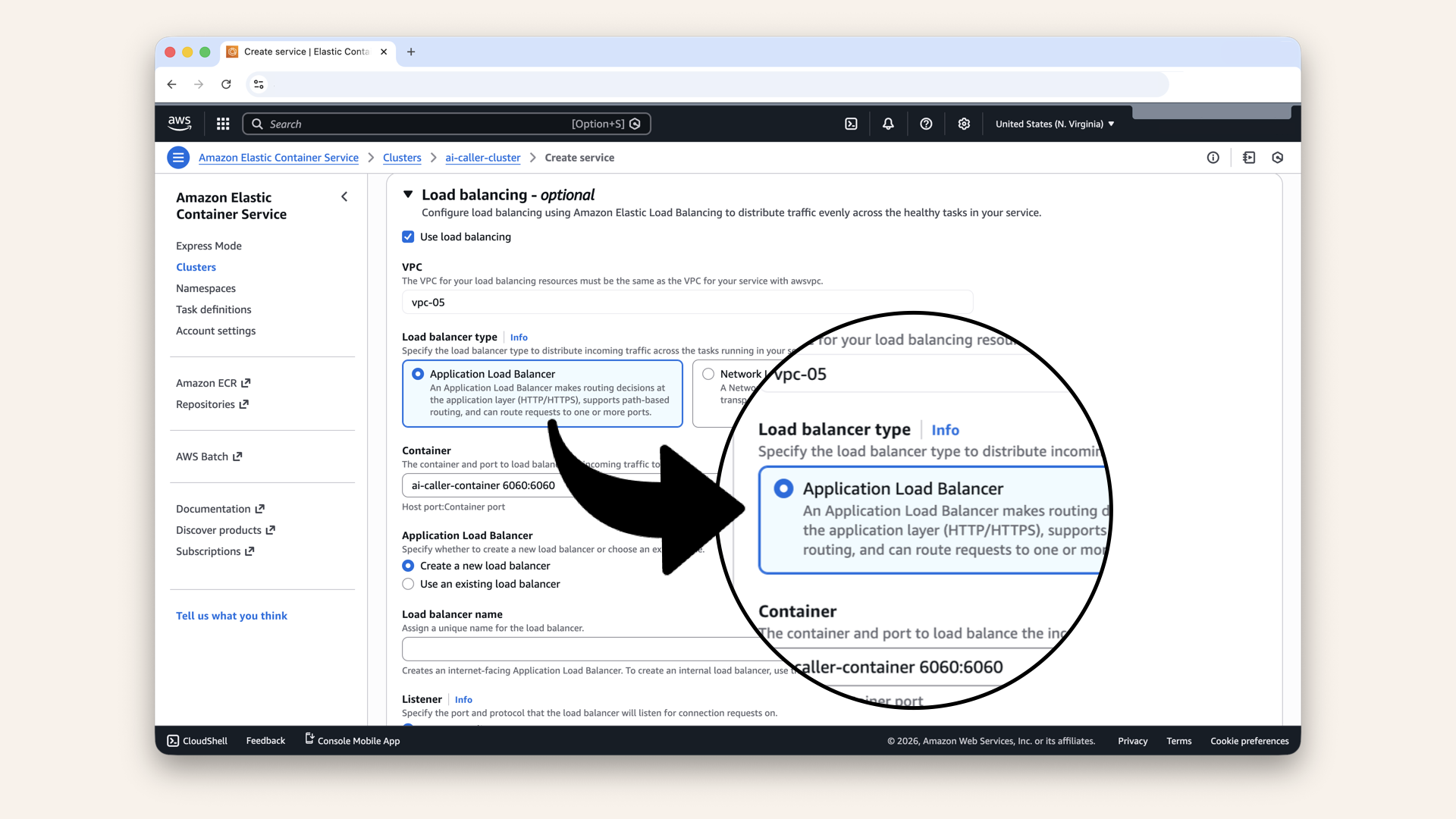
Select Application Load Balancer
Fill in the settings for Load balancing:
| Setting | Value |
|---|---|
| Load balancer type | Application Load Balancer |
| Container | ai-caller-container 6060:6060 |
| Load balancer | Use an existing load balancer |
| Load balancer | Select your Fargate-ALB from Day 9 |
| Listener | Use an existing listener |
| Listener | Select 443:HTTPS |
| Target group | Use an existing target group |
| Target group | Select your Fargate-TG from Day 9 |
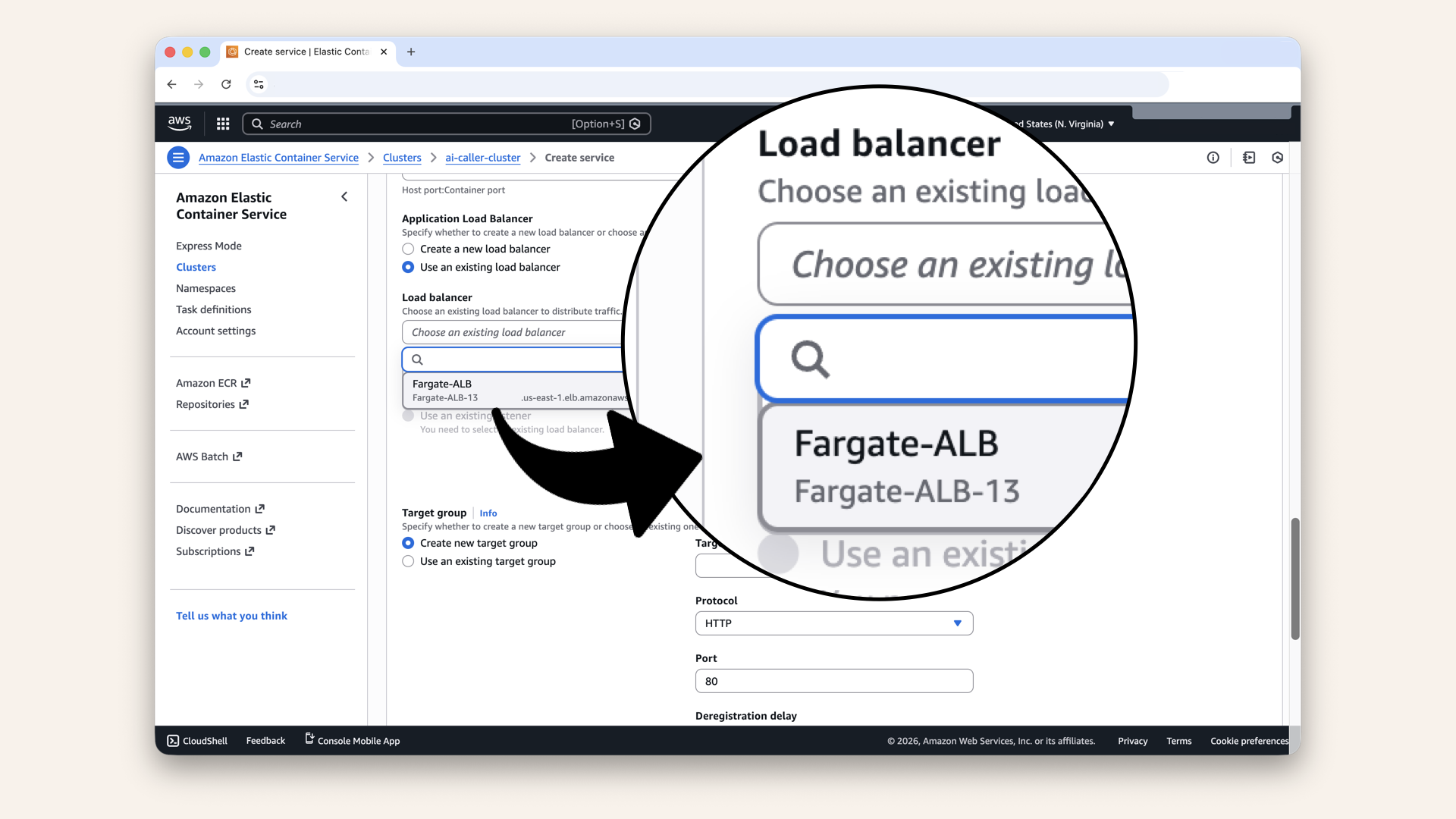
Make sure you select your Fargate-ALB from Day 9
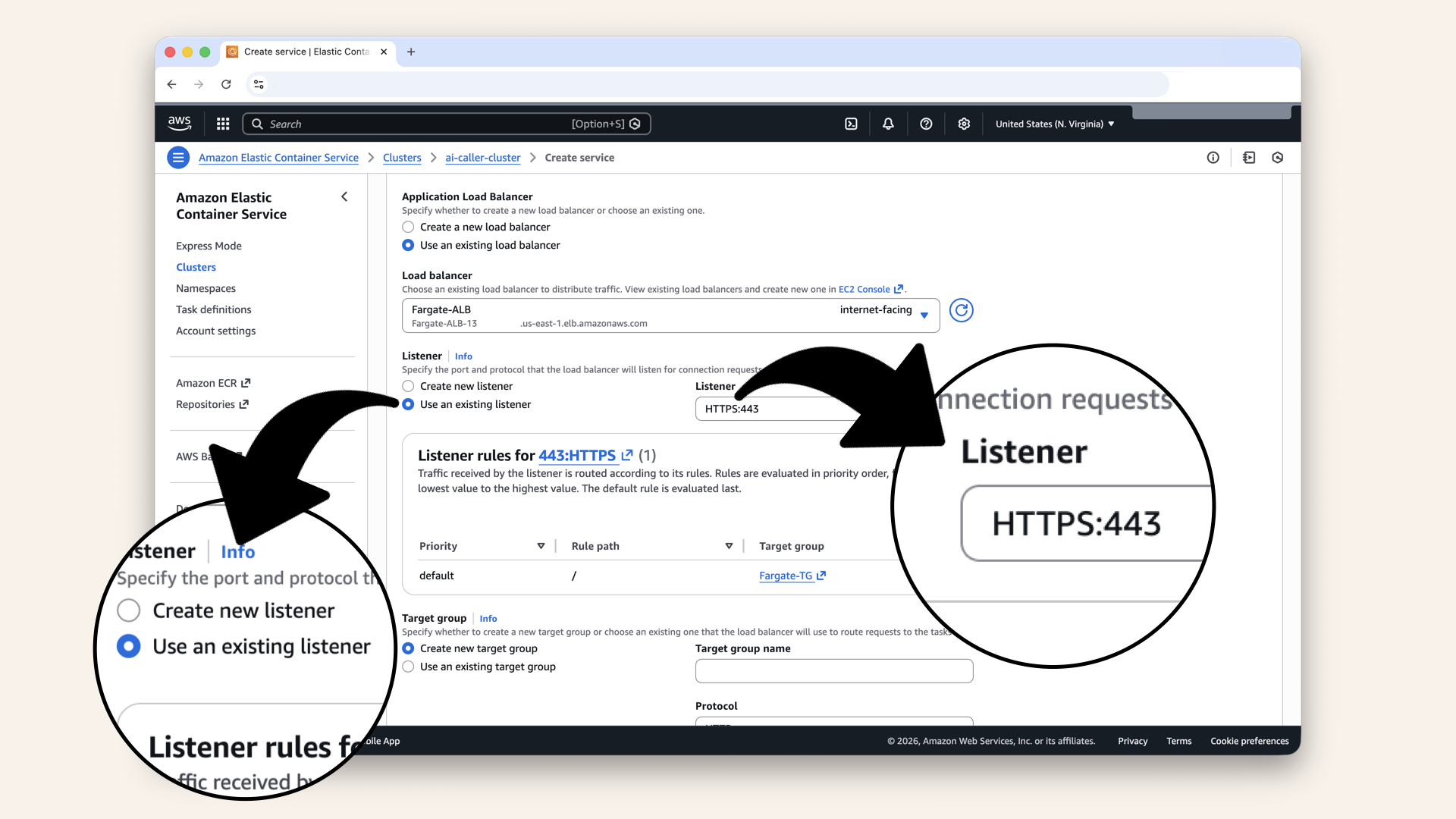
Make sure you select you Use an existing listener and select HTTPS:442
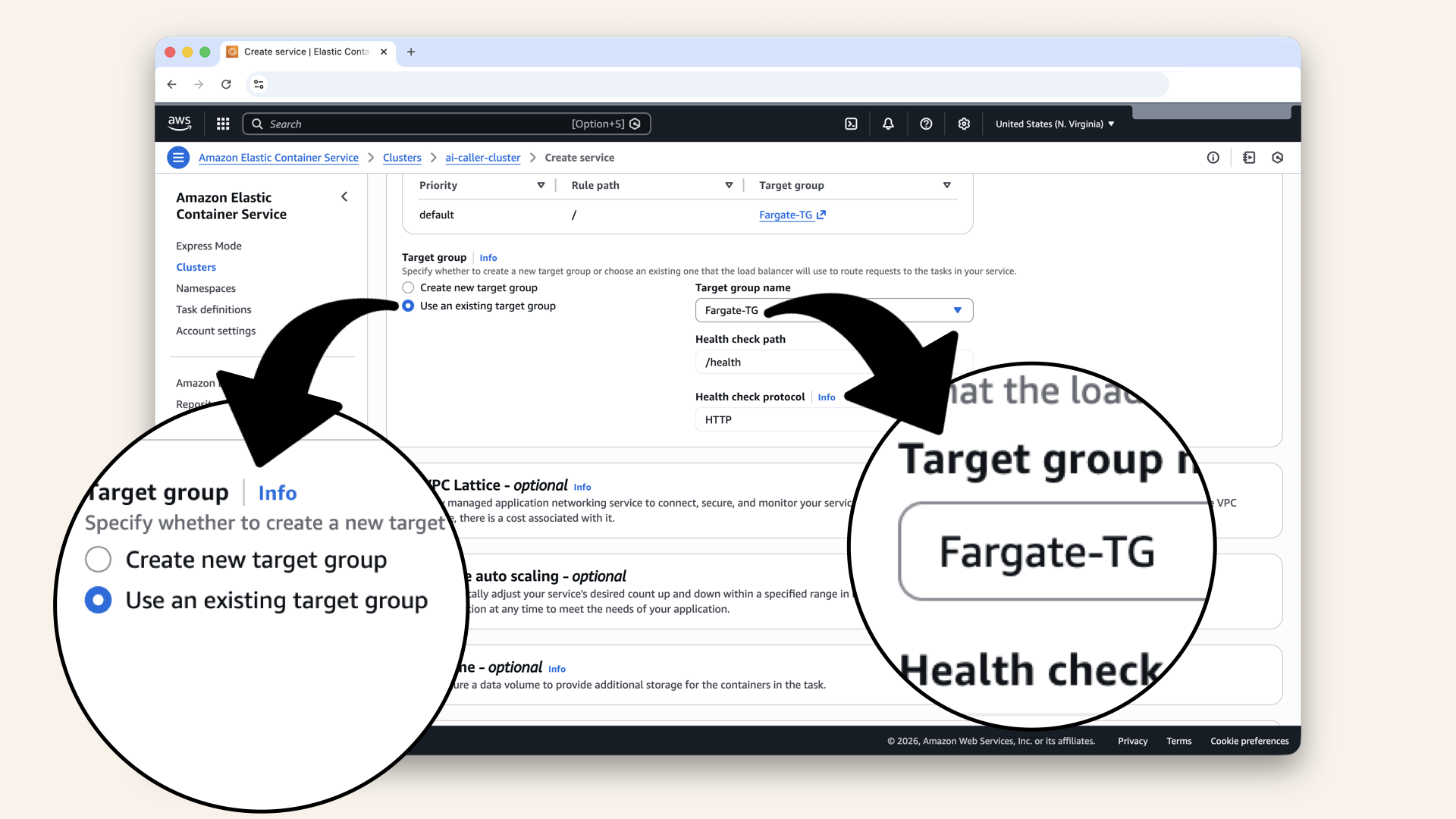
Make sure you select Use an existing target group and select Fargate-TG
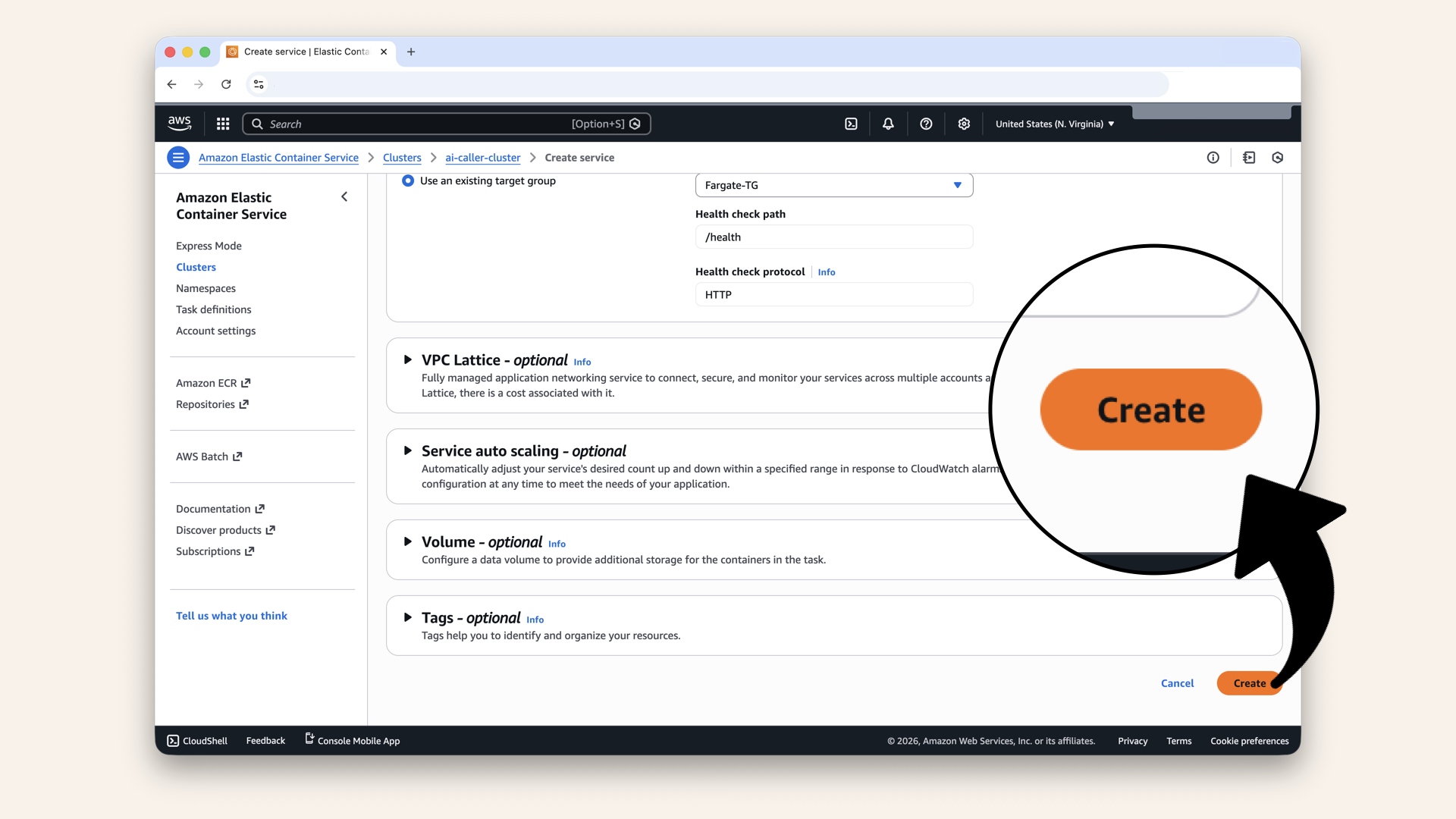
Scroll all the way down and click Create
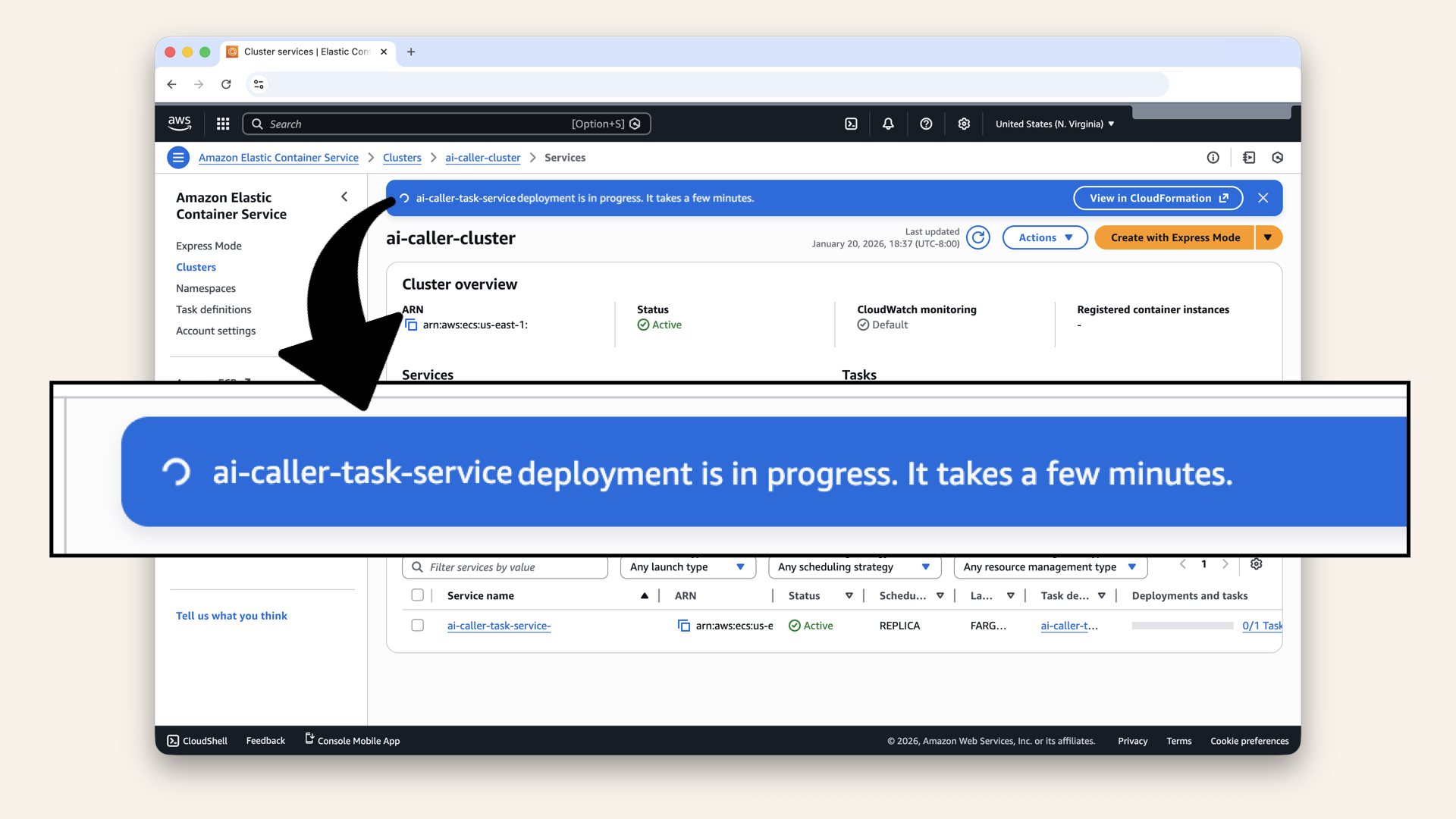
Wait for the service to deploy (2-3 minutes)
Step 11.6: Verify the service is healthy
Click on your service ai-caller-service: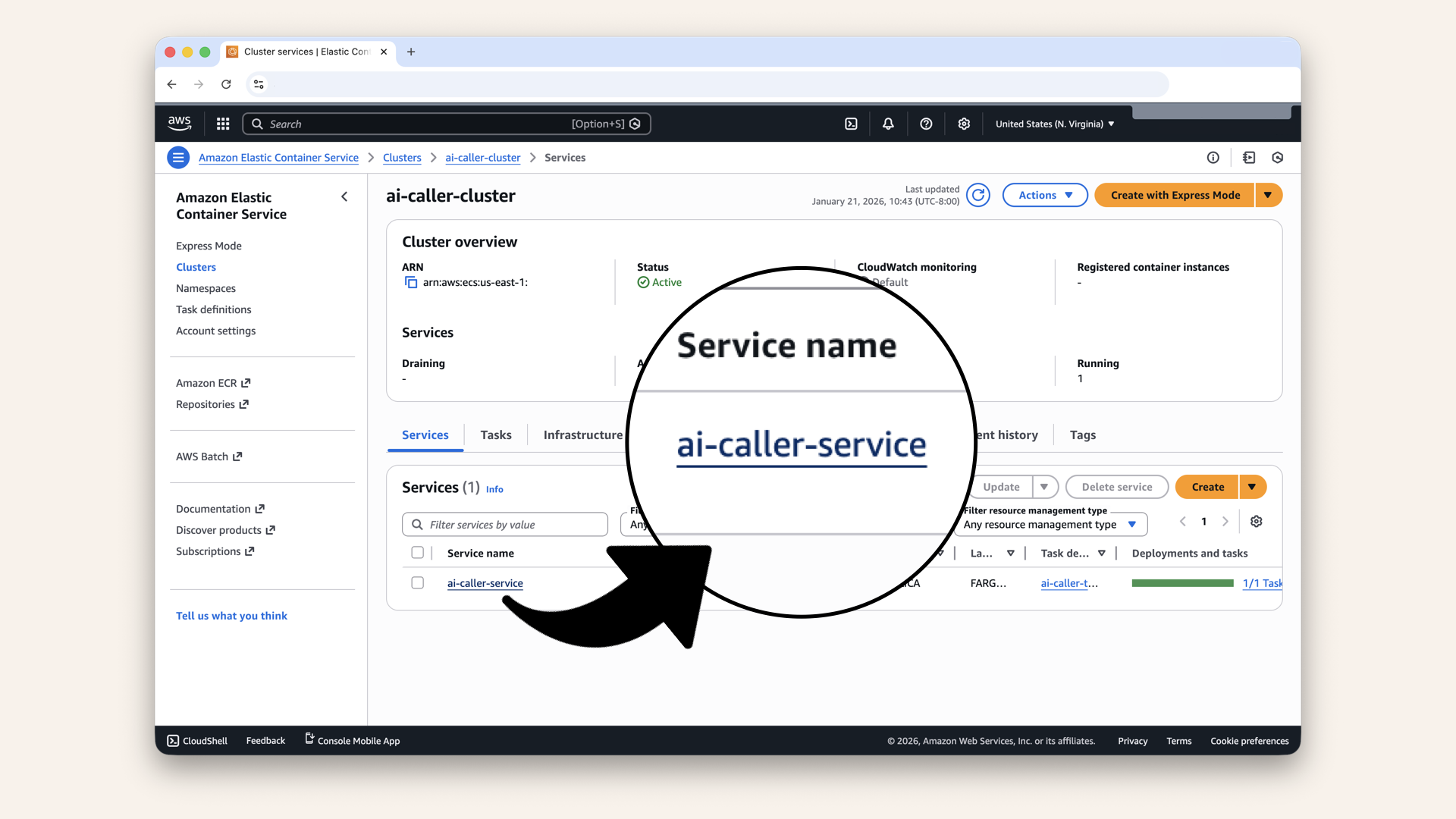
Click on your service ai-caller-service
✅ Once you see Deployment status as Success the service is deployed:
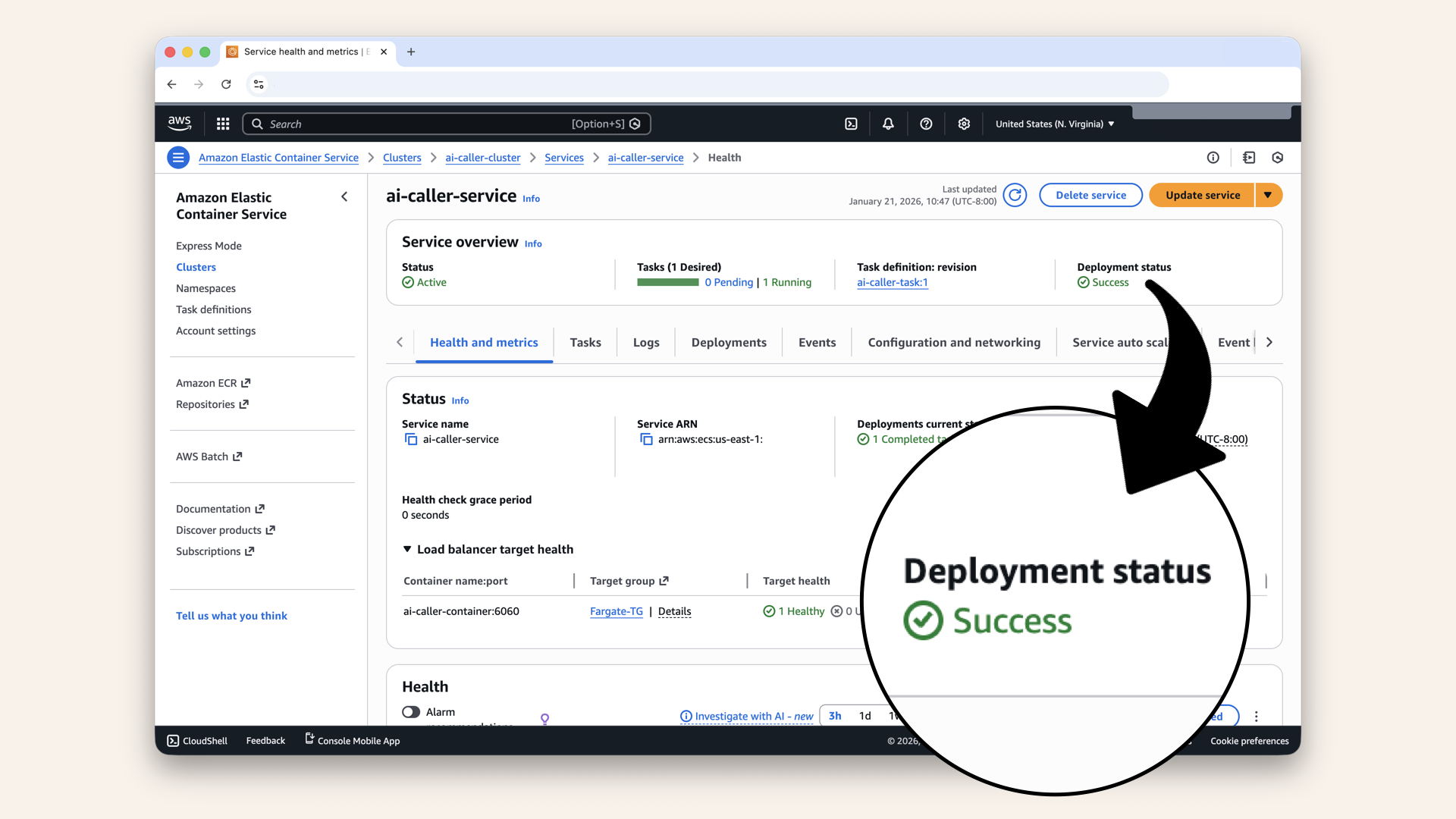
Once you see Deployment status as Success the service is deployed
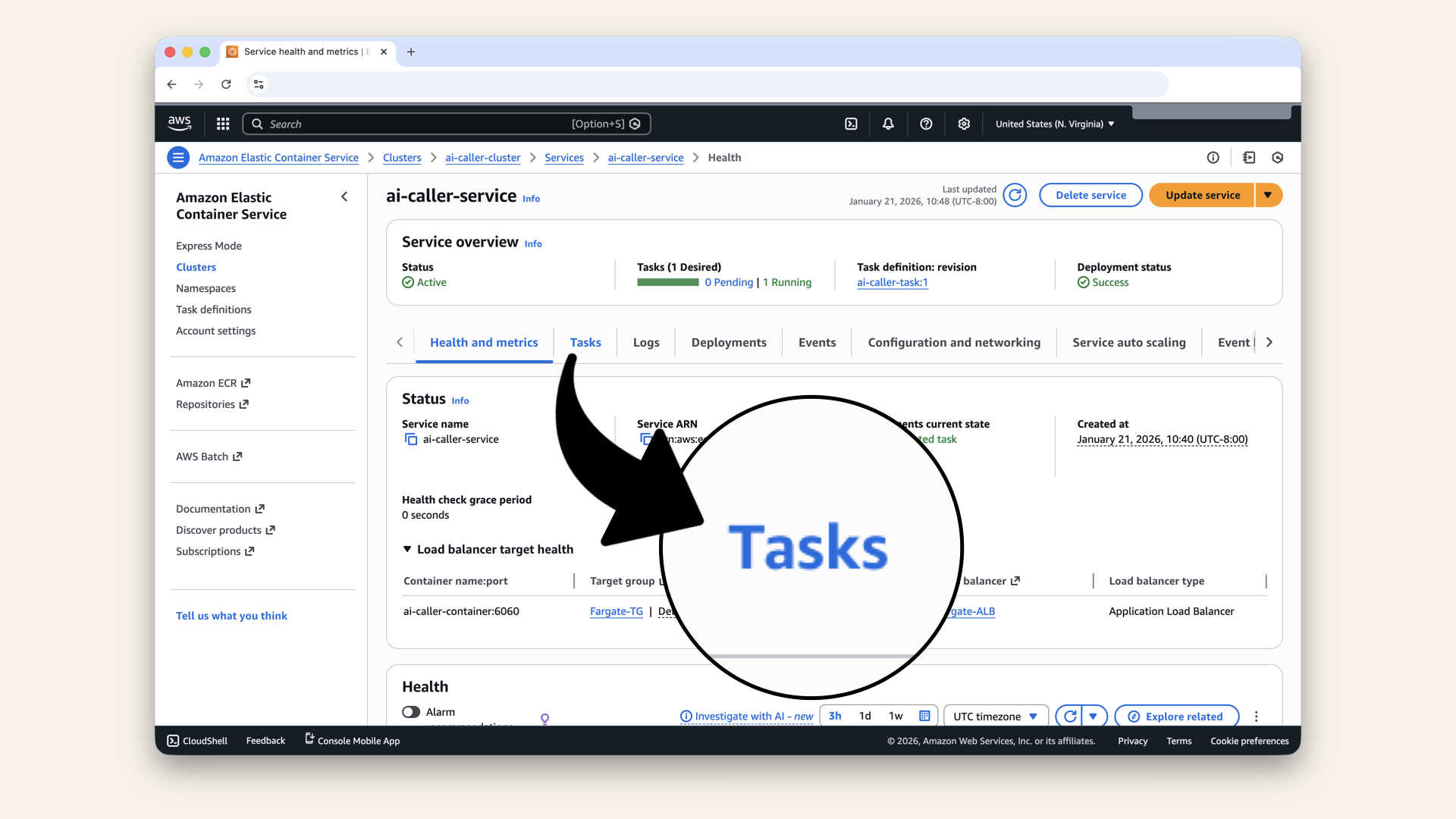
Click the Tasks tab
✅ You should see 1 task running:
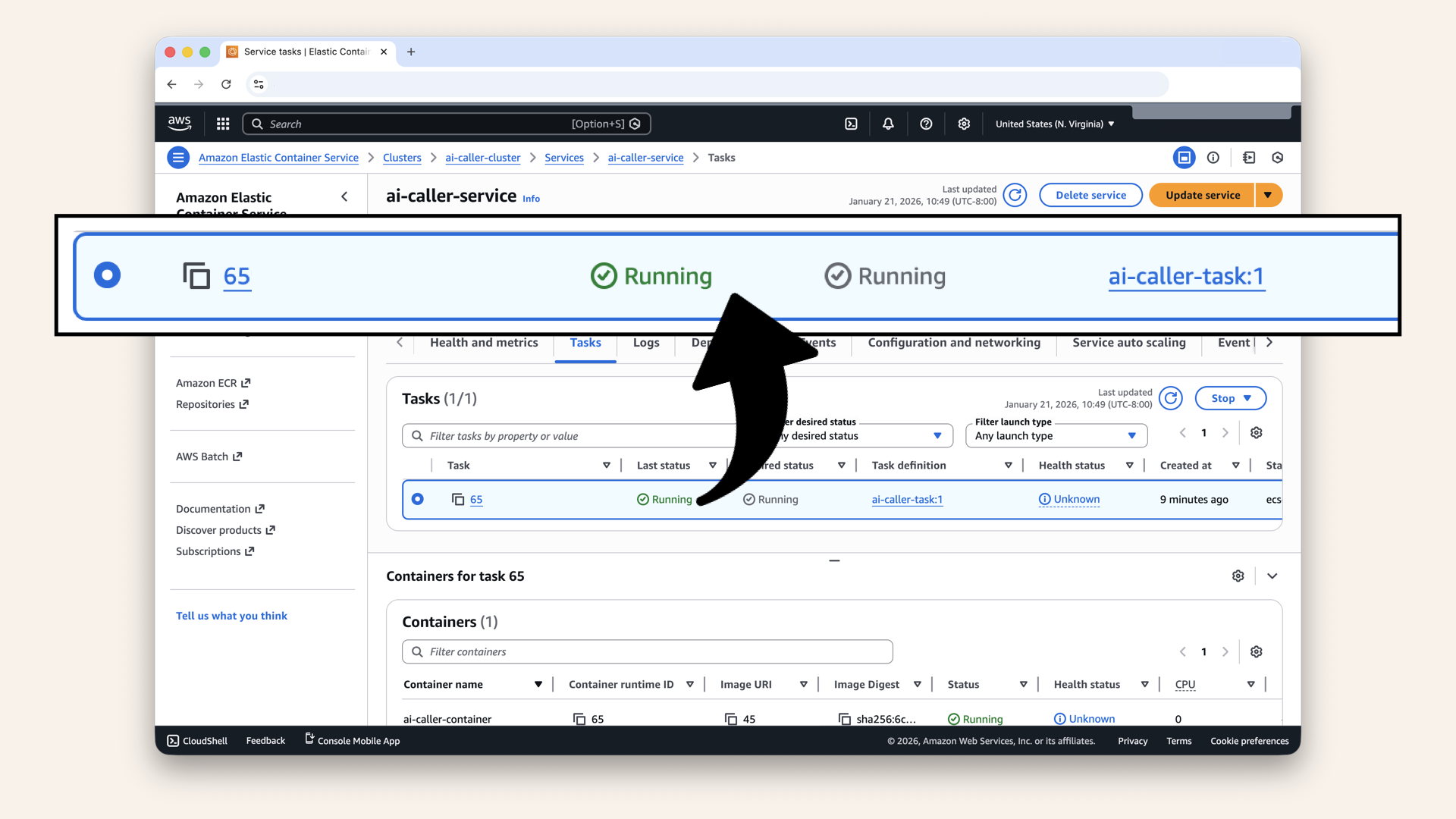
You should see 1 task running
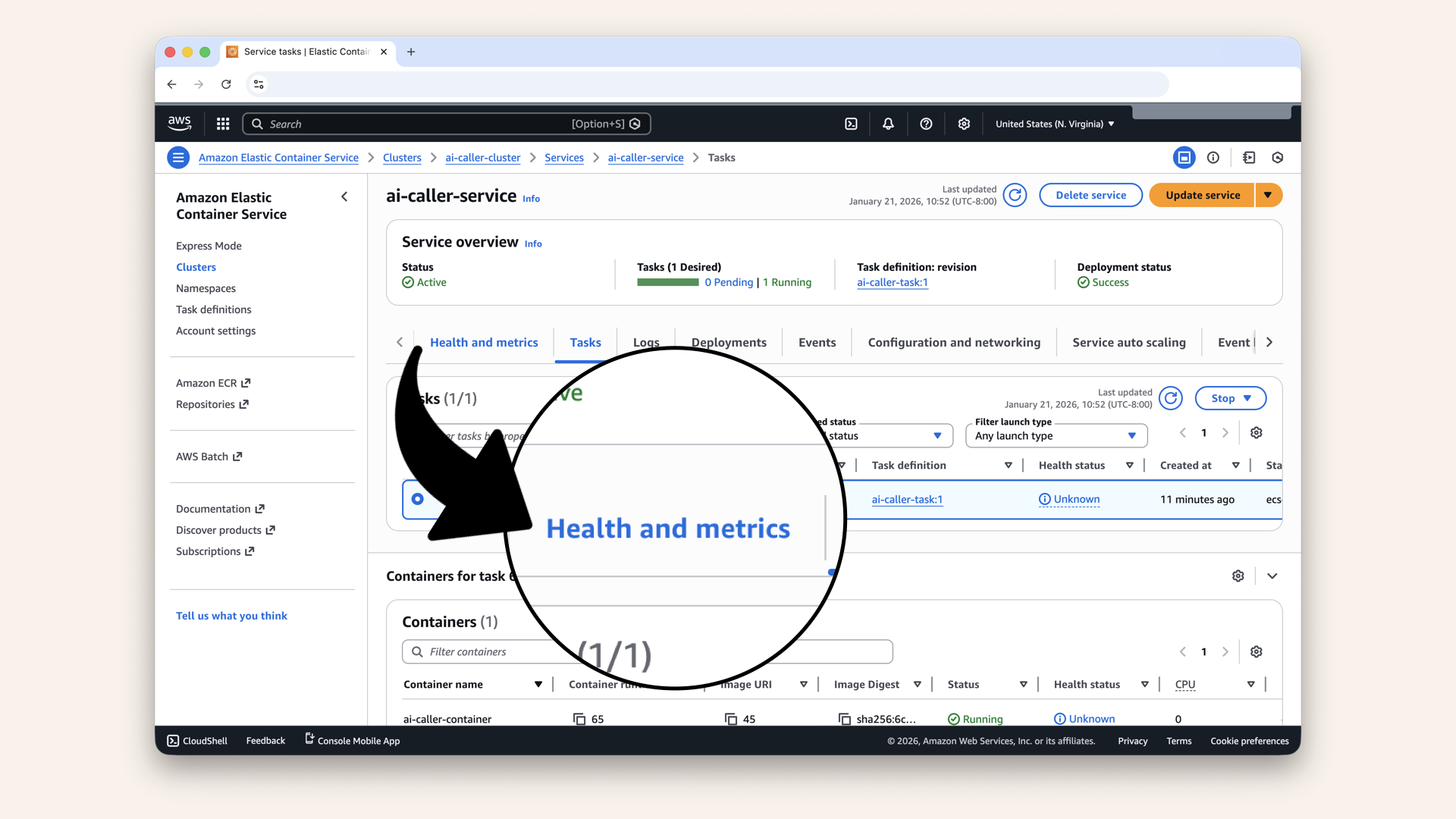
Click the Health and metrics tab
✅ Target should show healthy:
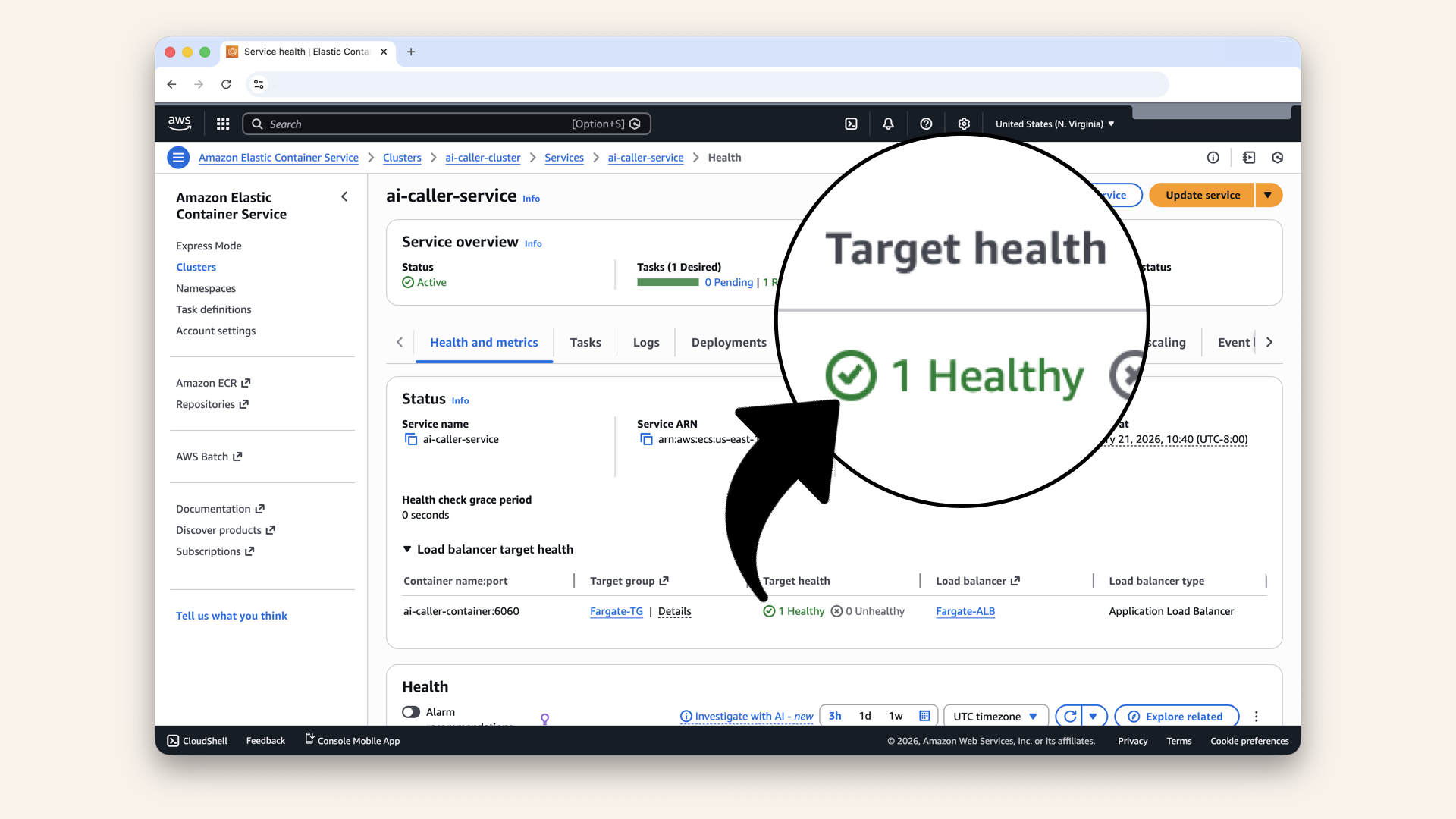
Target should show healthy
Step 11.7: Test the health endpoint
Run this in your terminal to test the health endpoint:curl https://ai-caller.yourdomain.com/health
Expected response:
{"status": "healthy", "service": "ai-caller-agent"}
✅ Your AI agent is deployed and healthy!
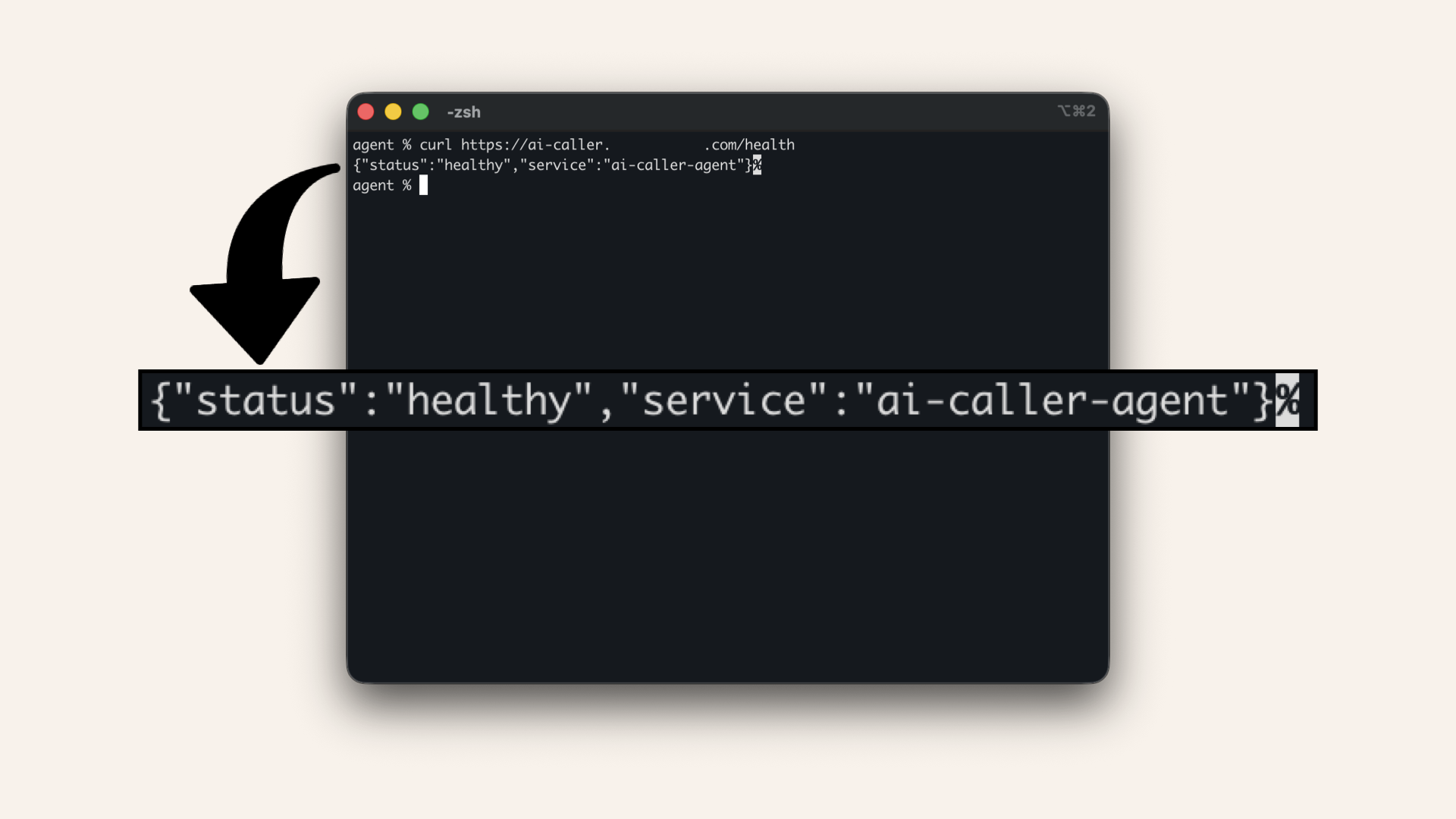
Your AI agent is deployed and healthy!
Step 12: Update Lambda to trigger calls
Now let's update the Lambda function from Day 13 to actually call Twilio.
Step 12.1: Update the Lambda code
Openbackend/src/app.py in your editor.
Replace the entire file with:
import json
import os
import boto3
from twilio.rest import Client

# Initialize clients
ssm_client = boto3.client('ssm', region_name='us-east-1')

# Configuration
ALB_DOMAIN = os.environ.get('ALB_DOMAIN', '')

# Cache for secrets (avoid fetching on every request)
_secrets_cache = None

def get_secrets():
    """Fetch secrets from Parameter Store (with caching)."""
    global _secrets_cache

    if _secrets_cache is not None:
        return _secrets_cache

    # Fetch all parameters with the /ai-caller/ prefix
    response = ssm_client.get_parameters_by_path(
        Path='/ai-caller/',
        WithDecryption=True
    )

    # Convert to dictionary format
    _secrets_cache = {}
    for param in response['Parameters']:
        # Extract key name from full path (e.g., /ai-caller/OPENAI_API_KEY -> OPENAI_API_KEY)
        key = param['Name'].split('/')[-1]
        _secrets_cache[key] = param['Value']

    return _secrets_cache


def json_response(body, status_code=200):
    """Return a properly formatted API Gateway response."""
    return {
        "statusCode": status_code,
        "headers": {
            "Content-Type": "application/json",
            "Access-Control-Allow-Origin": "*",
            "Access-Control-Allow-Headers": "Content-Type,Authorization",
            "Access-Control-Allow-Methods": "GET,POST,OPTIONS"
        },
        "body": json.dumps(body)
    }


def health_handler(event, context):
    """Public health check endpoint."""
    return json_response({"status": "healthy", "service": "ai-caller-backend"})


def lambda_handler(event, context):
    """
    Trigger AI phone call via Twilio.

    This endpoint is protected by Cognito Authorizer.
    Only authenticated users can reach this code.
    """

    # Get the authenticated user info from Cognito
    try:
        claims = event.get('requestContext', {}).get('authorizer', {}).get('claims', {})
        user_email = claims.get('email', 'unknown')
        user_sub = claims.get('sub', 'unknown')
    except Exception:
        user_email = 'unknown'
        user_sub = 'unknown'

    # Parse the request body
    try:
        body = json.loads(event.get('body', '{}'))
    except json.JSONDecodeError:
        return json_response({"error": "Invalid JSON in request body"}, 400)

    # Get phone number from request
    phone_number = body.get('phone_number')

    if not phone_number:
        return json_response({"error": "phone_number is required"}, 400)

    # Validate phone number format (basic E.164 check)
    if not phone_number.startswith('+') or len(phone_number) < 10:
        return json_response({
            "error": "Invalid phone number format. Use E.164 format: +1234567890"
        }, 400)

    print(f"📞 Call requested by: {user_email}")
    print(f"📱 Target number: {phone_number}")

    try:
        # Get secrets from Parameter Store
        secrets = get_secrets()

        # Initialize Twilio client
        twilio_client = Client(
            secrets['TWILIO_ACCOUNT_SID'],
            secrets['TWILIO_AUTH_TOKEN']
        )

        # Clean the ALB domain (remove protocol if present)
        clean_domain = ALB_DOMAIN.replace("https://", "").replace("http://", "")

        # Create TwiML that connects to our WebSocket server
        twiml = (
            f'<?xml version="1.0" encoding="UTF-8"?>'
            f'<Response>'
            f'<Connect>'
            f'<Stream url="wss://{clean_domain}/media-stream" />'
            f'</Connect>'
            f'</Response>'
        )

        print(f"🔗 Connecting to: wss://{clean_domain}/media-stream")

        # Make the call
        call = twilio_client.calls.create(
            from_=secrets['TWILIO_PHONE_NUMBER'],
            to=phone_number,
            twiml=twiml
        )

        print(f"✅ Call initiated! SID: {call.sid}")

        return json_response({
            "success": True,
            "message": "AI call initiated! Your phone should ring in a few seconds.",
            "data": {
                "call_sid": call.sid,
                "phone_number": phone_number,
                "triggered_by": user_email,
                "status": "initiated"
            }
        })

    except Exception as e:
        print(f"❌ Error making call: {str(e)}")
        return json_response({
            "error": "Failed to initiate call",
            "details": str(e)
        }, 500)
Deep dive
The Lambda has three main jobs:
-
Fetch secrets securely →
get_secrets()pulls your Twilio credentials from Parameter Store (with caching so we don't fetch on every request) -
Validate the request → Checks that the phone number is in E-164 format (
+1234567890) and that the user making the request is authenticated via Cognito -
Trigger the call via Twilio → Creates TwiML instructions telling Twilio: "Call this number, and when they answer, connect a WebSocket to my Fargate server"
The key part is the TwiML:
twiml = (
  f'<?xml version="1.0" encoding="UTF-8"?>'
  f'<Response>'
  f'<Connect>'
  f'<Stream url="wss://{clean_domain}/media-stream" />'
  f'</Connect>'
  f'</Response>'
)
This tells Twilio: "Don't play a recording or read text, instead, open a WebSocket to my server and stream the audio both ways"
Flow recap:
- User clicks "Call" → Lambda receives request
- Lambda calls Twilio API with TwiML instructions
- Twilio dials the phone number
- When answered, Twilio connects to your Fargate container
- Fargate streams audio to/from OpenAI
- AI conversation happens!
Lambda's job is done after step 2 → it just triggers the call. Fargate handles the actual conversation.
Step 12.2: Update requirements.txt
Openbackend/src/requirements.txt in your editor
Add Twilio:
twilio==9.10.0
Step 12.3: Update template.yaml
Openbackend/template.yaml
Update the TriggerCallFunction to include the new environment variables:
  TriggerCallFunction:
    Type: AWS::Serverless::Function
    Properties:
      CodeUri: src/
      Handler: app.lambda_handler
      Description: Triggers AI calling agent via Twilio
      Environment:
        Variables:
          ALB_DOMAIN: ai-caller.yourdomain.com  # Add your domain from Day 10
      Policies:
        - Version: '2012-10-17'
          Statement:
            - Effect: Allow
              Action:
                - ssm:GetParametersByPath
                - ssm:GetParameters
                - ssm:GetParameter
              Resource: 'arn:aws:ssm:us-east-1:*:parameter/ai-caller/*'
            - Effect: Allow
              Action:
                - kms:Decrypt
              Resource: '*'
              Condition:
                StringEquals:
                  kms:ViaService: ssm.us-east-1.amazonaws.com
      Events:
        TriggerCall:
          Type: Api
          Properties:
            Path: /trigger-call
            Method: post
            RestApiId: !Ref CallApi
- Replace
yourdomainwith your actual domain
Step 12.4: Deploy the updated Lambda
backendMake sure you're in the backend folder before deploying.
- Mac/Linux
- Windows
pwd
cd
✅ You should see the path ending in /ai-caller/backend
cd ai-caller/backend
sam build
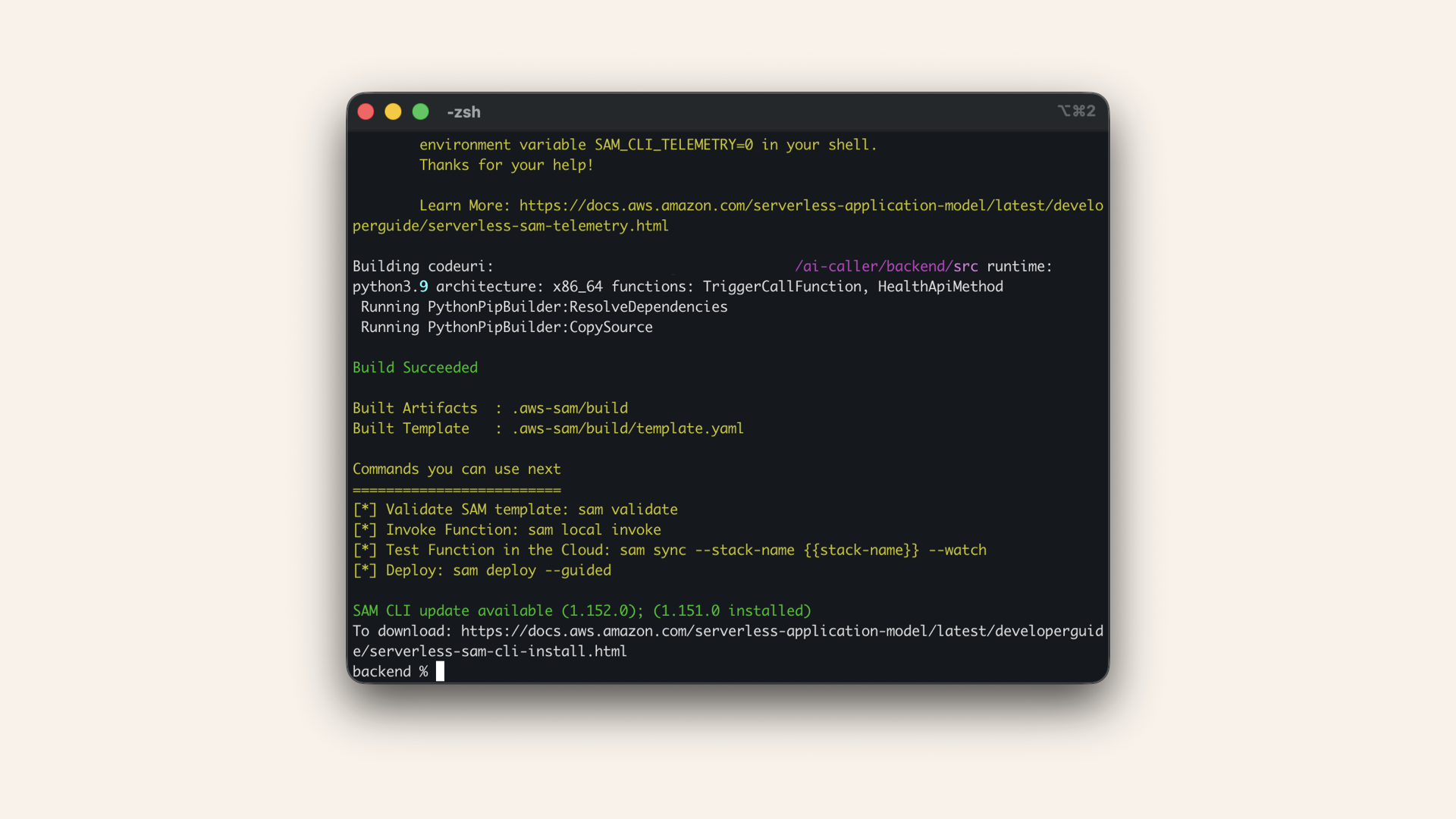
Build the Lambda
sam deploy --guided --profile ai-caller-cli
Answer the prompts:
| Prompt | Answer |
|---|---|
| Stack name | |
| Region | |
| Parameter CognitoUserPoolArn | Paste your ARN from Day 13 |
| Confirm changes before deploy | n |
| Allow SAM CLI IAM role creation | y |
| Disable rollback | n |
| Save arguments to samconfig.toml | y |
| SAM configuration file | press Enter |
| SAM configuration environment | press Enter |
✅ You should see: "Successfully created/updated stack":
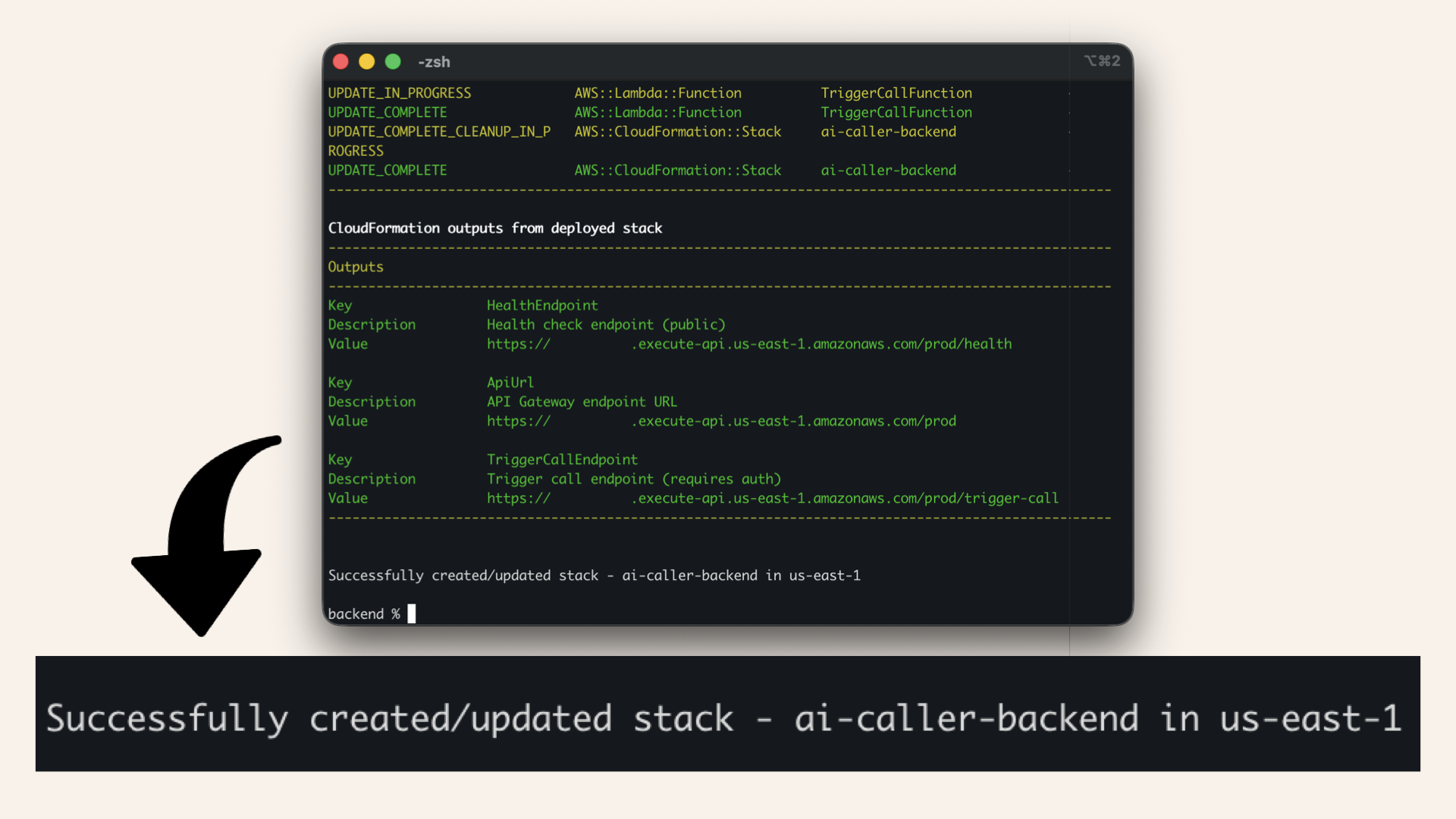
You should see: "Successfully created/updated stack"
Step 13: Test the complete flow
This is the moment of truth! 🎉
Visit your frontend https://app.yourdomain.com Log in with your Cognito credentials: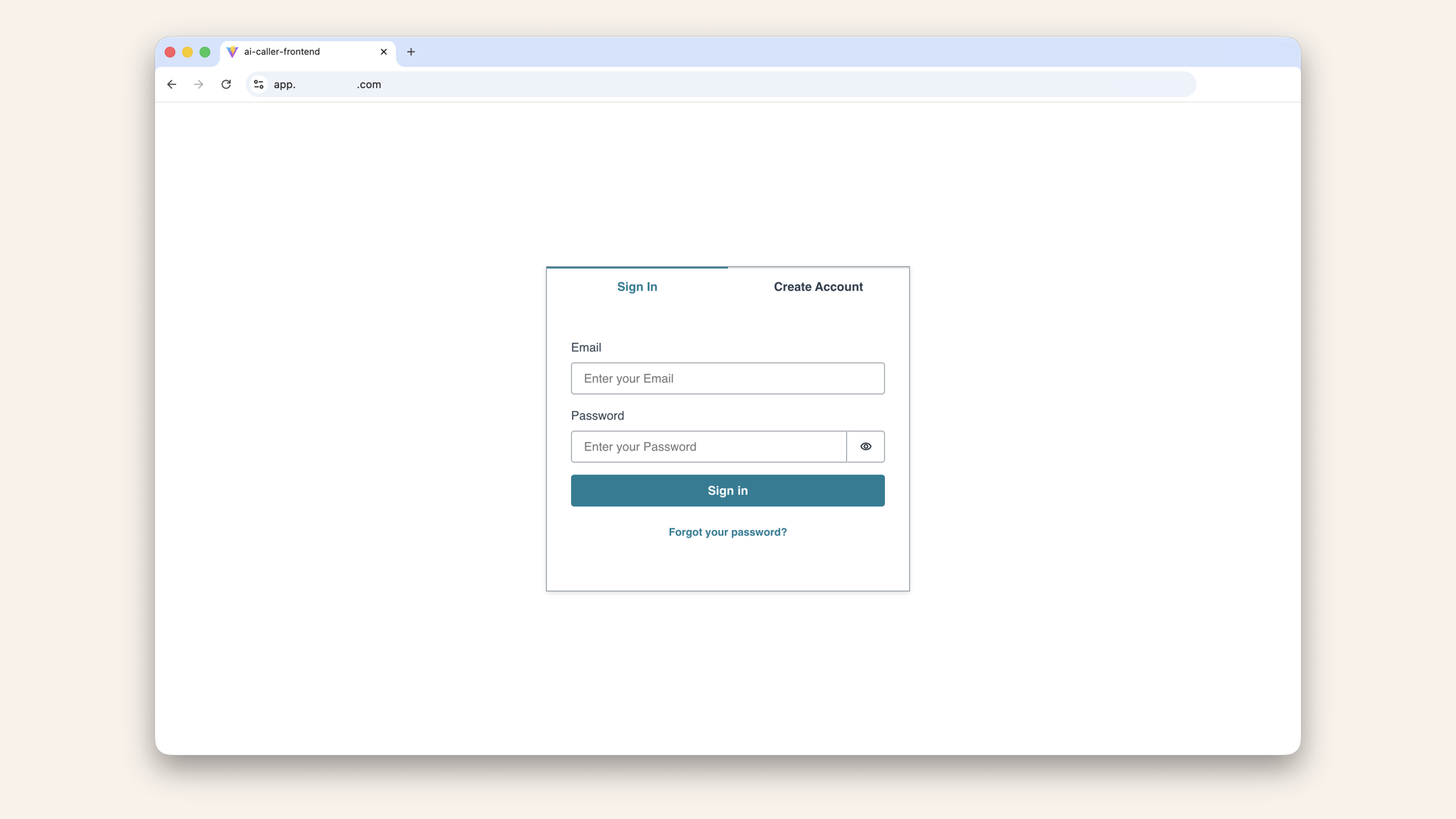
Log in with your Cognito credentials
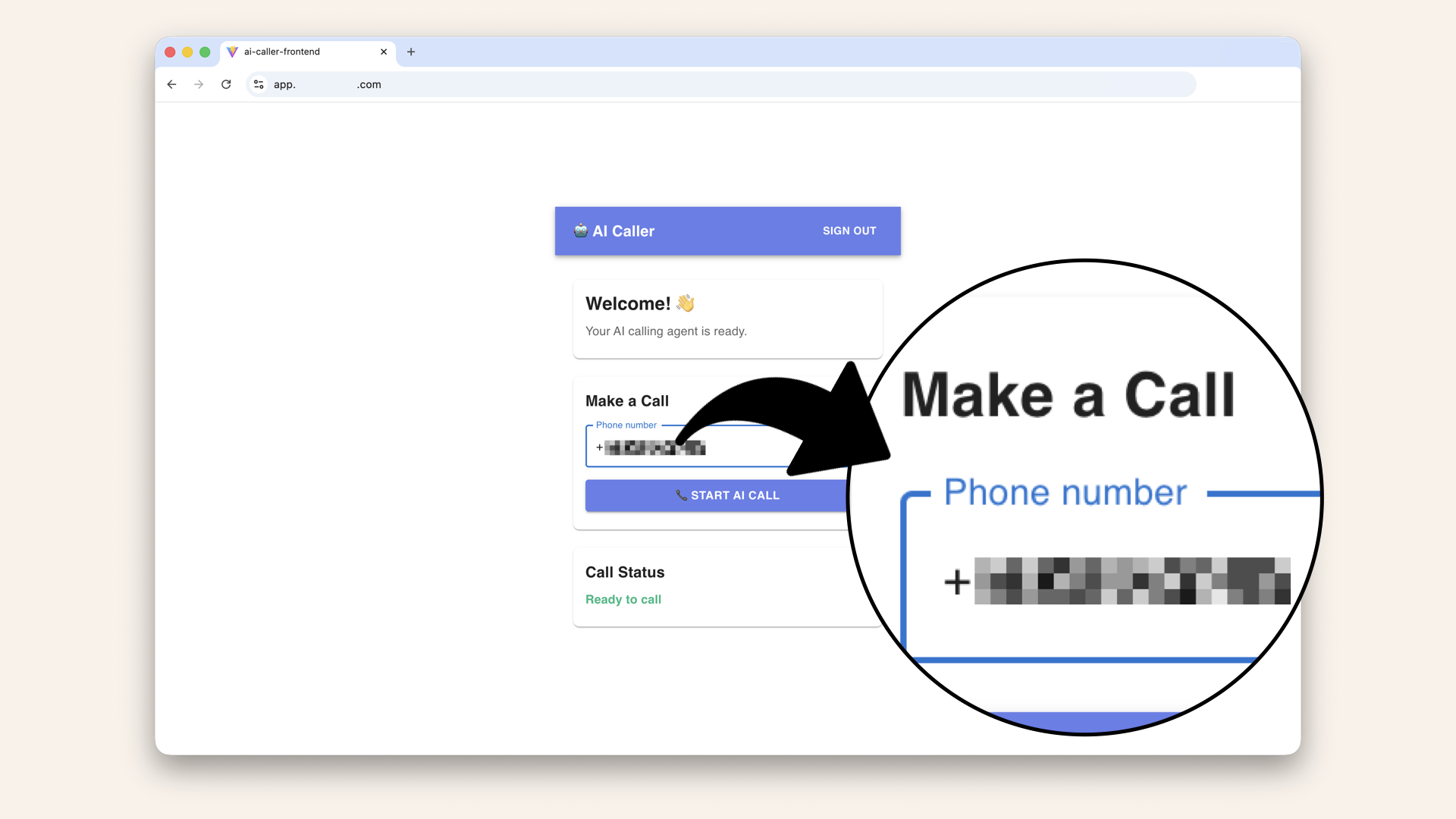
Enter your real phone number (you'll receive a call)
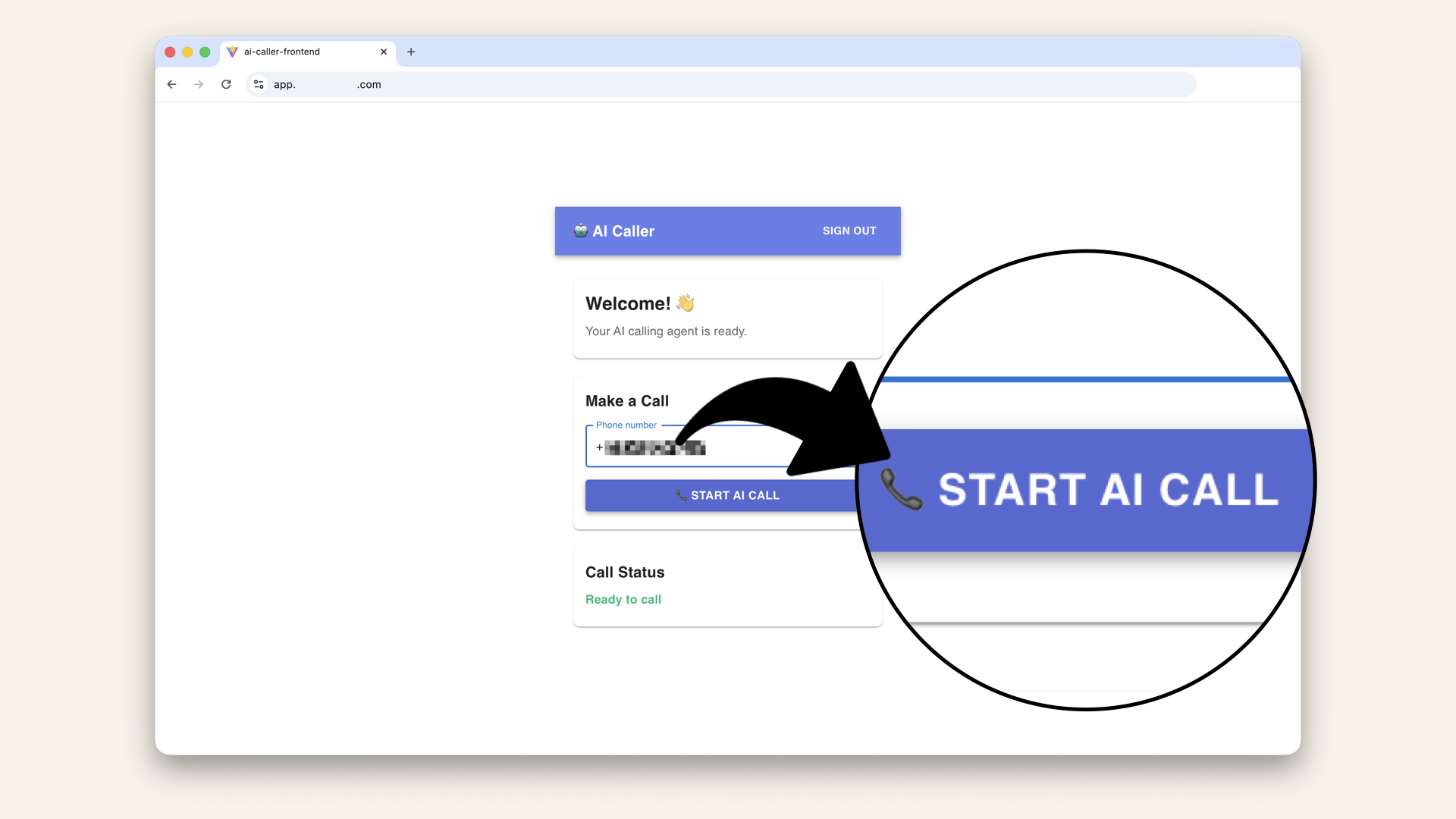
Click "Start AI call"
📞 YOUR PHONE SHOULD RING!
When you answer, you'll hear the AI greet you and start a conversation.
✅ You just make your first AI phone call with your AWS infrastructure 🎉🤖📞
Watch the AI agent call me to make a dinner reservation 🤖📞
This AI agent is stateless → it doesn't remember previous calls or store conversation history.
Each call starts fresh.
The AI remembers everything said during the call (up to ~32k tokens). But each call starts fresh → there's no memory between calls.
For production use cases (tracking reservations, remembering customer preferences, call logging), you'd add a database layer.
That's covered in the full course launching February 2026.
✅ Today's MASSIVE win
If you completed all steps:
✅ Set up AWS CLI with proper IAM permissions
✅ Created ECR repository for Docker images
✅ Built and pushed AI agent Docker image
✅ Stored secrets securely in Parameter store
✅ Created ECS Cluster with Fargate
✅ Creates Task Definition with secret injection
✅ Created ECS Service connected to ALB
✅ Updated Lambda to trigger Twilio calls
✅ Made your first REAL AI phone call 📞🤖
This is huge!
You've built a complete, production-grade aI calling system:
- Secure authentication (Cognito)
- Serverless backend (Lambda)
- Container orchestration (ECS/Fargate)
- Secret management (Parameter Store)
- Load balancing (ALB)
- Real-time AI conversations (OpenAI Realtime API)
- Phone integration (Twilio)
Updating your code (future reference)
When you make changes to your AI agent, here's the update cycle:
1. Rebuild Docker image
Build the Docker image:- Mac (Apple Silicon M1/M2/M3)
- Mac (Intel)
- Windows
docker buildx build --platform linux/amd64 -t ai-caller-agent:latest .
Fargate runs on x86_64 (AMD64) architecture. If you're on an M1/M2/M3 Mac (ARM), you need to build for the correct platform.
docker build -t ai-caller-agent:latest .
docker build -t ai-caller-agent:latest .
2. Log in to ECR
aws ecr get-login-password --region us-east-1 --profile ai-caller-cli \
| docker login --username AWS --password-stdin YOUR_ACCOUNT_ID.dkr.ecr.us-east-1.amazonaws.com # Replace YOUR_ACCOUNT_ID with your account ID
✅ You should see: "Login Succeeded"
3. Tag and push to ECR
Run this to tag the image for ECR (replaceYOUR_ACCOUNT_ID with your account ID):
docker tag ai-caller-agent:latest YOUR_ACCOUNT_ID.dkr.ecr.us-east-1.amazonaws.com/ai-caller-agent:latest
docker push YOUR_ACCOUNT_ID.dkr.ecr.us-east-1.amazonaws.com/ai-caller-agent:latest
4. Deploy your changes
Now you have two paths depending on what you changed:
| What you changed | Action needed |
|---|---|
| Only code (Python files, dependencies) | Force new deployment (quick) |
| Environment variables or task settings | Create new task definition revision |
Path A: Force New Deployment (code only)
Use this when: You only changed your Python code or requirements.txt → no changes to environmental variables, secrets, CPU/memory or other task definition settings.
In the AWS Console search bar at the top, type ecs and click Elastic Container Service from the dropdown menu
Click your ai-caller-cluster cluster
Click on your service ai-caller-service
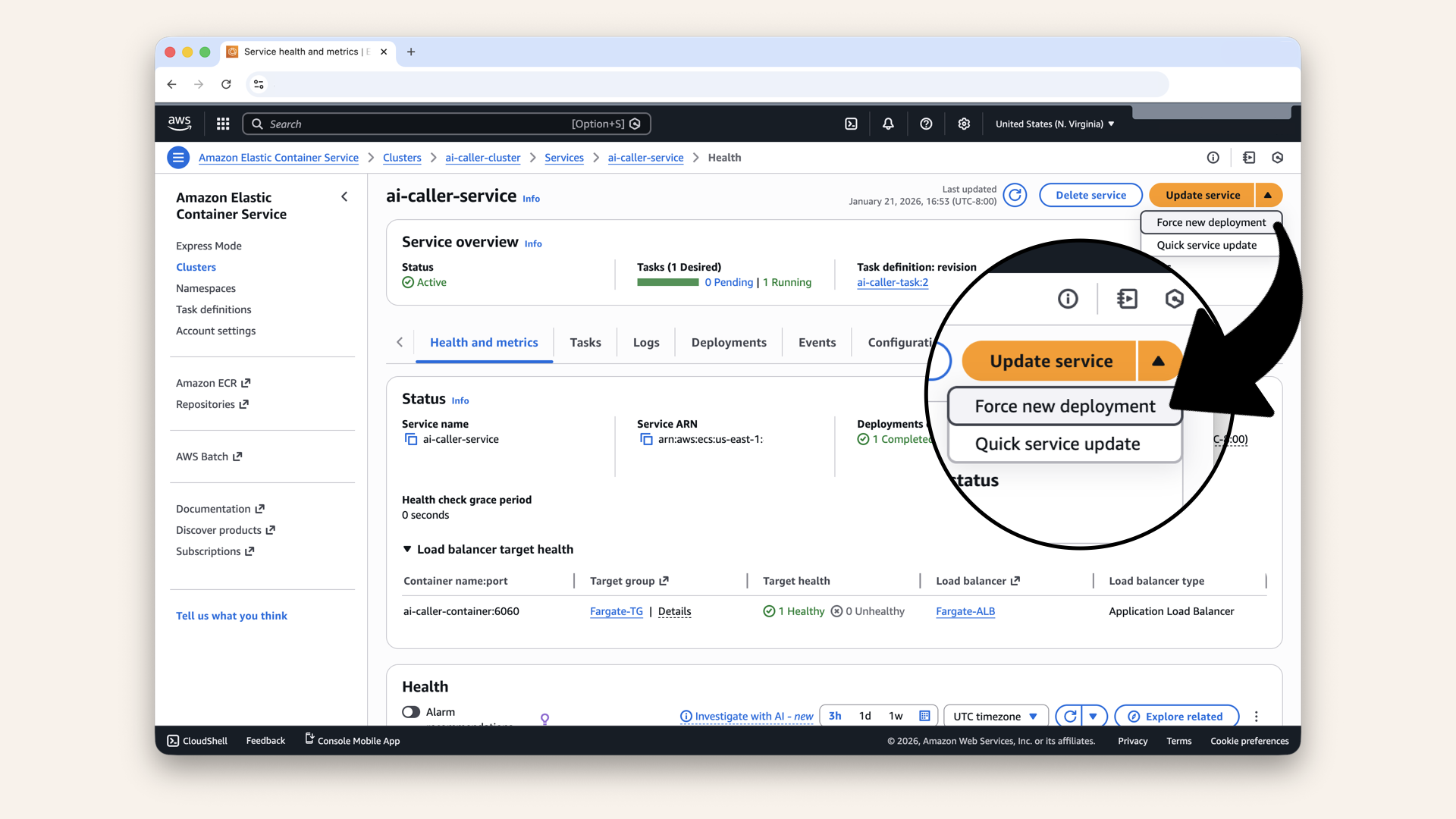
Click the arrow on the Update service button (top right) and click Force new deployment in the dropdown
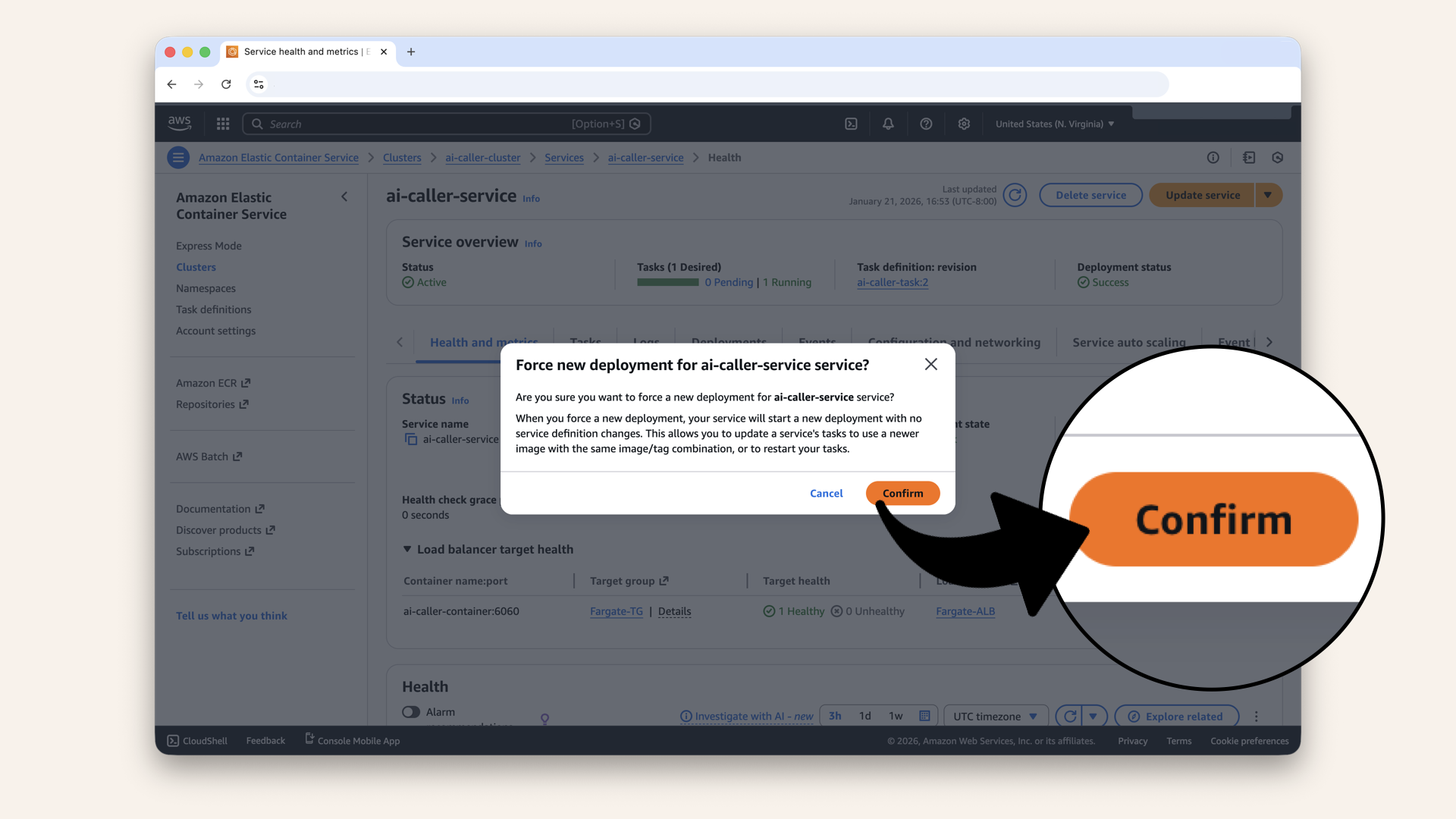
Click Confirm
This tells ECS: "Even though the task definition hasn't changed, stop the current tasks and start new ones."
Since you pushed a new image with the :latest tag, the new tasks will pull the fresh image from ECR.
ECS will:
- Start a new task with your updated image
- Wait for it to pass health checks
- Stop the old task
- Route traffic to the new task
✅ Your code changes are now live!
Path B: New Task Definition (env vars changed)
Use this when: You changed environment variables, secrets, CPU/memory allocation, or any other task definition setting.
Open the AWS Console ↗ In the AWS Console search bar at the top, type ecs and click Elastic Container Service from the dropdown menu:
In the AWS Console search bar at the top, type ecs and click Elastic Container Service from the dropdown menu
Click Task definitions in the left sidebar
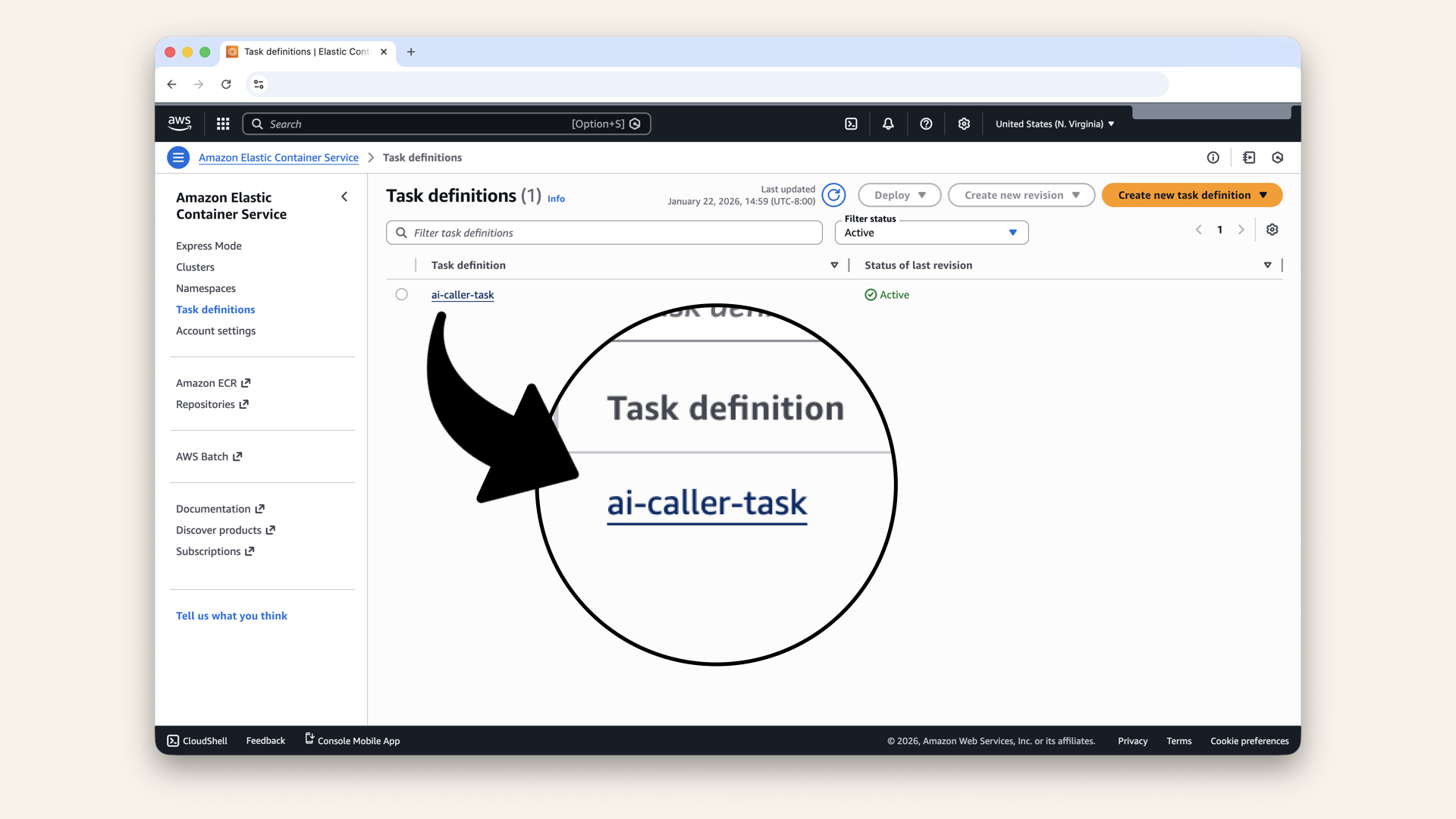
Click on your task ai-caller-task
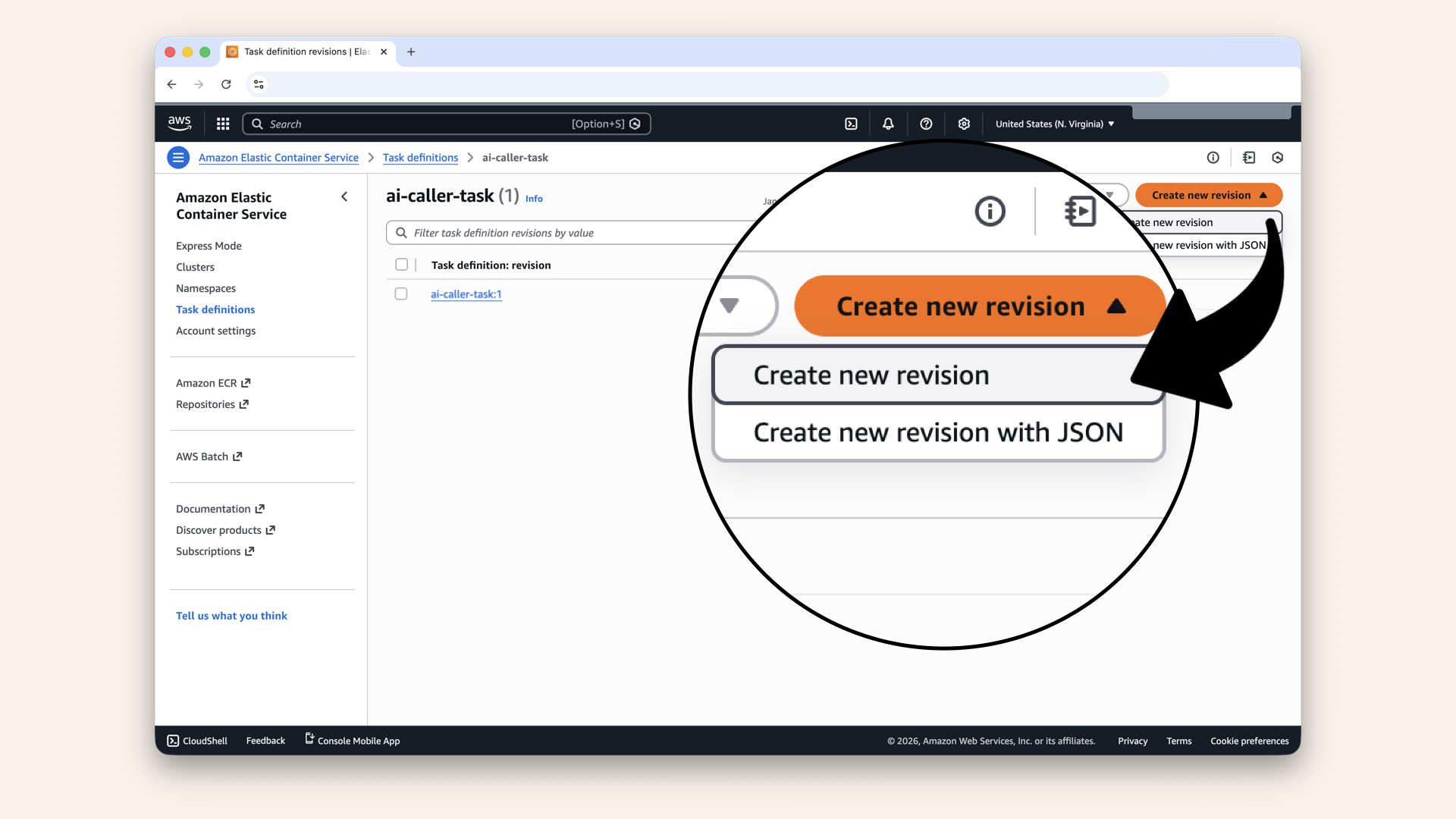
Click Create new revision and click Create new revision in the dropdown
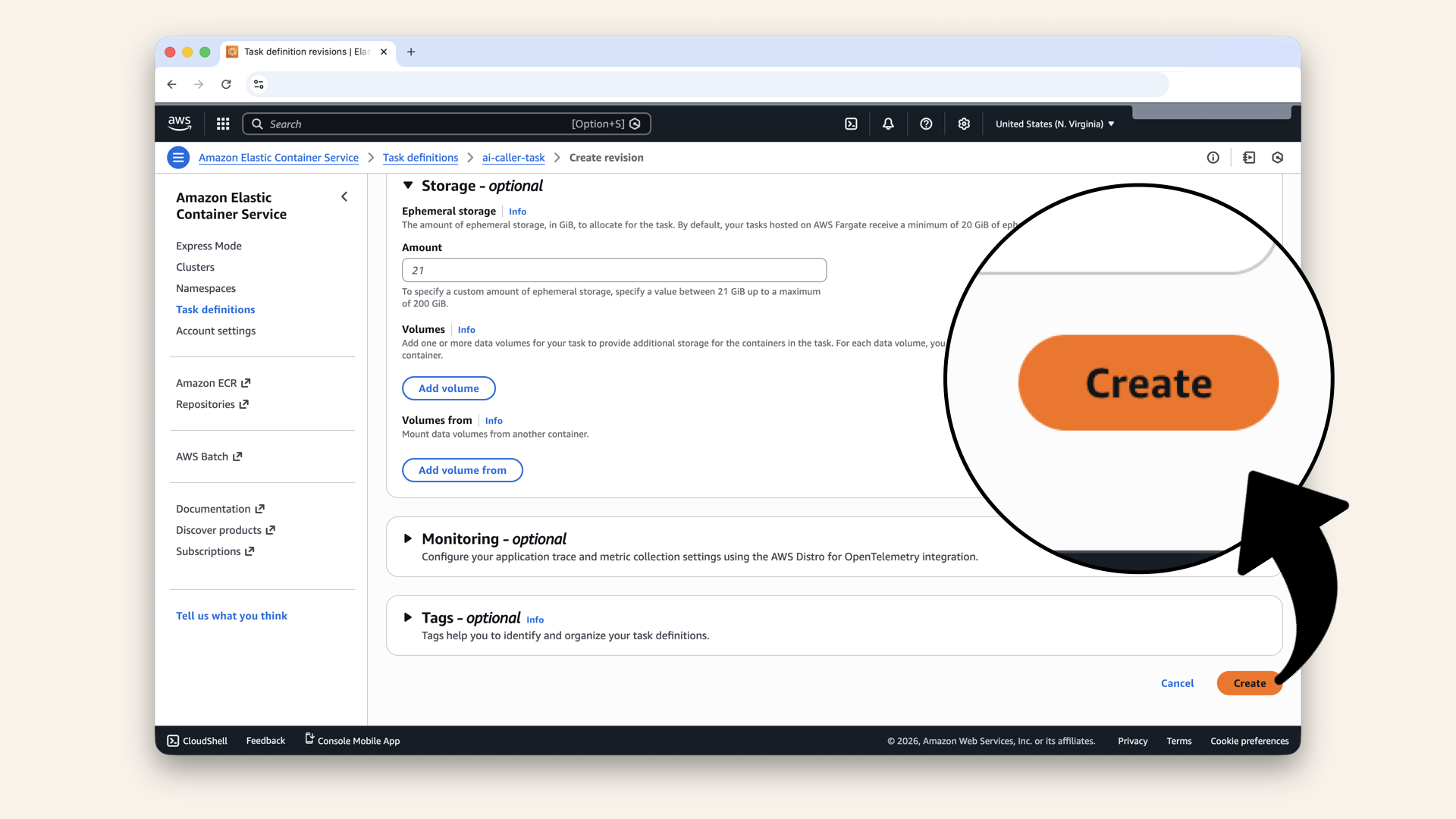
Make your changes (add/update environment variables, adjust memory, etc.) then scroll down and click Create
Now update the service to use the new revision.
Click Clusters in the left sidebar: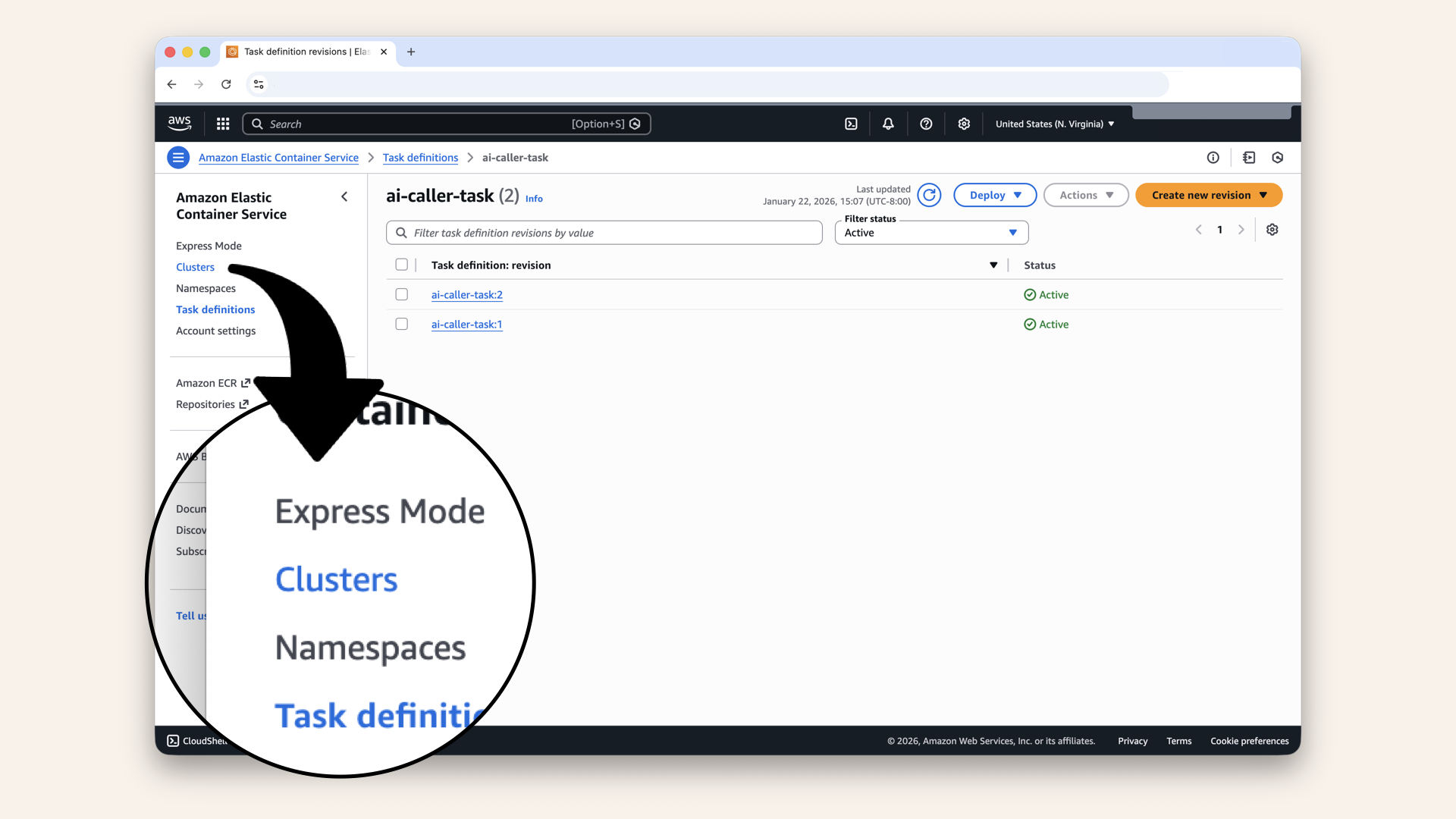
Click Clusters in the left sidebar
Click your ai-caller-cluster cluster
Click on your service ai-caller-service
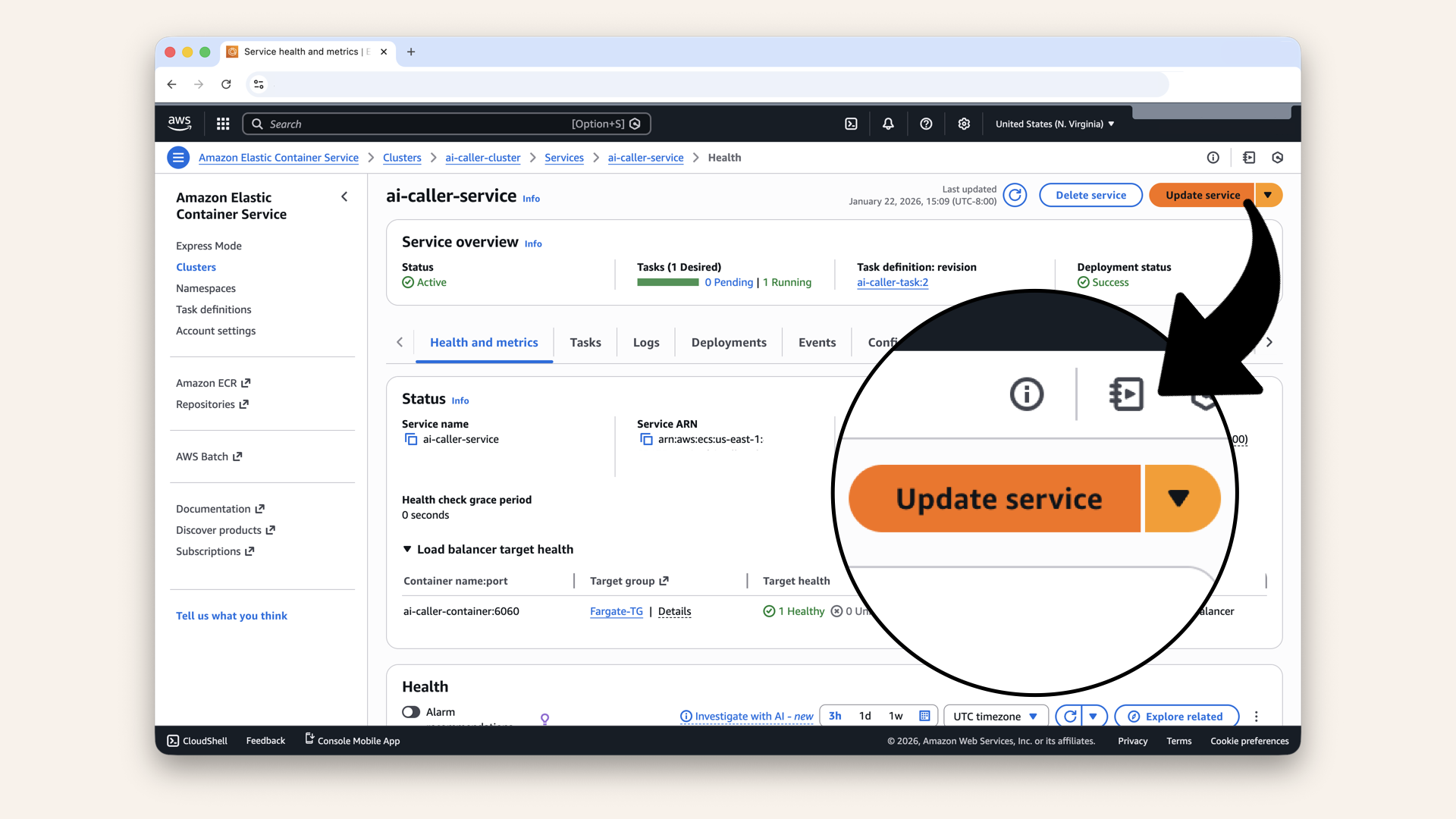
Click Update service
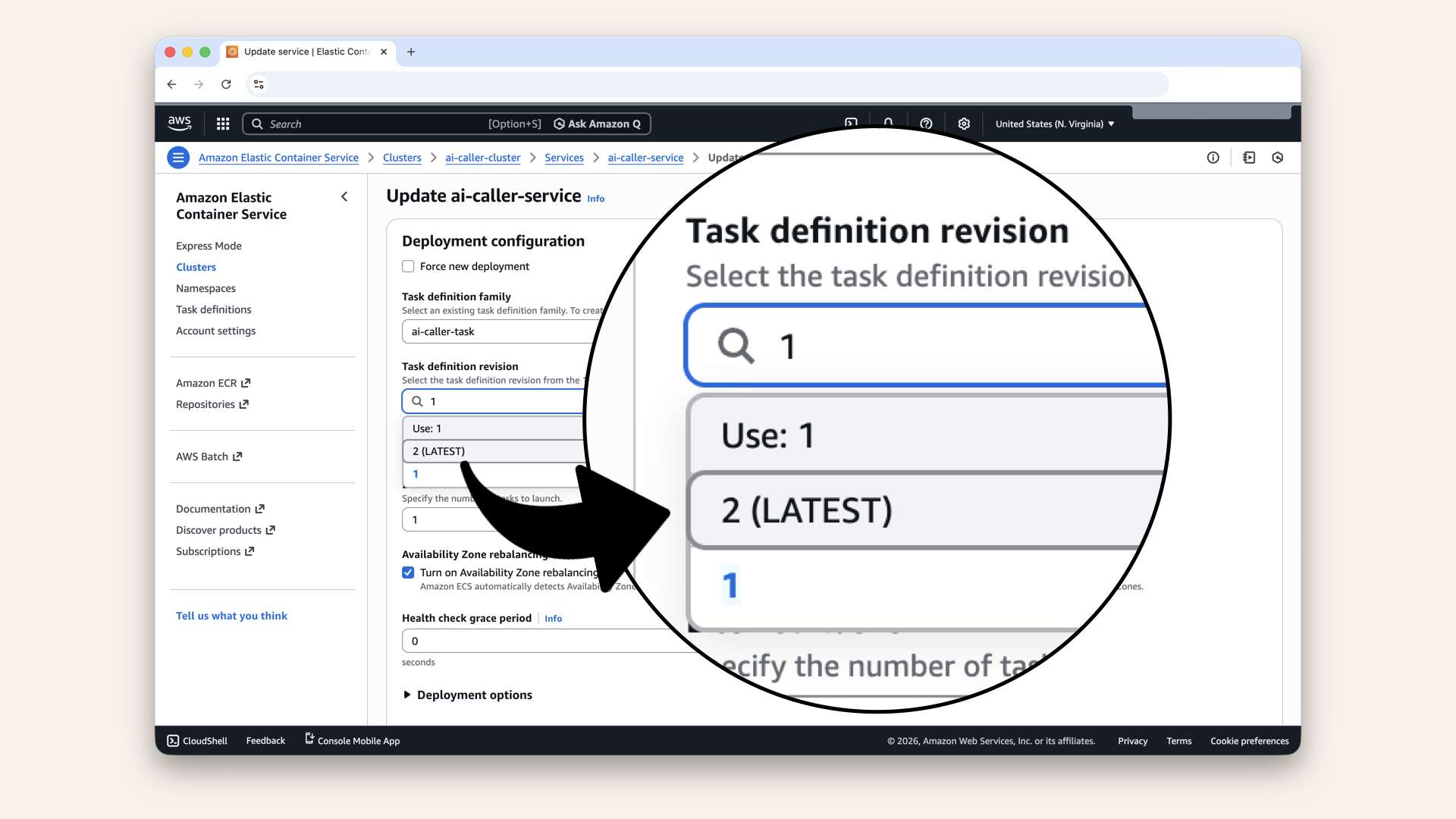
In the Revision dropdown, select the new revision (highest number)
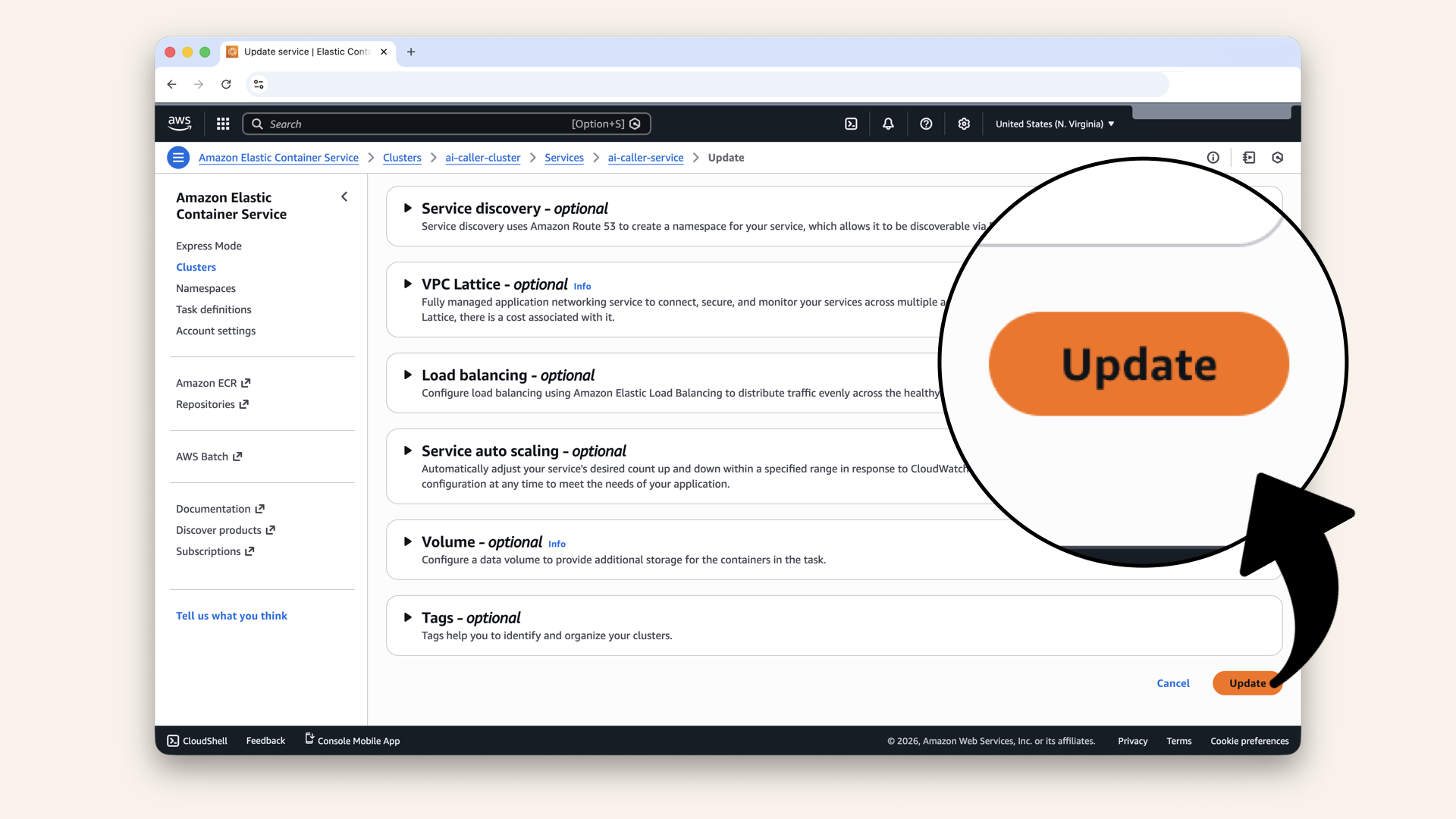
Scroll down and click Update
ECS will perform a rolling deployment → new containers start, old containers stop.
✅ Your task definition changes are now live!
Changed main.py?           → Path A (Force new deployment)
Changed requirements.txt?  → Path A (Force new deployment)
Changed Dockerfile?        → Path A (Force new deployment)
Added new env variable?    → Path B (New task definition)
Changed a secret ARN?      → Path B (New task definition)
Changed CPU or memory?     → Path B (New task definition)
Tomorrow's preview
Today: You deployed AI container and made real calls!
Tomorrow (Day 15): We add monitoring and logging
What we'll do:
- Set up CloudWatch dashboards
- Add alarms for errors
- Configure SNS notifications
- Monitor costs
What we learned today
1. AWS CLI setup
Creating IAM users with specific permissions for CLI access
2. Docker and ECR
Building container images and pushing to AWS's container registry
3. Parameter Store
Storing and retrieving sensitive data securely
4. ECS and Fargate
Running containers without managing servers
5. Service integration
Connecting ECS to ALB for load balancing
6. Twilio integration
Making programmatic phone calls with WebSocket streaming
THE BIG MILESTONE 🎉
Days 1-2: Local development (your laptop) ✅
Day 3: VPC (your territory) ✅
Day 4: Subnets (front yards vs back yards) ✅
Day 5: NAT Gateway (back gate) ✅
Day 6: Route Tables (the roads) ✅
Day 7: Security Groups (the bouncers) ✅
Day 8: Test Your Network (validation) ✅
Day 9: Application Load Balancer (front door) ✅
Day 10: Custom Domain (real URLs) ✅
Day 11: SSL Certificate (HTTPS) ✅
Day 12: Deploy Frontend (with auth) ✅
Day 13: Secure Backend Trigger ✅
Day 14: Deploy AI Containers ← YOU ARE HERE ✅🎉
Days 15-17: Monitoring, CI/CD, Polish
Days 18-24: Advanced Features
YOUR AI CALLING SYSTEM IS LIVE! 🚀📞🤖
Troubleshooting
Docker build fails on Apple Silicon (M1/M2/M3)
Make sure you're using buildx with the platform flag:
docker buildx build --platform linux/amd64 -t ai-caller-agent:latest .
If buildx isn't available:
docker buildx install
ECR push fails with "no basic auth credentials"
Re-authenticate Docker with ECR:
aws ecr get-login-password --region us-east-1 | docker login --username AWS --password-stdin YOUR_ACCOUNT_ID.dkr.ecr.us-east-1.amazonaws.com
ECS task keeps failing to start
Check CloudWatch Logs:
- Go to CloudWatch → Log groups → /ecs/ai-caller-task
- Click on the most recent log stream
- Look for error messages
Common issues:
- Missing environment variables
- Invalid secret ARN
- Container can't reach OpenAI/Twilio (check NAT Gateway)
Target group shows unhealthy
- Check security group: Fargate-SG must allow inbound on port 6060 from ALB-SG
- Check health path: Should be
/health - Check the logs: See what error the container is producing
Call doesn't connect / WebSocket fails
- Check Fargate-SG: Must allow TCP 6060 from both ALB-SG AND
172.31.0.0/16(your VPC CIDR) - Check ALB listener: HTTPS:443 should forward to your target group
- Check Twilio logs: Go to Twilio Console → Monitor → Calls
Twilio signature validation fails
This usually means the URL Twilio is seeing doesn't match what we're validating. Check:
- Your ALB_DOMAIN environment variable is correct
- The domain has valid SSL (no certificate errors)
- You're using
wss://(secure WebSocket)
New task fails during deployment (task definition stuck at 1, never reaches 2)
This often happens when your subnets don't overlap between the ALB and ECS service.
The problem: Your ALB might be in us-east-1a and us-east-1b, but your ECS service's private subnets are in us-east-1b and us-east-1c. When Fargate spins up a new task in us-east-1c, the ALB can't reach it → health checks fail → task gets killed.
How to check:
- Go to ECS → Clusters → ai-caller-cluster → ai-caller-service
- Click the Logs tab (service events)
- Look for messages like "service ai-caller-service was unable to place a task" or repeated "has started 1 tasks" followed by "has stopped 1 tasks"
How to fix:
- Go to EC2 → Load Balancers → Fargate-ALB
- Check which Availability Zones your ALB is in
- Go to ECS → Clusters → ai-caller-cluster → ai-caller-service → Update service
- In the Networking section, make sure your private subnets are in the same Availability Zones as your ALB
Example of mismatched zones:
ALB zones:     us-east-1a, us-east-1b  ← ALB can only reach these
ECS subnets:   us-east-1b, us-east-1c  ← Task in 1c will fail!
Fix: Either add us-east-1c to your ALB, or change your ECS service to use subnets in us-east-1a and us-east-1b.
Call connects but immediately hangs up when answered
This usually means the WebSocket connection to OpenAI is failing. The call starts, but when Twilio tries to stream audio, something breaks.
How to diagnose:
- Go to ECS → Clusters → ai-caller-cluster → ai-caller-service
- Click the Tasks tab
- Click on the running task (the task ID link)
- Click the Logs tab
Look for errors like:
Error in WebSocket handlerOpenAI WebSocket closedConnectionClosedorConnectionRefused- Missing environment variable errors
Common causes:
| Error | Fix |
|---|---|
OPENAI_API_KEY is None | Check Parameter Store ARN in task definition |
| Connection refused to OpenAI | Check NAT Gateway is working (task needs internet access) |
| Invalid API key | Verify your OpenAI key has Realtime API access |
gpt-4o-realtime-preview not available | Check your OpenAI account has access to this model |
Quick test: Check if your container can reach the internet:
- The
/healthendpoint working confirms the container is running - But if calls fail, the issue is likely outbound connectivity (NAT Gateway) or API credentials
ECS task fails with "exec format error" or container won't start
This happens when you built the Docker image for the wrong architecture.
The problem: You're on a Mac with Apple Silicon (M1/M2/M3/M4) and built a native ARM image, but Fargate runs on x86_64 (AMD64).
How to check:
- Go to ECS → Clusters → ai-caller-cluster → ai-caller-service → Tasks
- Click on the stopped task
- Check the Stopped reason → look for "exec format error" or "CannotStartContainerError"
How to fix:
Rebuild with the correct platform flag:
docker buildx build --platform linux/amd64 -t ai-caller-agent:latest .
Then push to ECR and force a new deployment.
Architecture reference:
| Your machine | Build command |
|---|---|
| Mac M1/M2/M3/M4 (Apple Silicon) | docker buildx build --platform linux/amd64 -t ai-caller-agent:latest . |
| Mac Intel | docker build -t ai-caller-agent:latest . |
| Windows/Linux x86 | docker build -t ai-caller-agent:latest . |
Click the Apple menu → About This Mac. Look for "Chip" → if it says "Apple M1/M2/M3/M4", you need the --platform linux/amd64 flag.
AI doesn't remember things from previous calls
This is expected behavior! The Realtime API maintains context within a single call (the AI will remember if you said your name is Alex earlier in the same conversation), but each new call starts completely fresh.
There's no built-in memory between calls → the AI has no idea who called before or what was discussed.
To add cross-call memory, you'd need:
- A database to store conversation history
- User identification (phone number or account)
- Logic to inject relevant history into the system prompt
This is covered in the full course launching February 2026.
Share your HUGE win!
AI calling system deployed? First call made? SHARE IT!
Twitter/X:
"Day 14: IT'S ALIVE! 🤖📞 Just built a complete AI calling system on AWS. ECR + ECS + Fargate + Lambda + Twilio + OpenAI. My phone actually rang with an AI on the other end! 14 days of infrastructure, one incredible result. Following @norahsakal's advent calendar 🎄🚀"
LinkedIn:
"Day 14 of building AI calling agents: THE BIG DAY! Containerized the AI agent, pushed to ECR, deployed to Fargate, connected Lambda to Twilio. Made my first real AI phone call. 14 days of learning AWS infrastructure just paid off in the most satisfying way possible!"
Tag me! I want to celebrate this MASSIVE milestone with you! 🎉
This is where the free advent calendar ends
Yes, I know, it says "24 days" and this is Day 14.
But here's the thing: your phone just rang with an AI on the other end.
That was always the goal → a complete, working AI calling system deployed on AWS infrastructure you built from scratch. And you did it:
- VPC, subnets, NAT Gateway, route tables ✅
- Security groups, ALB, custom domain, SSL ✅
- Cognito authentication, Lambda triggers ✅
- ECS, Fargate, ECR, Parameter Store ✅
- A real AI phone call ✅
The remaining days I'd originally planned (monitoring, CI/CD, advanced features) are important for production systems.
But they're not what you came here for.
You came here to make an AI call a phone. And you just did.
What comes next?
The full course launches in February 2026 with:
- Production-grade monitoring and alerting
- CI/CD pipelines for automated deployments
- Call recording and transcription
- And the complete, clean codebase in one repo
If you want to take your AI calling system to true production readiness:
Join the waitlist for the full course (launching February 2026):
Thank you for building with me.
These 14 days have been some of the most intense, rewarding work I've ever done.
Seeing people actually deploy this infrastructure and make real AI calls? That's why I do this.
Go make some calls. Break some things. Build something amazing.
— Norah
norah@braine.ai