Day 12: Deploy your frontend (with authentication)

How to build a secure frontend with Vite, React and Cognito authentication, then deploy it to S3 + CloudFront
Protect your app from unauthorized use
Days 9-11: You built the infrastructure
Today: We build the protected frontend
Here's the critical security issue:
When you deploy your AI calling agent:
https://app.yourdomain.com
→ Publicly accessible
→ Anyone can use it
→ Could rack up huge OpenAI/Twilio bills
This is not acceptable.
What you need:
✅ Login page (only authorized users)
✅ Simple authentication (email + password)
✅ Protected routes (must be logged in)
Solution: Cognito User Poll + Amplify UI
Think of Cognito like a private party at your pool house (the AI container in your backyard):
Without auth:
- You announce a party at your pool house
- Anyone from the city can walk in
- Strangers eat your food, use your pool, run up your utilities
- Chaos (and a massive bill)
With auth:
- Guests need an invitation (account)
- They show their invite at the front'yard house (ALB)
- Only invited guests reach the pool house
- You control the guest list
Cognito User Pool = your guest list
- Who's invited to the party
- What their names/emails are
Amplify UI = checking invites
- Handles "show me your invitation" flow
- Turns away uninvited guests before they reach the pool house
Think of Cognito as your guest list for the pool party. It decides who gets an invitation to your backyard:
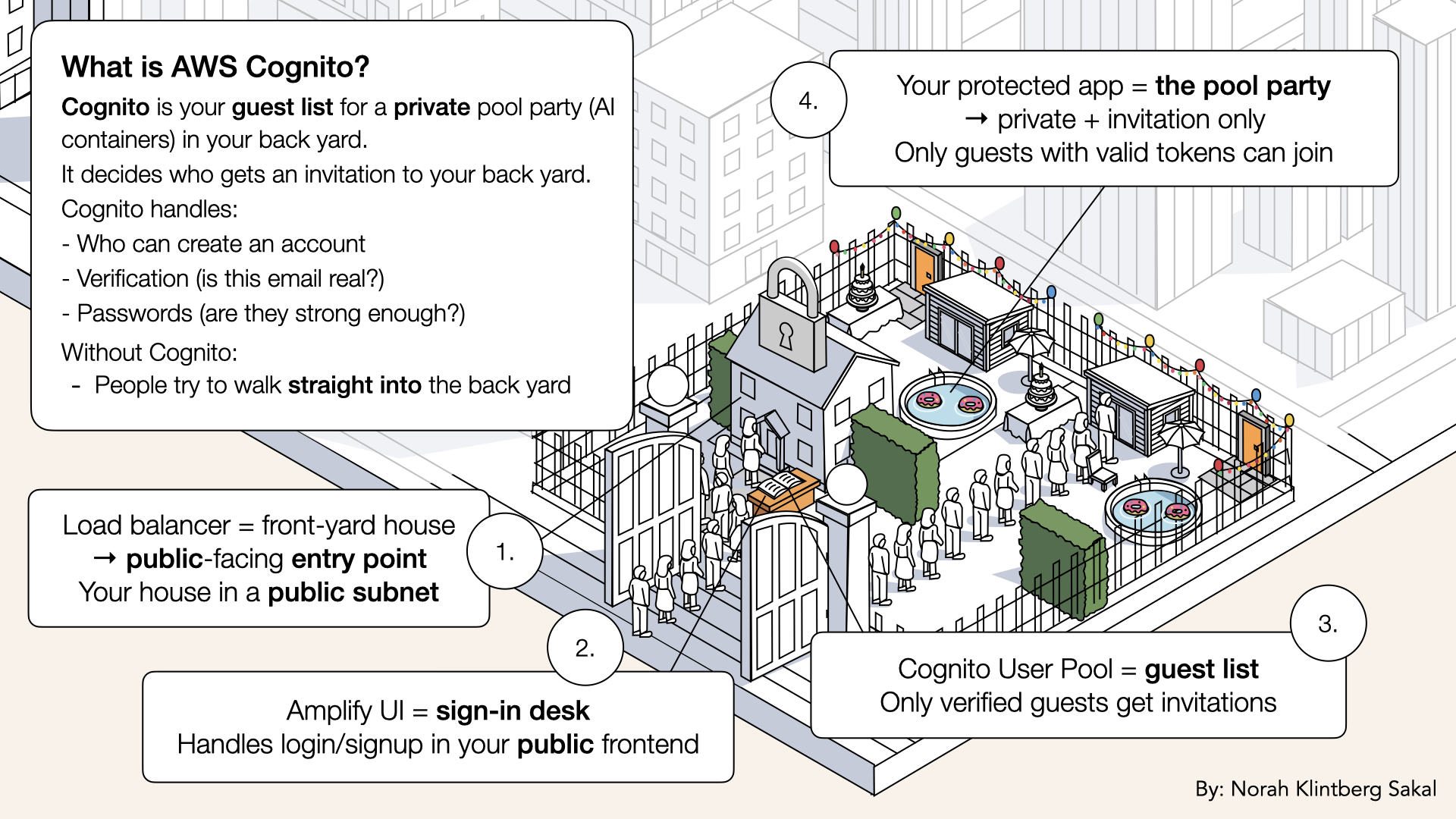
Think of Cognito as your guest list for the pool party. It decides who gets an invitation to your backyard
By the end of today, you'll have:
✅ Cognito User Pool (manages users)
✅ Vite + React frontend
✅ AWS Amplify UI (pre-built login component)
✅ Protected app (must login first)
✅ Deployed to S3 + CloudFront
✅ Custom domain with HTTPS
Let's build your protected frontend 🎨🔐
What you'll build today
A complete authenticated frontend:
| Component | Technology | Purpose |
|---|---|---|
| Frontend Framework | Vite + React | Fast, modern build tool |
| Authentication | AWS Cognito | User management |
| UI Components | AWS Amplify UI | Pre-built login/signup |
| Hosting | S3 + CloudFront | Static site hosting + CDN |
| Domain | Route 53 | app.yourdomain.com |
| SSL | ACM | HTTPS |
User flow:
What you'll learn
- How to set up Cognito User Pool
- How to integrate Amplify UI for auth
- How to protect React routes
- How to deploy to S3 as static site
- How to add CloudFront for CDN
- How to configure custom domain for frontend
But if you want:
✅ Complete codebase (one clean repo)
✅ Complete walkthroughs
✅ Support when stuck
✅ Production templates
✅ Advanced features
Join the waitlist for the full course (launching February 2026):
Building something with AI calling?
Let's chat about your use case!
Schedule a free call ↗ - no pitch, just two builders talking.
Time required
45 minutes
- Cognito setup: 10 min
- Frontend build: 20 min
- Deploy: 15 min
Prerequisites
✅ Completed Day 3 (VPC) ↗
✅ Completed Day 4 (Subnets) ↗
✅ Completed Day 5 (NAT Gateway) ↗
✅ Completed Day 6 (Route Tables) ↗
✅ Completed Day 7 (Security Groups) ↗
✅ Completed Day 8 (prove it works) ↗
✅ Completed Day 9 (Application Load Balancer) ↗
✅ Completed Day 10 (Custom Domain) ↗
✅ Completed Day 11 (SSL Certificate) ↗
✅ Node.js installed (v18+)
✅ Access to AWS Console
Understanding the auth architecture (3-minute primer)
What is AWS Cognito?
Cognito = Managed authentication service from AWS
It handles:
✅ User sign up
✅ Email verification
✅ Password management
✅ Login/logout
✅ JWT token
✅ Multi-factor auth (optional)
✅ Social login (Google, Facebook, etc.)
You don't build from scratch. Cognito does it all.
Cognito = Managed authentication service from AWS:
Cognito = Managed authentication service from AWS
What is AWS Amplify UI?
Amplify UI = Pre-built React components for authentication
Instead of building:
- Login form
- Signup form
- Forgot password form
- Email verification
- Password reset
You get:
import { Authenticator } from '@aws-amplify/ui-react'

<Authenticator>
  {({ signOut, user }) => (
    <YourApp user={user} signOut={signOut} />
  )}
</Authenticator>
Done. That's it.
Why this architecture?
S3 + CloudFront for frontend:
✅ Cheap (~$0.50/month for low traffic)
✅ Fast (CloudFront CDN)
✅ Scaled automatically
✅ No server management
✅ HTTPS included
Cognito for auth:
✅ No backend auth logic needed
✅ Secure by default
✅ Scales to millions of users
✅ Free tier: 10,000 MAUs (monthly active users)
This is the modern way to build frontends.
Step 1: Create Cognito User Pool
Let's start by setting up authentication.
Open the AWS Console ↗ In the search bar at the top, type cognito and click Cognito from the dropdown: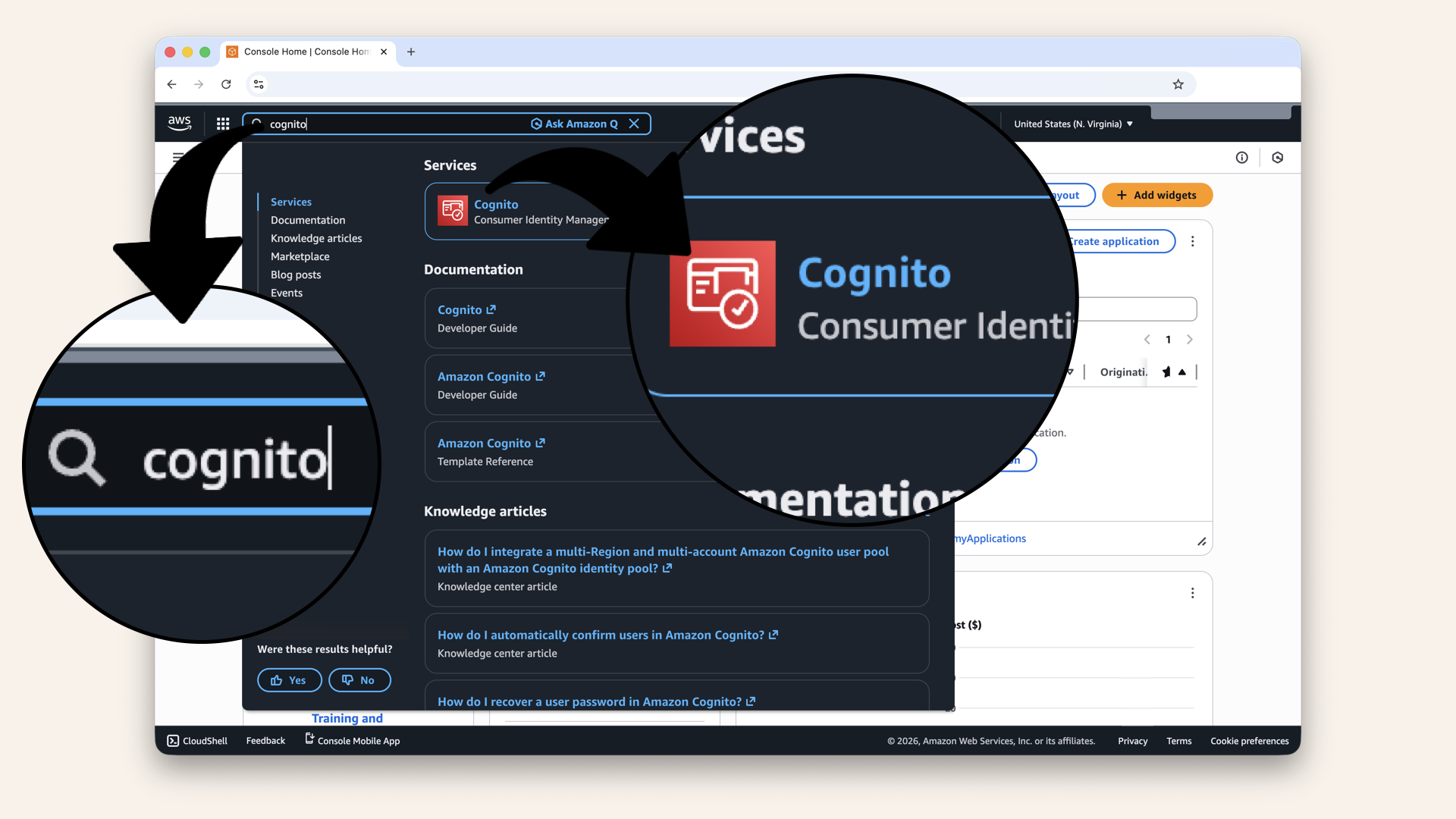
In the search bar at the top, type cognito and click Cognito from the dropdown
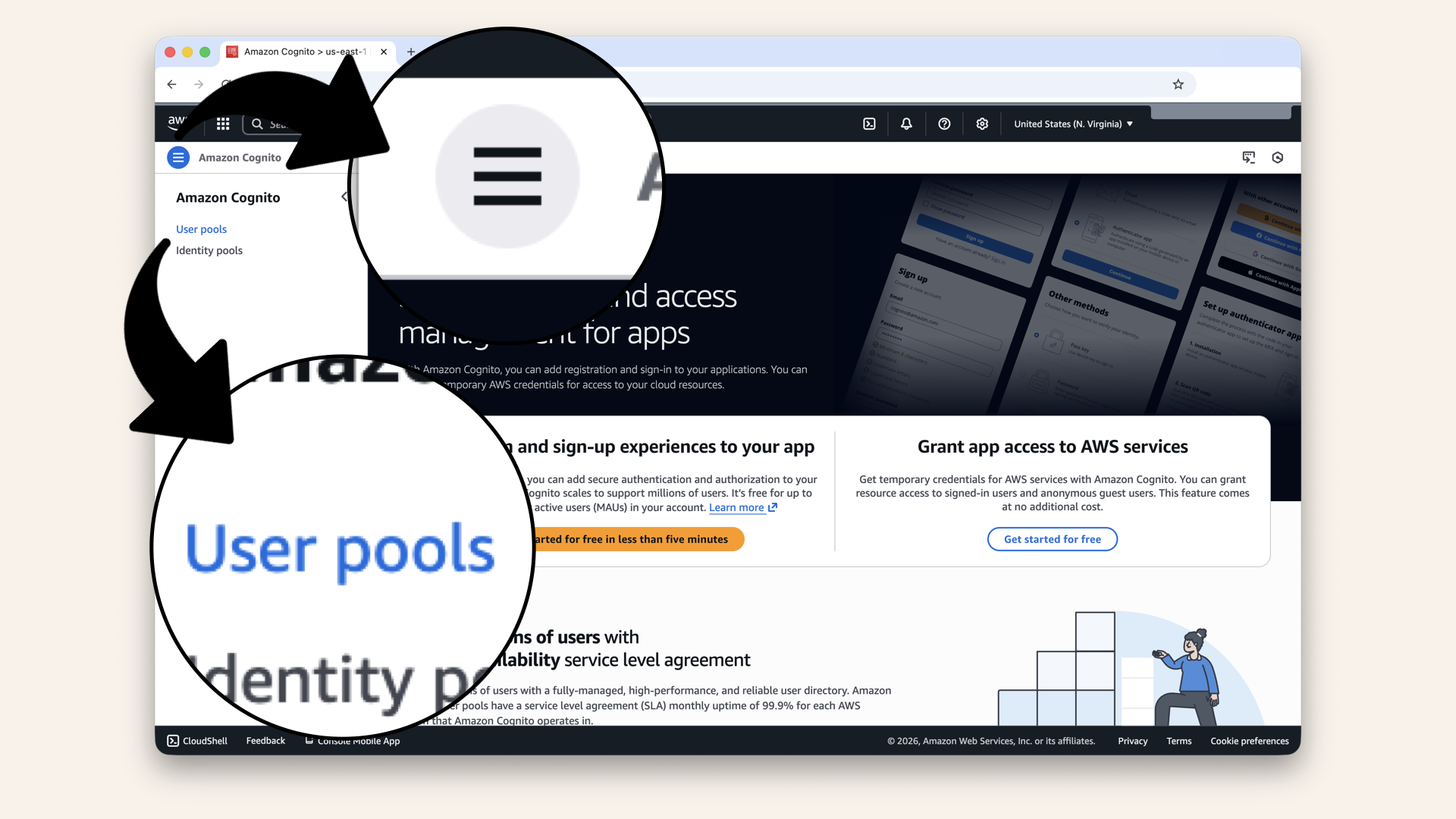
Click the left menu button and then click User pools in the left menu
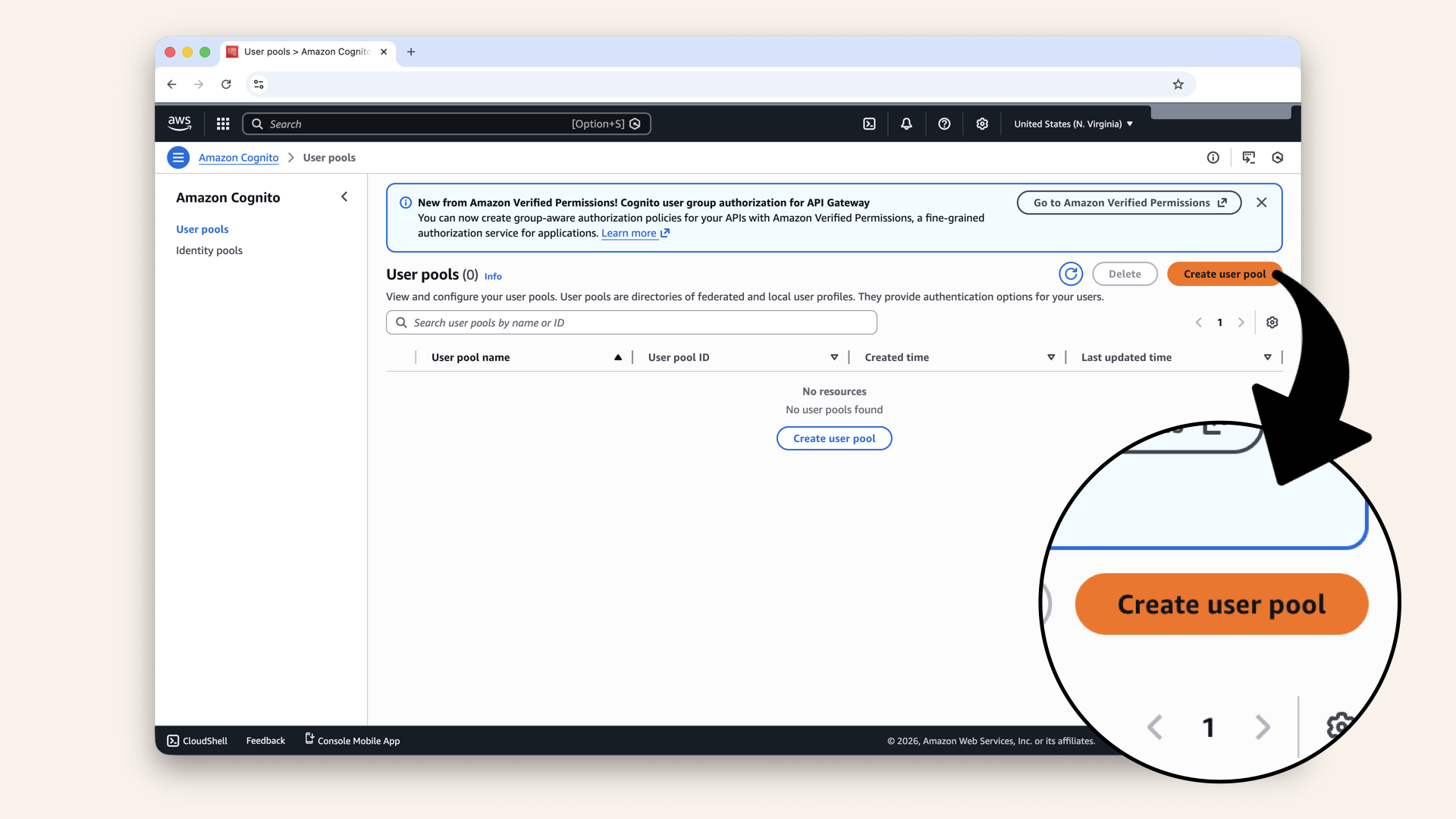
Click Create user pool

Select Single-page application (SPA)
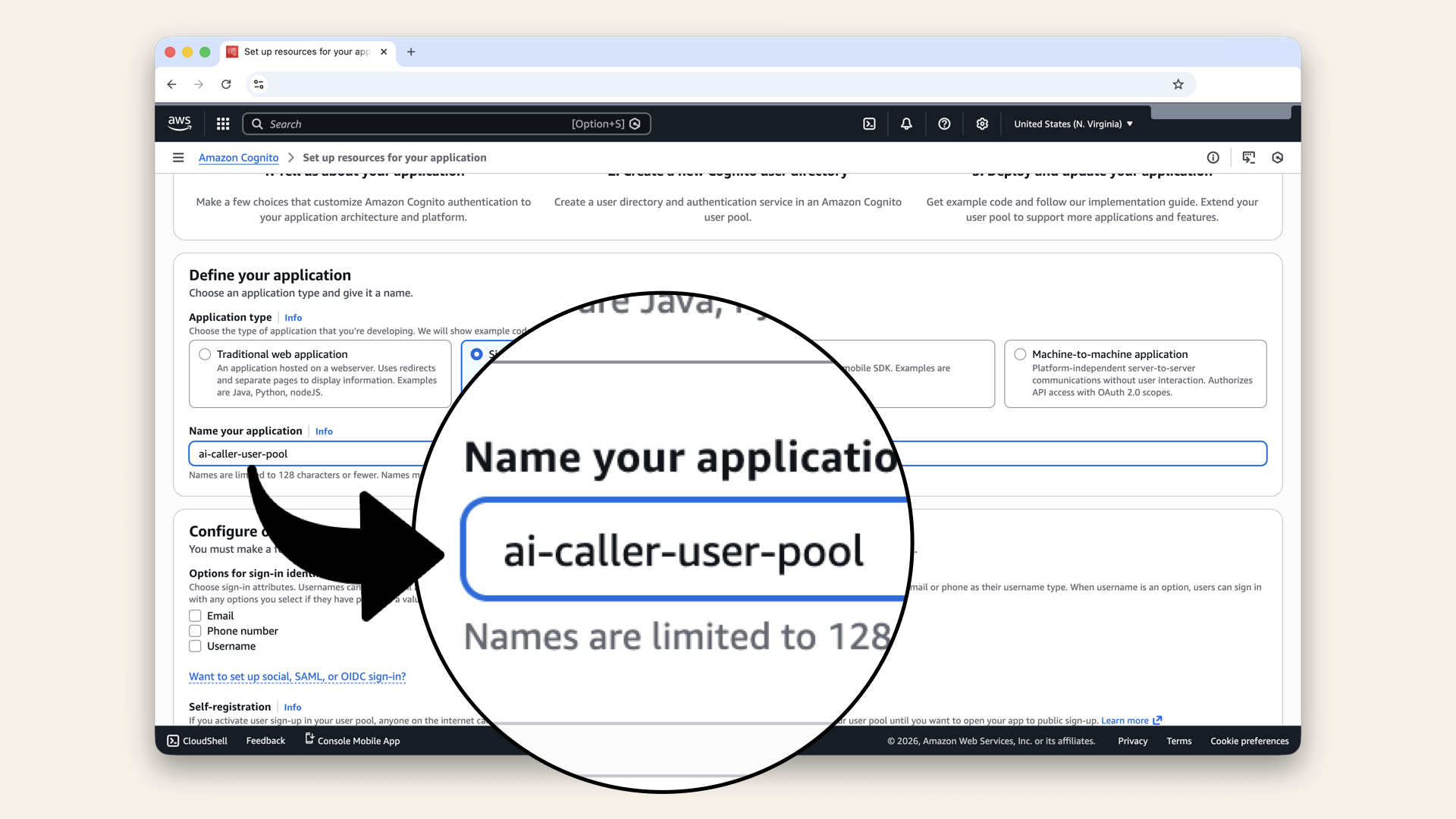
Name your user pool app 'ai-caller-app-client' in the text field Name your application
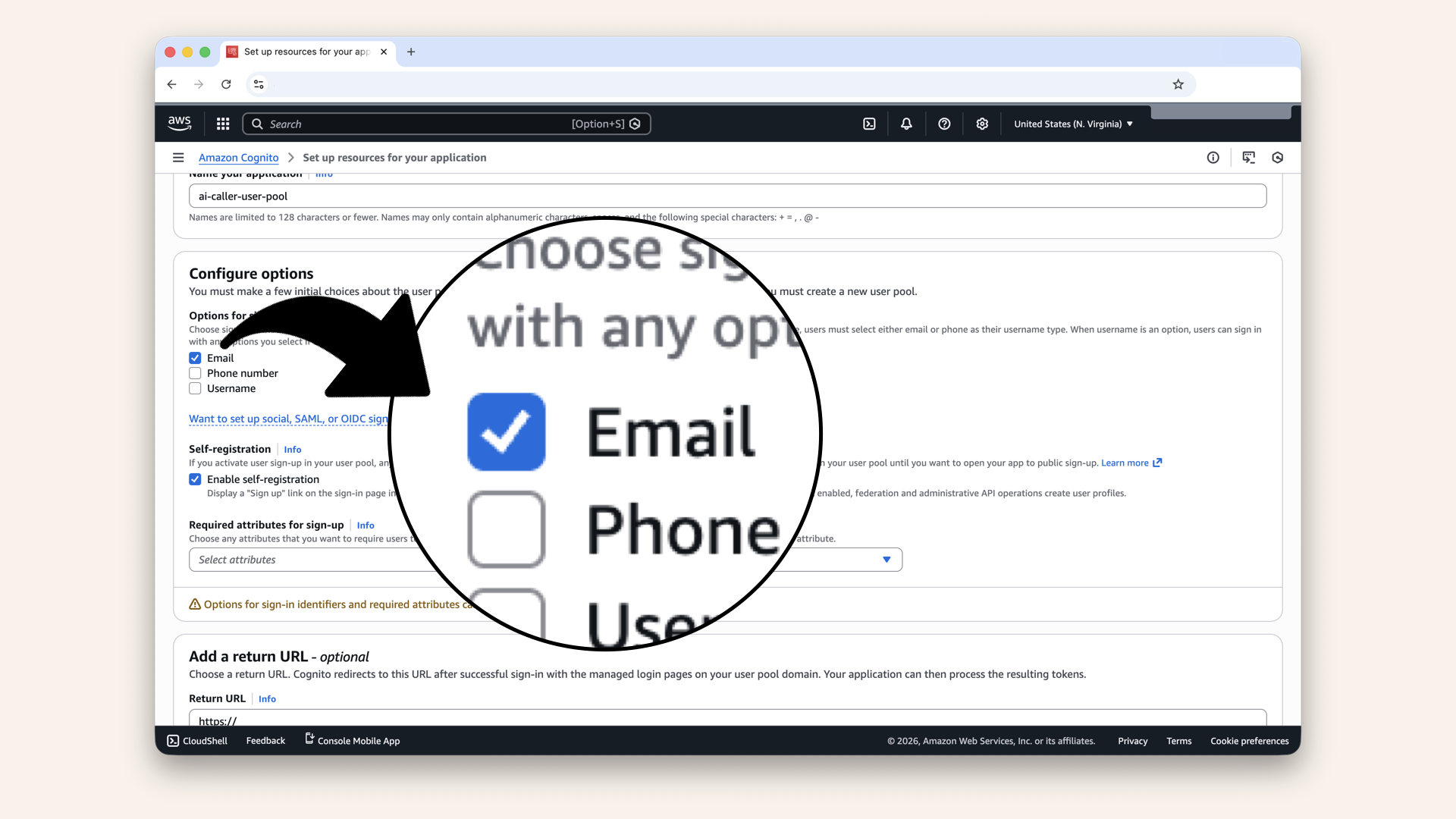
Scroll down to Configure options and check Email as Options for sign-in identifiers
Why email:
- Users already have emails
- Don't need to remember usernames
- Email verification is built in
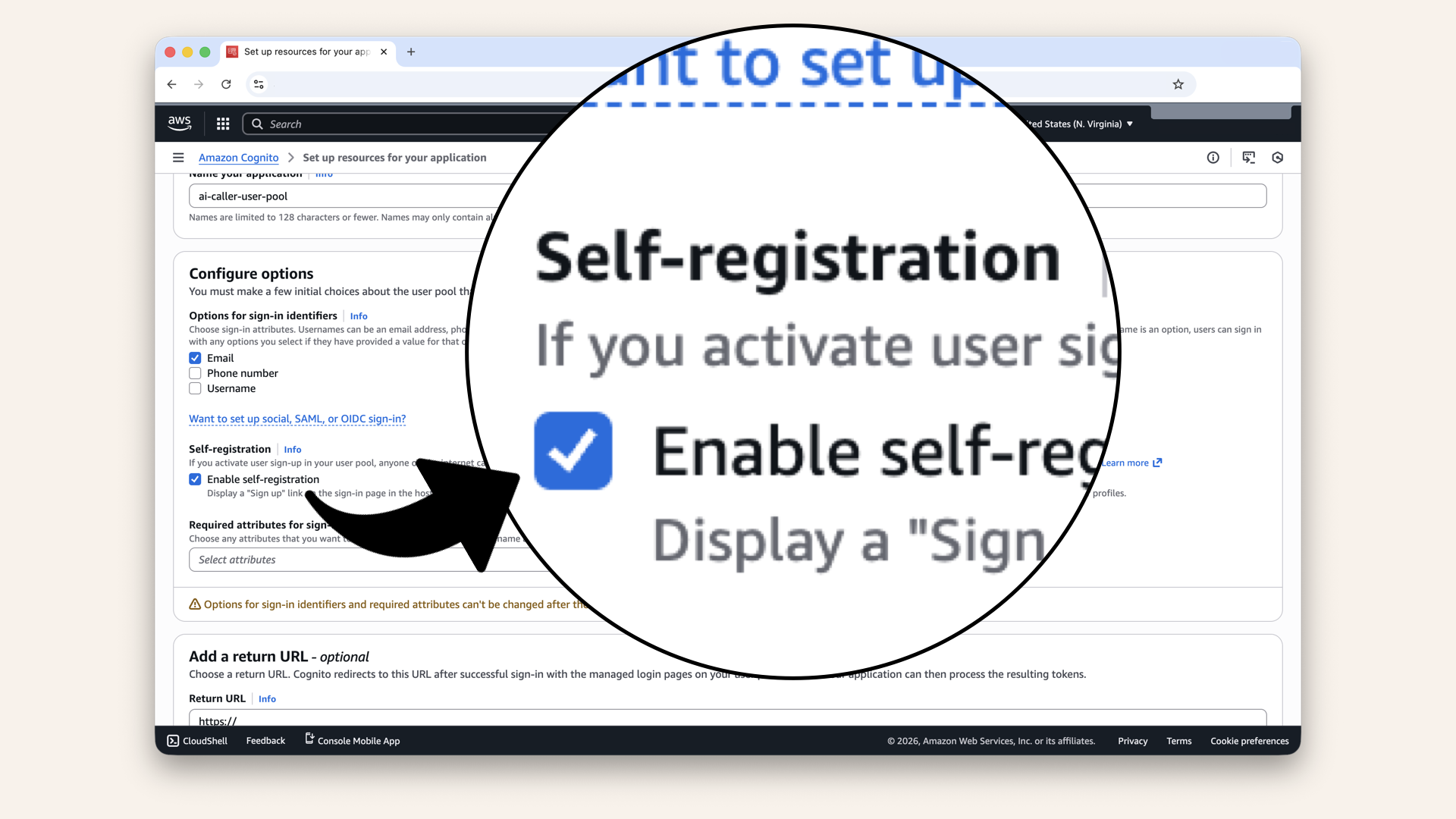
Enable self-registration
For now: Enable this so you can create your own account and test.
Later: Uncheck it to control who gets access (invite-only).

Scroll down, skip Return URL, click Create user directory
✅ You should see "Your application and user pool have been successfully created"
AWS shows a "Quick setup guide" with sample code using react-oidc-context
Ignore it. We're using Amplify UI instead (simpler, less code).
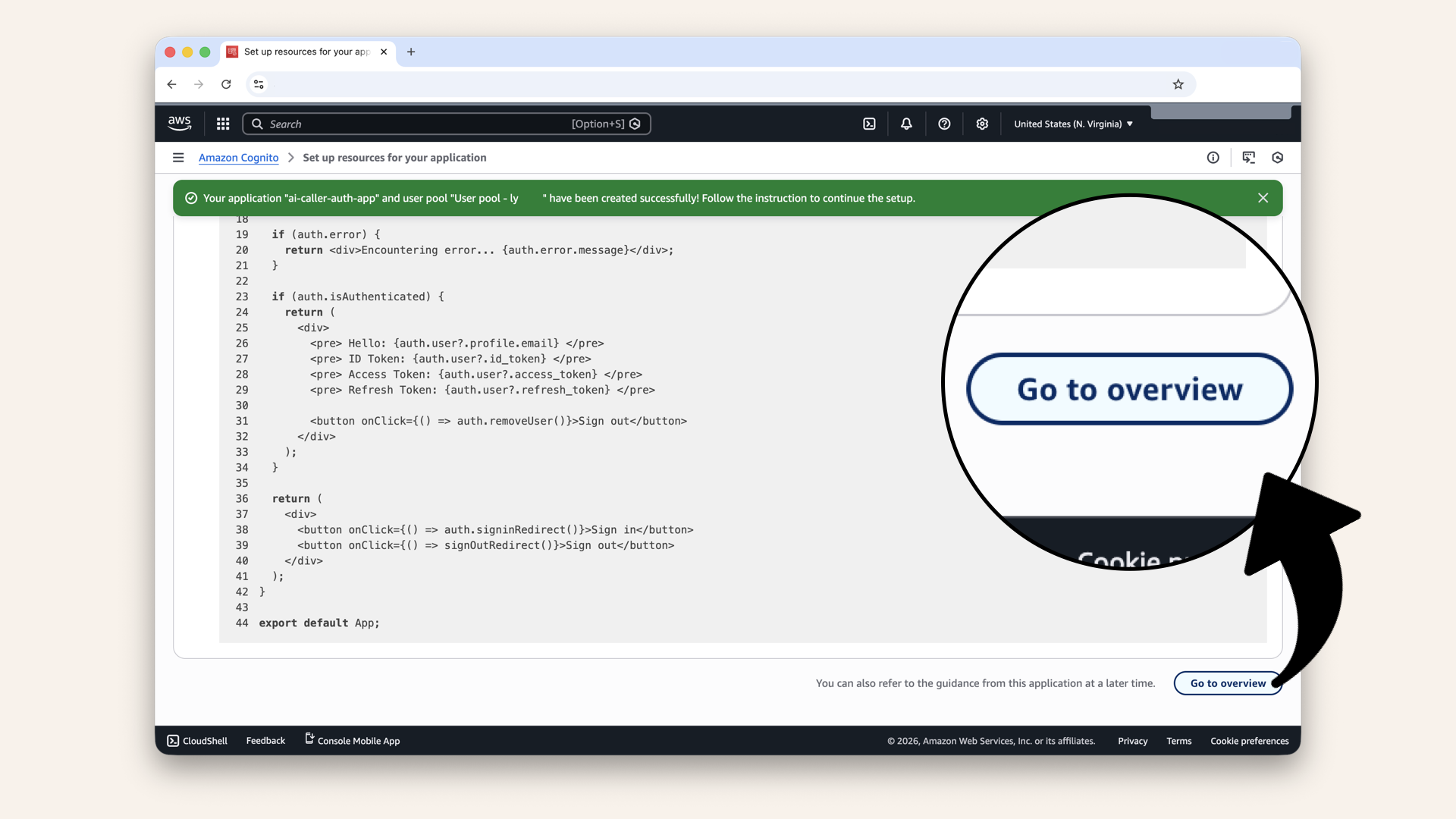
Scroll all the way down and click Go to overview
This will take you to the overview of your new Cognito user pool with your user pool name and ID:
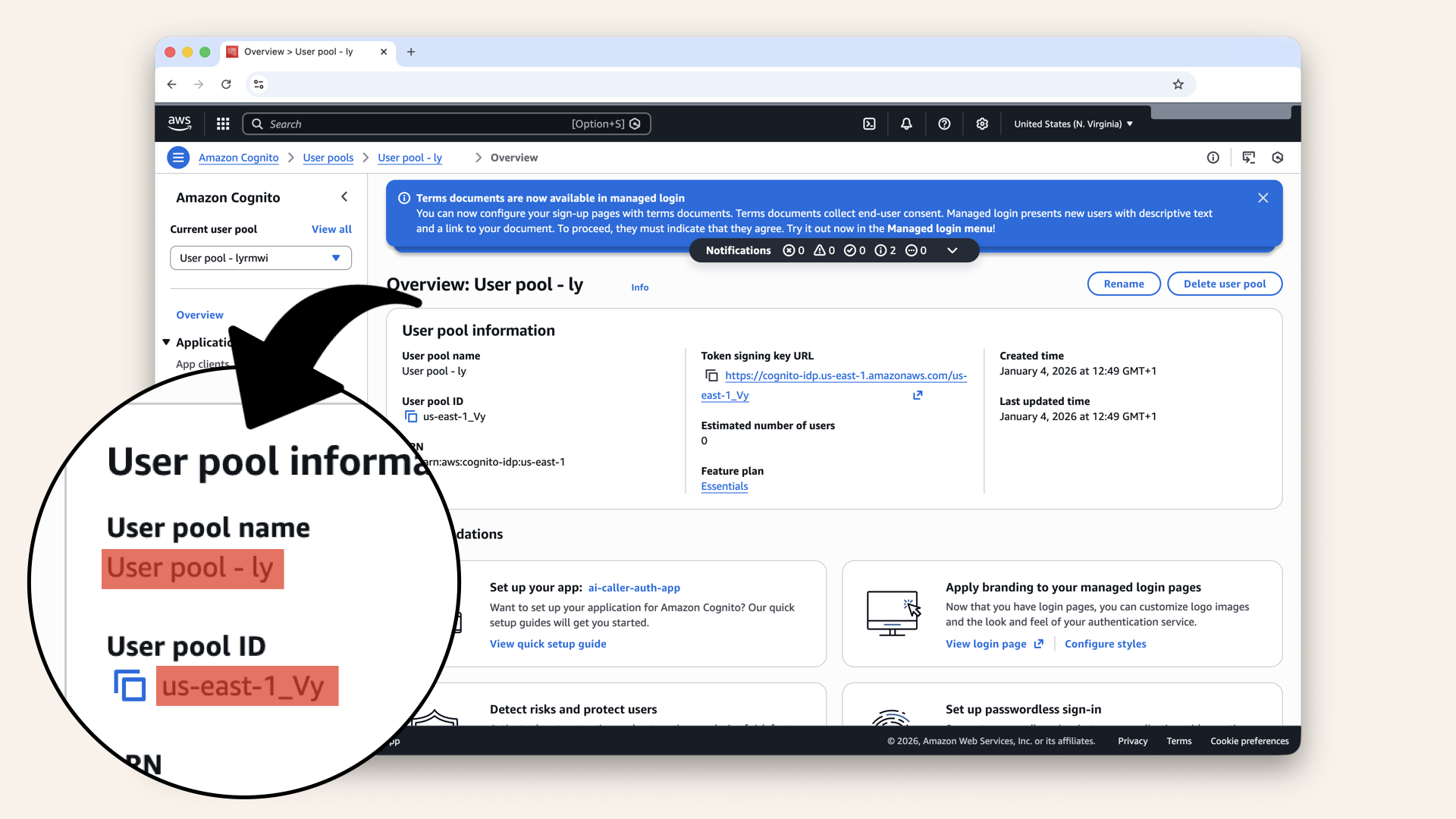
This will take you to the overview of your new Cognito user pool
Let's change the automatically generated user pool name.
Click Rename: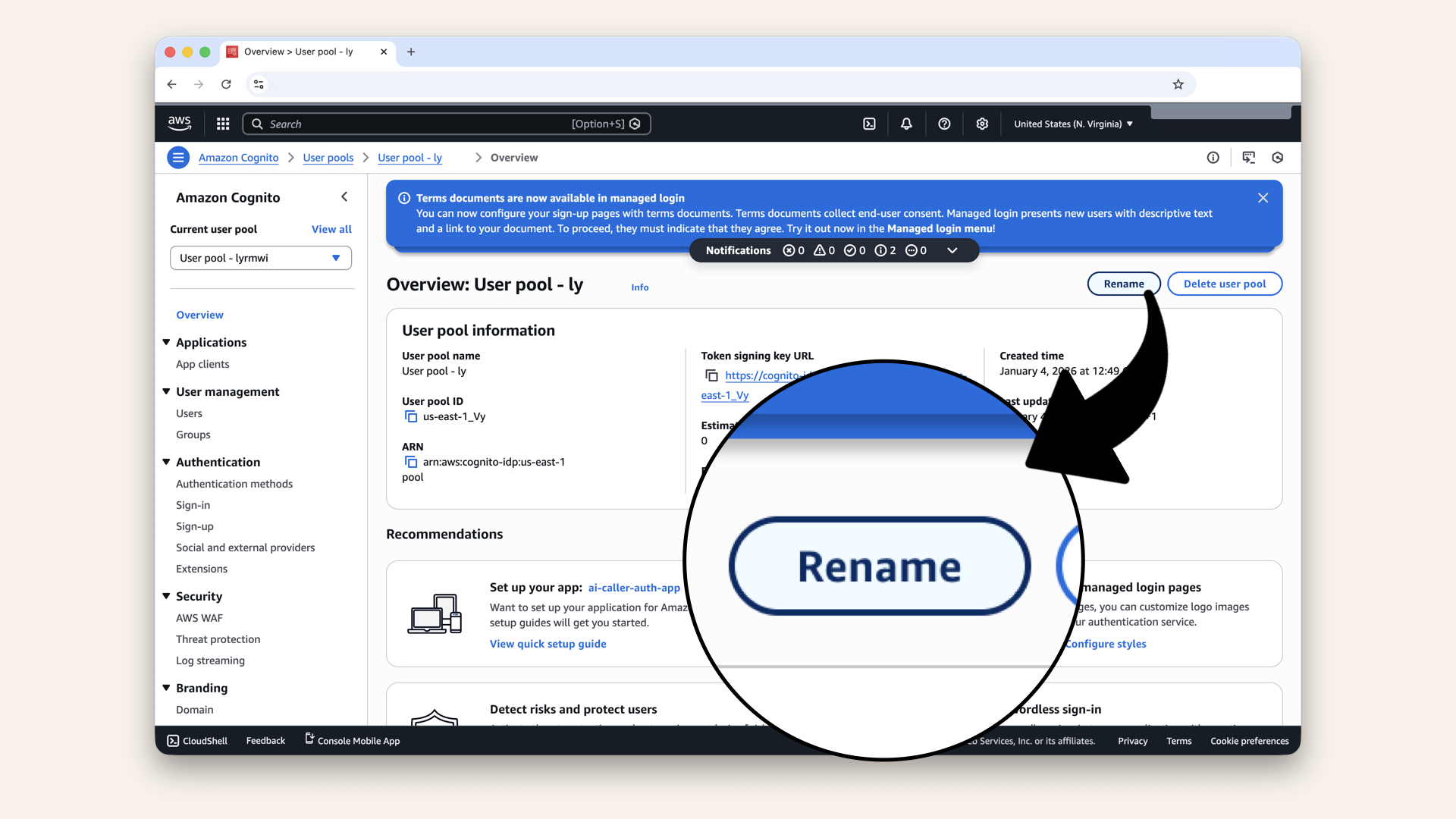
Click Rename
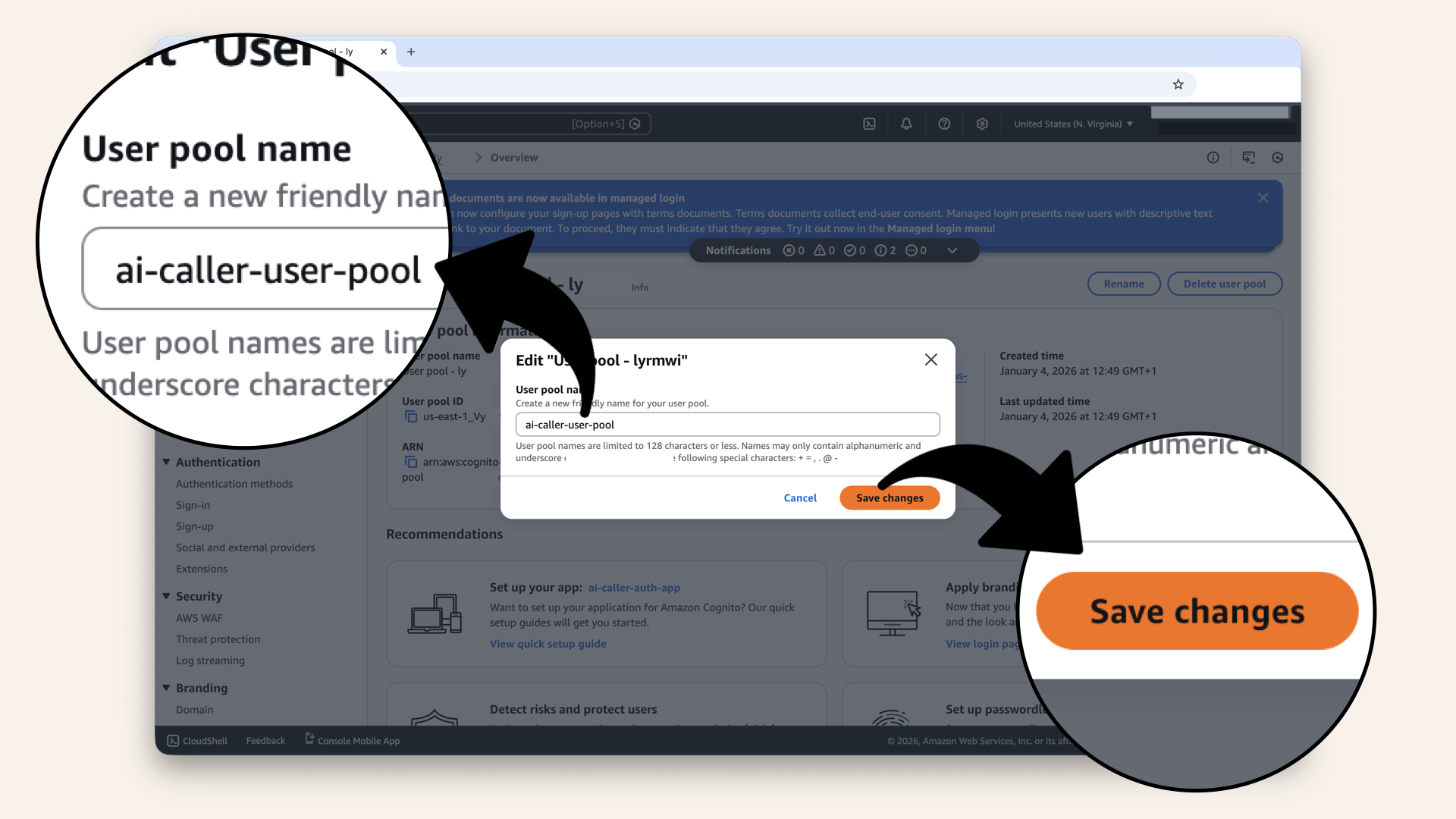
Name your user pool 'ai-caller-user-pool' and click Save changes
✅ You should see "User pool name successfully updated":
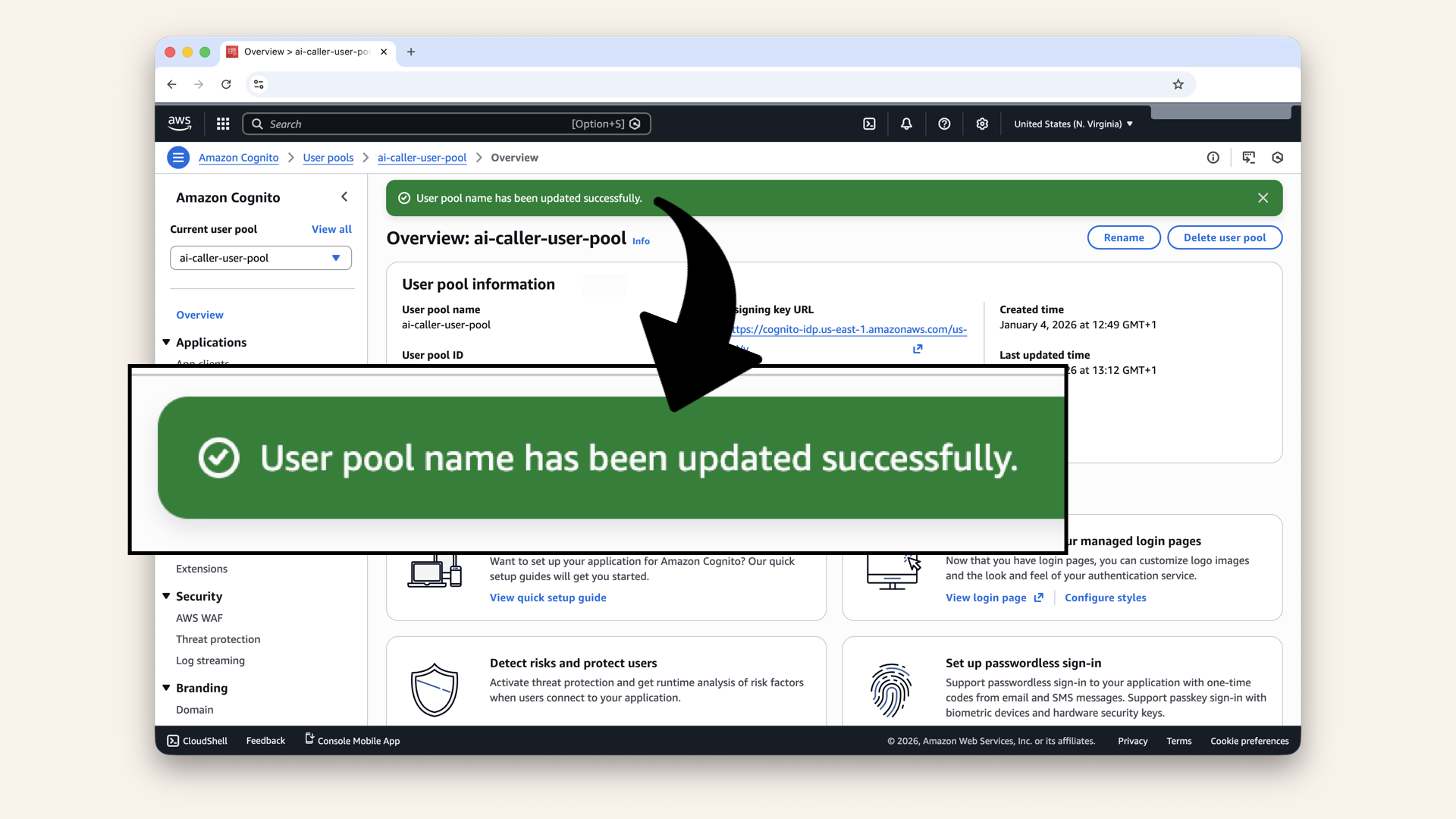
You should see "User pool name successfully updated"
Step 1.2: Save your Cognito IDs
You'll need these for your frontend:
- user pool ID
- app client ID
- region

Click the copy icon to copy your user pool name
Save this user pool name. You'll need it in the next step.
Note the region. E.g. us-east-1 save this as well.
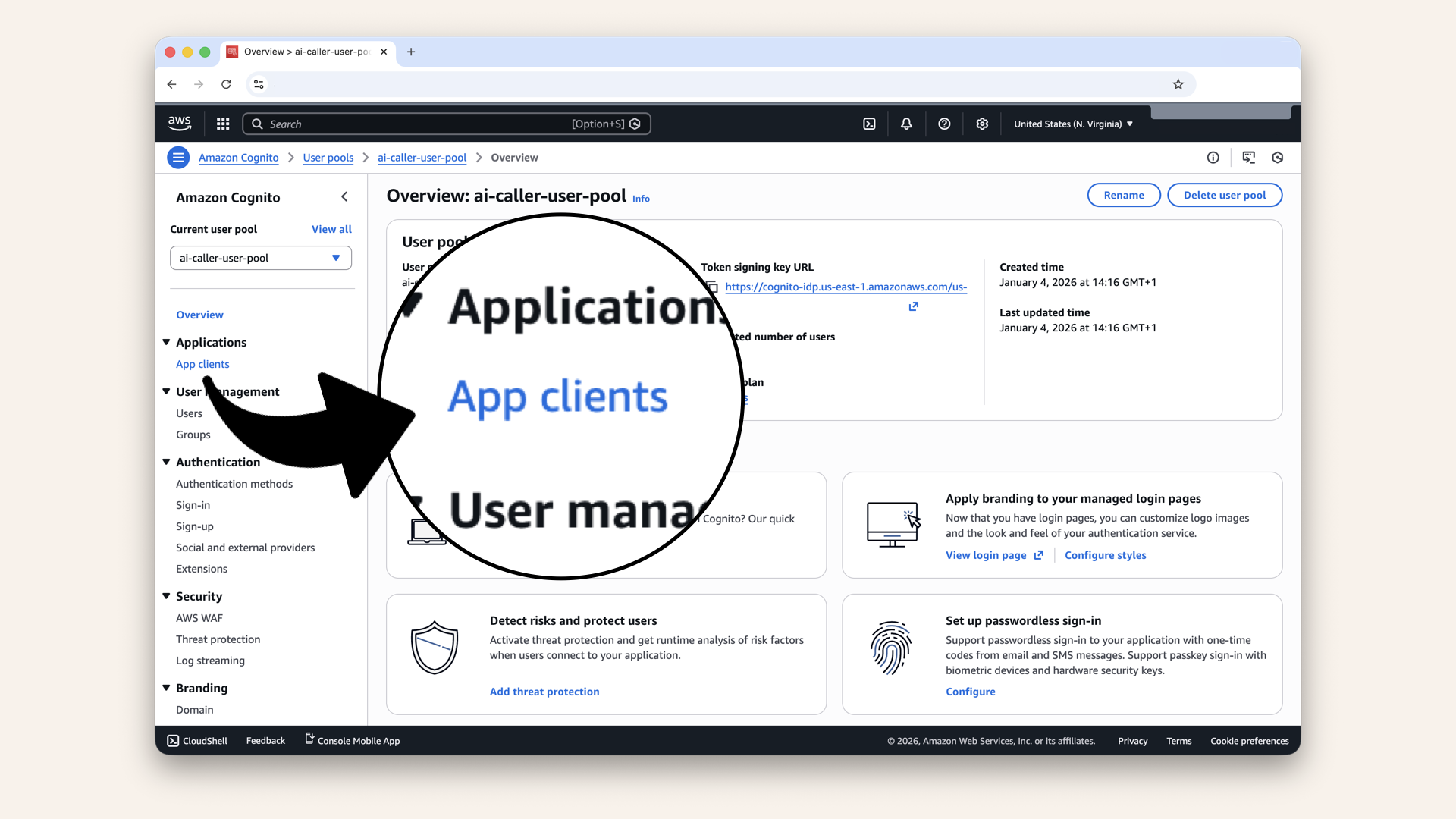
Click App clients in the left menu
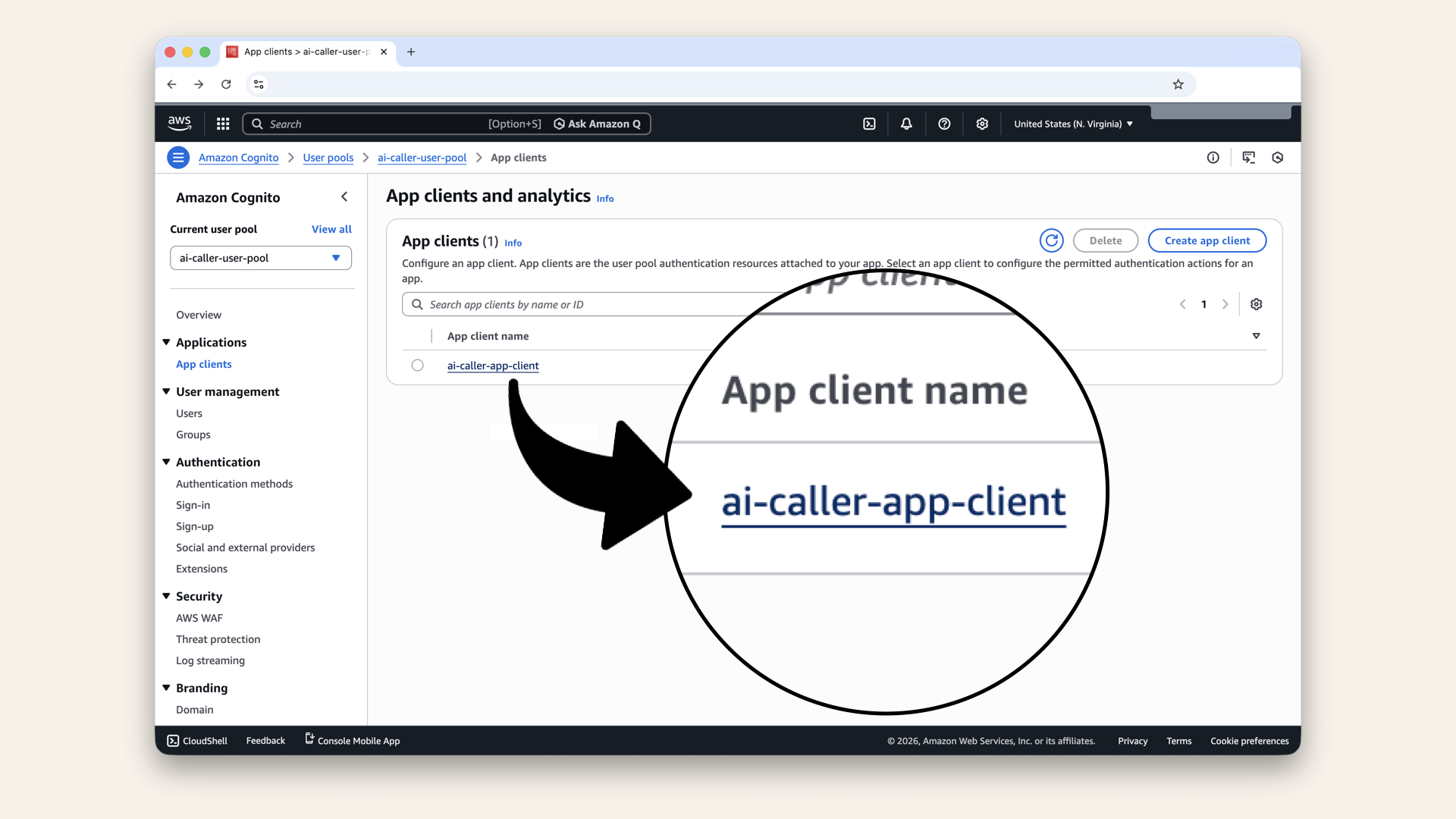
Click on your app client
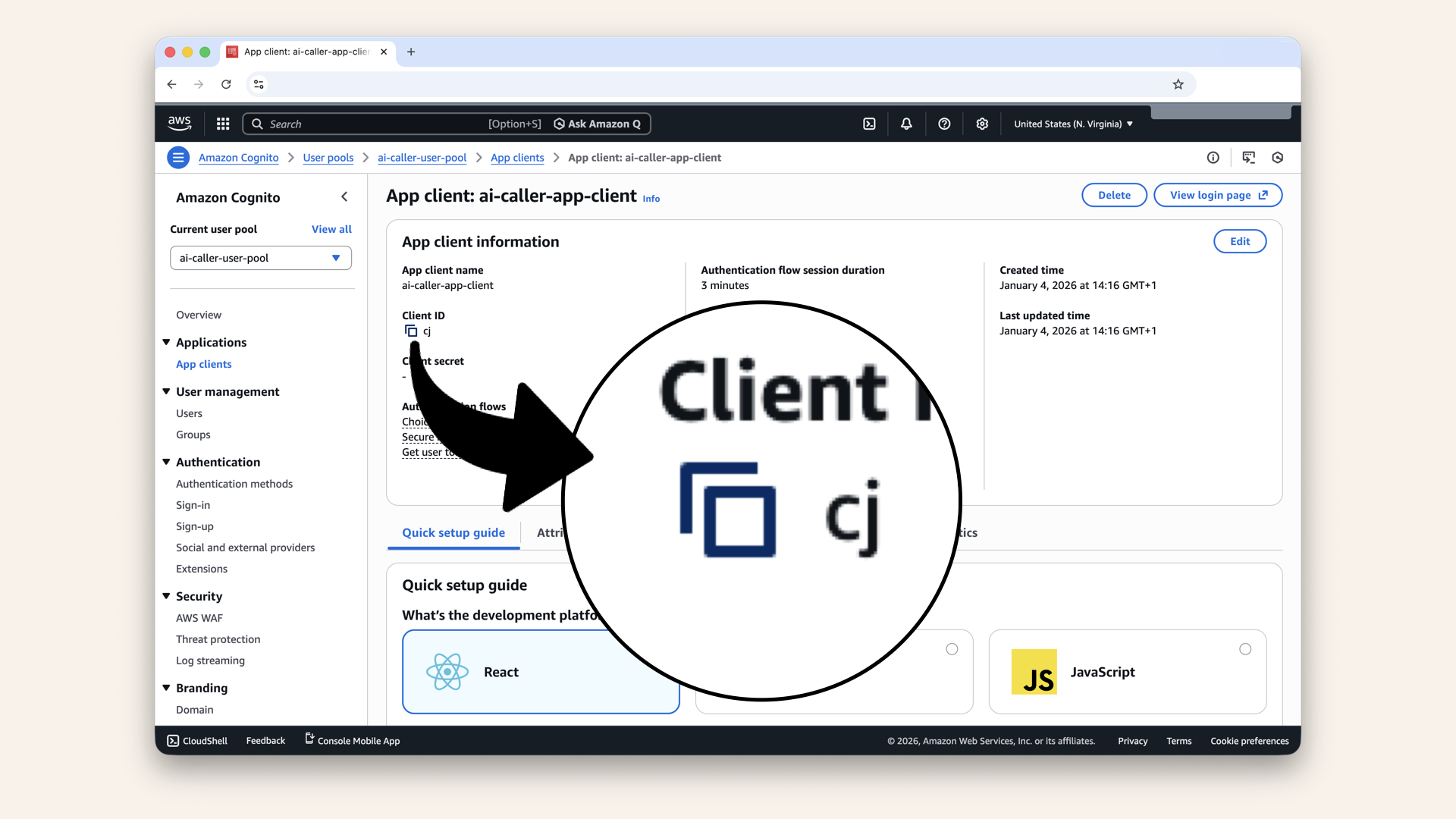
Click the copy icon to copy your Client ID
Save these somewhere safe! You'll use them in your React app.
Step 2: Create Vite + React frontend
Now let's build the frontend.
Navigate to the root of theai-caller folder:
cd ai-caller
ai-callerMake sure you're in ai-caller root before creating the Vite project
- Mac/Linux
- Windows
pwd
cd
✅ You should see the path /ai-caller
npm create vite@latest ai-caller -- --template react
Select No when asked if use rolldown-vite:
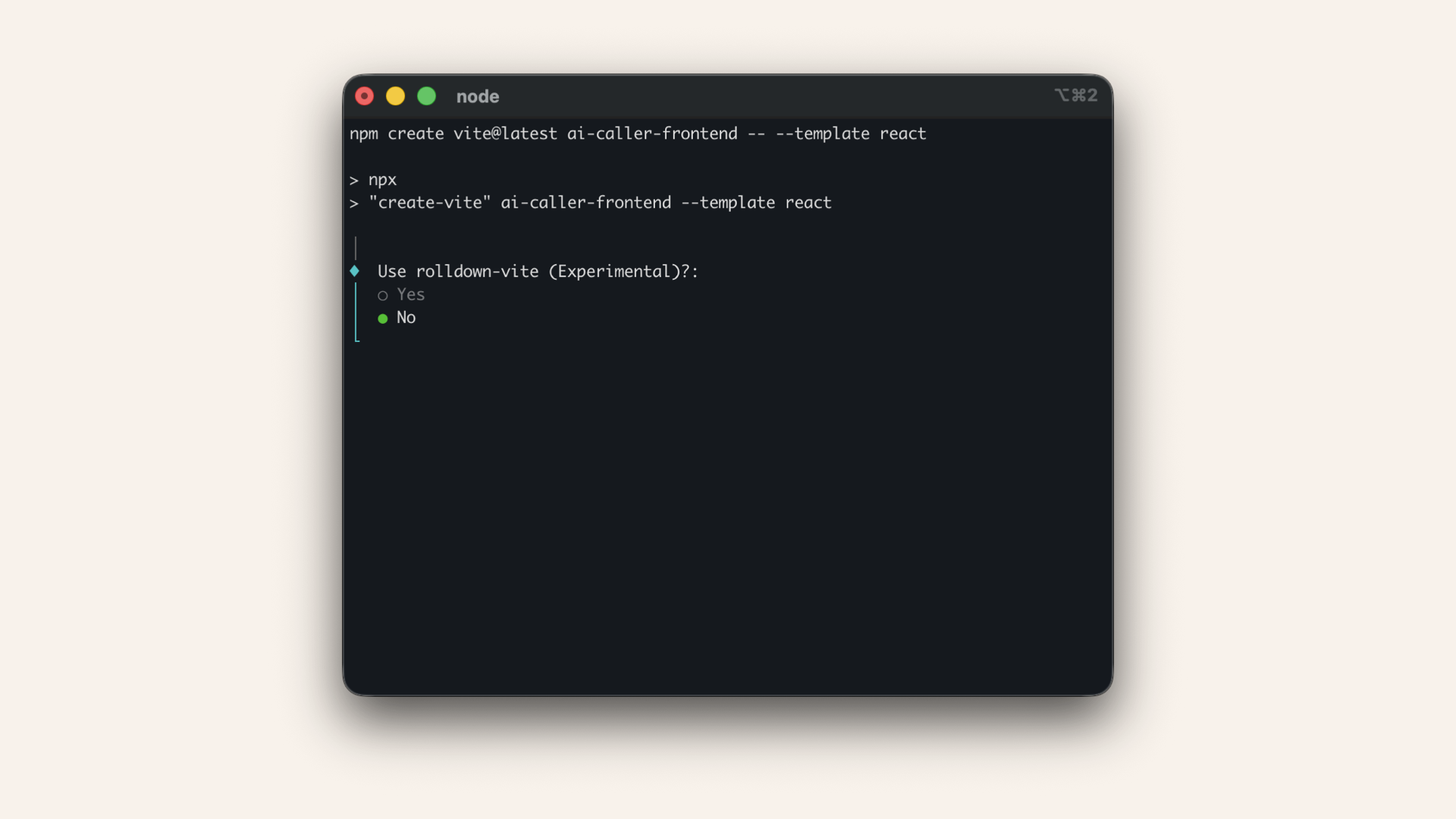
Select No when asked if use rolldown-vite
Select Yes when asked to install npm and start now:

Select Yes when asked to install npm and start now
✅ You should see a started dev server and localhost address once installed:
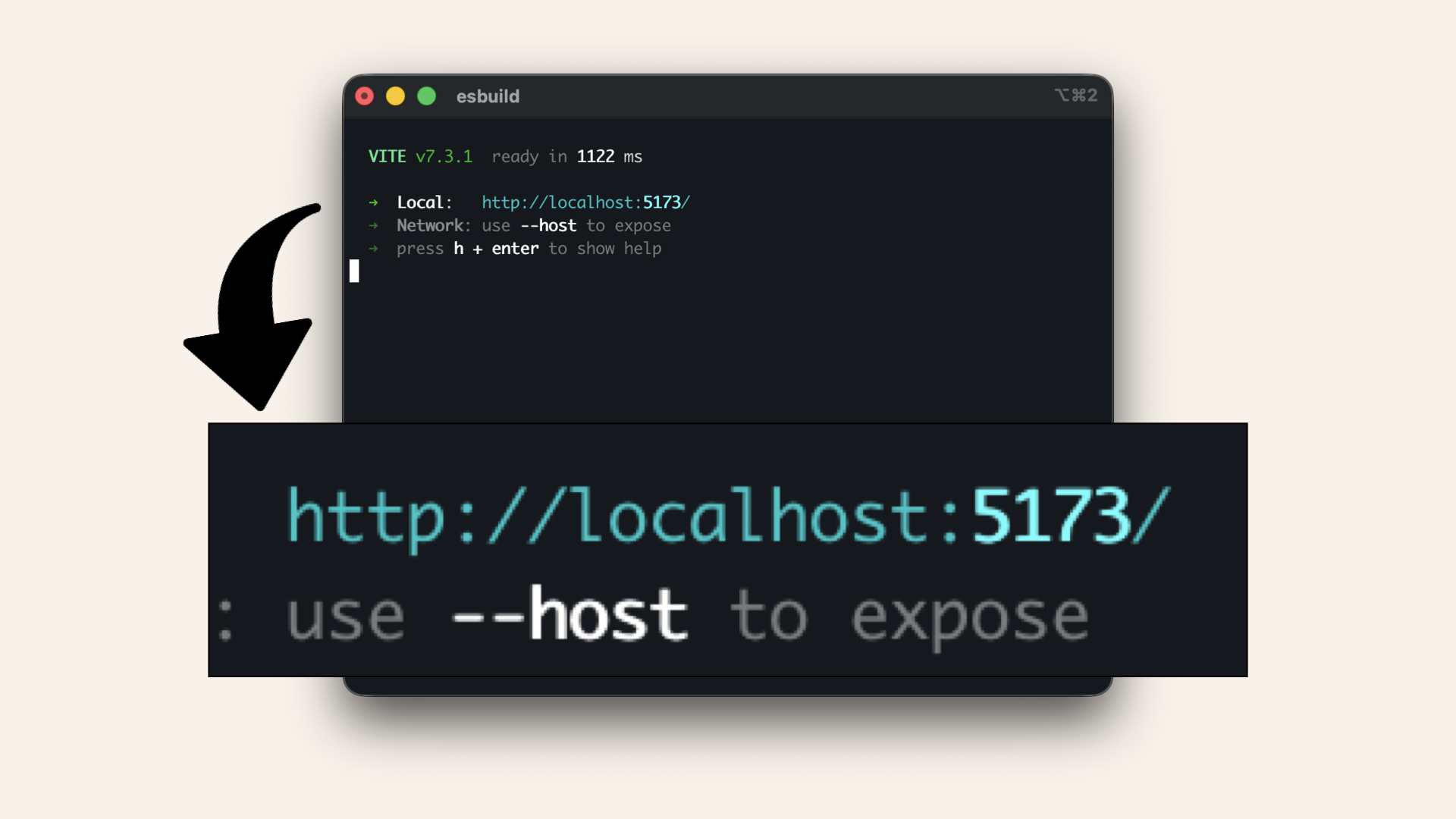
You should see a localhost address once installed
You started a local dev server.
Deep dive
That localhost:5173is your app running on your machine:
- Vite = build tool (fast, modern)
- Dev server = live preview while you code
- Hot reload = changes appear instantly (no refresh needed)
Think of it as a mini web server on your laptop. Only you can see it (for now).
Later: We'll deploy to S3 + CloudFront so the work can see it too.
localhost URL, e.g., http://localhost:5173/:
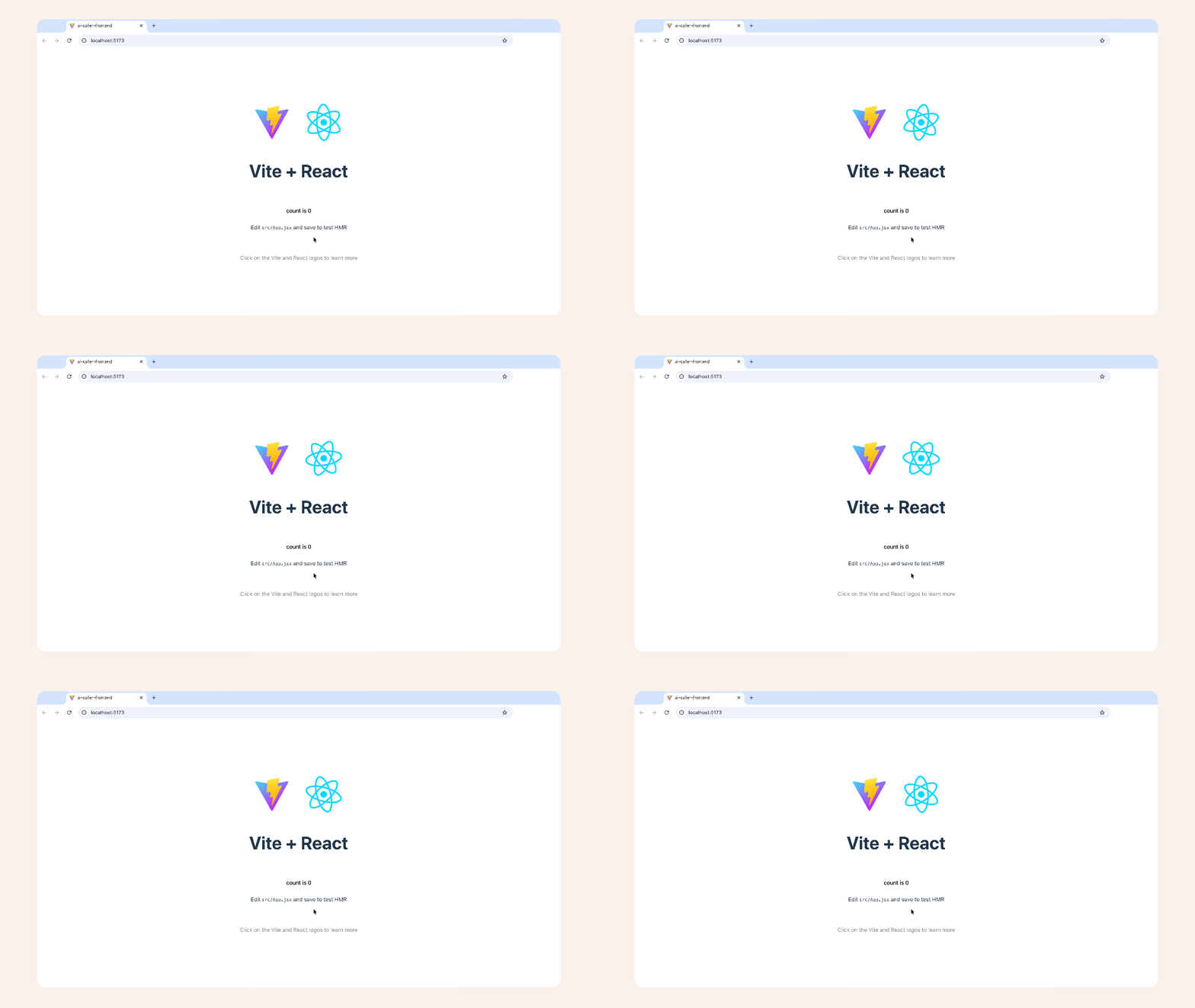
Visit the localhost URL, e.g., http://localhost:5173/
✅ You should see: Spinning React logo and a count button.
Step 2.1 Install Amplify
Open a new terminal window in addition to the running Vite app, and run:npm install aws-amplify @aws-amplify/ui-react
frontendMake sure you're in frontend root when installing Amplify
- Mac/Linux
- Windows
pwd
cd
✅ You should see the path /frontend
Step: 2.2: Configure Amplify
Create a new file called inside thesrc folder:
.
├── eslint.config.js
├── index.html
├── package-lock.json
├── package.json
├── public
│   └── vite.svg
├── README.md
├── src
│   ├── App.css
│   ├── App.jsx
│   ├── assets
│   ├── aws-exports.js    <--- Create this new file
│   ├── index.css
│   └── main.jsx
└── vite.config.js
src/aws-exports.js:
// src/aws-exports.js
const awsconfig = {
  aws_project_region: 'us-east-1', // Your region
  aws_cognito_region: 'us-east-1', // Your region
  aws_user_pools_id: 'us-east-1_aBcDeFgHi', // YOUR USER POOL ID
  aws_user_pools_web_client_id: '1a2b3c4d5e6f7g8h9i0j1k2l3m', // YOUR CLIENT ID
};

export default awsconfig;
⚠️ Replace with your values:
aws_user_pools_id: Your User Pool IDaws_user_pools_web_client_id: Your Client ID- Change the region if not in
us-east-1
Here's how to find them again
In the search bar at the top, type cognito and click Cognito from the dropdown
You'll see your user pool listed, click on it:
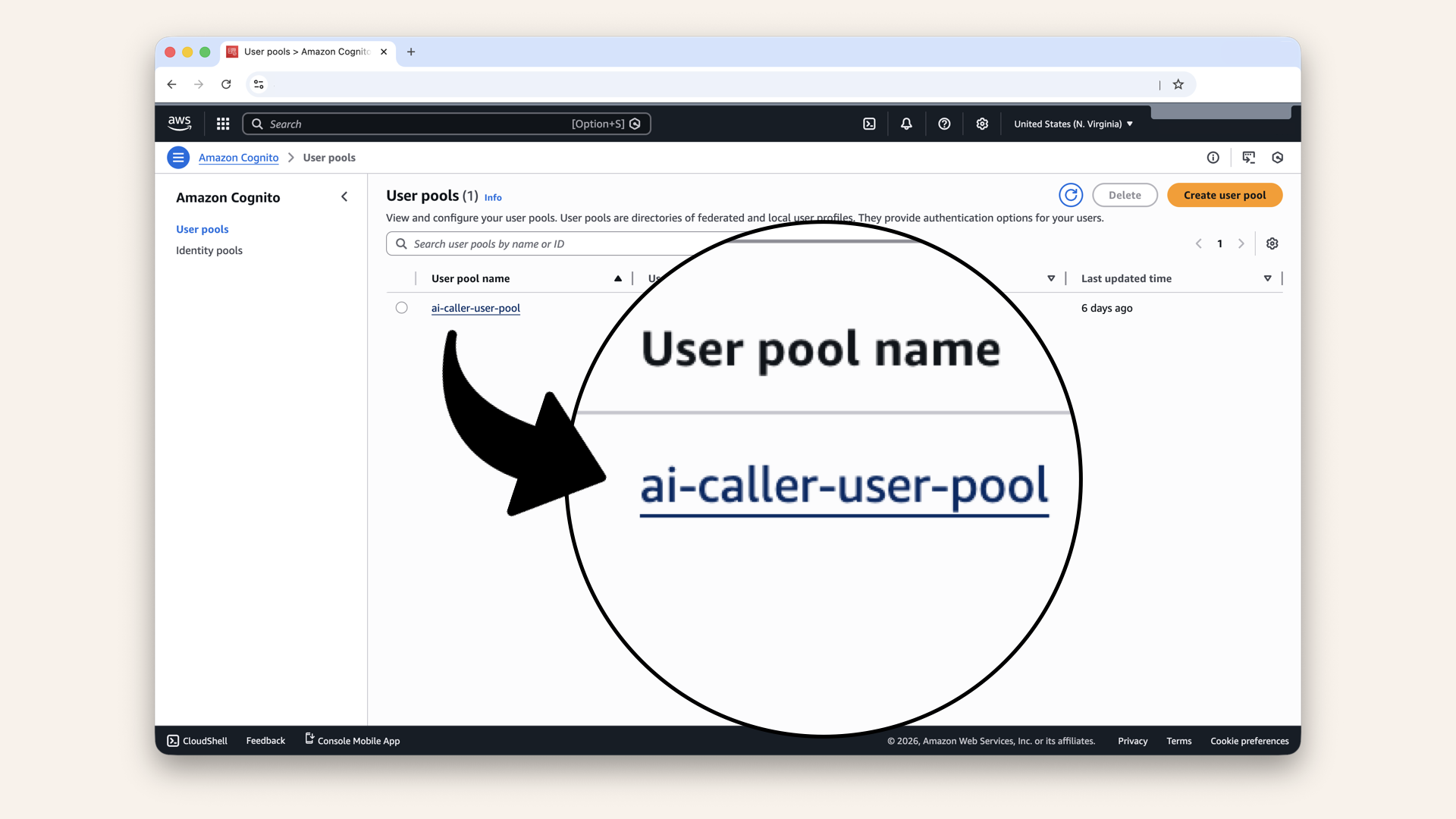
You'll see your user pool, click on it
Click the copy icon to copy your user pool name:
Click the copy icon to copy your user pool name
Save this user pool name.
Note the region. E.g. us-east-1 save this as well.
Click App clients in the left menu
Click on your app client:
Click on your app client
Click the copy icon to copy your Client ID:
Click the copy icon to copy your Client ID
Save these somewhere safe and add them to src/aws-exports.js
Step 2.2: Install MUI
Let's install Material UI.
Run this in your terminal to install Material UI:npm install @mui/material @emotion/react @emotion/styled
Step 2.3: Create protected app component
Open the filesrc/App.jsx in your editor.
.
├── eslint.config.js
├── index.html
├── package-lock.json
├── package.json
├── public
│   └── vite.svg
├── README.md
├── src
│   ├── App.css
│   ├── App.jsx   <--- Open this file
│   ├── assets
│   ├── aws-exports.js
│   ├── index.css
│   └── main.jsx
└── vite.config.js
src/App.jsx code with this snippet:
// src/App.jsx
import { Amplify } from "aws-amplify";
import { Authenticator } from "@aws-amplify/ui-react";
import { fetchAuthSession } from 'aws-amplify/auth'; // Ready for Day 13
import "@aws-amplify/ui-react/styles.css";
import { useState } from "react";
import {
  Box,
  Button,
  Card,
  CardContent,
  Container,
  TextField,
  Typography,
  AppBar,
  Toolbar,
} from "@mui/material";
import awsconfig from "./aws-exports";

Amplify.configure(awsconfig);

function App() {
  const [phoneNumber, setPhoneNumber] = useState("");
  const [status, setStatus] = useState("Ready to call");
  const [loading, setLoading] = useState(false);

  const handleStartCall = async () => {
    if (!phoneNumber) {
      setStatus("Please enter a phone number");
      return;
    }

    setLoading(true);
    setStatus("Connecting...");

    // TODO: Day 13 - Connect to secure backend
    // For now, simulate a delay and show a placeholder message
    setTimeout(() => {
      setStatus("Backend not connected yet - coming Day 13!");
      setLoading(false);
    }, 1000);
  };

  return (
    <Box
      sx={{
        minHeight: "100vh",
        display: "flex",
        flexDirection: "column",
        justifyContent: "center",
        alignItems: "center",
      }}
    >
      <Authenticator loginMechanisms={["email"]}>
        {({ signOut, user }) => (
          <>
            <AppBar position="static" sx={{ bgcolor: "#667eea" }}>
              <Toolbar sx={{ justifyContent: "space-between" }}>
                <Typography variant="h6" sx={{ fontWeight: 600 }}>
                  🤖 AI Caller
                </Typography>
                <Button
                  color="inherit"
                  onClick={signOut}
                  sx={{ fontWeight: 600 }}
                >
                  Sign Out
                </Button>
              </Toolbar>
            </AppBar>

            <Container maxWidth="sm" sx={{ py: 4 }}>
              <Card sx={{ mb: 3, borderRadius: 2 }}>
                <CardContent>
                  <Typography variant="h5" sx={{ fontWeight: 600, mb: 1 }}>
                    Welcome! 👋
                  </Typography>
                  <Typography color="text.secondary">
                    Your AI calling agent is ready.
                  </Typography>
                </CardContent>
              </Card>

              <Card sx={{ mb: 3, borderRadius: 2 }}>
                <CardContent>
                  <Typography variant="h6" sx={{ fontWeight: 600, mb: 2 }}>
                    Make a Call
                  </Typography>
                  <TextField
                    fullWidth
                    label="Phone number"
                    placeholder="+1234567890"
                    type="tel"
                    value={phoneNumber}
                    onChange={(e) => setPhoneNumber(e.target.value)}
                    sx={{ mb: 2 }}
                  />
                  <Button
                    variant="contained"
                    fullWidth
                    size="large"
                    onClick={handleStartCall}
                    disabled={loading}
                    sx={{
                      bgcolor: "#667eea",
                      fontWeight: 600,
                      "&:hover": { bgcolor: "#5568d3" },
                    }}
                  >
                    {loading ? "Connecting..." : "📞 Start AI Call"}
                  </Button>
                </CardContent>
              </Card>

              <Card sx={{ borderRadius: 2 }}>
                <CardContent>
                  <Typography variant="h6" sx={{ fontWeight: 600, mb: 1 }}>
                    Call Status
                  </Typography>
                  <Typography
                    sx={{
                      color: status.includes("Ready") ? "#10b981" :
                             status.includes("not connected") ? "#f59e0b" :
                             "#6b7280",
                      fontWeight: 600,
                    }}
                  >
                    {status}
                  </Typography>
                </CardContent>
              </Card>
            </Container>
          </>
        )}
      </Authenticator>
    </Box>
  );
}

export default App;
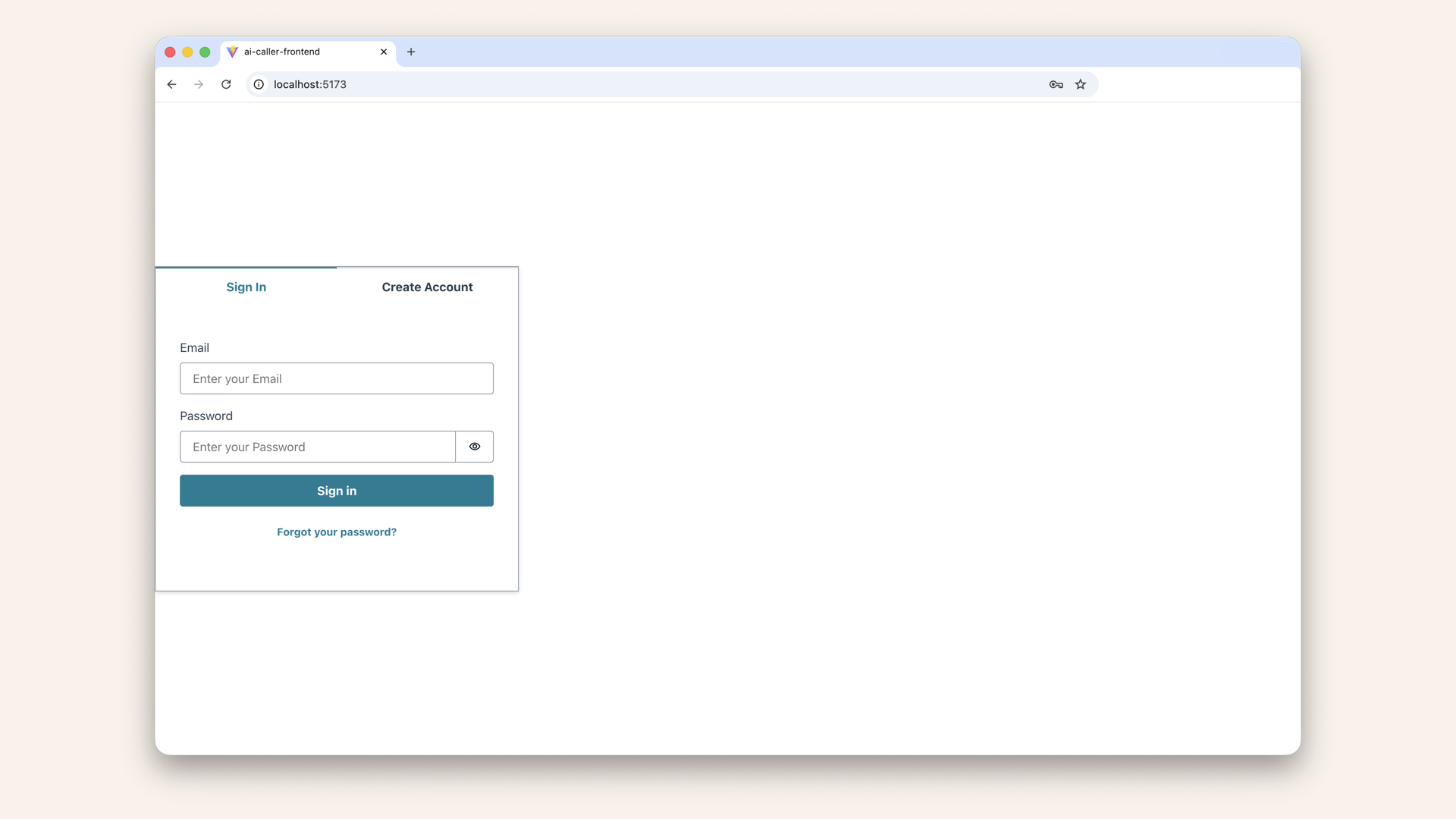
Head back to your browser with localhost:5173 and you should now see a login screen
Step 2.4: Center login screen
Let's center the login screen.
Open the filesrc/index.css in your editor:
.
├── eslint.config.js
├── index.html
├── package-lock.json
├── package.json
├── public
│   └── vite.svg
├── README.md
├── src
│   ├── App.css
│   ├── App.jsx
│   ├── assets
│   ├── aws-exports.js
│   ├── index.css   <--- Open this file
│   └── main.jsx
└── vite.config.js
src/index.css file:
/* Rest of your code */

* {
  margin: 0;
  padding: 0;
  box-sizing: border-box;
}

body {
  font-family: 'Roboto', sans-serif;
  min-height: 100vh;
  display: flex;
  justify-content: center;
  align-items: center;
}
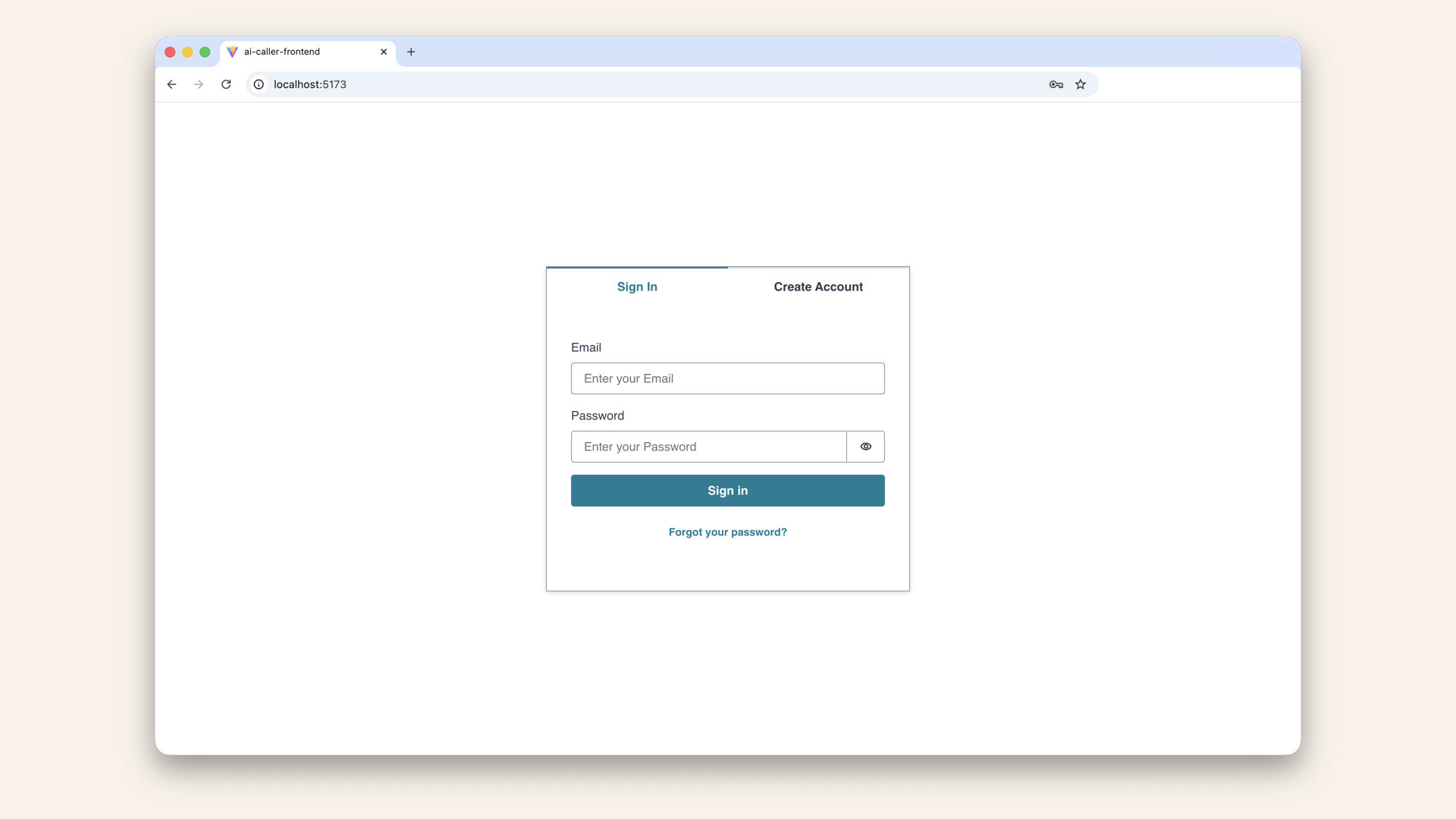
Head back to http://localhost:5173. You should now see the login screen centered
✅ You should now see the login screen centered.
Try signing up:
- Click "Create Account"
- Enter email + password
- Check email for verification code
- Enter code
- Login
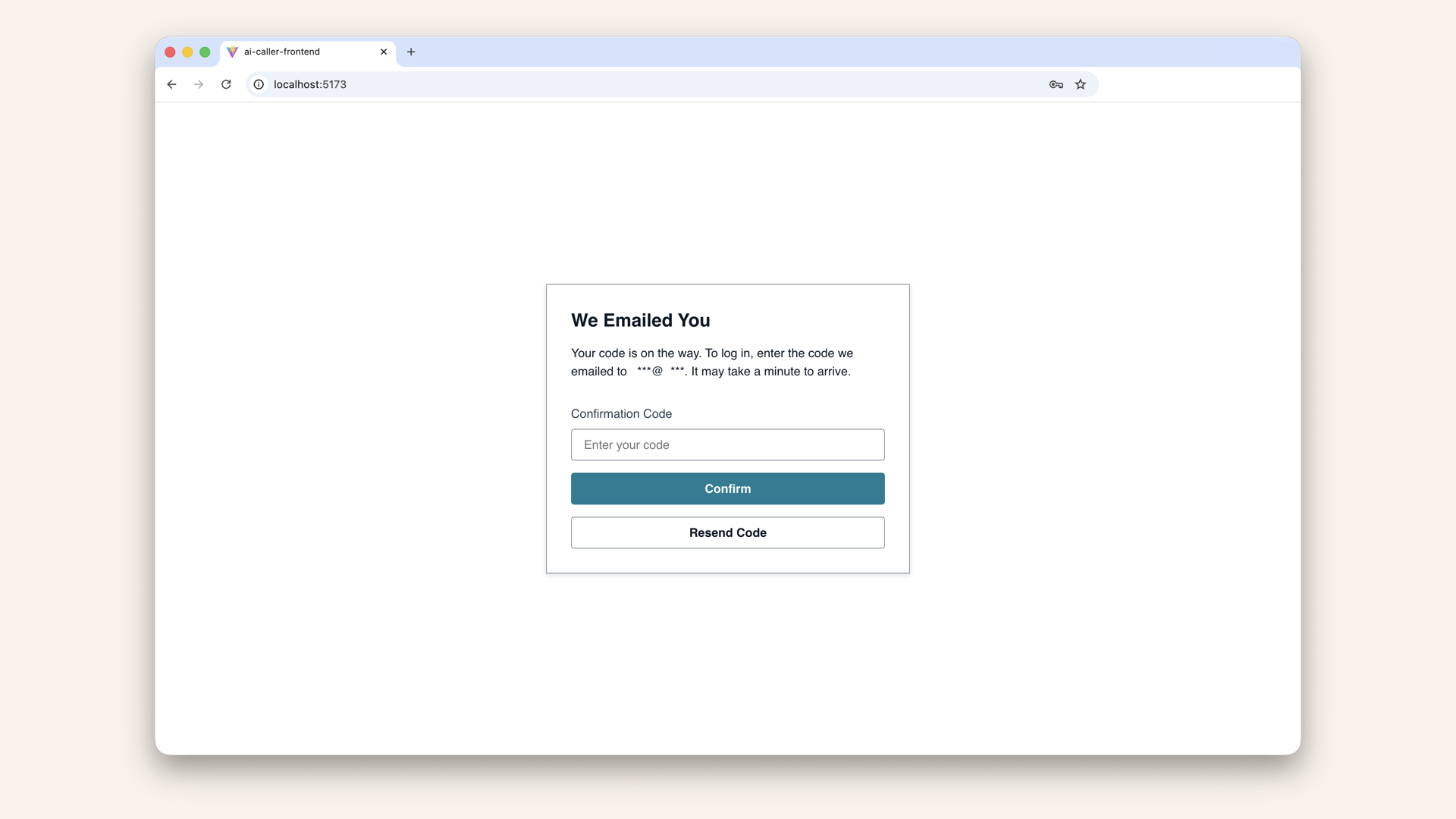
Check email for verification code
You should see your protected app! 🎉

You should see your protected app! 🎉
You created a real user in Cognito.
When you signed up:
- Amplify UI sent your email + password to Cognito
- Cognito created a user in your User pool
- Cognito emailed you a verification code
- You verified → Cognito marked your account as confirmed
- Cognito returned a JWT token to your browser
- Amplify stored the token and showed the protected app
No backend code. No database. Cognito handles it all.
Step 2.5: Test the protected app
Add a made-up phone number, e.g. and to click "Start AI call":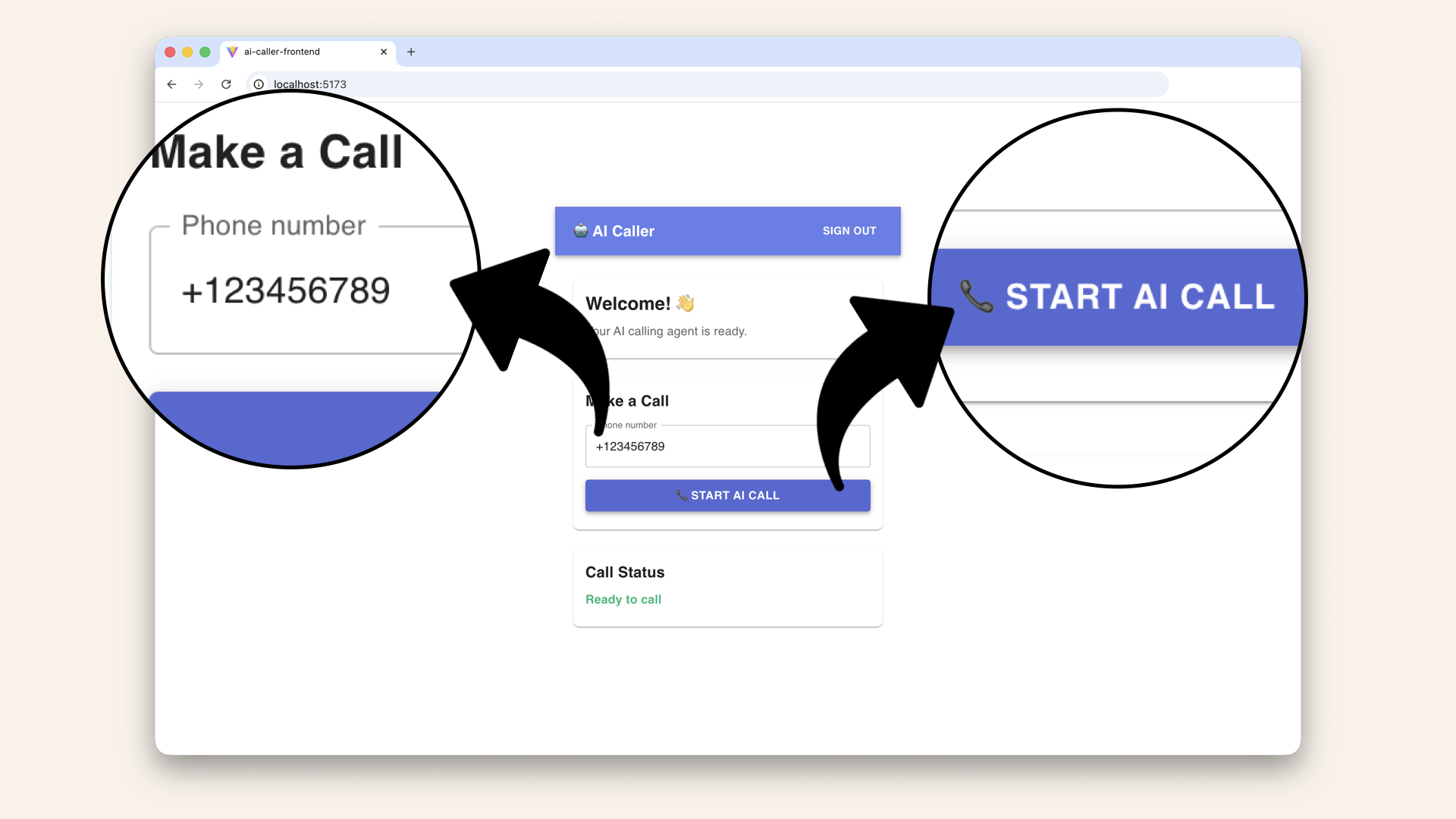
Add a made-up phone number and try to click on "Start AI call"
✅ You should see a message saying the backend is not connected yet:
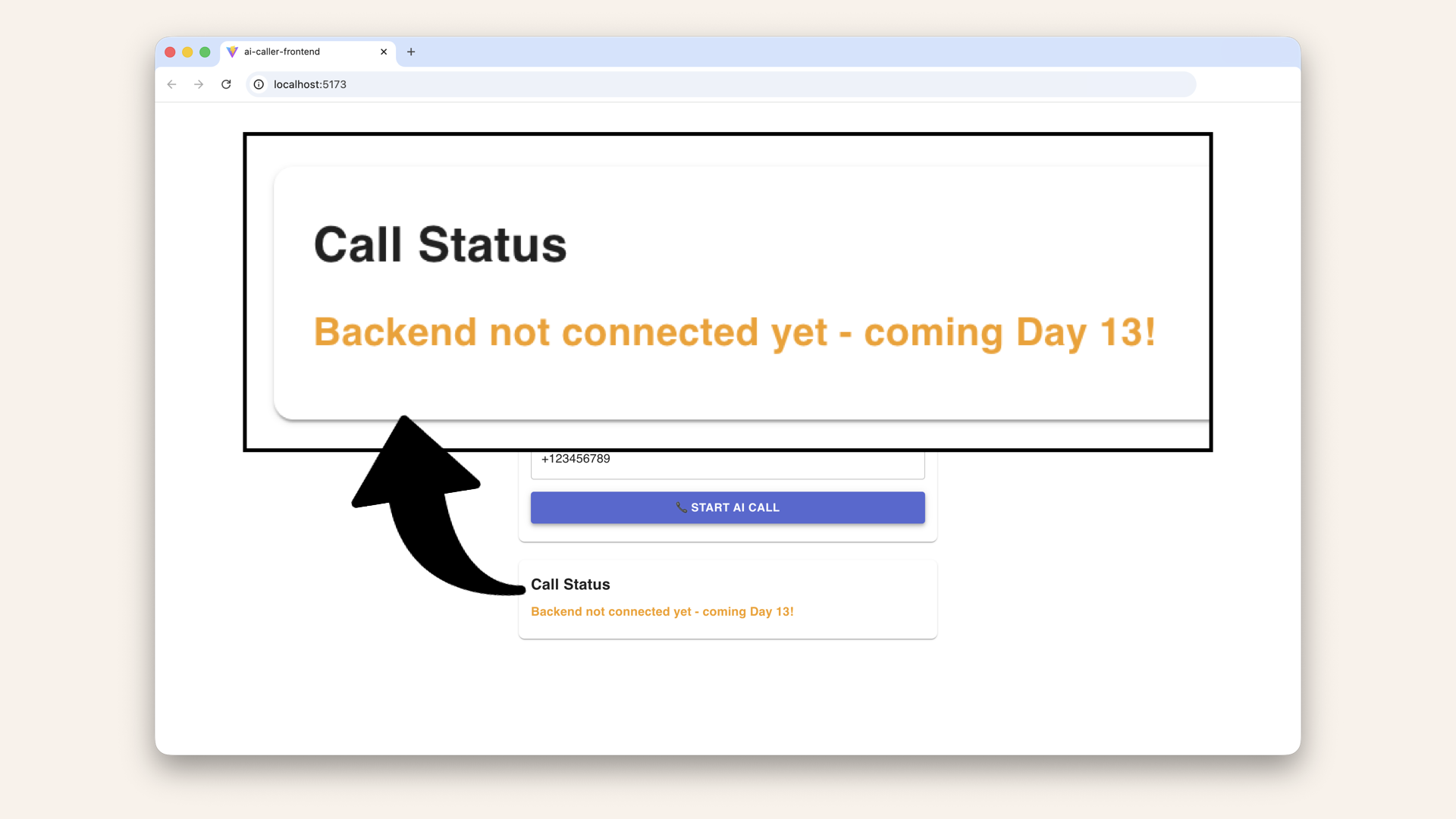
You should see a message saying the backend is not connected yet
This is expected. The button works, but there is no backend to call yet.
Right now, handleStartCall (line 21-33) is just a placeholder that simulates a delay:
// TODO: Day 13 - Connect to secure backend
// For now, simulate a delay and show a placeholder message
setTimeout(() => {
  setStatus("Backend not connected yet - coming Day 13!");
  setLoading(false);
}, 1000);
Tomorrow (Day 13): We'll build a secure Lambda backend with API Gateway and replace this placeholder with a real API call.
Your button will actually trigger AI calls, but only for authenticated users.
Step 2.6: Check new user
Head back to the AWS Console ↗ In the AWS Console search bar at the top, type cognito and click Cognito from the dropdown menu:
In the search bar at the top, type cognito and click Cognito from the dropdown
Click the left menu button and then click User pools in the left menu
You'll see your user pool, click on it
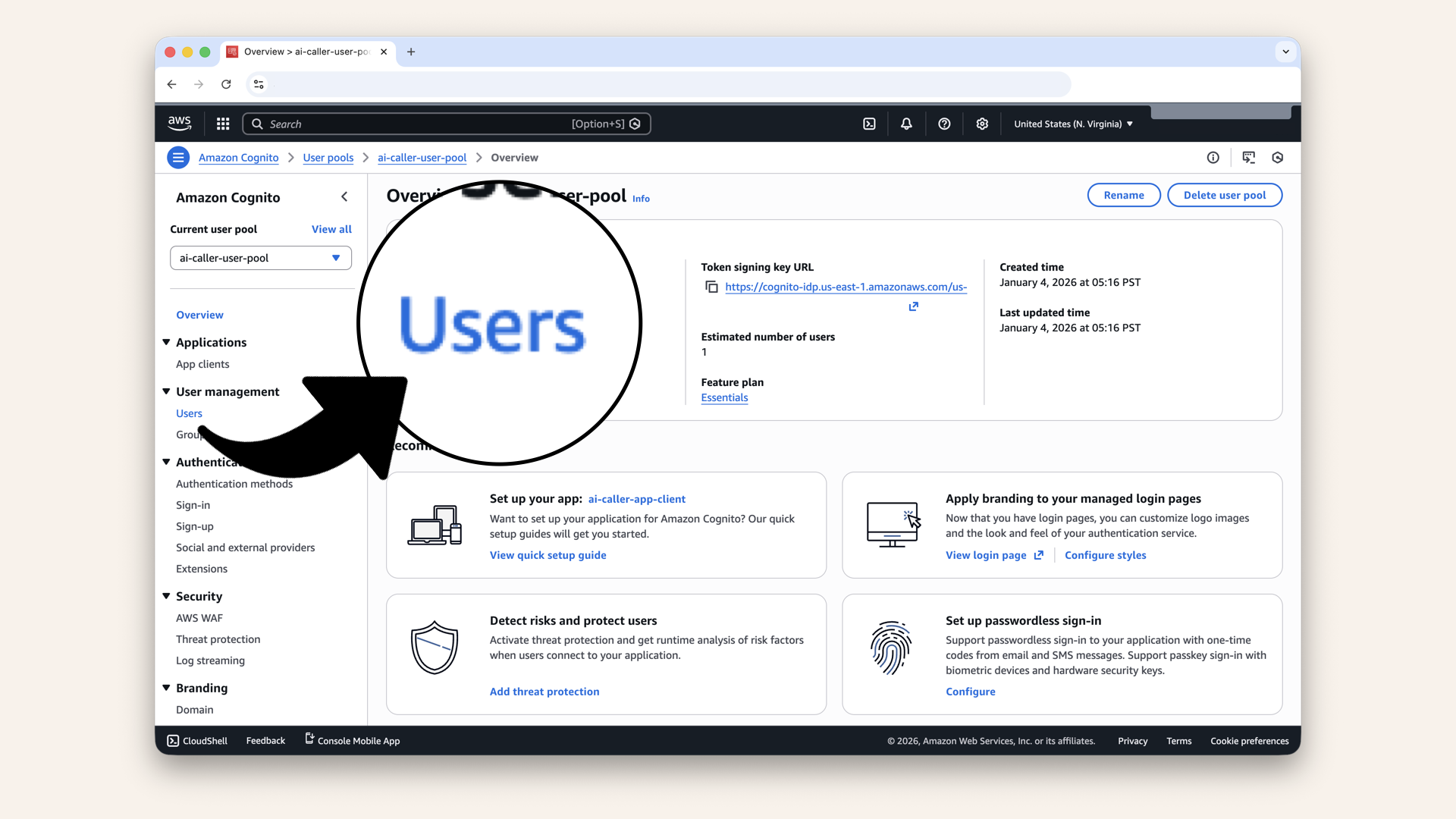
Click Users in the left menu
✅ You should see the user you just created:
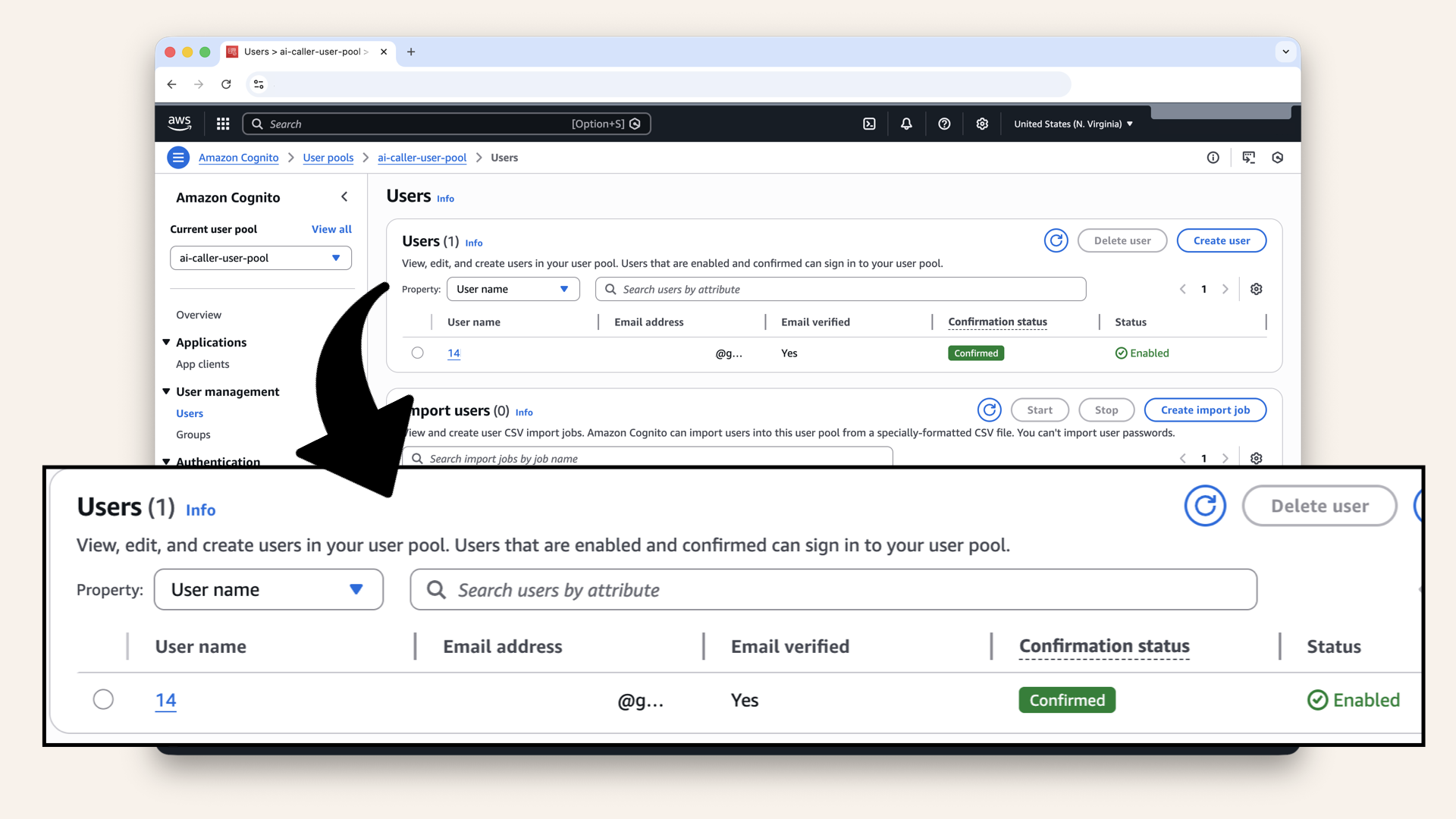
You should see the user you just created
Step 3: Build for production
Run this in your terminal:npm run build
frontendMake sure you're in frontend root when running npm run build
- Mac/Linux
- Windows
pwd
cd
✅ You should see the path /frontend
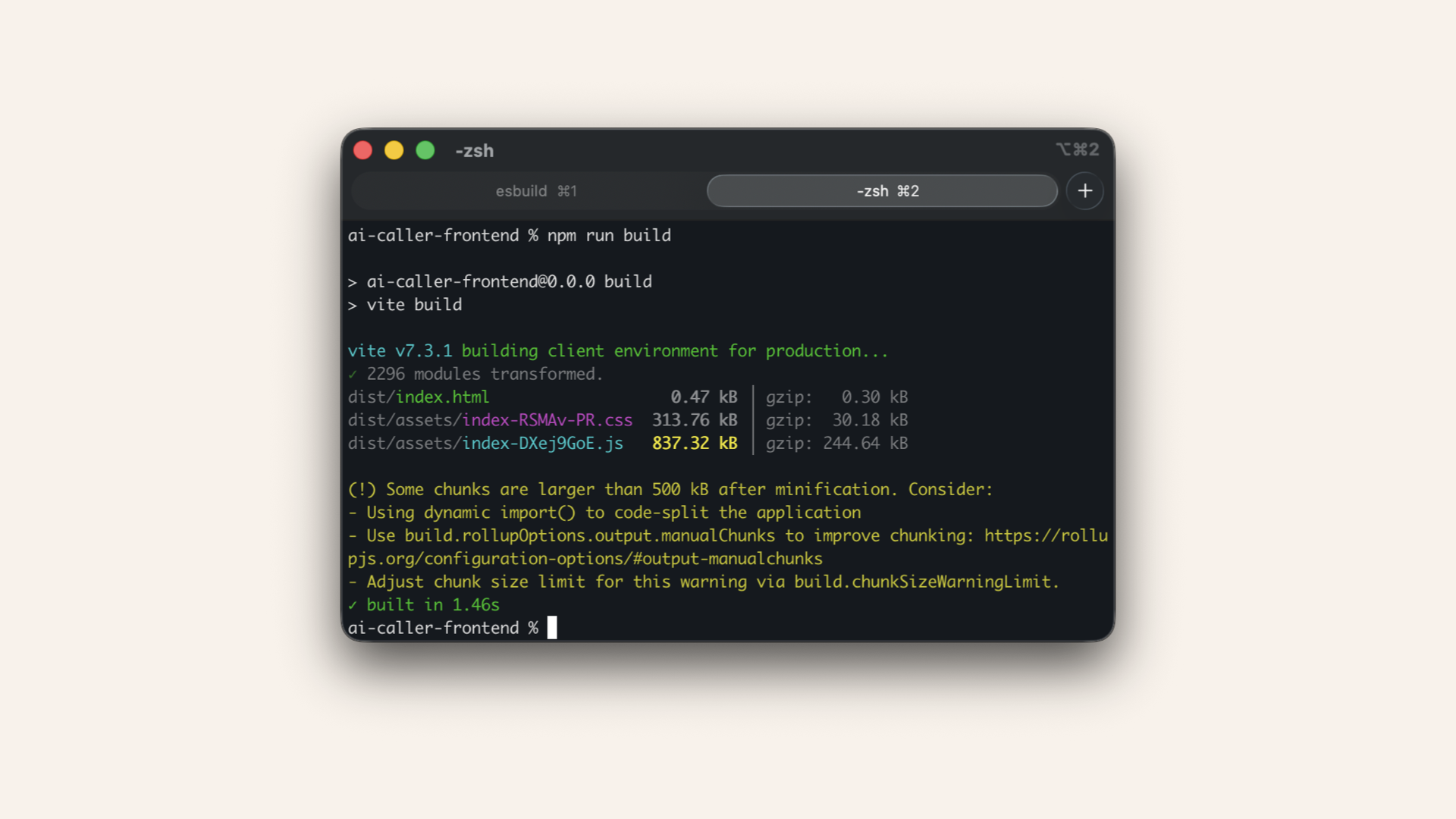
Run npm run build in your terminal
This creates a dist/ folder with optimized production files.
dist:
.
├── dist            <--- New folder
│   ├── assets
│   ├── index.html
│   └── vite.svg
├── eslint.config.js
├── index.html
├── package-lock.json
├── package.json
├── public
│   └── vite.svg
├── README.md
├── src
│   ├── App.css
│   ├── App.jsx
│   ├── assets
│   ├── aws-exports.js
│   ├── index.css
│   └── main.jsx
└── vite.config.js
Step 4: Deploy to S3
Now let's host the frontend on S3.
Open the AWS Console ↗ In the search bar at the top, type s3 and click S3 from the dropdown: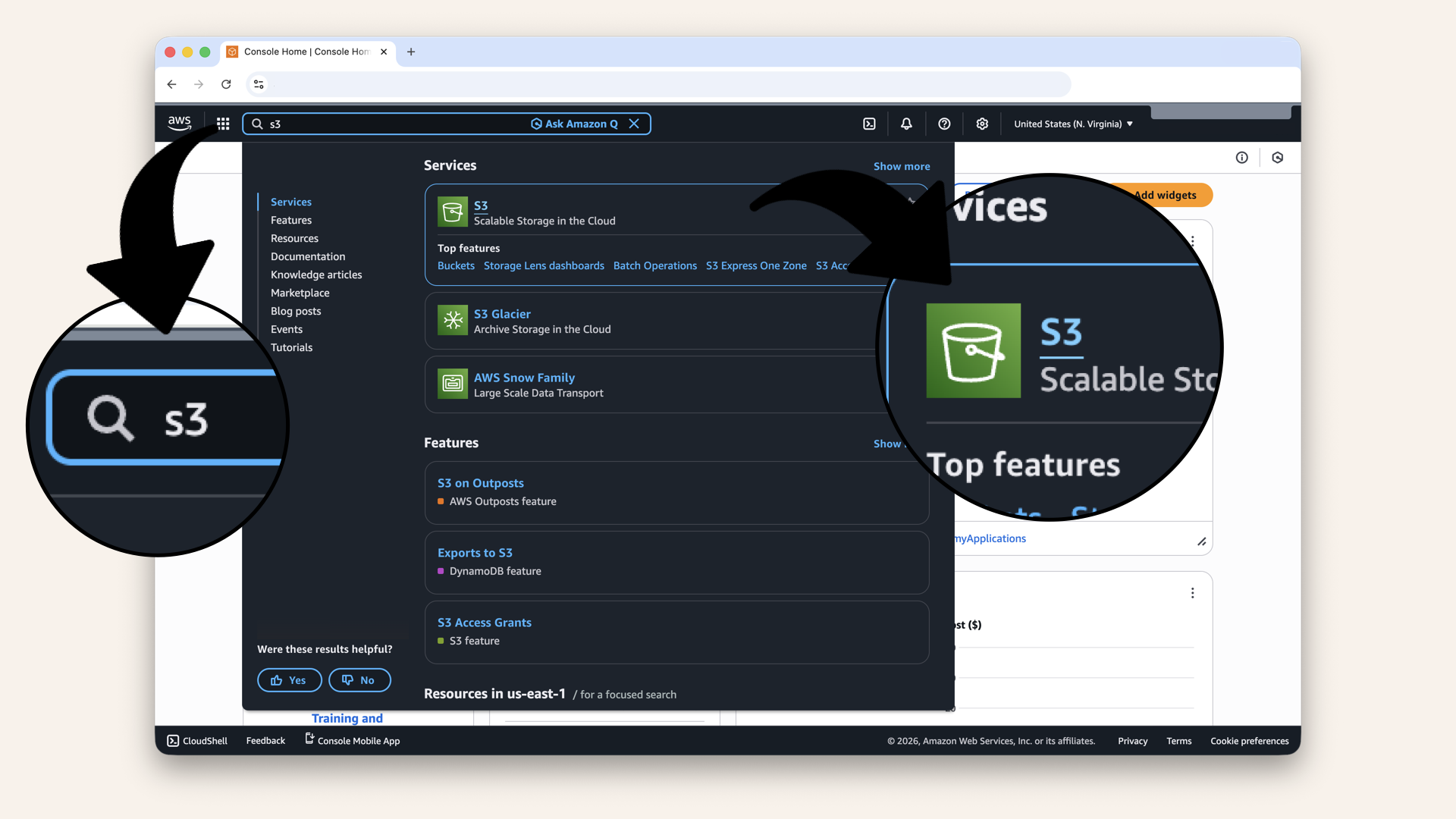
In the search bar at the top, type s3 and click S3 from the dropdown
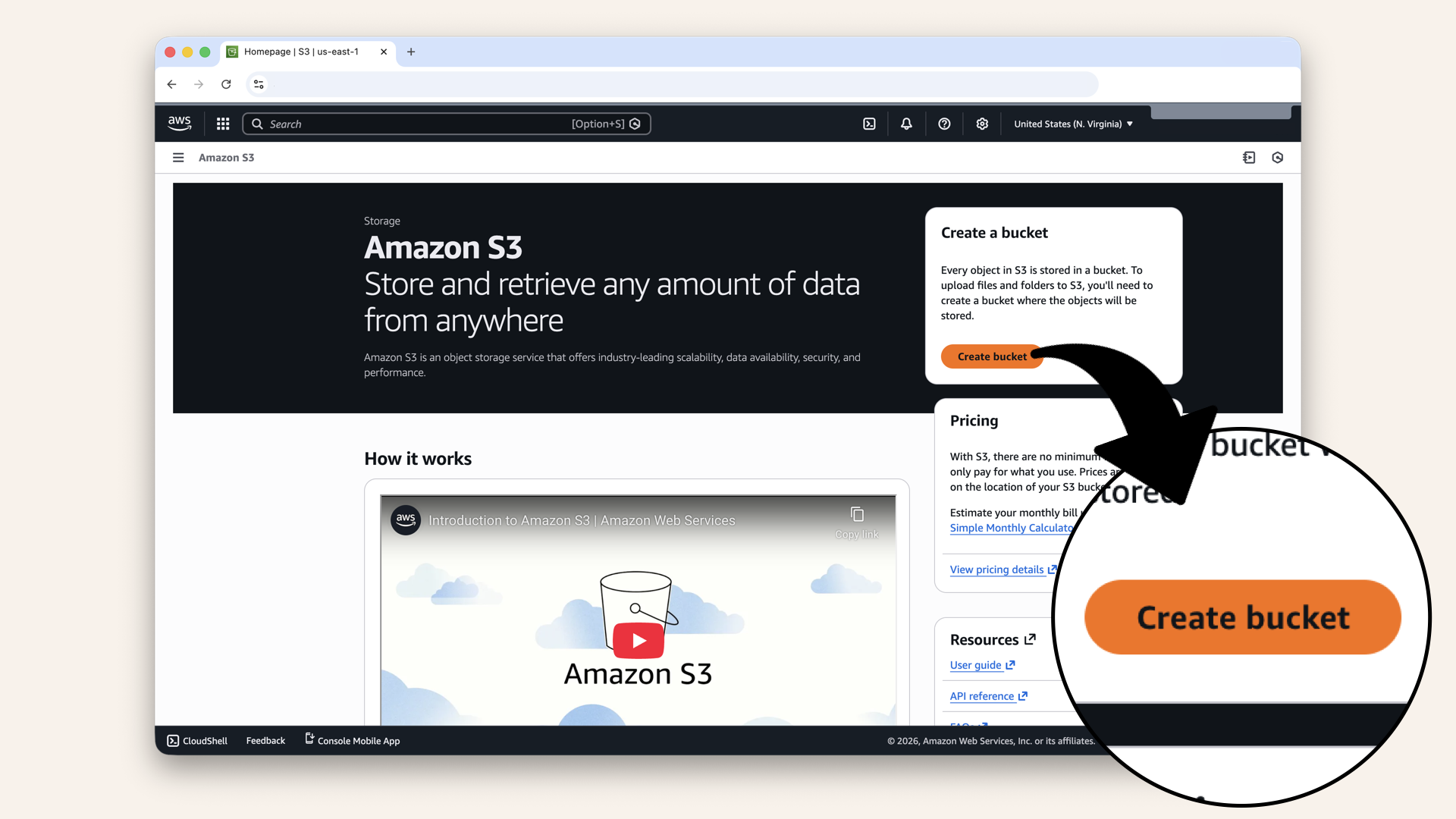
Click Create bucket
S3 bucket names must be globally unique - no two buckets in the world can have the same name.
I've generated a unique ID for you:
This ID is saved in your browser, so it stays the same throughout this tutorial.
Use these bucket settings:
| Field | Value |
|---|---|
| Bucket type | General purpose |
| Bucket name | (already unique to you!) |
| Object ownership | ACLs disabled |
| Block all public access | UNCHECK (we need public access for website) |
| Acknowledge | ✅ Check the warning box |
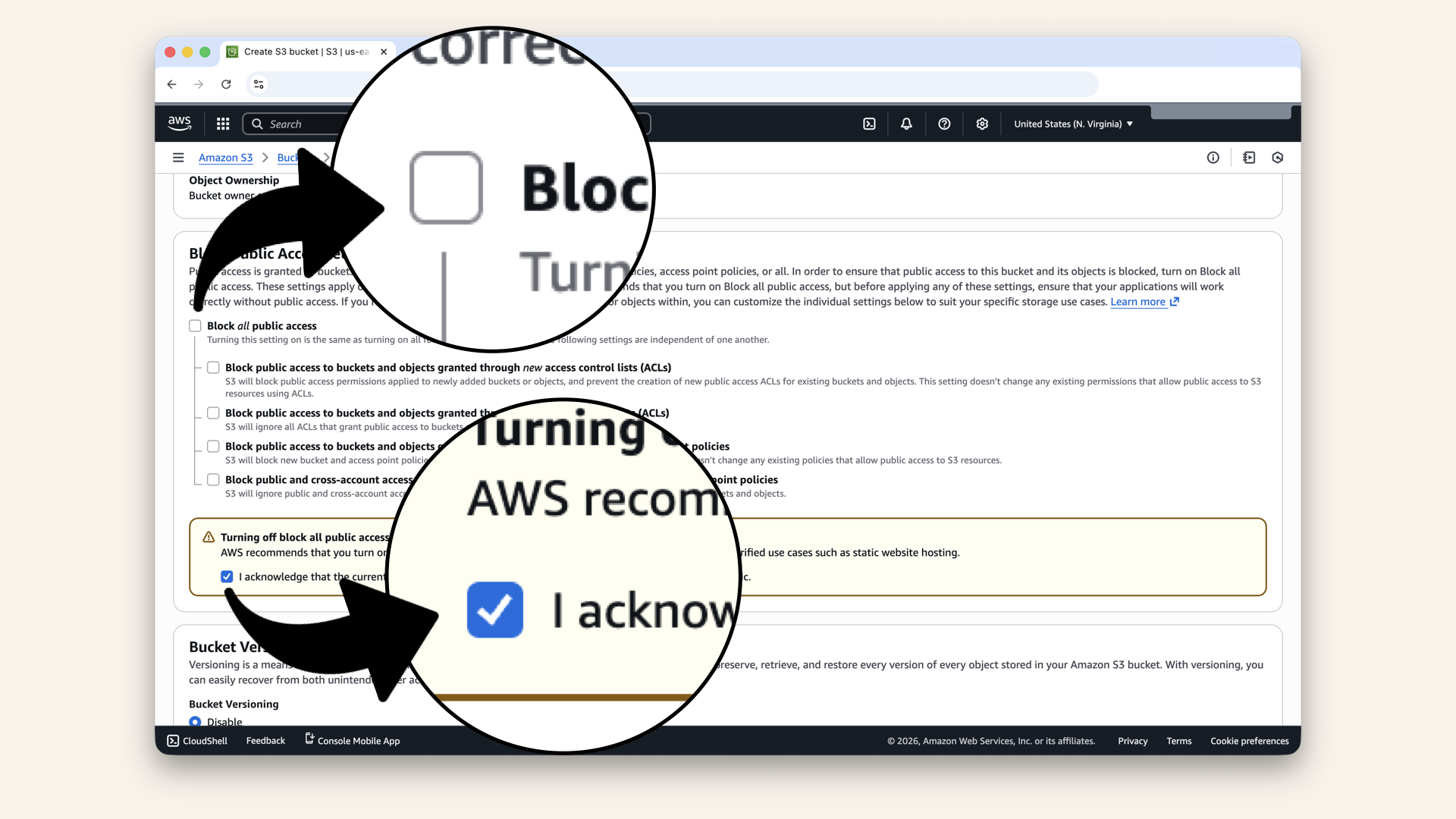
Uncheck Block all public access and check the warning box (we need public access for website)
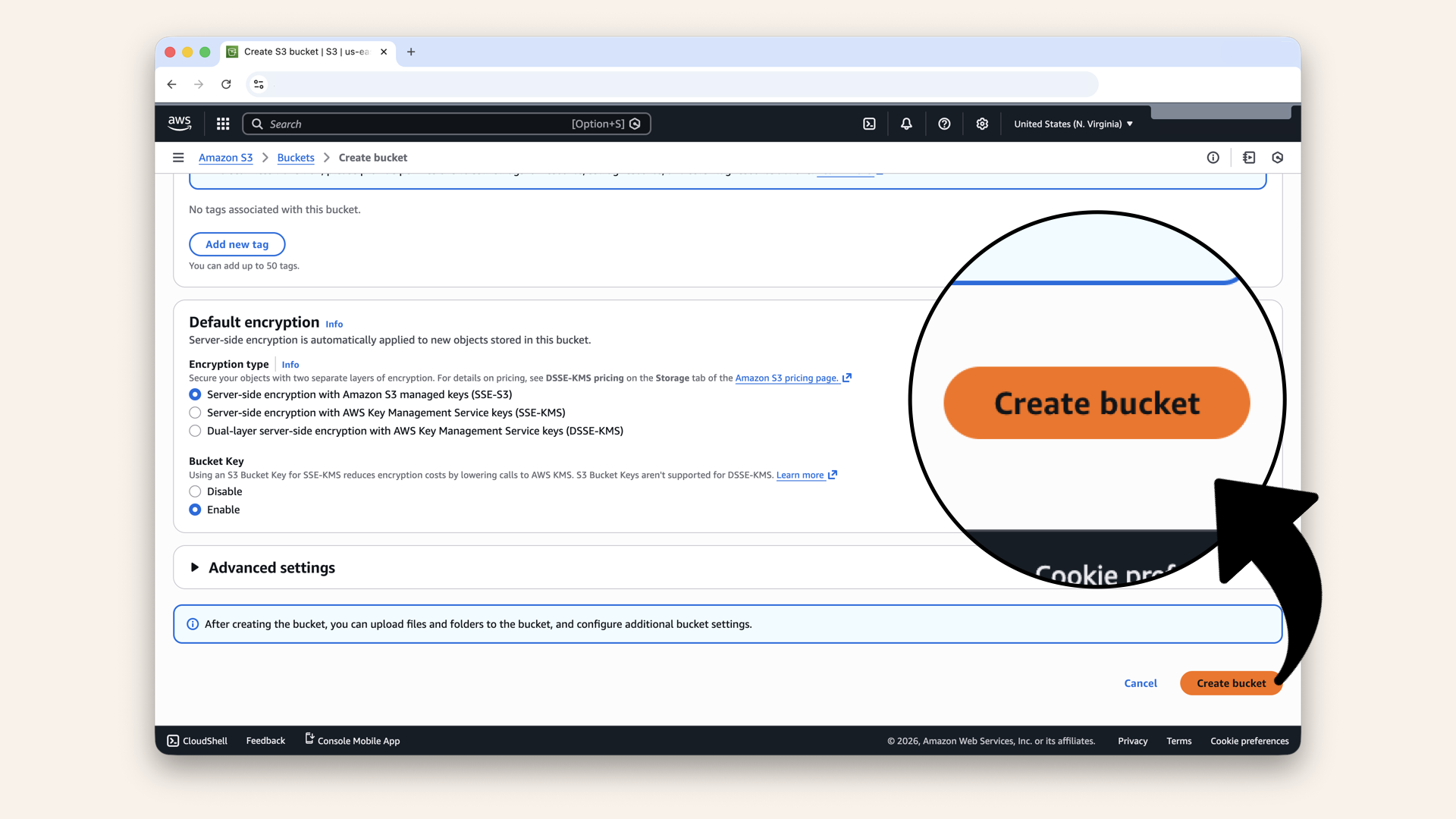
Scroll all the way down and click Create bucket
✅ You should see "Successfully created bucket":
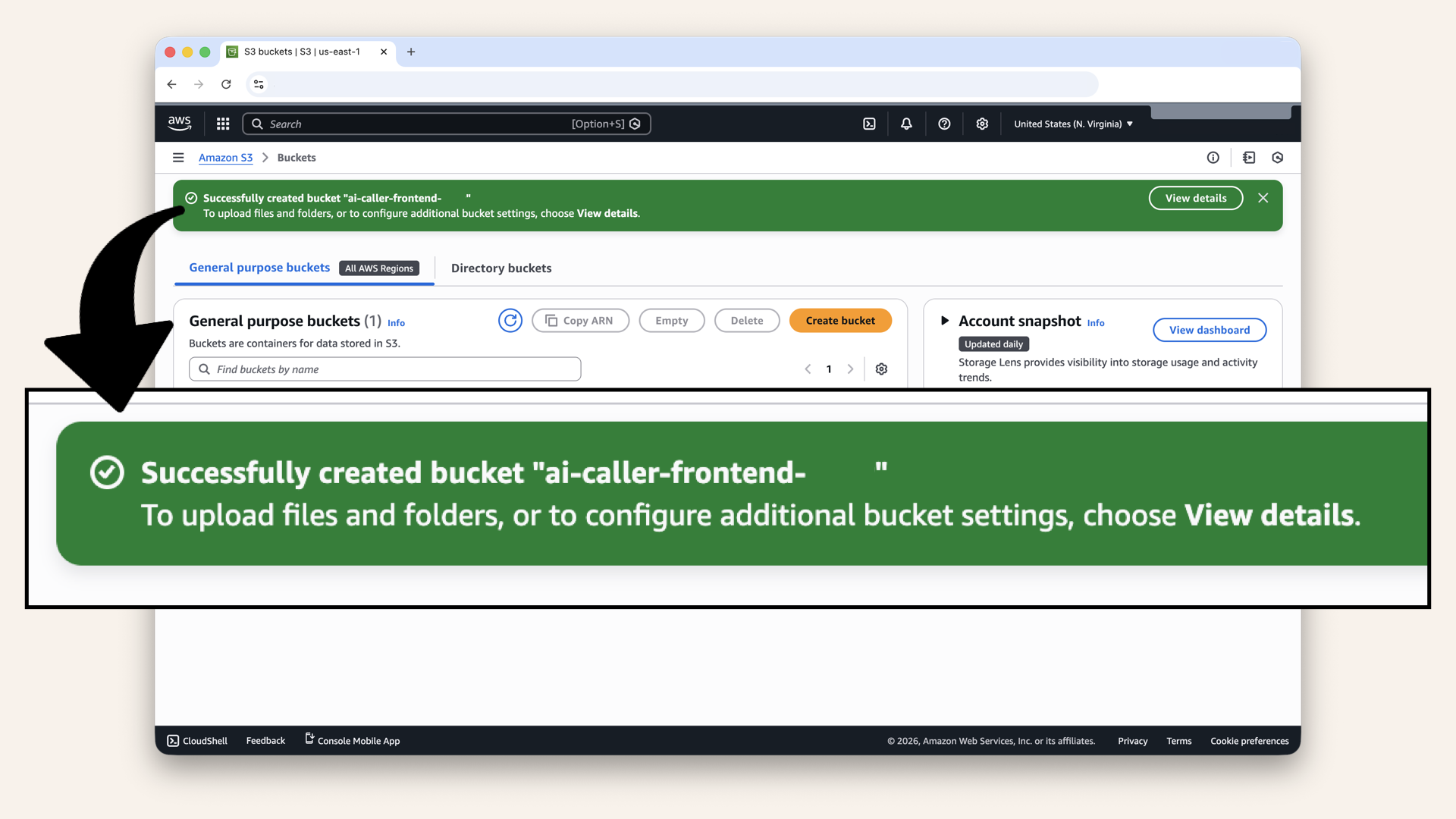
You should see "Successfully created bucket"
Step 4.1: Enable static website hosting
Click on your bucket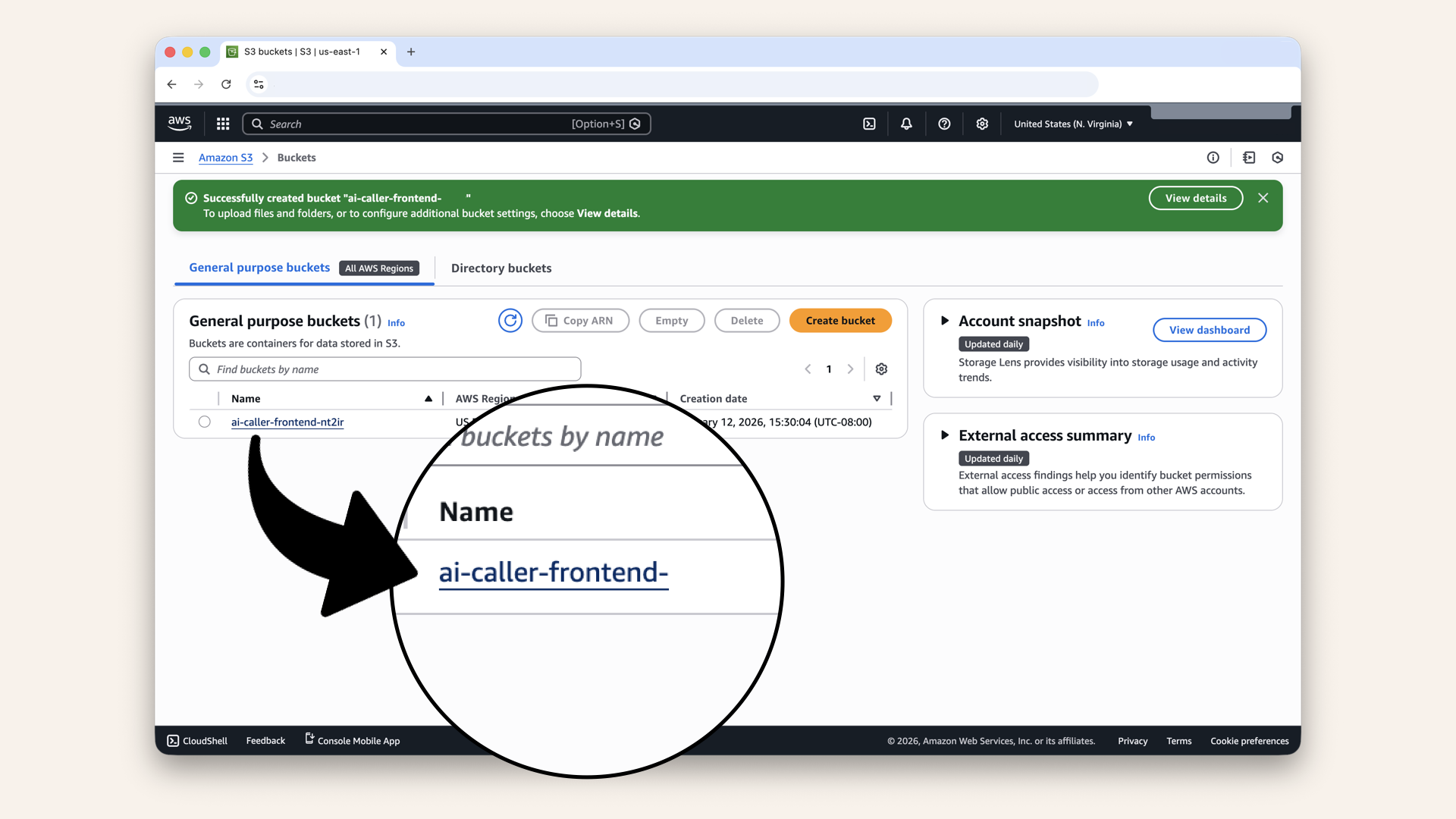
Click on your bucket
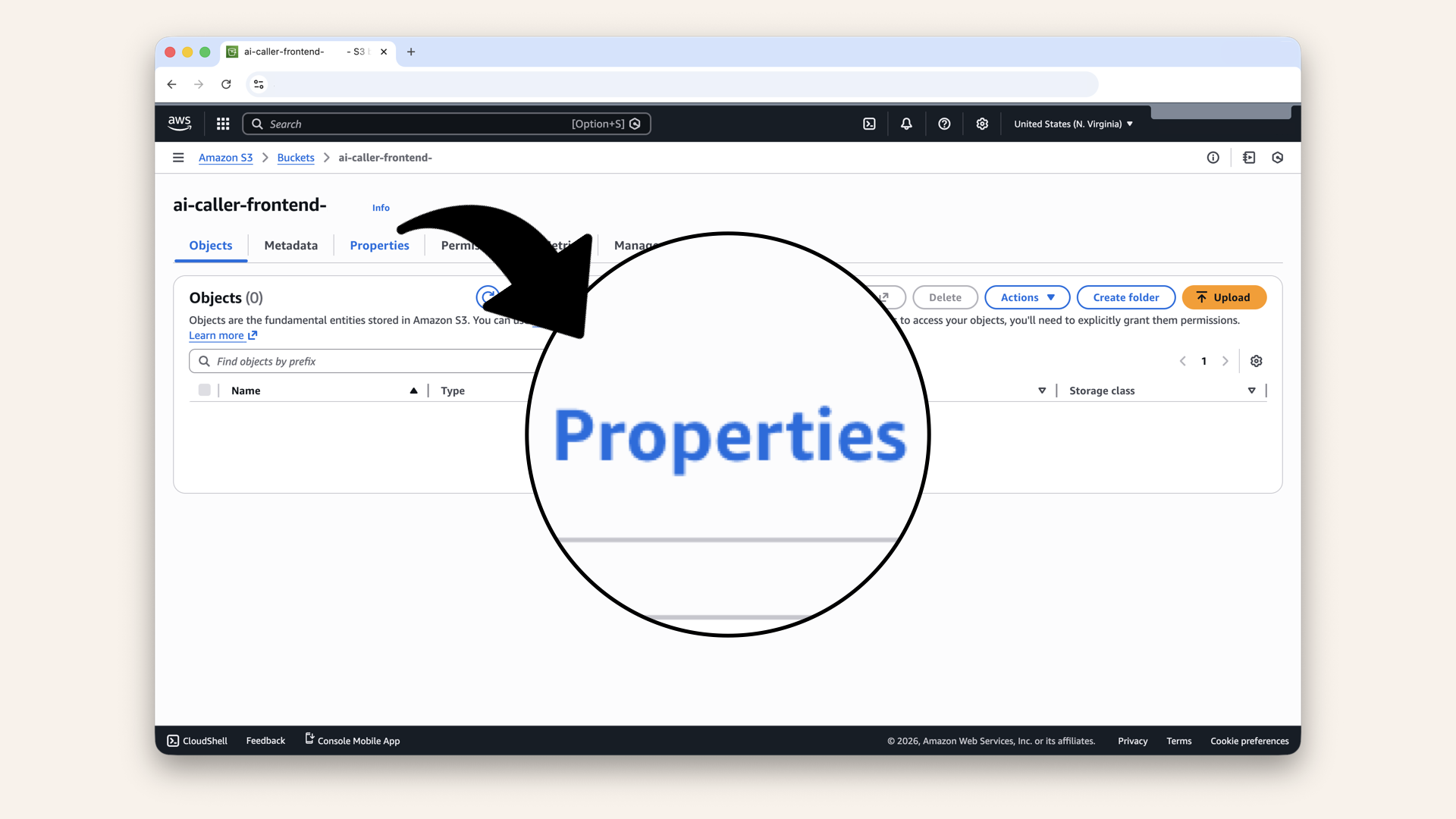
Click Properties tab
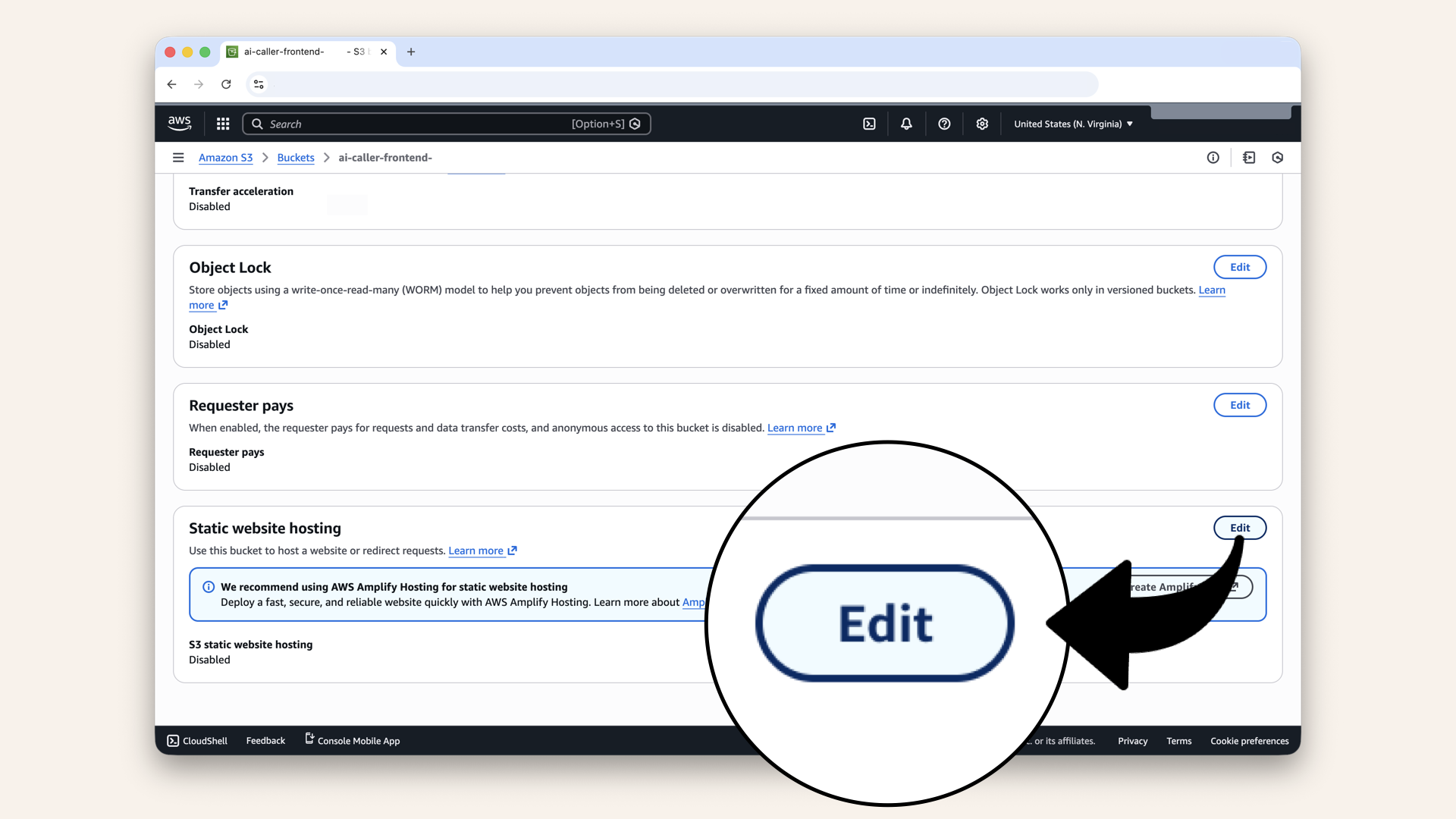
Scroll down to Static website hosting and click Edit
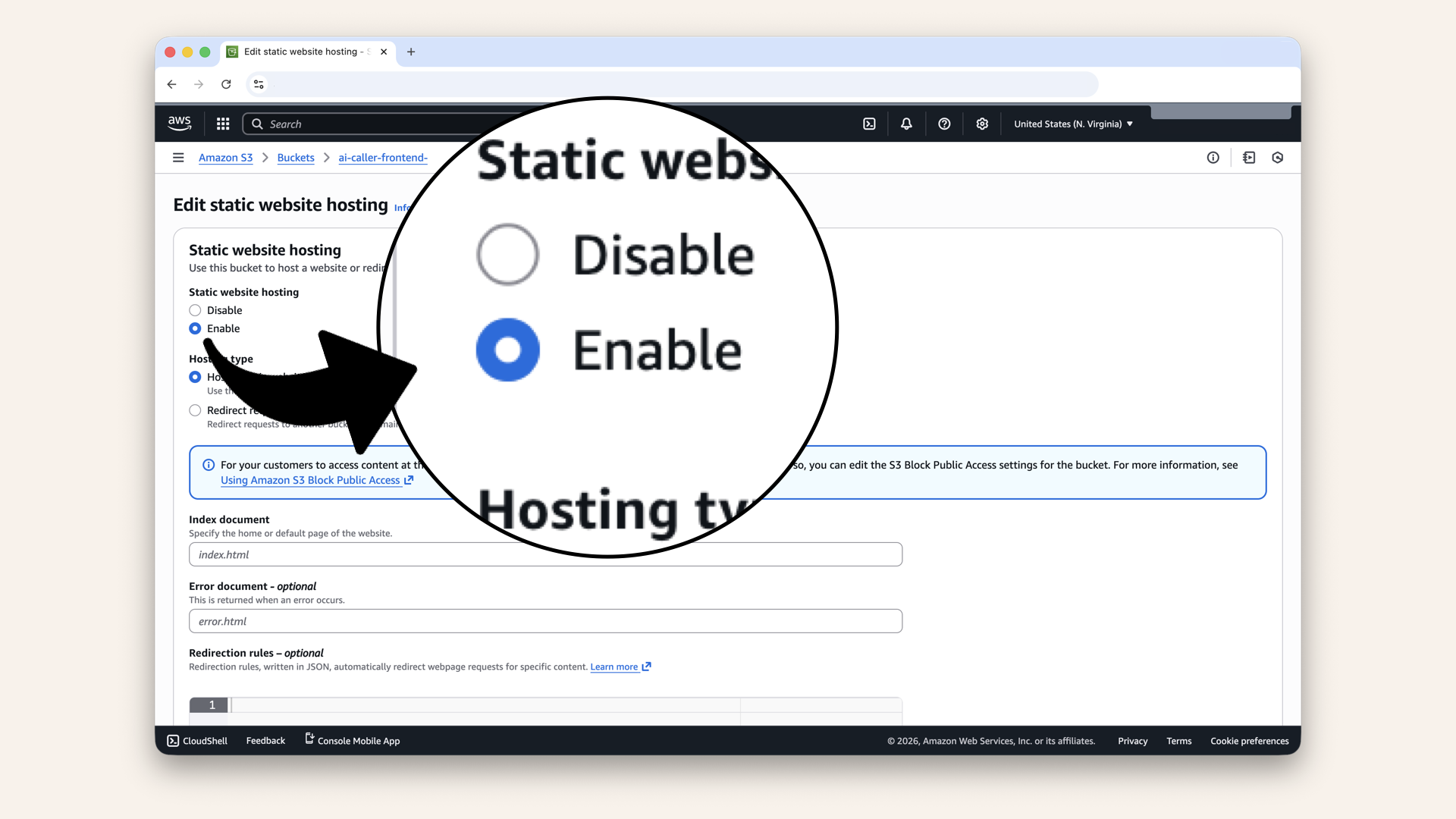
Click Enable static website hosting and add the following settings
Add these settings to enable static website hosting:
| Field | Value |
|---|---|
| Static website hosting | Enable |
| Hosting type | Host a static website |
| Index document | |
| Error document |
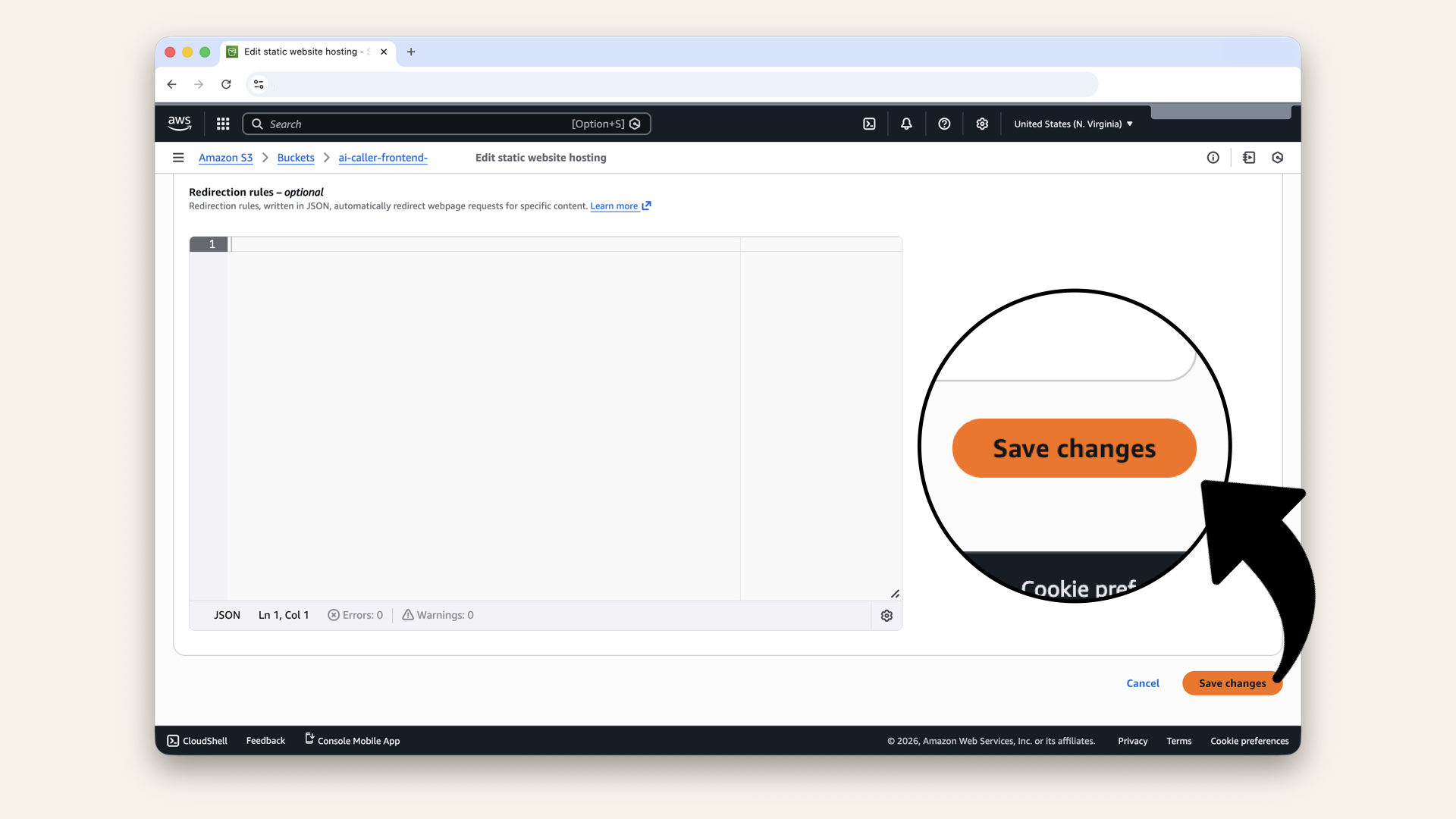
Scroll down and click Save changes
✅ You should see "Successfully edited static website hosting":
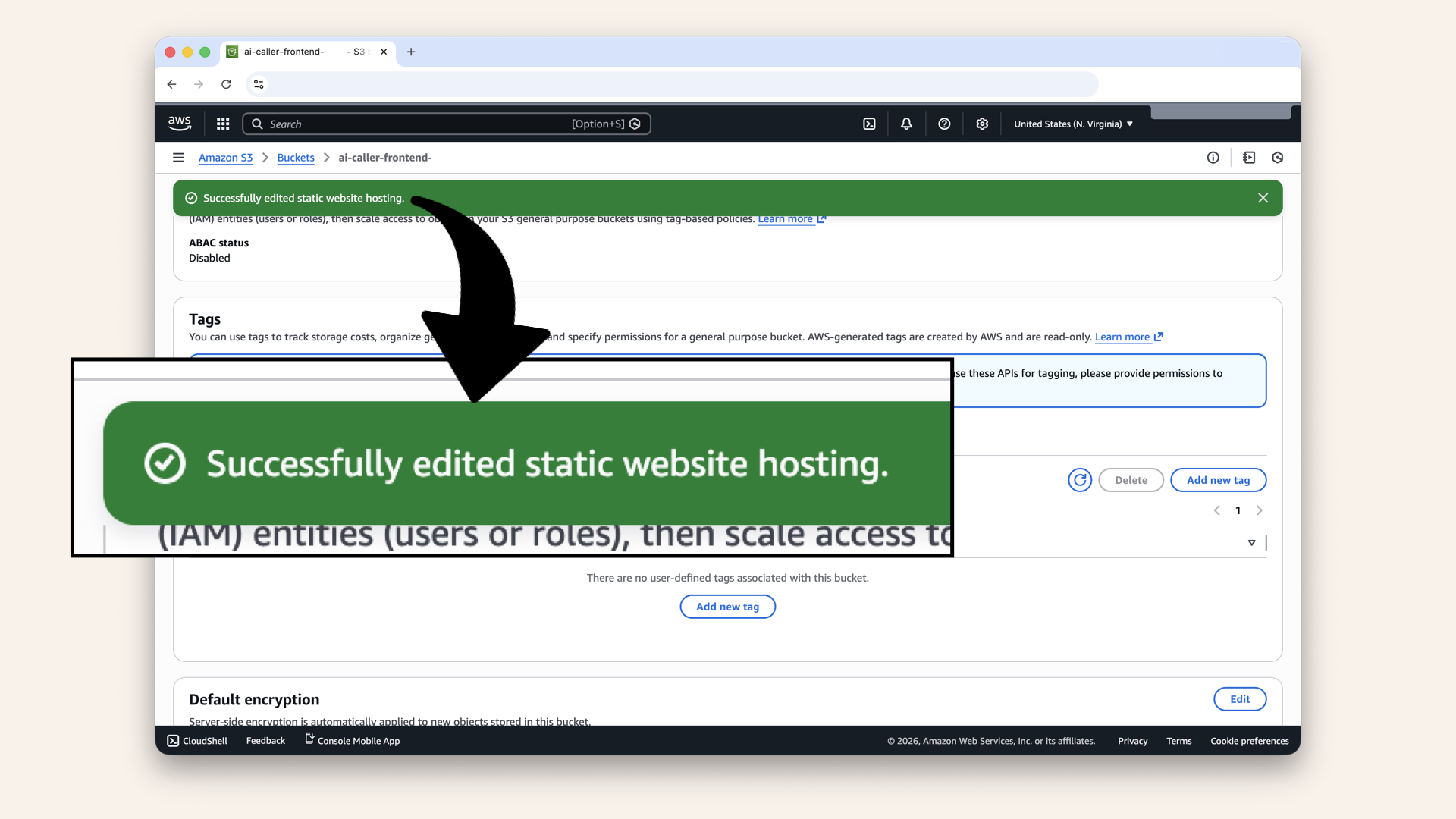
You should see "Successfully edited static website hosting"
Scroll down to Static website hosting and copy the website endpoint (looks like http://ai-caller-frontend-xxxxx.s3-website-us-east-1.amazonaws.com)
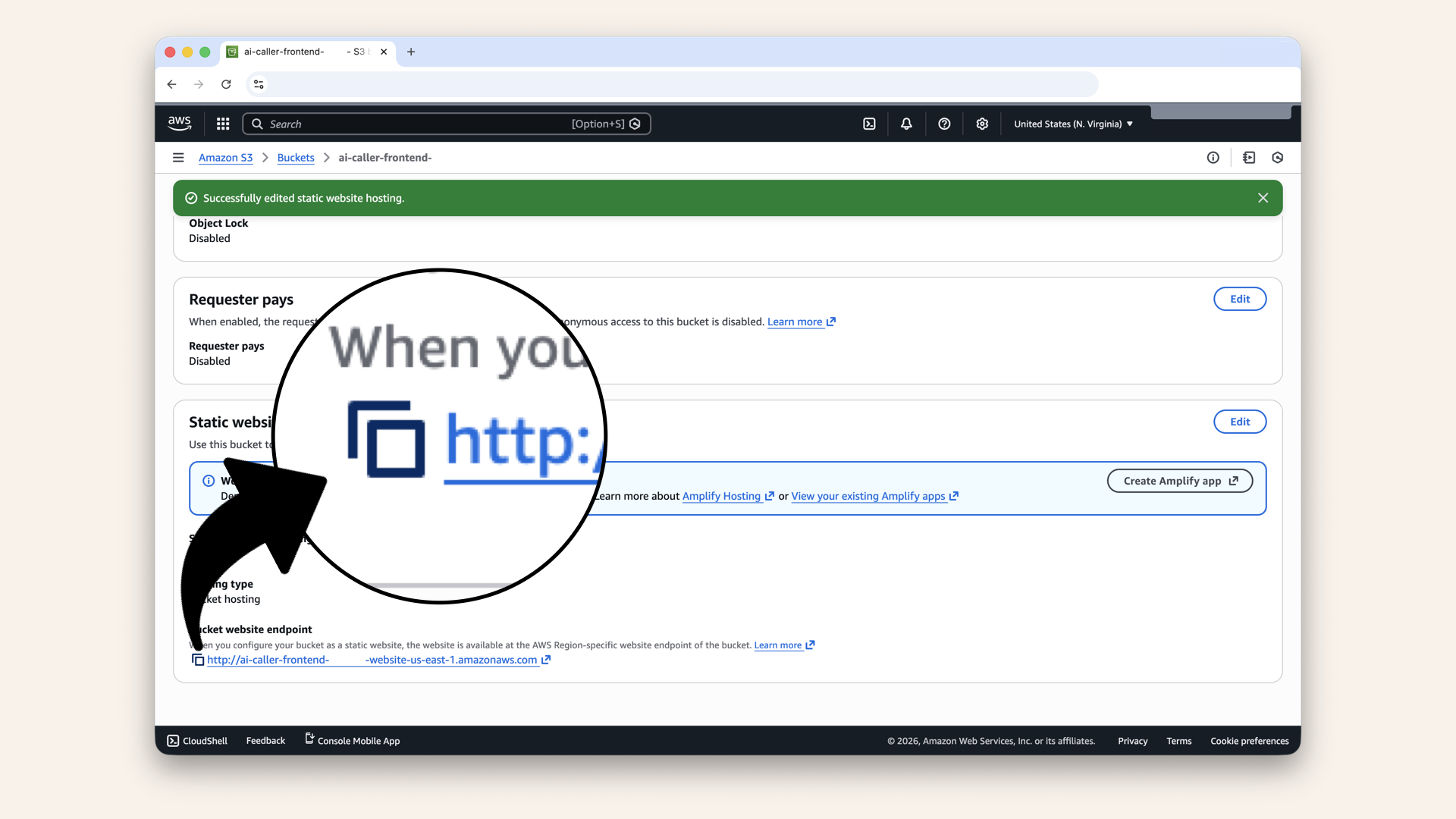
Scroll down to Static website hosting and copy the website endpoint
Step 4.2: Add bucket policy
Scroll back upp and click the Permissions tab: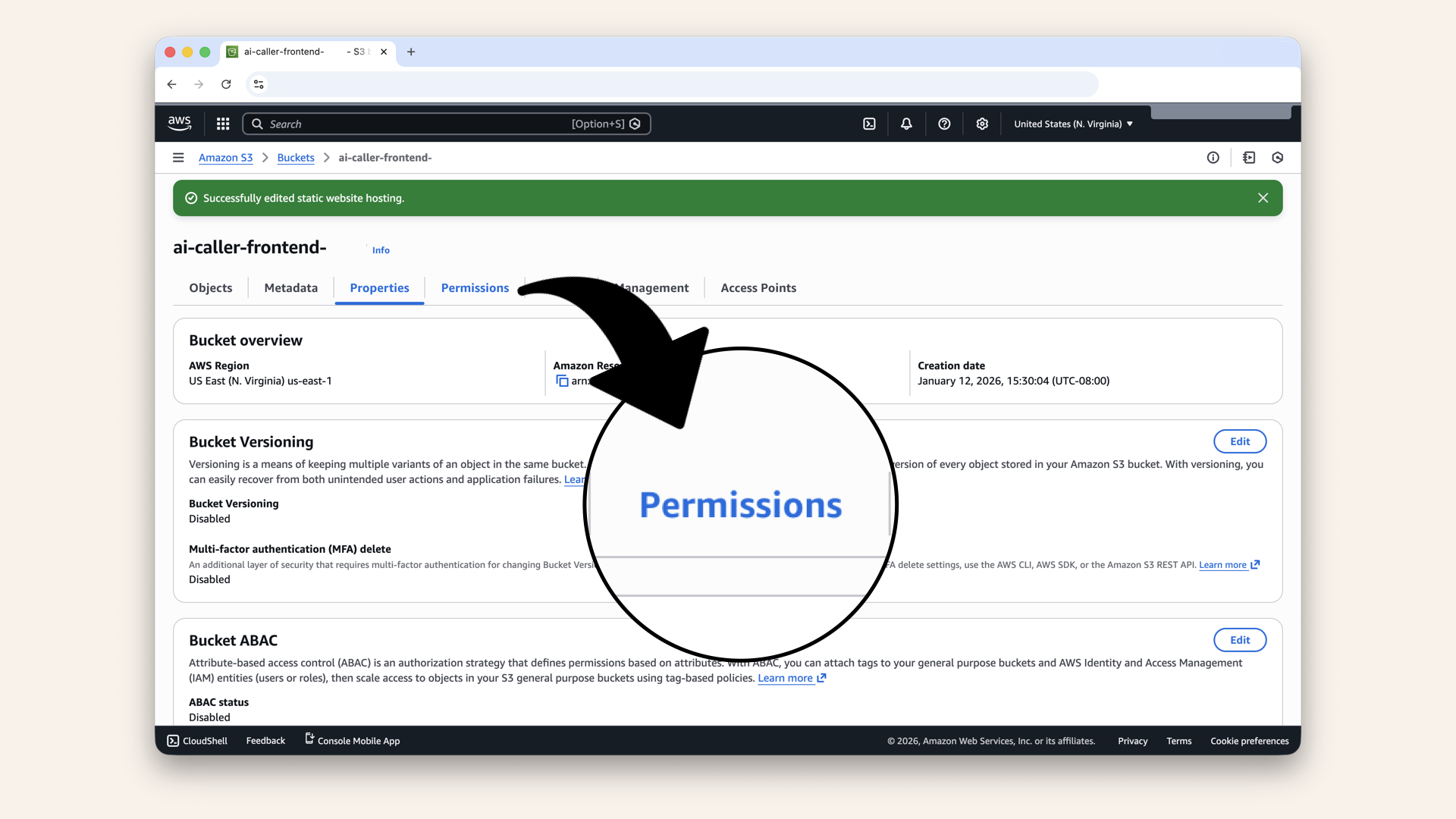
Scroll back upp and click the Permissions tab
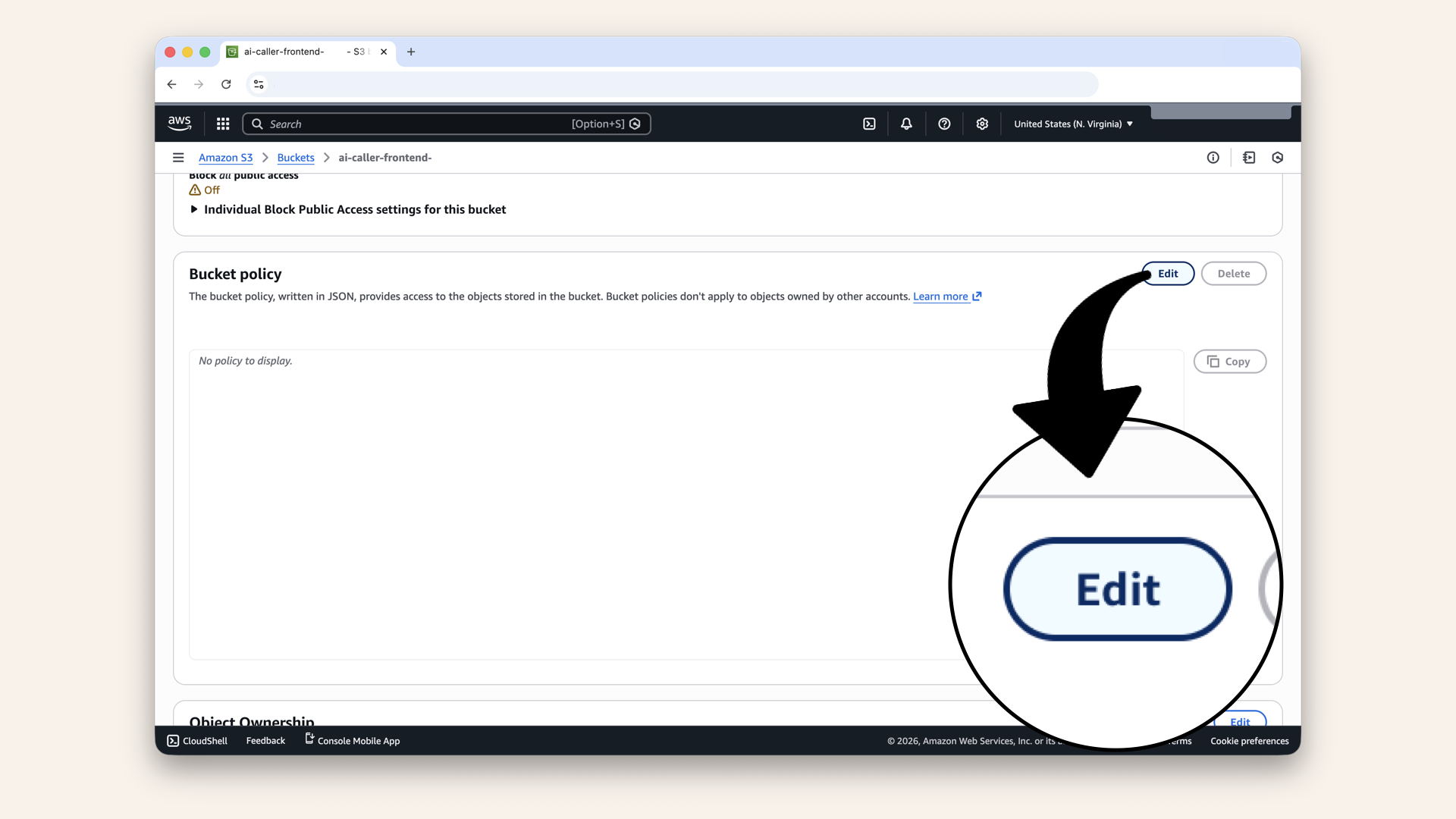
Scroll down to Bucket policy and click Edit
Add this policy:
{
  "Version": "2012-10-17",
  "Statement": [
      {
          "Sid": "PublicReadGetObject",
          "Effect": "Allow",
          "Principal": "*",
          "Action": "s3:GetObject",
          "Resource": "arn:aws:s3:::{BUCKET_NAME}/*"
      }
  ]
}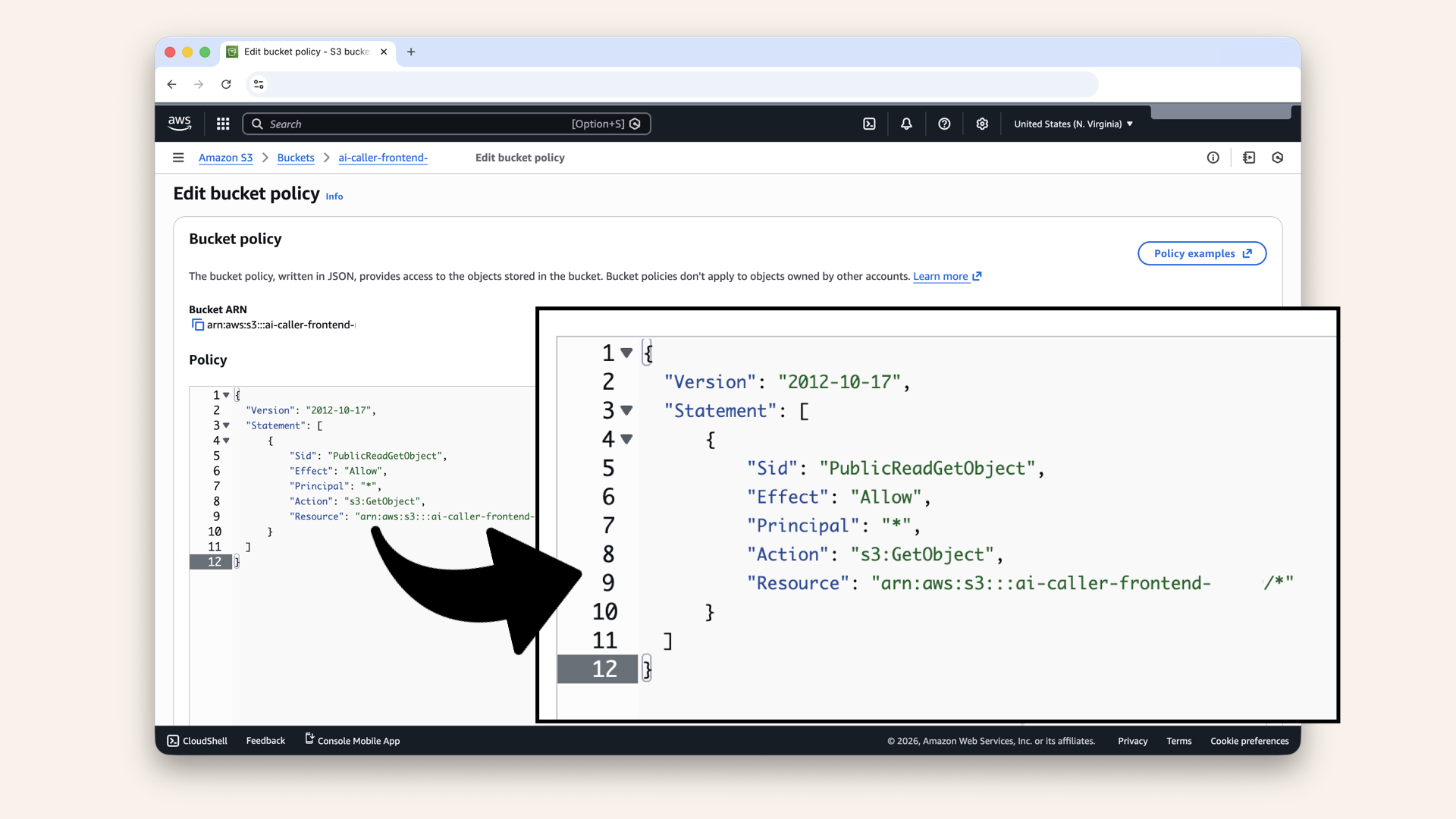
Add this policy

Scroll all the way down and click Save changes
✅ You should see Successfully edited bucket policy:
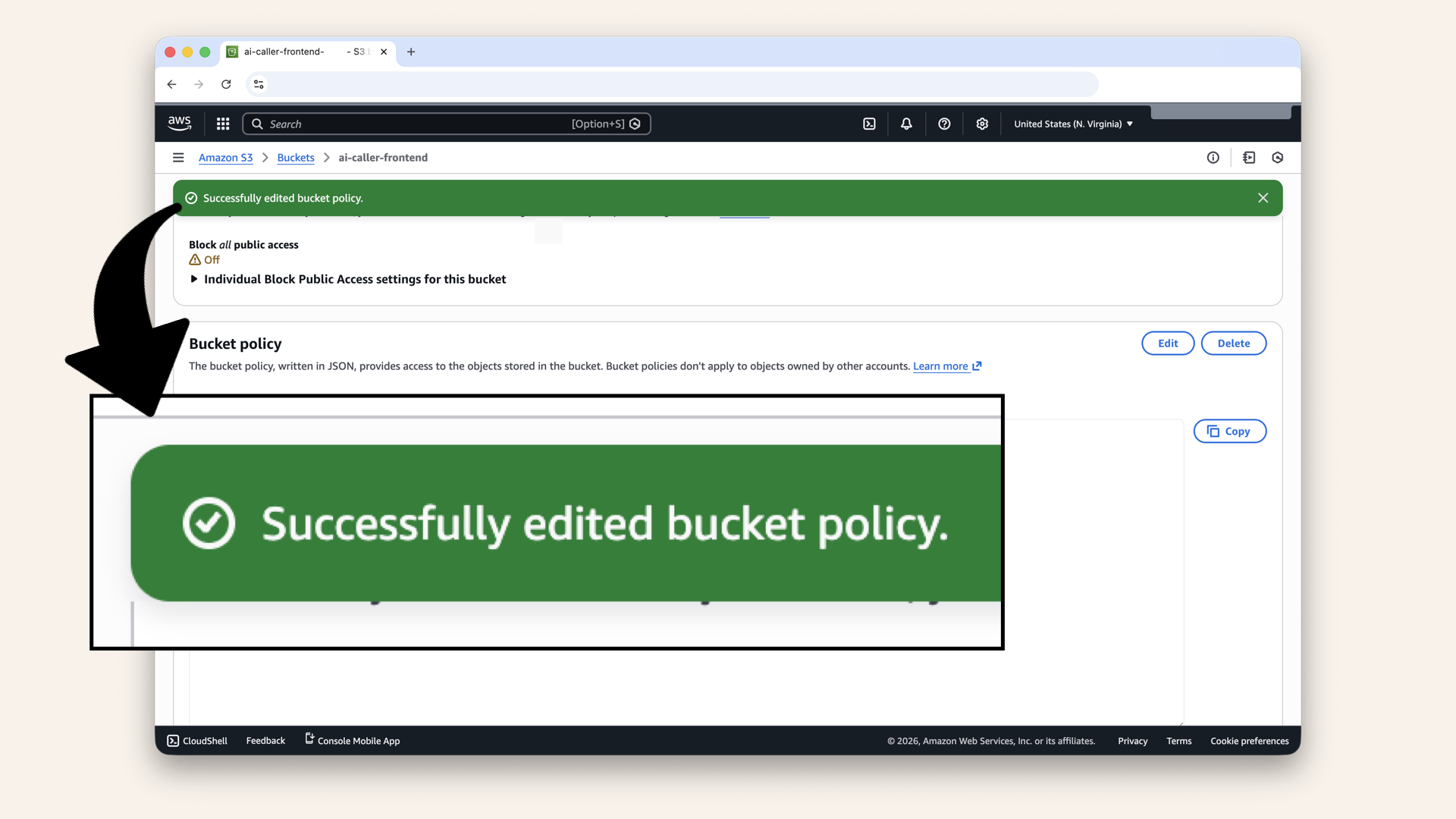
You should see Successfully edited bucket policy
Step 4.3 Upload files
Scroll back upp and click the Objects tab: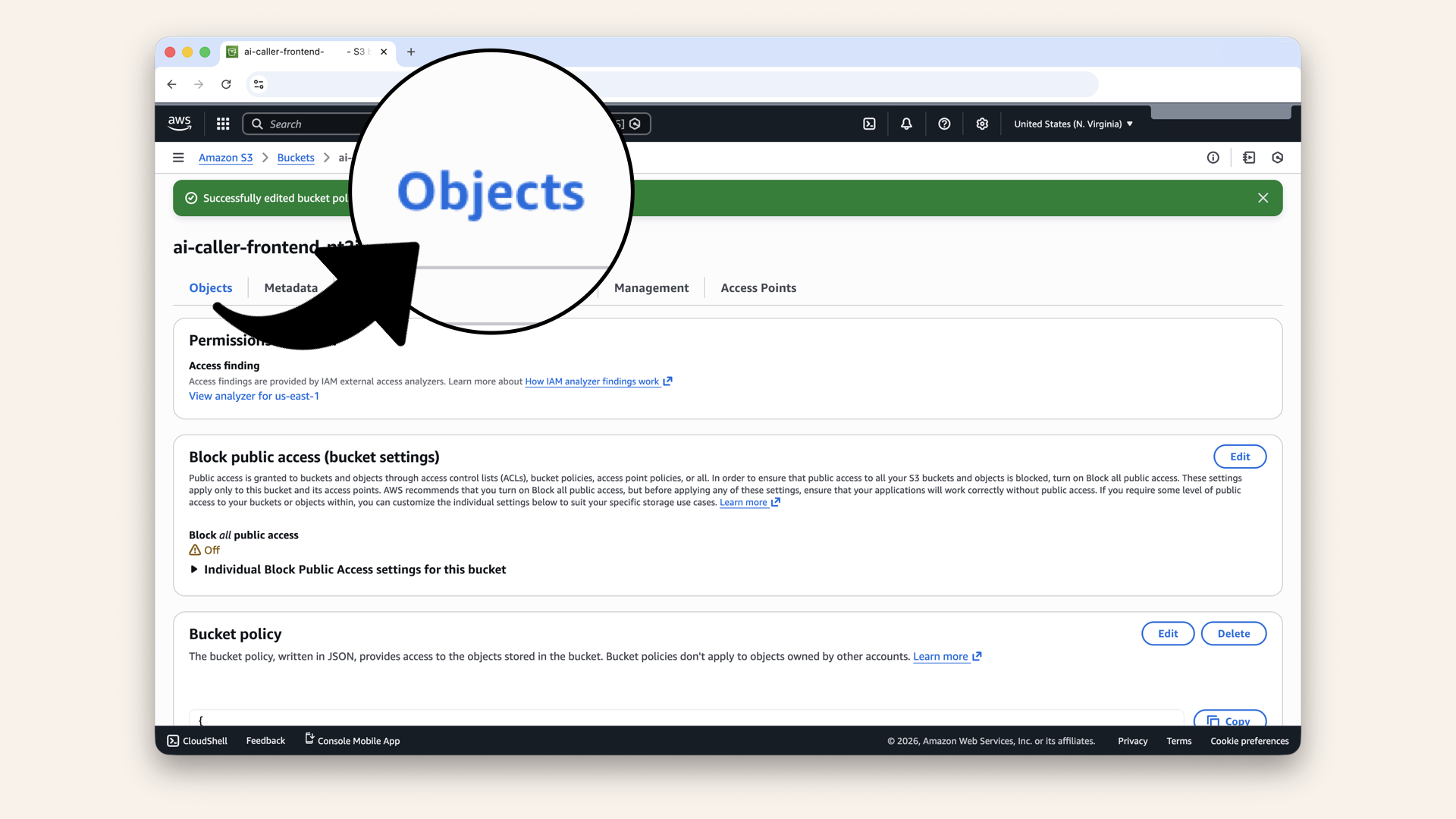
Scroll back upp and click the Objects tab
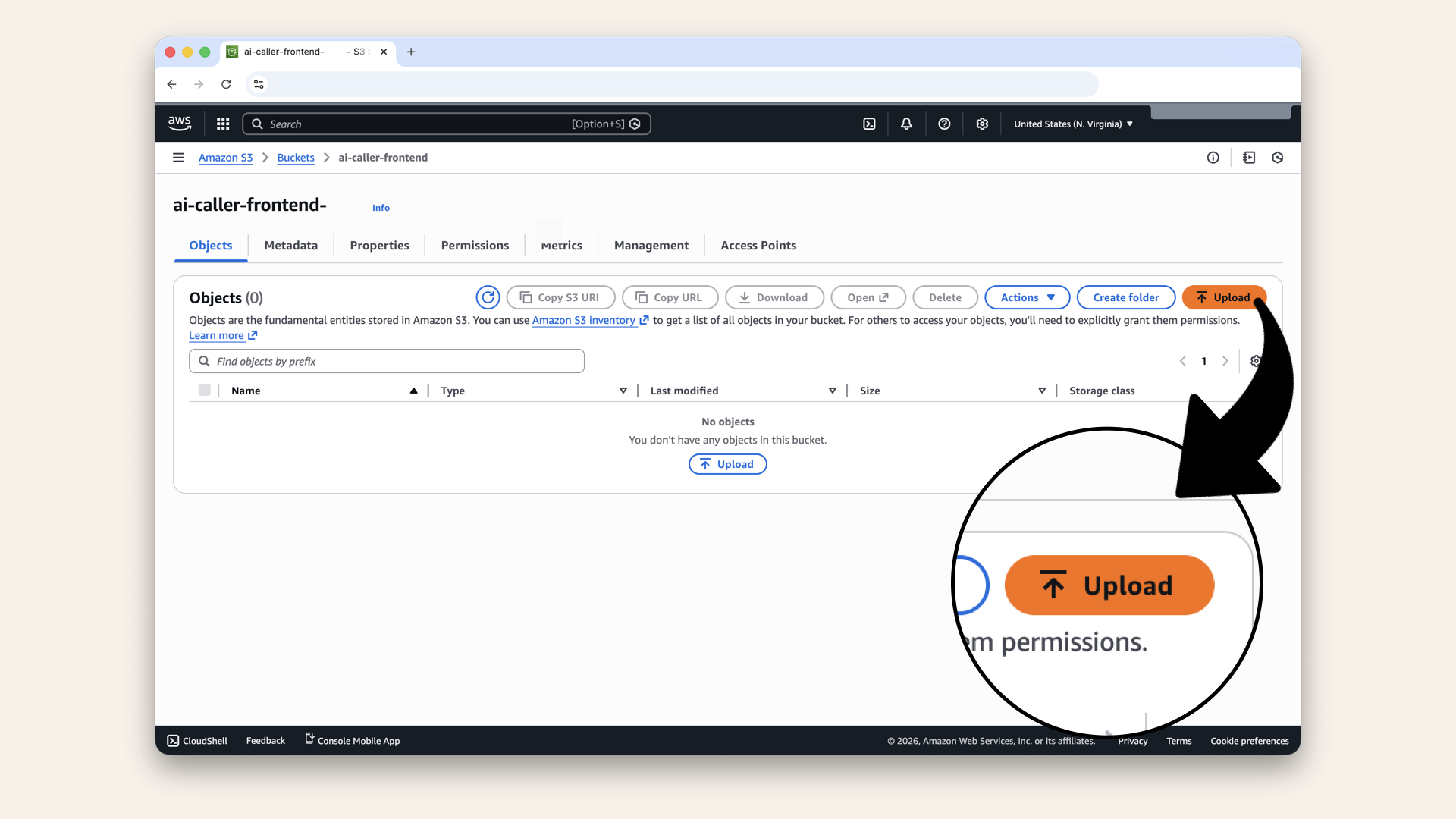
Click Upload
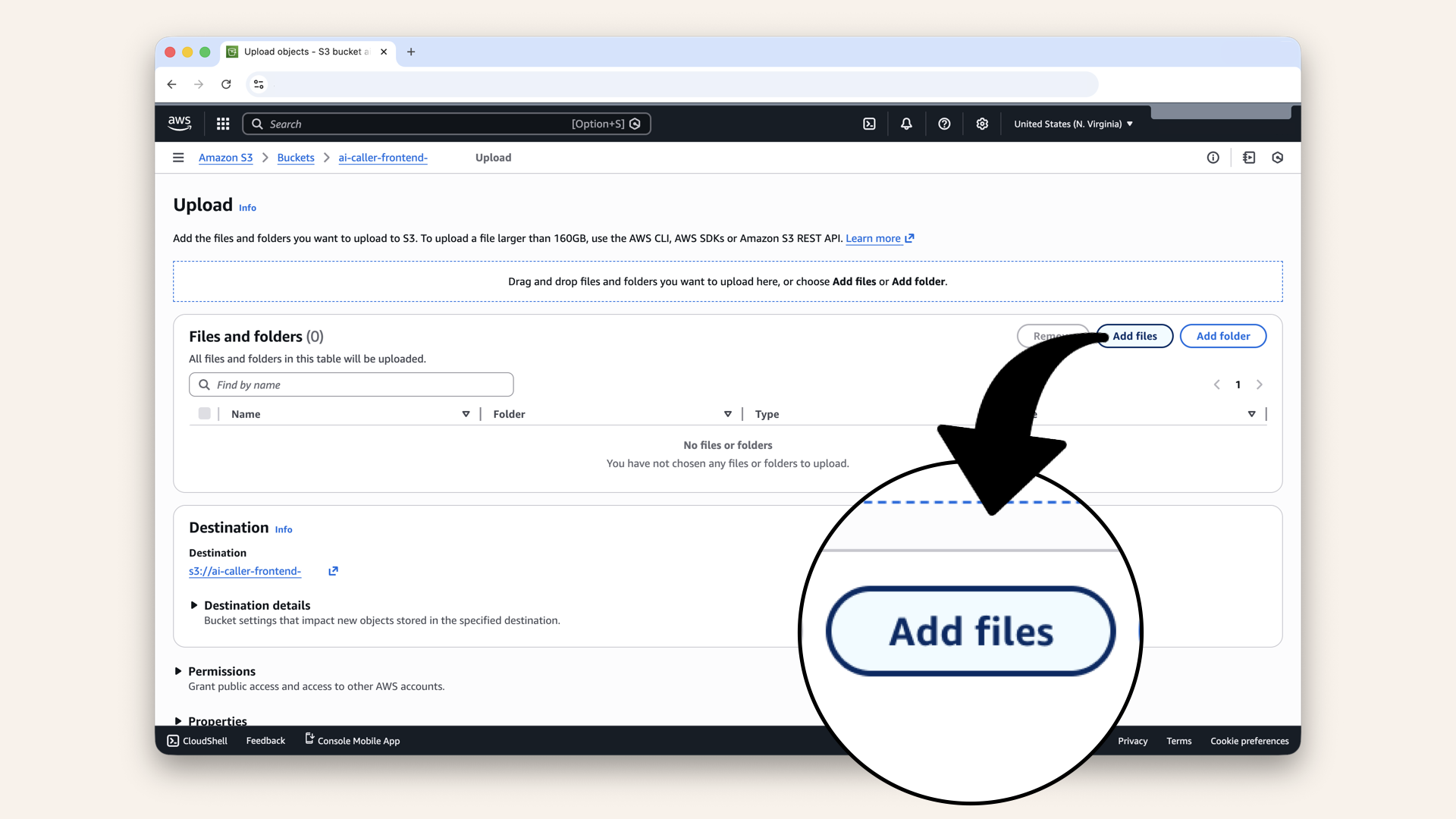
Click Add files
dist/ folder and click Open:
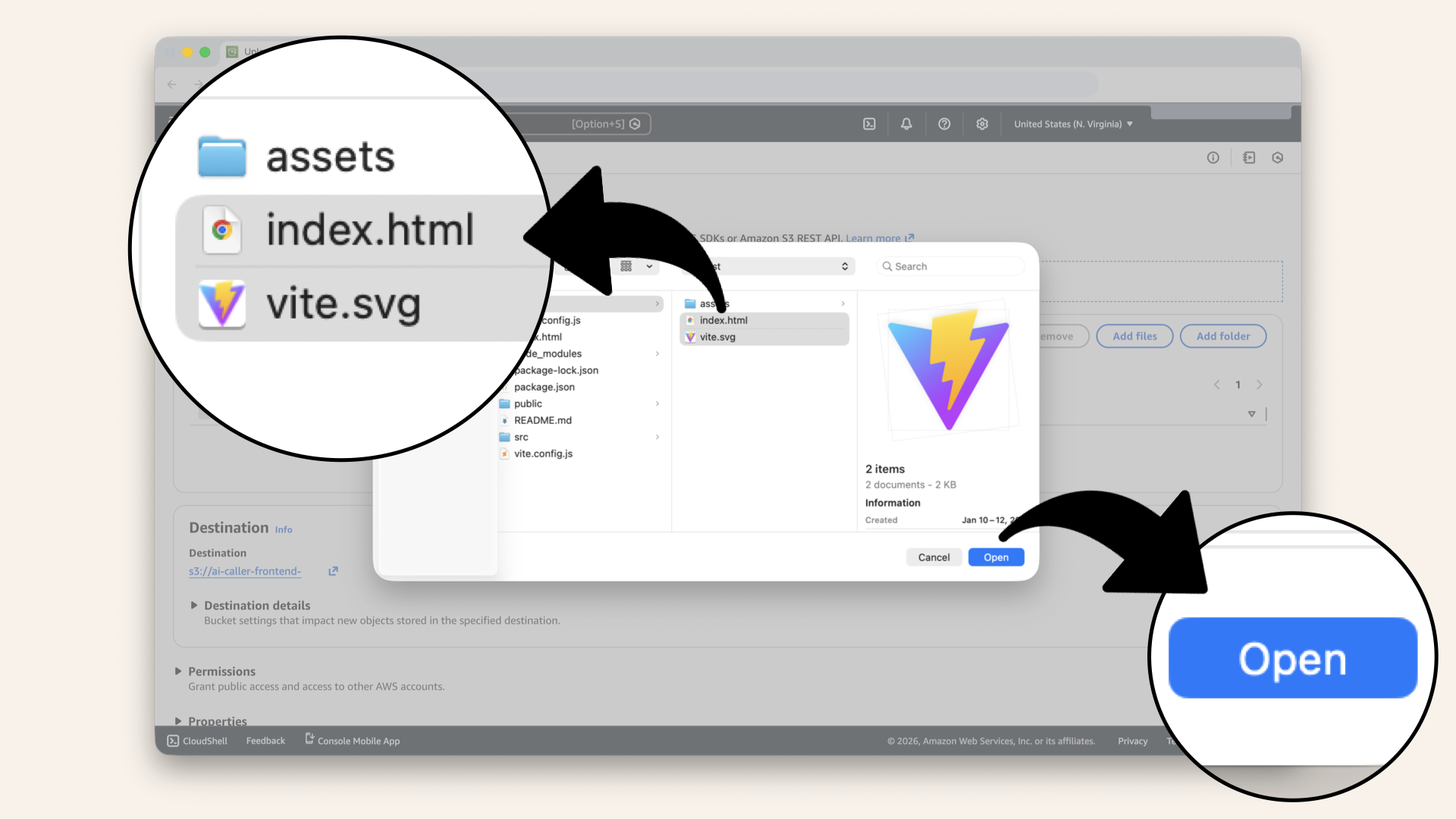
Select all files from dist/ folder and click Open
dist/Important: Upload the contents of dist/, not the dist/ folder itself.
You should upload:
index.htmlassets/foldervite.svg
✅ You should see the selected files:
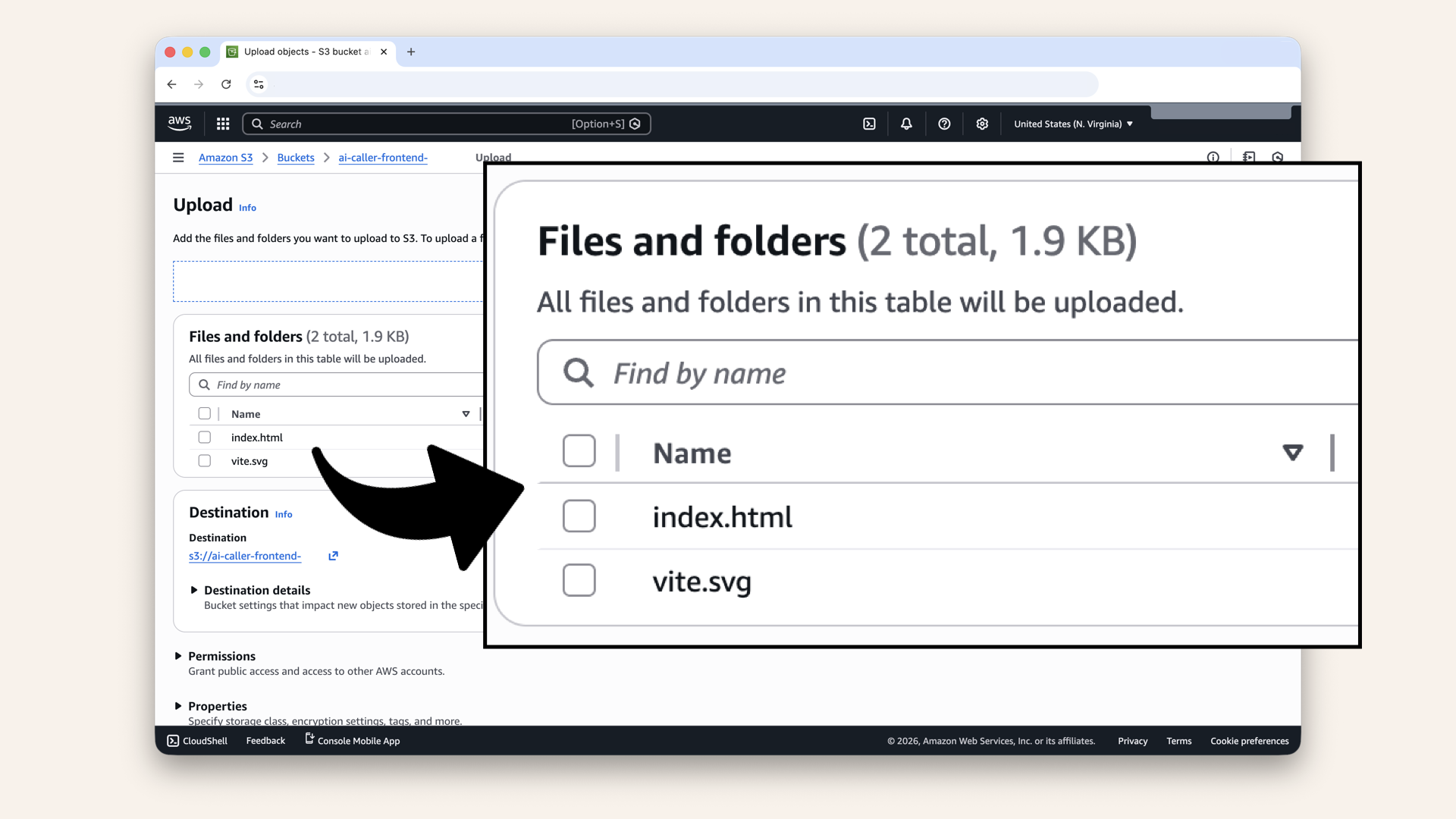
You should see the selected files
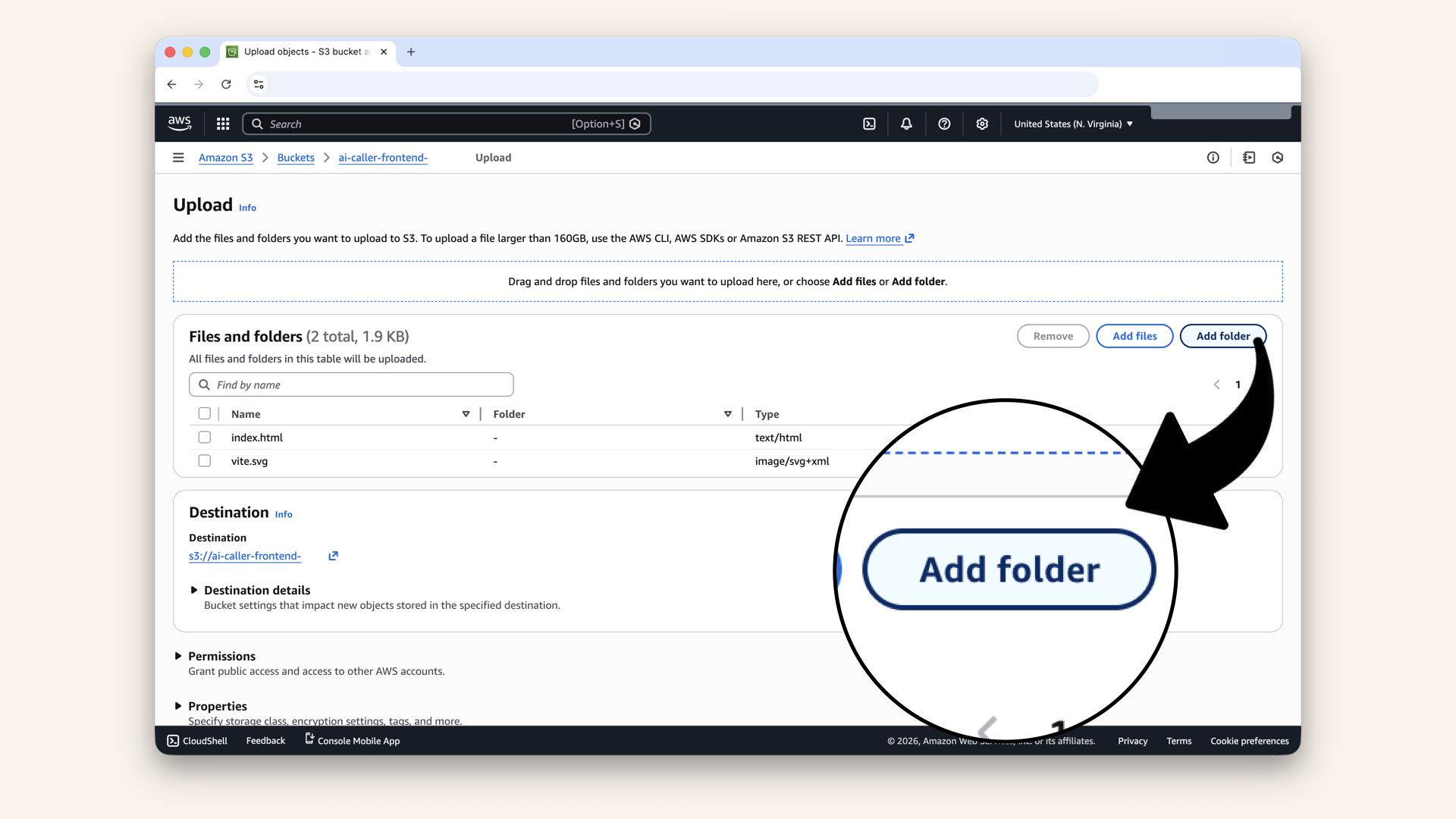
Click Add folder
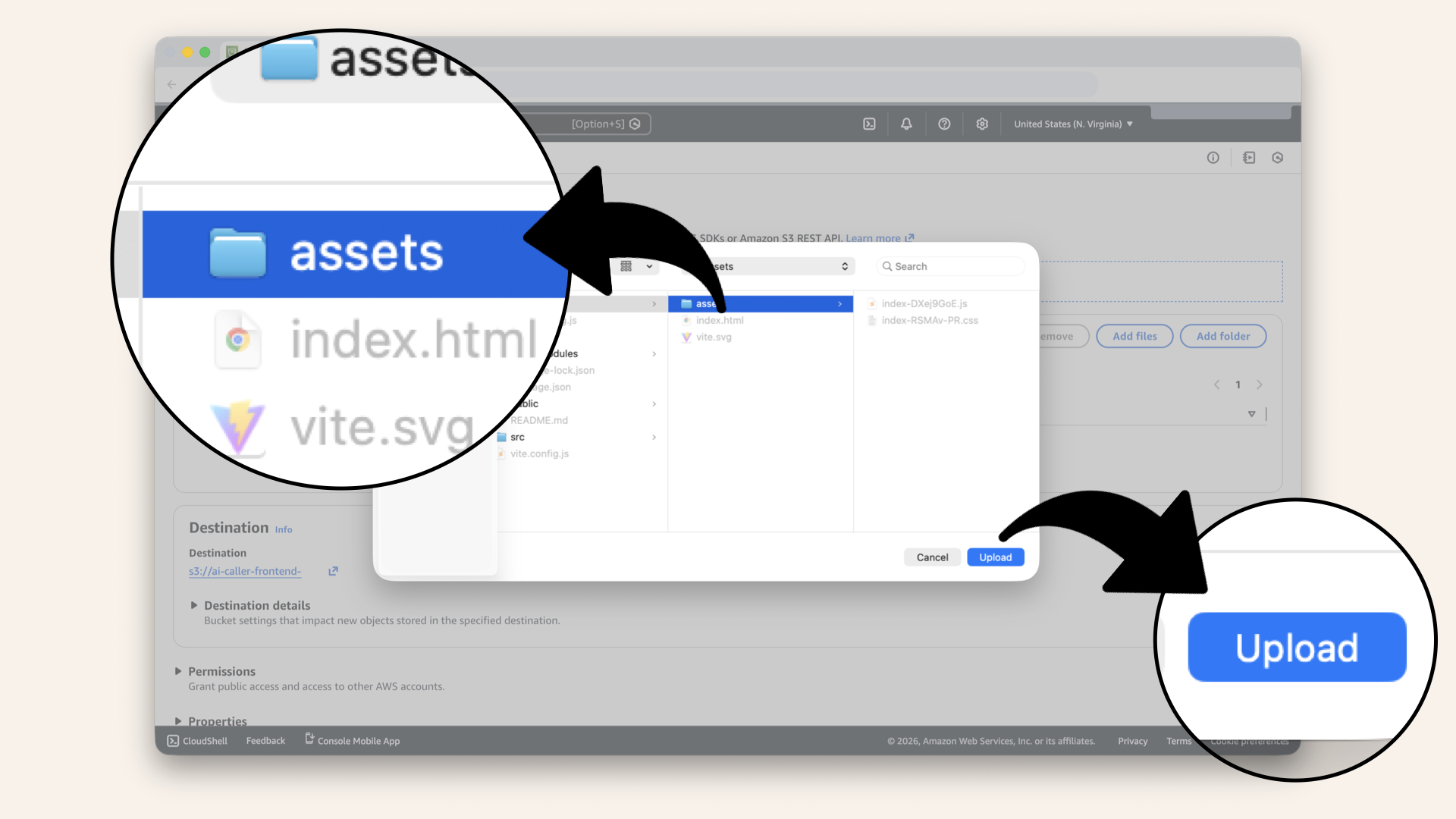
Select the assets folder and click Upload
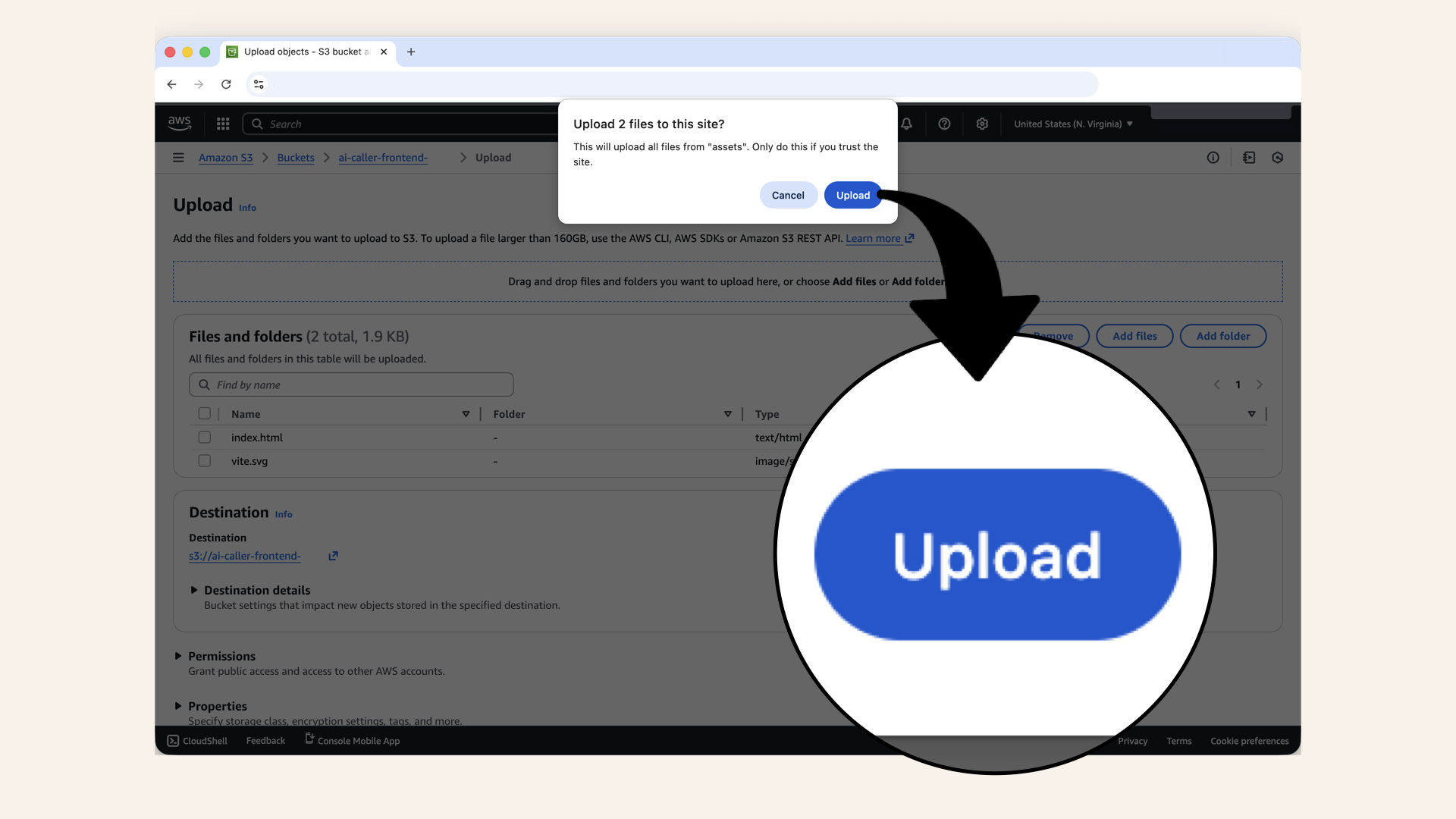
Click Upload when asked if upload files from Assets
You should see the selected files and the files in the assets folder:
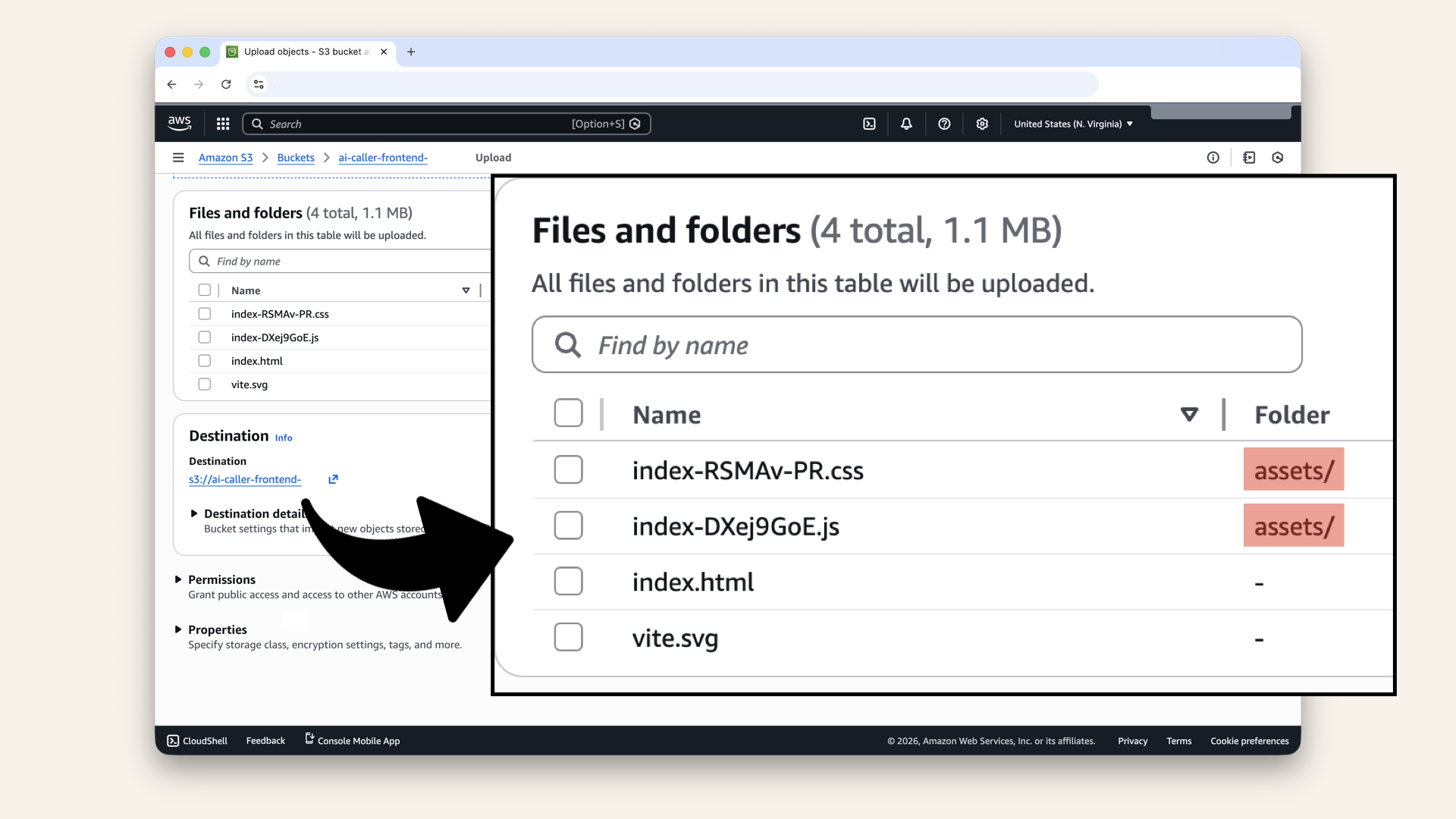
You should see the selected files and the files in the assets folder
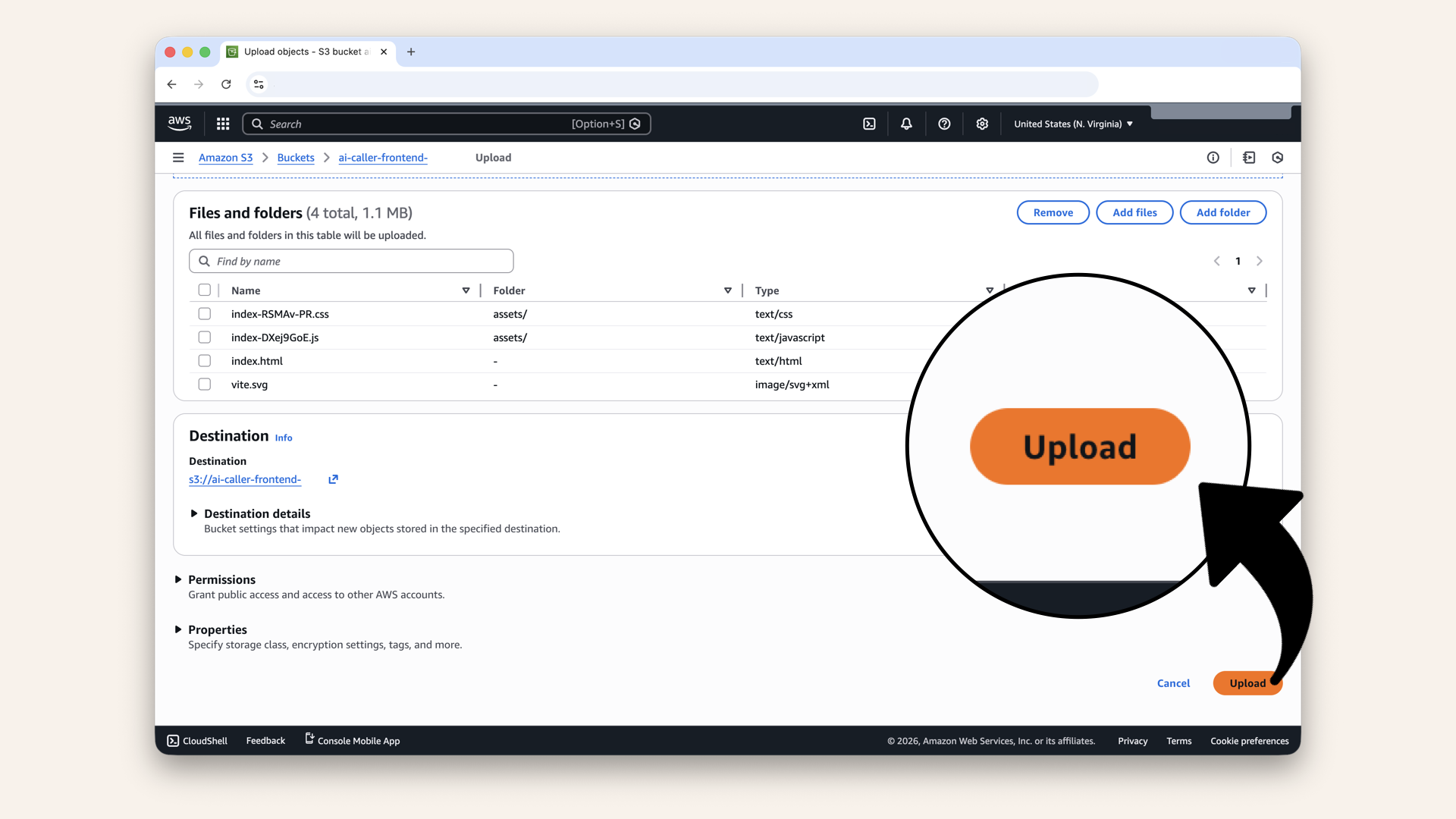
Scroll down and click Upload
✅ You should see "Upload succeeded":
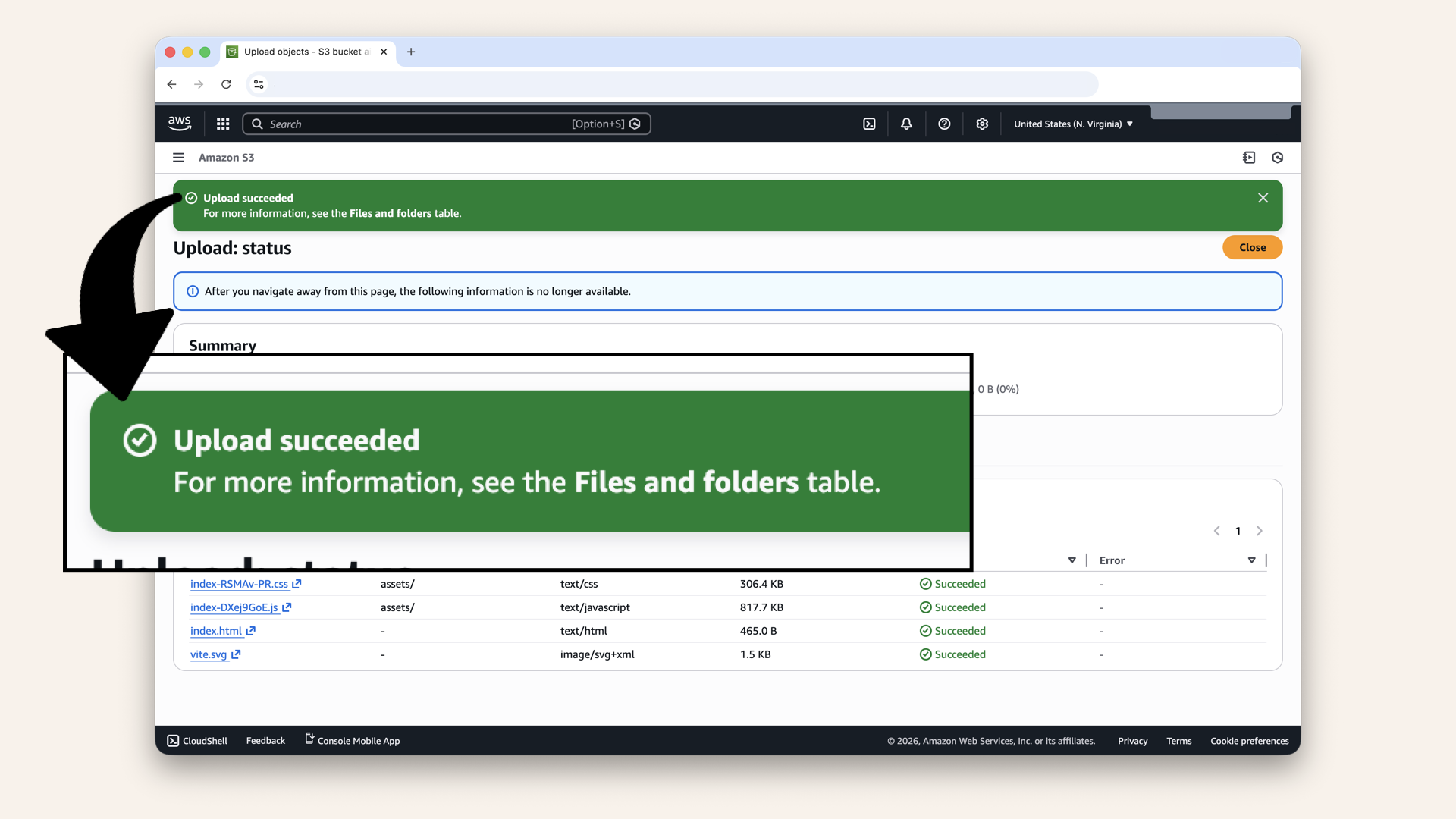
You should see "Upload succeeded"
Step 4.4: Test S3 website
Visit your S3 website endpoint: http://ai-caller-frontend-xxxxx.s3-website-us-east-1.amazonaws.com✅ You should see your login page:

You should see your login page
Step 5: Add CloudFront CDN
S3 websites are HTTP only, so you'll see "Not secure" when visiting your S3 website endpoint:
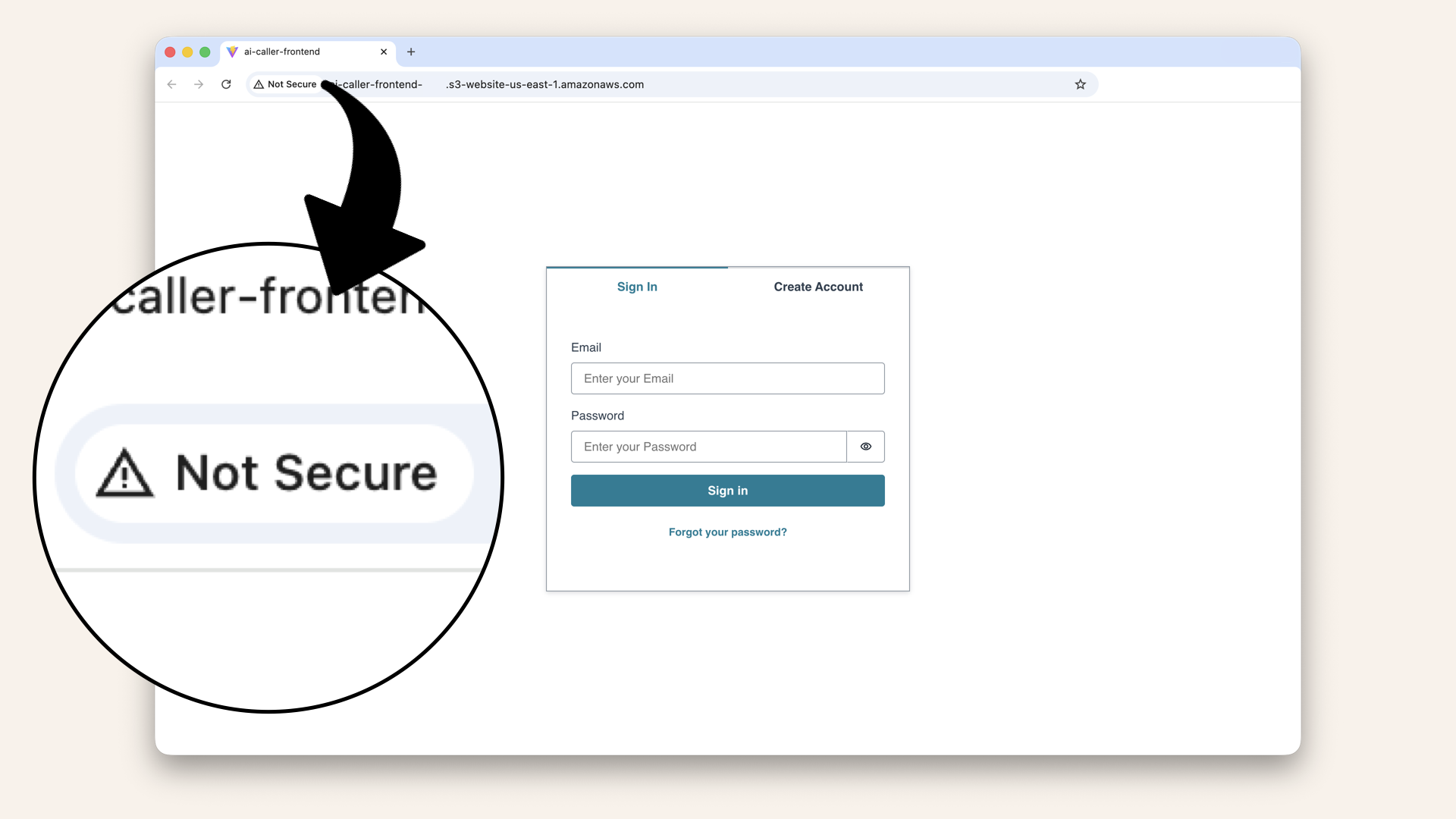
S3 websites are HTTP only, so you'll see "Not secure" when visiting your S3 website endpoint
Let's add Cloudfront for HTTPS + CDN.
In the search bar at the top, type cloudfront and click CloudFront from the dropdown menu:
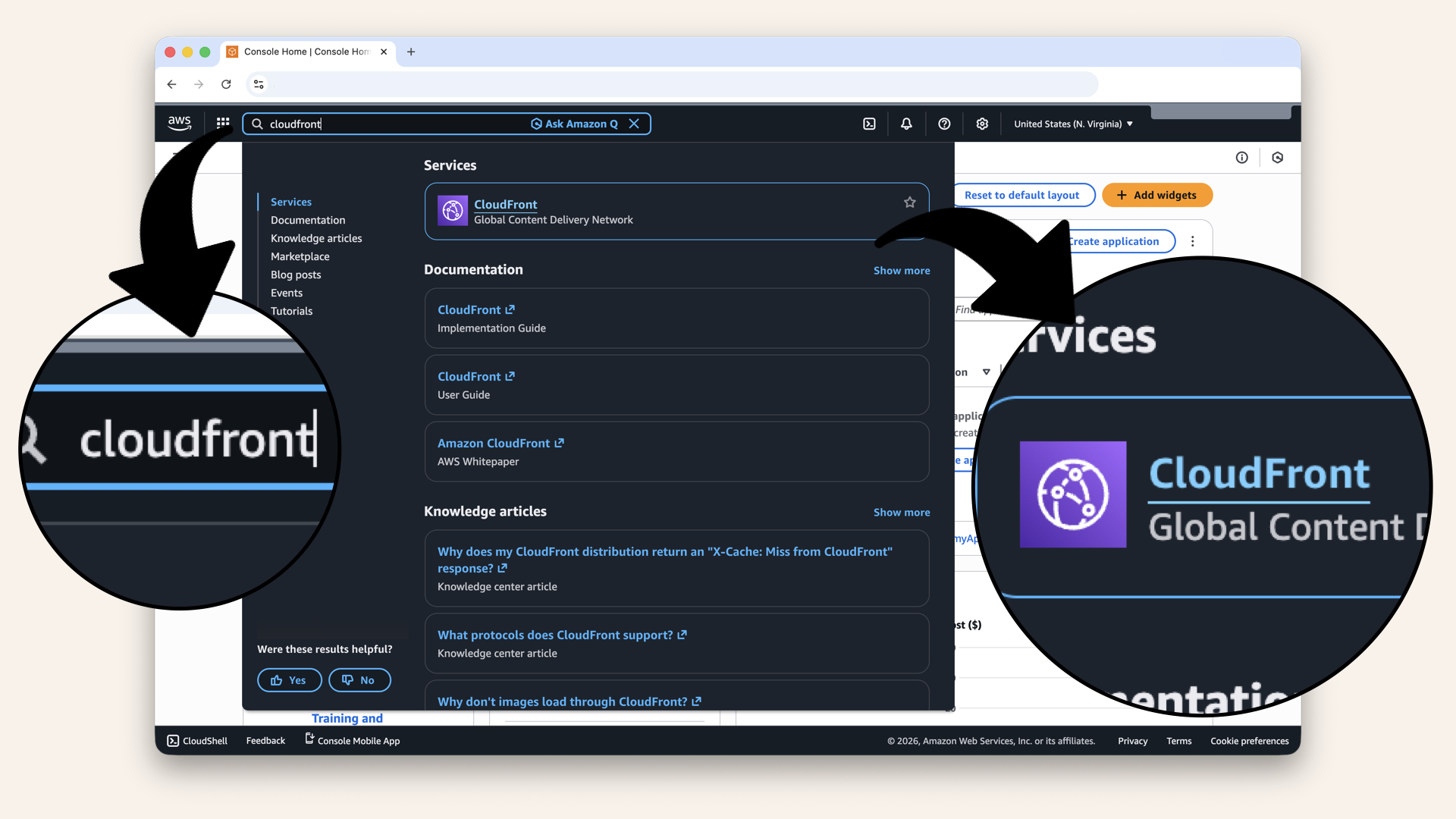
In the search bar at the top, type cloudfront and click CloudFront from the dropdown
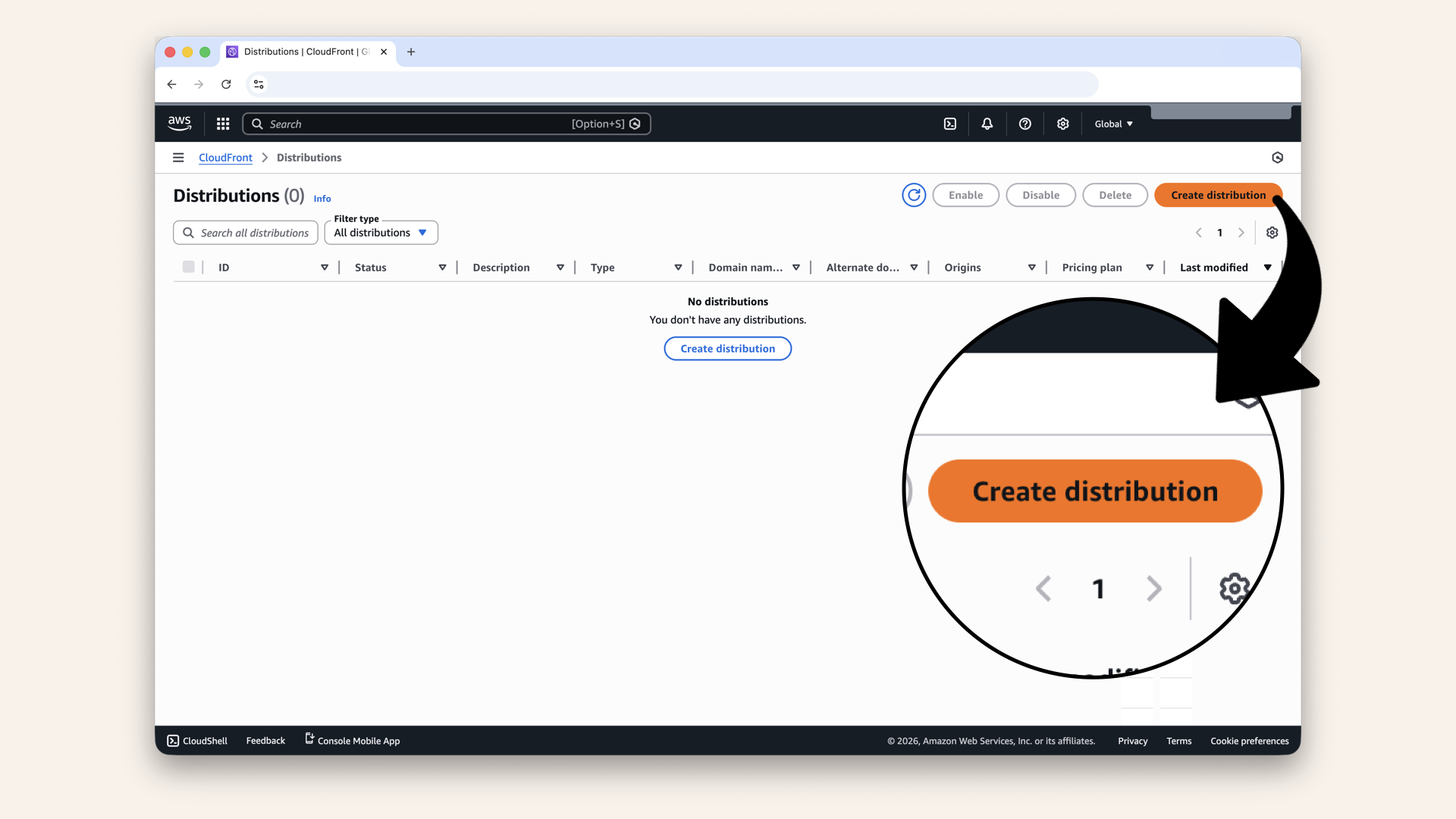
Click Create distribution
Step 5.1: Choose flat-rate pricing
AWS now offers flat-rate pricing plans for Cloudfront and there's a free tier.
You'll see a popup introducing flat-rate plans, click Create flat-rate distribution:
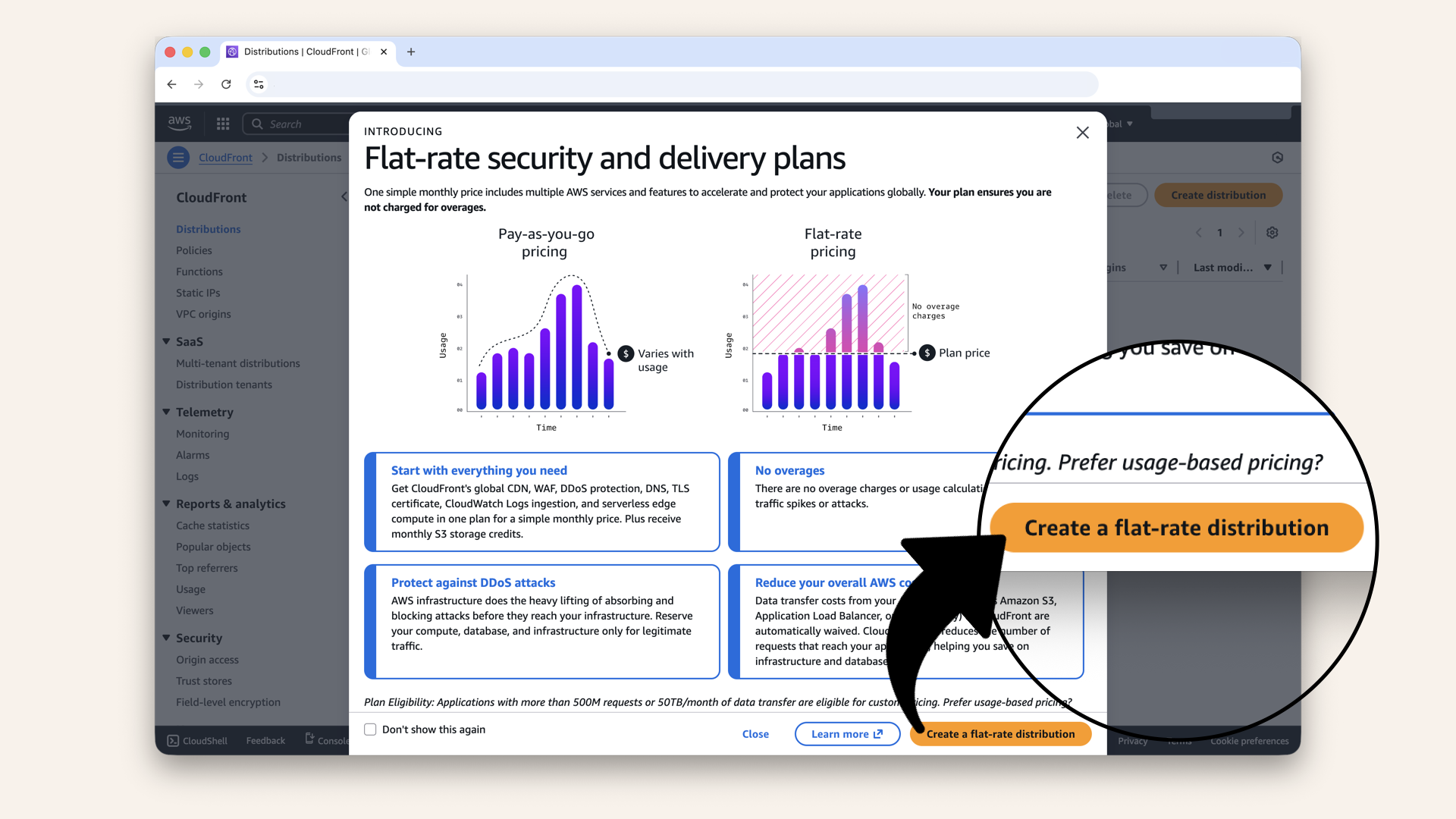
You'll see a popup introducing flat-rate plans, click Create flat-rate distribution
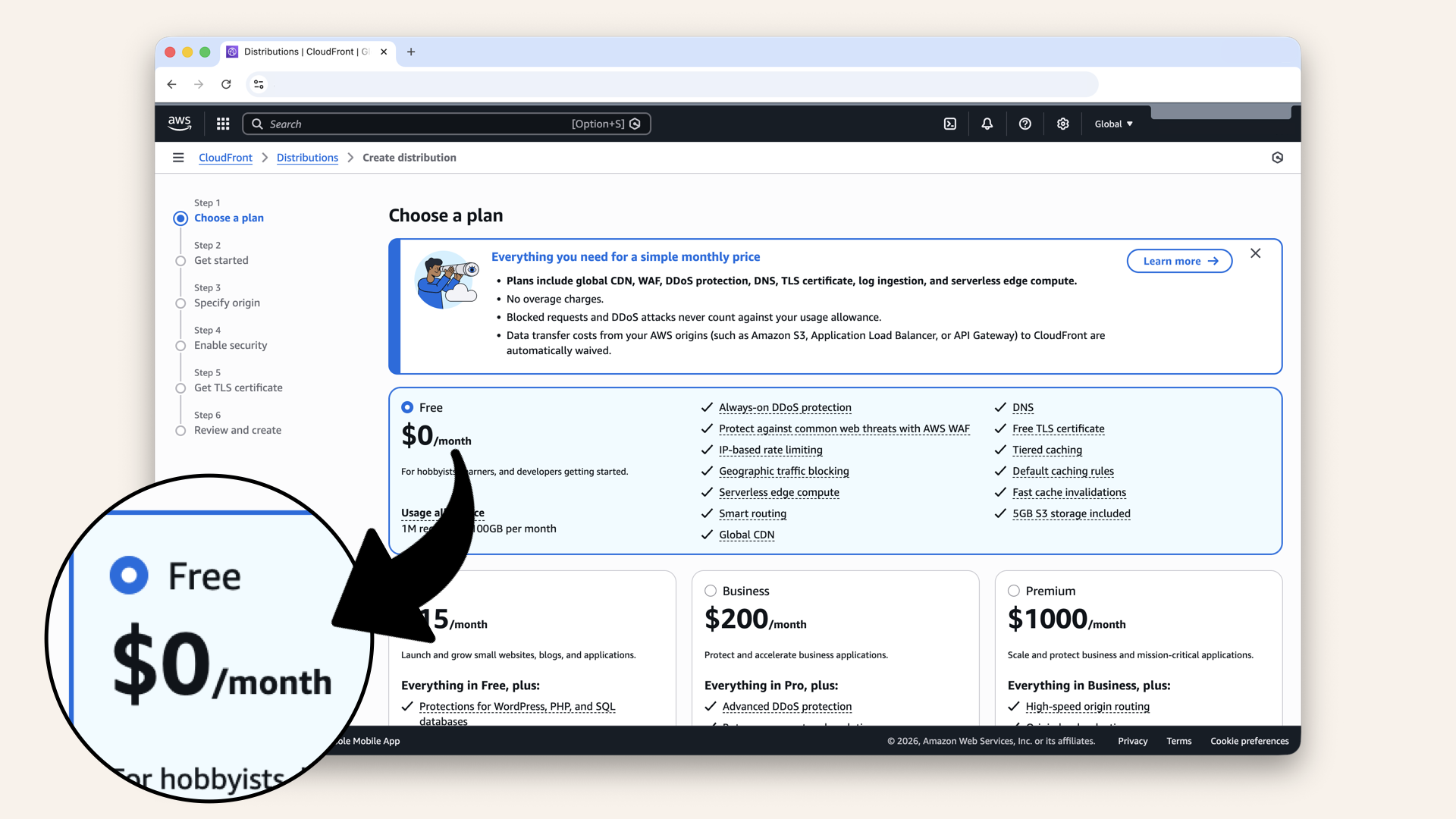
Select the Free flat-rate plan
The free plan includes everything you need at $0/month.
✅ 1M requests / 100GB per month - plenty for learning projects
✅ Global CDN - fast loading worldwide
✅ Free TLS certificate - automatic HTTPS
✅ DDoS protection - attacks don't count against your quota
✅ AWS WAF - web application firewall included
✅ No overage charges - if you exceed limits, you get throttled (not billed)
This is perfect for learning. No surprise bills.
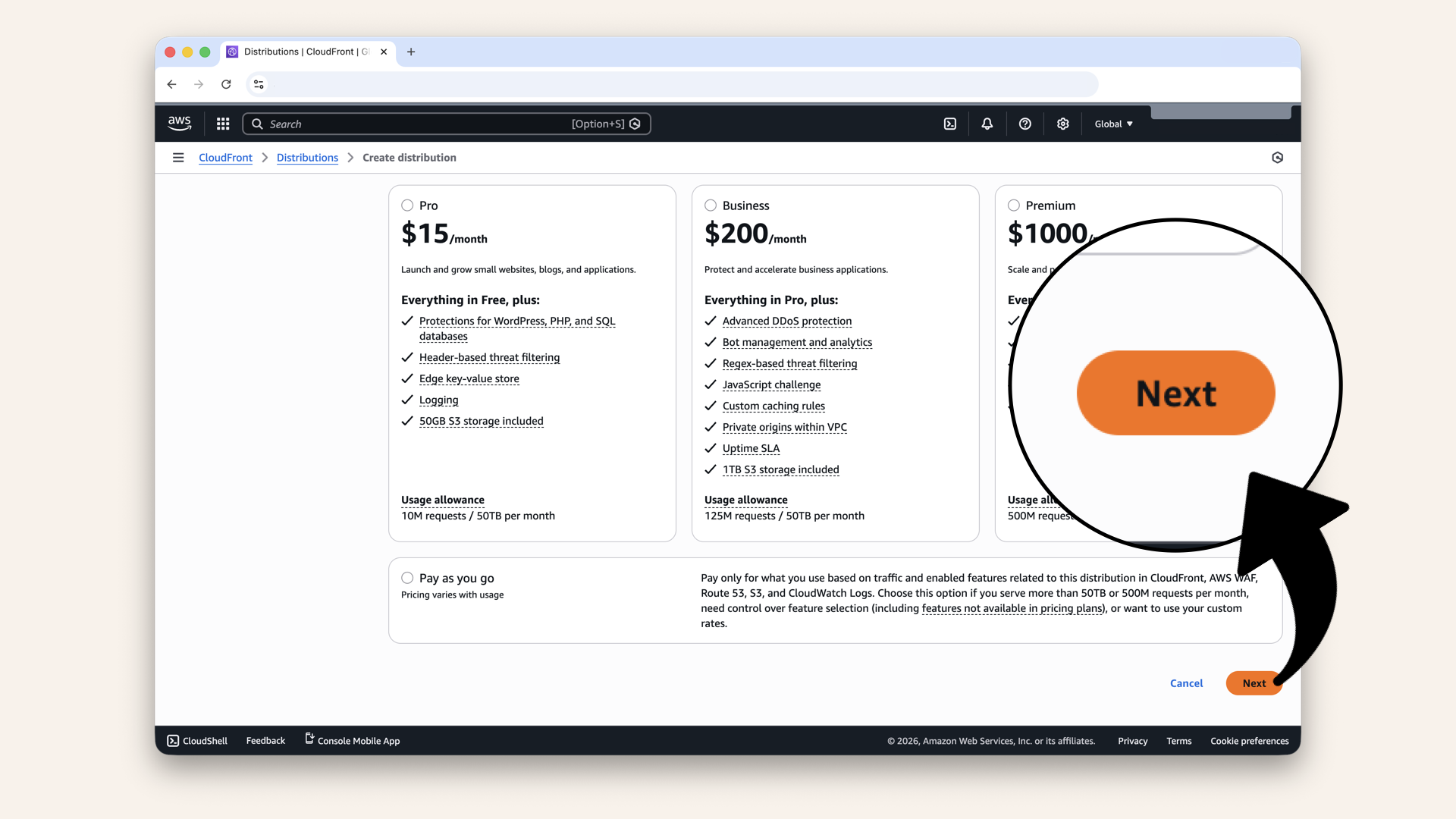
Scroll down and click Next
Step 5.2: Configure distribution
Add these distribution settings:
| Field | Value |
|---|---|
| Distribution name | |
| Description | Leave empty (optional) |
| Distribution type | Single website or app ✅ |
Name your distribution and select Single website or app:
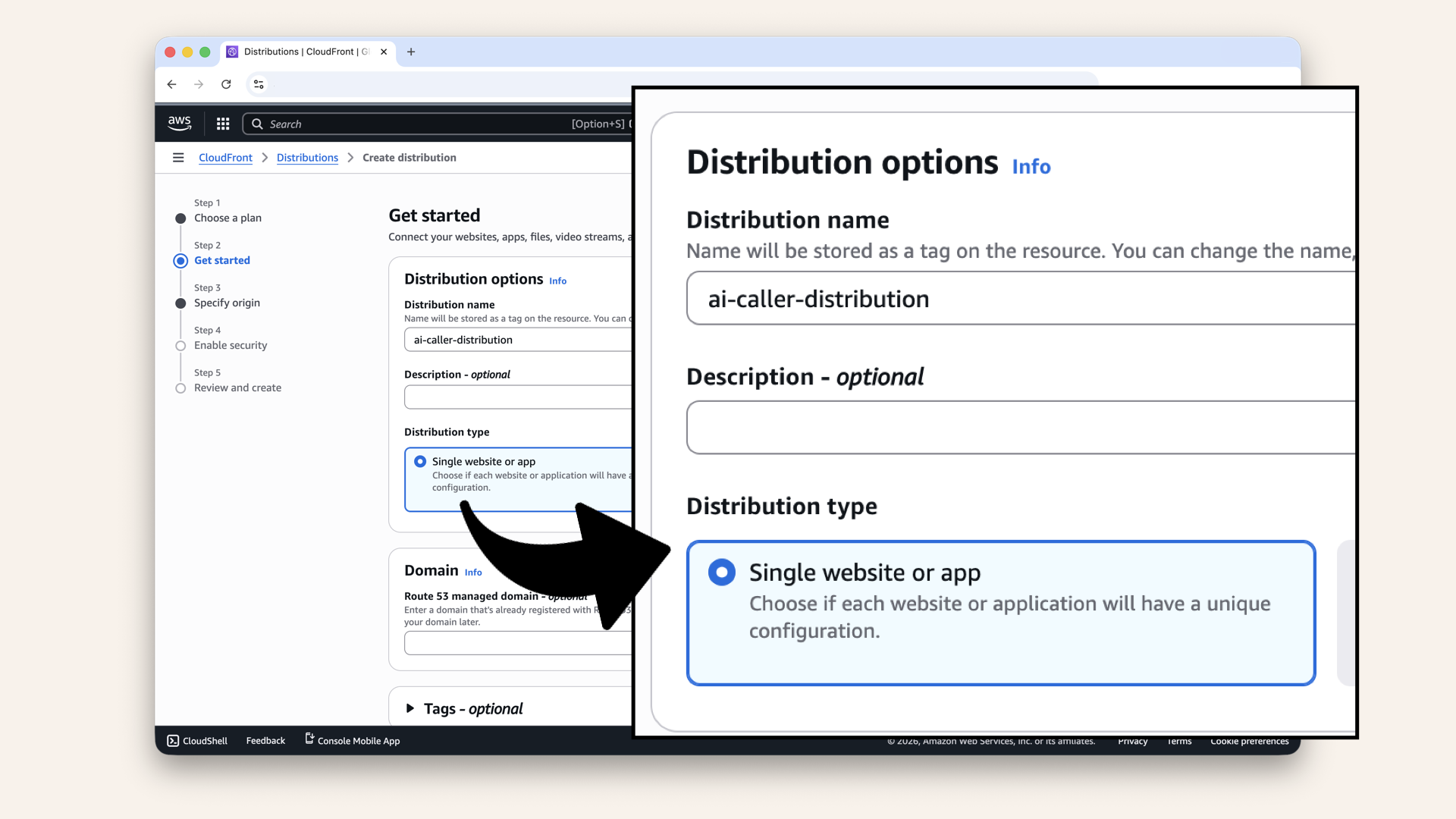
Name your distribution and select Single website or app
Domain:
app. subdomain in the Route 53 managed domain field:
| Field | Value |
|---|---|
| Route 53 managed domain |
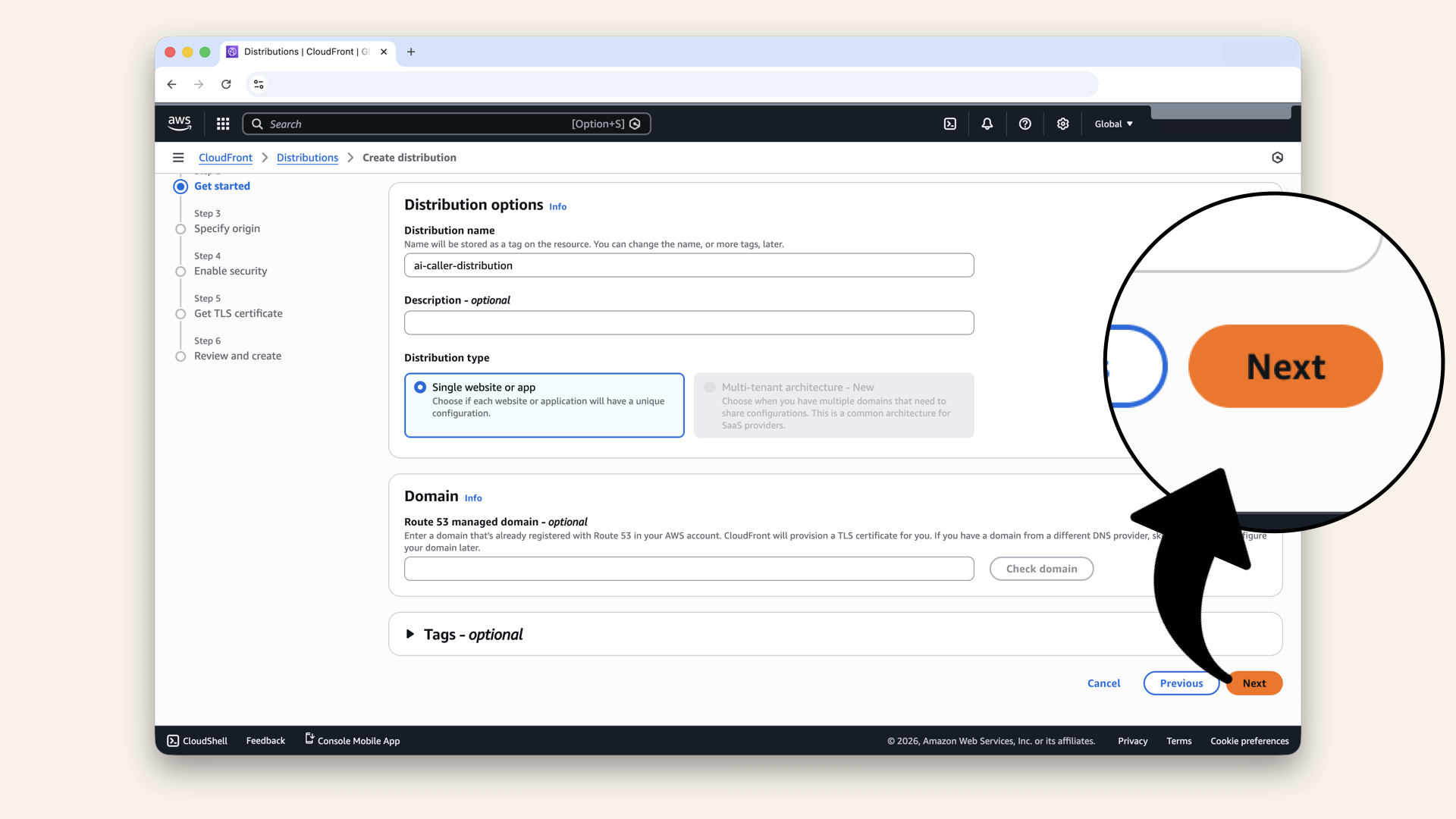
Click Next
Step 5.3: Origin settings
Select Amazon S3 as Origin type: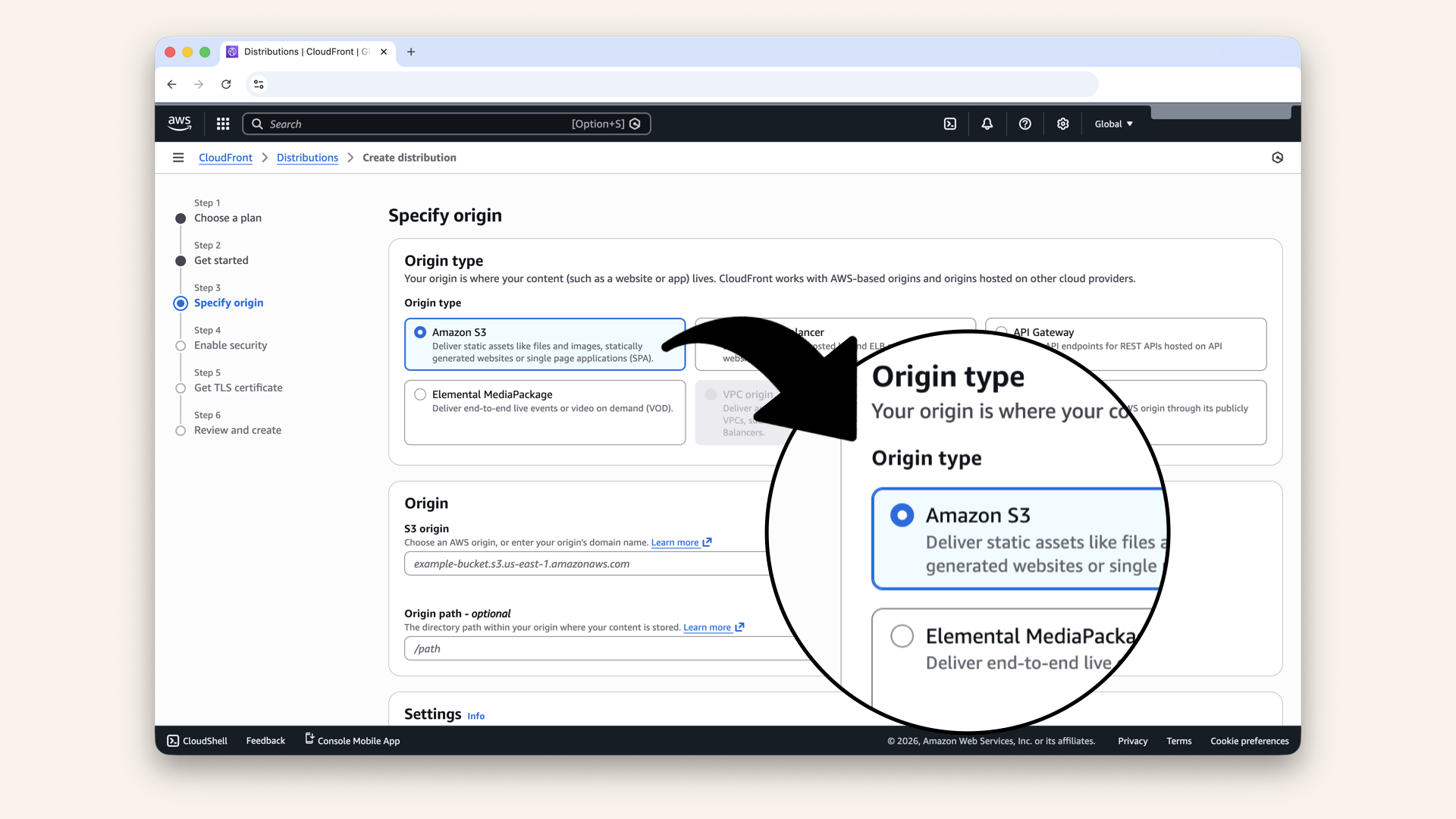
Select Amazon S3 as Origin type
Add these origin settings:
| Field | Value |
|---|---|
| Origin domain | Paste your S3 website endpoint: (NOT the bucket name dropdown!) |
| Protocol | HTTP only |
| Name | Keep default |
Paste your S3 website endpoint:
(NOT the bucket name dropdown!):
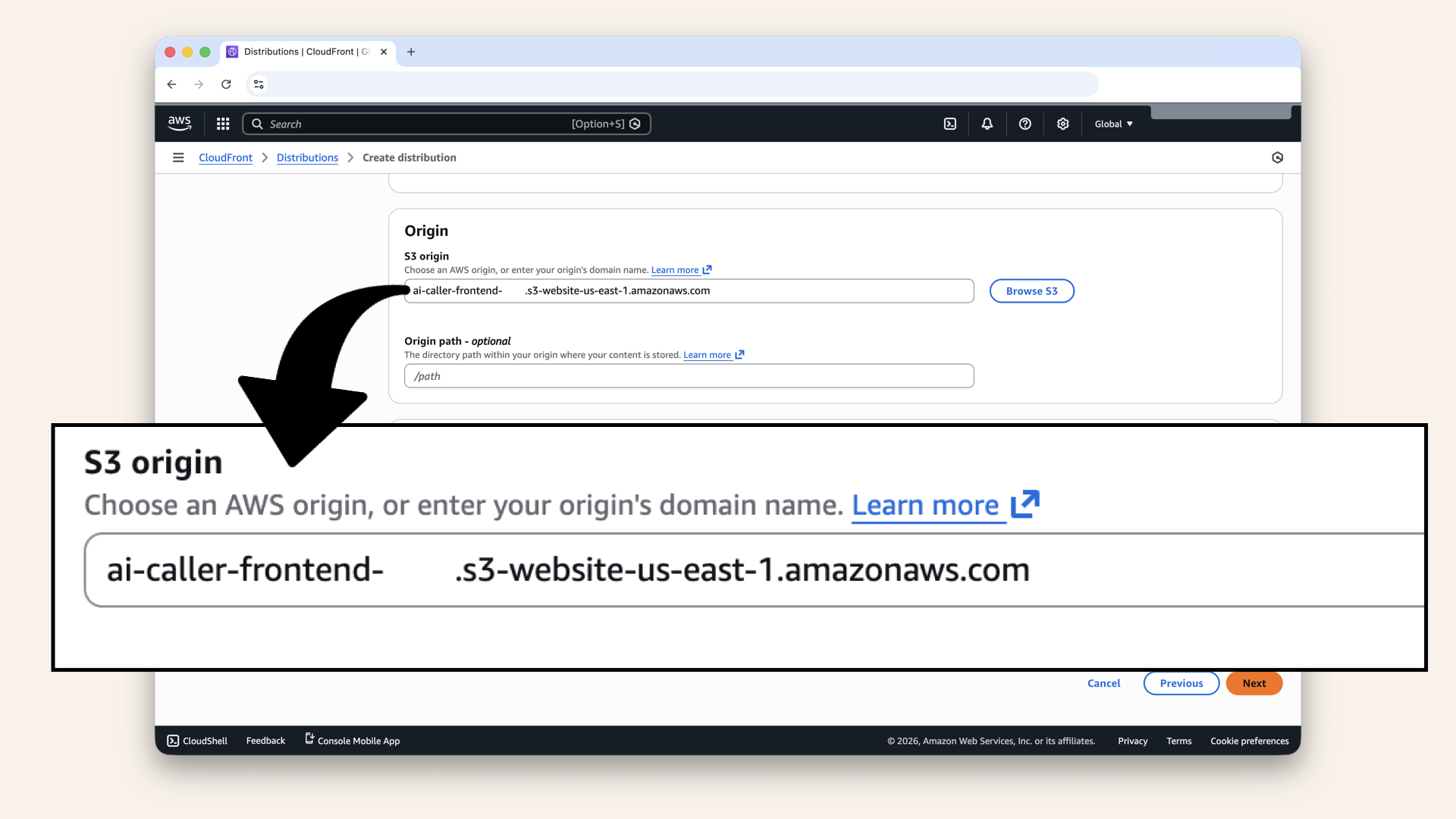
Paste your S3 website endpoint (NOT the bucket name dropdown!) and click Next
Don't select the bucket from the dropdown (that's for S3 API access).
Do paste the website endpoint:
{BUCKET_NAME}.s3-website-us-east-1.amazonaws.comThis ensures proper routing for React Router.
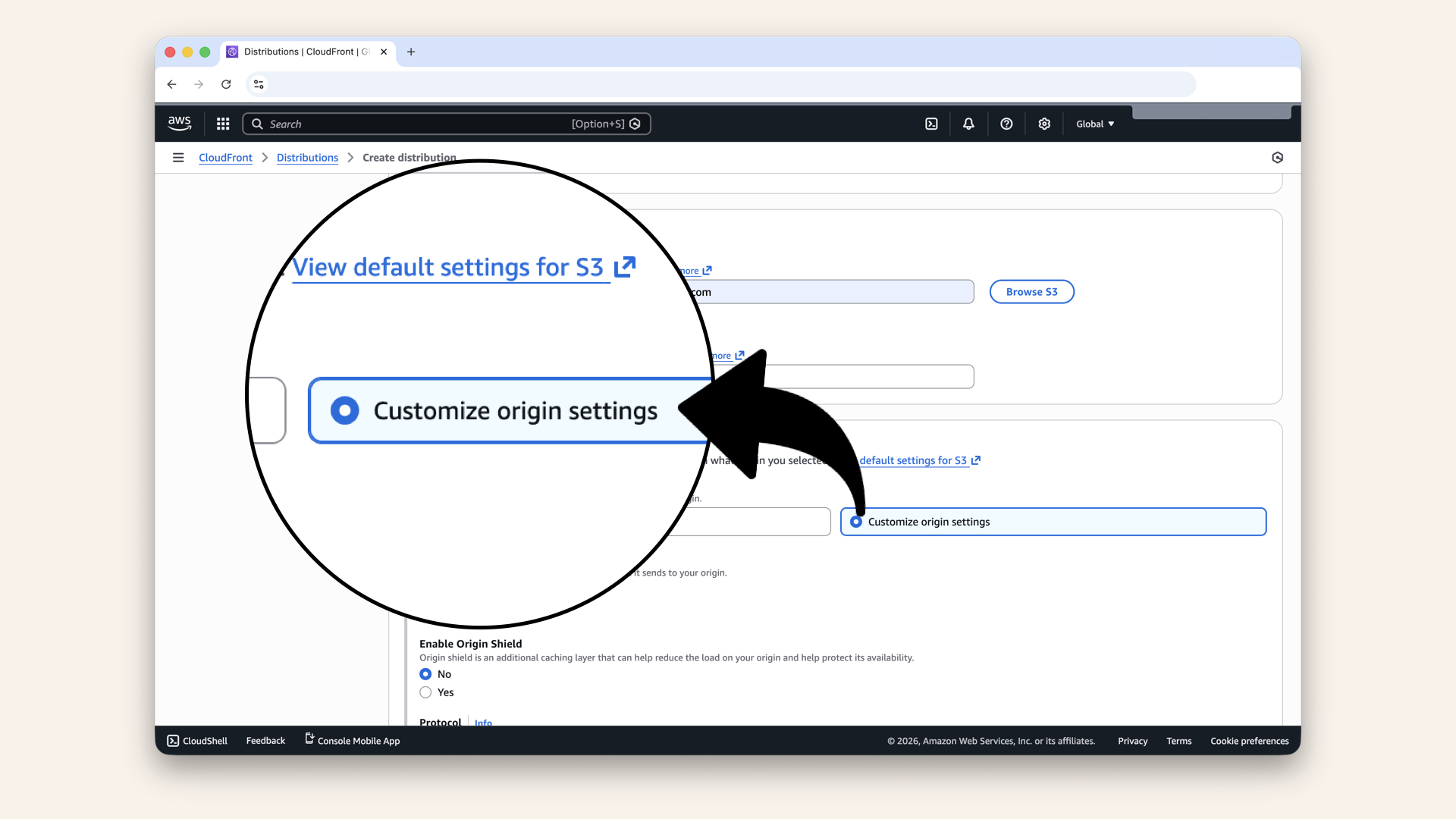
Click Customize origin settings
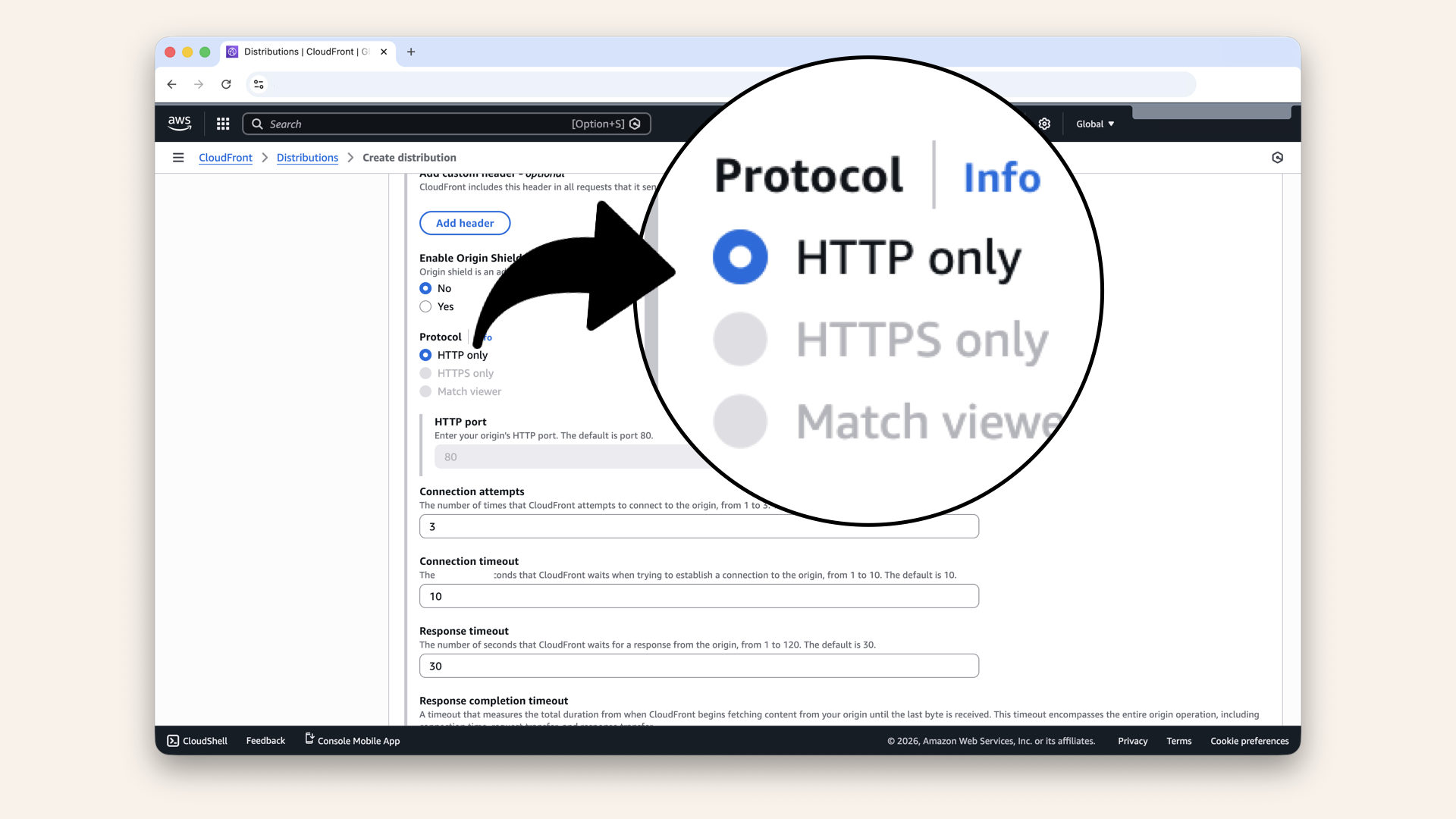
Click HTTP only
Default cache behavior:
Keep defaults (these are good for SPAs).
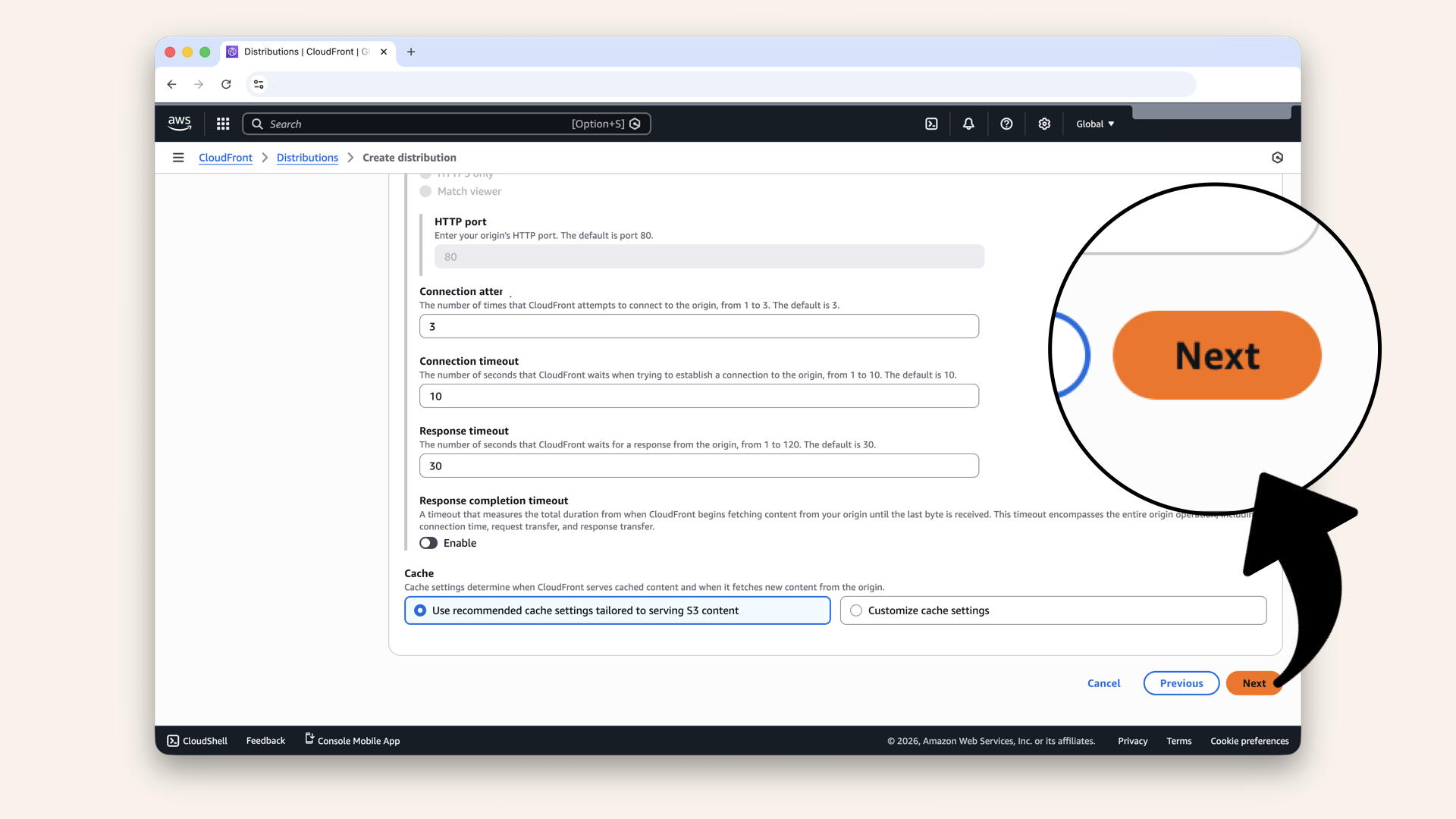
Click Next
Step 5.4: Enable security
The free plan includes WAF (Web Application Firewall) at no extra cost.
WAF settings:
| Field | Value |
|---|---|
| Use monitor mode | ❌ Leave unchecked |
You free plan automatically protects against:
✅ Common web vulnerabilities (SQL injection, XSS)
✅ Malicious actors probing for weaknesses
✅ Known bad IP addresses (AWS threat intelligence)
Monitor mode just logs threats without blocking them, we want actual protection, so leave it unchecked.
You'll see "Protection against Layer 7 DDoS attacks" grayed out, that's a Business plan feature ($200/month).
Don't worry! The Free plan still includes basic DDoS protection at the network level.
For a learning project, that's plenty.
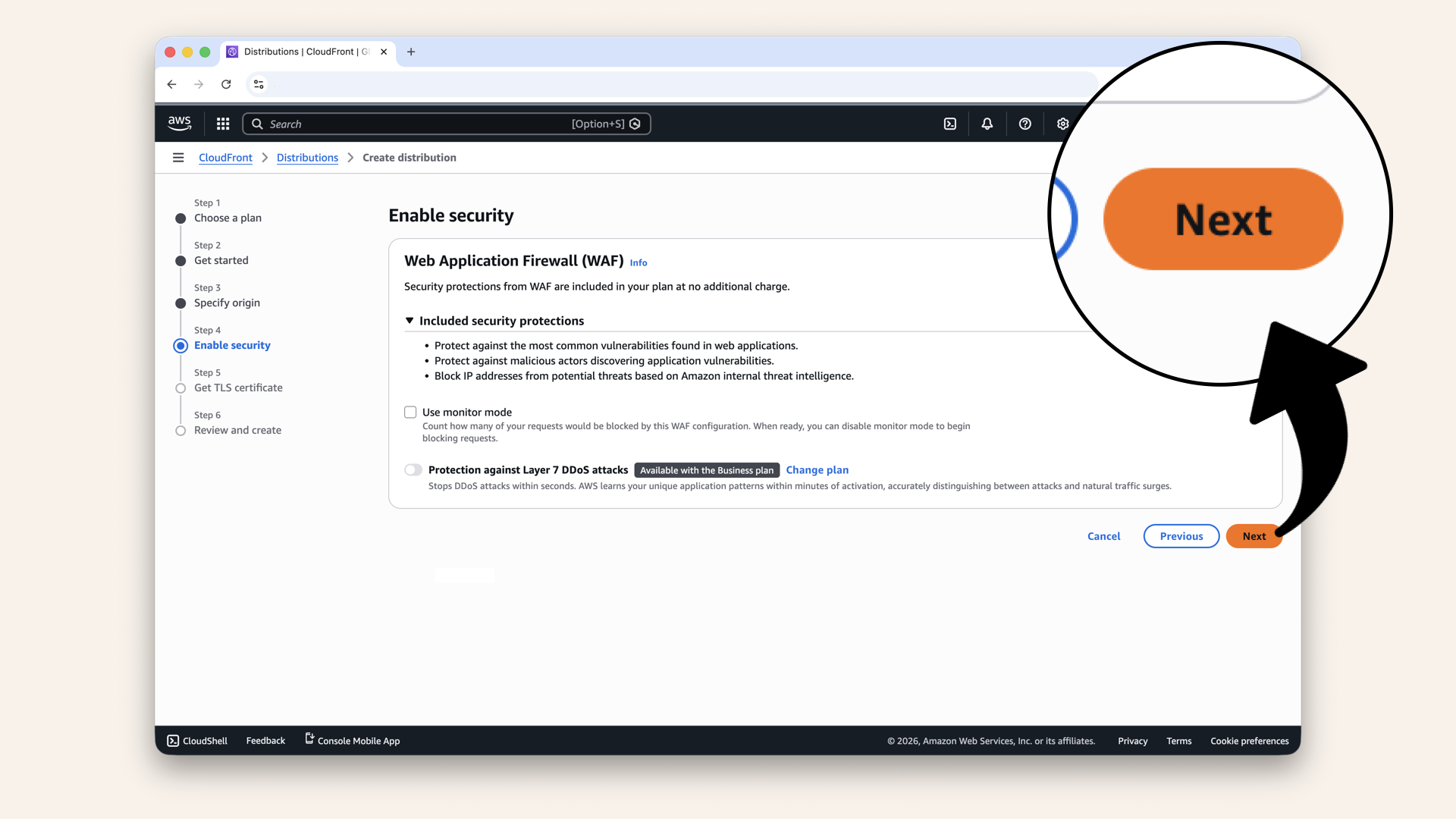
Leave "Use monitor mode" unchecked and click Next
Step 5.5: TLC certificate
Remember the SSL certificate you created on Day 11? It's already here!
CloudFront automatically found your certificate from AWS Certificate Manager:
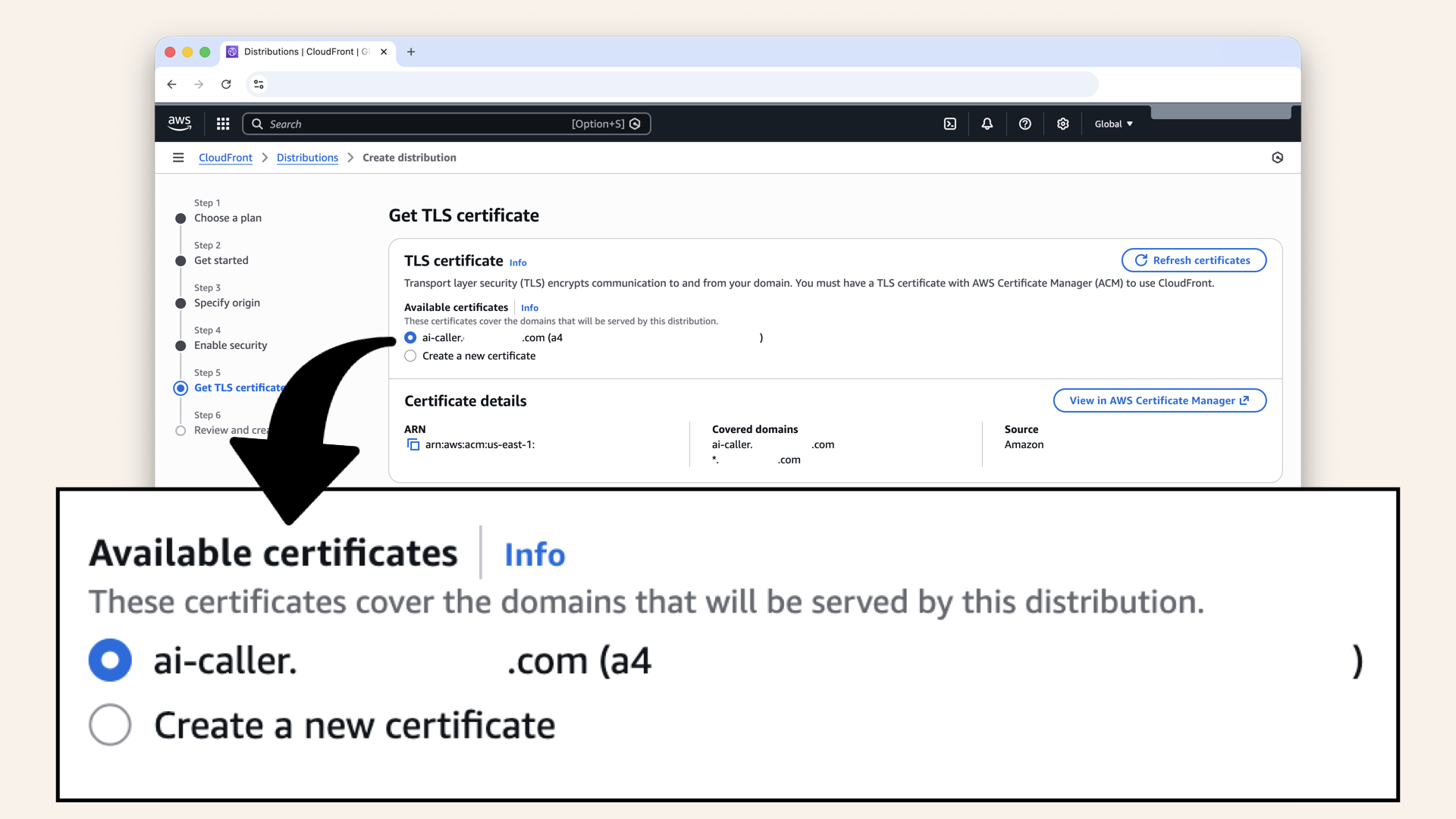
CloudFront automatically found your certificate from AWS Certificate Manager
Select your certificate:
| Field | Value |
|---|---|
| Available certificates | Select your certificate (e.g., ai-caller.yourdomain.com) |
You'll see the Certificate details:
- ARN: your certificate's unique identifier
- Covered domains:
ai-caller.yourdomain.comand the wildcard*.yourdomain.com - Source: Amazon
This is why we created a wildcard certificate (*.yourdomain.com) on Day 11 ↗.
It covers app.yourdomain.com and any other subdomain you might add later.
Without having to request a new certificate.
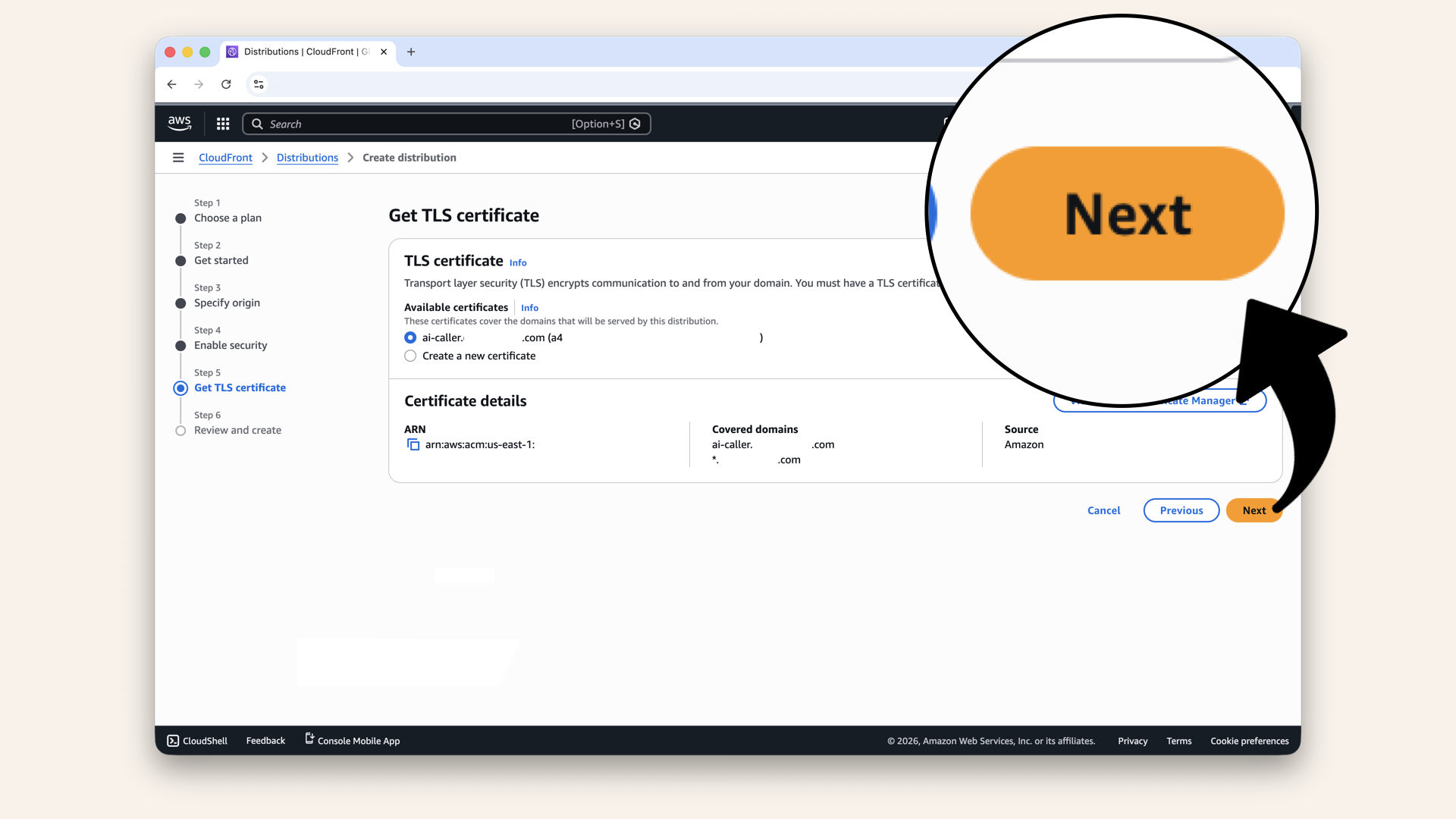
Click Next
Step 5.6: Review and create
Scroll down and review your settings:
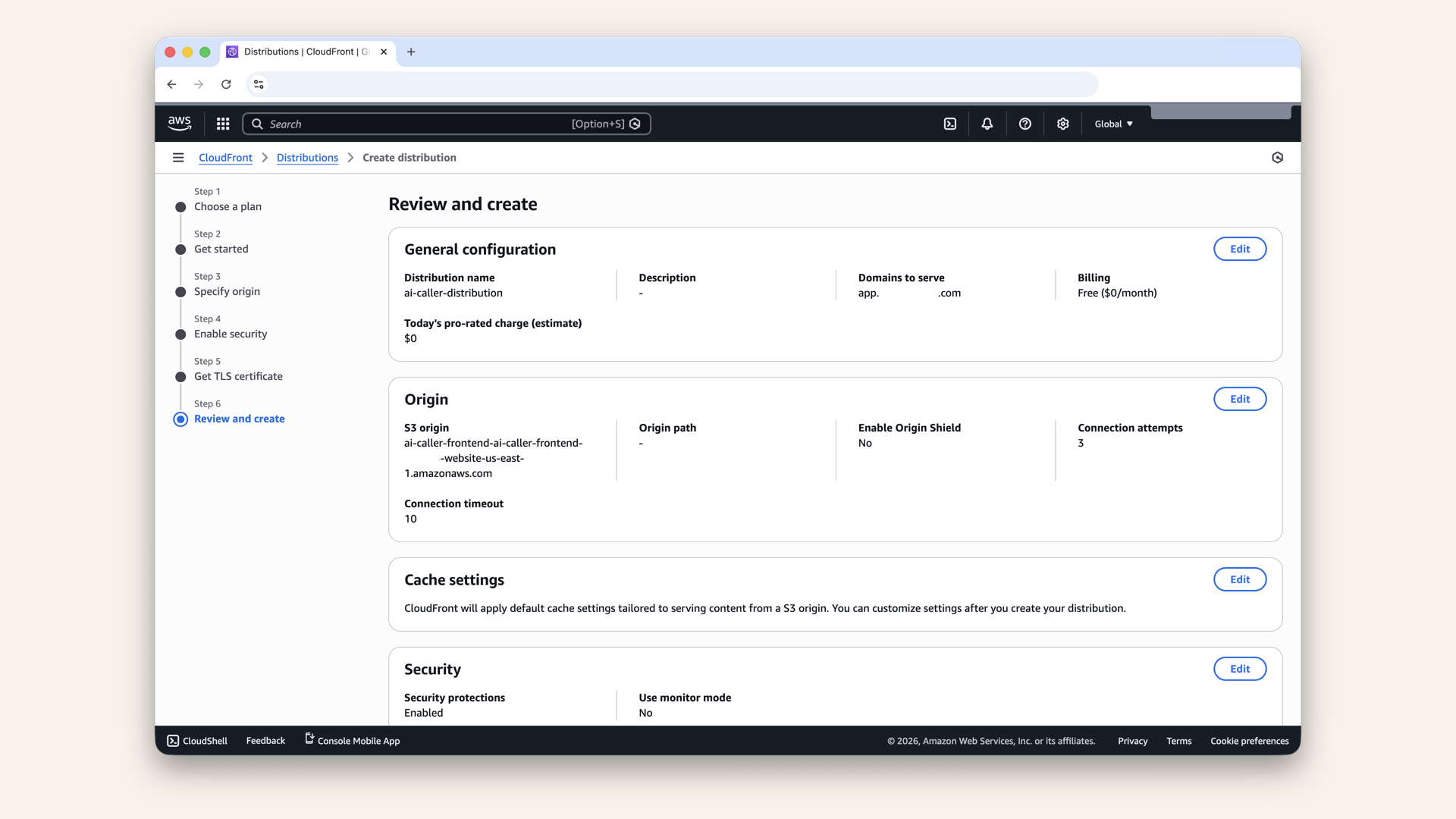
Scroll down and review your settings
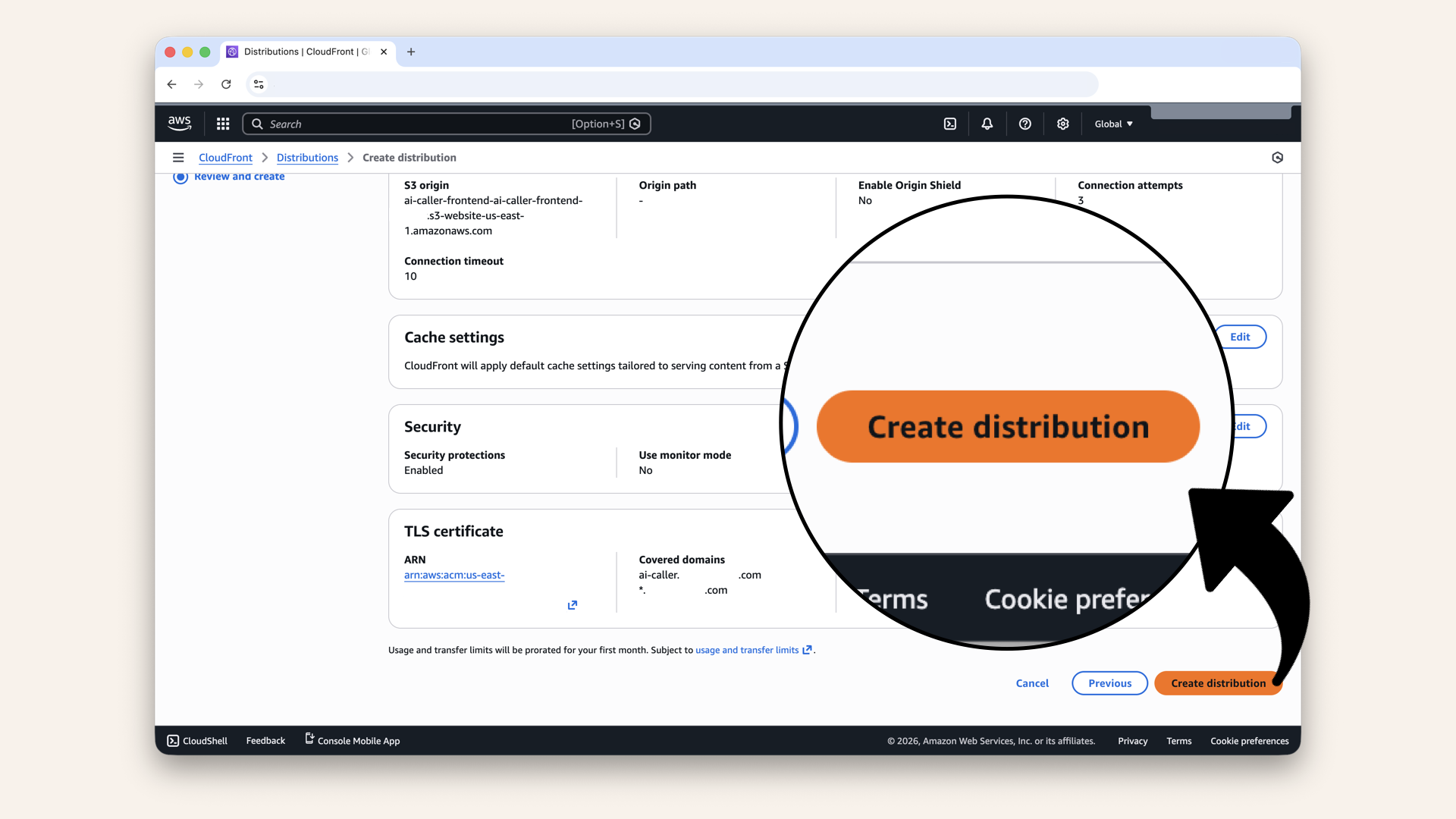
Scroll all the way down and click Create distribution
✅ You should see "Successfully created new distribution":
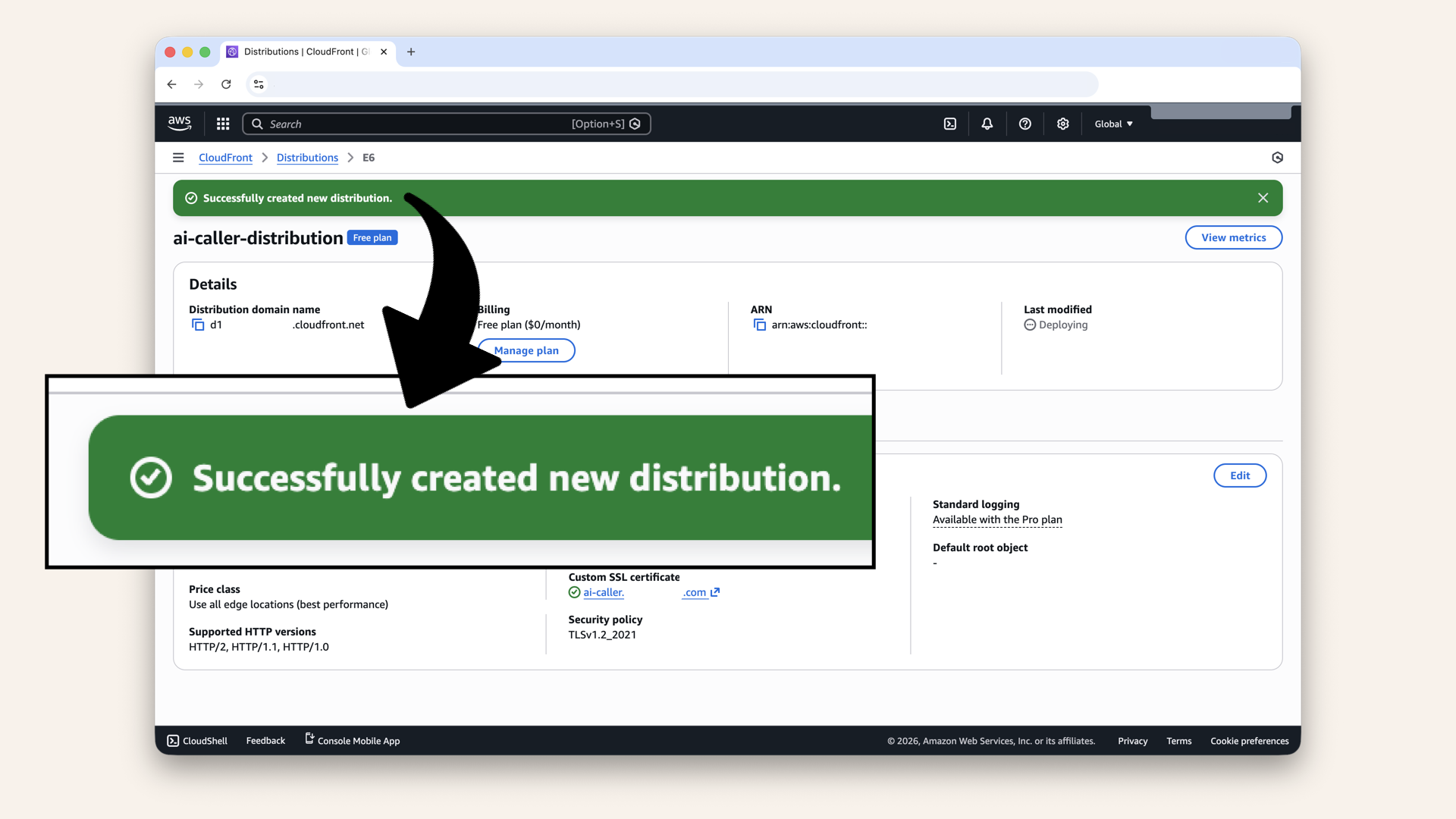
You should see "Successfully created new distribution"
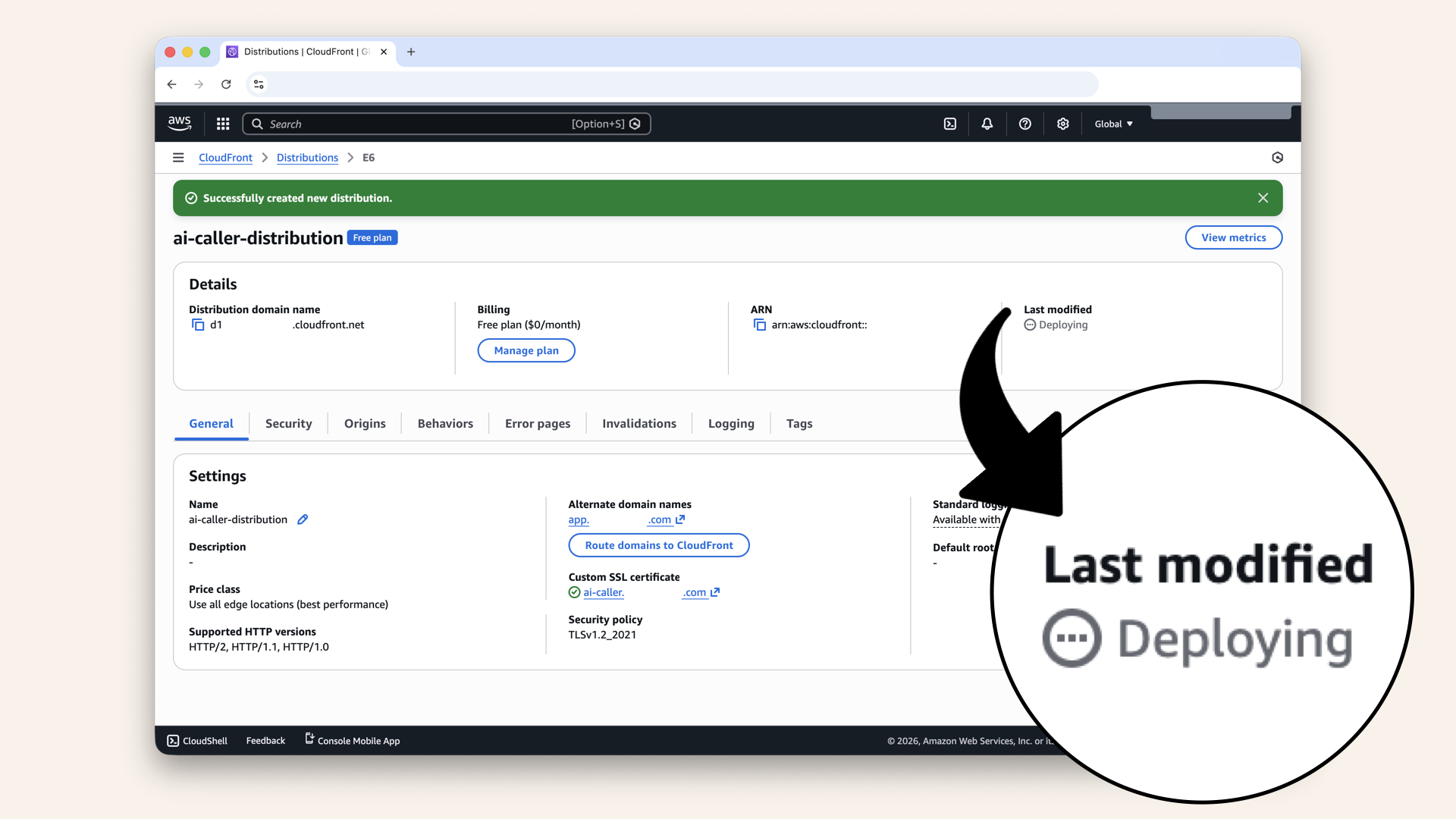
Wait 5-10 minutes for CloudFront to deploy
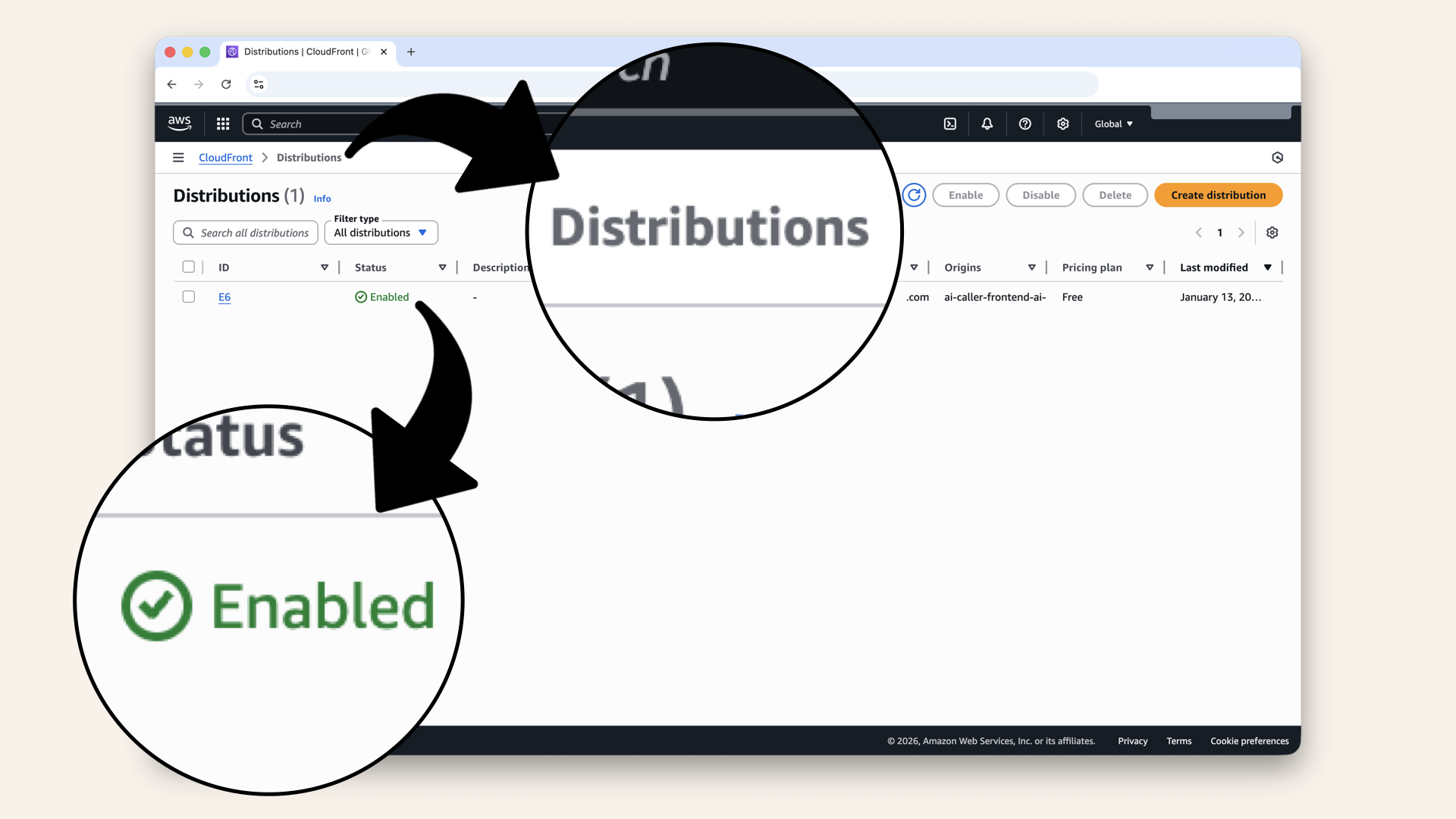
Once you see deploying shift to enabled CloudFront is successfully deployed
✅ Once you see deploying shift to enabled CloudFront is successfully deployed.
Step 6: Add custom domain
In the search bar at the top, type route 53 and click Route 53 from the dropdown menu: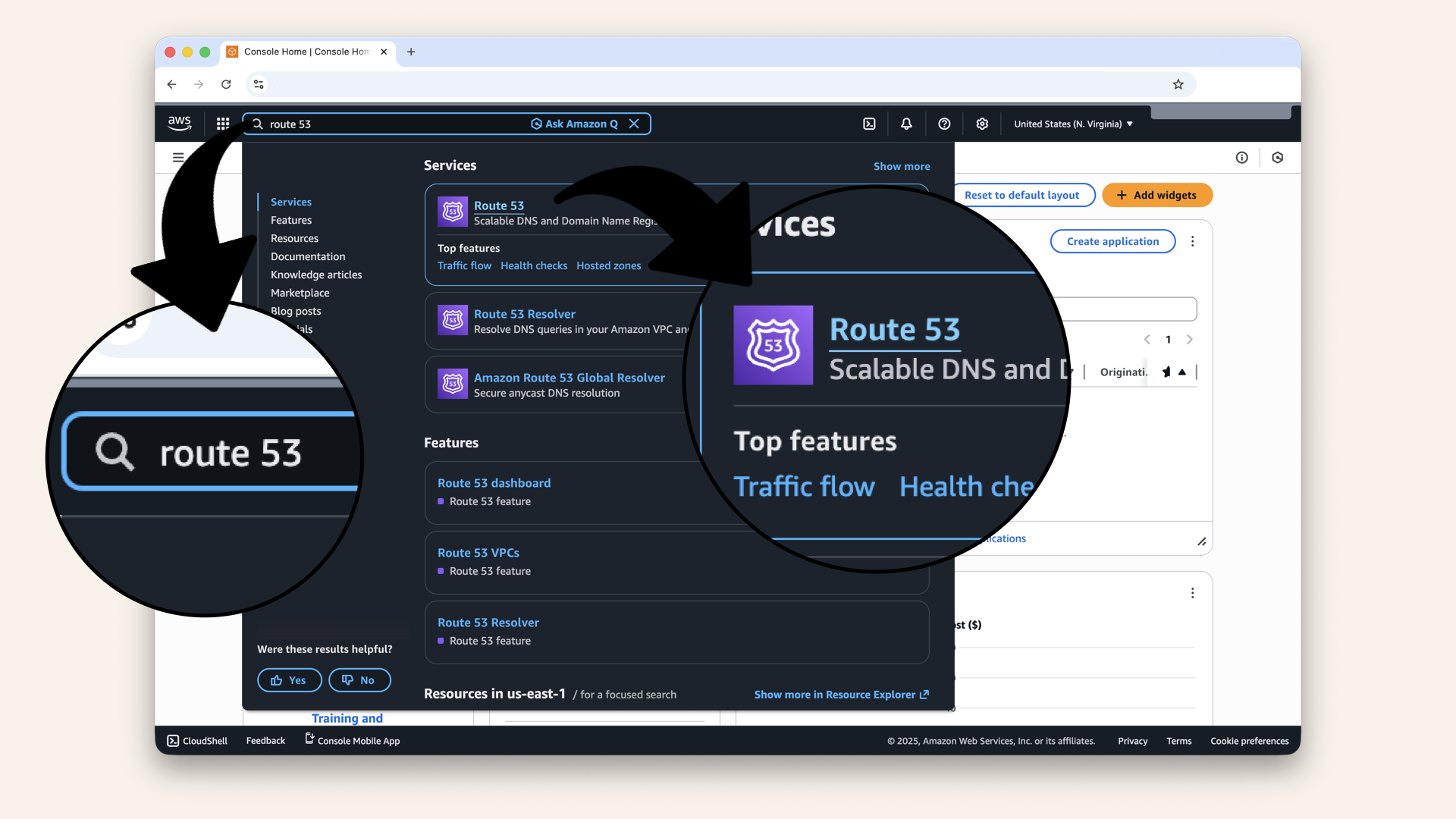
In the search bar at the top, type route 53 and click Route 53 from the dropdown menu
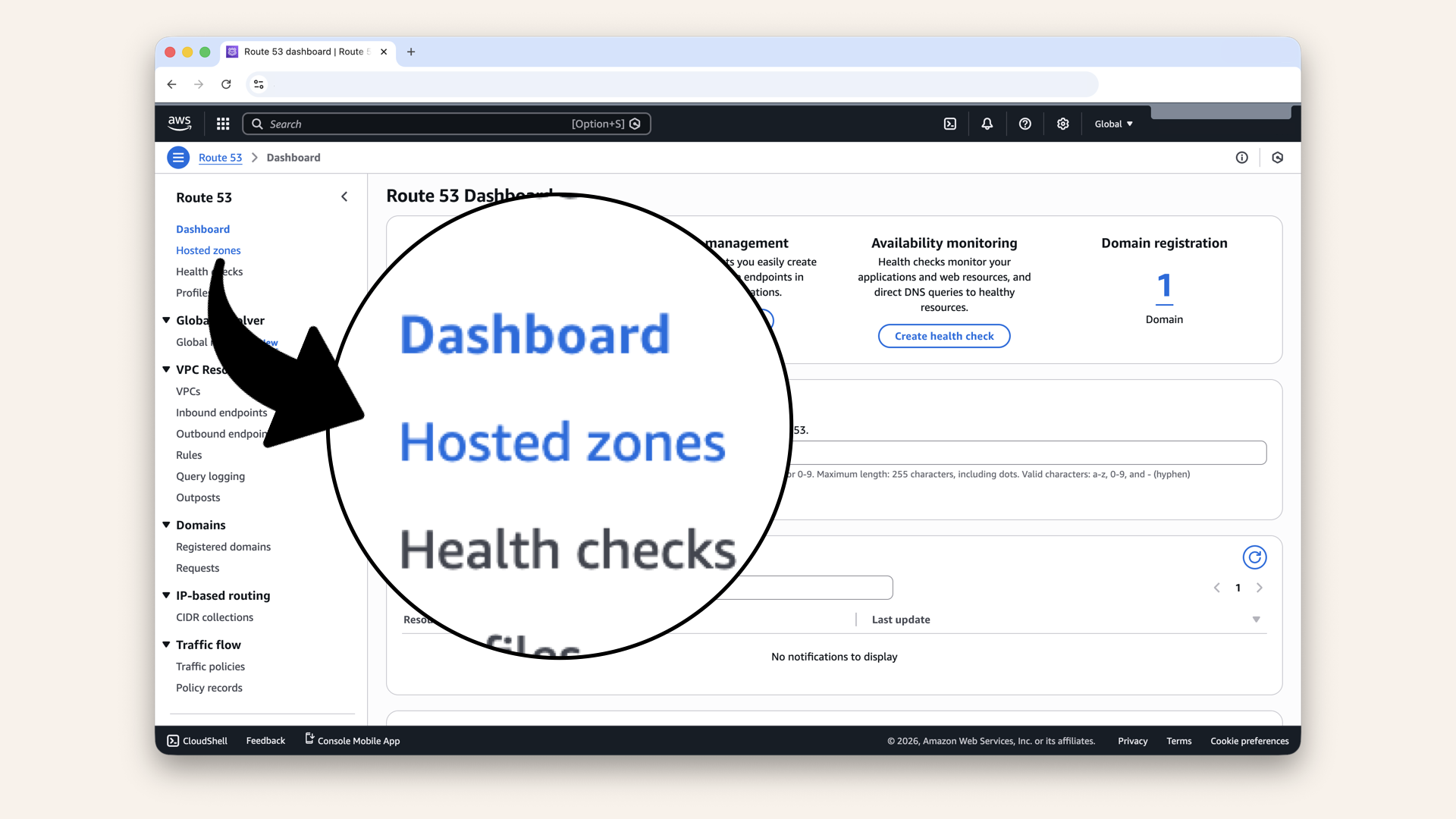
Click Hosted zones in the left menu
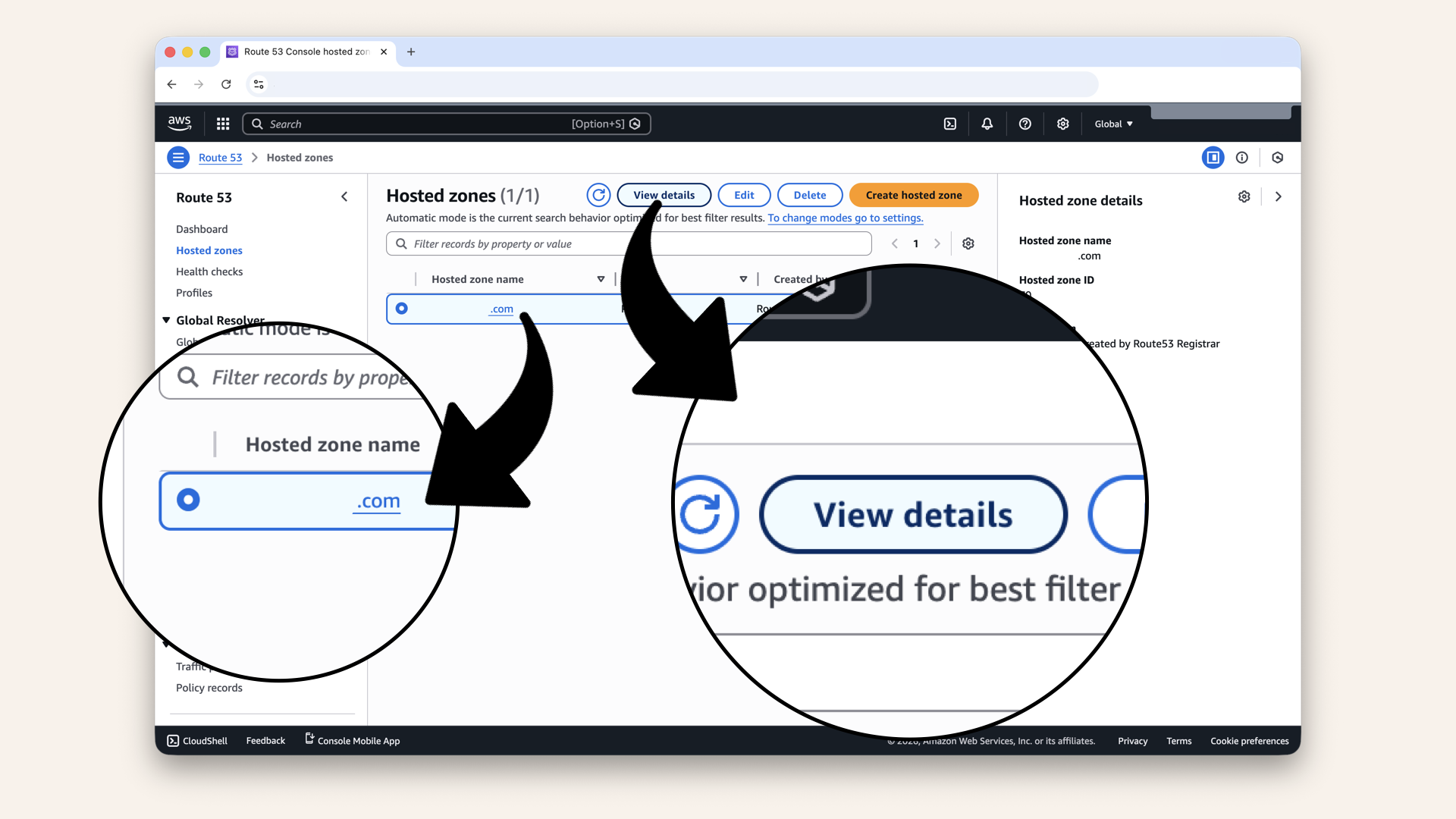
Click your domain then click View details
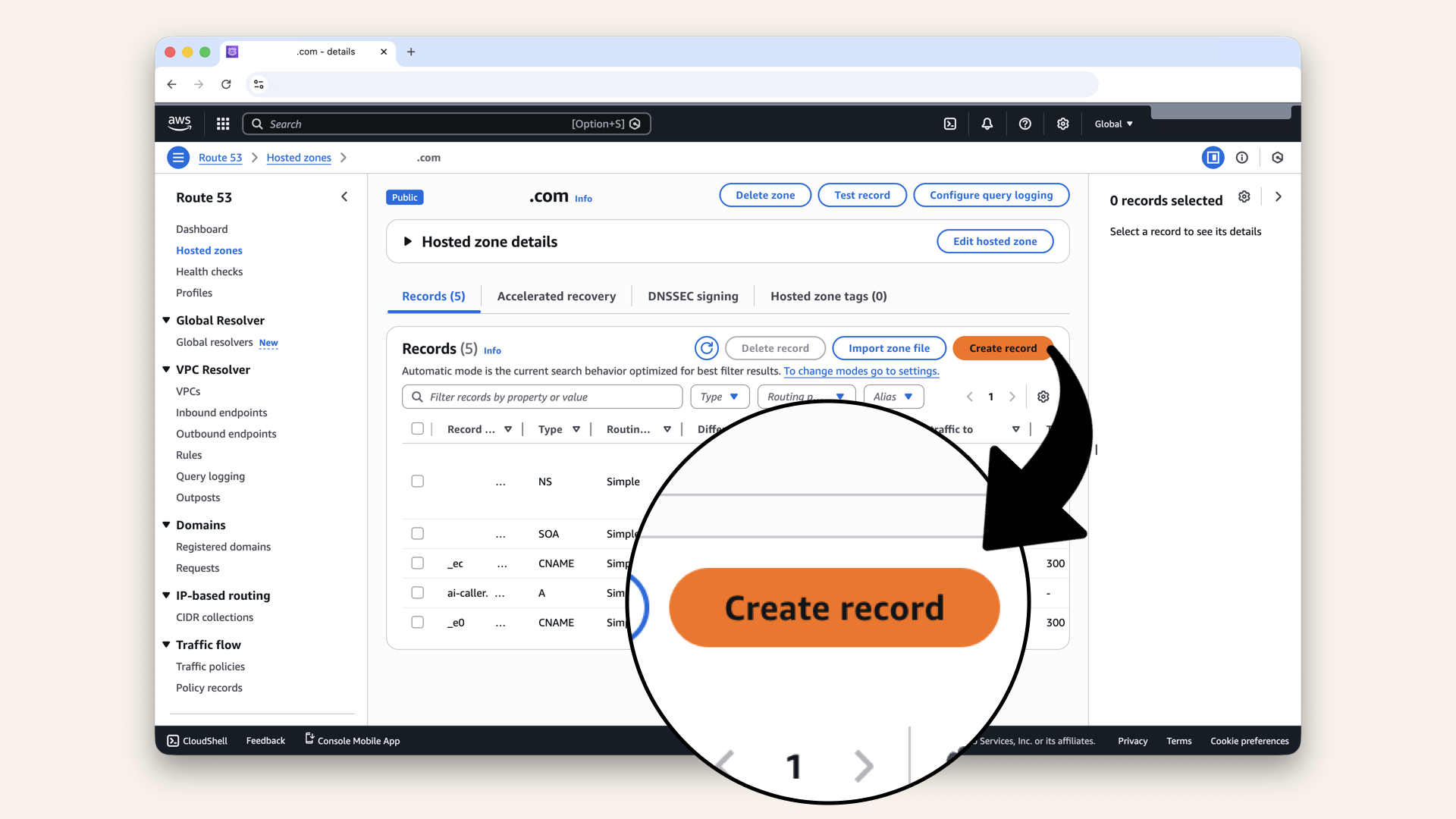
Click Create record
Add these values:
| Field | Value |
|---|---|
| Record name | |
| Record type | A |
| Alias | ✅ ON |
| Route traffic to | Alias to CloudFront distribution |
| Distribution | Select your CloudFront distribution |
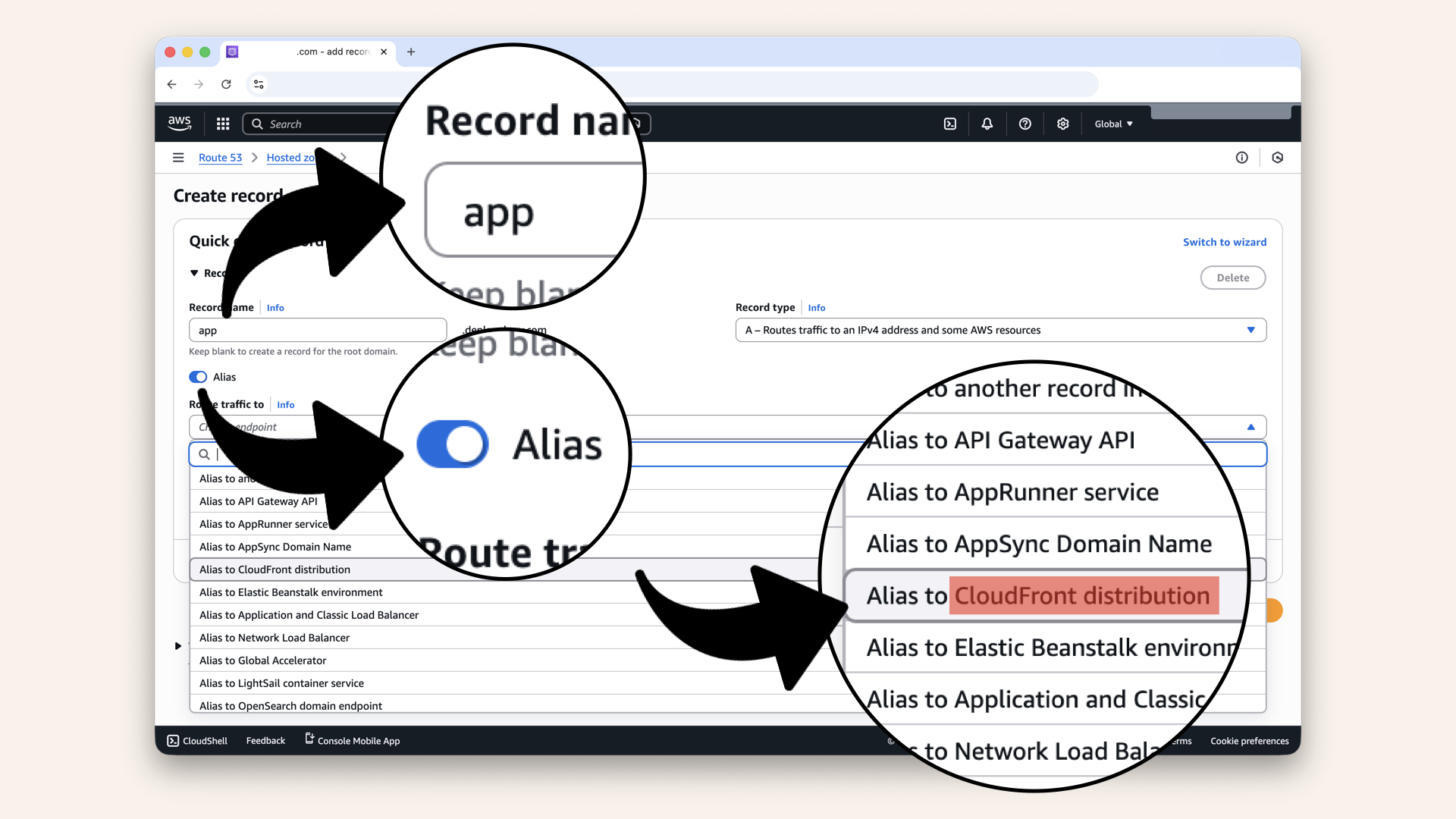
Check Alias and select CloudFront distribution in the dropdown
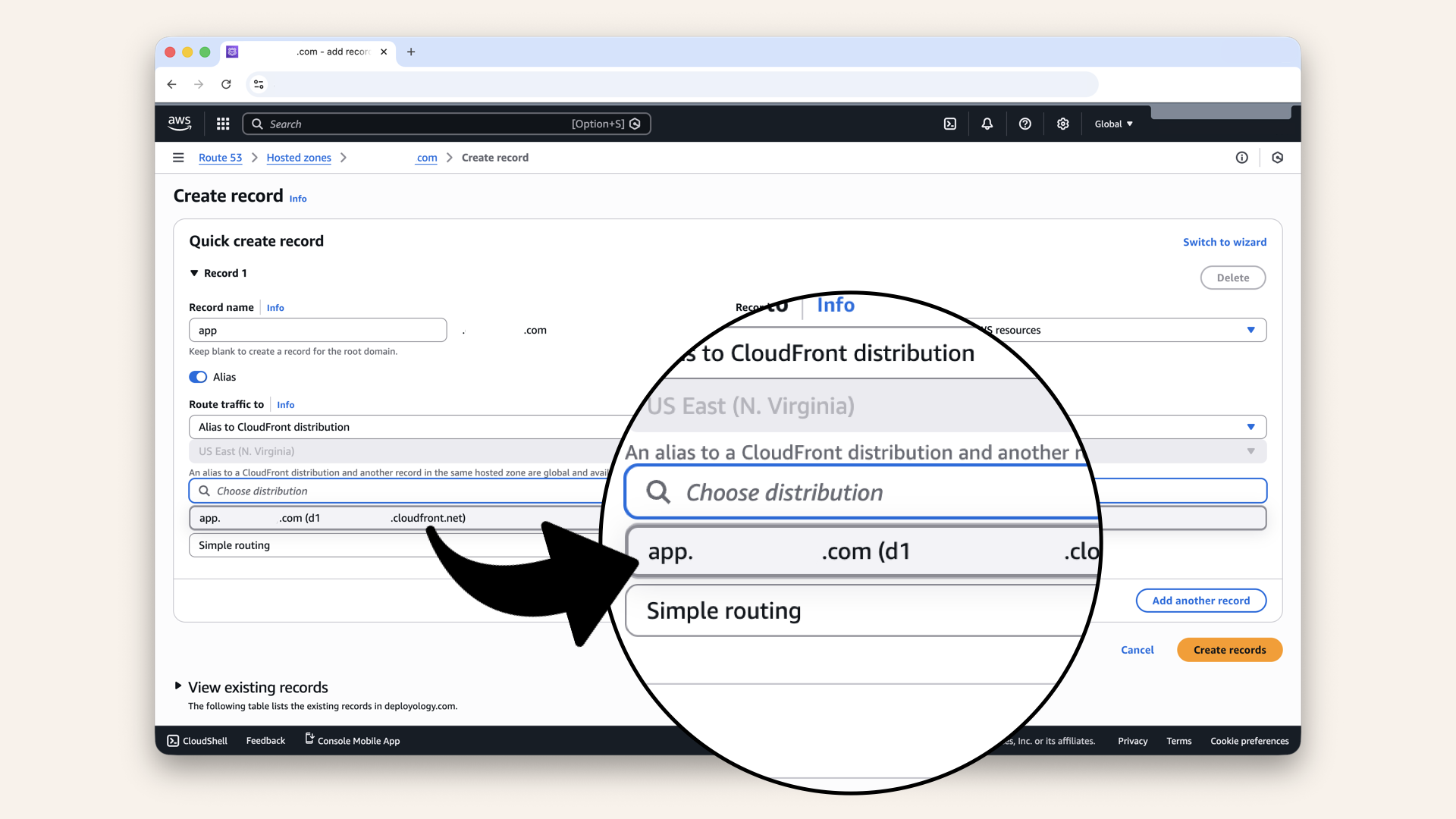
Select your CloudFront distribution from the dropdown
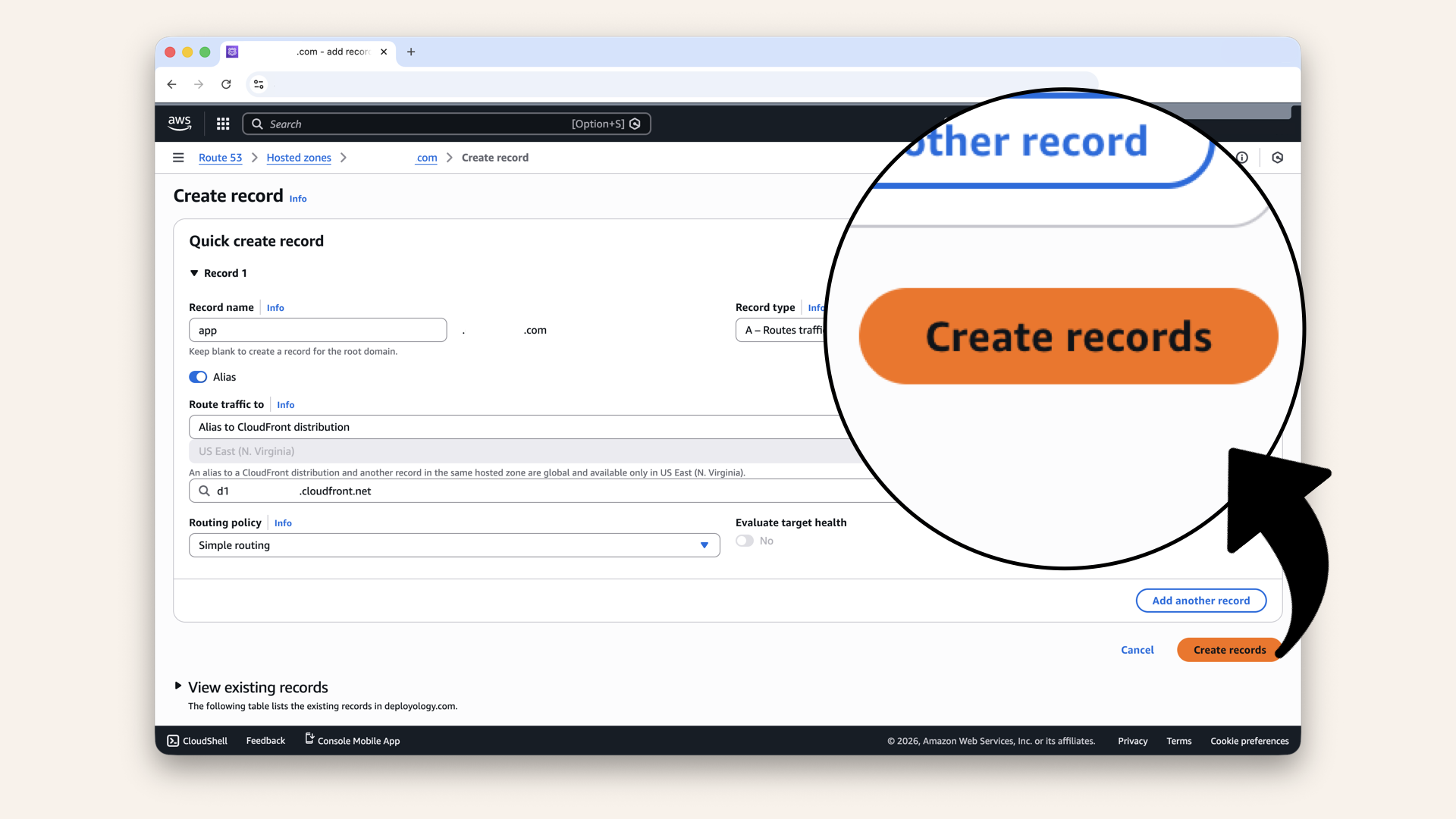
Click Create records
✅ You should see "Successfully created record":
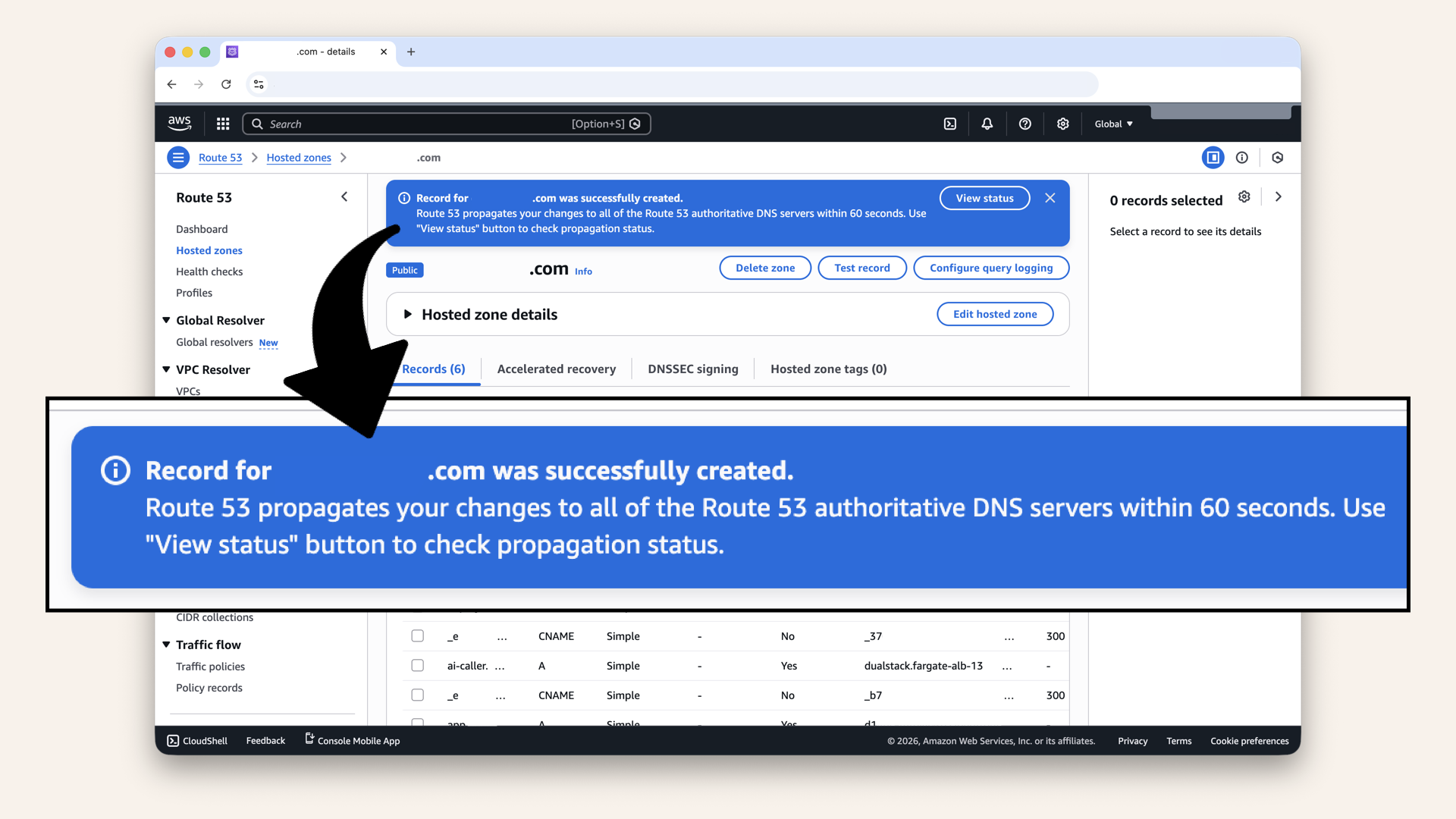
You should see "Successfully created record"
Step 7: Test your protected app
Visit:https://app.yourdomain.com
Your protected app is live:
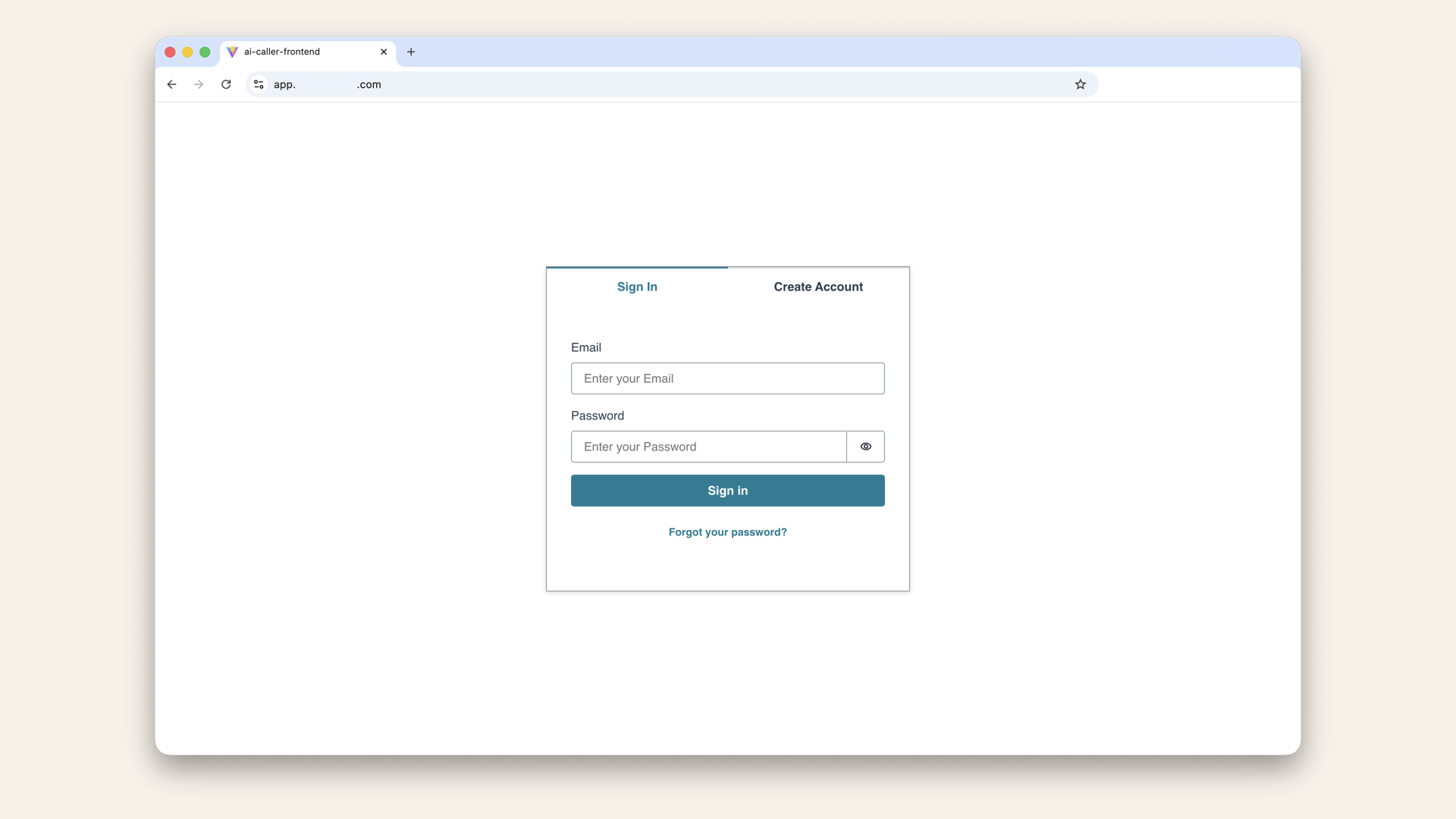
Your protected app is live
You should see:
✅ HTTPS (green padlock 🔒 depending on browser)
✅ Login page (Amplify UI)
✅ Fast loading (CloudFront CDN)
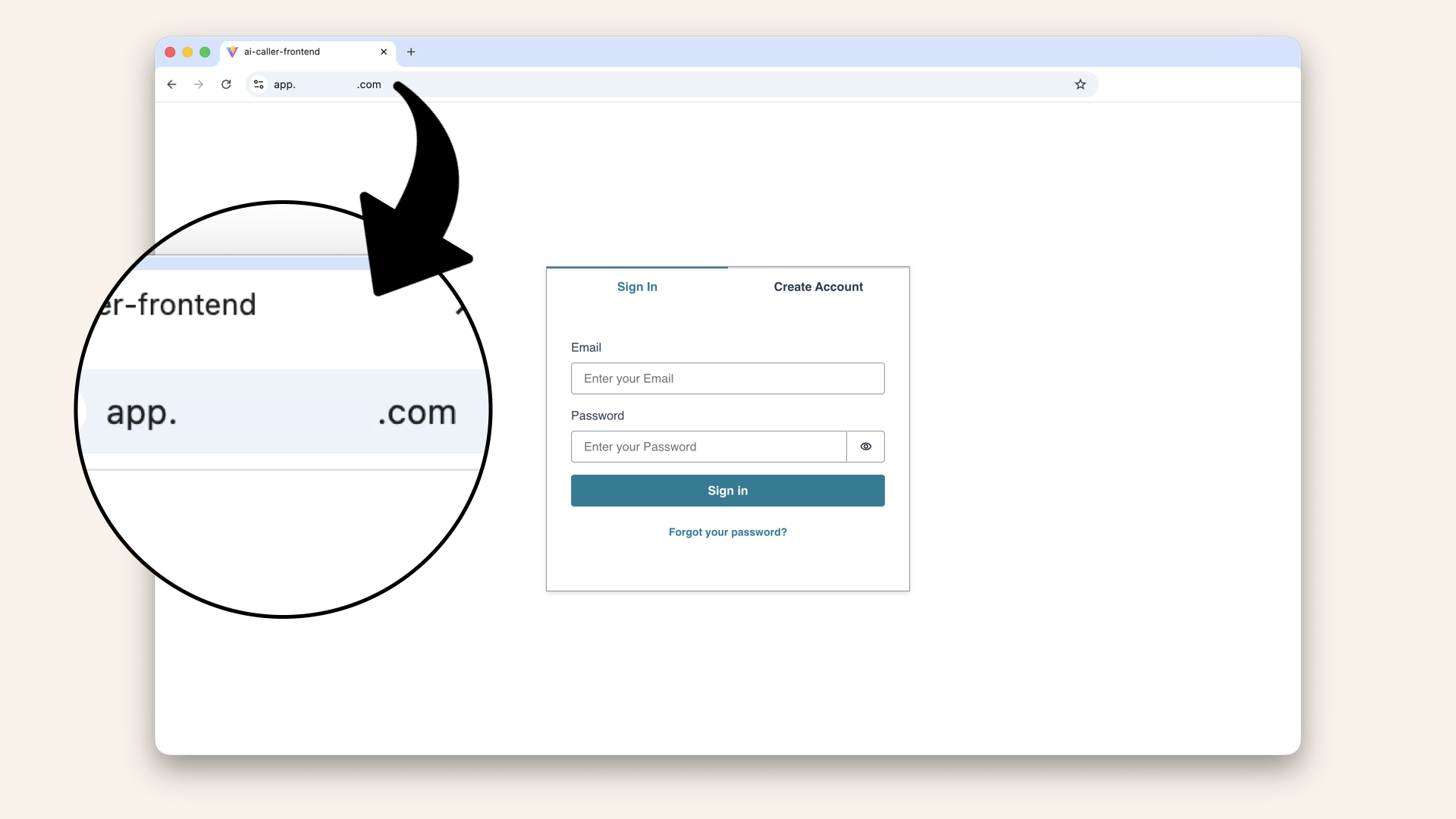
You should see the login screen
Try the full flow:
- Click "Create Account"
- Enter email + password (min 8 chars, uppercase, number, special char)
- Check email for verification code
- Enter code
- Login
- See your protected app 🎉
If you tried to use the same email as when you used the localhost:5173 you'll see the error message saying "User already exists":

If you tried to use the same email as when you used the localhost:5173 you'll see the error message saying "User already exists"
Here's how to delete the test user before testing the full flow:
Head back to AWS Console ↗ In the AWS Console search bar at the top, type cognito and click Cognito from the dropdown menu:
In the search bar at the top, type cognito and click Cognito from the dropdown
Click the left menu button and then click User pools in the left menu
You'll see your user pool, click on it
Click Users in the left menu
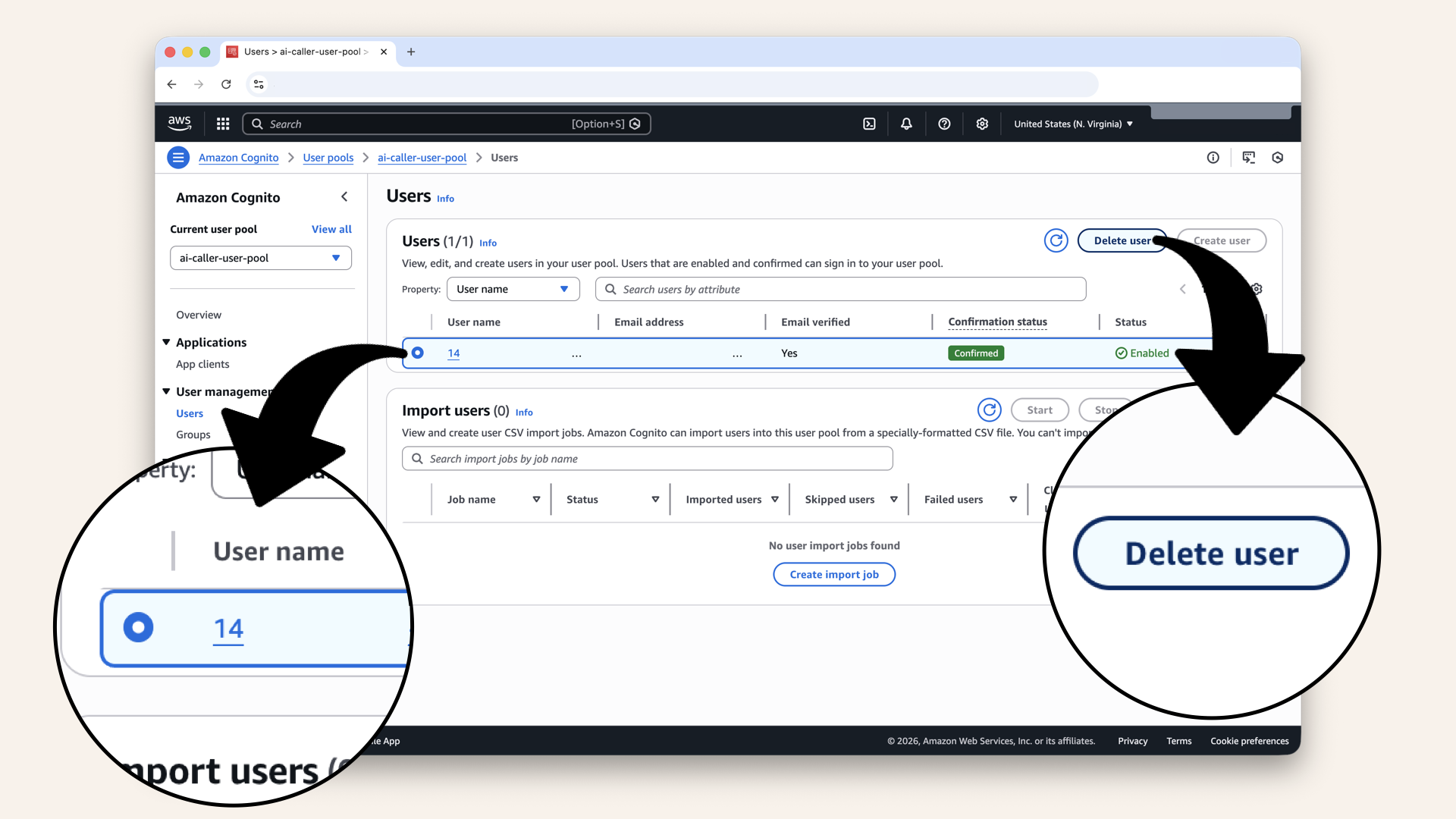
Click on the user and click Delete user
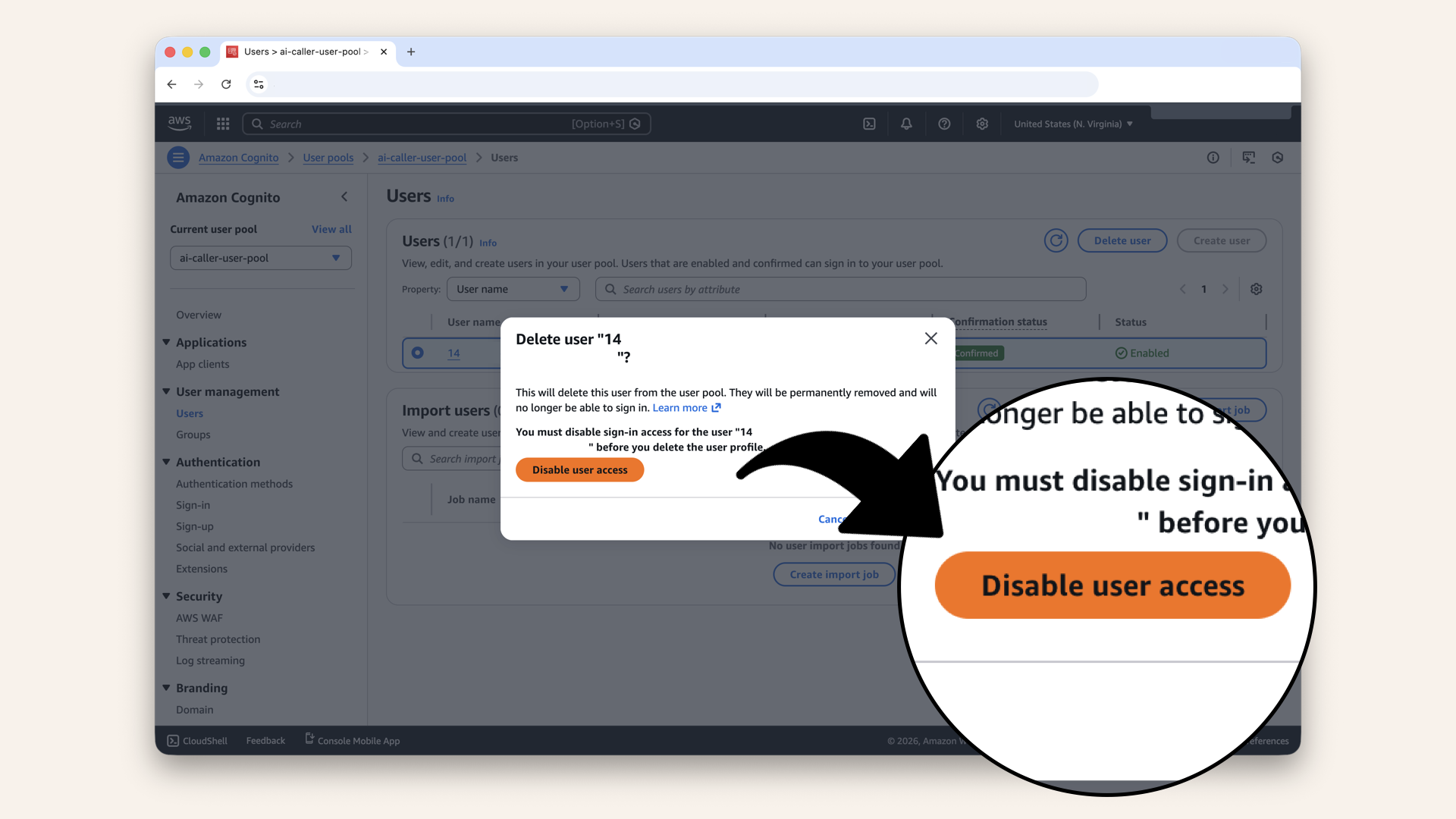
Click Disable user access
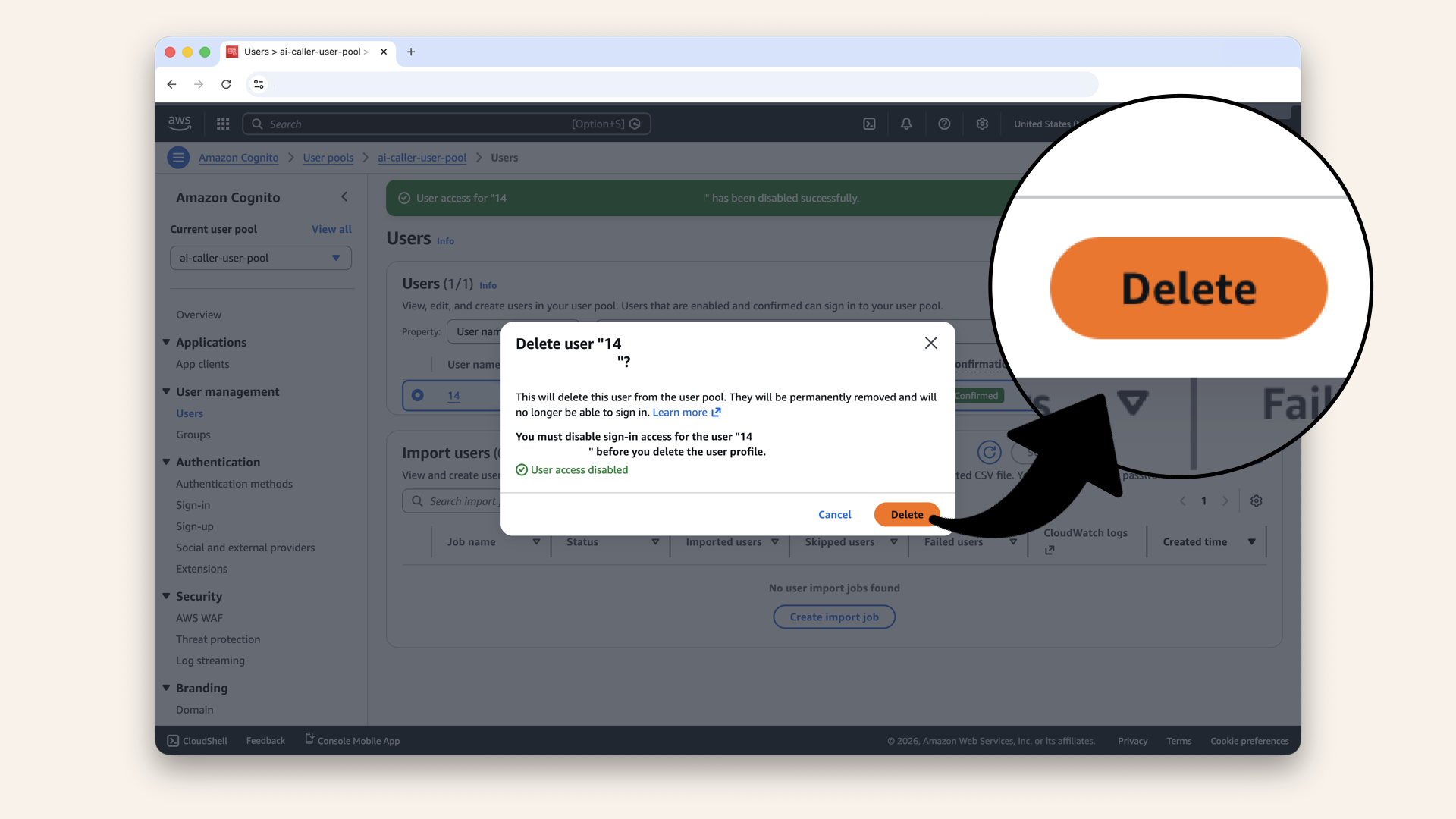
Click Delete
✅ You should see "User successfully deleted":
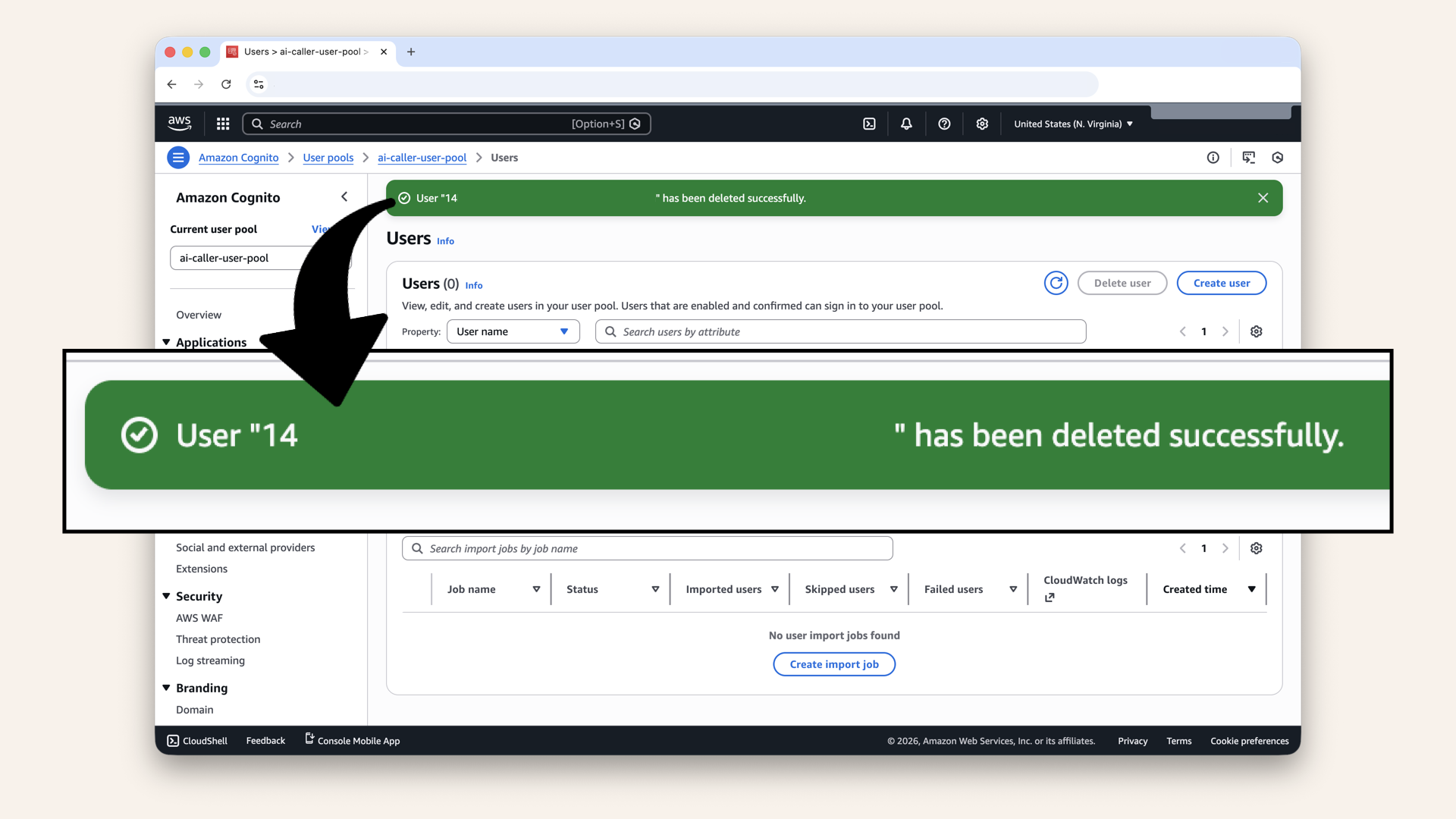
You should see "User successfully deleted"
Today's win
If you completed all steps:
✅ Created Cognito User Pool for auth
✅ Built Vite + React frontend
✅ Integrated Amplify UI for login/signup
✅ Protected app with authentication
✅ Deployed to S3 for static hosting
✅ Added CloudFront for HTTPS + CDN
✅ Configured custom domain
✅ Tested full signup/login flow
You now have a secure frontend.
Before:
- Anyone could access your API endpoint
- Infinite OpenAI/Twilio bills possible
After:
- Must login to access app
- Only authorized users
- Protected from unauthorized use ✅
Tomorrow, we deploy the actual AI containers.
Understanding what you built
The auth flow:
Security layers:
- HTTPS encryption
- Cognito authentication
- JWT tokens
- Email verification
- Strong password policy
- Protected routes in React
This is production-grade auth 🔐
Costs
Cognito:
- Free tier: 10,000 MAUs (monthly active users)
- After free tier: $0.015 per MAU (as of Jan 2026)
- For development/small apps: free
S3:
- Storage: $0,023 per GB/month
- Requests: $0.0004 per 1,000 GET requests
- For a small frontend: ~$0.10/month
CloudFront:
- First 1 TB: effectively $0 (free), then $0.085 per GB beyond that
- 10 million requests: effectively $0 (free), then $0.0075 per 10,000 requests
- For low traffic: typically around ~$0-1/month
Total for this setup: ~$1-2/month
Common mistakes (and how to avoid them)
❌ Mistake #1: Wrong Cognito IDs
Result: Auth doesn't work, blank page
Fix: Double-check User Pool ID and Client ID in aws-exports.js
❌ Mistake #2: Client secret generated
Result: Auth fails with "client secret required"
Fix: Edit app client → Regenerate without client secret
❌ Mistake #3: Using S3 bucket name instead of website endpoint in CloudFront
Result: React routing breaks, 404 errors
Fix: Use S3 website endpoint, not bucket name
❌ Mistake #4: Forgetting to make S3 bucket public
Result: CloudFront return 403 errors
Fix: Add bucket policy allowing public GetObject
❌ Mistake #5: Wrong S3 origin URL in CloudFront
Result: 404 Not Found with "NoSuchBucket" error
Fix: Make sure you're using the S3 website endpoint (your-bucket-name.s3-website-us-east-1.amazonaws.com), not the S3 API endpoint.
Go to S3 → Your bucket → Properties → Static website hosting and copy the exact URL.
Watch for typos or duplicated bucket names.
❌ Mistake #6: Testing before DNS propagates
Result: 504 Gateway Timeout error
Fix: Wait 5-10 minutes after creating the Route 53 A record before testing your custom domain.
CloudFront needs time to deploy and DNS needs time to propagate.
Troubleshooting
Login page shows but signup fails
Check:
- Cognito User Pool allows self-registration
- Password meets requirements (8+ chars, uppercase, number, special char)
- Email is valid
- Check browser console for errors
Email verification code never arrives
Possible causes:
- Check spam folder
- Cognito free tier limit (50 emails/day)
- Email configuration issue
Workaround:
- Go to Cognito → Users → Find user → Confirm account manually
CloudFront shows "No 'Access-Control-Allow-Origin' header"
This is normal for static sites.
If you add API calls later:
- Configure CORS on your API
- Add proper headers in backend
App shows blank page after login
Check:
- Browser console for errors
- Amplify configuration is correct
- User is actually logged in (check Amplify.Auth.currentAuthenticatedUser())
CloudFront shows "404 NoSuchBucket" error
Your CloudFront origin is pointing to a bucket that doesn't exist.
Common causes:
- Typo in the S3 website endpoint
- Bucket name got duplicated during setup (e.g.,
my-bucket-my-bucket-xyzinstead ofmy-bucket-xyz) - Copied the S3 bucket ARN or API endpoint instead of the website endpoint
- Selected bucket from dropdown instead of pasting website endpoint manually
Fix:
- Go to S3 → Your bucket → Properties → Static website hosting
- Copy the Bucket website endpoint (looks like
your-bucket-name.s3-website-us-east-1.amazonaws.com) - Go to CloudFront → Your distribution → Origins tab
- Click Edit and paste the correct S3 website endpoint
- Save and wait for CloudFront to redeploy (5-10 min)
Remember: The website endpoint format is:
your-bucket-name.s3-website-REGION.amazonaws.com
Copy your unique endpoint:
Not the S3 API format:
your-bucket-name.s3.amazonaws.com ❌
CloudFront shows "504 Gateway Timeout"
This usually means DNS hasn't propagated yet.
Fix:
- Wait 5-10 minutes after creating your A record
- Check CloudFront distribution status is "Enabled" (not "Deploying")
- Try the CloudFront domain directly (e.g.,
d1234abcdef8.cloudfront.net) to confirm CloudFront itself works
If it persists:
- Verify the origin domain in CloudFront points to a valid S3 website endpoint
- Check S3 static website hosting is enabled
Tomorrows preview
Today: You build a protected frontend
Tomorrow (Day 13): We deploy the AI containers! The big day!
What we'll do:
- Create ECR repository (store Docker images)
- Build Docker image from Day 1-2 code
- Push image to ECR
- Create ECS Cluster
- Create Fargate Task Definition
- Create ECS Service
- Deploy containers to private subnets
- Register with Target Group
- Make your first AI call! 📞🤖
After Day 13:
- Everything connects
- ALB → Fargate → OpenAI → Twilio
- Real AI phone calls work
- Your system is live
This is the day it all comes together.
What we learned today
1. How Cognito user pools work
Manages authentication service for user management
Think of Cognito as your guest list for the pool party. It decides who gets an invitation to your backyard pool party:
Think of Cognito as your guest list for the pool party. It decides who gets an invitation to your backyard pool party
2. AWS Amplify UI components
Pre-built React components for auth flows
3. S3 static website hosting
Cheap, scalable hosting for frontends
4. CloudFront CDN
Global content delivery network for speed + HTTPS
5. Protecting apps from unauthorized use
Why authentication is critical for APIs with costs
The frontend is deployed
Days 1-2: Local development (your laptop) ✅
Day 3: VPC (your territory) ✅
Day 4: Subnets (front yards vs back yards) ✅
Day 5: NAT Gateway (back gate) ✅
Day 6: Route Tables (the roads) ✅
Day 7: Security Groups (the bouncers) ✅
Day 8: Test Your Network (validation) ✅
Day 9: Application Load Balancer (front door) ✅
Day 10: Custom Domain (real URLs) ✅
Day 11: SSL Certificate (HTTPS) ✅
Day 12: Deploy Frontend (with auth) ← YOU ARE HERE ✅
Day 13: Deploy AI Containers ← TOMORROW!
Days 14-17: ECS Configuration & Testing
Days 18-24: Features & Polish
12 days done! 12 to go!
Tomorrow is a big day: Container deployment
Share your progress
Protected frontend deployed? Share it!
Twitter/X:
"Day 12: Deployed my protected frontend! Built with Vite + React, secured with Cognito auth + Amplify UI, hosted on S3 + CloudFront. Only authorized users can access my AI calling agent. Following @norahsakal's advent calendar 🎄"
LinkedIn:
"Day 12 of building AI calling agents: Deployed a secure frontend with AWS Cognito authentication. Users must sign up/login before accessing the app, critical for preventing unauthorized API use. Used Vite, React, Amplify UI, S3, and CloudFront. Production-ready security!"
Tag me! I want to celebrate your progress! 🎉
But if you want:
✅ Complete codebase (one clean repo)
✅ Complete walkthroughs
✅ Support when stuck
✅ Production templates
✅ Advanced features
Join the waitlist for the full course (launching February 2026):
Let's chat about your use case!
Schedule a free call ↗ - no pitch, just two builders talking.
Tomorrow: Day 13 - Deploy AI Containers 🚀📞
Read Day 13 ↗
See you then!
— Norah